
How to Add an Accountant in Paychex Flex
Providing an accountant or bookkeeper with secure access to Paychex Flex allows them to pull reports and view relevant company data without granting them payroll processing permissions. This guide walks you through how to add an accountant in Paychex Flex, from creating a new user account to assigning the correct role and verifying permissions.
Video: How to Give Your Accountant Access to Paychex Flex | Step-by-Step Tutorial by Mario Almanzar (2026). All credit for the demonstration goes to the creator; watch the original on YouTube. The written guide below was generated from this video by Docsie. Creator? Request a change or removal.
Providing an accountant or bookkeeper with secure access to Paychex Flex allows them to pull reports and view relevant company data without granting them payroll processing permissions. This guide walks you through how to add an accountant in Paychex Flex, from creating a new user account to assigning the correct role and verifying permissions.
Prerequisites
- You must have administrator access to Paychex Flex with permission to manage users and roles.
- If your account manages multiple companies, you will need to select the specific company for which you are granting access, since access is assigned one company at a time.
- You will need the accountant's or bookkeeper's legal first name, legal last name, phone number, and email address.
Return to the dashboard and go to the People section
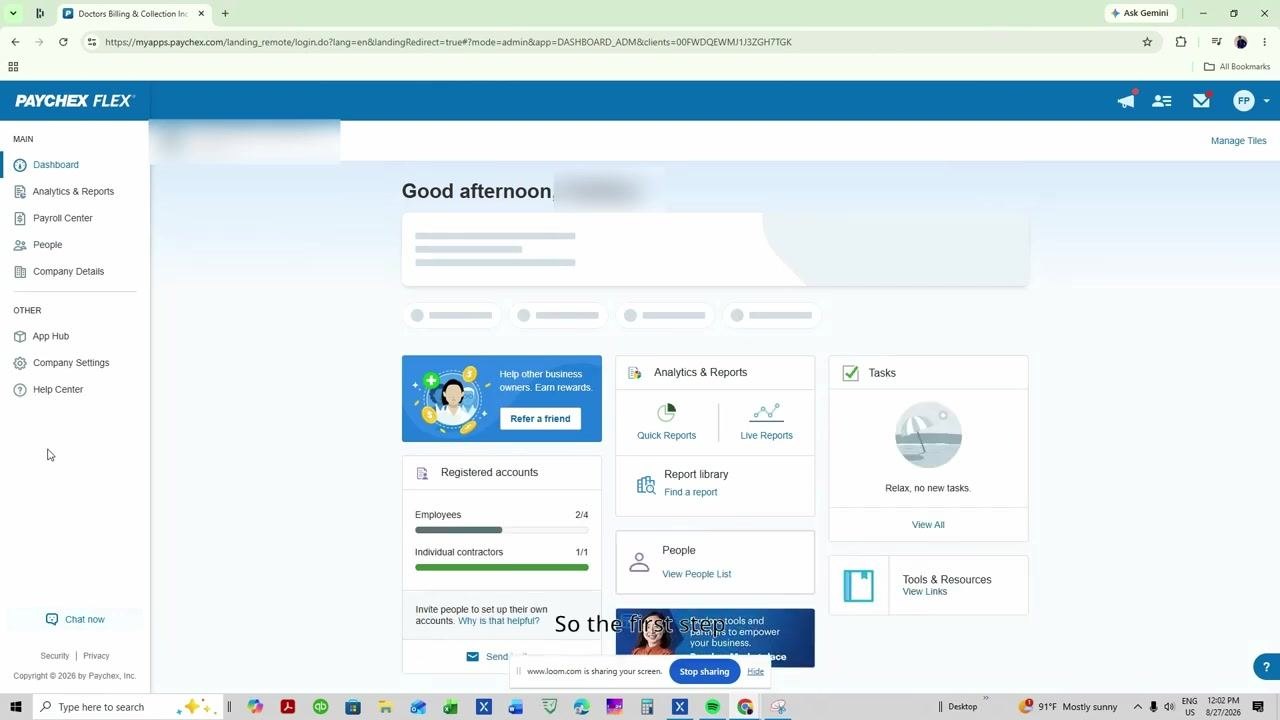
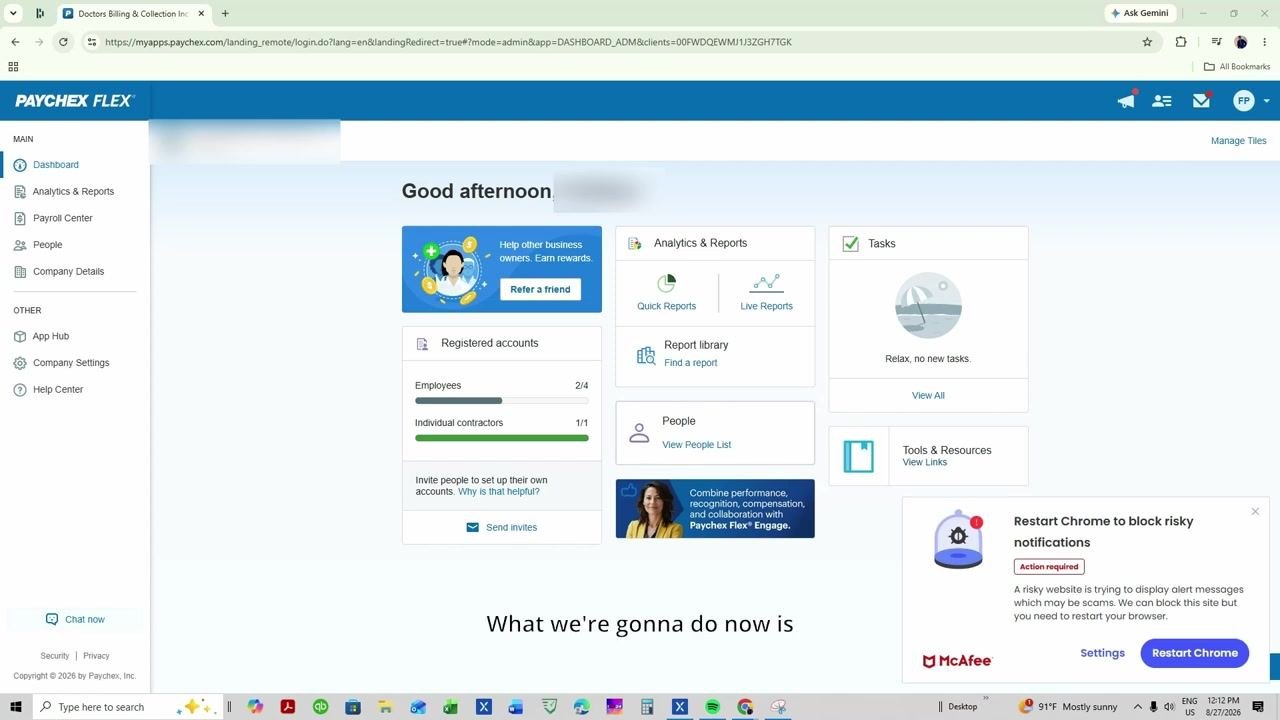
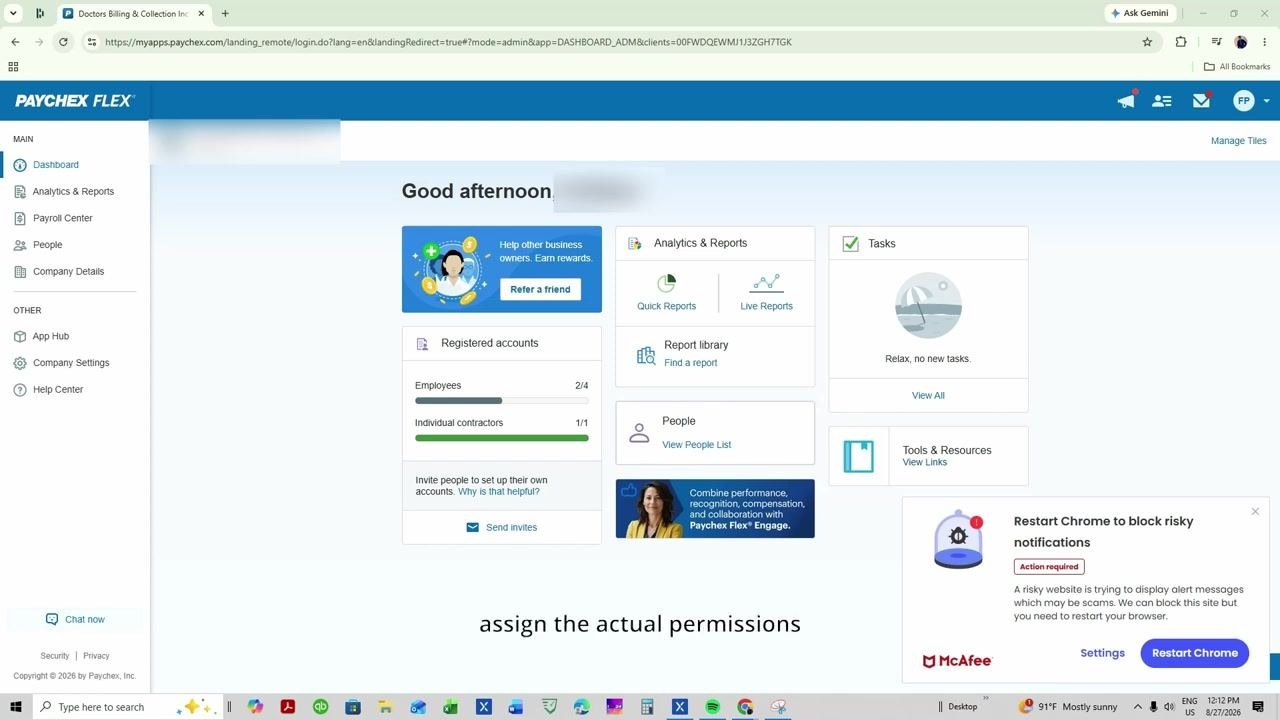
From any screen, navigate back to the main dashboard. The dashboard displays widgets such as "Analytics & Reports," "Tasks," "Registered accounts," and "People."
In the left-hand navigation menu, click People. This opens the People management screen, where you can view and manage users.
Add a new user
In the People section, locate and click the Add button at the top right of the People List panel. A menu appears with different options for adding users. From the options presented, select User to add a new user account.
Choose the company for access
If your account manages multiple companies, select the specific company to which you want to provide access. Remember that access is granted one company at a time.
Enter the user's details
Fill in the required fields for the new user:
- Legal first name (must match the user's legal name)
- Legal last name
- User's phone number
- User's email address
Ensure all required fields are completed before proceeding.
Send the invitation
Click Invite User to send an invitation to the new user. A confirmation message appears indicating the invite was sent. The user will receive an email or text to accept the invitation and complete their account setup.
Access roles and permissions
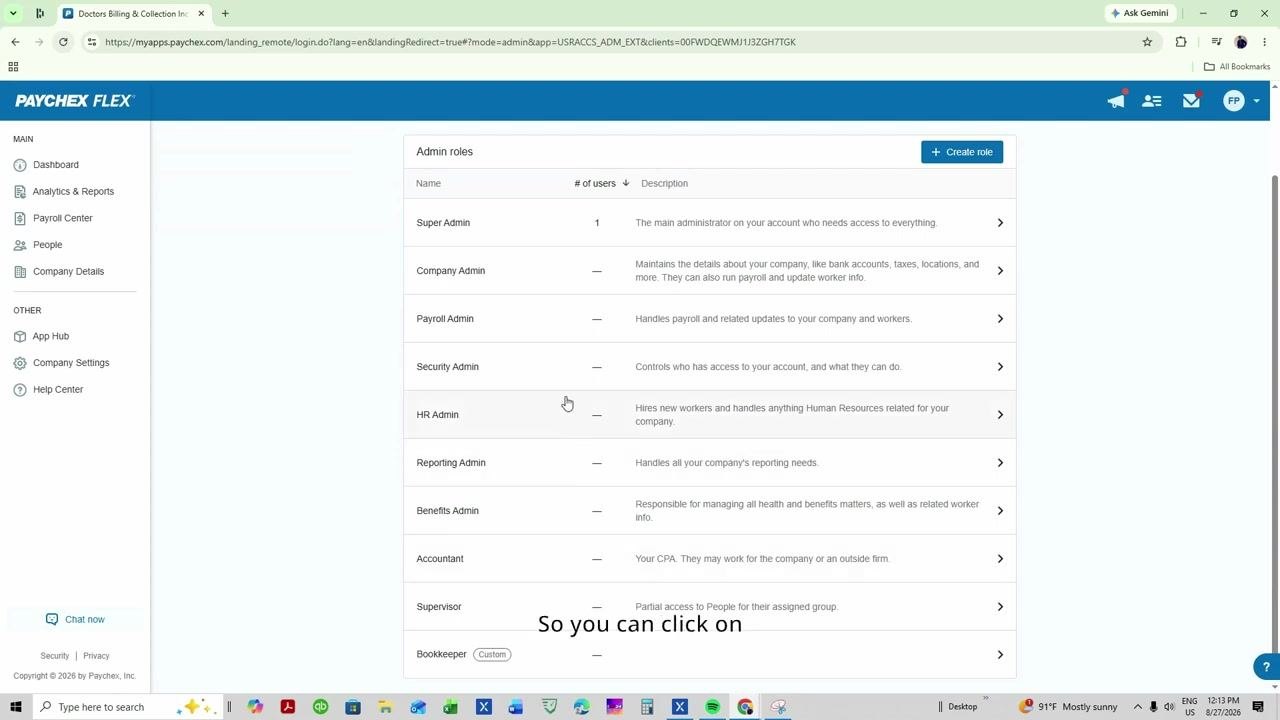
After the user accepts the invitation, return to the dashboard and go to Company Settings in the left-hand menu. In Company Settings, click Roles and Permissions. You will see a list of admin roles; if you do not see all roles, click the option to view unused or hidden roles.
Select the appropriate role
Review the available roles, such as Super Admin, Company Admin, Payroll Admin, Security Admin, HR Admin, Reporting Admin, Benefits Admin, Accountant, Supervisor, and Bookkeeper. For an accountant or bookkeeper who should not process payroll, select the Bookkeeper or Accountant role, or another custom role as appropriate. Click on the role to view and adjust its specific permissions.
Grant full access to HR services and reports (if needed)
If your accountant or bookkeeper requires full access to HR services and reports, ensure these permissions are enabled within the selected role. Adjust permissions as necessary to match the user's responsibilities.
Limit sensitive access for the accountant or bookkeeper role
Ensure that access to sensitive information, such as bank accounts and bank details, is restricted. Only enable permissions necessary for pulling reports and viewing relevant company data. Confirm that payroll processing permissions are not enabled for this user.
Assign the accountant or bookkeeper role to the user
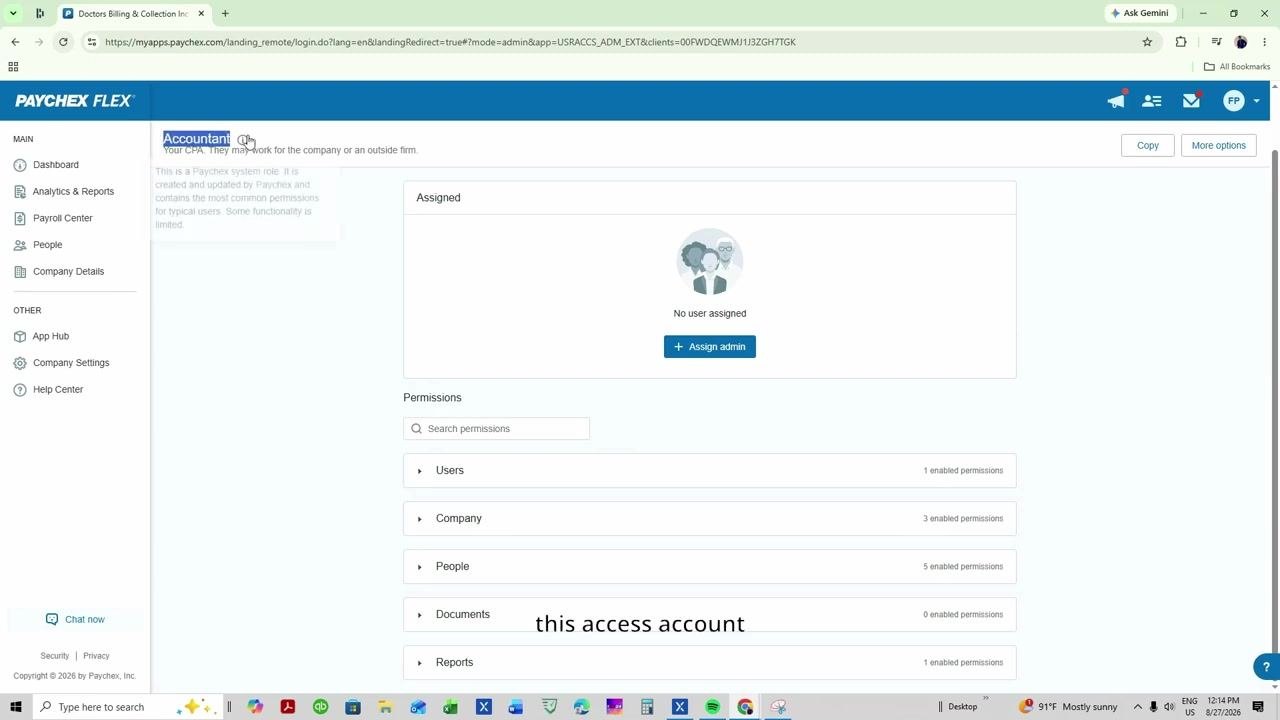
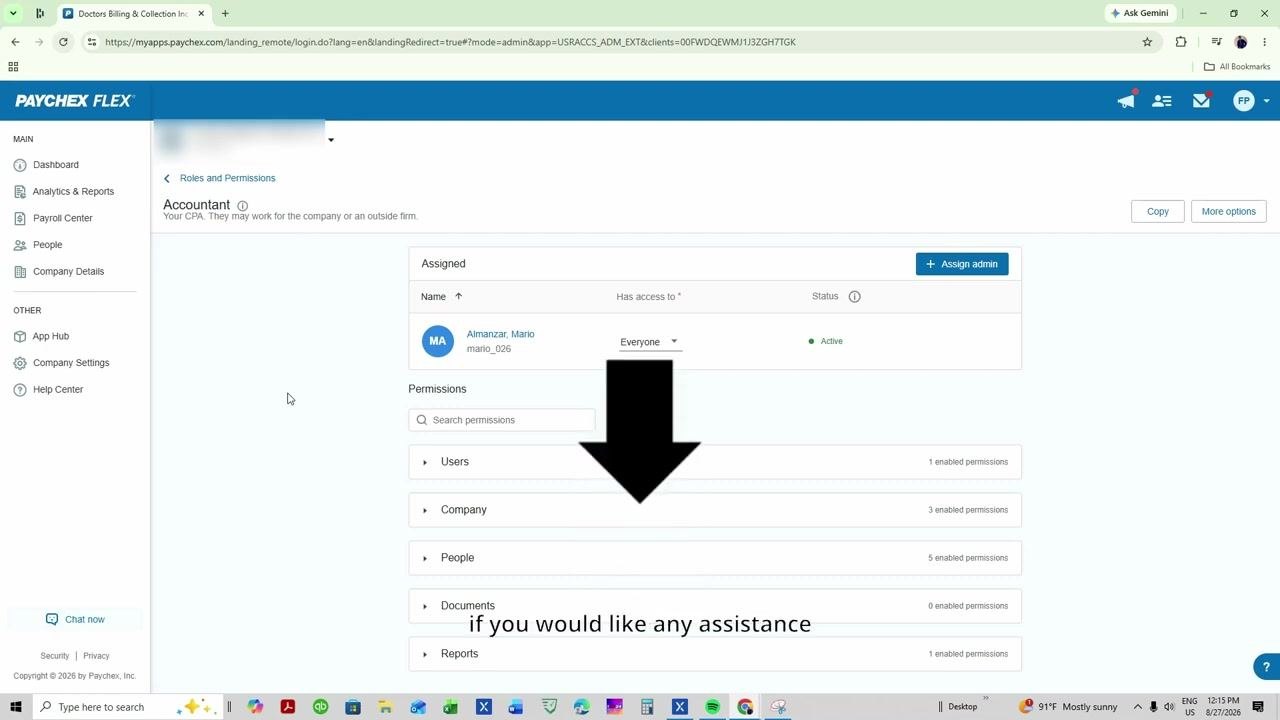
On the "Accountant" role screen, locate the Assigned section and click Assign admin. In the user selection dialog, choose the user you just created (for example, "Almanzar, Mario"). Set the "Has access to" dropdown to Everyone, or select the appropriate group if needed. Click OK or Save to confirm the assignment.
Verify user assignment and permissions
After assigning, verify that the user appears in the Assigned list with the correct status (for example, "Active"). Ensure the "Has access to" field is set as intended (for example, "Everyone"). Review the enabled permissions under each category — Users, Company, People, Documents, Reports — to confirm they match the intended access level. A green "Changes saved" banner should appear at the top of the screen, confirming your updates.
Final review and confirmation
Double-check that only the necessary permissions are enabled for the user. If you need to adjust permissions, expand each category (Users, Company, People, Documents, Reports) and enable or disable specific permissions as required. If you need to assign another user, click Assign admin again and repeat the process.
Important notes
- Do not assign the Super Admin or Payroll Admin roles if the user should not have payroll processing capabilities.
- The user must accept the invitation and complete their profile before permissions take effect.
Summary
By following these steps, you can securely add an accountant in Paychex Flex and provide your accountant or bookkeeper with the appropriate level of access, ensuring they have the tools they need without granting unnecessary payroll permissions.
Generation details: cost, quality tiers
Docsie billed 1,500 credits ($1.05) to analyze this 3-minute video at standard quality. The rewrite, template fill and Word/PDF exports were included. The same video at each quality tier:
| Quality | Frames sampled | Credits | Approx. cost |
|---|---|---|---|
| Draft | every 16-30 s | 750 | $0.52 |
| Standard (this guide) | every 8-15 s | 1,500 | $1.05 |
| Detailed | every 4-7 s | 3,000 | $2.10 |
| Ultra | every 1-3 s | 6,000 | $4.20 |
Credits priced at $0.70 per 1,000; plans include a monthly allowance. Enterprise customers on on-premise or bring-your-own-model deployments run this on their own inference and pay no per-video credits.
Generated by Docsie Video-to-Docs on 2026-10-25 from a 2-minute video. Screenshots are frames from the source video and belong to their creator, Mario Almanzar, whose original is embedded above. If you own this video and want the guide removed or credited differently, contact us and we will act within one business day.