
How to Create a Purchase Order in Acumatica
This guide walks you through how to create a purchase order in Acumatica, from opening the Purchase Orders screen to adding line items, applying discounts, routing the order for approval, and emailing it to your vendor. You will also learn how to track vendor communications and review order activity after the purchase order has been sent.
Video: How to Create a Purchase Order in Acumatica ERP (Step by Step) by Gregg's Videos (2019). All credit for the demonstration goes to the creator; watch the original on YouTube. The written guide below was generated from this video by Docsie. Creator? Request a change or removal.
This guide walks you through how to create a purchase order in Acumatica, from opening the Purchase Orders screen to adding line items, applying discounts, routing the order for approval, and emailing it to your vendor. You will also learn how to track vendor communications and review order activity after the purchase order has been sent.
Prerequisites
- Access to your Acumatica instance and valid login credentials.
- Permissions to create and, if applicable, approve purchase orders.
- Knowledge of the vendor and items you need to order.
Access the Acumatica dashboard
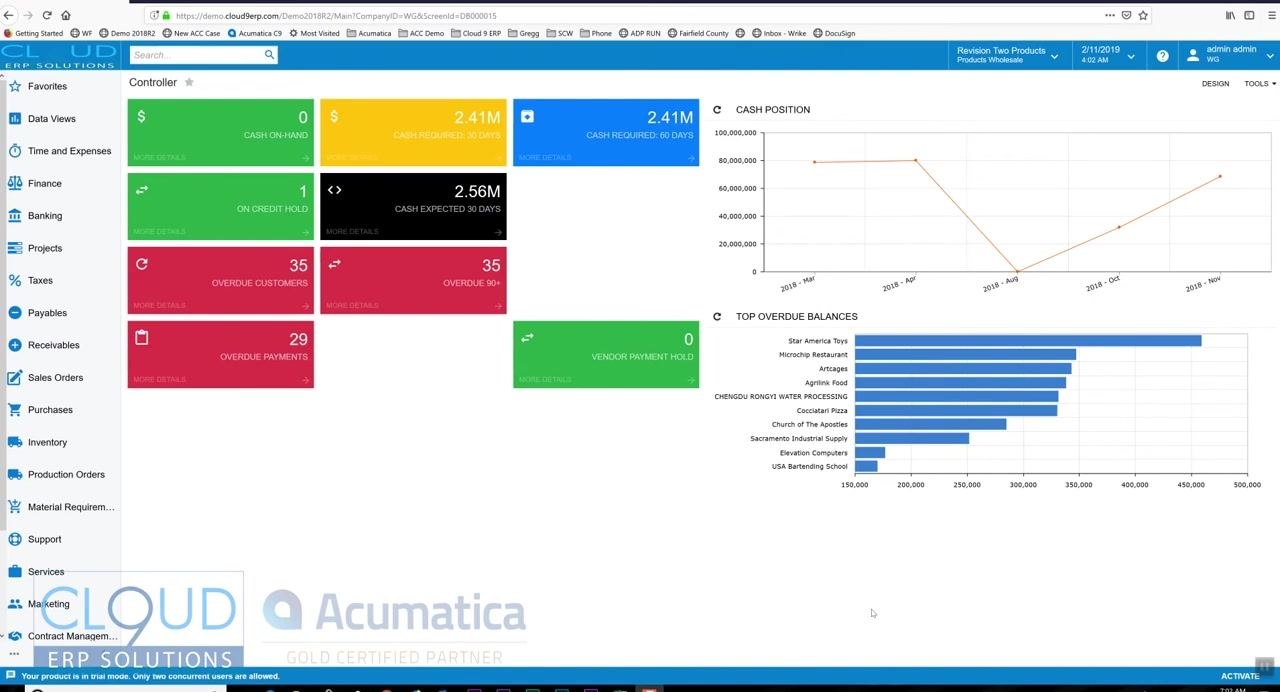
Open your web browser, navigate to your Acumatica instance, and log in with your credentials. The dashboard displays key financial metrics such as cash on hand, cash required, overdue customers, overdue payments, and top overdue balances.
The left navigation menu gives you access to modules including Data Views, Finance, Banking, Projects, Payables, Receivables, Sales Orders, Purchases, Inventory, and more.
Navigate to Purchase Orders
In the left navigation menu, click Purchases to expand the section, then select Purchase Orders from the submenu.
Purchase orders can be generated automatically through mass processing screens based on inventory demands, dropships, and other triggers. This guide focuses on creating a purchase order manually.
Create a new purchase order
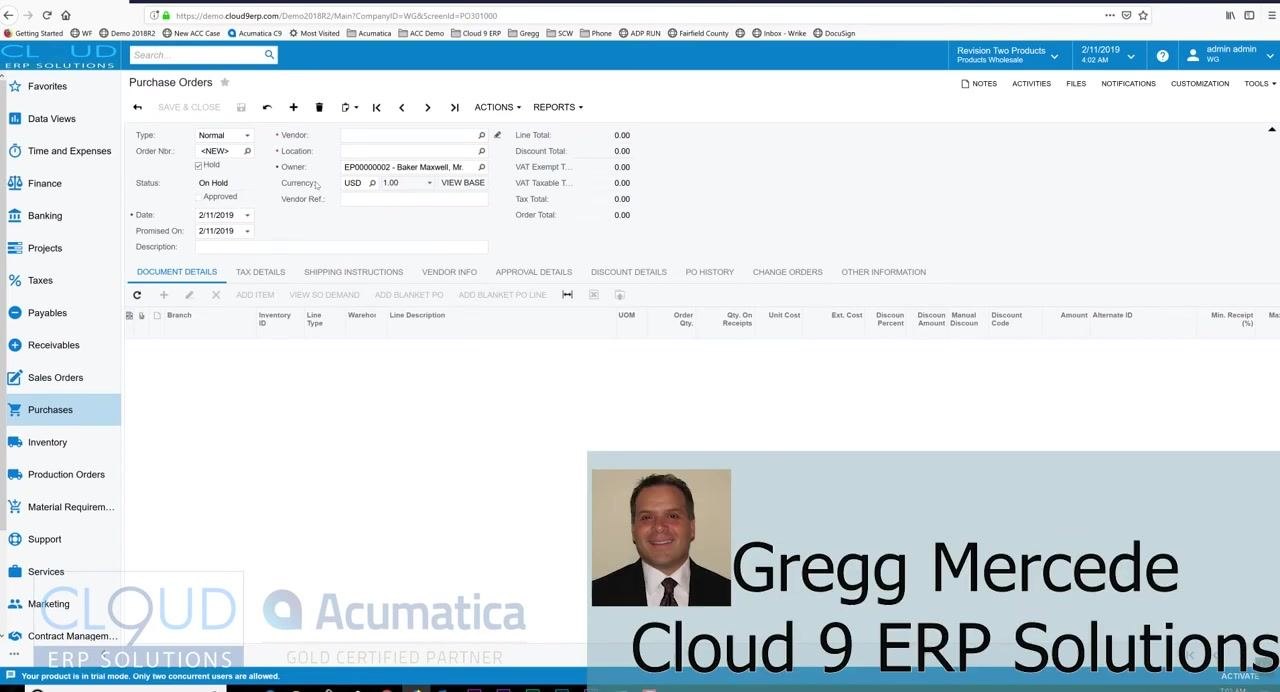
Click the option to create a New Purchase Order. The Purchase Orders screen opens with a blank purchase order form containing fields for Type, Order Number, Status, Date, Promised On, Vendor, Location, Owner, Currency, and more.
By default, the status shows as On Hold, which allows you to make changes before finalizing the order. Notice the Approved checkbox and the Approval Details tab — these are optional features for routing purchase orders through your company's approval process.
Review the purchase order status
Confirm that the purchase order status is On Hold. While on hold, the order remains editable. Once you take the purchase order off hold, it becomes locked for editing.
Set the purchase order dates
Enter or confirm the Date field (for example, 2/11/2019). Set the Promised On date to indicate when you expect the vendor to deliver the goods (for example, 2/11/2019).
Select a vendor
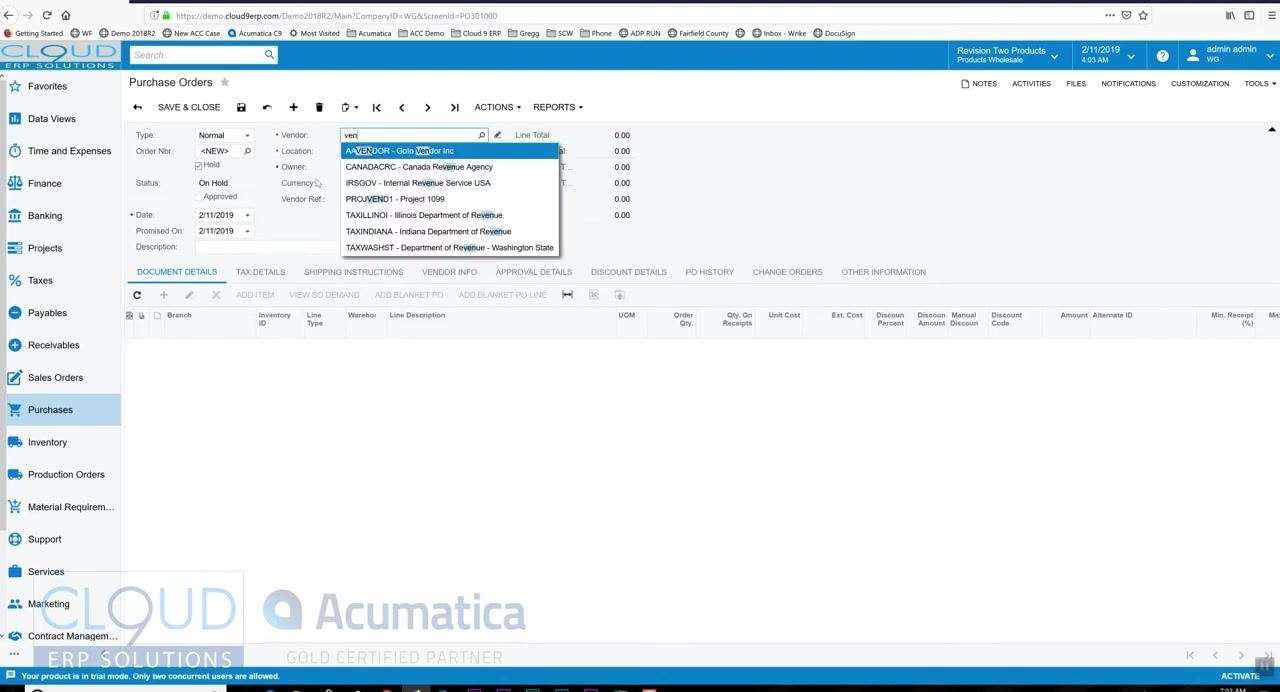
Click into the Vendor field and begin typing the vendor's name or a few letters of it. Select the appropriate vendor from the dropdown list (for example, "AAVENDOR - Goto Vendor Inc").
Add items to the purchase order
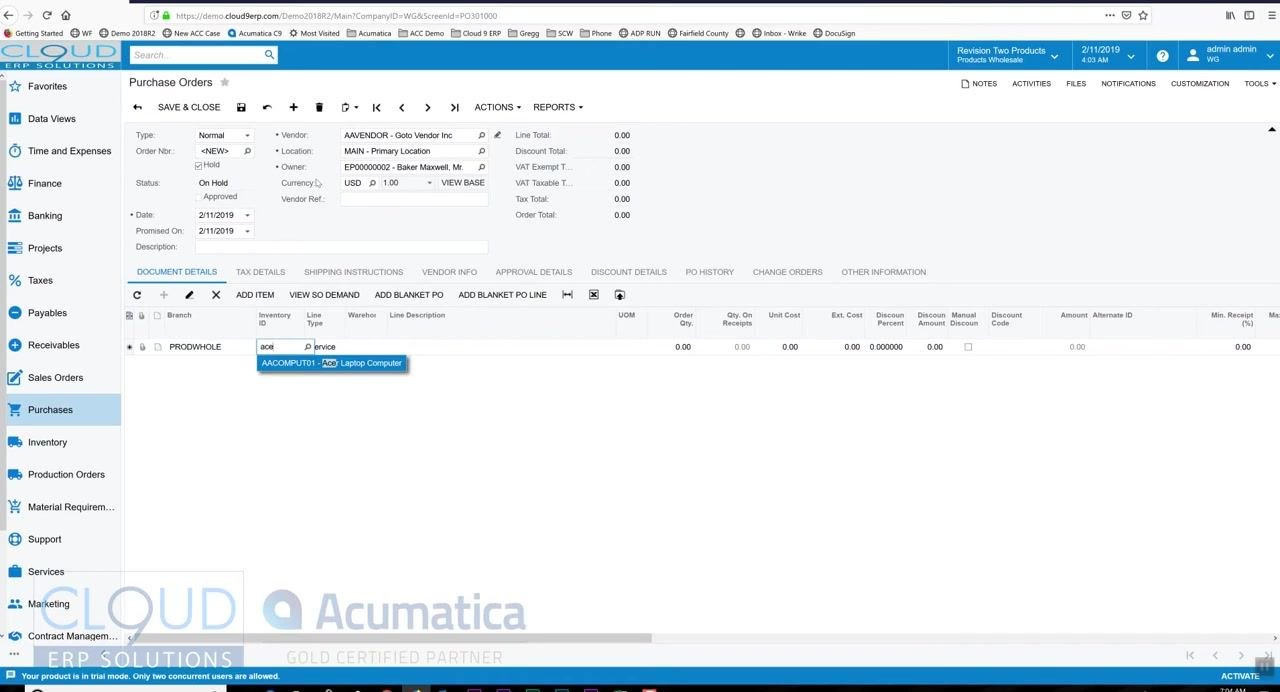
Scroll down to the Document Details section and click Add Item. Type a few letters of the inventory ID or item description in the Inventory ID field, then select the desired item from the suggestions (for example, "AACOMPUT01 - Acer Laptop Computer").
If a pop-up note appears — for example, indicating a three-year warranty is available — review the information before continuing. Enter the required order quantity (for example, 5 units).
Adjust the unit cost for a line item
Locate the Unit Cost field for the item you added (for example, "Acer Laptop Computer"). The default value reflects the last cost received for this item (for example, 247.07).
If needed, click into the Unit Cost field and enter a new value (for example, 245.00). The last cost can be updated based on your organization's preferences, such as upon receipt of the vendor's bill.
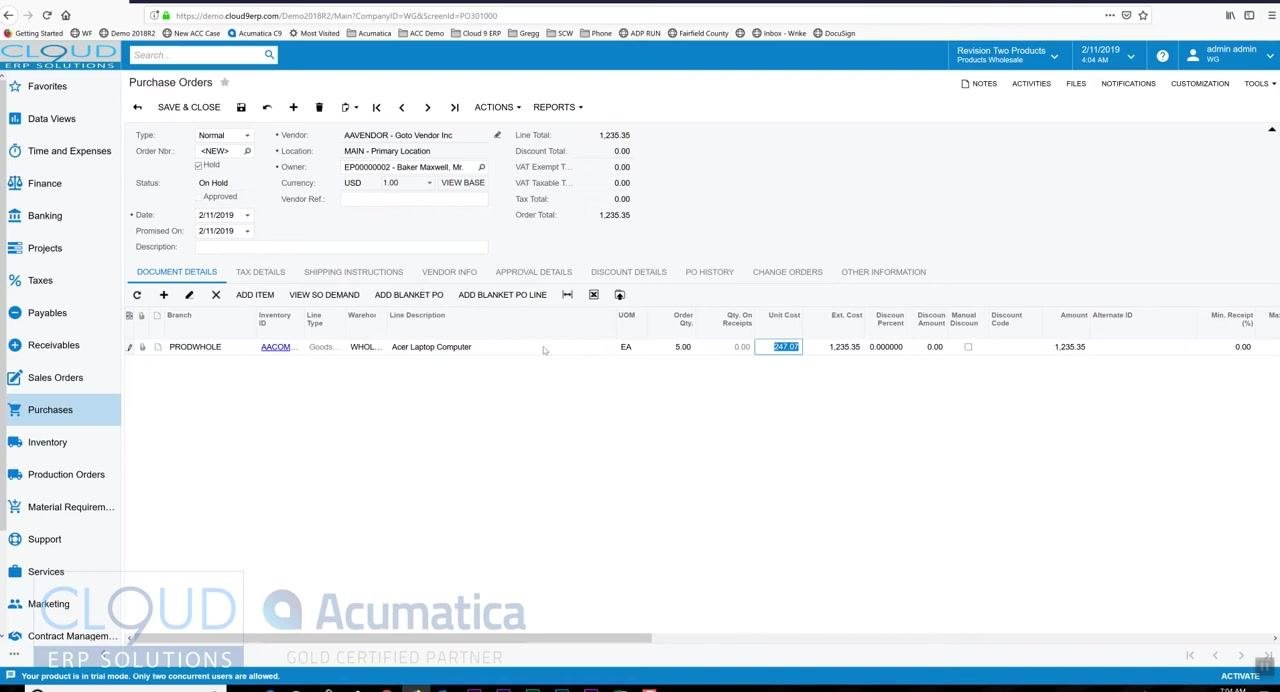
Apply a discount to a line item
If the vendor offers a discount (for example, 5%), enter the discount percentage in the Discount Percent field for the item. The Discount Amount calculates automatically (for example, 61.25 for a 5% discount on 5 units at $245.00 each).
Confirm that the Manual Discount checkbox is checked if you entered the discount manually, and review the updated Amount field, which reflects the discounted total for the line item.
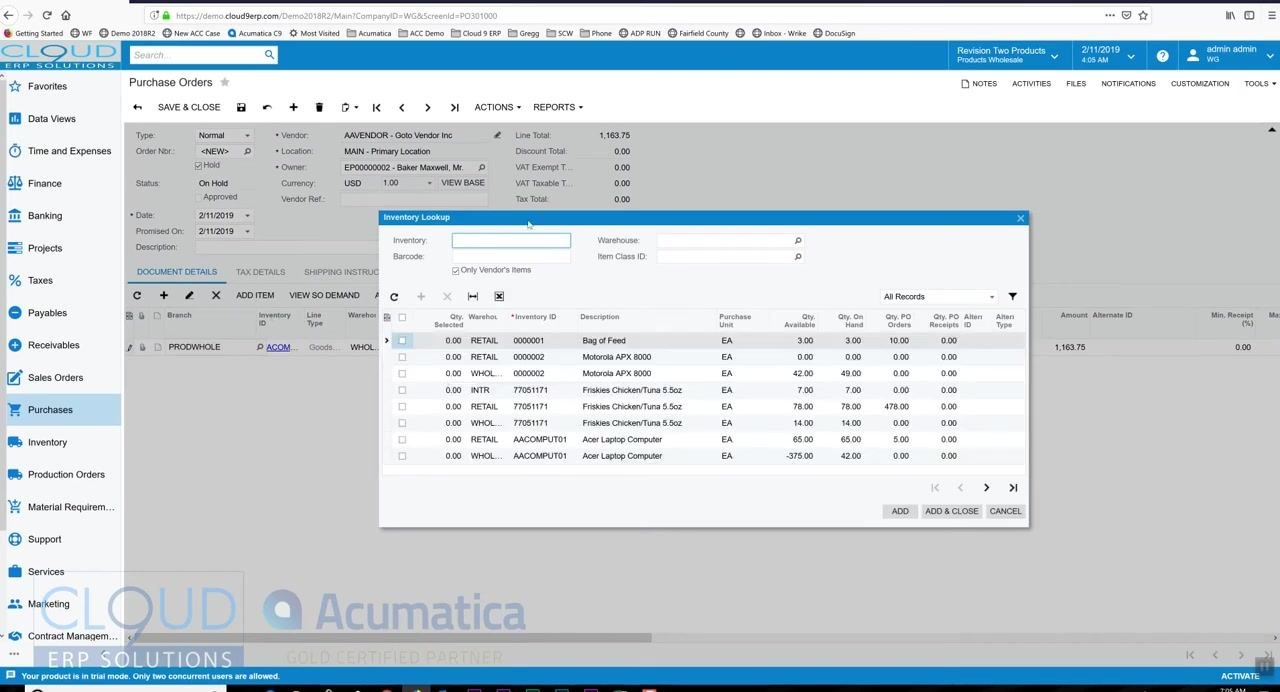
Add additional items using the Inventory Lookup
Click Add Item above the Document Details grid to open the Inventory Lookup window, which is filtered to show items available from the selected vendor. Browse or search for additional items you want to add.
Enter the desired order quantities directly in the Qty. Ordered column (for example, 3 for "Motorola APX 8000" and 6 for "Friskies Chicken/Tuna 5.5oz"). Click Add & Close to add the selected items to your purchase order.
Review and edit line items
After adding items, review the updated list in the Document Details section. Double-click any line to edit quantities, unit costs, or discounts as needed.
Confirm that all items, quantities, and costs are correct. The purchase order remains On Hold at this stage, allowing you to make further changes.
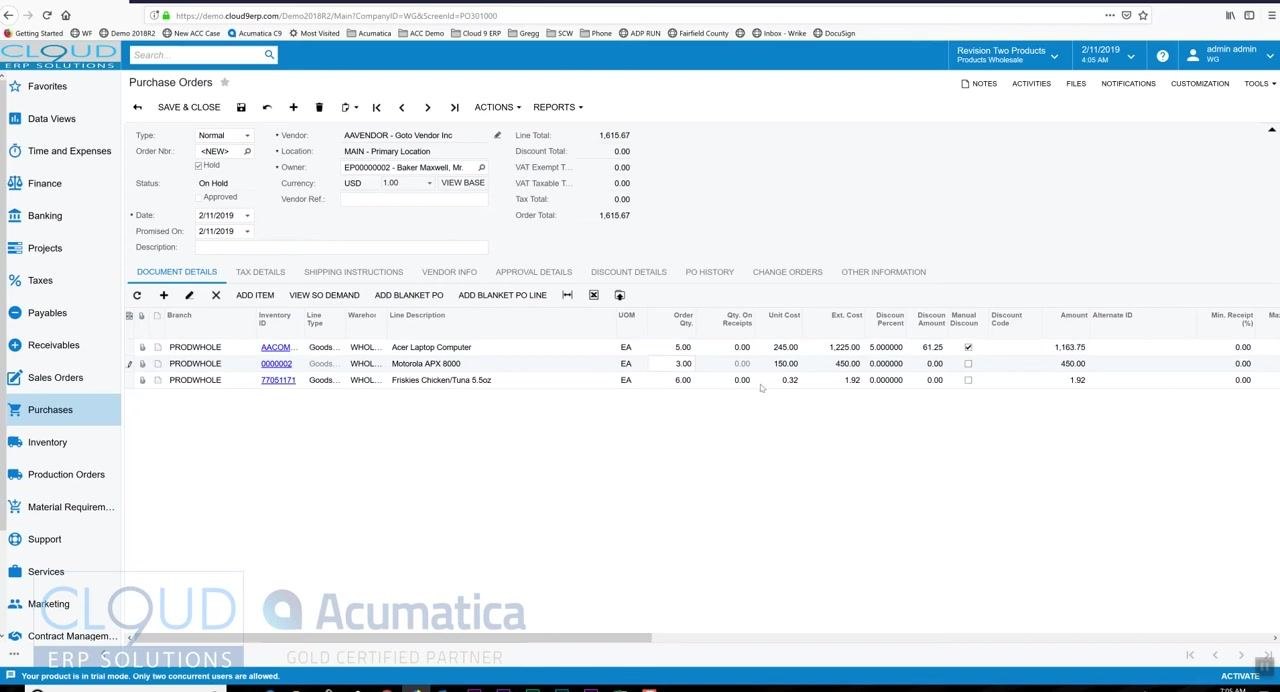
Approve the purchase order
Once you take the purchase order off hold, it proceeds through your organization's approval workflow if approvals are enabled. Approval rules can be configured based on criteria such as order amount, vendor, or item type.
Approval requirements depend on the rules your organization has set. For example, orders over $2,000 may require approval, while orders under that threshold may not. Approval rules are optional and can be customized to fit your business needs. As an administrator or authorized approver, you may have the ability to approve your own purchase orders.
If you have the necessary permissions, click the Approve button. The Status field changes from "Pending Approval" to "Open" and "Approved," and the purchase order is ready for further processing.
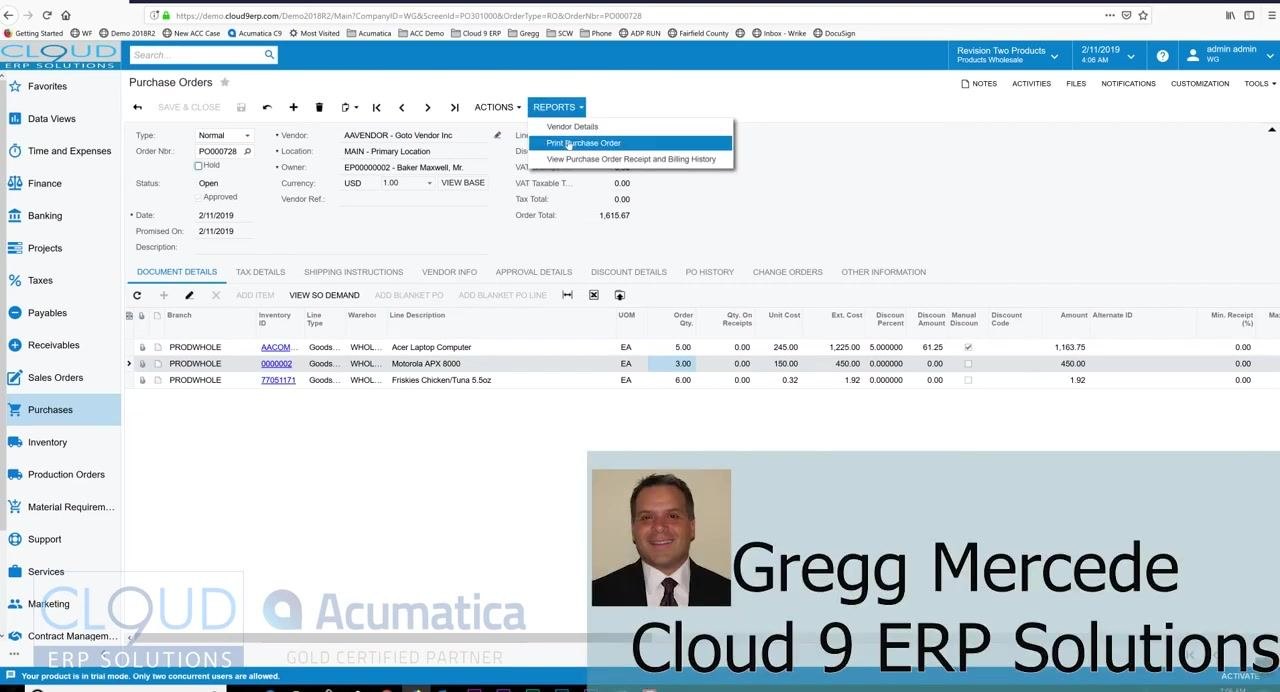
Print the purchase order
With the purchase order in the "Open" state, go to the REPORTS dropdown menu and select Print Purchase Order. The system generates a printable version of the purchase order that includes your company logo and all order details.
Review the purchase order printout
Review the generated document for accuracy, confirming that all vendor, shipping, item, and pricing details are correct. The printout displays your company logo, vendor address, shipping address, itemized list, quantities, unit prices, and totals.
Send the purchase order via email
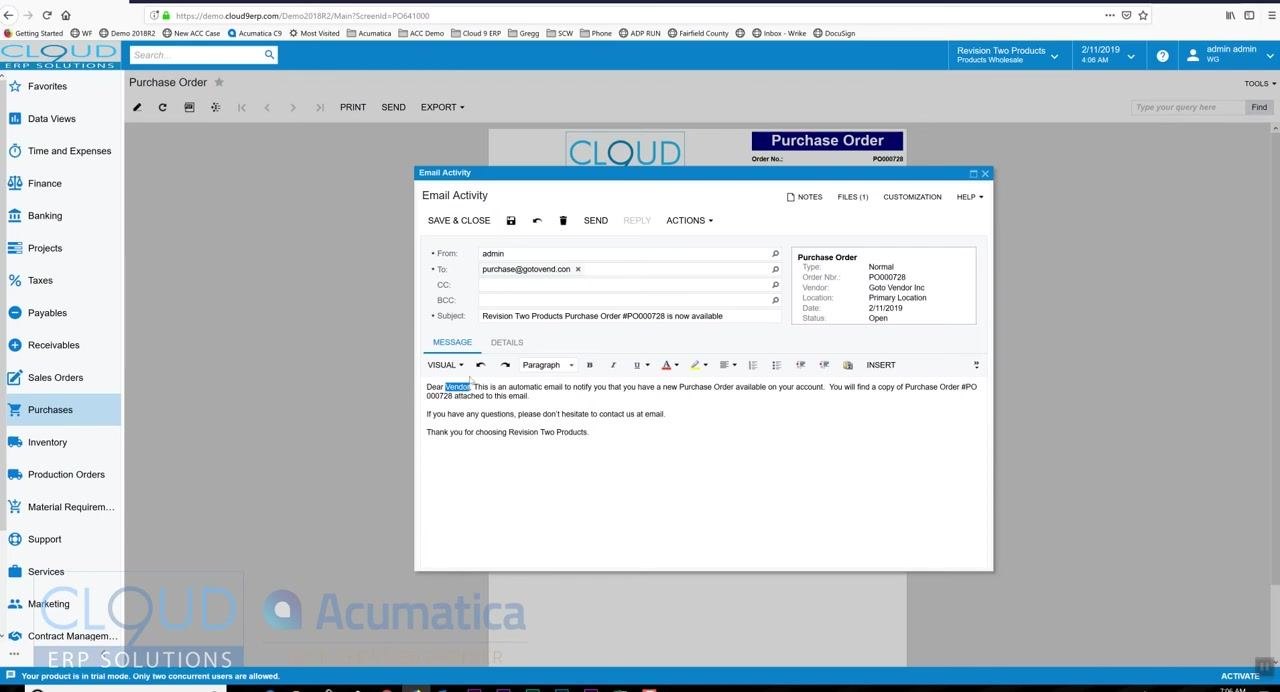
Click the SEND button to open the email activity window. The system automatically populates the recipient (vendor email), subject, and a default message body, and attaches the purchase order PDF.
You can customize the email template in the report form to include additional fields, such as the vendor contact name.
Customize the email message
Edit the email body as needed — for example, add special instructions such as "Please put a rush on this." Any signature configured in your user profile appears automatically in the email. Review all details before sending.
Send the email to the vendor
Click the SEND button in the Email Activity window to email the purchase order to the vendor. The vendor receives the purchase order as an attachment, along with your customized message and signature.
Review purchase order details after sending
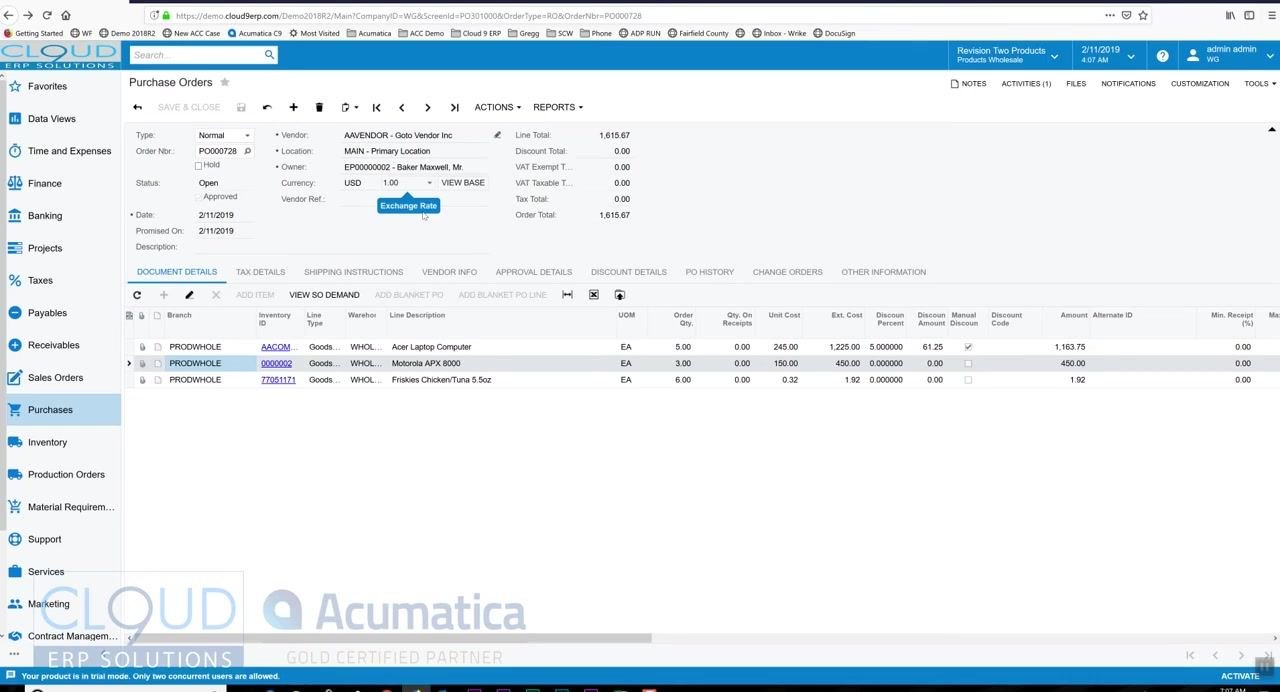
Navigate back to the Purchase Orders screen and confirm you are viewing the correct order (for example, Order Nbr: PO000728). Verify the vendor details (AAVENDOR - Goto Vendor Inc, Location: Main - Primary Location), the order status ("Open" and "Approved"), and the order date and promised date (2/11/2019 in this example).
Note the order total (1,615.67 USD) and review the line items for accuracy:
- Acer Laptop Computer: 5 units at 245.00 each, discount 61.25, total 1,163.75.
- Motorola APX 8000: 3 units at 150.00 each, total 450.00.
- Friskies Chicken/Tuna 5.5oz: 6 units at 0.32 each, total 1.92.
Review activities and email tracking
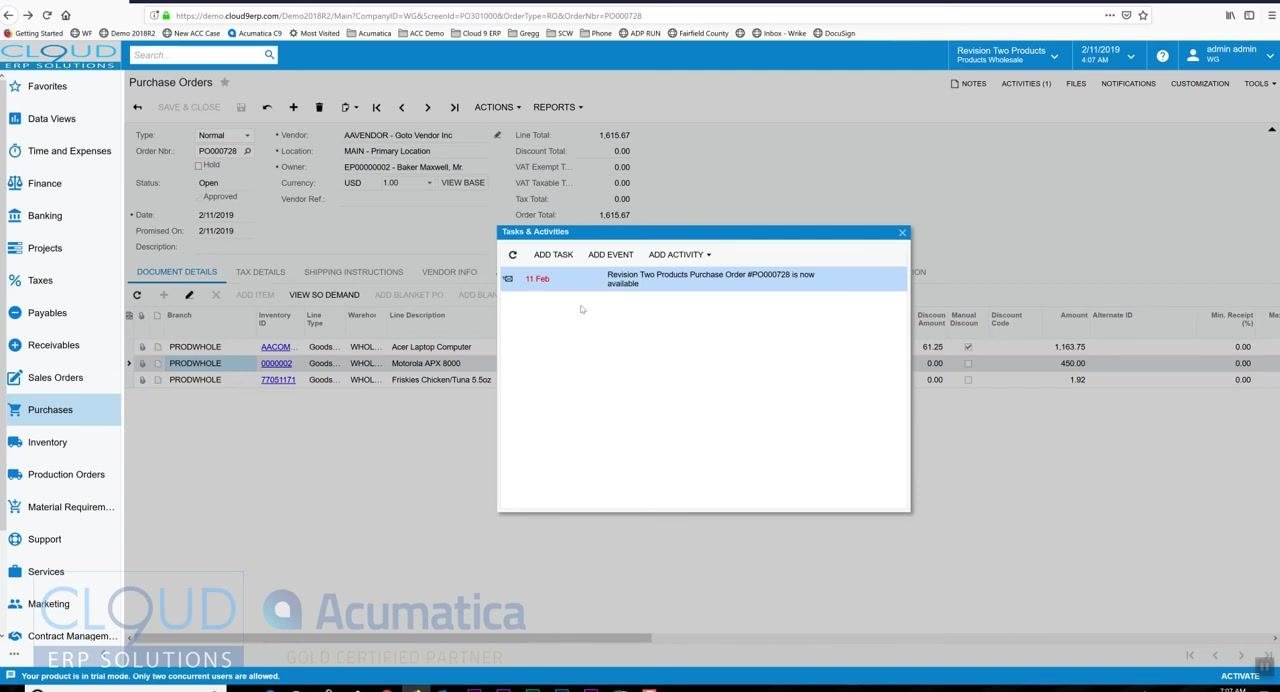
Locate the ACTIVITIES tab at the top right of the purchase order screen. Notice the indicator showing the number of activities associated with the order (for example, 1 activity).
Click the ACTIVITIES (1) tab to open the "Tasks & Activities" window, which lists all activities, tasks, events, and emails associated with the order. For example, you may see an entry dated "11 Feb" with the subject "Revision Two Products Purchase Order #PO000728 is now available."
The email address attached to your user name is used to send the purchase order. In addition to the email being recorded in the system, you also receive a copy in your own inbox. Any responses from the vendor are tracked and displayed as additional entries in the "Tasks & Activities" window.
Review or update document details as needed
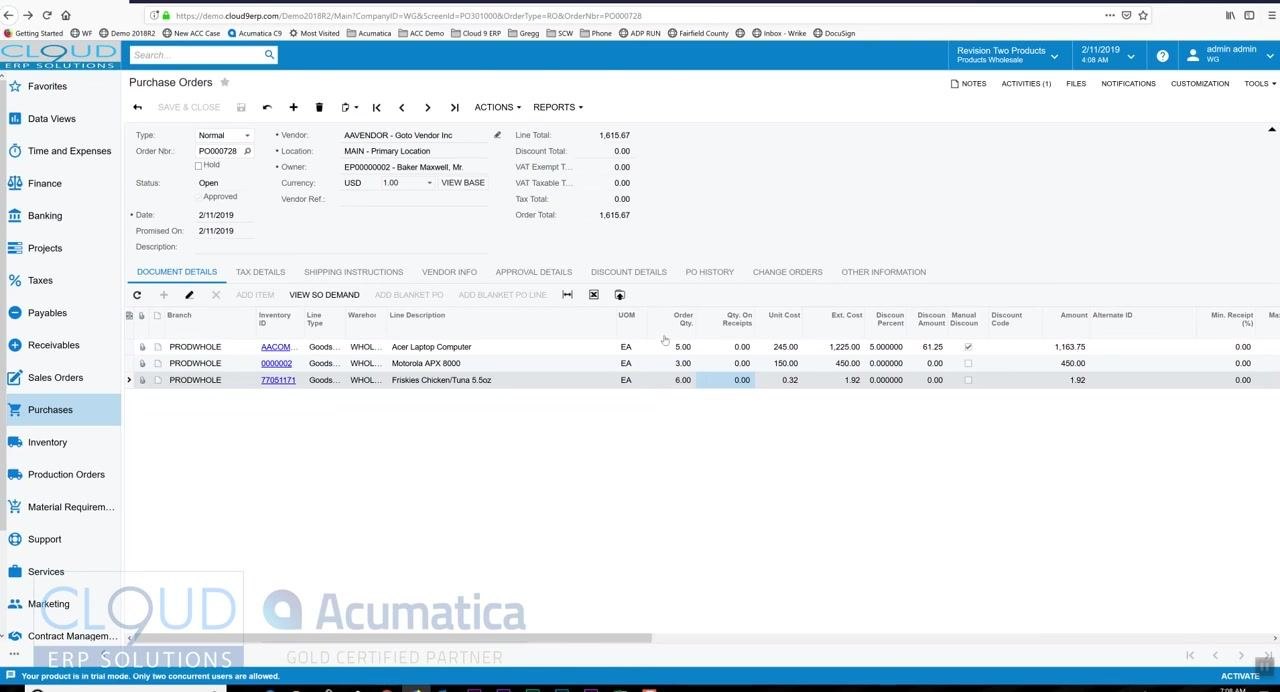
Return to the DOCUMENT DETAILS tab to review or update order line items as needed. If someone else accesses the purchase order, they can see that it has already been communicated to the vendor, which helps identify and address any discrepancies, such as an incorrect price or quantity.
Summary
By following these steps, you can create a purchase order in Acumatica, add and adjust line items, route it through approval, and send it to your vendor by email. The system keeps all purchase order communications tracked, visible, and auditable, while integrating seamlessly with your email workflow.
Generation details: cost, quality tiers
Docsie billed 3,500 credits ($2.45) to analyze this 7-minute video at standard quality. The rewrite, template fill and Word/PDF exports were included. The same video at each quality tier:
| Quality | Frames sampled | Credits | Approx. cost |
|---|---|---|---|
| Draft | every 16-30 s | 1,750 | $1.22 |
| Standard (this guide) | every 8-15 s | 3,500 | $2.45 |
| Detailed | every 4-7 s | 7,000 | $4.90 |
| Ultra | every 1-3 s | 14,000 | $9.80 |
Credits priced at $0.70 per 1,000; plans include a monthly allowance. Enterprise customers on on-premise or bring-your-own-model deployments run this on their own inference and pay no per-video credits.
Generated by Docsie Video-to-Docs on 2026-10-25 from a 6-minute video. Screenshots are frames from the source video and belong to their creator, Gregg's Videos, whose original is embedded above. If you own this video and want the guide removed or credited differently, contact us and we will act within one business day.