
How to Create a Purchase Requisition in IBM Maximo
This guide shows you how to create a purchase requisition in IBM Maximo when a work order requires materials that are not available in stock. You will learn how to check inventory availability from a work order, raise a purchase requisition for missing items, route it through approval, and convert it into a purchase order.
Video: Maximo Basics - 10 - Create a Purchase Requisition by Viet Tran (2018). All credit for the demonstration goes to the creator; watch the original on YouTube. The written guide below was generated from this video by Docsie. Creator? Request a change or removal.
This guide shows you how to create a purchase requisition in IBM Maximo when a work order requires materials that are not available in stock. You will learn how to check inventory availability from a work order, raise a purchase requisition for missing items, route it through approval, and convert it into a purchase order.
Overview of supply chain management in Maximo
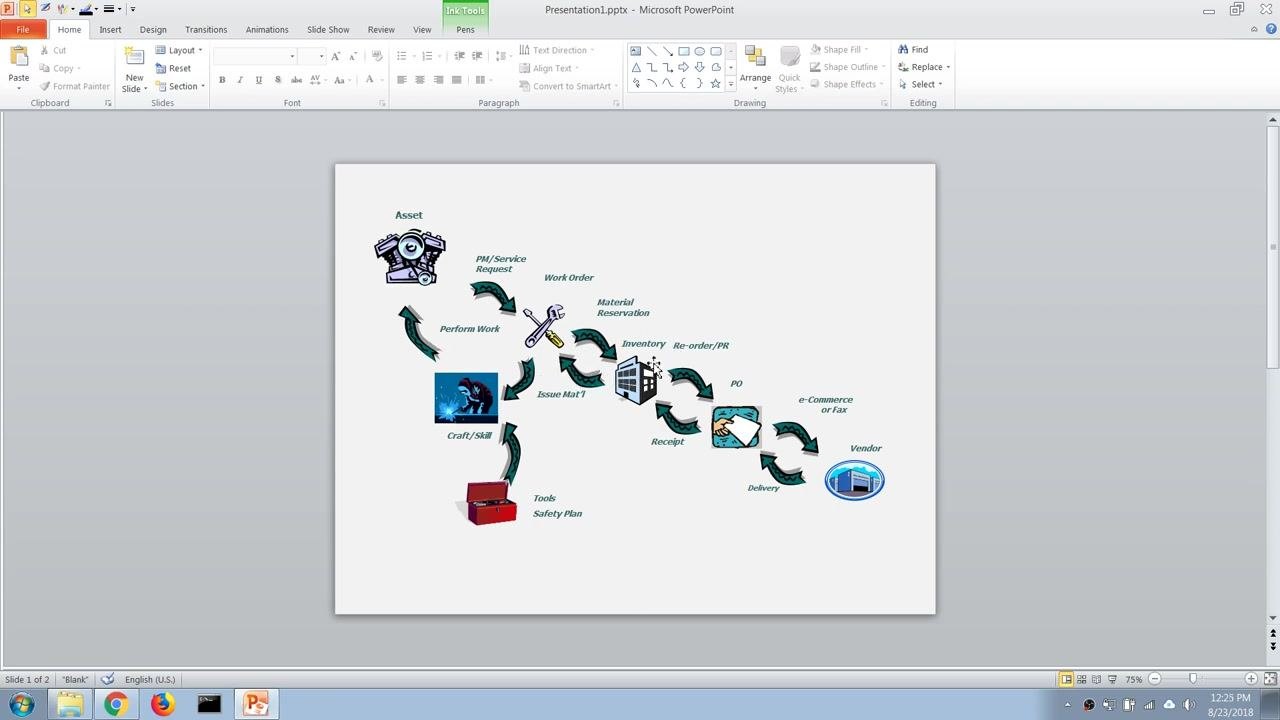
Maximo includes supply chain management processes that support work management by providing the materials and services your teams need. Three modules work together to deliver this process:
- Inventory module
- Purchasing module
- Contract module
These modules support the standard supply chain management process used across your organization's staff, from identifying a material need on a work order through to receiving and issuing the item.
Prerequisites
- A work order already created in Maximo that requires spare parts or materials.
- Access to the Work Orders, Purchasing, and Inventory applications in Maximo.
- Knowledge of the work order number you want to check for material shortages.
Open Work Order Tracking
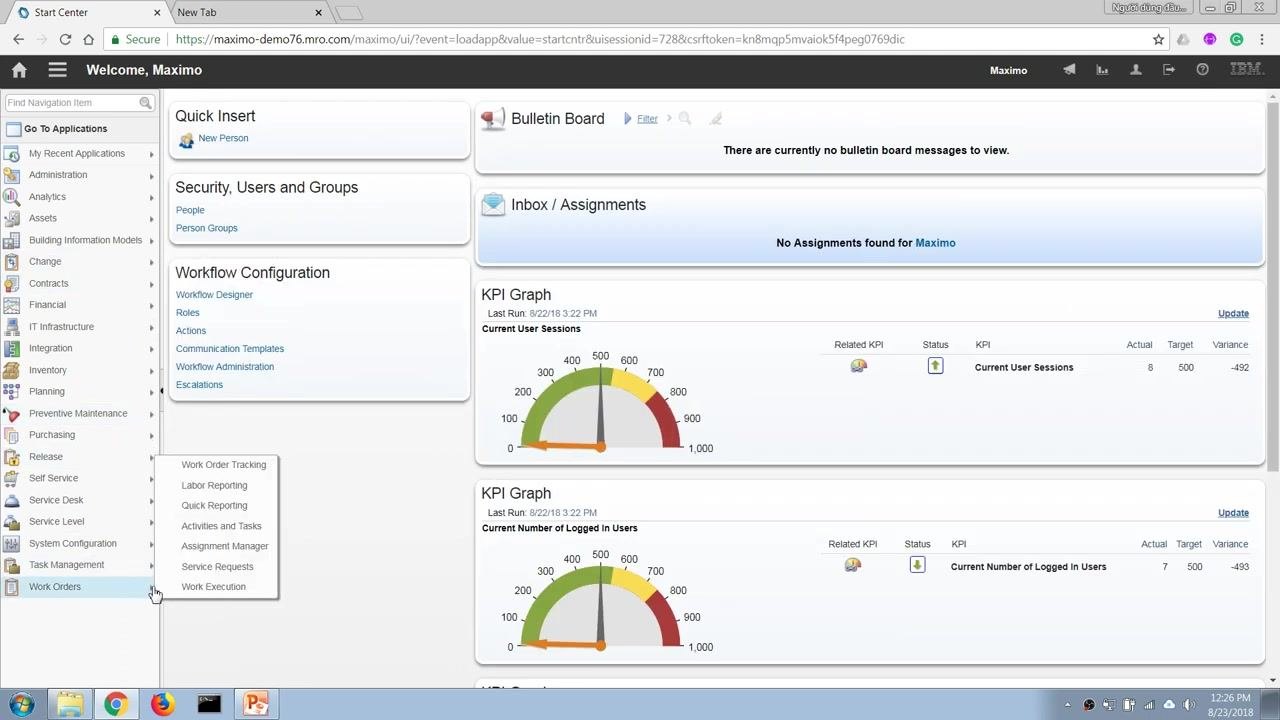
Use the navigation panel on the left to select Work Orders, then choose Work Order Tracking from the dropdown menu. This takes you to the screen where you can search for and review a specific work order.
Find the work order
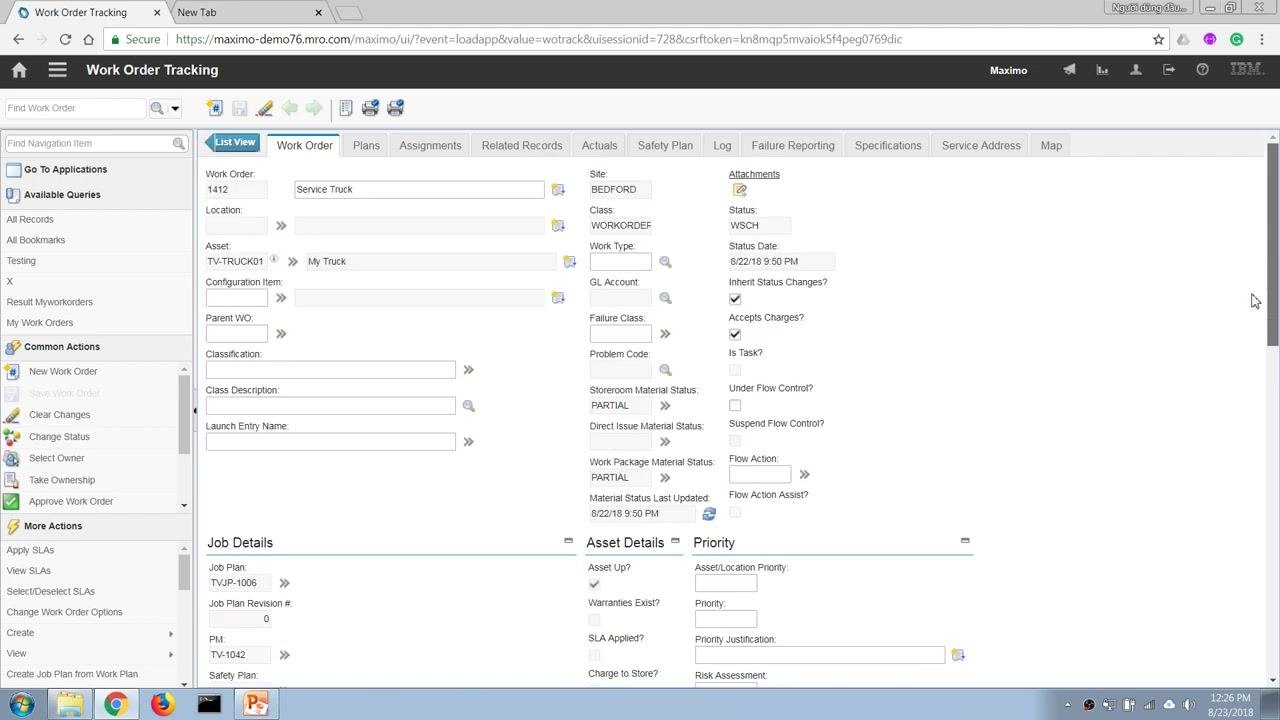
Use the Find Work Order search field at the top left of the screen to quickly locate the work order you need. Enter the work order number (for example, 1412) and press Enter.
Review the work order details
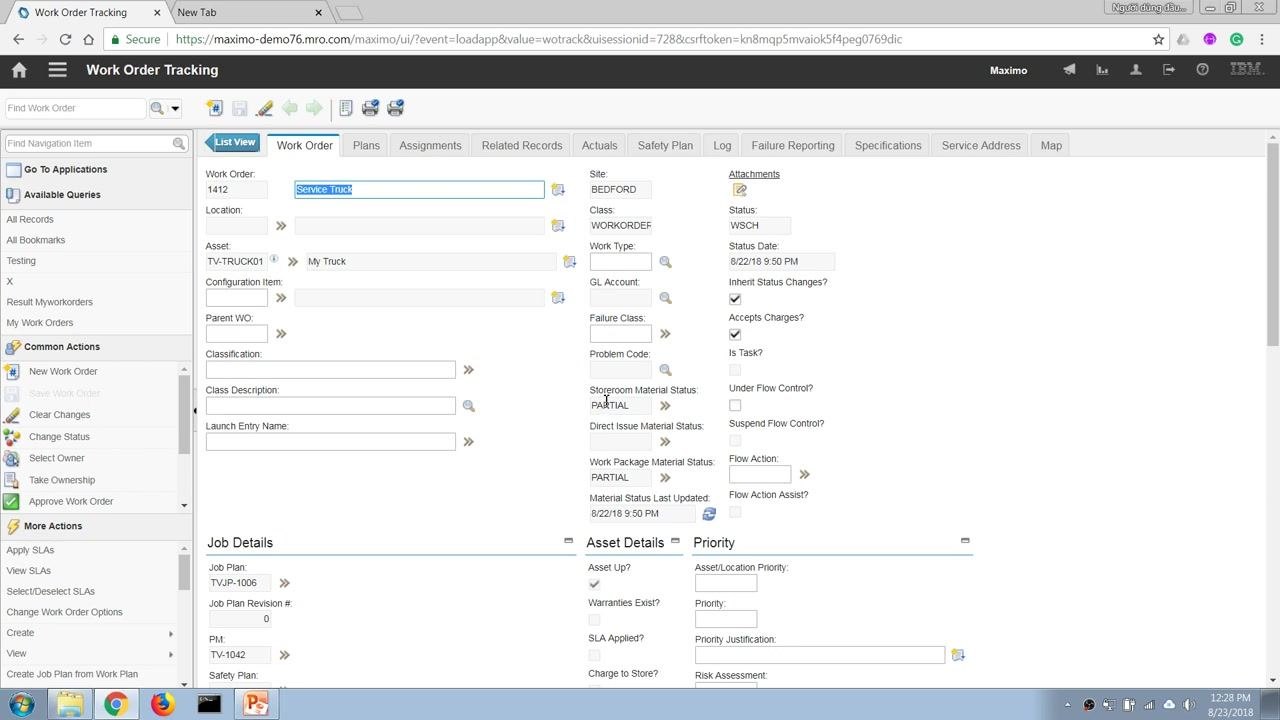
Confirm you are viewing the correct record by checking the work order number, asset, and description (for example, Work Order 1412, Asset TV-TRUCK01, Service Truck). Check the Storeroom Material Status field, which may show PARTIAL if not all required materials are currently available, and note the job plan and other relevant details.
Review tasks and materials on the Plans tab
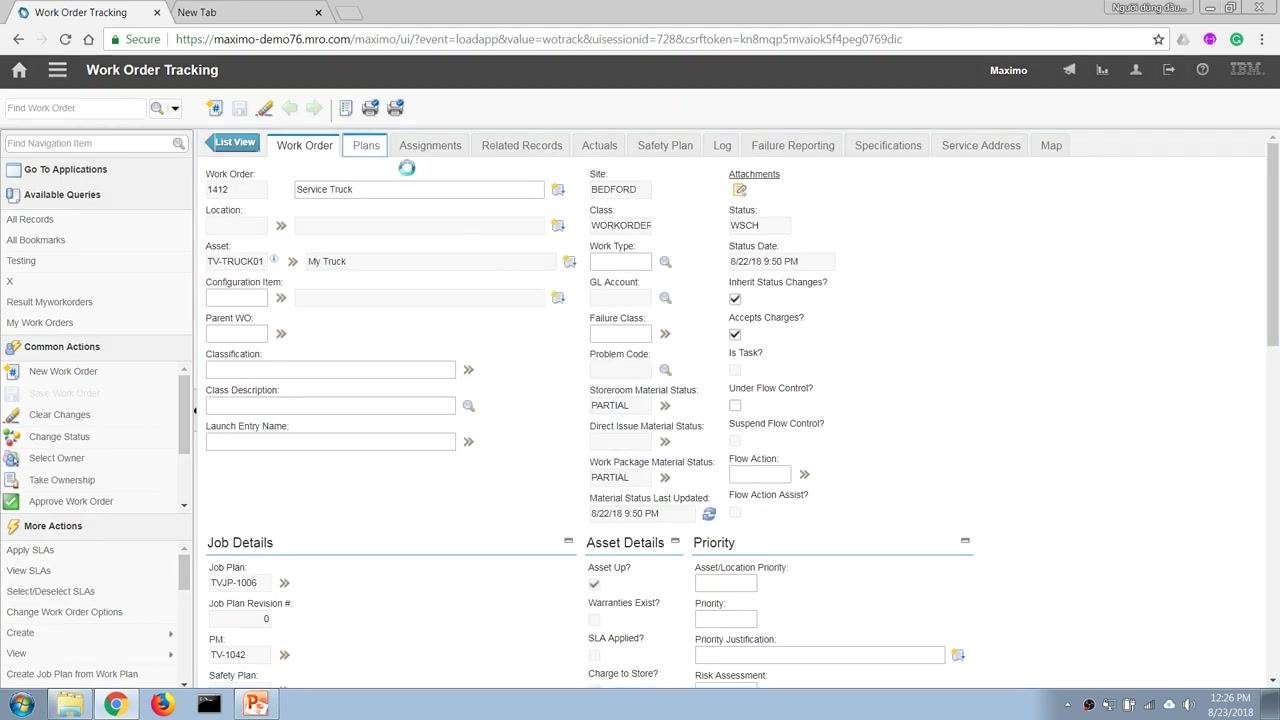
Click the Plans tab at the top of the work order screen to view the tasks and materials required for the job.
Under Tasks for Work Order 1412, review each task, such as light checks, tire pressure check, oil change, wiper change, and tire change. In the Materials section, review the required items, their quantities, unit costs, line costs, and storeroom locations. For example:
- TVI-1005: Oil, Engine — Quantity 2.00, Storeroom CENTRAL
- TVI-1006: Wiper, Truck — Quantity 2.00, Storeroom CENTRAL
- TVI-1007: Wheel, Truck — Quantity 4.00, Storeroom CENTRAL
Check item availability
Right-click or use the dropdown menu on an item row and select View Item Availability to confirm stock levels. For example, checking "Oil, Engine" (TVI-1005) confirms that the storeroom has sufficient stock, such as 9 units available against a requirement of 2.
Repeat the View Item Availability check for each required item. If an item, such as "Wiper, Truck" (TVI-1006), shows zero units available in the storeroom, this material is not in stock and must be procured through a purchase requisition.
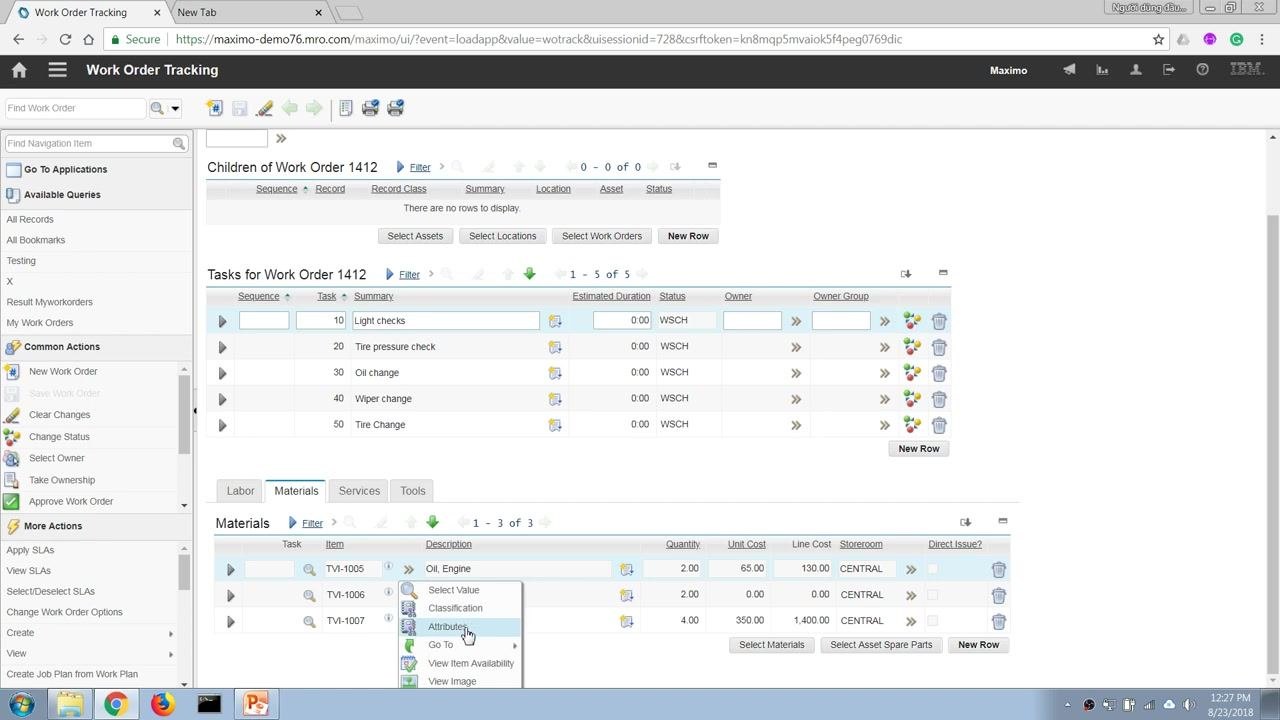
Identify the item to procure
Open the Materials tab if it is not already open and locate the item with zero stock, such as TVI-1006: Wiper, Truck. Note the item number and description, since you will need this information to raise the purchase requisition.
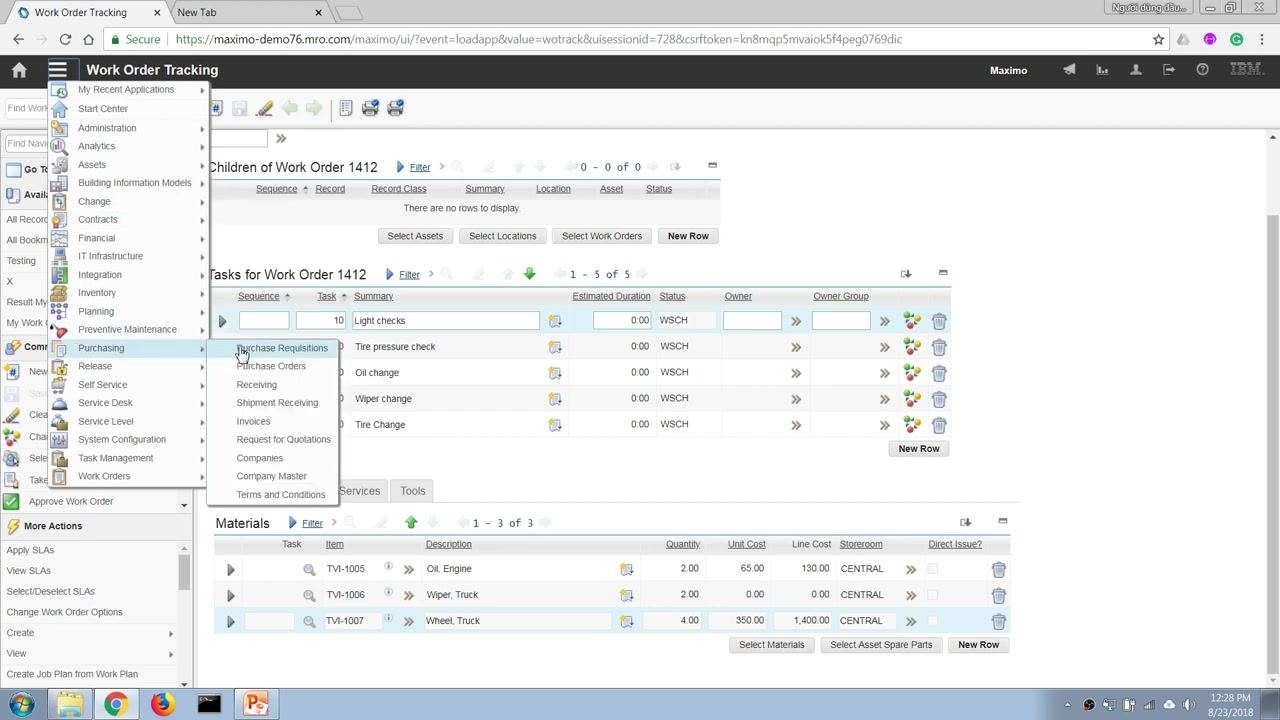
Open the Purchase Requisitions application
Open the Go To Applications menu, hover over or click Purchasing to expand the submenu, and select Purchase Requisitions from the dropdown list.
In the Purchase Requisitions application, click the option to create a new purchase requisition, such as New Purchase Requisition under Common Actions. A new purchase requisition form opens.
Enter the purchase requisition details
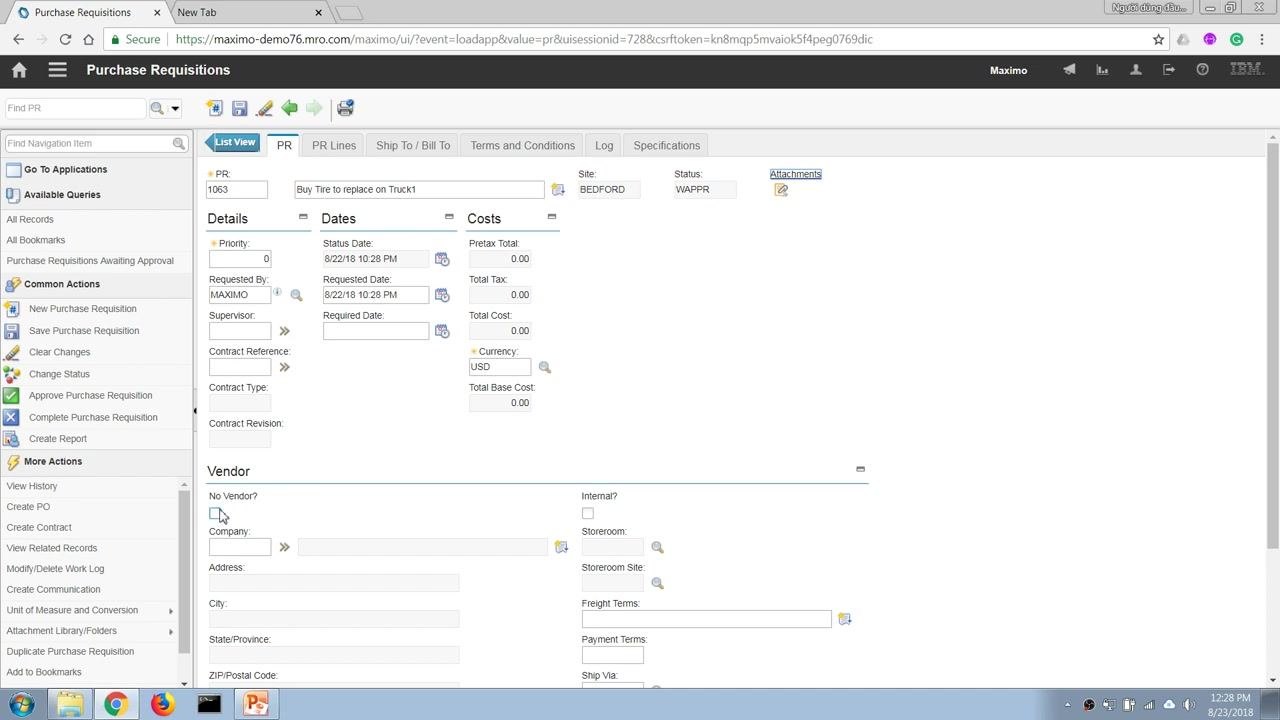
In the PR tab, enter a brief description in the Description field (for example, "Buy tire to replace on Truck1"). Confirm the PR number is auto-generated (for example, 1063) and that the Site field is set correctly (for example, BEDFORD).
The Status should be set to WAPPR (Waiting for Approval). The Requested By field may auto-populate (for example, MAXIMO). Enter or confirm the Requested Date and Status Date as needed.
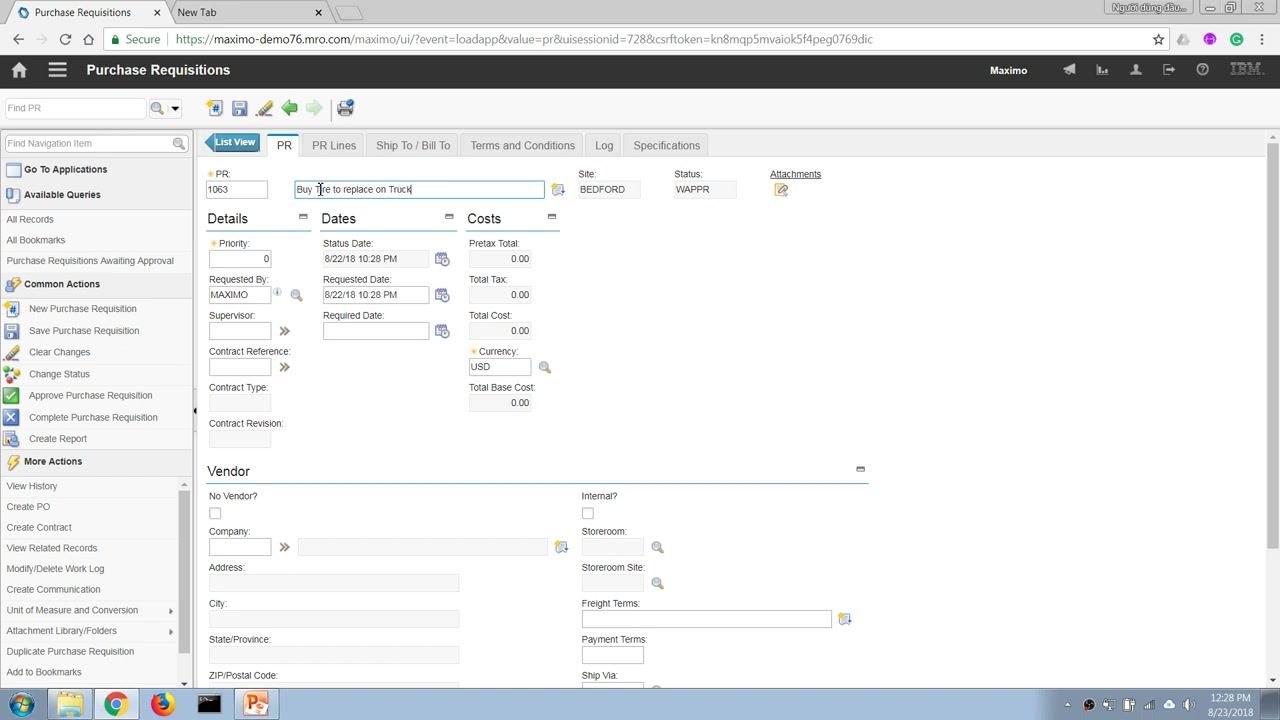
Indicate whether a vendor is specified
If you do not want to specify a vendor, check the No Vendor? checkbox in the Vendor section and leave the vendor fields, such as Company and Address, blank.
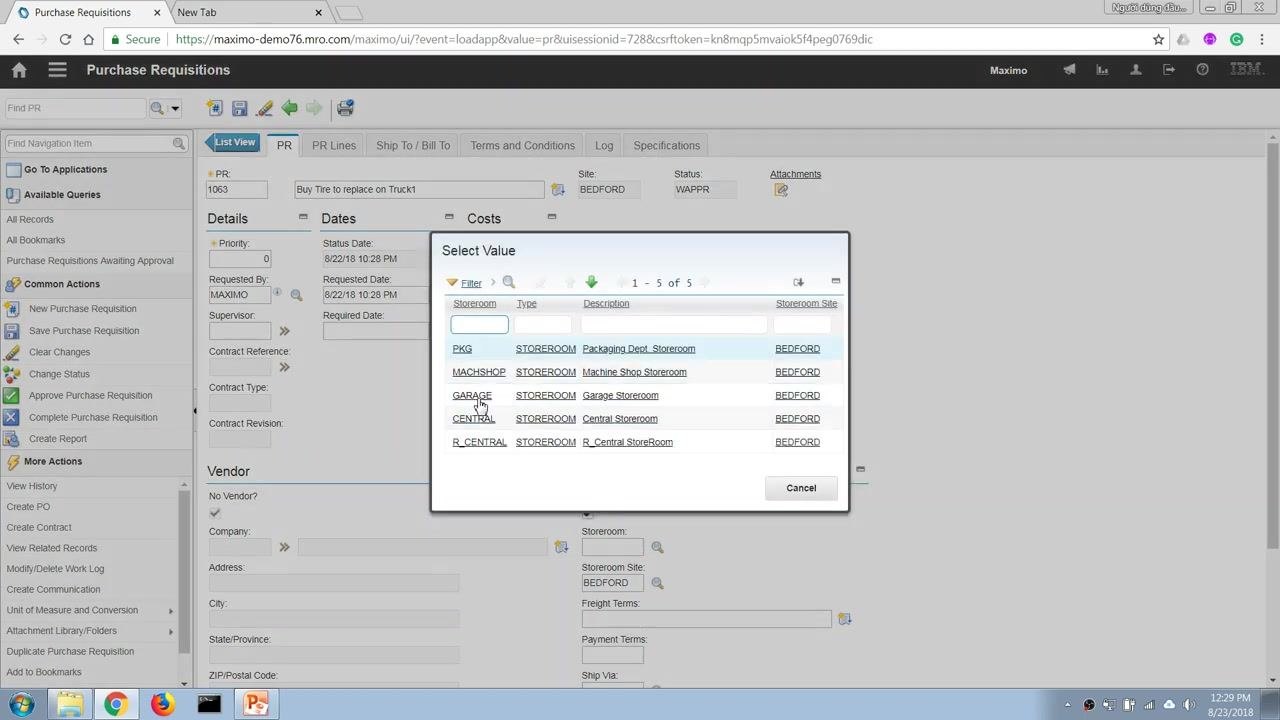
If the item is available in another internal storeroom or warehouse, you can select Internal? instead of No Vendor?. Click the lookup icon next to the Storeroom field to choose from available storerooms, such as PKG, MACHSHOP, GARAGE, CENTRAL, or R_CENTRAL. For an external purchase, leave Internal? unchecked.
Add PR line items
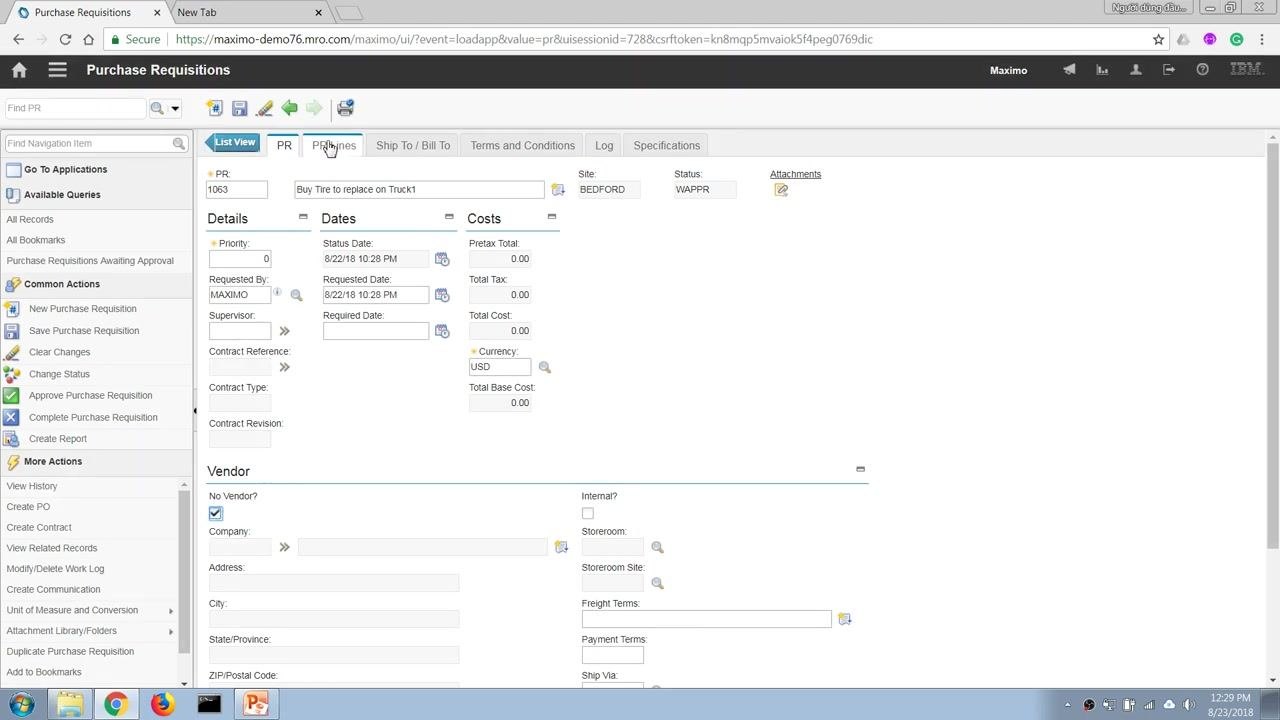
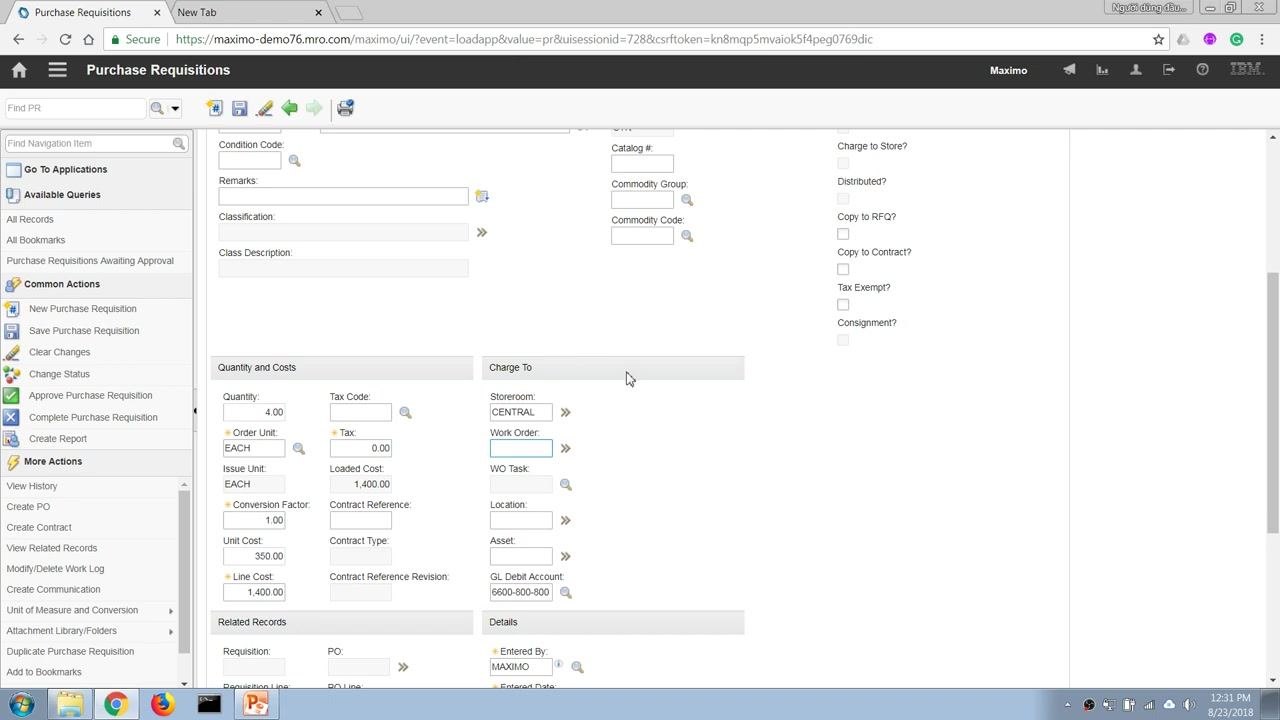
Click the PR Lines tab at the top of the purchase requisition form to add line items, then click New Row to add a new item to the requisition. Specify the item number (for example, TVI-1007 for "Wheel, Truck") and the required quantity (for example, 4), filling in additional fields such as description, unit cost, or storeroom as prompted.
Define the item and quantity
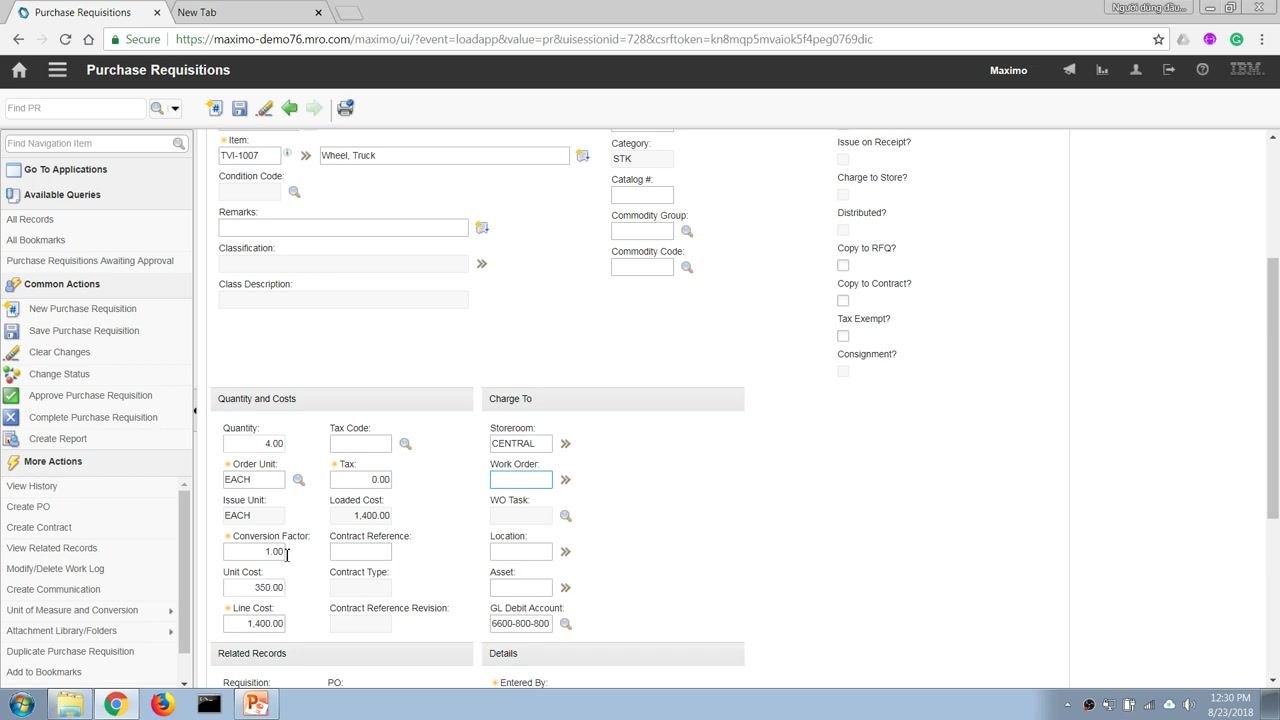
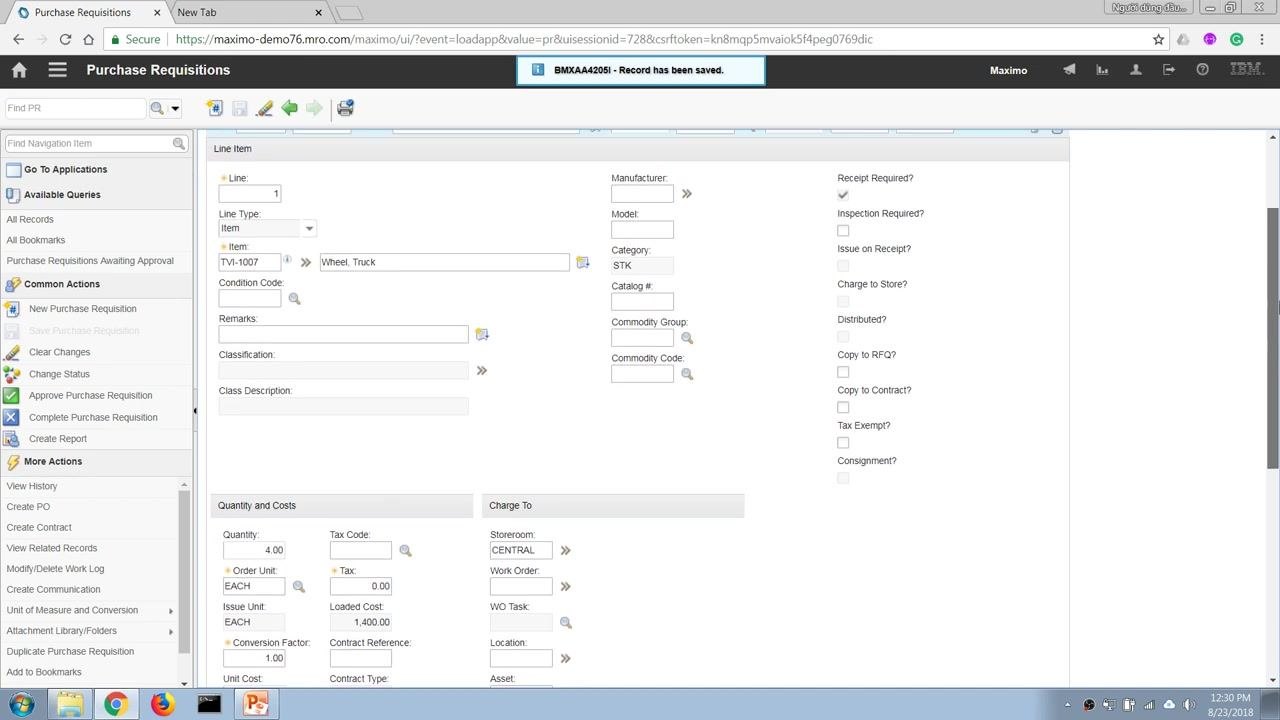
Enter the item number as TV-1007 and the item description as "Wheel, Truck." Set the quantity to 4.00, the order unit and issue unit to EACH, and the unit cost to 350.00. The line cost calculates automatically as 1,400.00, and the category should be set to STK.
Leave the condition code, catalog number, commodity group, and commodity code blank unless specified, along with remarks, classification, and class description. Maximo automatically populates the remaining required information.
Specify the delivery location
In the Charge To section, set the Storeroom field to CENTRAL to indicate the item will be delivered to the CENTRAL storeroom. Leave the Work Order, WO Task, Location, and Asset fields blank unless the item should be charged directly to a work order or asset.
Choose direct issue to a work order (optional)
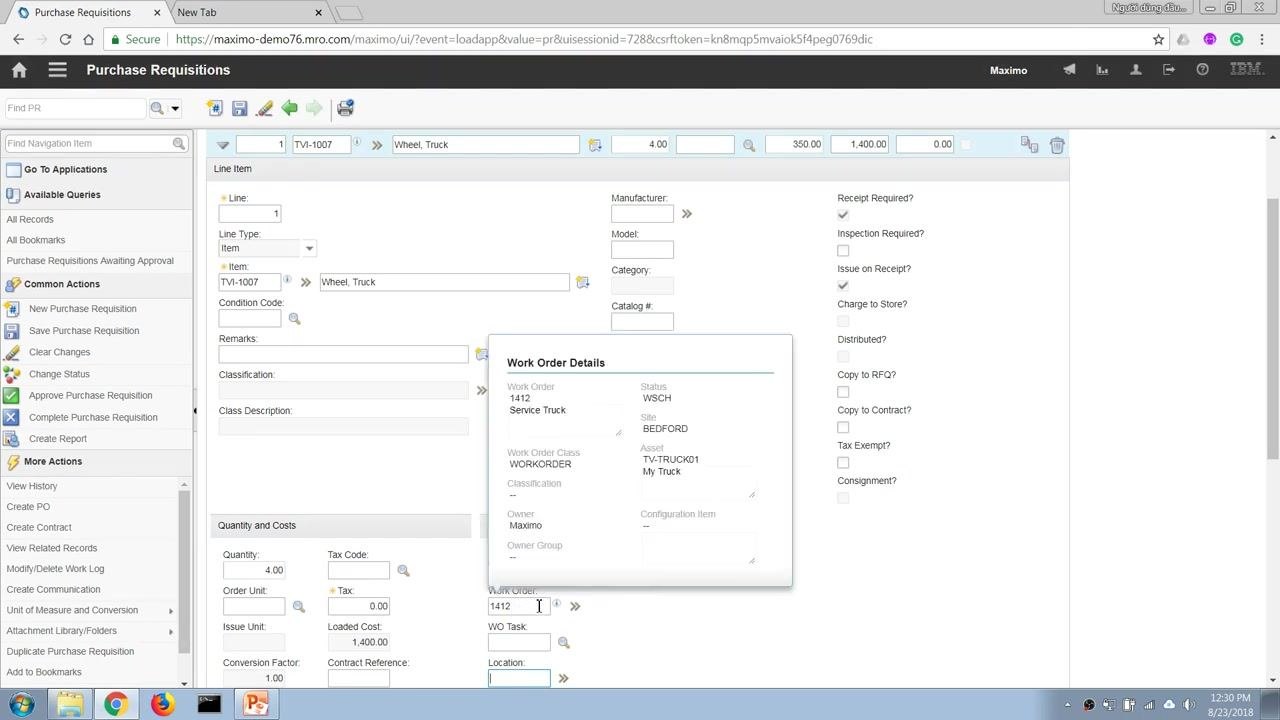
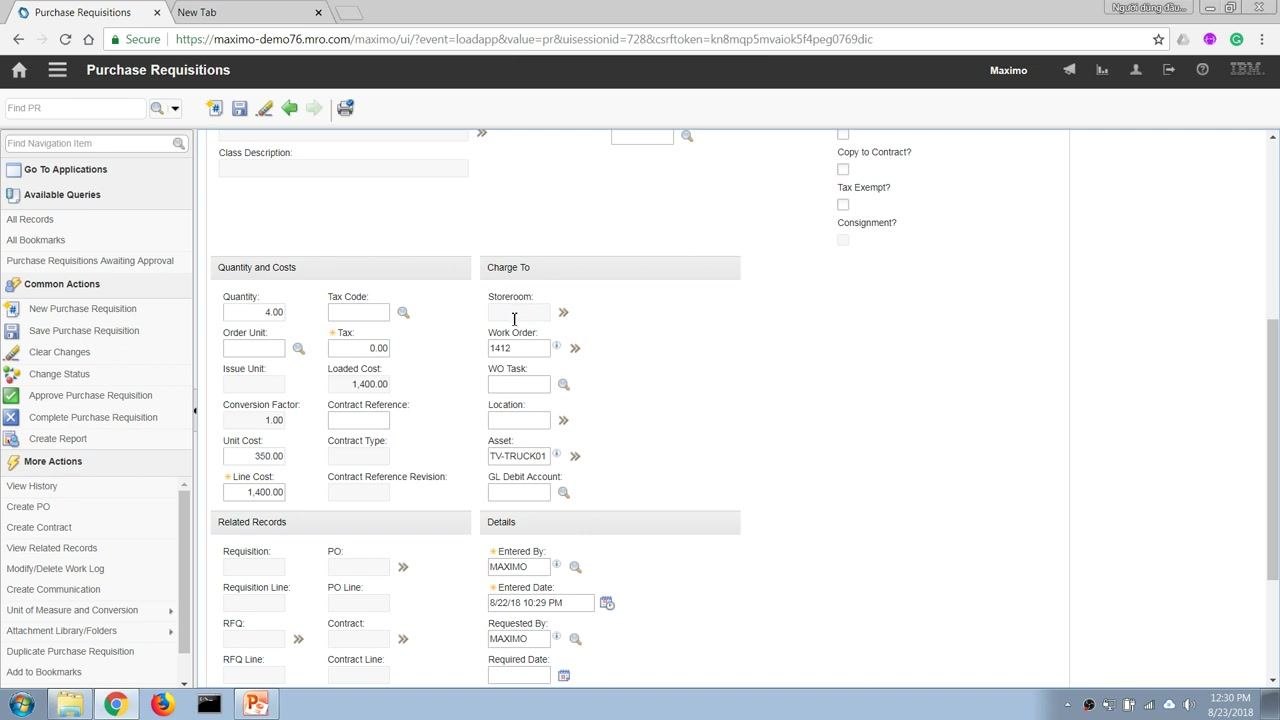
If you do not want the item to go through the storeroom, leave the Storeroom field blank and enter the Work Order number (for example, 1412) to issue the item directly to the work order. When a work order is specified and the storeroom is left blank, the storeroom field locks, indicating a direct issue that becomes a direct expense to the work order or project.
Review the financial implications of your choice: items bought into the storeroom are treated as a capital expenditure (capex), while items issued directly to a work order or project are treated as a direct expense (opex). Review the GL Debit Account and other financial fields as needed.
Check related inventory details
In the PR Lines section, use the context menu on the item (TV-1007), hover over Go To, and select either Inventory or Item Master to view more details about the item. This lets you check stock levels or item attributes before proceeding.
Save the purchase requisition
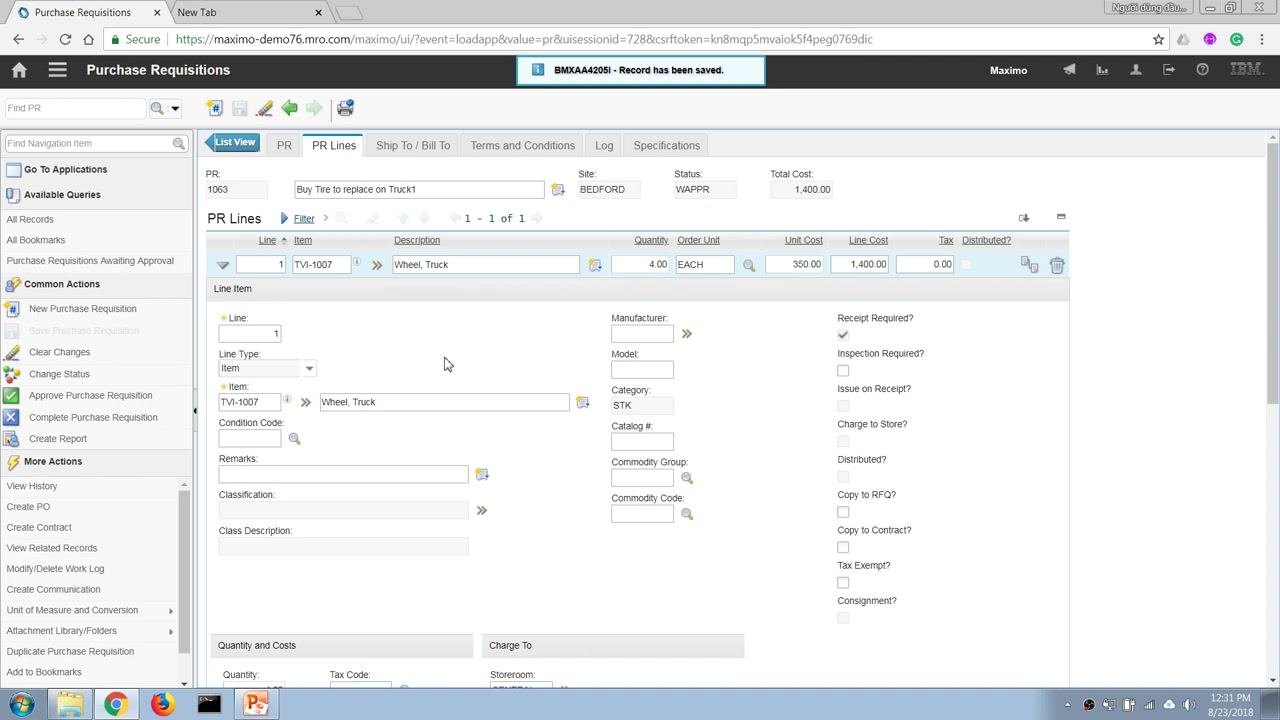
Click the save icon (diskette) in the toolbar to save your purchase requisition. Confirm that the record has been saved successfully by checking for a confirmation message such as "Record has been saved."
By completing these steps, you have created a purchase requisition in Maximo, specified delivery to a storeroom or directly to a work order, and understood the financial implications of each option.
Submit the purchase requisition for approval
Before submitting, confirm all required information is entered for your PR, such as PR 1063 for "Buy Tire to replace on Truck1." Ensure the item details — TV-1007, Wheel, Truck, Quantity 4, Unit Cost 350.00, Line Cost 1,400.00 — are correct, and verify the status is set to WAPPR (Waiting on Approval).
Click Change Status from the left sidebar under Common Actions. In the Change Status dialog, review the current status (WAPPR) and PR details, select Approved from the New Status dropdown, set the Status Date as needed (for example, 8/22/18 10:31 PM), and optionally enter a memo for audit or tracking purposes. Click OK to confirm the status change.
Understand the approval workflow
After submitting for approval, the PR may pass through several workflow steps, including:
- Supervisor review
- Procurement department review
- Financial department review for budget approval
- Final approval by authorized personnel
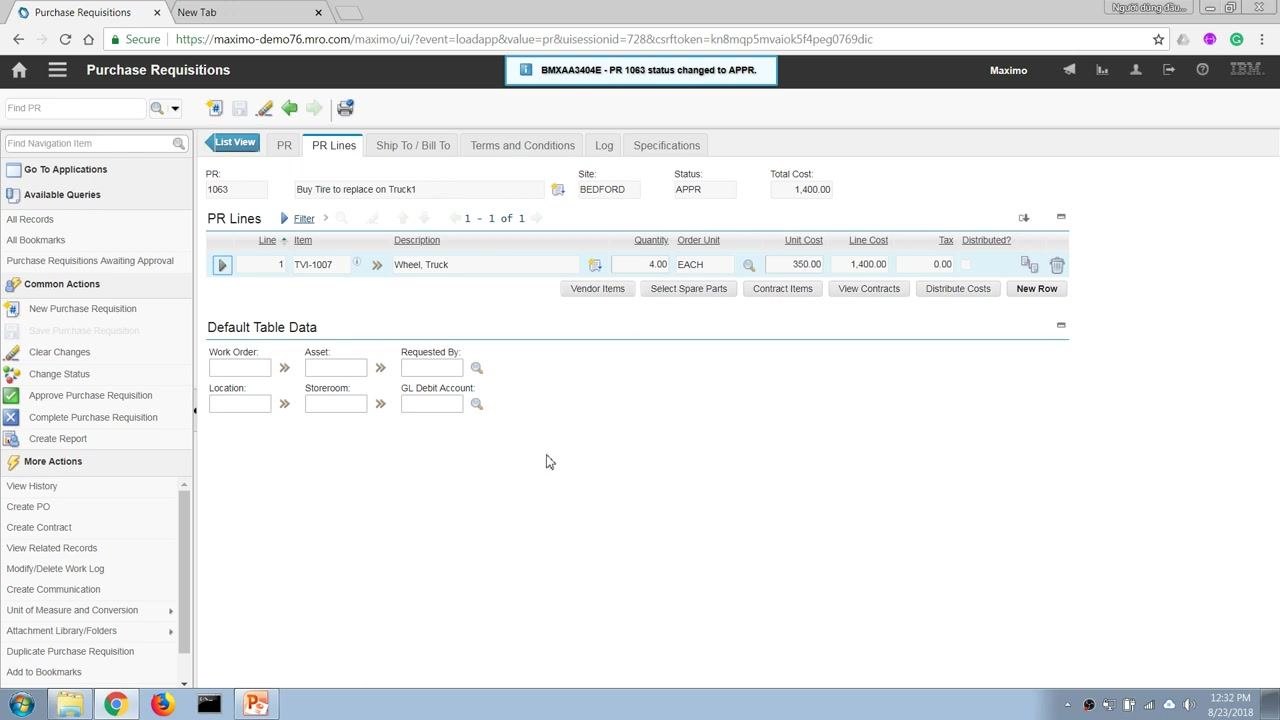
The PR status updates to APPR (Approved) once all workflow steps are completed.
Convert the approved PR to a purchase order
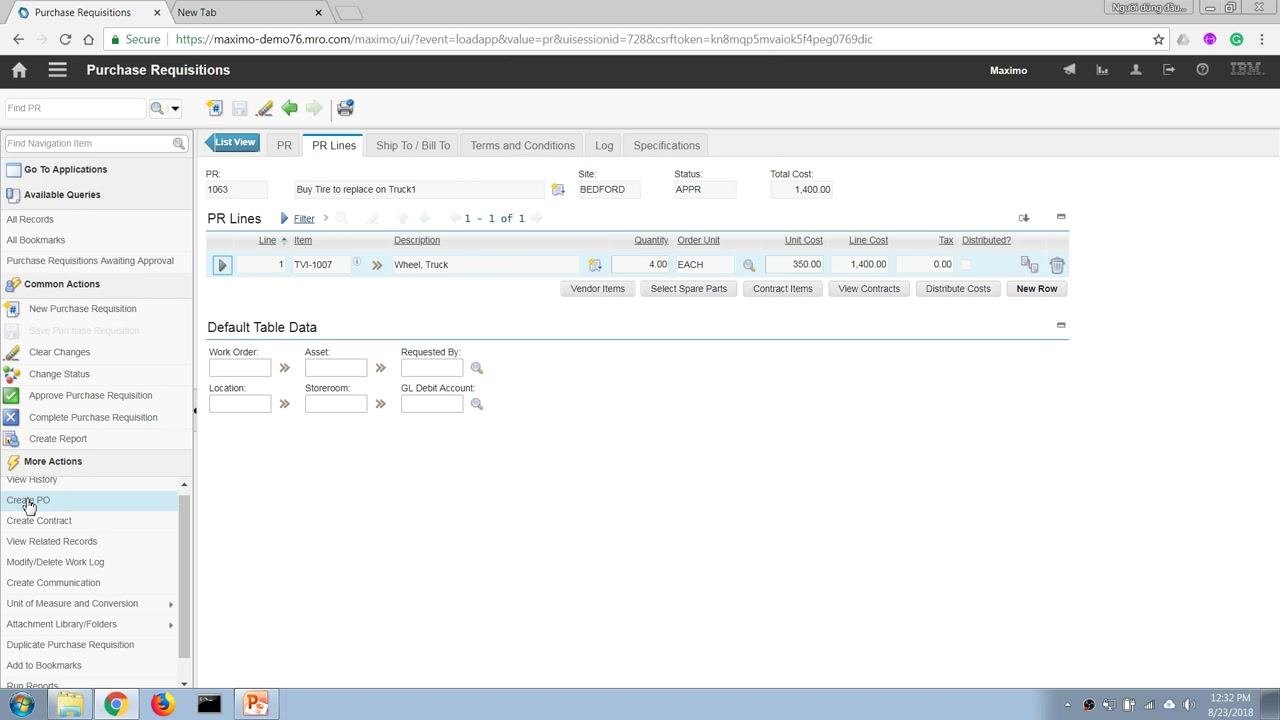
Once a PR is approved, procurement staff or authorized users can convert it into a work order or purchase order. To create a purchase order, click More Actions in the left sidebar and select Create PO. This action generates a PO number and moves the process forward.
Verify the PR line association with the purchase order
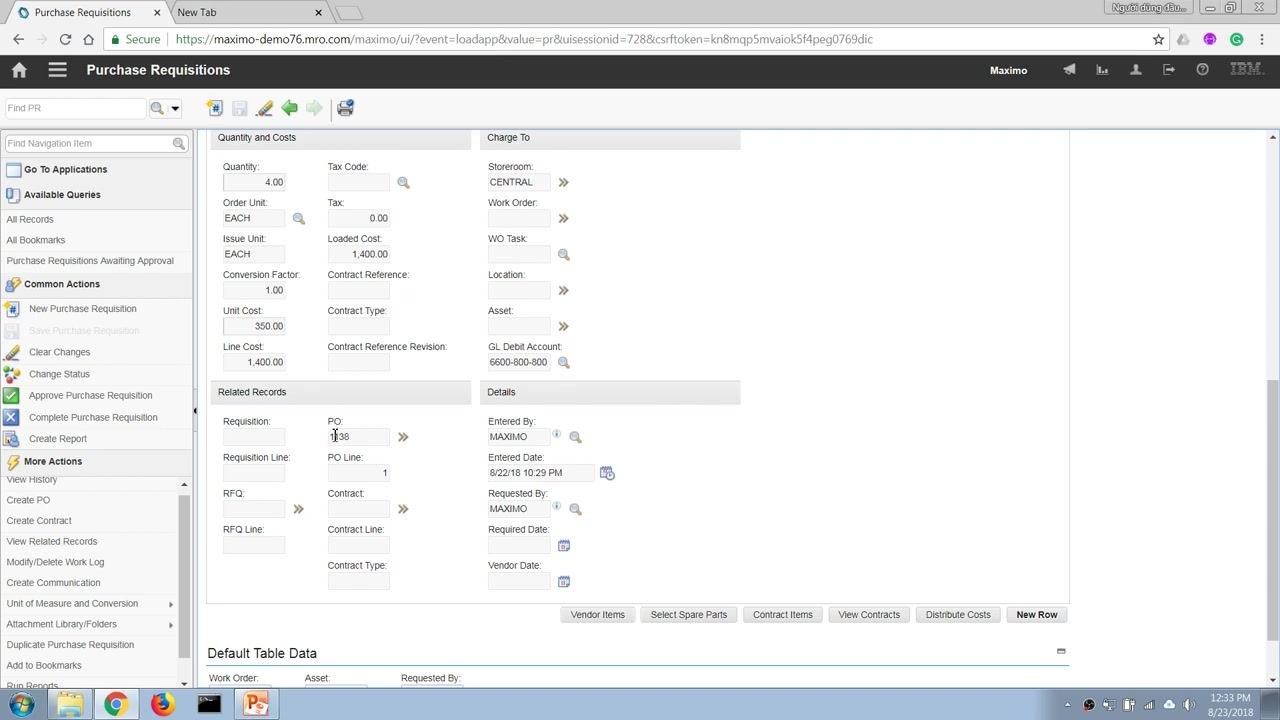
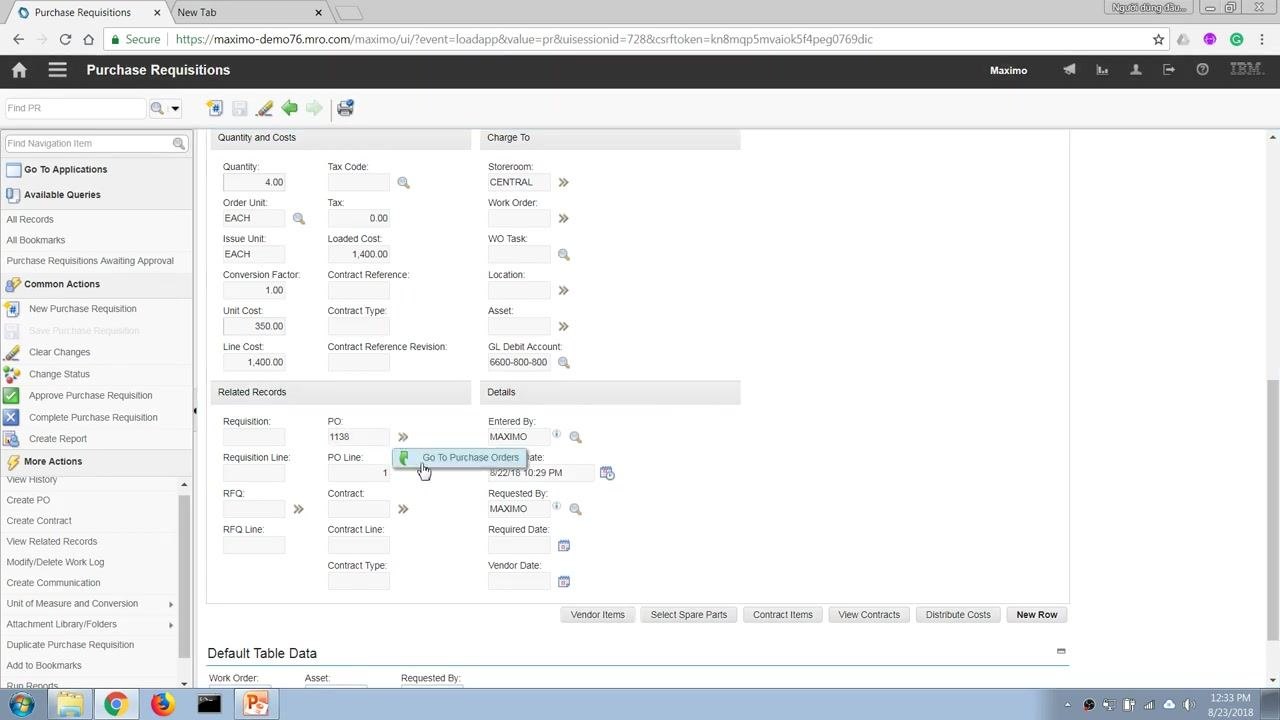
In the PR details, check the Related Records section to confirm that the PR line has been brought over to PO 1138, PO Line 1. Review associated fields such as Quantity 4.00, Unit Cost 350.00, Line Cost 1,400.00, GL Debit Account 6600-800-800, Entered By MAXIMO, and Entered Date 8/22/18 10:29 PM. Click Go To Purchase Orders to navigate directly to the related PO.
Understand automatic status reversal on PO cancellation
If a PR line is copied to a PO and the PO is later cancelled, Maximo automatically reverses the PR status from CLOSE back to APPR (Approved). This ensures the PR can be processed again if the PO is not completed, and the PR Lines and details remain visible for review.
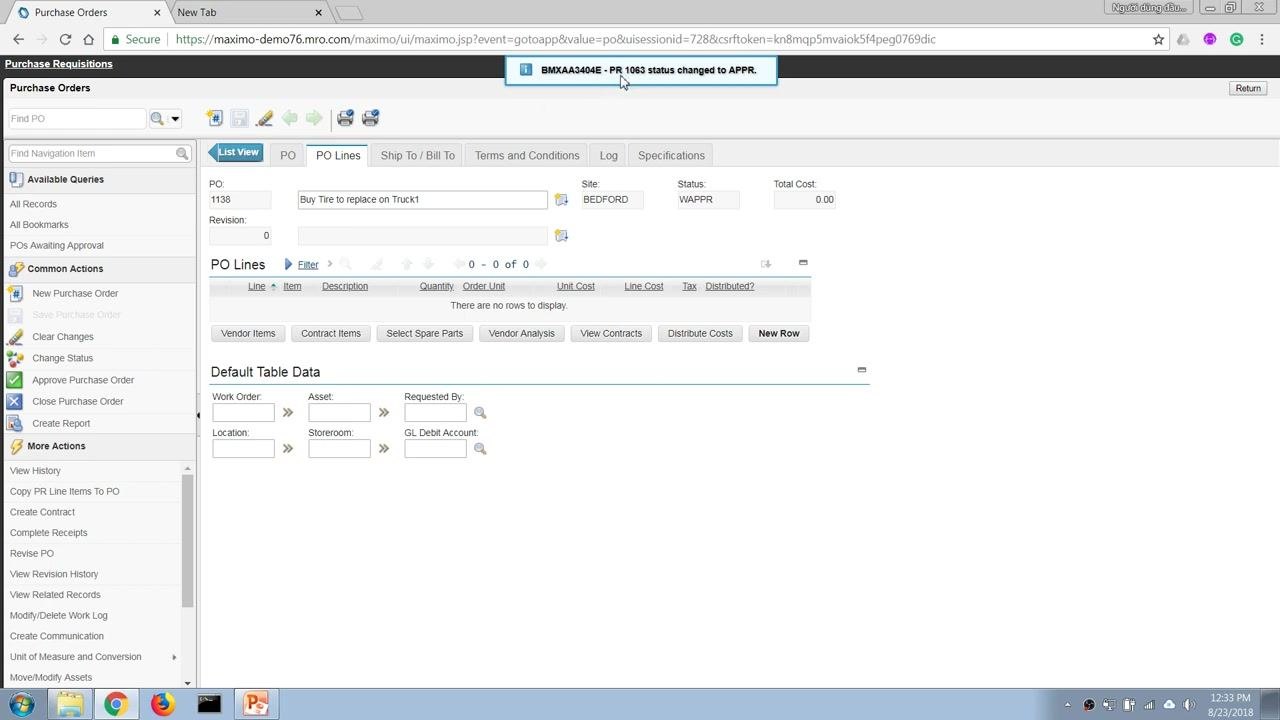
In the Purchase Orders application, remove the line item that was copied from the PR. Maximo updates the PR status accordingly, and you will see a notification such as "BMXAA43404E - PR 1063 status changed to APPR." The PR returns to APPR (Approved) status and can be processed again.
Create a new purchase order from scratch
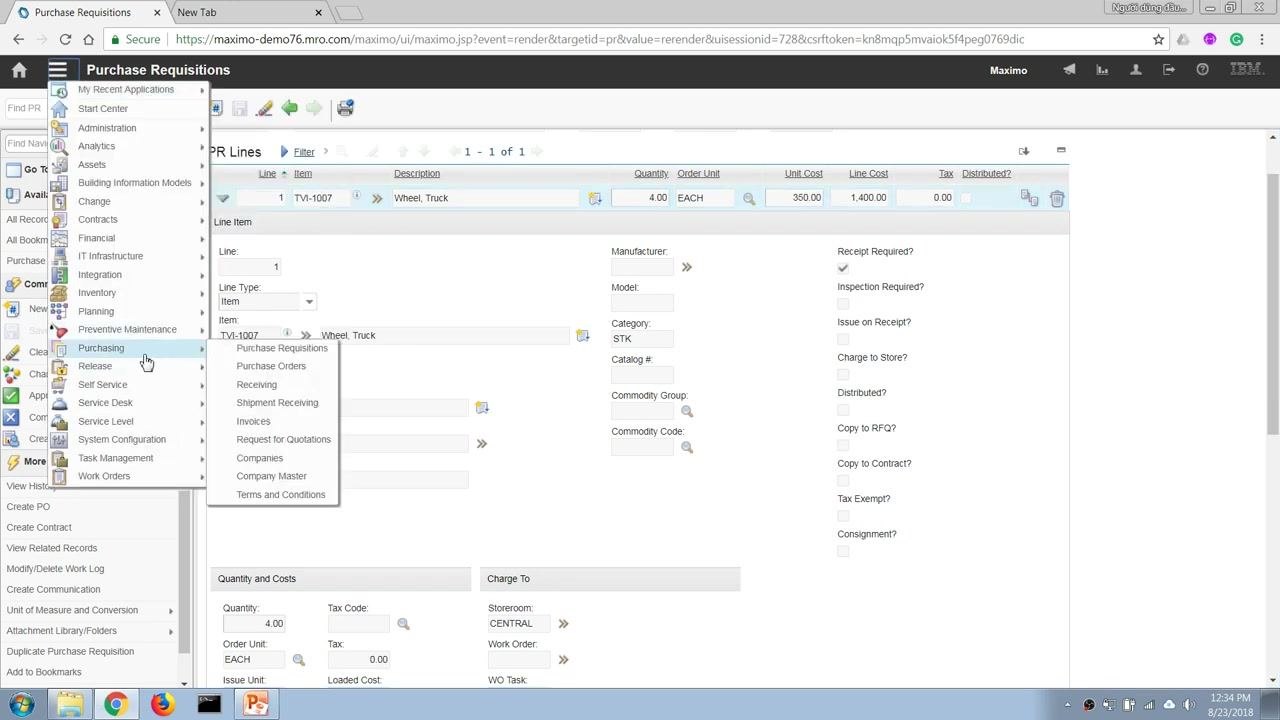
Open the navigation menu and go to Purchasing > Purchase Orders to create a new PO independently of any PR. The PR Lines screen remains available for reference.
Enter new purchase order details
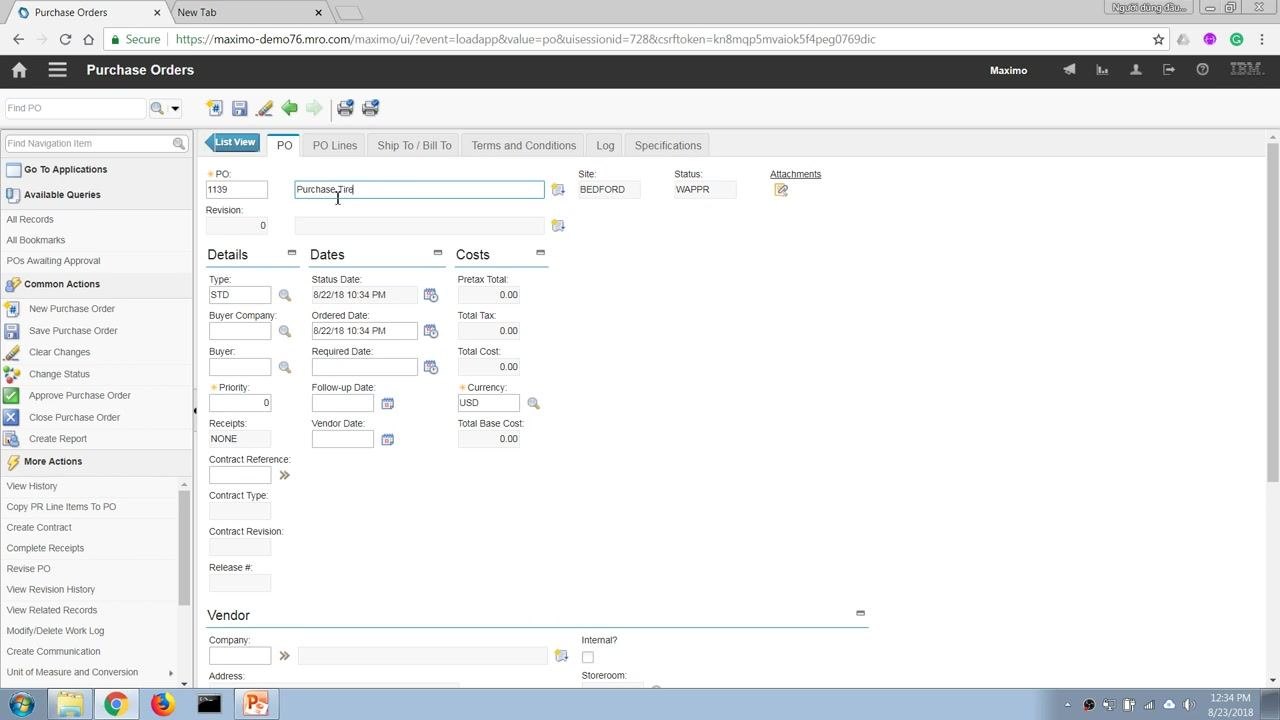
In the Purchase Orders application, enter the following details:
- PO Number: 1139 (auto-generated or entered)
- Description: Purchase_Tire
- Site: BEDFORD
- Status: WAPPR (Waiting on Approval)
- Type: STD
- Status Date: 8/22/18 10:34 PM
- Ordered Date: 8/22/18 10:34 PM
- Currency: USD
Fill in additional fields such as Buyer, Vendor, and Costs as needed.
Specify delivery location and financial transaction type
Determine where the ordered items should be delivered. To deliver to a storeroom, enter the storeroom information in the Storeroom field (for example, CENTRAL); Maximo automatically populates related fields based on your entry, such as ordering 4 units of item TV-1007 (Wheel, Truck) to the CENTRAL storeroom.
If you want a direct issue to a work order or project that bypasses the storeroom, enter the work order or project number in the Work Order field. The Storeroom field becomes locked, indicating a direct issue. This changes the financial transaction type: delivery to a storeroom is treated as capital expenditure (CAPEX), while a direct issue to a work order or project is treated as operational expenditure (OPEX). Save the purchase order record after entering all required information.
Copy PR line items to the purchase order
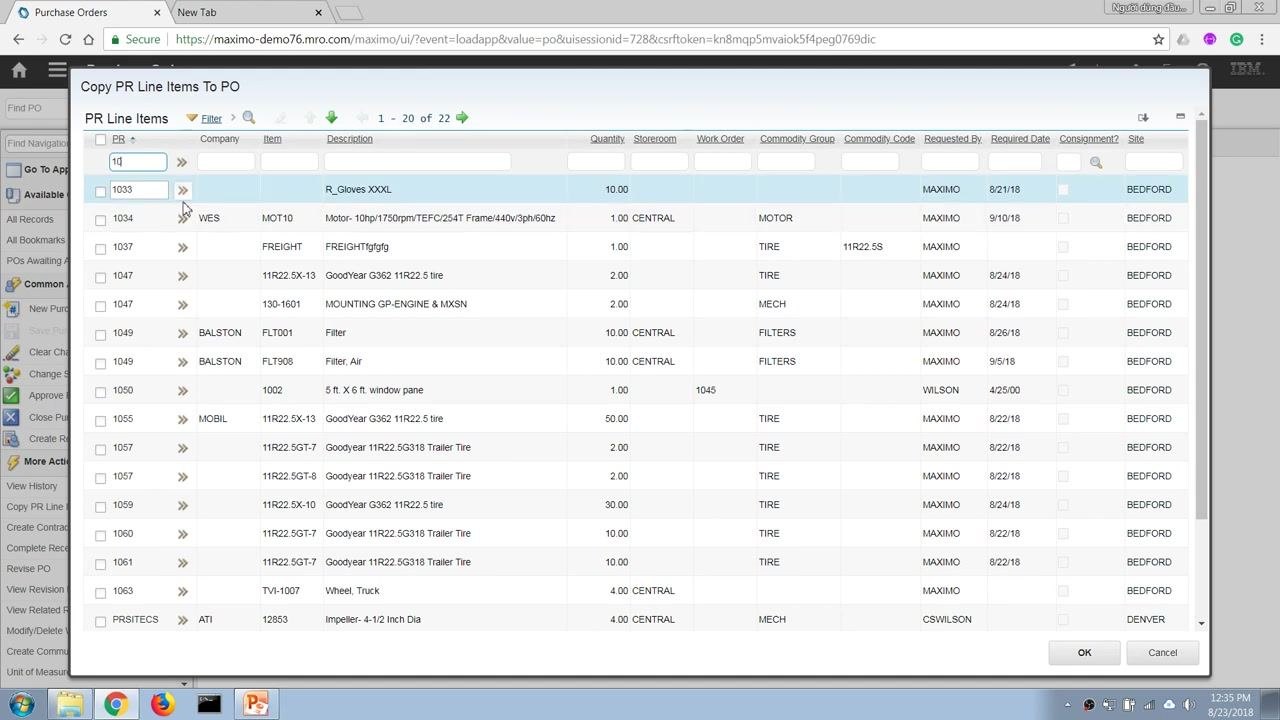
Use the Copy PR Line Items to PO function to add items from existing purchase requisitions to your purchase order. In the dialog, search for the relevant PR line items (for example, by entering "1033" in the PR field) and review the list of available items, including Company, Item, Description, Quantity, Storeroom, Work Order, Commodity Group, Requested By, Required Date, and Site. Select the items to copy and click OK to confirm.
Review and confirm PO line details
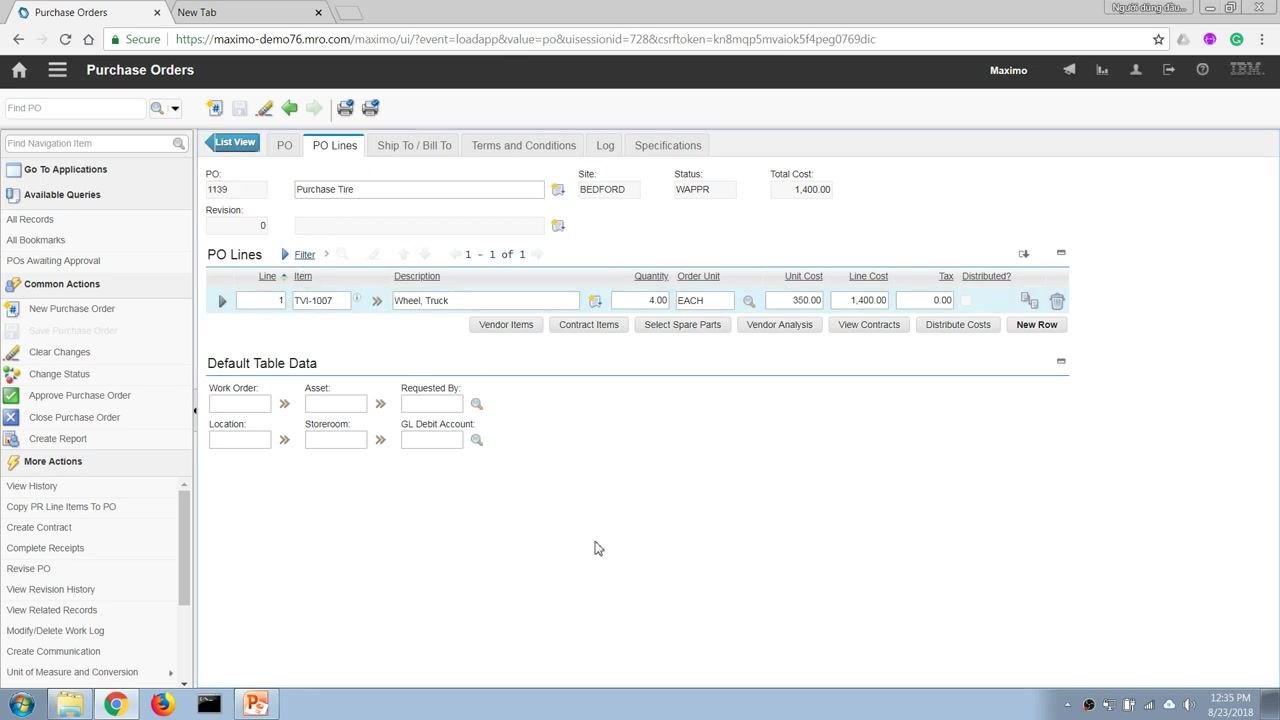
After copying PR line items, review the PO Lines tab to confirm the item (for example, TV-1007, Wheel, Truck), quantity (4.00 EACH), unit cost (350.00), and line cost (1,400.00), as well as the storeroom and other default table data.
Watch for the notification at the top of the screen: "BMXAA43404E - PR 1063 status changed to CLOSE." This indicates that all actions on the PR line items have been completed and the PR is now closed.
Finalize and save the purchase order
Ensure all PO line details are accurate and complete, then save the purchase order to finalize the transaction. The PO is now ready for subsequent processes such as receiving, material issue, and transfer.
What's next
With your purchase order saved, you can proceed to downstream logistics operations such as receiving the ordered items, issuing materials to the work order, and transferring stock between storerooms. This complete workflow — from checking inventory availability, through creating a purchase requisition in Maximo, to approving and converting it into a purchase order — supports both CAPEX and OPEX procurement scenarios and ensures accurate tracking throughout your supply chain process.
Generation details: cost, quality tiers
Docsie billed 5,500 credits ($3.85) to analyze this 11-minute video at standard quality. The rewrite, template fill and Word/PDF exports were included. The same video at each quality tier:
| Quality | Frames sampled | Credits | Approx. cost |
|---|---|---|---|
| Draft | every 16-30 s | 2,750 | $1.92 |
| Standard (this guide) | every 8-15 s | 5,500 | $3.85 |
| Detailed | every 4-7 s | 11,000 | $7.70 |
| Ultra | every 1-3 s | 22,000 | $15.40 |
Credits priced at $0.70 per 1,000; plans include a monthly allowance. Enterprise customers on on-premise or bring-your-own-model deployments run this on their own inference and pay no per-video credits.
Generated by Docsie Video-to-Docs on 2026-10-25 from a 10-minute video. Screenshots are frames from the source video and belong to their creator, Viet Tran, whose original is embedded above. If you own this video and want the guide removed or credited differently, contact us and we will act within one business day.