
How to Create a Preventive Maintenance Record in IBM Maximo
This guide shows you how to create a preventive maintenance record in IBM Maximo 7.5, modify its scheduling details, and link it to a Master PM. You will also learn how changes made at the Master PM level cascade to associated PM records, and how to prevent specific PMs from receiving those updates.
Video: Maximo 7.5 How to use Preventive Maintenance by IBM Product Hub (2021). All credit for the demonstration goes to the creator; watch the original on YouTube. The written guide below was generated from this video by Docsie. Creator? Request a change or removal.
This guide shows you how to create a preventive maintenance record in IBM Maximo 7.5, modify its scheduling details, and link it to a Master PM. You will also learn how changes made at the Master PM level cascade to associated PM records, and how to prevent specific PMs from receiving those updates.
Prerequisites
- A valid Maximo 7.5 login and user credentials.
- Access rights to the Preventive Maintenance and Master PM applications.
- An existing PM record or Master PM record to work with (as shown in the examples below).
Access the Maximo Start Center
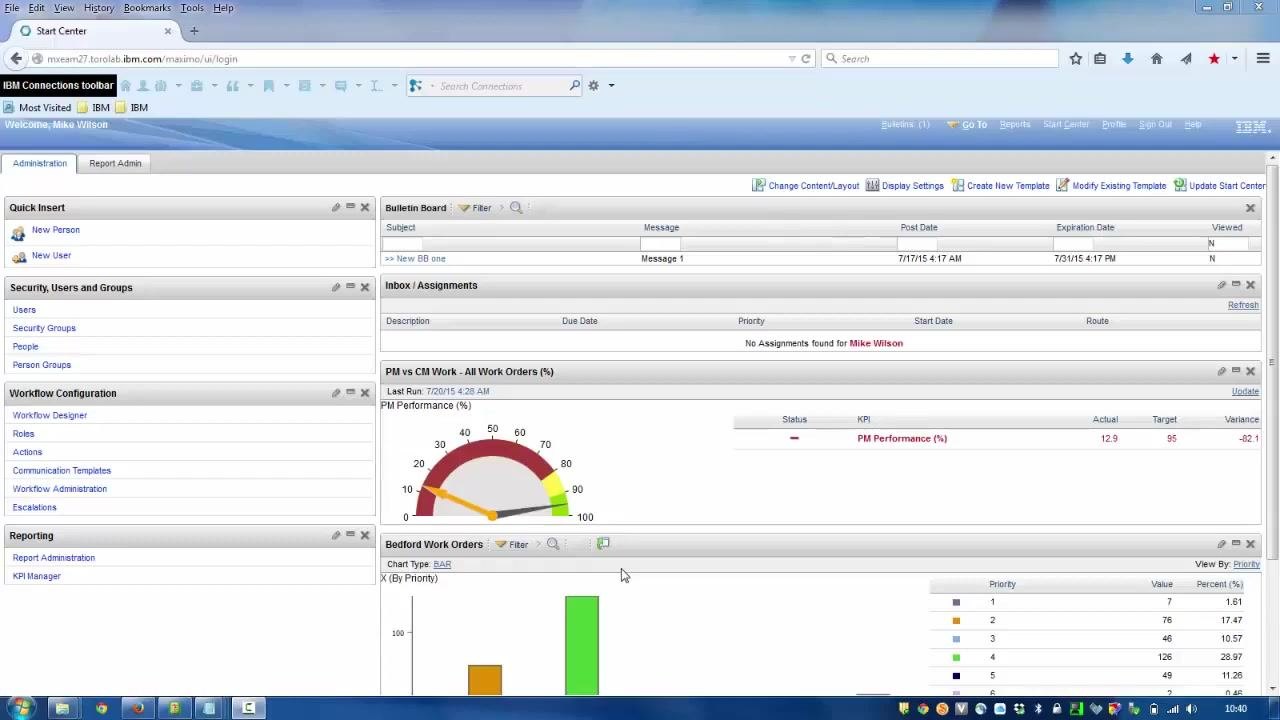
Open your web browser and navigate to your Maximo 7.5 login page, then log in with your credentials. The Start Center dashboard appears, displaying widgets such as Quick Insert, Bulletin Board, Inbox/Assignments, PM vs CM Work Orders, and Bedford Work Orders.
Navigate to the Preventive Maintenance application
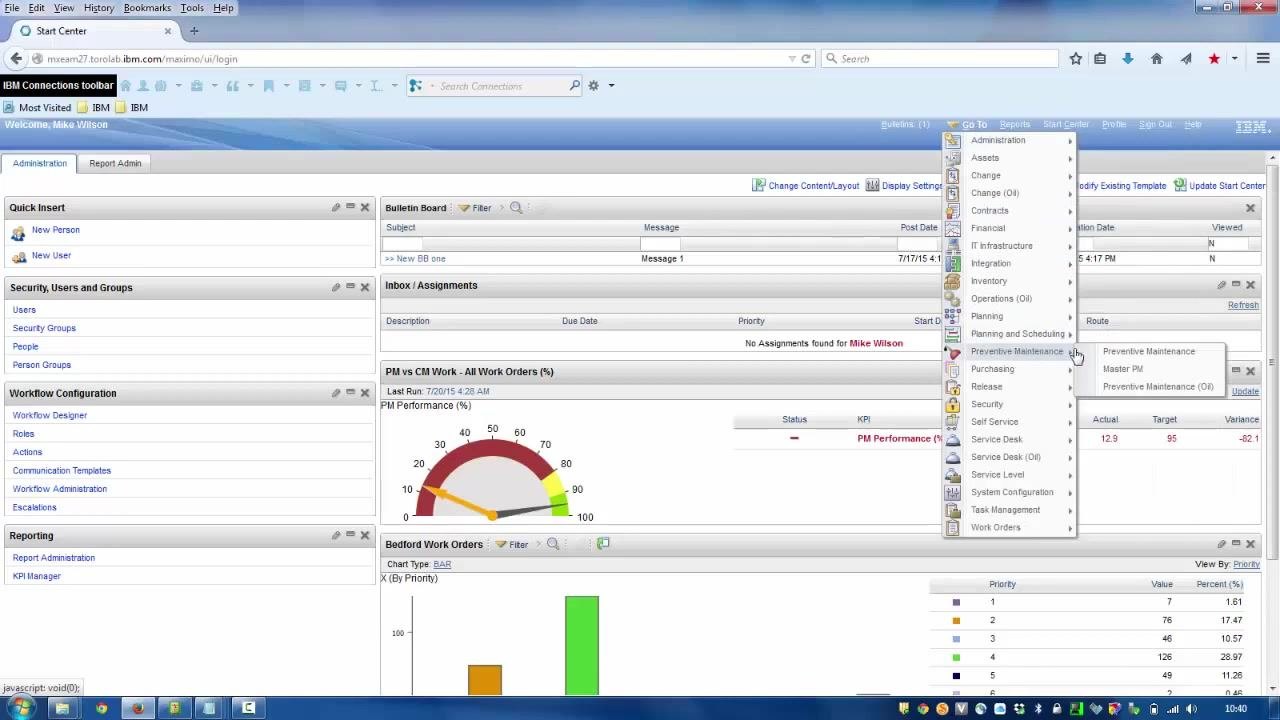
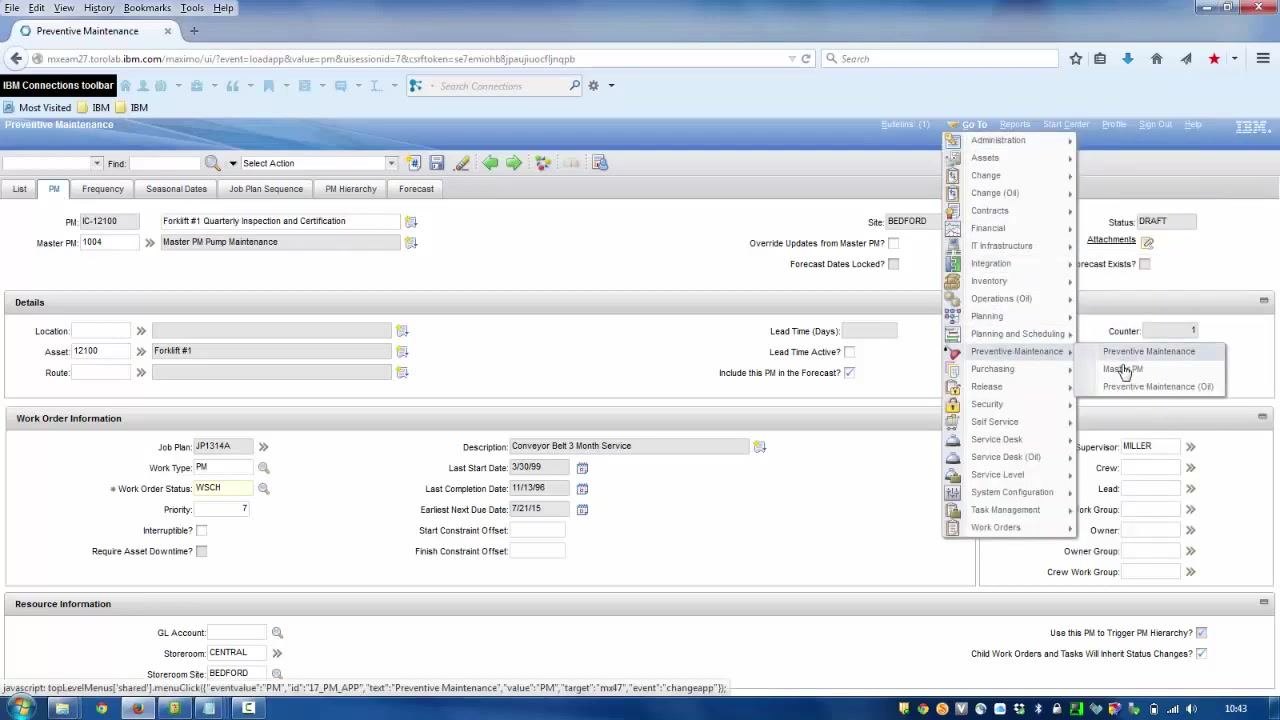
Locate the top navigation bar and hover over or click the Go To menu. In the dropdown, hover over Preventive Maintenance, then select Preventive Maintenance from the submenu to open the PM records application.
View preventive maintenance records
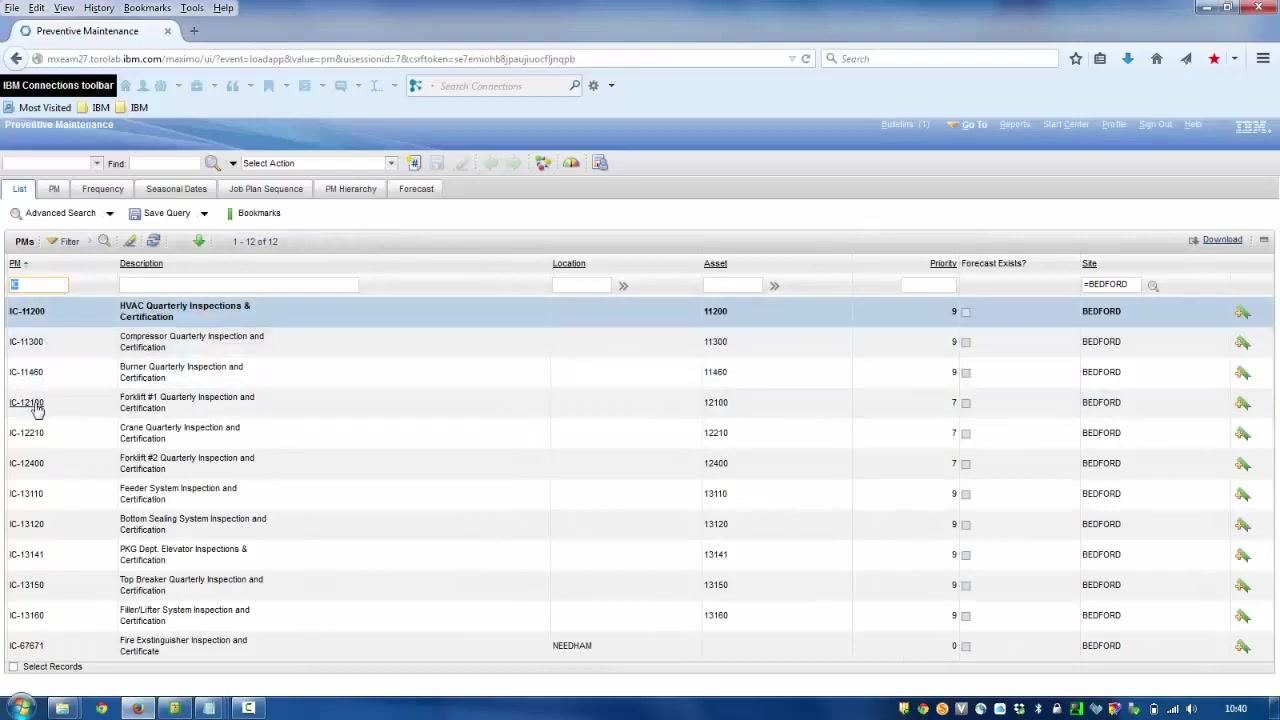
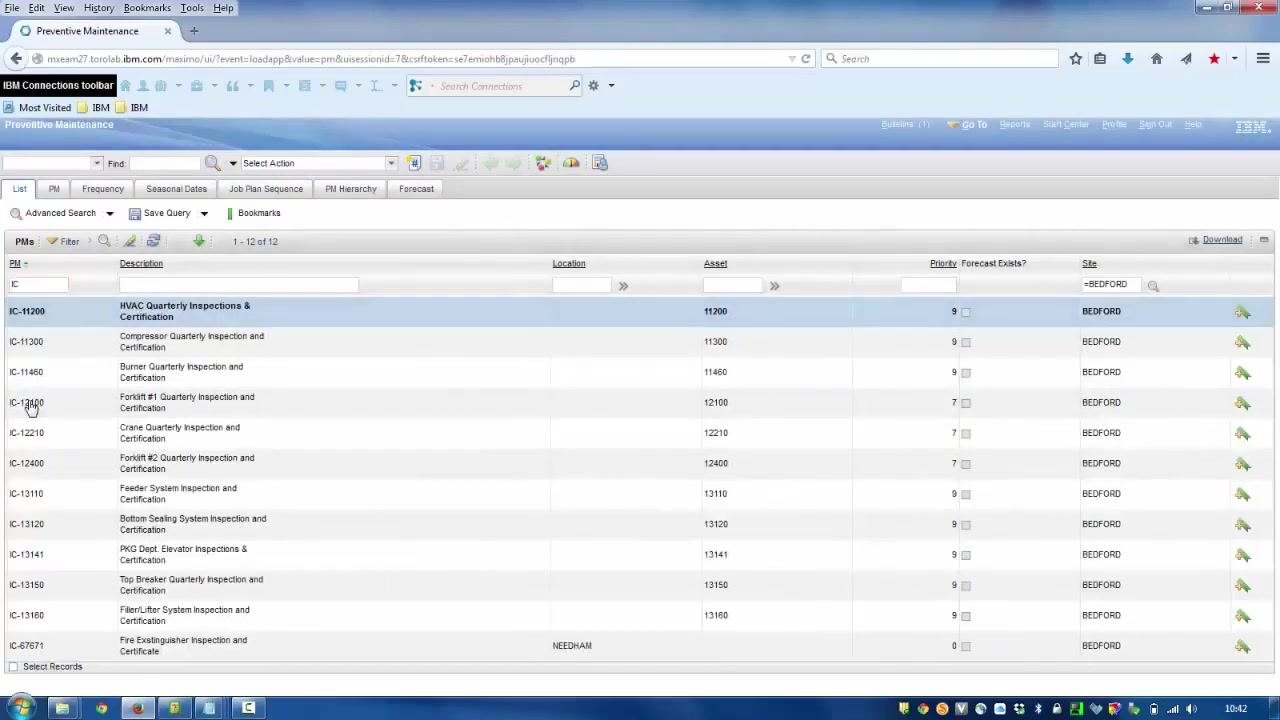
The Preventive Maintenance application displays a list of existing PM records, with columns for PM number, Description, Location, Asset, Priority, Forecast Exists, and Site. You can filter or search for specific PMs using the fields at the top of each column. Example records include:
- IC-11200: HVAC Quarterly Inspections & Certification
- IC-12100: Forklift #1 Quarterly Inspection and Certification
- IC-12210: Crane Quarterly Inspection and Certification
Modify a preventive maintenance record
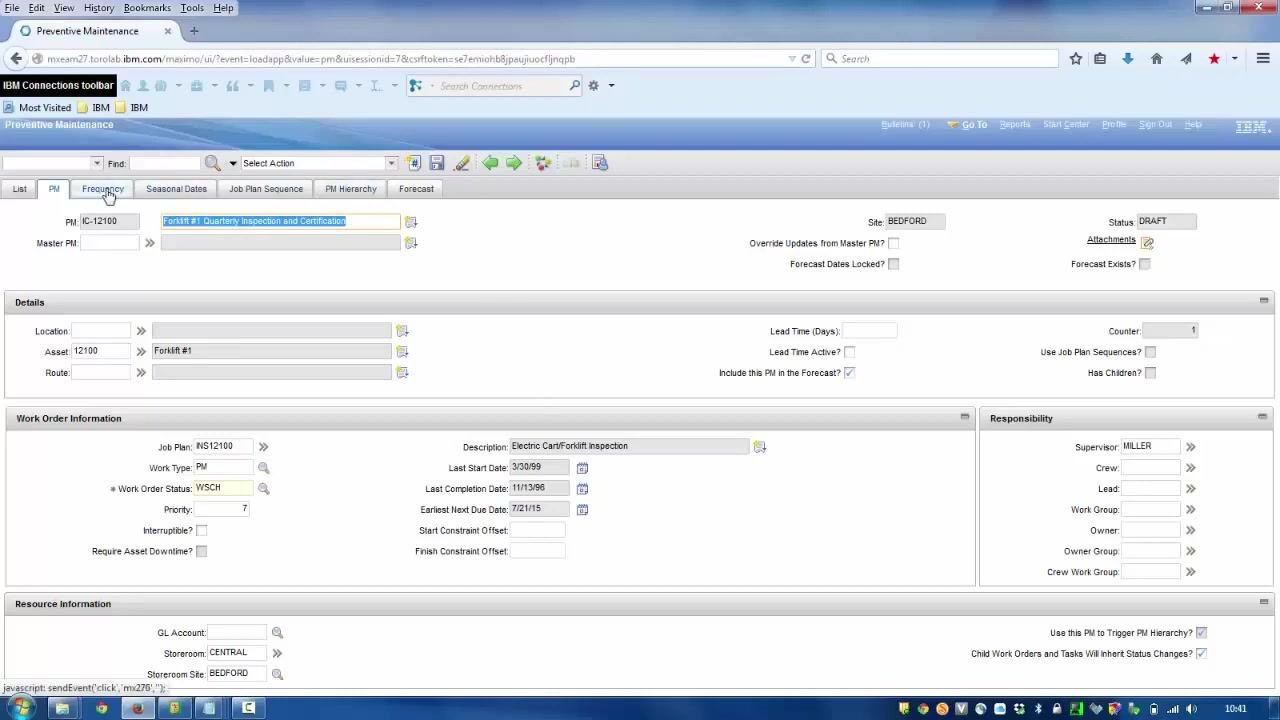
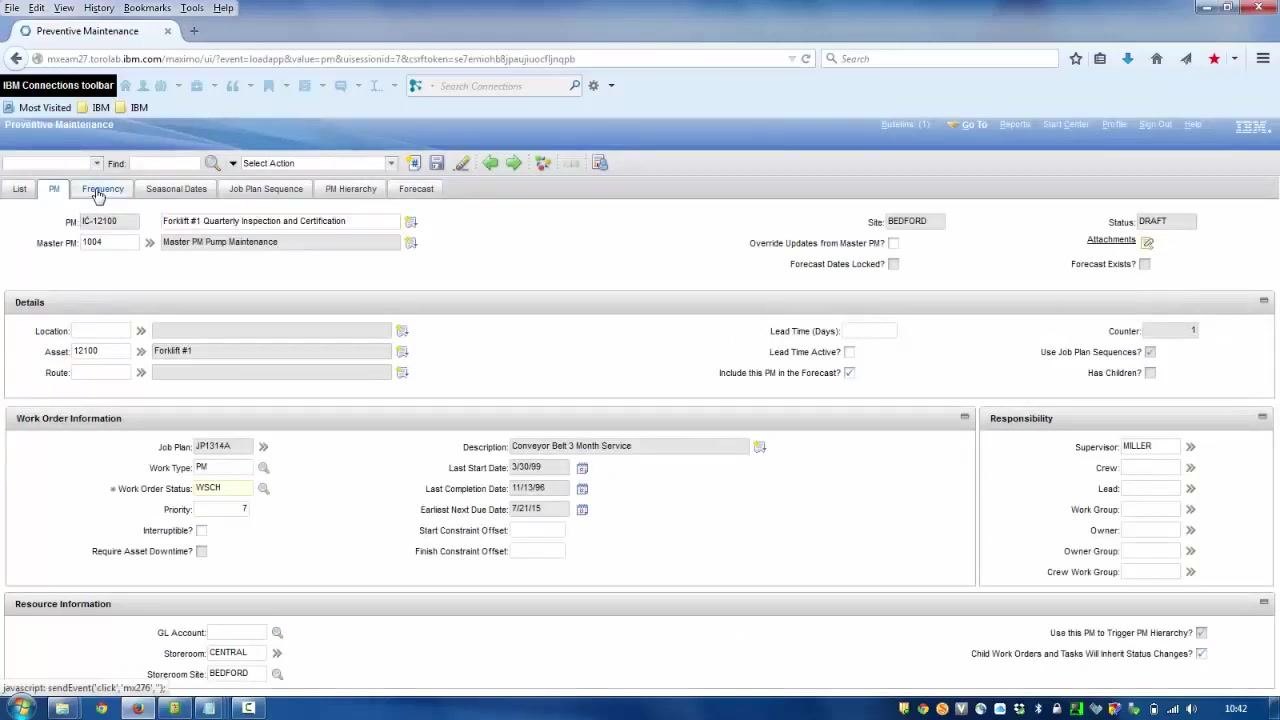
Select a PM record to view its details, for example IC-12100: Forklift #1 Quarterly Inspection and Certification. The details screen shows multiple tabs, including List, PM, Frequency, Seasonal Dates, Job Plan Sequence, PM Hierarchy, and Forecast.
In the Frequency tab, you can modify the frequency value. For example, set Frequency = 90 and Frequency Units = DAYS. In the Job Plan Sequence tab, make sure at least one job plan record is entered.
Associate the PM with a Master PM
In the PM details screen, locate the Master PM field. Enter the Master PM number (for example, 1004) or use the lookup to select the appropriate master PM, such as "Master PM Pump Maintenance." Click the save icon or button to save the association.
Access the Master PM record
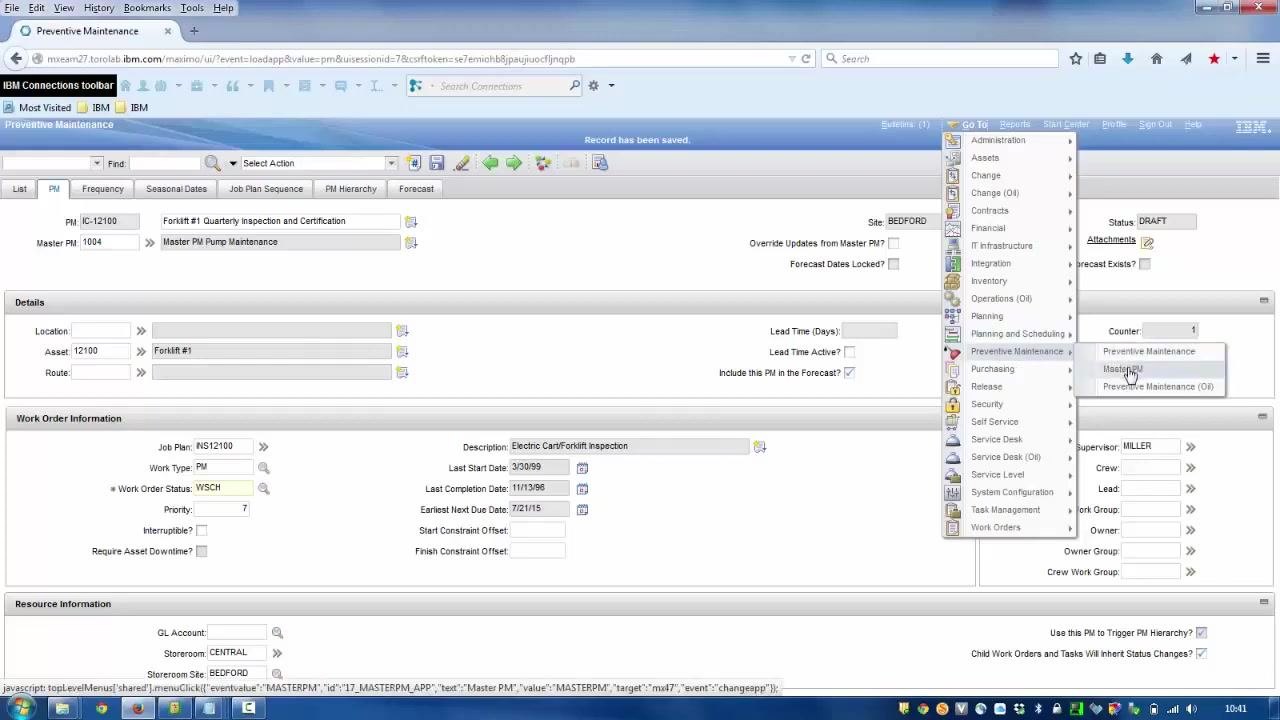
Return to the Go To menu, hover over Preventive Maintenance, and select Master PM from the submenu. This opens the Master PM application, where you can view and manage master PM records.
By completing these steps, you can view, modify, and associate preventive maintenance records with master PMs in Maximo 7.5. The remaining steps cover how changes cascade from a Master PM to its associated PMs, and how to control that propagation.
Cascade updates from a Master PM to associated PMs
Open the Master PM record you want to update, for example Master PM 1004, "Master PM Pump Maintenance." In the Frequency tab, set a new frequency value, such as Frequency = 110 and Frequency Units = DAYS.
Switch to the Job Plan Sequence tab and add or update job plans as needed. For example, add three job plans:
- JP1000: Emergency Pipe Repair (Sequence 1)
- JP1314A: Conveyor Belt 3 Month Service (Sequence 2)
- MYPLAN (Sequence 3)
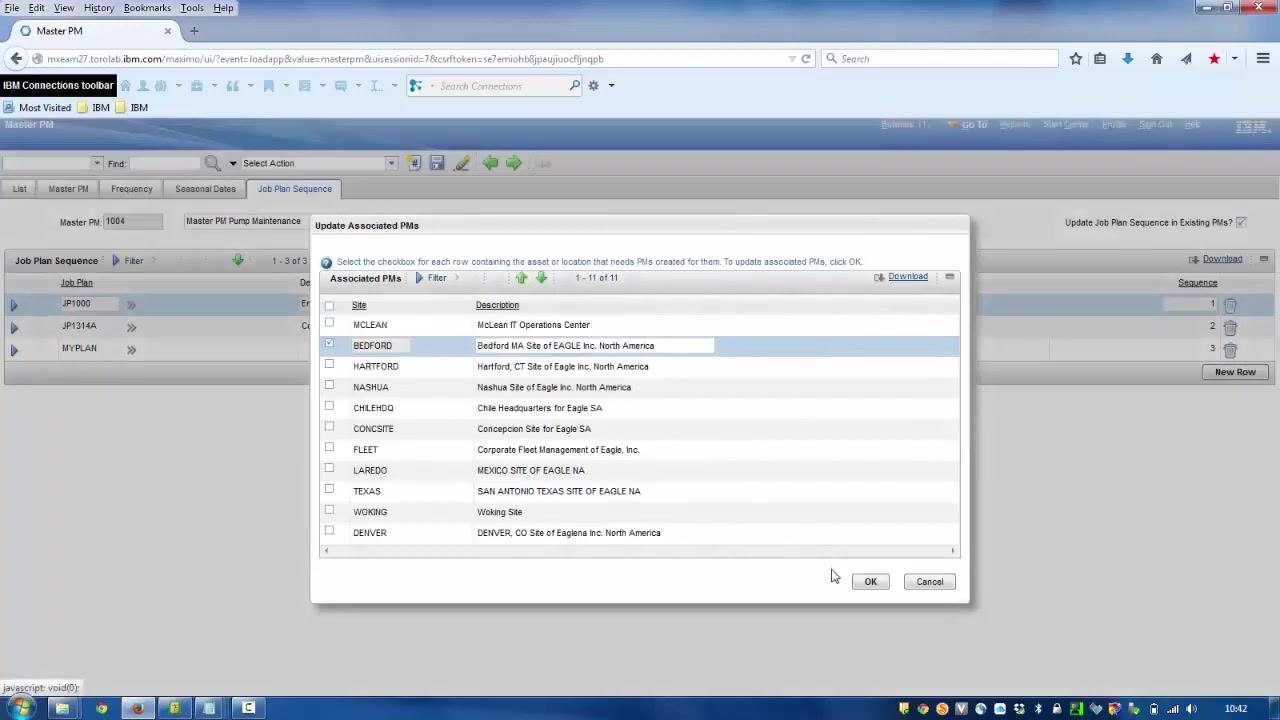
Click the option to update associated PMs. A dialog appears listing all sites where PMs are associated. Select the relevant site or sites, for example BEDFORD, by checking the corresponding checkbox, then click OK to confirm the update. Save the Master PM record to apply the changes.
Verify the cascade effect on preventive maintenance records
Return to the Preventive Maintenance application and open the associated PM record, for example IC-12100: Forklift #1 Quarterly Inspection and Certification. In the Frequency tab, verify that the frequency has been updated to 110 (previously 90).
Switch to the Job Plan Sequence tab and confirm that all three job plans from the Master PM are now present: JP1000, JP1314A, and MYPLAN, in their respective sequence order.
Understand which Master PM fields cascade
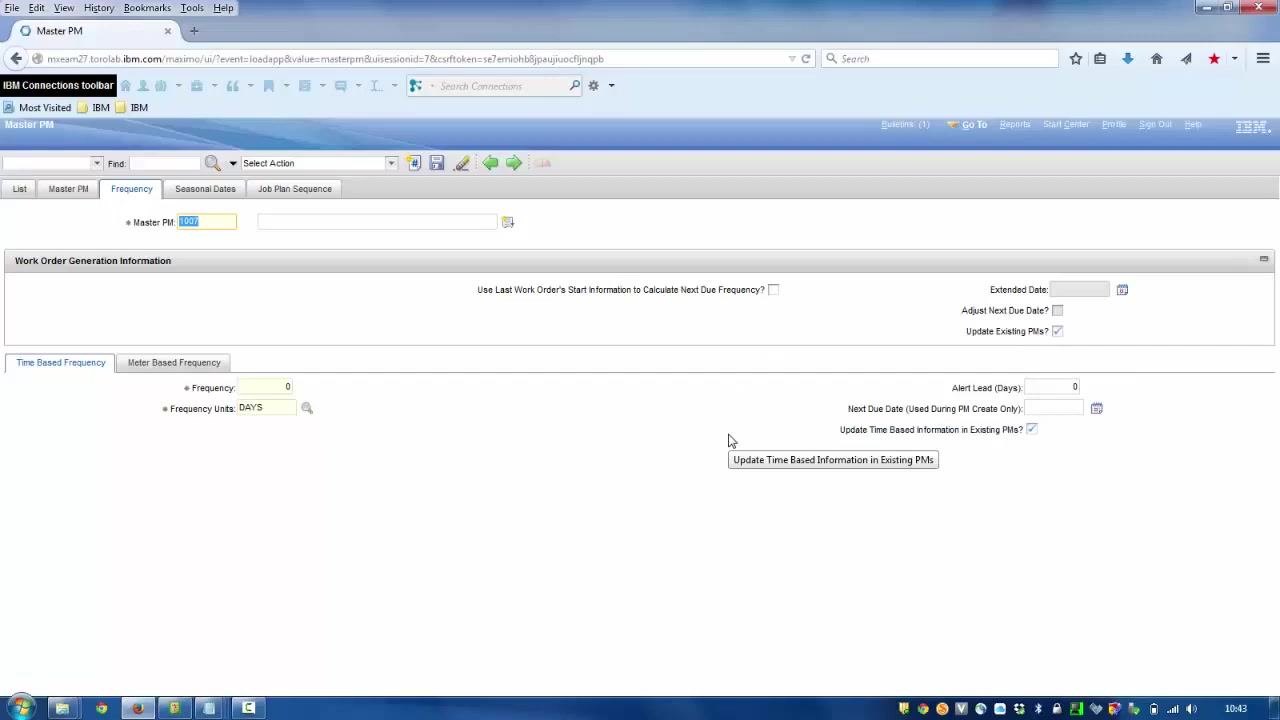
In the Frequency tab of a Master PM record, note the Update Existing PMs? checkbox. When this box is ticked, all fields underneath it — such as Frequency, Frequency Units, and Alert Lead — are updated in associated PMs when changes are made.
The Seasonal Dates tab includes an Update Existing PMs Seasonal Dates? checkbox, which controls whether seasonal date changes cascade. The Job Plan Sequence tab contains an Update Job Plan Sequence in Existing PMs? checkbox, which determines whether job plan sequence changes cascade.
The main Master PM tab does not have an "Update Existing PMs?" checkbox. Fields on this tab — such as Work Type, Work Order Status, Work Order Priority, and Lead Time — are unique to the Master PM and are not cascaded to associated PMs.
Prevent cascading updates for a specific PM
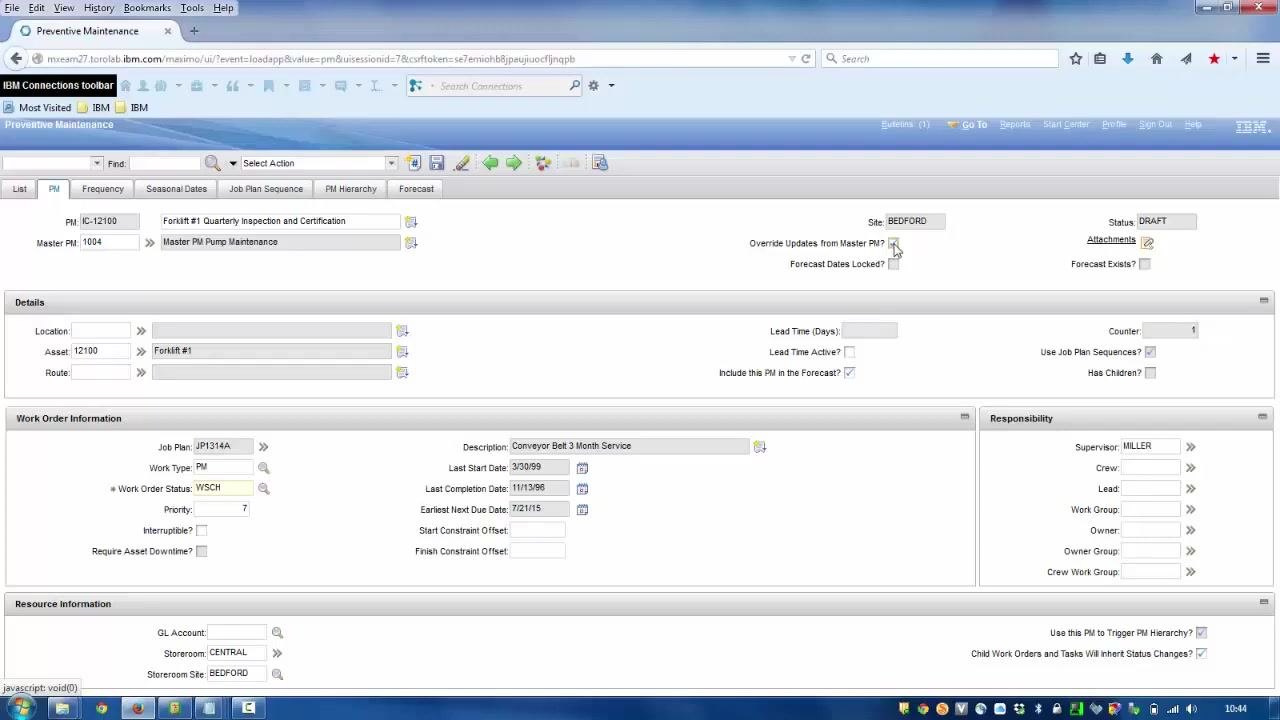
To exclude a specific PM from receiving updates from its Master PM, open the associated Preventive Maintenance record, for example IC-12100: Forklift #1 Quarterly Inspection and Certification. Locate the Override Updates from Master PM? checkbox near the top of the record, and tick it to prevent this PM from receiving any future updates from the Master PM, even if other associated PMs are updated.
When this override is enabled, all other associated PMs continue to receive updates from the Master PM, except the one or ones with the override checked.
Summary
Following these steps, you can:
- Create and modify a preventive maintenance record and associate it with a Master PM.
- Identify which Master PM fields cascade to associated PMs — those with an "Update Existing PMs?" checkbox.
- Recognize that fields on the main Master PM tab do not cascade.
- Exclude specific PMs from receiving cascaded updates by enabling Override Updates from Master PM? on the individual PM record.
This gives you precise control over which preventive maintenance records are updated when changes are made to a Master PM, supporting both broad, site-wide updates and granular, record-specific exceptions.
Generation details: cost, quality tiers
Docsie billed 2,500 credits ($1.75) to analyze this 5-minute video at standard quality. The rewrite, template fill and Word/PDF exports were included. The same video at each quality tier:
| Quality | Frames sampled | Credits | Approx. cost |
|---|---|---|---|
| Draft | every 16-30 s | 1,250 | $0.88 |
| Standard (this guide) | every 8-15 s | 2,500 | $1.75 |
| Detailed | every 4-7 s | 5,000 | $3.50 |
| Ultra | every 1-3 s | 10,000 | $7.00 |
Credits priced at $0.70 per 1,000; plans include a monthly allowance. Enterprise customers on on-premise or bring-your-own-model deployments run this on their own inference and pay no per-video credits.
Generated by Docsie Video-to-Docs on 2026-10-25 from a 4-minute video. Screenshots are frames from the source video and belong to their creator, IBM Product Hub, whose original is embedded above. If you own this video and want the guide removed or credited differently, contact us and we will act within one business day.