
How to Create a Job Plan in IBM Maximo
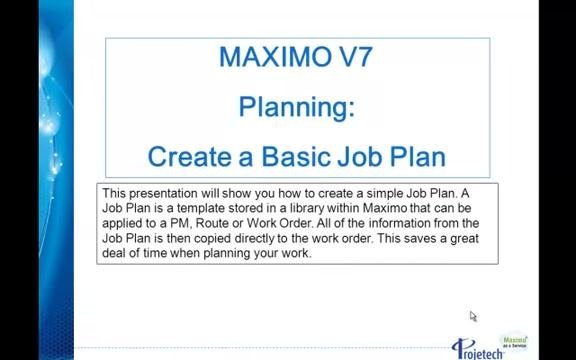
Learning how to create a job plan in IBM Maximo helps you standardize recurring maintenance work and save significant time during planning. A job plan is a template stored in the Maximo library that can be applied to Preventive Maintenance (PM) records, routes, or work orders. Once applied, all the information in the job plan—tasks, labor, materials, and assets—is copied directly to the work order. This guide walks you through creating a basic job plan and assigning it to a work order.
Video: IBM Maximo V7 Job Planning: Create a Basic Job Plan by Projetech (2012). All credit for the demonstration goes to the creator; watch the original on YouTube. The written guide below was generated from this video by Docsie. Creator? Request a change or removal.
Learning how to create a job plan in IBM Maximo helps you standardize recurring maintenance work and save significant time during planning. A job plan is a template stored in the Maximo library that can be applied to Preventive Maintenance (PM) records, routes, or work orders. Once applied, all the information in the job plan—tasks, labor, materials, and assets—is copied directly to the work order. This guide walks you through creating a basic job plan and assigning it to a work order.
Understanding the purpose of a job plan
Before you begin, it helps to understand what a job plan does:
- A job plan is a template stored in Maximo.
- You can apply it to a PM, a route, or a work order.
- All information from the job plan is copied to the work order, which saves significant planning time.
Creating a basic job plan
Navigate to the Job Plans section
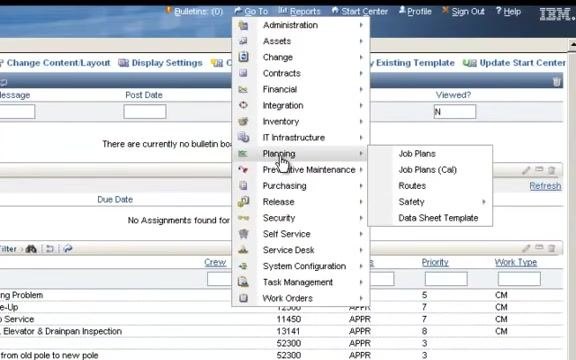
Open the Go To menu in Maximo, hover over the Planning module, and slide across to select Job Plans from the dropdown menu.
Create a new job plan record
Click New Record at the top of the Job Plans screen to start a new job plan.
Enter a unique job plan identifier
In the Job Plan field, enter a unique identifier for your job plan (for example, JM8746A).
Provide a description
Tab to the Description field and enter a basic description for the job plan.
Set organization and site
Organization and Site settings control who can use the job plan:
- Leaving both fields blank allows anyone in the Maximo instance to use the job plan.
- Entering an Organization restricts use to that organization.
- Entering both Organization and Site restricts use to that specific site within the organization.
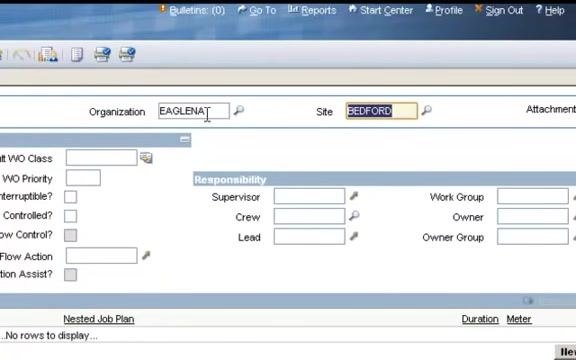
For this example, enter BEDFORD in the Site field. When you tab out of the field, the Organization field auto-populates (for example, EAGLENAT).
Assign a crew or group
Avoid entering individual names—such as a Supervisor, Lead, or Owner—in the Responsibility section. Using names can create maintenance issues if personnel change, since every affected job plan would then need to be updated. Instead, use group values such as Crew, Work Group, or Owner Group, which remain stable over time.
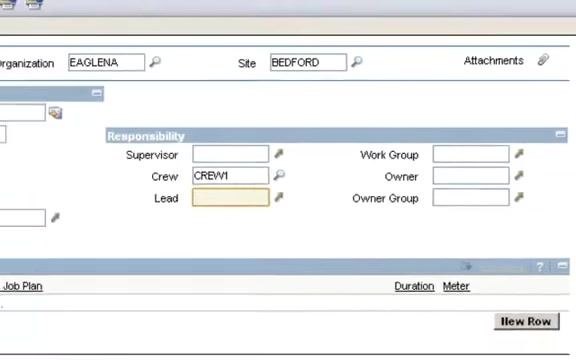
In the Crew field, enter CREW1 and tab out of the field to save the value. Leave the other fields (Supervisor, Lead, Work Group, Owner, Owner Group) blank unless a group assignment is appropriate.
Add job plan tasks
Locate the Job Plan Tasks section below the Responsibility area and click New Row to add your first task. Tasks are automatically numbered in increments of 10 (10, 20, 30, and so on).
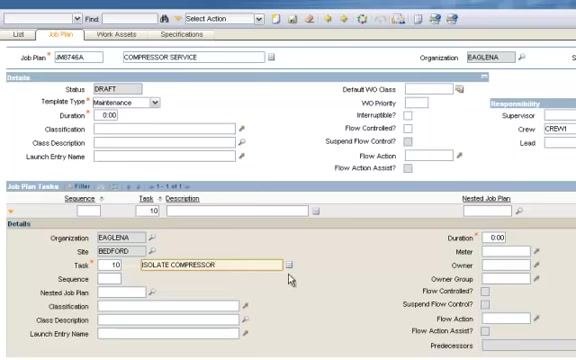
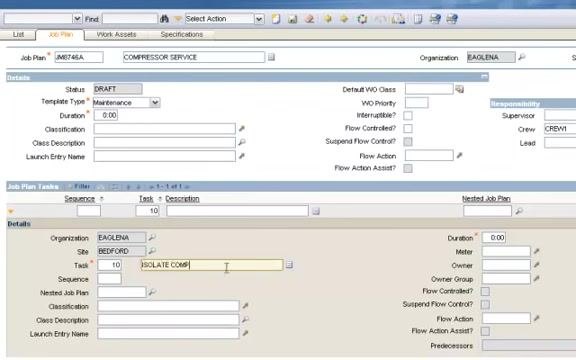
For Task 10, confirm the Task field shows 10 and enter ISOLATE COMPRESSOR in the Description field.
Add a long description to a task (optional)
Click the Long Description button (the notepad icon) to the right of the Description field. In the popup window, enter additional details, such as FOLLOW ALL PLANT SAFETY PRECAUTIONS, then click OK to save and close the window. The Long Description button turns orange, indicating that additional information is present.
Add the remaining tasks
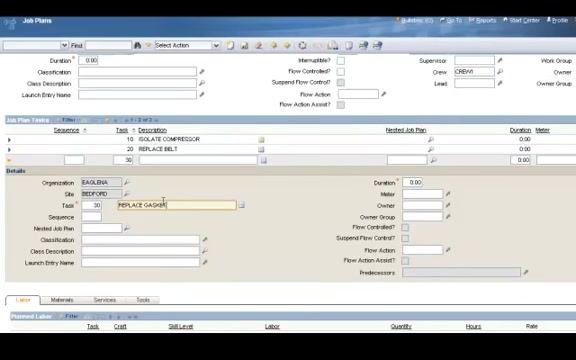
Repeat the process to add further tasks:
- Click New Row, confirm the Task field shows
20, and enterREPLACE BELTin the Description field. - Click New Row, confirm the Task field shows
30, and enterREPLACE GASKETin the Description field. - Click New Row, confirm the Task field shows
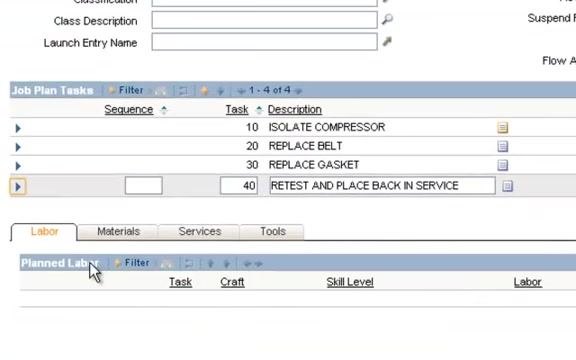
40, and enterRETESTin the Description field.
Adding labor and materials
Collapse task details to conserve screen space
Click the orange detail button to the left of the task list to collapse the expanded task detail section. This is especially useful when a job plan contains many tasks.
Open the Labor sub tab
Below the Job Plan Tasks section, click the Labor tab to switch to the labor assignment area.
Click New Row in the Planned Labor section to add a new labor entry.
Assign labor using a craft code
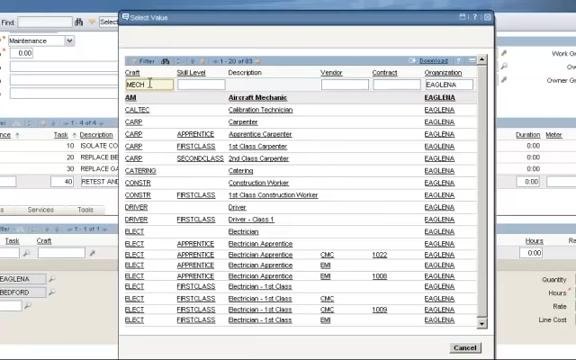
Rather than entering a specific person's name, enter a craft code. In the Craft field, enter MECH to indicate a mechanic, then click the Select Value icon (magnifying glass) next to the field to open the craft selection window.
In the craft selection window, type MECH in the filter box to display all mechanic-related craft codes. Review the list, which includes both internal and external labor options—codes associated with a vendor are typically external labor, and a value in the Contract column indicates an active labor contract for that craft. Select the desired craft (for example, MECH or FIRSTCLASS) by clicking the appropriate row.
Complete the labor assignment details
Leave the Task field blank if the labor applies to the entire job plan rather than a specific task. In the Quantity field, enter 1 to indicate one mechanic is required, and in the Hours field, enter 4 to estimate four hours of work. The Rate field auto-populates if configured—review it for accuracy.
Select spare parts for the job plan
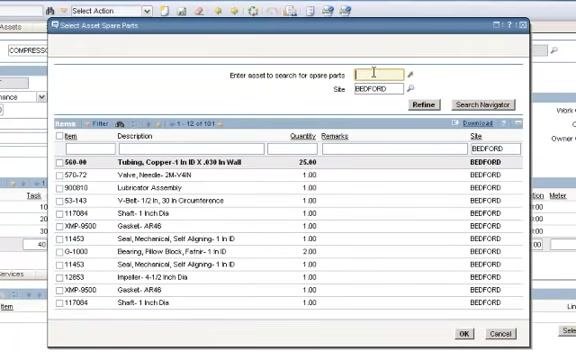
Click the Materials tab next to the Labor tab, then click Select Spare Parts to open the spare parts selection window. In the Enter asset to search for spare parts field, type the asset identifier (for example, COMPRESSOR), and confirm the Site field shows the correct site (for example, BEDFORD). Click Refine to filter the list of available spare parts for that asset and site.
Review the list of spare parts, including item numbers, descriptions, quantities, and site information. Check the boxes for the parts you need, then click OK to add the selected spare parts to your job plan.
Finalizing the job plan
Add locations, assets, or items to the job plan
Under the Work Assets and Safety Plans tab, click New Row to add a new asset, location, or item. Enter the asset as 11300UM, fill in any other relevant fields, and save the entry. You can add multiple assets or locations to specify exactly what the job plan applies to.
Confirm that the asset and location details are correct—for example, Asset: 11300UM, Description: Reciprocating Compressor - Air Cooled/100 CFM, Organization: EAGLENA, Site: BEDFORD—and ensure all required fields are filled in.
Activate the job plan
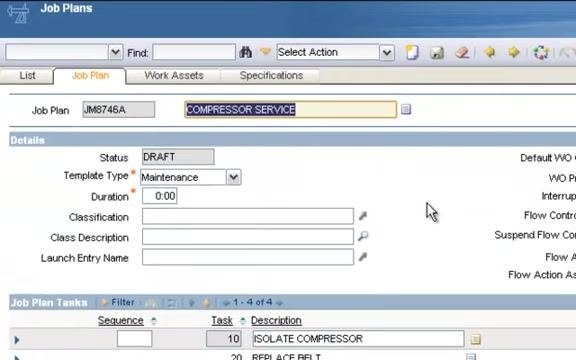
Return to the Job Plan tab and change the status from DRAFT to ACTIVE. In the Change Status dialog, select Active as the new status and click OK.
Assigning the job plan to a work order
Create a new work order
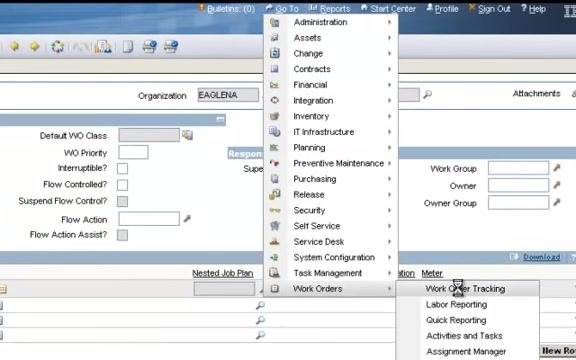
Click the Go To menu, navigate to Work Orders > Work Order Tracking, and click New Work Order. Fill out the basic work order information, such as:
- Work Order: 1193
- Description: COMPRESSOR SERVICE
- Location: BR300
- Asset: 11300UM
- GL Account: 6210-325-000
- Site: BEDFORD
- Class: WORKORDER
Select the work type for the work order
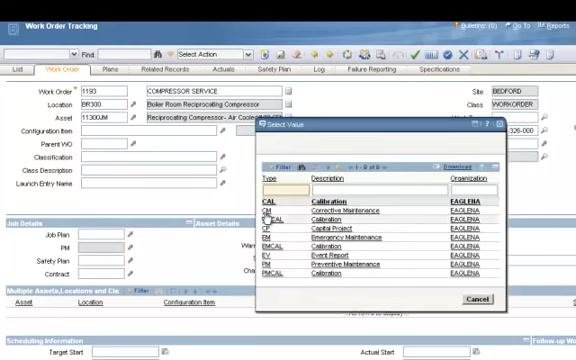
In the Work Order Tracking screen, locate the Work Type field and click the arrow next to it to open the Select Value dialog. Review the available options—for example, CAL (Calibration), CM (Corrective Maintenance), CT (Calibration Test), CR (Control Report), and EM (Emergency Maintenance)—then select CM and click OK to confirm.
Assign a job plan to the work order
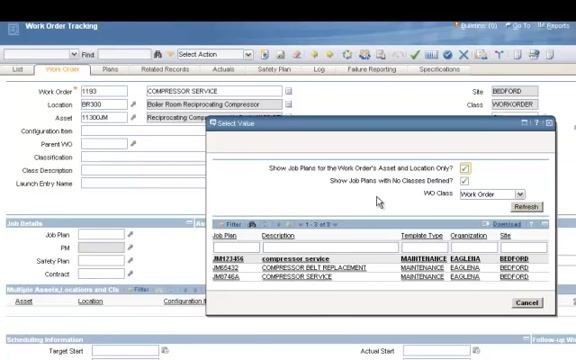
In the Job Details section, click the arrow next to the Job Plan field to open the Select Value dialog for job plans. The dialog offers filter checkboxes, including:
- Show Job Plans for the Work Order's Asset and Location Only?
- Show Job Plans with No Classes Defined?
By default, these checkboxes may be selected to show only job plans relevant to the asset and location. The list may display options such as JM171546 (compressor service), JM245124 (COMPRESSOR BELT REPLACEMENT), and JM67546 (COMPRESSOR SERVICE). Uncheck the filter boxes if you want to view a broader list of job plans.
Select and apply the desired job plan
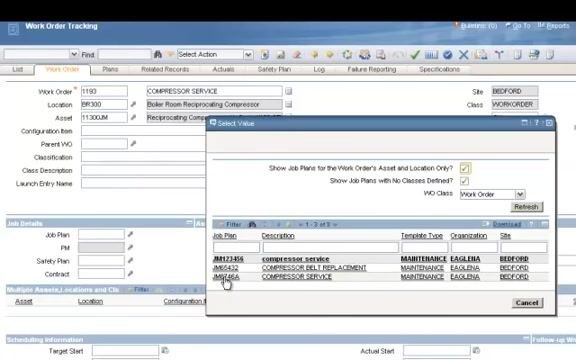
Click to select the job plan you want to assign (for example, JM67546: COMPRESSOR SERVICE), then click OK to apply it to the work order. The job plan is now linked to your work order.
Confirm that the selected job plan now appears in the Job Plan field of the work order, displaying the job plan code (for example, JM67546).
Review the work plan tasks pulled from the job plan
Navigate to the Plans tab of the work order to review the tasks automatically populated from the job plan. Example tasks include Isolate Compressor, Replace Belt, Replace Gasket, and Restart and Place Back in Service. Each task includes details such as sequence number, summary, estimated duration, and status.
Any changes made to these tasks within the work order affect only that specific work order—the original job plan remains unchanged.
Using job plans pulls all relevant tasks and materials automatically into the work order, streamlining the planning process and ensuring consistency while saving time on repetitive data entry.
What's next
Now that you know how to create a job plan in IBM Maximo and assign it to a work order, you can apply the same process to build job plans for other recurring maintenance tasks, link them to Preventive Maintenance records or routes, and continue refining labor, materials, and asset assignments to match your organization's workflows.
Generation details: cost, quality tiers
Docsie billed 4,500 credits ($3.15) to analyze this 9-minute video at standard quality. The rewrite, template fill and Word/PDF exports were included. The same video at each quality tier:
| Quality | Frames sampled | Credits | Approx. cost |
|---|---|---|---|
| Draft | every 16-30 s | 2,250 | $1.57 |
| Standard (this guide) | every 8-15 s | 4,500 | $3.15 |
| Detailed | every 4-7 s | 9,000 | $6.30 |
| Ultra | every 1-3 s | 18,000 | $12.60 |
Credits priced at $0.70 per 1,000; plans include a monthly allowance. Enterprise customers on on-premise or bring-your-own-model deployments run this on their own inference and pay no per-video credits.
Generated by Docsie Video-to-Docs on 2026-10-25 from a 8-minute video. Screenshots are frames from the source video and belong to their creator, Projetech, whose original is embedded above. If you own this video and want the guide removed or credited differently, contact us and we will act within one business day.