
How to Create a Blanket Sales Order in JD Edwards
This guide walks you through how to create a blanket sales order in JD Edwards EnterpriseOne, from navigating to the correct menu to entering order details and confirming the record in Customer Service Inquiry. Follow the steps below to set up a blanket order with quantity, item, and customer information.
Video: Entering a basic blanket sales order - JDE E1 90 - Sales Order Entry.mp4 by Whiteman-Online (2011). All credit for the demonstration goes to the creator; watch the original on YouTube. The written guide below was generated from this video by Docsie. Creator? Request a change or removal.
This guide walks you through how to create a blanket sales order in JD Edwards EnterpriseOne, from navigating to the correct menu to entering order details and confirming the record in Customer Service Inquiry. Follow the steps below to set up a blanket order with quantity, item, and customer information.
Prerequisites
- Access to JD Edwards EnterpriseOne through your web browser.
- Permissions to navigate the Logistics Management and Sales Order Management menus.
- Customer and item information ready for entry (Sold To, Ship To, Branch/Plant, Item Number, and Quantity).
Step-by-step instructions
Open JD Edwards EnterpriseOne
Open JD Edwards EnterpriseOne in your web browser. The application displays the EnterpriseOne Menu on the left side of the screen and a welcome message in the main panel.
Open Logistics Management
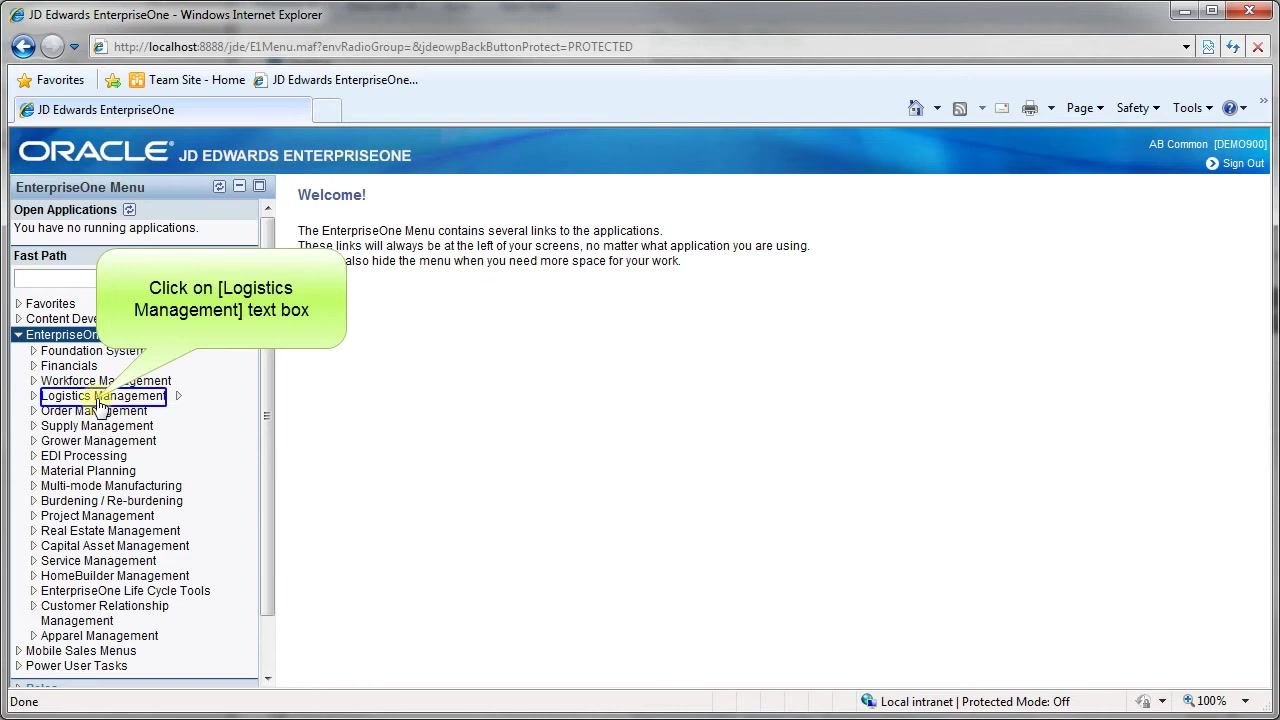
In the left navigation pane, locate EnterpriseOne Menus. Click on the Logistics Management text box to expand this section.
Navigate to Sales Order Processing
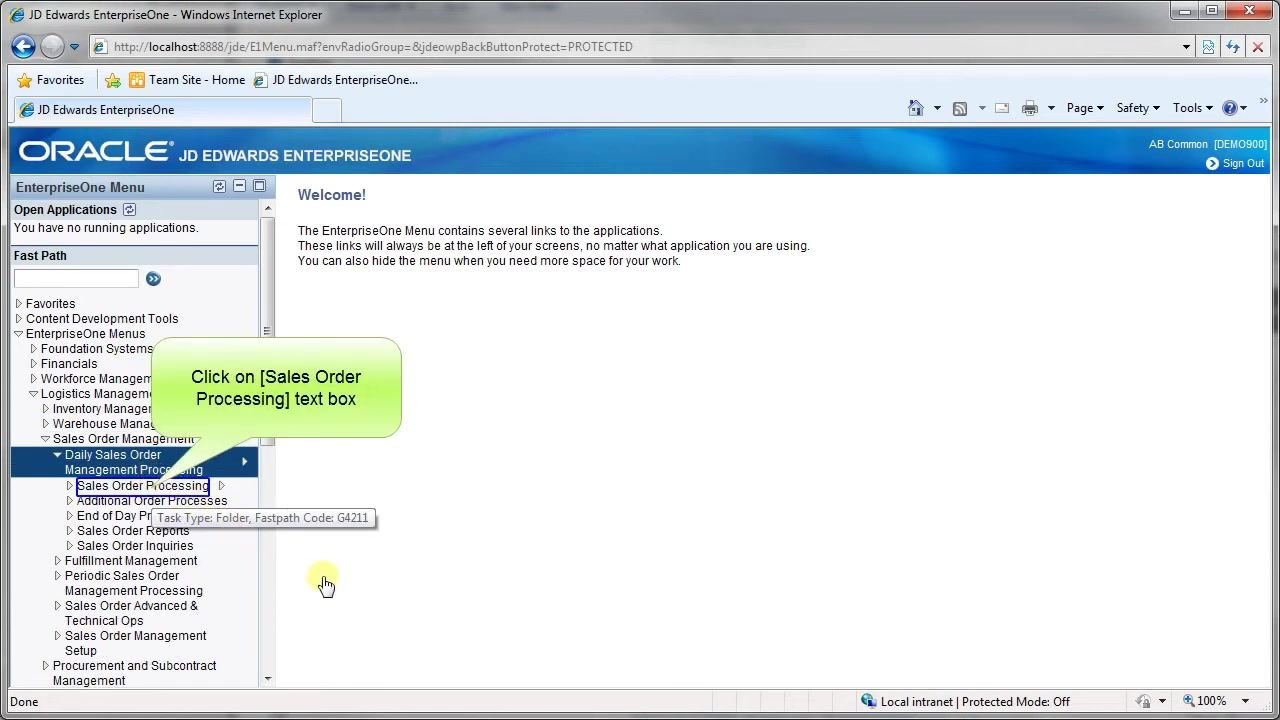
Under Logistics Management, expand Sales Order Management, then click Daily Sales Order Management Processing, and select Sales Order Processing.
Add a new blanket order record
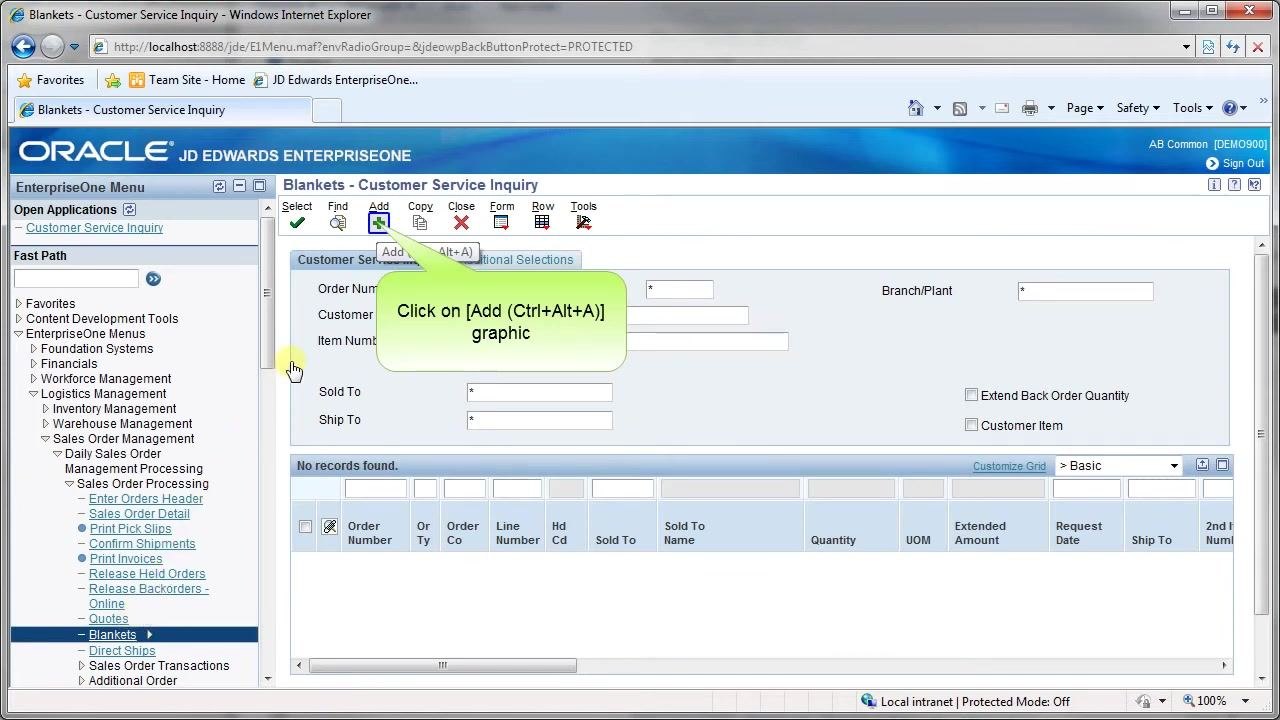
The application navigates to the Blankets - Customer Service Inquiry screen. The top menu bar displays options including Select, Find, Add, Copy, Close, Form, Row, and Tools. Click the Add button (or press Ctrl+Alt+A) to create a new record.
Enter sales order header and detail information
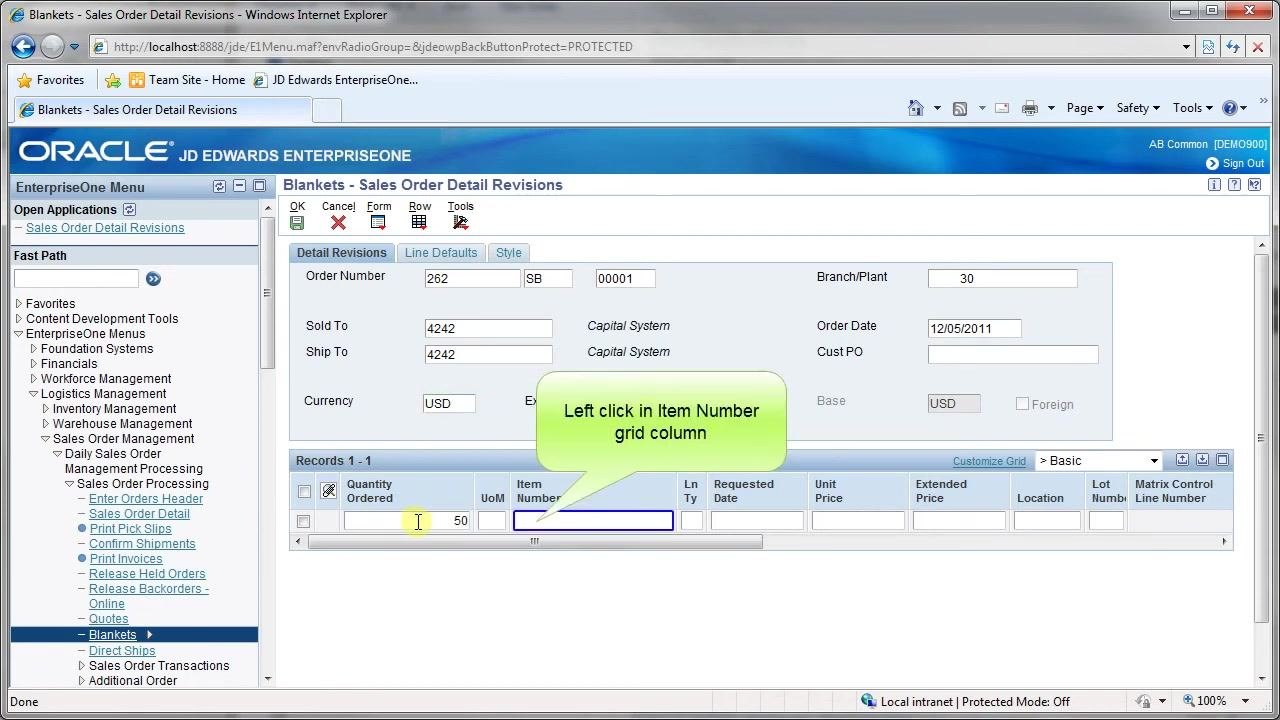
The screen title changes to Blankets - Sales Order Detail Revisions. Enter the following header details:
- Order Number: 262
- Sold To: 4242 (Capital System)
- Ship To: 4242 (Capital System)
- Currency: USD
- Branch/Plant: 30
- Order Date: 12/05/2011
In the grid below, enter Quantity Ordered: 50, leave UoM as default, and click in the Item Number column to proceed.
Populate the item number and complete the grid row
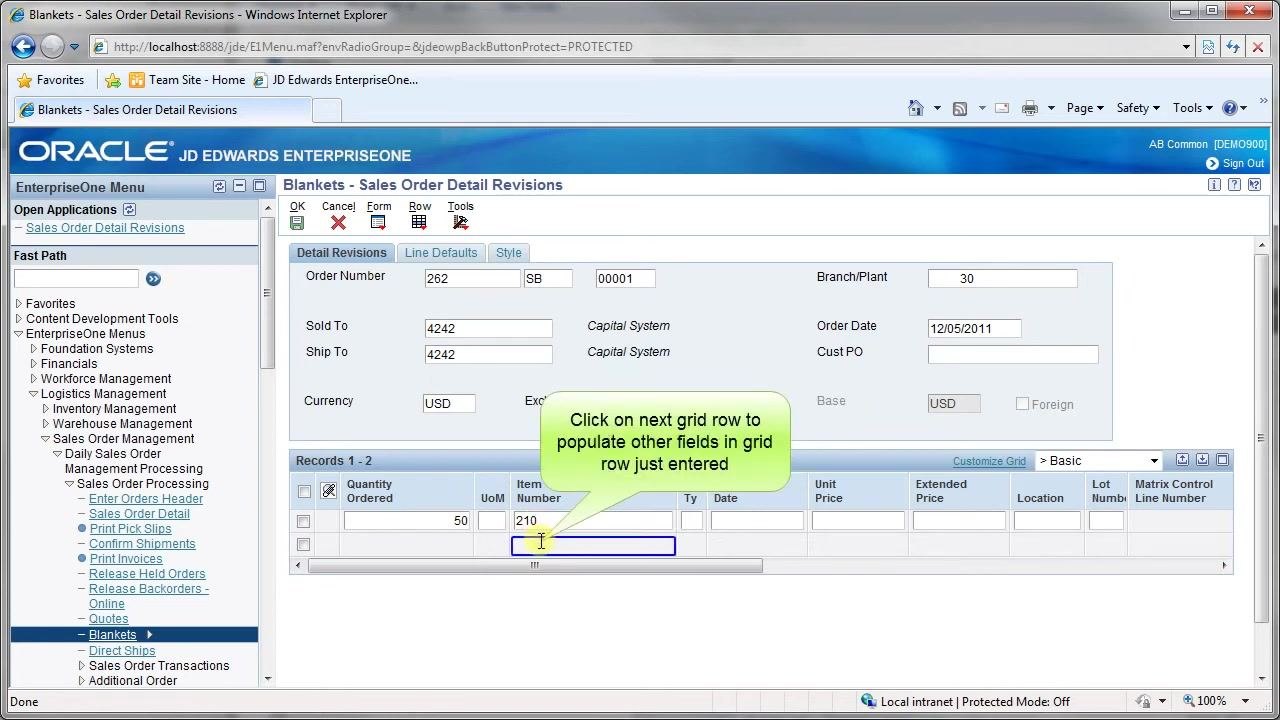
Enter Item Number: 210. Click on the next grid row to populate the remaining fields in the row you just entered.
Query the order in Customer Service Inquiry
The application returns to the Blankets - Customer Service Inquiry screen. Click in the Order Number field in the grid to query or select your order.
Confirm and select the order row
The grid displays the completed record with the following details:
- Order Number: 262
- Order Type: SB
- Order Co: 00001
- Sold To: 4242 (Capital System)
- Quantity: 50 EA
- Extended Amount: 39,900.00
- Request Date: 12/05/2011
- Ship To: 4242, Item Number: 210
Click the checkbox in the first row to select it and confirm your blanket sales order.
What's next
With your blanket sales order created, you can continue managing it through the Sales Order Processing menu, including reviewing order details or processing releases against the blanket order as needed.
Generation details: cost, quality tiers
Docsie billed 1,000 credits ($0.70) to analyze this 2-minute video at standard quality. The rewrite, template fill and Word/PDF exports were included. The same video at each quality tier:
| Quality | Frames sampled | Credits | Approx. cost |
|---|---|---|---|
| Draft | every 16-30 s | 500 | $0.35 |
| Standard (this guide) | every 8-15 s | 1,000 | $0.70 |
| Detailed | every 4-7 s | 2,000 | $1.40 |
| Ultra | every 1-3 s | 4,000 | $2.80 |
Credits priced at $0.70 per 1,000; plans include a monthly allowance. Enterprise customers on on-premise or bring-your-own-model deployments run this on their own inference and pay no per-video credits.
Generated by Docsie Video-to-Docs on 2026-10-25 from a 1-minute video. Screenshots are frames from the source video and belong to their creator, Whiteman-Online, whose original is embedded above. If you own this video and want the guide removed or credited differently, contact us and we will act within one business day.