
How to Receive a Purchase Order in Infor M3
This guide walks you through how to receive a purchase order in Infor M3 (LN), from checking the order's current status to creating and confirming a warehouse receipt, printing the storage list, and completing the put-away process. Each step reflects what you see on screen as you move the purchase order through warehousing.
Video: 4- Receive Purchase Order by ERP Doctors (2016). All credit for the demonstration goes to the creator; watch the original on YouTube. The written guide below was generated from this video by Docsie. Creator? Request a change or removal.
This guide walks you through how to receive a purchase order in Infor M3 (LN), from checking the order's current status to creating and confirming a warehouse receipt, printing the storage list, and completing the put-away process. Each step reflects what you see on screen as you move the purchase order through warehousing.
Prerequisites
- You are logged in to the LN system, with your user role displayed in the top right corner (for example, "Doug Stroud").
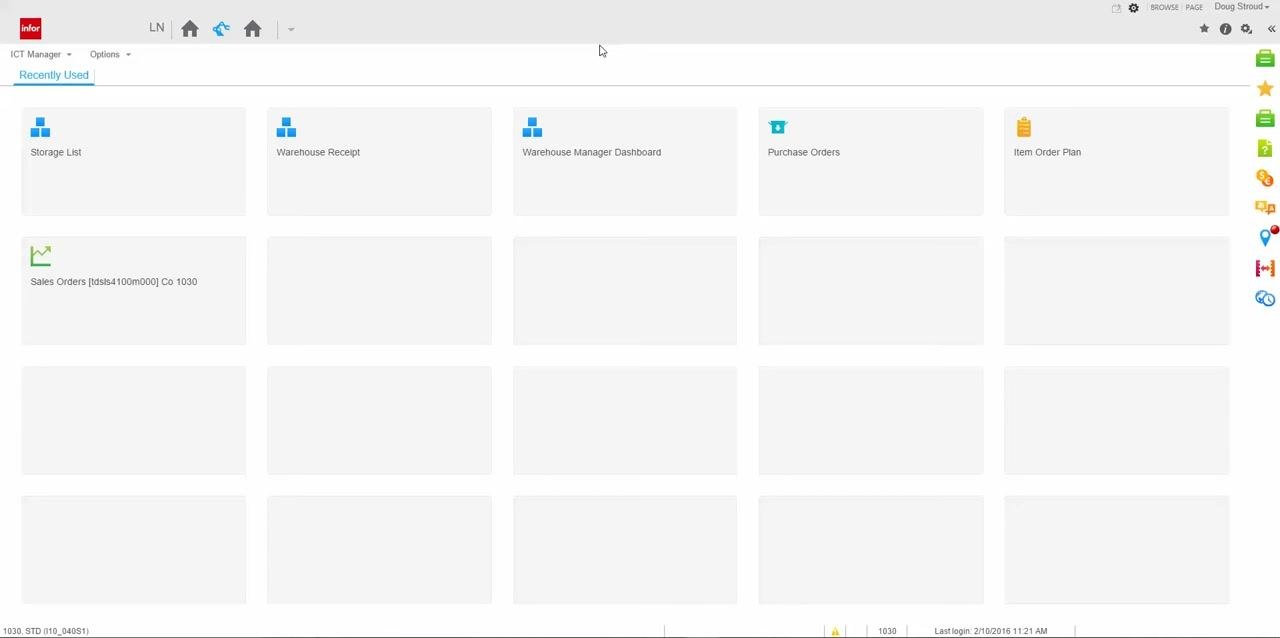
- You have access to the main dashboard tiles: Storage List, Warehouse Receipt, Warehouse Manager Dashboard, Purchase Orders, and Item Order Plan.
- You know the purchase order (PO) number you need to receive (for example, DEA000087).
Reviewing the purchase order status
Step 1: Access the dashboard
Log in to the LN system and confirm you are on the main dashboard. You should see tiles for Storage List, Warehouse Receipt, Warehouse Manager Dashboard, Purchase Orders, and Item Order Plan, with your user information displayed in the top right corner.
Step 2: Open the Warehouse Manager Dashboard
Click the Warehouse Manager Dashboard tile to open it.
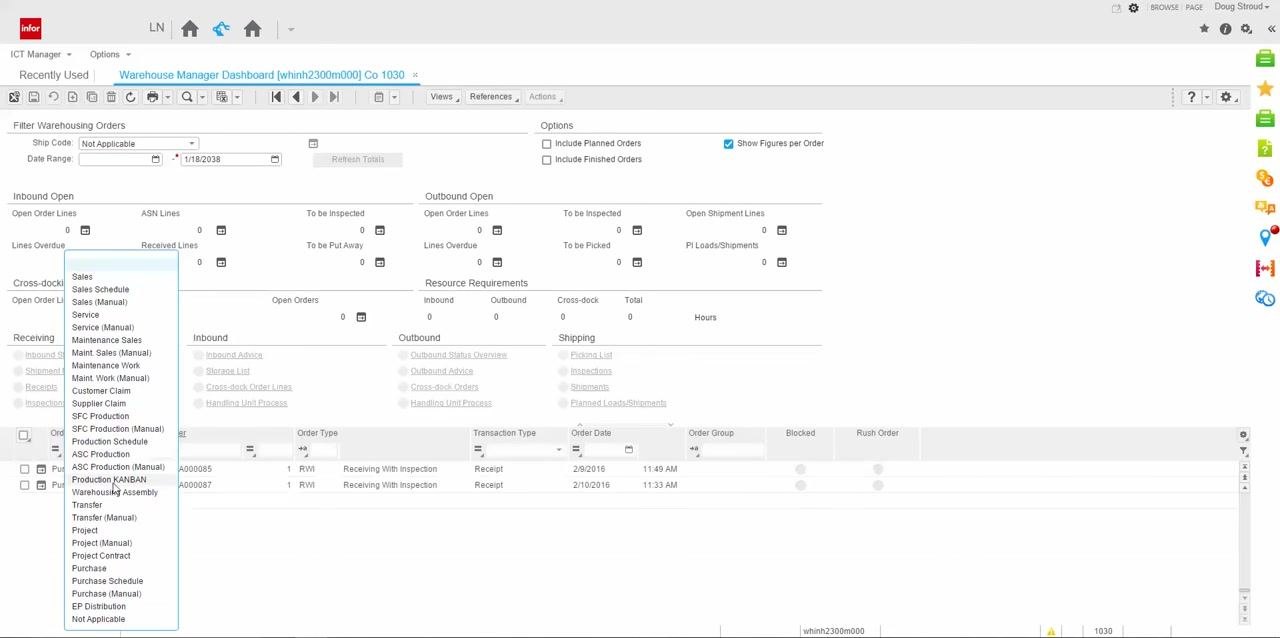
Inside the dashboard, review the Filter Warehousing Orders section. You will see filters such as Ship Code (set to "Not Applicable") and Date Range, along with summary panels for Inbound Open, Outbound Open, Cross-docking, Resource Requirements, and Receiving. Below these panels, a list of orders shows columns for Order Origin, Order, Order Type, Transaction Type, Order Date, Order Group, Blocked, and Rush Order.
Step 3: Filter for your purchase order
Use the dynamic filter dropdown to narrow the order list by type or origin. Select Purchase from the dropdown, then enter or select your specific PO number (for example, DEA000087) in the Order column.
Step 4: Select the purchase order line
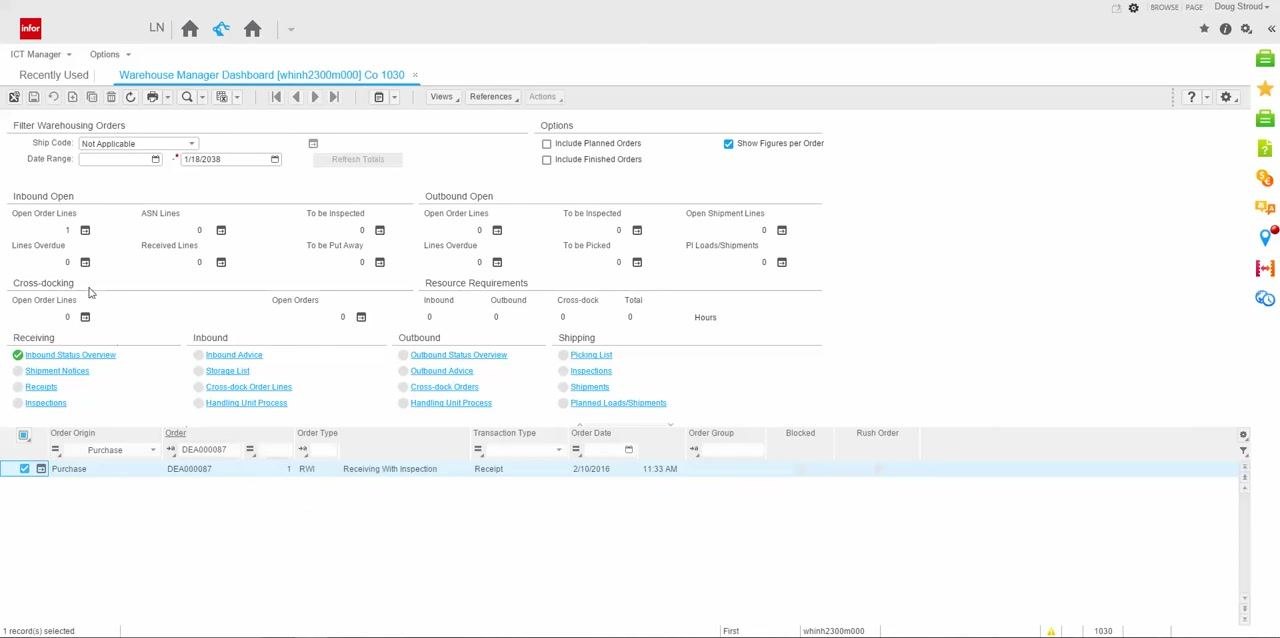
Locate the row for your PO (for example, DEA000087) and click the checkbox next to it to select it. Additional session options, including Inbound Status Overview, appear above the list once the line is selected.
Step 5: Open the Inbound Line Status Overview
Click the Inbound Status Overview link to view detailed activities for the selected PO line. The screen displays order details (such as Purchase DEA000087 / 10 / 1, Item: BATTERY-B, Order Type: RWI, Inventory Unit: ea, Line Status: Open), activities including Warehouse Receipt, Generate Inbound Advice, Generate Storage List, and Storage List, along with quantities for Ordered, Open Received, Received, Advised, and Put Away, and an alerts section for Blocked, DMS upon Receipt, Cross-docking, and Line Activities Present.
Step 6: Review automated activities for the PO line
Check the Automatic column for each activity. Generate Inbound Advice and Generate Storage List are set to "Yes" (automated), while Warehouse Receipt and Storage List are set to "No" (manual). This means confirming the warehouse receipt automatically triggers the inbound advice and storage list generation. At this point, quantities show Ordered = 15.0000, Open Received = 0.0000, Received = 0.0000, Advised = 0.0000, Put Away = 0.0000, with no active alerts.
Step 7: Close the Inbound Line Status Overview
Click the X on the "Inbound Line Status Overview" session tab to close it and return to the previous screen.
Creating a new warehouse receipt
Step 8: Open the Warehouse Receipt screen
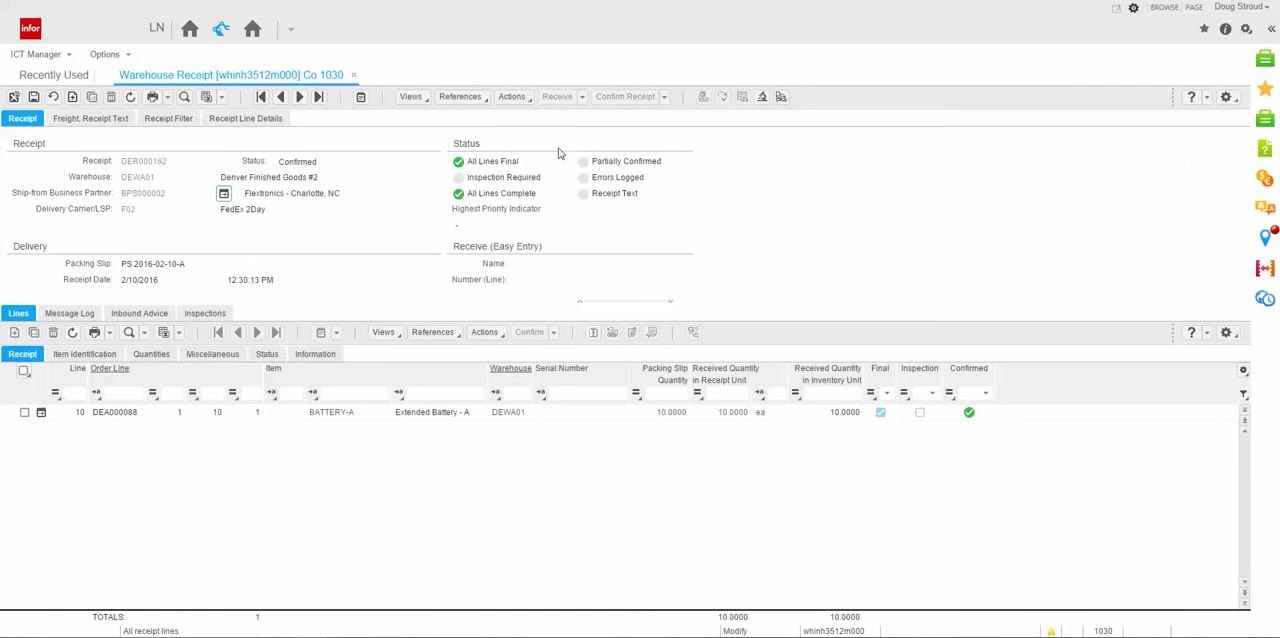
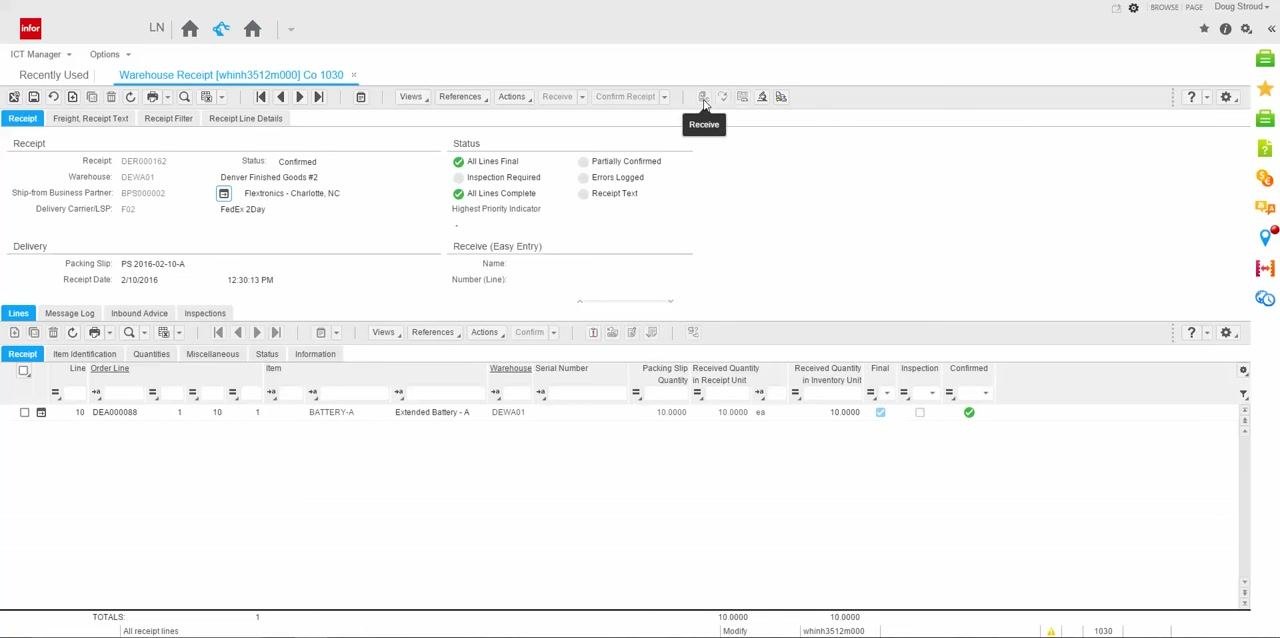
From the dashboard, open the Warehouse Receipt session. The screen shows multiple tabs (Freight, Receipt Text, Receipt Filter, Receipt Line Details), a main panel with receipt details and status indicators (such as All Lines Final and Inspection Required), and a lower panel listing receipt lines with columns for Order Line, Item, Warehouse, Packing Slip Quantity, Received Quantity, and status indicators.
Step 9: Review the personalized toolbar icons
Check the personalized toolbar at the header and line level. It may include custom icons for quick access to actions such as Receive and Confirm Receipt. Hover over an icon to see its tooltip.
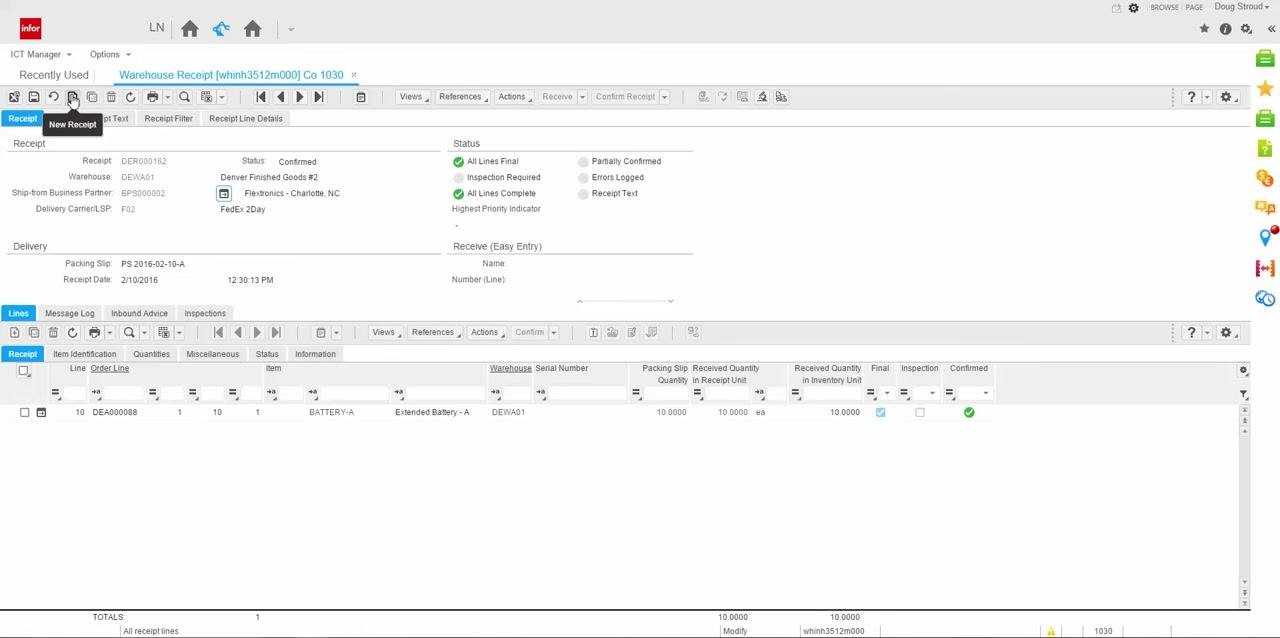
Step 10: Start a new warehouse receipt
Click the New Receipt icon in the toolbar to begin a new warehouse receipt entry.
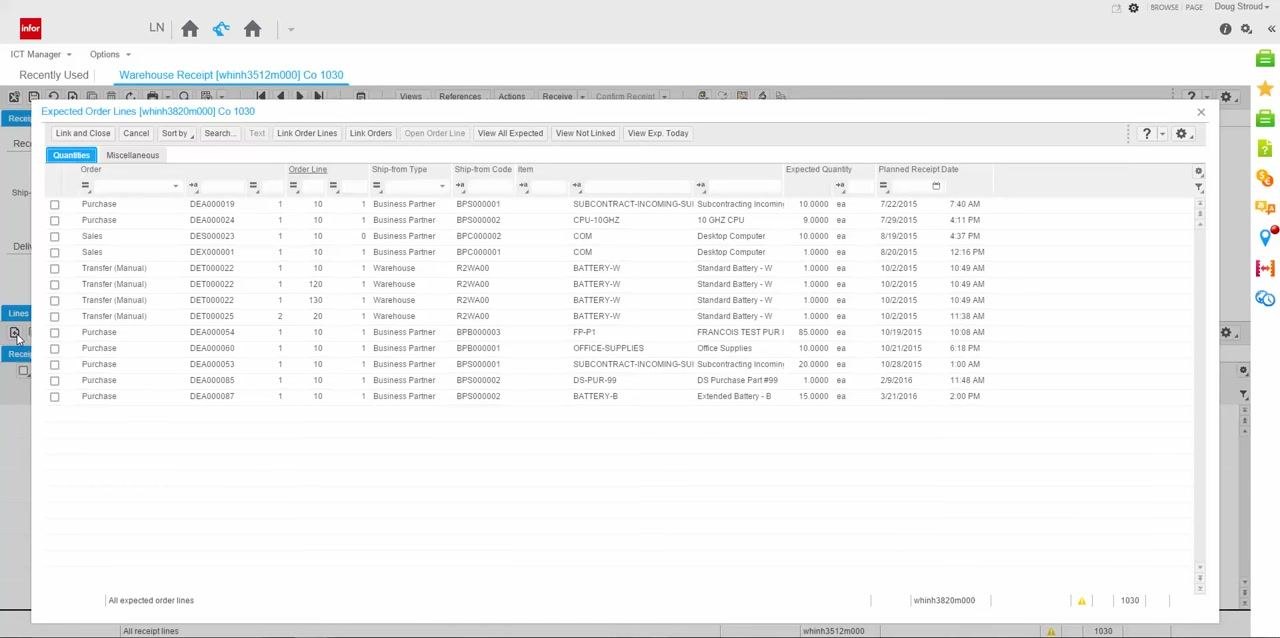
Step 11: Review the Expected Order Lines dialog
After clicking New Receipt, the Expected Order Lines dialog opens, listing all order lines available to be received. Columns include Order, Order Line, Ship-from Type, Ship-from Code, Item, Expected Quantity, and Planned Receipt Date.
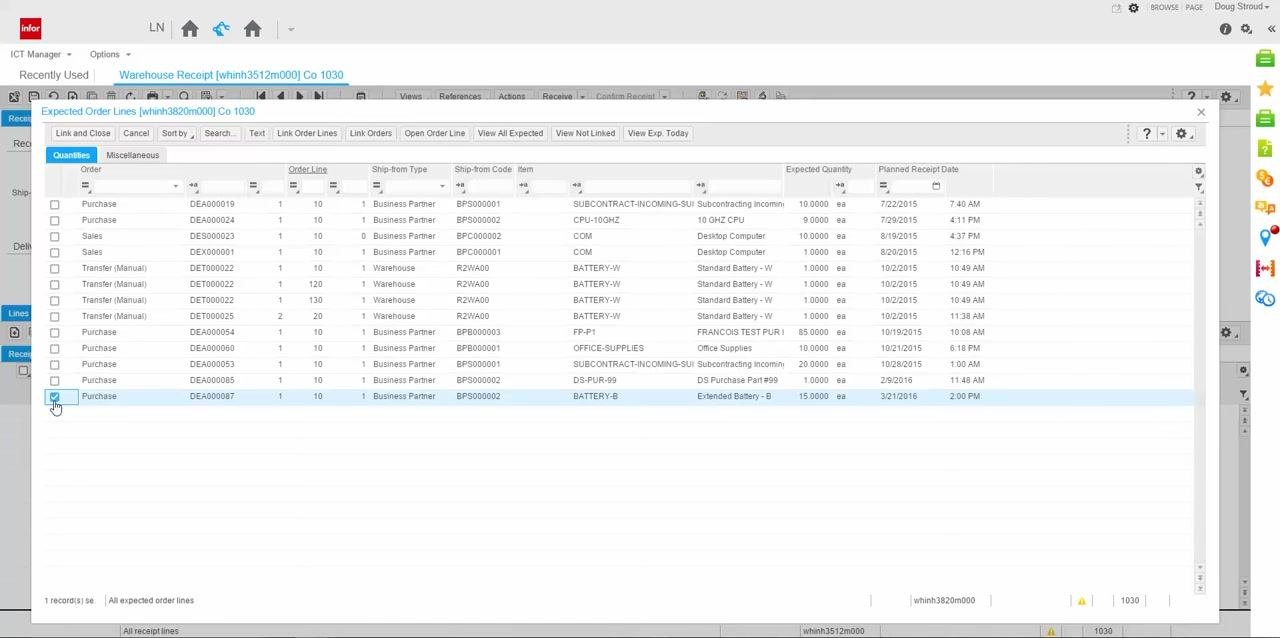
Step 12: Select the purchase order line to receive
Locate your PO line (for example, Order: DEA000087, Line: 10, Item: BATTERY-B, Expected Quantity: 15.0000, Planned Receipt Date: 3/21/2016) and click the checkbox next to it.
Step 13: Link the order line to the receipt
Click Link and Close at the top of the dialog to link the selected PO line to the warehouse receipt and close the dialog.
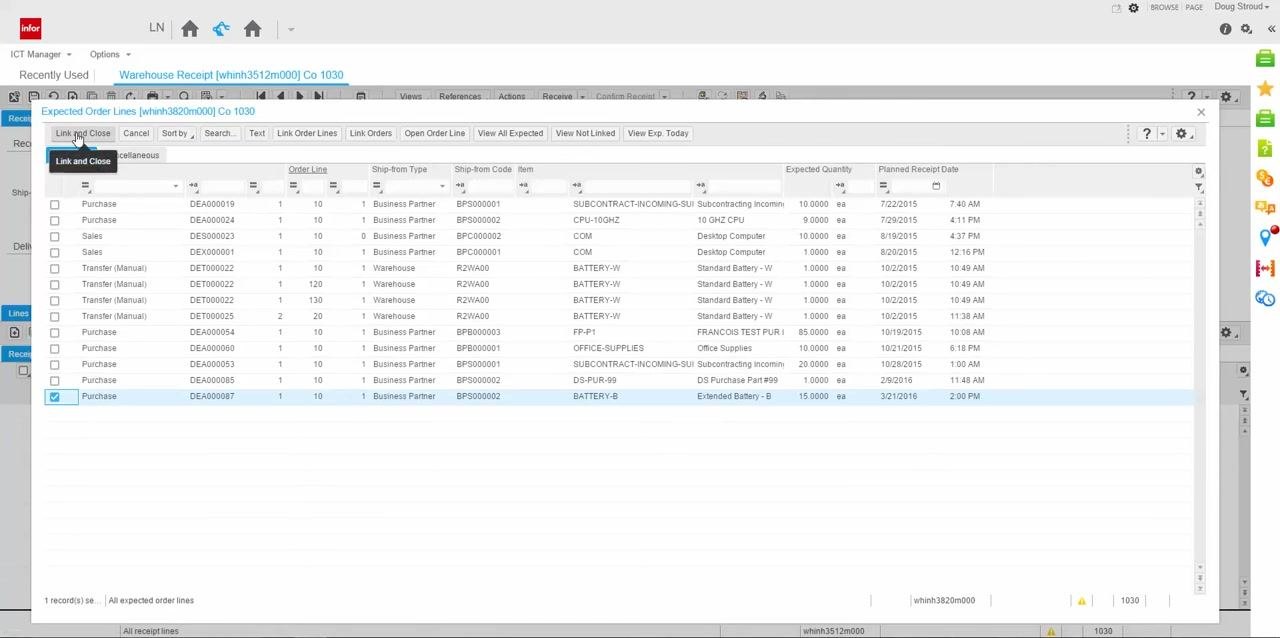
If the receipt date differs from the planned receipt date, a tolerance message appears (for example, "You are about to receive order line Purchase DEA000087 / 10 - 1 on a date other than planned receipt date (2016-03-21)"). Review the message and click OK to proceed.
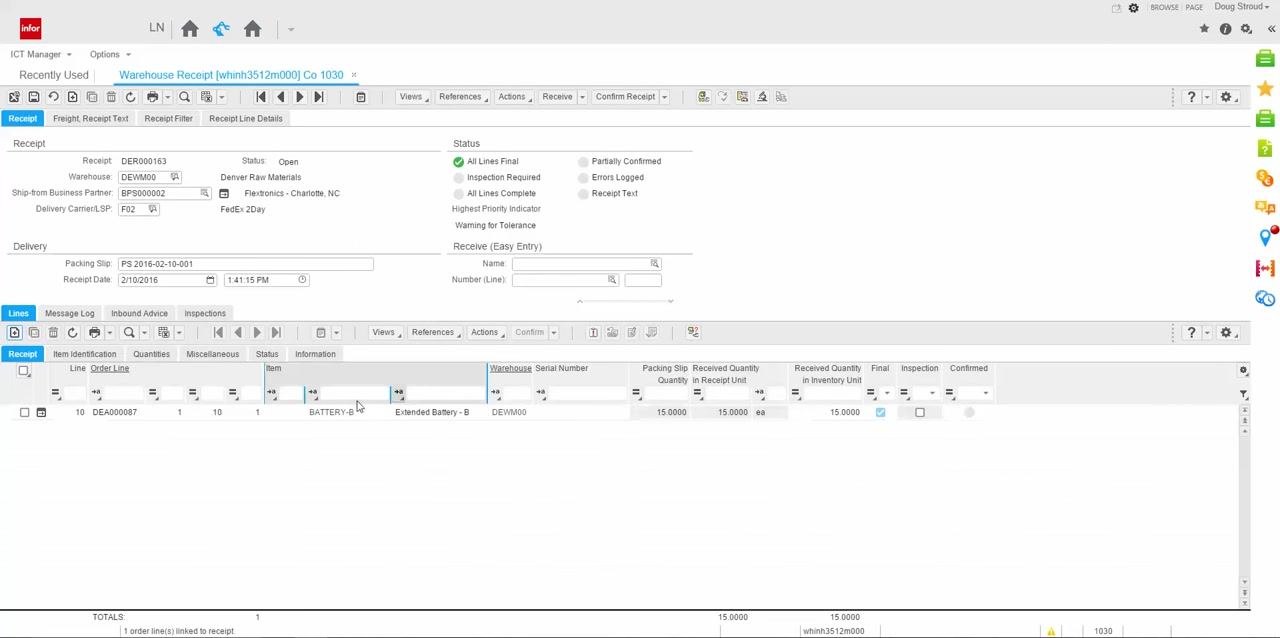
Step 14: Review and edit the receipt line details
The selected PO line is now added to the warehouse receipt. Review the details, including Order Line, Item (BATTERY-B), Warehouse (DEWM00), Packing Slip Quantity (15.0000), and Received Quantity (15.0000). Update the Packing Slip Quantity or Received Quantity fields if they need to match the actual received goods.
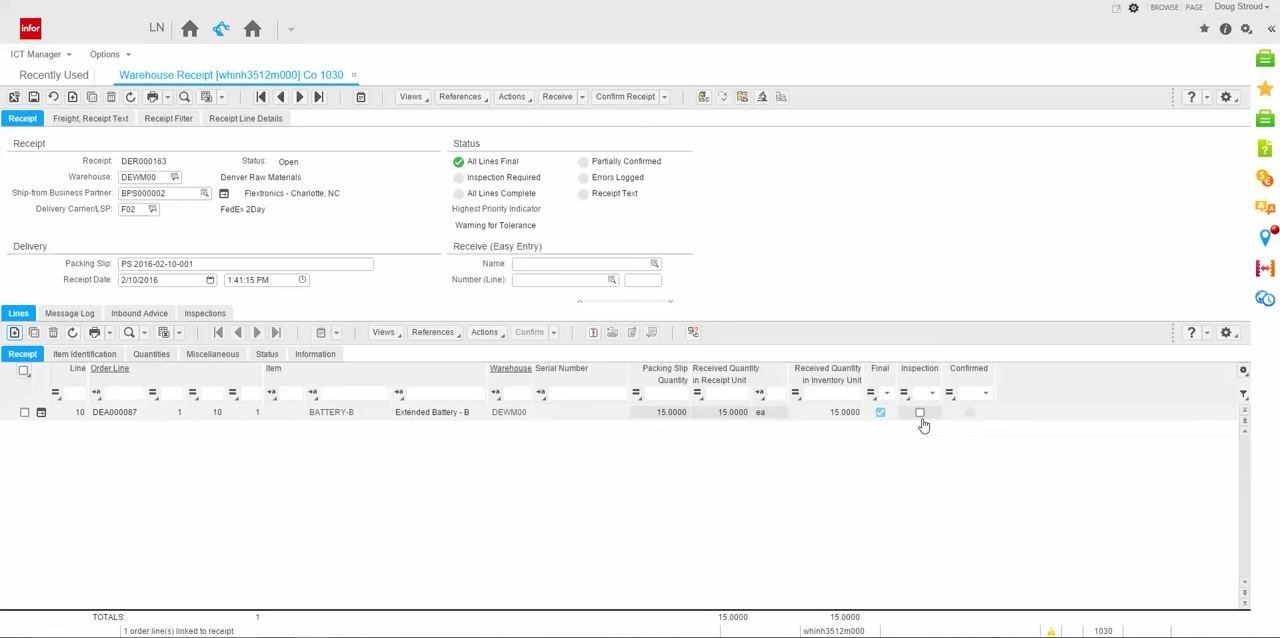
Step 15: (Optional) Enable inspection for the receipt line
If the packaging appears incorrect or inspection is required, manually check the Inspection box for the receipt line. This sends the item to inspection even if it was not originally required.
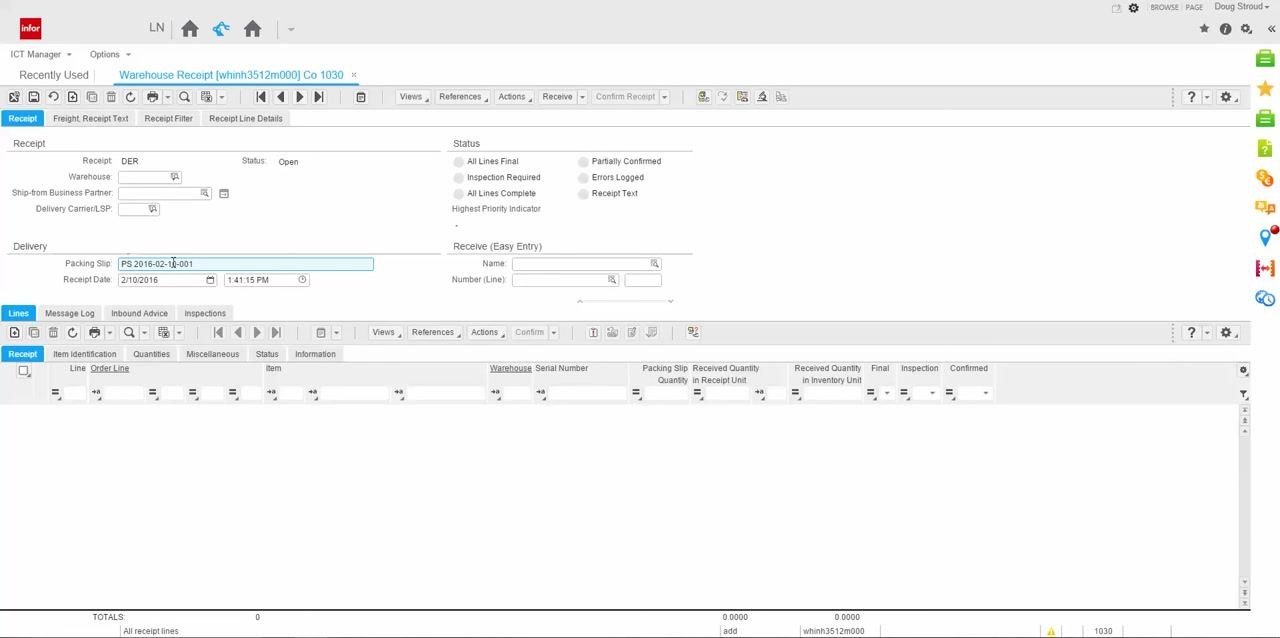
Step 16: Enter the packing slip information
In the Delivery section, enter the packing slip number in the Packing Slip field using a naming convention such as "PS YYYY-MM-DD-###" (for example, PS 2016-02-10-001). Confirm or adjust the Receipt Date as needed.
Confirming the receipt and generating the storage list
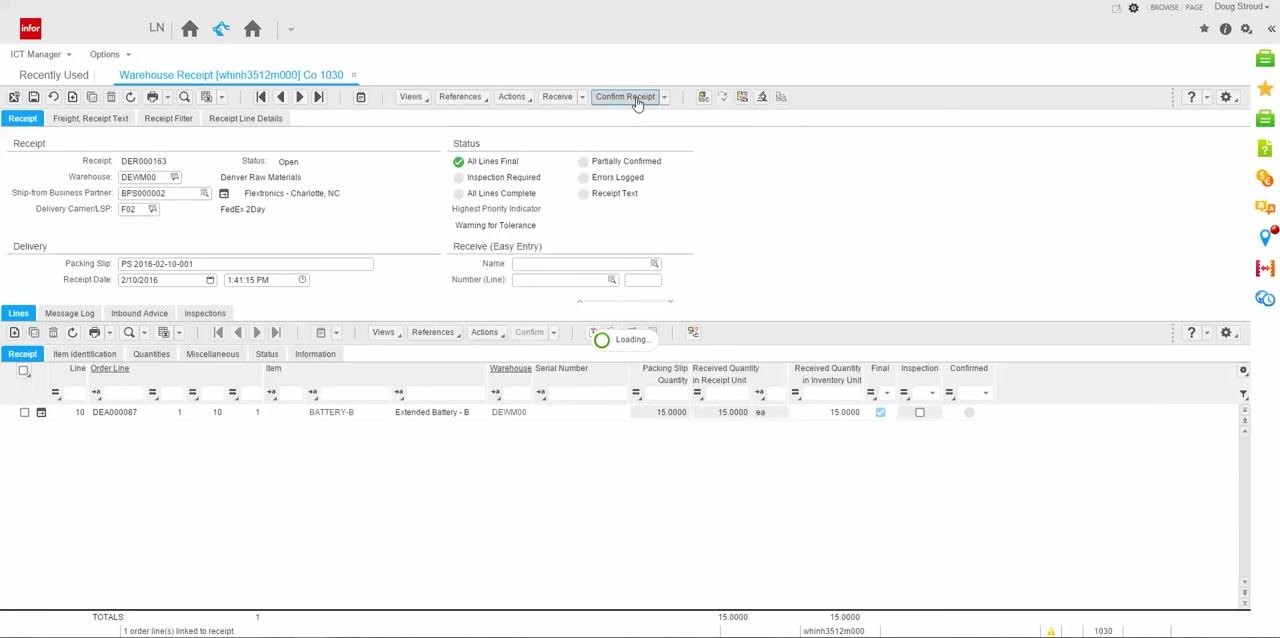
Step 17: Confirm the warehouse receipt
Once all details are correct and inspection (if needed) is set, click Confirm Receipt in the toolbar. The system processes the confirmation.
Step 18: Print and review the storage list
After confirmation, the storage list generates automatically. You can print it and attach it to the goods for transport to the warehouse. The storage list shows Item (BATTERY-B), Quantity (15.0000 ea), From Location (REC), To Location (1004), and Warehouse (DEWM00), among other details.
Reviewing the storage list by location
Step 19: Review the Storage List by Location report
Review the details on the Storage List by Location report: Date (16-02-10), Time (13:42), Warehouse (DEWM00, Denver Raw Materials), Storage Mission (1), Run (I20160210001), Item (BATTERY-B, Extended Battery - B), Quantity (15.0000 ea), From Location (REC), and To Location (1004). This report is typically printed for record-keeping or operational use.
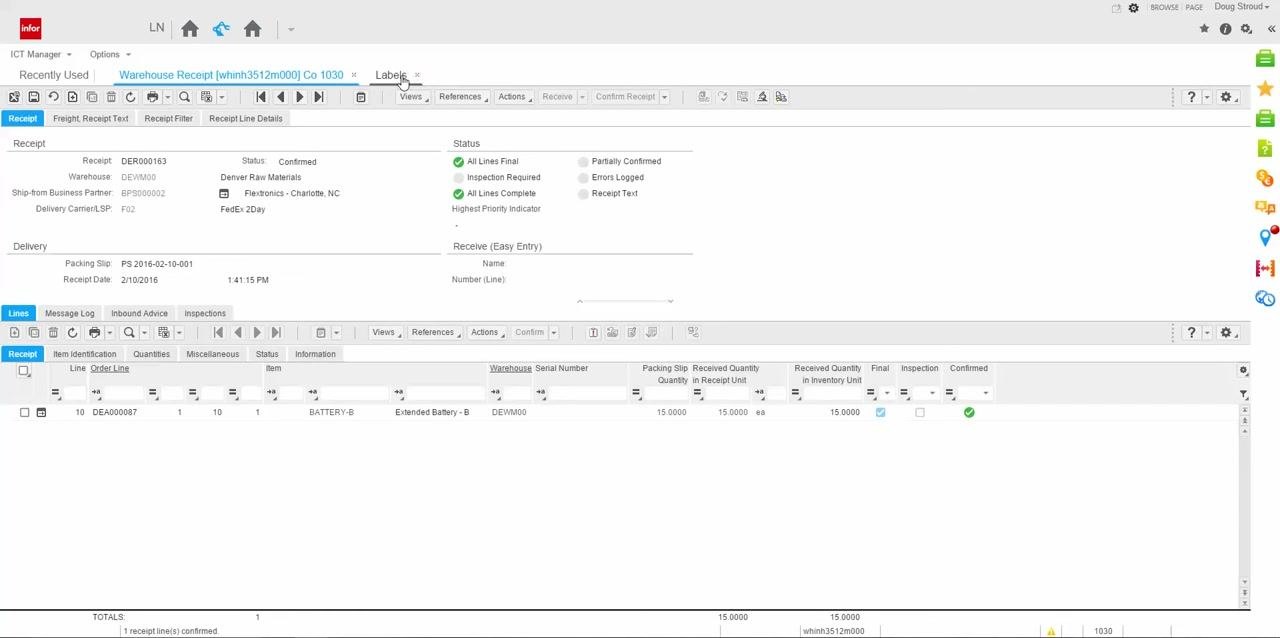
Step 20: Verify the label printing setup
Close the "Storage List by Location" report tab to return to the main Warehouse Receipt screen, confirming you are back on the "Warehouse Receipt [whinh3512m000] Co 1030" tab. Then confirm that the system is set to print a label automatically for the received item. Review the receipt details: Receipt DER000163 (Status: Confirmed), Warehouse DEWM00, Ship-from Business Partner BSP000002 (Flextronics - Charlotte, NC), Delivery Carrier FedEx 2Day, Packing Slip PS 2016-02-10-001, Receipt Date 2/10/2016 at 1:41:15 PM, and Item BATTERY-B with Quantity 15.0000 ea. Make sure the Labels tab or option is available for label printing.
Step 21: Close the Warehouse Receipt tab
Click the X on the "Warehouse Receipt [whinh3512m000] Co 1030" tab to close it. You should now be viewing the "Storage List [whinh3525m100] Co 1030" tab.
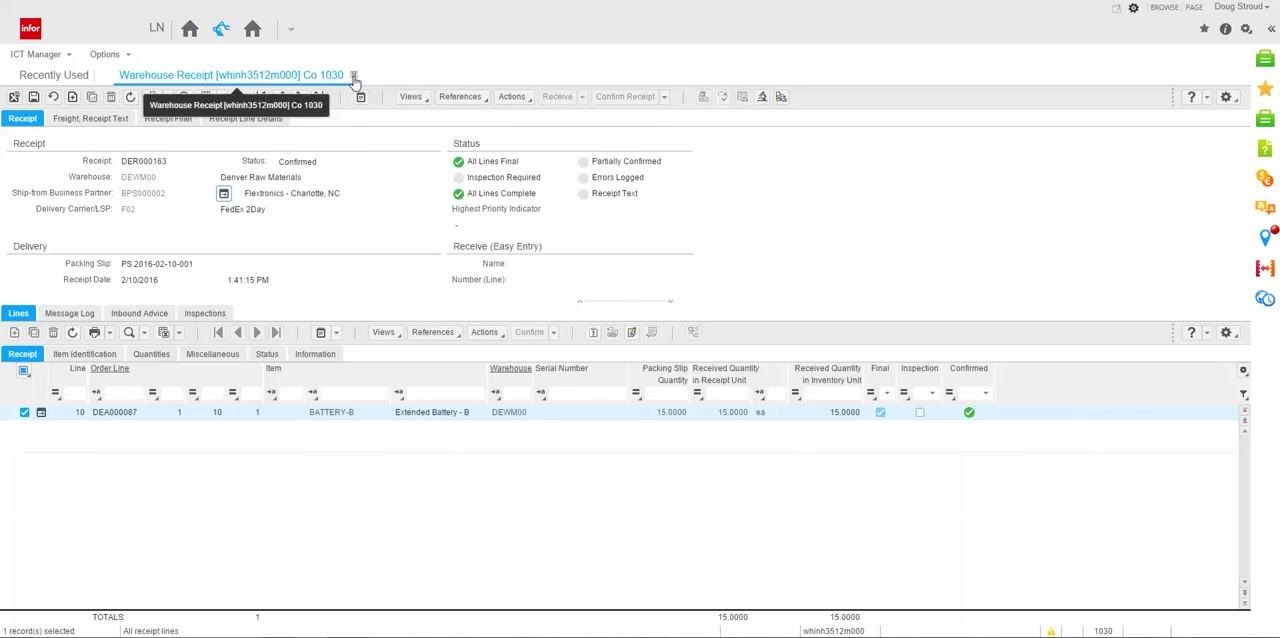
If you need the inbound line run number later, you can retrieve it from the Run field (for example, I20160210001) on the Storage List screen.
Step 22: Search or filter the storage list
To locate a specific storage mission or advice, use the Storage List - Search dialog. Enter or confirm criteria such as Activity (whinh3525m100), Run (20160210001), Warehouse (DEVM00), Storage Mission (1), Sequence on Storage List (5), Source Location (REC), Advice (DEI000308), and Advice Line (1). Click OK to filter the storage list.
Completing the put-away process
Step 23: Review the storage list and confirm put-away details
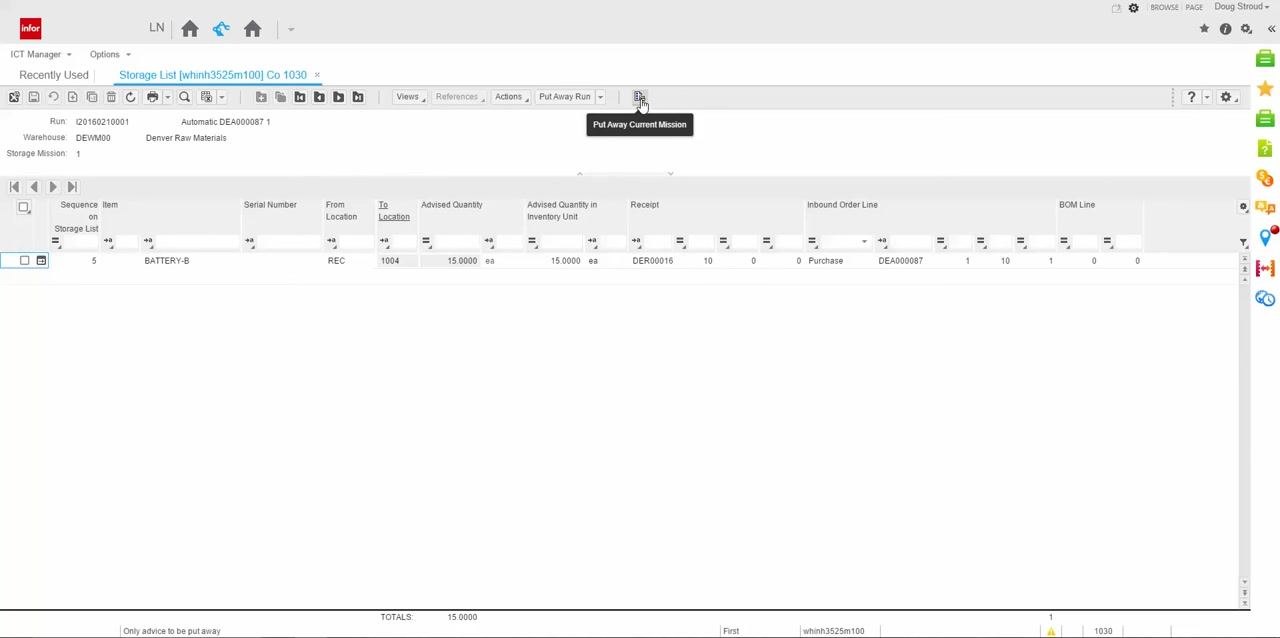
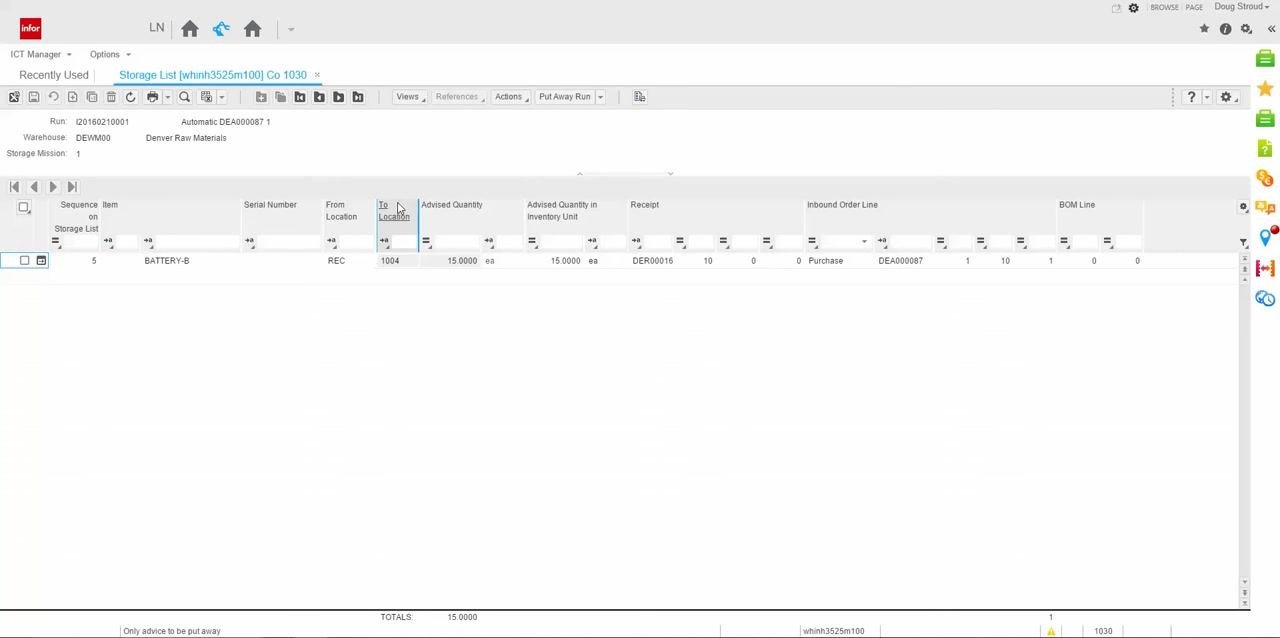
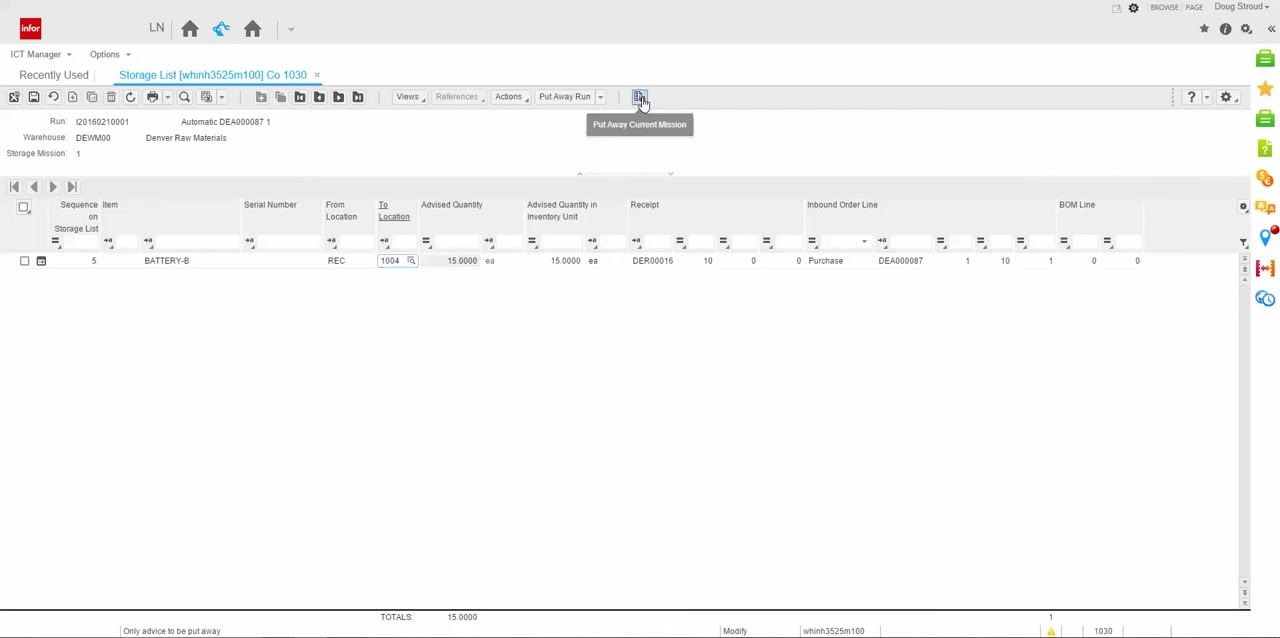
On the "Storage List [whinh3525m100] Co 1030" screen, verify the fields for the inbound item: Run (I20160210001), Warehouse (DEWM00, Denver Raw Materials), Storage Mission (1), Sequence on Storage List (5), Item (BATTERY-B), From Location (REC), To Location (1004), Advised Quantity (15.0000 ea), Receipt (DER00016), and Inbound Order Line (DEA000087). Confirm these details match the expected inbound advice. The Put Away Current Mission button is visible and ready for use.
Step 24: Verify the To Location and fixed location status
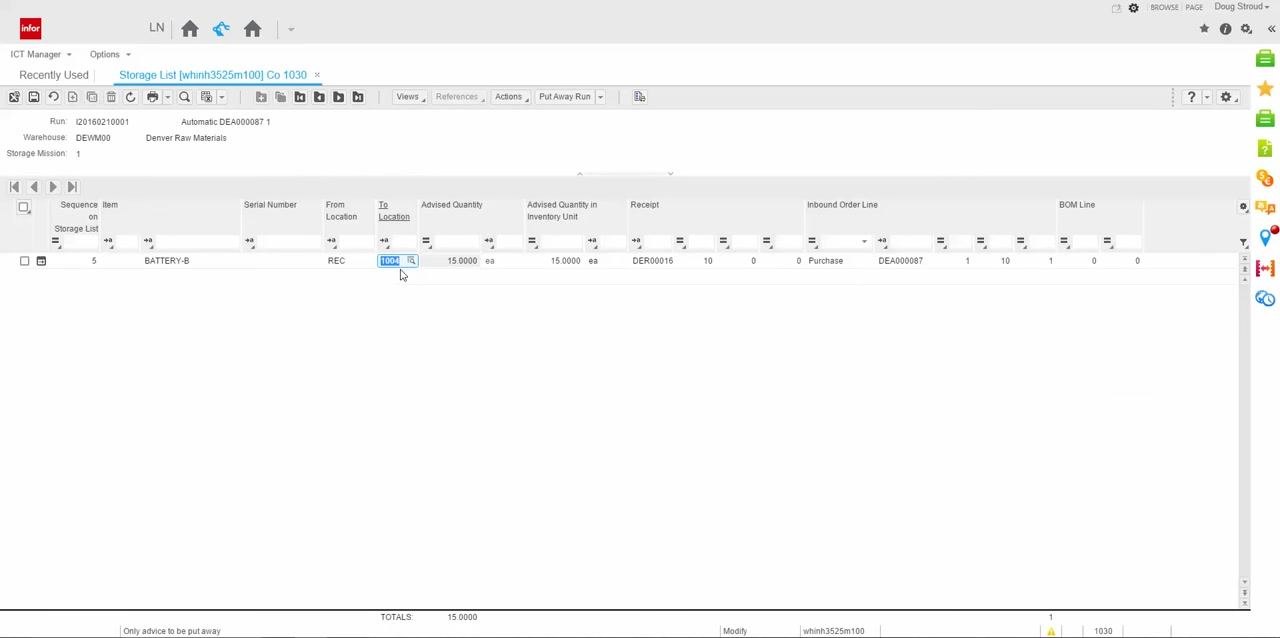
Confirm that the To Location field is populated (for example, 1004). A non-zero value indicates a fixed location is assigned for the item in the warehouse.
Step 25: Interpret a zero location
If the To Location field is zero, no fixed location is assigned to the item in the warehouse. A zero location means the item does not have a predefined storage spot and may require manual assignment or further configuration.
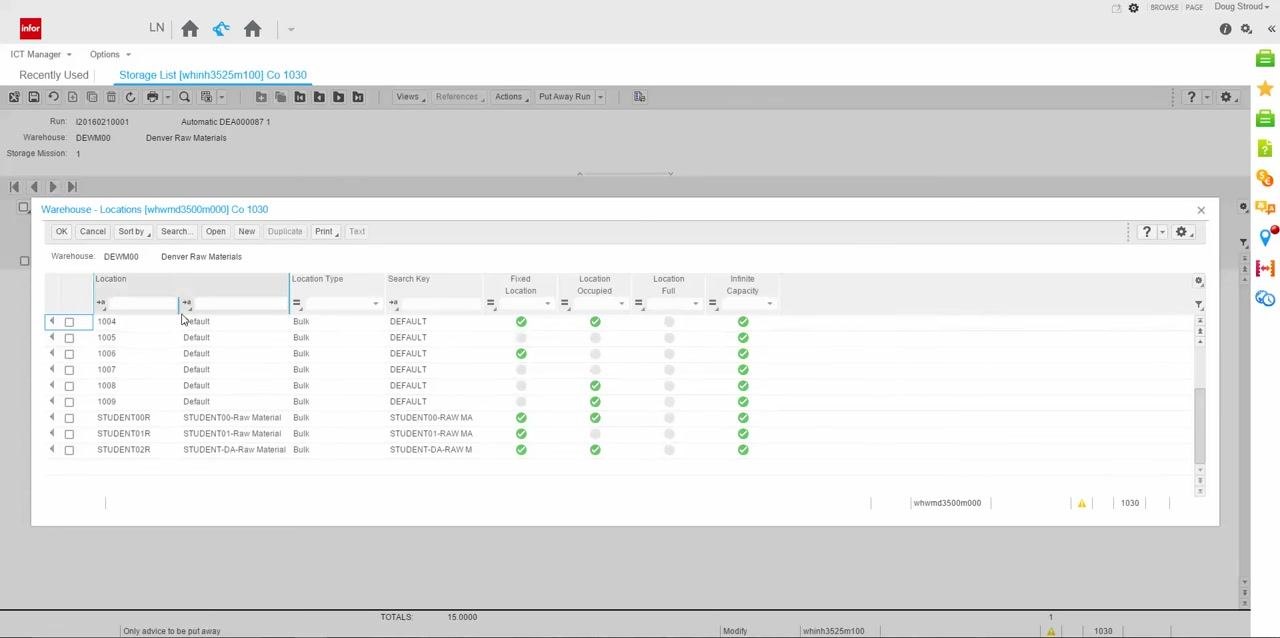
Step 26: Check the warehouse location setup
Open the "Warehouse - Locations [whwmd3500m000] Co 1030" screen to review location details. For location 1004, verify Location Type (Default), Search Key (DEFAULT), Fixed Location (checked), Location Occupied (checked), and Infinite Capacity (checked). Review other locations as needed.
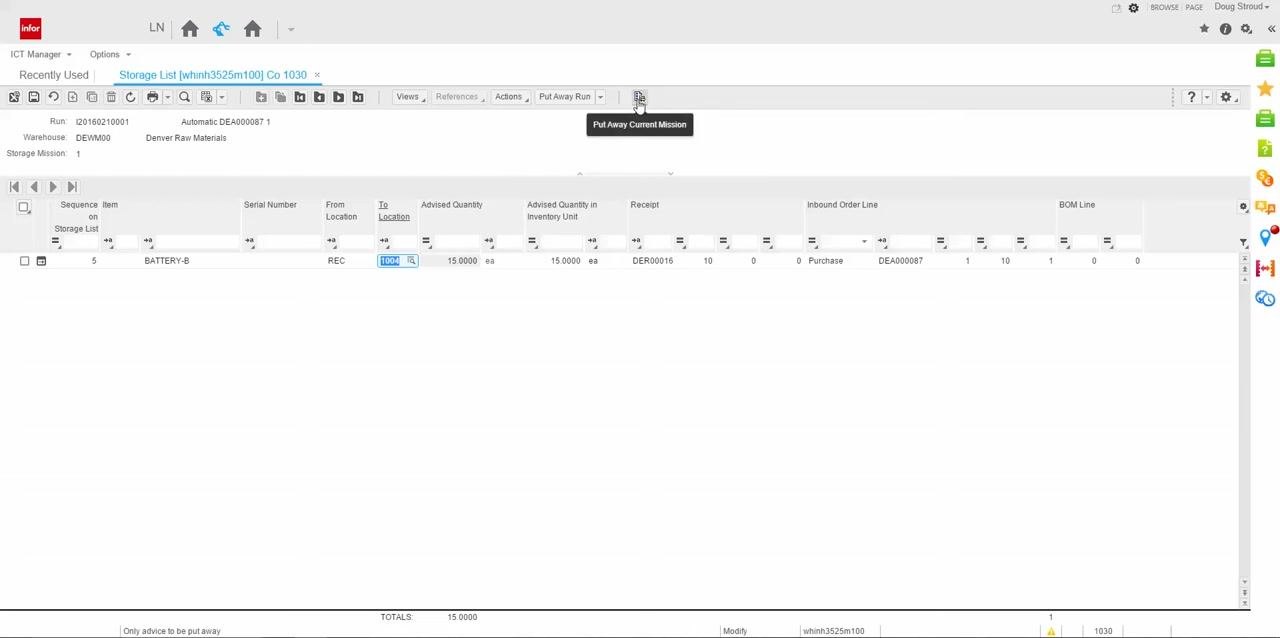
Step 27: Put away the current mission
On the "Storage List [whinh3525m100] Co 1030" screen, locate the Put Away Current Mission button in the toolbar. Hover over it to confirm the tooltip reads "Put Away Current Mission," then click it to process put-away for only the currently selected storage mission. This ensures only the advice for the current mission is processed.
Step 28: Confirm the storage list update
After clicking Put Away Current Mission, the storage list entry for the current mission disappears from the list, confirming that the put-away process for the selected mission is complete and the advice has been removed from the active list.
Step 29: Save changes and exit
Once the storage list is empty for the current mission, click the Save changes and exit button in the upper left corner of the screen to confirm all changes have been saved.
Step 30: Return to the main dashboard
After exiting the Storage List, you return to the main dashboard, which displays tiles for Storage List, Warehouse Receipt, Warehouse Manager Dashboard, Purchase Orders, Item Order Plan, and Sales Orders [tdsls4100m000] Co 1030. This completes the put-away process for the current storage mission.
What's next
With the purchase order received, confirmed, and put away, you can move on to the next receipt in your queue by repeating this process from the Warehouse Manager Dashboard. You can also verify the completed transaction by checking the item's updated inventory quantities and location details in the Warehouse - Locations screen.
Generation details: cost, quality tiers
Docsie billed 4,500 credits ($3.15) to analyze this 10-minute video at standard quality. The rewrite, template fill and Word/PDF exports were included. The same video at each quality tier:
| Quality | Frames sampled | Credits | Approx. cost |
|---|---|---|---|
| Draft | every 16-30 s | 2,500 | $1.75 |
| Standard (this guide) | every 8-15 s | 5,000 | $3.50 |
| Detailed | every 4-7 s | 10,000 | $7.00 |
| Ultra | every 1-3 s | 20,000 | $14.00 |
Credits priced at $0.70 per 1,000; plans include a monthly allowance. Enterprise customers on on-premise or bring-your-own-model deployments run this on their own inference and pay no per-video credits.
Generated by Docsie Video-to-Docs on 2026-10-25 from a 9-minute video. Screenshots are frames from the source video and belong to their creator, ERP Doctors, whose original is embedded above. If you own this video and want the guide removed or credited differently, contact us and we will act within one business day.