
How to Create Order Set Favorites in eClinicalWorks
Order sets group related labs, procedures, and orders under a single code, which is necessary for proper documentation and workflow. This guide walks you through how to create order set favorites in eClinicalWorks, from navigating to the ordering box to confirming your favorite appears in the right panel for quick future access.
Video: How to create Order Set Favorites in eCW by Michael Srock (2022). All credit for the demonstration goes to the creator; watch the original on YouTube. The written guide below was generated from this video by Docsie. Creator? Request a change or removal.
Order sets group related labs, procedures, and orders under a single code, which is necessary for proper documentation and workflow. This guide walks you through how to create order set favorites in eClinicalWorks, from navigating to the ordering box to confirming your favorite appears in the right panel for quick future access.
Prerequisites
- You must be working within a patient's progress note in eClinicalWorks 11e.
- You should understand that connecting a code with orders is required for accurate documentation.
Navigate to the Treatment section
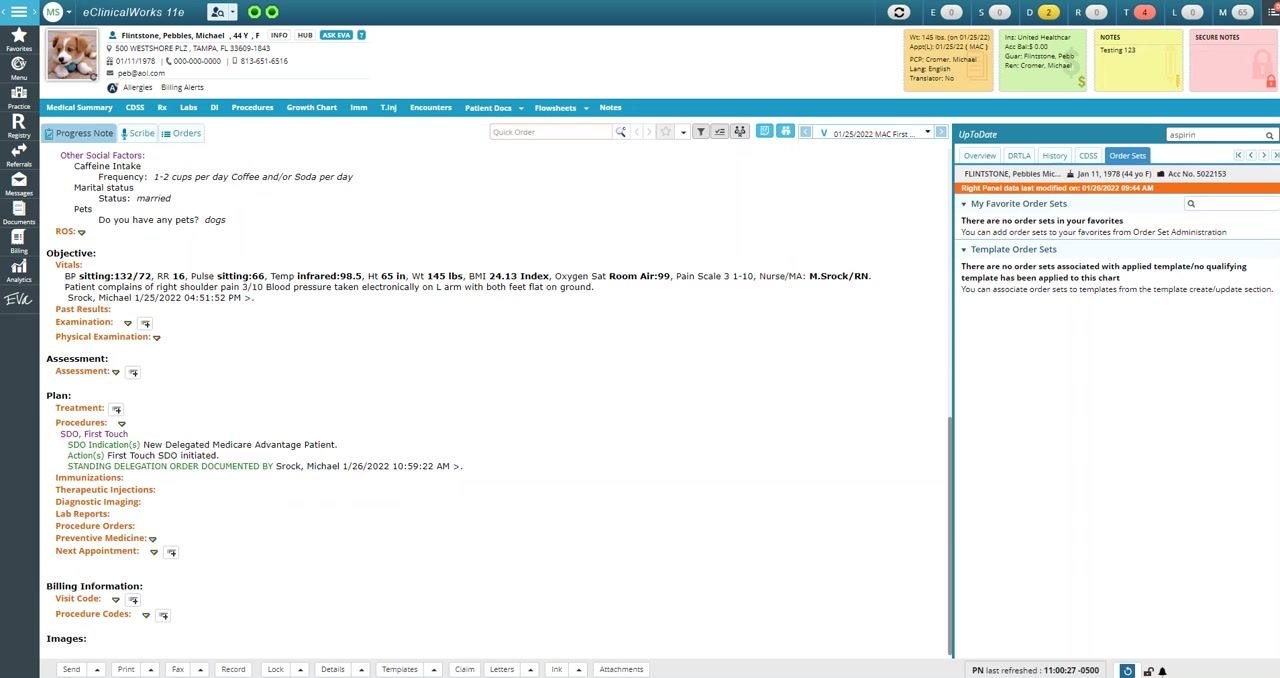
In the main workspace of the progress note, locate the Plan section. Under Plan, find and click Treatment to proceed.
Open the ordering box
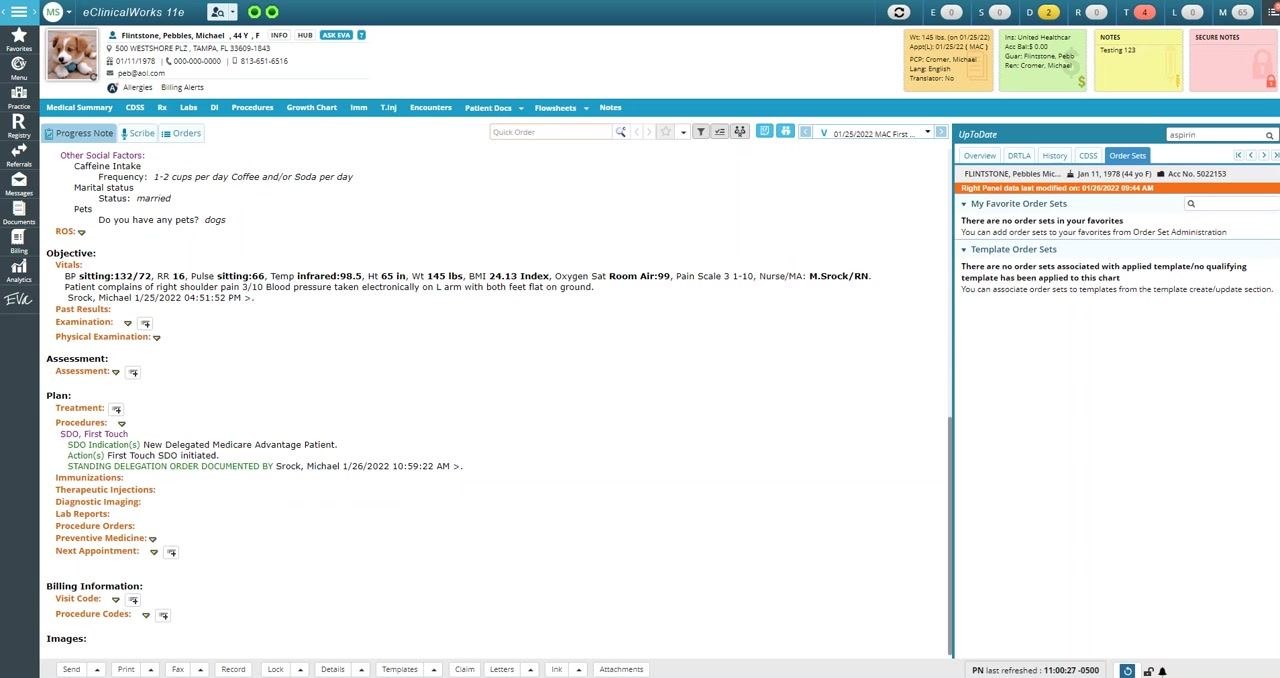
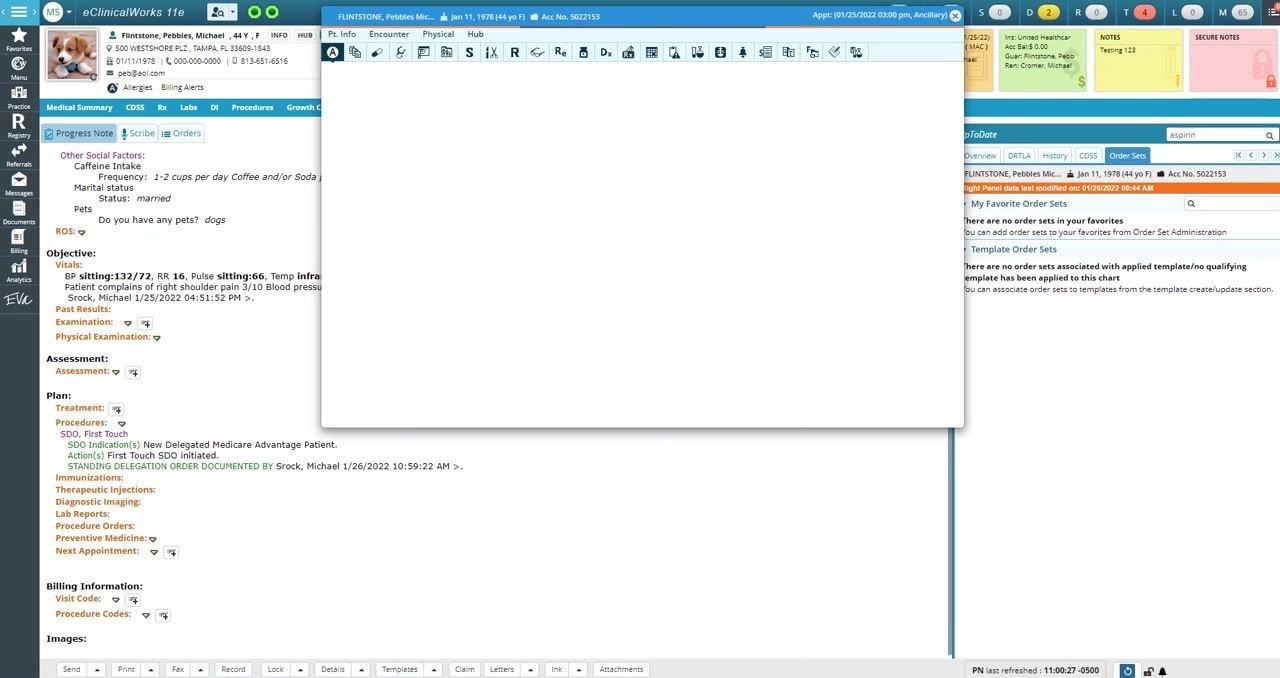
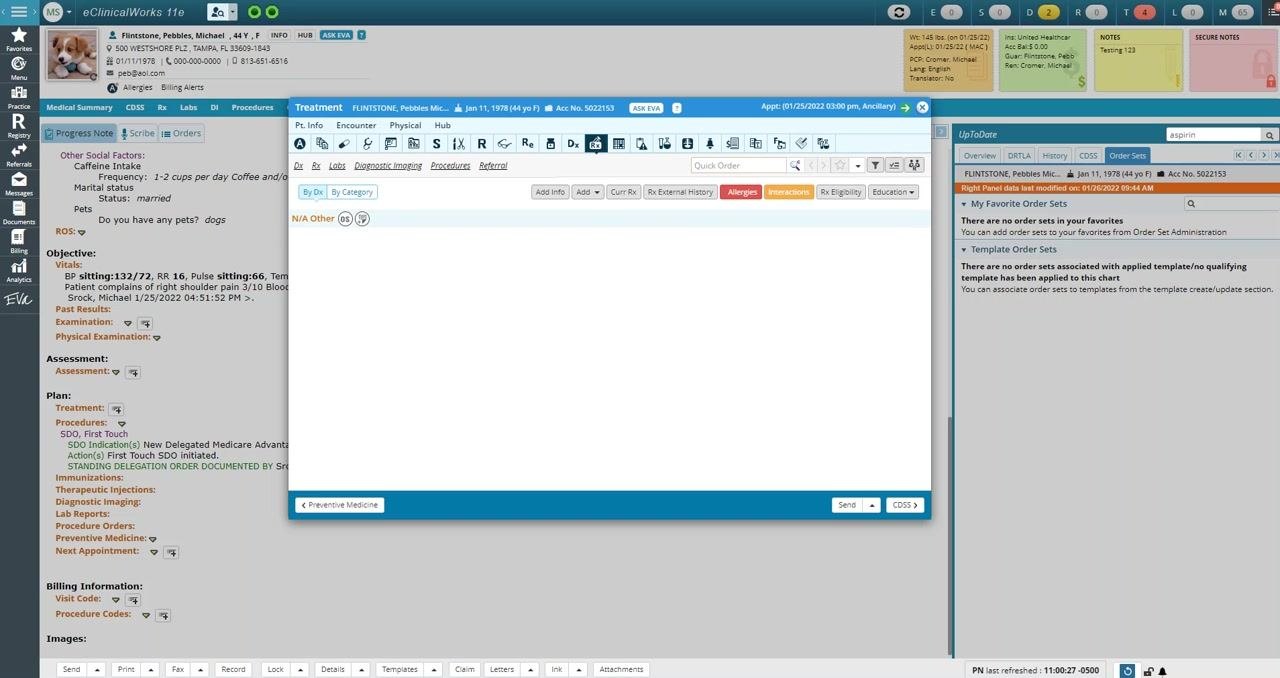
After clicking Treatment, an ordering box appears on your screen. This is where you will manage order sets. Wait for the box to fully load before continuing.
Open the Order Set section
In the ordering box, locate the button labeled OS (Order Sets) and click it to access the order sets functionality.
Confirm the ordering box now displays the Order Set area. This confirms you are in the correct section to begin creating or managing order sets.
Acknowledge the medication warning, if applicable
If a notification appears stating you are adding medications to a past encounter, acknowledge the message to continue. In a normal clinical workflow, this situation would not typically arise, but it is acceptable for training purposes.
Open the Order Set dropdown menu
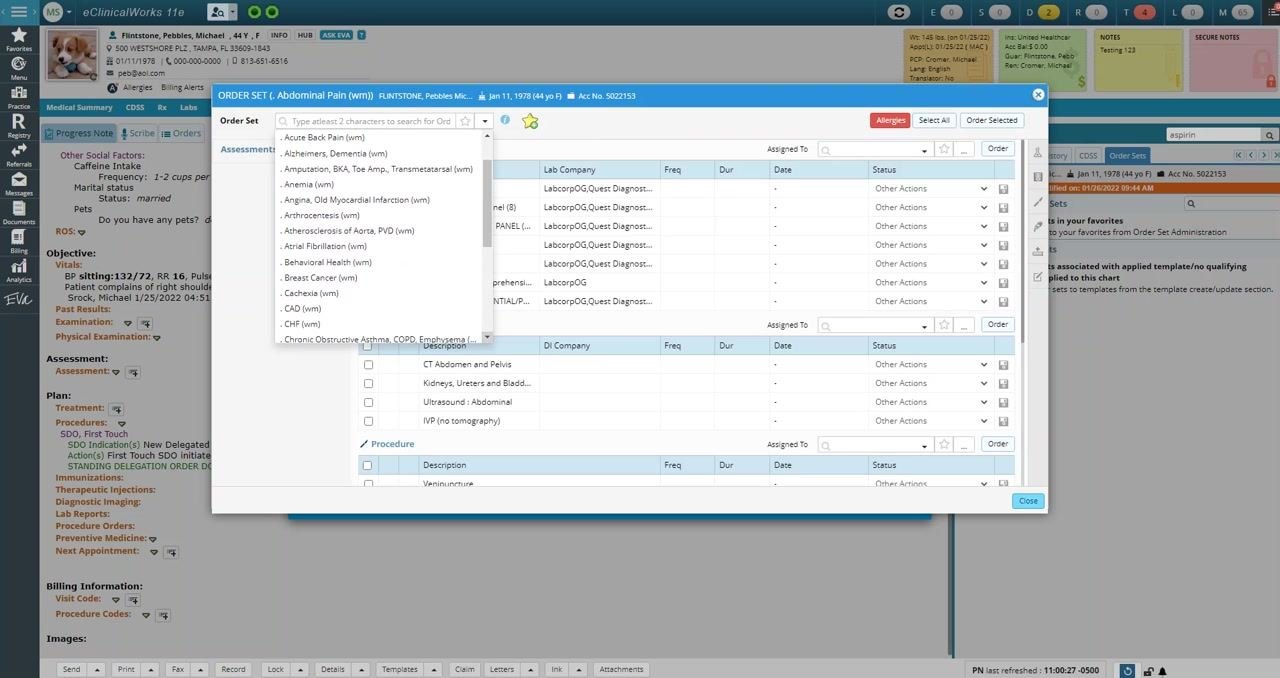
In the upper left corner of the ordering box, find the Order Set dropdown menu. By default, it may display an order set such as "A - Abdominal Pain (wm)." Click the arrow next to the field to display the full list of available order sets.
Select the First Touch Visit order set
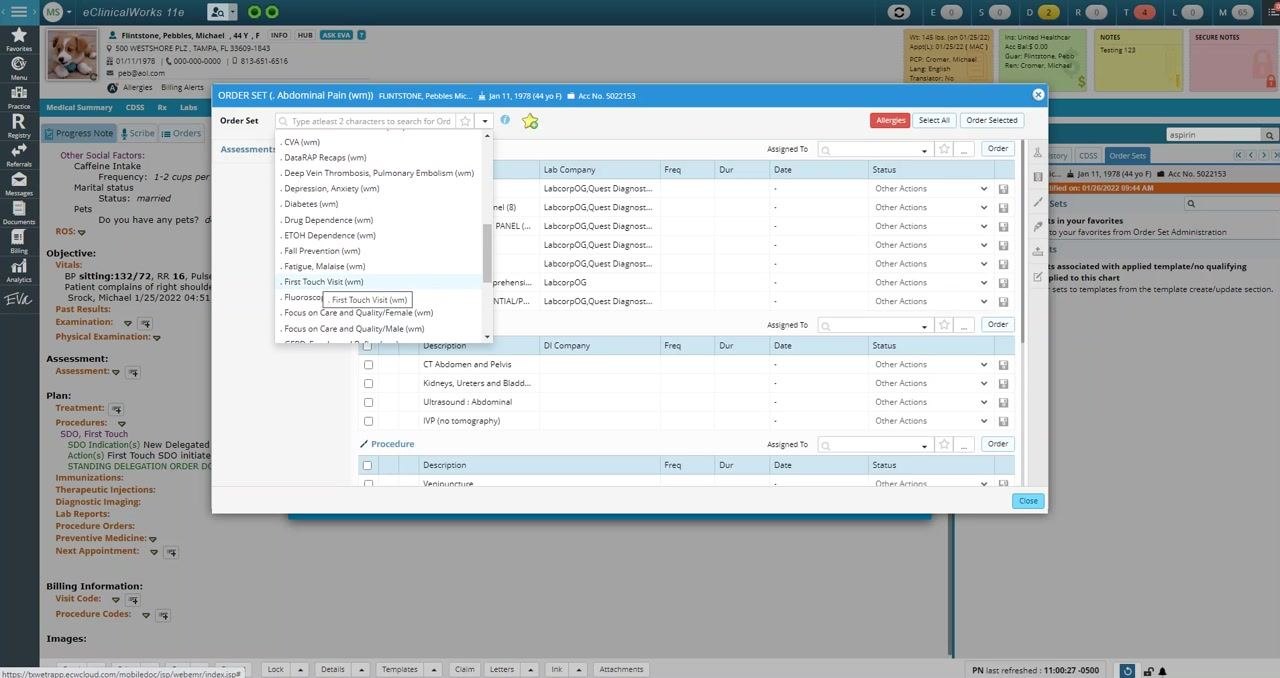
Scroll through the alphabetical list of order sets using your mouse or arrow keys until you reach the section under "F" for "First Touch." Click First Touch Visit (wm) from the dropdown list. ("WM" stands for WellMed.)
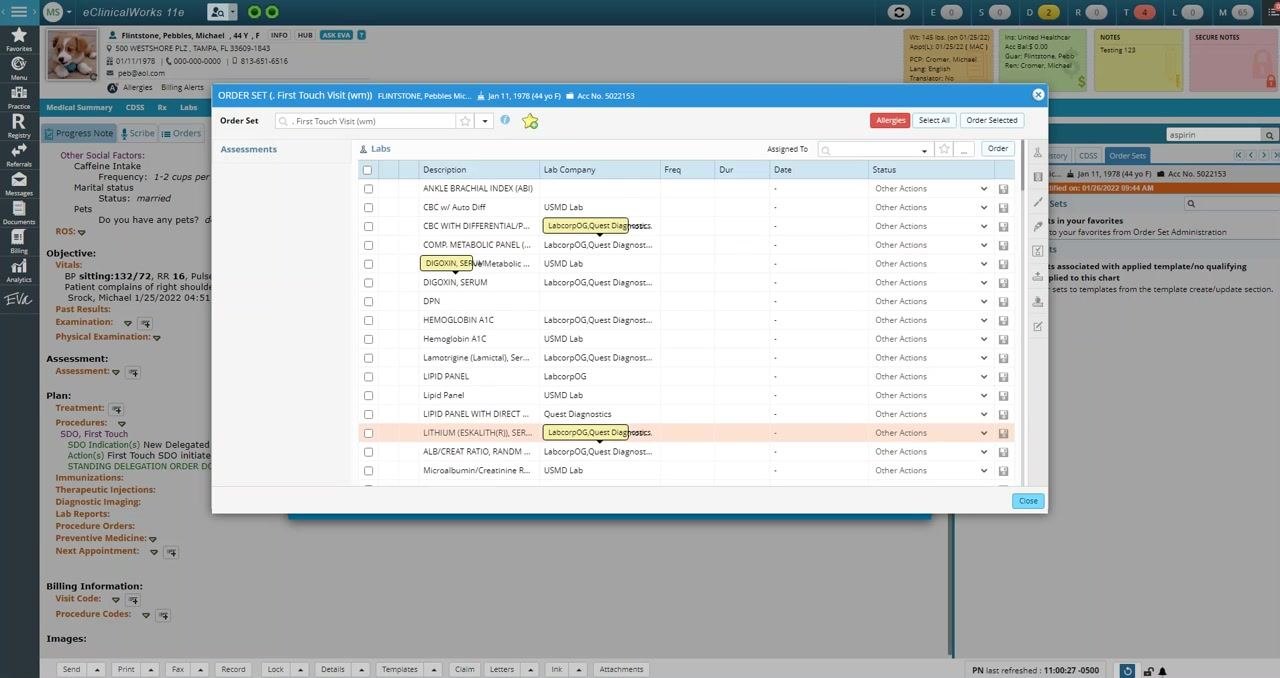
Allow a moment for the system to load the selected order set. The list of labs and procedures updates automatically to reflect your selection.
Mark the order set as a favorite
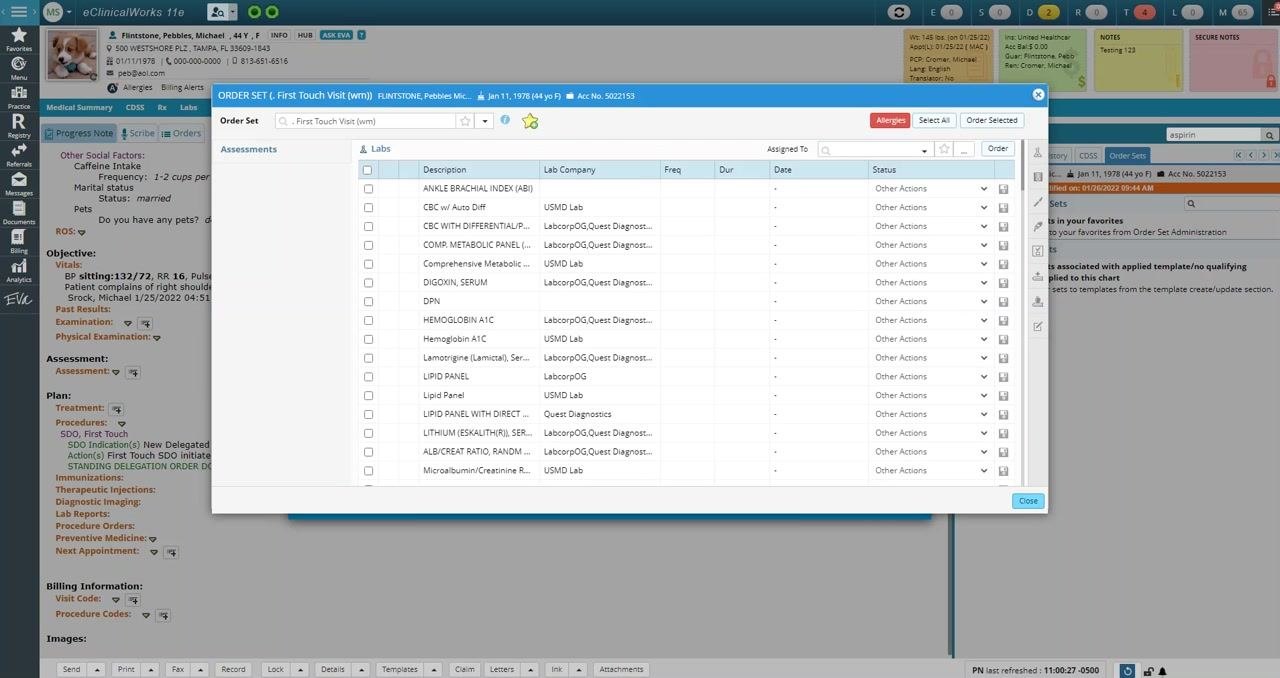
Locate the yellow star icon with a green plus sign near the top of the ordering box. Click the star icon until it changes to a red X. This adds "First Touch Visit (wm)" to your favorites for quicker access in future visits.
Close the order set window
Click the X button in the upper right corner of the order set window to close it. If a separate treatment window is also open, click its X as well to close it.
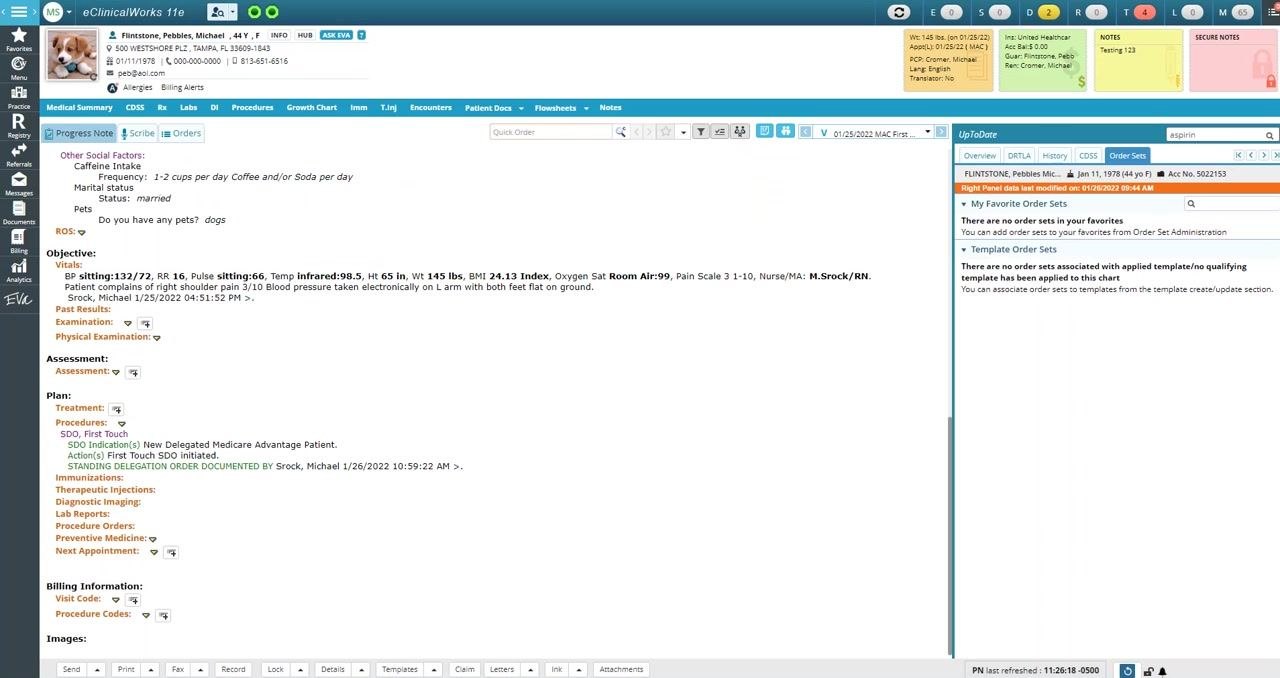
Verify your order set favorite
Navigate to the right panel of the eClinicalWorks 11e interface and click the Order Sets tab to open the list of order sets. Under My Favorite Order Sets, confirm that "First Touch Visit (wm)" appears in the list with a small "OS" icon next to it, indicating it is saved as a favorite.
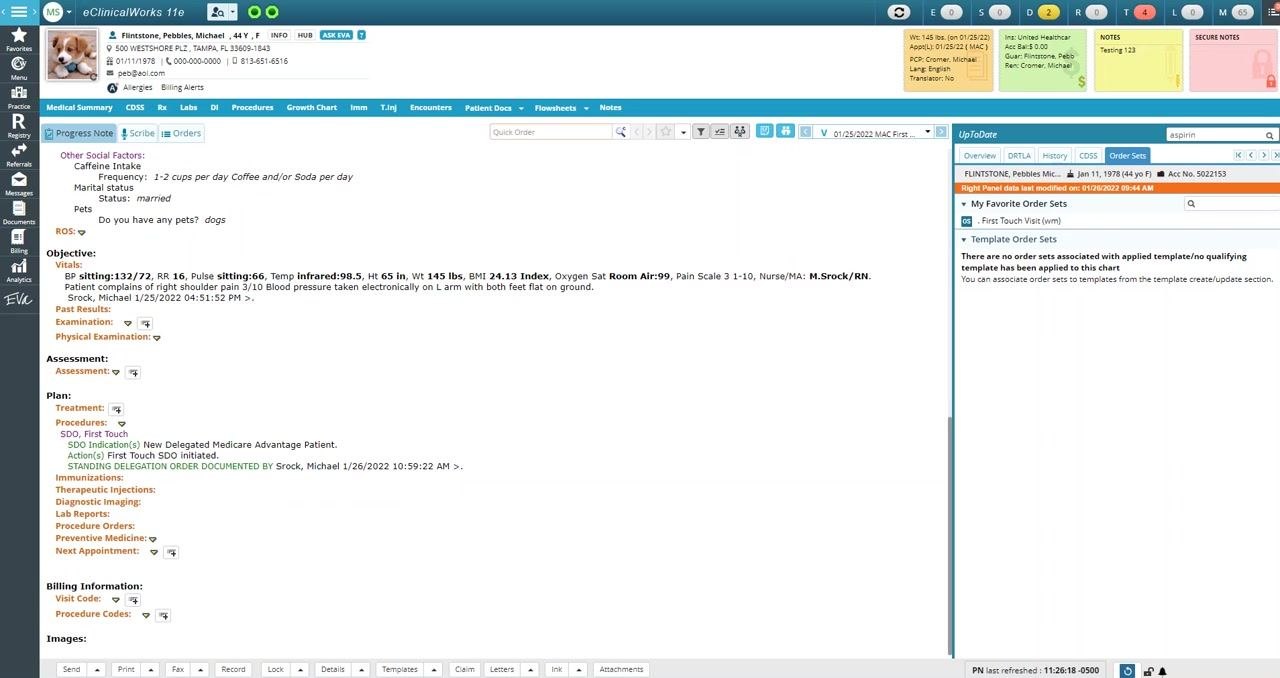
Summary
By following these steps, you have successfully navigated to the order set creation area, changed the active order set to "First Touch Visit (wm)," and added it to your favorites in eClinicalWorks 11e. Your favorite order set is now available in the Order Sets tab for faster access in future workflows.
Generation details: cost, quality tiers
Docsie billed 2,500 credits ($1.75) to analyze this 5-minute video at standard quality. The rewrite, template fill and Word/PDF exports were included. The same video at each quality tier:
| Quality | Frames sampled | Credits | Approx. cost |
|---|---|---|---|
| Draft | every 16-30 s | 1,250 | $0.88 |
| Standard (this guide) | every 8-15 s | 2,500 | $1.75 |
| Detailed | every 4-7 s | 5,000 | $3.50 |
| Ultra | every 1-3 s | 10,000 | $7.00 |
Credits priced at $0.70 per 1,000; plans include a monthly allowance. Enterprise customers on on-premise or bring-your-own-model deployments run this on their own inference and pay no per-video credits.
Generated by Docsie Video-to-Docs on 2026-10-25 from a 4-minute video. Screenshots are frames from the source video and belong to their creator, Michael Srock, whose original is embedded above. If you own this video and want the guide removed or credited differently, contact us and we will act within one business day.