
How to Add a Pharmacy in eClinicalWorks
If a patient's pharmacy doesn't appear in your local database, you can add it by linking it from the Surescripts ePrescription Pharmacy Database. This guide walks you through how to add a pharmacy in eClinicalWorks 11e, using the example of adding a Walgreens location in Florence, Kentucky.
Video: How to Link a Pharmacy 11e by Advanced Health eClinicalworks Videos (2021). All credit for the demonstration goes to the creator; watch the original on YouTube. The written guide below was generated from this video by Docsie. Creator? Request a change or removal.
If a patient's pharmacy doesn't appear in your local database, you can add it by linking it from the Surescripts ePrescription Pharmacy Database. This guide walks you through how to add a pharmacy in eClinicalWorks 11e, using the example of adding a Walgreens location in Florence, Kentucky.
Prerequisites
- Access to the eClinicalWorks 11e Menu.
- Permission to use the Tools > ePrescription > Linking Pharmacy function.
Open the Link to ePrescription Pharmacy Database window
Click the Menu button on the left sidebar, then hover over Tools in the top menu bar. From the dropdown, select ePrescription, then Linking Pharmacy.
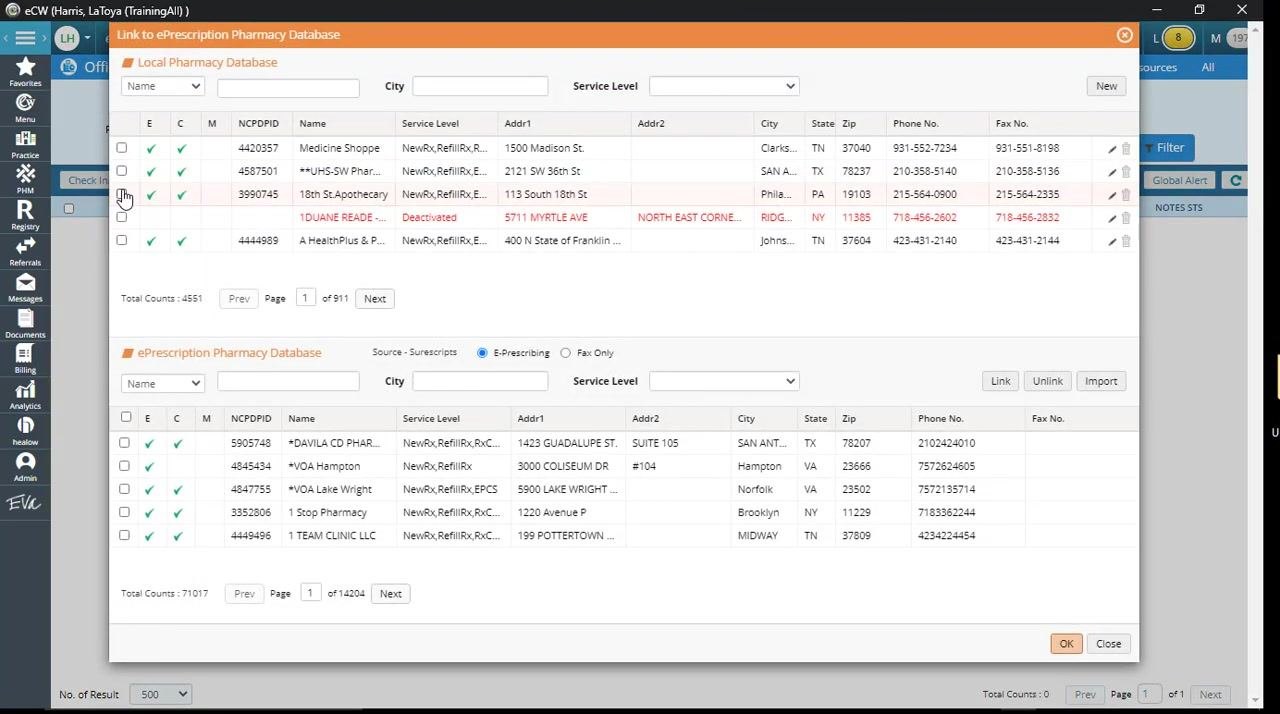
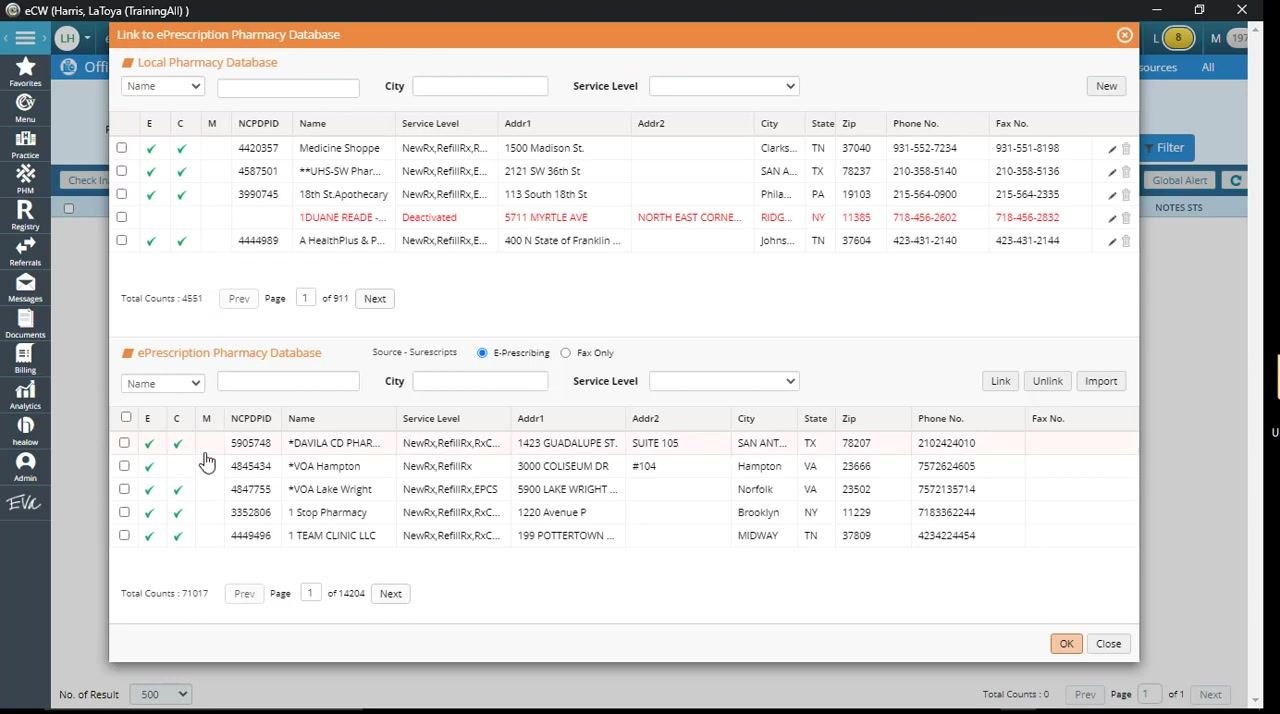
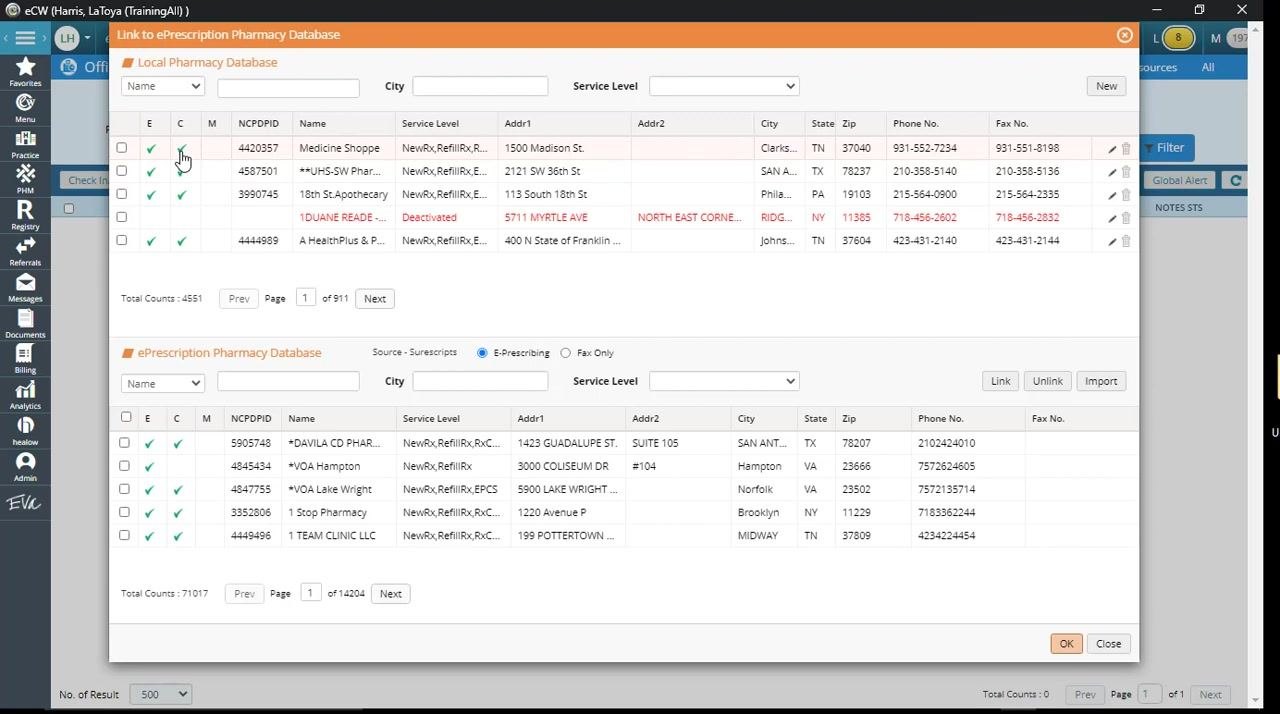
The Link to ePrescription Pharmacy Database window opens. It contains two sections:
- Local Pharmacy Database (top): pharmacies already in your eClinicalWorks system.
- ePrescription Pharmacy Database (bottom): all pharmacies registered with Surescripts.
The E and C columns indicate whether a pharmacy supports e-prescribing and controlled substance e-prescribing. A check mark confirms the capability.
Search the local pharmacy database first
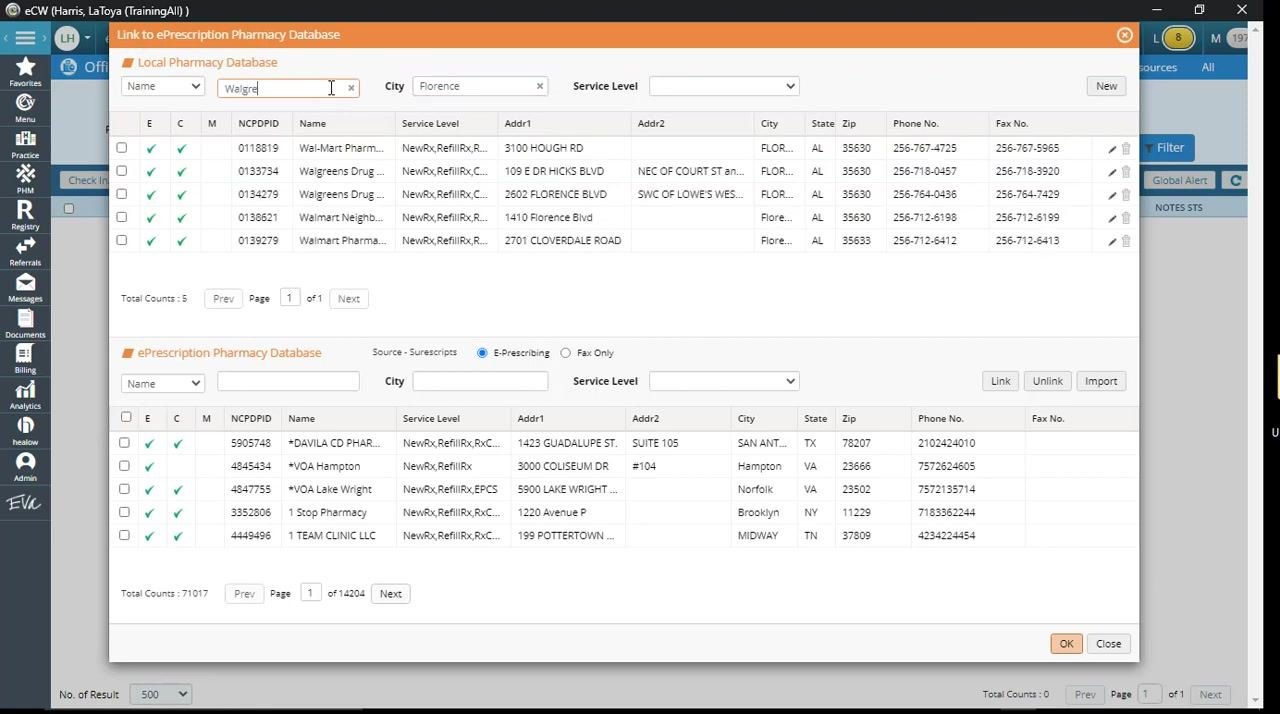
Before adding a pharmacy, confirm it doesn't already exist in your local database.
- In the City field, enter
Florence. - In the Name field, enter
Walgreens. - Review the results in the Local Pharmacy Database section.
In this example, the search returns Walgreens locations in Florence, but not the one on Mall Road in Florence, Kentucky. Since the needed pharmacy isn't listed here, the next step is to search the Surescripts database instead.
Search the Surescripts ePrescription database
Click in the City field within the ePrescription Pharmacy Database section and enter Florence. This begins the search for the correct pharmacy in the Surescripts database.
Note: Always verify both the pharmacy name and address to confirm you're linking the correct location. The E and C columns are important for confirming e-prescribing and controlled substance capabilities before linking.
Refine the search by pharmacy name
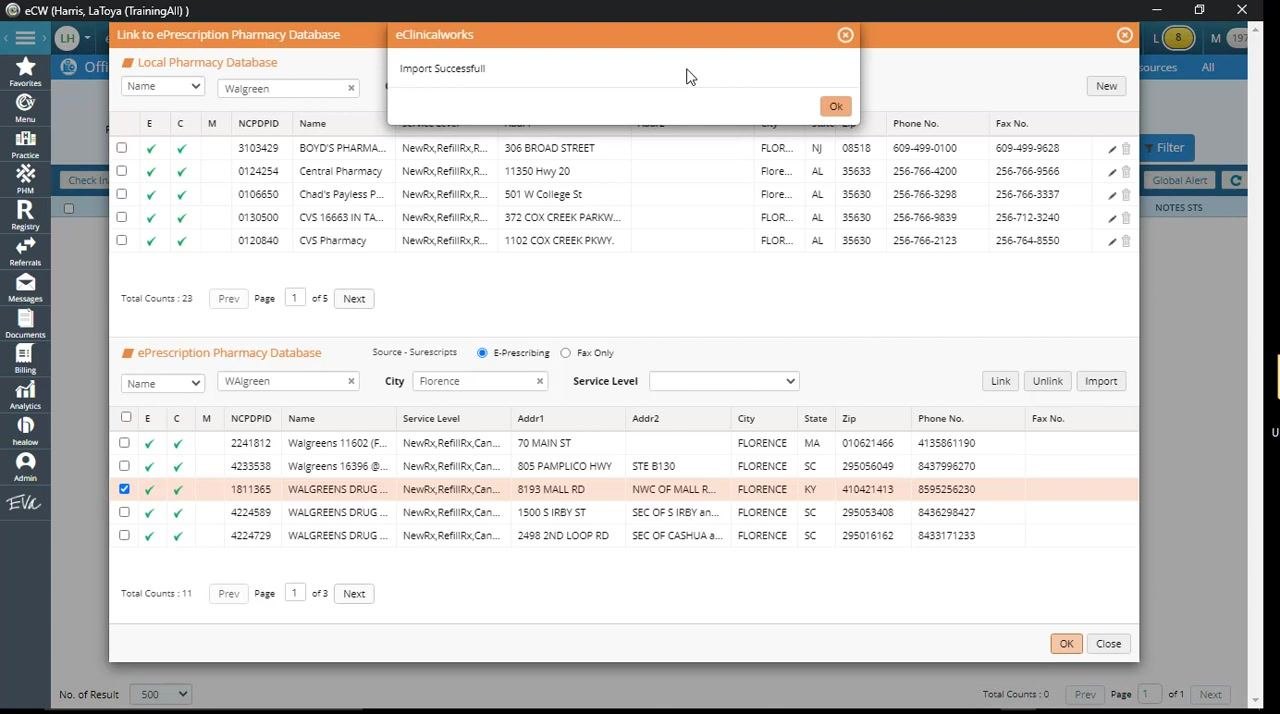
In the ePrescription Pharmacy Database section, click the Name field and type Walgreen. Confirm the City field is still set to Florence, then review the matching results.
Select the correct pharmacy entry
Locate the entry matching these details:
- Name: WALGREENS DRUG STORE
- Addr1: 8193 MALL RD
- Addr2: NWC OF MALL ROAD
- City: FLORENCE
- State: KY
- Zip: 41042-1413
- Phone No.: 859-525-6230
Confirm this matches the Walgreens on Mall Road in Florence, Kentucky, then click the checkbox next to this entry in the ePrescription Pharmacy Database list.
Import the pharmacy
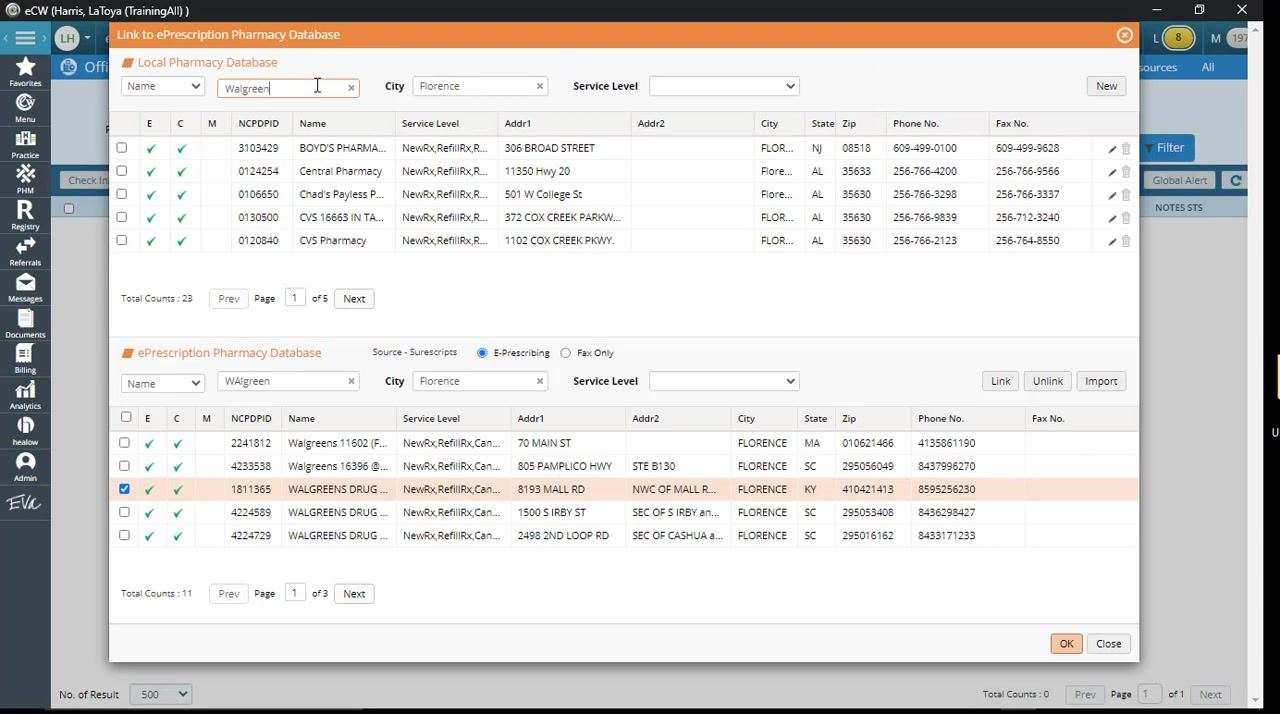
Click the Import button to add the selected pharmacy to your local database. A confirmation message reading "Import Successful!" appears. Click OK to close it.
Verify the pharmacy was added
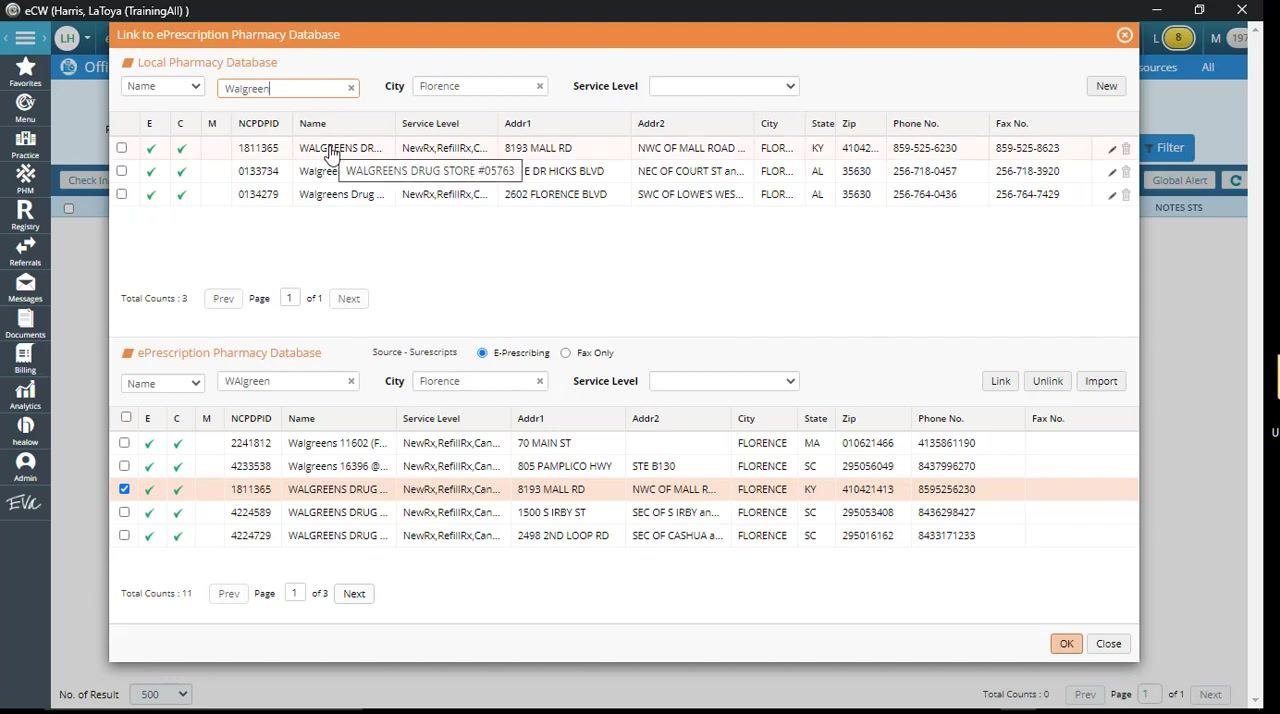
In the Local Pharmacy Database section, search again for Walgreen in Florence. Confirm that the Walgreens on Mall Road, Florence, KY now appears in the results.
Summary
You've now learned how to add a pharmacy in eClinicalWorks by linking it from the Surescripts ePrescription Pharmacy Database. By searching the local database first, then refining your search in the Surescripts database by name and city, you can locate, verify, and import the correct pharmacy location into your system for future e-prescribing use.
Generation details: cost, quality tiers
Docsie billed 1,500 credits ($1.05) to analyze this 3-minute video at standard quality. The rewrite, template fill and Word/PDF exports were included. The same video at each quality tier:
| Quality | Frames sampled | Credits | Approx. cost |
|---|---|---|---|
| Draft | every 16-30 s | 750 | $0.52 |
| Standard (this guide) | every 8-15 s | 1,500 | $1.05 |
| Detailed | every 4-7 s | 3,000 | $2.10 |
| Ultra | every 1-3 s | 6,000 | $4.20 |
Credits priced at $0.70 per 1,000; plans include a monthly allowance. Enterprise customers on on-premise or bring-your-own-model deployments run this on their own inference and pay no per-video credits.
Generated by Docsie Video-to-Docs on 2026-10-14 from a 2-minute video. Screenshots are frames from the source video and belong to their creator, Advanced Health eClinicalworks Videos, whose original is embedded above. If you own this video and want the guide removed or credited differently, contact us and we will act within one business day.