
How to Edit Templates in eClinicalWorks
This guide explains how to edit templates in eClinicalWorks, from locating an existing template to safely applying and confirming your changes. Because template edits take effect immediately for all users, it's important to follow each step carefully.
Video: Editing Existing Templates in eClinicalWorks by Easton Jackson (2015). All credit for the demonstration goes to the creator; watch the original on YouTube. The written guide below was generated from this video by Docsie. Creator? Request a change or removal.
This guide explains how to edit templates in eClinicalWorks, from locating an existing template to safely applying and confirming your changes. Because template edits take effect immediately for all users, it's important to follow each step carefully.
Prerequisites
- You must be logged in to eClinicalWorks with appropriate permissions. Administrator access allows you to view all private templates, while regular users can only view public templates and private templates they have created themselves.
Open the templates list
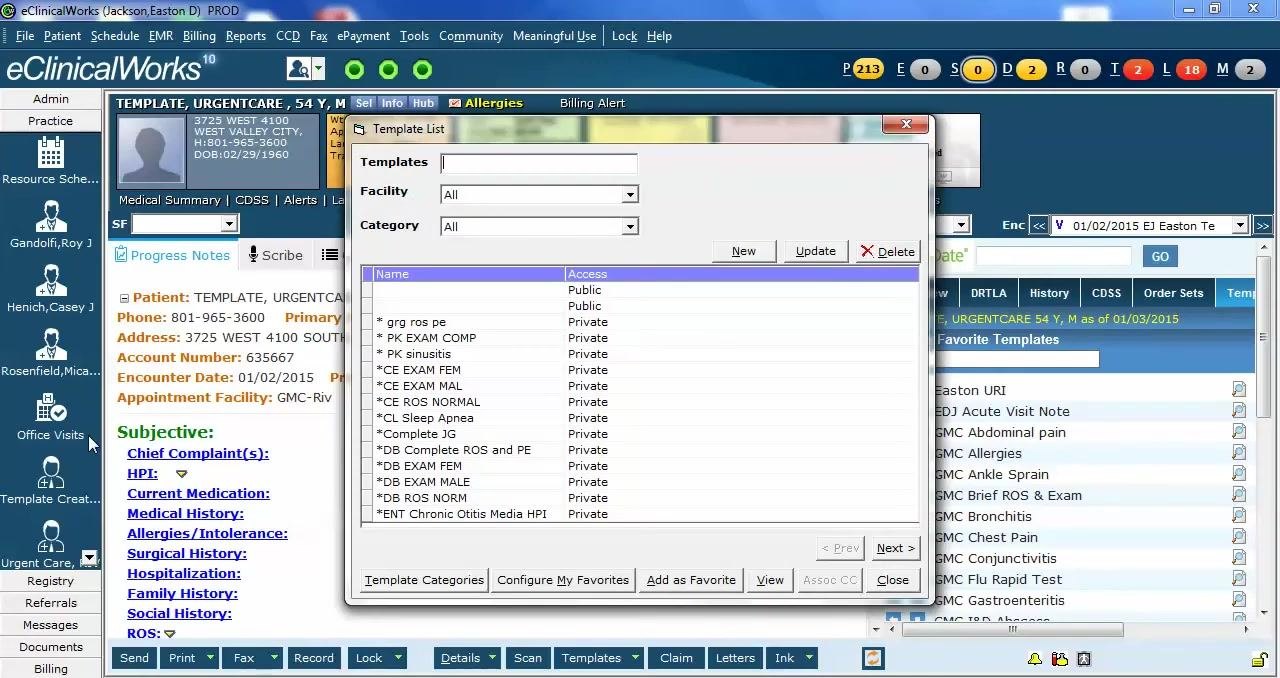
Go to the top menu bar and click File, then select Templates from the dropdown menu. A new window titled "Template List" will open, displaying all available templates. Administrators will see both public and all private templates, while regular users will see public templates and only the private templates they created.
Search for the template you want to edit
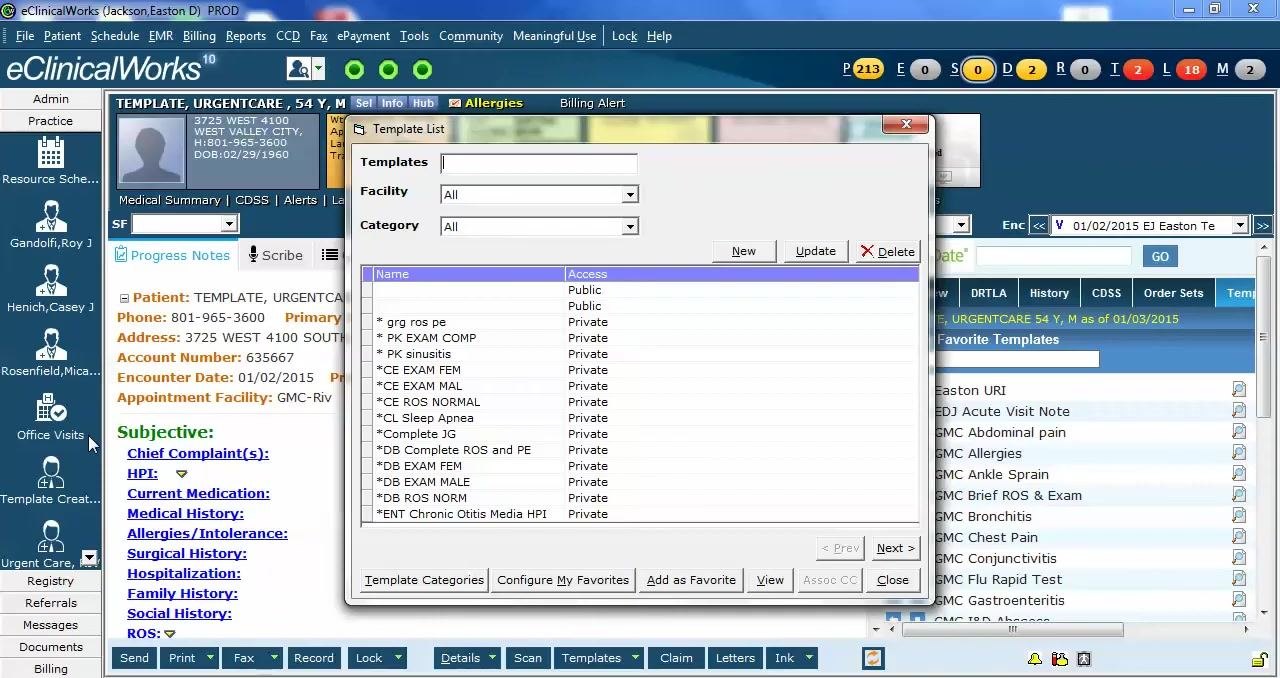
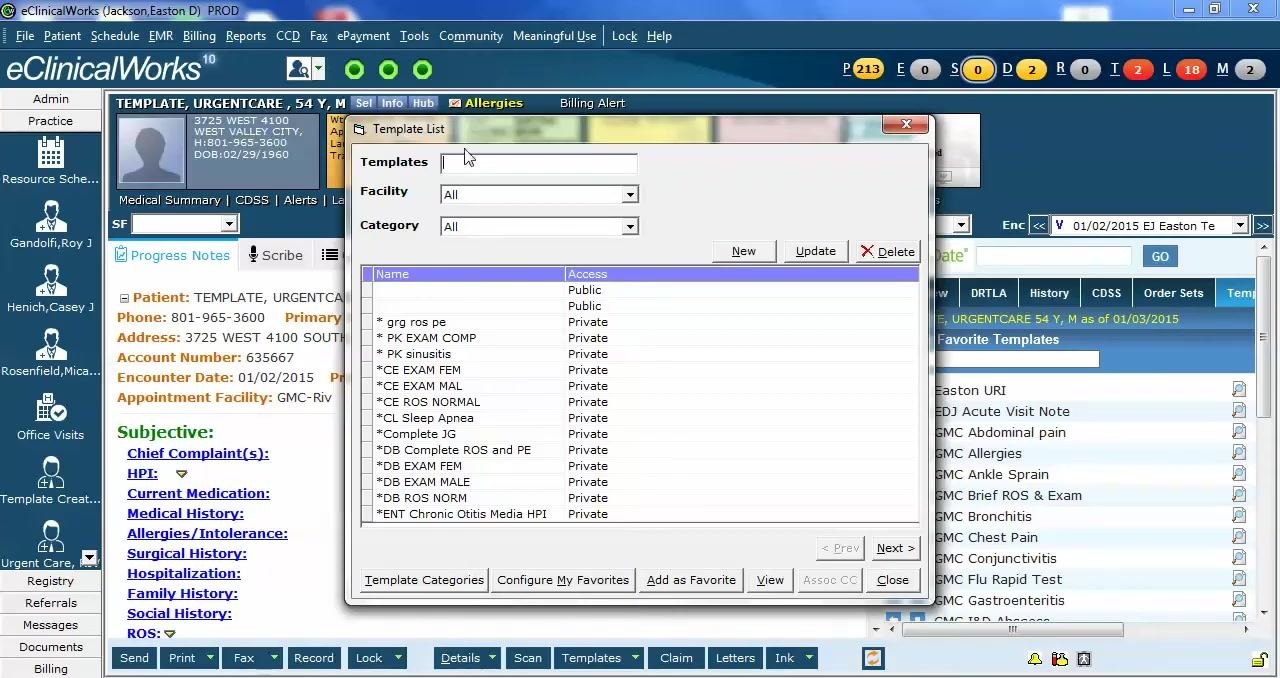
In the Templates search field at the top of the Template List window, type the name or part of the name of the template you wish to edit (for example, "Easton"). The list will filter automatically to show matching results.
Open the template for editing
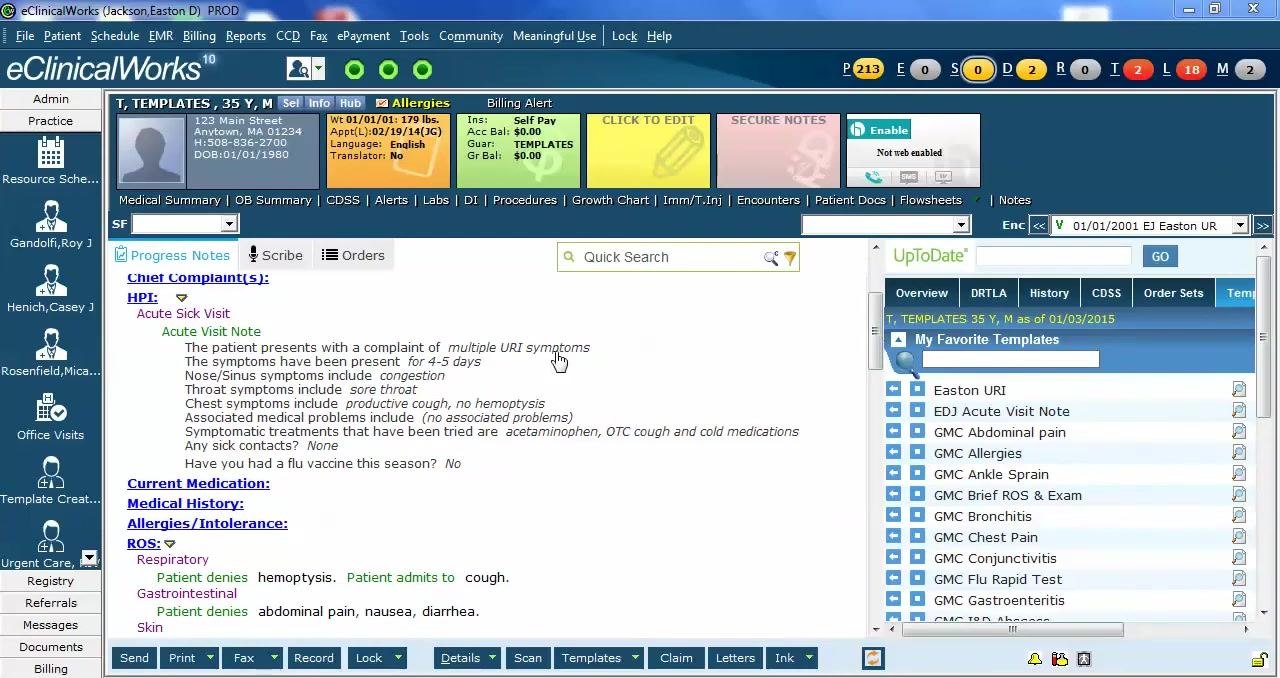
Click to highlight the template you want to edit (for example, "Easton URI"), then click the View button at the bottom of the Template List window. The template will open as a progress note, but the patient will automatically switch to a special internal patient called "T, TEMPLATES." This internal patient exists exclusively for creating and editing templates.
Understand the editing environment
Before making changes, be aware that there is no save button and no undo/undelete button when editing templates. Any change you make is applied instantly and immediately effective for all users who access this template. If you delete content or the entire template, that change is permanent, so proceed carefully.
Add comments or recommendations to the assessment section
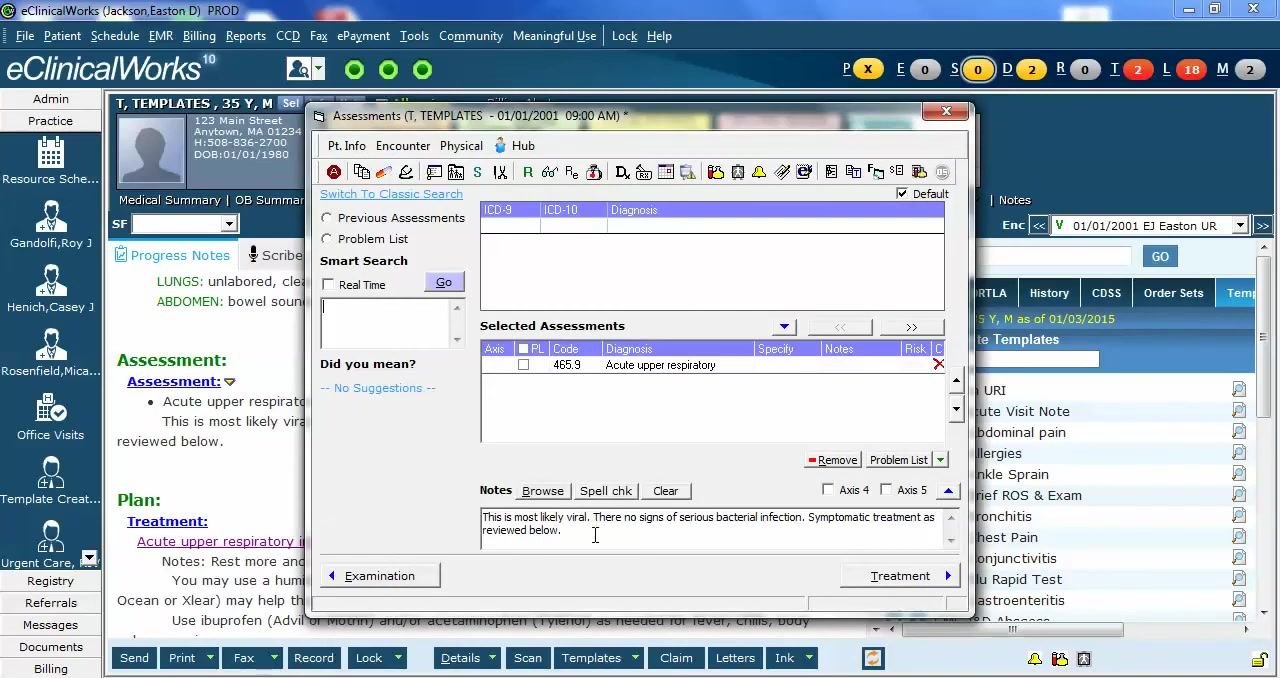
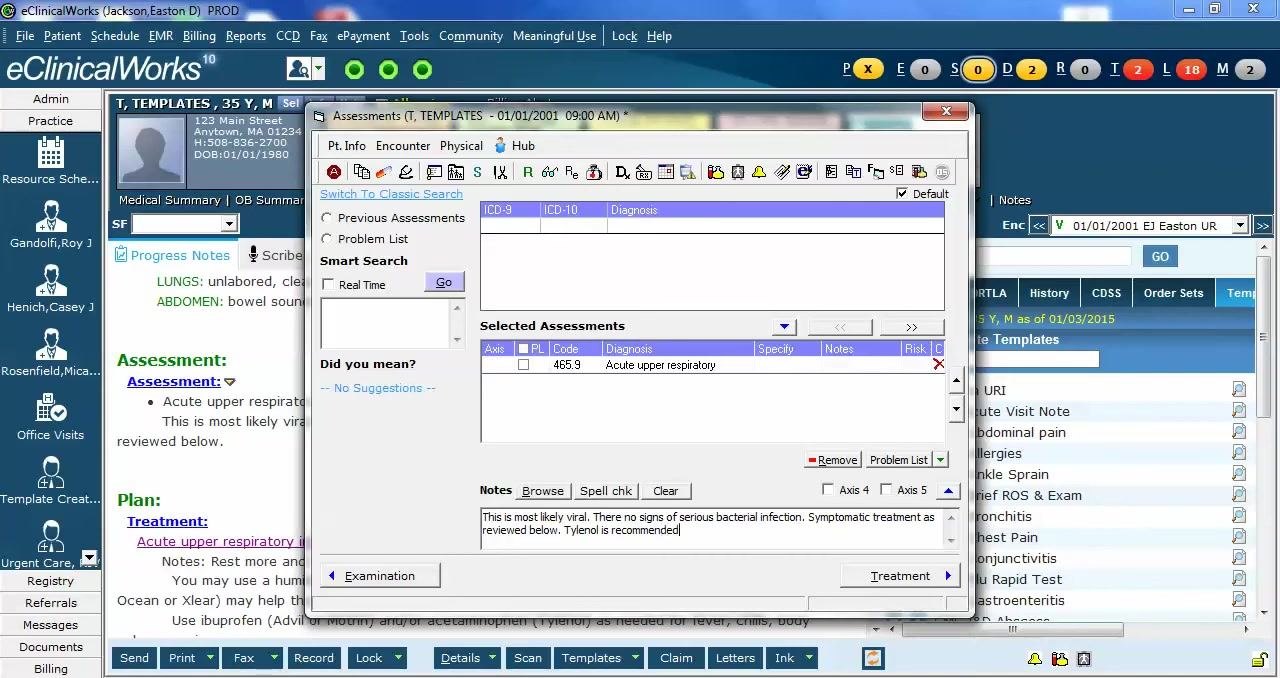
Navigate to the "Assessment" section of the template and click into the notes or comments area under the relevant assessment (for example, "Acute upper respiratory"). Type your desired comment, such as:
Tylenol is recommended.
This text becomes part of the template for all future uses once entered.
Close the assessment box and verify the change
Once you have finished editing, close the assessment window by clicking the "X" in the upper right corner. The new text is saved automatically as part of the template. Review the main progress note area to confirm your addition appears as expected—for example, under "Assessment" you should now see:
This is most likely viral. There are no signs of serious bacterial infection. Symptomatic treatment as reviewed below. Tylenol is recommended.
If you need to remove any text or changes, simply delete the content from the template as you would in any progress note. Remember that deletions are also immediate and cannot be undone.
Exit the template editing mode
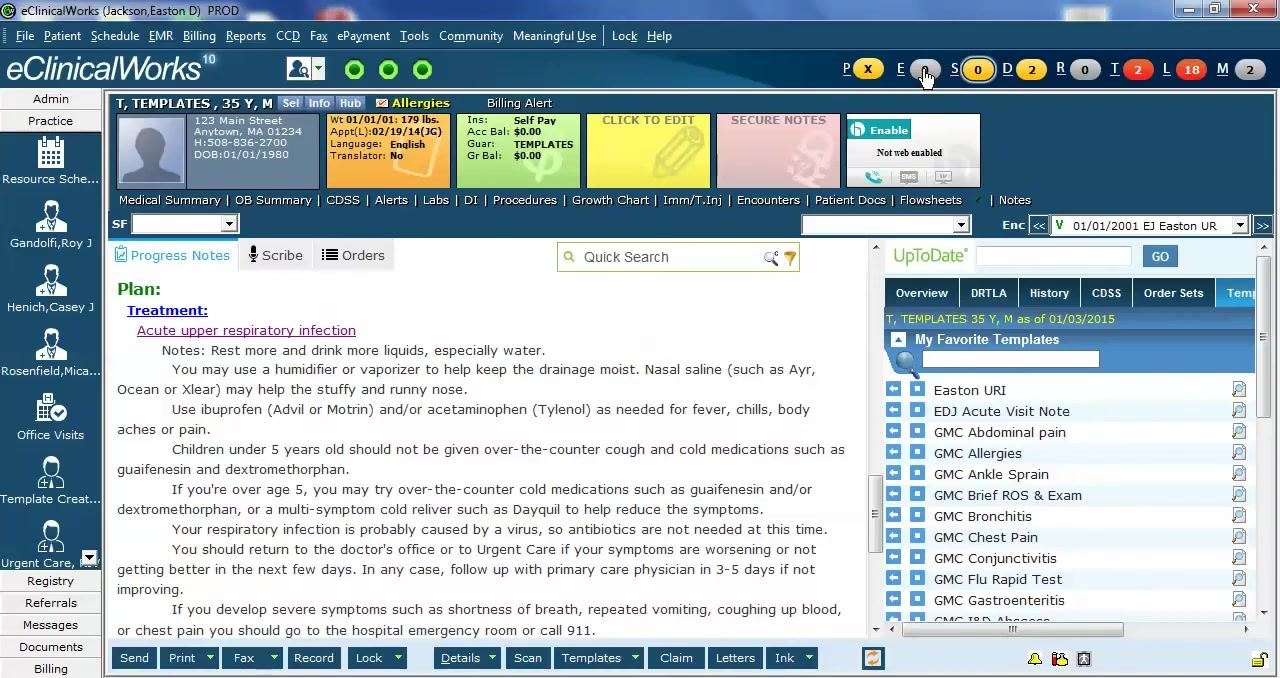
Once you have finished editing, you must exit the template editing mode to avoid accidental changes. Remaining in the "T, TEMPLATES" special patient while continuing to work means you are still modifying the live template. To exit, click on any of the colored "jelly bean" icons at the top of the screen (such as "E" for encounters or "O" for orders), or navigate away from the template screen.
Confirm you have exited the template
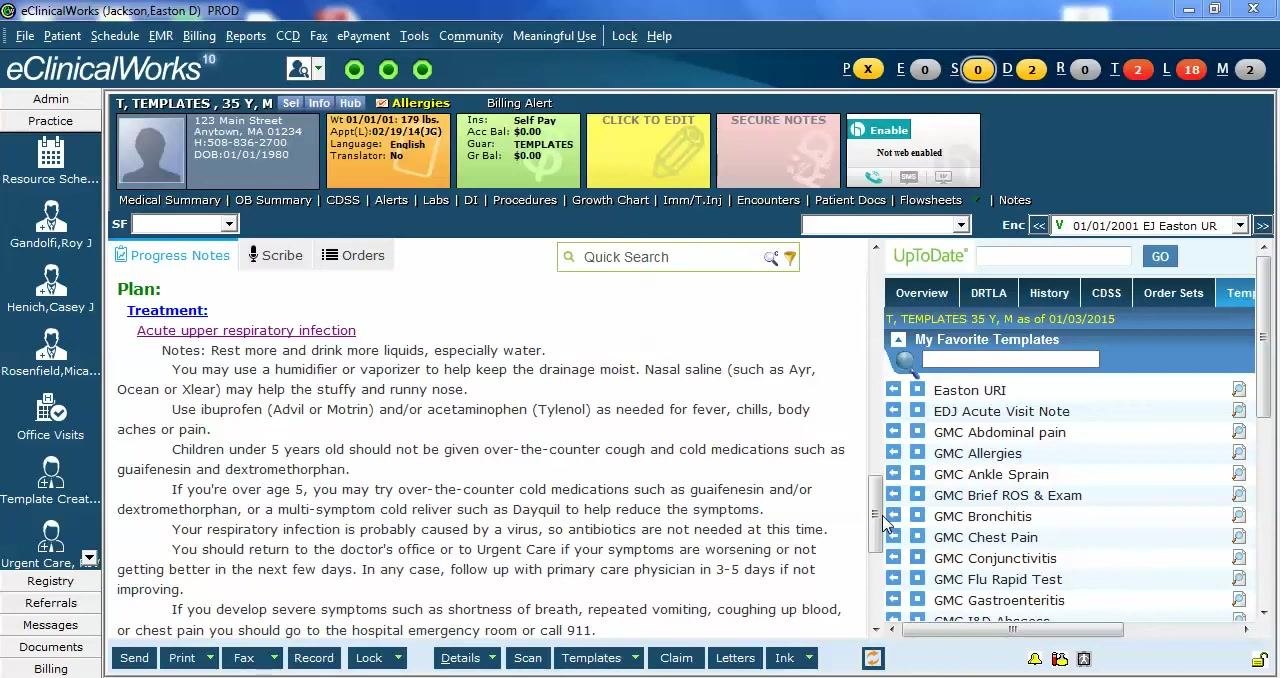
After clicking away, you will be taken to a different section, such as the "Encounters" or "Orders" screen. This confirms that your template changes are saved and that you are no longer editing the live template.
Summary
Editing templates in eClinicalWorks follows a straightforward process: locate the template, open it for editing, make your changes in the live editing environment, and exit cleanly to prevent accidental modifications. Keep in mind:
- There is no manual save or undo button—changes are instant and permanent.
- Always exit the "T, TEMPLATES" patient after editing to prevent accidental modifications.
- Any edits or deletions affect all users who access the template.
By following these steps, you can confidently edit templates in eClinicalWorks and ensure your documentation tools remain accurate and up to date for all users.
Generation details: cost, quality tiers
Docsie billed 2,000 credits ($1.40) to analyze this 4-minute video at standard quality. The rewrite, template fill and Word/PDF exports were included. The same video at each quality tier:
| Quality | Frames sampled | Credits | Approx. cost |
|---|---|---|---|
| Draft | every 16-30 s | 1,000 | $0.70 |
| Standard (this guide) | every 8-15 s | 2,000 | $1.40 |
| Detailed | every 4-7 s | 4,000 | $2.80 |
| Ultra | every 1-3 s | 8,000 | $5.60 |
Credits priced at $0.70 per 1,000; plans include a monthly allowance. Enterprise customers on on-premise or bring-your-own-model deployments run this on their own inference and pay no per-video credits.
Generated by Docsie Video-to-Docs on 2026-10-14 from a 3-minute video. Screenshots are frames from the source video and belong to their creator, Easton Jackson, whose original is embedded above. If you own this video and want the guide removed or credited differently, contact us and we will act within one business day.