
How to Create a Template in eClinicalWorks
This guide walks you through how to create a template in eClinicalWorks (ECW), starting with a custom structured data template inside the HPI (History of Present Illness) section. You will learn how to add structured fields of different types, build conditional branching logic, and use both your new template and existing favorite templates to populate a patient note efficiently.
Video: Creating Structured Templates in eClinicalWorks V12 by Easton Jackson (2024). All credit for the demonstration goes to the creator; watch the original on YouTube. The written guide below was generated from this video by Docsie. Creator? Request a change or removal.
This guide walks you through how to create a template in eClinicalWorks (ECW), starting with a custom structured data template inside the HPI (History of Present Illness) section. You will learn how to add structured fields of different types, build conditional branching logic, and use both your new template and existing favorite templates to populate a patient note efficiently.
Prerequisites
- Access to a patient chart in eClinicalWorks.
- Custom template creation privileges on your user account. If the Custom button is missing or grayed out at any point, contact your system administrator to enable this privilege.
Open the patient chart and navigate to HPI
Step 1: Open the patient chart and locate HPI
Open the patient chart in ECW and locate the HPI section within the patient summary. Make sure you are working in the main HPI window rather than using inline editing. The HPI window may open in full-screen mode for typing or dictation; if it appears maximized, proceed to the next step to adjust the view.
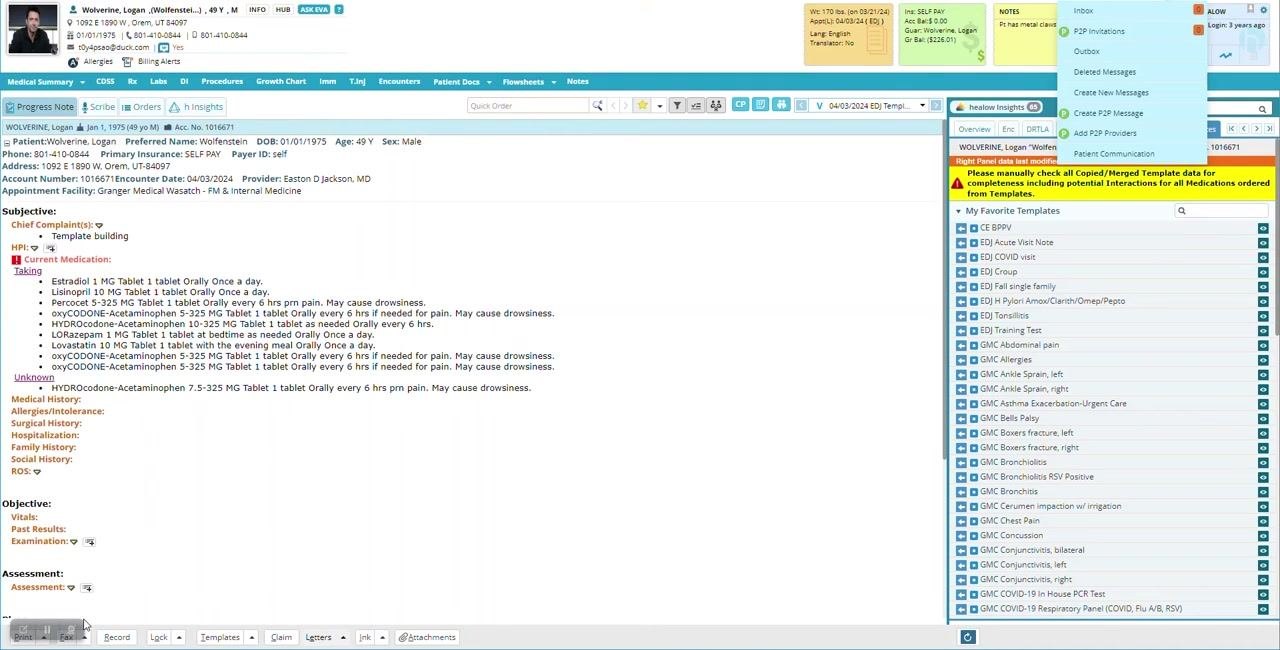
Step 2: Adjust the HPI window to view additional options
If the HPI window is fully expanded, click the designated area or button to shrink it. This reveals additional options and categories on the left side of the screen.
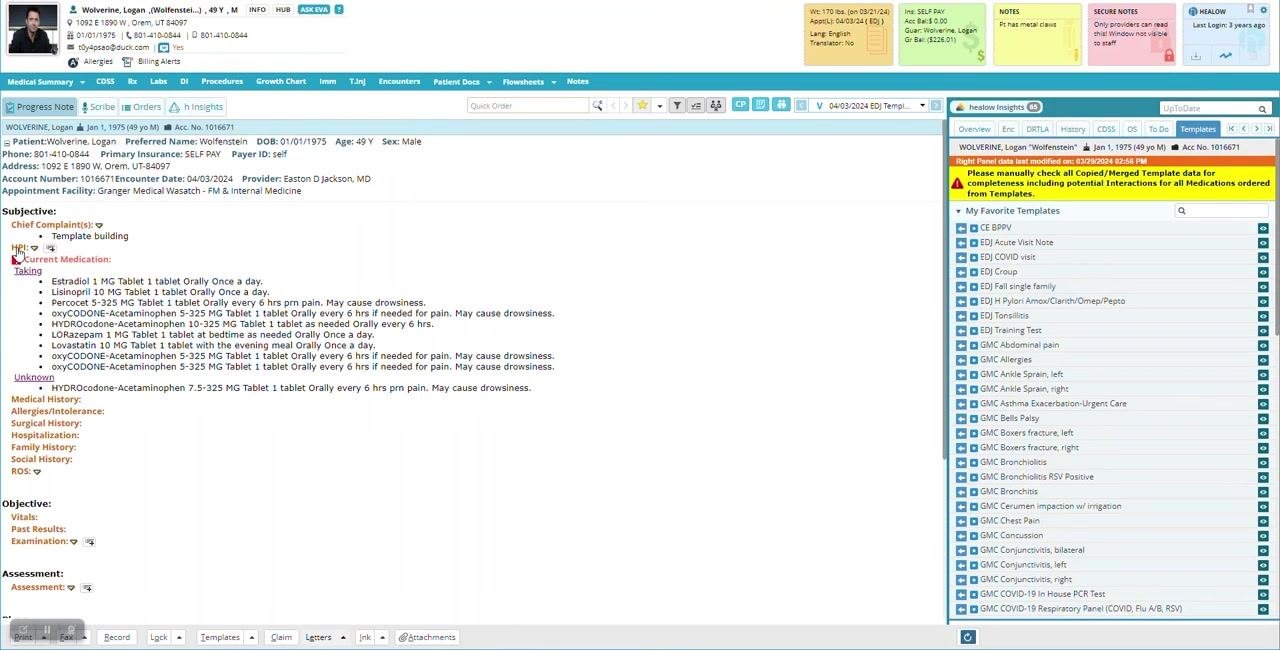
Step 3: Select a section for template creation
In the HPI window, review the list of available categories on the left. For this walkthrough, select a section not typically used in your production environment, such as Neurosurgery consultations. Scroll through the list and click on it.
Step 4: Choose the specific subsection
Under Neurosurgery consultations, select Investigational studies as the subsection where you want to create your template. Click on it to display its current items.
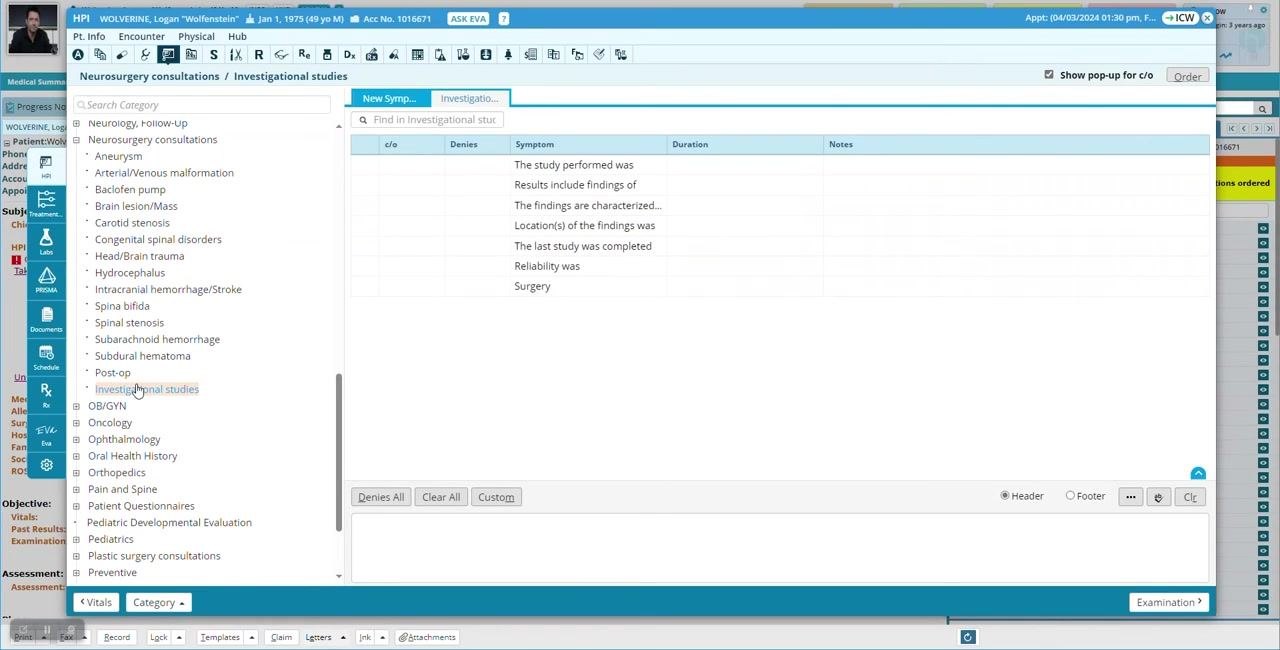
Step 5: Check for custom template privileges
Look for the Custom button at the bottom of the window. If it is visible and enabled, you have the necessary privileges to continue. If it is missing or grayed out, contact your system administrator before proceeding.
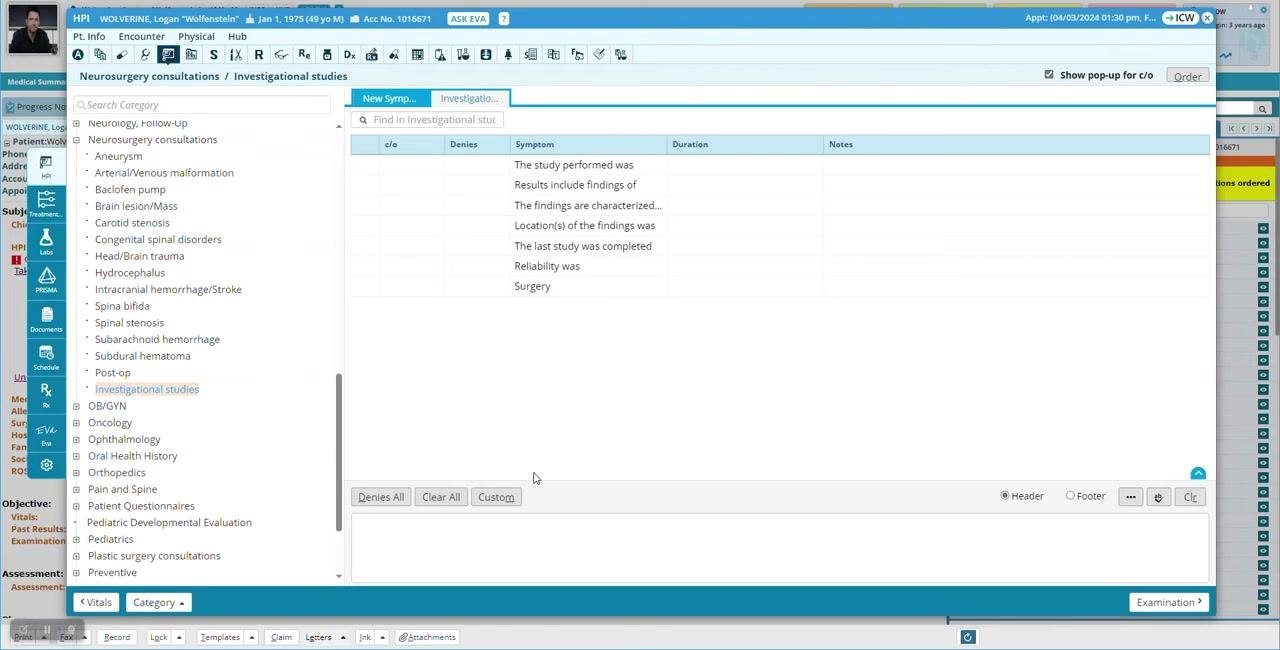
Create a custom structured template
Step 6: Initiate custom template creation
Once your privileges are confirmed, click the Custom button. A new window or section appears, displaying the same list of items you saw previously.
Step 7: Add a new template
Click Add to create a new template entry, enter a name for your template (for example, "Template examples"), and click OK to save it. The new template now appears in the list alongside existing items.
Step 8: Mark the template as structured
Locate the Struct column at the top of the list. Click the checkbox or indicator in the Struct column for your new template to designate it as structured, then click Save Structured Flag to apply the setting.
Note: Always confirm you are working in the correct section and have the necessary privileges before creating or modifying templates. If you run into permission issues, consult your system administrator.
Step 9: Verify the structured template indicator
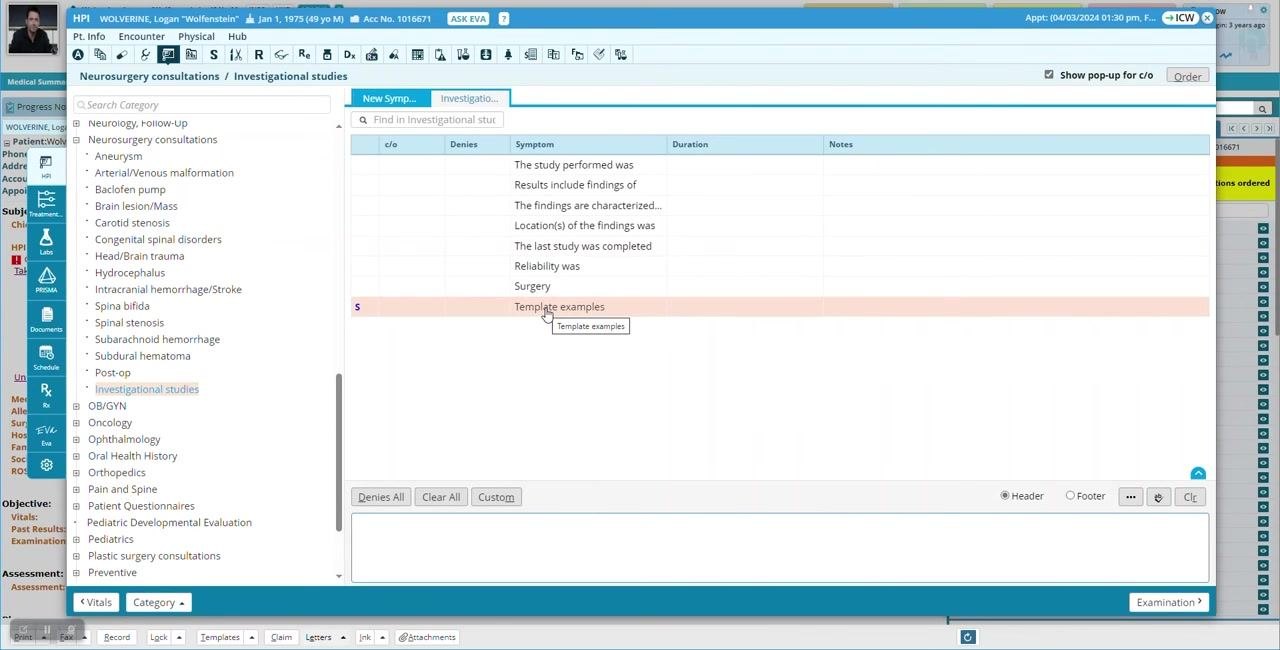
After saving your template and marking it as structured, look for a small "S" icon next to your template name in the list (for example, "Template examples"). This icon confirms the template is structured, distinguishing it from non-structured templates.
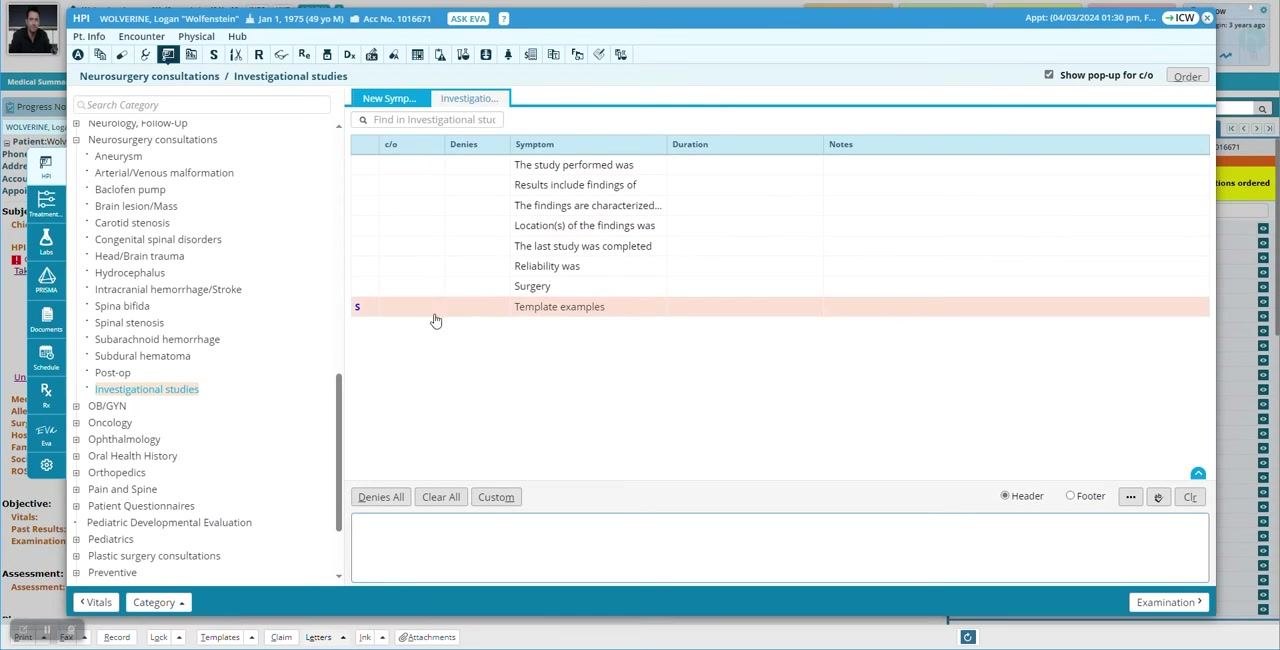
Open the structured template for editing
Step 10: Open the structured template
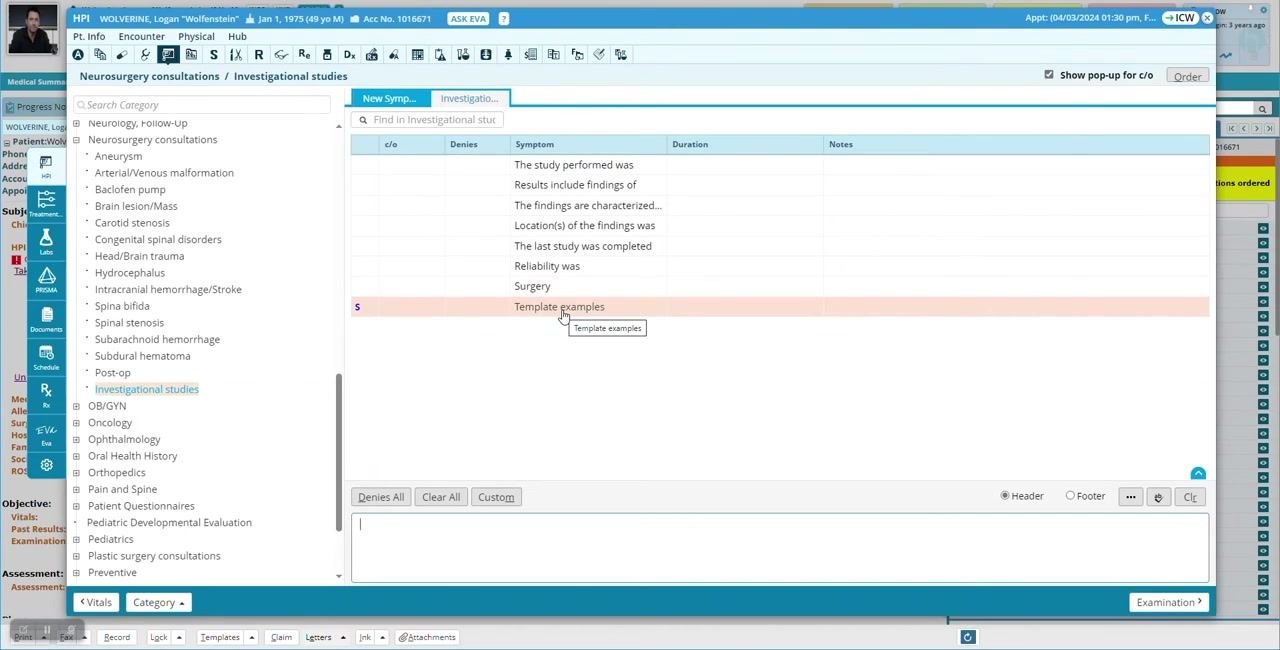
Click on the Template examples entry in the list to open it. The template opens to a blank configuration screen, ready for you to add structured data fields.
Step 11: Access the custom field creation tool
Locate and click the Custom button at the bottom left of the configuration window. If you do not see this button, you likely lack the privileges needed to create structured fields; contact your system administrator if needed.
Step 12: Choose the field creation mode
Clicking Custom opens a dialog that lets you add structured data fields. Select your preferred mode: Grid or Wizard. Grid mode is commonly used for efficiency.
Step 13: Add a new structured data field
Click Add to begin creating a new field. The Add Structured Data dialog appears, prompting you to enter the field details:
- Name: Enter the question stem or prompt (for example, "The symptoms have been present for").
- Type: Select the type of structured data — Structured Text, Numeric, Date, Boolean, Date (mm/yyyy), or Date (yyyy). For this example, select Structured Text.
- Multi Select: Check this box to allow multiple selections, or leave it unchecked for single entry.
- Trigger: Optionally set a trigger if needed.
- Mandatory: Check this box if the field must be completed.
- Default: Optionally enter a default value.
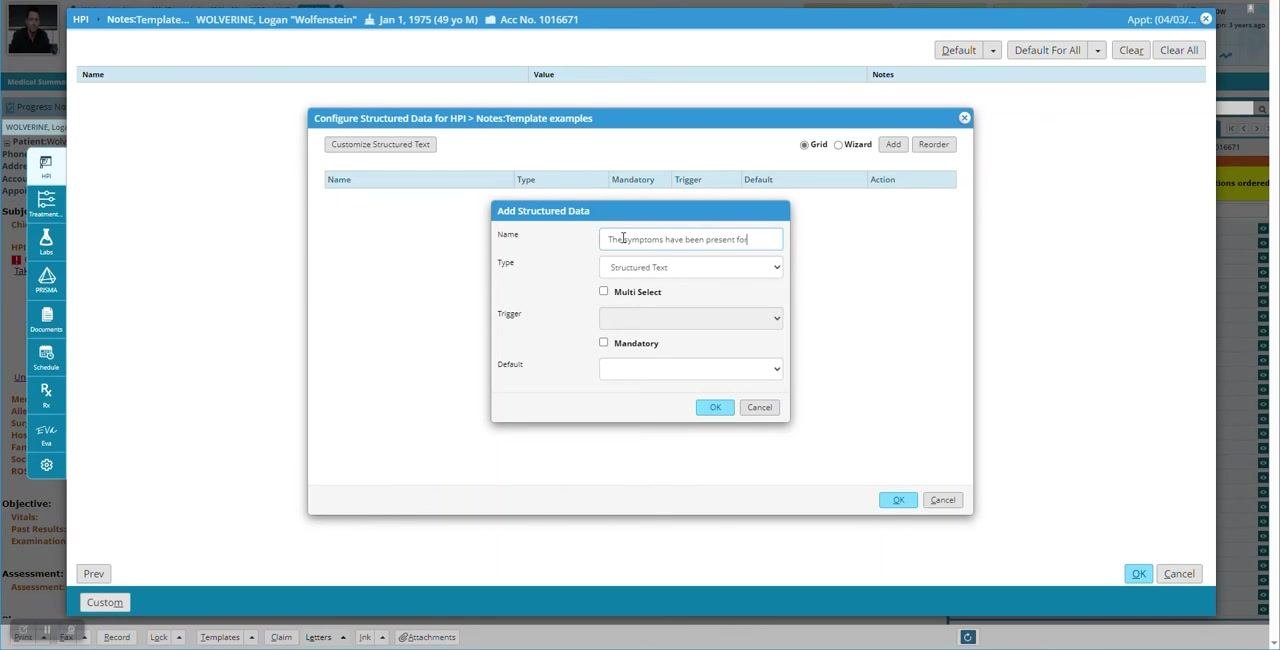
After entering all required information, click OK to save the field. It now appears in the list of structured data fields for your template.
Note: Repeat this process to add additional structured data fields as needed. Use clear, descriptive names for each field to ensure accurate data collection.
Build a selectable list of answers
Step 14: Access the structured text customization
After saving, the new field "The symptoms have been present for" appears in the list of structured data fields. Click on it to highlight it, then click Customize Structured Text to define the selectable answers.
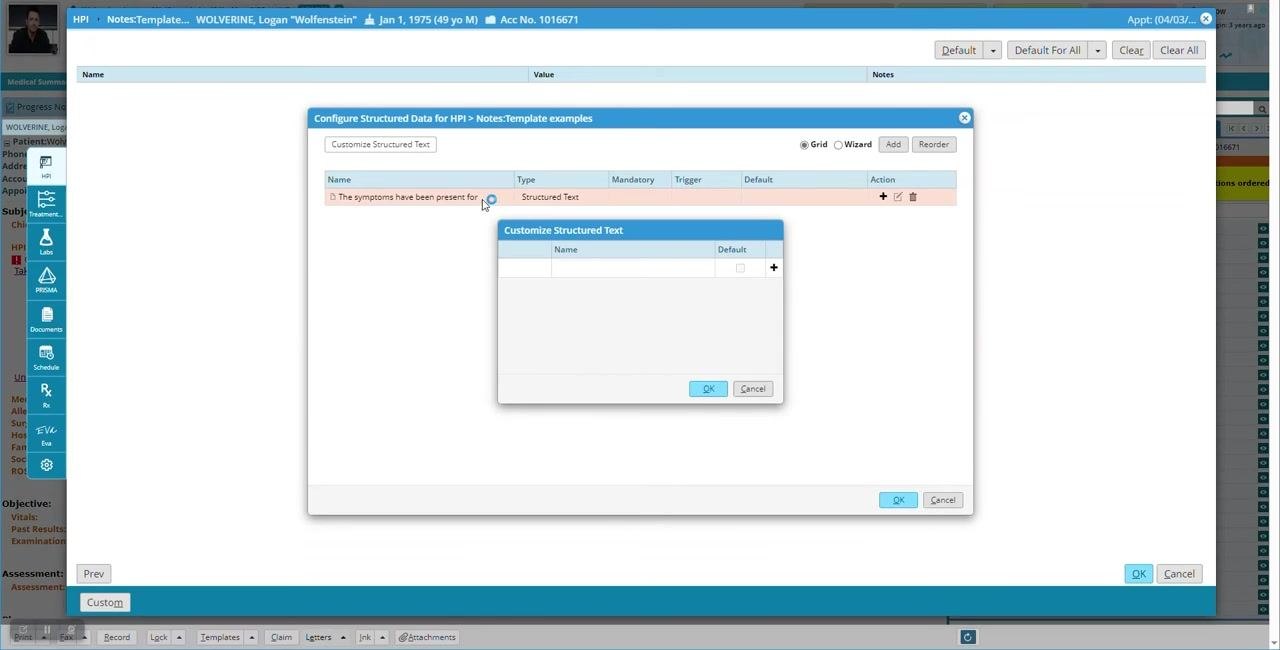
Step 15: Create the list of structured text answers
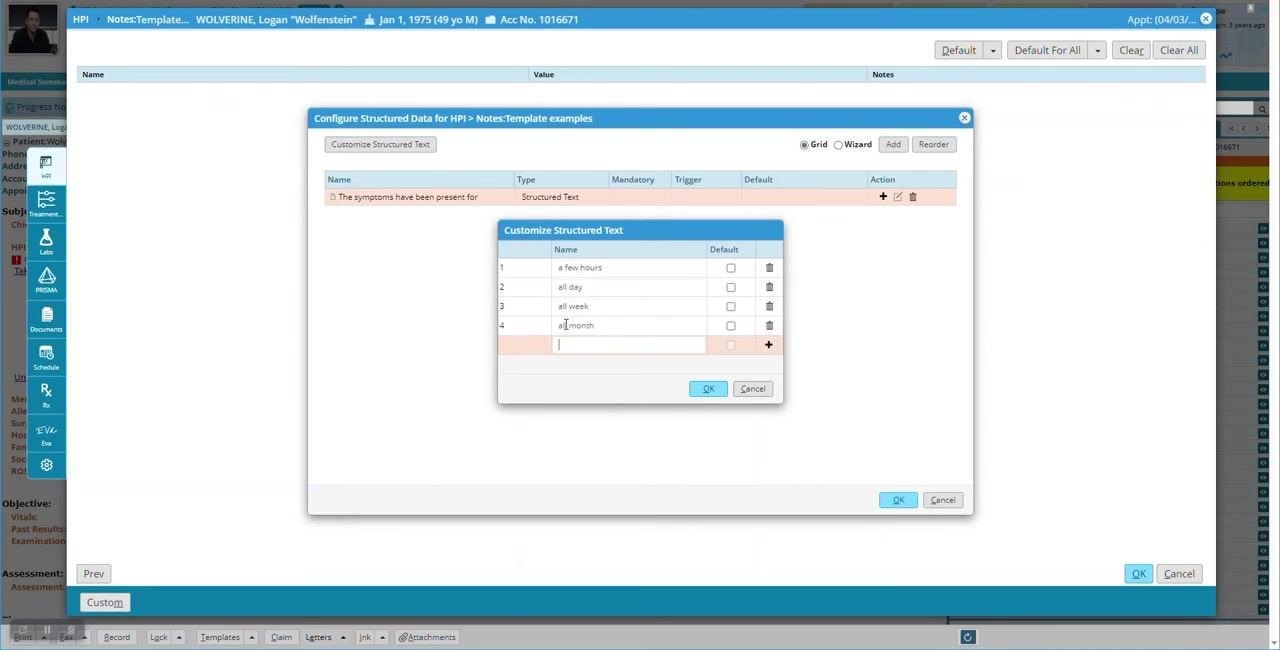
In the Customize Structured Text dialog, enter each possible answer as a separate row using the + button. For this example, add:
- a few hours
- all day
- all week
- all month
- all year
Optionally, check the Default box next to an answer if you want it pre-selected when the field is presented.
Step 16: Finalize and save the structured text list
Review your list for accuracy. You can remove an answer by clicking the trash can icon next to it, edit any answer's text directly in the list, or continue adding options as needed. Click OK to save the list.
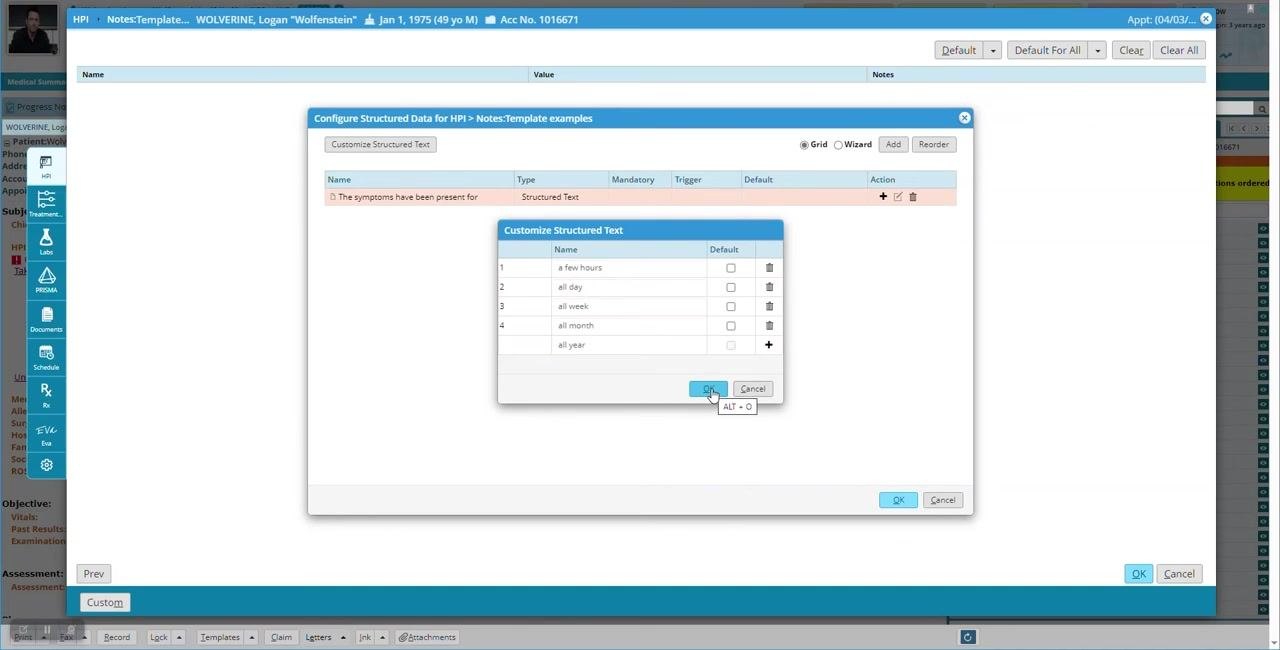
Confirm that the field "The symptoms have been present for" now includes your structured text list. It is ready for use in your template, letting users select one duration from the list when completing the HPI.
Note: You can return to the Customize Structured Text dialog at any time to edit, add, or remove answer options as your template evolves. Use clear, concise answer choices for accurate and efficient data entry.
Configure structured data for HPI
Step 17: Open the Configure Structured Data for HPI window
The Configure Structured Data for HPI window displays a list of structured data fields for the HPI section, including the existing field "The symptoms have been present for" (Type: Structured Text). Click Add to create a new structured data field; the Add Structured Data dialog appears.
Step 18: Create a multi-select structured text field
In the Add Structured Data dialog, enter:
- Name: "The main symptoms include"
- Type: Structured Text
- Multi Select: Check this box to allow multiple options to be chosen (optional)
- Mandatory: Check this box if the field must be completed (optional)
Click OK to save the new field.
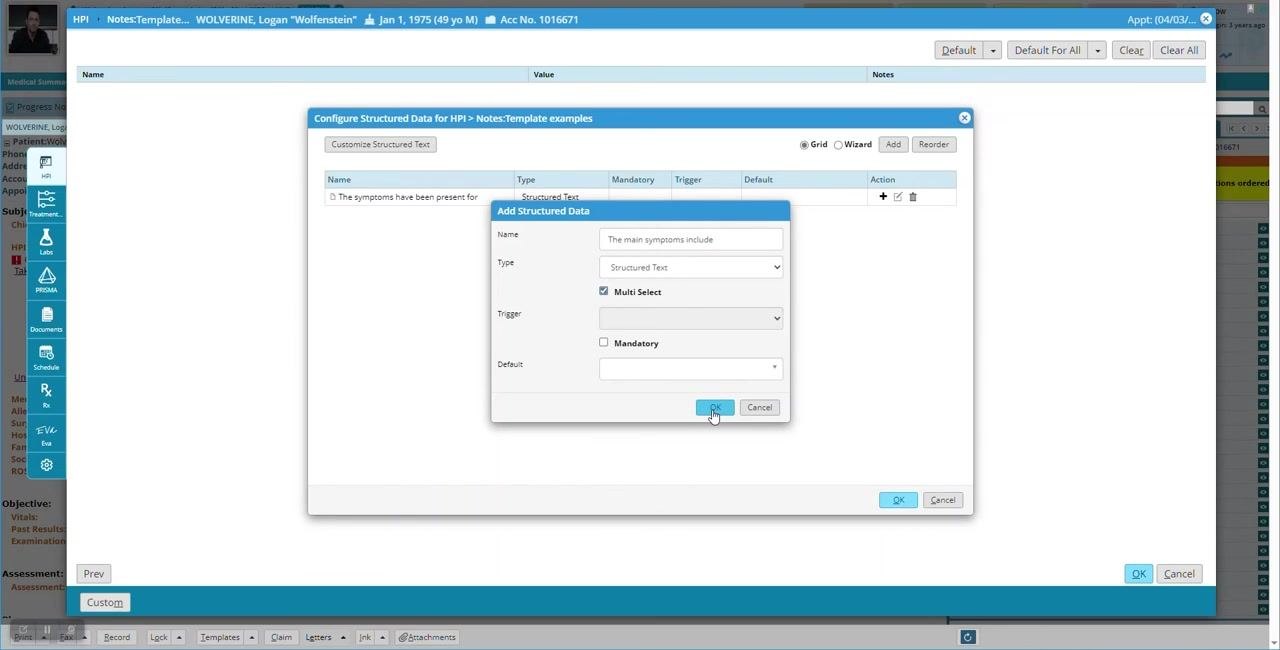
Confirm that the new field appears in the list with "Structured Text (Multi Select)" as its type.
Step 19: Customize the multi-select field options
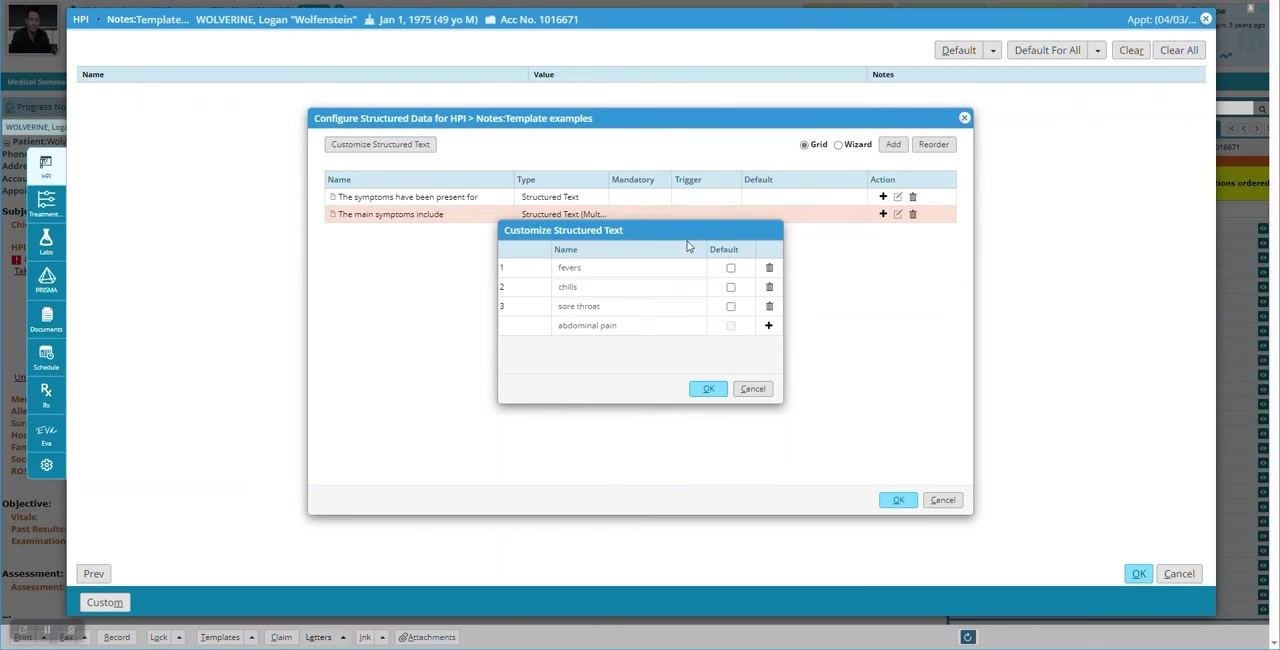
Highlight the new field "The main symptoms include" and click the + icon under the Action column to customize its options.
Step 20: Enter the list of multi-select options
In the Customize Structured Text dialog, enter the following options:
- fevers
- chills
- sore throat
- abdominal pain
Optionally set any option as the default by checking its corresponding box, then click OK to save the options.
Step 21: Add a numeric field
Click Add again. In the Add Structured Data dialog, enter:
- Name: "What is the patient's favorite number?"
- Type: Numeric (select from the dropdown menu)
- Mandatory: Check this box if required (optional)
- Default: Enter a default value using the numeric keypad (optional)
Click OK to save the new field.
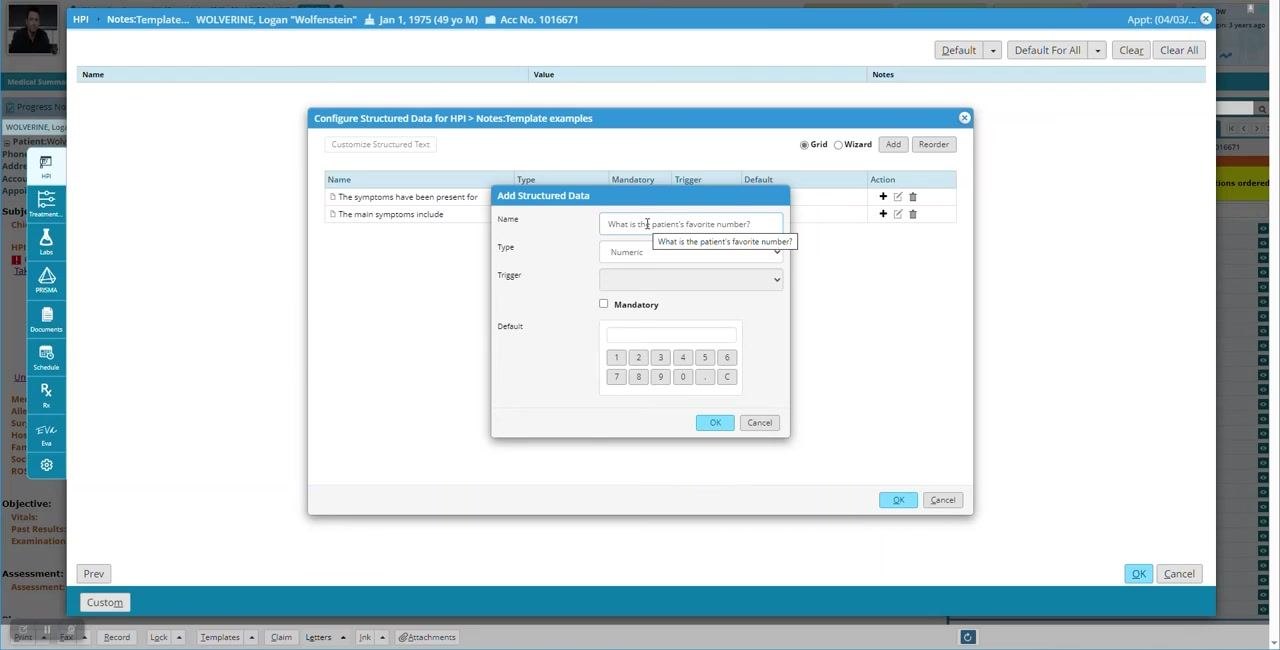
Note: For numeric fields, you can phrase the prompt as a question (for example, "What is the patient's favorite number?") rather than a sentence fragment.
Step 22: Add a date field
Click Add again. In the Add Structured Data dialog, enter:
- Name: "The date on which is began?"
- Type: Date (select from the dropdown menu)
- Mandatory: Check this box if required (optional)
- Default: Enter a default date if desired (optional)
Click OK to save the new field.
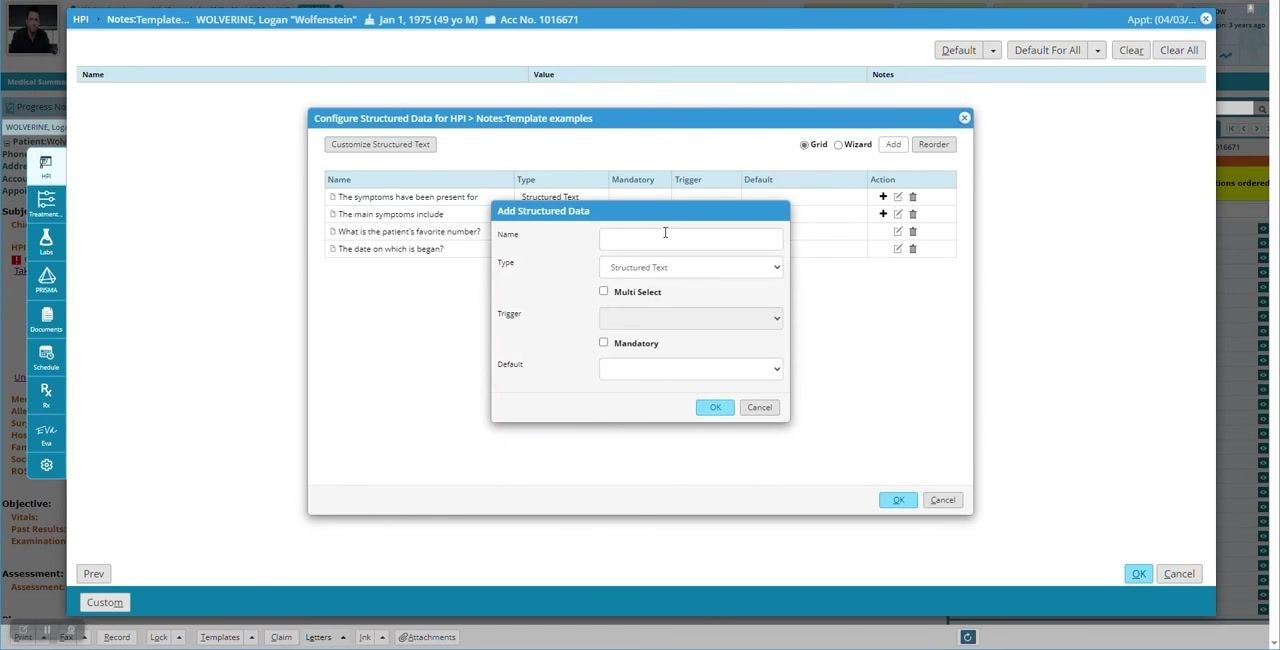
Step 23: Add a year-only date field
Click Add in the Configure Structured Data for HPI window. In the Add Structured Data dialog, enter:
- Name: "Another date:"
- Type: Date (yyyy), which restricts input to year only
- Mandatory: Check this box if required (optional)
Click OK to save the new field, and confirm it appears in the list with type "Date (yyyy)".
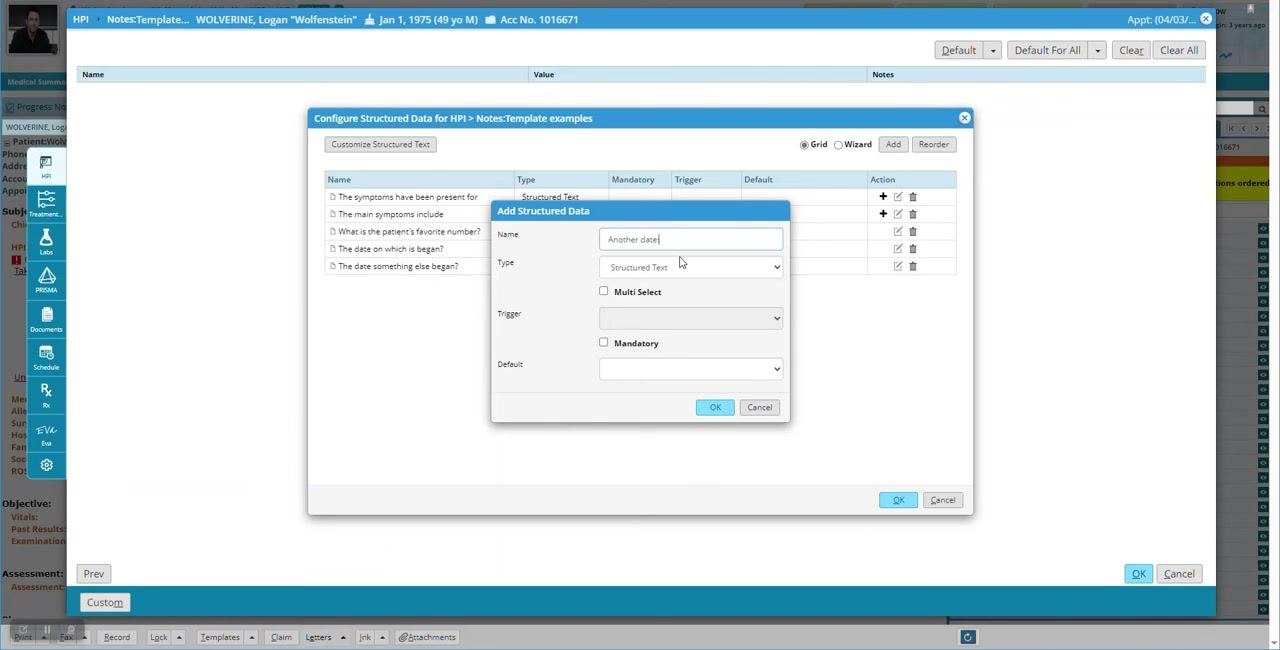
Step 24: Review the date field options
Your template now includes three different date options, each allowing a different level of specificity:
- "The date on which is began?" (Type: Date)
- "The date something else began?" (Type: Date (mm/yyyy))
- "Another date:" (Type: Date (yyyy))
Step 25: Add a Boolean field for screening
Click Add again. In the Add Structured Data dialog, enter:
- Name: "Screening for STIs"
- Type: Boolean (select from the dropdown menu)
- Default: No
- Mandatory: Check this box if required (optional)
Click OK to save the new field, and confirm it appears in the list with type "Boolean" and default "No".
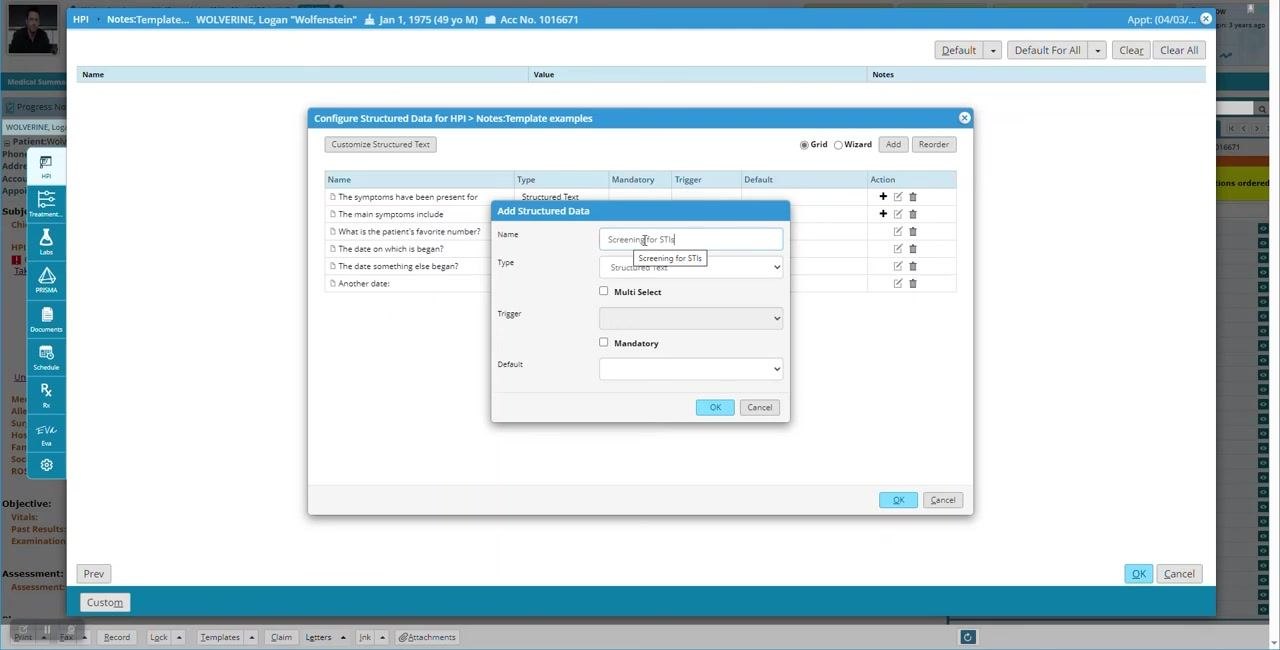
Add conditional child fields
Step 26: Add a child field triggered by the Boolean field
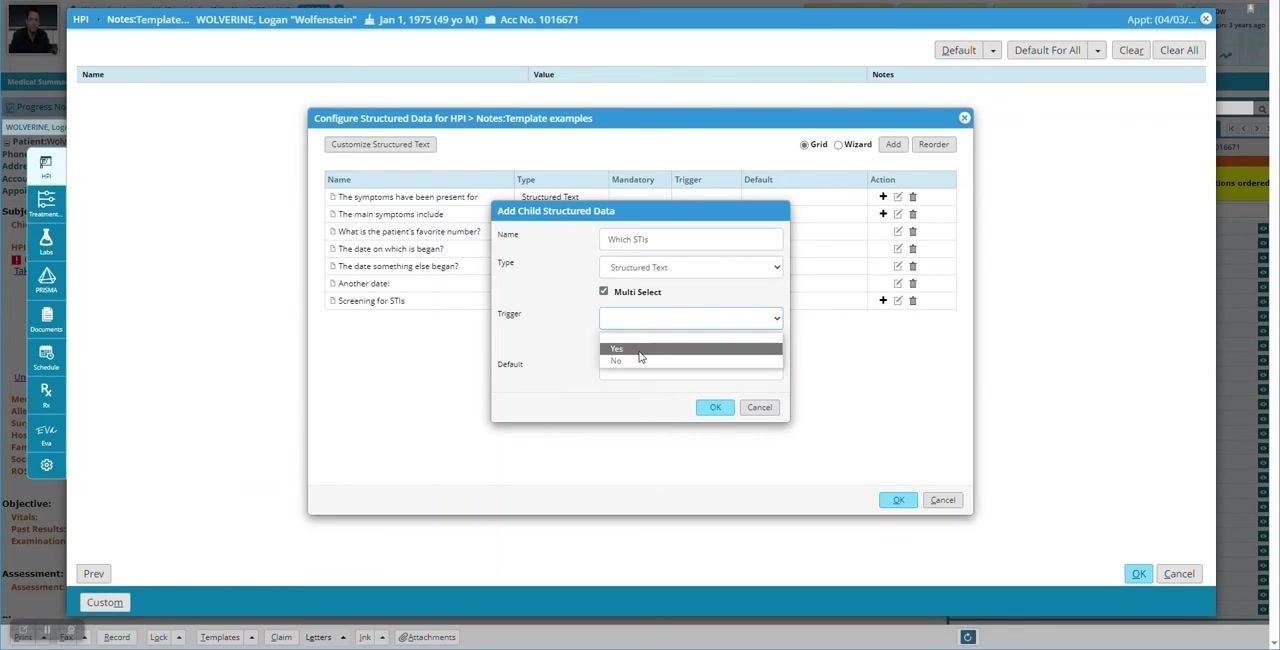
Highlight the "Screening for STIs" field in the list and click the + icon under the Action column to add a child structure. In the Add Child Structured Data dialog, enter:
- Name: "Which STIs"
- Type: Structured Text
- Multi Select: Check this box to allow multiple options
- Trigger: Yes, so this field only appears when "Screening for STIs" is answered "Yes"
- Mandatory: Check this box if required (optional)
Click OK to save the child field.
Step 27: Confirm the child field is nested correctly
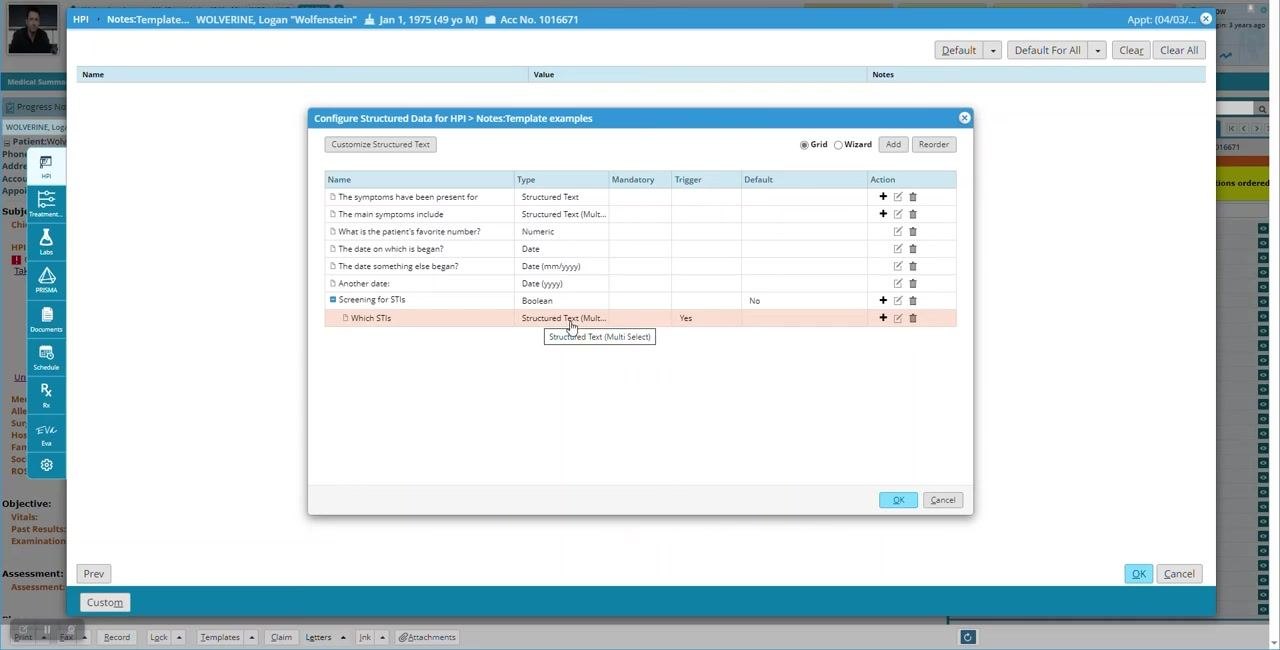
Verify that "Which STIs" appears indented under "Screening for STIs" in the list, with the type displayed as "Structured Text (Multi Select)" and the trigger as "Yes".
Step 28: Add another child field under the same Boolean field
Highlight "Screening for STIs" again and click the + icon under the Action column. In the Add Child Structured Data dialog, enter:
- Name: "Do you currently use birth control or protection"
- Type: Boolean
- Trigger: Yes, so this field only appears when "Screening for STIs" is answered "Yes"
- Mandatory: Check this box if required (optional)
- Default: No
Click OK to save the new child field.
Step 29: Review the updated structured data list
Confirm that "Do you currently use birth control or protection" is now nested under "Screening for STIs," with type "Boolean", trigger "Yes", and default "No".
Step 30: Return to the main template screen
Click OK in the Configure Structured Data for HPI window to save your changes. You return to the main template screen, where all structured data fields are listed.
Enter data into the structured template
Step 31: Access the structured data entry screen
In the main template list, click anywhere on the "Template examples" row to open the structured data entry screen.
Step 32: Enter data into structured fields
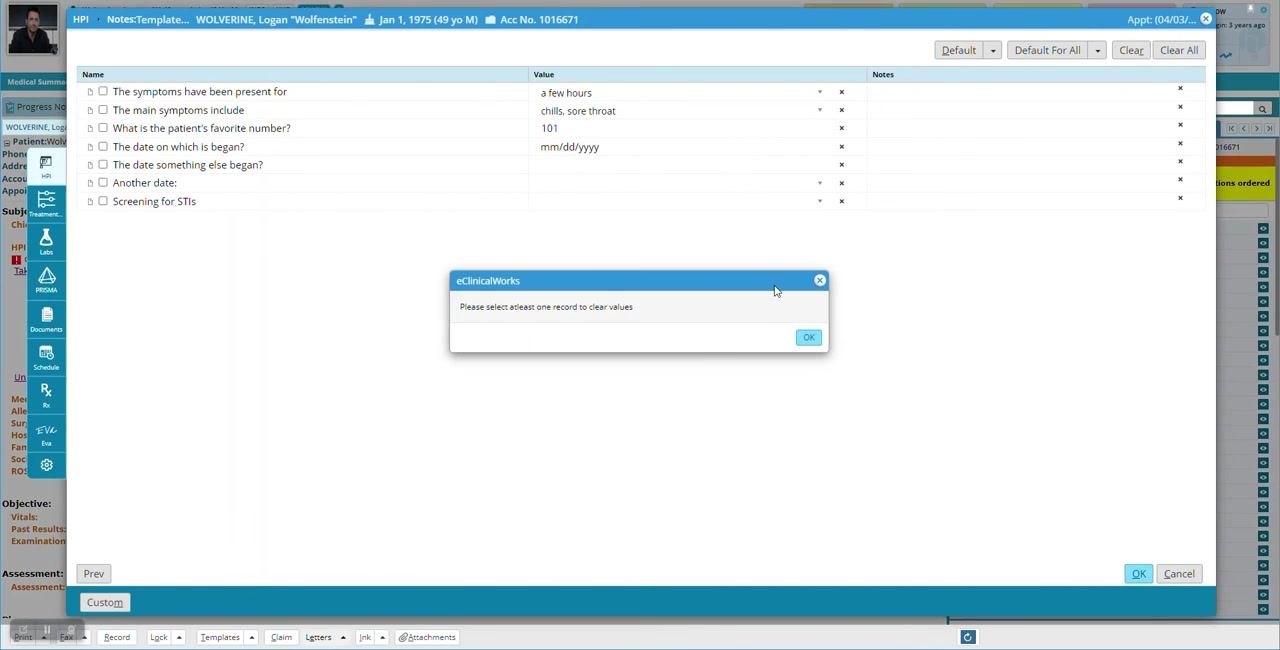
For "The symptoms have been present for," enter a value such as "a few hours." For "The main symptoms include," select multiple symptoms from the dropdown, such as "chills" and "sore throat." For "What is the patient's favorite number?," enter a numeric value (for example, "101") using the on-screen number pad and click OK.
Multi-select fields display a dropdown with checkboxes for each option, while numeric fields display an on-screen number pad for entry.
Step 33: Handle the clear-values prompt
If you attempt to clear values without selecting a record, a dialog box appears stating "Please select at least one record to clear values." Click OK to close the dialog box.
Return to the HPI section and use Click Through
Step 34: Return to the HPI section
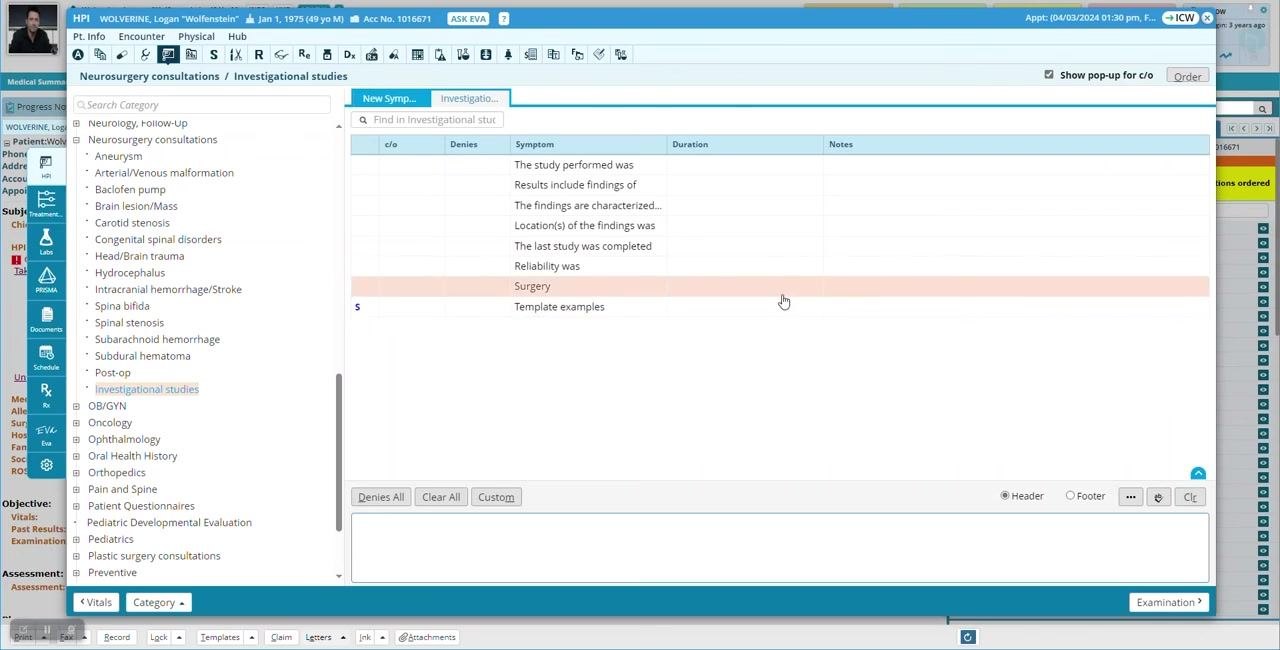
Close the current window or dialog to return to the HPI section. The screen displays the "Neurosurgery consultations / Investigational studies" template builder. The left panel lists categories such as Neurology, Neurosurgery consultations, and Investigational studies, while the main panel shows a table with columns c/o, Denies, Symptom, Duration, and Notes, along with example symptoms and template text such as "The study performed was," "Results include findings of," and "The symptoms have been present for a few hours."
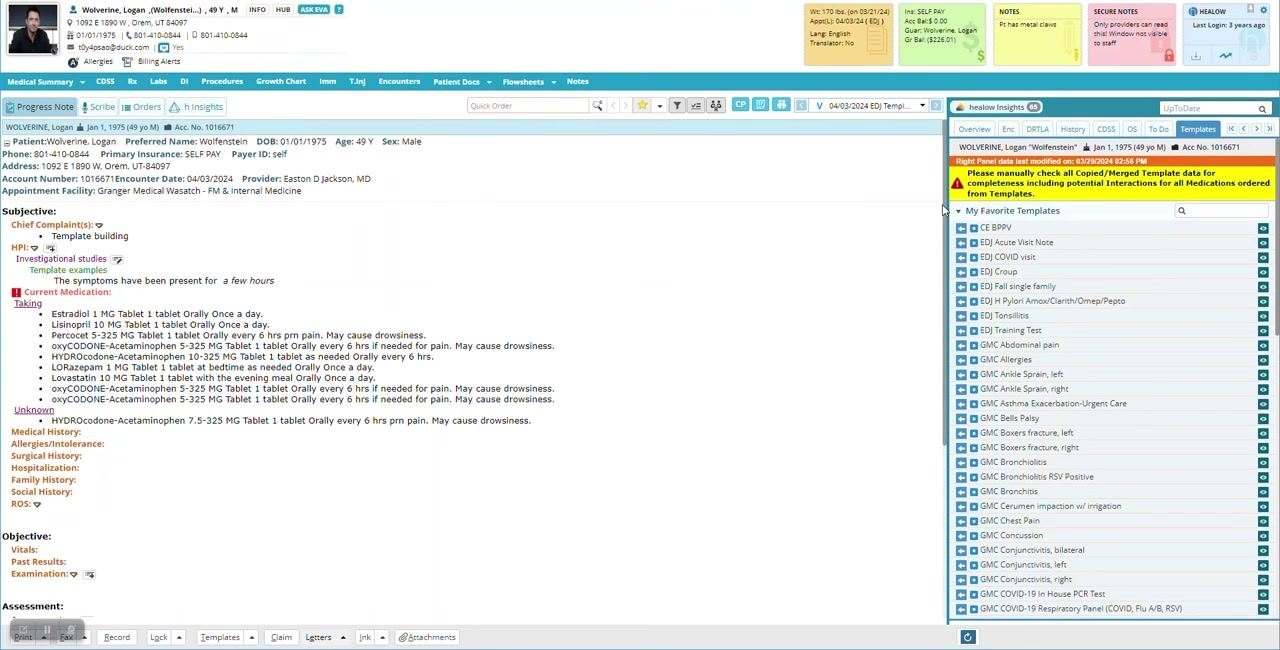
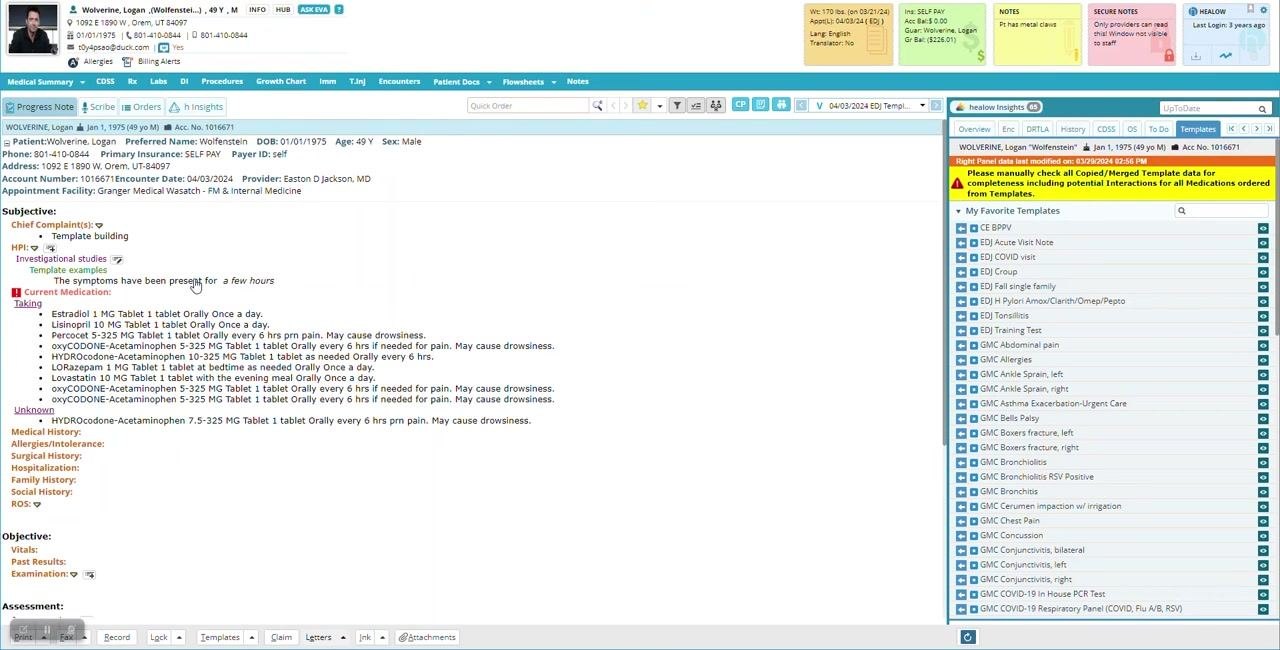
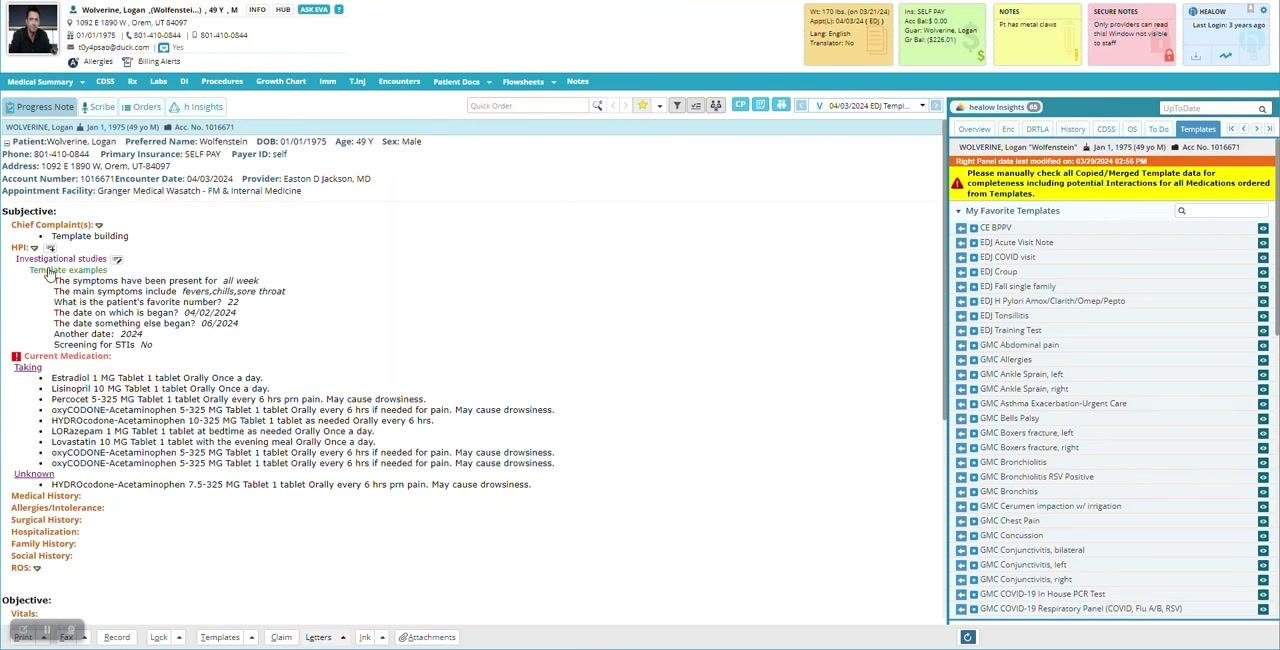
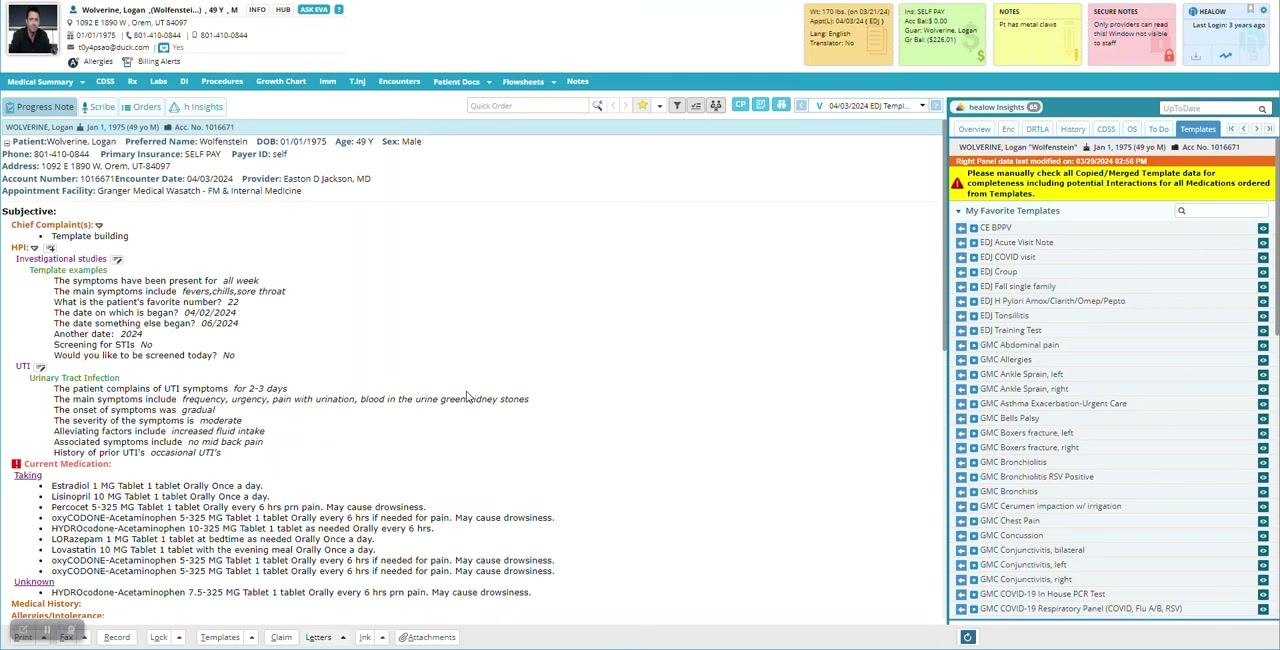
After returning, the HPI displays "Investigational studies" and "Template examples" under the chief complaint, with the note stating "The symptoms have been present for a few hours." The right panel shows a warning to manually check all copied or merged template data for completeness, including potential medication interactions, and the Current Medication section lists several medications with dosages and instructions.
Step 35: Ensure at least one question has an answer
The HPI section displays the template example as long as at least one question is answered, even if it is not the most important one. The note "The symptoms have been present for a few hours" is visible under HPI.
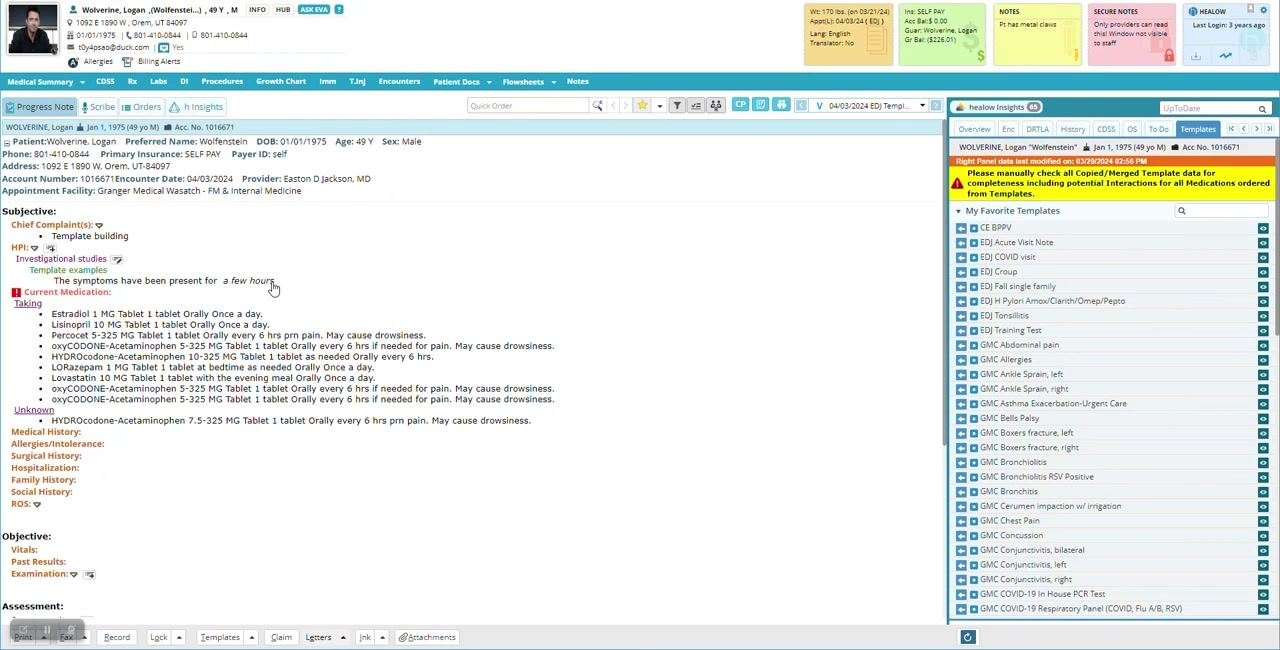
Step 36: Open the Click Through dialog
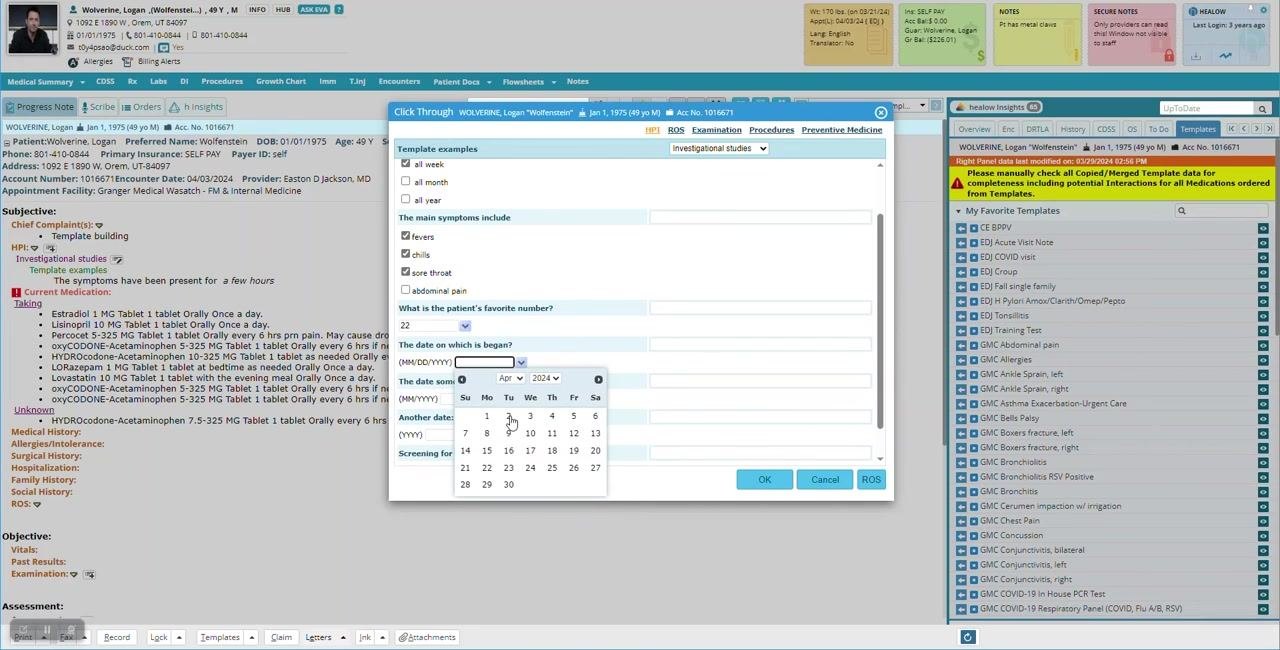
Click anywhere on the black template line in the HPI section. This opens the Click Through dialog, displaying all questions from the template on a single screen along with the patient's name and encounter details. Tabs are available for HPI, ROS, Examination, Procedures, and Preventive Medicine, with "Investigational studies" selected as the active template. Questions include:
- "The symptoms have been present for" with options: a few hours, all day, all week, all month, all year
- "The main symptoms include" with options: fevers, chills, sore throat, abdominal pain
- "What is the patient's favorite number?"
- "The date on which is began?" (with date picker)
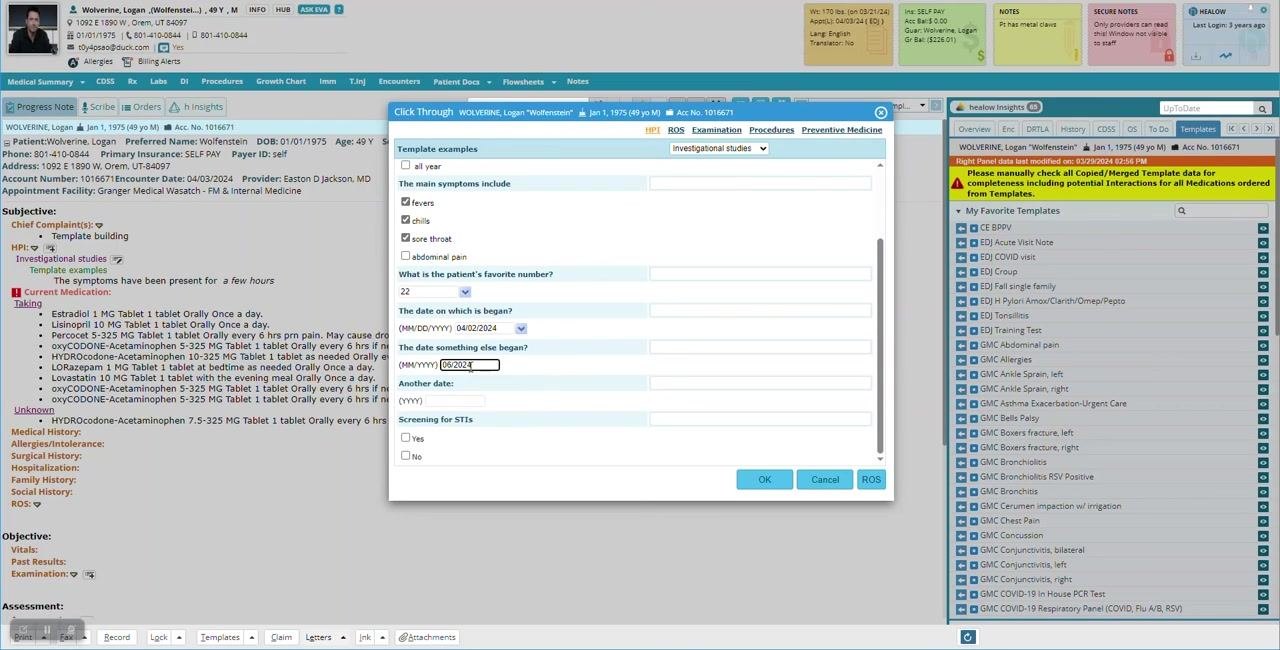
- "The date something else began?" (MM/YYYY)
- "Another date:" (YYYY)
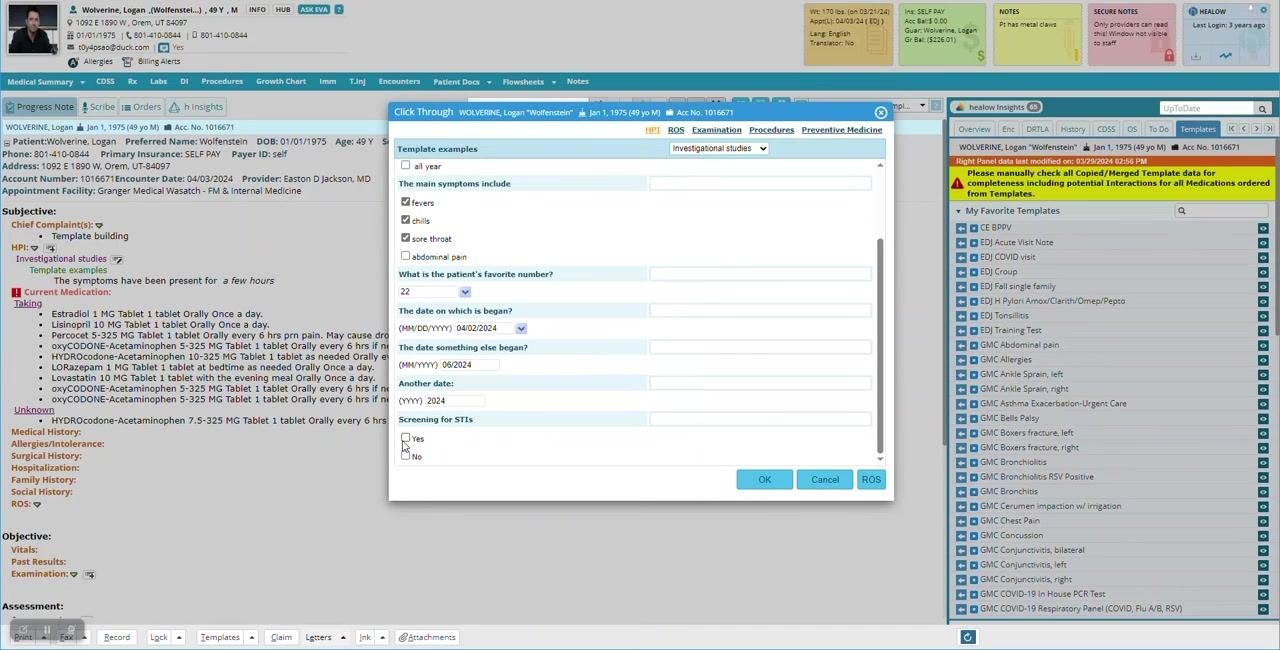
- "Screening for STIs" (Yes/No)
Step 37: Select multiple answers
For "The symptoms have been present for," select an option such as "all week." For "The main symptoms include," select multiple symptoms such as "fevers," "chills," "sore throat," and "abdominal pain."
Step 38: Enter numeric and date values
For "What is the patient's favorite number?," enter "22." For "The date on which is began?," use the date picker to select "04/02/2024." For "The date something else began?," enter "06/2024."
Step 39: Enter additional date information
For "Another date," enter "2024" or another relevant year.
Step 40: Answer the screening question
For "Screening for STIs," select "Yes" as the answer.
Step 41: Observe branching behavior when changing the answer
Deselect "Yes" and select "No" for "Screening for STIs." The follow-up questions related to STI screening, such as "Which STIs," disappear from the dialog. The system lets you build additional child questions that appear or hide depending on the selected answer.
Step 42: Review how answers populate the HPI
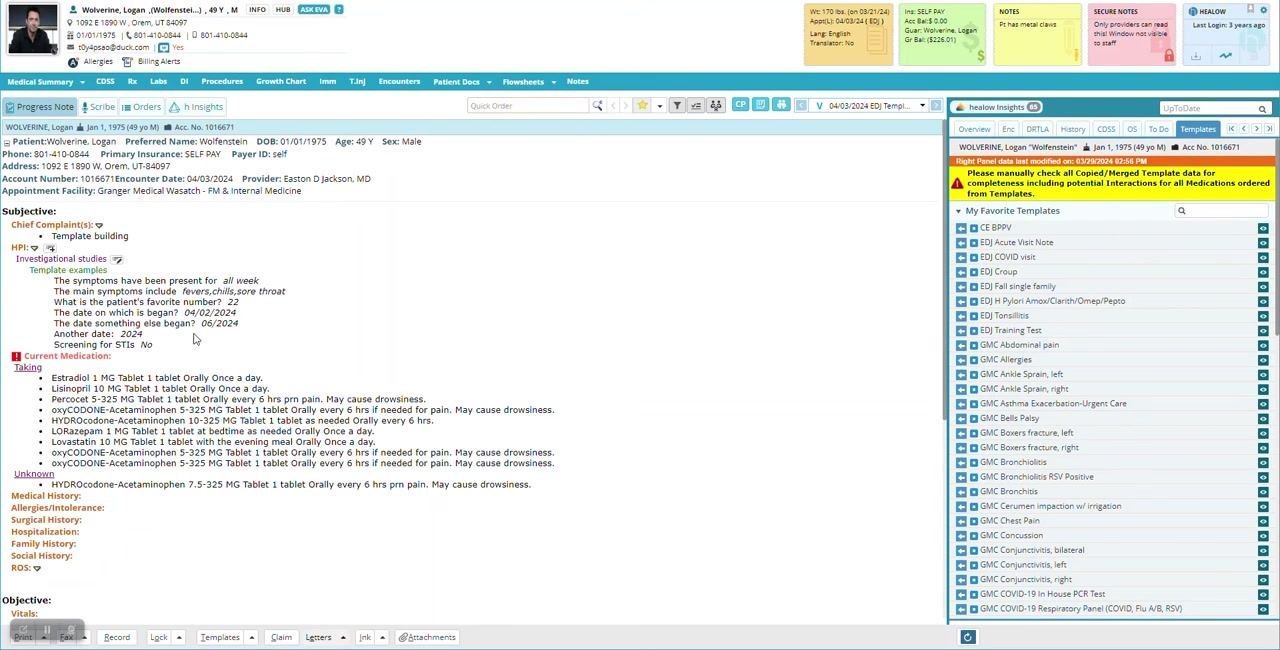
After completing the template dialog and clicking OK, the HPI section updates to display all the answers you entered:
- "The symptoms have been present for all week"
- "The main symptoms include fevers, chills, sore throat"
- "What is the patient's favorite number? 22"
- "The date on which is began? 04/02/2024"
- "The date something else began? 06/2024"
- "Another date: 2024"
- "Screening for STIs: No"
Correct a field's data type
Step 43: Identify a configuration error
Review the HPI section and notice that the answer for "Would you like to be screened today?" is incorrectly set as a date, when the question should only allow "Yes" or "No" answers. Open the Configure Structured Data for HPI dialog and locate this row in the configuration grid; the Type column is set to "Date," which is incorrect.
Step 44: Change the data type to Boolean
Click the edit (pencil) icon in the Action column for "Would you like to be screened today?" In the Modify Structured Data dialog, change the Type from "Date" to "Boolean" using the dropdown menu, then click OK to confirm.
Step 45: Save the configuration and verify the correction
Click OK in the configuration dialog to save your changes. Return to the progress note and click on the template line to reopen the dialog, and confirm that "Would you like to be screened today?" now presents a Yes/No (Boolean) input instead of a date picker.
Step 46: Test the branching logic
Select "Yes" for "Screening for STIs" and observe that the appropriate follow-up questions appear. Select "No" for "Screening for STIs" and verify that "Would you like to be screened today?" now displays the correct Boolean input.
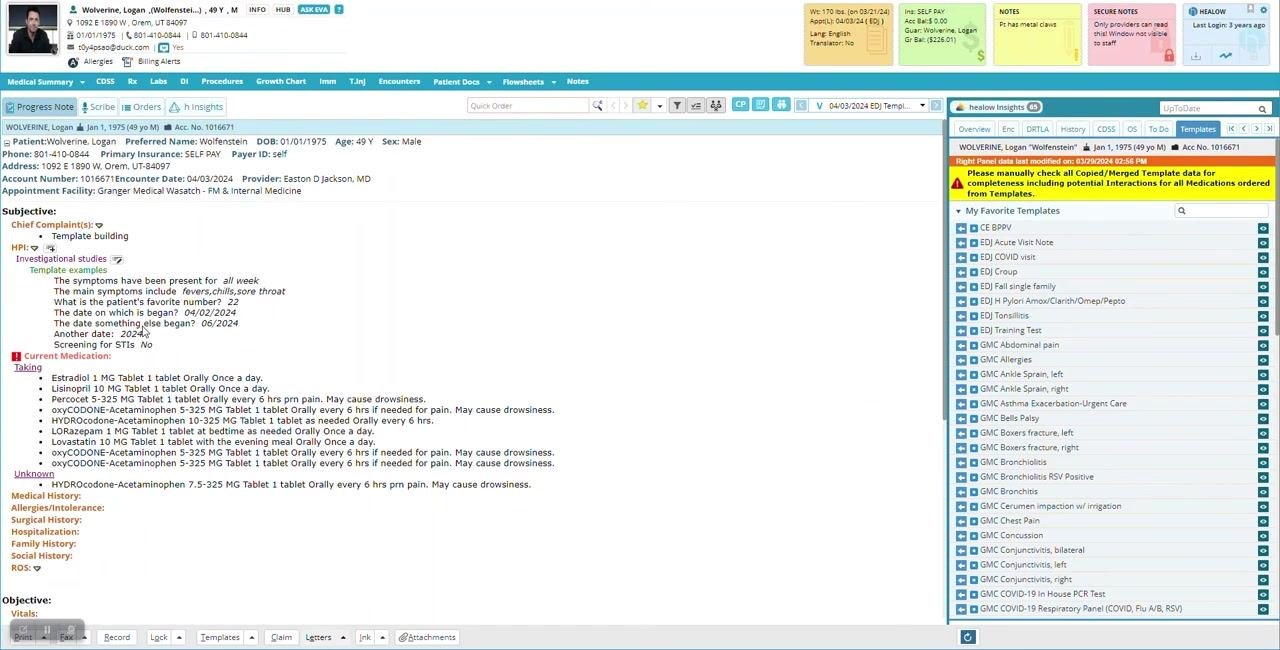
While this particular example may not be practical for real-world notes, it demonstrates how to create custom structured templates with branching logic that display or hide questions based on patient responses, improving workflow efficiency.
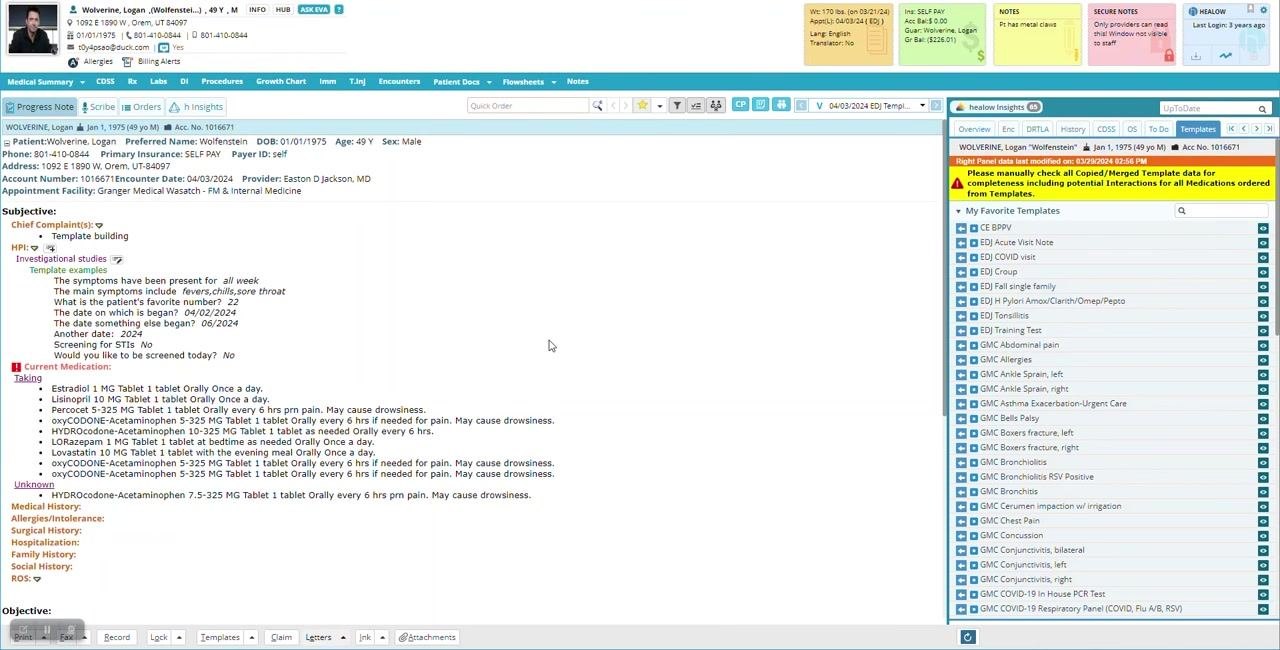
Use an existing favorite template
Step 47: Select a different template
In the My Favorite Templates panel, scroll to find "GMC UTI with hematuria" and select it to see how different templates can be pulled into the note.
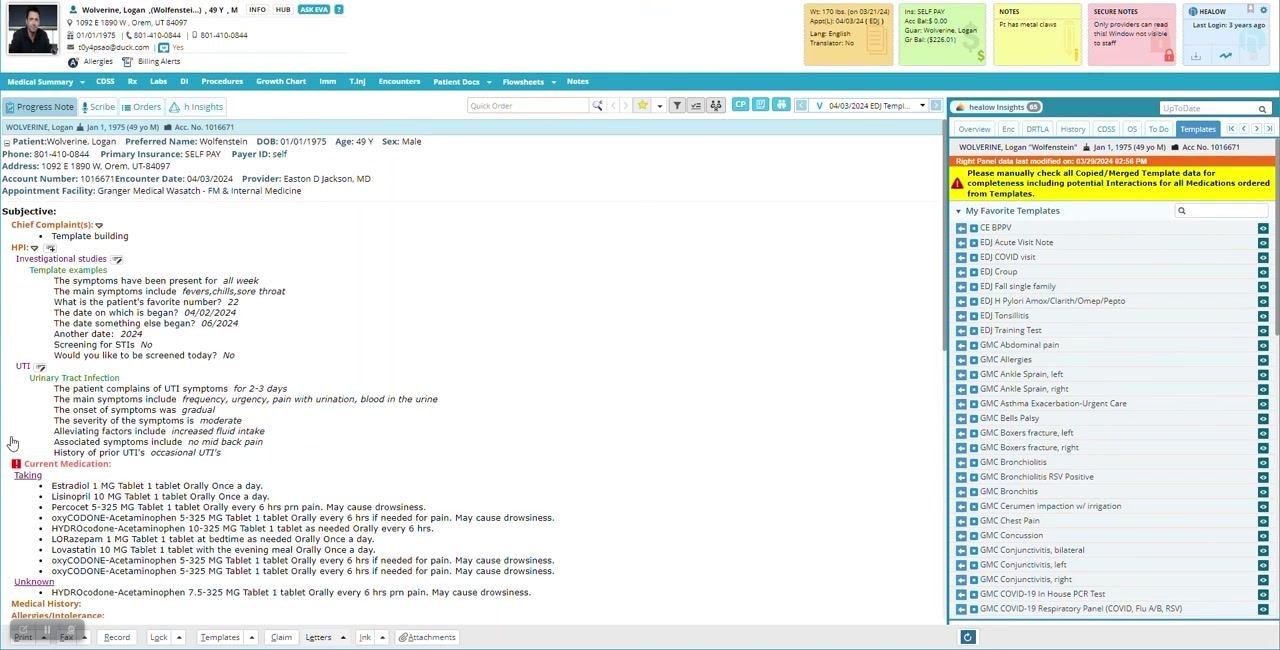
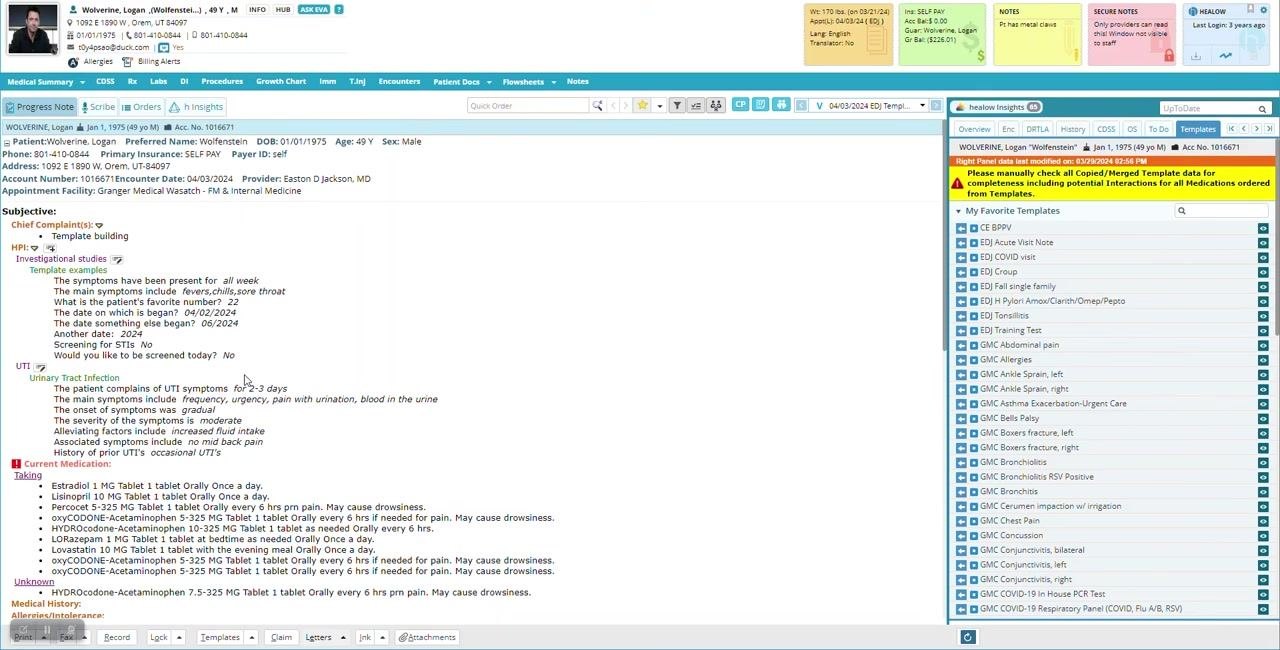
The "UTI" section is added to the HPI, with details such as "Urinary Tract Infection," "The patient complains of UTI symptoms for 2–3 days," "Symptoms include frequency, urgency, pain with urination, blood in the urine," "No mid back pain," and "History of prior UTIs: occasional UTIs." These details are automatically filled based on the template configuration.
Step 48: Use templates to save time
Rather than manually editing each answer, use structured templates to quickly populate notes with relevant information. This approach saves time and ensures consistency in documentation.
Step 49: Review the populated note
Scan the HPI section to ensure all relevant information, such as symptom duration, specific symptoms, and history, is correctly filled in. Confirm that the branching logic and Boolean fields (for example, "Would you like to be screened today?") display the correct input types and responses.
Step 50: Switch between templates as needed
Refer to the My Favorite Templates panel on the right to select other templates for different clinical scenarios, and use the search bar at the top of the template panel to find templates efficiently.
Edit a template selection directly from the note
Step 51: Click a single-line answer to reopen its template
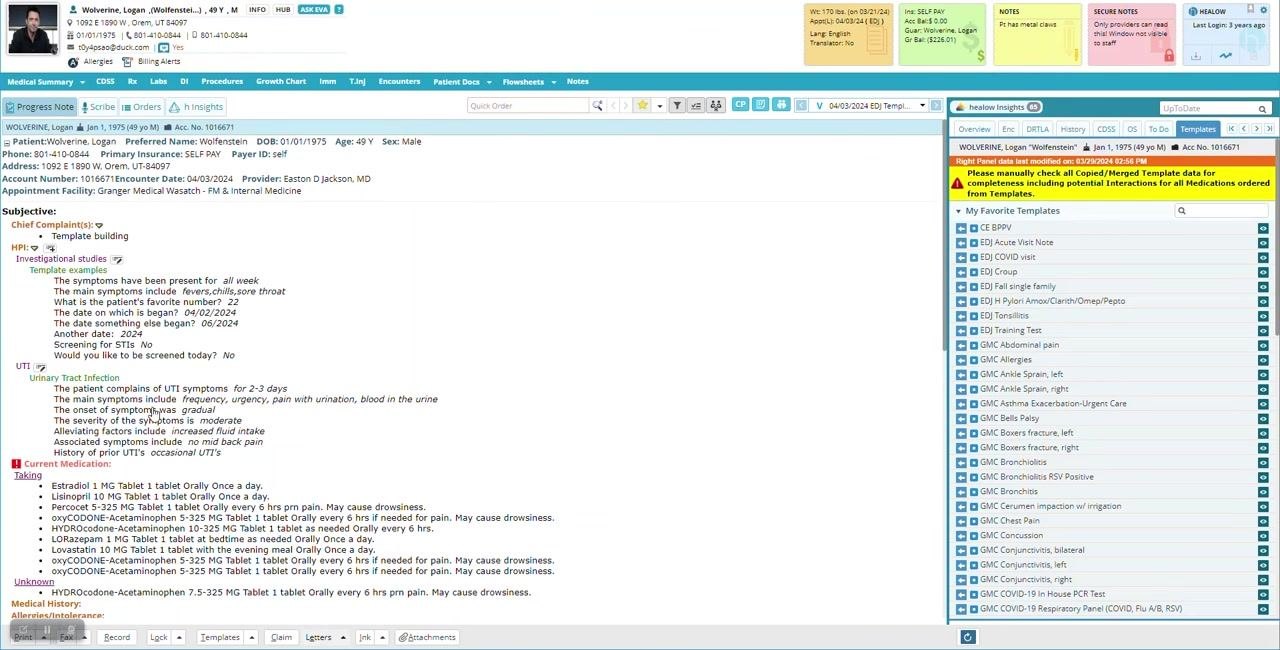
Click on a single line in the patient note, such as "History of prior UTIs," to open the associated template. The main screen displays the patient chart with the subjective and objective sections, including HPI, Investigational studies, and Current Medication, while the right panel lists My Favorite Templates and a yellow warning to check template data for completeness.
Step 52: Review and select relevant sections
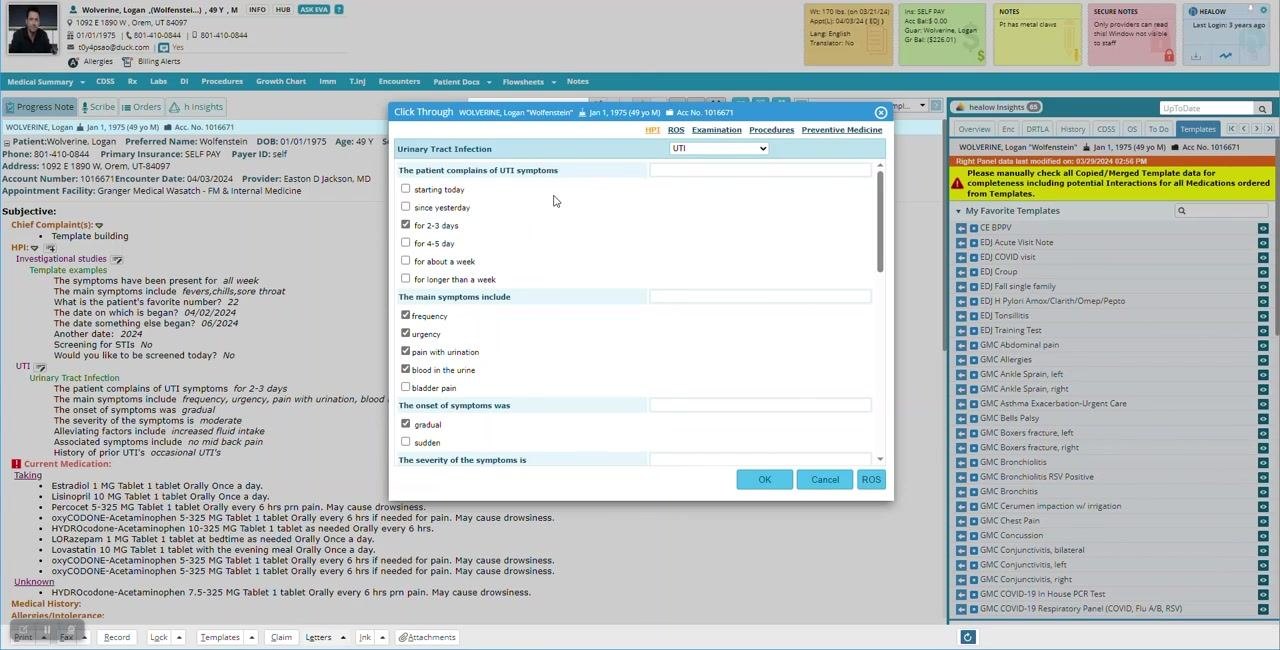
In the Click Through pop-up, the template is set to "Urinary Tract Infection" (UTI), with checkboxes for symptoms (fevers, abdominal pain, malaise, dysuria, nothing else), history of prior UTIs (no prior, occasional, frequent), and relevant surgical history. Leave a section unchecked if you do not want it to appear in the progress note.
Step 53: Update your selections if needed
If you realize a section should be included, such as "prior UTIs," return to the template and check the appropriate box — for example, "occasional UTIs" under "History of prior UTIs." Click OK to confirm your selections and update the note.
Step 54: Use structured lists for patient data
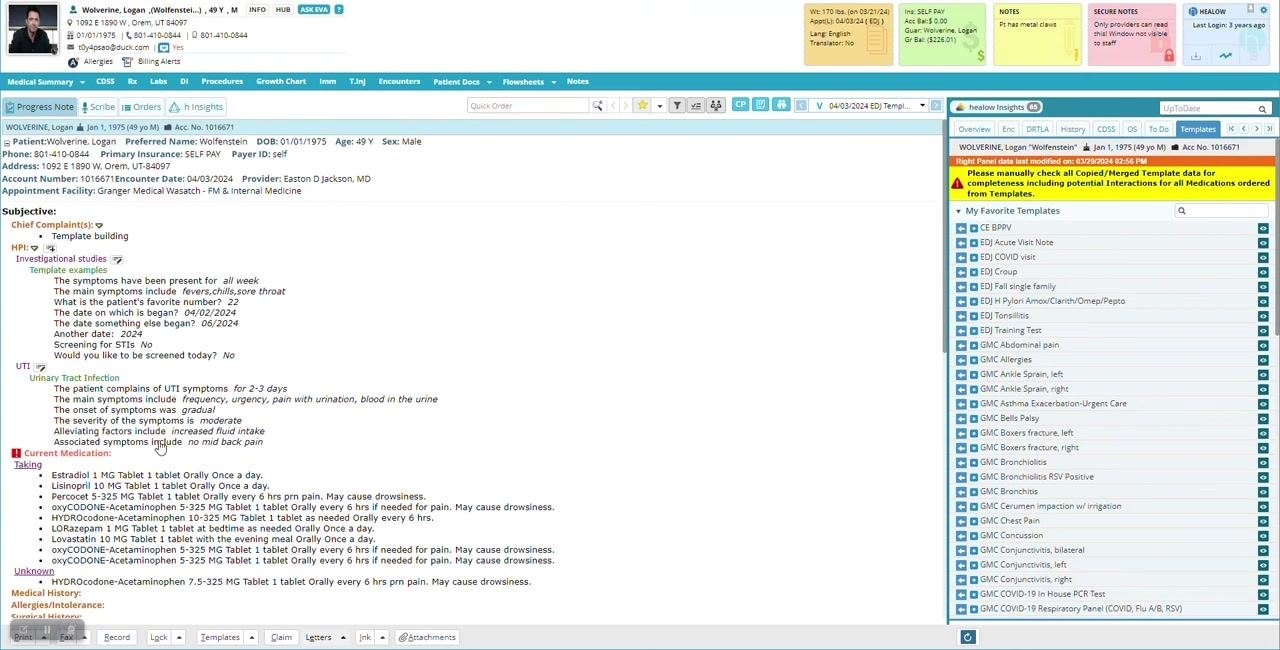
Most of the time, use structured lists for entering patient data. Structured lists present a question, such as "The patient complains of UTI symptoms," with multiple selectable answers; select all answers that apply to the patient's case. Consider how each question is phrased to ensure clarity and completeness.
Step 55: Add custom information with a blank field
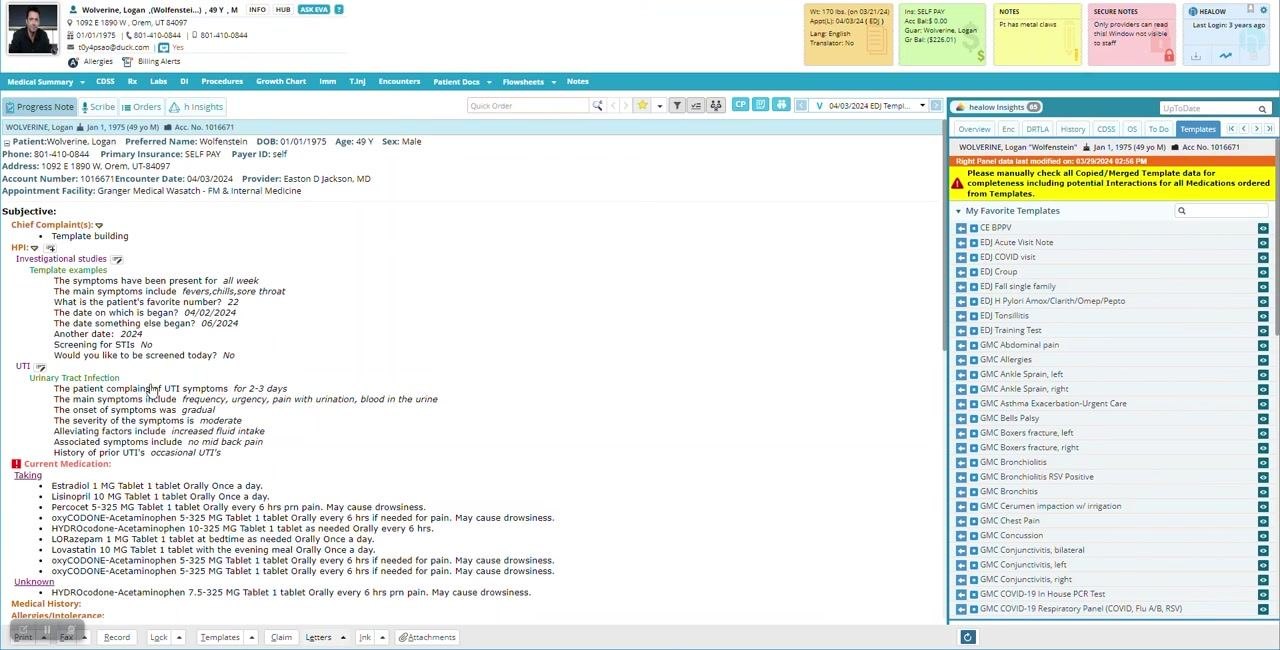
Click on a blank field to type in custom symptoms or notes if the patient's presentation is unique and not covered by the standard list.
Step 56: Review and finalize custom entries
In the Click Through pop-up for "Urinary Tract Infection," verify that all relevant symptoms are selected and that custom entries, such as "green kidney stones," are included in the main symptoms field alongside standard options like frequency, urgency, and pain with urination. Ensure other fields, such as onset and severity, are filled as appropriate, then click OK to close the template and apply the selections to the patient note.
Step 57: Verify the note reflects your entries
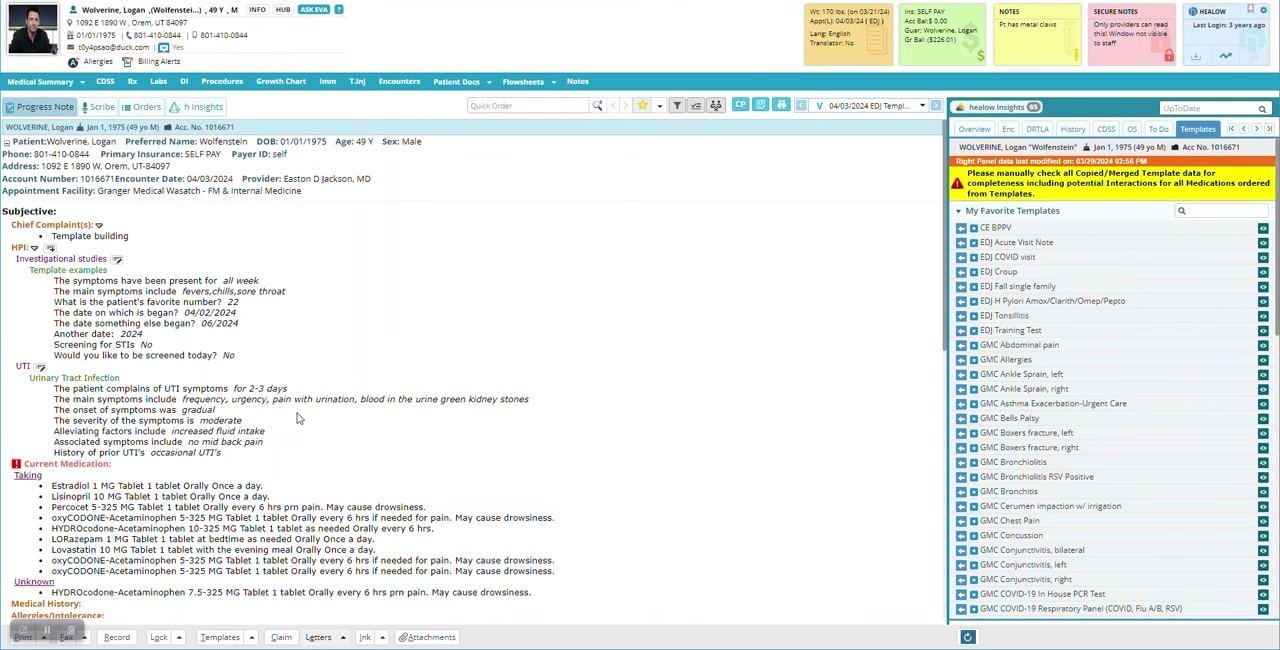
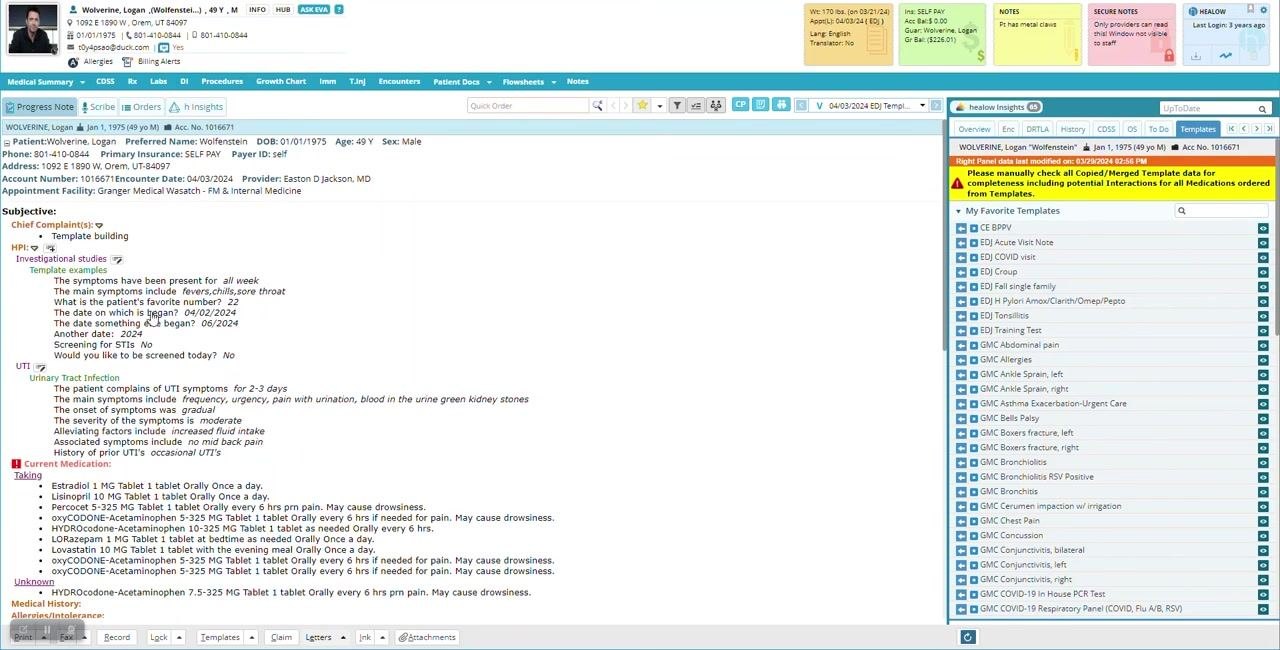
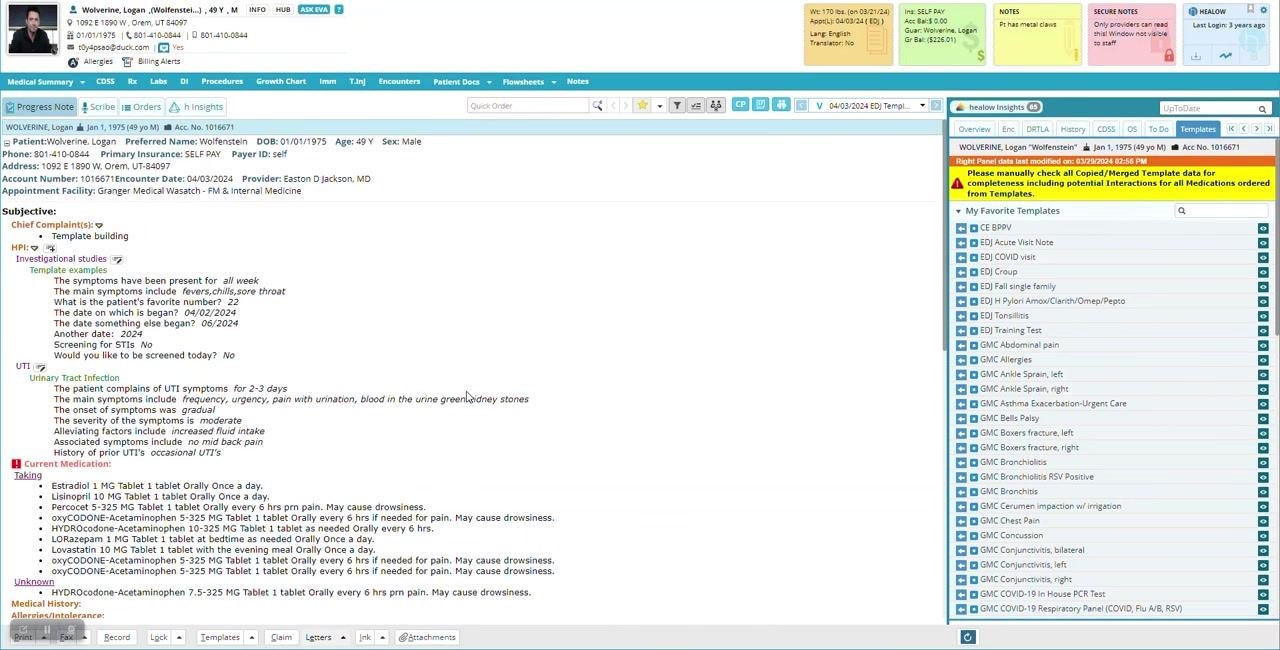
After closing the template, check the HPI section in the patient chart. Confirm that the main symptoms now list frequency, urgency, pain with urination, blood in the urine, and the custom entry "green kidney stones," and that symptom duration and history of prior UTIs are documented correctly.
Step 58: Save the template for future use
Make sure at least one question in the template is answered before saving. Save the current template as a favorite so it appears in the My Favorite Templates panel for quick access on future visits.
Step 59: Reuse saved templates for common visit types
For frequently encountered conditions, use your saved templates to streamline documentation. Access your favorites from the right panel to quickly insert structured notes for similar patient encounters.
Step 60: Confirm the note is complete
Once documentation is complete, review the note for accuracy and completeness.
What's next
With your custom structured template built, you can continue to refine it by adding further fields, adjusting branching logic, or correcting data types as your clinical workflow requires. Use your favorite templates panel to switch between structured templates for different visit types, combine template-driven entries with custom free-text additions, and save new templates as favorites so they are ready for quick reuse on future patient encounters.
Generation details: cost, quality tiers
Docsie billed 9,000 credits ($6.30) to analyze this 18-minute video at standard quality. The rewrite, template fill and Word/PDF exports were included. The same video at each quality tier:
| Quality | Frames sampled | Credits | Approx. cost |
|---|---|---|---|
| Draft | every 16-30 s | 4,500 | $3.15 |
| Standard (this guide) | every 8-15 s | 9,000 | $6.30 |
| Detailed | every 4-7 s | 18,000 | $12.60 |
| Ultra | every 1-3 s | 36,000 | $25.20 |
Credits priced at $0.70 per 1,000; plans include a monthly allowance. Enterprise customers on on-premise or bring-your-own-model deployments run this on their own inference and pay no per-video credits.
Generated by Docsie Video-to-Docs on 2026-10-25 from a 17-minute video. Screenshots are frames from the source video and belong to their creator, Easton Jackson, whose original is embedded above. If you own this video and want the guide removed or credited differently, contact us and we will act within one business day.