
How to Submit a Termination Form in Dayforce
This guide explains how to submit a termination form in Dayforce, from locating the employee record to submitting the completed form for HR and Payroll processing. Follow these steps whenever you need to formally terminate an employee in the system.
Video: Dayforce How To Series: Submitting a Termination Form by Dayforce: How To Series (2022). All credit for the demonstration goes to the creator; watch the original on YouTube. The written guide below was generated from this video by Docsie. Creator? Request a change or removal.
This guide explains how to submit a termination form in Dayforce, from locating the employee record to submitting the completed form for HR and Payroll processing. Follow these steps whenever you need to formally terminate an employee in the system.
Prerequisites
- You must have manager-level access to view your direct reports and their profiles.
- You need a copy of the employee's resignation letter (or relevant supporting document) ready to upload.
- Confirm the employee's last day of work and last pay date before starting the form.
Find the employee
Navigate to your home page
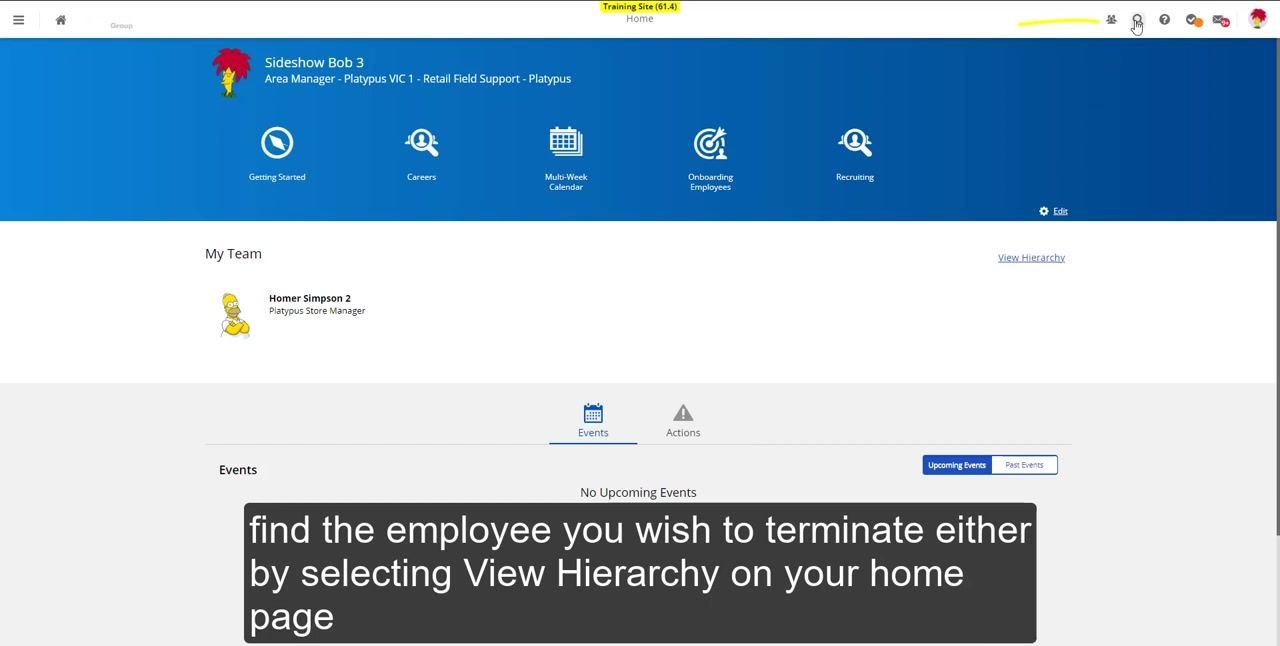
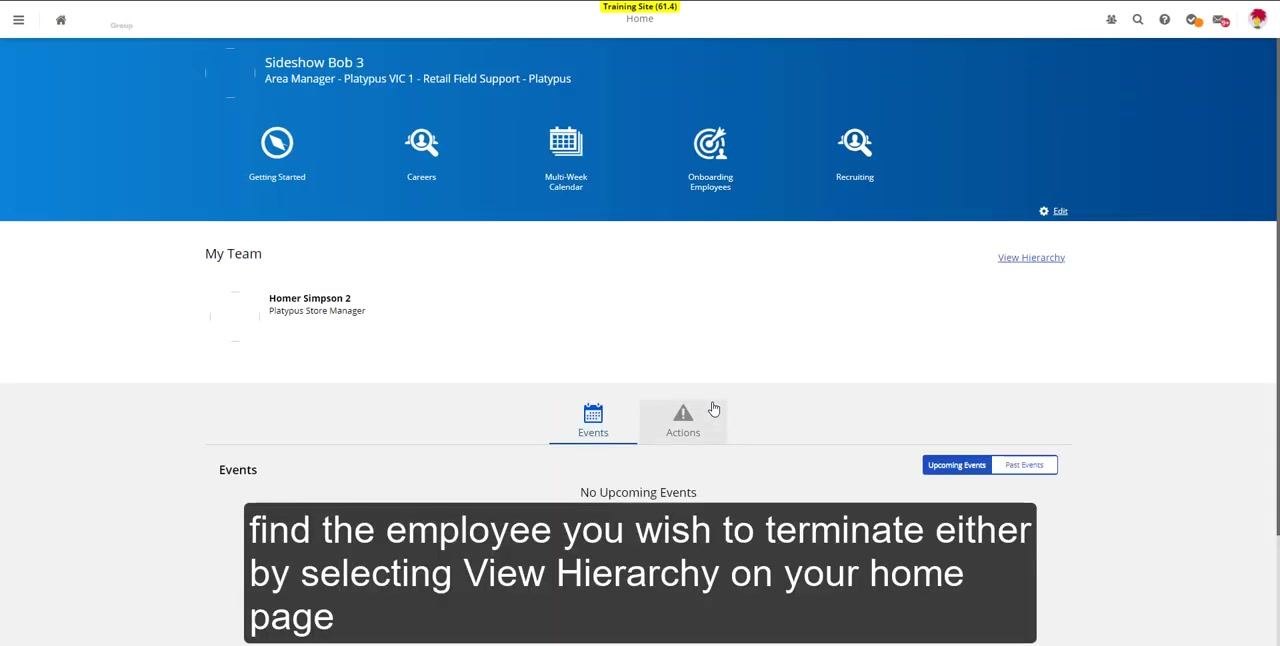
Start on the home page of the HR system. At the top, confirm that your name and role are displayed correctly (for example, "Sideshow Bob 3, Area Manager - Platypus VIC 1 - Retail Field Support - Platypus").
Locate the My Team section, which lists your direct reports (for example, "Homer Simpson 2, Platypus Store Manager"). At the bottom of the page, you'll also see the Events and Actions tabs, with Events selected by default and showing "No Upcoming Events."
To find the employee you wish to terminate, click View Hierarchy on the right side of the My Team section.
Select the employee to terminate
In the hierarchy or people search, locate the employee you wish to terminate (for example, "Lisa Simpson 8, Platypus Sales Assistant"). Click the employee's name to open their profile summary.
In the pop-up that appears, click View Profile.
Access the employee's forms
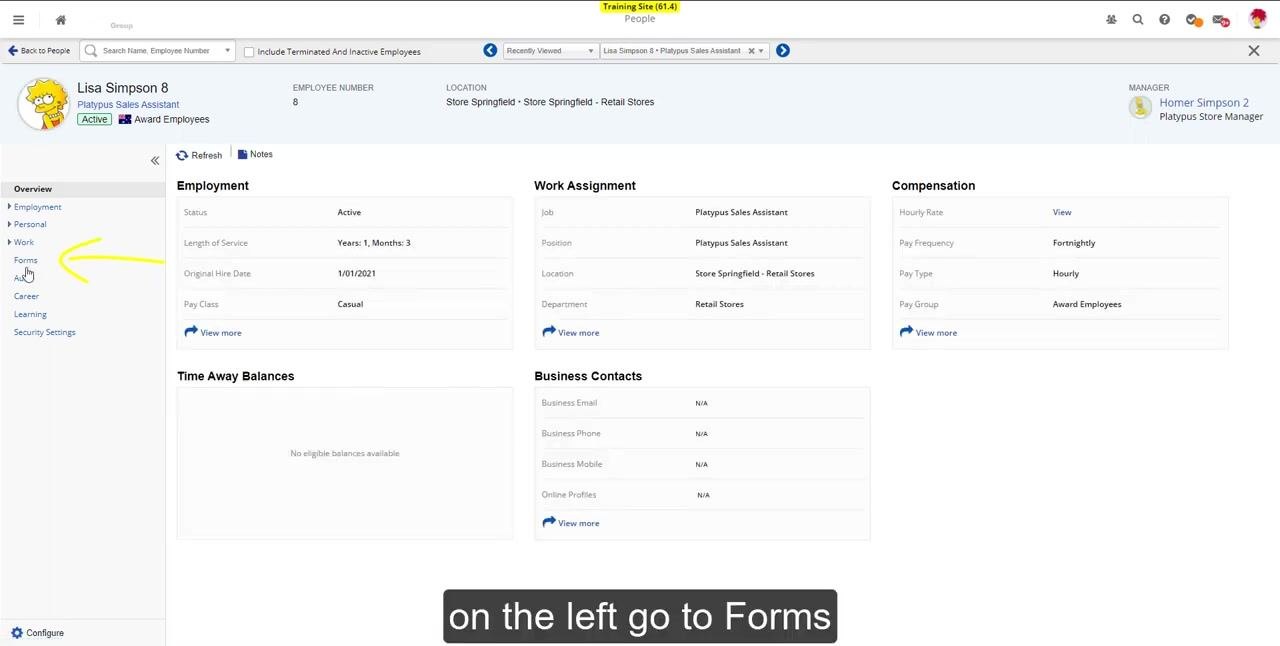
Review the employee's overview and employment details on their profile page. On the left navigation menu, click Forms.
Select the termination form
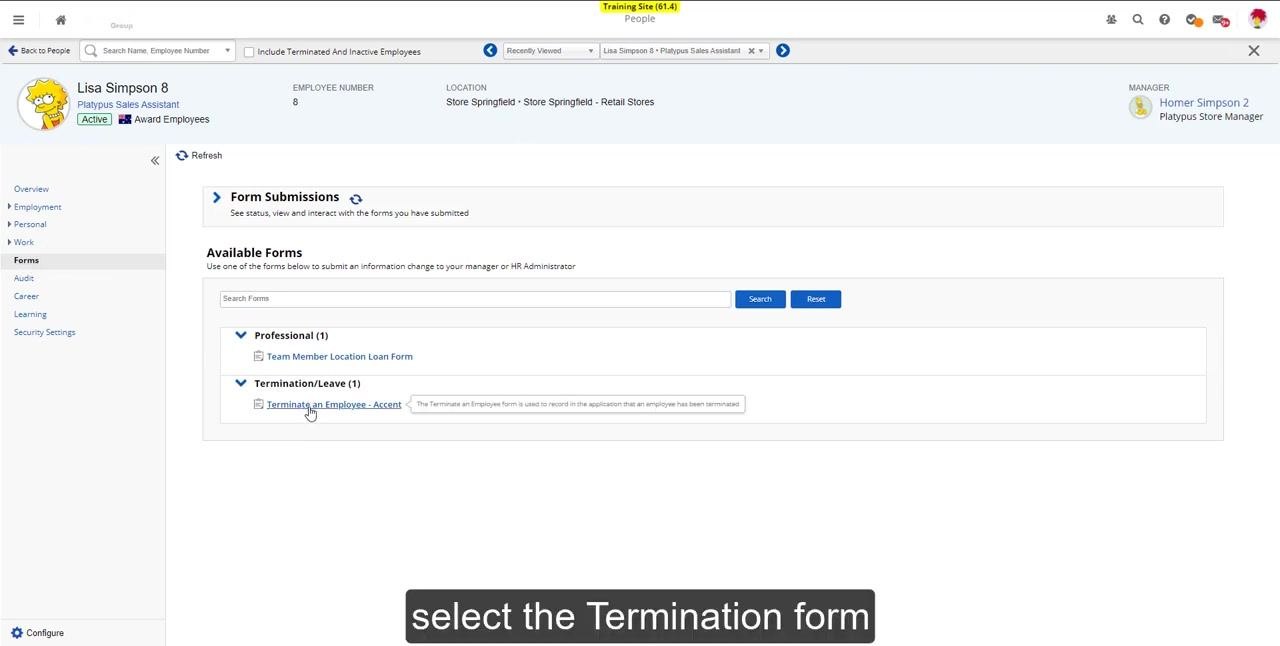
Under Available Forms, expand the Termination/Leave section and click Terminate an Employee - Accent.
Complete the termination form
Enter termination details
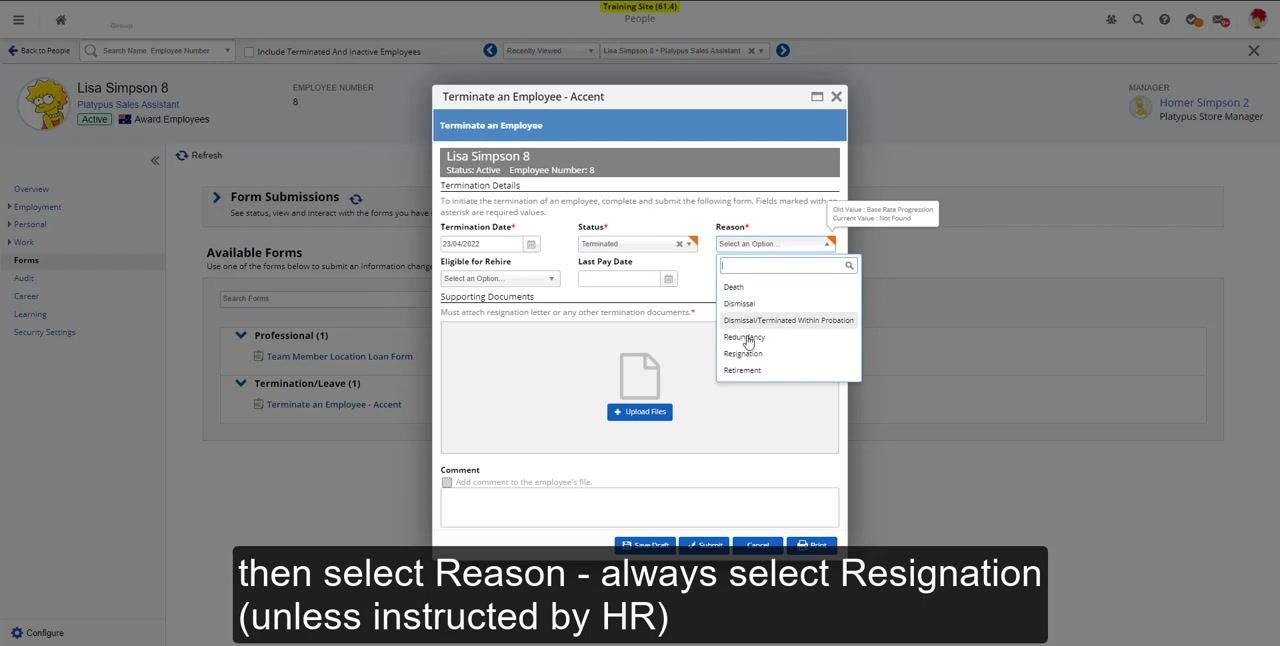
In the Terminate an Employee form, fill in the following fields:
- Termination Date: Select the employee's last day of work (for example, 23/04/2022).
- Status: Set to "Terminated."
- Reason: Open the dropdown and select the appropriate reason. Unless instructed otherwise by HR, always select "Resignation."
Enter the last pay date
In the Last Pay Date field, select the same date as the termination date (for example, 23/04/2022).
Upload the resignation letter
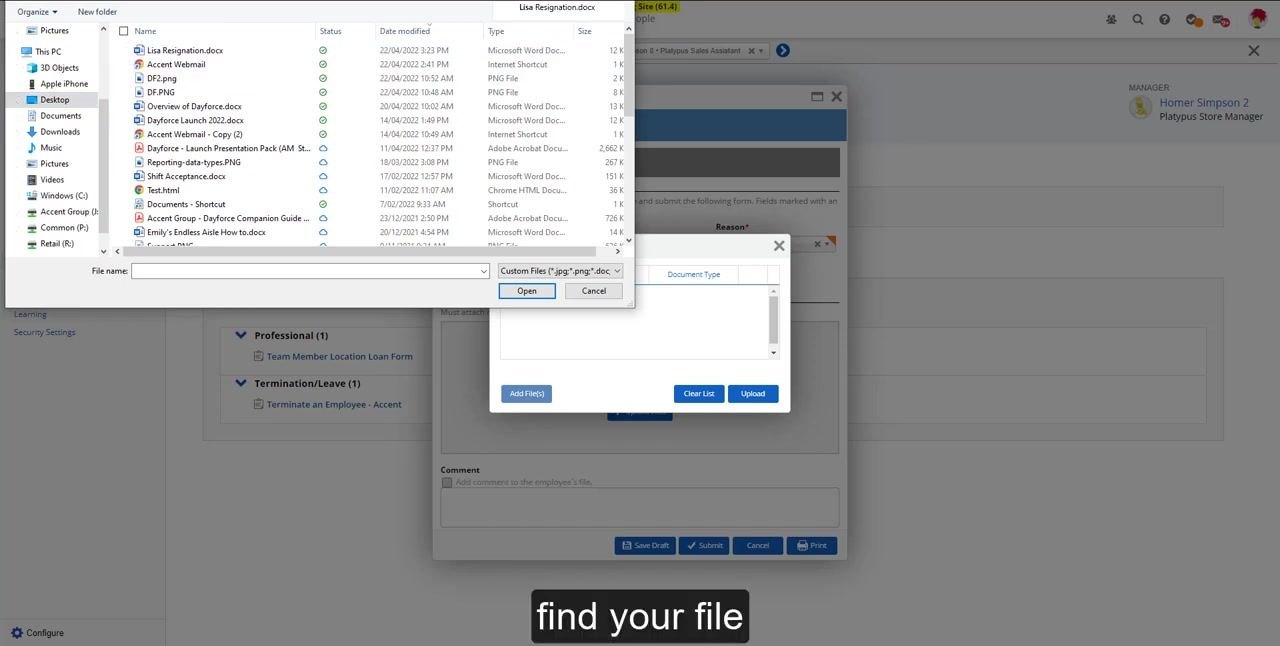
In the Supporting Documents section, click Upload Files. You must supply a resignation letter to proceed.
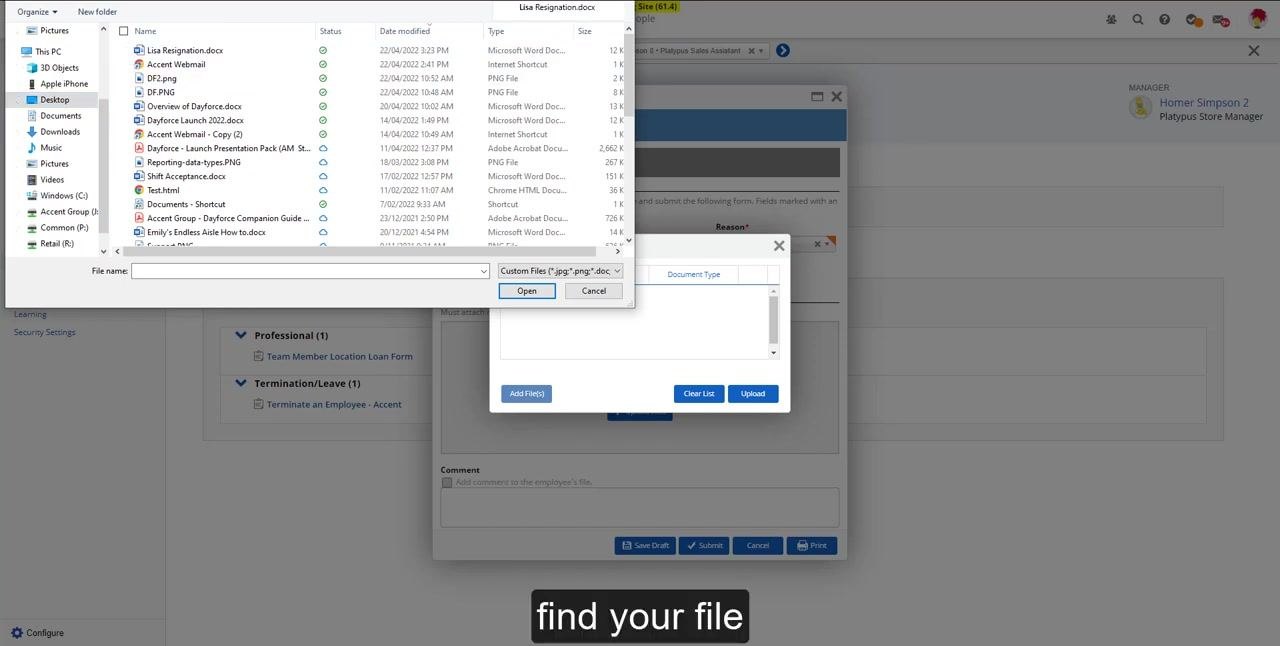
In the file upload dialog, browse to the location of the resignation letter (for example, "Lisa Resignation.docx" on the Desktop). Select the file and click Open to attach it.
After selecting the file, confirm it appears in the Supporting Documents section of the form. The file should be listed with its name, document type, last updated date and time, and last modified by information. Verify that the correct document is attached before proceeding.
Note: Complete any additional required fields, such as "Eligible for Rehire" and "Comment," according to your organization's policy before submitting the form.
Add optional comments
If required by your organization, enter any additional context or information regarding the termination in the Comment field at the bottom of the form.
Submit the termination form
Before submitting, review all entered information for accuracy:
- Termination Date: 23/04/2022
- Status: Terminated
- Reason: Resignation
- Last Pay Date: 23/04/2022
- Eligible for Rehire: (select according to policy)
- Supporting Documents: Confirm the resignation letter is attached
Click Submit at the bottom of the form to send the termination request. Once submitted, the request is sent to HR and Payroll for processing.
Save or print for your records (optional)
If you want to keep a copy of the form, click Save Draft or Print before or after submitting it.
Summary
Submitting a termination form in Dayforce involves locating the employee through View Hierarchy, opening their Forms section, and completing the Terminate an Employee - Accent form with the termination date, status, reason, last pay date, and a supporting resignation letter. Once submitted, the request and its supporting documents are routed to HR and Payroll for further processing.
Note: Ensure all required fields and documents are completed before submitting to avoid processing delays.
Generation details: cost, quality tiers
Docsie billed 1,500 credits ($1.05) to analyze this 3-minute video at standard quality. The rewrite, template fill and Word/PDF exports were included. The same video at each quality tier:
| Quality | Frames sampled | Credits | Approx. cost |
|---|---|---|---|
| Draft | every 16-30 s | 750 | $0.52 |
| Standard (this guide) | every 8-15 s | 1,500 | $1.05 |
| Detailed | every 4-7 s | 3,000 | $2.10 |
| Ultra | every 1-3 s | 6,000 | $4.20 |
Credits priced at $0.70 per 1,000; plans include a monthly allowance. Enterprise customers on on-premise or bring-your-own-model deployments run this on their own inference and pay no per-video credits.
Generated by Docsie Video-to-Docs on 2026-10-25 from a 2-minute video. Screenshots are frames from the source video and belong to their creator, Dayforce: How To Series, whose original is embedded above. If you own this video and want the guide removed or credited differently, contact us and we will act within one business day.