
How to Download Pay Stubs in Dayforce
Dayforce makes it easy to access and download your pay stubs, whether you're using a web browser on your computer or the Dayforce mobile app. This guide walks you through how to download pay stubs in Dayforce from both platforms, as well as how to access year-end forms and print your pay stub once downloaded.
Video: How to Download Paystub from Dayforce - Step By Step by Mindly Nova (2026). All credit for the demonstration goes to the creator; watch the original on YouTube. The written guide below was generated from this video by Docsie. Creator? Request a change or removal.
Dayforce makes it easy to access and download your pay stubs, whether you're using a web browser on your computer or the Dayforce mobile app. This guide walks you through how to download pay stubs in Dayforce from both platforms, as well as how to access year-end forms and print your pay stub once downloaded.
Prerequisites
- Active Dayforce company credentials (username and password)
- Access to the Dayforce employee portal via web browser, or the Dayforce app installed on your mobile device
- A PDF viewer installed on your device to open downloaded pay stubs
Downloading a pay stub from the Dayforce employee portal
Step 1: Sign in to Dayforce
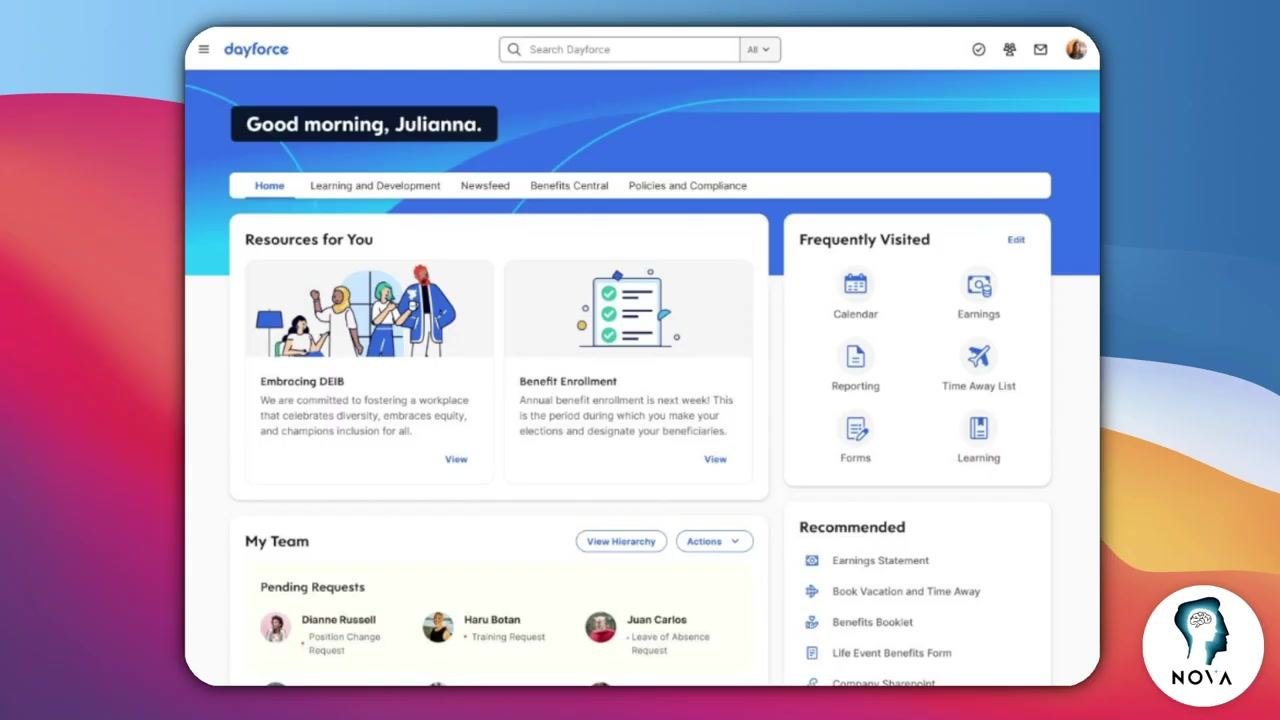
Open your web browser and navigate to the Dayforce website. Enter your company credentials to sign in to the Dayforce employee portal. After signing in, you'll land on the main dashboard, which displays a personalized greeting (for example, "Good morning, Julianna.") along with various navigation options.
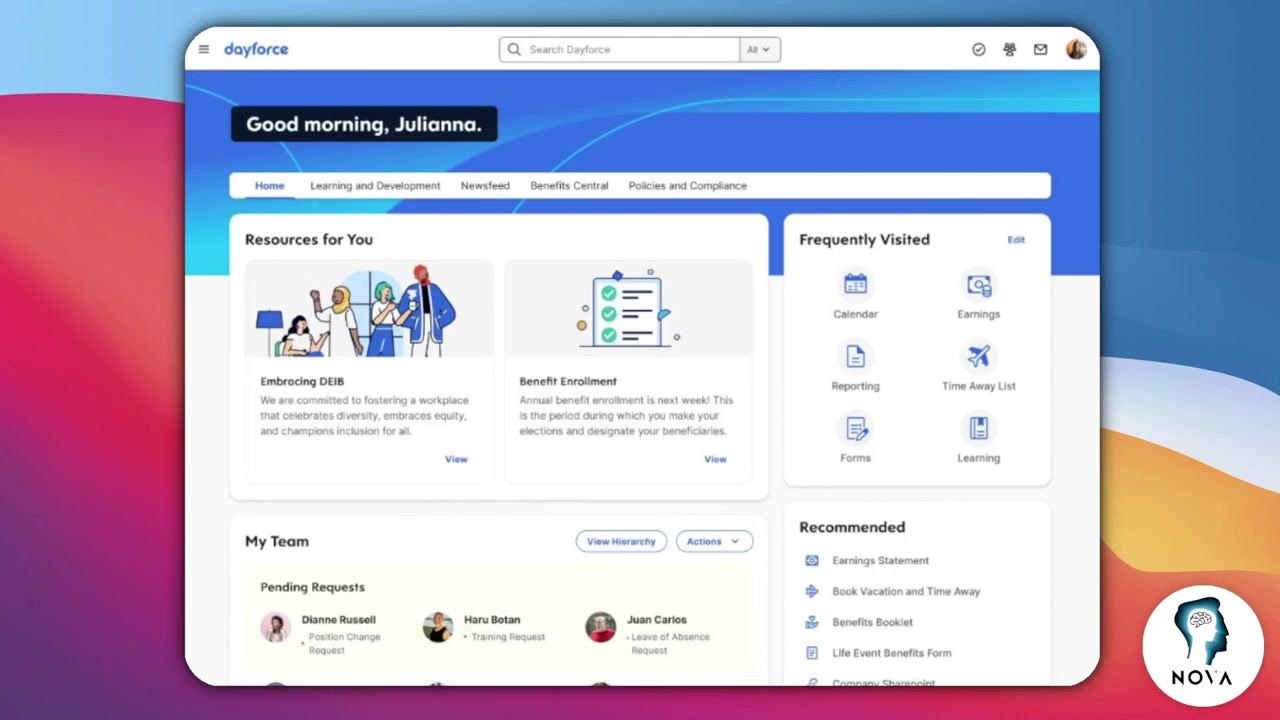
Step 2: Access the Earnings section
Locate the navigation menu on the left side of the screen, or use the Frequently Visited panel. Click on Earnings to proceed.
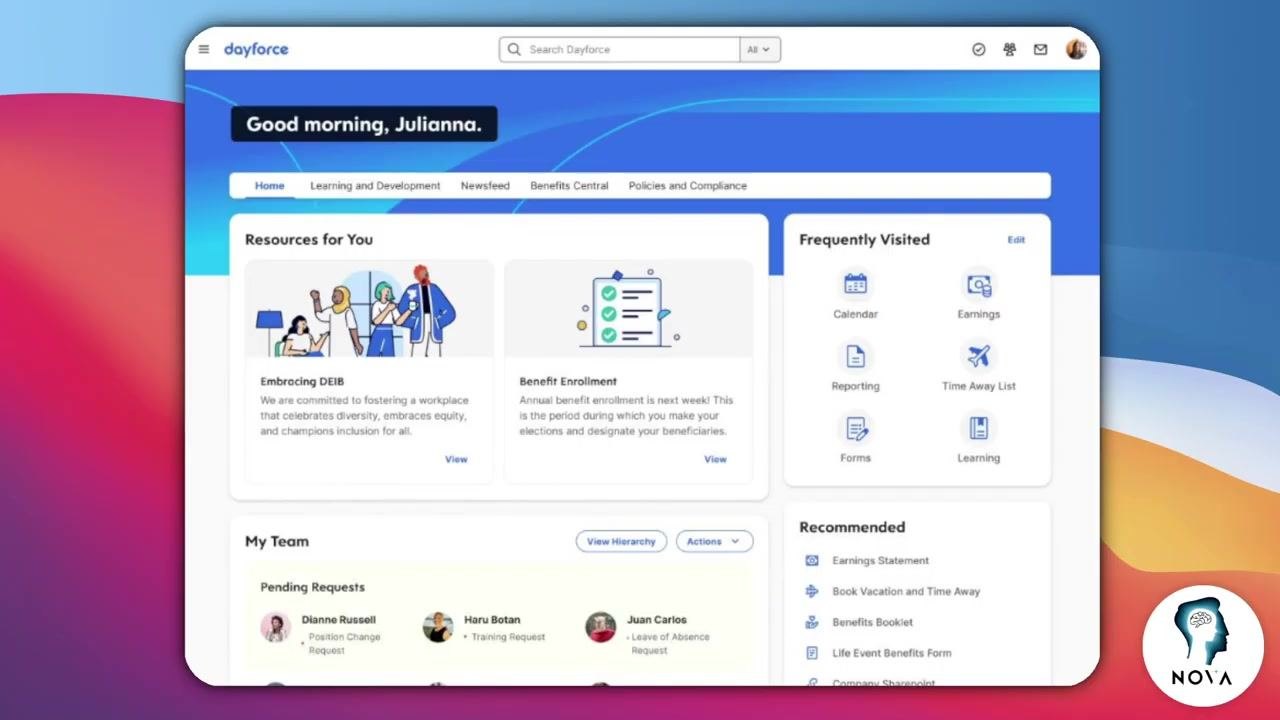
Step 3: Select the desired pay period
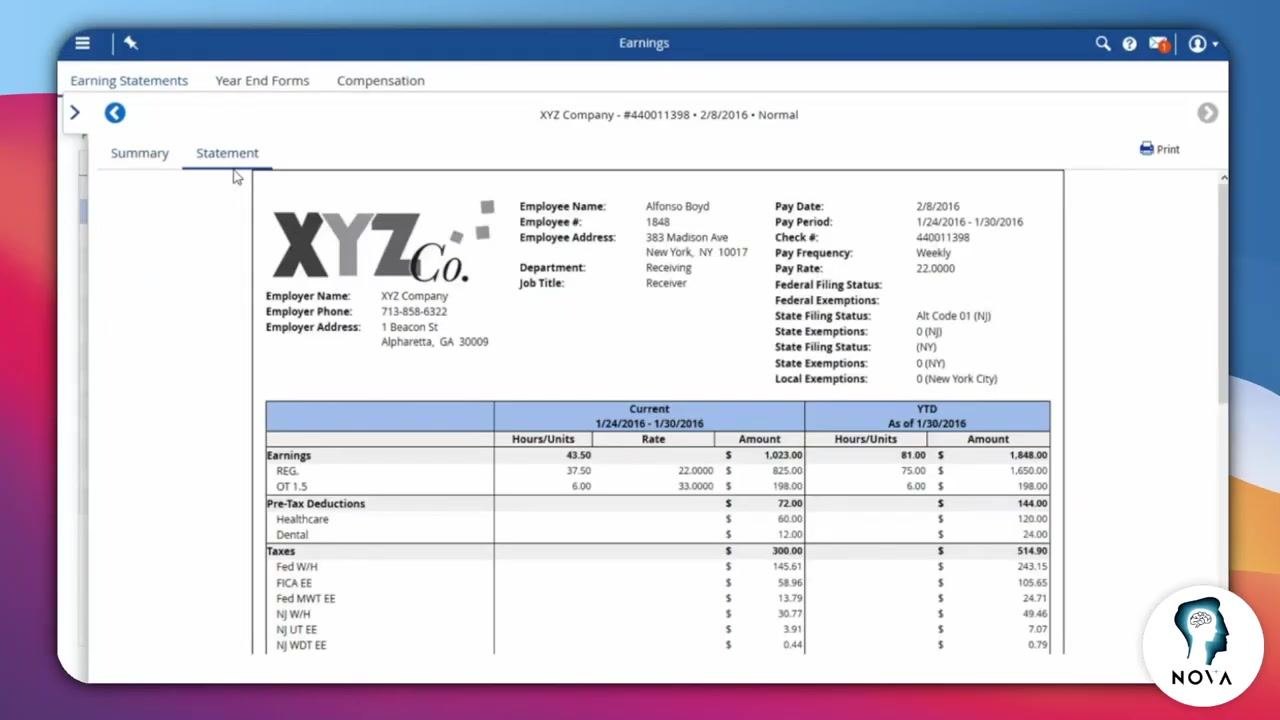
In the Earnings section, click on Earnings Statement. Choose the specific pay period or pay date you want to review from the list provided.
Step 4: Generate and download the PDF
In the slide-out panel for your selected pay period, click the Print icon, typically located at the top right of the statement view. Dayforce will indicate that a PDF is being generated. Once the PDF is ready, click on Message Center at the top right of the screen, then download the report titled with your pay period.
Downloading a pay stub from the Dayforce app
Step 5: Log in to the Dayforce app
Open the Dayforce app on your mobile device and sign in using your company credentials.
Step 6: Navigate to Earnings
On the main menu, select Earnings.
Step 7: Select a pay period and view details
Tap the specific pay period you want to open. This brings up the earnings details screen for that period.
Step 8: Open and save the PDF
Open the context menu, usually represented by three dots or a similar icon. Tap View PDF to open the pay stub in the PDF viewer. Open the context menu again and tap Open in External Browser. From the external browser, save the PDF directly to your device.
Reviewing pay stub details
On both PC and mobile, once you open your pay stub, you can review details such as:
- Gross pay
- Net pay
- Taxes
- Deductions
- Year-to-date totals
Downloading year-end forms
Step 9: Access year-end forms from the Earnings menu
On the Earnings overview screen, tap to open the Context menu, then tap Year End Forms.
Step 10: Select and open a form
In the list of available forms, tap the form you want to access. The app opens the form in your device's preferred PDF viewer, where you can download it.
Printing your pay stub (optional)
Step 11: Print the pay stub
Once the PDF is downloaded, open it using your device's PDF viewer. Use the Print function in your PDF viewer or browser to print a physical copy of your pay stub if needed.
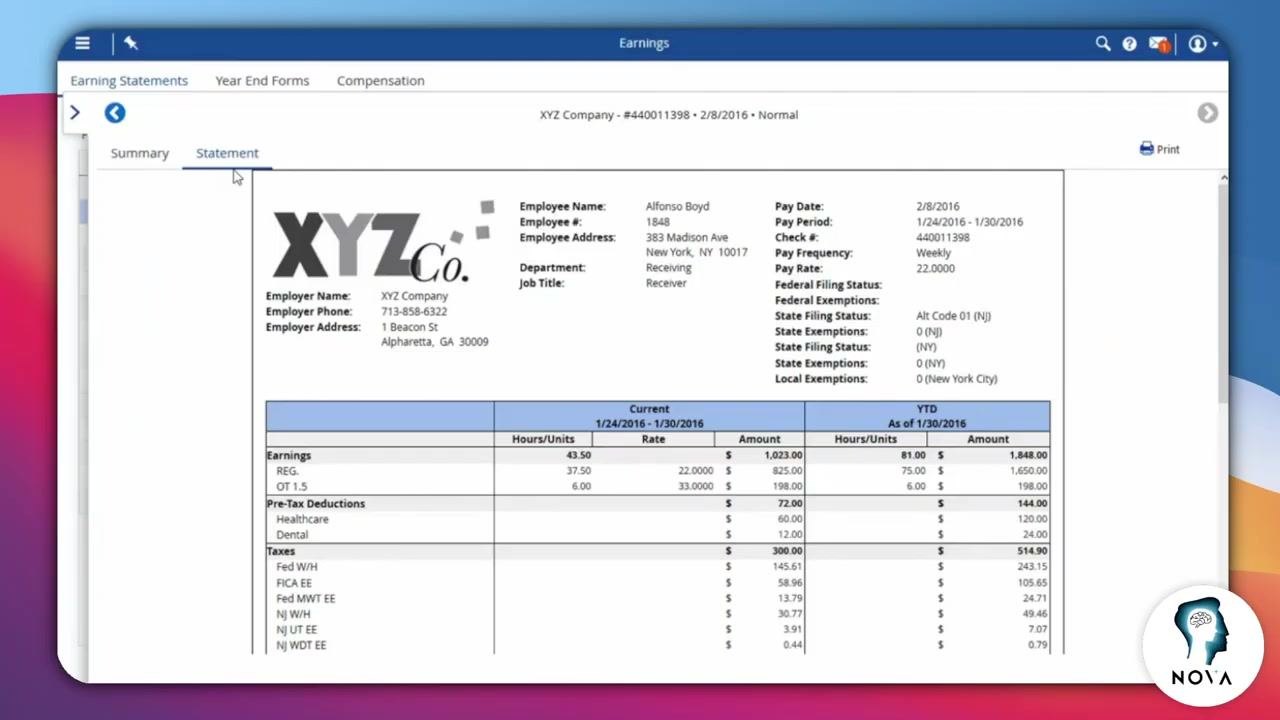
Step 12: Verify and review your pay stub
Open the downloaded PDF to review all details, including:
- Employer and employee information
- Pay period and pay date
- Earnings, pre-tax deductions, and taxes
- Year-to-date (YTD) totals
Ensure all information is correct before printing or sharing your pay stub.
Summary
By following these steps, you can successfully download your pay stub or year-end forms from Dayforce on both PC and mobile platforms. Once downloaded, review your pay stub details carefully and print a copy if needed.
Generation details: cost, quality tiers
Docsie billed 1,500 credits ($1.05) to analyze this 3-minute video at standard quality. The rewrite, template fill and Word/PDF exports were included. The same video at each quality tier:
| Quality | Frames sampled | Credits | Approx. cost |
|---|---|---|---|
| Draft | every 16-30 s | 750 | $0.52 |
| Standard (this guide) | every 8-15 s | 1,500 | $1.05 |
| Detailed | every 4-7 s | 3,000 | $2.10 |
| Ultra | every 1-3 s | 6,000 | $4.20 |
Credits priced at $0.70 per 1,000; plans include a monthly allowance. Enterprise customers on on-premise or bring-your-own-model deployments run this on their own inference and pay no per-video credits.
Generated by Docsie Video-to-Docs on 2026-10-11 from a 2-minute video. Screenshots are frames from the source video and belong to their creator, Mindly Nova, whose original is embedded above. If you own this video and want the guide removed or credited differently, contact us and we will act within one business day.