
How to Request Time Off in Dayforce
Dayforce makes it simple to check your leave balances and submit time-off requests directly from the My Work tab. This guide walks you through reviewing your accrued balances, submitting a new time away request, and tracking the status of your requests from start to approval.
Video: Dayforce Self Service - Time Away From Work -- Employees by DF Edu. All credit for the demonstration goes to the creator; watch the original on YouTube. The written guide below was generated from this video by Docsie. Creator? Request a change or removal.
Dayforce makes it simple to check your leave balances and submit time-off requests directly from the My Work tab. This guide walks you through reviewing your accrued balances, submitting a new time away request, and tracking the status of your requests from start to approval.
Prerequisites
- You must have access to the My Work tab in Dayforce.
- Your organization's leave policies (carryover limits, borrowing rules, notification periods, or authorization levels) will determine what requests you can submit.
Access your time away dashboard
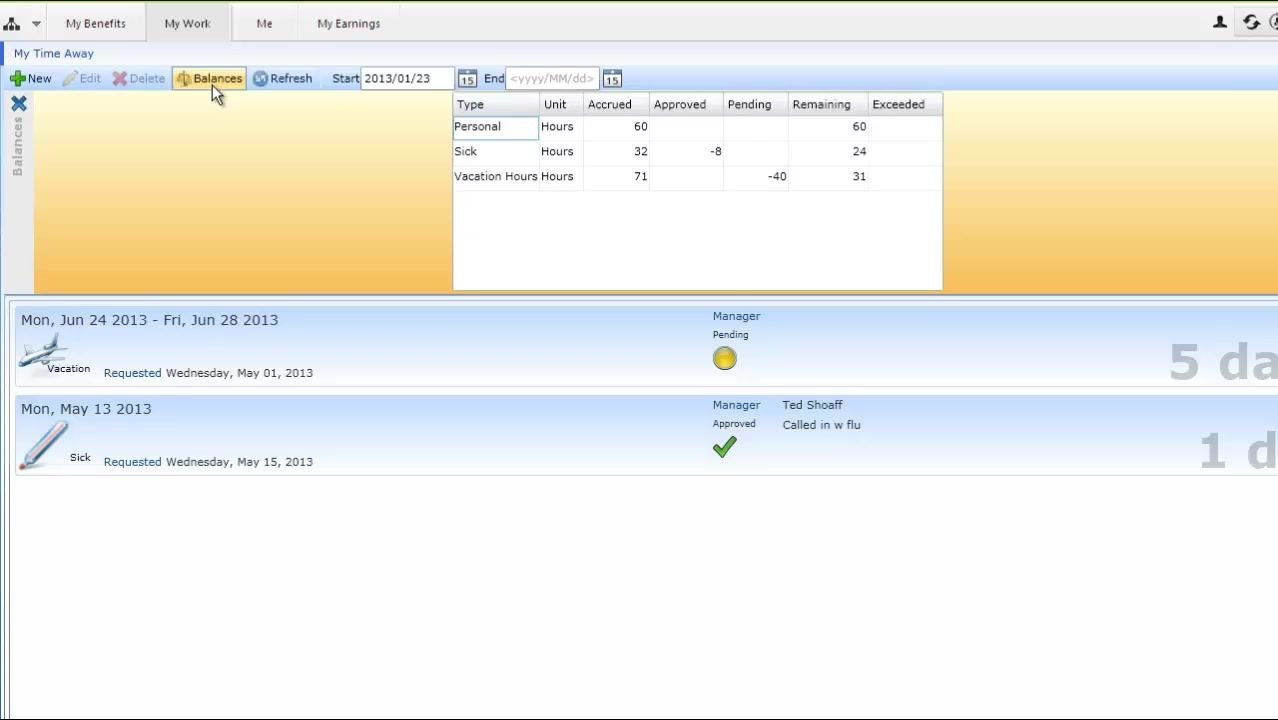
Navigate to the top menu and click the My Work tab to open the time away features. The screen displays your "My Time Away" dashboard, showing your current and past time-off requests.
At the top of the dashboard, you will see action buttons for New, Edit, Delete, Balances, and Refresh. Each request in the list includes details such as leave type (e.g., Vacation, Sick), request date, manager status (Pending/Approved), and any manager comments.
Check your current accrual balances
Click the Balances button to view a summary of your current accruals. For each leave type—Personal, Sick, and Vacation Hours—the window displays:
- Accrued: Total hours earned (e.g., Personal: 60, Sick: 32, Vacation: 71)
- Approved: Hours already approved and taken (e.g., Sick: -8, Vacation: -40)
- Pending: Hours pending approval
- Remaining: Hours still available (e.g., Personal: 60, Sick: 24, Vacation: 31)
- Exceeded: Hours taken beyond accrual, if any
This view lets you track vacation, sick, personal, or other leave types as configured by your organization.
Note on policy configurations: Your organization's system may be set up to allow carryover of a certain number of days, permit borrowing against future accruals, apply different plans for part-time, permanent, or executive employees, and enforce rules such as carryover limits, required notification periods, or multiple levels of authorization.
Start a new time away request
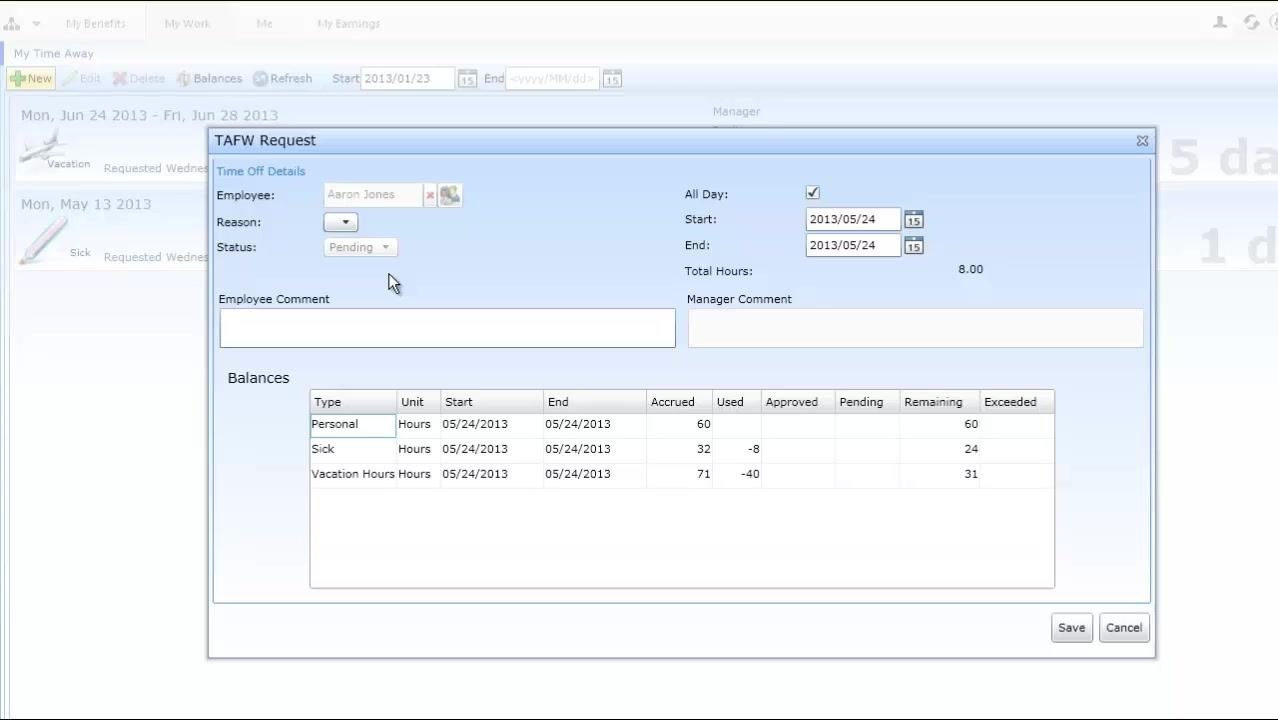
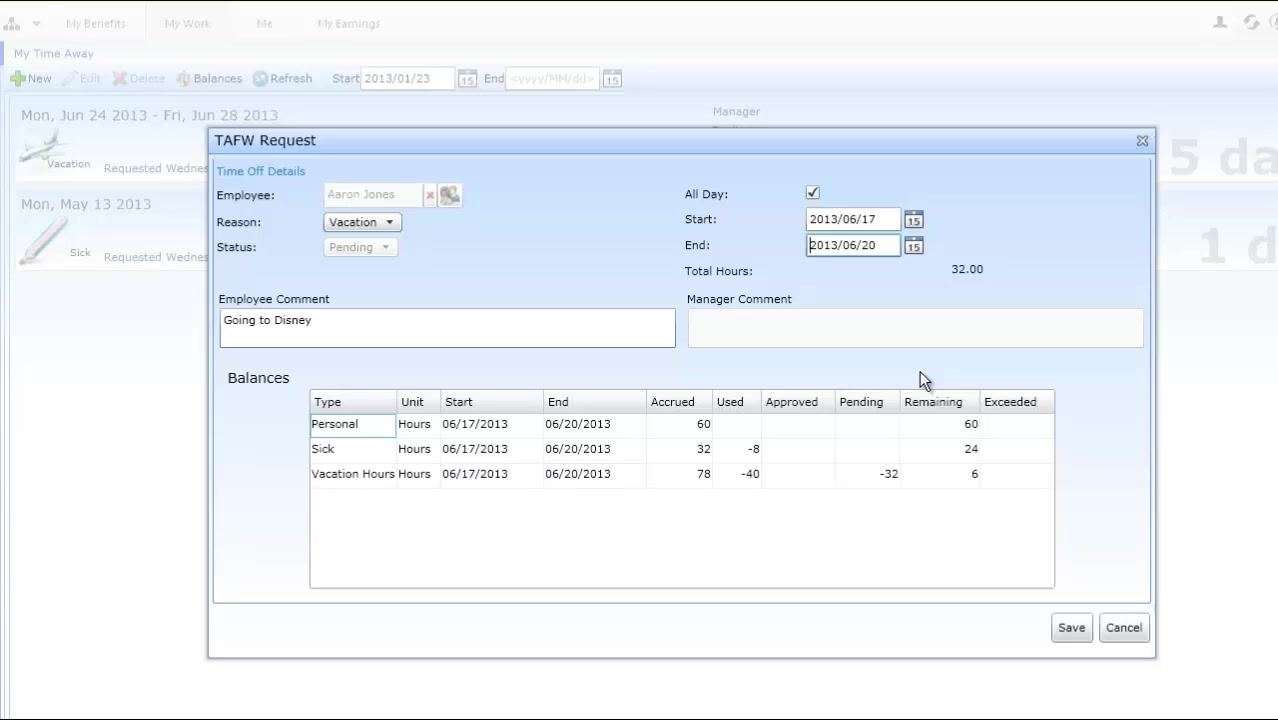
Click the New button at the top left of the "My Time Away" dashboard. A "TAFW Request" (Time Away From Work) window opens, displaying your name, your current balances for each leave type, fields for selecting the reason and status, a comment field, and date selectors with automatic total hours calculation.
Select a reason and add details
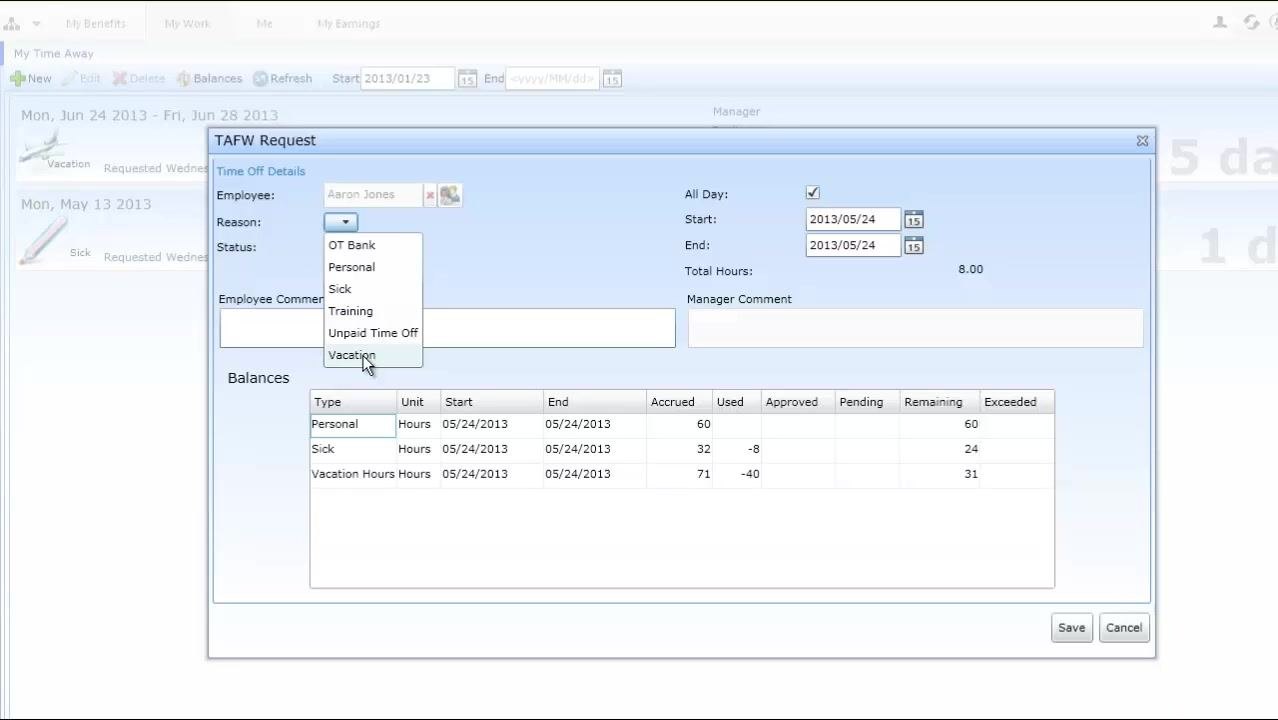
Click the Reason dropdown menu and select the appropriate reason for your request. Available options include OT Bank, Personal, Sick, Training, Unpaid Time Off, and Vacation.
Enter a note in the Employee Comment field explaining the reason for your request. Select the All Day checkbox if the request covers a full day, or adjust the start and end times if it does not. Before proceeding, review your current balances at the bottom of the window to confirm you have sufficient hours.
Select your dates and review system feedback
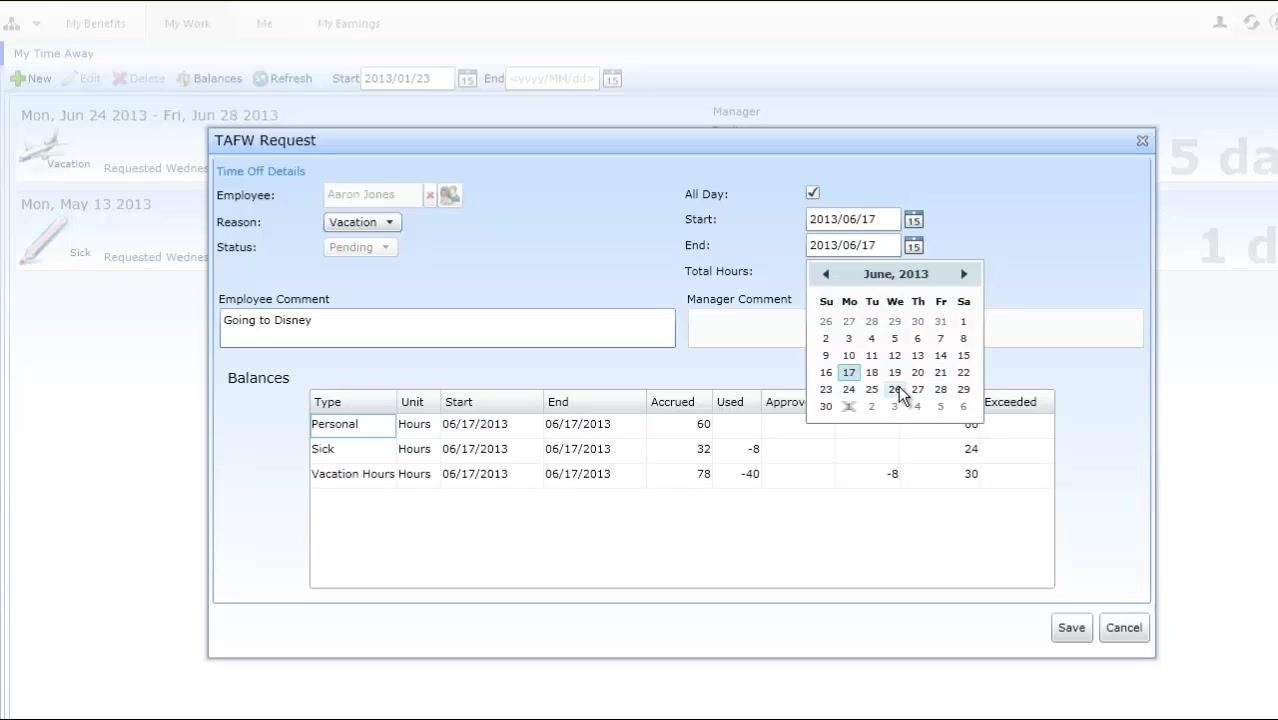
Use the calendar buttons next to the Start and End date fields to choose the dates for your time away request. As you select dates, the system updates in real time:
- If your selection exceeds your current leave balance, a red "Insufficient Balance" message appears.
- Statutory or public holidays are highlighted on the calendar, preventing you from requesting days you already have off.
- Blackout periods, when time off is not allowed, may also be indicated on the calendar.
If you try to submit a request that exceeds your available balance, the system may block you from saving or forwarding it. If you see an "Insufficient Balance" error, return to the calendar and adjust your dates until the error clears.
Submit your request
Once your request falls within your available balance, click Save. The request is routed to your manager for approval, and your dashboard updates to show the new request along with its status (e.g., Pending, Approved). You will receive a notification in the message center once your time off is approved.
Review the status and history of your requests
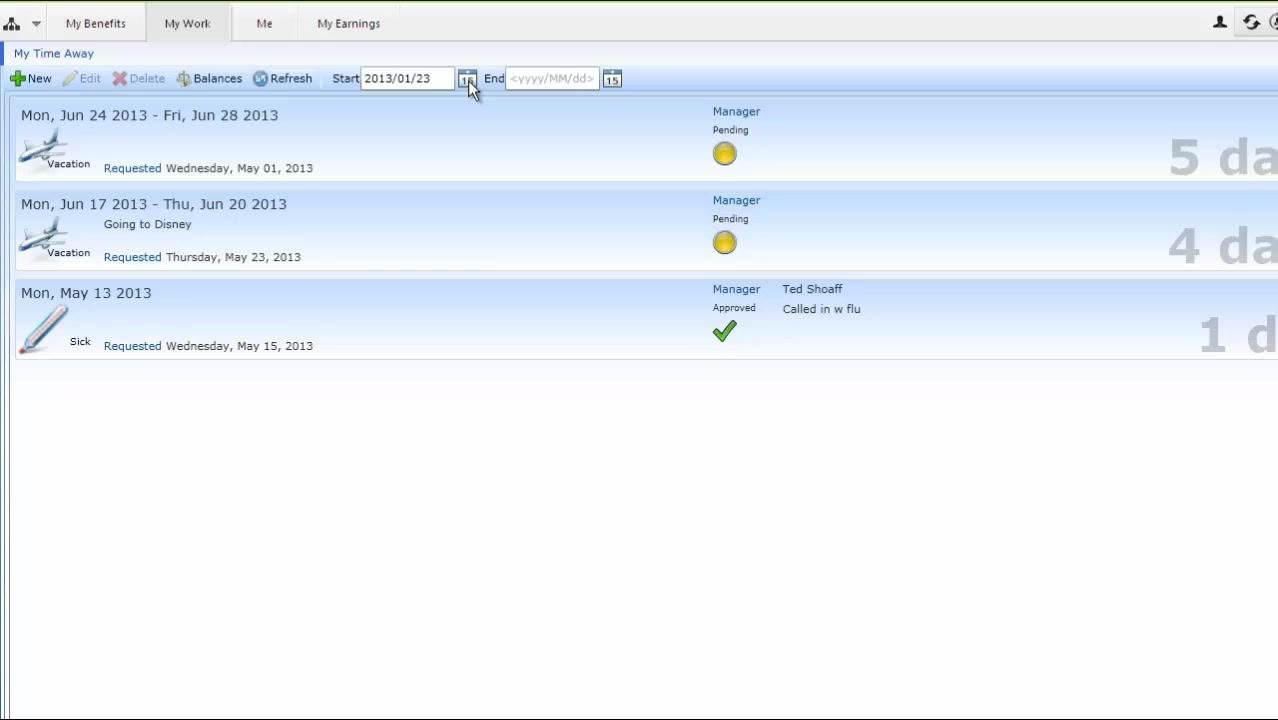
Return to the "My Time Away" dashboard to view both current and historical time away requests. Use the Start and End date fields at the top of the dashboard to filter requests by a specific date range, clicking the calendar icons next to each field to make your selection.
Each request in the list shows the leave type (e.g., Vacation, Sick), the date range (e.g., Mon, Jun 24 2013 – Fri, Jun 28 2013), the status (Pending or Approved), manager comments and approval details (e.g., "Called in w flu" for sick leave), and the number of days requested (e.g., 5 days, 4 days, 1 day).
Pending requests display a yellow circle, while approved requests show a green checkmark along with the approving manager's name.
Summary
You now know how to request time off in Dayforce: check your accrual balances, submit a new TAFW request with the correct reason and dates, resolve any balance conflicts flagged by the system, and track your request through to manager approval using the "My Time Away" dashboard.
Generation details: cost, quality tiers
Docsie billed 2,000 credits ($1.40) to analyze this 4-minute video at standard quality. The rewrite, template fill and Word/PDF exports were included. The same video at each quality tier:
| Quality | Frames sampled | Credits | Approx. cost |
|---|---|---|---|
| Draft | every 16-30 s | 1,000 | $0.70 |
| Standard (this guide) | every 8-15 s | 2,000 | $1.40 |
| Detailed | every 4-7 s | 4,000 | $2.80 |
| Ultra | every 1-3 s | 8,000 | $5.60 |
Credits priced at $0.70 per 1,000; plans include a monthly allowance. Enterprise customers on on-premise or bring-your-own-model deployments run this on their own inference and pay no per-video credits.
Generated by Docsie Video-to-Docs on 2026-10-12 from a 3-minute video. Screenshots are frames from the source video and belong to their creator, DF Edu, whose original is embedded above. If you own this video and want the guide removed or credited differently, contact us and we will act within one business day.