
How to Enter a PACU PowerPlan in Cerner PowerChart
This guide walks you through how to enter a PACU PowerPlan in Cerner PowerChart, from locating the orders screen to signing finalized orders. You'll learn how to search for the PACU PowerPlan, select and modify orders within it, avoid duplicate orders, and submit your orders for signature.
Video: Entering a PowerPlan for PACU in Cerner PowerChart by Cerner How To (2024). All credit for the demonstration goes to the creator; watch the original on YouTube. The written guide below was generated from this video by Docsie. Creator? Request a change or removal.
This guide walks you through how to enter a PACU PowerPlan in Cerner PowerChart, from locating the orders screen to signing finalized orders. You'll learn how to search for the PACU PowerPlan, select and modify orders within it, avoid duplicate orders, and submit your orders for signature.
Prerequisites
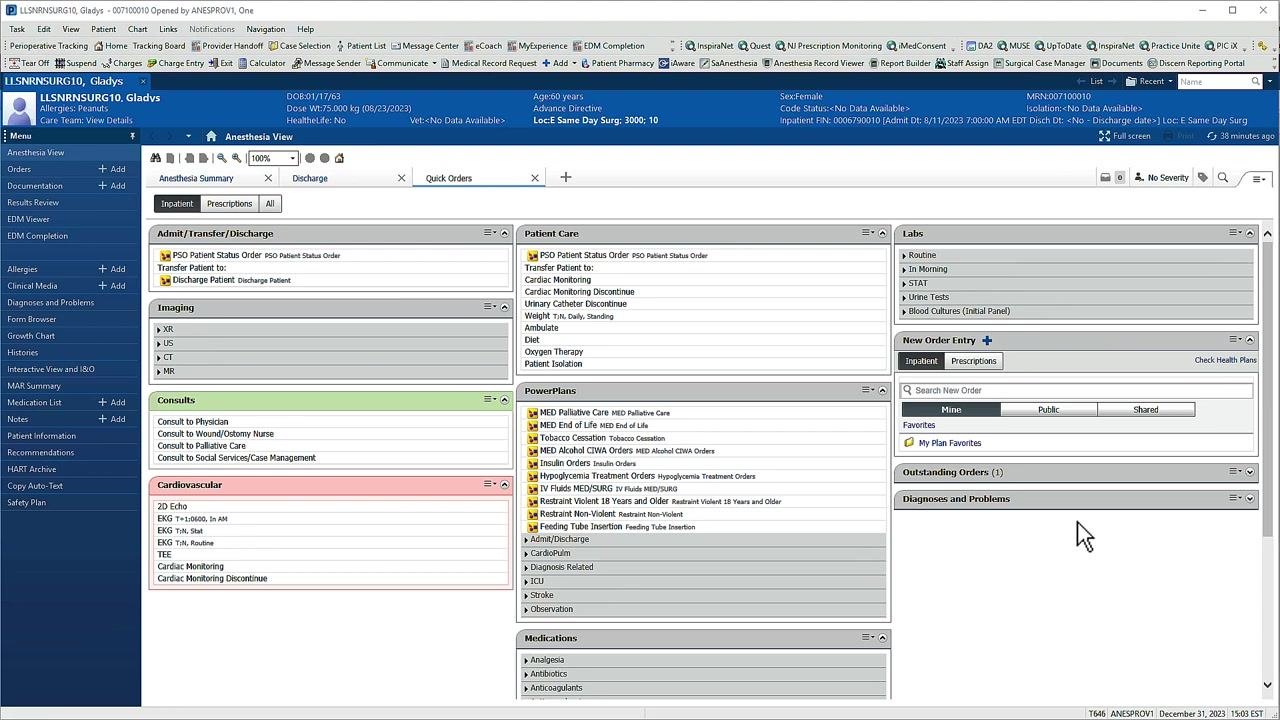
Before you begin, make sure you have access to the Orders screen in PowerChart with the patient's chart open. You should be able to view the patient's name, allergies, date of birth, and weight at the top of the screen, along with the left navigation menu containing modules such as Anesthesia View, Orders, Allergies, and Clinical Media.
Review the orders screen layout
The main Orders screen displays orders grouped into folders and subfolders. PowerPlans are identified by a yellow icon in the PowerPlans section. Patient information appears at the top of the screen, and the left navigation menu gives you access to modules like Anesthesia View, Orders, Allergies, and Clinical Media.
Search for the PACU PowerPlan
To begin placing an order, either select an order displayed in the central workspace or type the name of the desired order into the Search New Order field under New Order Entry on the right. To find the PACU PowerPlan, type ANES into the search field.
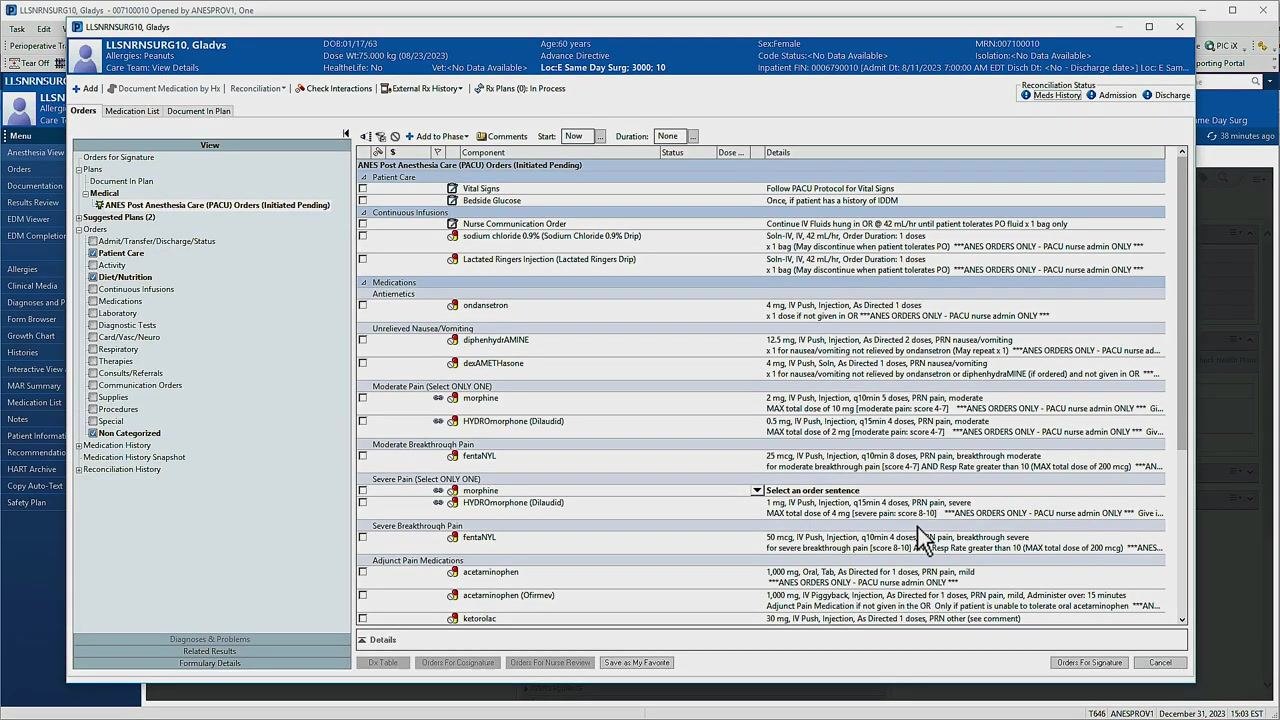
As you type, matching results appear dynamically below the search field. Look for ANES Post Anesthesia Care (PACU) Orders in the results list.
Select and open the PowerPlan for editing
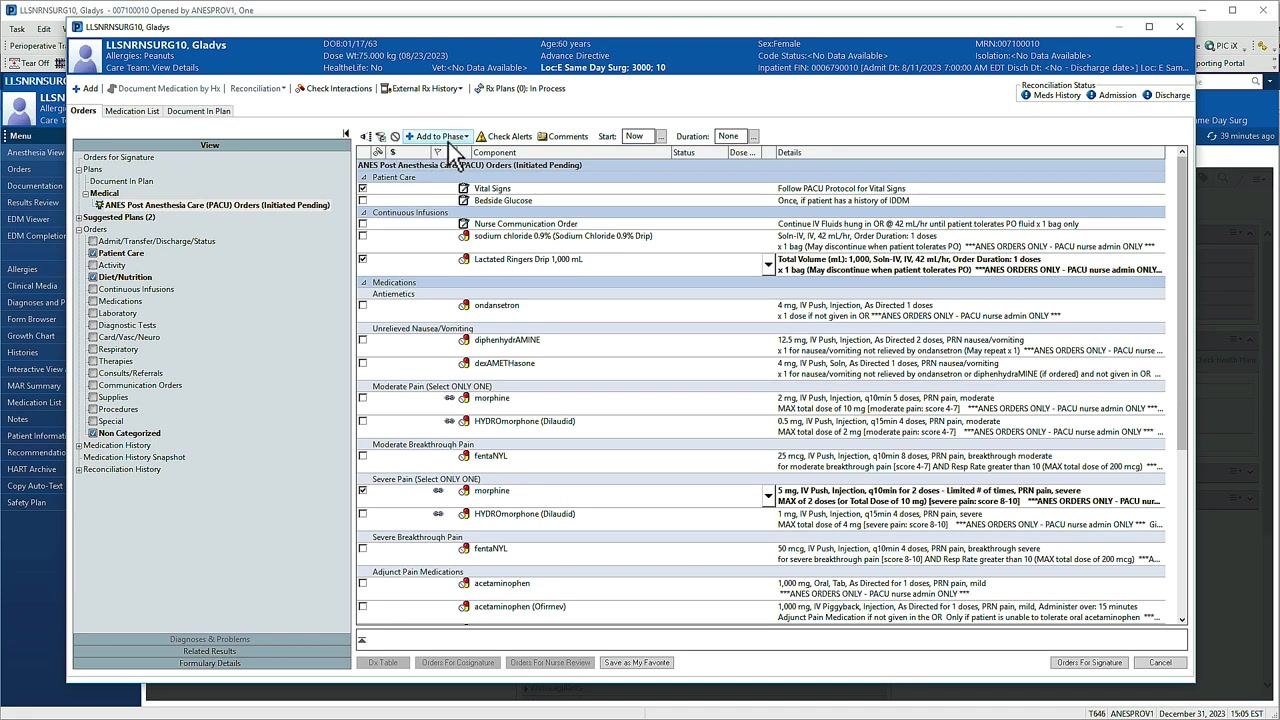
Click the PACU PowerPlan from the search results to begin editing it. The left View pane indicates which PowerPlan you are currently editing. Orders available for selection are grouped into categories on the right, such as Continuous Infusions, Medications, and Pain Management. By default, none of the order boxes are checked.
Include orders in the PowerPlan
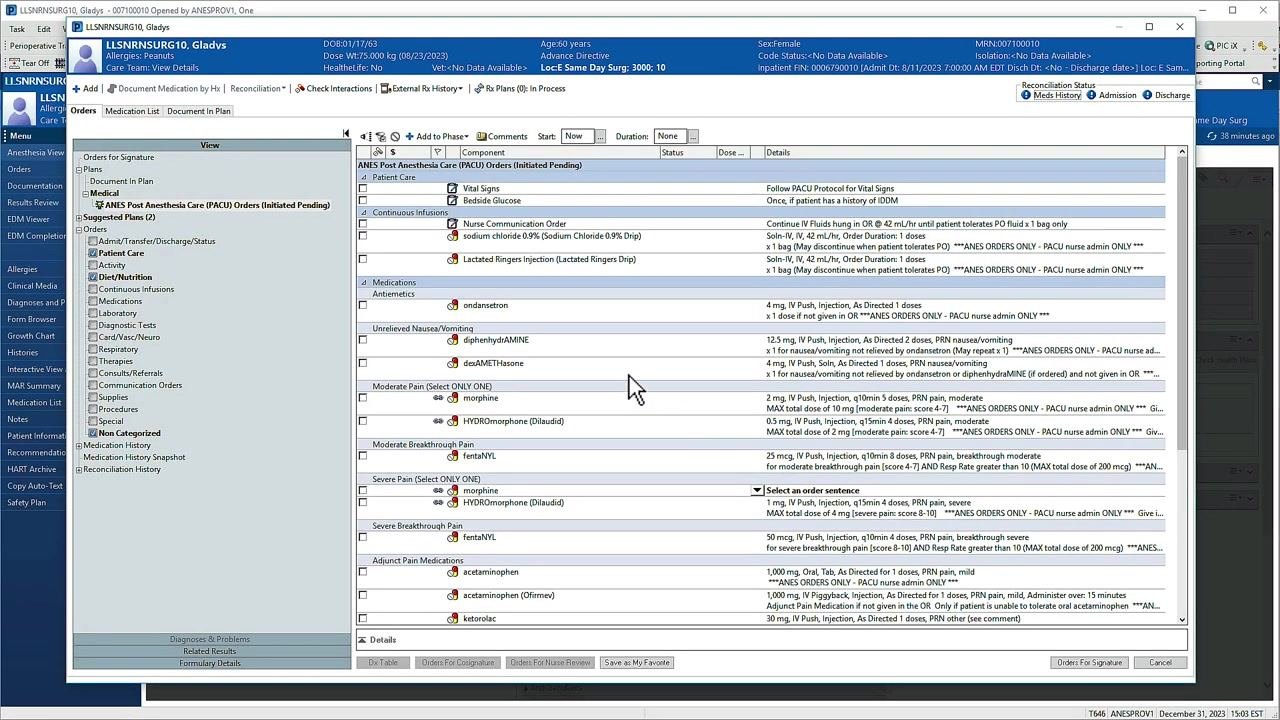
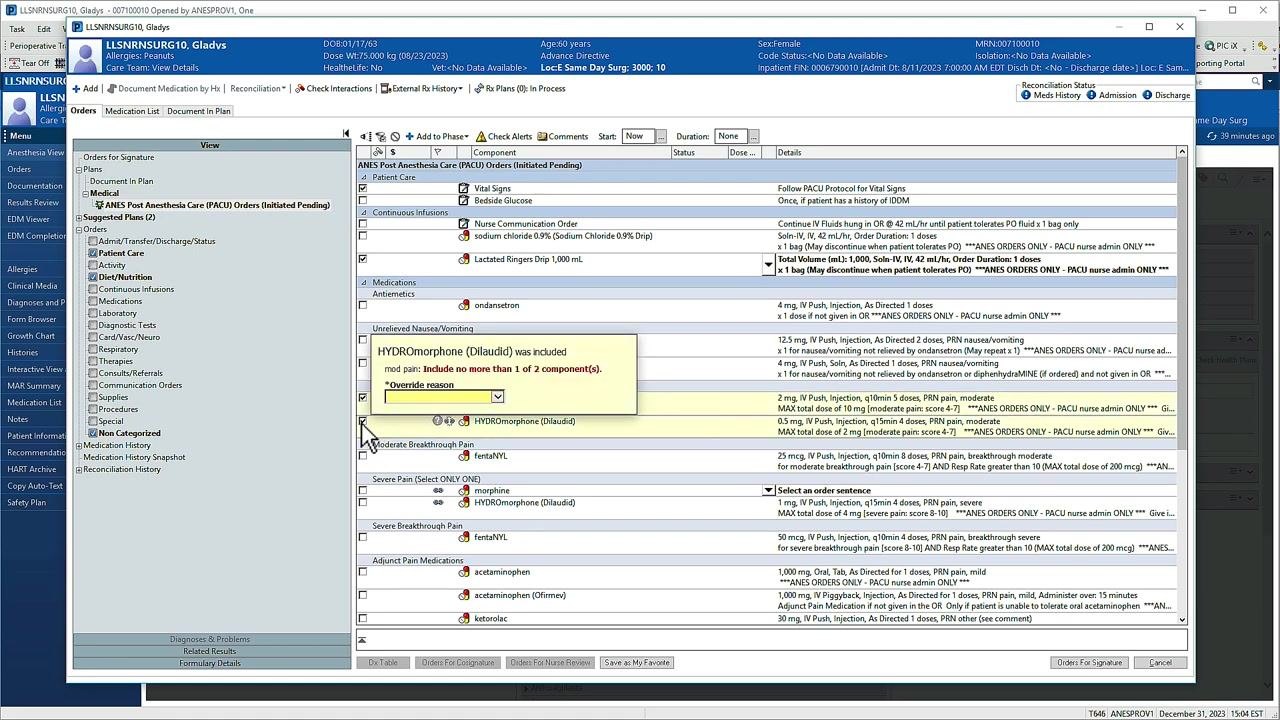
To include an order, check the box next to the item you want. Once selected, the associated order details display on the right side of the screen.
Some orders are linked, which is indicated by a chain icon, particularly in medication sections like Moderate Pain. If you select more than one linked order, a warning appears, for example, "Include no more than 1 of 2 component(s)." You can override some warnings by entering an override reason in the prompted field.
Modify order details
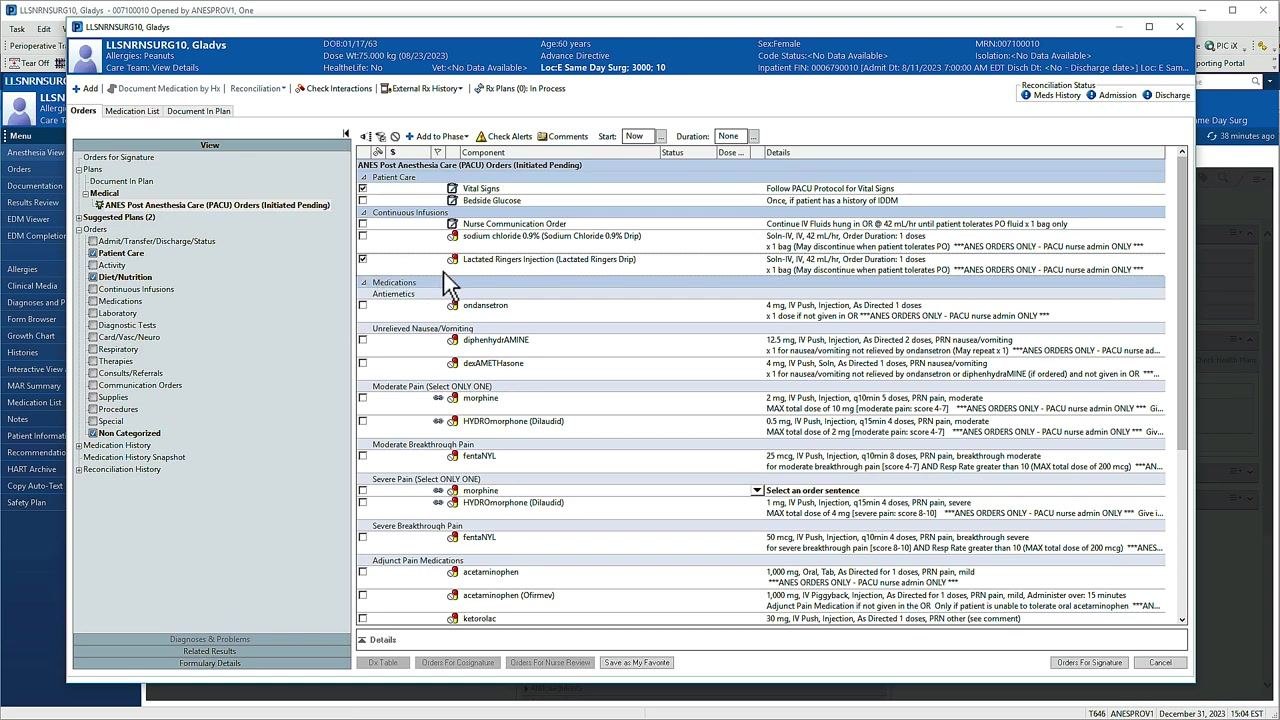
If you need to change an order's details, right-click the order and select Modify. A details pane opens below, where you can adjust settings such as dosage or frequency.
Select alternate order sentences
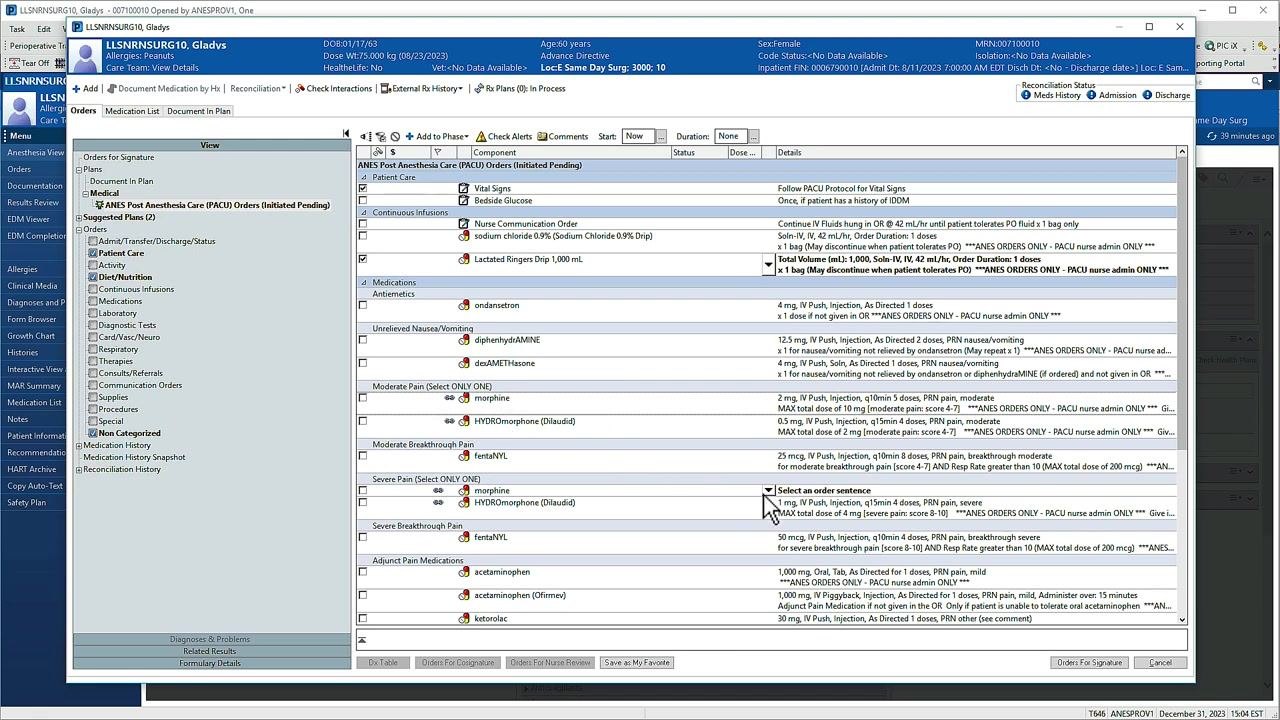
When an order has alternate details available, a drop-down icon appears next to it. Click the drop-down menu and select the order sentence that matches the patient's needs.
Use Merge View to prevent duplicate orders
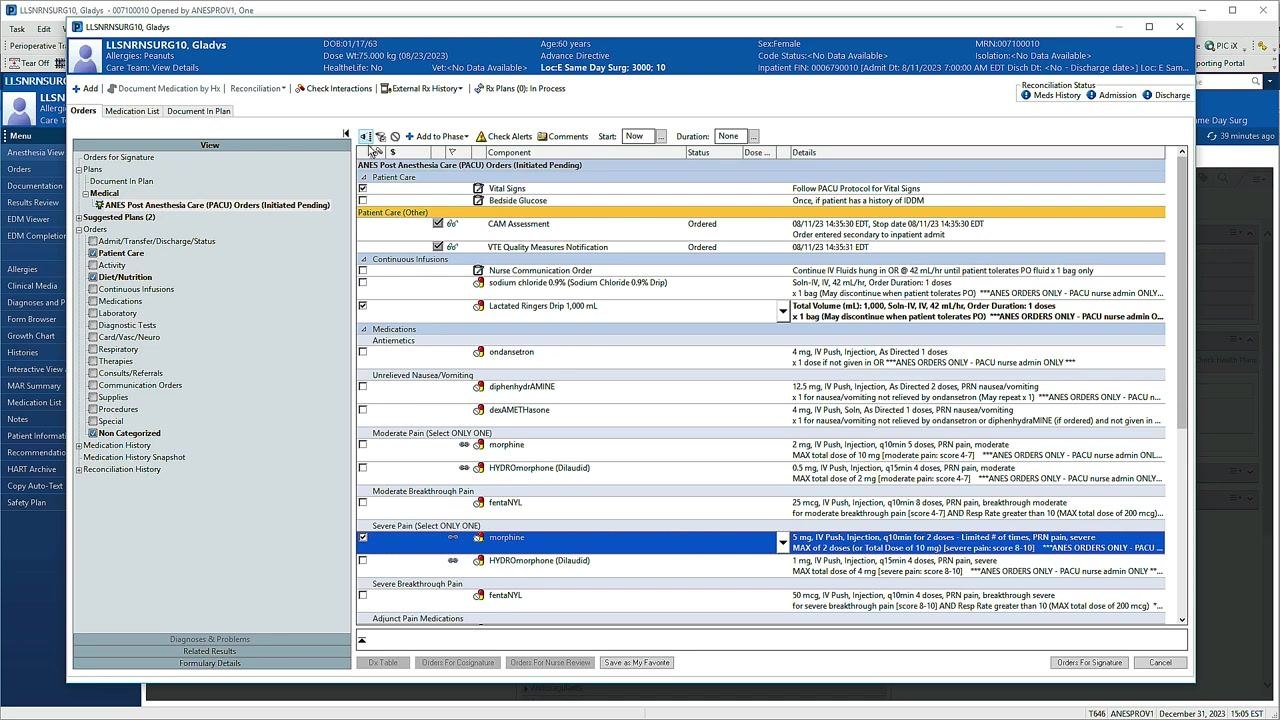
Locate the Merge View icon in the upper left of the orders window. Clicking this icon displays existing orders alongside those in the PowerPlan, helping you confirm that you are not placing duplicate orders.
Review selected orders and reduce distractions
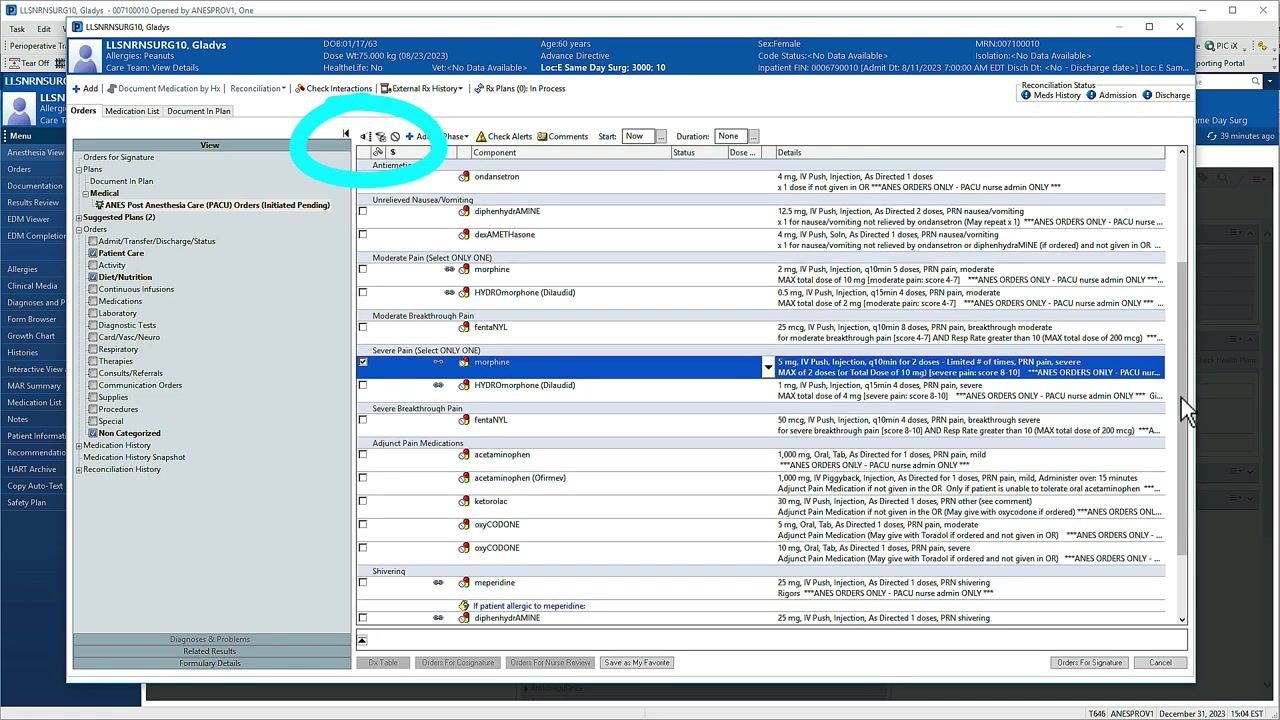
Use the filter icon next to the Merge View icon to display only the orders you have selected. This helps you quickly review your plan and limits on-screen clutter by hiding unselected orders. Confirm that your PowerPlan includes most, if not all, of the orders needed for routine patient care.
Add additional orders to the PowerPlan
If you need to add an order that isn't already part of the PowerPlan, click Add to Phase at the top of the orders pane, then click Add Order to open the order catalog. Search for and select the order you need from the catalog. This is especially useful for orders that should be discontinued once the patient leaves the PACU.
Sign your orders
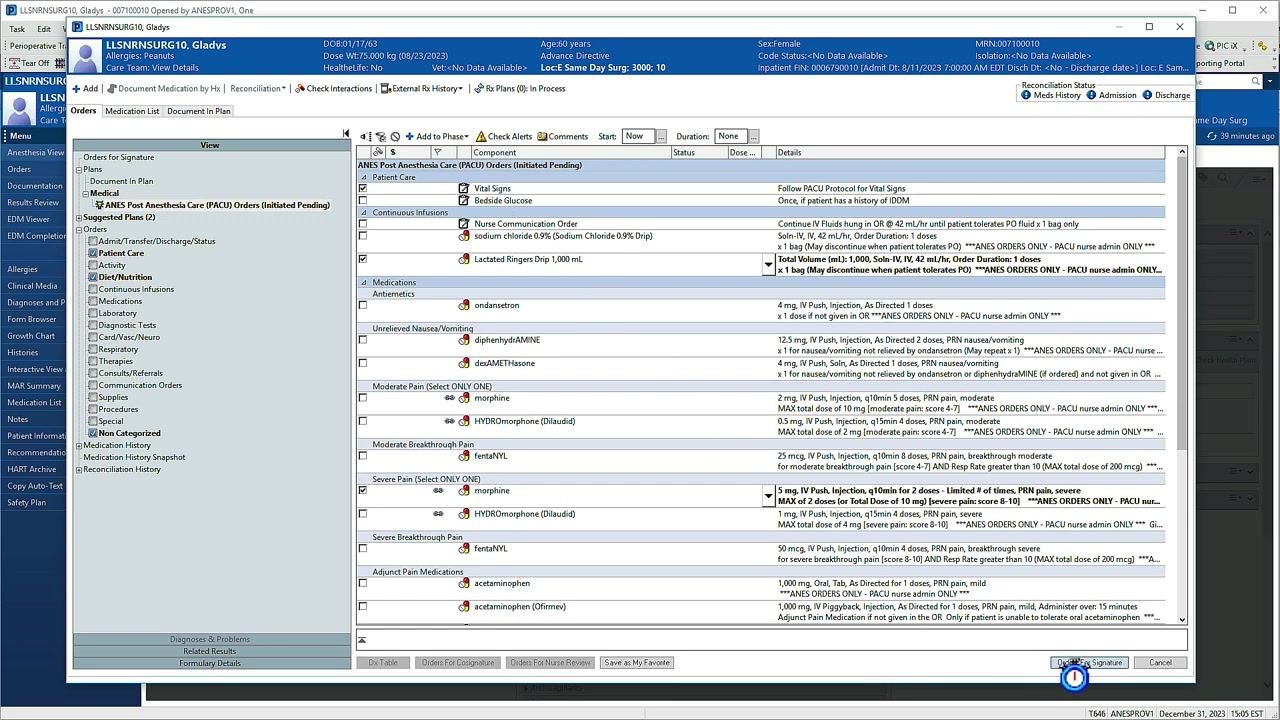
Once you have reviewed and finalized all orders, click Orders for Signature in the lower right corner of the orders window. Review the summary of orders to be signed, then click Sign to complete the order entry process. This finalizes your orders and submits them for execution.
Summary
By following these steps, you can efficiently search for, select, modify, and finalize orders within the PACU PowerPlan, ensuring accurate and complete documentation of patient care instructions in PowerChart.
Generation details: cost, quality tiers
Docsie billed 1,500 credits ($1.05) to analyze this 3-minute video at standard quality. The rewrite, template fill and Word/PDF exports were included. The same video at each quality tier:
| Quality | Frames sampled | Credits | Approx. cost |
|---|---|---|---|
| Draft | every 16-30 s | 750 | $0.52 |
| Standard (this guide) | every 8-15 s | 1,500 | $1.05 |
| Detailed | every 4-7 s | 3,000 | $2.10 |
| Ultra | every 1-3 s | 6,000 | $4.20 |
Credits priced at $0.70 per 1,000; plans include a monthly allowance. Enterprise customers on on-premise or bring-your-own-model deployments run this on their own inference and pay no per-video credits.
Generated by Docsie Video-to-Docs on 2026-10-25 from a 2-minute video. Screenshots are frames from the source video and belong to their creator, Cerner How To, whose original is embedded above. If you own this video and want the guide removed or credited differently, contact us and we will act within one business day.