
How to Create AutoText in Cerner PowerChart
AutoText in Cerner PowerChart lets you insert pre-built documentation templates into your clinical notes with just a few keystrokes, saving time and ensuring consistency across your charting. This guide walks you through how to use existing AutoText entries, how to create AutoText in Cerner PowerChart from scratch, how to edit existing templates, and how to insert your saved AutoText into a note.
Video: Cerner Physicians Fair Creating Autotext by Cerner Training (2017). All credit for the demonstration goes to the creator; watch the original on YouTube. The written guide below was generated from this video by Docsie. Creator? Request a change or removal.
AutoText in Cerner PowerChart lets you insert pre-built documentation templates into your clinical notes with just a few keystrokes, saving time and ensuring consistency across your charting. This guide walks you through how to use existing AutoText entries, how to create AutoText in Cerner PowerChart from scratch, how to edit existing templates, and how to insert your saved AutoText into a note.
Prerequisites
- Access to a documentation section in Cerner PowerChart (such as Subjective/History of Present Illness, Objective/Physical Exam, or Review of Systems).
- Text you want to save as a reusable template, if you plan to create a new AutoText entry.
Using existing AutoText
Navigate to a documentation section
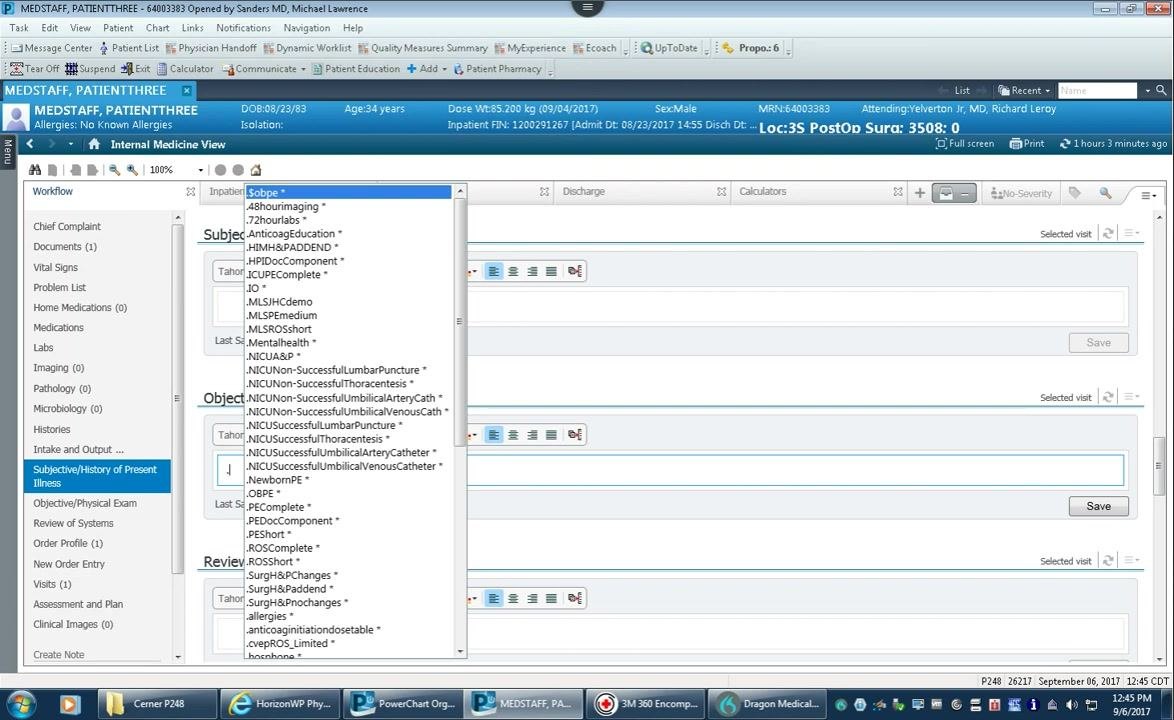
Go to the section of your workflow where you need to enter new data, such as Subjective/History of Present Illness, Objective/Physical Exam, or Review of Systems. Each section in the Cerner interface includes a text entry area and a formatting toolbar.
Trigger the AutoText menu
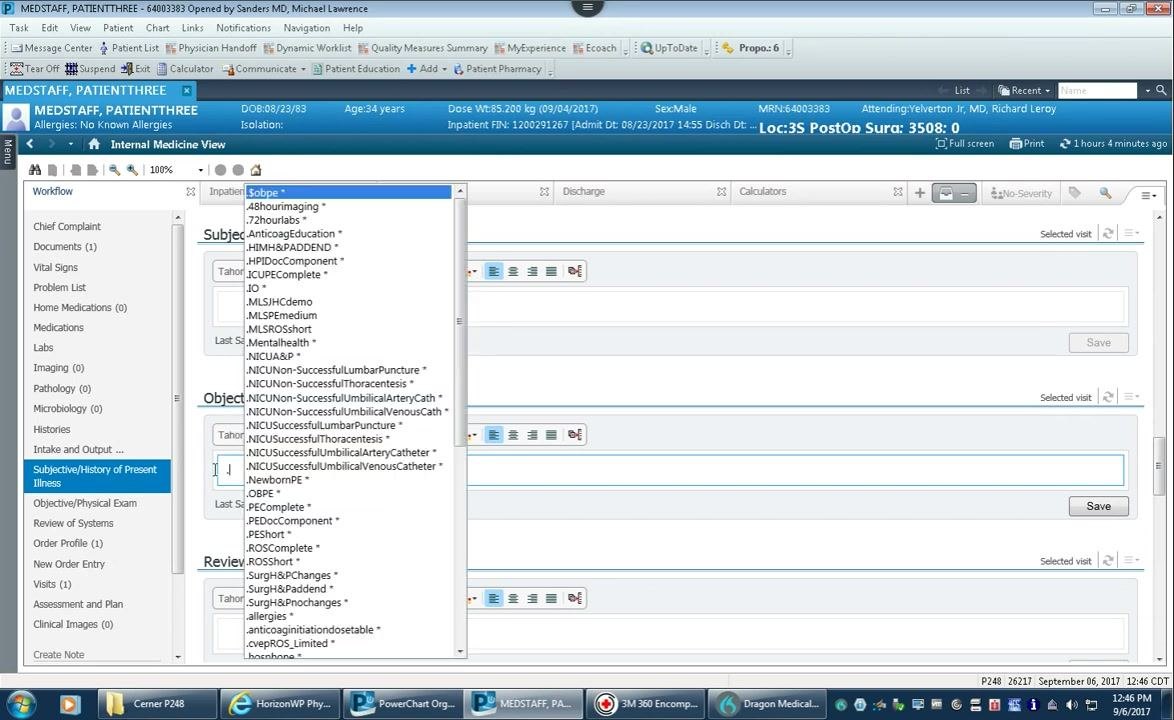
Begin your entry with a punctuation mark, typically a period (.). After you type the period, a dropdown menu appears listing both built-in and personal AutoText templates, such as .8hourimaging, .72hourlabs, and .PEE.
AutoText entries are case sensitive, so make sure you use the correct capitalization when typing your abbreviation.
Select and insert the template
Select the desired AutoText template from the dropdown using your mouse or keyboard. For example, typing .PEE (case sensitive) filters the list to show matching templates, such as .mlsRO2, .mlsRQ3, or .mlssuperPE.
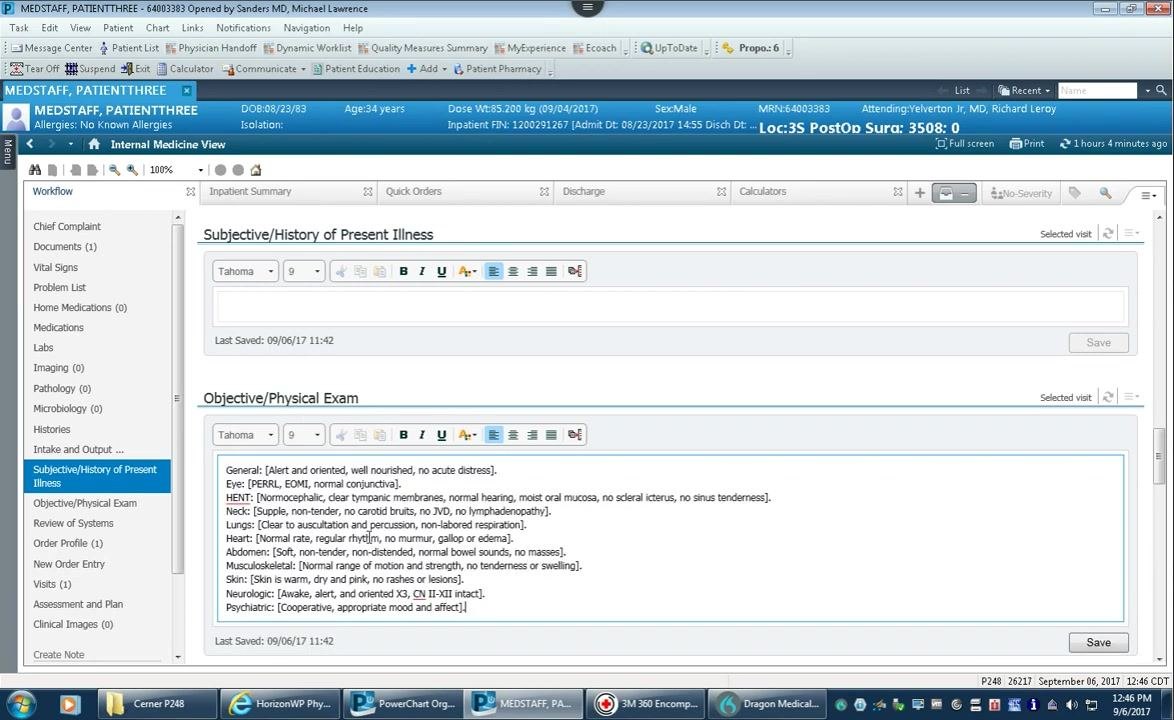
Once you select a template, it automatically populates the text entry area with the predefined content. For example, selecting an AutoText for the physical exam inserts a detailed template covering General, Eye, HENT, Neck, Lungs, Heart, Abdomen, Musculoskeletal, Skin, Neurologic, and Psychiatric findings.
Creating a new AutoText
Copy the content you want to save
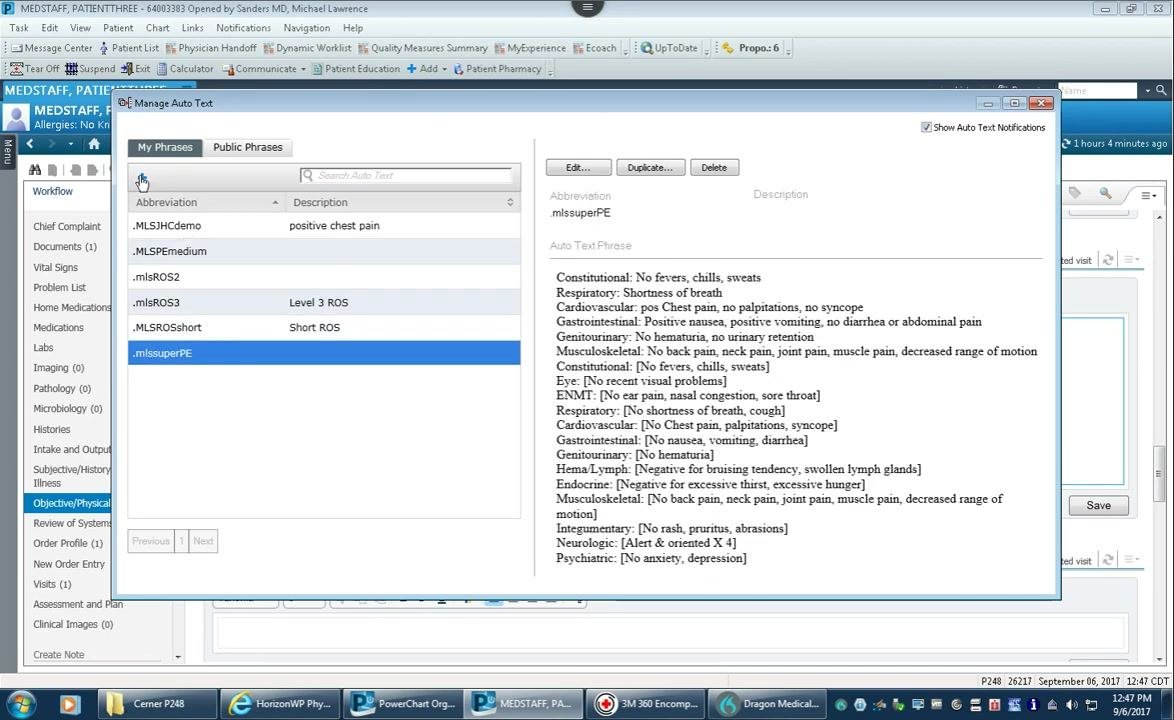
Highlight the default or existing text in the entry area that you want to save as AutoText. Right-click and select Copy to copy the content, then click the Manage Auto Text icon (a document with a red "A") in the formatting toolbar above the text entry area.
Start a new AutoText entry
In the Manage Auto Text window, click the plus sign (+) to create a new AutoText entry. The window displays fields for Abbreviation, Description, and a main content area for your AutoText phrase, with your existing AutoText entries listed on the left along with their abbreviations and descriptions.
Paste your content
Right-click in the blank content area and select Paste to insert the text you copied earlier. The pasted content appears in the main text area, ready for editing.
Set the abbreviation
In the Abbreviation field, enter your desired shortcut. Start with a punctuation mark such as a period (.), comma (,), or backslash (\), followed by your lowercase initials as a prefix (for example, .mls), and a descriptive suffix such as PE for Physical Exam — resulting in an abbreviation like .mlsPE.
Add a description
In the Description field, enter a brief explanation of the AutoText's purpose. For example, type Complete PE to indicate a complete physical exam template.
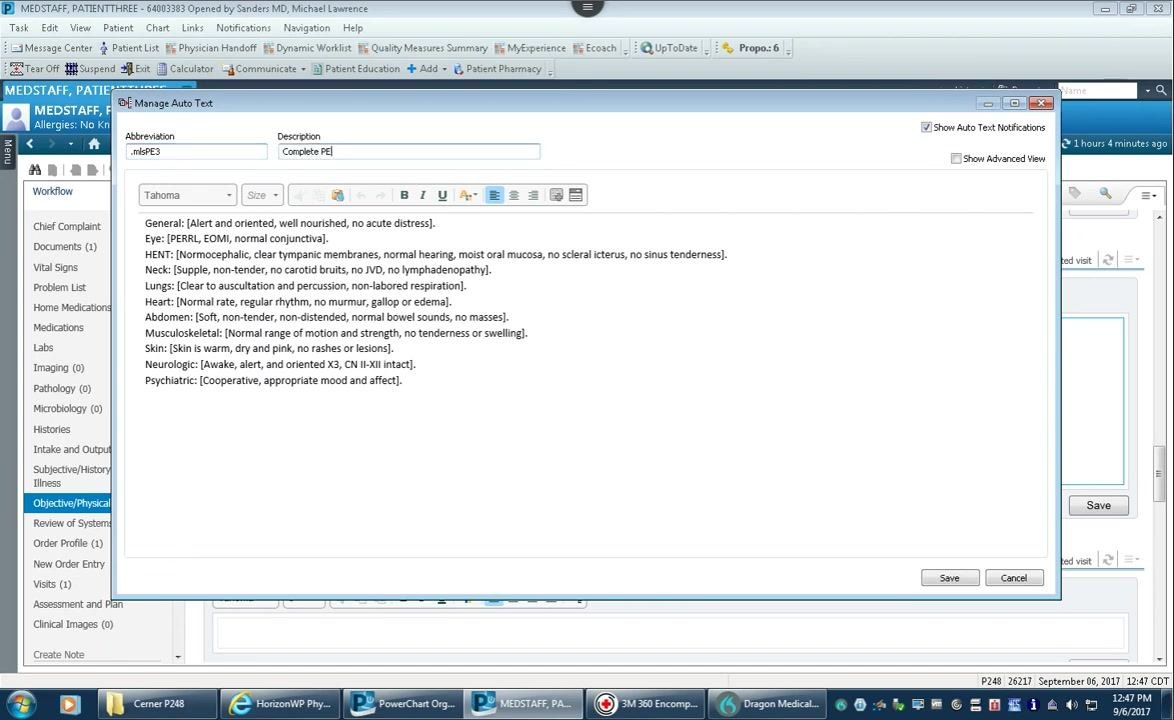
Customize the template content
You can use brackets [ ] to define editable fields within your template. Each bracketed section is treated as a separate field. For example:
General: [Alert and oriented, well nourished, no acute distress].
Eye: [PERRL, EOMI, normal conjunctiva].
HENT: [Normocephalic, clear tympanic membranes, normal hearing, moist oral mucosa, no scleral icterus, no sinus tenderness].
Neck: [Supple, non-tender, no carotid bruits, no JVD, no lymphadenopathy].
Lungs: [Clear to auscultation and percussion, non-labored respiration].
Heart: [Normal rate, regular rhythm, no murmur, gallop or edema].
Abdomen: [Soft, non-tender, non-distended, normal bowel sounds, no masses].
Musculoskeletal: [Normal range of motion and strength, no tenderness or swelling].
Skin: [Skin is warm, dry and pink, no rashes or lesions].
Neurologic: [Awake, alert, and oriented X3, CN II-XII intact].
Psychiatric: [Cooperative, appropriate mood and affect].
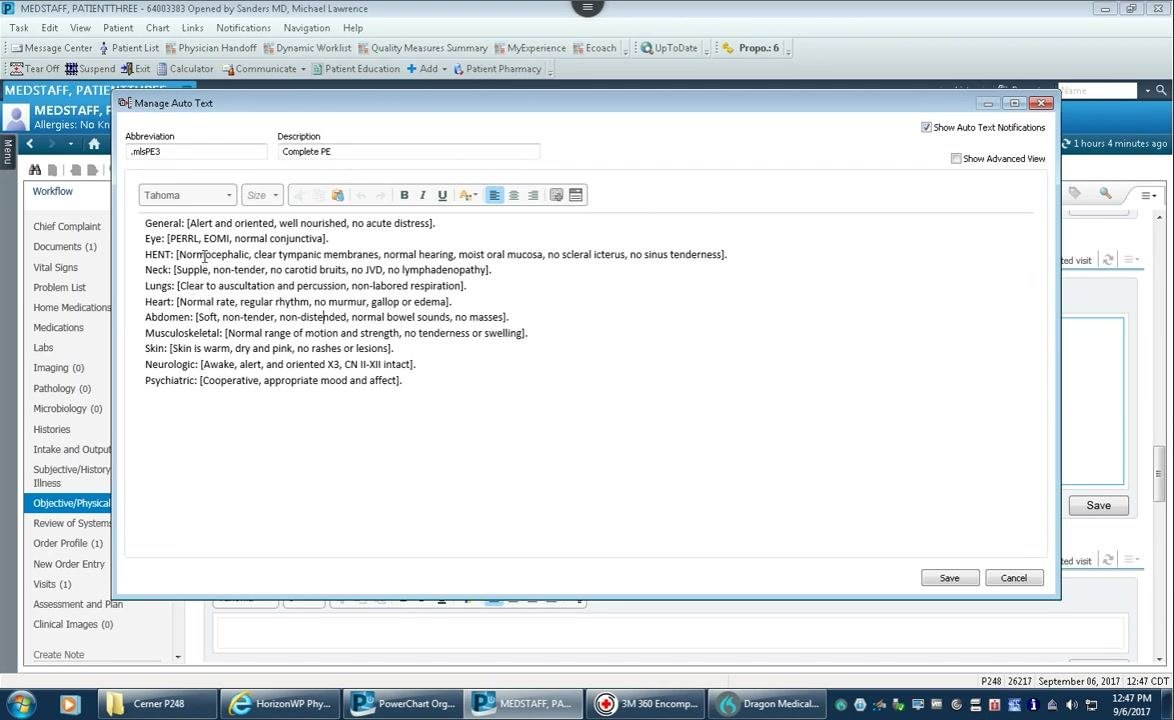
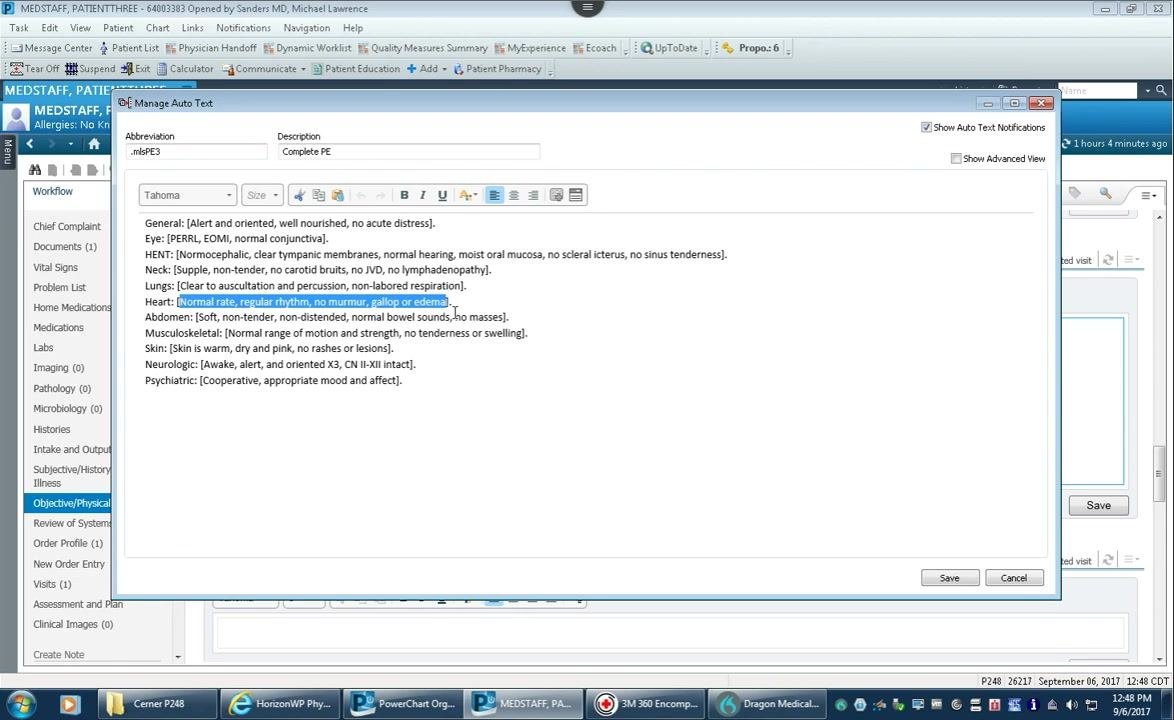
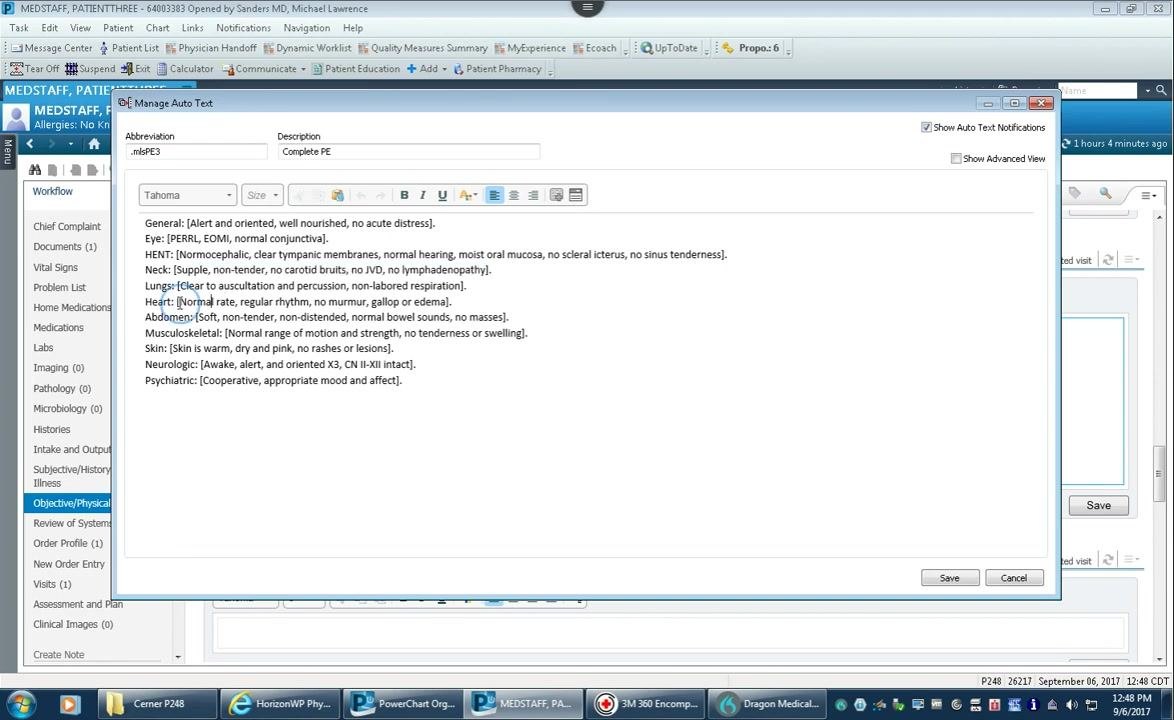
If you use voice dictation tools such as Dragon, each bracketed field can be navigated with the "next field" command or arrow keys on your microphone. Saying "next field" highlights the entire bracketed section, letting you overwrite the default text if needed.
For each field, enter the default value you most commonly dictate. For example, for the Heart section, use [Normal rate, regular rhythm, no murmur, gallop or edema] as the default. If a patient has a different finding, use the "next field" command to highlight and replace the default text — for instance, with "tachycardic and had a two over six systolic ejection murmur."
Review your entry
Before saving, review your abbreviation, description, and content for accuracy. Confirm that all fields are bracketed as needed and that defaults are set appropriately.
Save your AutoText
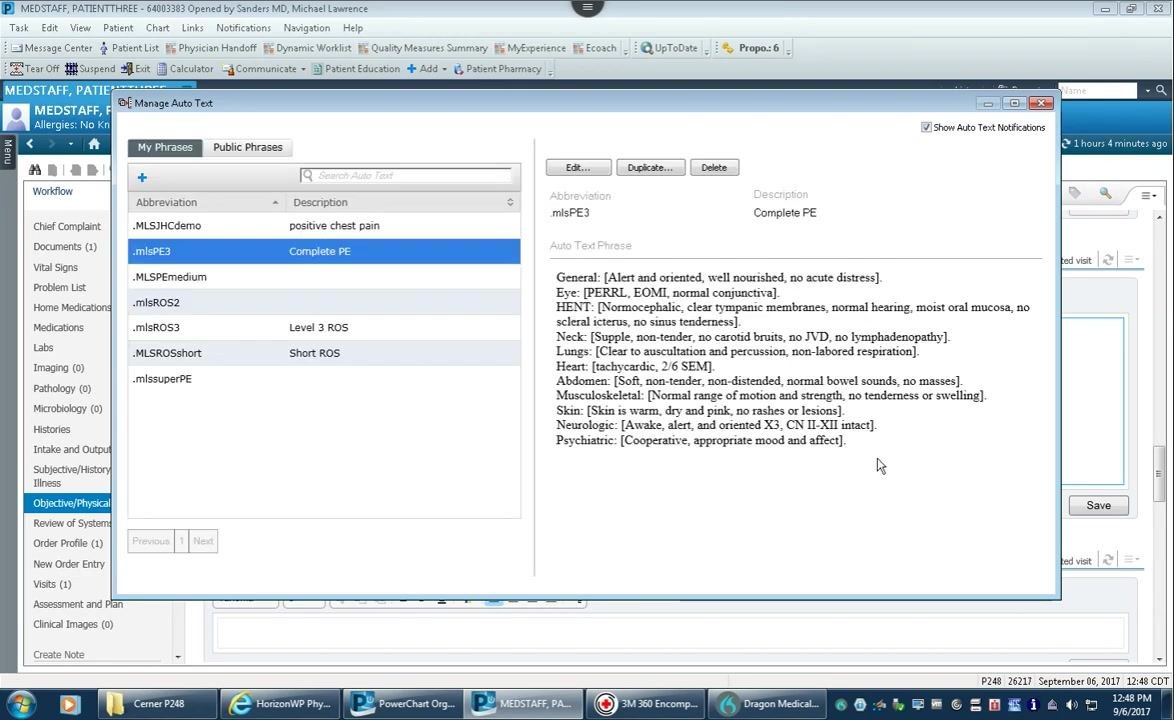
Click Save in the Manage Auto Text window to store your template. Your abbreviation (for example, .mlsPE3) and description ("Complete PE") now appear in your list of AutoText entries, and the content area displays the full template, including all bracketed fields and default values.
Confirm the new entry
In the Manage Auto Text window, confirm that .mlsPE3 appears under My Phrases with the correct description and content. You can then close the Manage Auto Text window.
Editing an existing AutoText
To edit an AutoText entry you've already created:
- Select the AutoText from the list in the Manage Auto Text window.
- Click Edit to modify the content or abbreviation as needed.
- Click Save to update your changes.
Inserting your AutoText into a note
Open the documentation area
Navigate to the documentation area where you want to use your AutoText, such as the Objective/Physical Exam section, and clear any existing content in the text area if needed.
Insert the template
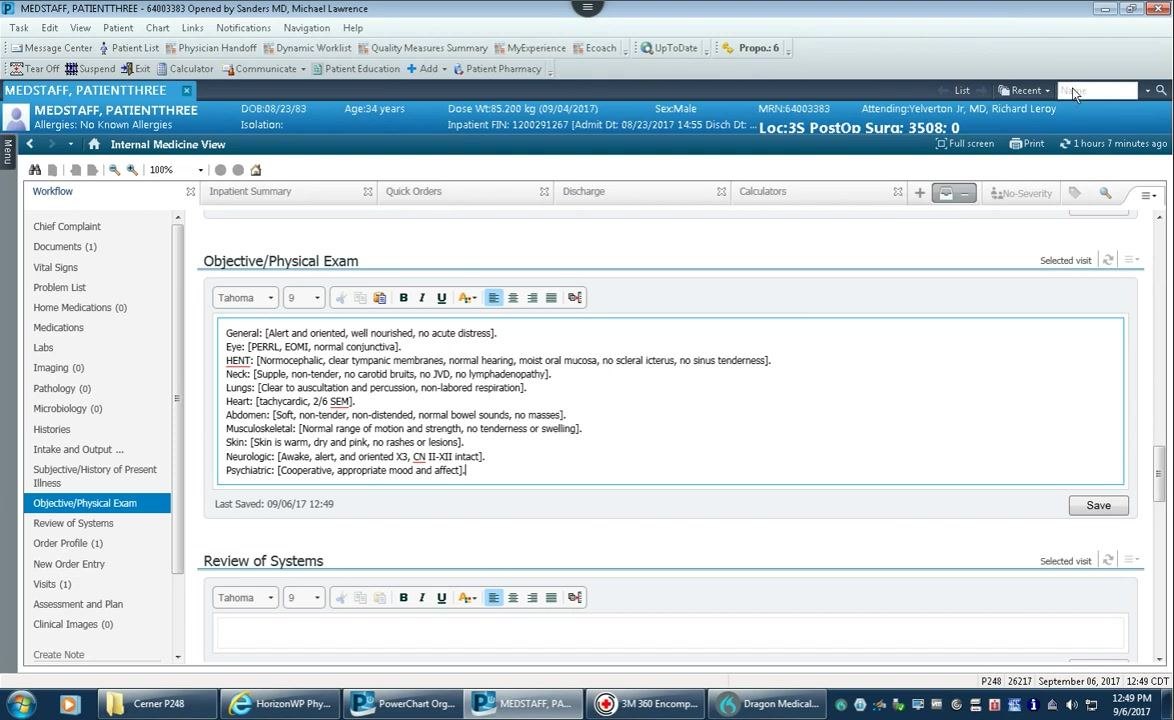
Type your AutoText abbreviation — for example, .mlsPE3 — into the documentation field and press Enter. The full AutoText template automatically populates the field, including all bracketed fields and default values.
Edit the inserted template
Use voice commands (such as "next field") or keyboard navigation to move between bracketed fields, and overwrite the default values with patient-specific findings as needed.
Save your documentation
Click Save in the documentation area to store your completed note.
What's next
By following these steps, you can use, create, and manage AutoText templates in Cerner PowerChart to streamline your documentation workflow and keep your clinical notes consistent. Once you're comfortable with the basics, consider building additional AutoText templates for other frequently used sections of your notes.
Generation details: cost, quality tiers
Docsie billed 2,000 credits ($1.40) to analyze this 4-minute video at standard quality. The rewrite, template fill and Word/PDF exports were included. The same video at each quality tier:
| Quality | Frames sampled | Credits | Approx. cost |
|---|---|---|---|
| Draft | every 16-30 s | 1,000 | $0.70 |
| Standard (this guide) | every 8-15 s | 2,000 | $1.40 |
| Detailed | every 4-7 s | 4,000 | $2.80 |
| Ultra | every 1-3 s | 8,000 | $5.60 |
Credits priced at $0.70 per 1,000; plans include a monthly allowance. Enterprise customers on on-premise or bring-your-own-model deployments run this on their own inference and pay no per-video credits.
Generated by Docsie Video-to-Docs on 2026-10-25 from a 3-minute video. Screenshots are frames from the source video and belong to their creator, Cerner Training, whose original is embedded above. If you own this video and want the guide removed or credited differently, contact us and we will act within one business day.