
How to Reconcile a Bank Account in Dynamics 365 Business Central
Reconciling a bank account in Dynamics 365 Business Central lets you compare your bank statement against the transactions recorded in the system, identify discrepancies, and confirm that your books match your actual bank balance. This guide walks you through locating a reconciliation, matching statement lines to ledger entries, posting adjustments through the general journal, and finalizing the reconciliation.
Video: Dynamics 365 Business Central - Performing a Bank Reconciliation by Dynamics Business Central and Dynamics NAV (2023). All credit for the demonstration goes to the creator; watch the original on YouTube. The written guide below was generated from this video by Docsie. Creator? Request a change or removal.
Reconciling a bank account in Dynamics 365 Business Central lets you compare your bank statement against the transactions recorded in the system, identify discrepancies, and confirm that your books match your actual bank balance. This guide walks you through locating a reconciliation, matching statement lines to ledger entries, posting adjustments through the general journal, and finalizing the reconciliation.
Prerequisites
- You must be logged into Dynamics 365 Business Central.
- You need access to the bank account you want to reconcile (for example, WWB-OPERATING).
- Have your bank statement on hand, either as a document or as an electronic file you can import.
Finding bank account reconciliations
Open the Bank Account Reconciliations page
From the Dynamics 365 Business Central dashboard, you can see company information (such as CRONUS International Ltd.), navigation menus (Finance, Cash Management, Sales, and more), and key metrics like sales and overdue invoices. Use the search function at the top of the screen to get started.
Type "Bank Account Reconciliations" into the search bar and select the matching result to open the reconciliation list.
Create a new reconciliation statement
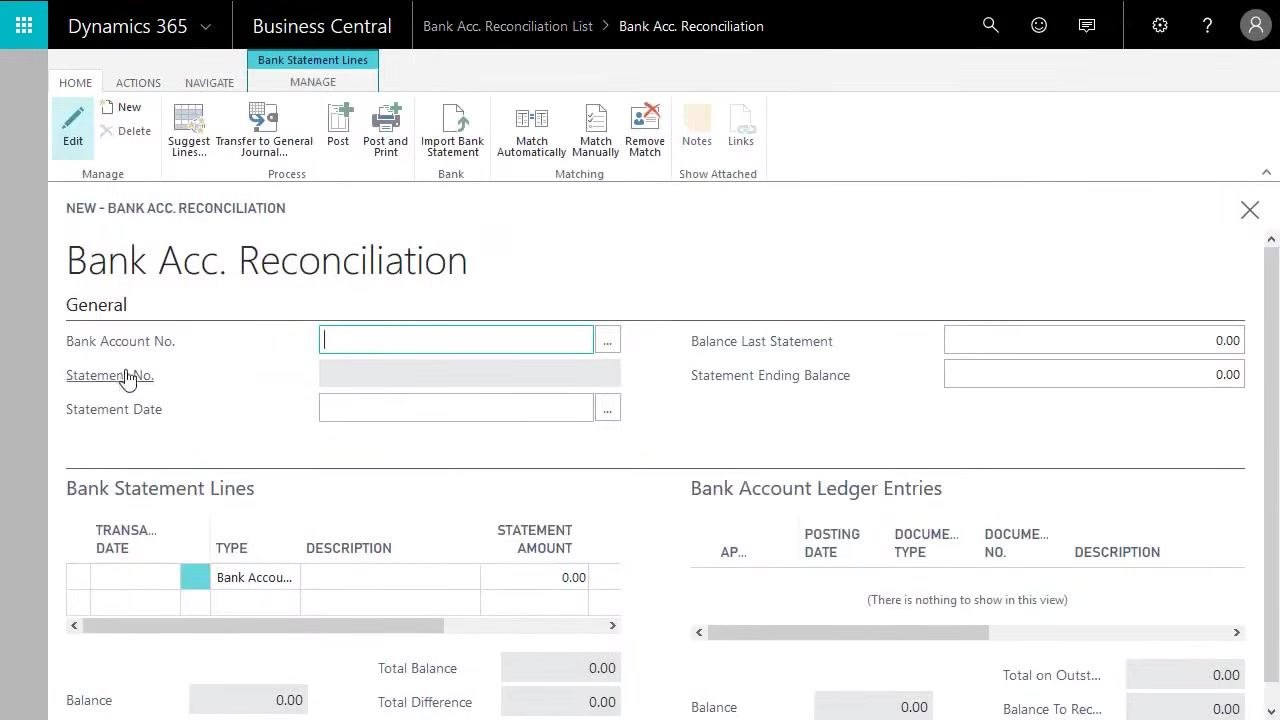
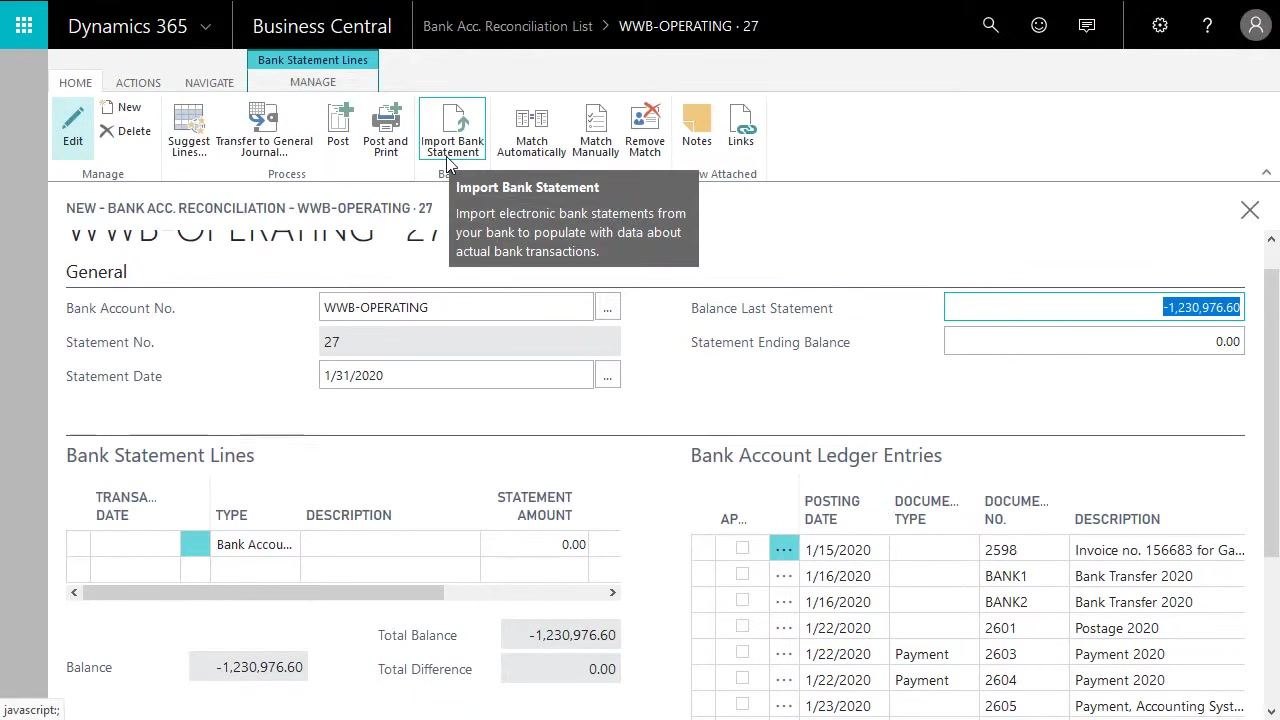
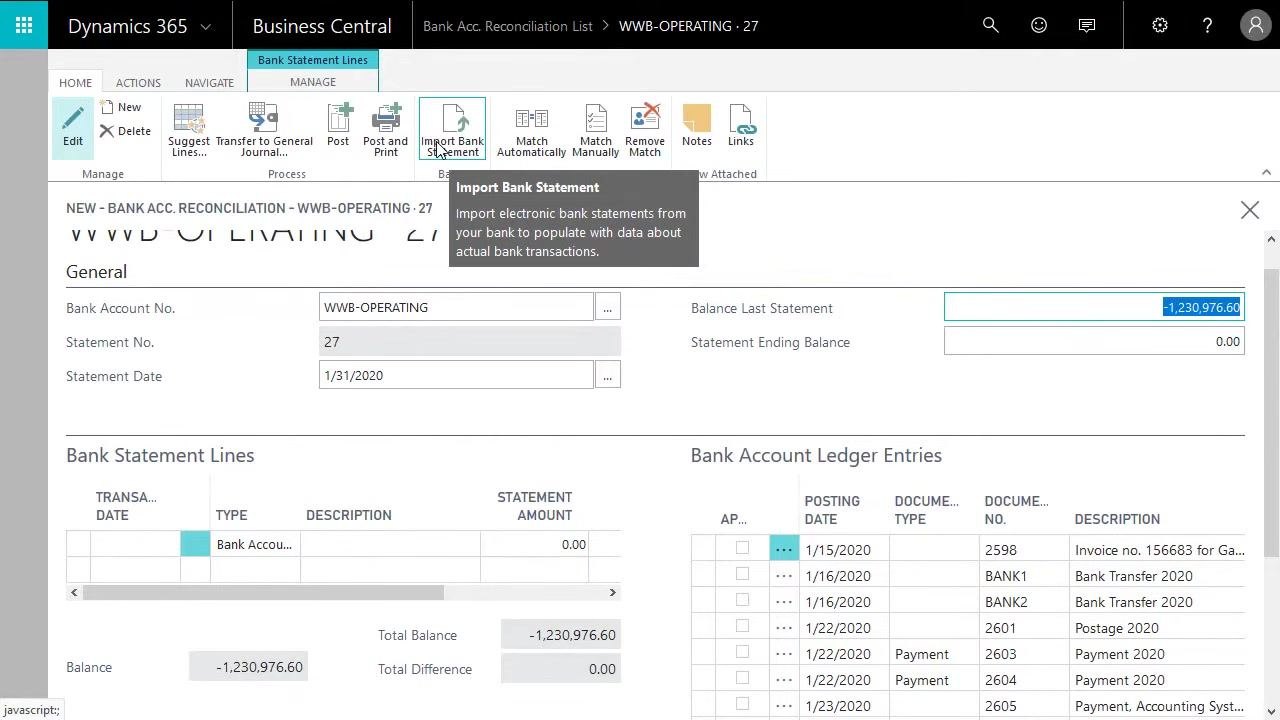
Click New to start a reconciliation. The Bank Acc. Reconciliation form opens with fields for Bank Account No., Statement No., Statement Date, Balance Last Statement, Statement Ending Balance, Bank Statement Lines, and Bank Account Ledger Entries.
Select the bank account to reconcile
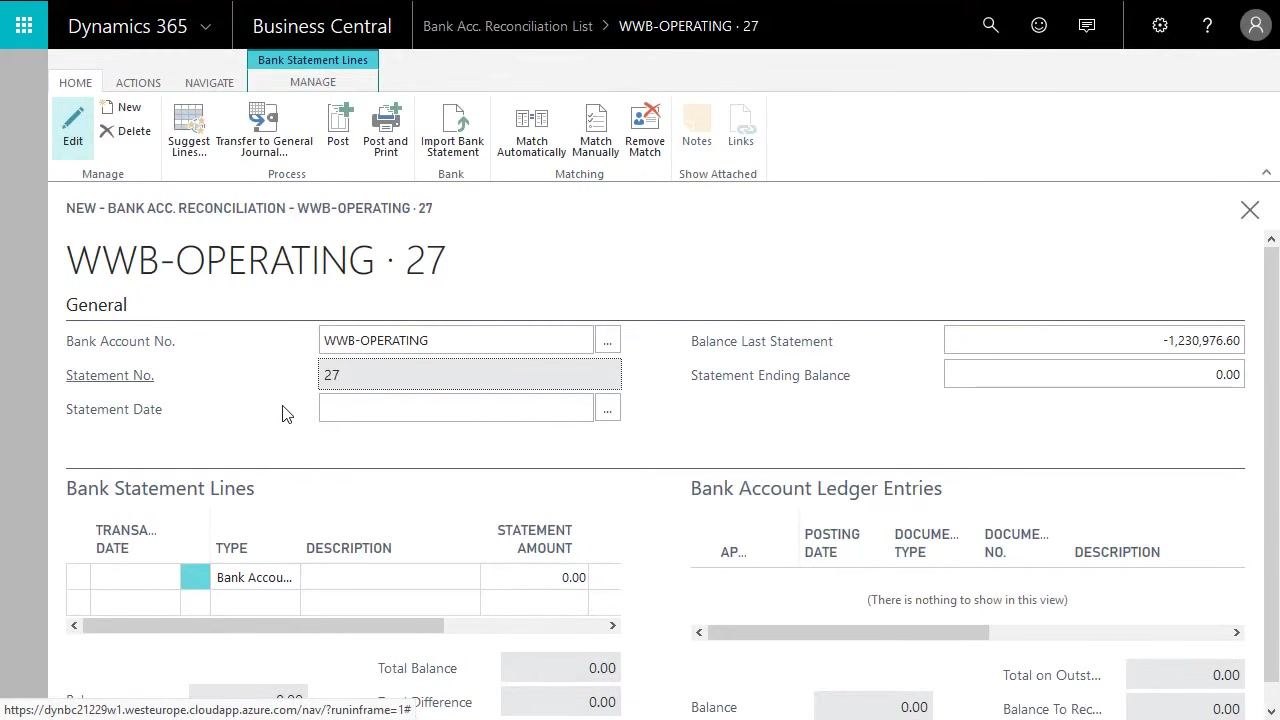
In the Bank Account No. field, choose the account you want to reconcile (for example, WWB-OPERATING). The Statement No. field updates automatically (for example, 27). Confirm that the correct account and statement number are displayed.
Enter the statement date
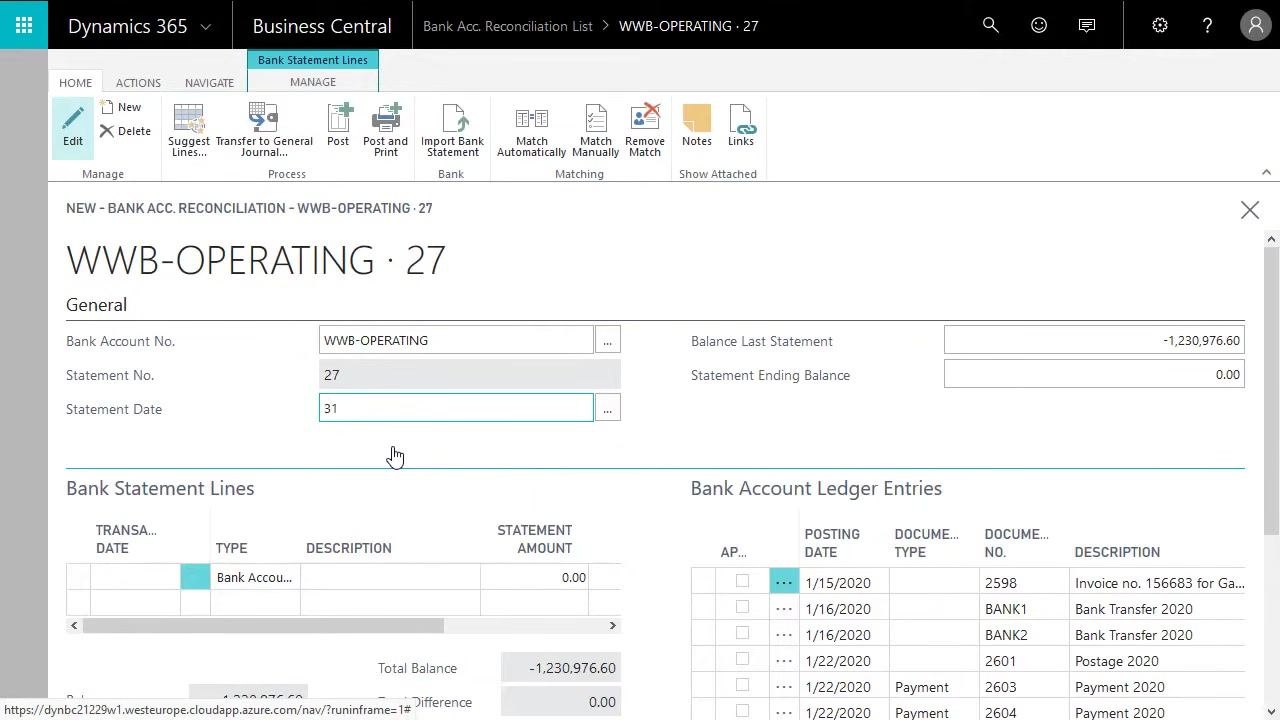
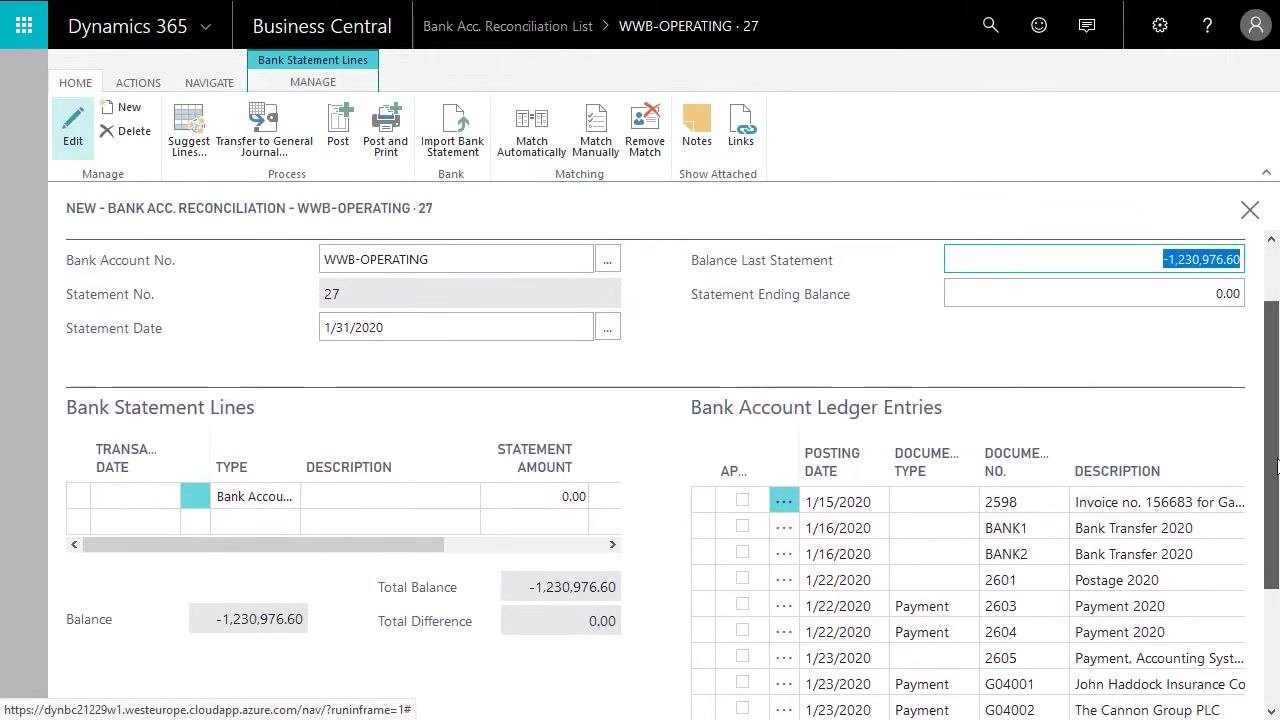
In the Statement Date field, enter the date for the reconciliation, such as 1/31/2020 for an end-of-month reconciliation. The Balance Last Statement field updates automatically (for example, -1,230,976.60), while Statement Ending Balance stays at 0.00 until you update it.
Review the bank account ledger entries
At the bottom of the form, review the Bank Account Ledger Entries section. This lists all open, unreconciled ledger entries for the selected account, including posting dates, document types, document numbers, and descriptions.
Working with bank statement lines
Import or enter bank statement lines
You have two ways to populate the statement lines:
- Import Bank Statement — click this button to upload an electronic statement from your bank. It populates the statement lines with your actual bank transactions. Hovering over this button shows the tooltip: "Import electronic bank statements from your bank to populate with data about actual bank transactions."
- Suggest Lines — use this option if you don't have an electronic statement. It generates lines based on existing system data.
Generate statement lines with Suggest Lines
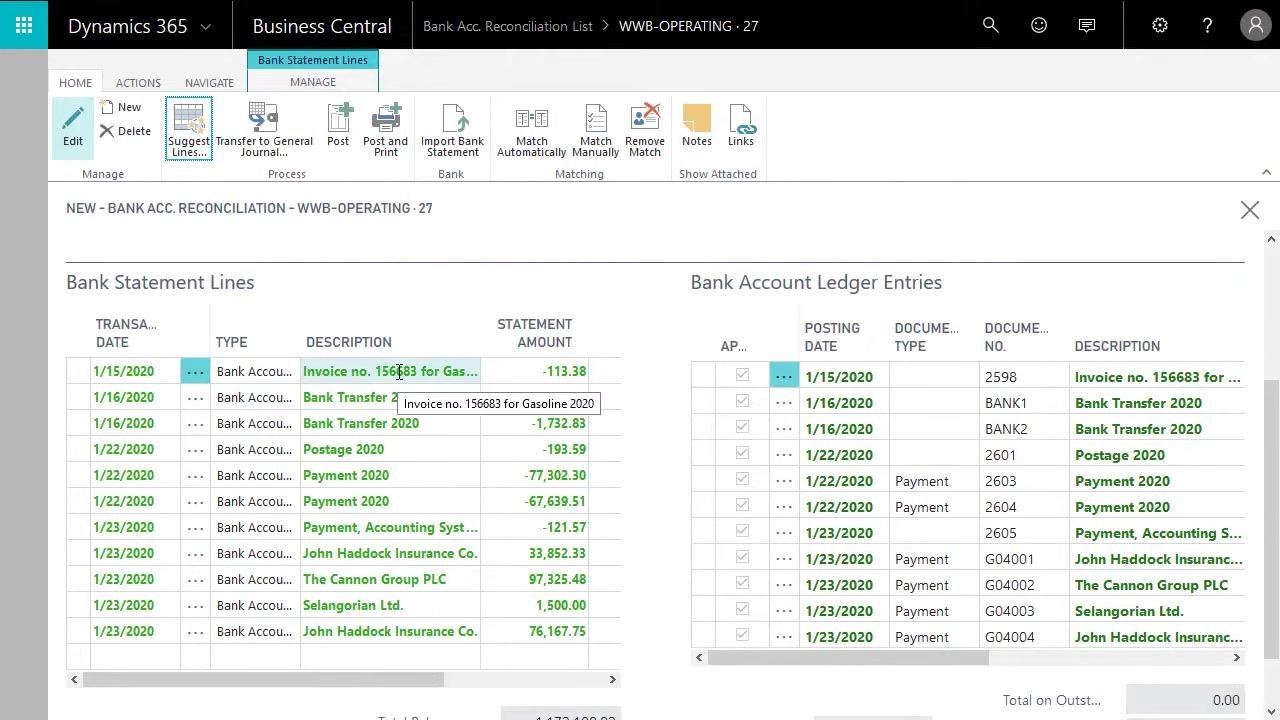
If you're not importing an actual bank statement, use Suggest Lines to automatically generate bank statement lines from open bank account ledger entries. Leave the starting date blank and enter only the ending date (for example, 1/31/2020) unless you need to filter for a specific period. Optionally include checks or other transaction types, then click OK to confirm.
The system populates the Bank Statement Lines section on the left with entries that mirror the open ledger entries on the right.
When you use Suggest Lines without importing a bank statement, each statement line corresponds directly to an open ledger entry, because the ledger entries are the only available data source. Review the generated lines against your actual bank statement to confirm they match.
Review and adjust the statement lines
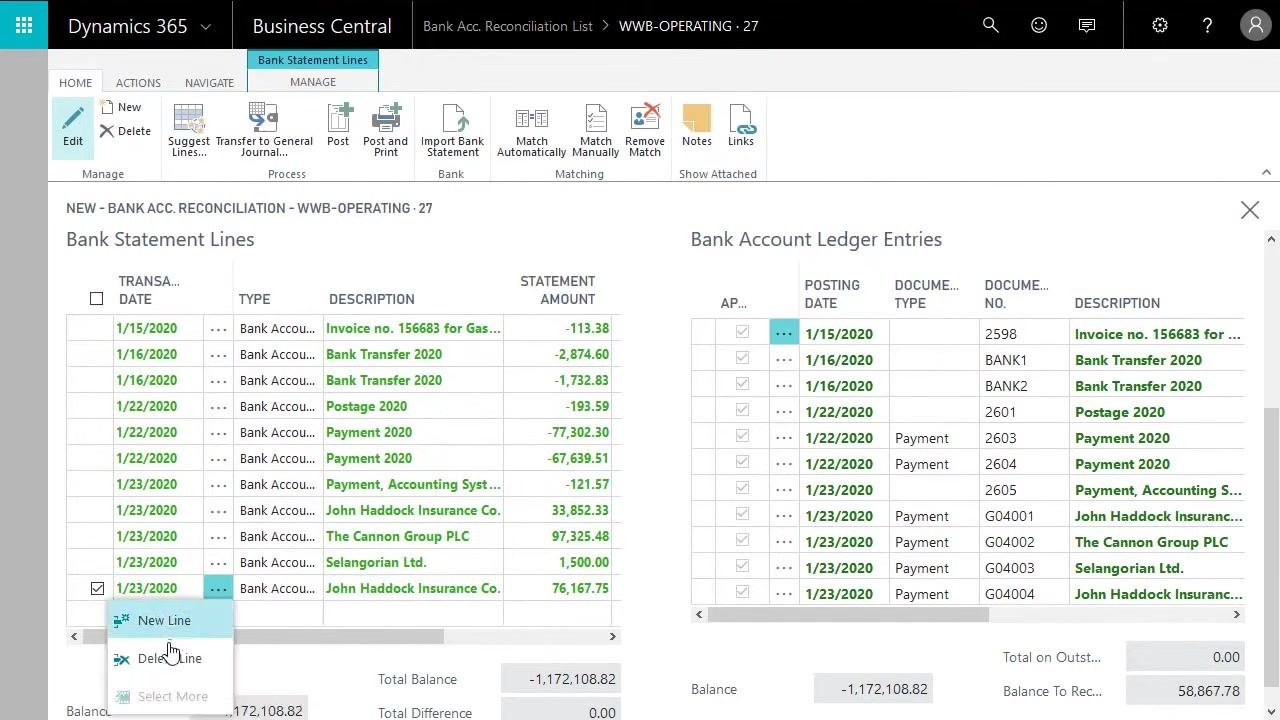
Compare the generated statement lines on the left with your actual bank statement. If a transaction appears in Business Central but not on your bank statement — for example, one posted at the end of the month that will appear on next month's statement — remove it from this reconciliation.
Select the line in the Bank Statement Lines section that doesn't appear on your statement. Click the ellipsis (three dots) next to the line, then select Delete Line from the dropdown menu.
After you delete a line, the corresponding bank account ledger entry on the right is no longer matched. This entry stays open and becomes available for the next reconciliation period. Check that Total Balance and Total Difference at the bottom of the Bank Statement Lines section reflect the correct values after your adjustment.
Recording missing transactions through the general journal
Enter a transaction that isn't posted yet in Business Central
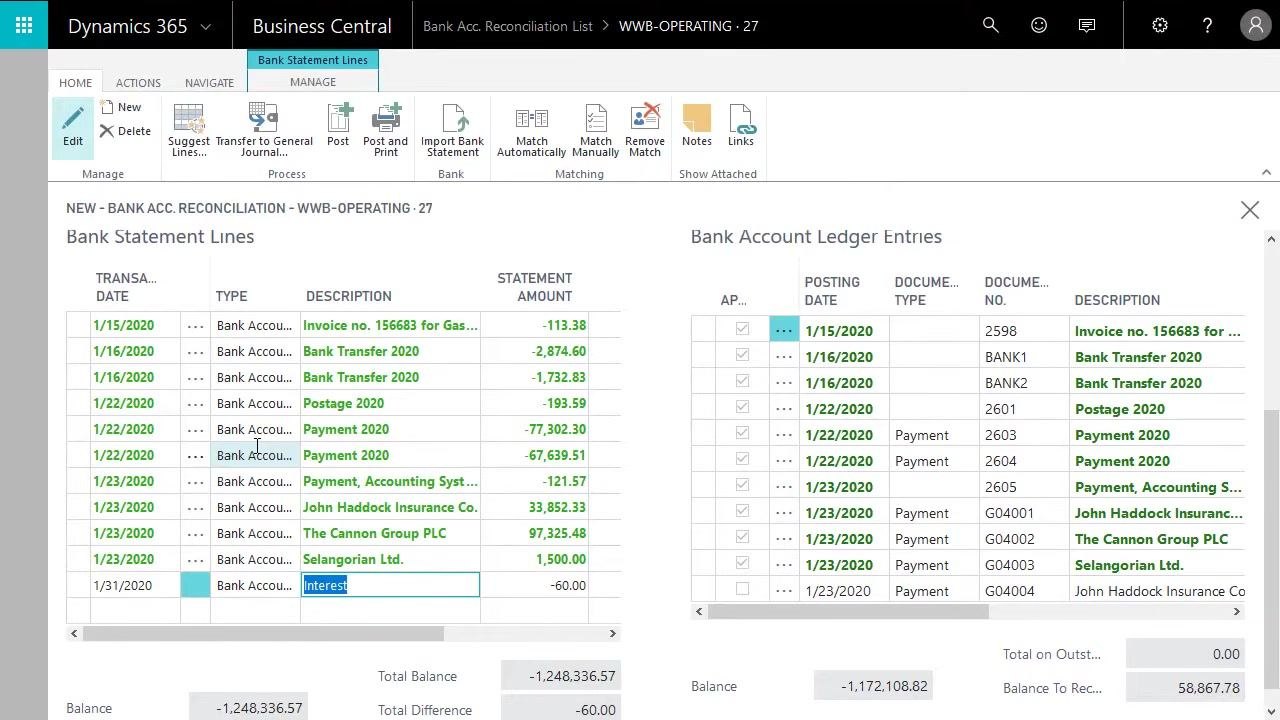
If your bank statement shows an amount that doesn't appear in Business Central, enter it manually. Scroll to the bottom of the Bank Statement Lines section and enter:
- The transaction date from your bank statement (for example, 1/31/2020).
- The Type, selecting from Bank Account Ledger Entry, Check Ledger Entry, or Difference (for this example, choose Bank Account Ledger Entry).
- A clear description, such as "Interest."
- The statement amount exactly as shown on your bank statement (for example, -60.00 for interest expense).
Transfer the line to the general journal
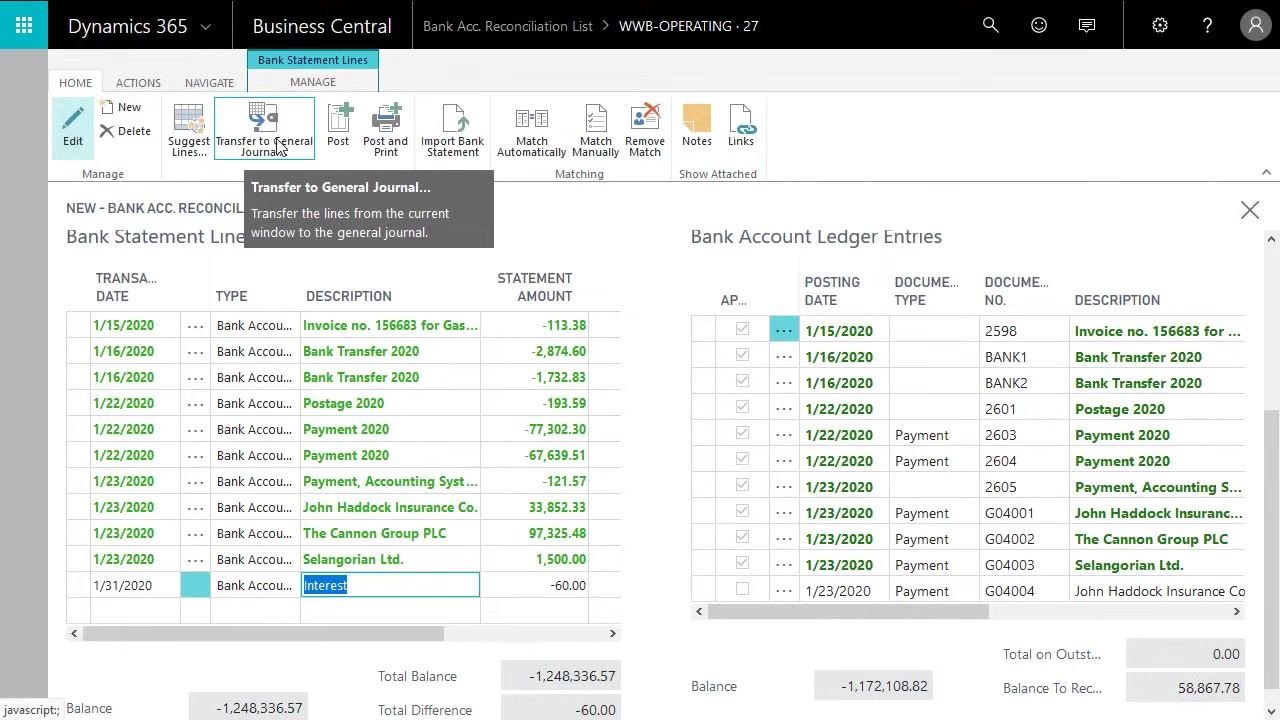
After entering the new line, post it to Business Central so it can be reconciled against your actual bank statement. In the ribbon, click Transfer to General Journal.
In the Saved Settings dialog, select the appropriate General Journal Template (for example, GENERAL) and General Journal Batch (for example, RECON). You can use a dedicated batch for reconciliations or the default batch. Click OK to proceed.
Open the general journal and enter the transaction
Navigate to the Edit - General Journal screen and confirm that the batch name is set to RECON. Enter a journal line with the following values:
- Posting Date: 1/31/2020
- Description: Interest
- Amount: 60.00
- Amount (LCY): 60.00
- Bal. Account Type: Bank Account
- Bal. Account No.: WWB-OPERATING
This entry will be used in the reconciliation.
Assign the correct interest account
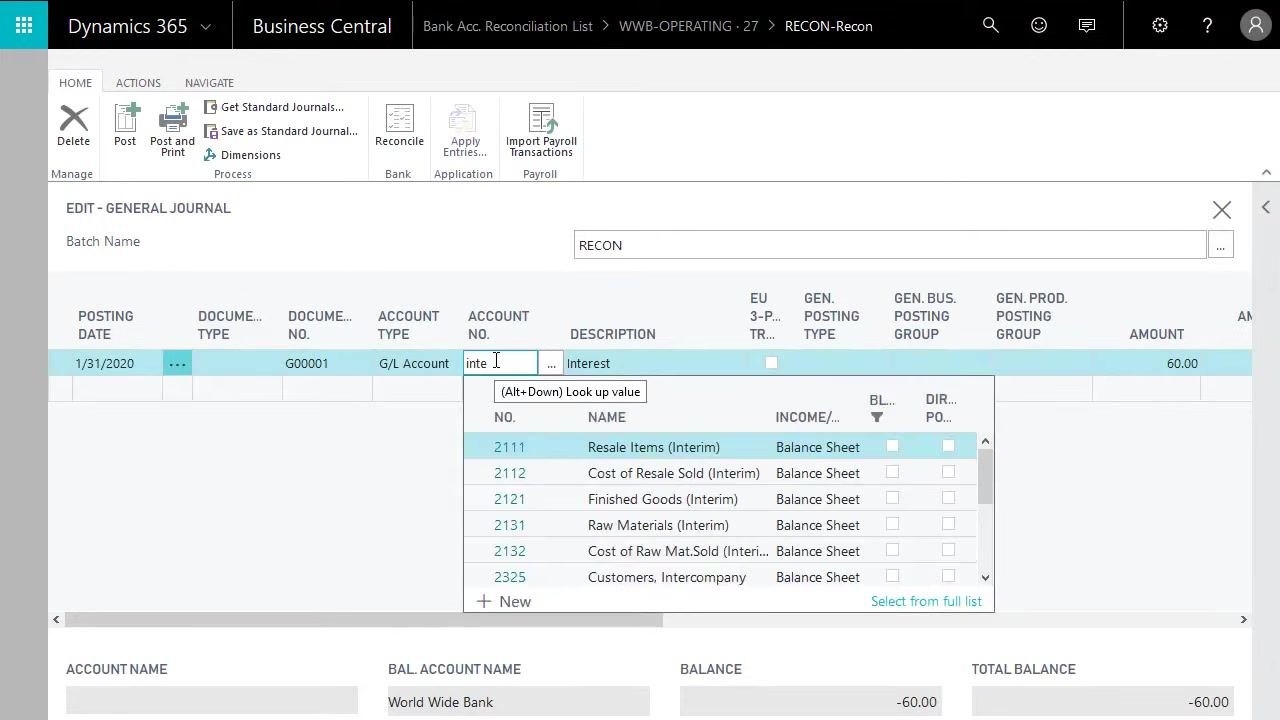
In the Edit - General Journal window, locate the line with the posting date (for example, 1/31/2020), document number (for example, G00001), and account type G/L Account. In the Account No. field, start typing the account name or number (for example, "inte" to search for "Interest"), then use the lookup feature (Alt+Down or the lookup button) to display available accounts.
Scroll through the list, which shows account numbers, names, and whether each is an income statement or balance sheet account, and select the correct interest account. Confirm the following:
- Description is filled in (for example, "Interest").
- Amount matches the bank statement line (for example, -60.00 for interest expense).
- Bal. Account Name at the bottom is set to your bank account (for example, "World Wide Bank").
- Total Balance reflects the correct amount (for example, -60.00).
This ensures the interest transaction is correctly categorized and ready for posting, keeping your financial records accurate.
Post the journal entry
Click Post in the ribbon to post the journal. Business Central creates a new bank account ledger entry that you can use in the reconciliation.
Matching and posting the reconciliation
Review the new ledger entry on the reconciliation
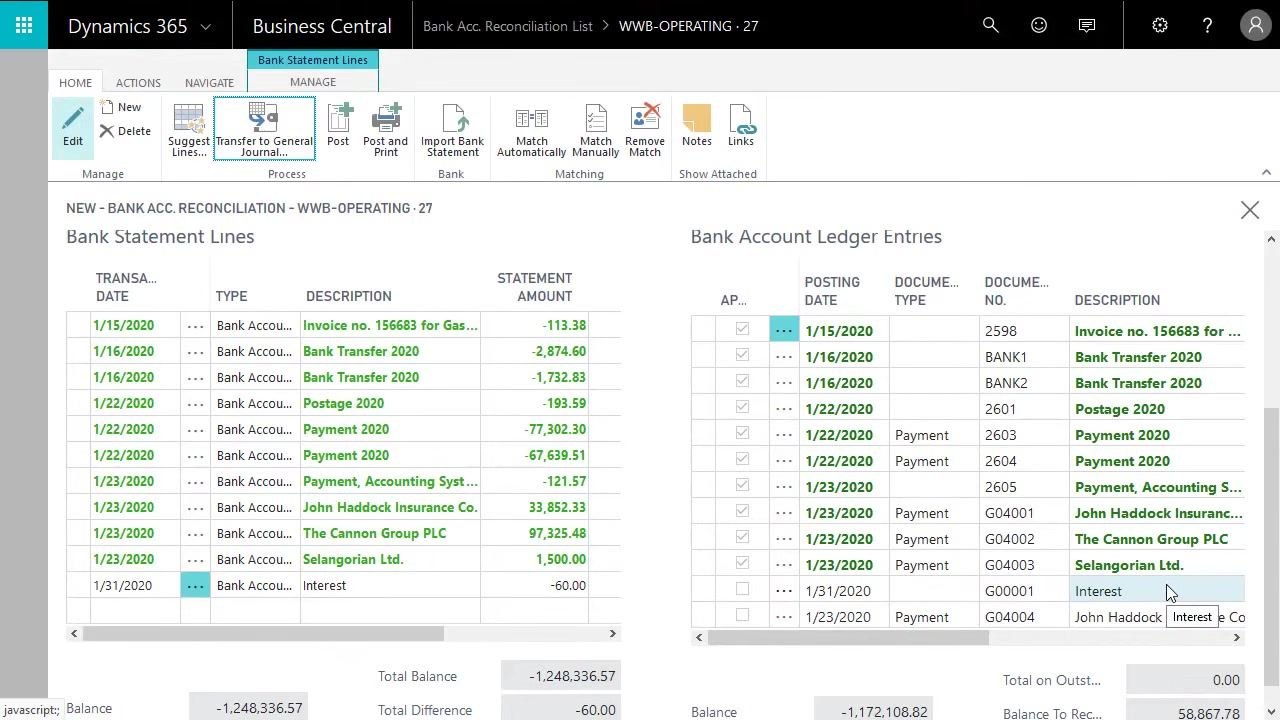
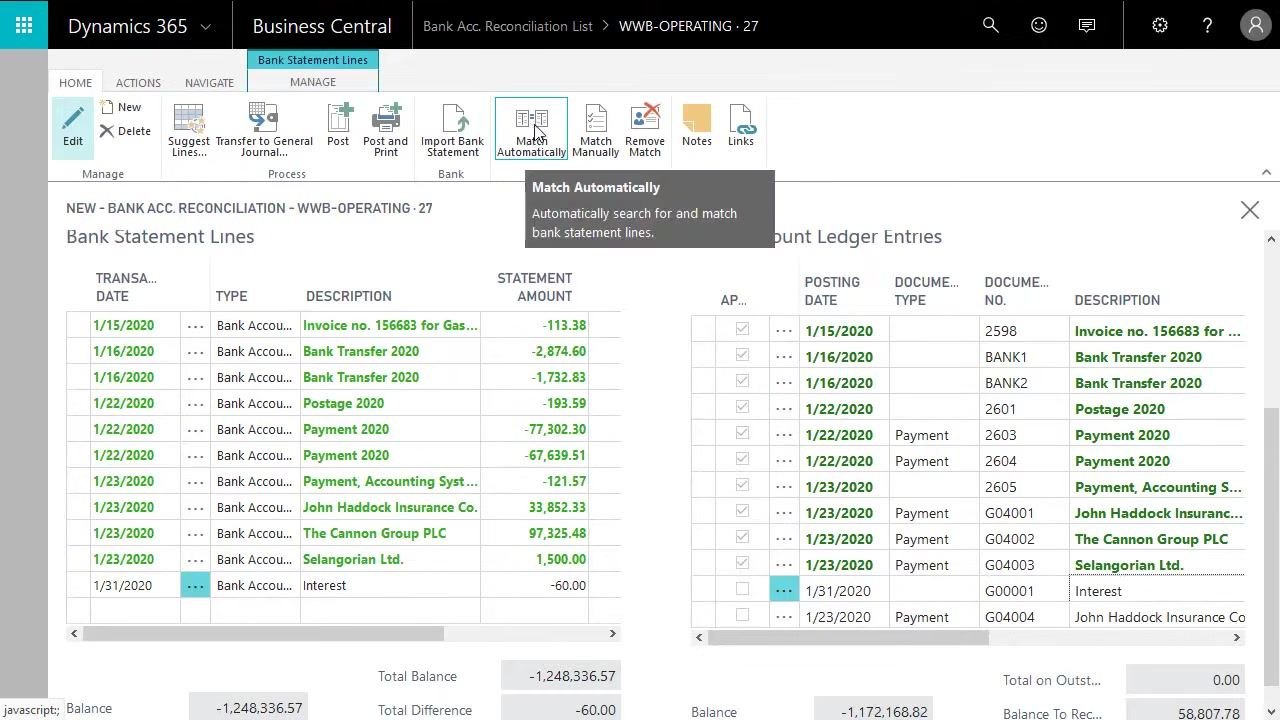
Go to the Bank Acc. Reconciliation List and select the relevant reconciliation (for example, WWB-OPERATING · 27). On the reconciliation screen, view the Bank Statement Lines on the left and the Bank Account Ledger Entries on the right. Confirm that the new "Interest" ledger entry (1/31/2020, -60.00) appears but isn't matched yet.
Match statement lines automatically
Click Match Automatically in the ribbon to let the system search for and match bank statement lines to ledger entries. Hovering over the button shows the tooltip: "Automatically search for and match bank statement lines." Run the automatic matching process.
Confirm the match
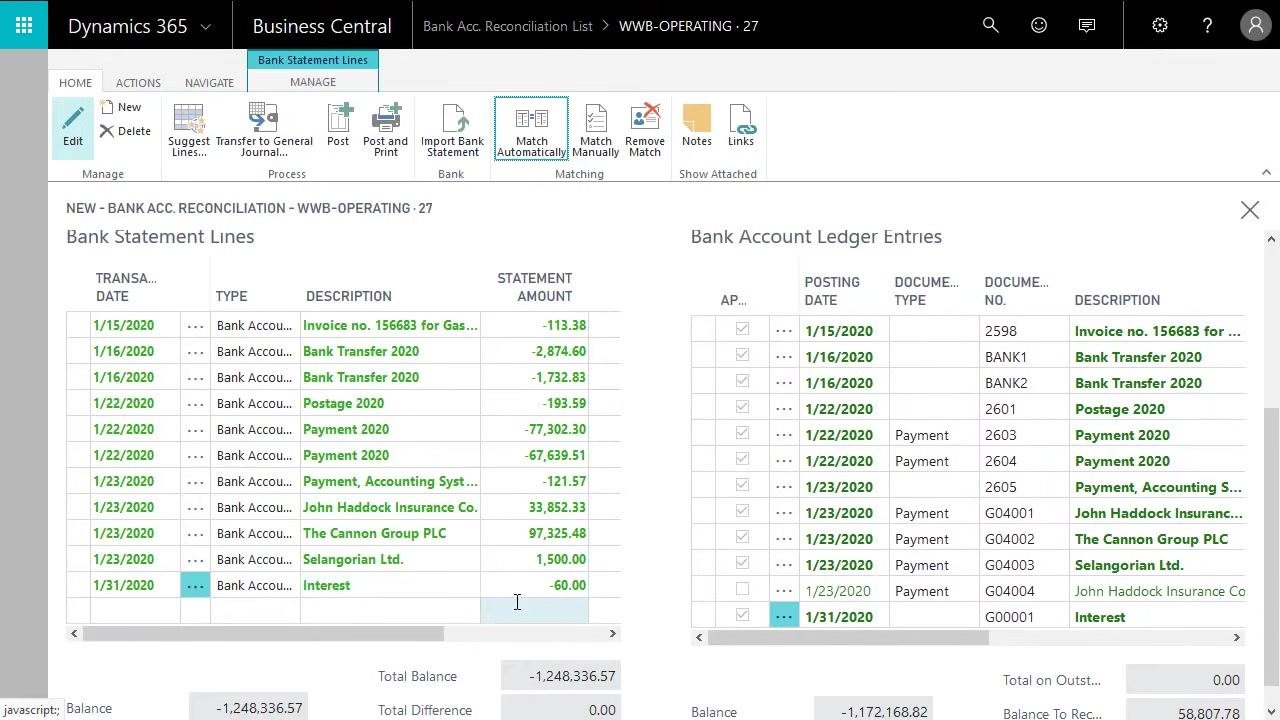
After running the match, verify that the "Interest" statement line (-60.00) for 1/31/2020 is now matched with its corresponding ledger entry. The Total Difference should now read 0.00, indicating the reconciliation is balanced.
Post the bank reconciliation
Click Post in the ribbon to finalize the reconciliation. Before posting, confirm these details:
- Bank Account No.: WWB-OPERATING
- Statement No.: 27
- Statement Date: 1/31/2020
- Balance Last Statement: -1,230,976.60
- Statement Ending Balance: -1,248,336.57
Reviewing bank account ledger entries after posting
Open the Bank Accounts overview
From the main dashboard, click Bank Accounts under the Cash Management menu to review all bank accounts.
Review the ledger entries for the reconciled account
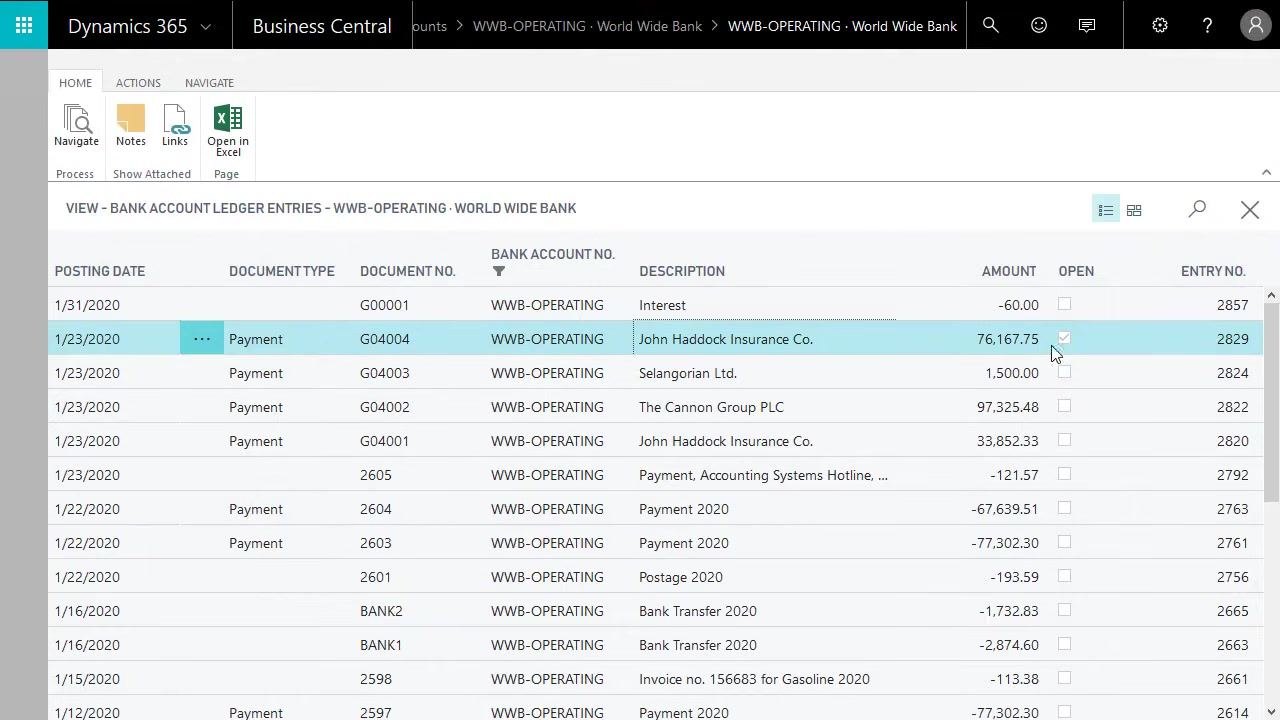
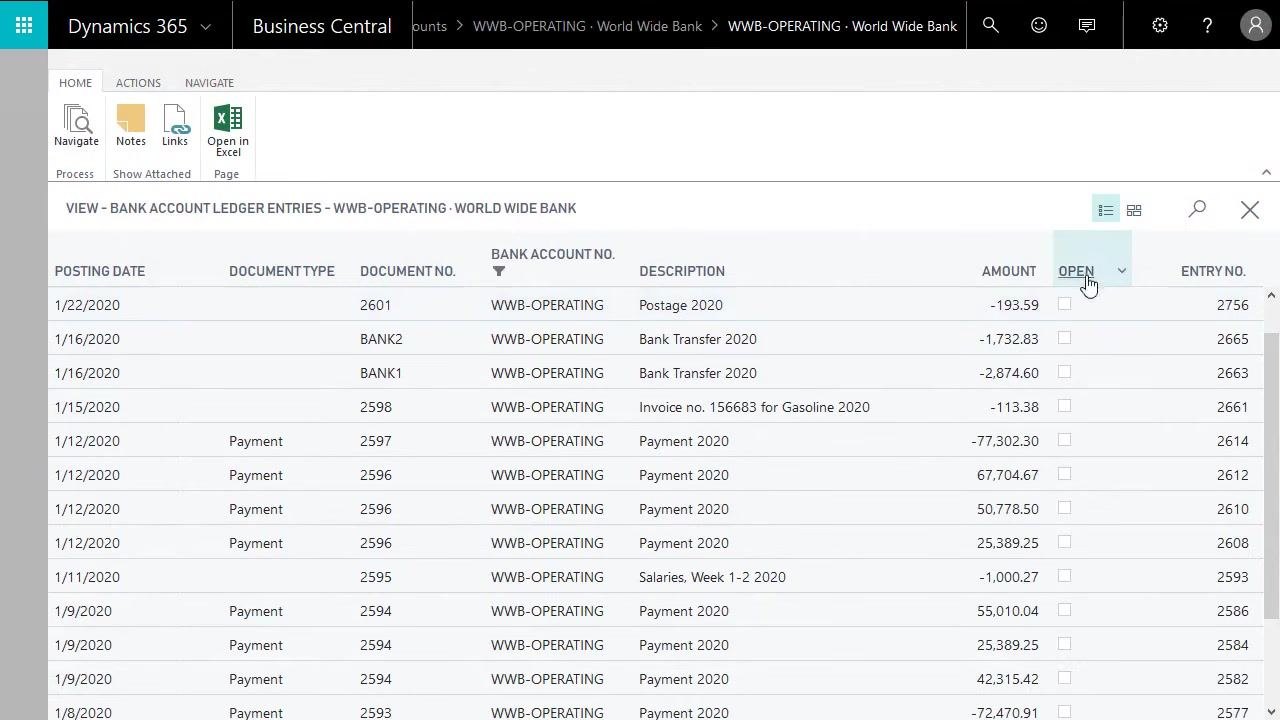
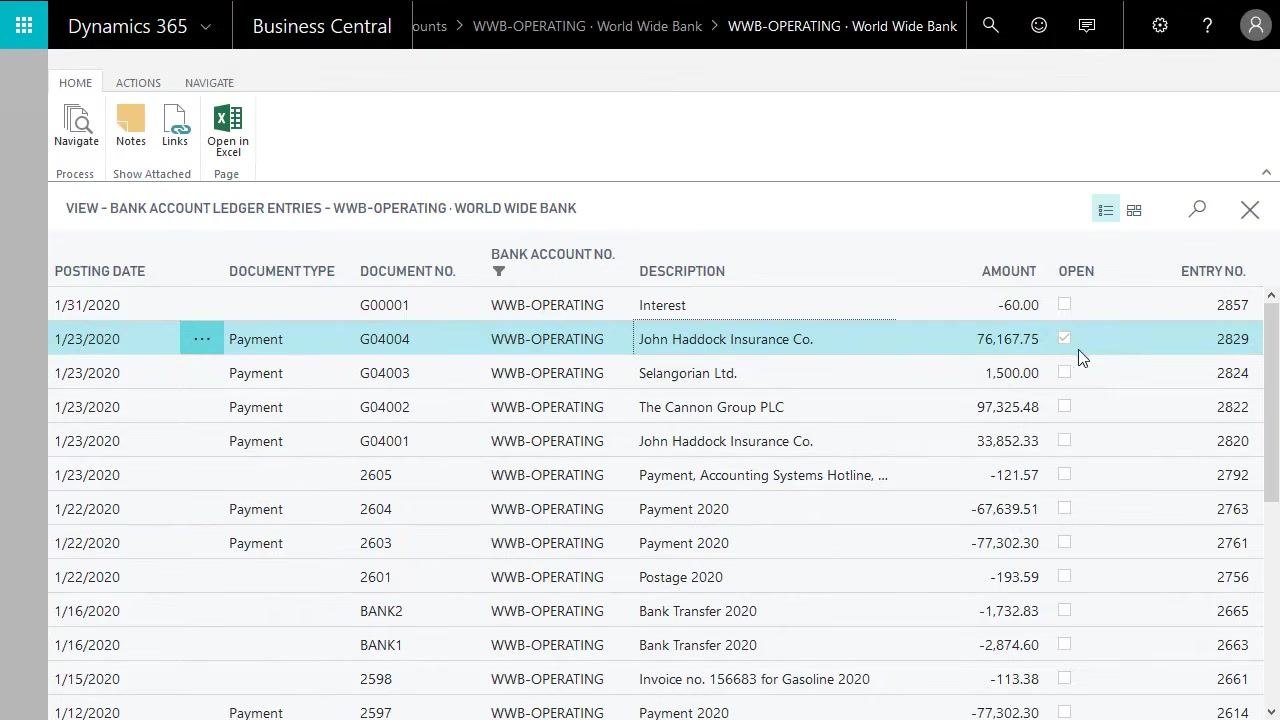
Select WWB-OPERATING to view its ledger entries. Confirm that the "Interest" entry (1/31/2020, -60.00) is present and that the Open field is cleared for all reconciled entries, except for any outstanding items such as John Haddock Insurance Co.
Identify remaining outstanding entries
Review the Bank Account Ledger Entries screen for WWB-OPERATING. The entry for John Haddock Insurance Co. shows:
- Posting Date: 1/23/2020
- Document Type: Payment
- Document No.: G04004
- Bank Account No.: WWB-OPERATING
- Description: John Haddock Insurance Co.
- Amount: 76,167.75
- Open: Checked
- Entry No.: 2829
The Open checkbox is selected for this entry, meaning it hasn't been reconciled yet and will appear on the next bank account reconciliation. All other reconciled entries should have the Open checkbox cleared, confirming they've been matched and reconciled.
What's next
With the reconciliation posted, your matched entries are closed and any outstanding items, like the John Haddock Insurance Co. payment, are clearly flagged for review. These open entries will carry forward and appear automatically the next time you reconcile this bank account.
Generation details: cost, quality tiers
Docsie billed 3,500 credits ($2.45) to analyze this 7-minute video at standard quality. The rewrite, template fill and Word/PDF exports were included. The same video at each quality tier:
| Quality | Frames sampled | Credits | Approx. cost |
|---|---|---|---|
| Draft | every 16-30 s | 1,750 | $1.22 |
| Standard (this guide) | every 8-15 s | 3,500 | $2.45 |
| Detailed | every 4-7 s | 7,000 | $4.90 |
| Ultra | every 1-3 s | 14,000 | $9.80 |
Credits priced at $0.70 per 1,000; plans include a monthly allowance. Enterprise customers on on-premise or bring-your-own-model deployments run this on their own inference and pay no per-video credits.
Generated by Docsie Video-to-Docs on 2026-10-25 from a 6-minute video. Screenshots are frames from the source video and belong to their creator, Dynamics Business Central and Dynamics NAV, whose original is embedded above. If you own this video and want the guide removed or credited differently, contact us and we will act within one business day.