
How to Post a Purchase Invoice in Dynamics 365 Business Central
This guide walks you through how to post a purchase invoice in Dynamics 365 Business Central, from locating the Purchase Invoices page to creating a new invoice, entering vendor and line details, and finalizing the posting process. Follow these steps to record vendor expenses accurately and keep your accounts up to date.
Video: How to create and post a purchase invoice in Business Central by Dynamics Pro Services 365 inc. (2022). All credit for the demonstration goes to the creator; watch the original on YouTube. The written guide below was generated from this video by Docsie. Creator? Request a change or removal.
This guide walks you through how to post a purchase invoice in Dynamics 365 Business Central, from locating the Purchase Invoices page to creating a new invoice, entering vendor and line details, and finalizing the posting process. Follow these steps to record vendor expenses accurately and keep your accounts up to date.
Prerequisites
- Access to Dynamics 365 Business Central with permissions to create and post purchase invoices.
- Vendor information already set up in the system (vendor card with contact details and address).
- The vendor invoice number and expense details (such as the G/L account and amount) ready for entry.
Access the Purchase Invoices page
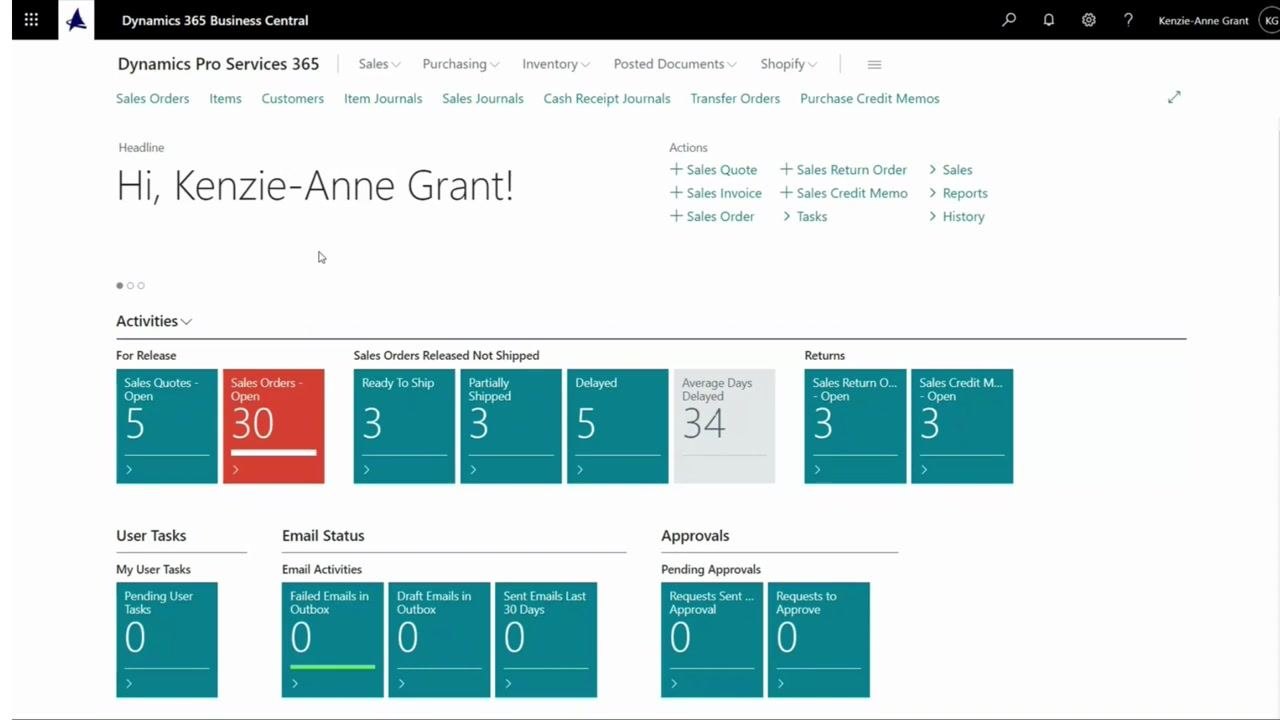
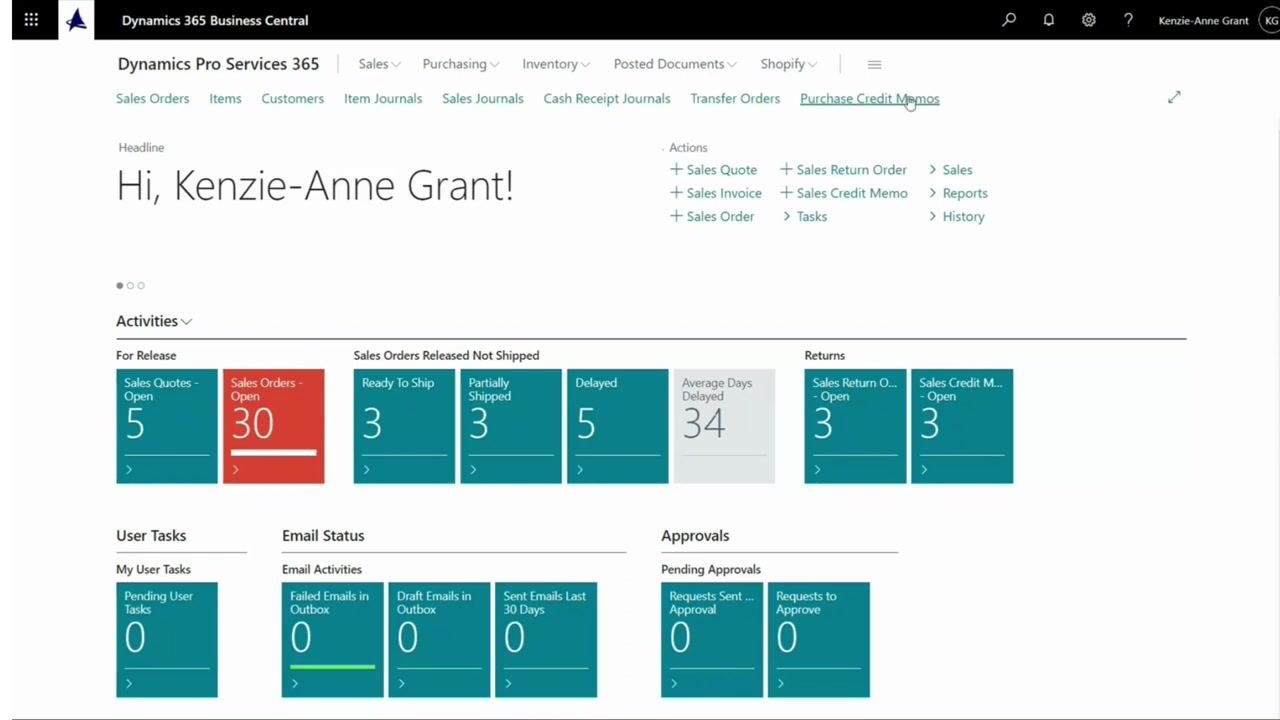
Open Dynamics 365 Business Central and confirm you are on the main dashboard. You should see a welcome message (for example, "Hi, Kenzie-Anne Grant!") along with activity tiles such as Sales Orders, Returns, User Tasks, Email Status, and Approvals.
From the main menu, locate the search bar and begin typing Purchase Invoices. Select Purchase Invoices from the search results or navigation menu to open the page.
Create a new purchase invoice
On the Purchase Invoices page, click + New at the top of the list. This opens a new purchase invoice form where you can enter the invoice details.
Select a vendor
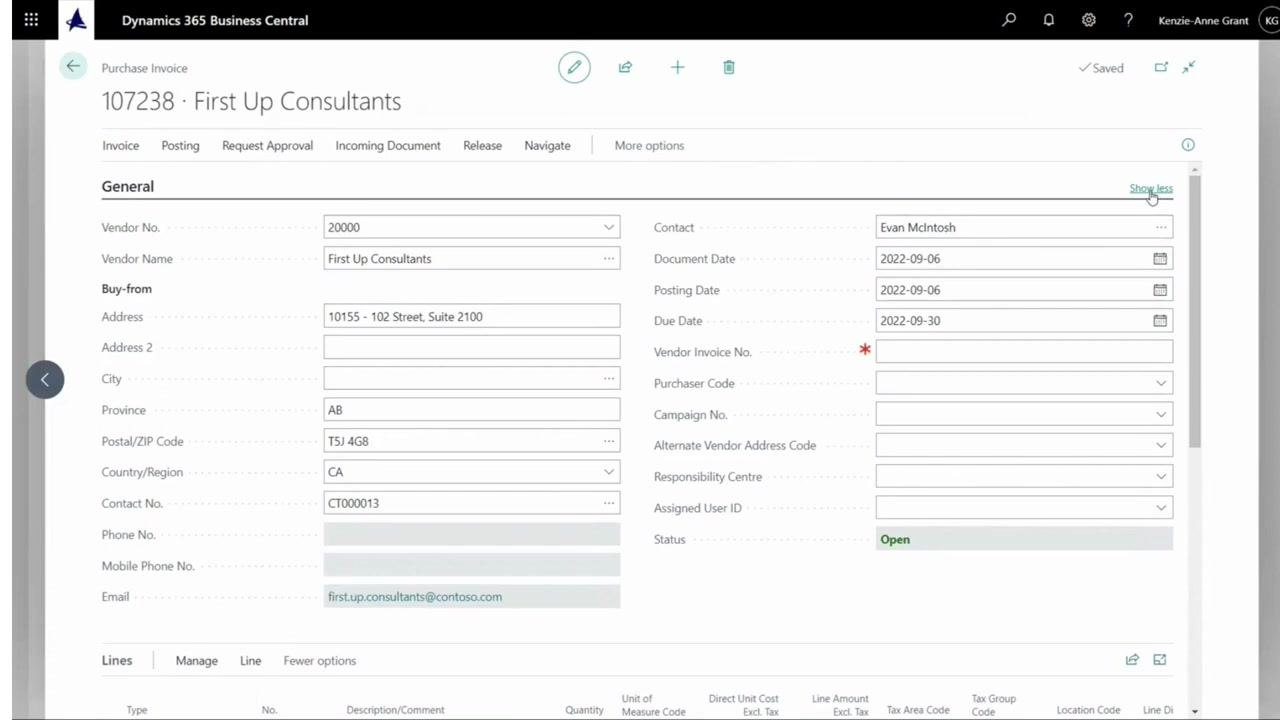
In the new purchase invoice form, select a vendor by choosing a Vendor Name or Vendor Number. The system automatically fills in related fields from the vendor card, such as contact details and address.
Review the invoice details
Scroll down to view the invoice details and other tabs. Confirm that information such as the currency code and other vendor-related data has been imported correctly.
Enter the vendor invoice number
If needed, click Show less or Show more to adjust the visibility of invoice fields until the Vendor Invoice No. field is visible. This field is mandatory.
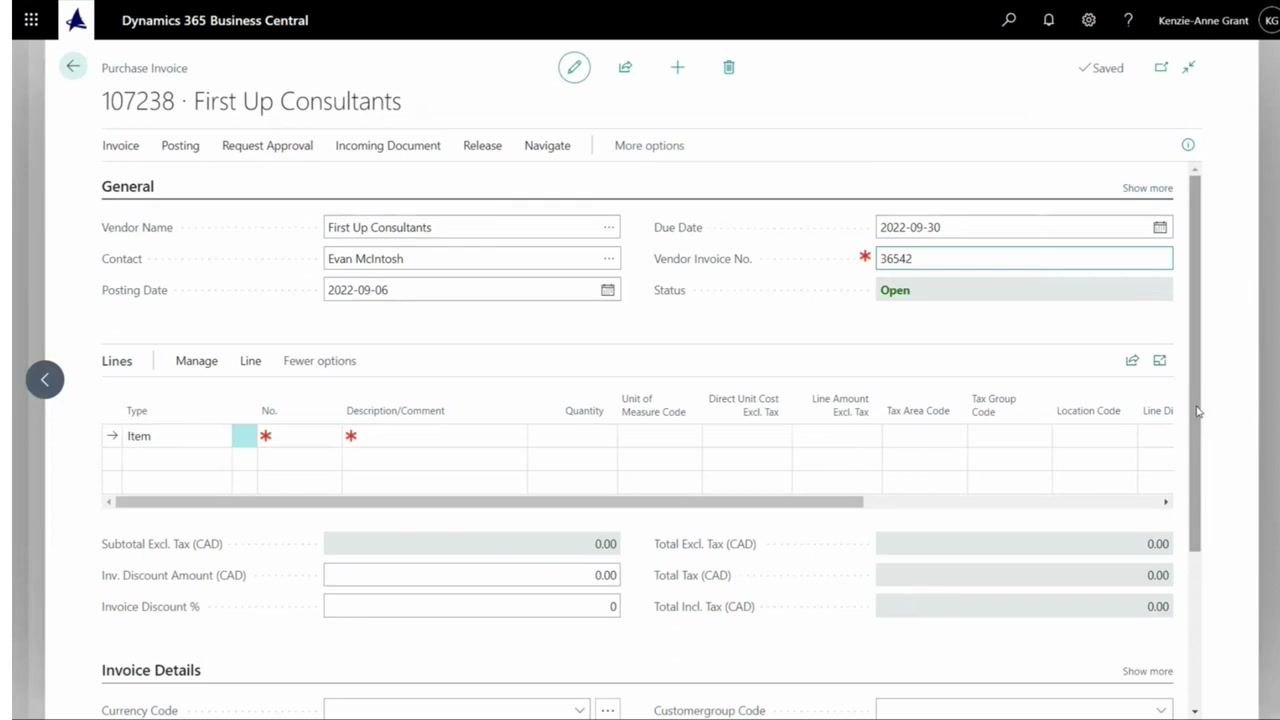
In the Vendor Invoice No. field, type the invoice number provided by your vendor (for example, "36542"). Confirm that the status remains Open.
Enter the expense details in the invoice lines
Scroll down to the Lines section of the invoice form. This is where you enter the details of the expense or items being invoiced.
In the Type column, select G/L Account to indicate a general ledger expense. In the No. column, type "rent" and select Rent Expense from the list. This associates the invoice line with the appropriate general ledger account.
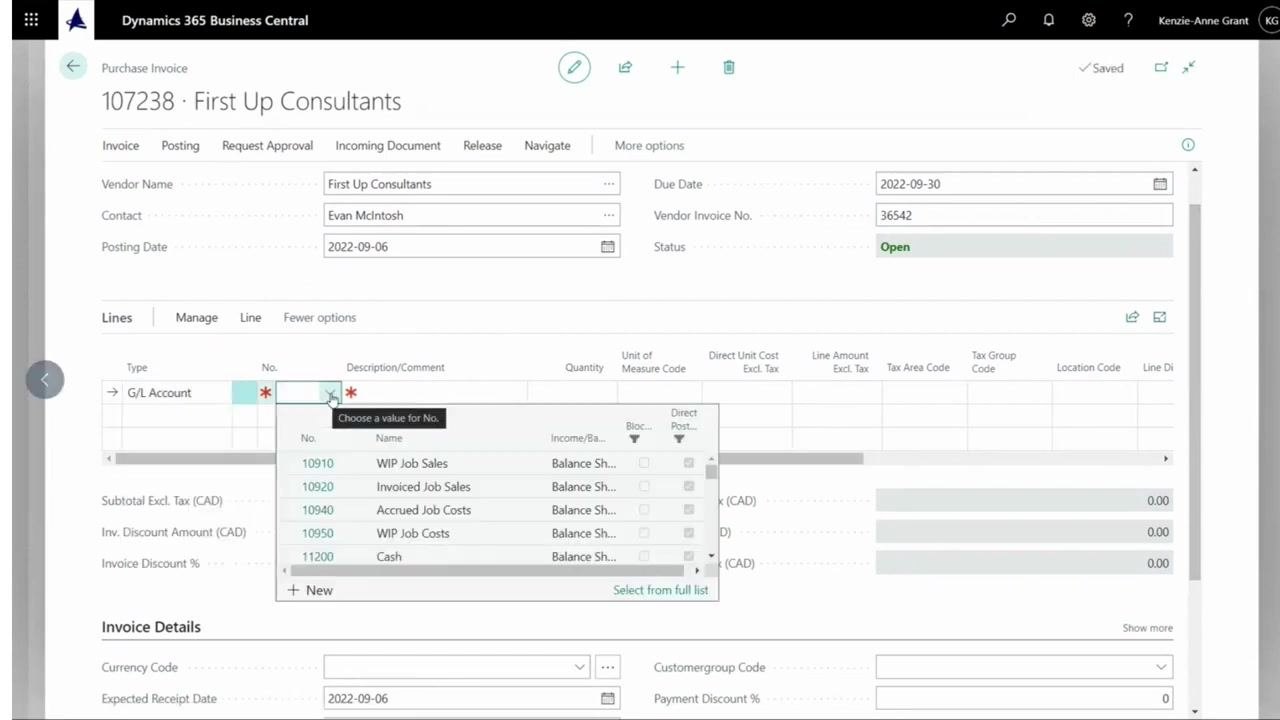
Set the quantity and direct unit cost
In the Quantity field of the invoice line, enter 1. In the Direct Unit Cost Excl. Tax field, enter the cost amount provided by your vendor (for example, 5,000.00).
Confirm that Type is set to G/L Account and No. is set to the correct account (for example, 64450 for Rent Expenses). Check that the Description/Comment field is labeled appropriately (for example, Rent expenses).
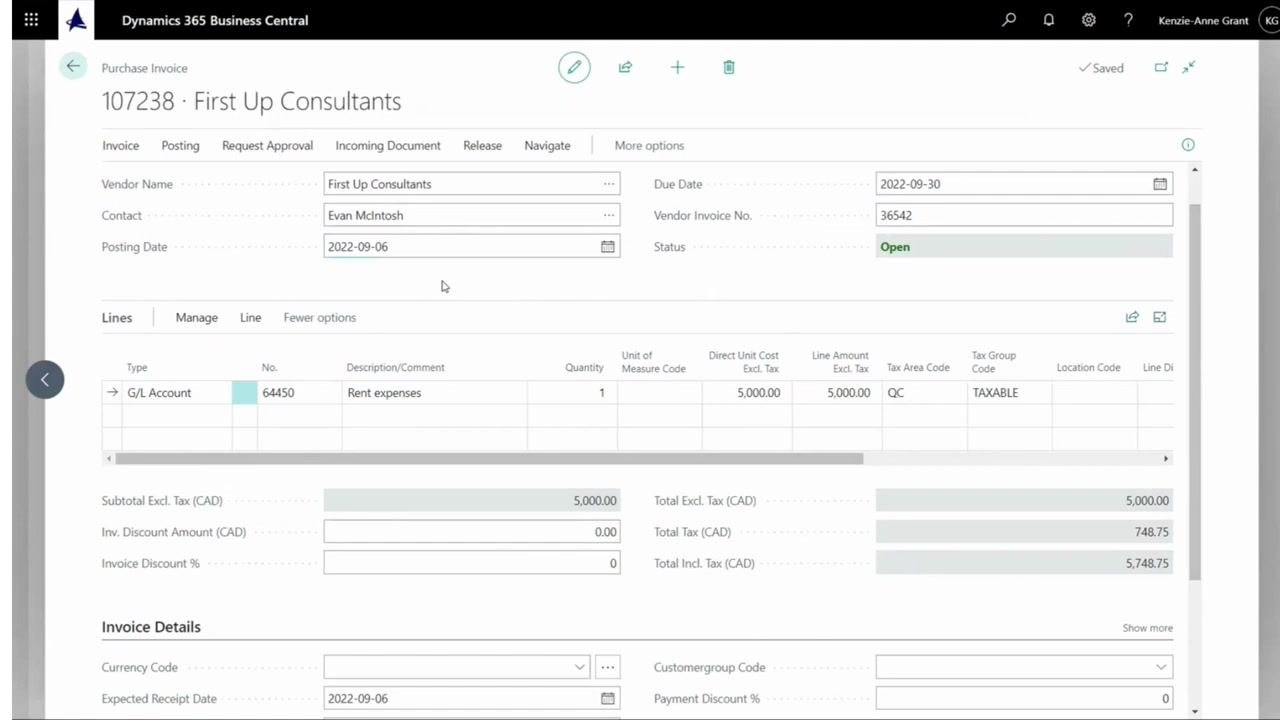
Verify the posting date
Check the Posting Date field at the top of the form to confirm it reflects the correct date for the expense period (for example, 2022-09-06 for September rent). Adjust the posting date if it does not fall within the correct month for the expense.
Add a detailed description
In the Description/Comment field, append the month and year for clarity (for example, type Rent expenses Sept 2023).
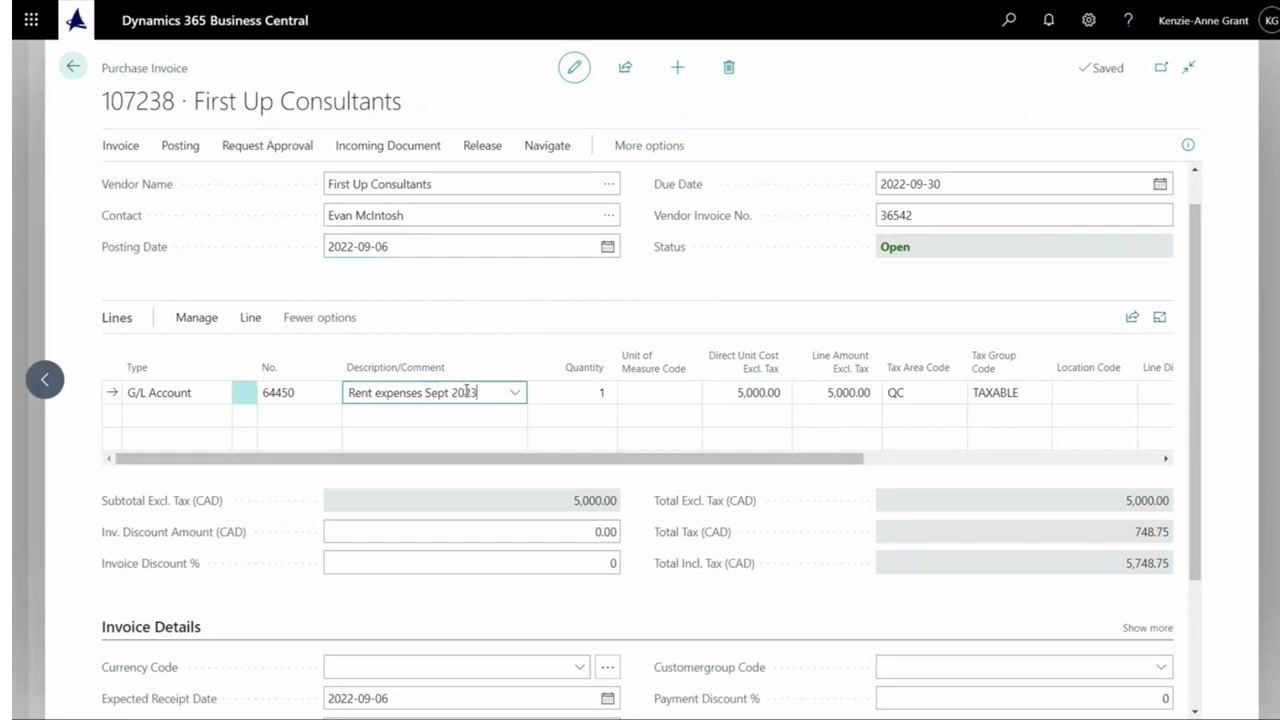
Review all entered information
Double-check every field, including Vendor, Contact, Posting Date, Due Date, Vendor Invoice No., Status, and all line details. Confirm that the total amounts and tax calculations are correct before posting.
Post the purchase invoice
Navigate to the top menu and click the Posting tab, then click Post to finalize the invoice. If prompted, click Yes to confirm posting, and click Yes again if prompted to open and view the posted invoice.
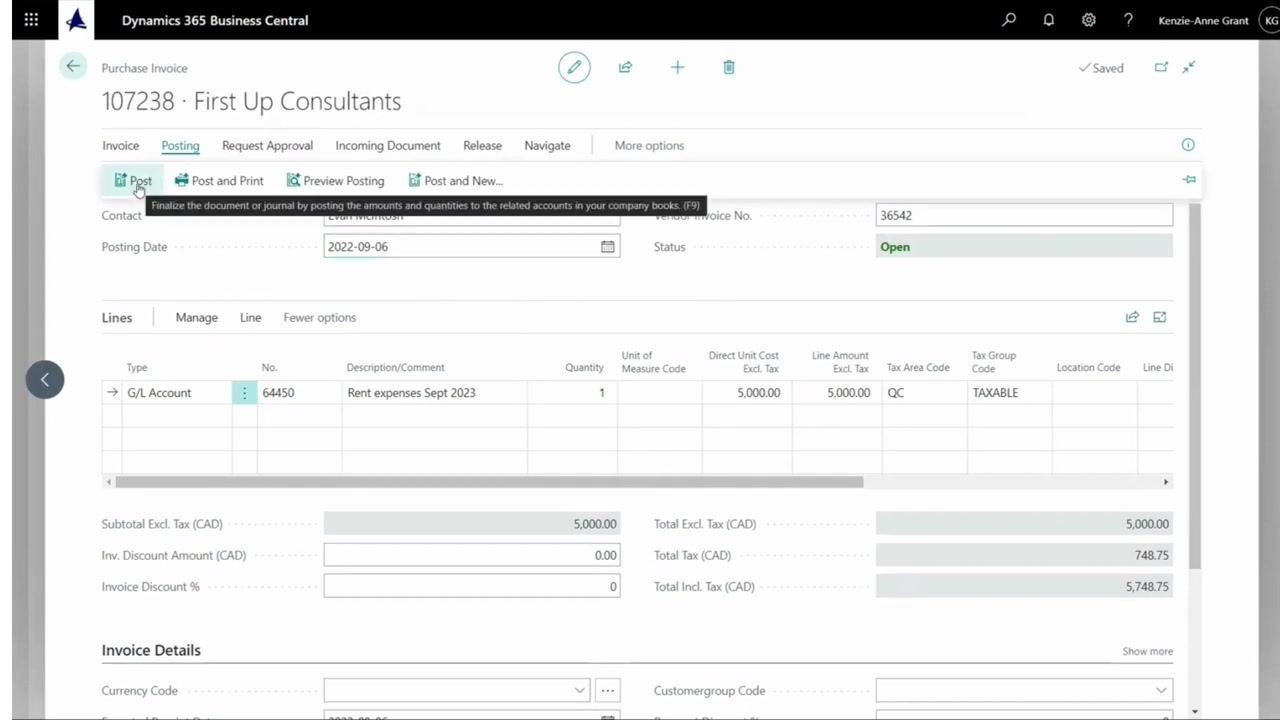
View the posted purchase invoice
The system displays the posted purchase invoice. Review it to confirm all details are correct, including:
- Vendor:
First Up Consultants - Contact:
Evan McIntosh - Posting Date:
2022-09-06 - Due Date:
2022-09-30 - Vendor Invoice No.:
36542 - Line details: G/L Account
64450, DescriptionRent expenses Sept 2023, Quantity1, Direct Unit Cost5,000.00 - Total Excl. Tax:
5,000.00 - Total Tax:
748.75 - Total Incl. Tax:
5,748.75
Summary
By following these steps, you have created, reviewed, and posted a purchase invoice for rent expenses in Dynamics 365 Business Central — selecting the vendor, completing all mandatory fields, entering the expense details, and confirming the posted results. Always verify the posted invoice for accuracy and compliance with your organization's accounting policies.
Generation details: cost, quality tiers
Docsie billed 1,500 credits ($1.05) to analyze this 3-minute video at standard quality. The rewrite, template fill and Word/PDF exports were included. The same video at each quality tier:
| Quality | Frames sampled | Credits | Approx. cost |
|---|---|---|---|
| Draft | every 16-30 s | 750 | $0.52 |
| Standard (this guide) | every 8-15 s | 1,500 | $1.05 |
| Detailed | every 4-7 s | 3,000 | $2.10 |
| Ultra | every 1-3 s | 6,000 | $4.20 |
Credits priced at $0.70 per 1,000; plans include a monthly allowance. Enterprise customers on on-premise or bring-your-own-model deployments run this on their own inference and pay no per-video credits.
Generated by Docsie Video-to-Docs on 2026-10-25 from a 2-minute video. Screenshots are frames from the source video and belong to their creator, Dynamics Pro Services 365 inc., whose original is embedded above. If you own this video and want the guide removed or credited differently, contact us and we will act within one business day.