
How to Create a Work Order in Buildium
This guide walks you through how to create a work order in Buildium, from setting up vendor categories and adding vendors to filling out the work order form, recording a bill, and confirming the financial impact on the property. It also covers the Property Inspections module, which integrates with your maintenance workflow. Each section below reflects what you see on screen as you move through Buildium's Maintenance tools.
Video: Buildium Tutorial: Create and Manage Work Orders and Vendors by Jana Christo (2022). All credit for the demonstration goes to the creator; watch the original on YouTube. The written guide below was generated from this video by Docsie. Creator? Request a change or removal.
This guide walks you through how to create a work order in Buildium, from setting up vendor categories and adding vendors to filling out the work order form, recording a bill, and confirming the financial impact on the property. It also covers the Property Inspections module, which integrates with your maintenance workflow. Each section below reflects what you see on screen as you move through Buildium's Maintenance tools.
Prerequisites
- An active Buildium account with access to the Maintenance tab.
- At least one property set up under Rentals.
- Vendor information (tax ID, insurance details) ready to enter, if you plan to add a new vendor.
Accessing the Buildium dashboard
Step 1: Log in and review the dashboard
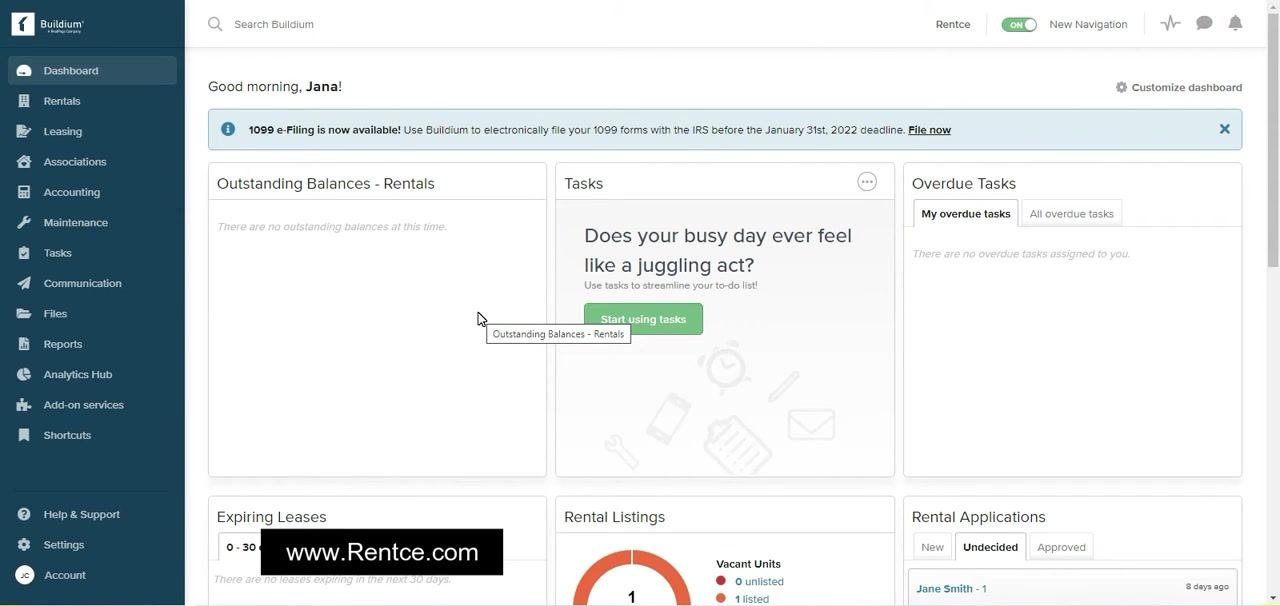
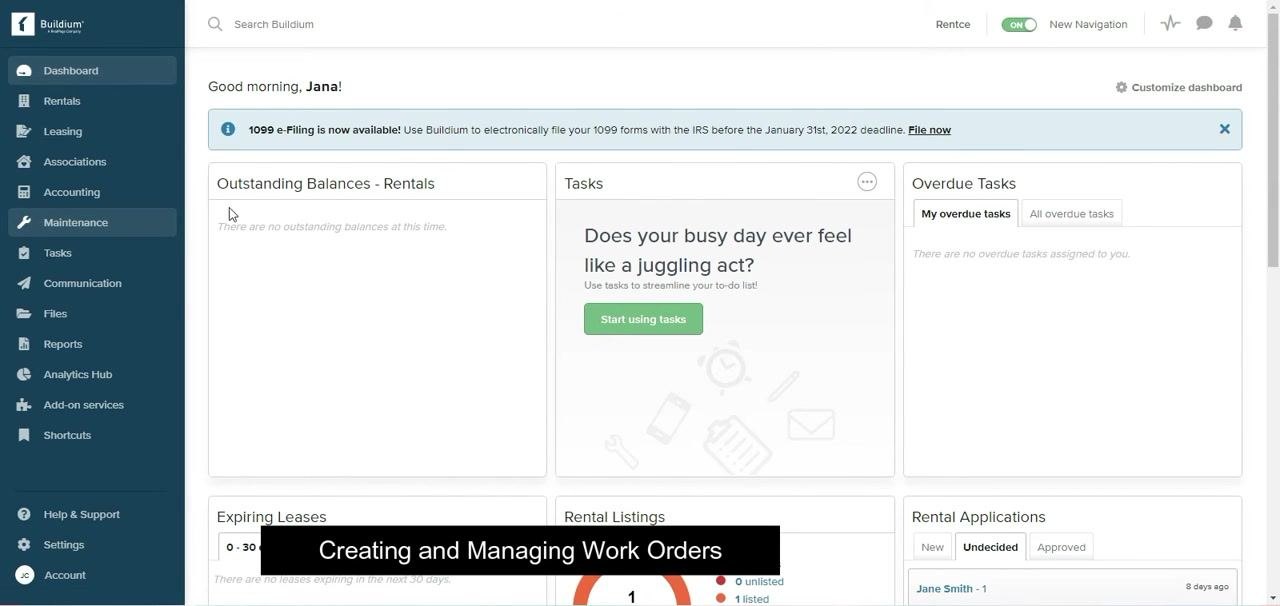
Log in to your Buildium account to land on the main dashboard. Here you see panels for Outstanding Balances – Rentals, Tasks, Overdue Tasks, Expiring Leases, Rental Listings, and Rental Applications. The left navigation menu gives you access to Dashboard, Rentals, Leasing, Associations, Accounting, Maintenance, and other modules.
Setting up vendor categories
Step 2: Open the Maintenance tab
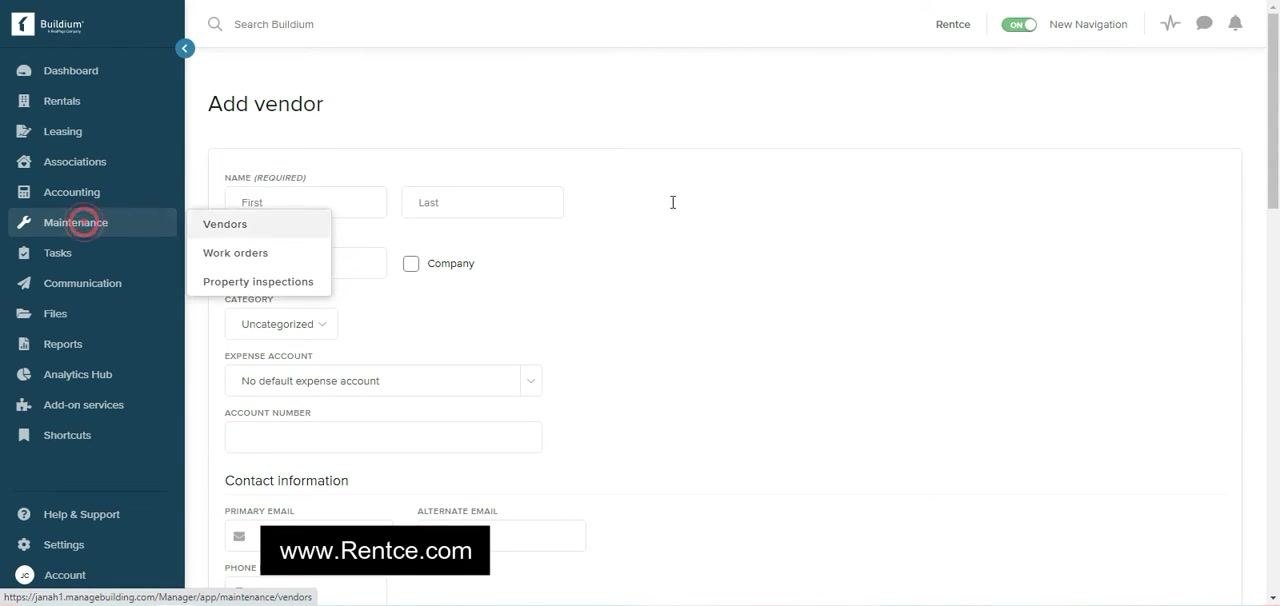
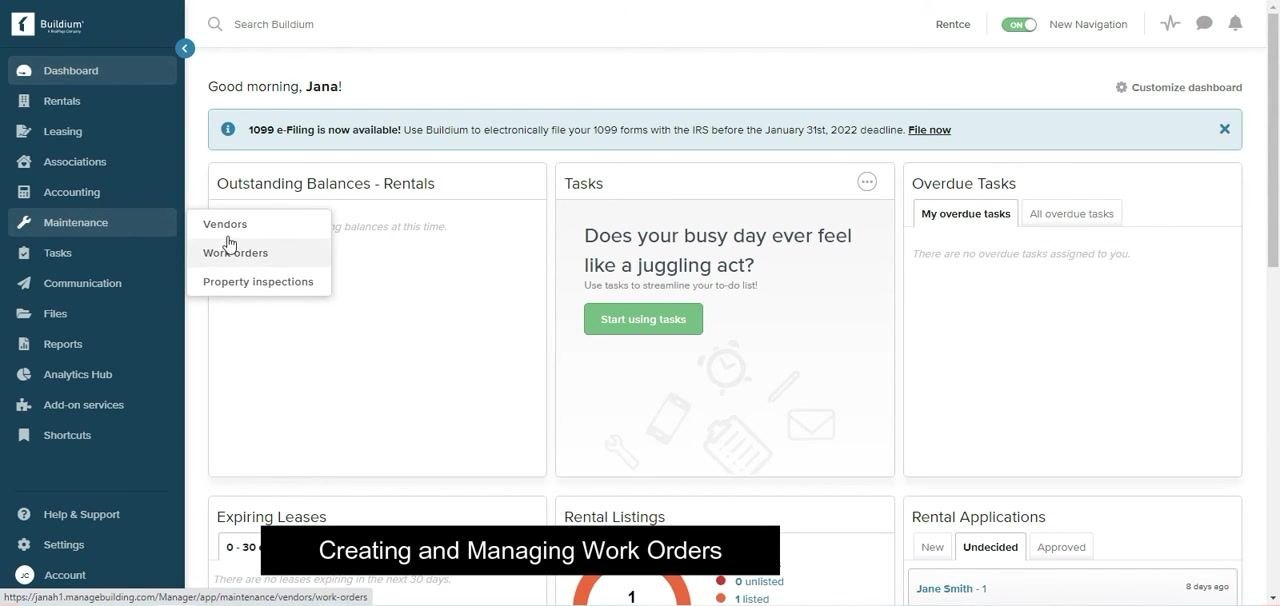
All maintenance-related features live under the Maintenance tab in the left navigation menu. Hover over or click Maintenance to reveal three options: Vendors, Work orders, and Property inspections.
Click Vendors under the Maintenance tab, then select Manage categories in the top right corner of the Vendors page.
Step 3: Review and manage vendor categories
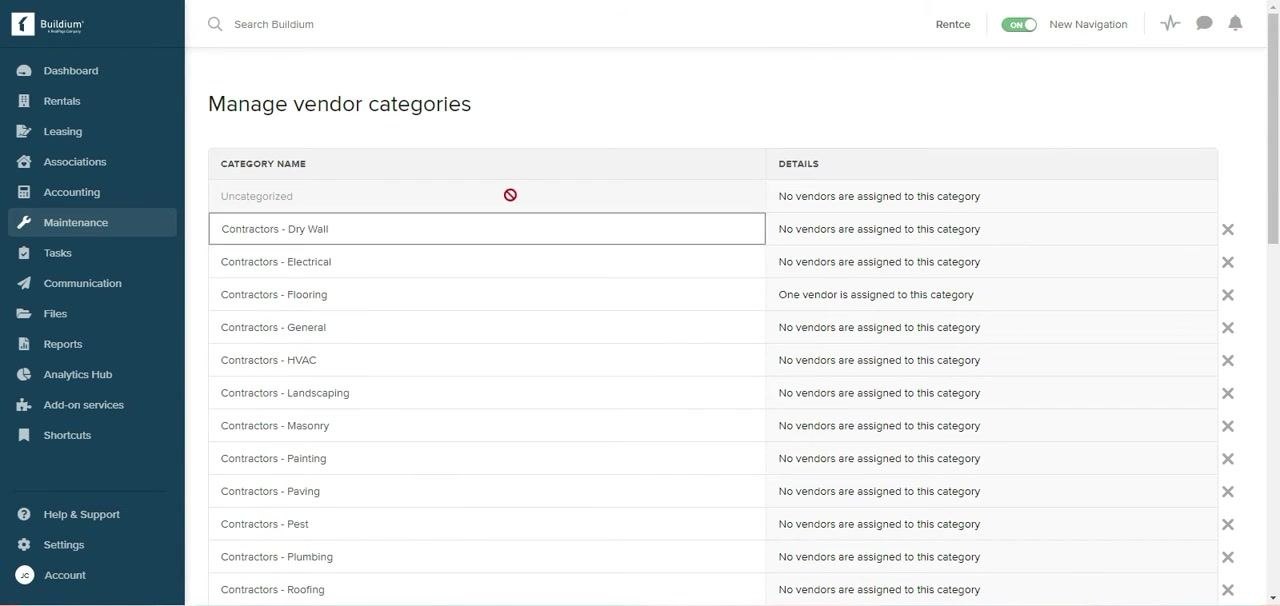
The Manage vendor categories screen lists every existing category. Each row shows the category name (for example, Contractors – Dry Wall, Contractors – Electrical) along with details such as "No vendors are assigned to this category" or "One vendor is assigned to this category." Most common categories are already pre-entered for you.
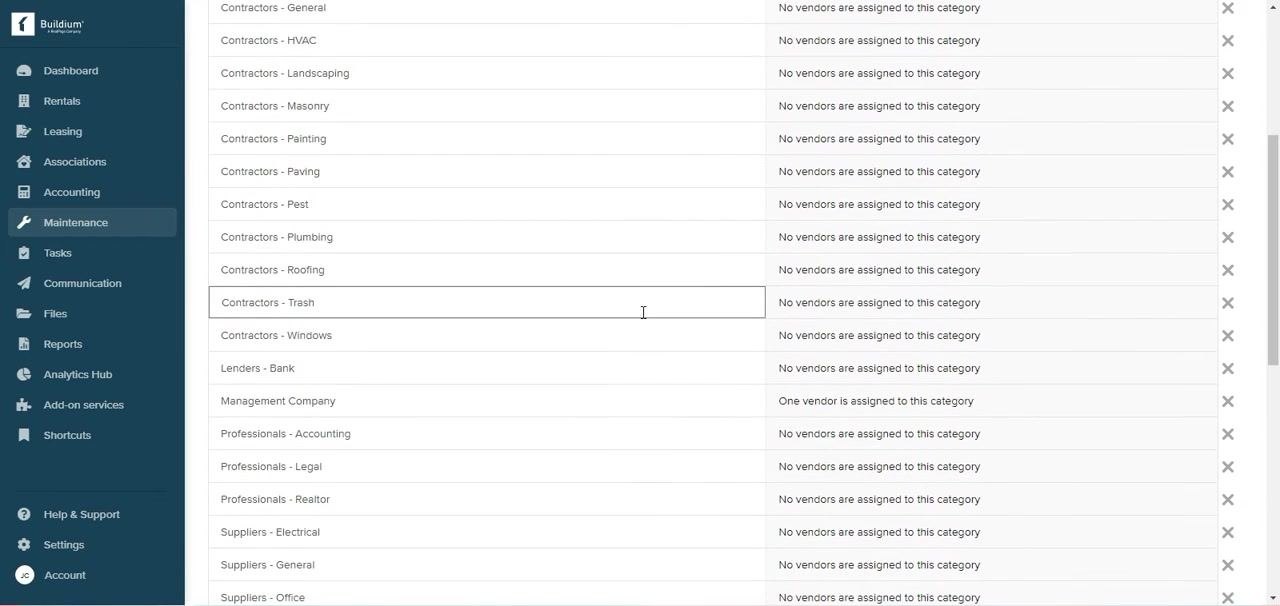
You can add a new category using the option provided at the top of the list, or delete an existing one by clicking the X icon on the right of its row. Note that you can only delete categories that have no vendors assigned to them.
Adding and managing vendors
Step 4: Open the Vendors page
Return to the Vendors page under the Maintenance tab. This screen lists all vendors with columns for First Name, Last Name, Phone, Email, Insurance Provider, Expires, and Website. From here you can click Add vendor in the top right to create a new vendor, use Manage categories to return to category management, or use Compose email to contact vendors directly.
Step 5: Enter vendor tax and insurance information
On the Add vendor screen, scroll to the 1099-NEC tax filing information and Insurance sections. Under tax filing information, select the Tax Identity Type from the dropdown, enter the Taxpayer ID (SSN or EIN), and optionally check Use a different name or Use a different address if applicable. Under Insurance, enter the Provider name, Policy Number, and Expiration Date in m/d/yyyy format.
Keeping this information current matters: Buildium automatically reminds you when a vendor's insurance is about to expire.
After entering all required information, click the green Create vendor button at the bottom of the form. Click Cancel if you need to discard the entry.
Step 6: View or edit an existing vendor
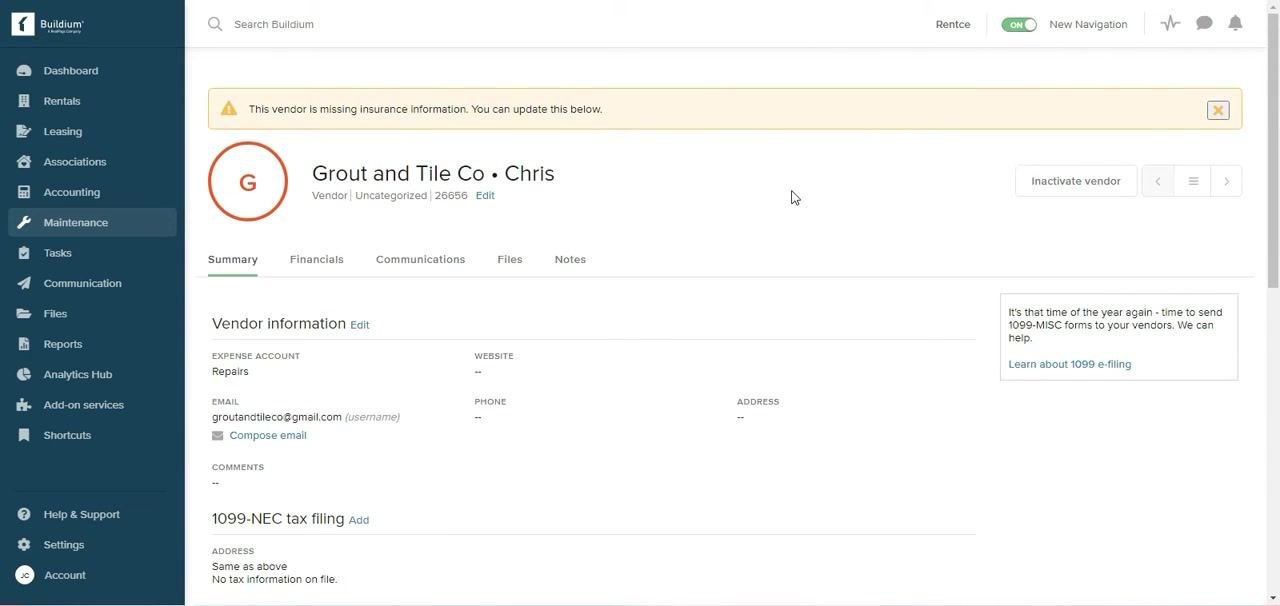
Navigate to the Vendors list under the Maintenance tab and click on the vendor you want to view or edit. The vendor summary page displays the vendor name, category, Vendor ID, an Edit link, a warning if insurance information is missing, vendor information (Expense Account, Email, Website, Phone, Address, Comments), 1099-NEC tax filing and insurance status, and account status and portal options.
Step 7: Inactivate a vendor when needed
On the vendor summary page, click Inactivate vendor in the top right to remove the vendor from your active list. Inactivating a vendor does not delete their record from the system.
Step 8: Edit vendor details or add insurance
Click the Edit link next to the vendor name, or in the Vendor information section, to update details. Click Add in the Vendor insurance section to enter or update insurance information.
Step 9: Set up and manage vendor payments
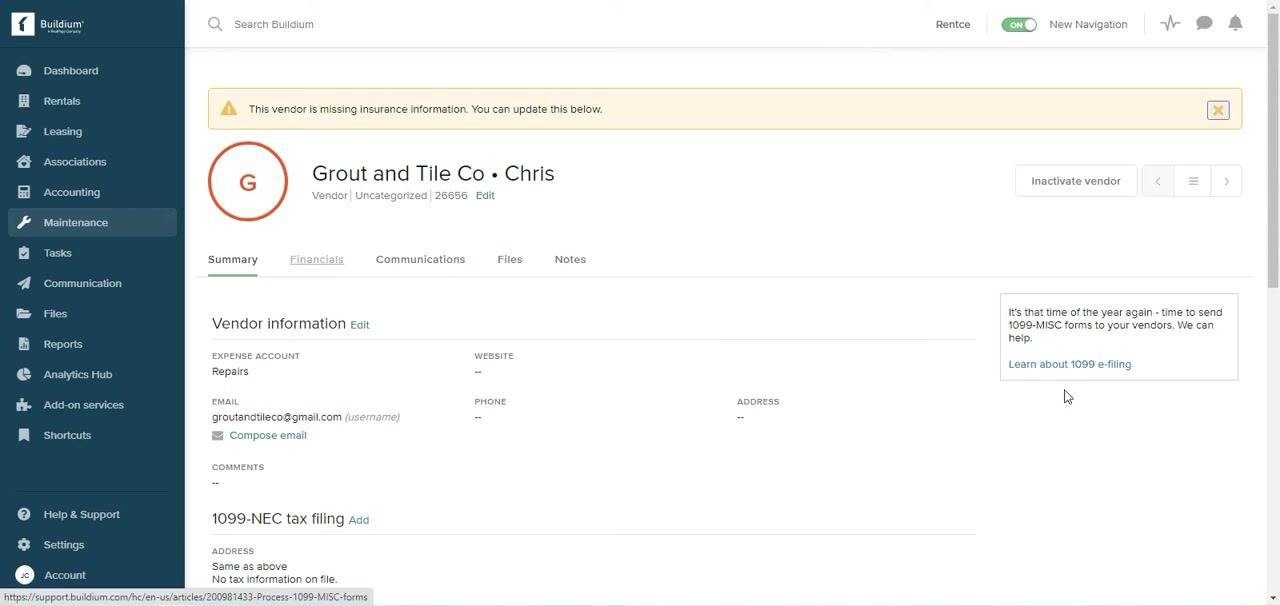
From the vendor summary page, you can set up electronic payment (EFT), pay the vendor by check, record a bill once a repair is completed, and record credits and refunds as needed. Access these options from the Financials tab within the vendor profile.
Step 10: Track all vendor communications
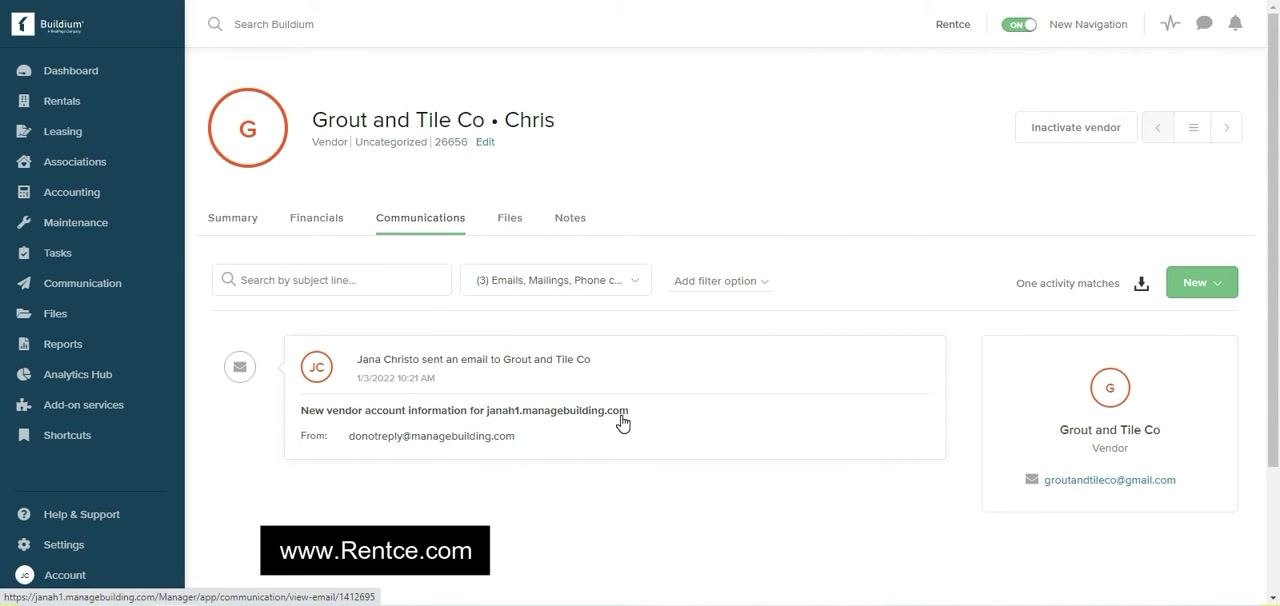
Click the Communications tab in the vendor profile to view a complete log of emails, phone calls, and other interactions with the vendor. Each entry shows sender and recipient details (for example, "Jana Christo sent an email to Grout and Tile Co"), the subject line and timestamp, and the source email address. Use the search and filter options to locate specific communications.
Managing vendor portal access
Step 11: Send and manage vendor portal access
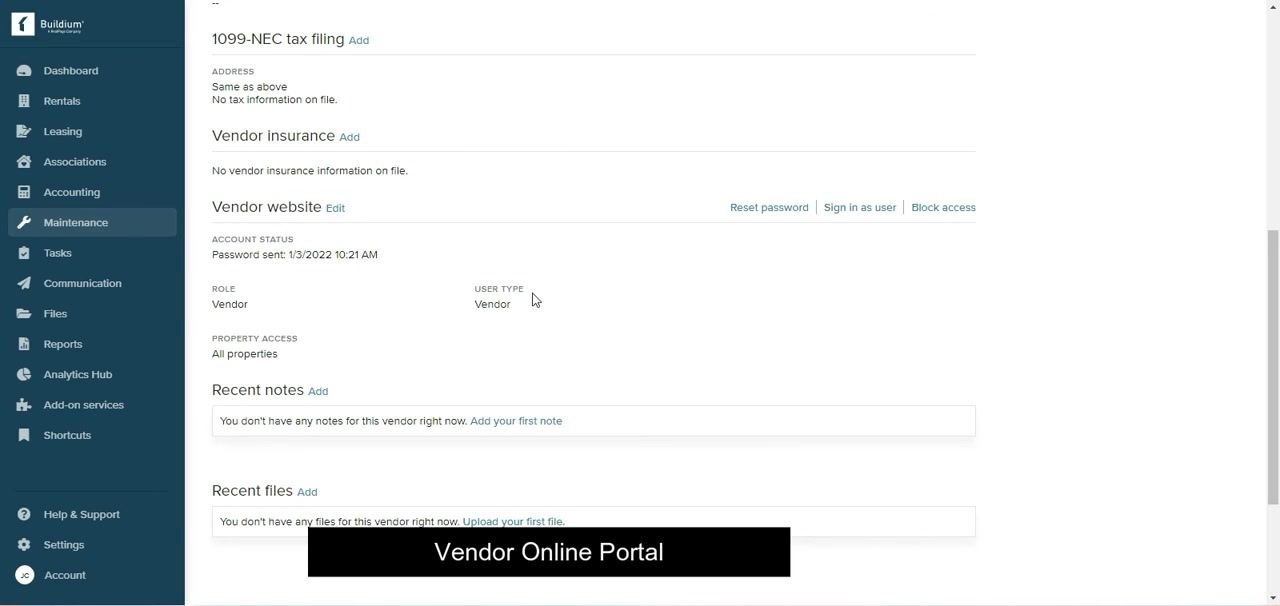
Confirm that a welcome email and password have been sent to the vendor for portal access. On the vendor summary page, under Vendor website, check Account status to see when the password was sent (for example, "Password sent: 1/3/2022 10:21 AM"). Use Reset password if the vendor needs a new one, click Sign in as user to preview the vendor portal as the vendor would see it, or use Block access to revoke portal access.
Step 12: Preview the vendor's online portal
When you sign in as the vendor, the first page you see is the Vendor ledger, which shows all financial transactions related to the vendor, including bills entered, credits issued, EFTs completed, and checks sent. If there are no transactions, a message indicates this. Vendors can filter transactions by type (Check, Bill, Vendor credit, EFT, Reverse EFT) using the dropdown menu.
Reviewing the vendor ledger
Step 13: Filter transactions by type
At the top of the ledger, locate the All transaction types dropdown and click it to reveal filter options: Check, Bill, Vendor credit, EFT, Reverse EFT.
Select the transaction type you want to filter the ledger by. If no transactions are displayed, a message appears: "Maybe you don't have any or maybe you need to clear your filters." Click the clear your filters link to reset.
Creating a work order in Buildium
Step 14: Open the Work orders page
From the left sidebar, click Maintenance to expand its menu, then select Work orders from the dropdown list.
Step 15: Filter work orders by property
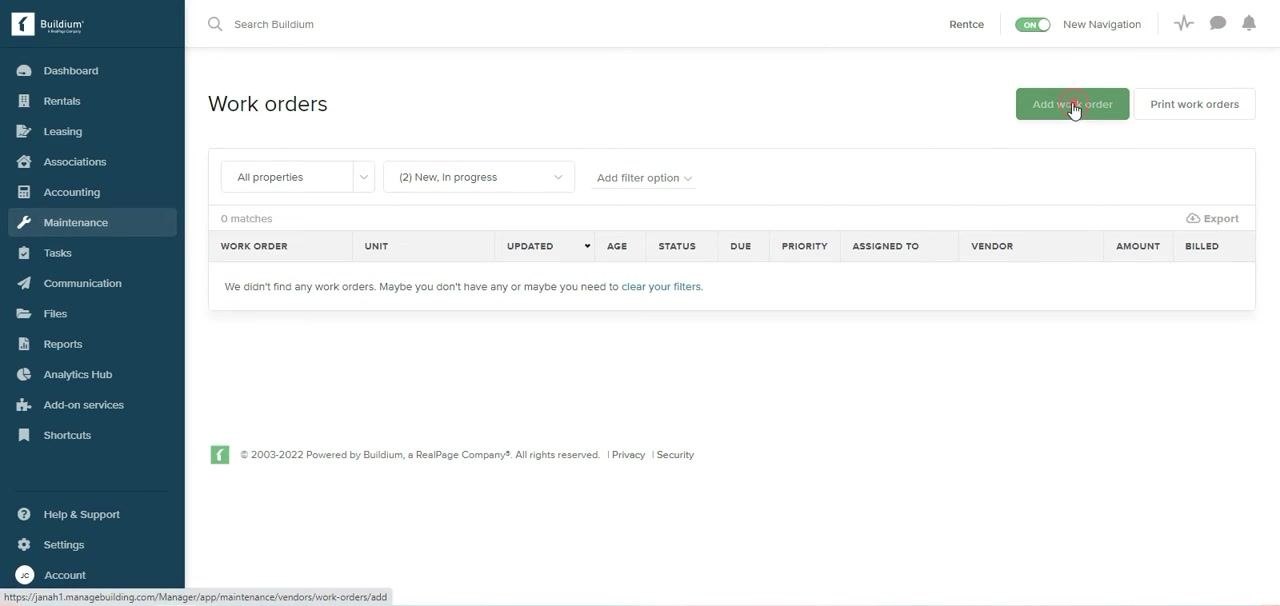
On the Work orders page, use the property filter dropdown to select All properties or a specific property.
Step 16: Filter work orders by status
Use the status filter dropdown to choose which work order statuses to display. Options include New, In progress, Completed, Deferred, and Closed. By default, "New" and "In progress" are selected.
Step 17: Add additional filters
Use the Add filter option dropdown to add further filters as needed. If no work orders match your criteria, a message displays: "We didn't find any work orders. Maybe you don't have any or maybe you need to clear your filters."
Step 18: Start a new work order
Click the green Add work order button in the upper right corner of the Work orders page to begin creating a new work order.
Step 19: Fill in the core work order details
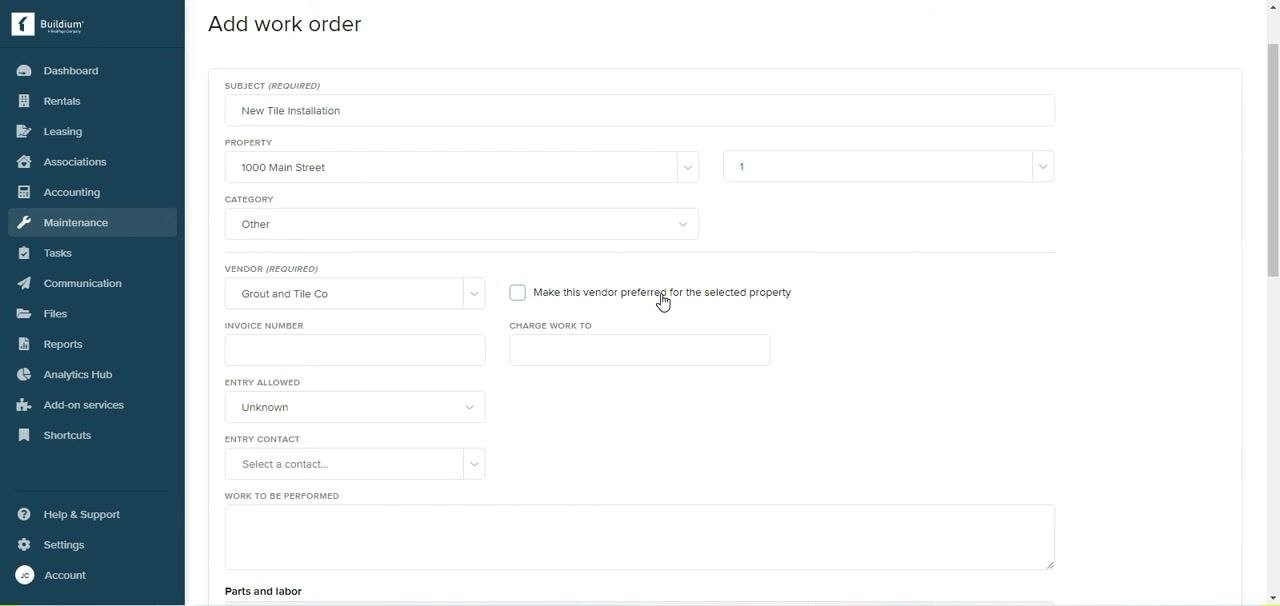
On the Add work order form, enter the following:
- Subject (Required): Enter the subject of the work order, for example, "New Tile Installation."
- Property: Select the relevant property from the dropdown, for example, "1000 Main Street."
- Category: Select the appropriate category, for example, "Other."
- Vendor (Required): Select an existing vendor or add a new one, for example, "Grout and Tile Co."
- Optionally check Make this vendor preferred for the selected property.
- Invoice Number: Enter the invoice number if available.
- Charge Work To: Specify the account or entity to be charged.
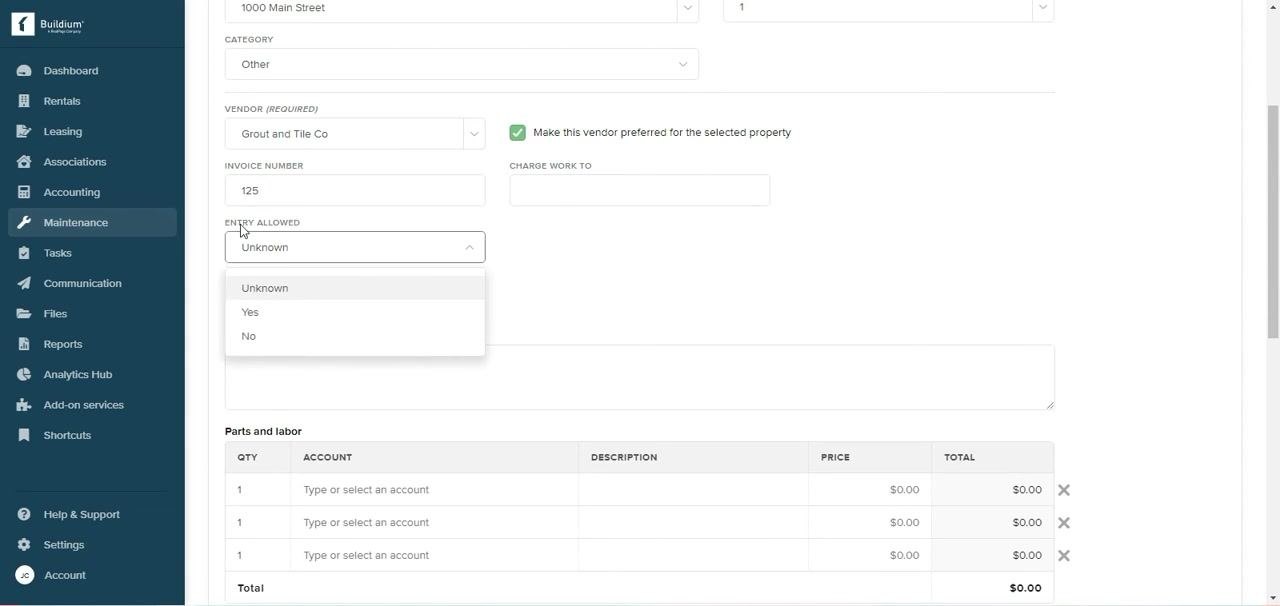
- Entry Allowed: Select the entry permission, for example, "Unknown."
- Entry Contact: Select a contact for entry if applicable.
- Work to be Performed: Enter a description of the work.
Step 20: Enter invoice and charge details
Enter the Invoice Number (for example, "125") and specify the Charge Work To field if applicable.
Step 21: Set entry permissions
In the Entry Allowed dropdown, select the appropriate option — Unknown, Yes, or No — to indicate whether the vendor is permitted to enter the property.
Step 22: Assign an entry contact
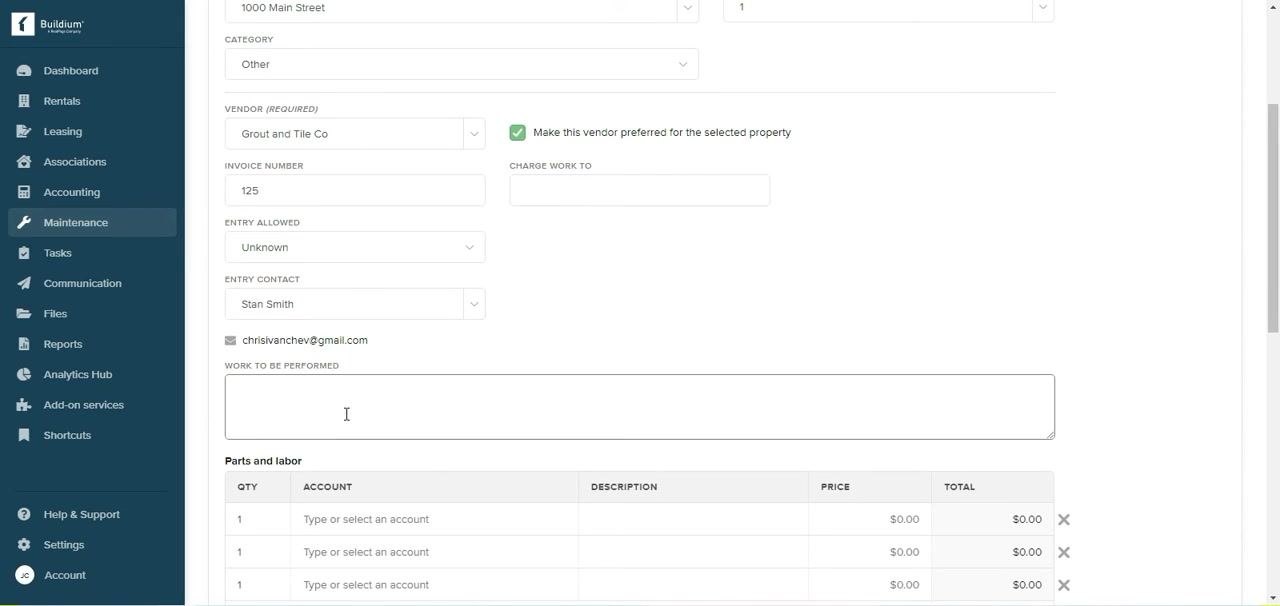
In the Entry Contact dropdown, select the person who will serve as the point of contact for entry, for example, "Stan Smith." The associated email address displays below the contact name once selected.
Step 23: Describe the work to be performed
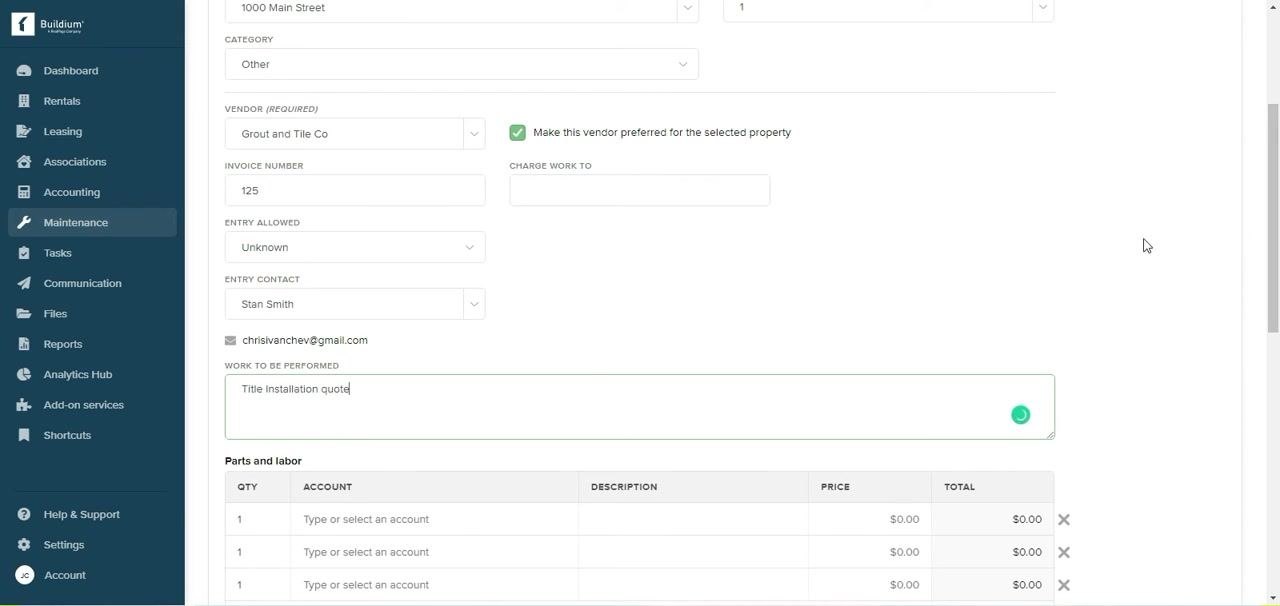
In the Work to be Performed field, enter a detailed description of the requested work, for example, "Tile Installation quote."
Step 24: Add parts and labor details (optional)
In the Parts and labor section, enter line items for quantity, account, description, price, and total as needed. Three blank rows are provided by default for entry.
Step 25: Review all information
Double-check every field for accuracy, including property, vendor, invoice number, entry permissions, contact, and work description, before moving forward.
Step 26: Enter vendor notes
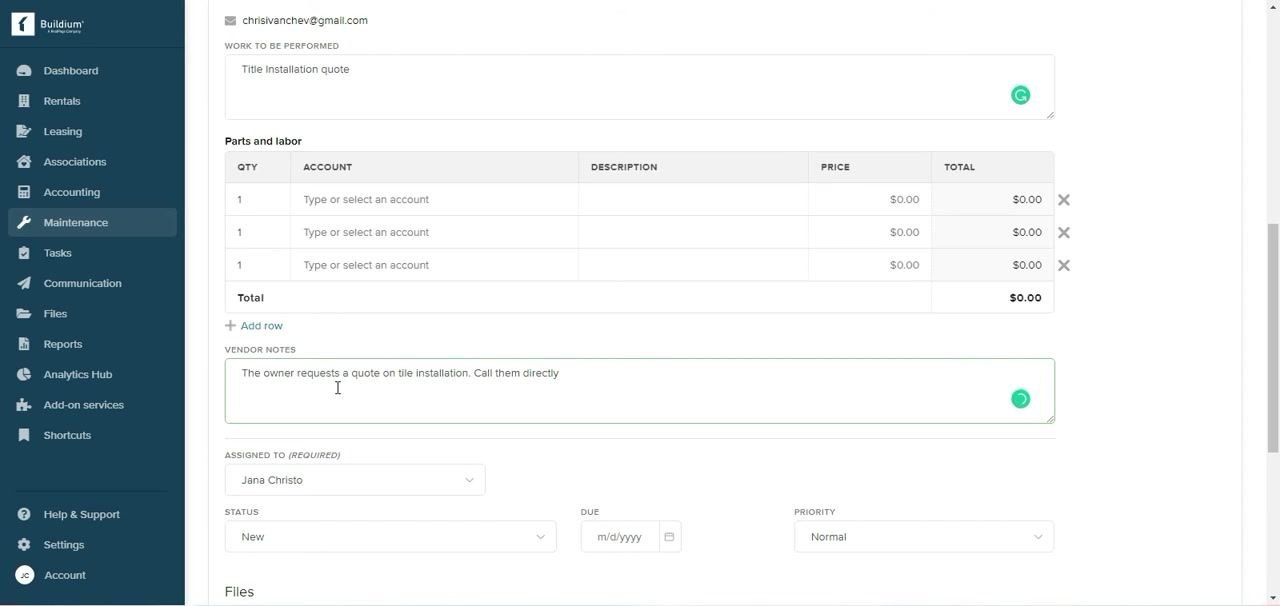
In the Vendor Notes field, add any additional instructions or context for the vendor, for example, "The owner requests a quote on tile installation. Call them directly." This note is visible to the vendor and helps clarify the request.
Step 27: Set assignment, due date, and priority
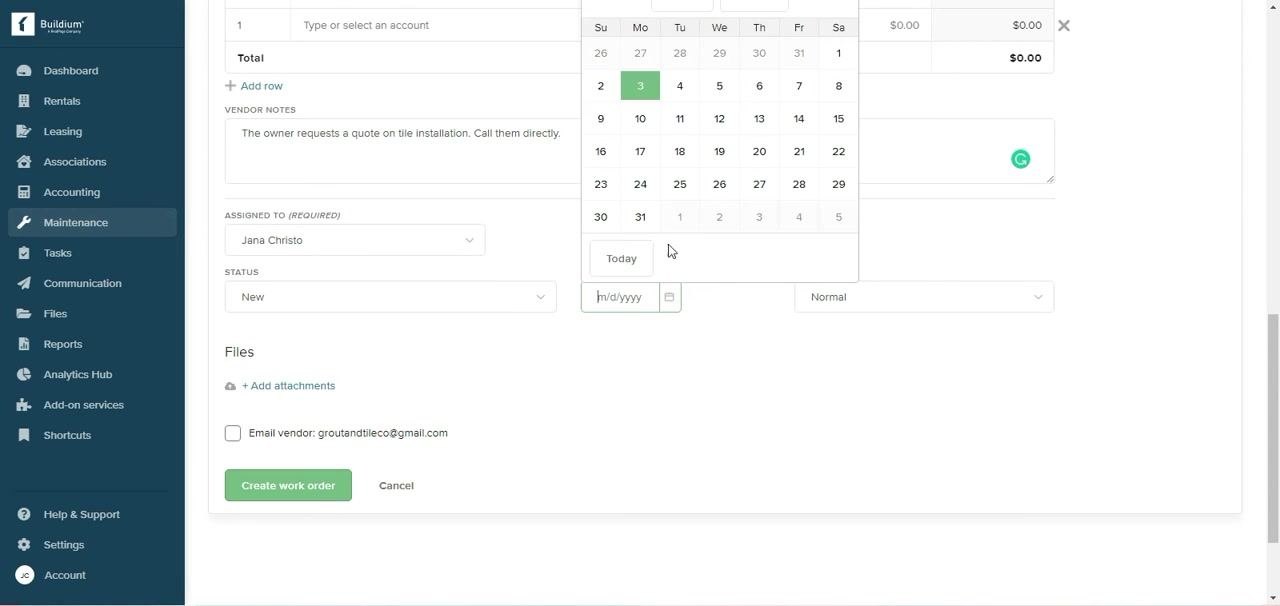
In the Assigned To (Required) dropdown, select the responsible staff member, for example, "Jana Christo." In the Due field, select a due date using the calendar picker, for example, "1/3/2022." In the Priority dropdown, choose the urgency level, for example, "Normal."
Step 28: Attach files (optional)
Click + Add attachments to upload any relevant documents or photos to the work order. Attachments are included in the email to the vendor if you select that option.
Step 29: Select email recipients
Under Files, check the box to Email vendor: groutandtileco@gmail.com to notify the vendor. Optionally, check Email rental owner(s): chrisIvanchev@gmail.com to notify the property owner. You can check both boxes to notify both parties.
Step 30: Create and email the work order
Click the green Create and email work order button to submit the work order and send notifications to the selected recipients. If you don't want to notify the owner, uncheck their box before submitting.
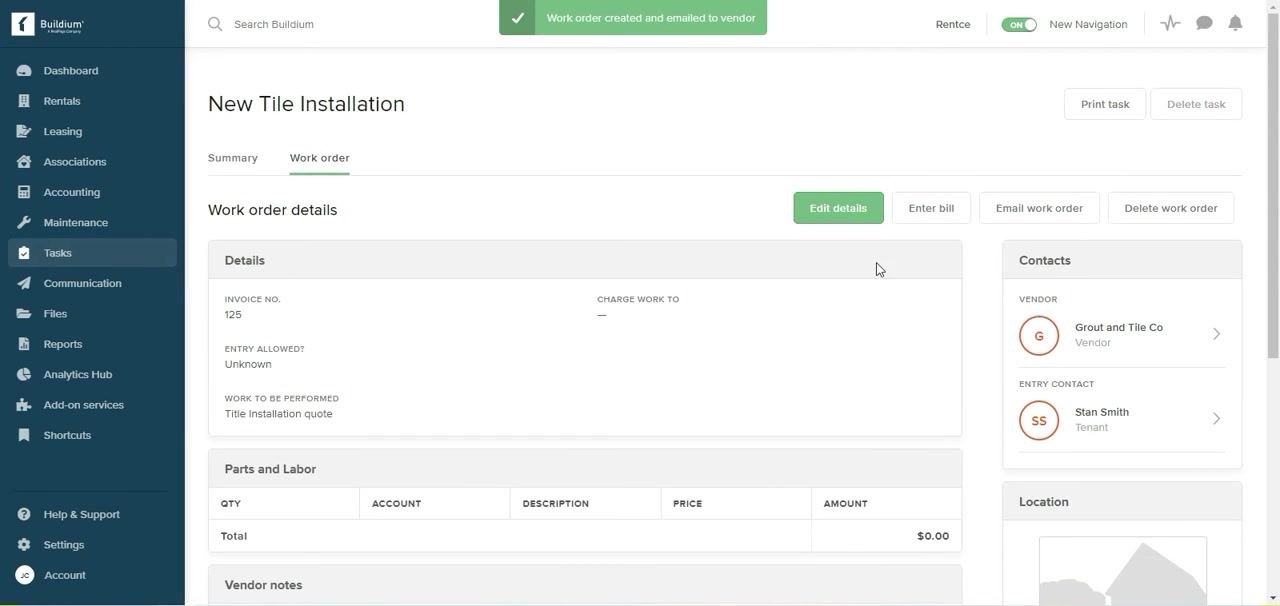
After submission, a confirmation message appears: "Work order created and emailed to vendor." The system then displays the work order summary, including Subject, Invoice No., Entry Allowed, Work to be Performed, Vendor Notes, Assigned To, Due Date, Priority, and Contacts (Vendor and Entry Contact). From this summary, you can use the available buttons to Edit details, Enter bill, Email work order, Delete work order, or Print task.
Recording a bill for a work order
Step 31: Open the work order and start a bill
Navigate to the Tasks section in the Buildium dashboard. The main panel shows Work order details, including Invoice No., Entry Allowed, Work to be Performed, Vendor, Entry Contact, and Location. At the top right, you'll find Edit details, Enter bill, Email work order, and Delete work order buttons.
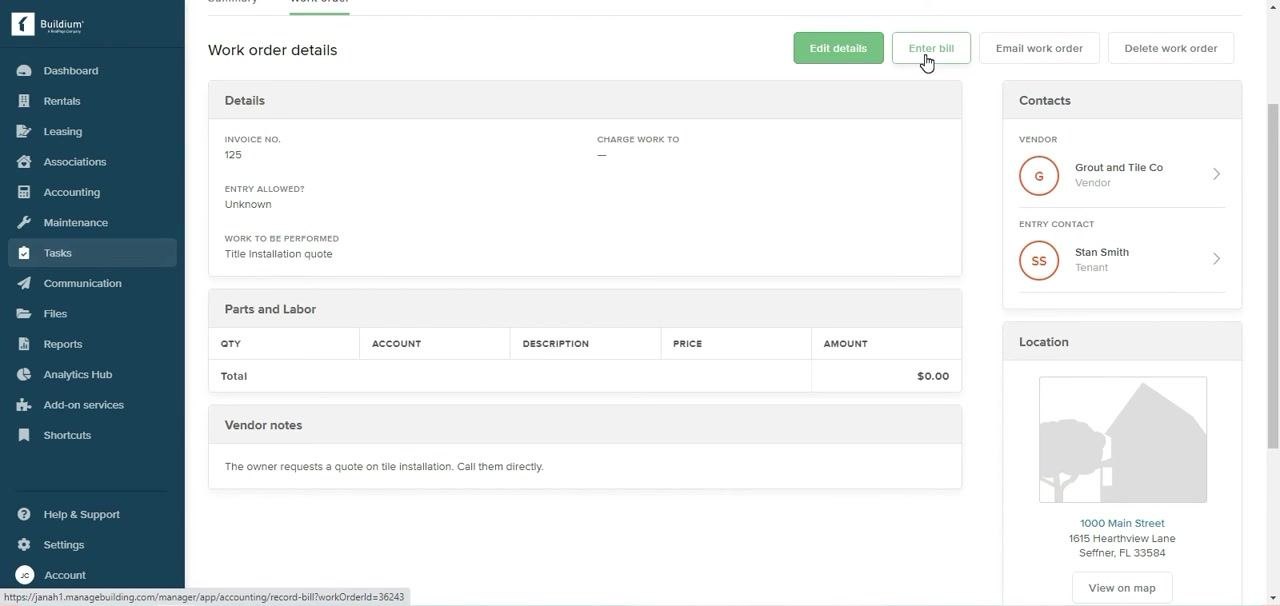
Click Enter bill to begin recording a bill for the work order.
Step 32: Fill in the bill details
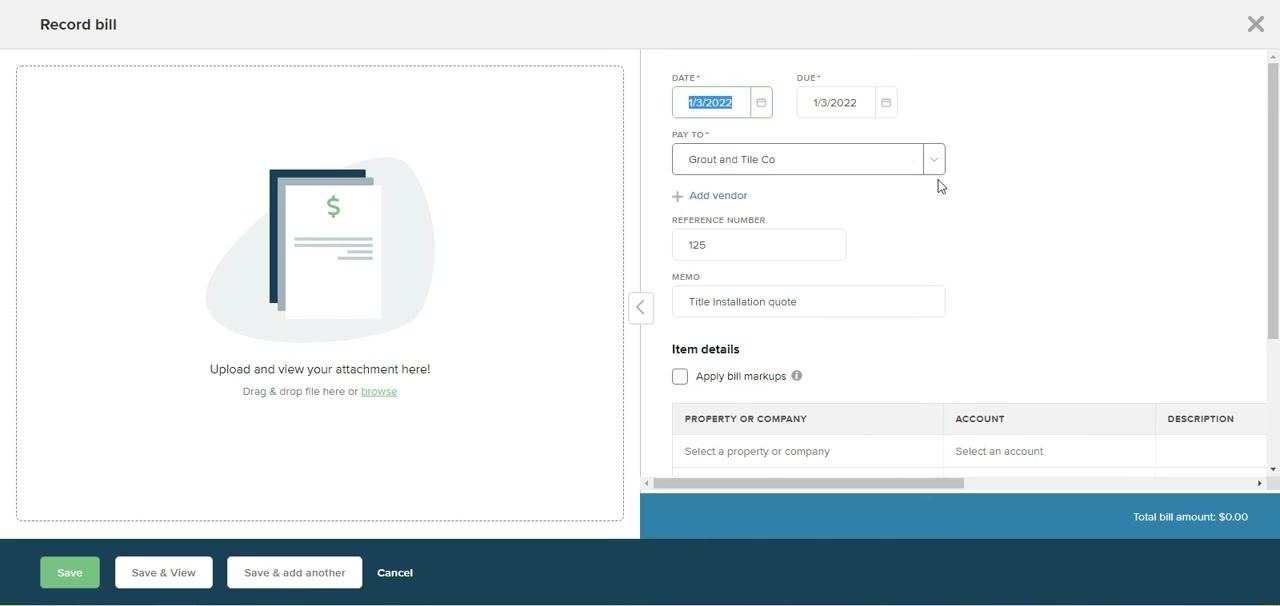
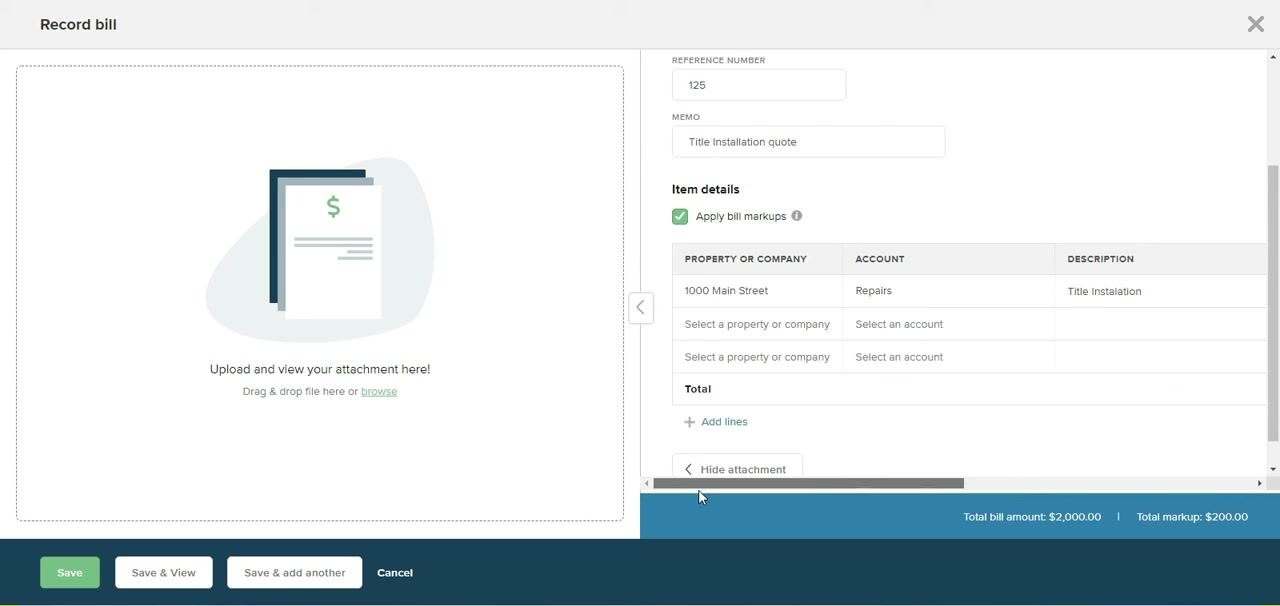
On the Record bill screen, enter the Date, Due date, Pay To (vendor name selected from a dropdown), Reference Number, and Memo. You can also upload and view an attachment by dragging and dropping a file or clicking "browse." At the bottom, your options are Save, Save & View, Save & add another, and Cancel.
Step 33: Apply bill markups if needed
If you need to apply a markup — useful for property managers overseeing vendor work — check the Apply bill markups box under Item details.
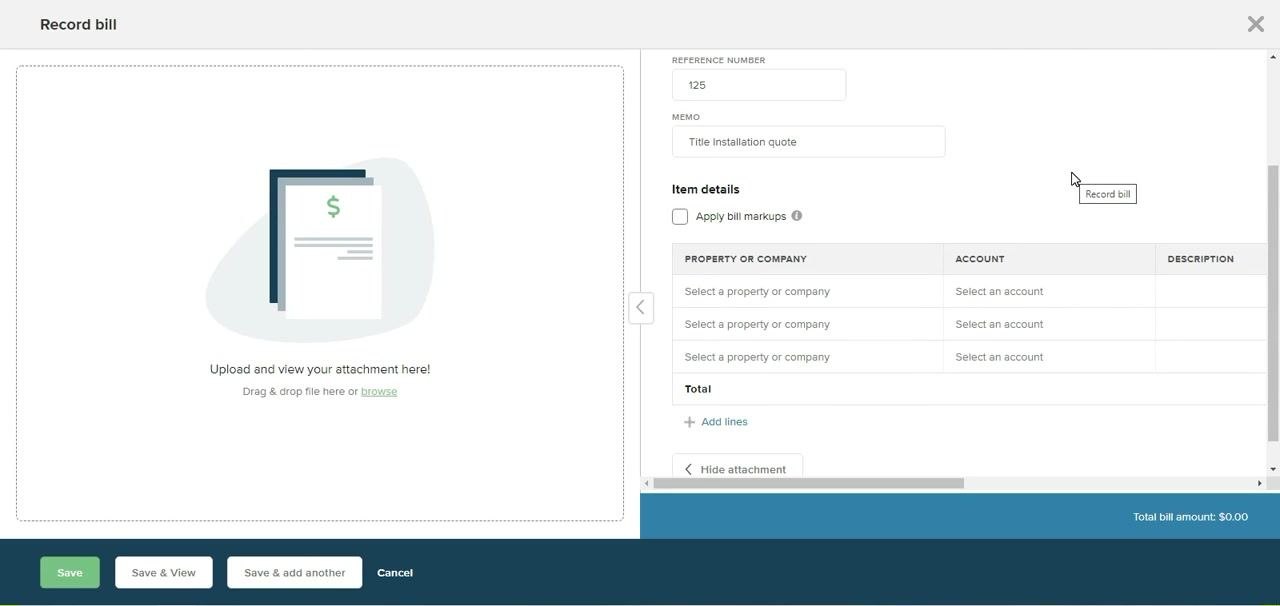
Step 34: Select the property or company
Click the dropdown under Property or Company and choose Rental properties > "1000 Main Street."
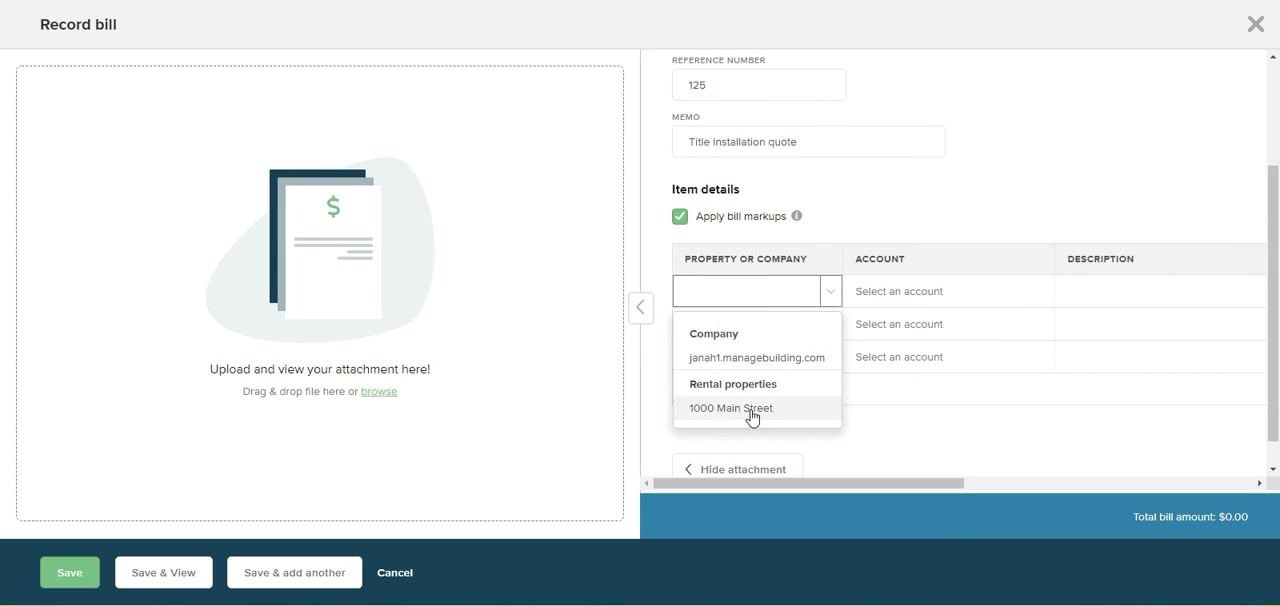
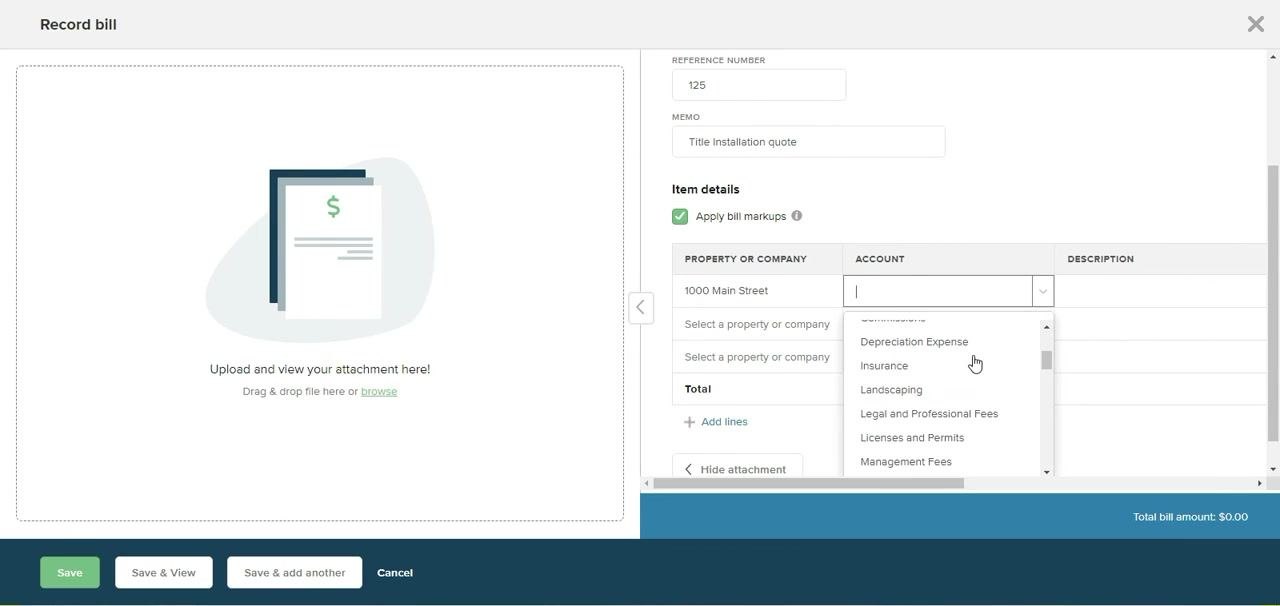
Step 35: Select the account and enter a description
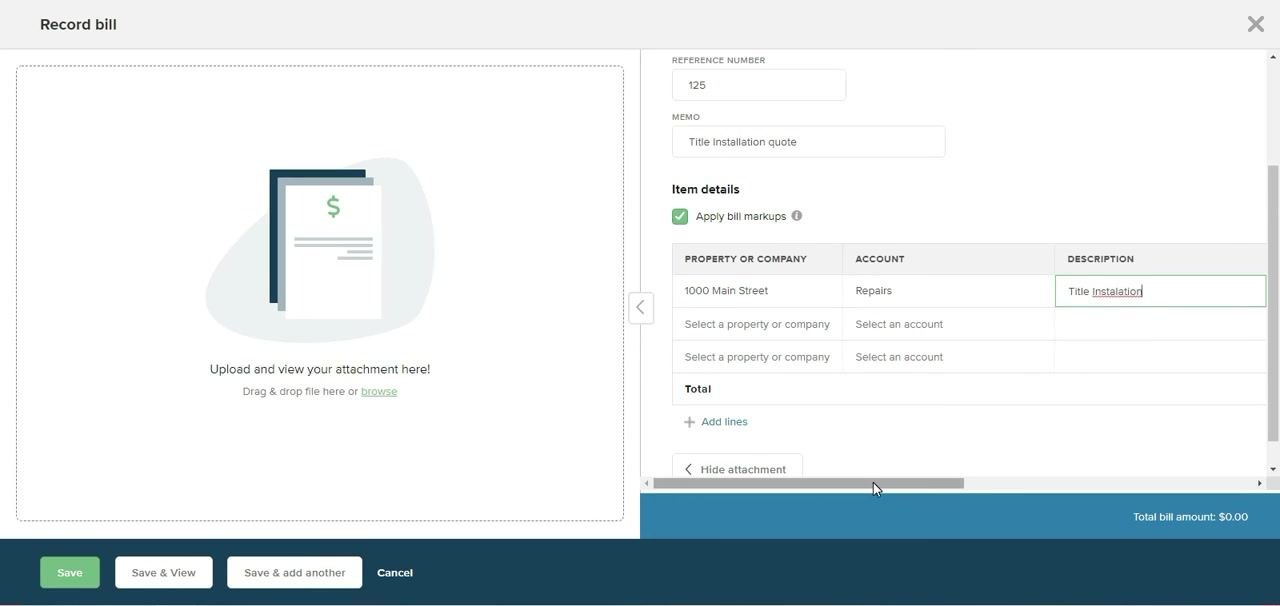
Click the dropdown under Account and choose the relevant account, such as "Repairs." In the Description field, enter a description, for example, "Title Installation."
Step 36: Enter the bill amount and markup
In the Amount field, enter the bill amount, for example, $2,000.00. In the Markup Type dropdown, select "Percent" or "Amount." If you select "Percent," enter the markup percentage, for example, 10%.
Review the calculated markup — for example, $200.00 for a 10% markup — along with the total bill amount and total markup shown at the bottom right.
Step 37: Confirm and save the bill
Before saving, confirm that Apply bill markups is checked, the Property or company is set to "1000 Main Street," the Account is set to "Repairs," the Description reads "Title Installation," and the amount and markup are accurate.
Click Save or Save & View to record the bill.
Step 38: Verify the saved bill
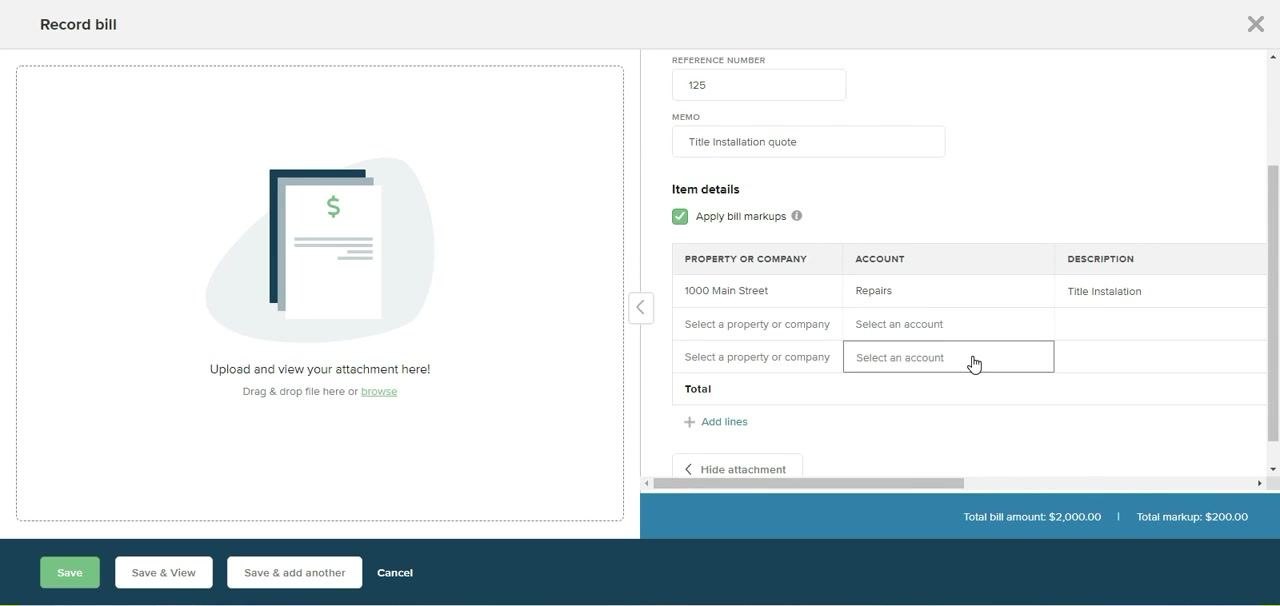
After saving, the Record bill screen displays the entered details: Reference Number, Memo, the checked "Apply bill markups" box, Property or Company, Account, Description, Total bill amount, and Total markup. You can add additional lines if needed, and attachment options remain available. The bottom bar shows the total bill and markup amounts.
Step 39: Return to work order details
Navigate back to the Work order details screen for the task. It now displays the Title, Invoice No., Entry Allowed, Work to be Performed, Vendor, Entry Contact, and Location. The Parts and Labor section shows $0.00 since the bill is now recorded separately. Action buttons available include Edit details, View bill, Email work order, and Delete work order.
Confirming the financial impact
Step 40: Confirm the bill in the vendor ledger
Navigate to the vendor's section and access the Vendor ledger to review transactions. The ledger displays the Date, Number, Ref. No., Type (Bill), Property, Account (Accounts payable), Memo, and Amount — confirming the bill is posted to the vendor's account.
Step 41: Review the property's financials
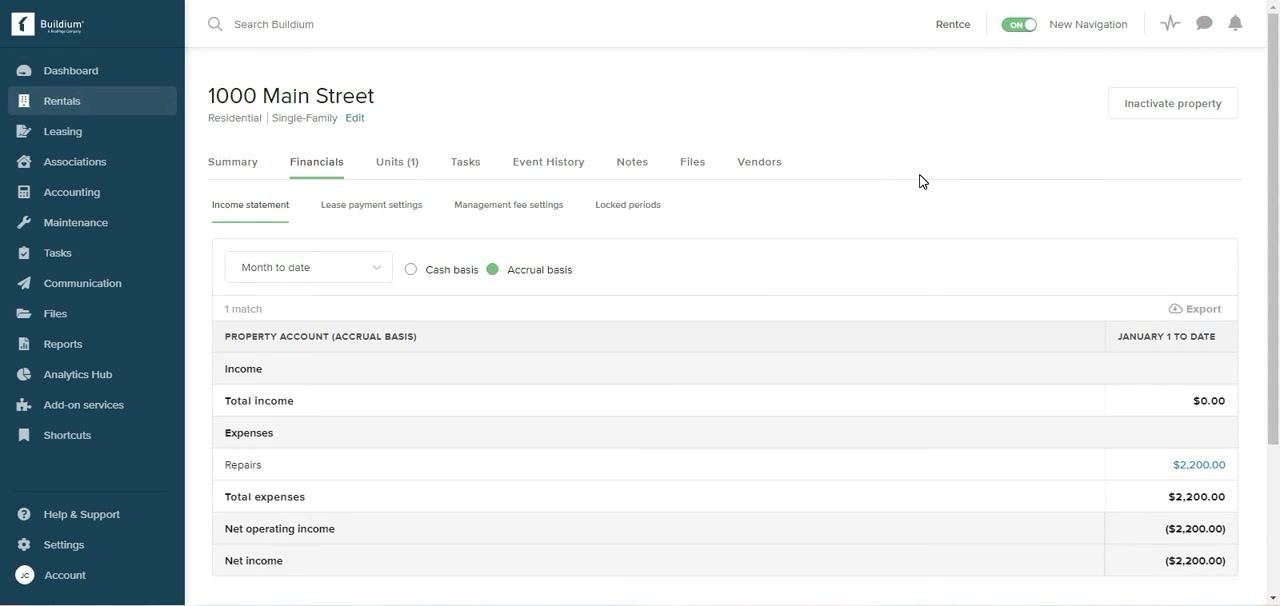
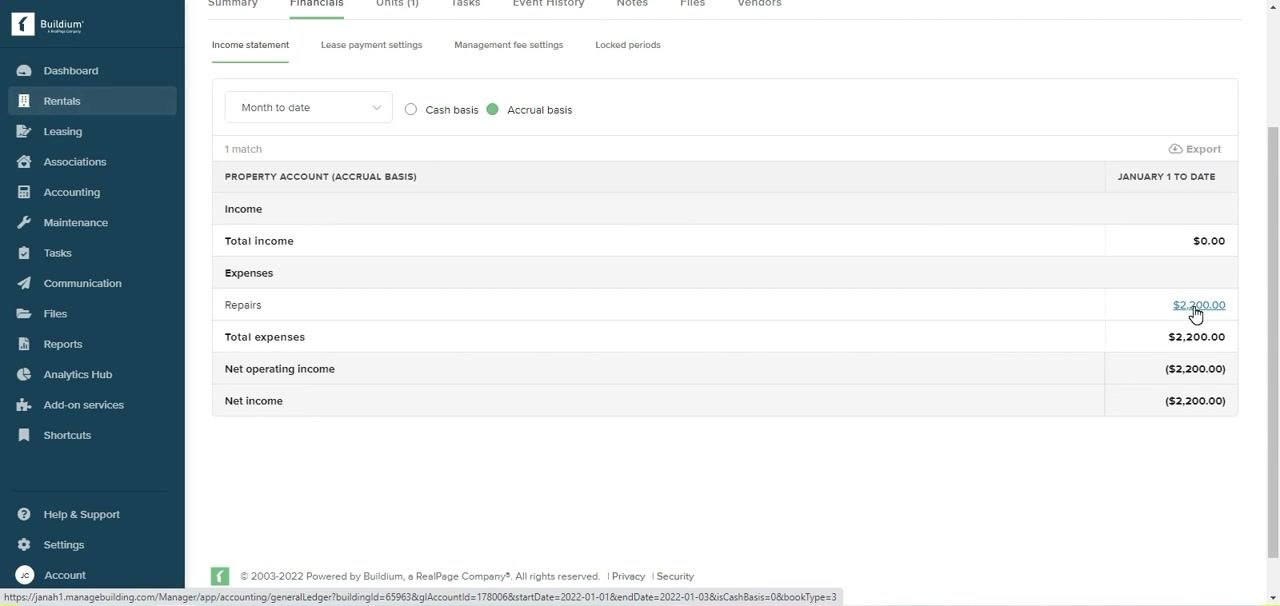
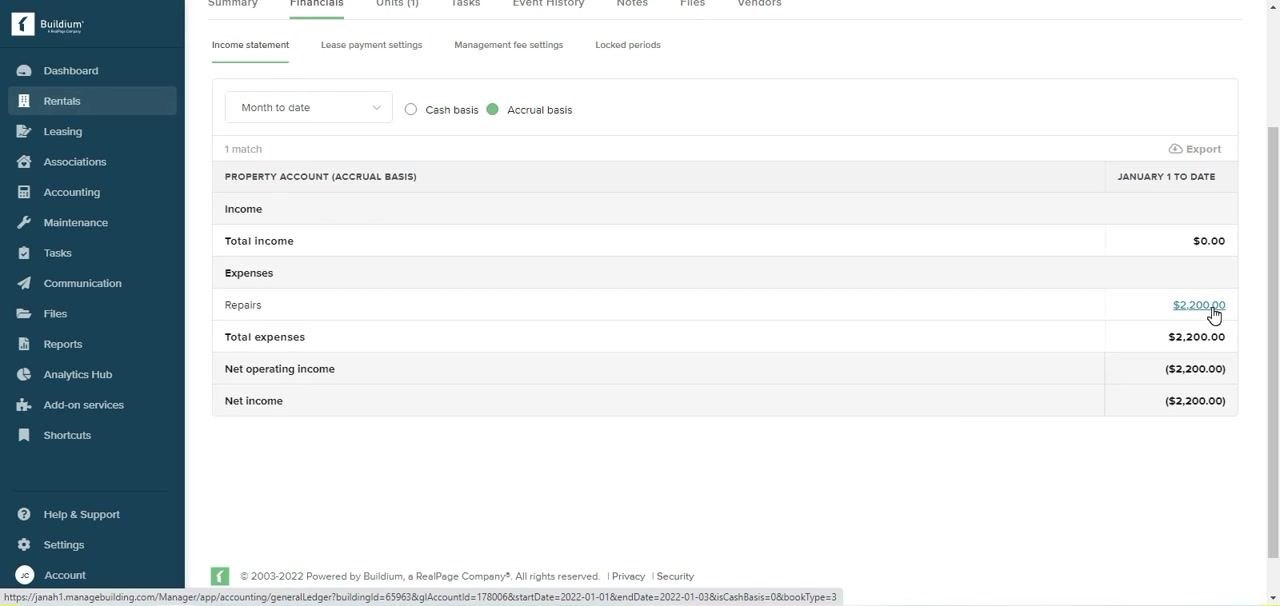
Navigate to Rentals > "1000 Main Street" and select the Financials tab. Make sure Accrual basis is selected rather than "Cash basis." The income statement shows Income, Total income, Expenses (Repairs), Total expenses, Net operating income, and Net income. In this example, the $2,200.00 expense reflects the $2,000.00 bill plus the $200.00 markup.
The owner sees a total expense of $2,200.00 for the repair: $2,000.00 goes to the vendor, Grout and Tile Co, while $200.00 (the 10% markup) is retained by the property manager for overseeing the work. The financials clearly separate the vendor payment from the management fee markup. The owner pays the total amount, and the vendor receives their portion once payment is processed.
Step 42: Finalize records and communicate
Once the owner pays the total amount, the vendor receives their payment and the property manager retains the markup. Use Email work order or View bill to send documentation as needed, and ensure all records are updated and attachments are uploaded for future reference.
Using property inspections
Step 43: Open Property Inspections
From the property details screen, hover over or select Maintenance in the left sidebar, then click Property inspections in the dropdown to access the module. Confirm you're in the correct property context — the financials for 1000 Main Street should still be visible.
Step 44: Review Property Inspections features and pricing
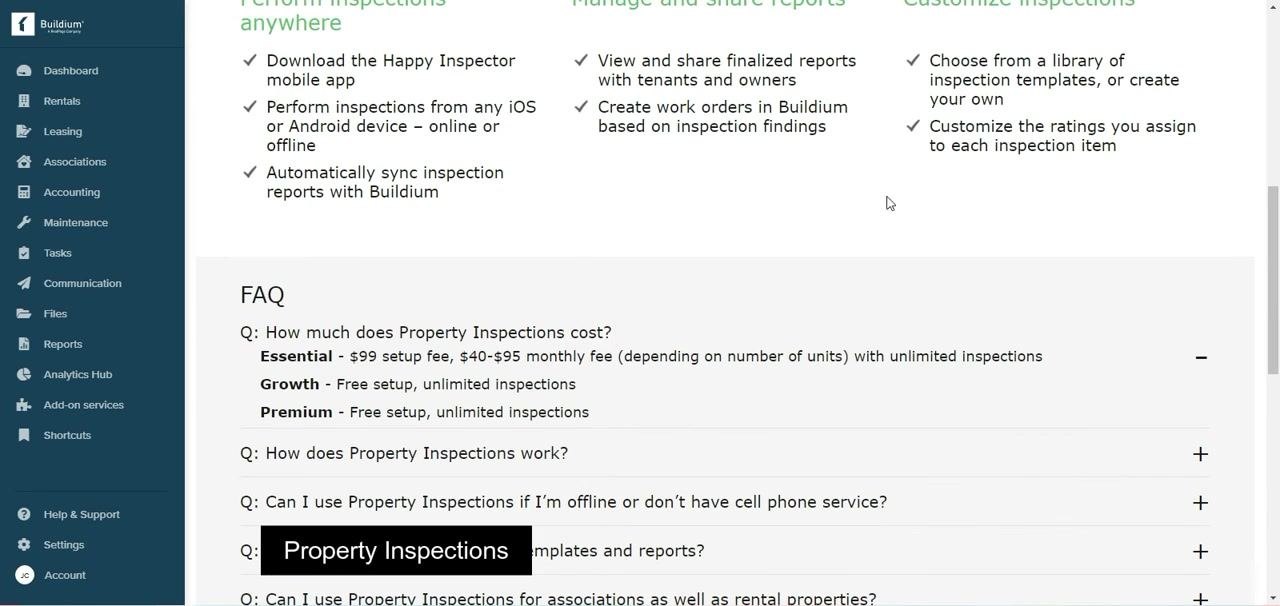
The Property Inspections overview page highlights key features: downloading the Happy Inspector mobile app, performing inspections from any iOS or Android device online or offline, automatically syncing inspection reports with Buildium, viewing and sharing finalized reports with tenants and owners, creating work orders in Buildium based on inspection findings, choosing from a library of inspection templates or building your own, and customizing the ratings assigned to each inspection item.
The FAQ section outlines pricing:
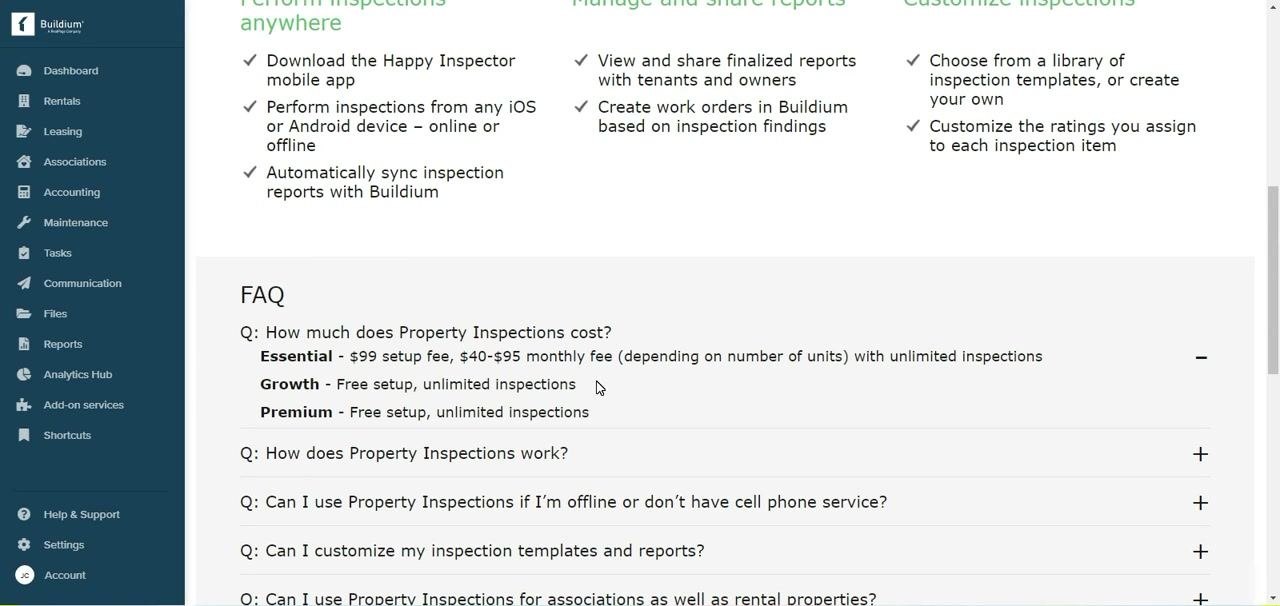
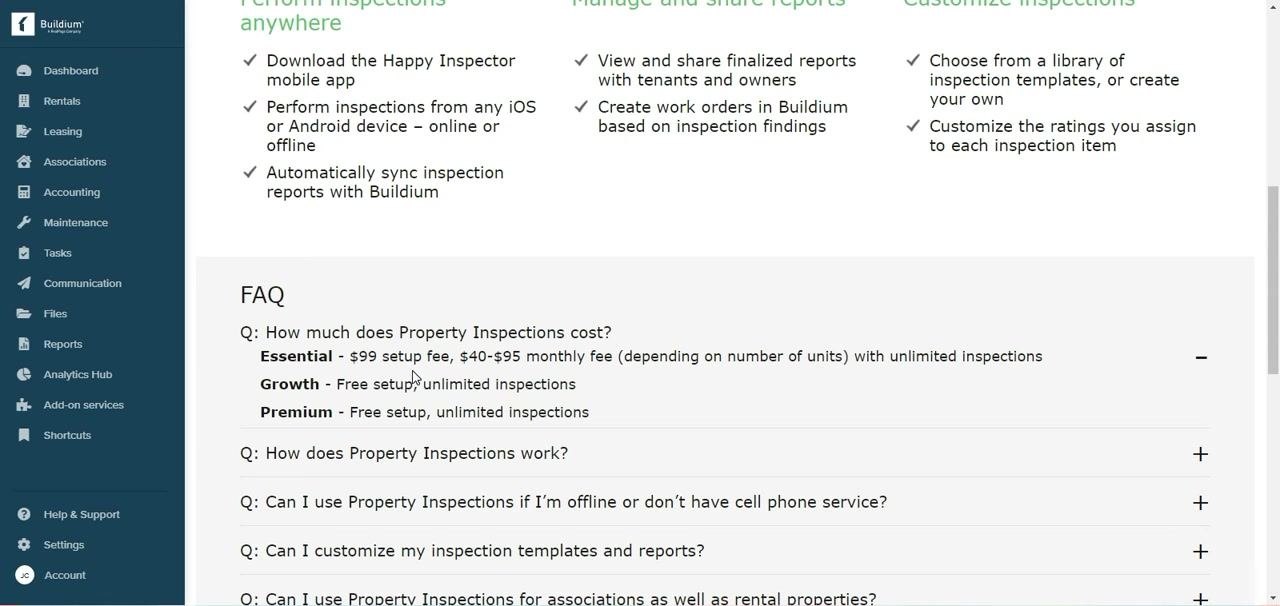
- Essential Plan: $99 setup fee, $40–$95 monthly fee depending on number of units, unlimited inspections.
- Growth Plan: Free setup, unlimited inspections.
- Premium Plan: Free setup, unlimited inspections.
The FAQ also addresses how Property Inspections work, whether inspections can be performed offline or without cell service, customization options for templates and reports, and how inspections apply to both associations and rental properties. For Growth and Premium plans, setup and inspections are completely free.
Step 45: Get started with the Property Inspections dashboard
The main Property Inspections dashboard displays a banner noting that Buildium has teamed up with Happy Inspector to offer mobile property inspections for all your properties and associations. A prominent Get Started button appears alongside quick links to Perform inspections anywhere, Manage and share reports, and Customize inspections. Click Get Started to begin setting up property inspections.
What's next
By following these steps, you now know how to create a work order in Buildium, assign it to a vendor, record an associated bill with markup, and confirm how that bill is reflected in both the vendor ledger and the property's financials. From here, you can explore setting up Property Inspections to generate work orders directly from inspection findings, or continue managing vendor communications and payments through the vendor profile's Financials and Communications tabs.
Generation details: cost, quality tiers
Docsie billed 7,500 credits ($5.25) to analyze this 15-minute video at standard quality. The rewrite, template fill and Word/PDF exports were included. The same video at each quality tier:
| Quality | Frames sampled | Credits | Approx. cost |
|---|---|---|---|
| Draft | every 16-30 s | 3,750 | $2.62 |
| Standard (this guide) | every 8-15 s | 7,500 | $5.25 |
| Detailed | every 4-7 s | 15,000 | $10.50 |
| Ultra | every 1-3 s | 30,000 | $21.00 |
Credits priced at $0.70 per 1,000; plans include a monthly allowance. Enterprise customers on on-premise or bring-your-own-model deployments run this on their own inference and pay no per-video credits.
Generated by Docsie Video-to-Docs on 2026-10-25 from a 14-minute video. Screenshots are frames from the source video and belong to their creator, Jana Christo, whose original is embedded above. If you own this video and want the guide removed or credited differently, contact us and we will act within one business day.