
How to Prepare an Account Reconciliation in BlackLine
This guide walks you through how to prepare an account reconciliation in BlackLine, from locating the correct reconciliation template to entering supporting items, comments, and documentation, and finally certifying the completed reconciliation. Following these steps ensures that your reconciliation is accurate, well-documented, and ready for approval.
Video: How to perform Account Reconciliation in Blackline ? General Template |Preparer| Step by Step by Bharat Arora (2022). All credit for the demonstration goes to the creator; watch the original on YouTube. The written guide below was generated from this video by Docsie. Creator? Request a change or removal.
This guide walks you through how to prepare an account reconciliation in BlackLine, from locating the correct reconciliation template to entering supporting items, comments, and documentation, and finally certifying the completed reconciliation. Following these steps ensures that your reconciliation is accurate, well-documented, and ready for approval.
Prerequisites
- You must have valid credentials to log in to the BlackLine application.
- Your user role must be set to PREPARER to complete the steps in this guide.
Accessing and filtering journal template information
Log in to the BlackLine application
Open the BlackLine application in your web browser and enter your credentials to log in.
After logging in, confirm that you are on the Home screen. This screen displays widgets such as Company News, Reconciliation Certification Status, Past Due Recs, Task Certification Status, and Variance Certification Status. Check that the top left of the screen shows "Home" alongside the BlackLine logo.
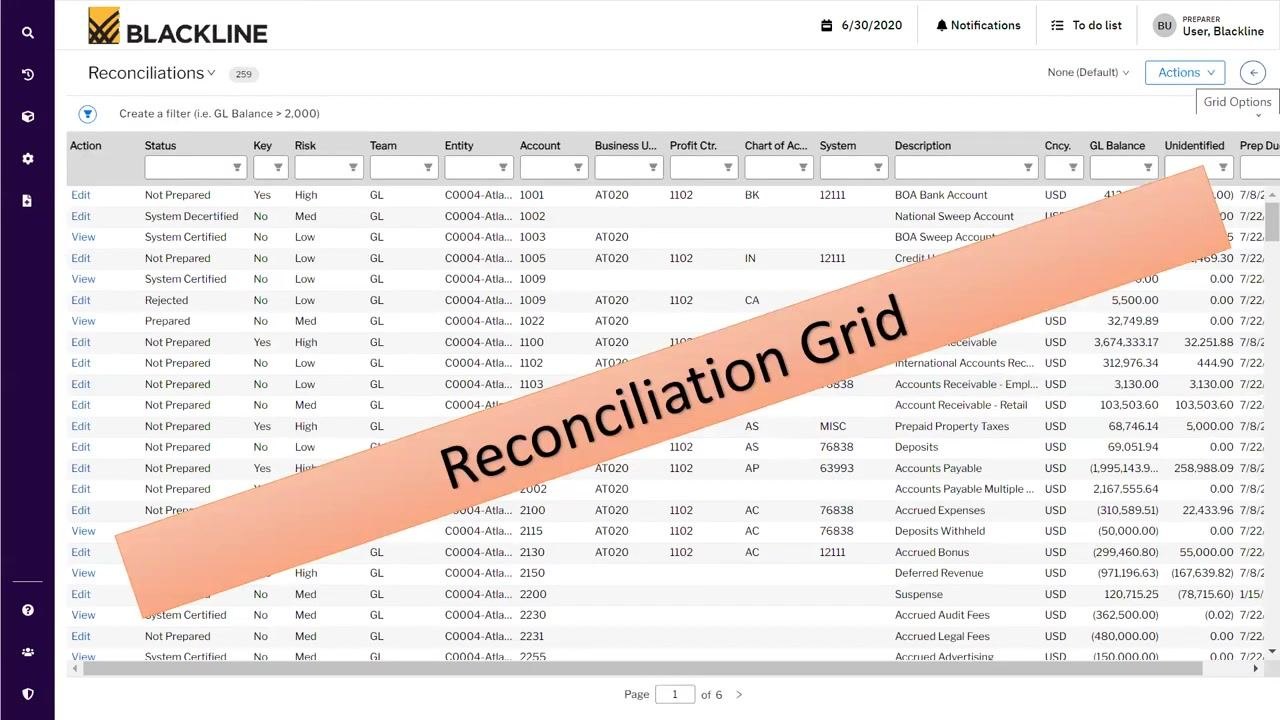
Confirm you are logged in as a preparer
Check the top right corner of the screen to confirm your user role is set to PREPARER (for example, "User, Blackline" with "PREPARER" displayed above it).
Set the default filter to "Reconciliations Only"
In the top right, click the arrow to open the Default Filters panel. From the dropdown, select Reconciliations Only to ensure that only reconciliation records are displayed in the grid.
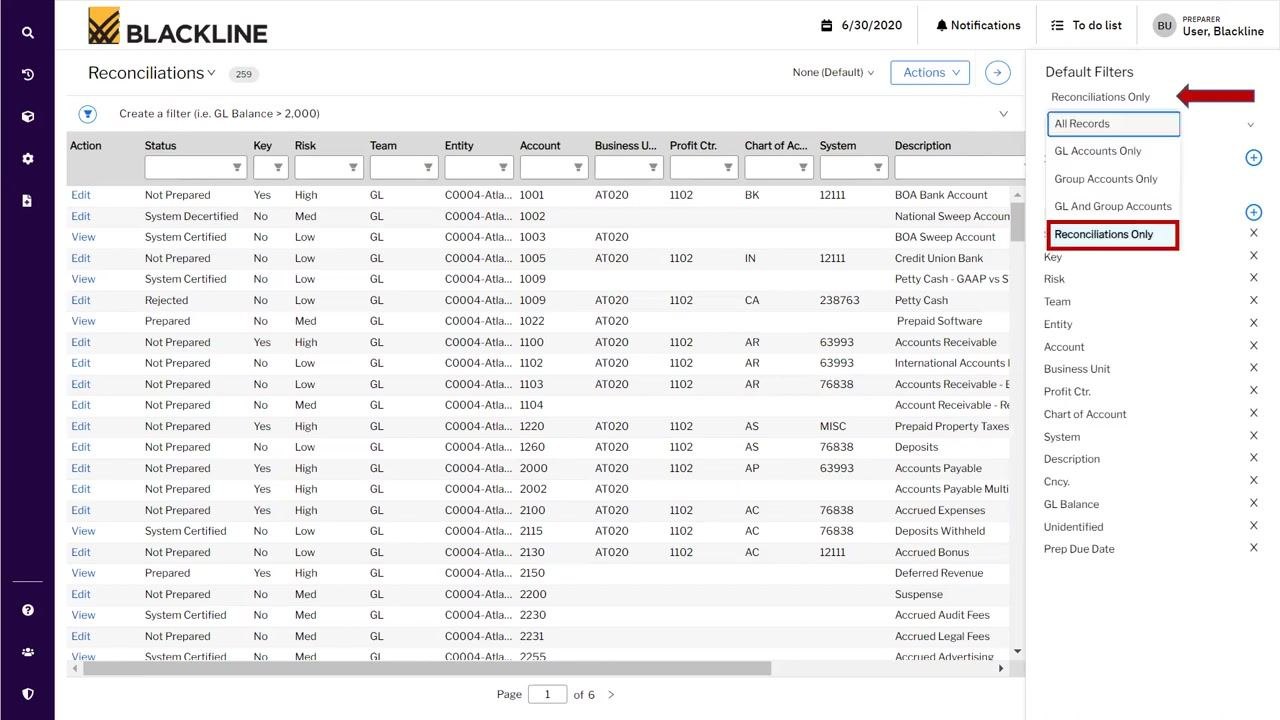
Select "My Assignments" if applicable
In the Default Filters panel, select My Assignments if you want to view only the reconciliations assigned to you. If nothing is assigned to you, you may see Team Assignments displayed instead.
Add the Template column to the grid
In the Default Filters panel, locate the Fields section and click the + button next to Fields Add Fields. Type "template" in the search box, select the Template option when it appears, and click Apply.
Confirm that the Template column now appears on the right side of the reconciliation grid, displaying the template information for each reconciliation record.
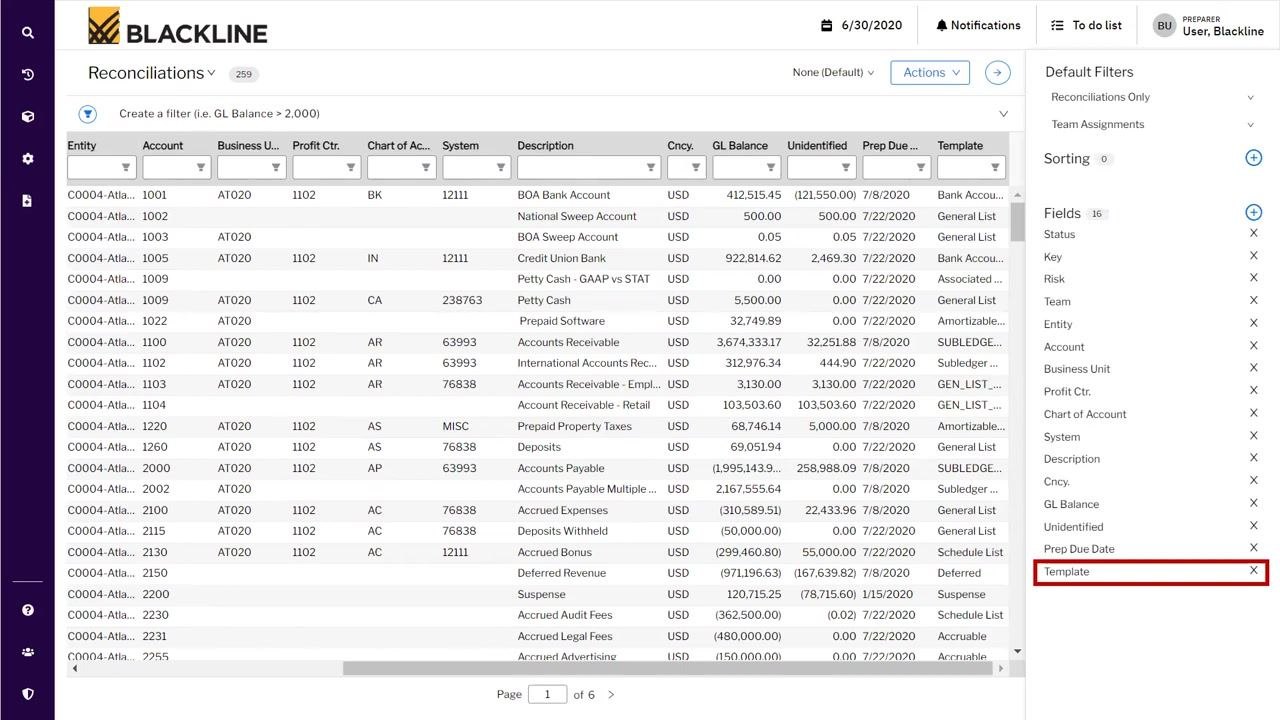
Rearrange the Template column for convenience
Drag and drop the Template column to your preferred position in the reconciliation grid. For example, move it upward so it becomes the fourth column from the left, making it more visible.
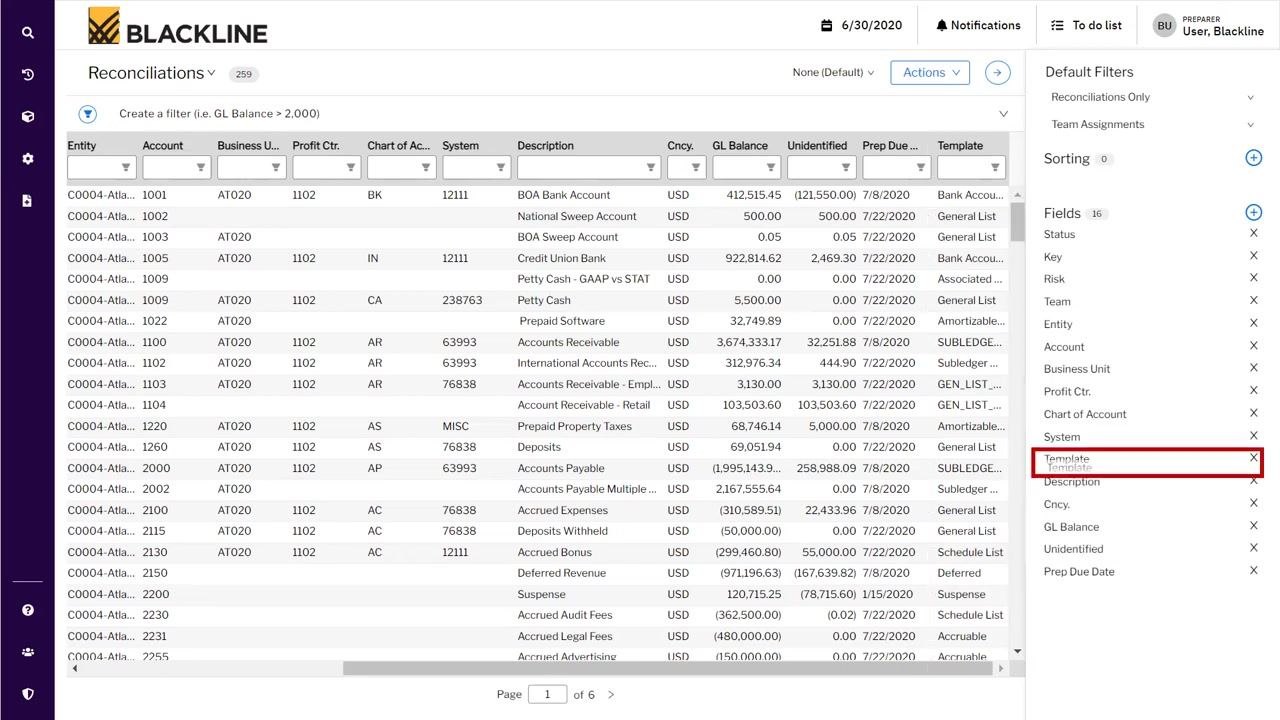
Close the Default Filters pane
Once you have arranged the columns as desired, click the arrow at the top right corner to close the Default Filters pane.
Filter for a specific template type
In the Template column filter box, type or select the template type you want to focus on, such as "General List." The grid updates to show only accounts that use the selected template.
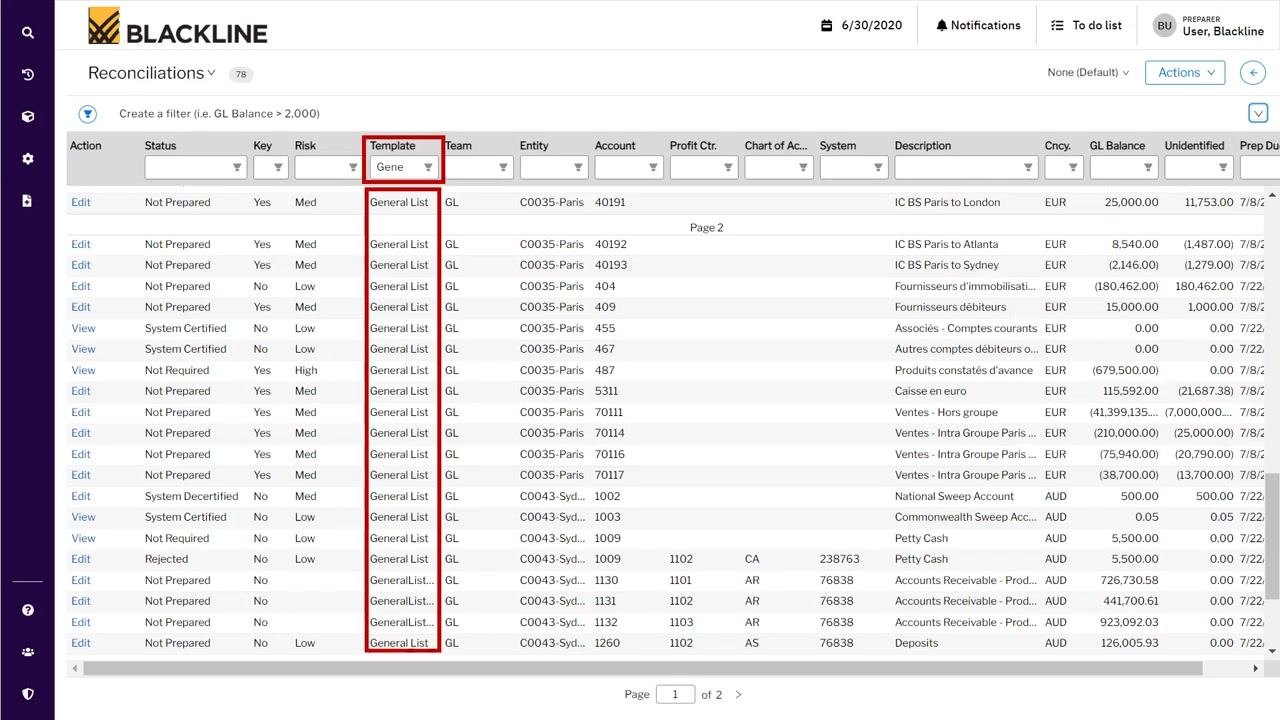
Opening the reconciliation screen
Enter the reconciliation screen for a specific account
Click the Edit link in the Action column for the account you want to work on. This opens its reconciliation screen.
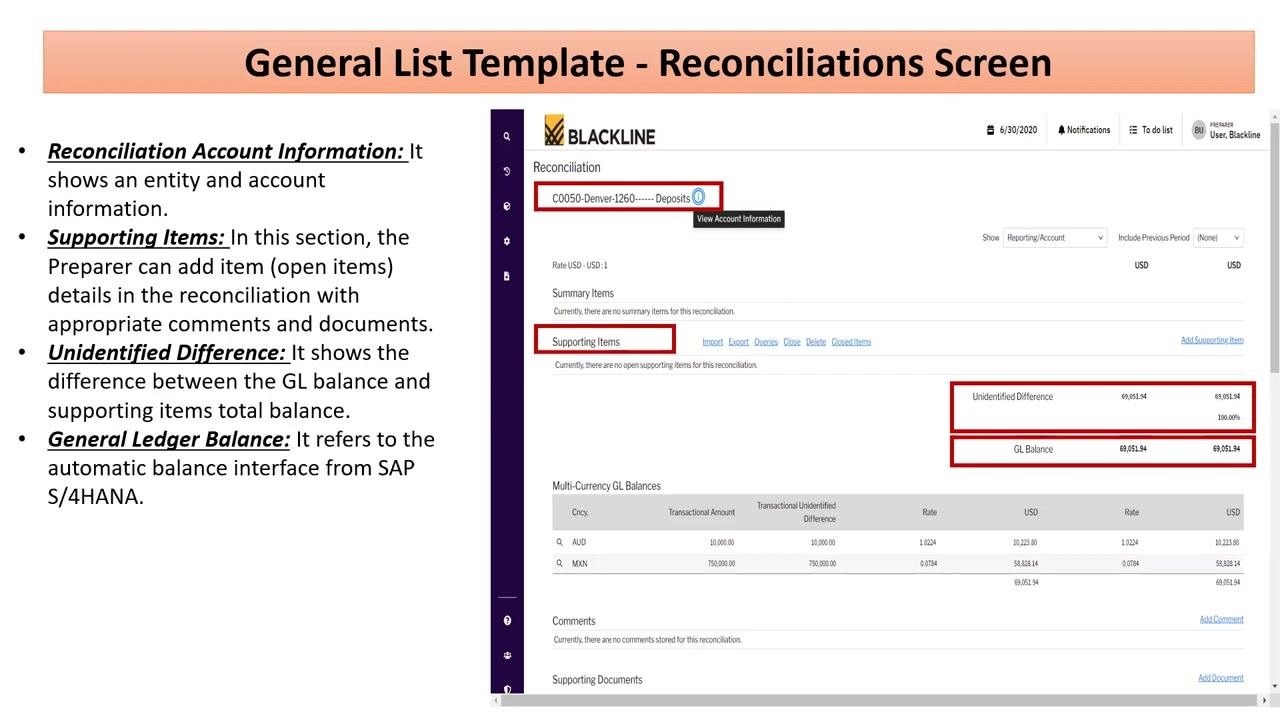
The reconciliation screen displays detailed account information at the top, including entity, account number, and description. The screen is titled "General List Template - Reconciliations Screen."
The reconciliation screen includes two key sections:
- Reconciliation Account Information: Shows the entity and account details at the top.
- Supporting Items: Where you add open item details, comments, and documents to complete the reconciliation.
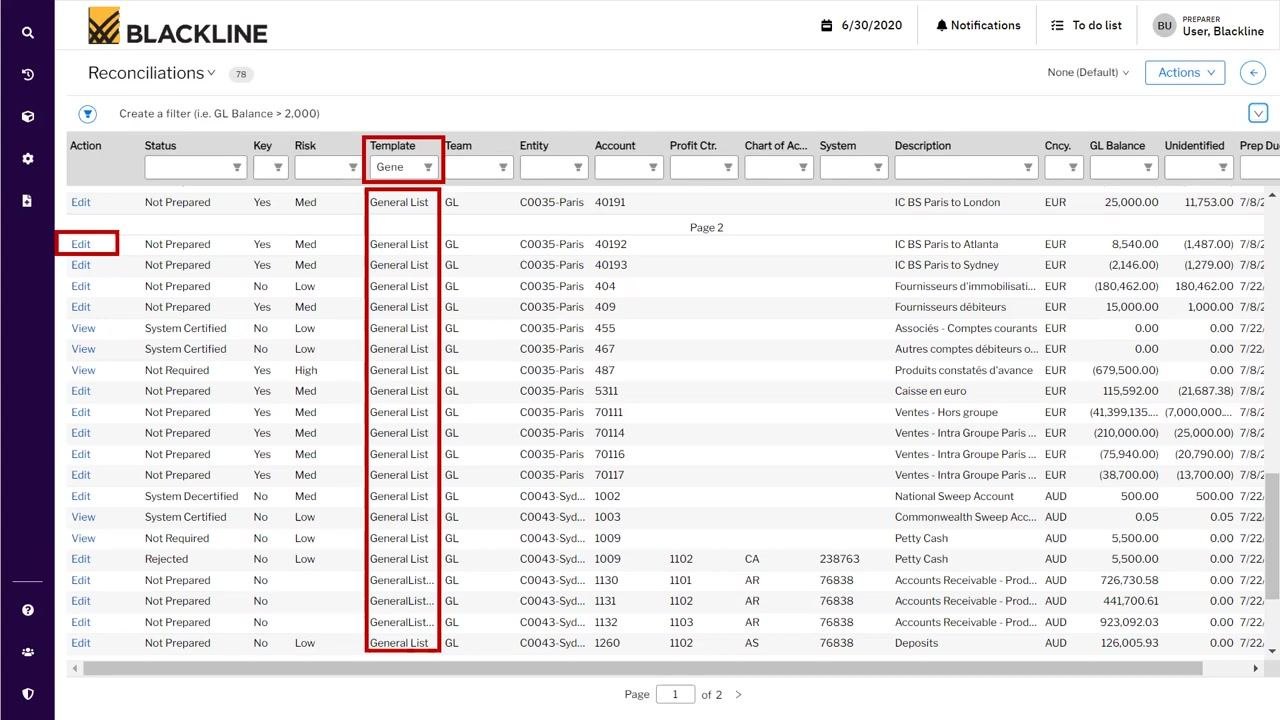
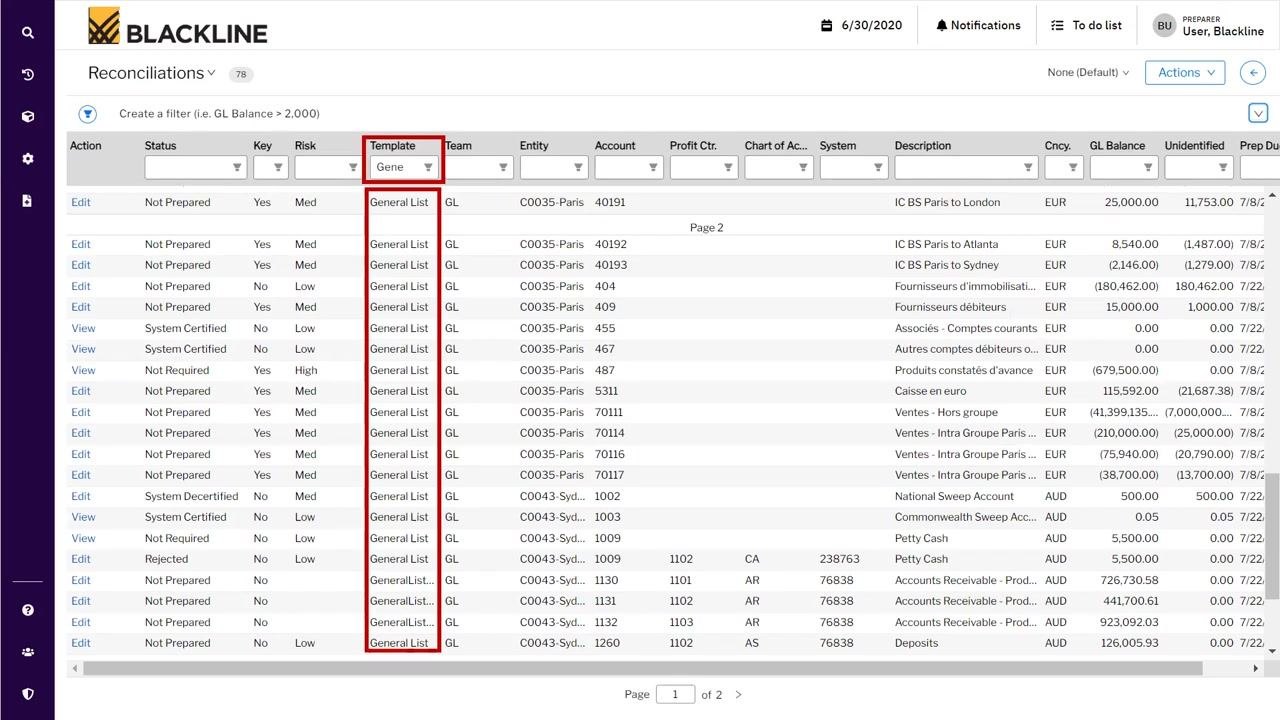
Reviewing account information
View account information
Click the information icon (ⓘ) next to the account name (for example, "C0050-Denver-1260------Deposits") to open the account information window. This window contains permanent details about the account, such as currency, risk rating, assigned preparer, and approver.
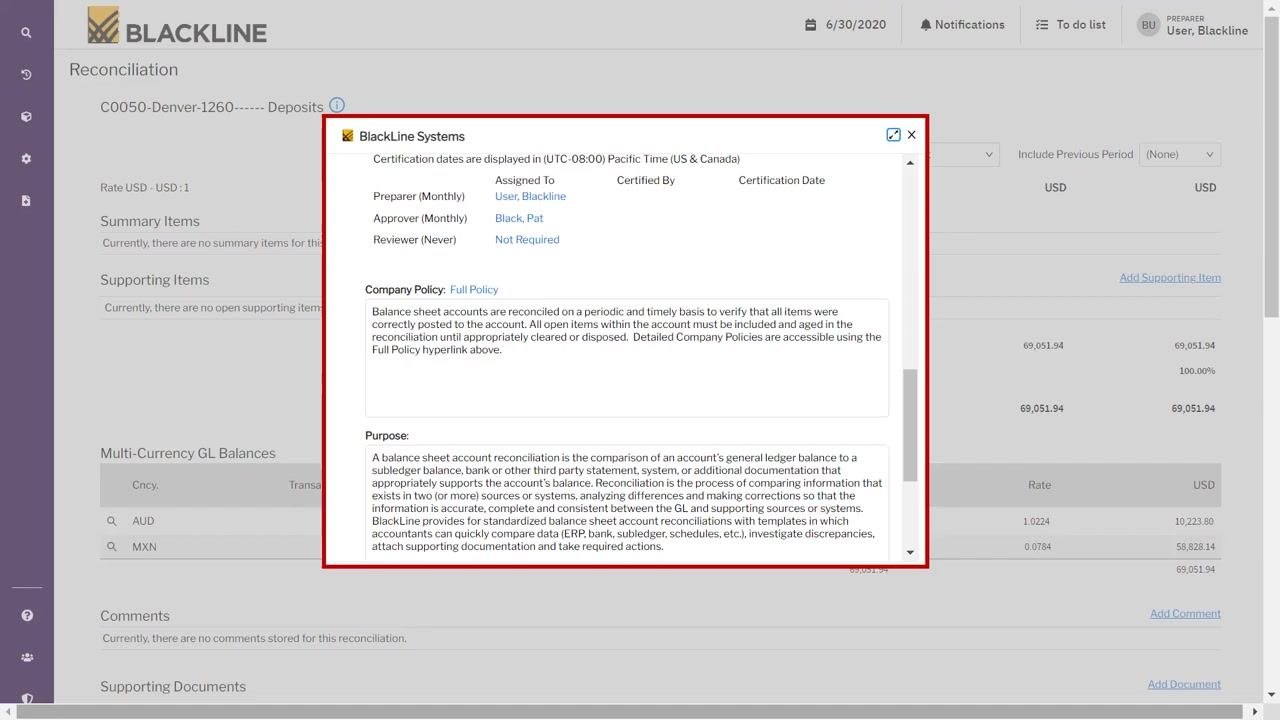
Review company policy and purpose
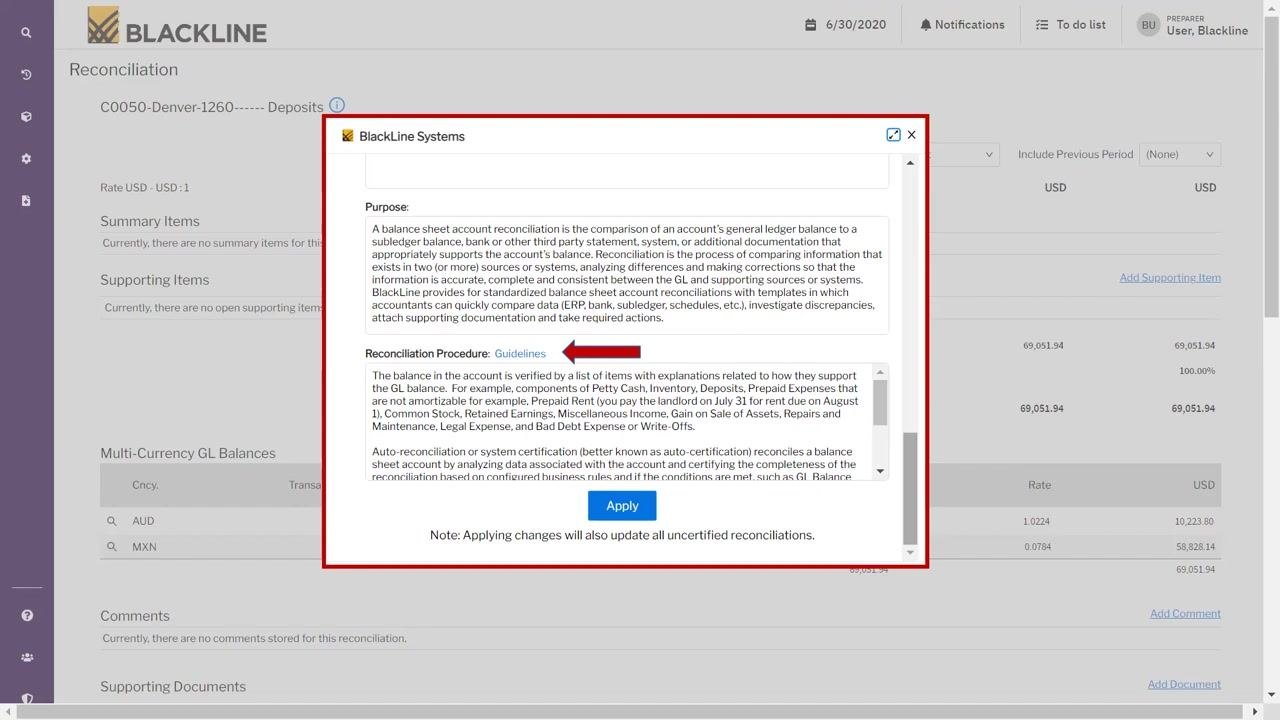
In the account information window, review the Company Policy section, which outlines the policy for reconciling balance sheet accounts. Read the Purpose section, which explains the objective of the reconciliation for this account. Make sure this information is complete so future preparers understand the context and requirements for the reconciliation.
Document the reconciliation procedure
Locate the Reconciliation Procedure section in the same window. Enter or review the step-by-step procedure for completing the reconciliation, including how supporting items relate to the GL balance. Reference any applicable guidelines and ensure the procedure is clear and complete.
Apply and save account information
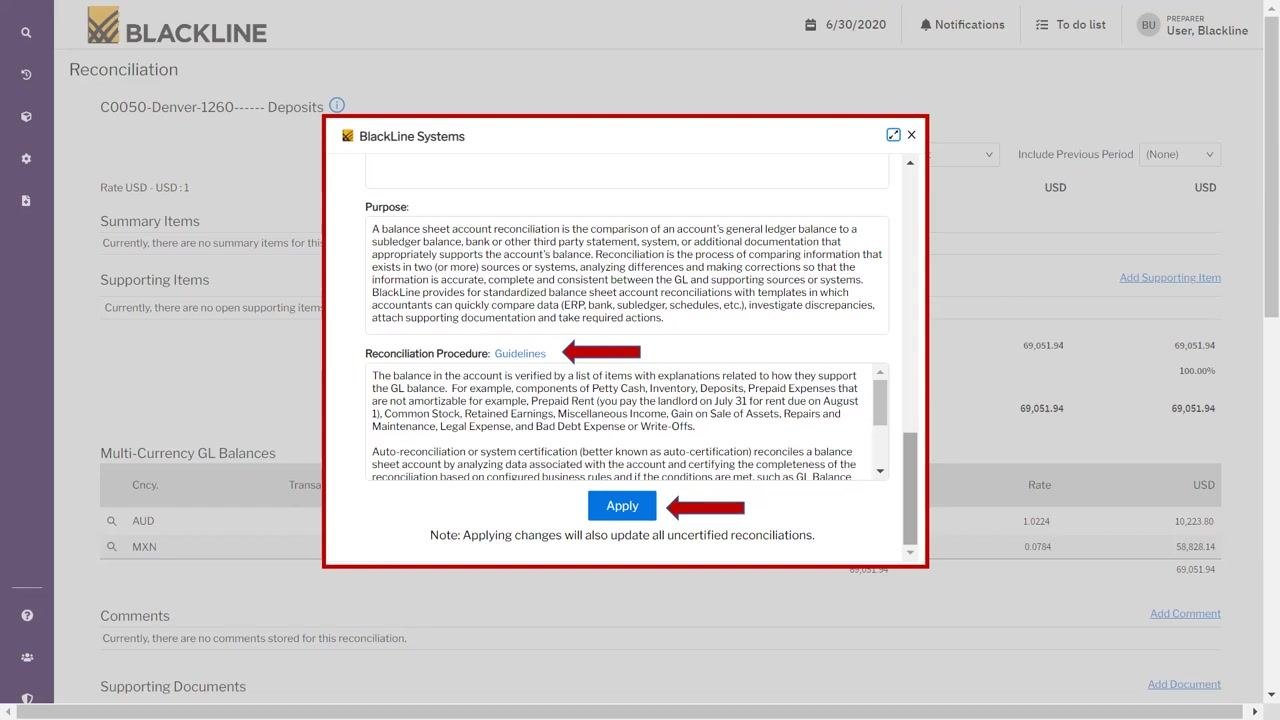
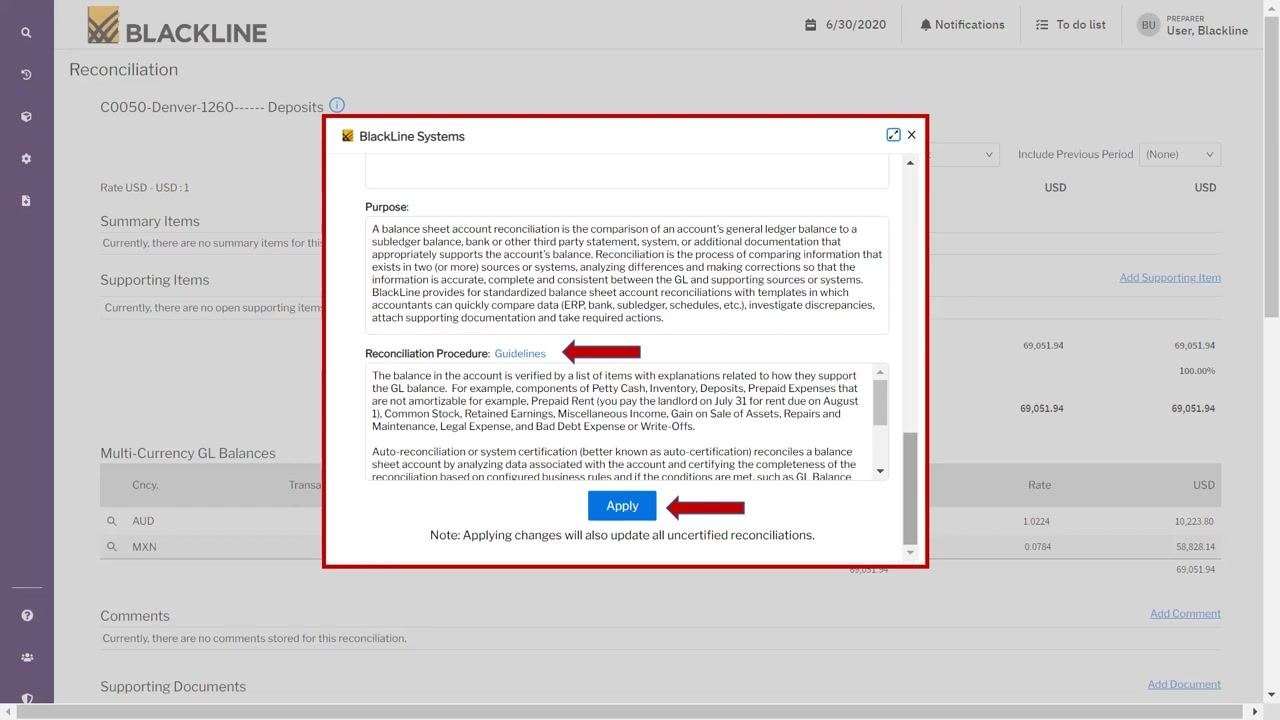
After entering or reviewing all required information—Company Policy, Purpose, and Reconciliation Procedure—click Apply at the bottom of the account information window. Applying these changes also updates all uncertified reconciliations for this account.
When you click Apply, the entered information is saved for all future periods, and the preparer can view and edit it each month.
Working with supporting items
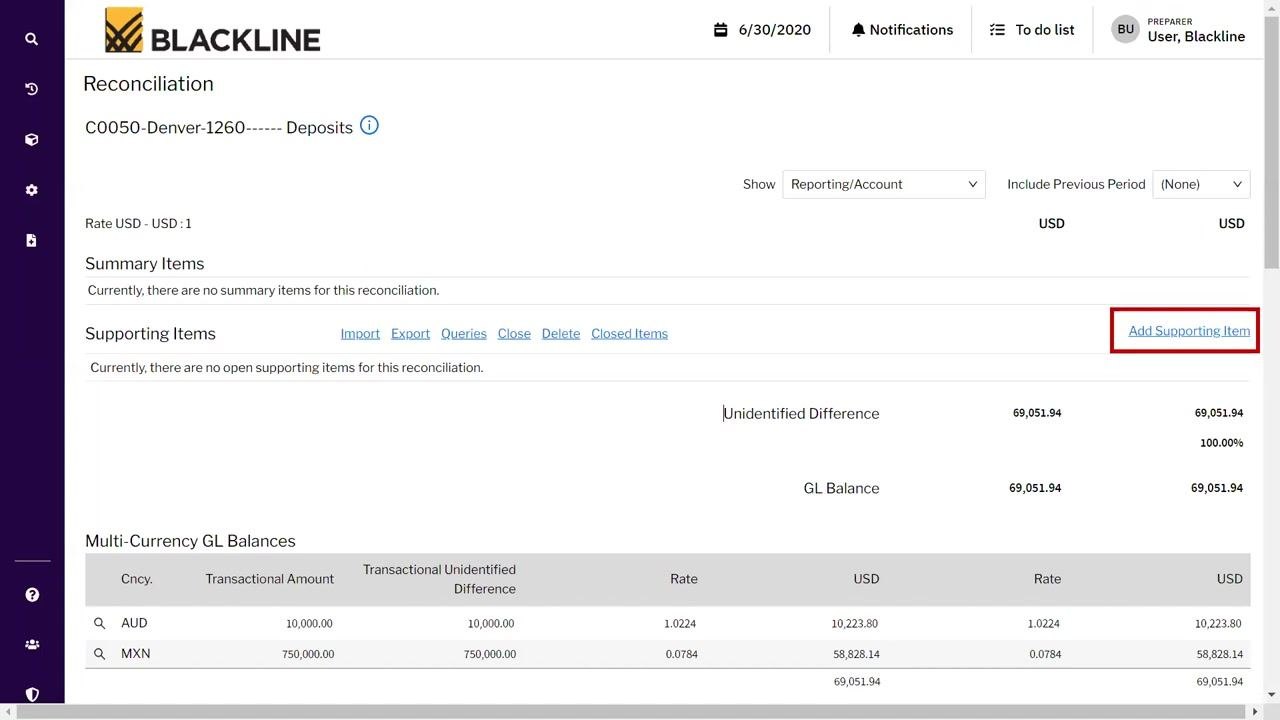
Review the General Ledger (GL) balance
The GL Balance section shows the balance imported automatically from the ERP system, such as SAP S/4HANA. This value is used to compare against your supporting items during reconciliation.
Add a supporting item
On the main reconciliation screen, locate the Supporting Items section and click the Add Supporting Item hyperlink on the right side of the header. This opens the Add Item page.
Enter supporting item details
On the Add Item page, fill in the required fields:
- Txn. Amount: Enter the transaction amount (for example, 10,223.80 USD).
- Amount: Enter the amount (for example, 10,223.80 USD).
- Alternate Amount: Enter if applicable.
- Rpt. Amount: Enter the reporting amount (for example, 10,223.80 USD).
- Origination Date: Enter the date the transaction originated (for example, 6/30/2020).
- Open Date: Enter the open date (for example, 6/30/2020).
- Item Class: Select the appropriate class (for example, List Component).
Optional fields include Close Date, Item Sub-Type, Reference, Invoice Number, Journal Entry Number, and Offset Account Number.
Enter optional and descriptive information
If your supporting document has a different date, update the Origination Date and Open Date accordingly. Fill in optional fields as needed:
- Close Date
- Item Sub-Type
- Reference
- Invoice Number
- Journal Entry Number
- Offset Account Number
Enter a clear and meaningful description, for example, "Deposit on XYZ Office Space for expansion of local offices."
Review added supporting items
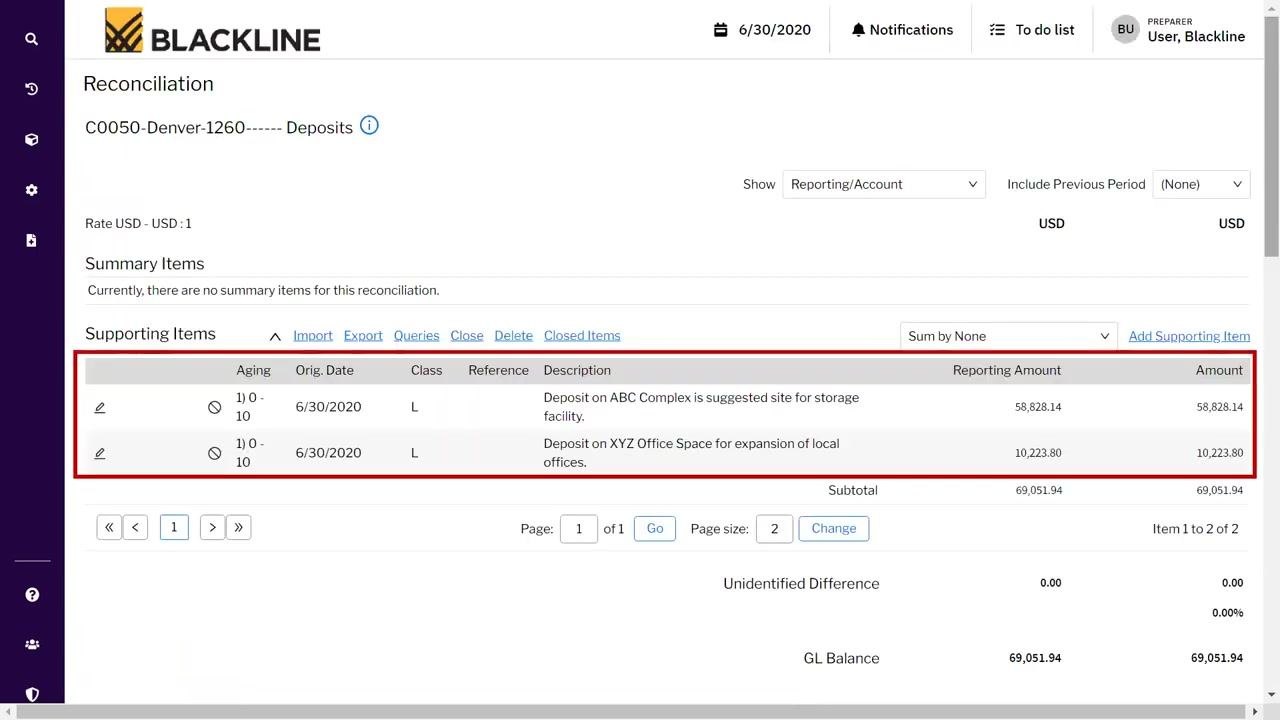
After saving, review the Supporting Items section on the reconciliation home screen. Confirm that all added items appear in the list with correct details, such as:
- Orig. Date: 6/30/2020
- Class: L (List Component)
- Description: for example, "Deposit on ABC Complex is suggested site for storage facility" and "Deposit on XYZ Office Space for expansion of local offices"
- Reporting Amount and Amount: for example, 58,828.14 and 10,223.80
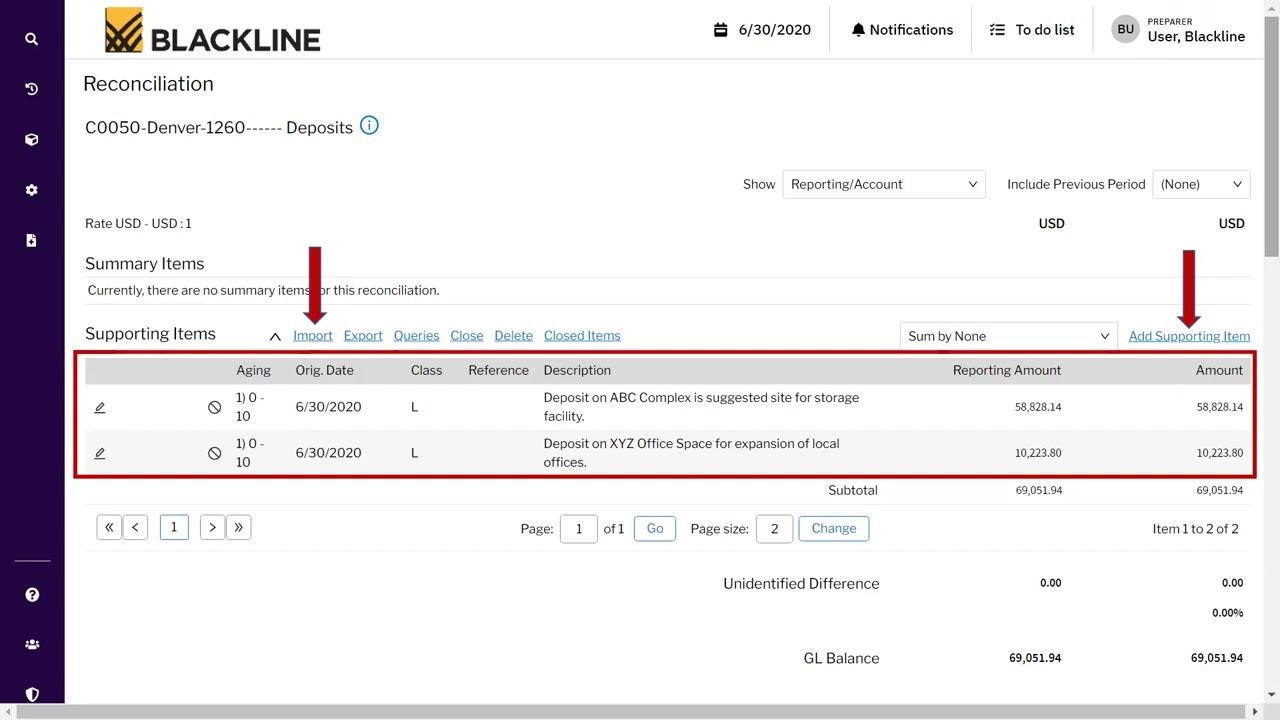
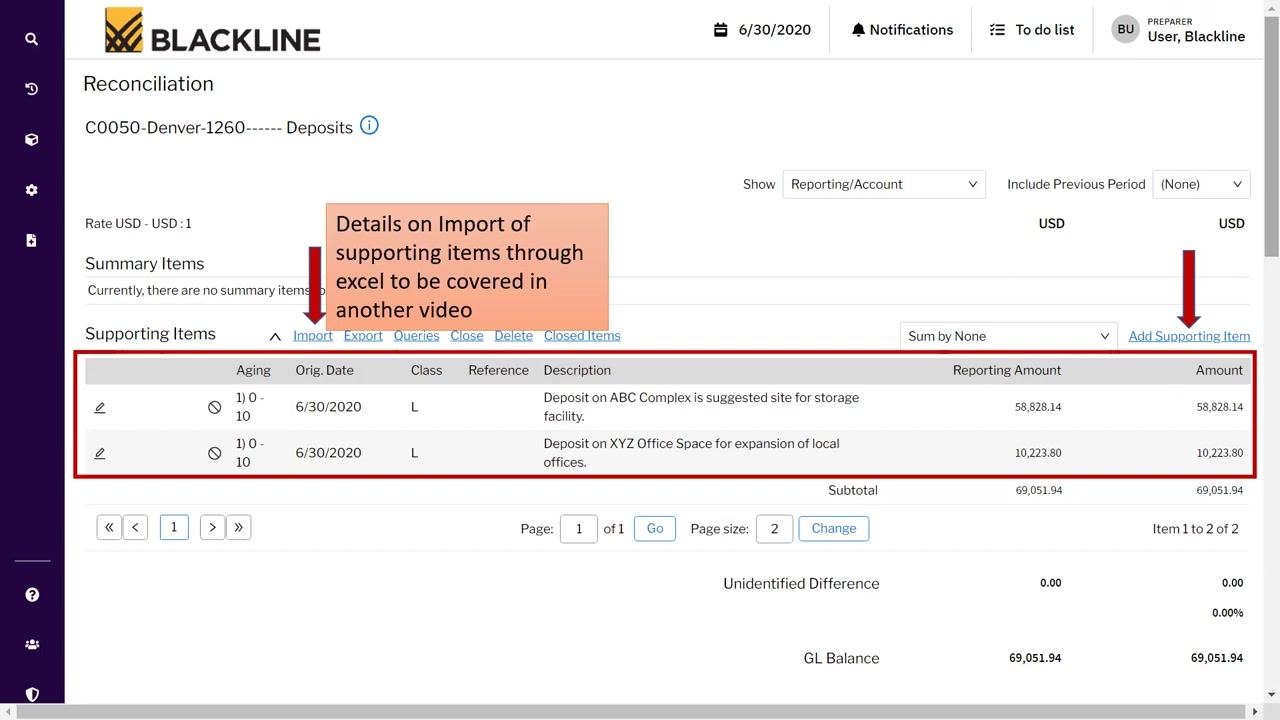
You can add supporting items manually as shown or use other available import options.
Review import options for supporting items
On the reconciliation screen, verify that all supporting items are listed under the Supporting Items section. Each item displays details such as Aging, Orig. Date, Class, Description, Reporting Amount, and Amount. To add more items individually, click Add Supporting Item on the right. Alternatively, click Import to import open items in bulk.
Verify the unidentified difference
Check the Unidentified Difference section at the bottom of the Supporting Items list. Ensure this value is 0.00, confirming that all amounts are reconciled and accounted for. The GL Balance should match the subtotal of your supporting items.
Adding comments, documents, and hyperlinks
Add a comment to the reconciliation
Scroll to the Comments section and click Add Comment on the right to provide additional context or explanations for the reconciliation.
In the Comments window, enter your comment in the Comments field (for example, "Additional deposits made during this month"). Optionally, check Attach this comment to the account, include in all future, non-certified reconciliations if you want the comment to persist across periods. Click Save to store the comment.
Review saved comments
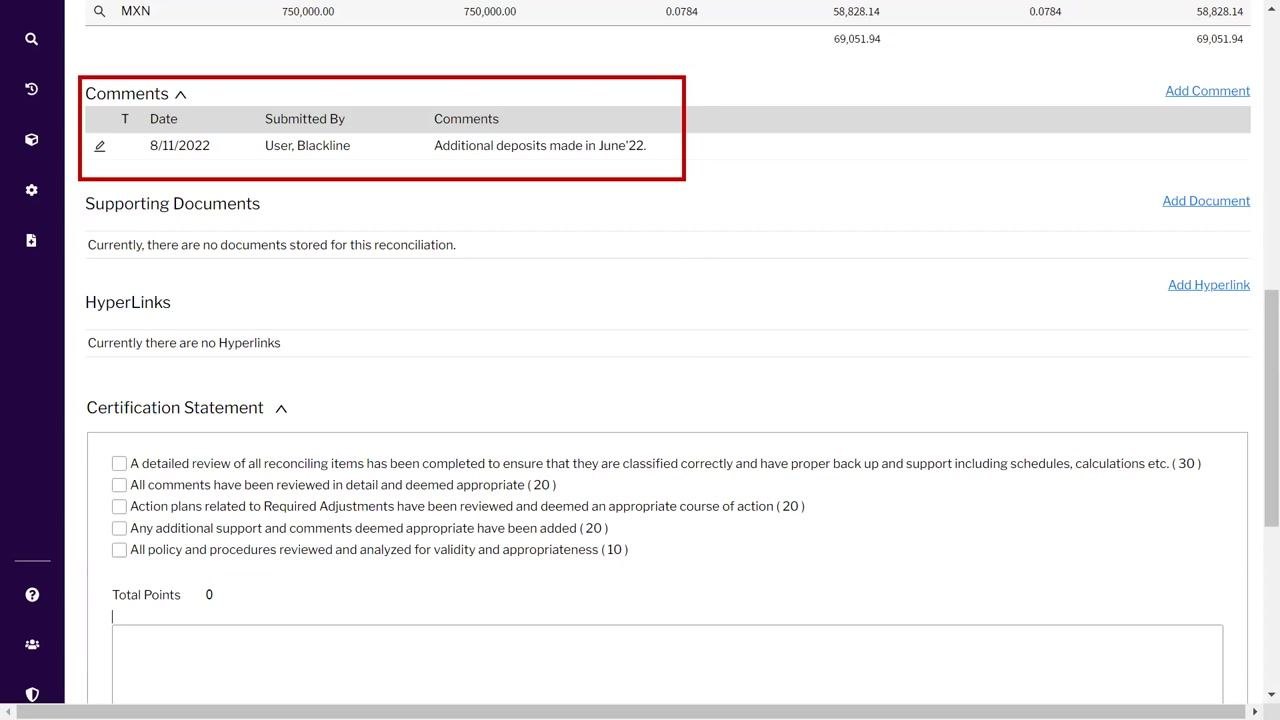
After saving, the comment appears in the Comments section along with the date and user information (for example, "Additional deposits made in June'22"). This provides a clear audit trail for approvers and future reference.
Attach supporting documents and hyperlinks
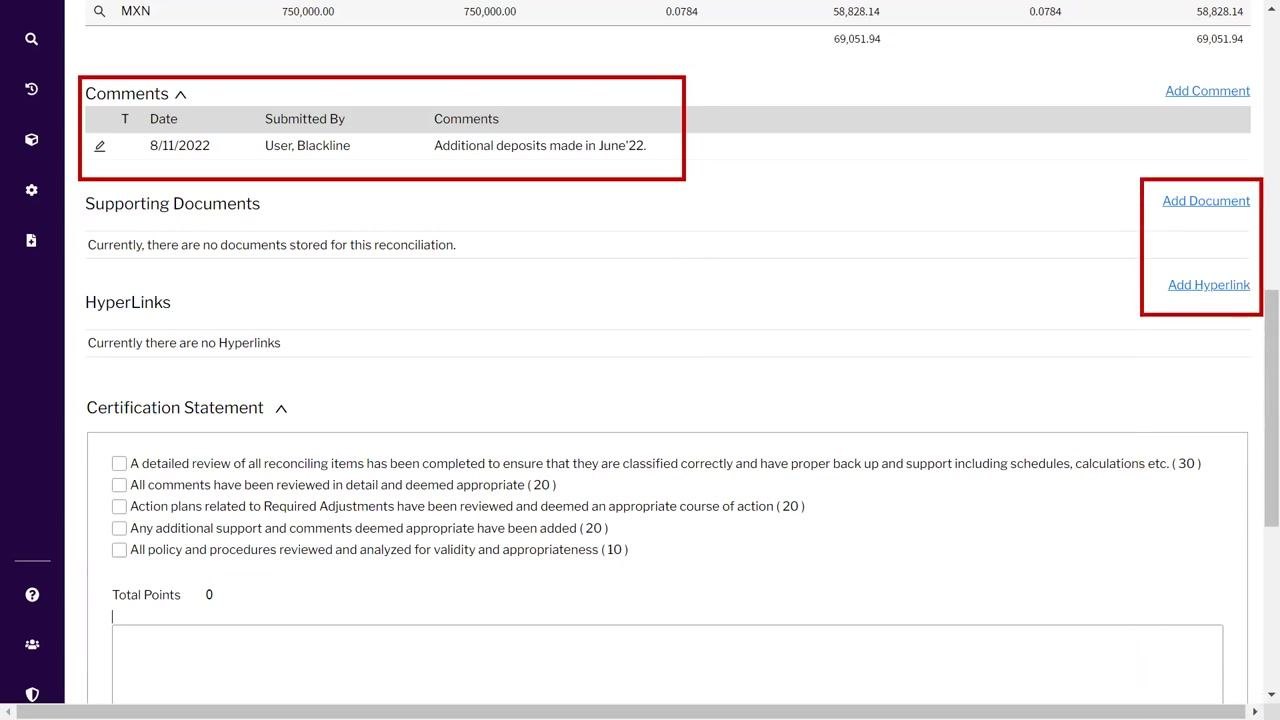
To add backup documentation, click Add Document in the Supporting Documents section. To add relevant links, click Add Hyperlink in the HyperLinks section. These features let you provide additional evidence or references for your reconciliation.
Finalizing and certifying the reconciliation
Review the Certification Statement section
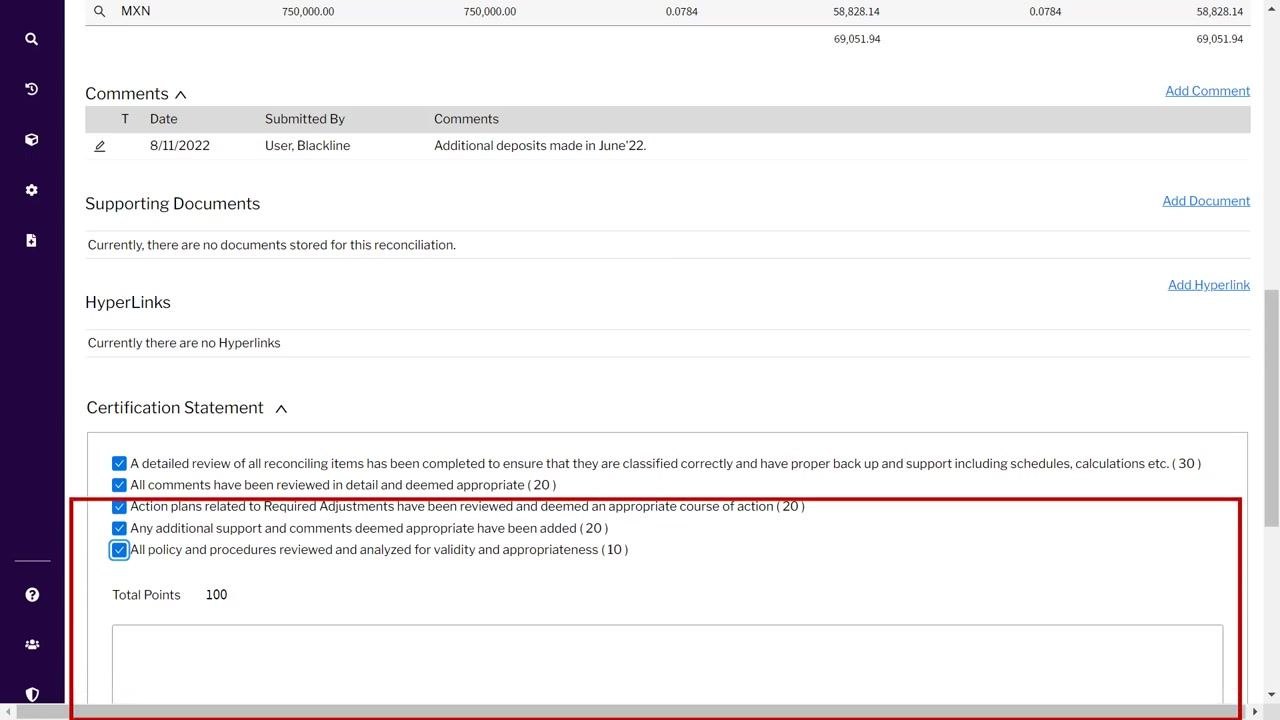
Scroll to the Certification Statement section at the bottom of the reconciliation screen. Ensure all checkboxes are selected, confirming:
- A detailed review of all reconciling items has been completed, with proper backup and support (30 points).
- All comments have been reviewed in detail and deemed appropriate (20 points).
- Action plans related to required adjustments have been reviewed and deemed an appropriate course of action (20 points).
- Any additional support and comments deemed appropriate have been added (20 points).
- All policy and procedures have been reviewed and analyzed for validity and appropriateness (10 points).
Confirm that the Total Points field displays 100, indicating all certification requirements are met.
Verify the Certify button is enabled
Once all certification criteria are met and the Unidentified Difference is zero, the Certify button becomes enabled and is highlighted in blue. The section also displays your user signature (for example, "User, Blackline") and a certification statement in both English and German:
- "I have prepared the account reconciliation for the Period End noted above."
- "Ich habe die Kontenabstimmung für den Zeitraum Ende oben erwähnt vorbereitet."
Certify the reconciliation
Click the Certify button to finalize and submit your reconciliation for the period. The system records your certification, and the reconciliation is complete.
Summary
You have now learned how to prepare an account reconciliation in BlackLine: filtering and locating the correct template, reviewing account information and policies, adding and verifying supporting items, documenting comments and attachments, and certifying the completed reconciliation. Following this process each period ensures accurate, well-supported, and auditable reconciliations.
Generation details: cost, quality tiers
Docsie billed 4,500 credits ($3.15) to analyze this 9-minute video at standard quality. The rewrite, template fill and Word/PDF exports were included. The same video at each quality tier:
| Quality | Frames sampled | Credits | Approx. cost |
|---|---|---|---|
| Draft | every 16-30 s | 2,250 | $1.57 |
| Standard (this guide) | every 8-15 s | 4,500 | $3.15 |
| Detailed | every 4-7 s | 9,000 | $6.30 |
| Ultra | every 1-3 s | 18,000 | $12.60 |
Credits priced at $0.70 per 1,000; plans include a monthly allowance. Enterprise customers on on-premise or bring-your-own-model deployments run this on their own inference and pay no per-video credits.
Generated by Docsie Video-to-Docs on 2026-10-25 from a 8-minute video. Screenshots are frames from the source video and belong to their creator, Bharat Arora, whose original is embedded above. If you own this video and want the guide removed or credited differently, contact us and we will act within one business day.