
How to Create a Journal Entry in BlackLine
This guide walks you through how to create a journal entry in BlackLine, from accessing the Journals Grid to entering data manually or importing it from Excel, routing entries through the approval workflow, posting to your ERP system, and leveraging automation, Journal Masters, and analytics for ongoing journal entry management.
Video: BlackLine - journal entry management - Demo by Forpoint Solutions (2023). All credit for the demonstration goes to the creator; watch the original on YouTube. The written guide below was generated from this video by Docsie. Creator? Request a change or removal.
This guide walks you through how to create a journal entry in BlackLine, from accessing the Journals Grid to entering data manually or importing it from Excel, routing entries through the approval workflow, posting to your ERP system, and leveraging automation, Journal Masters, and analytics for ongoing journal entry management.
Prerequisites
- Access to BlackLine with an appropriate user role (for example, Preparer or Approver).
- The correct view selected in the Journals Grid (for example, Demo View (Default)).
- A journal entry template that matches the ERP system you are posting to.
- An Excel file prepared for import, if you plan to upload journal entries in bulk.
Creating a journal entry in the Journals Grid
Access the Journals Grid
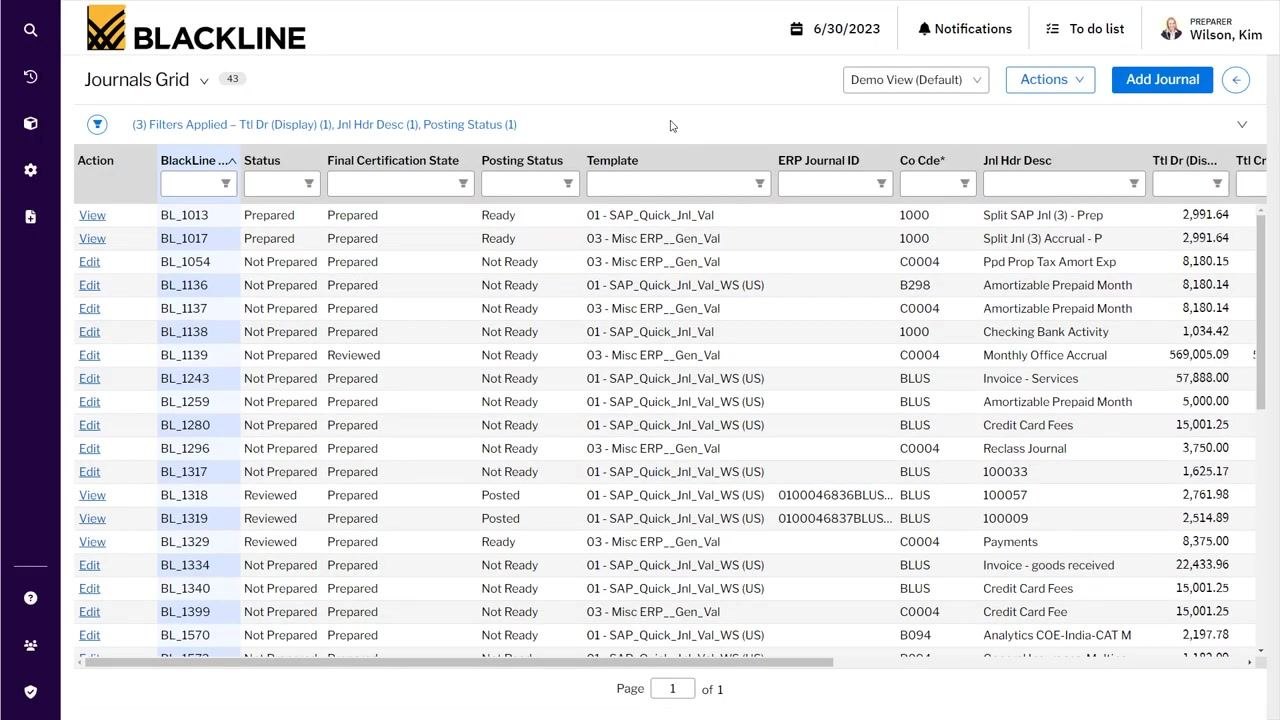
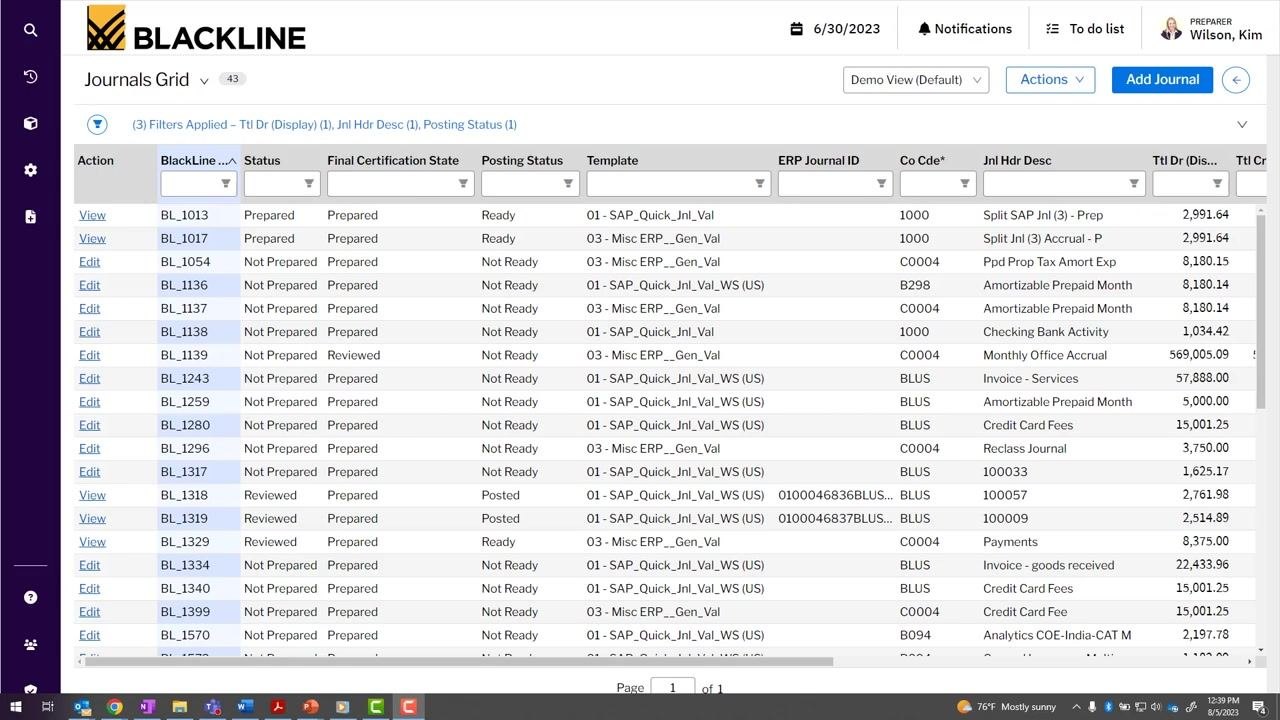
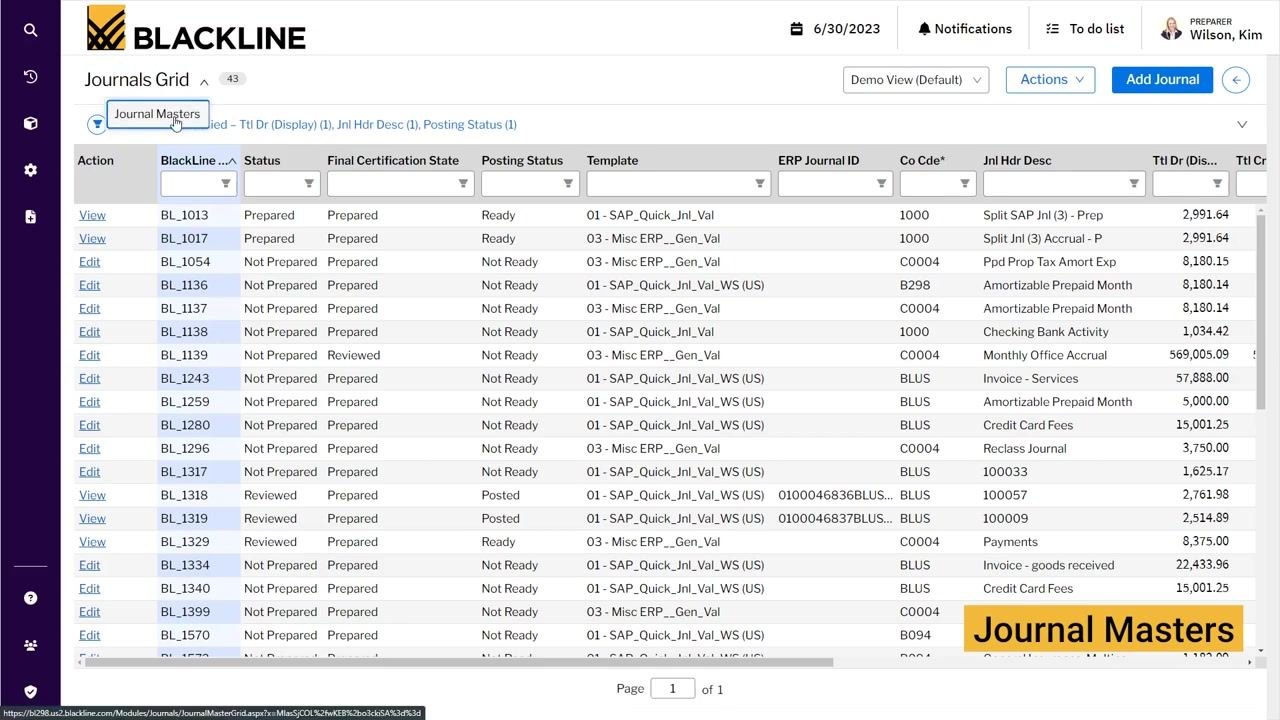
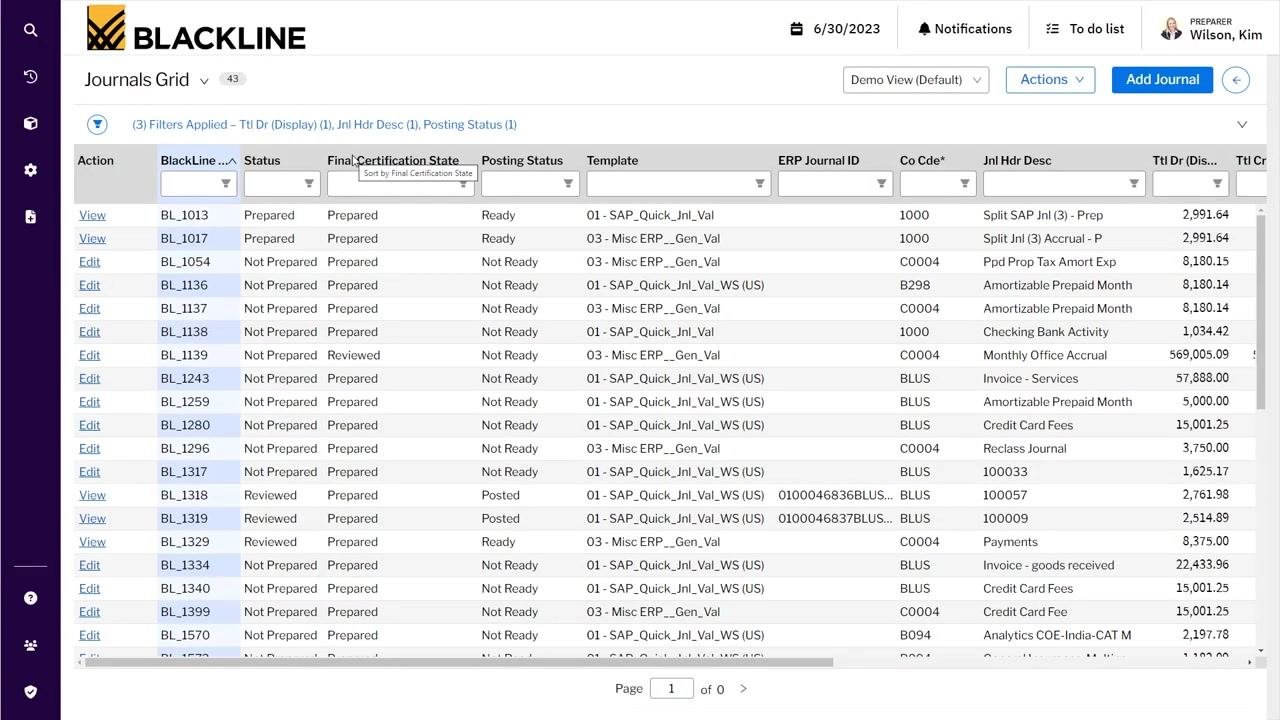
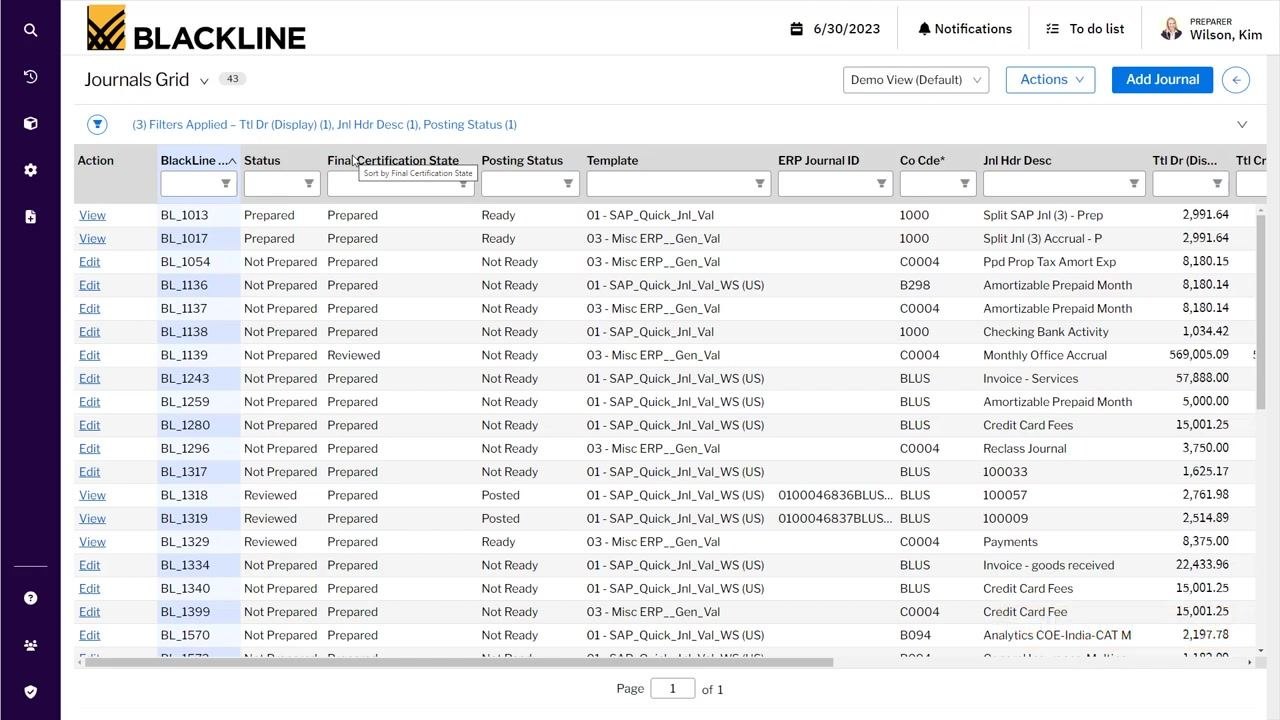
Open BlackLine and navigate to the Journals Grid screen. Here you can review the list of existing journal entries, which includes columns such as Action, BlackLine ID, Status, Final Certification State, Posting Status, Template, ERP Journal ID, Co Code, Journal Header Description, and debit/credit totals.
Use the filters at the top of each column to narrow down the list as needed. Confirm you are in the correct view (for example, Demo View (Default)) and that you are logged in as the appropriate user (for example, "Wilson, Kim" in the Preparer role).
Initiate a new journal entry
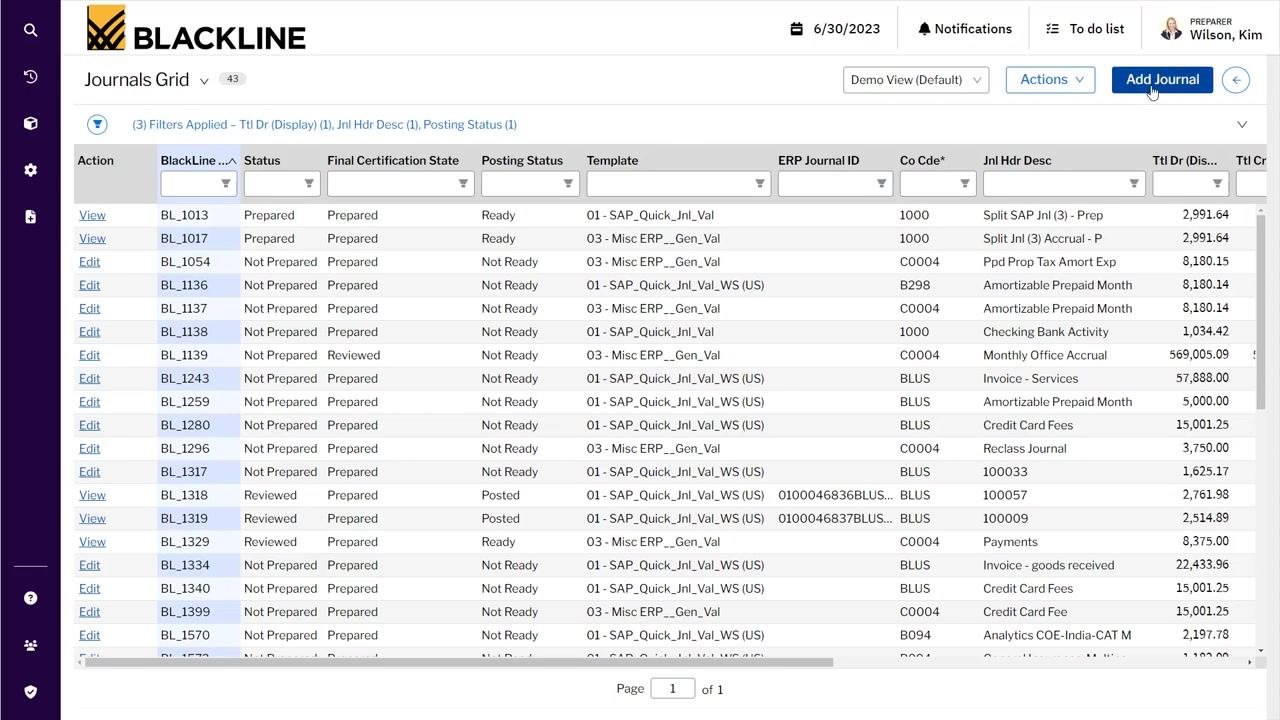
Click the blue Add Journal button in the upper right corner of the Journals Grid to start a new entry.
Select a journal entry template
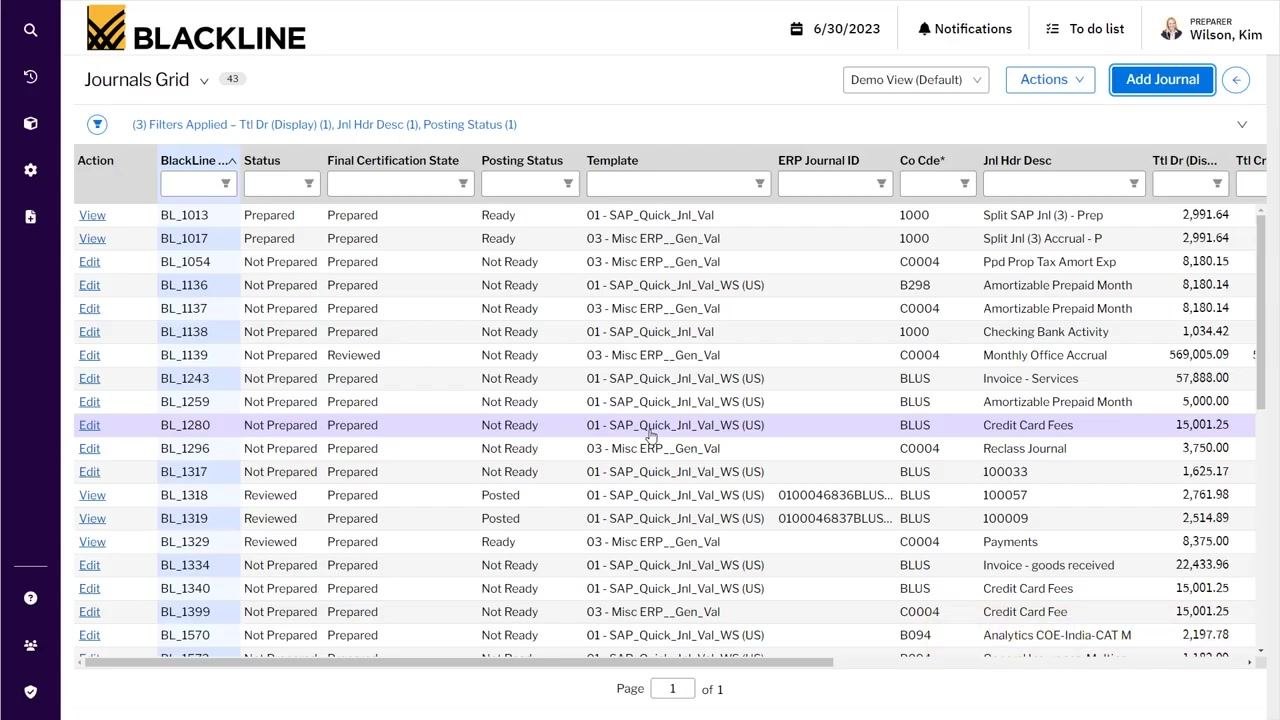
In the Add Journal dialog, open the Template Name dropdown and choose the template that matches the ERP system you are posting to. Example options include:
- 01 - SAP_Quick_Jnl_Val
- 01 - SAP_Quick_Jnl_Val_WS (APAC, EMEA, JP, UK, US)
- 02 - SAP_Gen_Val_EUR
Select the template that fits your requirements.
Populate journal entry information or import from Excel
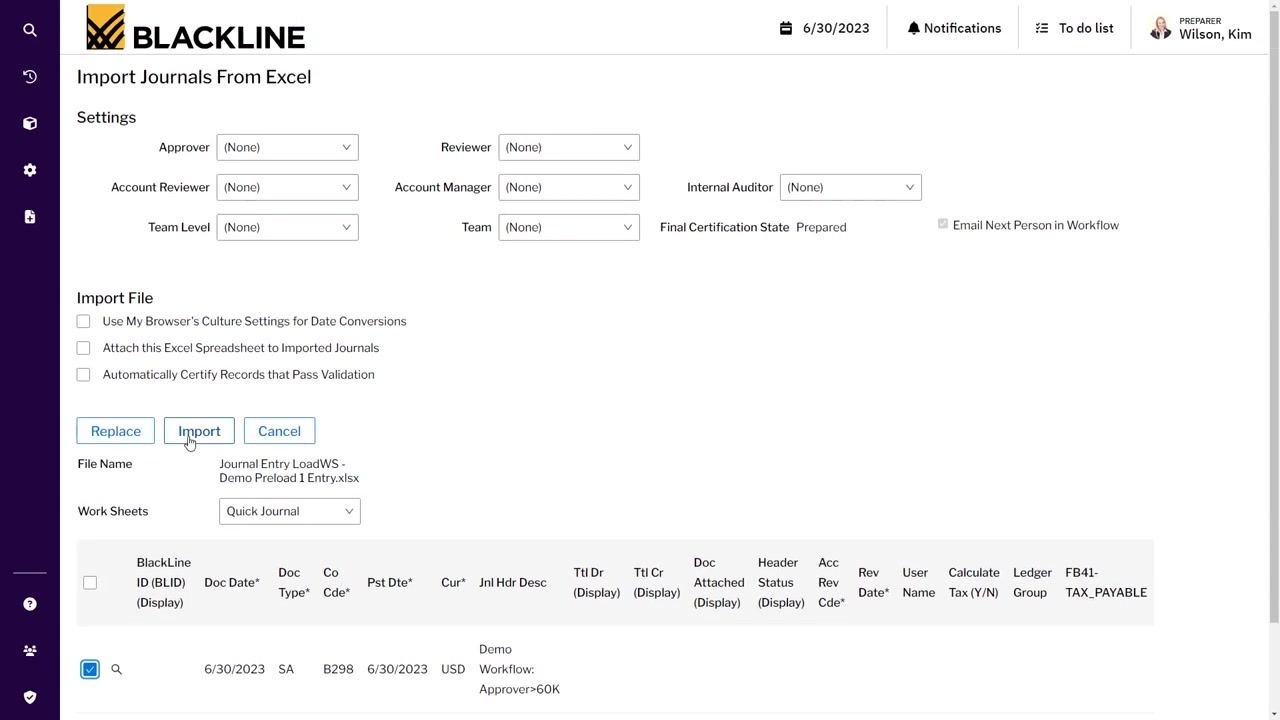
You can either enter header and line item information manually or import one or multiple journal entries at once using an Excel template. To import, navigate to the Import Journals From Excel screen.
In the Settings section, assign roles as needed (Approver, Reviewer, Account Reviewer, Account Manager, Internal Auditor, Team Level, Team), and set the Final Certification State (for example, "Prepared").
Optionally, check any of the following:
- Use My Browser's Culture Settings for Date Conversions
- Attach this Excel Spreadsheet to Imported Journals
- Automatically Certify Records that Pass Validation
Under Import File, click Replace to select your Excel file (for example, "Journal Entry LoadWS - Demo Preload 1 Entry.xlsx"), select the appropriate worksheet (for example, "Quick Journal"), and click Import to upload the journal entry data.
Review imported journal entry details
After importing, the journal entry details populate in the journal entry grid. Locate the imported journal entry by searching for its BlackLine ID or other identifying information, then click Edit or View to open the journal entry details.
Validate journal entry data
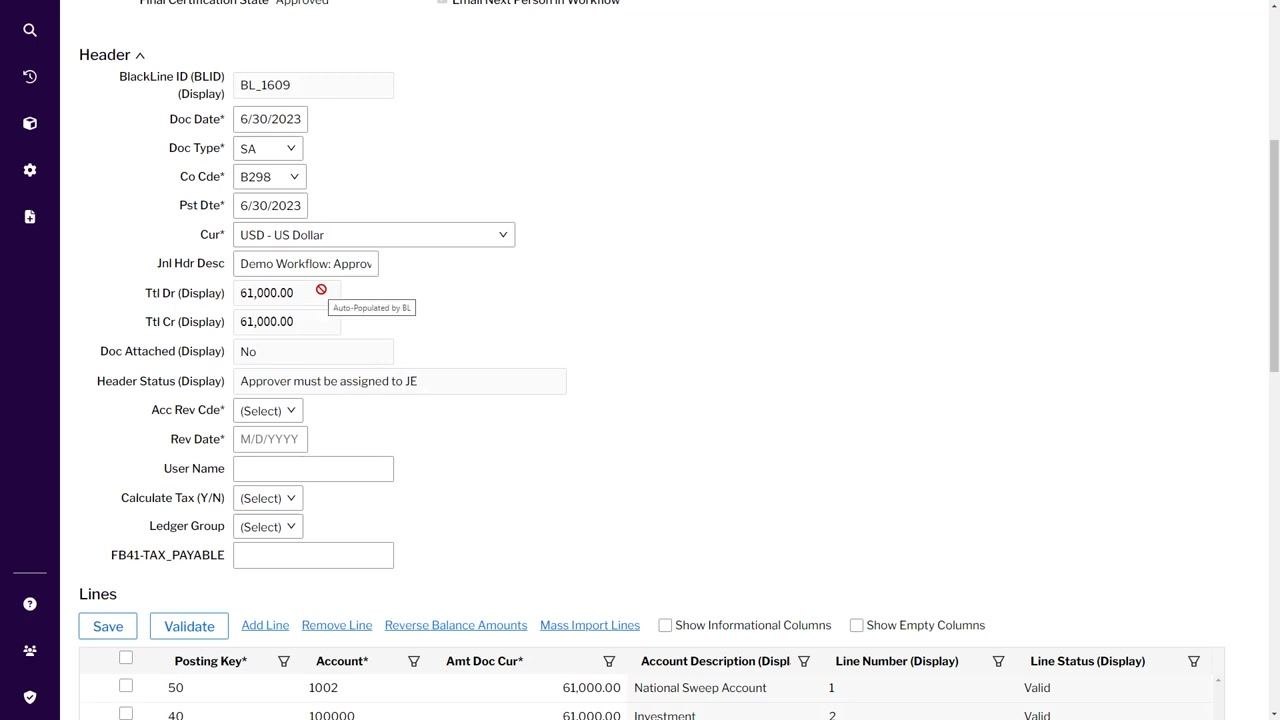
Review the header and line item information for accuracy. Ensure all required fields are populated, such as:
- BlackLine ID: BL_1609
- Doc Date: 6/30/2023
- Doc Type: SA
- Co Code: B298
- Posting Date: 6/30/2023
- Currency: USD - US Dollar
- Journal Header Description: Demo Workflow: Approv
- Total Debit: 61,000.00
- Total Credit: 61,000.00
- Doc Attached: No
- Header Status: Approver must be assigned to JE
If any validation rules are triggered (for example, a missing approver, an account that does not exist, or a workflow that is not fully defined), address them as indicated.
Advanced approval criteria. BlackLine allows you to configure advanced criteria for journal entry approval. Approval requirements can be triggered by exceeding a specific dollar value threshold (for example, Total Debit/Credit = 61,000.00) or by combinations of dollar value and company code (for example, Co Code = B298). These criteria dictate the level of approval and review required and can route entries to specific individuals. If requirements are not met, the system displays a message such as "Approver must be assigned to JE."
Assign workflow roles and certify the journal entry
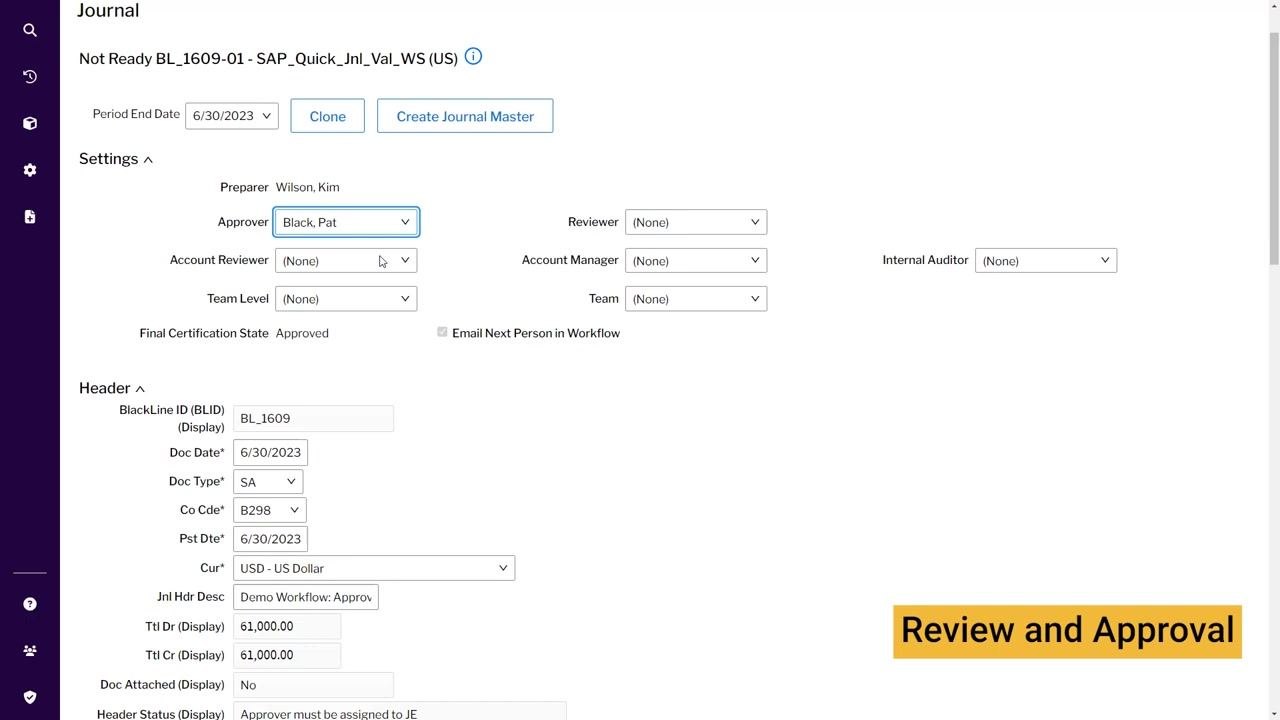
Assign the appropriate workflow roles, such as Approver (for example, "Black, Pat"), Reviewer, Account Reviewer, Account Manager, Internal Auditor, Team Level, and Team, as needed.
Set the Final Certification State to "Approved." Optionally, check Email Next Person in Workflow to send an automatic notification, then certify the journal entry to move it to the next workflow stage.
Send an automatic email alert to the next approver
When you certify an entry, BlackLine can send an automatic email alert to the next person in the workflow. The notification includes the approver name (for example, "Black, Pat"), a subject line referencing the certified journal, and body text with preparer, period, and record information. Click Send to notify the approver.
Switch user role to approver
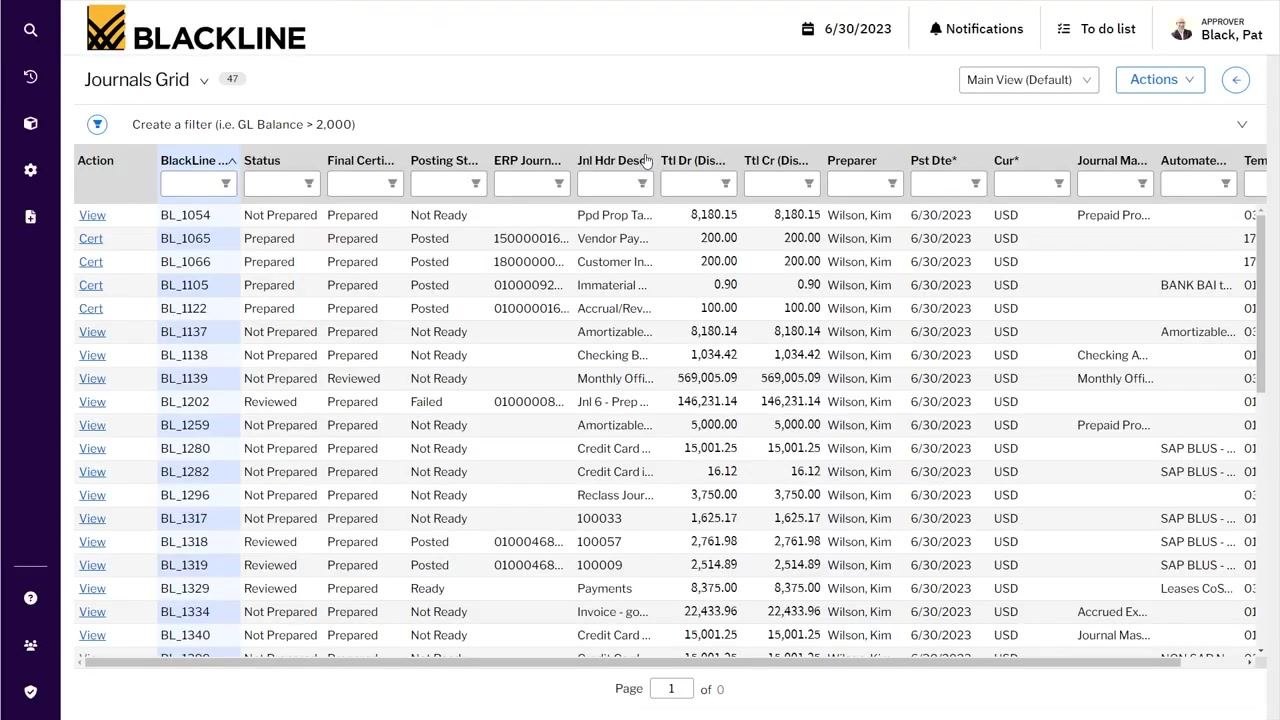
Log out as the preparer and log in as the approver (for example, "Black, Pat"). Use the user profile menu to switch roles if necessary, then access the Journals Grid to view entries awaiting approval.
Locate and filter for the journal entry
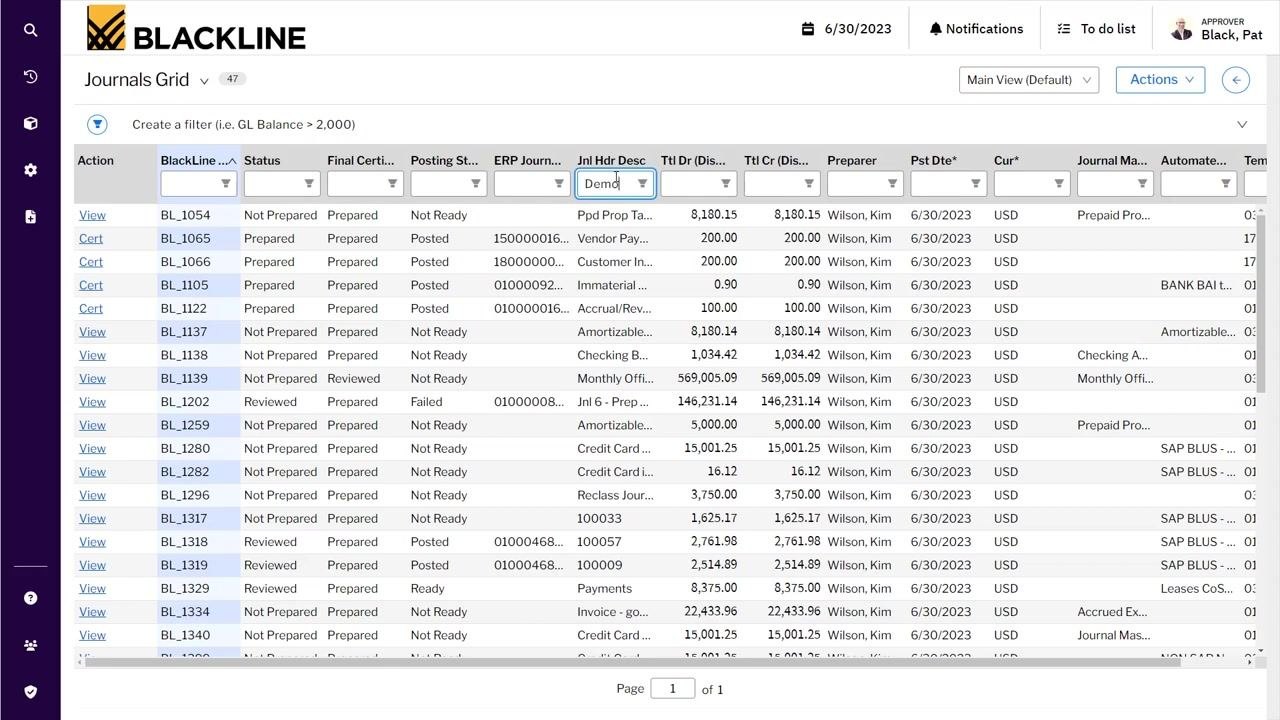
In the Journals Grid, use filters to locate the journal entry by description (for example, "Demo Workflow: Approv") or BlackLine ID (for example, BL_1609). Enter filter criteria in the Jnl Hdr Desc column or other relevant columns.
Review journal entry details as approver
Click View next to the relevant journal entry and review all header and line item details, including BlackLine ID, Doc Date, Doc Type, Co Code, Posting Date, Currency, Journal Header Description, Total Debit/Credit, and status.
Confirm that the header status is "Valid," and review line items for accuracy (Posting Key, Account, Amount, Account Description, Line Status).
Review comments, supporting documents, and the certification statement
Scroll to the bottom of the journal entry detail screen to review any attached items, comments, or supporting documents. Read the certification statement, which confirms compliance with company standards and proper support for the journal.
The approver's signature (for example, "Black, Pat") is displayed. You can choose to Certify, Reject, or go Back.
Post journal entries and validate in real time
BlackLine allows you to post journal entries individually and validate them instantly against the ERP system, rather than waiting for batch processing. Confirm that the Posting Status updates to "Posted" and the ERP Journal ID is populated after successful posting.
For example, journal entry BL_1609 shows "Reviewed," "Approved," "Posted," and ERP Journal ID "0100021824B2982023."
Automating journal entries
Switch to the preparer role for automation tasks
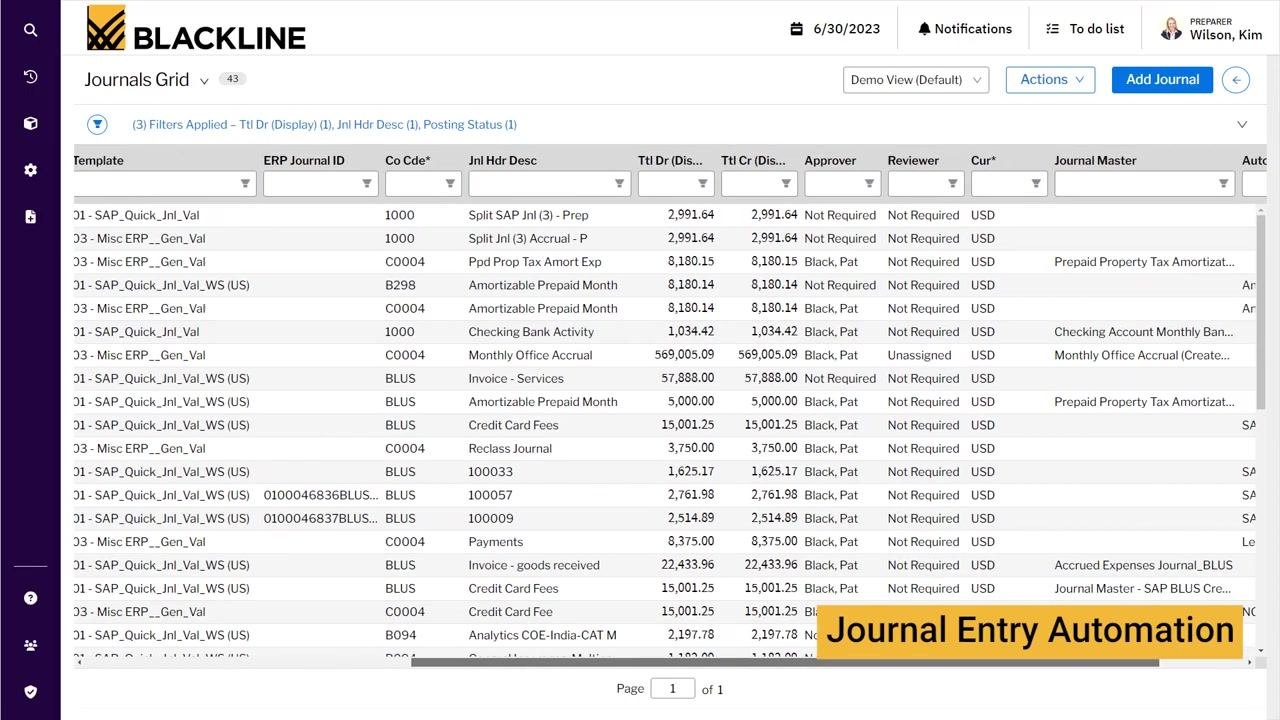
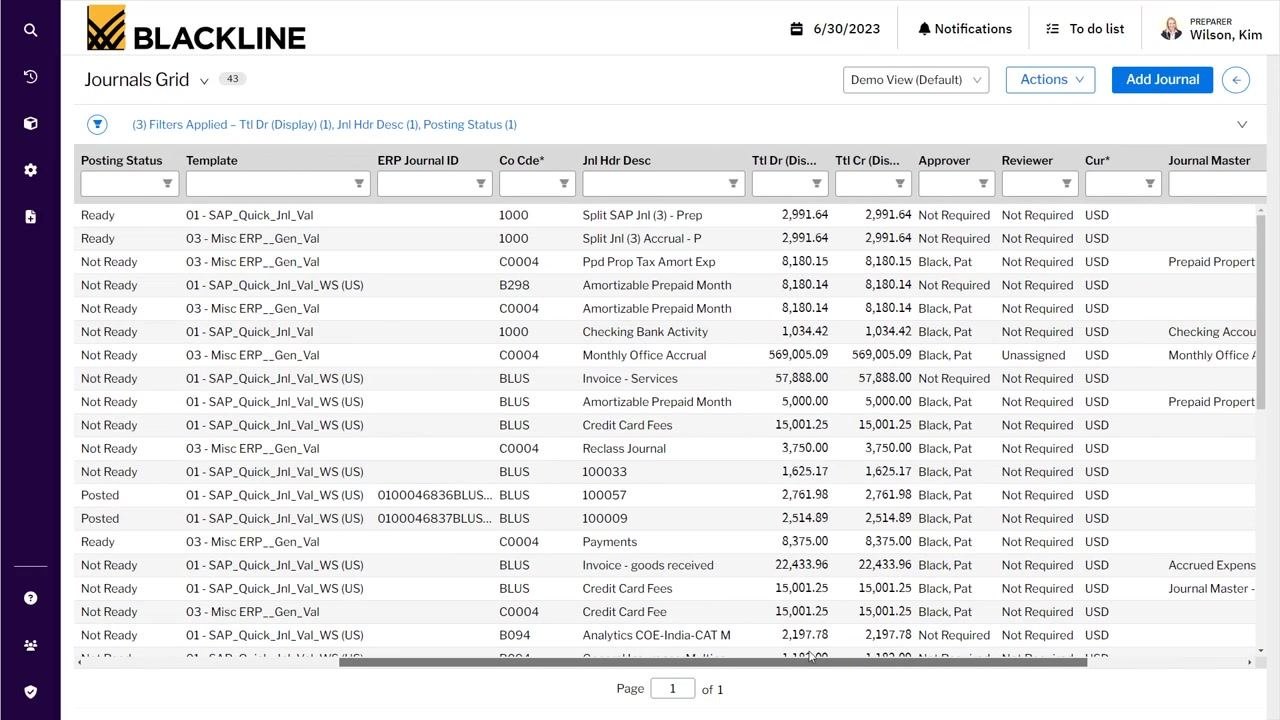
Change your user role to "Preparer" to access journal entry automation features, then open the Journals Grid to view all journal entries available for preparation and automation. For example, user "Wilson, Kim" in the Preparer role views a list of journal entries with various statuses and templates.
Access and review automated journal entry details
BlackLine integrates with the Account Reconciliation and Transaction Matching modules, so journal entries can be automated based on schedules or transactions processed in these modules. For example, the Journals Grid displays entries with templates such as "SAP_Quick_Jnl_Val" and descriptions like "Amortizable Prepaid Month," indicating integration with reconciliation data.
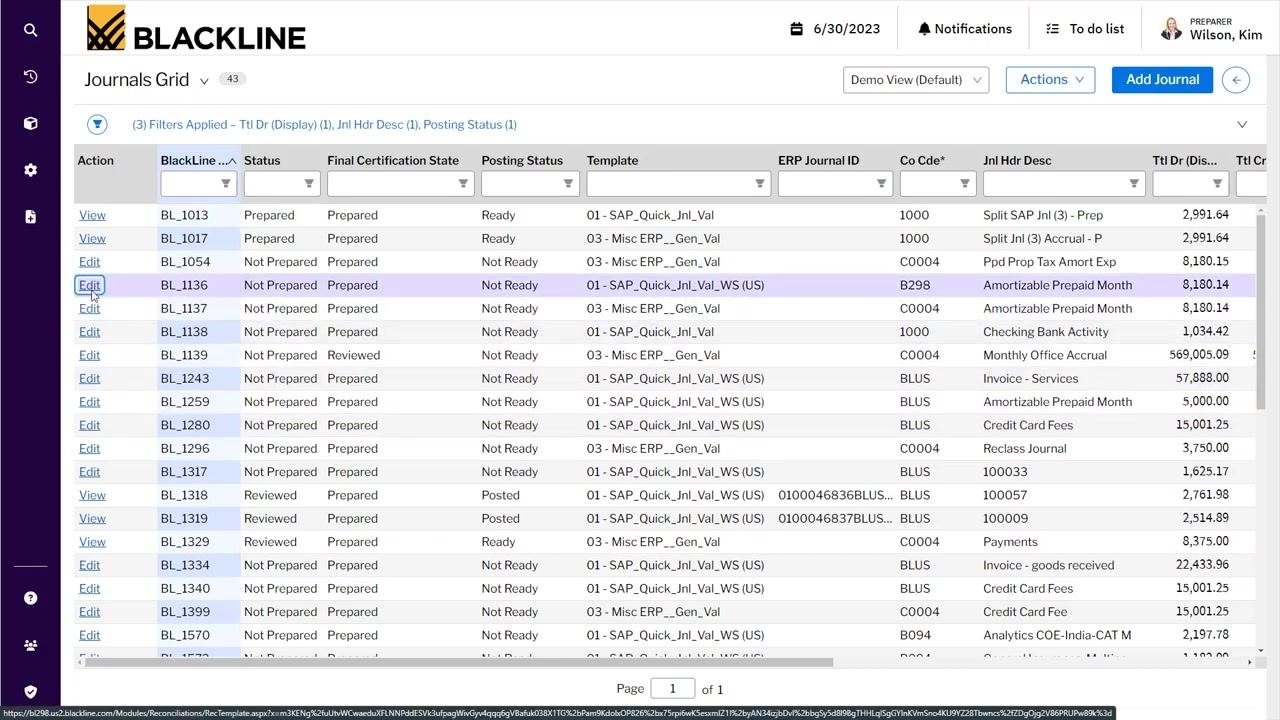
Click Edit next to an automated journal entry (for example, BL_1136, "Amortizable Prepaid Month") to view its details. Review workflow requirements, header and line item details, and information pulled directly from reconciliations.
Review line items and reconciliation data
In the journal entry detail view, examine all line items, including Posting Key, Account, Cost Center, Line Item Description, Amount, Account Description, and Line Status.
Review the Items section, which displays data pulled from reconciliations, such as Aging, Original Date, Class, Description, Alternate Amount, Reporting Amount, and Amount. For example, items include "Wayne County-Municipal Property Tax" with an amount of 14,984.74, and "Bondi Recreation District Tax" with 40,198.50.
Include supporting documentation and scheduling
Attach supporting documents and add comments as needed for the journal entry, and schedule automated journal entries based on the integration with reconciliation data. For example, the detail screen shows options to Add Comment and Add Document, with no current attachments.
Managing recurring entries with Journal Masters
Access Journal Masters
Access Journal Masters from the Journals Grid to manage recurring journal entries using pre-populated templates. Journal Masters let you set up templates for entries that occur on a regular frequency, such as monthly.
Open the Journal Master Grid to see the list of journal masters, including columns for Active status, ID, Description, Template, Team, Auto-Certify, Start Date, End Date, Frequency, Preparer, Approver, Reviewer, Final Certification State, and Most Recent JE.
For example, entry ID 996 has Description = "Accrued Expenses Journal," Template = "03 - Misc ERP__Gen_Val," Preparer = "Wilson, Kim," Approver = "Black, Pat," Reviewer = "Not Required," Final Certification State = "Prepared," and Most Recent JE = 6/30/2023.
To edit a journal master, click the Edit link next to the desired entry.
Configure and schedule Journal Masters
In the Journal Master Grid, review and edit recurring journal entry templates. Set parameters such as:
- Description (for example, "Accrued Legal Fees")
- Template (for example, "01 - SAP_Quick_Jnl_Val")
- Frequency (for example, Monthly)
- Preparer (for example, "Wilson, Kim")
- Approver (for example, "Black, Pat")
- Reviewer, Start Date, End Date, Auto-Certify option, and Final Certification State
For example, "Accrued Legal Fees" is set to post monthly, prepared by "Wilson, Kim," and approved by "Black, Pat."
Use the audit trail to track journal masters
Use the audit trail features to track all journal masters posted by the team. Each entry provides a completeness check for recurring journal entries, and the grid allows you to see the full audit trail, including preparer, approver, reviewer, and certification status.
Reviewing journal activity with analytics
Access the Analytics dashboard
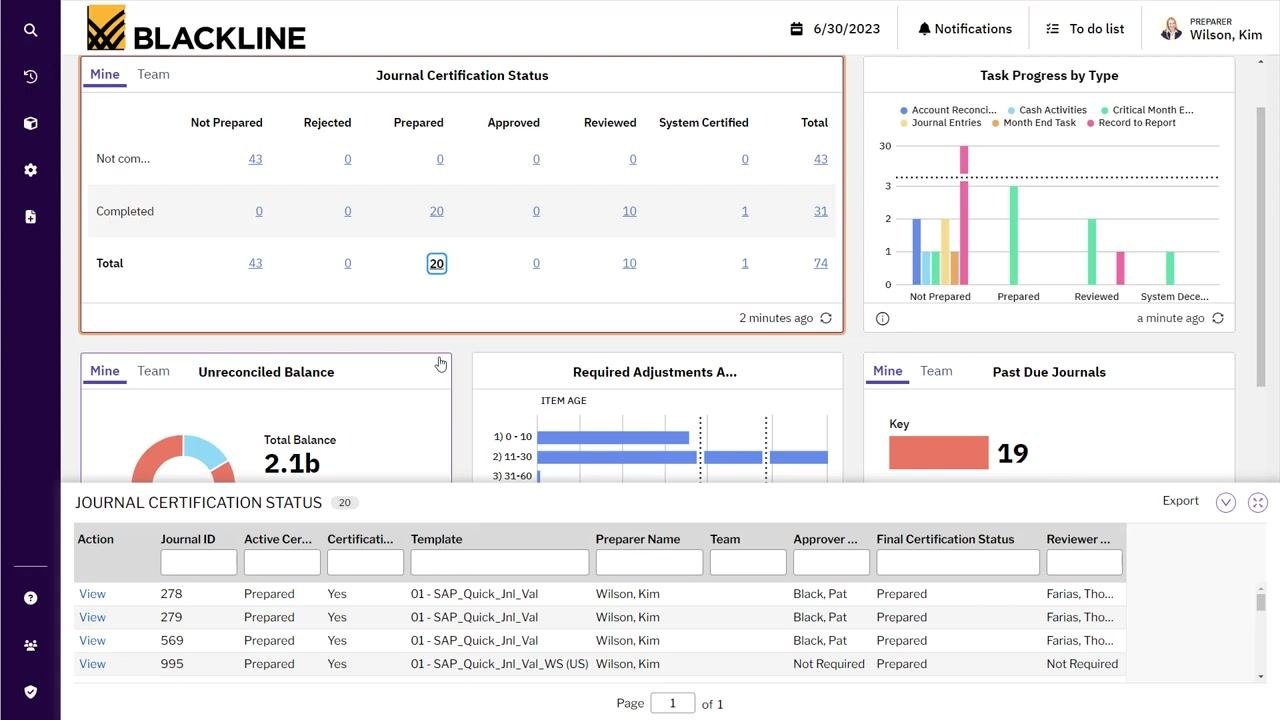
Navigate to the Home screen and select the Analytics tab to access dashboarding features. The dashboard provides interactive cards for Journal Certification Status, Task Progress by Type, Unreconciled Balance, Required Adjustments, and Past Due Journals.
Example dashboard cards include:
- Journal Certification Status: Not Prepared (43), Prepared (20), Approved (0), Reviewed (10), System Certified (1), Total (74)
- Task Progress by Type: A bar chart showing progress for Account Reconciliations, Cash Activities, Critical Month End, Journal Entries, Month End Task, and Record to Report
- Unreconciled Balance: A pie chart with a Total Balance of 2.1b, split between Reconciled and Unreconciled
- Past Due Journals: A bar chart with Key = 19, Non-Key = 51
Drill down into dashboard cards
Click any metric on a dashboard card (for example, the number "20" under Prepared) to drill down into the underlying journal entries. A detailed table appears below the dashboard, listing Journal ID, Certification Status, Template, Preparer Name, Team, Approver, Final Certification Status, and Reviewer.
For example, Journal ID 278 shows Certification Status = "Prepared," Template = "01 - SAP_Quick_Jnl_Val," Preparer Name = "Wilson, Kim," Approver = "Black, Pat," Final Certification Status = "Prepared," and Reviewer = "Farias, Thomas."
Configure dashboard cards
Click Edit on the dashboard to enter editing mode. Adjust card options such as sorting and visible fields (for example, Journal ID, Active Certification Status, Template, Preparer Name, Team, Approver Name, Final Certification Status, Reviewer Name).
Apply filters, such as "Balance > 2,000," to refine the data displayed in the card. Click Done to save changes or Cancel to discard them.
Understanding the spectrum of journal automation
Review the spectrum of journal automation
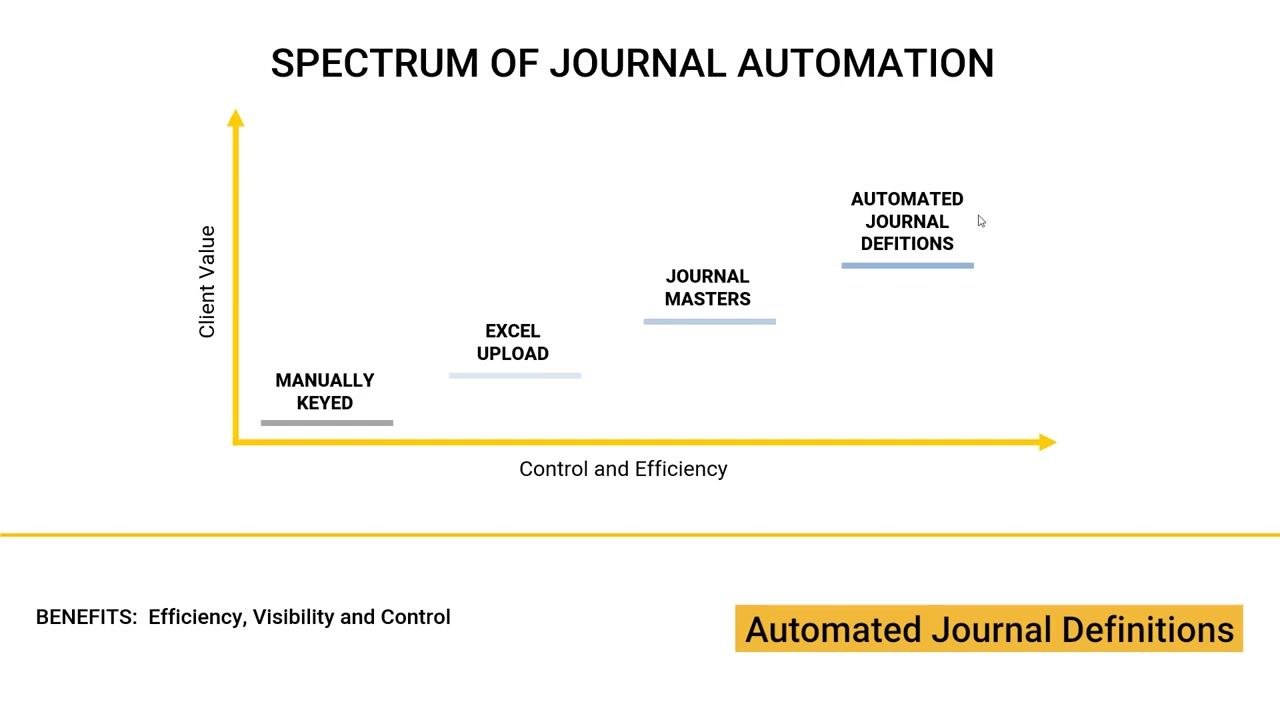
Review the spectrum of journal automation to understand the progression of automation methods available in BlackLine. The spectrum is represented as a chart with two axes: Client Value (increasing upward) and Control and Efficiency (increasing to the right).
Four main methods are displayed, each representing a step up in automation:
- Manually Keyed: Lowest client value and efficiency; journals are entered by hand.
- Excel Upload: Slightly higher efficiency; journals are uploaded in bulk from Excel.
- Journal Masters: Recurring journals are managed for improved control.
- Automated Journal Definitions: The highest level of automation, efficiency, and control; journals are generated automatically from reconciliations, transaction matching, or raw data.
The bottom of the chart highlights the benefits of "Efficiency, Visibility and Control," with Automated Journal Definitions emphasized on the far right as the optimal solution.
Understanding the journal entry workflow
Review the journal entry workflow
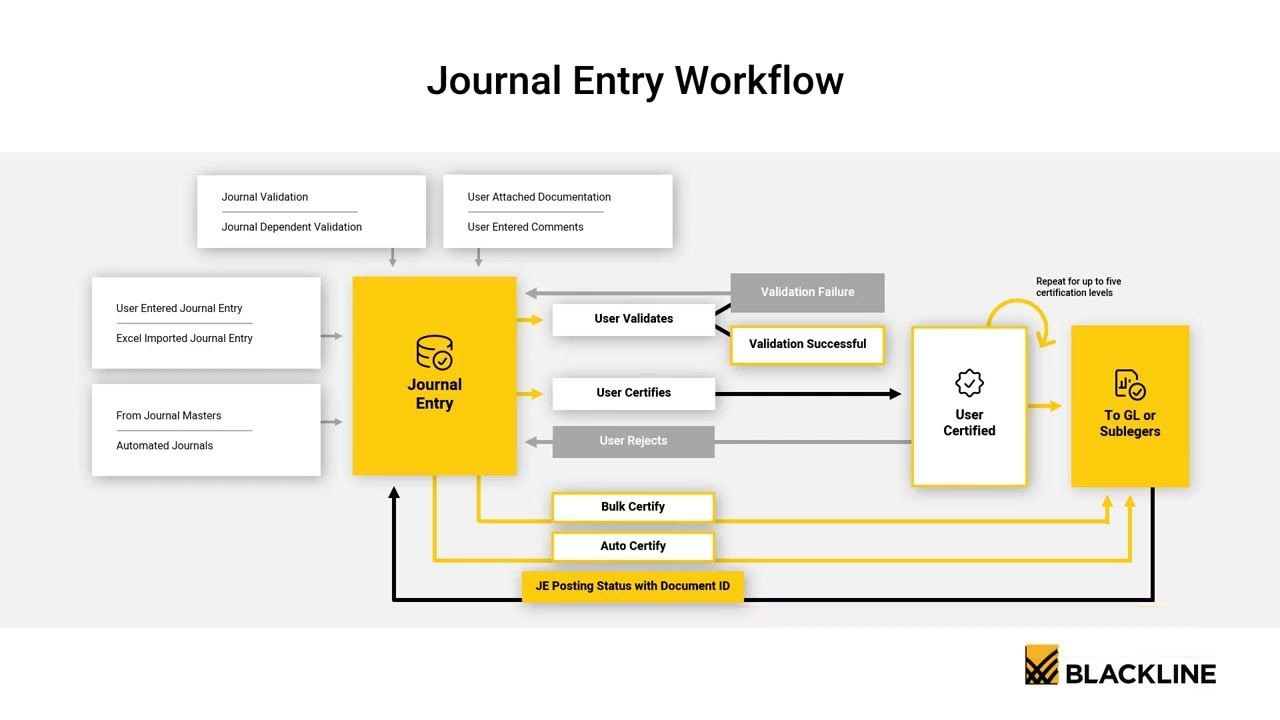
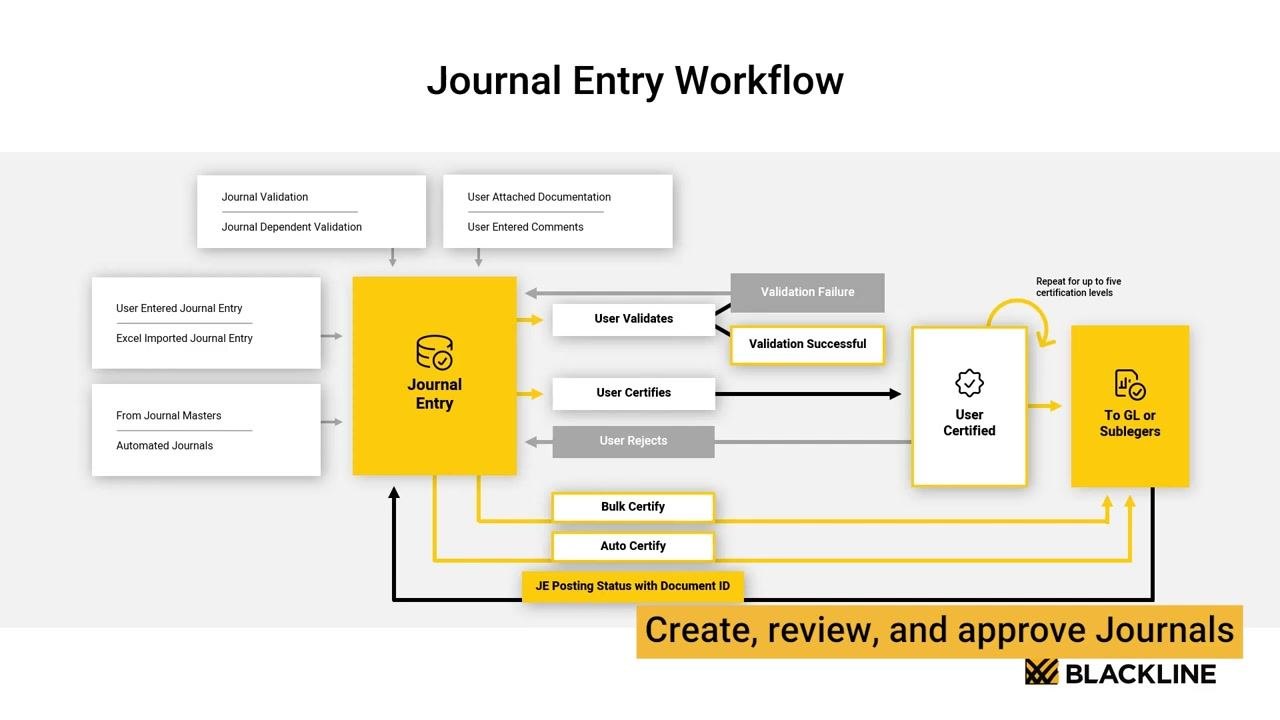
The journal entry workflow in BlackLine supports the creation, review, and approval of journals. It is depicted as a flowchart with the following components:
- Inputs: User Entered Journal Entry, Excel Imported Journal Entry, From Journal Masters, Automated Journals
- Journal Entry: A central processing point where all entries are handled
- Validation: Journal Validation and Journal Dependent Validation, along with User Attached Documentation and User Entered Comments
- User Actions: User Validates (resulting in Validation Failure or Validation Successful), User Certifies (or User Rejects), with Bulk Certify and Auto Certify options available
- Certification: User Certified, which can repeat for up to five certification levels
- Posting: To GL or Subledgers (General Ledger or Subledgers), with JE Posting Status and Document ID tracked
This workflow ensures all journals are validated, certified, and posted with full auditability.
The system allows for electronic certification and storage of journals with all supporting documentation. All steps, comments, and attached documents are retained for audit and compliance purposes, and the workflow supports up to five certification levels for robust approval processes.
Follow the workflow for each journal entry
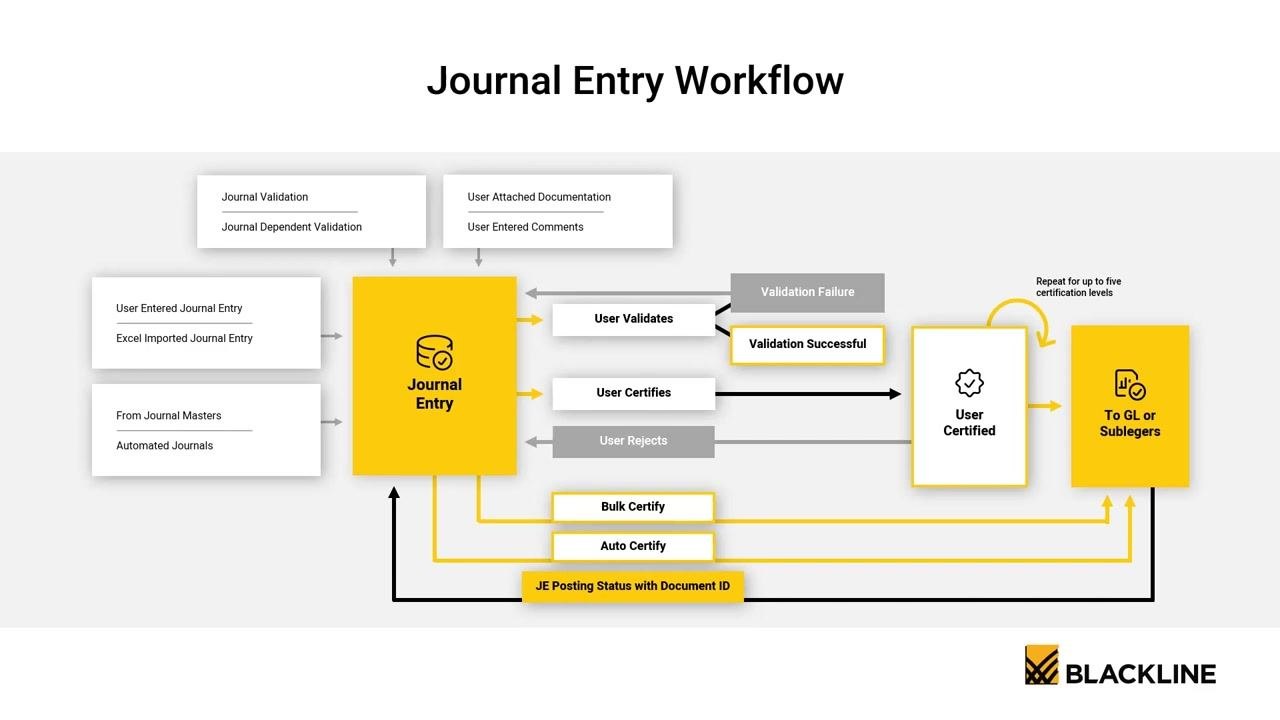
Ensure each journal entry follows the workflow:
- Enter or import the journal (manual, Excel, master, or automated).
- Attach required documentation and comments.
- Validate the journal entry.
- Certify the journal entry (individually, in bulk, or automatically).
- If rejected, return to the entry step for correction.
- Once certified, post the journal to the General Ledger or subledgers.
- Track posting status with the associated document ID.
What's next
By following these steps, you now know how to create a journal entry in BlackLine, route it through approval, and post it to your ERP system. You can also use Journal Masters to automate recurring entries, review journal activity through the Analytics dashboard, and apply the spectrum of journal automation to move toward fully automated journal definitions for greater efficiency, visibility, and control.
Generation details: cost, quality tiers
Docsie billed 4,000 credits ($2.80) to analyze this 8-minute video at standard quality. The rewrite, template fill and Word/PDF exports were included. The same video at each quality tier:
| Quality | Frames sampled | Credits | Approx. cost |
|---|---|---|---|
| Draft | every 16-30 s | 2,000 | $1.40 |
| Standard (this guide) | every 8-15 s | 4,000 | $2.80 |
| Detailed | every 4-7 s | 8,000 | $5.60 |
| Ultra | every 1-3 s | 16,000 | $11.20 |
Credits priced at $0.70 per 1,000; plans include a monthly allowance. Enterprise customers on on-premise or bring-your-own-model deployments run this on their own inference and pay no per-video credits.
Generated by Docsie Video-to-Docs on 2026-10-25 from a 7-minute video. Screenshots are frames from the source video and belong to their creator, Forpoint Solutions, whose original is embedded above. If you own this video and want the guide removed or credited differently, contact us and we will act within one business day.