
How to Create an Order Set in athenahealth
Order sets in AthenaHealth let you bundle a diagnosis with its related lab or other orders so you can apply them together during a patient encounter instead of adding each item individually. This guide walks you through how to create an order set in AthenaHealth, from opening the configuration screen to building a standalone lab order set and a diagnosis-linked order set, and then applying both during a patient encounter.
Video: How to Create Your Own Order Sets in Athena by Rochester Academic Family Medicine (2020). All credit for the demonstration goes to the creator; watch the original on YouTube. The written guide below was generated from this video by Docsie. Creator? Request a change or removal.
Order sets in AthenaHealth let you bundle a diagnosis with its related lab or other orders so you can apply them together during a patient encounter instead of adding each item individually. This guide walks you through how to create an order set in AthenaHealth, from opening the configuration screen to building a standalone lab order set and a diagnosis-linked order set, and then applying both during a patient encounter.
Prerequisites
- An active AthenaNet account with access to the settings configuration menu.
- Access to the Manage My Order Sets configuration page.
- Knowledge of the lab test names, diagnosis codes, and lab facility you want to associate with your order set.
Open the order set configuration
Step 1: Access the AthenaNet platform
Log in to your AthenaNet account to begin.
Step 2: Open the settings menu
Click the cogwheel (settings) icon in the top navigation bar. The navigation bar also displays tabs for Calendar, Patients, Claims, Reports, Quality, Apps, and Support, along with your weekly schedule view.
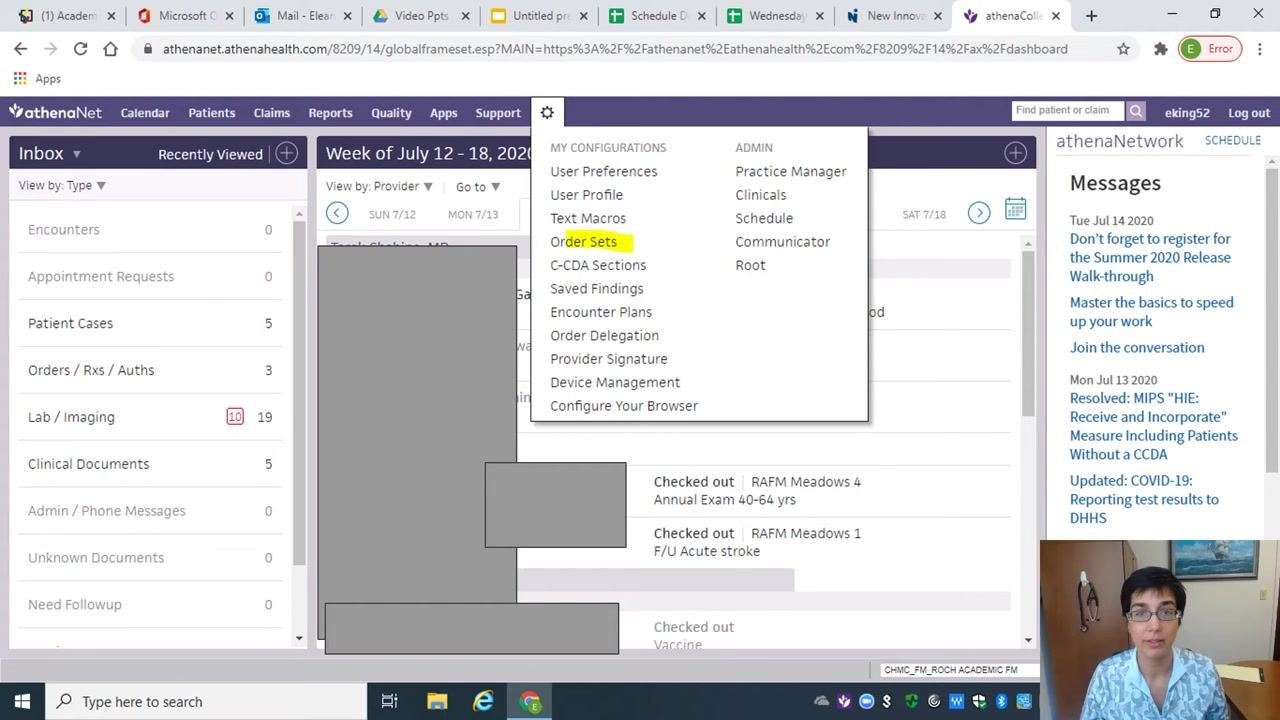
In the dropdown menu, find the MY CONFIGURATIONS section and click Order Sets.
Step 3: Open "Manage My Order Sets"
On the Manage My Order Sets page, locate the My Order Sets section. Click Add new to start creating a new order set.
Create a standalone lab order set
Step 4: Name your order set
In the Add Order Set section, enter a name in the Order Set Name field — for example, "King-Celiac." If you are creating a standalone order set that is not tied to a diagnosis, leave the Ordering and diagnosis fields blank.
Confirm that the Diagnoses section shows "no items found" and "Selected diagnoses: None selected" — this verifies you are building an order set without a diagnosis attached.
Step 5: Search for a lab order
Click the Lab tab in the Diagnoses and Orders Detail section. In the Search field, type ttg to find celiac-related tests.
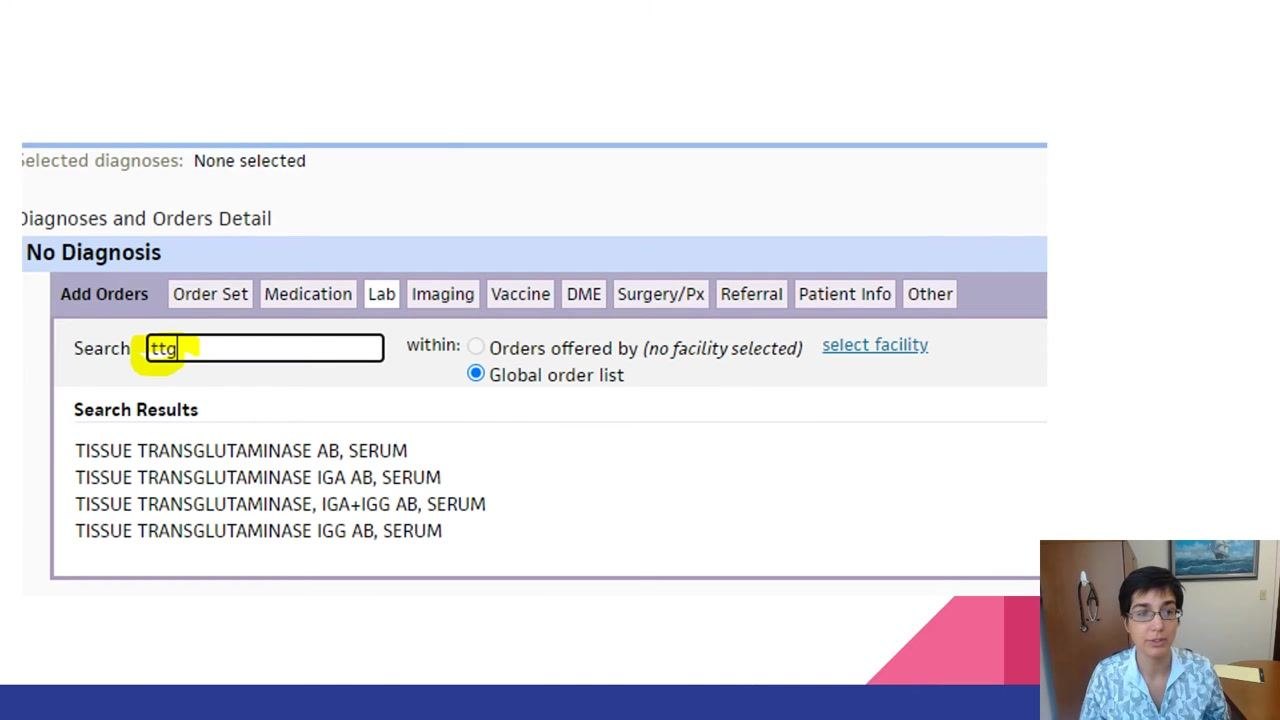
Review the results and click TISSUE TRANSGLUTAMINASE IGA AB, SERUM to select it.
Step 6: Expand the lab order
Click on the test name you selected to expand its configuration options.
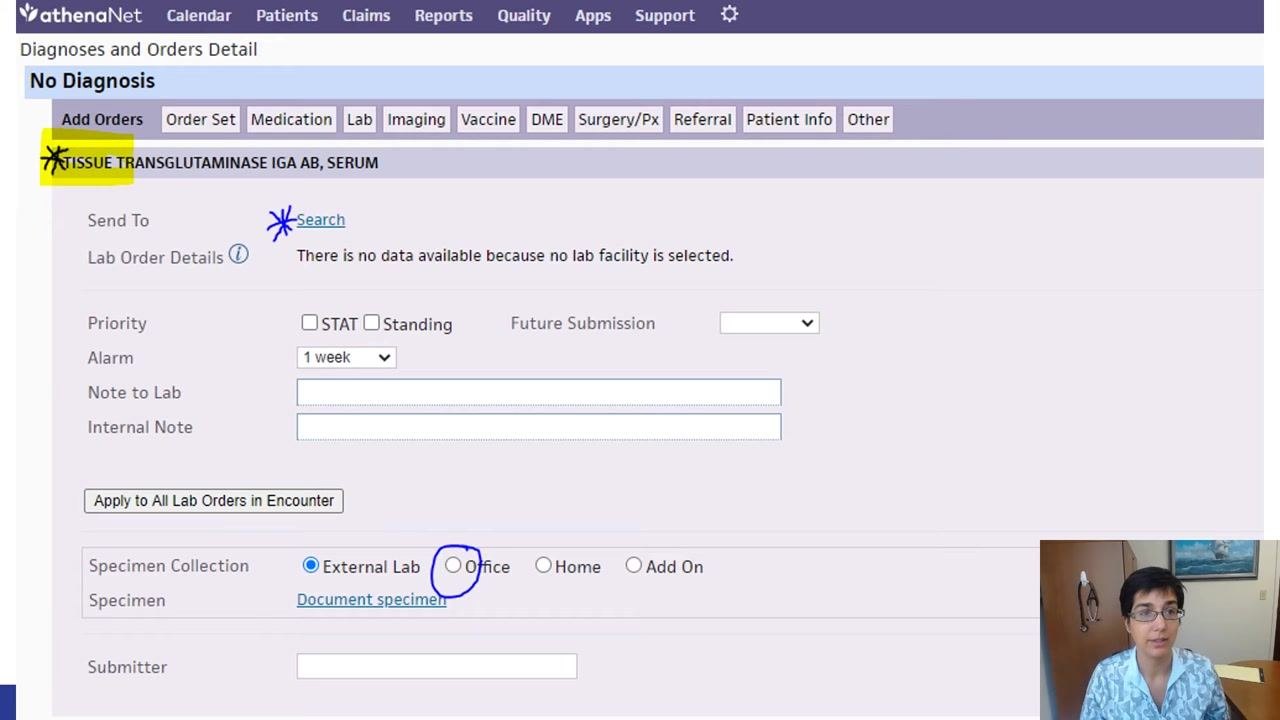
Step 7: Select the lab facility
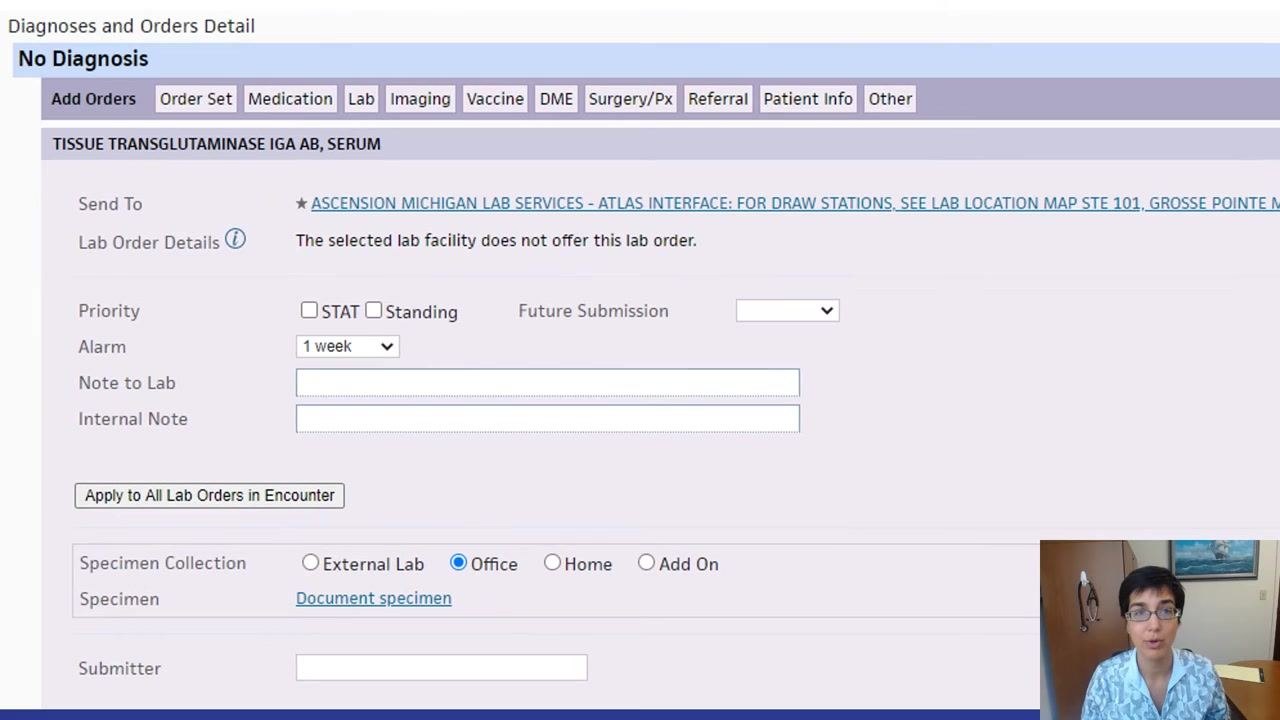
Next to Send To, click Search to choose a lab facility. In the search dialog, type ATLAS. Select ATLAS — it is marked with a star, indicating it is the preferred lab.
Confirm that Send To now displays "ASCENSION MICHIGAN LAB SERVICES - ATLAS INTERFACE," and that specimen collection is set to Office (not External Lab).
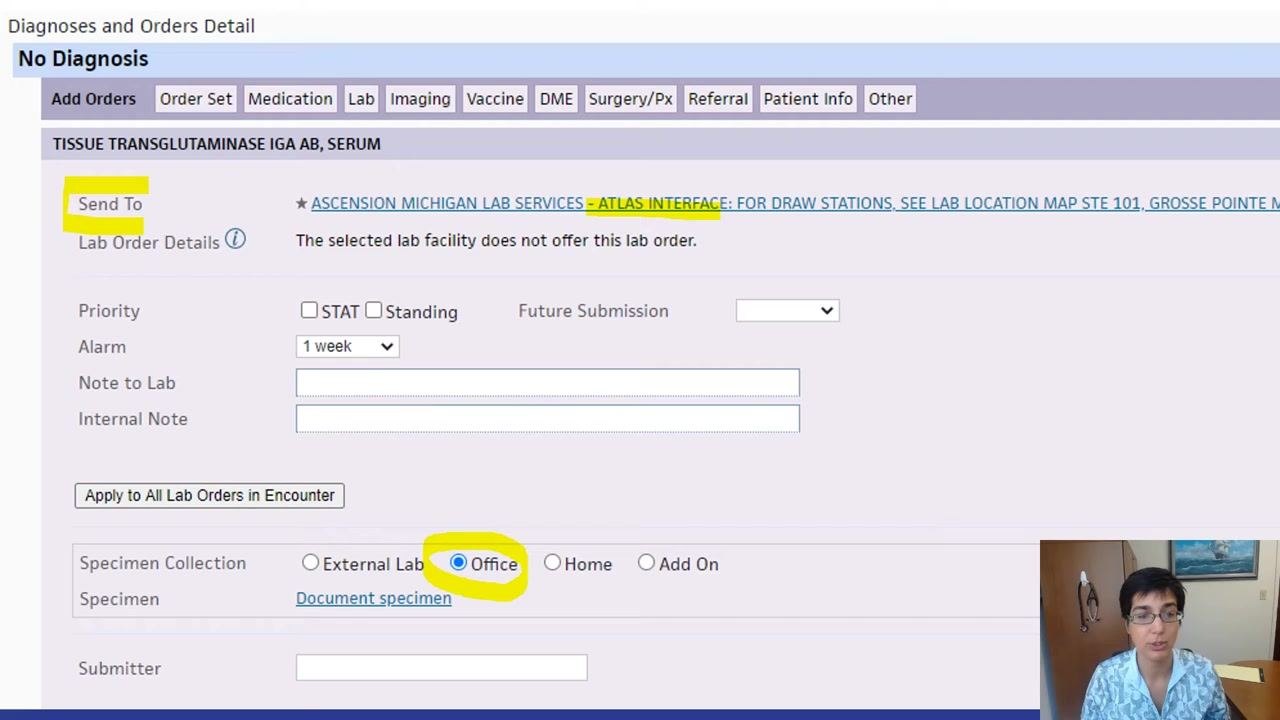
Step 8: Save the lab order
Scroll down and click Add to save the configured lab order to your order set.
Use the order set during an encounter
Step 9: Find your order set in the encounter
In your patient encounter, go to the Assessment & Plan section and click the plus sign (+) to add a diagnosis and orders. Start typing the name of your order set — for example, King-Celiac.
When your order set appears under Order Sets, click on it.
Step 10: Apply the order set to a diagnosis
Drag and drop the order set (for example, "King-Celiac") onto the relevant assessment or diagnosis in your plan. The TTG lab order, already configured with the ATLAS lab and Office specimen collection, populates automatically.
Note: Always verify that the correct lab and specimen collection options are selected before saving, and use a unique naming convention so you can quickly locate your custom order sets in future encounters.
Create an order set linked to a diagnosis
Step 11: Start a new order set
Click to add another new order set. In the Order Set Name field, enter a descriptive name — for example, King-Low Vitamin D or King D Deficiency. Fill in the Ordering field as needed, then click the Search tab under Diagnoses.
Step 12: Search and select the diagnosis
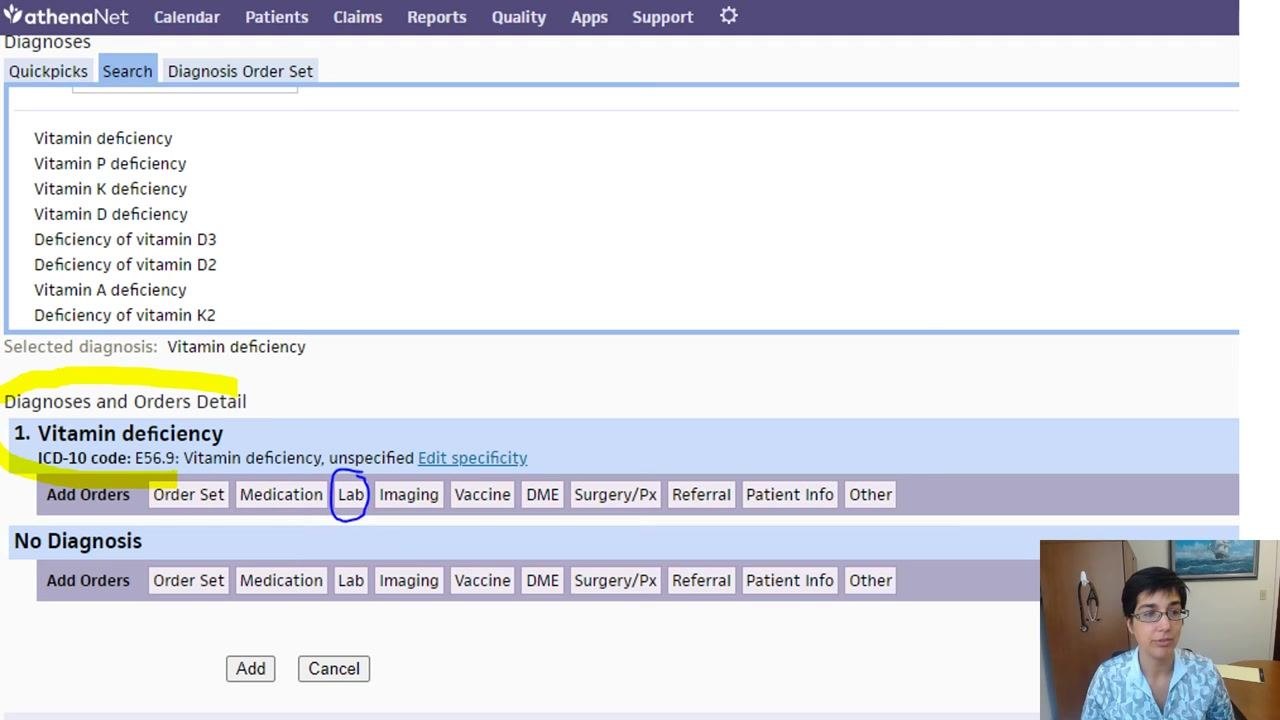
In the Search field under Diagnoses, type Vitamin D Def. Review the results and select Vitamin D deficiency.
Confirm the selected diagnosis appears below as "1. Vitamin deficiency" with ICD-10 code E56.9 (Vitamin deficiency, unspecified).
Step 13: Attach the lab order
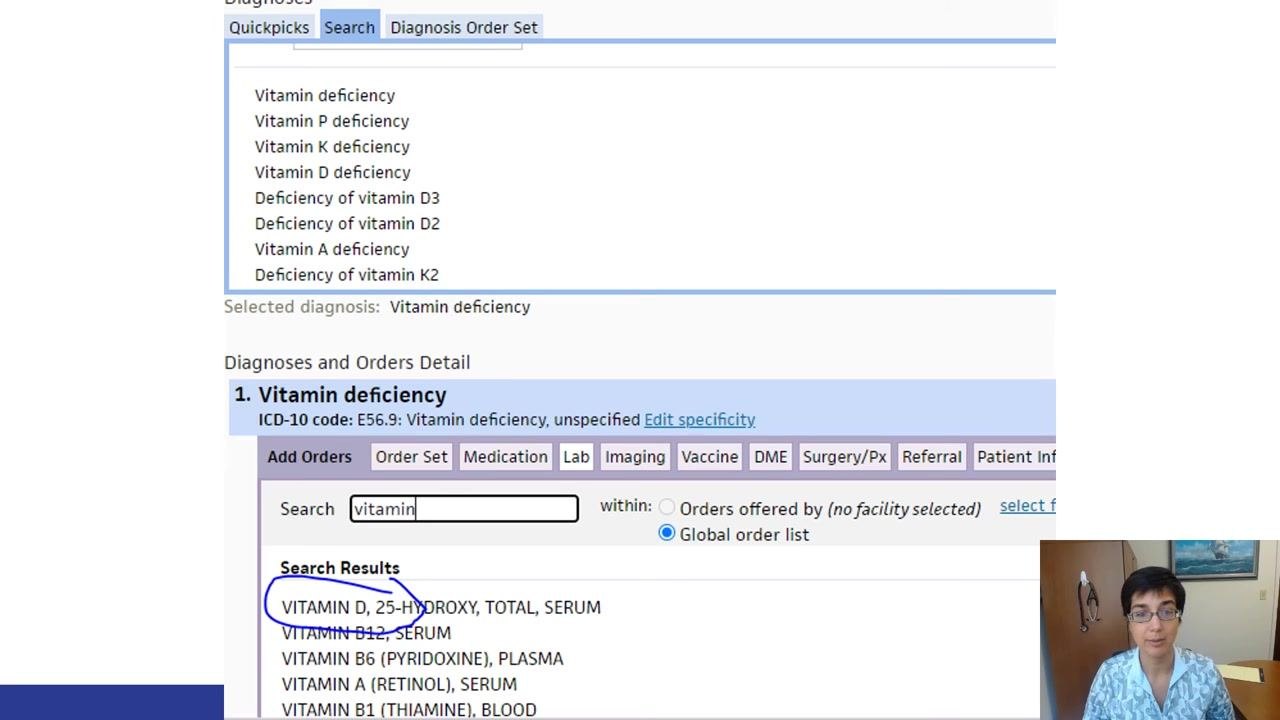
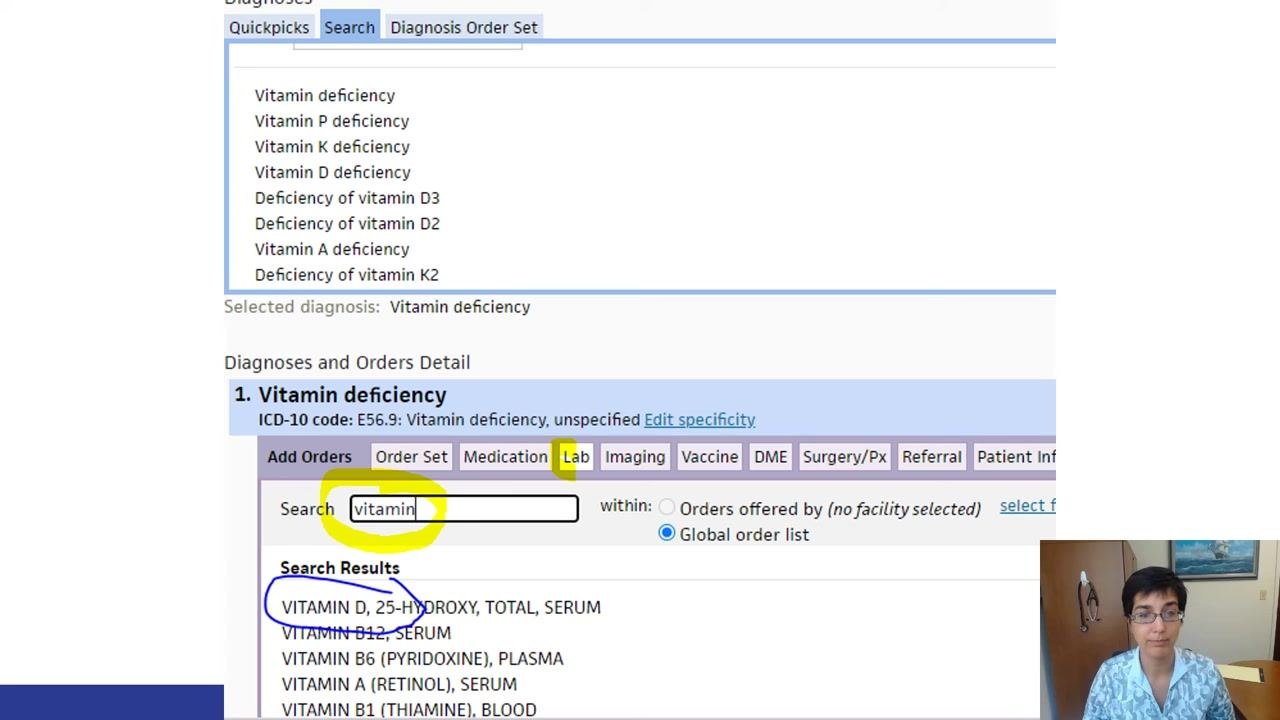
With the diagnosis selected, click the Lab tab in the Diagnoses and Orders Detail section. In the Search field, type vitamin, then select VITAMIN D, 25-HYDROXY, TOTAL, SERUM from the results.
Step 14: Configure the lab order
Click on the selected lab order to expand its configuration options. Confirm that Send To is set to "ASCENSION MICHIGAN LAB SERVICES - ATLAS INTERFACE," and under Specimen Collection, select Office (not External Lab, Home, or Add On).
Step 15: Review the order set details
Before saving, confirm all required fields are complete:
- Order Set Name (for example,
King-Low Vitamin D) - Diagnosis (for example,
Vitamin D deficiency, ICD-10 code E56.9) - Lab Order (for example,
VITAMIN D, 25-HYDROXY, TOTAL, SERUM) - Send To (for example,
ASCENSION MICHIGAN LAB SERVICES - ATLAS INTERFACE) - Specimen Collection (for example,
Office)
Double-check that the correct diagnosis and lab order are linked together.
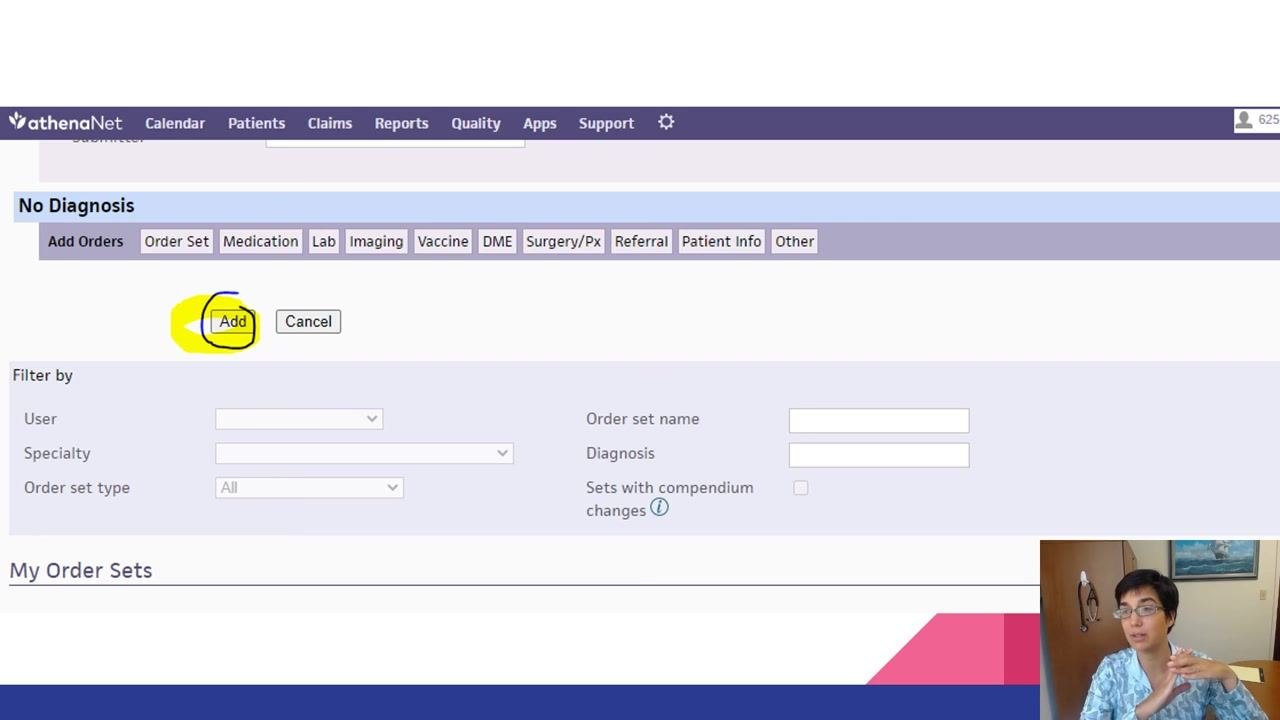
Step 16: Save the order set
Click Add, located near the top left of the order set configuration screen, to save your custom order set.
Apply the order set during a patient encounter
Step 17: Apply your custom order set
In your patient note, navigate to the Assessment & Plan section and click the add button (+) to add a diagnosis and orders. Type the name of your custom order set — for example, King-Vitamin D deficiency — and select it from the results.
The system automatically adds:
- The lab order for Vitamin D, 25-Hydroxy, Total, Serum, configured for the ATLAS lab and Office specimen collection.
- The assessment of Vitamin D deficiency with the correct ICD-10 code (E56.9).
Both the diagnosis and the lab order are linked together in your note.
Note: Always verify that the correct lab and specimen collection options are selected before saving, and use a unique, memorable naming convention for your order sets so you can find them quickly in future encounters.
Summary
By following these steps, you now know how to create an order set in AthenaHealth — both as a standalone lab order set and as a diagnosis-linked order set — and how to apply it efficiently during patient encounters so that your diagnoses and lab orders stay consistently linked in your documentation.
Generation details: cost, quality tiers
Docsie billed 3,000 credits ($2.10) to analyze this 6-minute video at standard quality. The rewrite, template fill and Word/PDF exports were included. The same video at each quality tier:
| Quality | Frames sampled | Credits | Approx. cost |
|---|---|---|---|
| Draft | every 16-30 s | 1,500 | $1.05 |
| Standard (this guide) | every 8-15 s | 3,000 | $2.10 |
| Detailed | every 4-7 s | 6,000 | $4.20 |
| Ultra | every 1-3 s | 12,000 | $8.40 |
Credits priced at $0.70 per 1,000; plans include a monthly allowance. Enterprise customers on on-premise or bring-your-own-model deployments run this on their own inference and pay no per-video credits.
Generated by Docsie Video-to-Docs on 2026-10-25 from a 5-minute video. Screenshots are frames from the source video and belong to their creator, Rochester Academic Family Medicine, whose original is embedded above. If you own this video and want the guide removed or credited differently, contact us and we will act within one business day.