
How to Create a Certificate of Insurance in Applied Epic
A certificate of insurance confirms the coverage limits and policy details held by your agency's clients. This guide walks you through how to create a certificate of insurance in Applied Epic, from building a master certificate template and adding policies, to setting up certificate holders and issuing the finished certificate.
Video: How to - Add a Certificate of Insurance in Epic by ASNOA Training (2020). All credit for the demonstration goes to the creator; watch the original on YouTube. The written guide below was generated from this video by Docsie. Creator? Request a change or removal.
A certificate of insurance confirms the coverage limits and policy details held by your agency's clients. This guide walks you through how to create a certificate of insurance in Applied Epic, from building a master certificate template and adding policies, to setting up certificate holders and issuing the finished certificate.
Prerequisites
- The current policy must already exist in the Applied Epic system before you begin.
- Coverage limits must be entered on the policy application so they can populate the certificate automatically.
- Access to Proofs of Insurance for the relevant client.
Create the master certificate
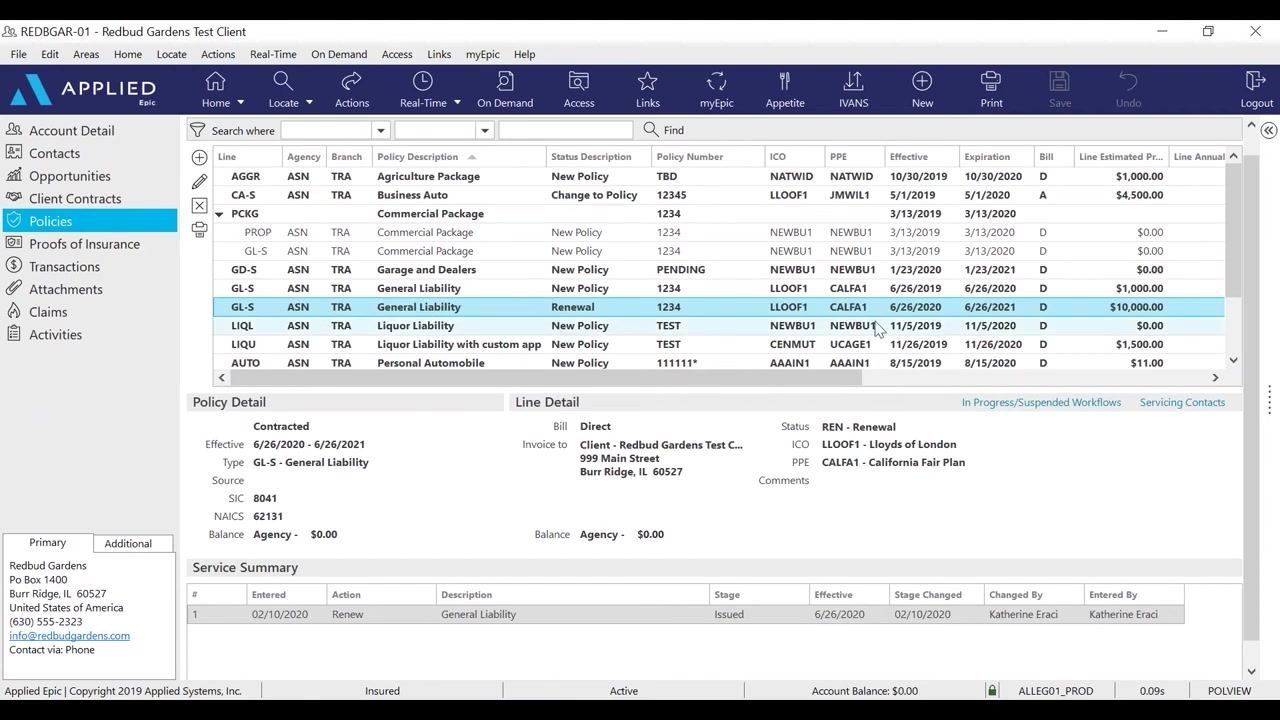
Verify the current policy exists in Epic
Before creating a certificate, confirm that the current policy is present in the system and that your coverage limits have been entered on the application. This information automatically pulls into the certificate, so accuracy here saves rework later.
Add a new certificate
Click Add a Certificate under the Certificates section. In the Add Certificate screen:
- Type: Select "ACORD Certificate of Liability Insurance" from the dropdown.
- Title: Enter a certificate name, such as
2020-21 Master Certificate.
Click Finish to proceed.
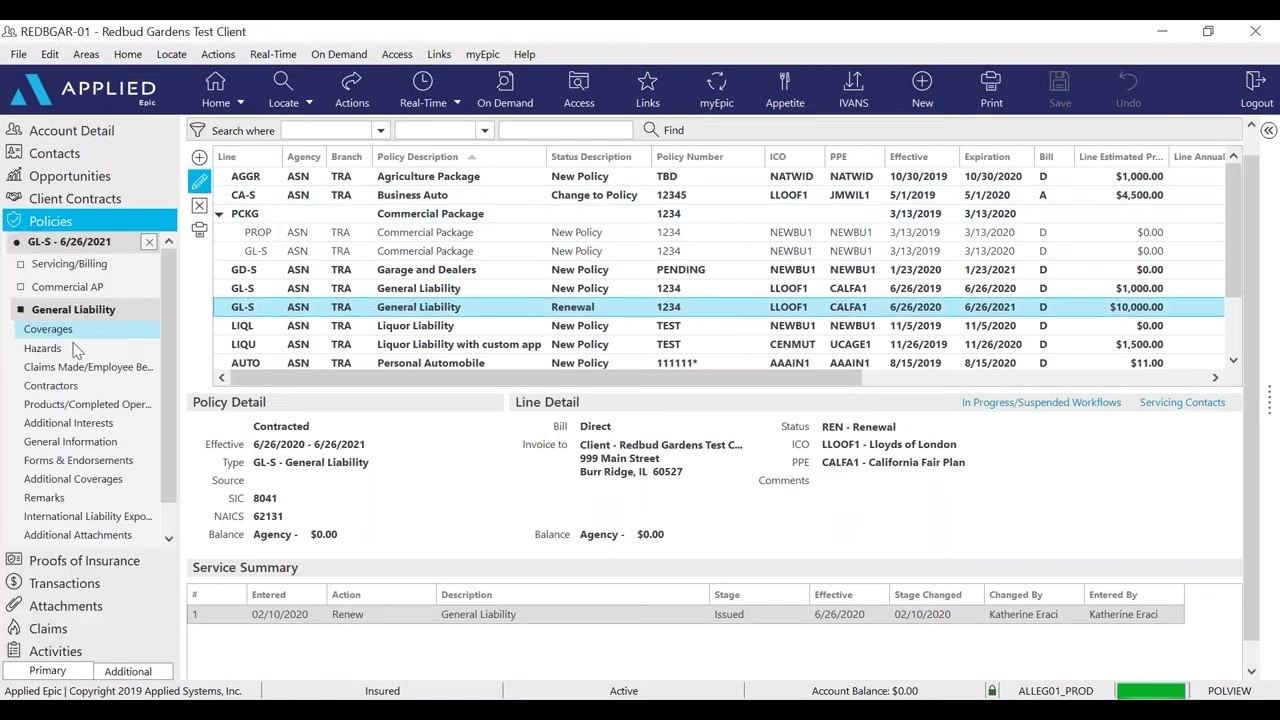
Add policies to the certificate
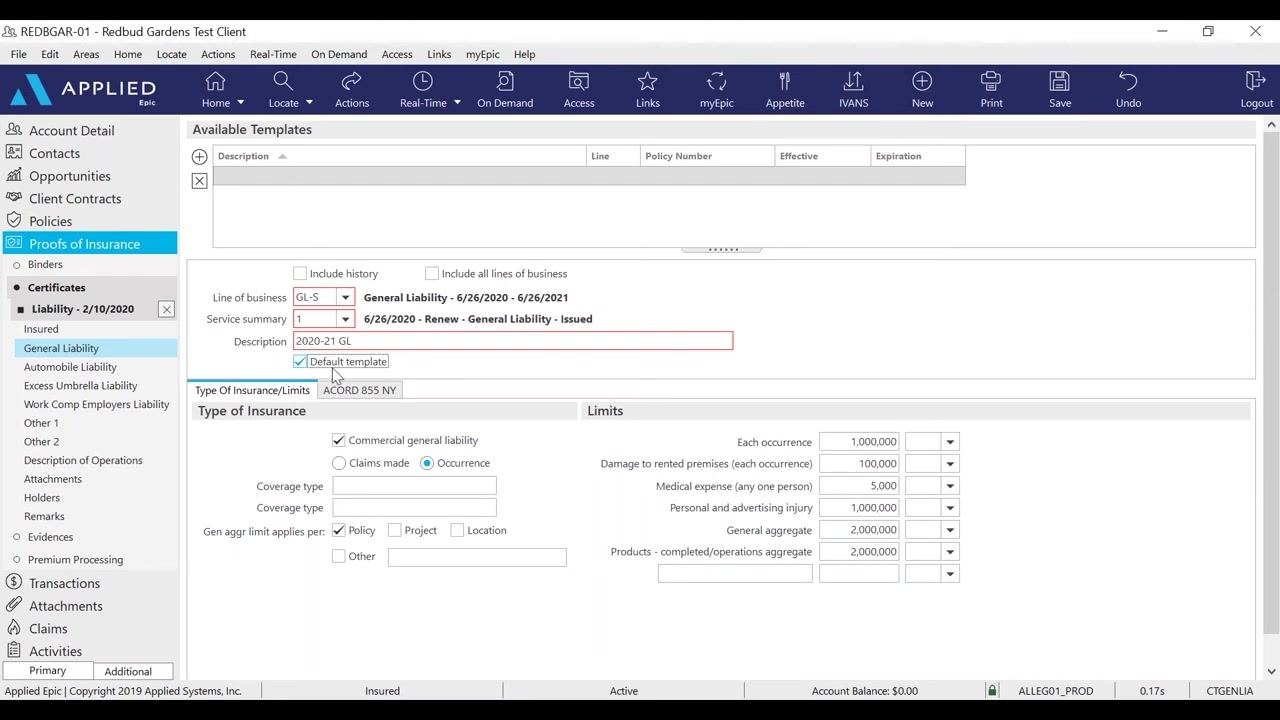
In the navigation panel, select the policy or policies you want to add to the certificate. For example, select the most current General Liability policy. Enter a description, such as 2020-21 GL, and confirm the correct policy term is selected (for example, Effective: 6/26/2020, Expiration: 6/26/2021, Policy Number: 1234).
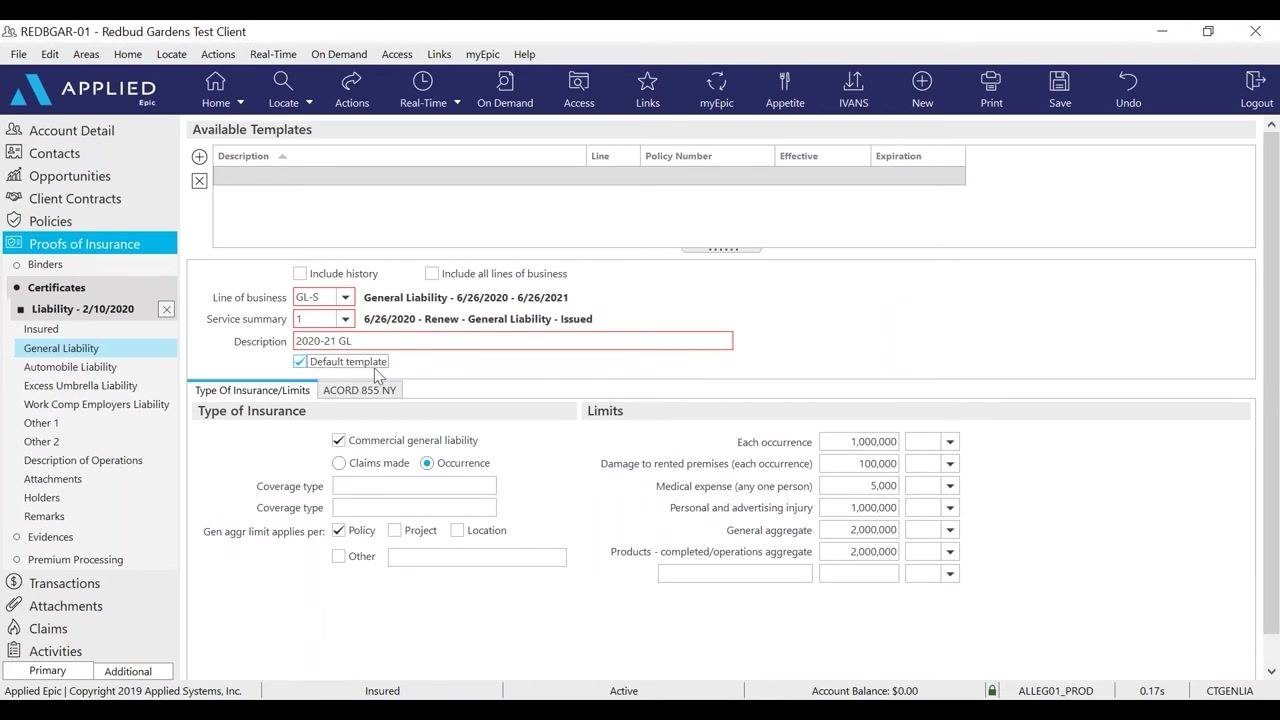
Set the certificate as a default template
Check the Default template box. This ensures that when you add a new holder later in the term, the coverage limits populate automatically. Confirm all policy limits and details are correct:
- Each occurrence: 1,000,000
- Damage to rented premises (each occurrence): 100,000
- Medical expense (any one person): 5,000
- Personal and advertising injury: 1,000,000
- General aggregate: 2,000,000
- Products – completed/operations aggregate: 2,000,000
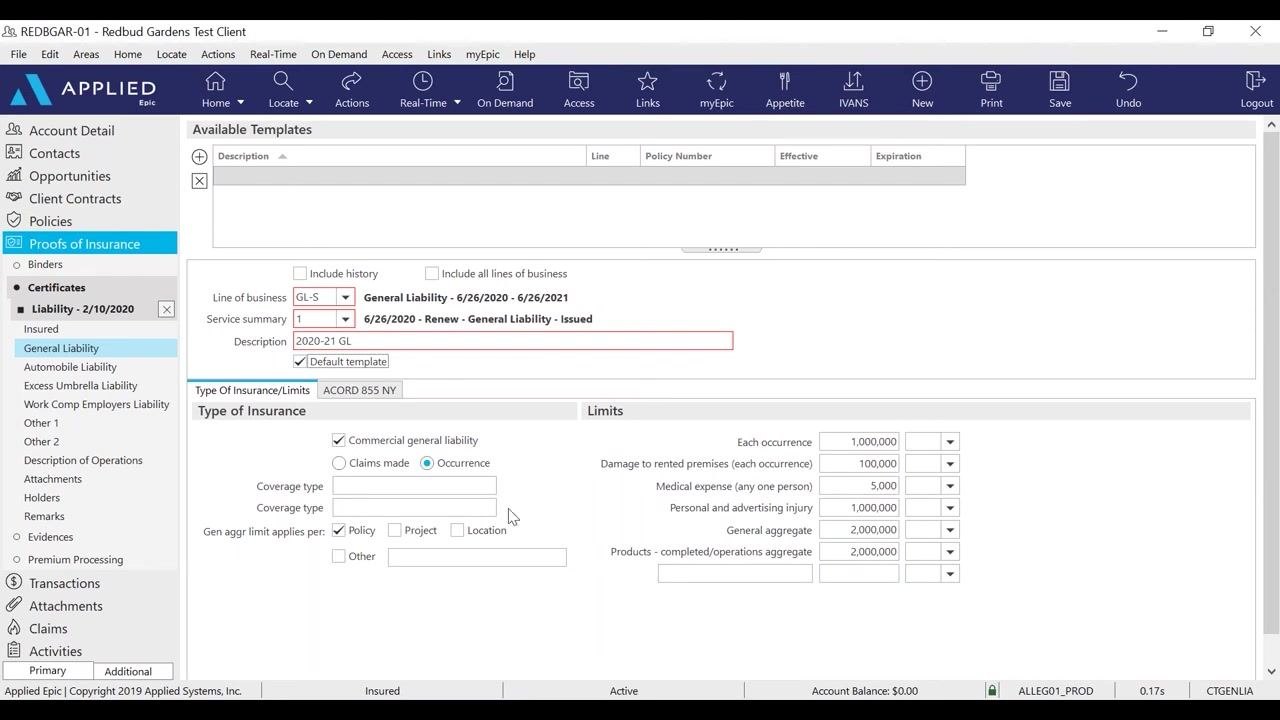
Review and save the master certificate
Double-check all entered information for accuracy, then save the certificate. Once saved, you have successfully added a master certificate of insurance for the current policy term, and the default template will streamline future certificate issuance for additional holders.
Add additional policies
Add other policy types to the certificate
After adding the most current General Liability policy, add any other relevant policies. In the left navigation panel under Proofs of Insurance > Certificates, select the next policy type you want to add, such as Work Comp Employers Liability. You can also add policies such as Automobile Liability, Excess Umbrella Liability, Professional Liability, or Cyber Liability as needed.
Enter Workers Compensation policy details
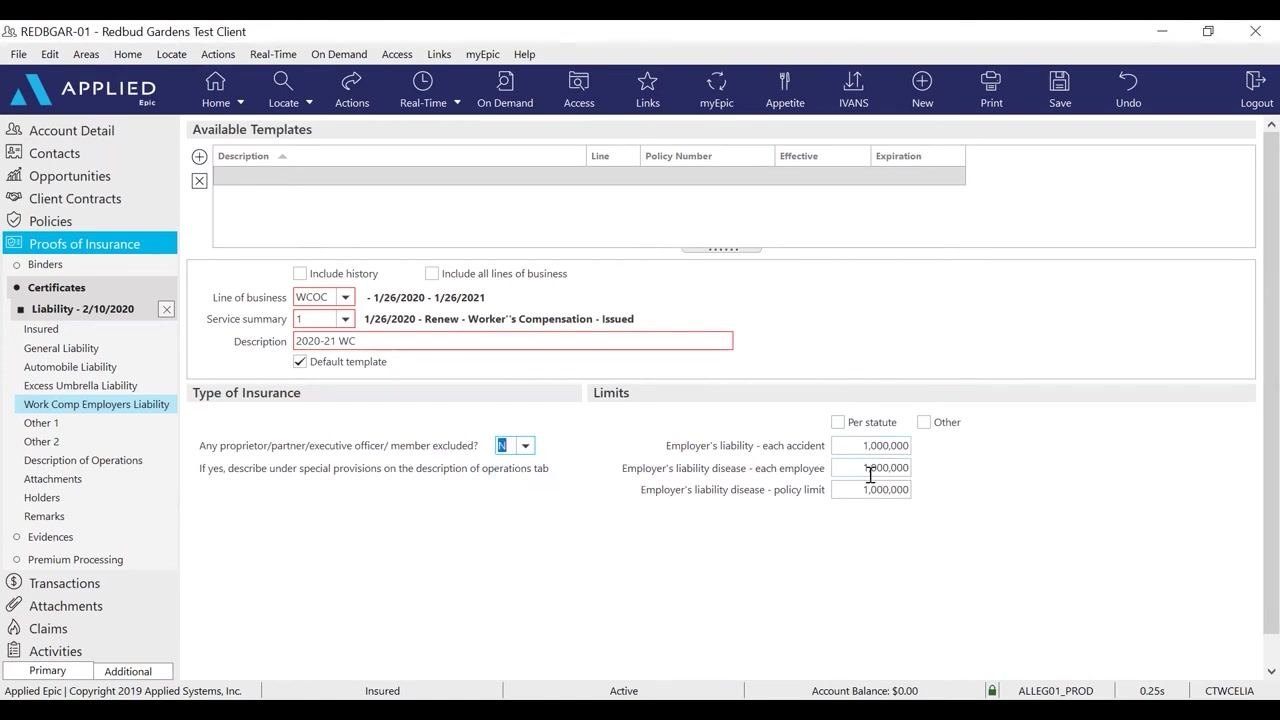
In the Line of business dropdown, select WCOC, then set the policy term (for example, 1/26/2020 - 1/26/2021). In Service summary, select the appropriate entry, such as 1/26/2020 - Renew - Worker's Compensation - Issued. Enter a description, such as 2020-21 WC, and check Default template so this policy is included for all holders added during the term.
In the Type of Insurance section, answer the exclusion question: for "Any proprietor/partner/executive officer/member excluded?", select No. Then enter the following limits:
- Employer's liability – each accident: 1,000,000
- Employer's liability disease – each employee: 1,000,000
- Employer's liability disease – policy limit: 1,000,000
Add certificate holders
Open the Holders section
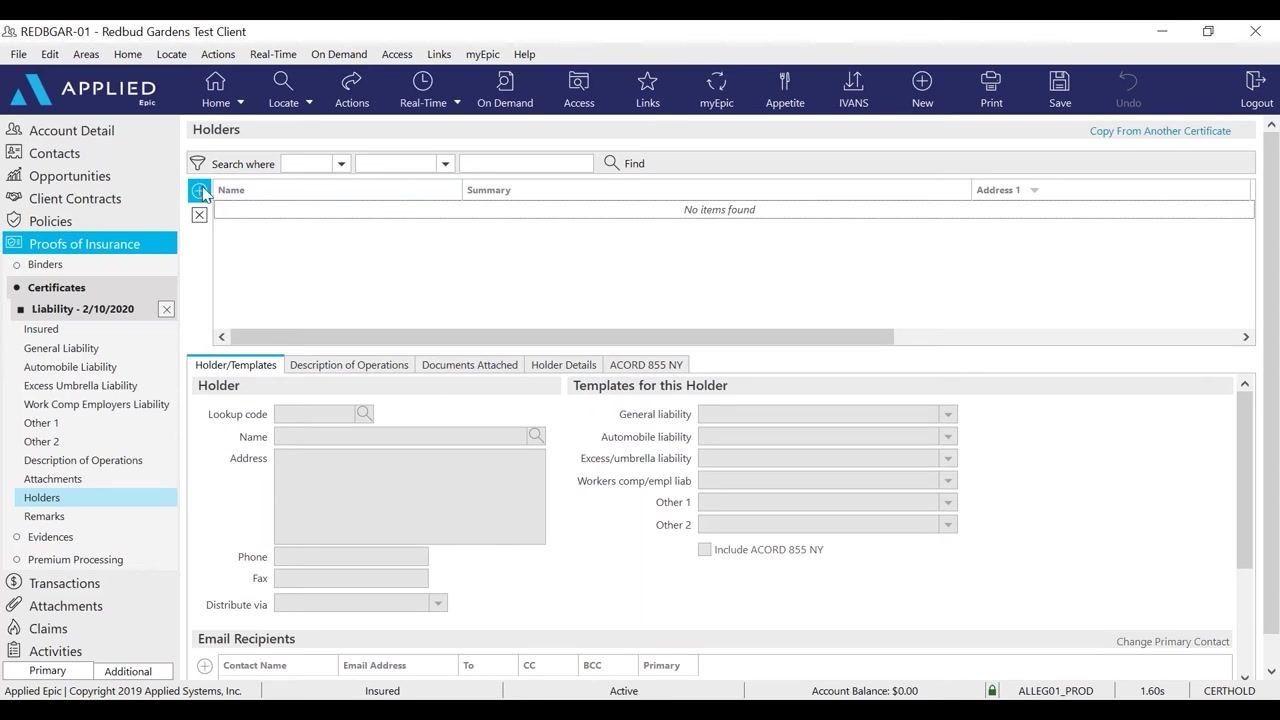
Once all desired policies are added, navigate to the Holders section in the left navigation panel under the certificate, and click Holders to open the holders management screen.
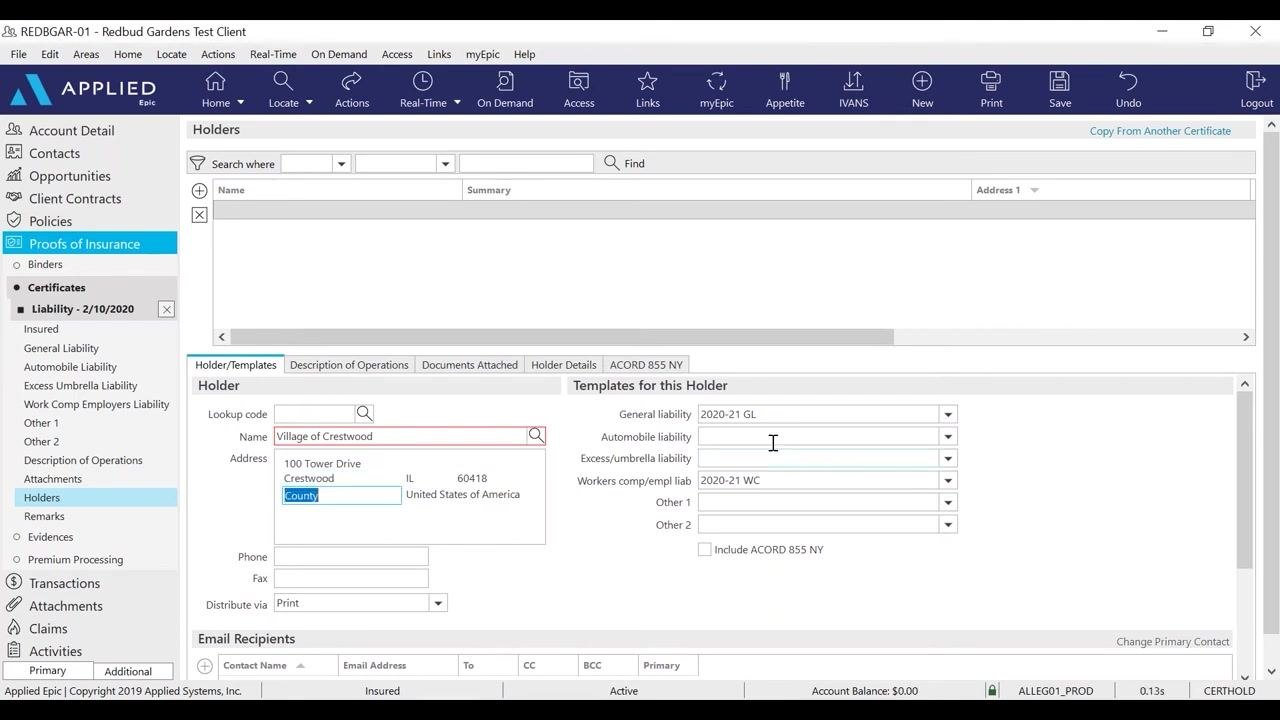
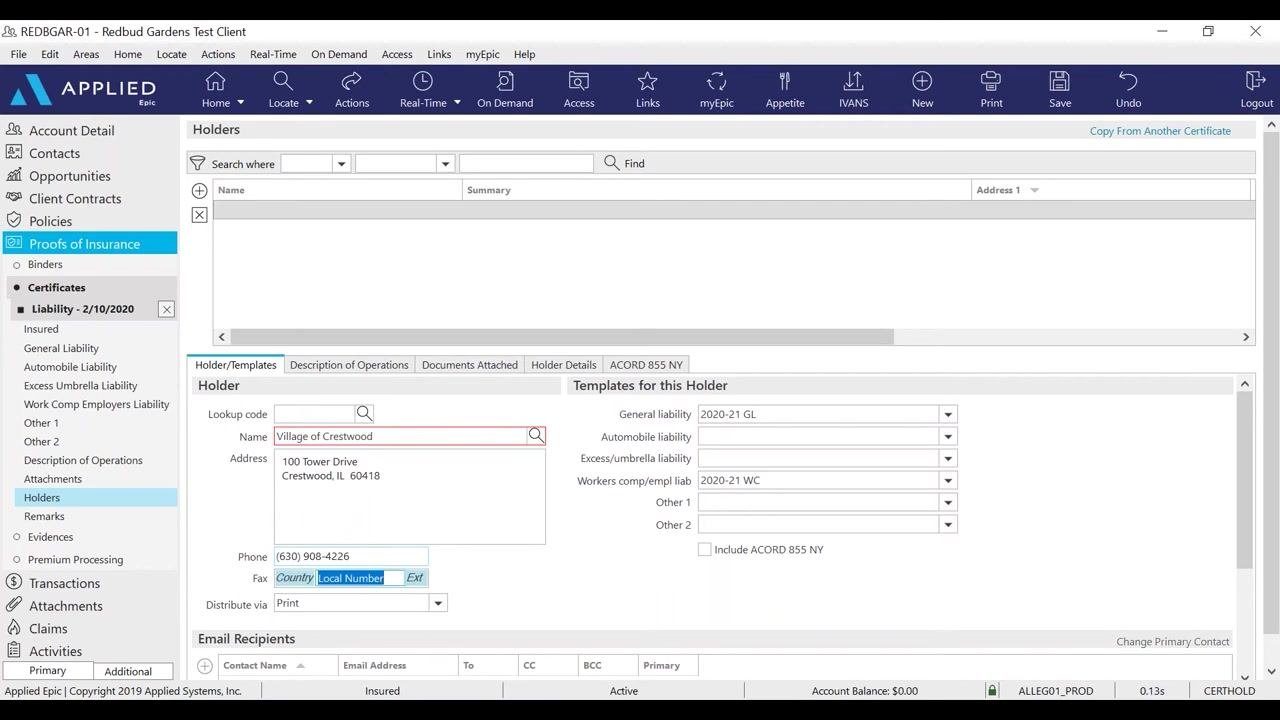
Click Add to create a new holder entry. Enter the holder's Name (for example, Village of Crestwood) and address (for example, 100 Tower Drive, Crestwood, IL 60418, United States of America). Optionally fill in the Phone and Fax fields, and set Distribute via (for example, Print). Under Templates for this Holder, verify the correct templates are assigned, such as:
- General liability:
2020-21 GL - Workers comp/empl liab:
2020-21 WC
Any other policy templates you previously added will also appear here.
Choose the most efficient contact method
Although you can enter the holder's fax number, it is recommended to obtain and use the holder's email address for distribution. In the Distribute via dropdown, select Email for more efficient delivery.
Add email recipients for the holder
Click Add in the Email Recipients section. In the Contact Select window, choose Manual contact and enter the holder's email address (for example, training@asnoa.net). Select whether this address should be the primary email, and assign the recipient as To, or use CC or BCC if you want to send a copy or blind copy. Click Finish to add the recipient.
Enter description of operations and special wording
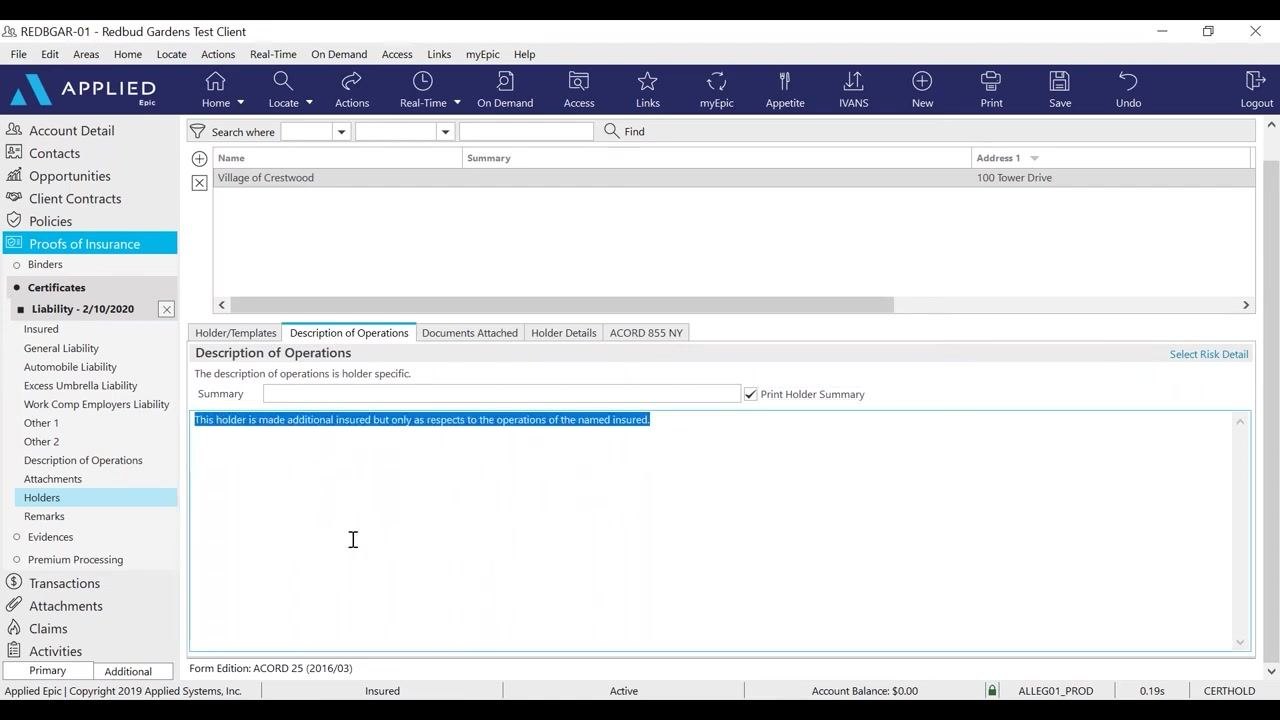
Click the Description of Operations tab. In the description field, enter any required additional insured wording or special instructions, such as: "This holder is made additional insured but only as respects to the operations of the named insured." Always have an underwriter approve special wording before entering it. Optionally, check Print Holder Summary if you want this summary to appear on the printed certificate.
Attach supporting documents (if needed)
If you need to add supporting documents, use the Documents Attached tab. You can attach files from your desktop or from the customer's attachments within Applied Epic.
Review and save the holder entry
Double-check all entered information for accuracy and confirm the correct templates are assigned to the holder. Save the holder entry to complete the process. With this, you have successfully added additional policies and set up certificate holders, ensuring each holder receives the correct coverage information.
Add additional holders as needed
To add more certificate holders during the policy term, click Add in the holders section again for each new holder. If you have a large number of holders, use the Import function to add them in bulk.
Review holder details
Navigate to the Holder Details tab
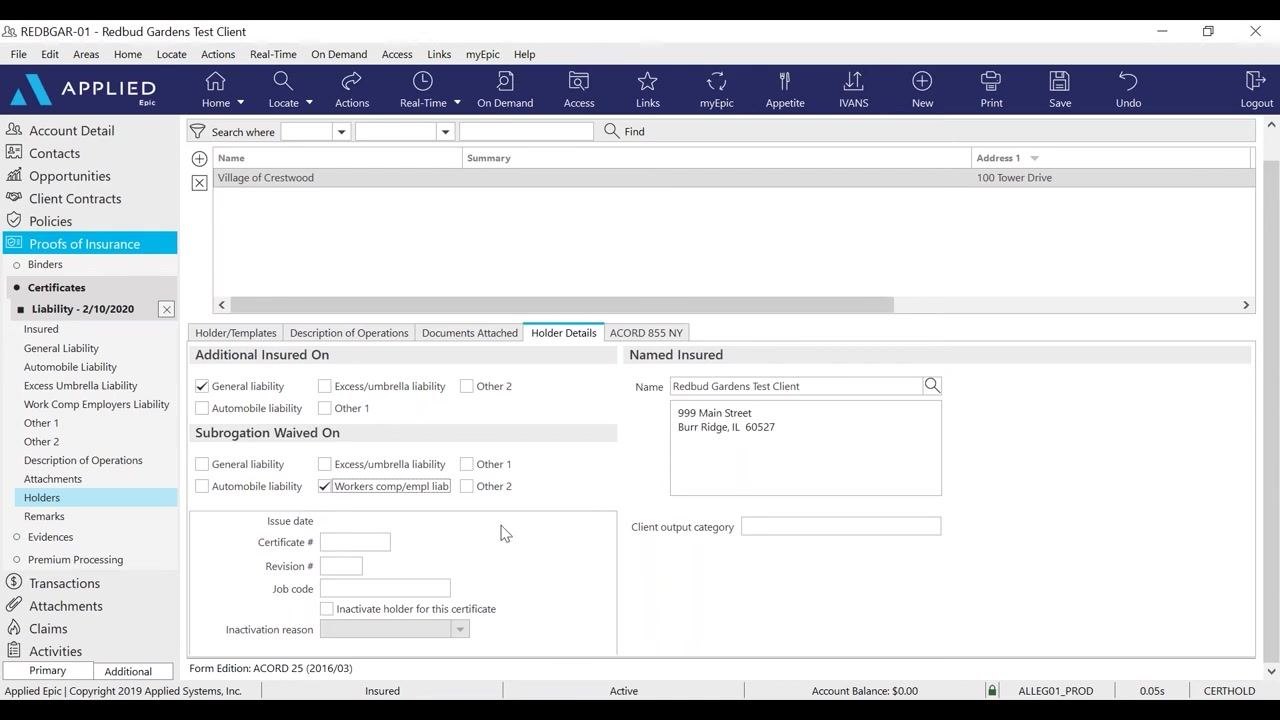
In Proofs of Insurance > Certificates for the relevant liability policy, select the Holder Details tab. Review the Additional Insured On and Subrogation Waived On sections. Only check boxes for General liability, Automobile liability, Excess/umbrella liability, or other coverages if you have explicit approval from the carrier.
In this example, General liability is checked under Additional Insured On, and Workers comp/empl liab is checked under Subrogation Waived On. The Named Insured section displays the client name and address (for example, Redbud Gardens Test Client, 999 Main Street, Burr Ridge, IL 60527).
Issue the certificate
Start the Issue Certificate action
Navigate to the Actions menu and select Issue Certificate. Enter all required information, ensuring it is accurate and complete. Only include additional insured wording if it is specifically requested or required.
Select the producer and contact name
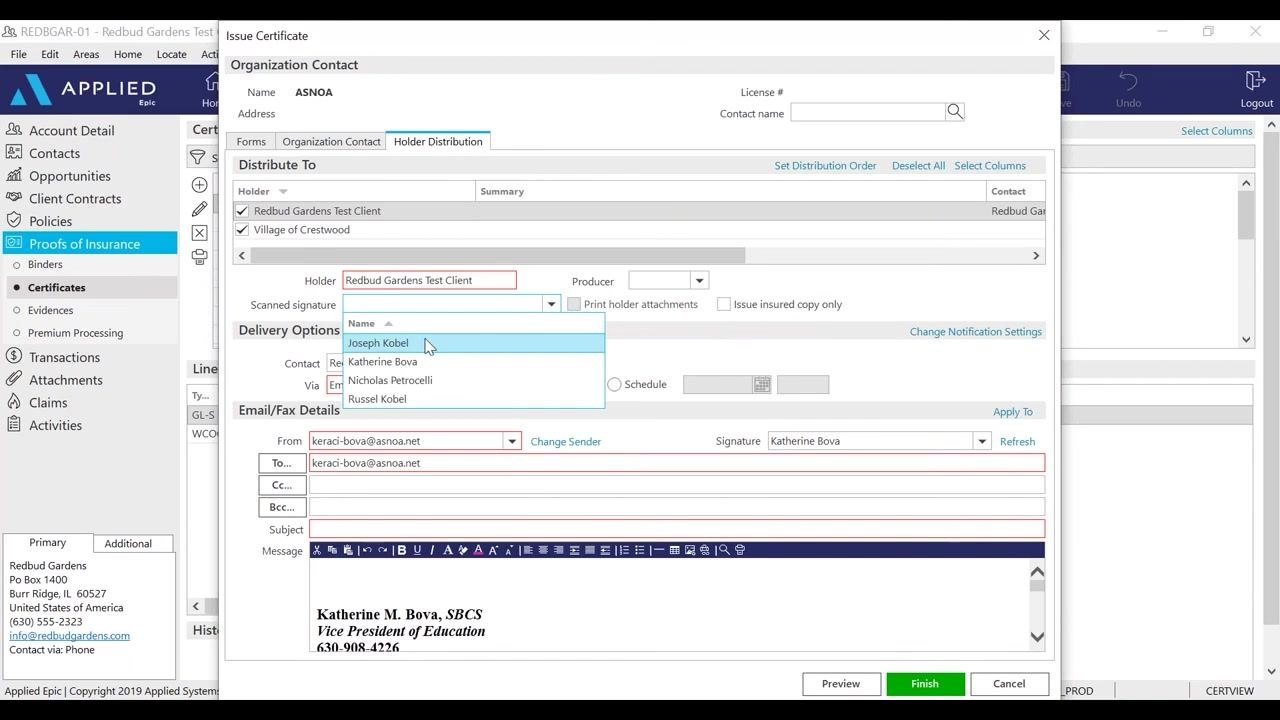
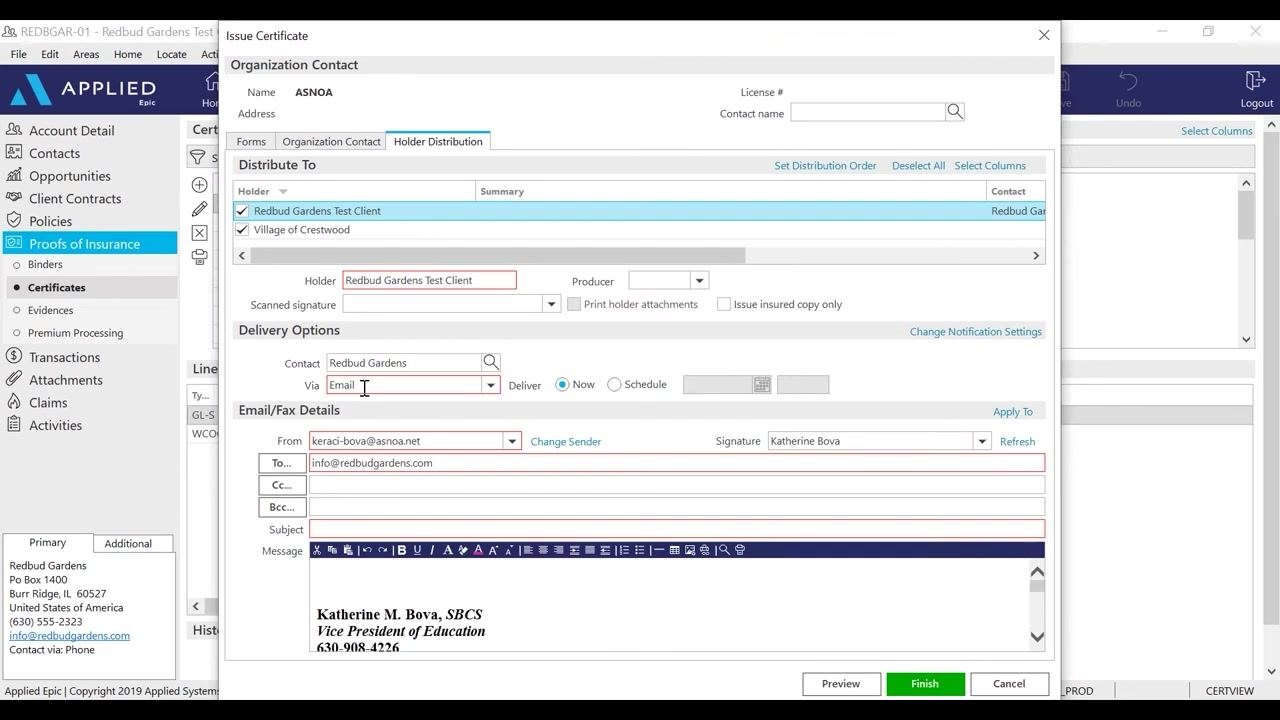
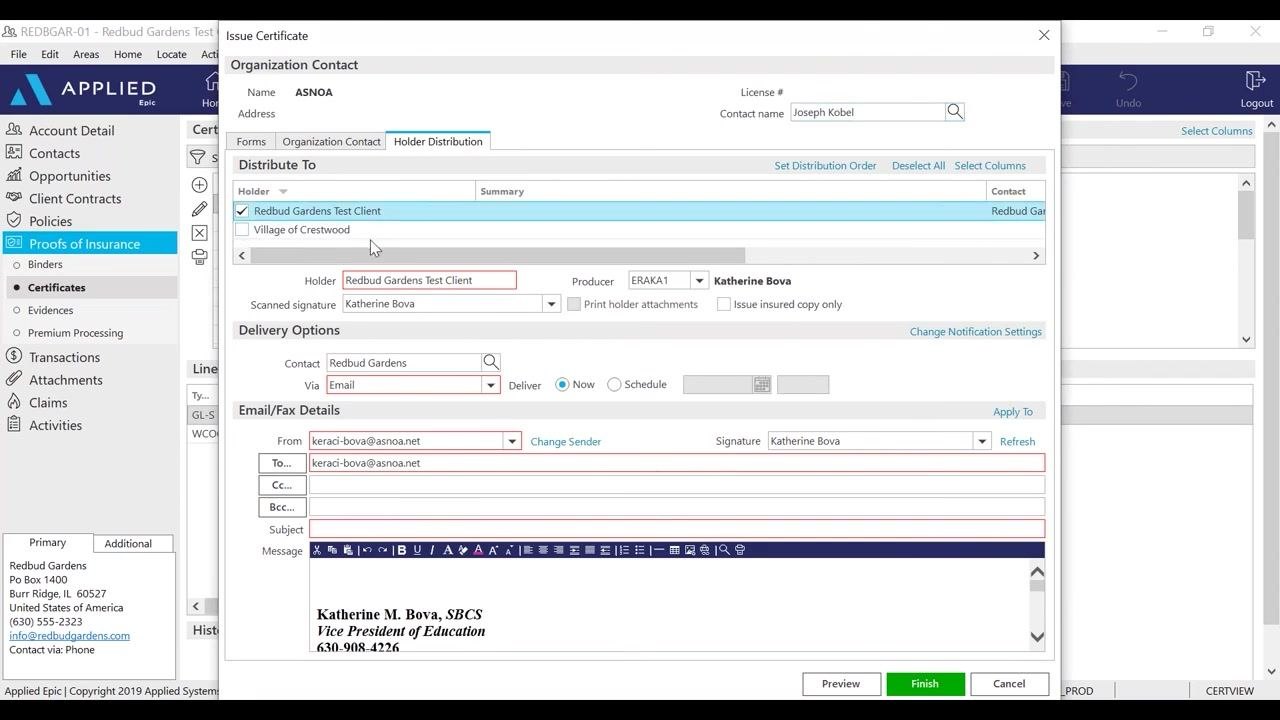
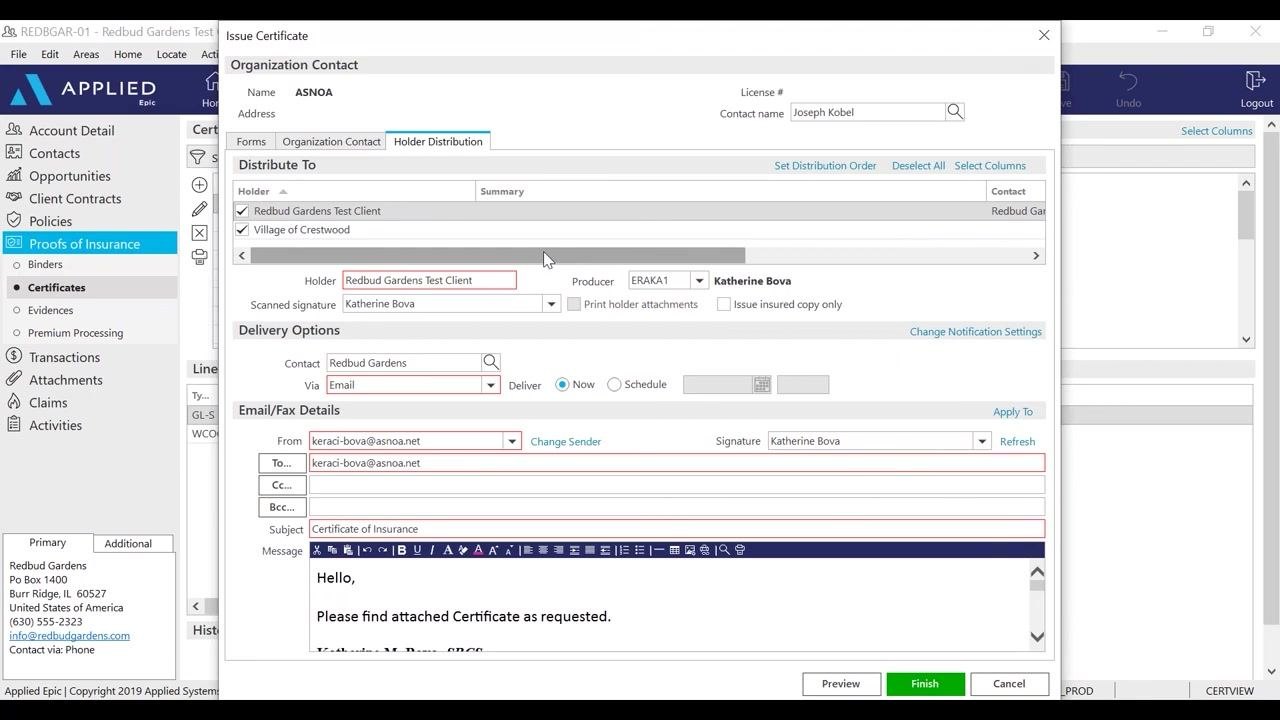
In the Issue Certificate dialog, under the Holder Distribution tab, locate the Producer dropdown next to the selected holder (for example, Redbud Gardens Test Client). Click the dropdown and select the appropriate producer from the list (for example, Joseph Kobel, Katherine Bova, Nicholas Petrocelli, Russel Kobel). Enter or select the Contact name at the top right (for example, Joseph Kobel), and ensure the Scanned signature field is populated (for example, Katherine Bova).
Configure certificate distribution
Still in the Holder Distribution tab, under Distribute To, select the holders who should receive the certificate (for example, Redbud Gardens Test Client, Village of Crestwood). In Delivery Options, set the contact (for example, Redbud Gardens) and choose the delivery method (for example, Email). In Email/Fax Details, enter the recipient's email address in the To field (for example, info@redbudgardens.com). The sender's email and signature (for example, Katherine Bova) populate automatically.
Verify that both the holder (for example, Redbud Gardens Test Client) and the insured are checked in the Distribute To list. If you preview the certificate without both selected, the preview will be blank. Confirm the Contact and Via (delivery method) fields are set (for example, Contact: Redbud Gardens, Via: Email), and double-check the To email address field (for example, keraci-bova@asnoa.net).
Review distribution options
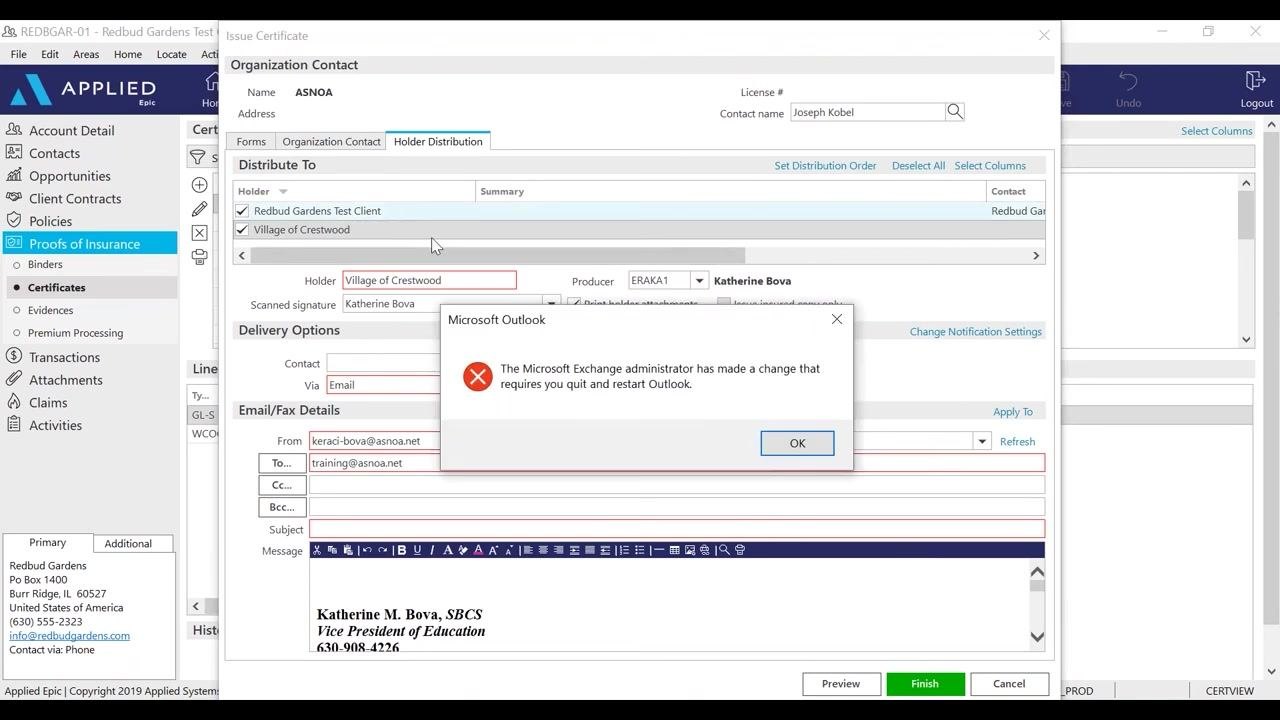
You can issue the certificate without distributing it, or print and mail it instead of emailing it. If an error appears (for example, "The Microsoft Exchange administrator has made a change that requires you quit and restart Outlook"), click OK and resolve any email client issues before proceeding.
Compose the email message
In Email/Fax Details, enter a clear subject, such as "Certificate of Insurance." In the Message field, type a brief message, such as "Hello, Please find attached Certificate as requested." Ensure your Outlook signature is included at the bottom of the message (for example, "Katherine M. Bova, SBCS, Vice President of Education, 630-908-4226").
Apply the message to multiple holders
If you want to use the same email message for multiple holders, click Apply To next to the message field. Confirm the message (for example, "Hello, Please find attached Certificate as requested.") is correctly applied to all selected holders.
Preview and review the certificate
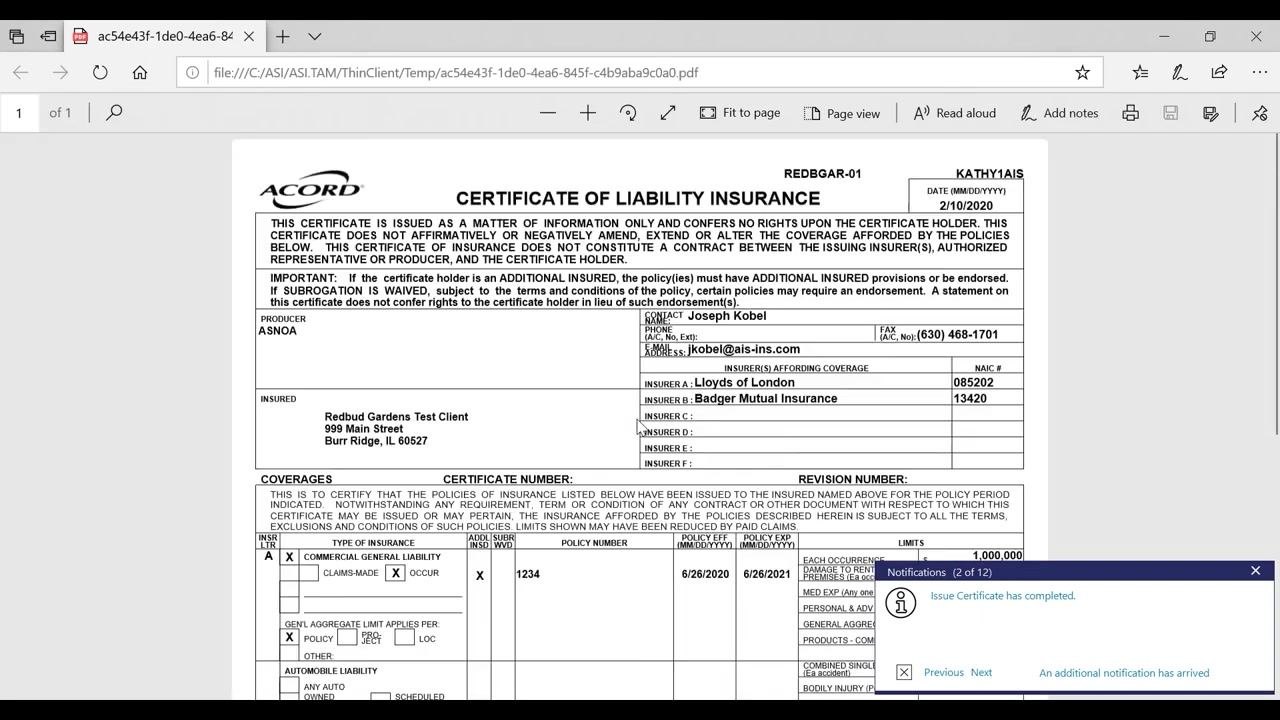
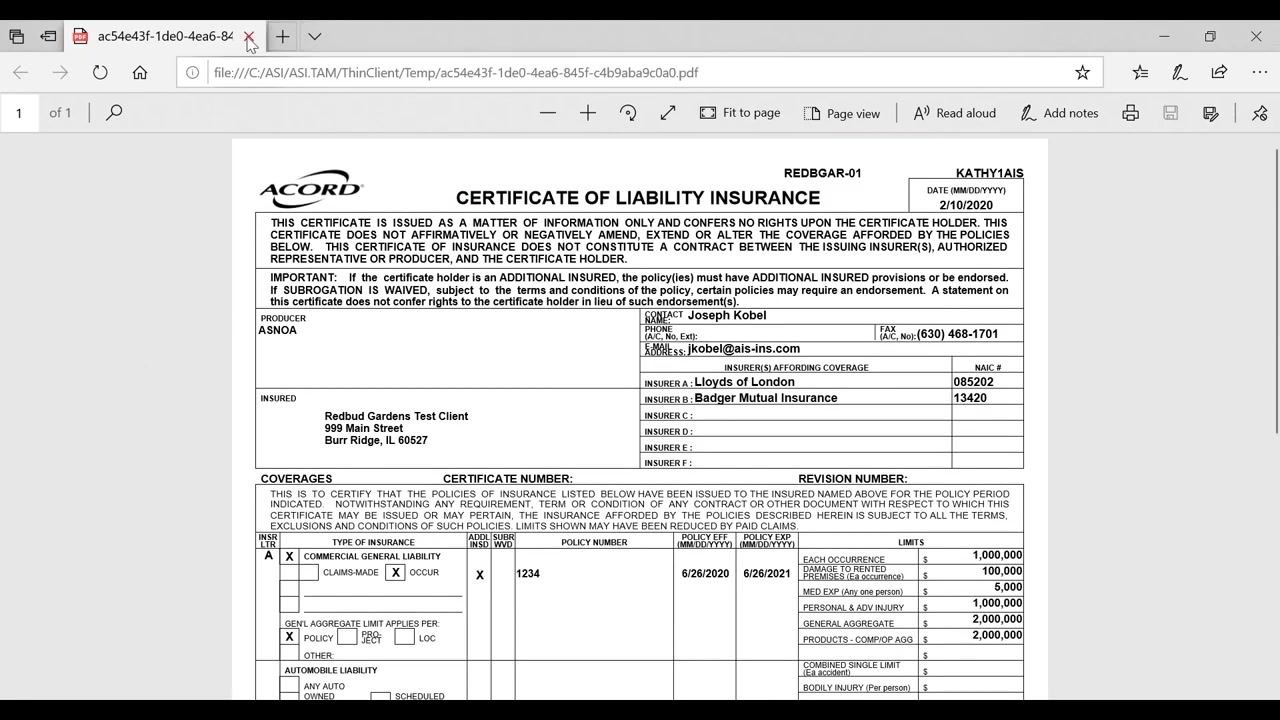
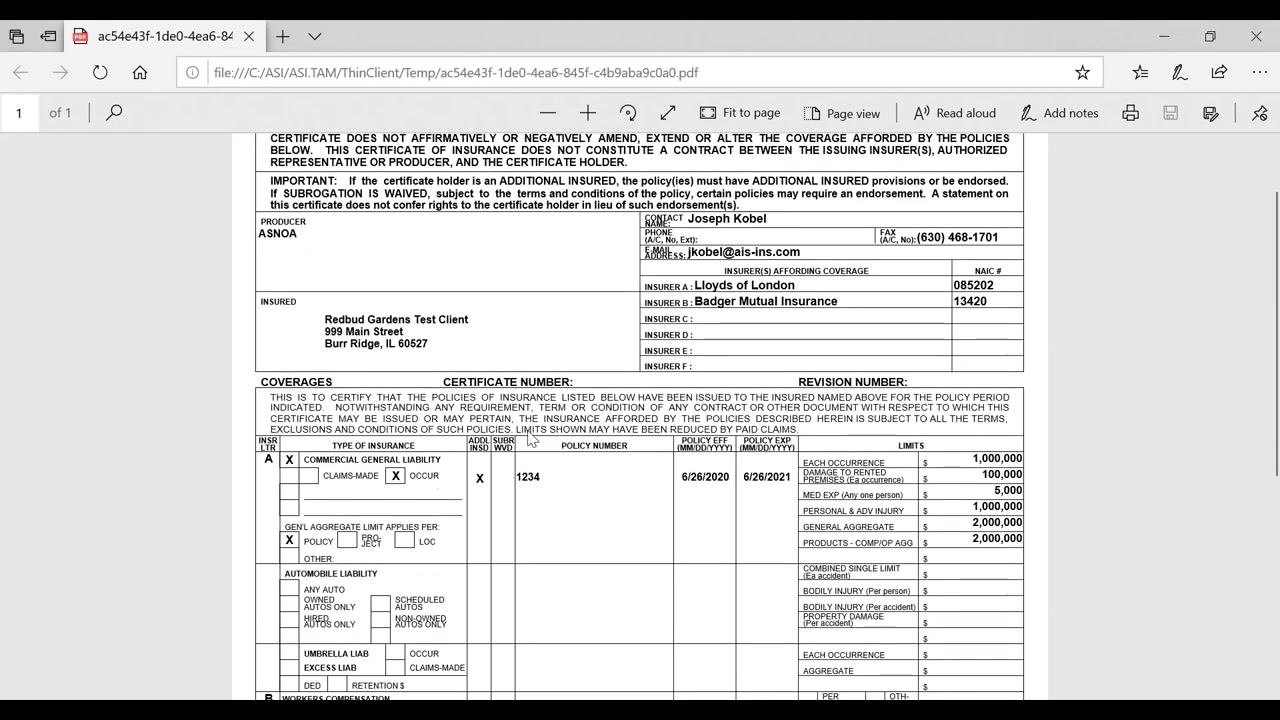
Click Preview at the bottom of the Issue Certificate dialog to review the generated certificate PDF. Confirm that all details are correct, including:
- Certificate holder (for example, Redbud Gardens Test Client)
- Producer (for example, ASNOA)
- Contact information (for example, Joseph Kobel, jkobel@ais-ins.com)
- Insured details (for example, Redbud Gardens Test Client, 999 Main Street, Burr Ridge, IL 60527)
- Insurers (for example, Lloyds of London, Badger Mutual Insurance)
- Policy numbers, effective/expiration dates, and coverage limits (for example, Policy #1234, 6/26/2020–6/26/2021, $1,000,000 each occurrence)
Check for notifications confirming certificate issuance, such as "Issue Certificate has completed."
Review the certificate PDF to confirm the Waiver of Subrogation box is checked as required, and that all policy limits display accurately:
- Commercial General Liability: $1,000,000 each occurrence, $2,000,000 general aggregate, $100,000 damage to rented premises, $5,000 med exp, $1,000,000 personal & adv injury, $2,000,000 products-comp/op agg.
- Workers Compensation: $1,000,000 each accident, $1,000,000 disease-policy limit, $1,000,000 disease-each employee.
Also confirm the correct policy numbers and effective/expiration dates appear (for example, Policy #1234, 6/26/2020–6/26/2021), and that the Additional Insured and Subrogation Waived boxes are marked as needed.
Finalize certificate issuance
Click Finish in the Issue Certificate dialog to complete the process. If a Validation Error dialog appears stating "Required information is missing," click OK, then review the fields highlighted in red to identify and fill in any missing required information, such as missing email addresses or contact details.
Log activity and verify attachments
Complete activity logging
After issuing the certificate, an Add an Activity dialog appears. Enter a description for the activity, such as "Issued certificate for Redbud Gardens Test Client." Set the status to Closed and the reason to Successful, and confirm the follow-up/start date and contact details are correct. Click Finish to log the activity.
Verify the certificate attachment in the client file
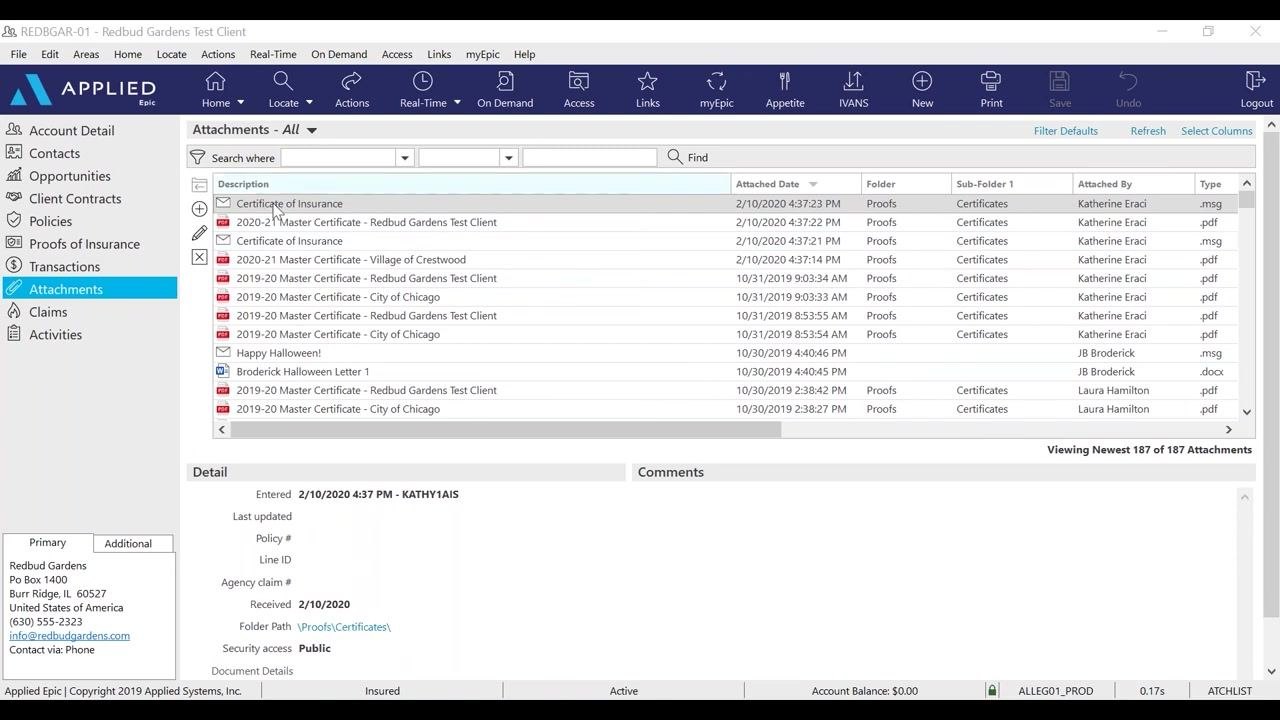
Navigate to the Attachments section for the client in Applied Epic. Confirm that the issued certificate and related email are attached and listed with the correct date, folder, and type (for example, .pdf, .msg). Review the details at the bottom of the screen to ensure the attachment is accessible and properly categorized.
Review the sent email in Outlook
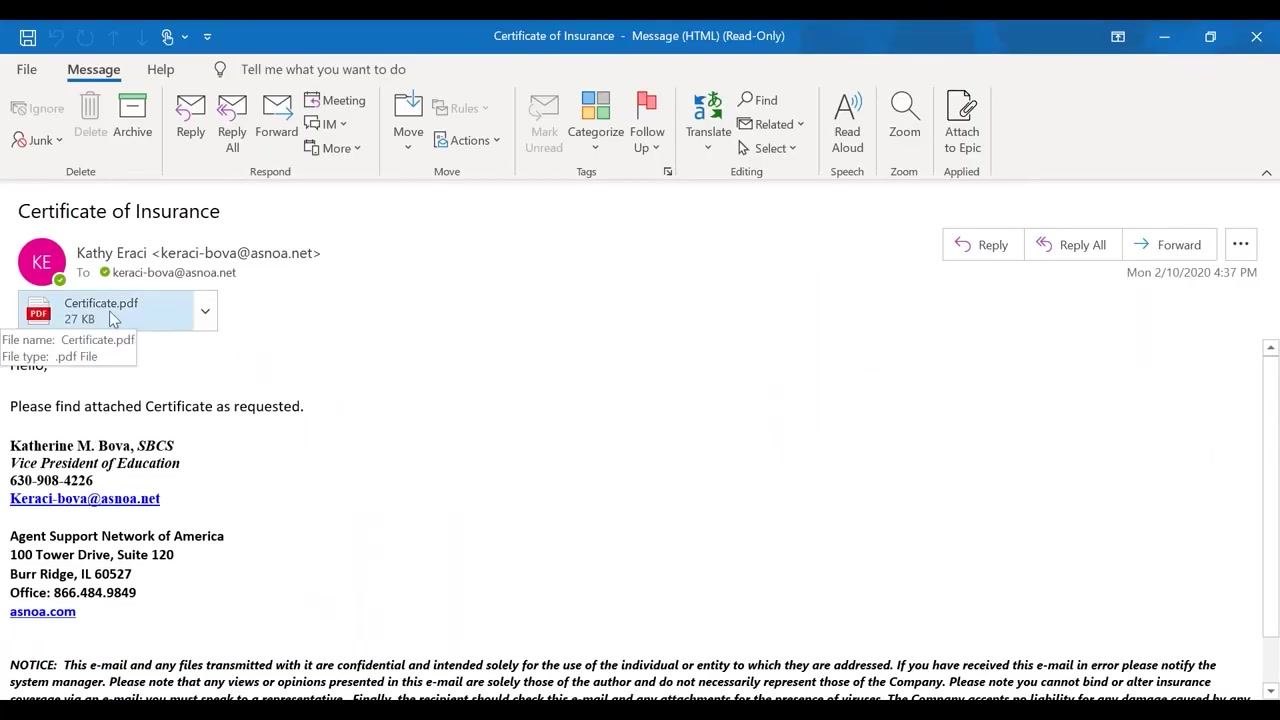
Open the sent email in Outlook to verify:
- The subject line (for example, "Certificate of Insurance")
- The recipient email address (for example, keraci-bova@asnoa.net)
- The attached certificate PDF (for example, Certificate.pdf, 27 KB)
- The message body (for example, "Hello, Please find attached Certificate as requested.")
- The sender's signature and agency contact information
Confirm the email matches the intended content and includes the correct attachment.
Summary
By following these steps, you can create a certificate of insurance in Applied Epic from start to finish: building a master certificate with default templates, adding additional policies, setting up certificate holders with the correct distribution details, issuing the certificate, and confirming it is logged and attached to the client record. Completing each step ensures every holder receives accurate coverage information and that your communications and documentation are properly verified in both Applied Epic and Outlook.
Generation details: cost, quality tiers
Docsie billed 5,500 credits ($3.85) to analyze this 11-minute video at standard quality. The rewrite, template fill and Word/PDF exports were included. The same video at each quality tier:
| Quality | Frames sampled | Credits | Approx. cost |
|---|---|---|---|
| Draft | every 16-30 s | 2,750 | $1.92 |
| Standard (this guide) | every 8-15 s | 5,500 | $3.85 |
| Detailed | every 4-7 s | 11,000 | $7.70 |
| Ultra | every 1-3 s | 22,000 | $15.40 |
Credits priced at $0.70 per 1,000; plans include a monthly allowance. Enterprise customers on on-premise or bring-your-own-model deployments run this on their own inference and pay no per-video credits.
Generated by Docsie Video-to-Docs on 2026-10-25 from a 10-minute video. Screenshots are frames from the source video and belong to their creator, ASNOA Training, whose original is embedded above. If you own this video and want the guide removed or credited differently, contact us and we will act within one business day.