
How to Add a Package Policy in Applied Epic
This guide walks you through how to add a package policy in Applied Epic, from locating the client account to issuing the completed policy. You'll learn how to enter policy details, add multiple lines of business, remove placeholder entries, and confirm the final policy is active.
Video: How to - Add a package policy in Epic by ASNOA Training (2021). All credit for the demonstration goes to the creator; watch the original on YouTube. The written guide below was generated from this video by Docsie. Creator? Request a change or removal.
This guide walks you through how to add a package policy in Applied Epic, from locating the client account to issuing the completed policy. You'll learn how to enter policy details, add multiple lines of business, remove placeholder entries, and confirm the final policy is active.
Prerequisites
- Access to Applied Epic with permissions to add and edit policies.
- The client account for which you want to add the package policy.
- Policy details on hand, including policy number, effective and expiration dates, issuing company, and premium amounts.
Navigating to the client account
Open the client account and access Policies
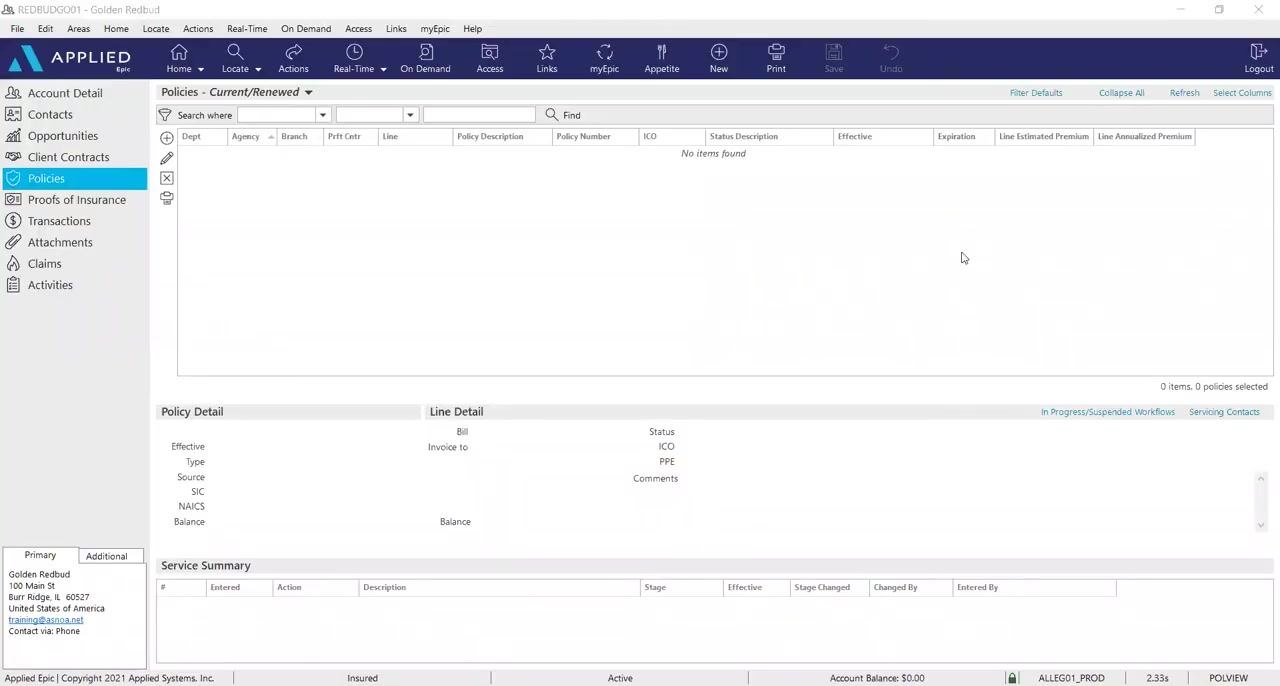
Open Applied Epic and go to the client account for which you want to add the package policy. In the left navigation pane, click Policies. The main Policies screen displays the current and renewed policies for the client.
Start a new policy
Click the plus sign (+) or the Add a Policy button to begin entering a new policy.
Entering policy details
Select the policy line type
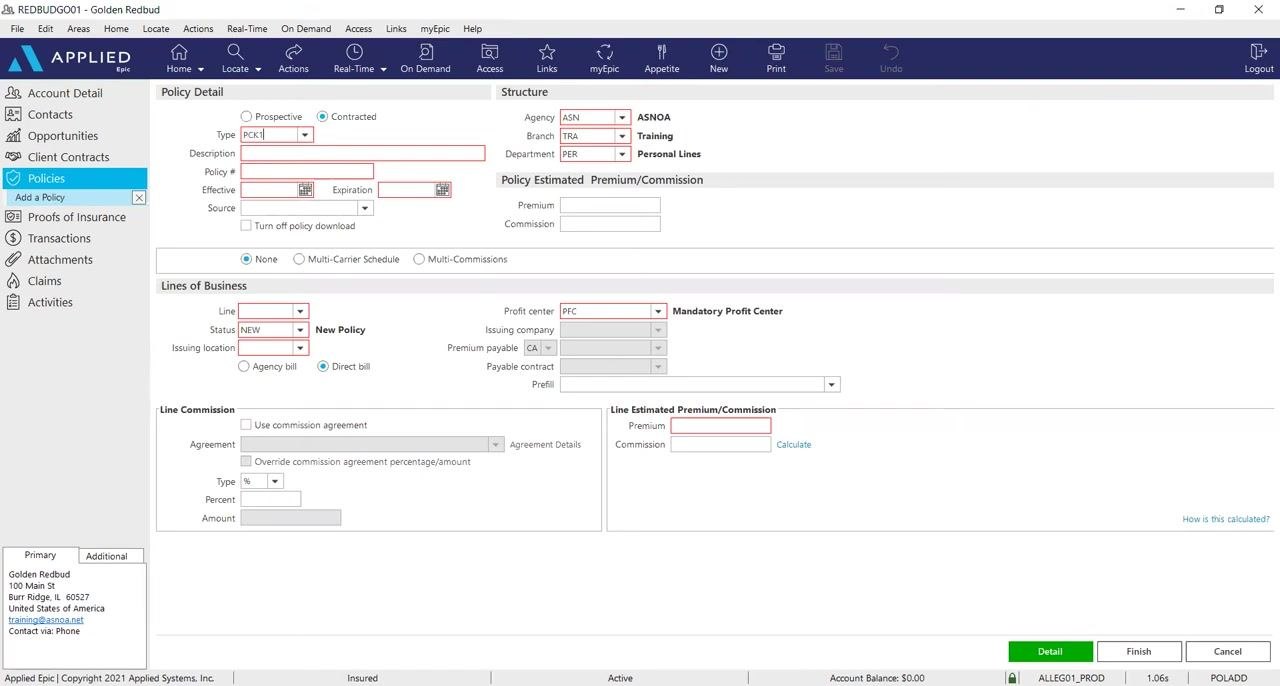
In the Policy Detail section, set the Type field. For a personal lines package policy, enter or select PCK1. For a commercial lines package policy, enter or select CPKG. You can optionally customize the Description field to clarify the package type.
Enter the policy number and dates
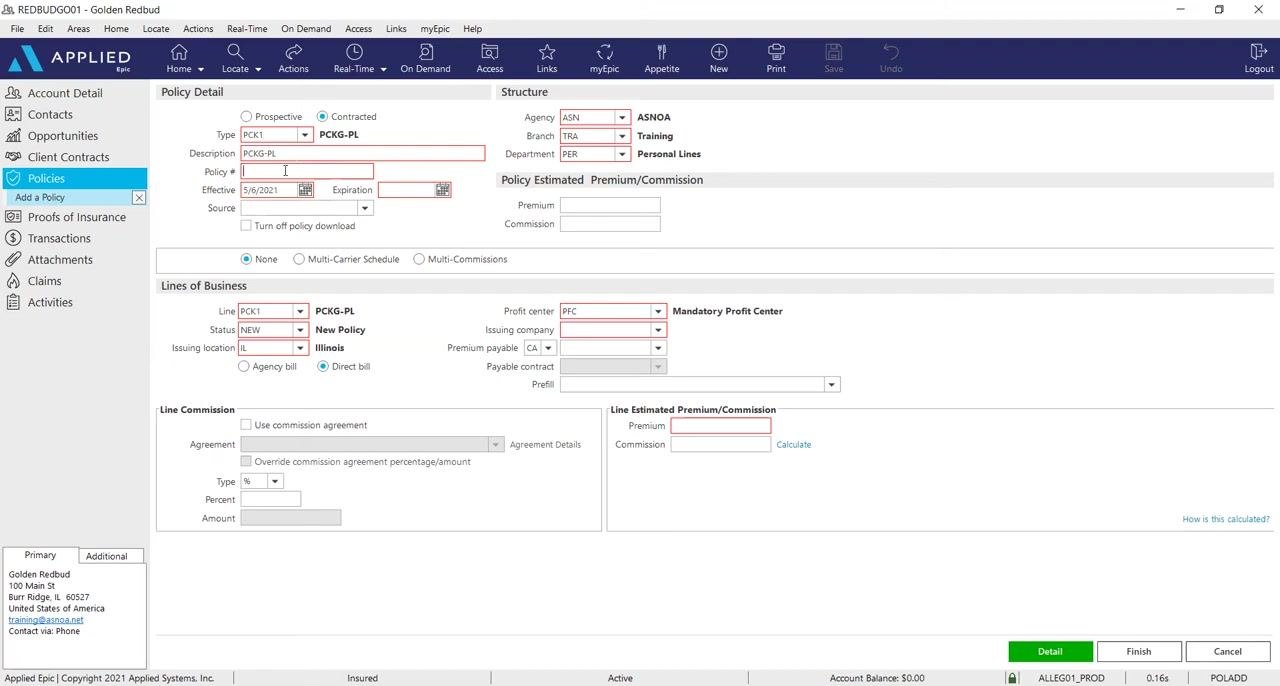
Enter the policy number in the Policy # field, then enter the Effective Date and Expiration Date for the policy. Fill in the Source field if applicable.
Verify the structure information
Review the Structure section on the right side of the screen. Confirm that the Agency, Branch, and Department fields accurately reflect your agency's information. If the Department (for example, Personal Lines or Commercial Lines) needs to be changed, manually select the correct department from the dropdown.
Completing the lines of business
Complete the initial line of business
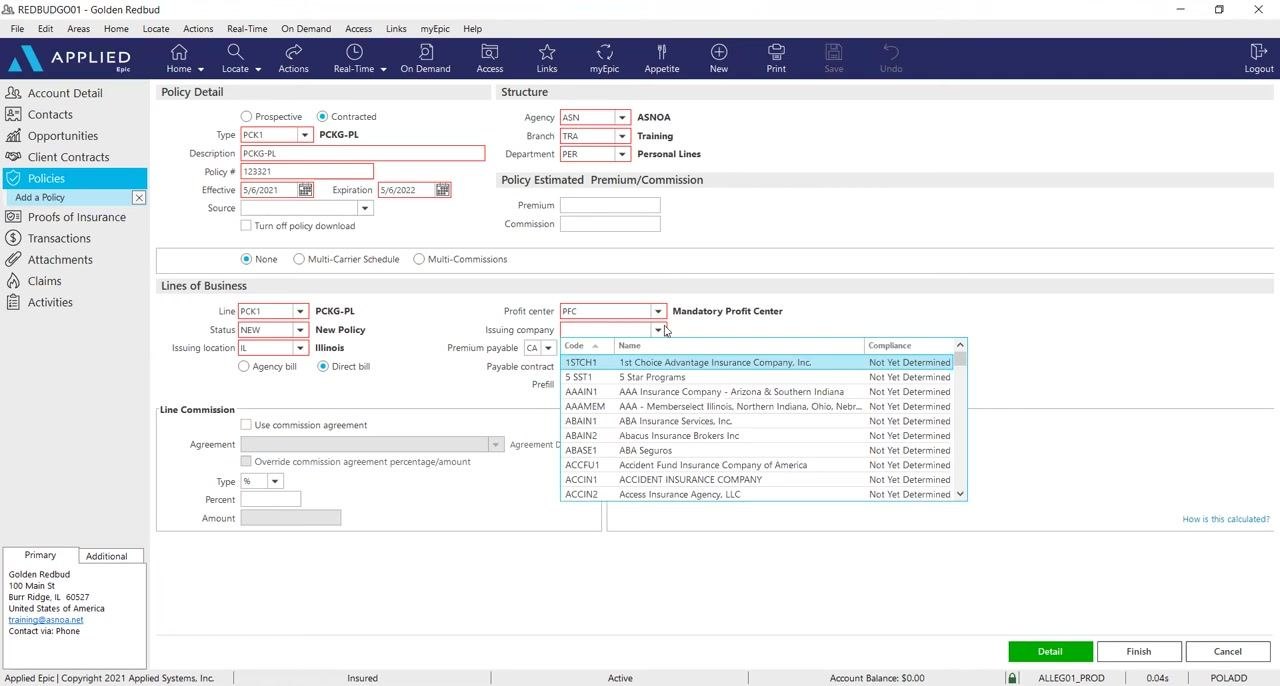
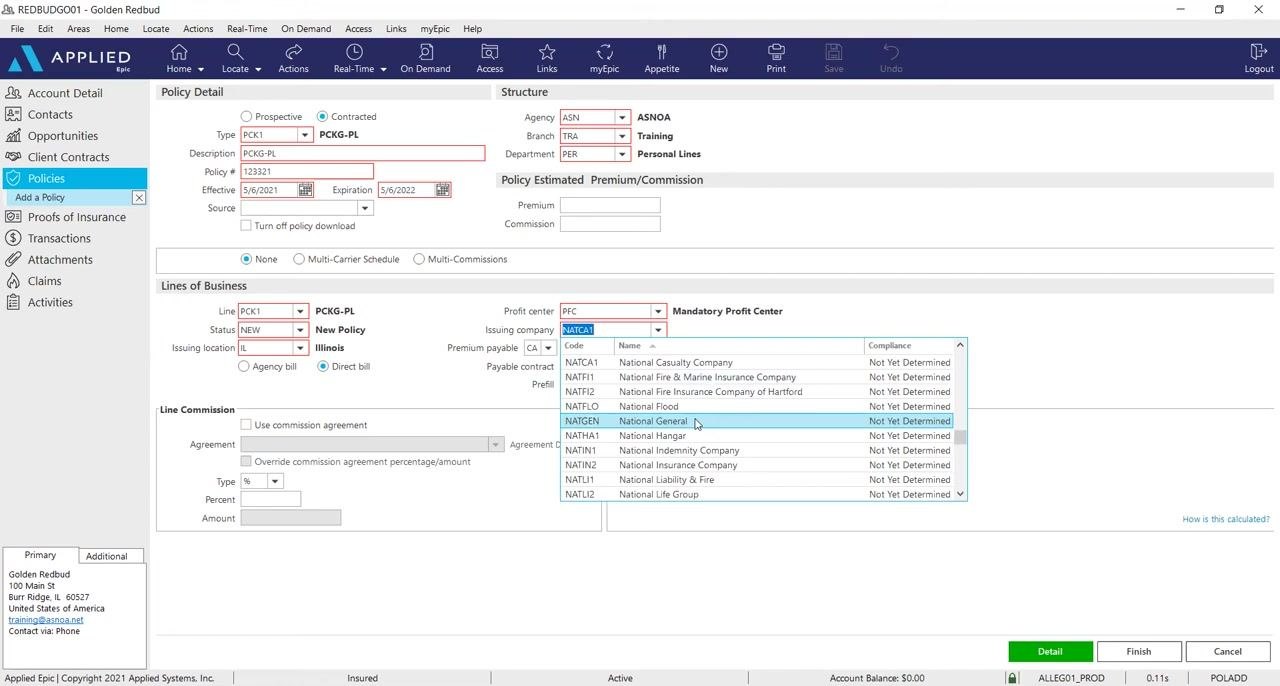
In the Lines of Business section, set the Line field (for example, PCK1 for personal lines) and set the Status to NEW. Select the Issuing Location (for example, IL for Illinois), and complete other required fields such as Profit Center, Issuing Company, and Premium Payable as needed.
Select the issuing company
In the Issuing Company field, click the dropdown and select the appropriate company. For this example, select NATGEN – National General.
Set the commission agreement (if applicable)
Check the Use commission agreement box if your agency uses commission agreements. It's acceptable if no percentage or commission value populates automatically at this stage.
Proceed to detail and close the activity
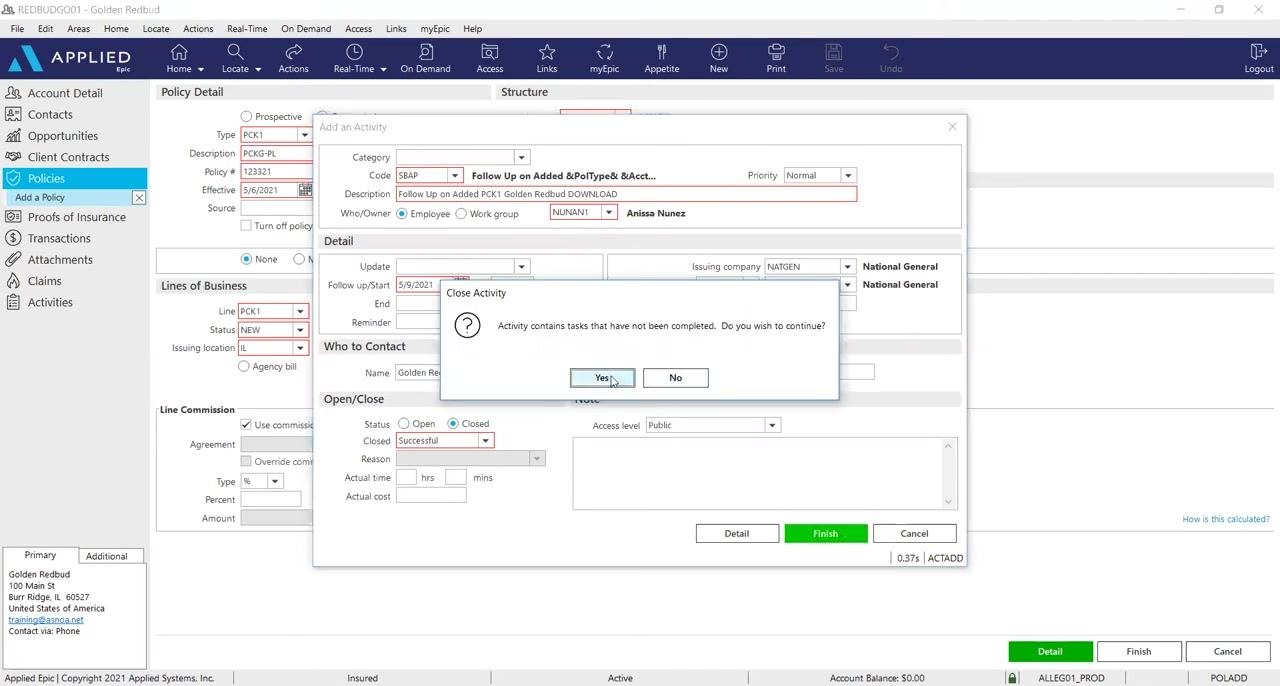
Click the Detail button at the bottom right to continue with the package policy format. If prompted with an activity window, review the details and click Finish to close the activity. If a confirmation dialog appears stating "Activity contains tasks that have not been completed. Do you wish to continue?", click Yes to proceed.
Review the policy entry
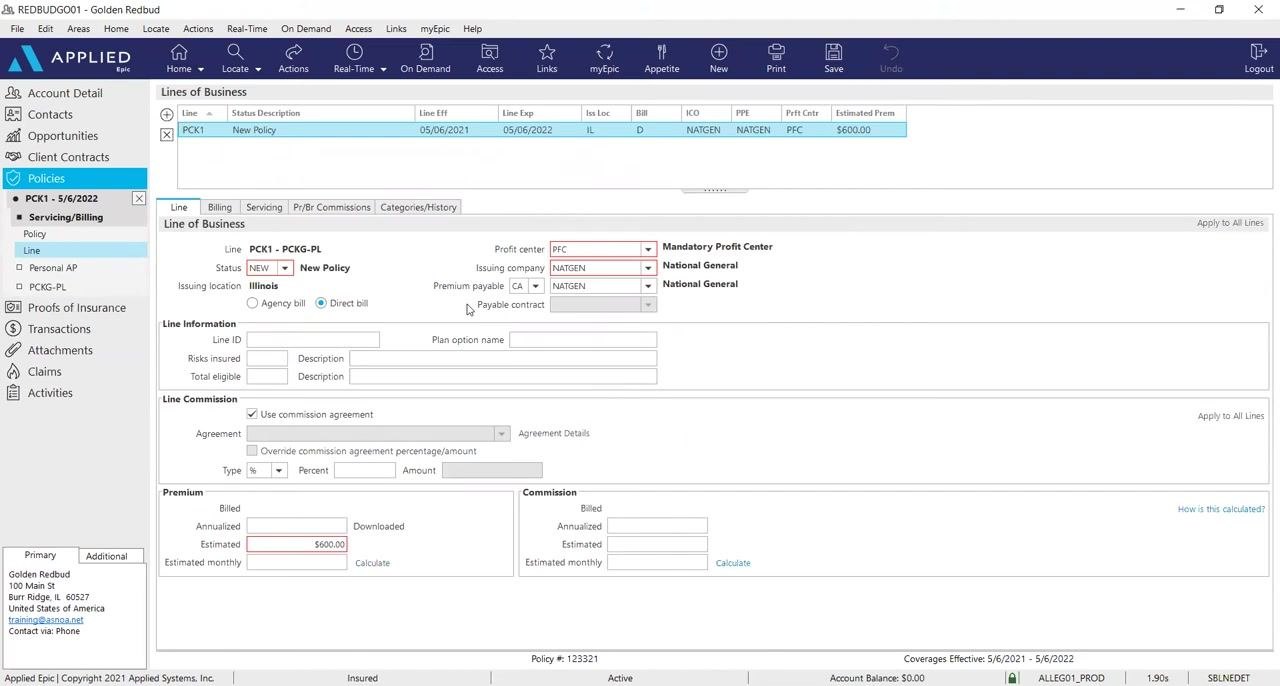
After closing the activity, review the completed policy entry. The Lines of Business section now displays the new policy line (for example, PCK1) with the effective and expiration dates, issuing location, profit center, issuing company, and estimated premium ($600.00).
Adding additional lines of business
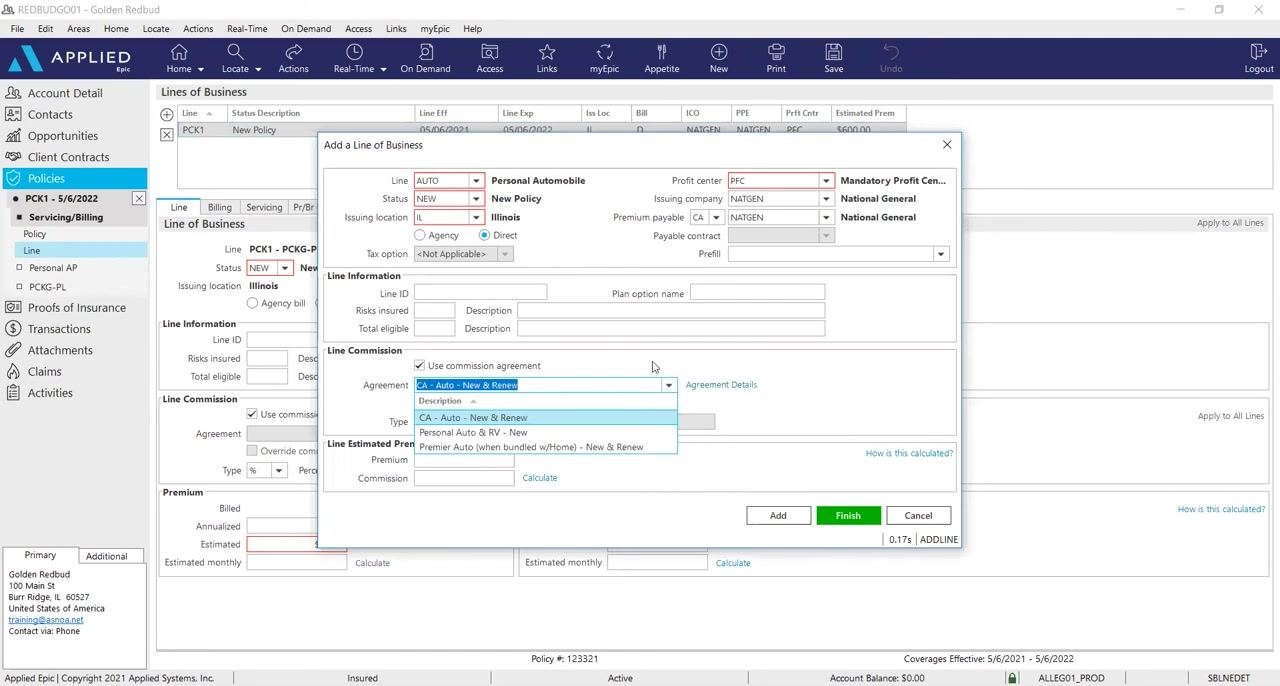
Add the Auto line of business
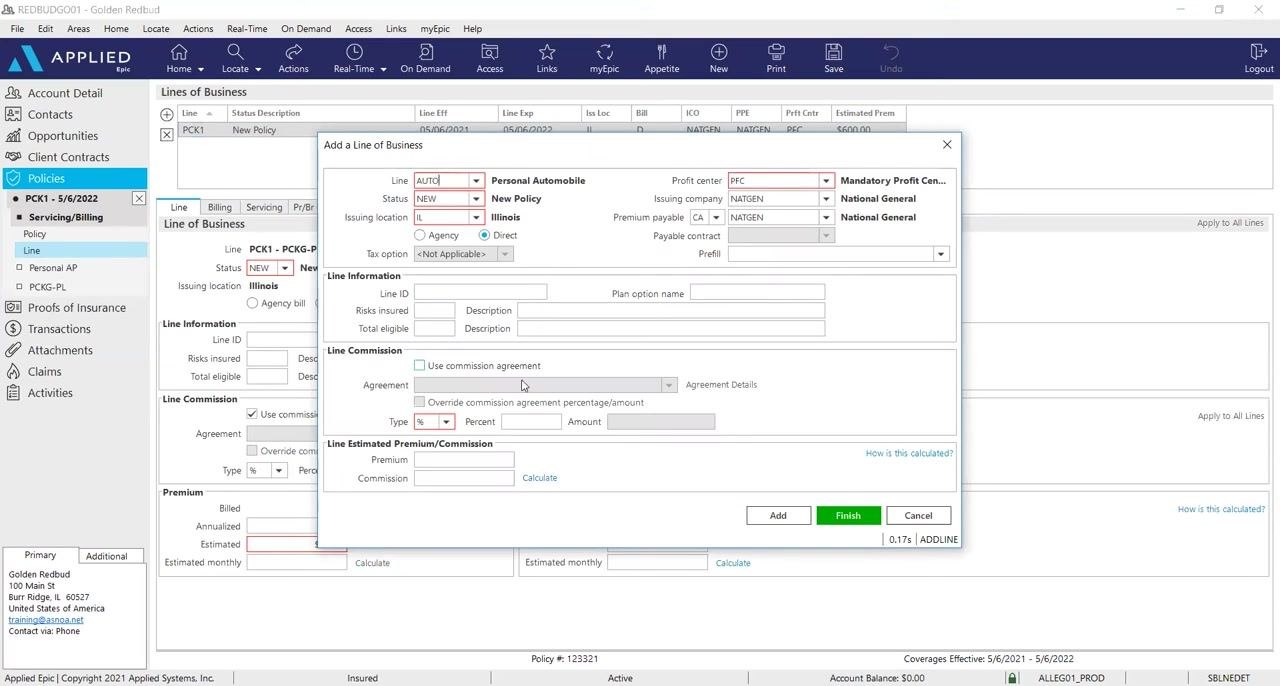
In the Add a Line of Business window, set the following fields:
- Line: AUTO (Personal Automobile)
- Status: NEW (New Policy)
- Issuing Location: IL (Illinois)
- Profit Center: PFC (Mandatory Profit Center)
- Issuing Company: NATGEN (National General)
Check the Use commission agreement box.
If the default commission agreement is not correct for this line of business, click the Agreement dropdown and select the appropriate agreement, such as "CA - Auto - New & Renew," "Personal Auto & RV - New & Renew," or "Premier Auto (when bundled w/Home) - New & Renew."
In the Line Estimated Premium/Commission section, enter the premium amount (for example, $200), then click Add to save this line and prepare to add the next one.
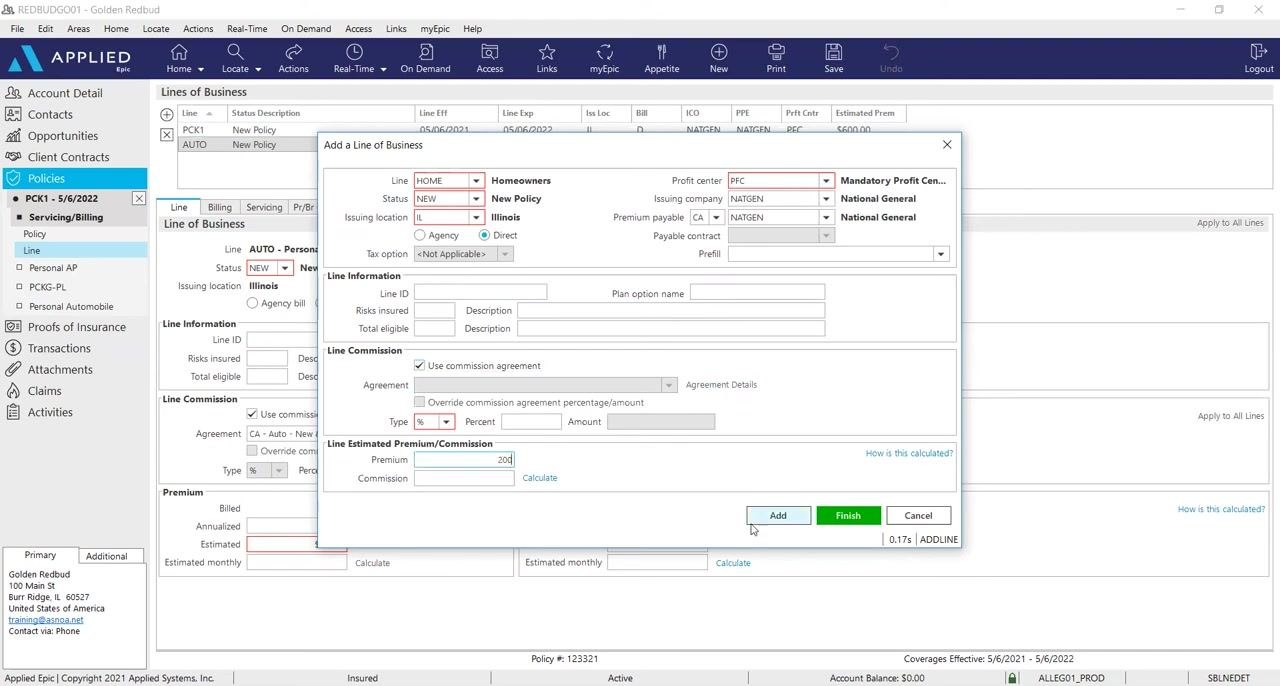
Add the Home line of business
Set the following fields:
- Line: HOME (Homeowners)
- Status: NEW (New Policy)
- Issuing Location: IL (Illinois)
- Profit Center: PFC
- Issuing Company: NATGEN
Check the Use commission agreement box, enter the premium amount (for example, $200), and click Add to save this line.
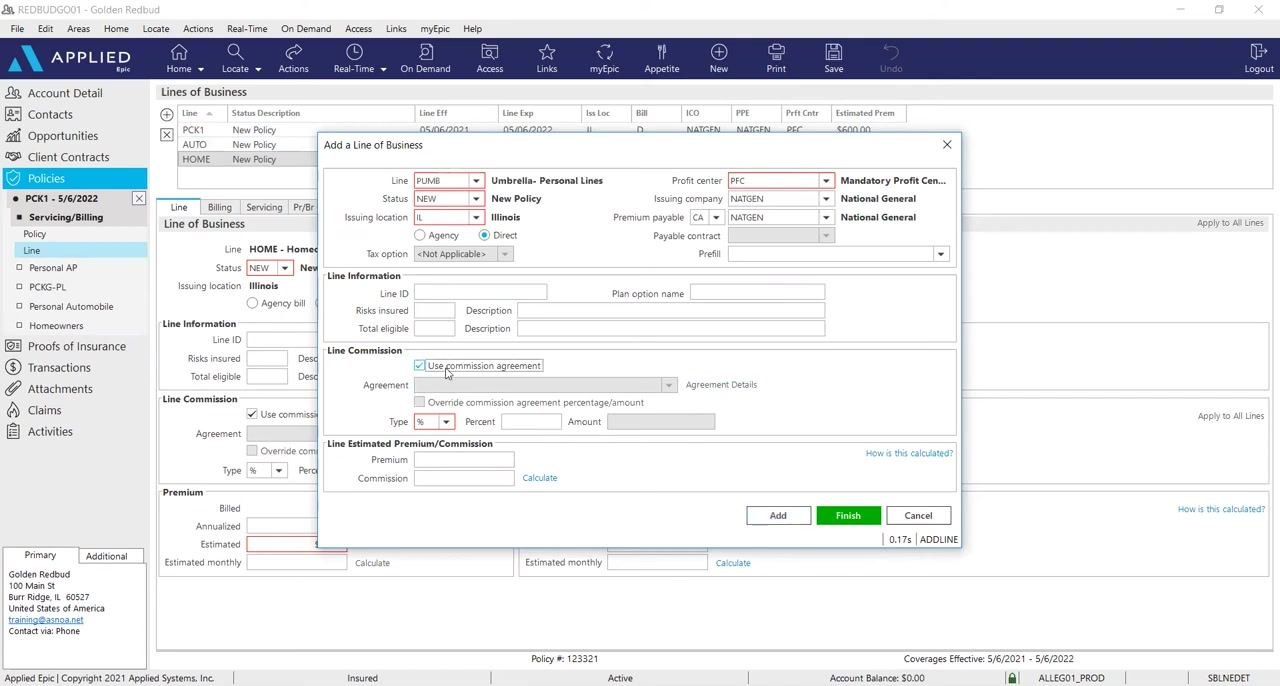
Add the Umbrella line of business
Set the following fields:
- Line: PUMB (Umbrella - Personal Lines)
- Status: NEW (New Policy)
- Issuing Location: IL (Illinois)
- Profit Center: PFC
- Issuing Company: NATGEN
Check the Use commission agreement box and enter the premium amount (for example, $200). Click Finish after all desired lines of business have been added.
Finalizing the package policy
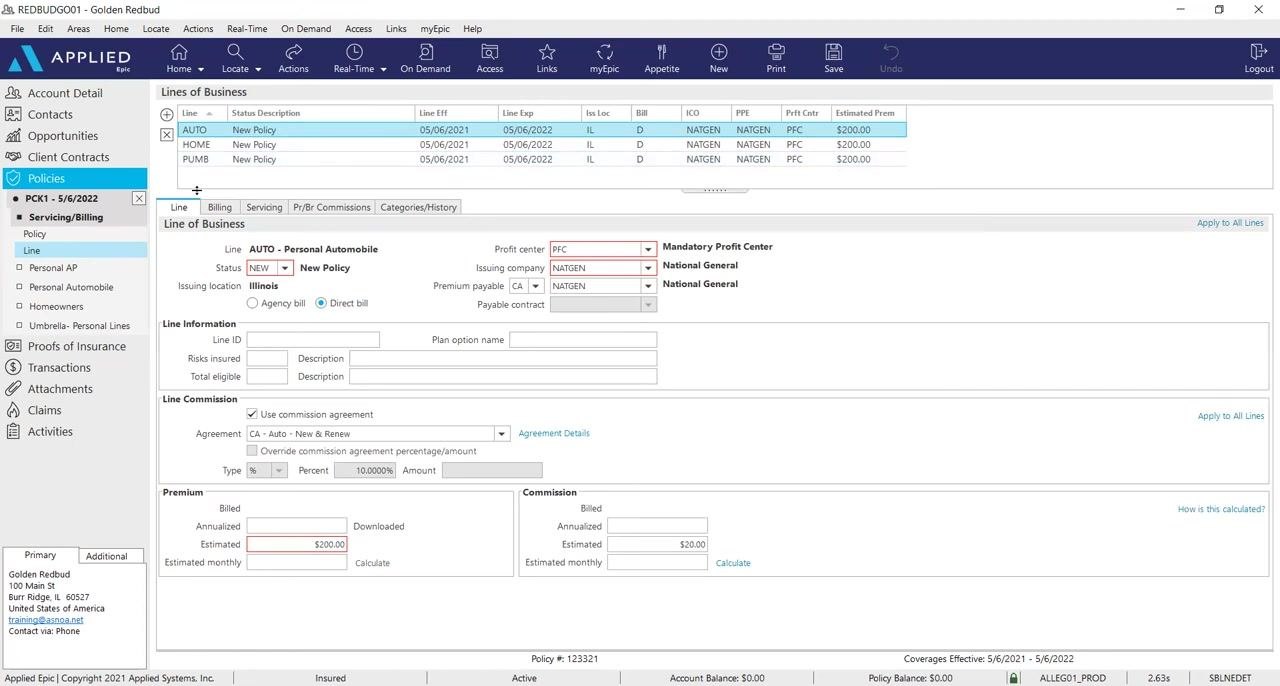
Remove the initial package line (PCK1)
Before finalizing, delete the initial PCK1 line of business. In the Lines of Business list, highlight the PCK1 entry and click Delete. When prompted with "Are you sure you wish to delete this line?", click Yes to confirm.
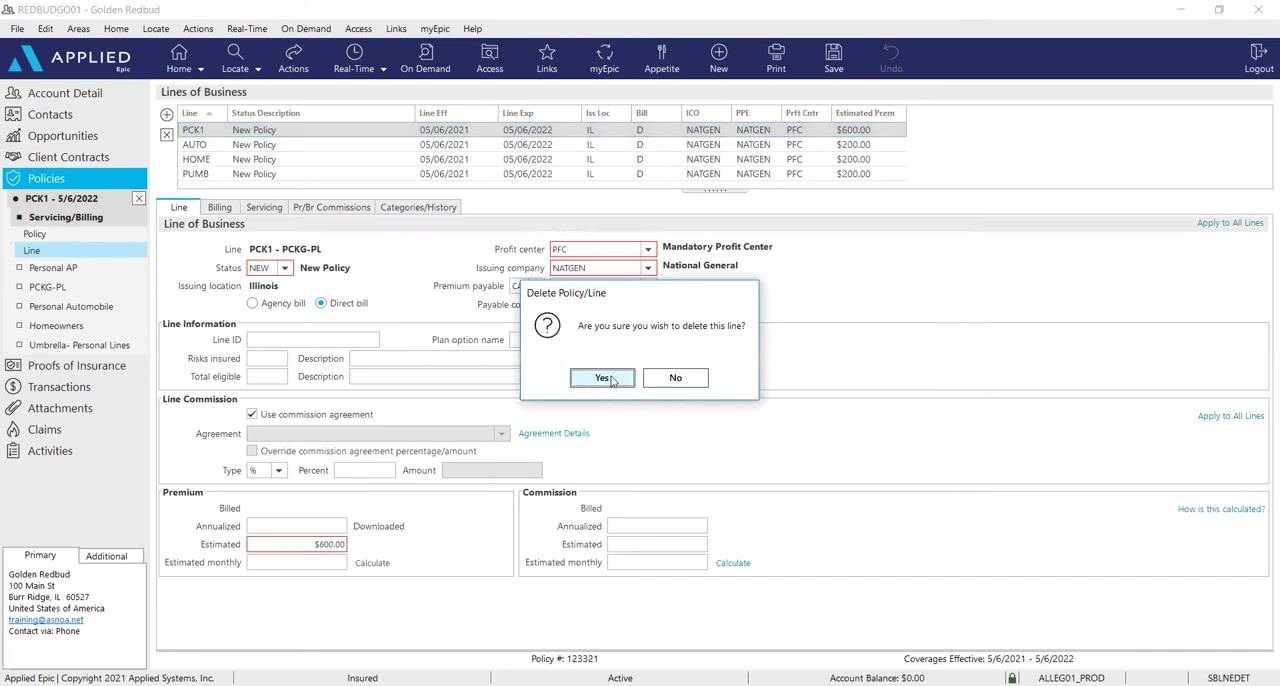
Review the final set of lines of business
Confirm that only the intended lines of business remain (Auto, Home, Umbrella), each with the correct details and premium amounts (for example, $200 each). If you are adding policies for several producers, ensure the correct PR BR Commission agreements are set for each producer on the back end. If your system is already defaulted and set up, no further action is needed.
Issuing or not issuing the policy
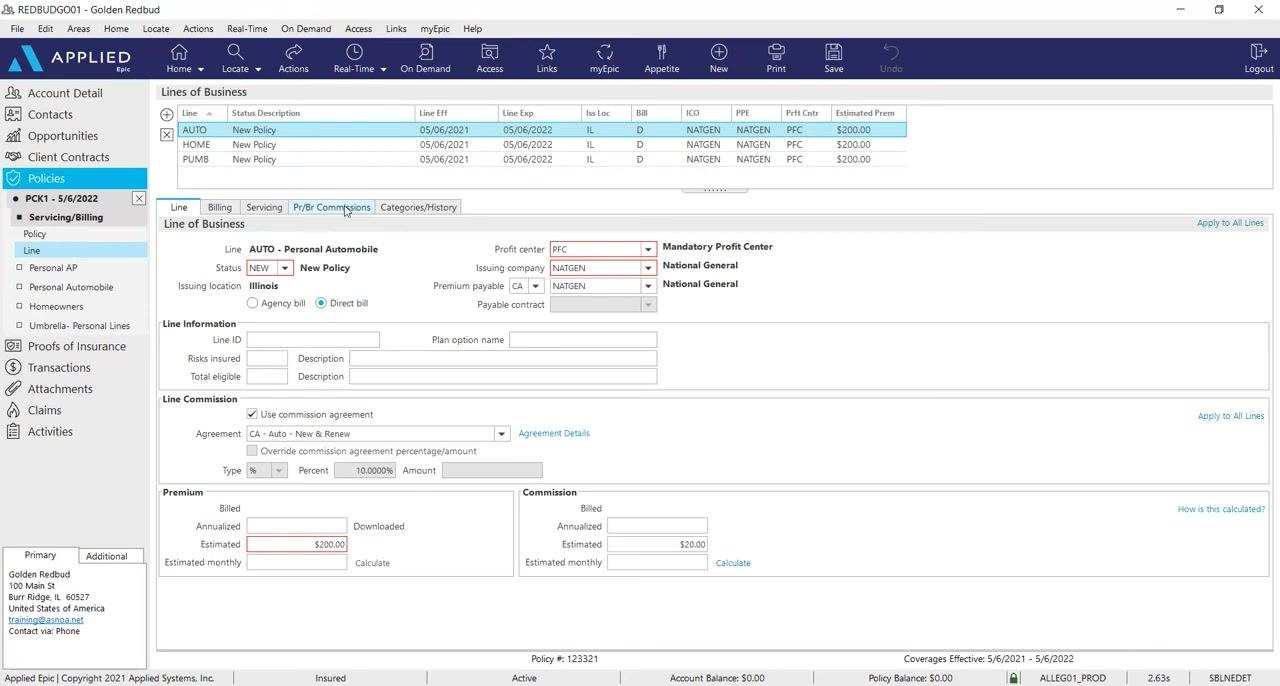
Close the current policy window
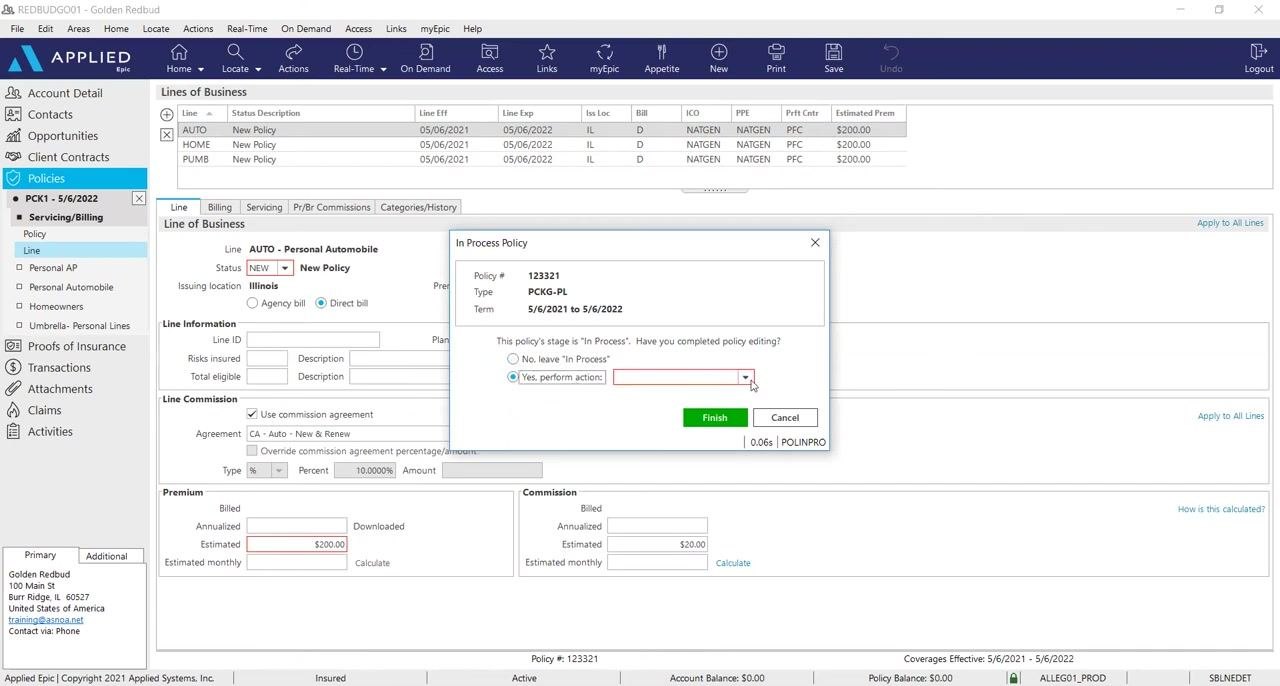
When you have completed all necessary policy entry and edits, locate and click the "X" on the left-hand side of the policy window to exit.
If the insurance carrier does not provide automatic downloads, you'll need to manually issue the policy. A dialog titled "In Process Policy" appears. Confirm that you have completed policy editing, select "Yes, perform action:", choose the appropriate action from the dropdown menu, and click the green Finish button to proceed.
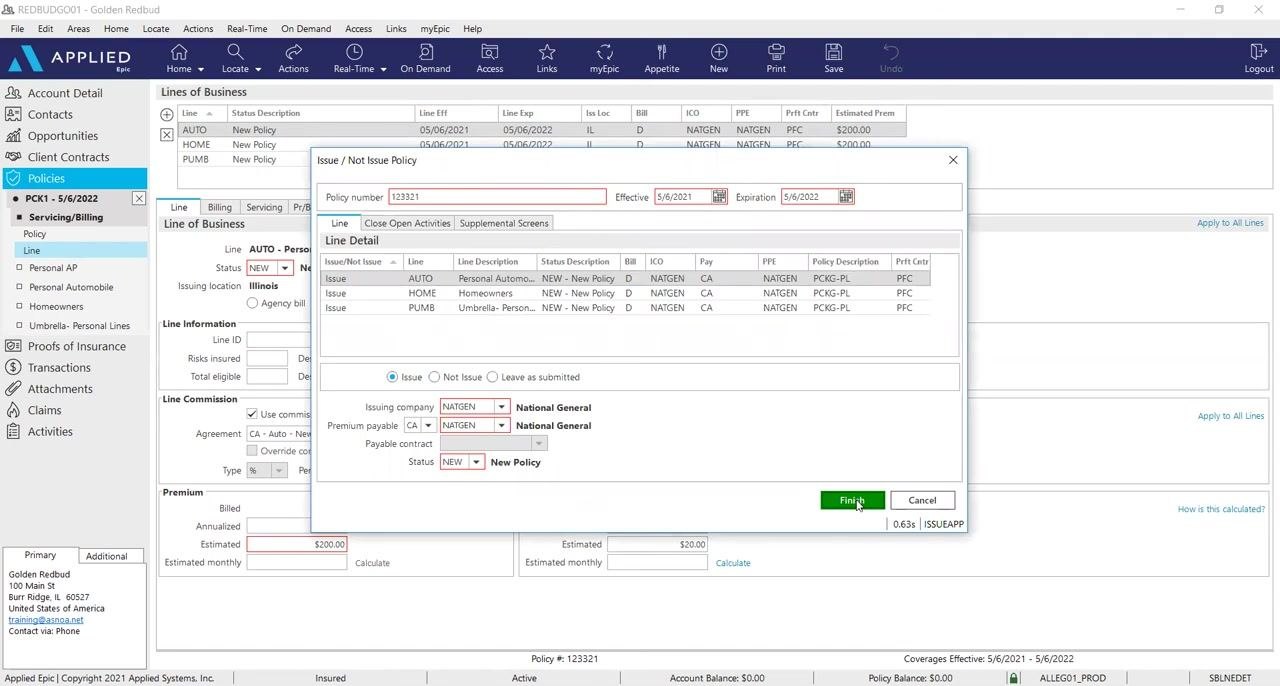
Close out any open activities
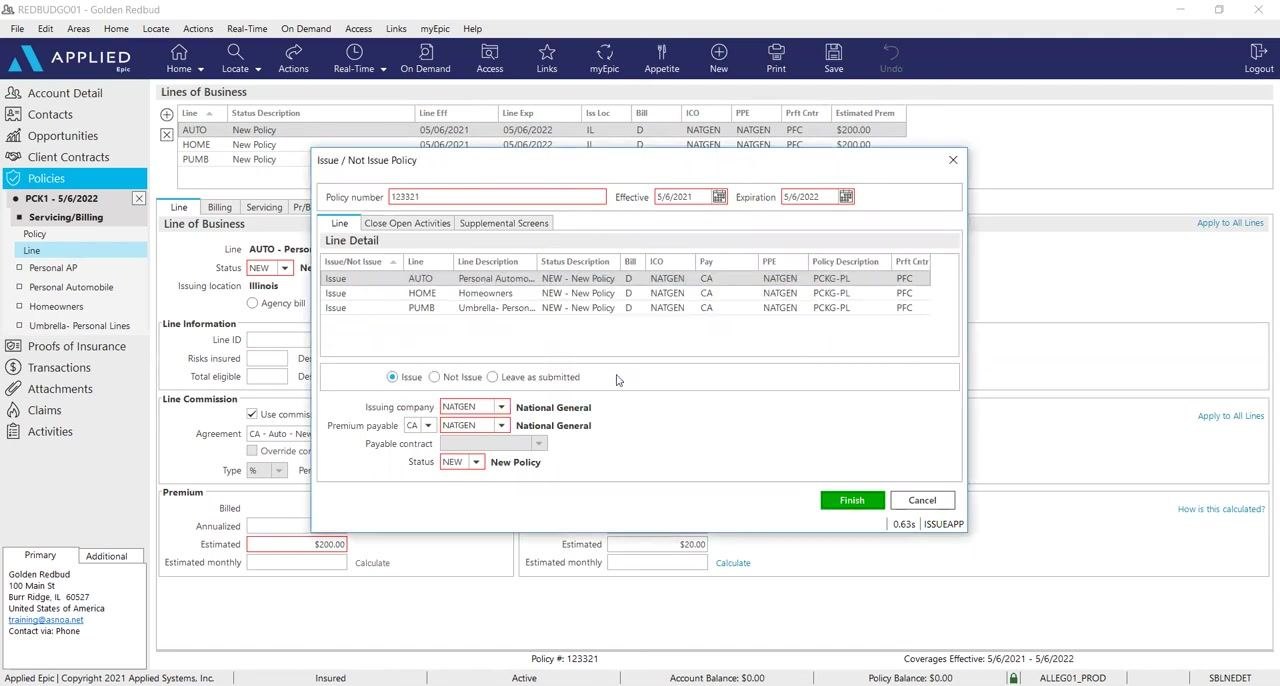
If prompted, a window titled "Issue / Not Issue Policy" appears. Verify the policy number (for example, 123321), effective and expiration dates (5/6/2021 to 5/6/2022), and line details. Ensure the issuing company and premium payable fields are set to "NATGEN National General," and confirm the status is "NEW New Policy." Click the green Finish button to finalize and close the activity.
Confirming the policy was added
Review the updated policy list
The "Policies - Current/Renewed" screen displays all current policies. Verify that your new policy (for example, PCK1, policy number 123321, effective 5/6/2021 to 5/6/2022) appears in the list with the correct details and premiums. Check the "Policy Detail" and "Line Detail" sections for confirmation.
Verify the policy is active
Double-check the policy details, including effective dates, type, and agency balance. Confirm that the policy status is "Active" and the account balance is $0.00.
Summary
You've now learned how to add a package policy in Applied Epic, including setting up the initial policy line, adding Auto, Home, and Umbrella lines of business, removing the placeholder PCK1 entry, and issuing the policy. Once the policy appears in the "Policies - Current/Renewed" screen with an "Active" status and a $0.00 balance, the package policy is successfully added and ready for use.
Generation details: cost, quality tiers
Docsie billed 3,500 credits ($2.45) to analyze this 7-minute video at standard quality. The rewrite, template fill and Word/PDF exports were included. The same video at each quality tier:
| Quality | Frames sampled | Credits | Approx. cost |
|---|---|---|---|
| Draft | every 16-30 s | 1,750 | $1.22 |
| Standard (this guide) | every 8-15 s | 3,500 | $2.45 |
| Detailed | every 4-7 s | 7,000 | $4.90 |
| Ultra | every 1-3 s | 14,000 | $9.80 |
Credits priced at $0.70 per 1,000; plans include a monthly allowance. Enterprise customers on on-premise or bring-your-own-model deployments run this on their own inference and pay no per-video credits.
Generated by Docsie Video-to-Docs on 2026-10-25 from a 6-minute video. Screenshots are frames from the source video and belong to their creator, ASNOA Training, whose original is embedded above. If you own this video and want the guide removed or credited differently, contact us and we will act within one business day.