
How to Enter a Bill in AppFolio
This guide walks you through how to enter a bill in AppFolio using the Smart Bill Entry feature. You'll learn how to upload bill files, let the system process them, and review and save the extracted details so they appear correctly in your Payables list.
Video: Master AppFolio Smart Bill Entry: A Step-by-Step Guide 2024 | Smart Bill Entry Feature #appfolio by Acrebook Real Estate Services (2024). All credit for the demonstration goes to the creator; watch the original on YouTube. The written guide below was generated from this video by Docsie. Creator? Request a change or removal.
This guide walks you through how to enter a bill in AppFolio using the Smart Bill Entry feature. You'll learn how to upload bill files, let the system process them, and review and save the extracted details so they appear correctly in your Payables list.
Prerequisites
- An active AppFolio account with access to the Accounting module.
- Digital copies of the bill files you want to upload (for example, PDF or image files saved on your computer).
Log in to AppFolio
Open your web browser and log in to your AppFolio account to access the dashboard.
Open Accounting and Payables
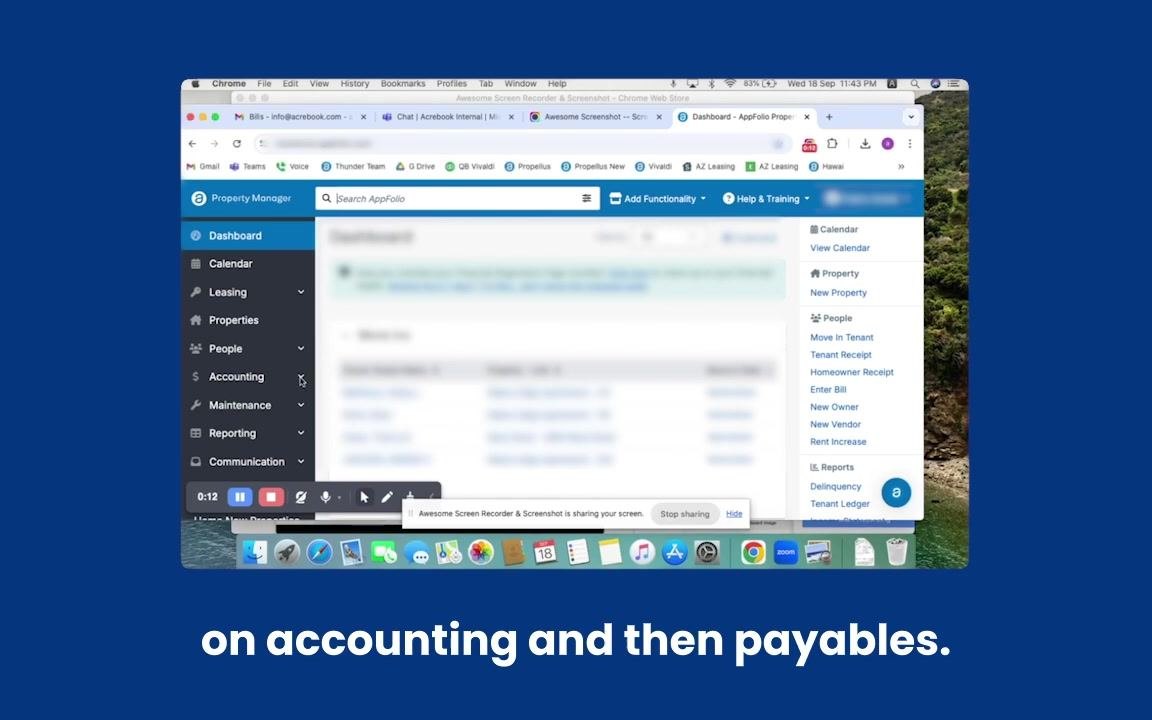
Click Accounting in the left navigation menu. The Accounting section expands to show additional options.
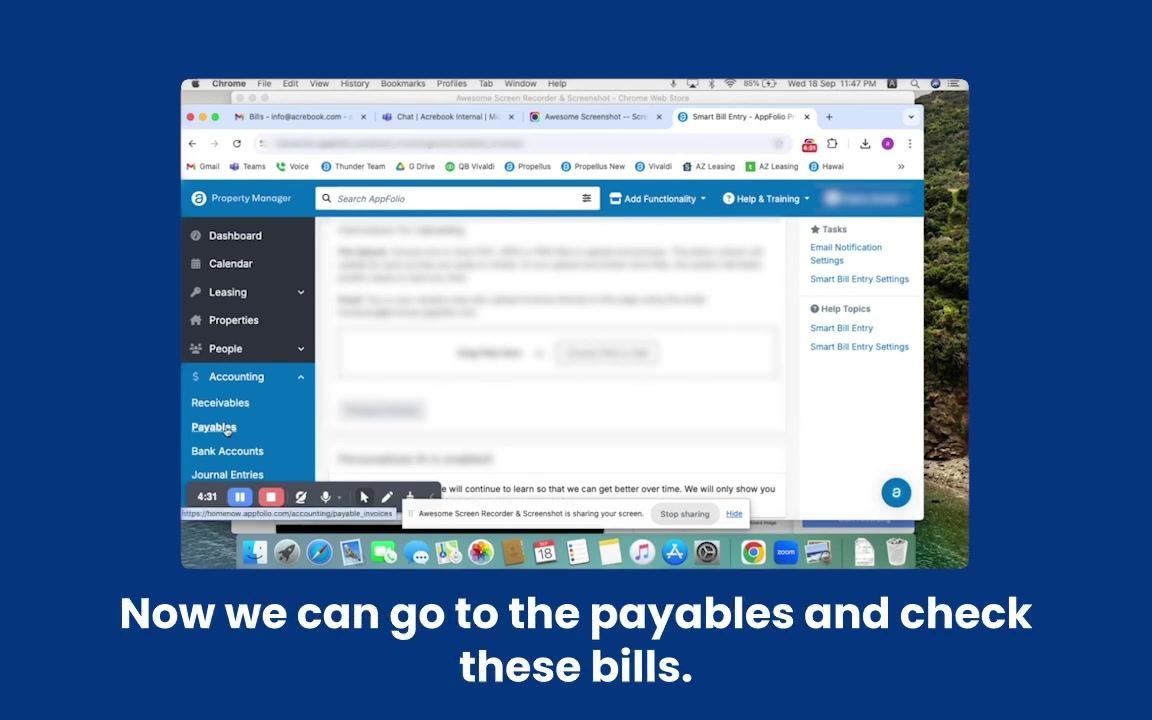
Under the expanded Accounting menu, click Payables. The Payables screen opens, displaying a list of bills and related actions.
Open Smart Bill Entry
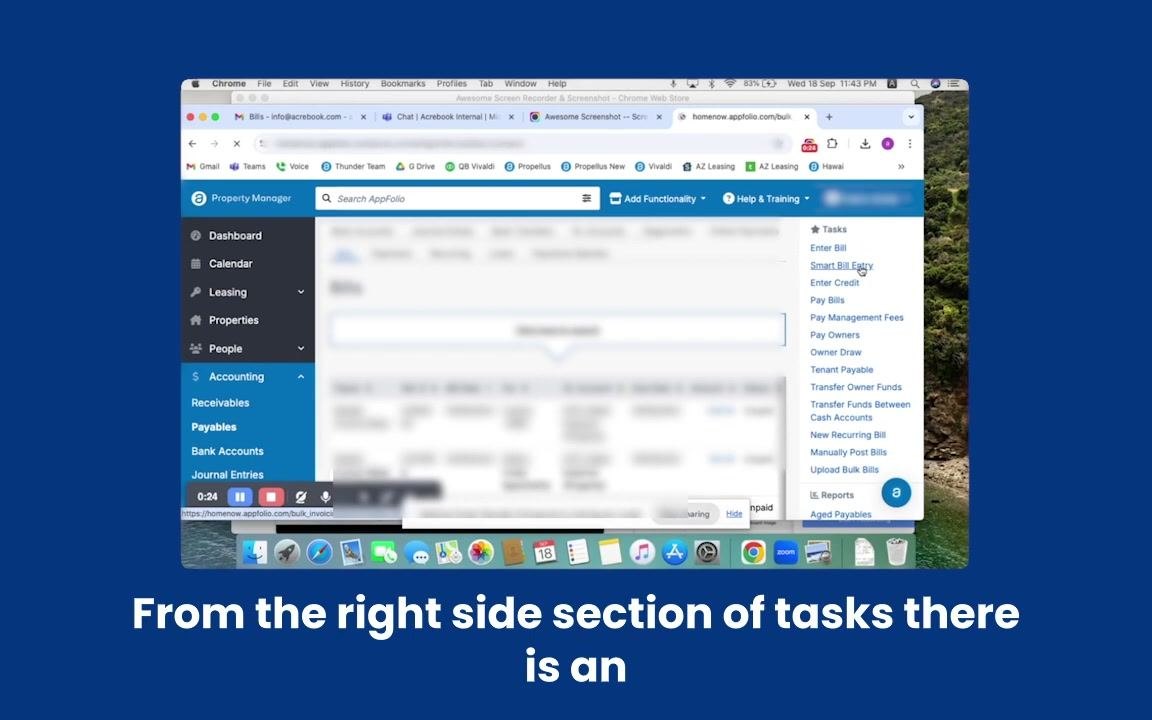
On the right side of the Payables screen, locate the Tasks section and click Smart Bill Entry.
Choose files to upload
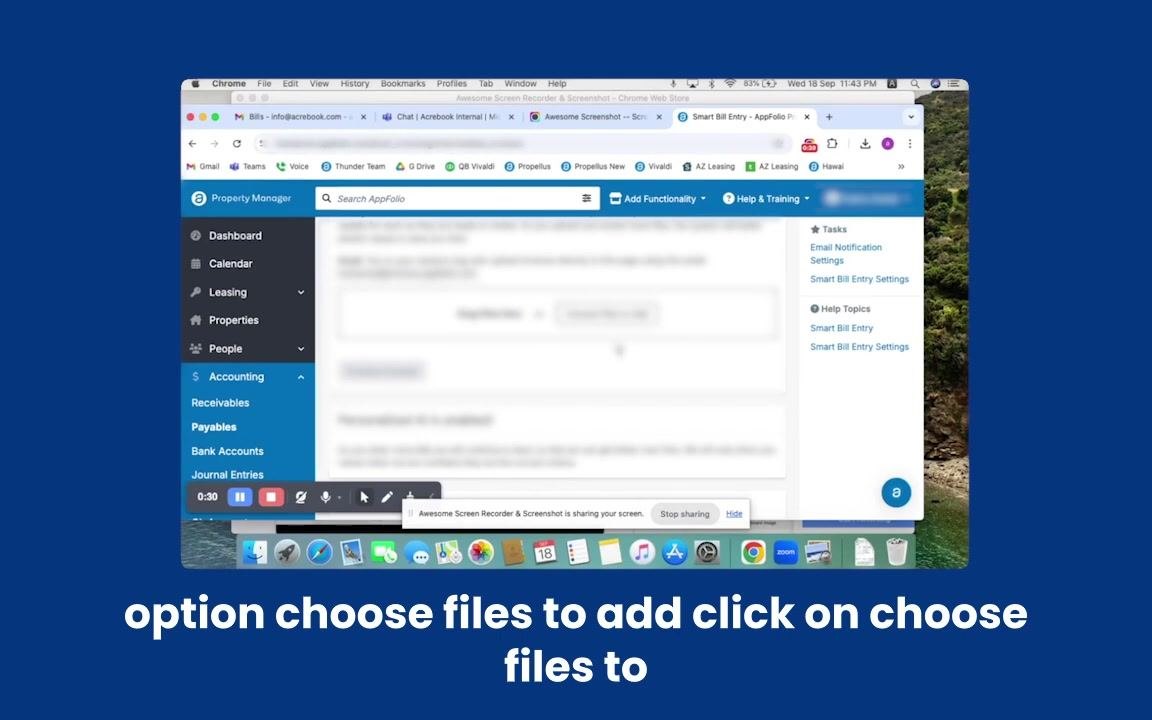
On the Smart Bill Entry screen, click Choose Files to Add to open a file selection dialog.
In the file selection dialog, navigate to the location on your computer where your bill files are stored. Select the files you want to upload — for example, two bill files — then click Open to attach them.
Process the uploaded invoices
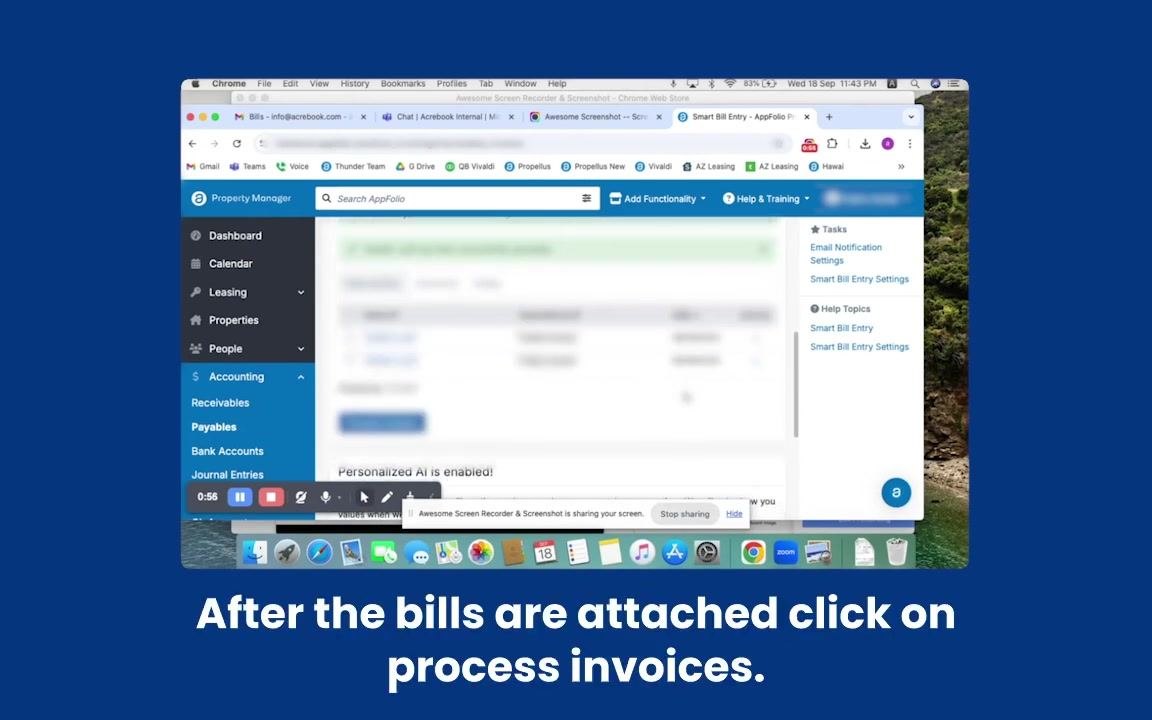
Once your files are attached, click Process Invoices to begin processing the uploaded bills.
Monitor processing status
Monitor the status of your uploaded bills in the status table. The table displays information such as file name, uploader, date, and time.
Once the invoices finish processing, review their status in the table to confirm that processing is complete.
Open a bill for review
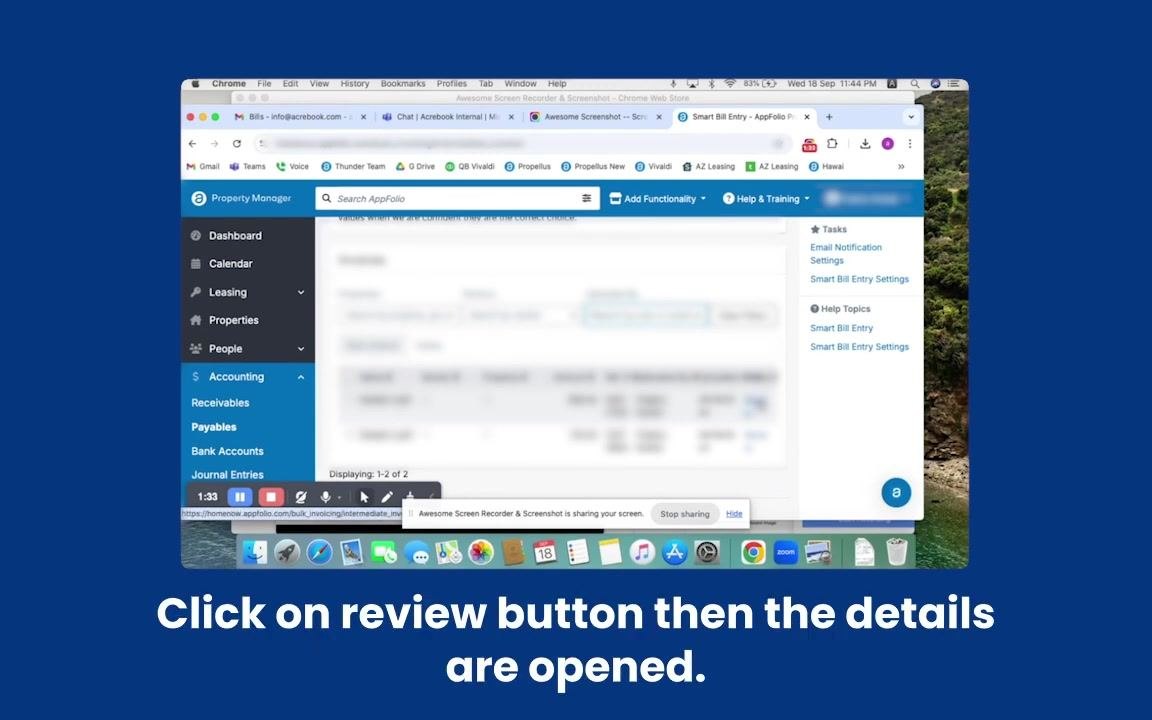
To review the details of a processed bill, click the Review button next to the bill entry. The bill details open for further review and action.
Verify the uploaded bill image
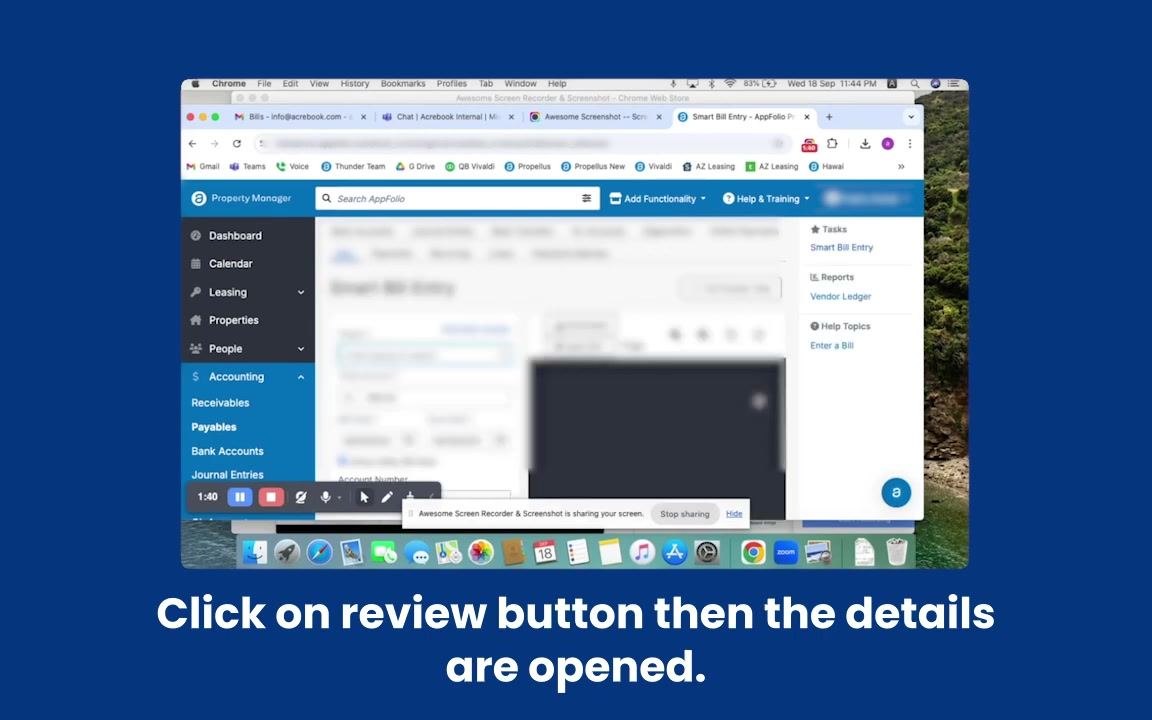
On the bill review screen, verify that the uploaded file is visible. If needed, use the zoom feature to enlarge and inspect the bill image for clarity.
Select the vendor
Select the Pay field and choose the current vendor for this bill.
Confirm the bill amount
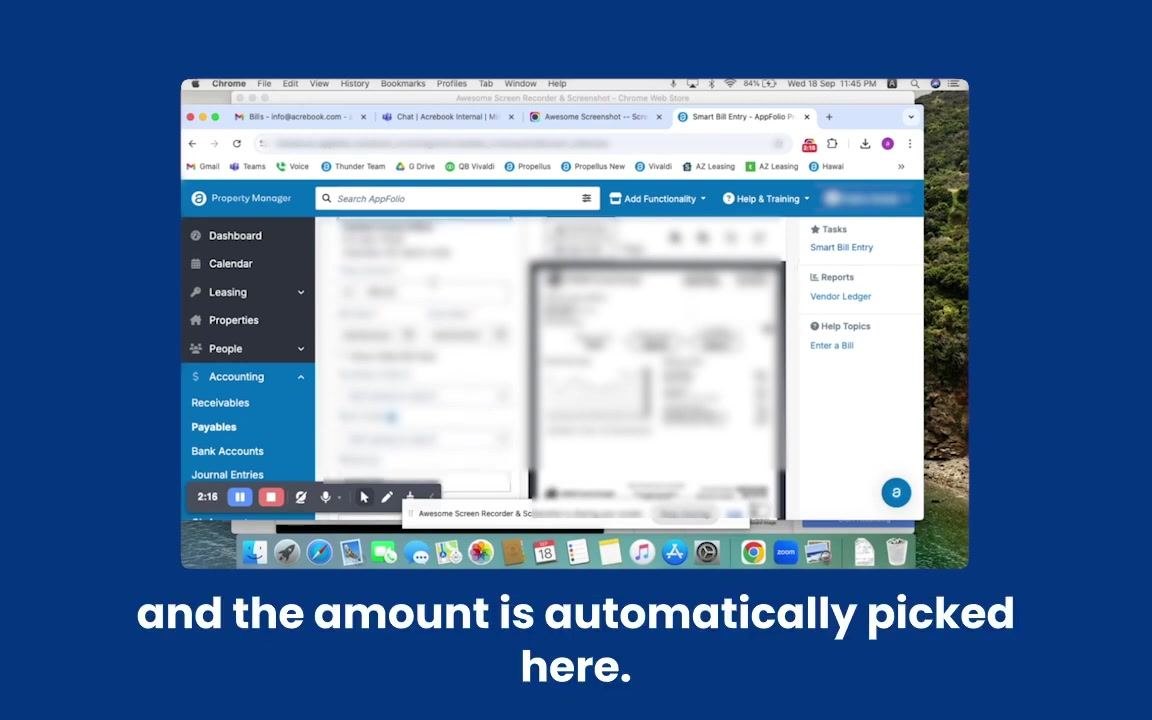
Confirm that the Amount field is automatically populated based on the bill image, and double-check the amount for accuracy.
Select the property
Select the Property associated with this bill. Use the property dropdown or search to find and select the correct property.
Add a description
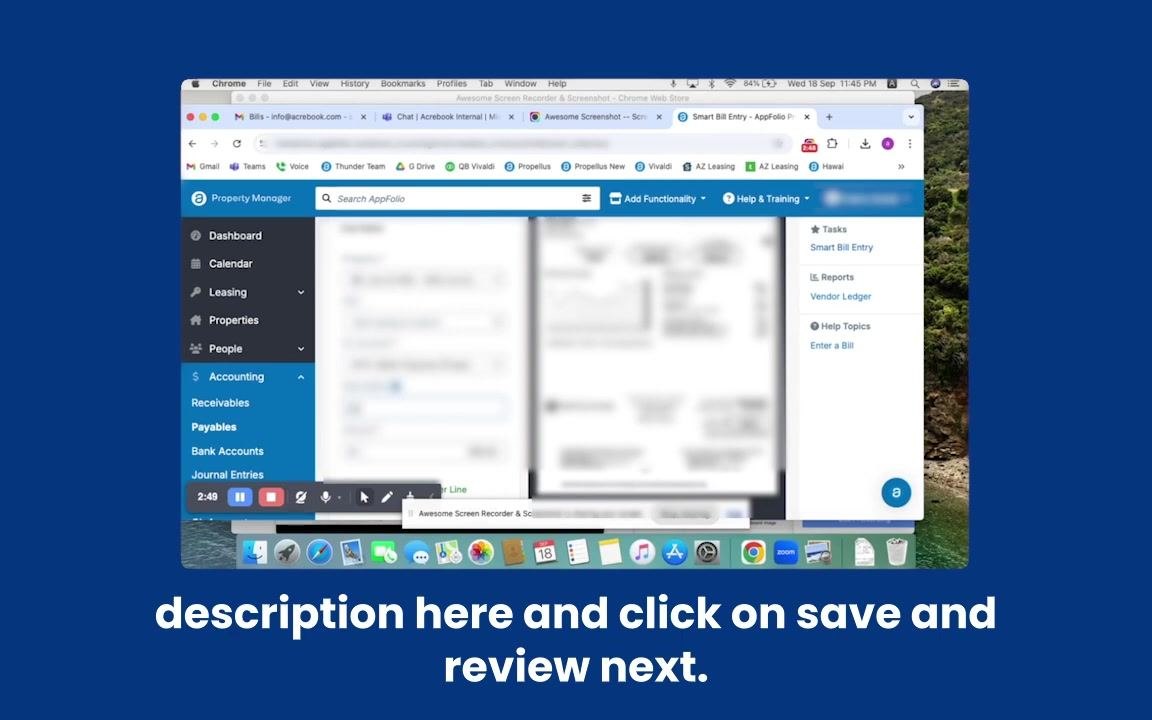
Enter a Description for the bill. Type any relevant notes or details to clarify the bill's purpose.
Review all entered details
Review all entered details for accuracy. Ensure the vendor, amount, and property fields are correct, and add any additional notes or lines if necessary.
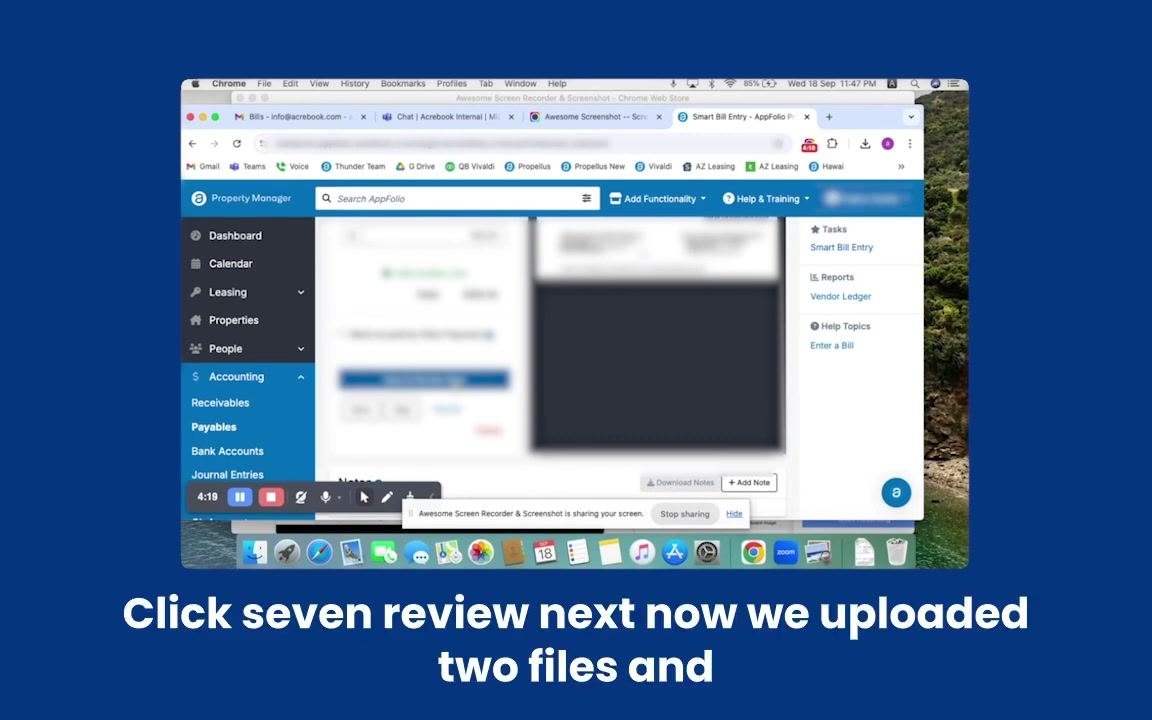
Save the bill
Click Save and Review Next to save the current bill and automatically move on to the next bill for entry. Alternatively, click Save if you only want to save this bill without moving to the next one.
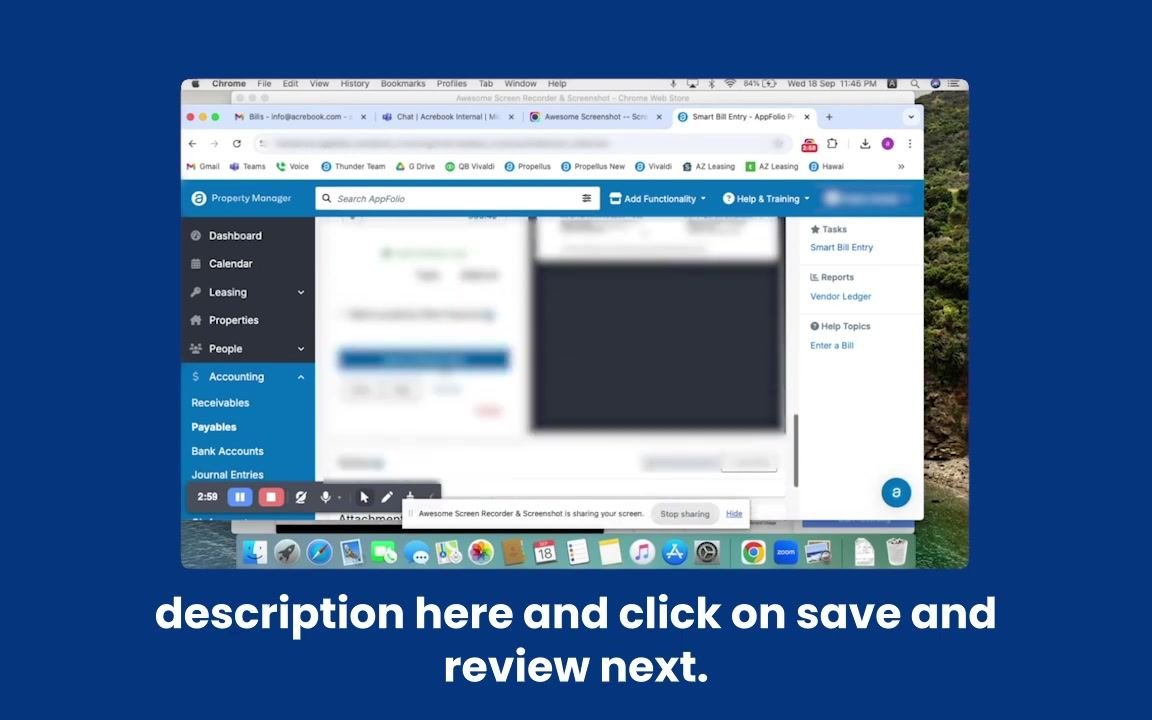
Confirm the bill in Payables
Navigate back to Accounting > Payables to verify that the entered bills are reflected in the system.
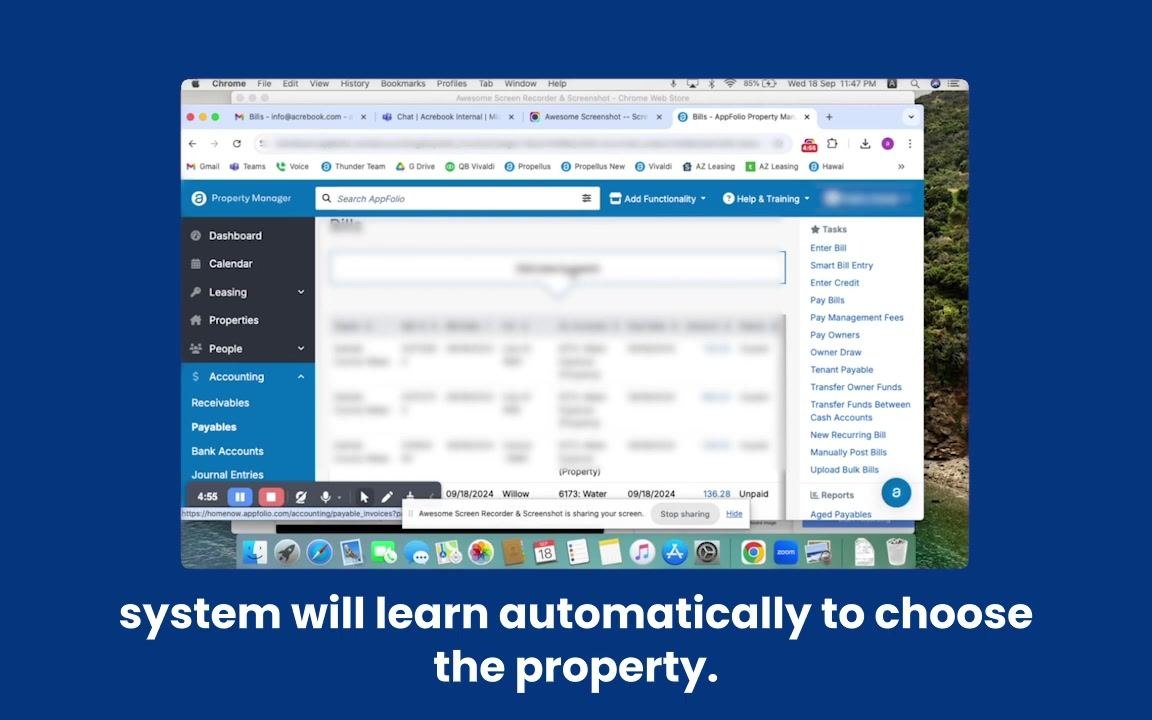
Confirm that the newly entered bills are listed in the Payables section. Review the list to ensure both invoices are present, with correct details such as date, property, amount, and status (for example, unpaid).
The Smart Bill Entry system continues to improve over time: as it learns from your entries, it will begin to automatically suggest or select the correct property and other details for future invoices.
Summary
Now you know how to enter a bill in AppFolio using Smart Bill Entry — from uploading and processing bill files to reviewing extracted details and confirming them in Payables. The system automates data capture, reduces manual entry, and becomes more accurate as it learns from your usage. Always verify each bill's details before saving, and check the Payables section afterward to confirm successful entry.
Generation details: cost, quality tiers
Docsie billed 2,500 credits ($1.75) to analyze this 6-minute video at standard quality. The rewrite, template fill and Word/PDF exports were included. The same video at each quality tier:
| Quality | Frames sampled | Credits | Approx. cost |
|---|---|---|---|
| Draft | every 16-30 s | 1,500 | $1.05 |
| Standard (this guide) | every 8-15 s | 3,000 | $2.10 |
| Detailed | every 4-7 s | 6,000 | $4.20 |
| Ultra | every 1-3 s | 12,000 | $8.40 |
Credits priced at $0.70 per 1,000; plans include a monthly allowance. Enterprise customers on on-premise or bring-your-own-model deployments run this on their own inference and pay no per-video credits.
Generated by Docsie Video-to-Docs on 2026-10-25 from a 5-minute video. Screenshots are frames from the source video and belong to their creator, Acrebook Real Estate Services, whose original is embedded above. If you own this video and want the guide removed or credited differently, contact us and we will act within one business day.