
How to Create a Stock Item in Acumatica
This guide walks you through how to create a stock item in Acumatica, including setting up inventory defaults, assigning a warehouse, entering pricing information, and optionally associating vendor details. By the end of this process, you will have a fully configured stock item ready for use.
Video: Create Stock Item in Acumatica by 365digitalstore (2017). All credit for the demonstration goes to the creator; watch the original on YouTube. The written guide below was generated from this video by Docsie. Creator? Request a change or removal.
This guide walks you through how to create a stock item in Acumatica, including setting up inventory defaults, assigning a warehouse, entering pricing information, and optionally associating vendor details. By the end of this process, you will have a fully configured stock item ready for use.
Prerequisites
Before you begin, make sure you have access to the DISTRIBUTION module and the necessary permissions to manage stock items and inventory preferences.
Navigate to the Stock Items screen
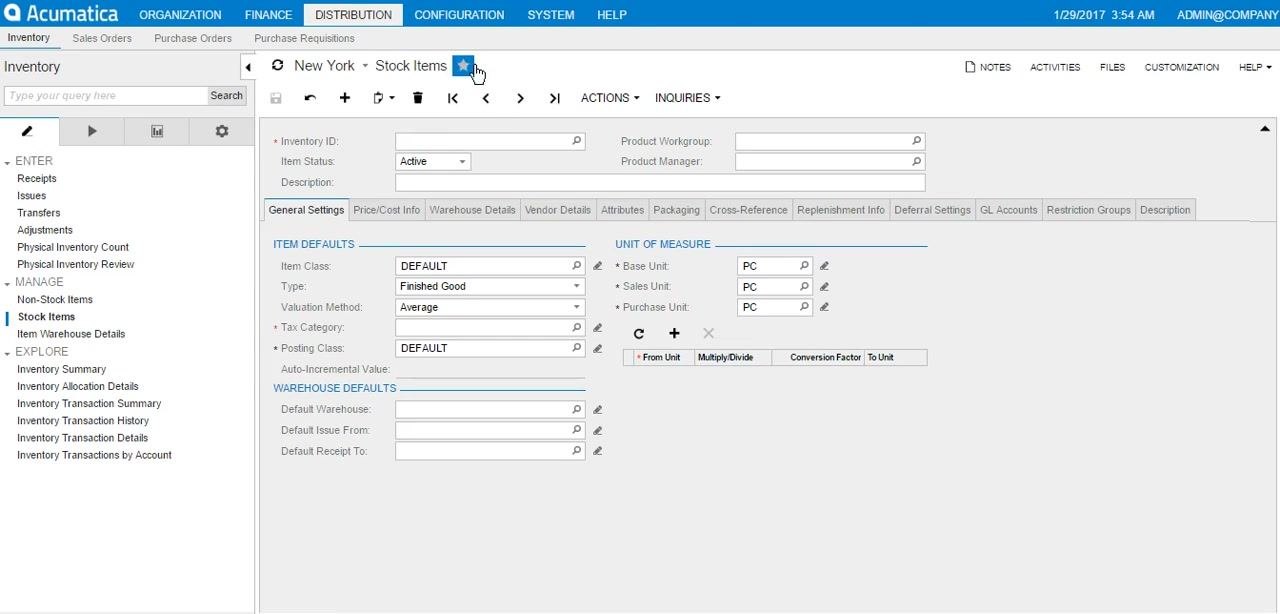
Go to the top menu and select DISTRIBUTION. In the left sidebar, under MANAGE, click Stock Items. The Stock Items screen opens, displaying fields for Inventory ID, Item Status, Description, and various tabs for item configuration.
Enter the Inventory ID and description
In the Inventory ID field, enter TSHIRT. In the Description field, enter Tshirt. The Item Status field should be set to Active by default.
Verify the default item class and inventory preferences
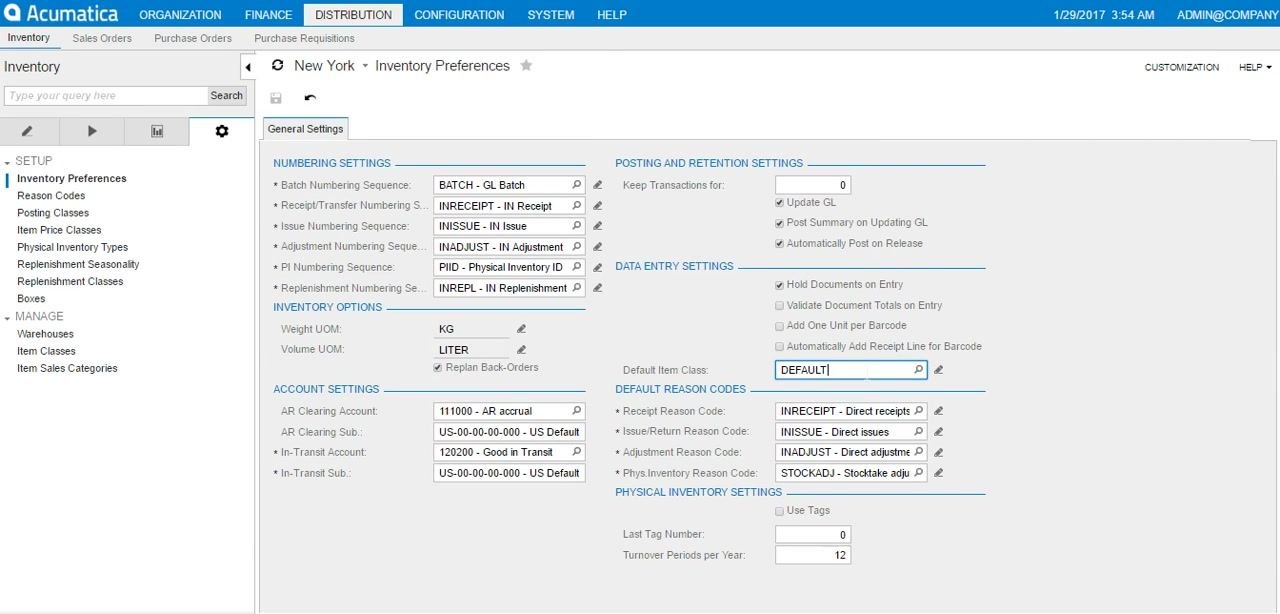
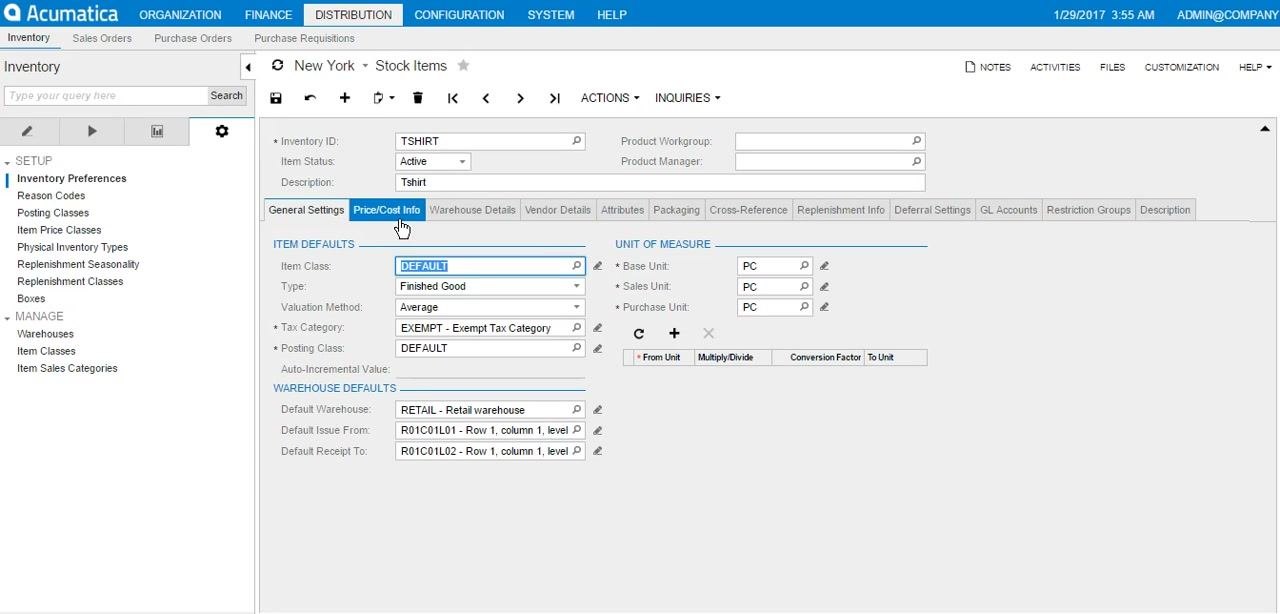
Notice that the Item Class is automatically set to DEFAULT based on your inventory preferences. The Type field is set to Finished Good, the Valuation Method to Average, and the Tax Category to DEFAULT.
To review or change these defaults, navigate to Inventory Preferences under SETUP in the left sidebar. Here, you can view the default item class and other inventory settings.
Review units of measure
Confirm that the Base Unit, Sales Unit, and Purchase Unit fields are all set to PC (piece). These values are populated automatically based on the item class.
Select the warehouse and locations
In the Warehouse Defaults section, click the lookup icon next to Default Warehouse and select the appropriate warehouse from the list (for example, RETAIL for the Retail warehouse).
For Default Issue From and Default Receipt To, click the respective lookup icons and select the desired locations (for example, R01C01L01 and R01C01L02).
Enter price and cost information
Click the Price/Cost Info tab. Enter the Default Price and any other relevant pricing or cost details as needed.
Associate vendor details (optional)
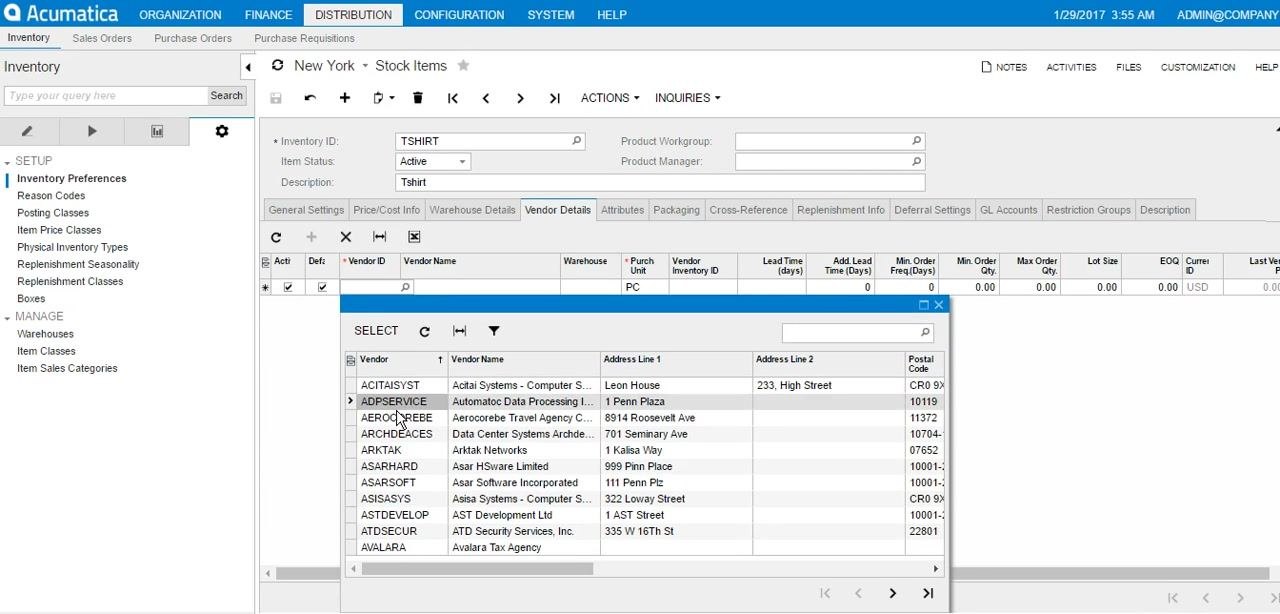
Click the Vendor Details tab, then click the plus (+) icon to add a new vendor. In the Vendor ID field, click the lookup icon and select the desired vendor from the list (for example, ADPSERVICE for Automatic Data Processing Inc.). Fill in any additional vendor-specific details as required.
Review and select attribute values
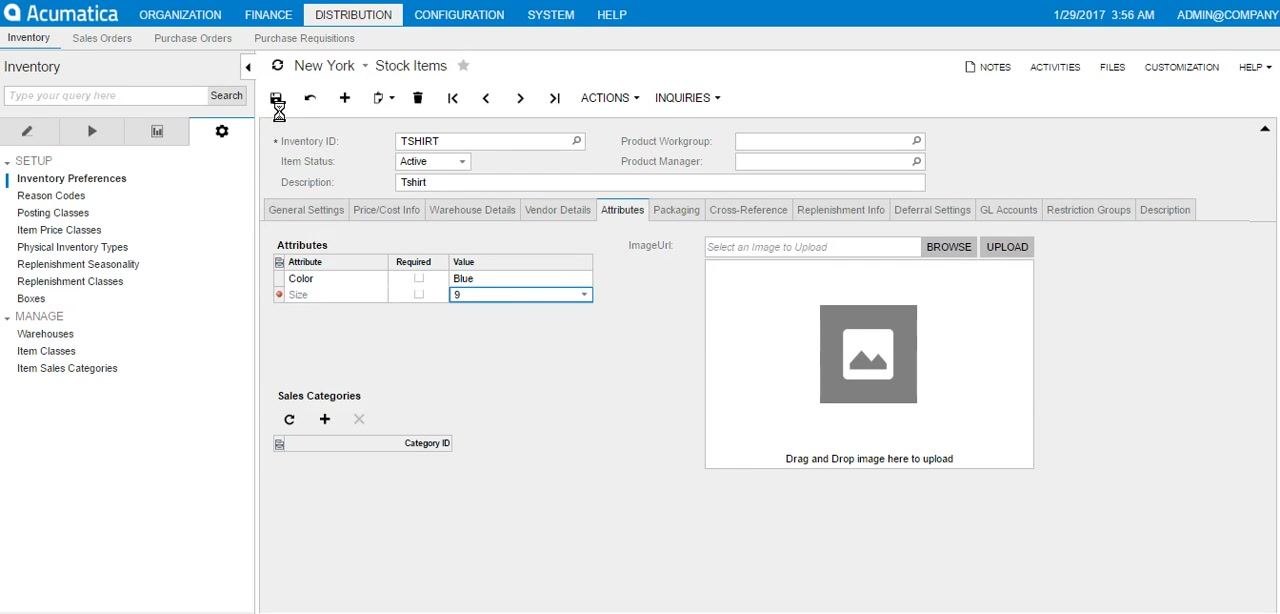
Navigate to the Attributes tab. Attribute fields such as Color and Size are auto-populated based on the item class or previous selections.
If needed, manually adjust the attribute values:
- For Color, select
Blue. - For Size, select
9.
Make sure all required attributes are filled according to your inventory requirements.
Save the stock item
Click the Save button (disk icon) at the top of the screen to finalize the creation of the stock item. Before saving, confirm that all entered details, including attributes, are correct.
Summary
By following these steps, you have successfully created a new stock item in Acumatica, complete with inventory defaults, warehouse assignments, pricing, and optional vendor associations.
Generation details: cost, quality tiers
Docsie billed 1,000 credits ($0.70) to analyze this 2-minute video at standard quality. The rewrite, template fill and Word/PDF exports were included. The same video at each quality tier:
| Quality | Frames sampled | Credits | Approx. cost |
|---|---|---|---|
| Draft | every 16-30 s | 500 | $0.35 |
| Standard (this guide) | every 8-15 s | 1,000 | $0.70 |
| Detailed | every 4-7 s | 2,000 | $1.40 |
| Ultra | every 1-3 s | 4,000 | $2.80 |
Credits priced at $0.70 per 1,000; plans include a monthly allowance. Enterprise customers on on-premise or bring-your-own-model deployments run this on their own inference and pay no per-video credits.
Generated by Docsie Video-to-Docs on 2026-10-25 from a 1-minute video. Screenshots are frames from the source video and belong to their creator, 365digitalstore, whose original is embedded above. If you own this video and want the guide removed or credited differently, contact us and we will act within one business day.