
How to Change Tax Withholding in Workday
Workday Payroll gives you the tools to manage worker tax elections, including country-specific rules for the U.S., Canada, the UK, and France. This guide walks you through how to change tax withholding in Workday, whether you're auditing existing elections, adding new tax elections on behalf of a worker, or reviewing a worker's current tax setup.
Video: How to Add Worker Tax Elections | Workday Payroll by Workday (2026). All credit for the demonstration goes to the creator; watch the original on YouTube. The written guide below was generated from this video by Docsie. Creator? Request a change or removal.
Workday Payroll gives you the tools to manage worker tax elections, including country-specific rules for the U.S., Canada, the UK, and France. This guide walks you through how to change tax withholding in Workday, whether you're auditing existing elections, adding new tax elections on behalf of a worker, or reviewing a worker's current tax setup.
Prerequisites
Before you load or update worker tax details, confirm the following:
- Each worker must be assigned both a company and a pay group. This assignment is required before tax details can be loaded, typically during the deployment phase of Workday Payroll.
- Worker home and work addresses must be accurate, since these addresses drive tax calculations in Canada and the U.S.
- Your ability to enter tax elections on behalf of workers depends on your assigned role and security settings in Workday.
Understand how tax elections are managed by country
Ongoing management of worker tax details varies depending on the country:
-
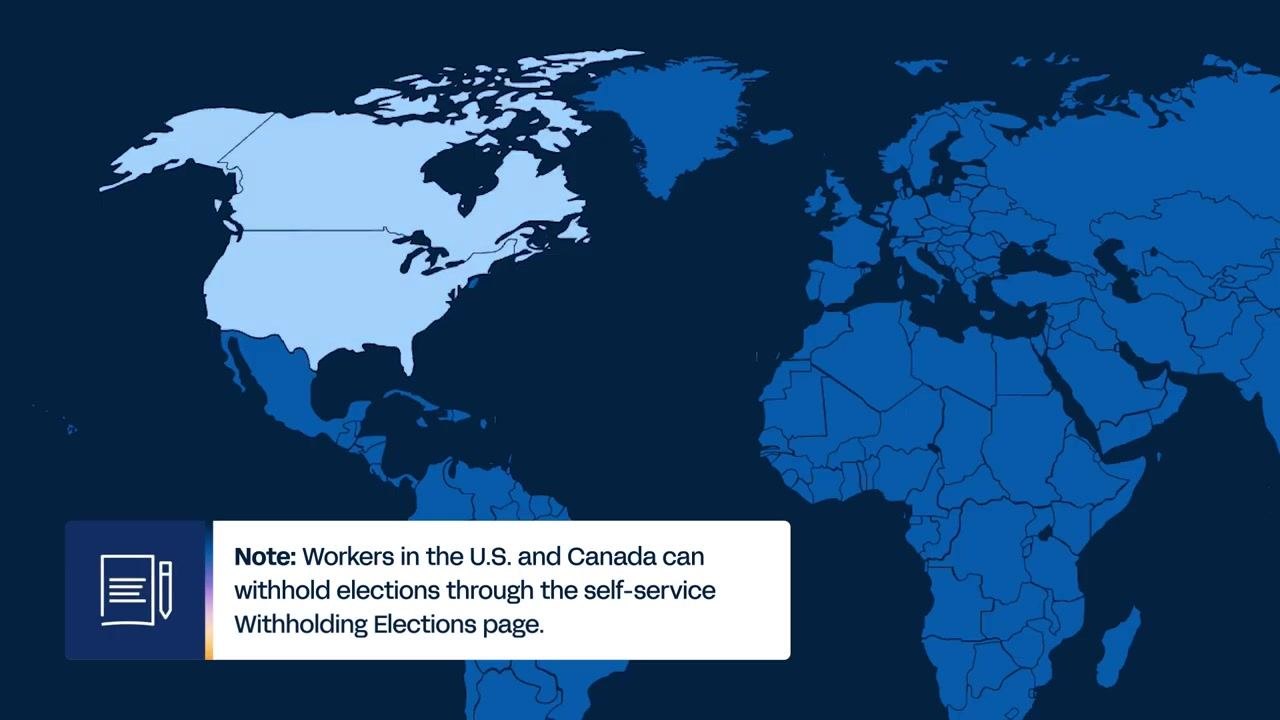
U.S. and Canada: Workers can maintain their own federal and state or provincial tax withholding elections through the self-service Withholding Elections page.
-
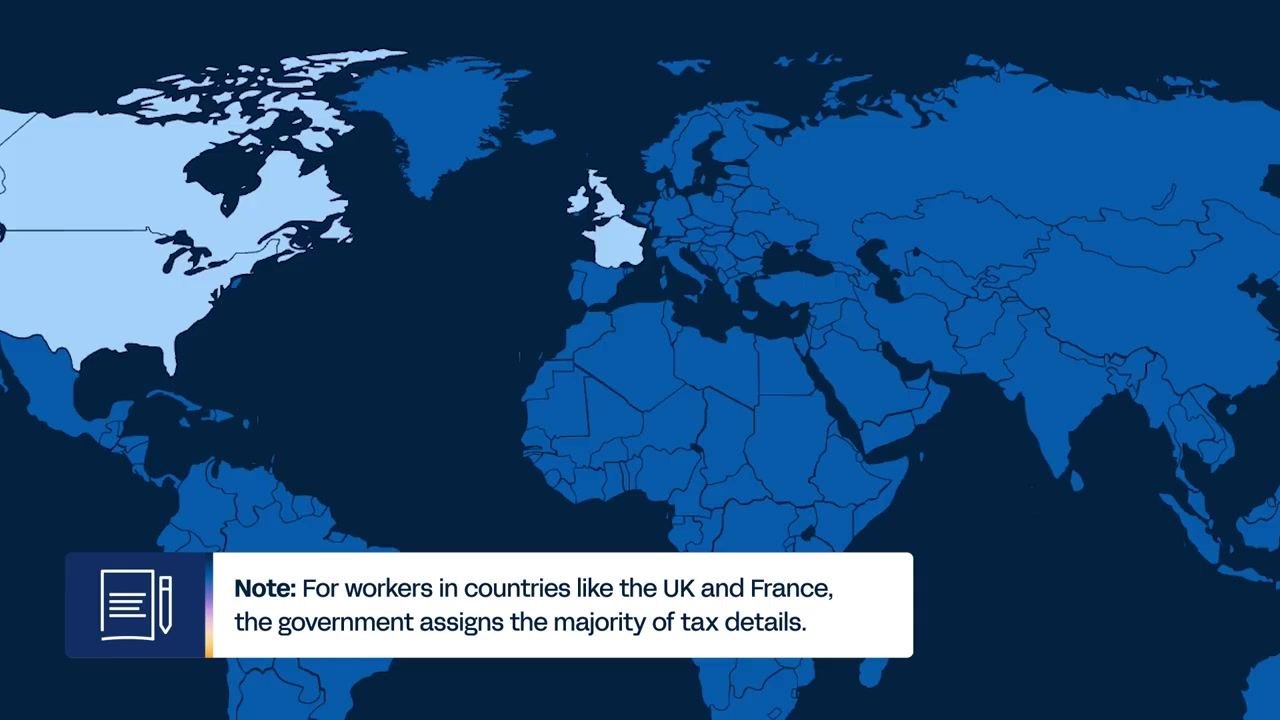
UK and France: The government assigns most tax details, so workers have limited self-service options. You can still update tax details on behalf of workers in bulk when needed. For the UK specifically, you can use available tasks to uplift or clear down tax codes for groups of workers.
If a worker has no tax elections set when payroll is calculated, Workday automatically applies the default tax settings issued by that country's government as of the payment date.
Audit worker tax elections with reports
Before changing tax withholding, use Workday's built-in reports to check for gaps or prepare bulk updates.
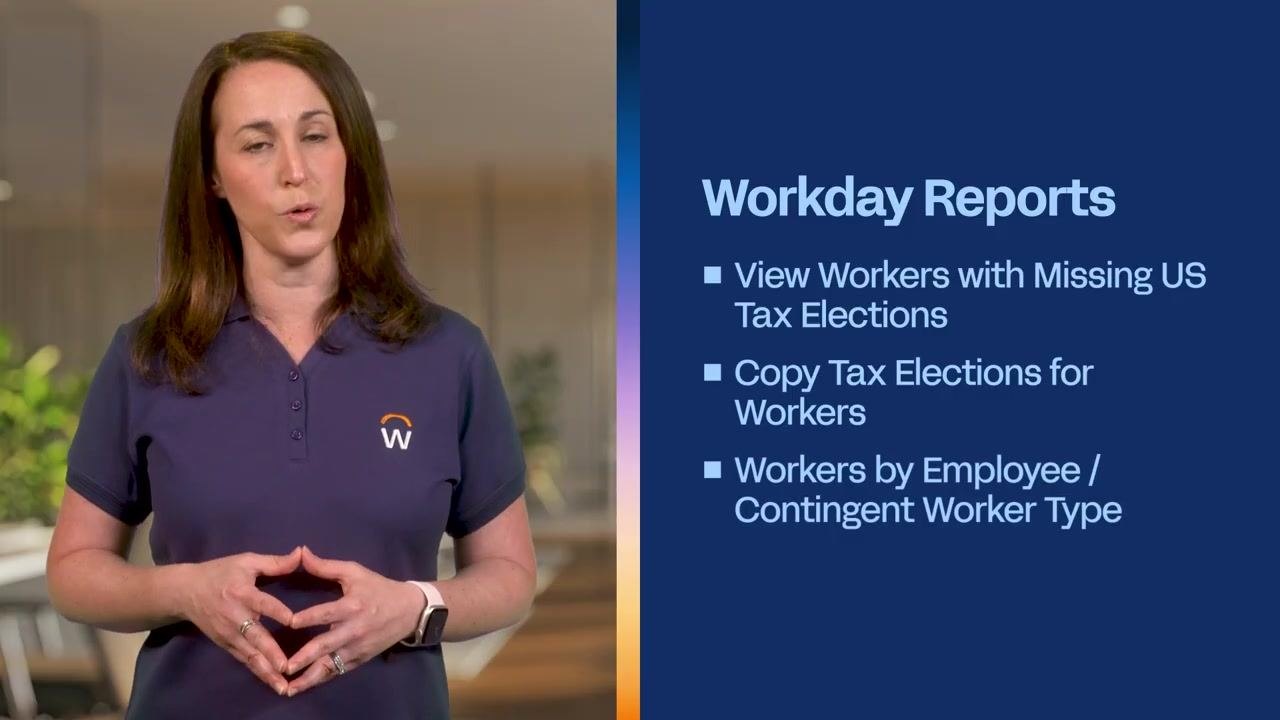
- View Workers with Missing US Tax Elections — Run this report to list all workers in a company who are missing federal or state tax elections at the end of the selected period. Use it to identify compliance gaps and confirm that all required elections are in place.
-
Copy Tax Elections for Workers — Use this task to duplicate tax elections from one company to another. This is especially useful during events like acquisitions and streamlines updates for large groups of workers.
-
Workers by Employee / Contingent Worker Type — Run this report to list primary home and work addresses for workers, which are necessary for accurate tax calculations in Canada and the U.S. Confirm that all required tax withholding criteria are met for both the company and the worker before you enter tax elections.
Access a worker's tax elections
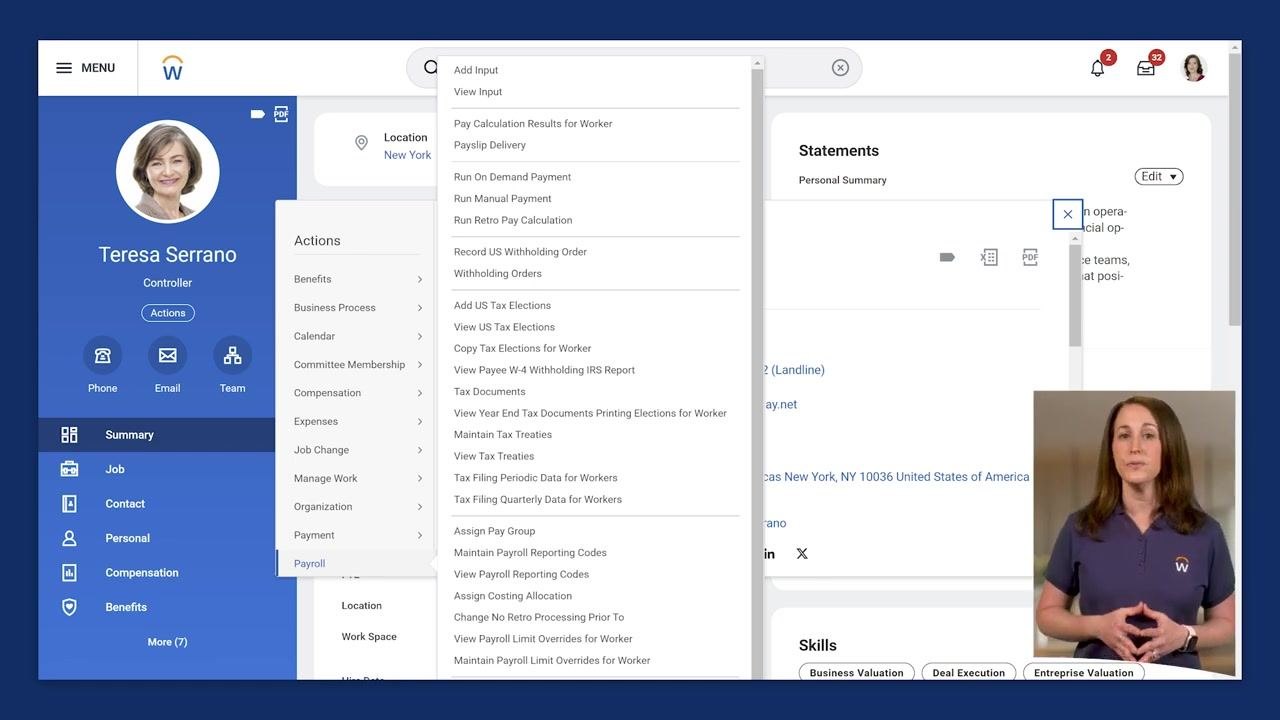
- Navigate to the worker's profile in Workday.
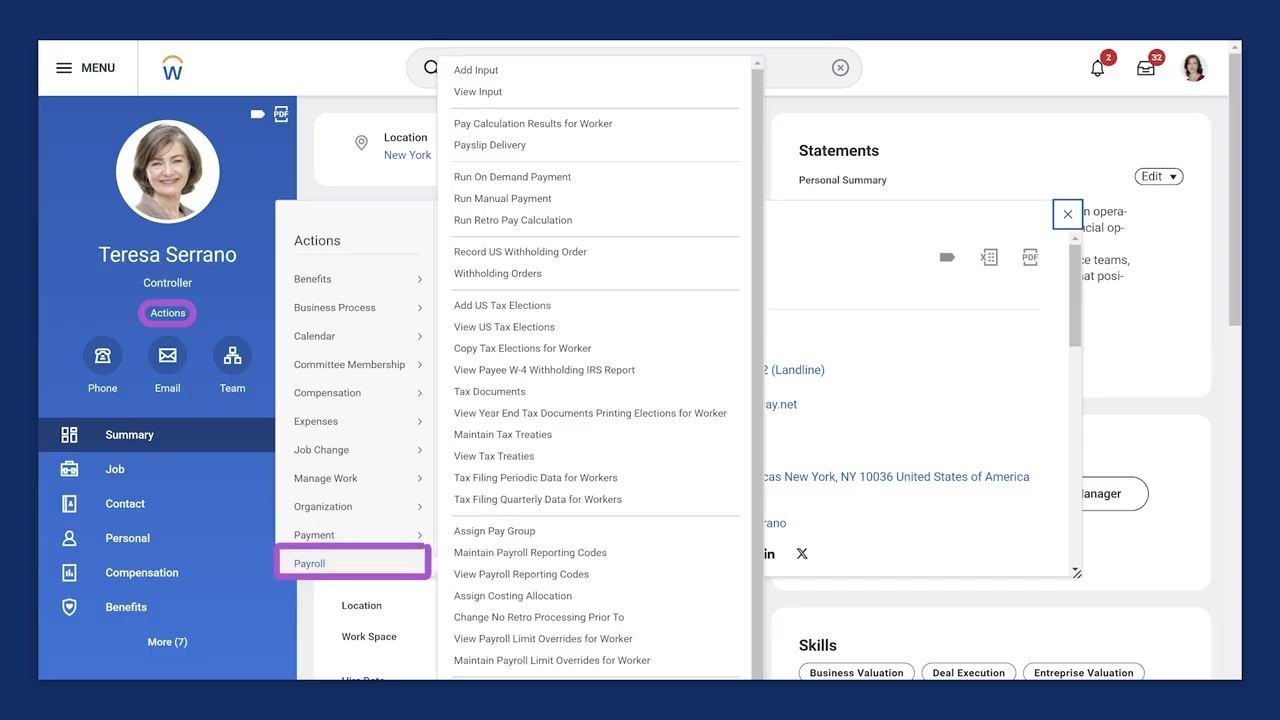
- Click the Actions button.
- From the Actions menu, select Payroll.
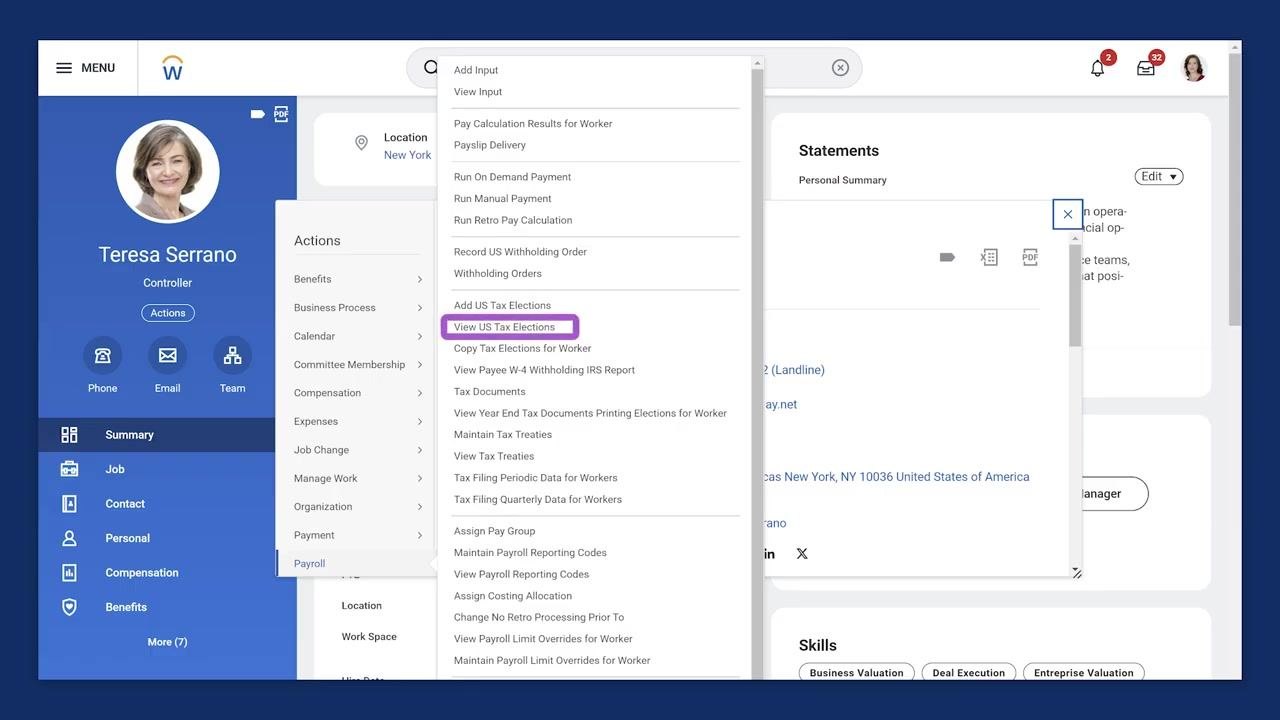
- In the Payroll submenu, choose the appropriate report or task. For U.S. workers, select View US Tax Elections to review current tax elections.
Add US tax elections for a worker
If a worker needs updated tax information for the pay period — for example, a worker returning from leave — select Add US Tax Elections from the Payroll menu. This task has two parts.
On the first page, enter the general information:
- Worker: Select the worker's name.
- Effective Date: Enter the date the tax election should take effect.
- Company: Select the appropriate company.
- Work State and Home State auto-populate based on the worker's primary addresses. If the company allows multiple work tax jurisdictions, add any additional states as needed.
Enter federal, state, and local tax details
After entering the general worker information, continue to the next page to add specific tax details.
- Navigate to the Federal, State, and Local tabs within the "Add Worker US Tax Elections" screen. Each tab manages tax elections specific to that jurisdiction.
- Click the plus (+) icon in the appropriate grid (for example, the Federal W-4 Election grid) to add a new tax election.
- Fill in all required fields for the new row, such as:
- Effective Date
- Marital Status (for example, Single or Married filing separately)
- Number of Allowances
- Extra Withholding
- Multiple Jobs or Spouse Works (check if applicable)
- Total Dependent Amount, Other Income, Deductions, Nonresident Alien, Exempt from NRA Additional Amount, Lock In Letter, Exempt, No Wage/No Tax (enter values as needed)
- Repeat this process on the State and Local tabs if additional elections are required.
Before saving, confirm that all entered information is correct in the grid. You can review each election's details, including effective date and marital status, directly in the summary grid.
View a worker's tax elections from the pay profile
- Go to the worker's profile and select the Pay section.
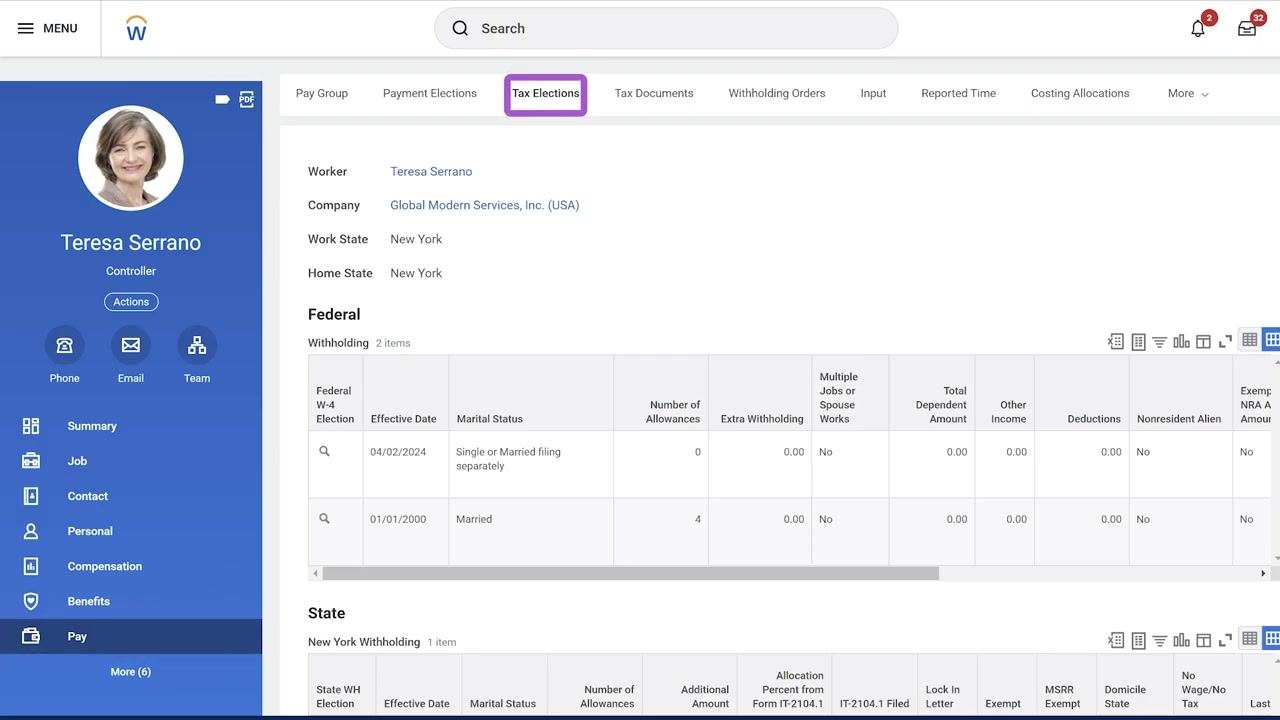
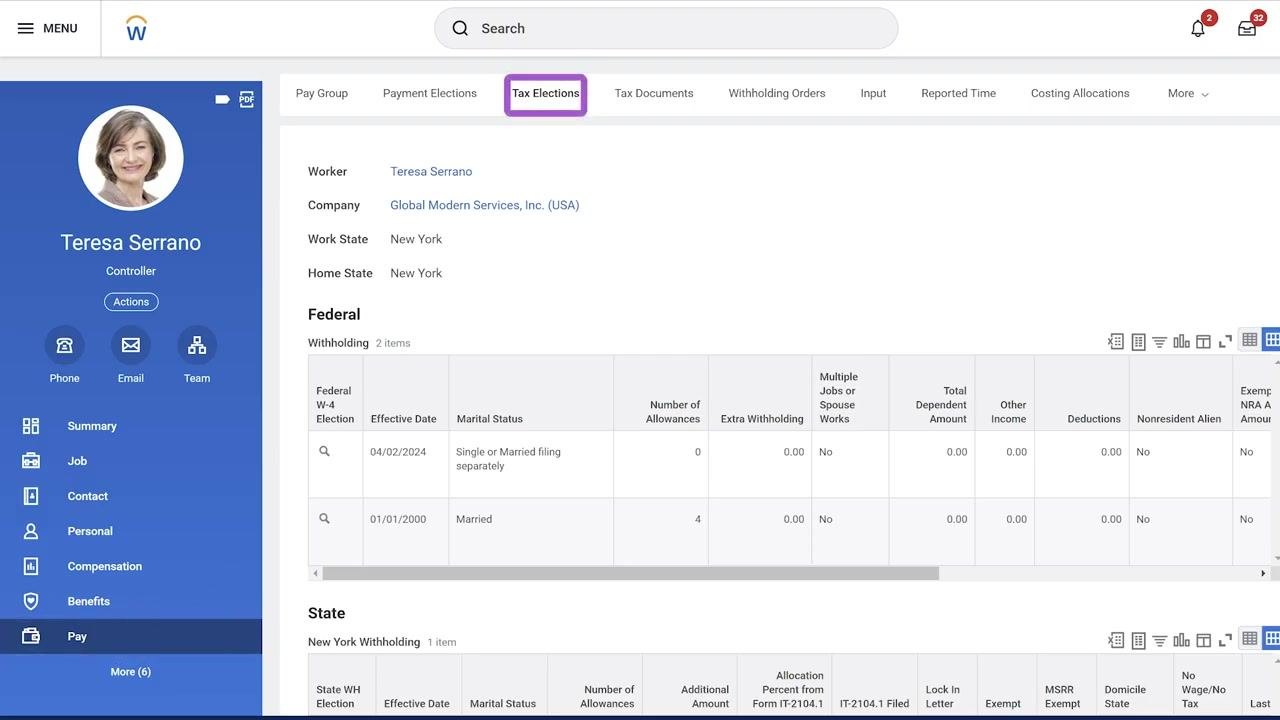
- Click the Tax Elections tab at the top of the pay profile.
- Review all federal, state, and local tax elections for the worker, including historical and current records.
Workers can also access their own tax elections from this tab, or by using the Pay Worklet on their Workday home page.
Summary
Workday manages worker tax elections differently depending on the country, with self-service options available in the U.S. and Canada and more limited options in countries like the UK and France where the government assigns most tax details. Using Workday's reports and tasks, you can audit missing elections, copy elections between companies, and add or update federal, state, and local tax details for individual workers, giving you a complete and accurate view of tax withholding for payroll processing.
Generation details: cost, quality tiers
Docsie billed 2,500 credits ($1.75) to analyze this 5-minute video at standard quality. The rewrite, template fill and Word/PDF exports were included. The same video at each quality tier:
| Quality | Frames sampled | Credits | Approx. cost |
|---|---|---|---|
| Draft | every 16-30 s | 1,250 | $0.88 |
| Standard (this guide) | every 8-15 s | 2,500 | $1.75 |
| Detailed | every 4-7 s | 5,000 | $3.50 |
| Ultra | every 1-3 s | 10,000 | $7.00 |
Credits priced at $0.70 per 1,000; plans include a monthly allowance. Enterprise customers on on-premise or bring-your-own-model deployments run this on their own inference and pay no per-video credits.
Generated by Docsie Video-to-Docs on 2026-09-08 from a 4-minute video. Screenshots are frames from the source video and belong to their creator, Workday, whose original is embedded above. If you own this video and want the guide removed or credited differently, contact us and we will act within one business day.