
How to Cascade Goals in Workday
Cascading goals in Workday allows managers to assign a goal to multiple employees at once, ensuring alignment across teams and organizations. This guide walks you through how to cascade goals in Workday, from accessing the system to submitting the finalized goal to your team.
Video: CHI Insider: How-To Cascade Goals in Workday by CHI St. Vincent (2018). All credit for the demonstration goes to the creator; watch the original on YouTube. The written guide below was generated from this video by Docsie. Creator? Request a change or removal.
Cascading goals in Workday allows managers to assign a goal to multiple employees at once, ensuring alignment across teams and organizations. This guide walks you through how to cascade goals in Workday, from accessing the system to submitting the finalized goal to your team.
Prerequisites
- Access to Workday through the Inside CHI intranet.
- Appropriate permissions to cascade goals to your team or organization.
- A finalized goal, since cascaded goals cannot be edited or deleted in bulk after submission.
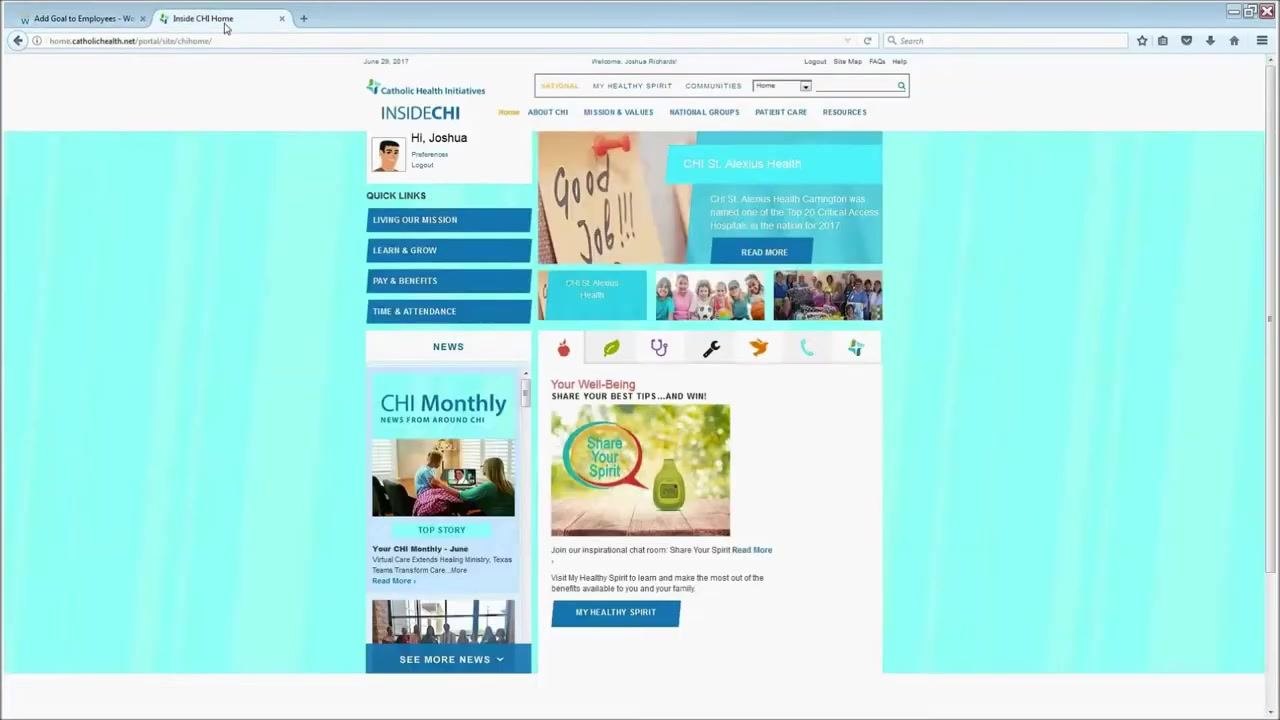
Access Workday from Inside CHI
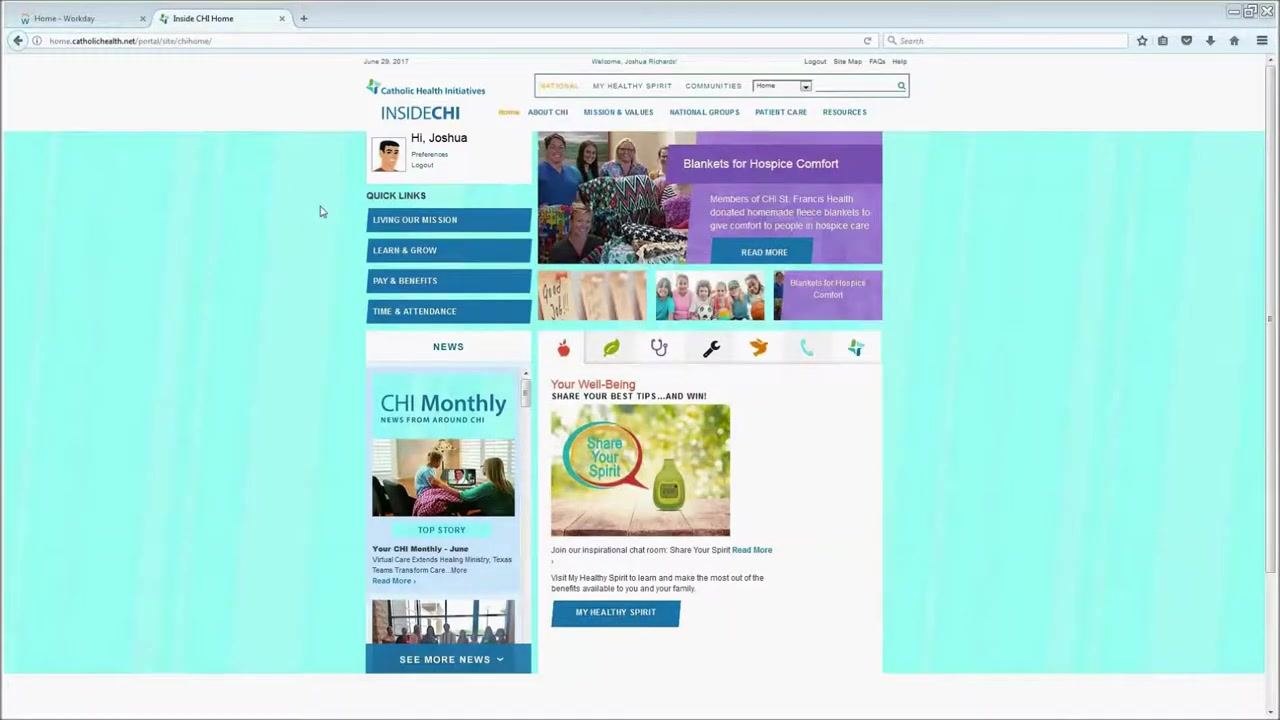
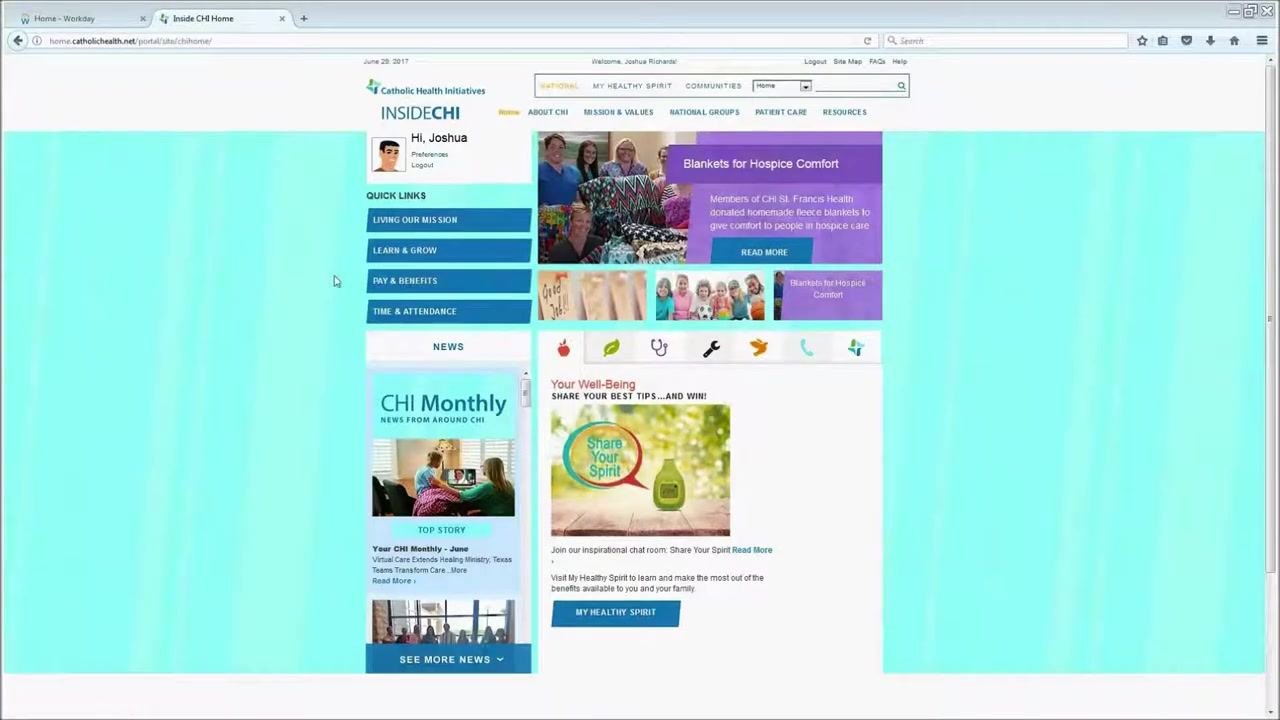
On the CHI intranet homepage, locate the Quick Links section on the left side of the screen. Click either Learn & Grow or Pay & Benefits to access Workday.
Navigate to the Team Performance worklet
Once inside Workday, you will see a dashboard with several circular icons, known as worklets. Locate and select the Team Performance worklet, identified by an icon showing a bar chart and three people.
Review the goal cascading guidance
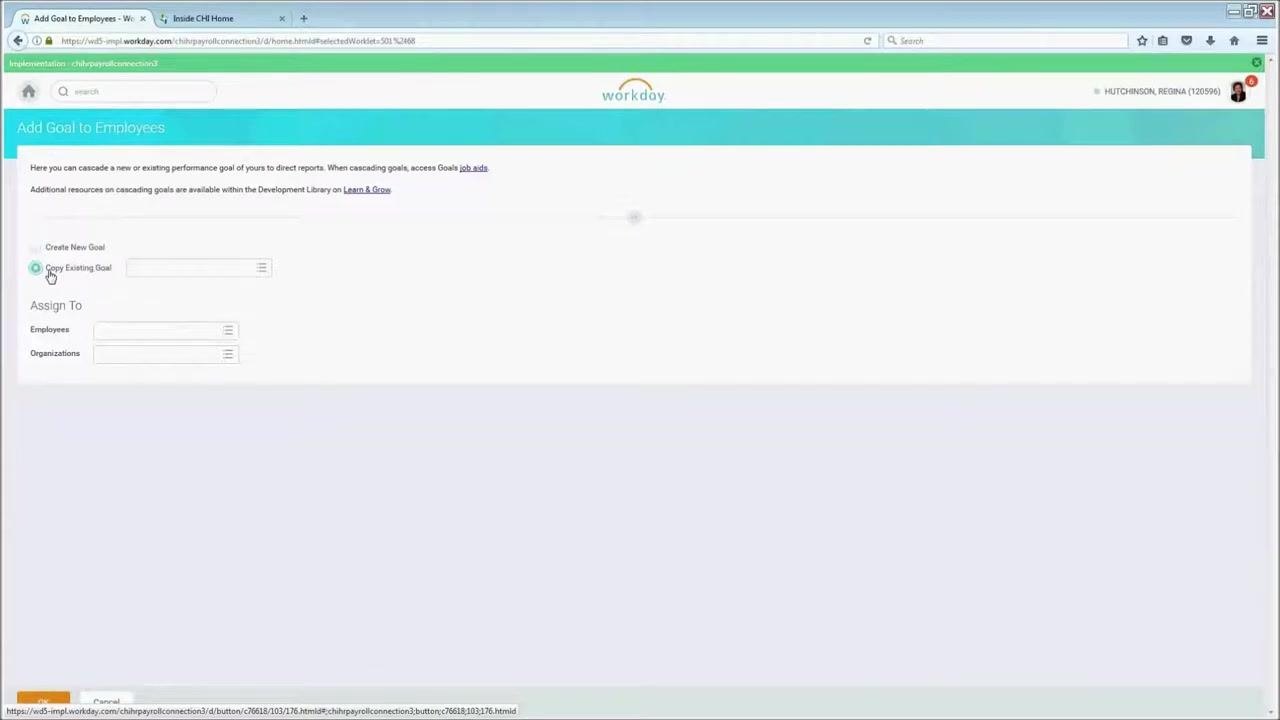
On the Add Goal to Employees page, review the help text at the top of the screen. This section includes hyperlinks to job aids and resources for additional guidance, along with a reminder that you can cascade goals to large groups depending on your permissions.
Note the following before proceeding:
- You cannot edit or delete a cascaded goal en masse. Any changes must be made individually by each employee, or by you one employee at a time.
- Make sure your goal is finalized before cascading it.
Choose how to cascade the goal
On the Add Goal to Employees page, select one of the following options:
- Create New Goal: Enter the details for a new goal you want to cascade.
- Copy Existing Goal: Choose an existing goal to cascade to your team.
Assign the goal to employees
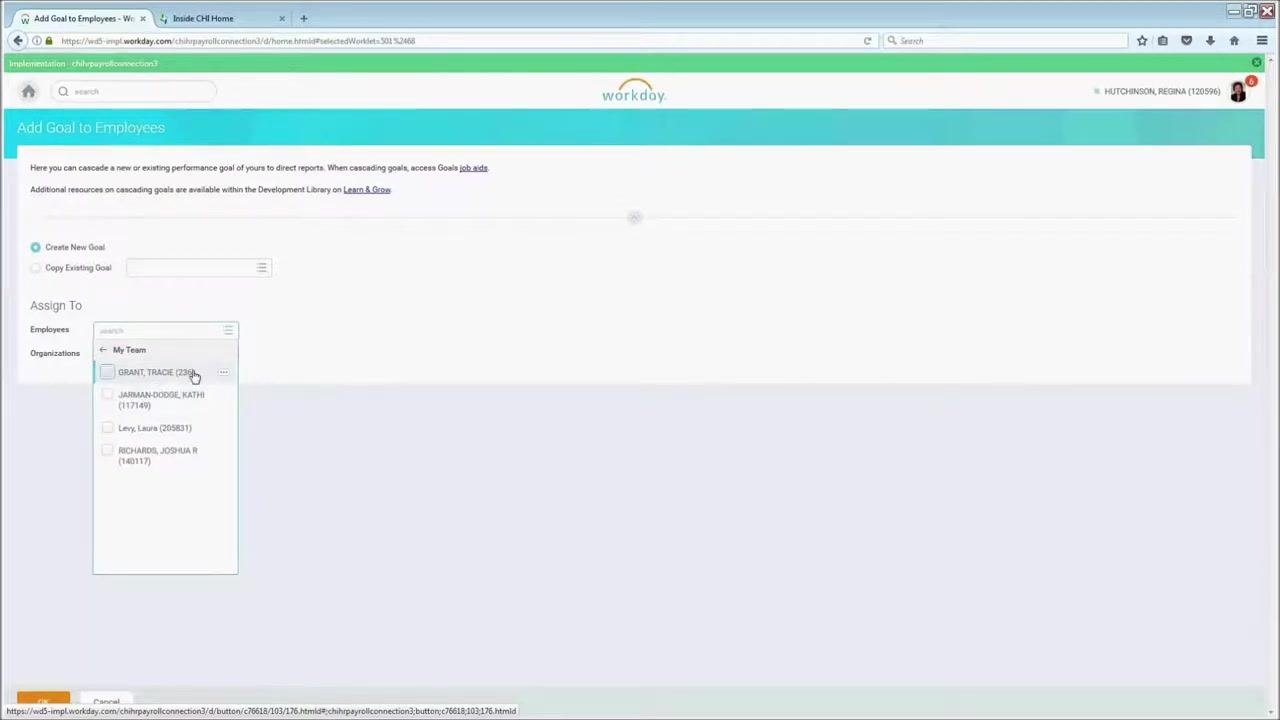
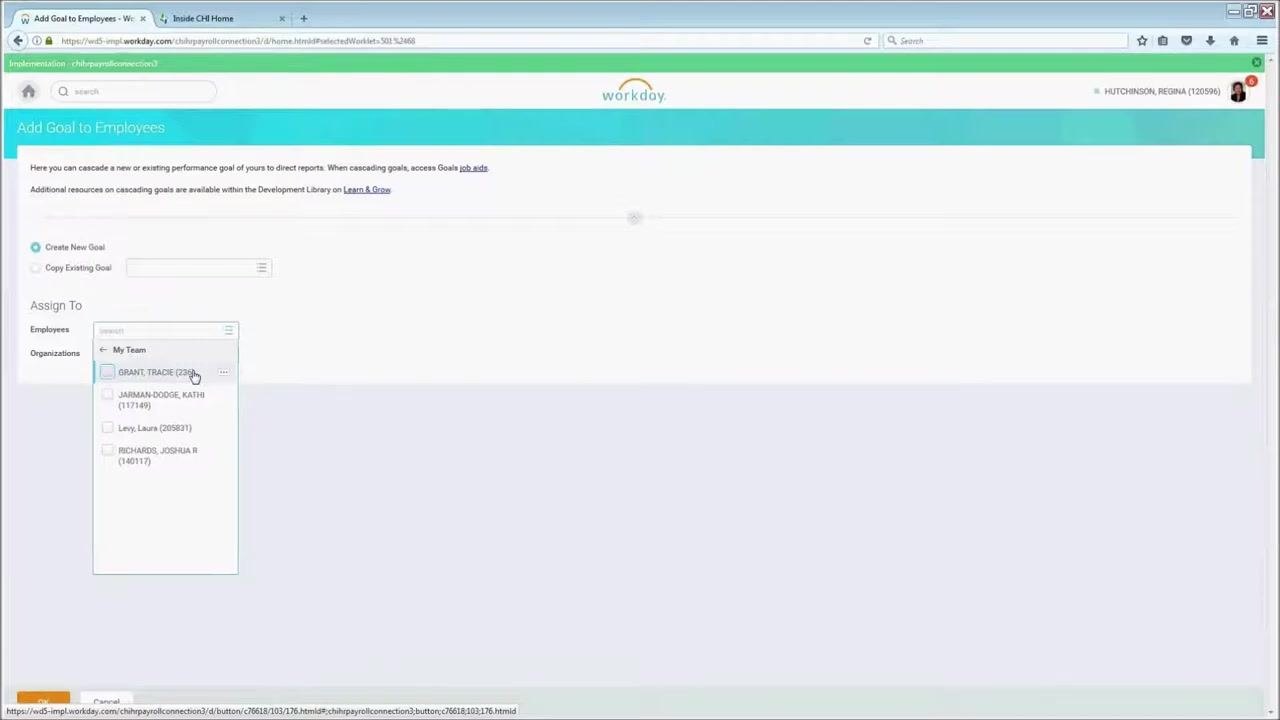
Under the Assign To section, click the Employees field. A dropdown list of your team members appears, where you can:
- Select individual employees by clicking the checkbox next to their names.
- For larger teams, press Ctrl + A to select all employees at once.
After selecting employees individually, confirm that the blue line indicator is illuminated next to each selected name in the dropdown. This visual cue confirms the employees have been successfully selected.
Assign the goal by organization (alternative method)
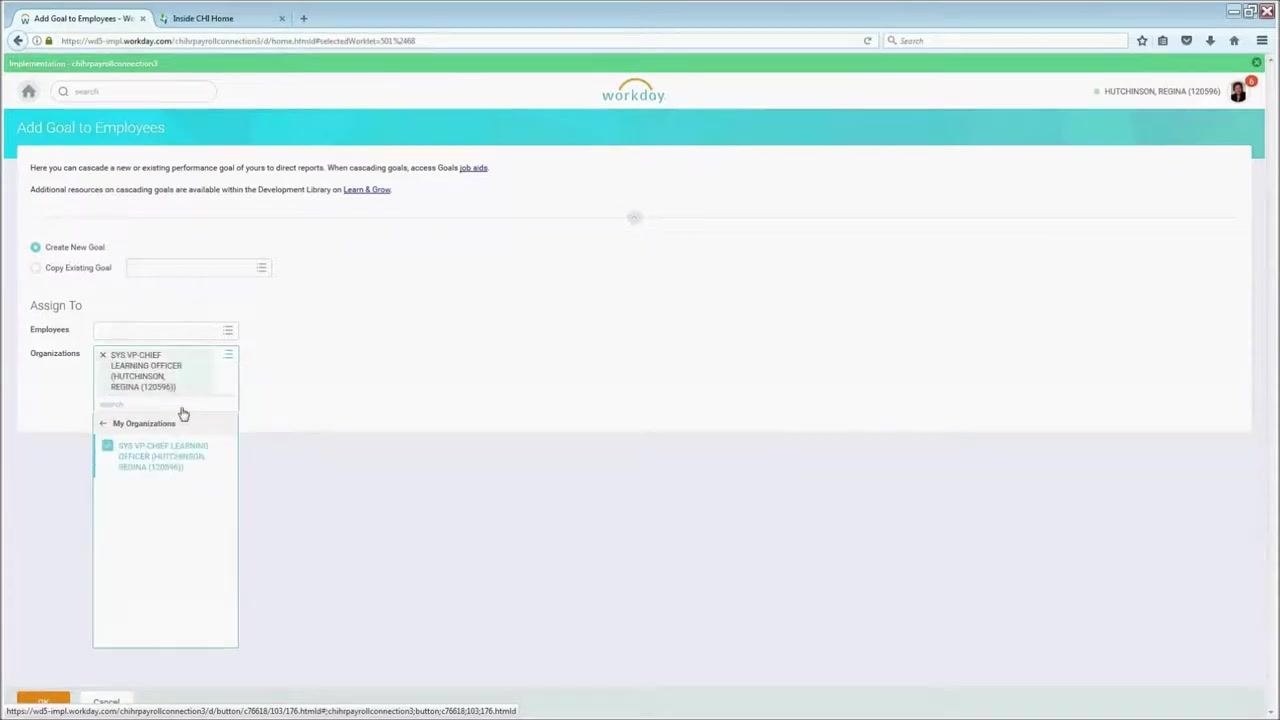
If you prefer not to select employees individually, use the Organizations section instead. Click the Organizations field under Assign To, then select My Organization.
Include subordinate organizations
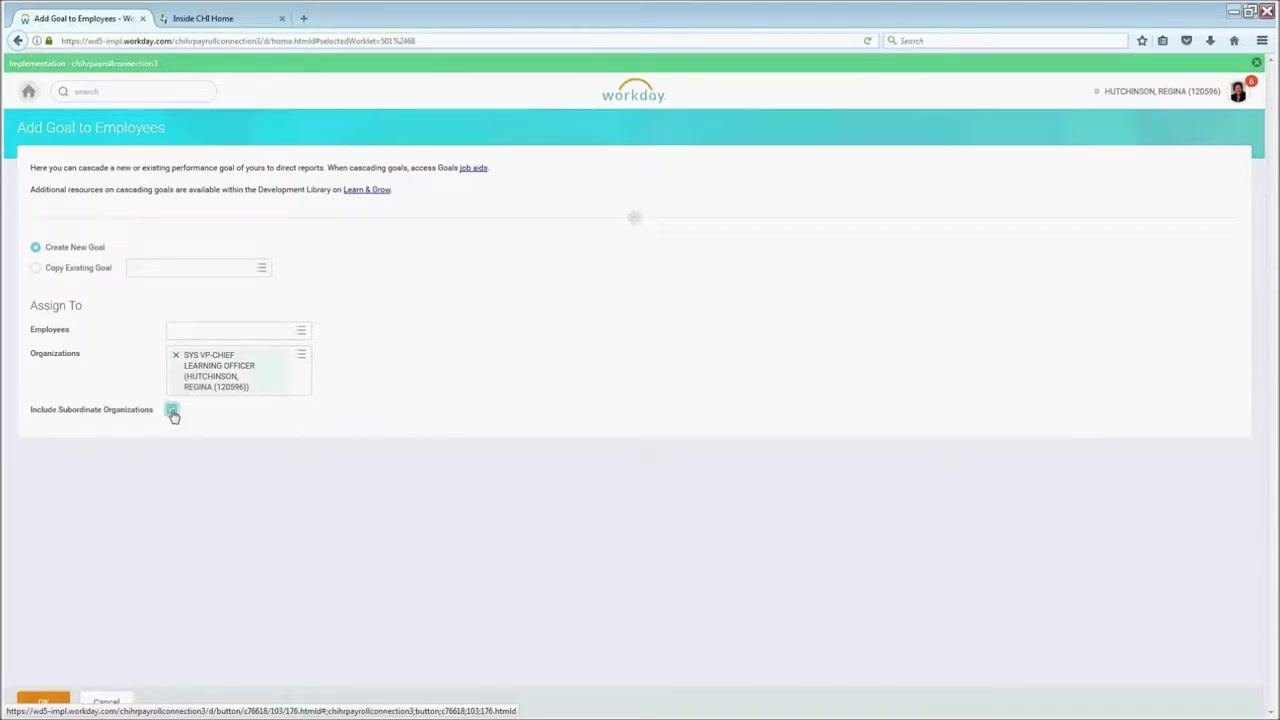
If your organization includes multiple layers and you want the goal to reach employees who report up through your organization—not just your direct reports—check the box labeled Include Subordinate Organizations. This ensures the goal cascades to all employees within your organization and its sub-units.
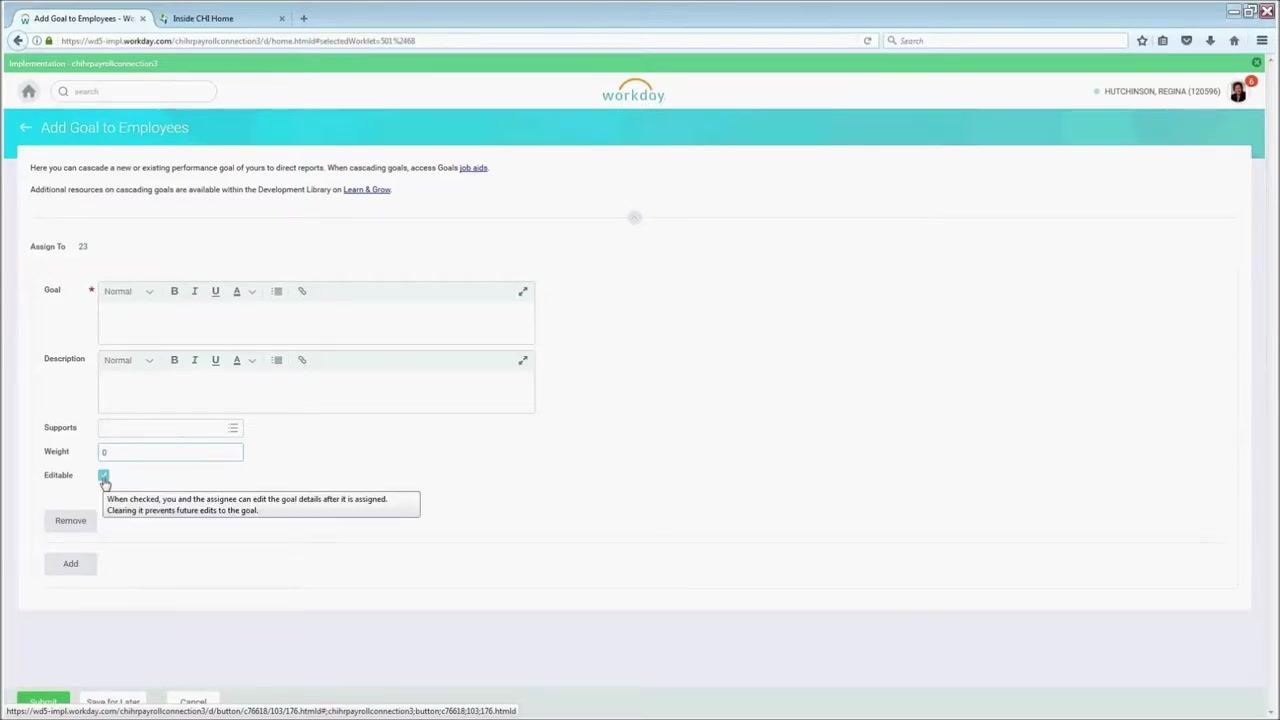
Enter the goal details
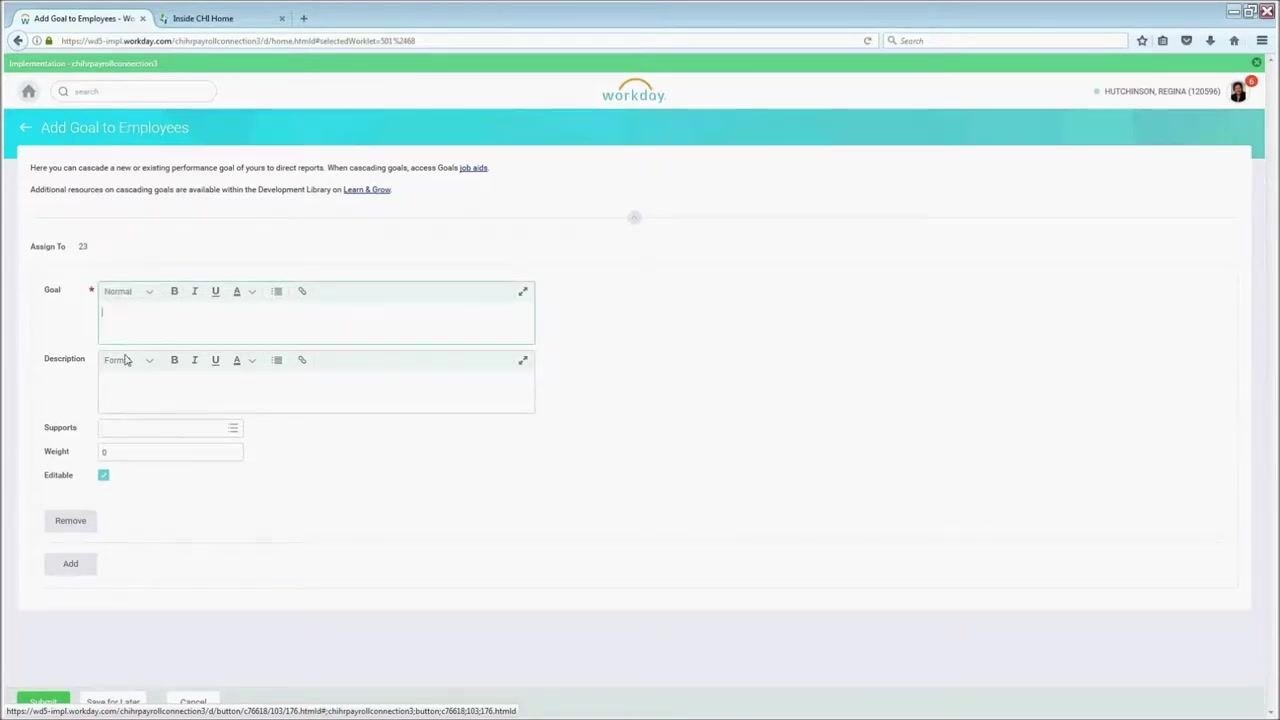
Once you have selected the appropriate employees or organizations, click OK at the bottom of the page. The system displays the number of individuals the goal will be assigned to (for example, "Assign To: 23").
Enter the goal details as you would for your own goals:
- Goal: Enter the goal title, or select one from the available options.
- Description: Provide a detailed description of the goal.
- Supports: Select the "Living Our Mission" measure that this goal supports from the dropdown.
- Weight: Enter the weight for the goal (for example, 0, or update as needed).
- Editable: Make sure this checkbox is checked so employees can adjust the weighting and update the description to fit their specific roles.
It is highly recommended to keep the Editable option enabled. This allows employees who receive the cascaded goal to change the weighting and update the description to better match their role in achieving the goal.
Add the goal to employees
After entering all required goal information—Goal, Description, Supports, Weight, and Editable—click the Add button at the bottom of the form. Confirm that the "Assign To" count reflects the correct number of recipients (for example, 23).
Submit the cascaded goal
Once you have finished adding all goals for your employees, click the Submit button at the bottom of the page to finalize and assign the goals. Review all information carefully before submitting, since this action distributes the goals to the selected employees or organizations.
Access additional goal-setting resources
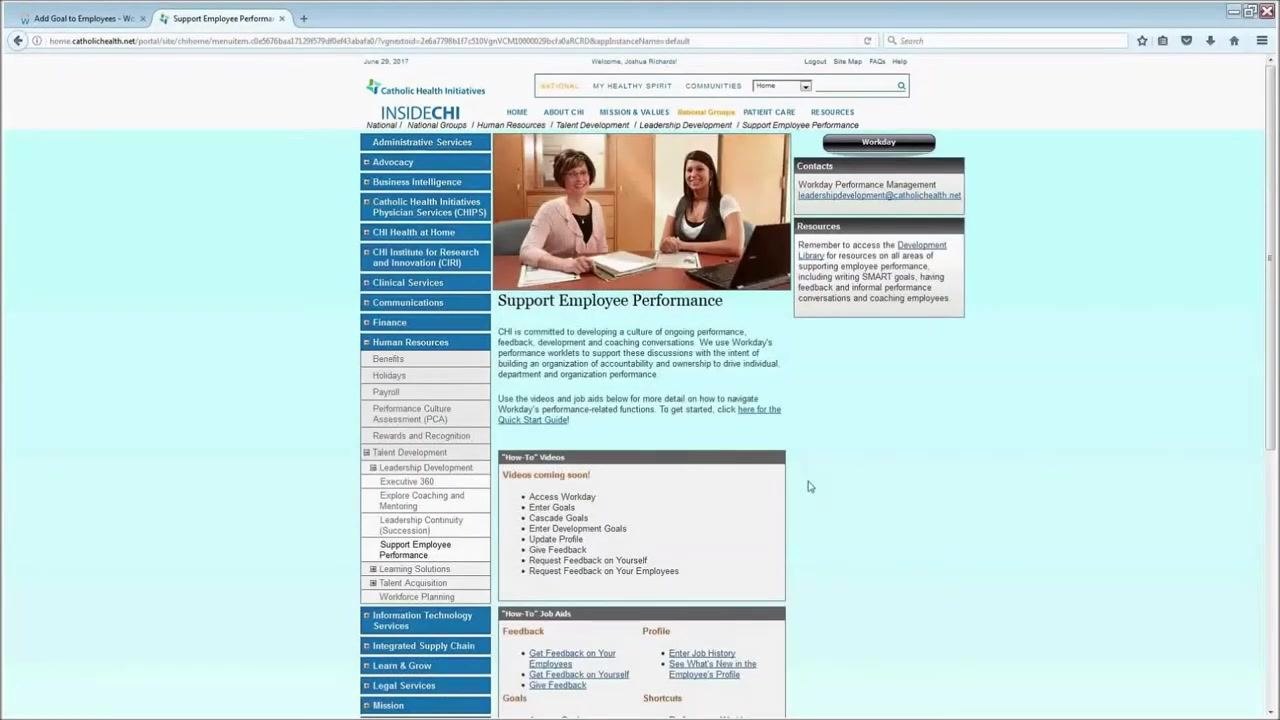
For further guidance on setting goals and using Workday, navigate to the Support Employee Performance page, accessible from the Learn & Grow section on the Inside CHI portal. Use the Learn & Grow quick link on the Inside CHI home page to find relevant training materials, job aids, and support documents.
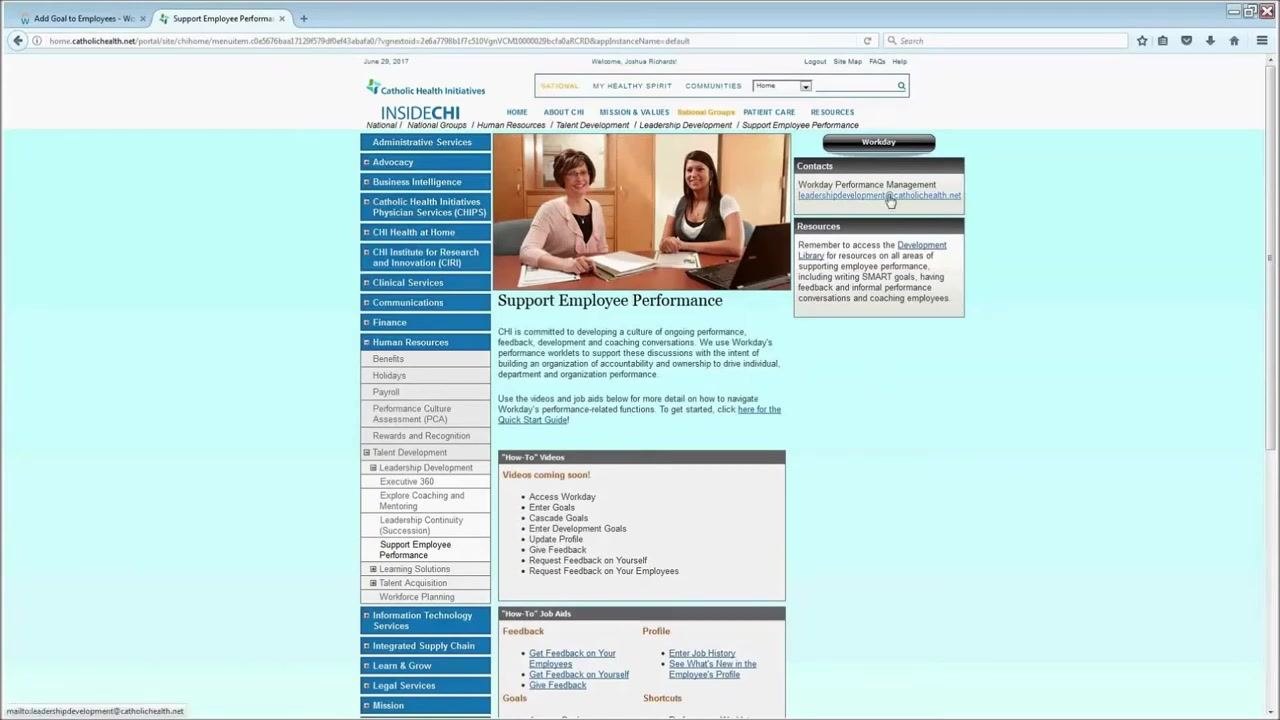
On the Support Employee Performance page, you will find:
- Contact information for Workday Performance Management support (leadershipdevelopment@catholichealth.net).
- Links to the Development Library for resources on writing SMART goals, providing feedback, and coaching employees.
- "How-To" videos and job aids covering common performance management tasks, such as accessing Workday, entering goals, cascading goals, updating your profile, and providing feedback.
Contact support for additional help
If you have questions or need further assistance, contact your HR business partner or email the Workday Performance Management team at leadershipdevelopment@catholichealth.net.
Summary
Cascading goals in Workday allows you to efficiently assign objectives to your team while maintaining accuracy and alignment with organizational processes. Before submitting, always double-check your goal details and employee selection, since bulk edits or deletions are not possible once a goal has been cascaded. Making goals editable empowers employees to personalize their objectives for greater engagement. If you need further support, the Support Employee Performance page and your HR business partner are available to help.
Generation details: cost, quality tiers
Docsie billed 2,500 credits ($1.75) to analyze this 5-minute video at standard quality. The rewrite, template fill and Word/PDF exports were included. The same video at each quality tier:
| Quality | Frames sampled | Credits | Approx. cost |
|---|---|---|---|
| Draft | every 16-30 s | 1,250 | $0.88 |
| Standard (this guide) | every 8-15 s | 2,500 | $1.75 |
| Detailed | every 4-7 s | 5,000 | $3.50 |
| Ultra | every 1-3 s | 10,000 | $7.00 |
Credits priced at $0.70 per 1,000; plans include a monthly allowance. Enterprise customers on on-premise or bring-your-own-model deployments run this on their own inference and pay no per-video credits.
Generated by Docsie Video-to-Docs on 2026-10-14 from a 4-minute video. Screenshots are frames from the source video and belong to their creator, CHI St. Vincent, whose original is embedded above. If you own this video and want the guide removed or credited differently, contact us and we will act within one business day.