
How to Assign Roles in Workday
This guide explains how to assign roles in Workday and how role inheritance works across your organization's hierarchy. You'll learn to locate a supervisor organization, review which roles are inherited versus manually assigned, and assign a role such as Manager directly to a worker.
Video: How to Assign Organization Roles in Workday | ZaranTech by Workday Learner Community (2024). All credit for the demonstration goes to the creator; watch the original on YouTube. The written guide below was generated from this video by Docsie. Creator? Request a change or removal.
This guide explains how to assign roles in Workday and how role inheritance works across your organization's hierarchy. You'll learn to locate a supervisor organization, review which roles are inherited versus manually assigned, and assign a role such as Manager directly to a worker.
Prerequisites
- An active Workday account with access to the dashboard.
- Permission to view and edit organization roles (via related actions).
Access the Workday dashboard
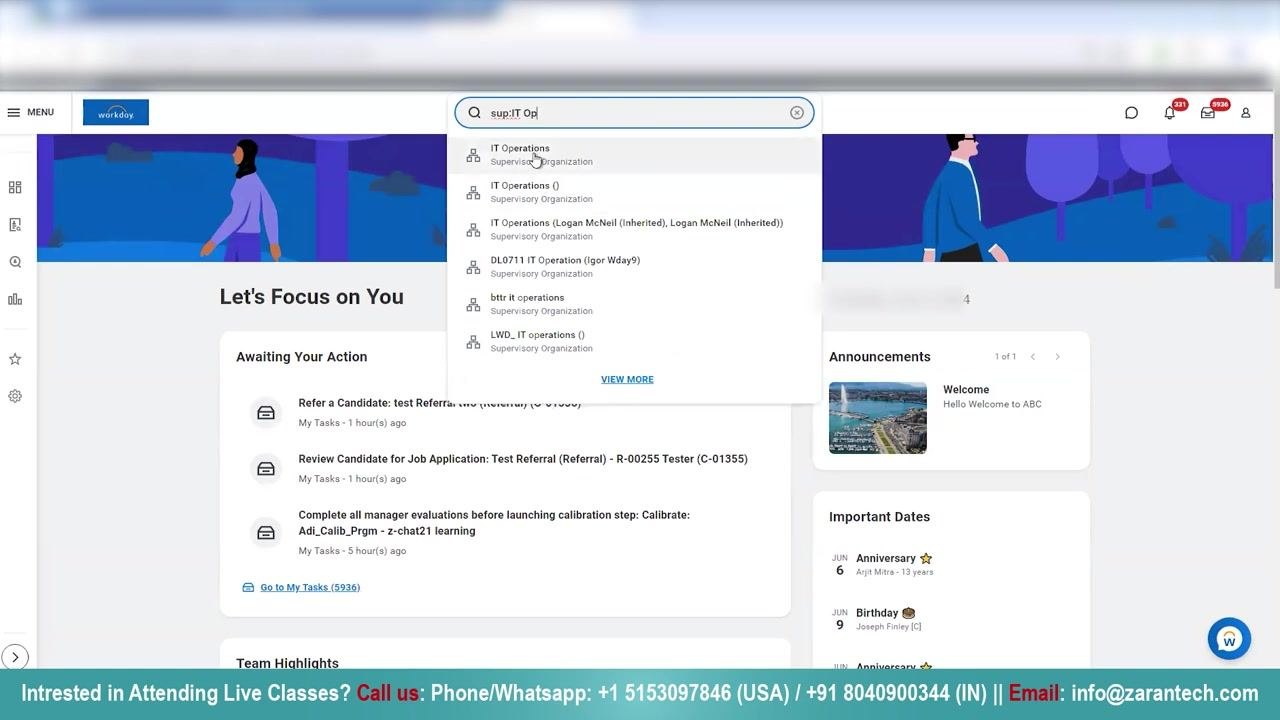
Log in to your Workday account. On the dashboard, locate the Let's Focus on You section, which displays your tasks, announcements, and important dates.
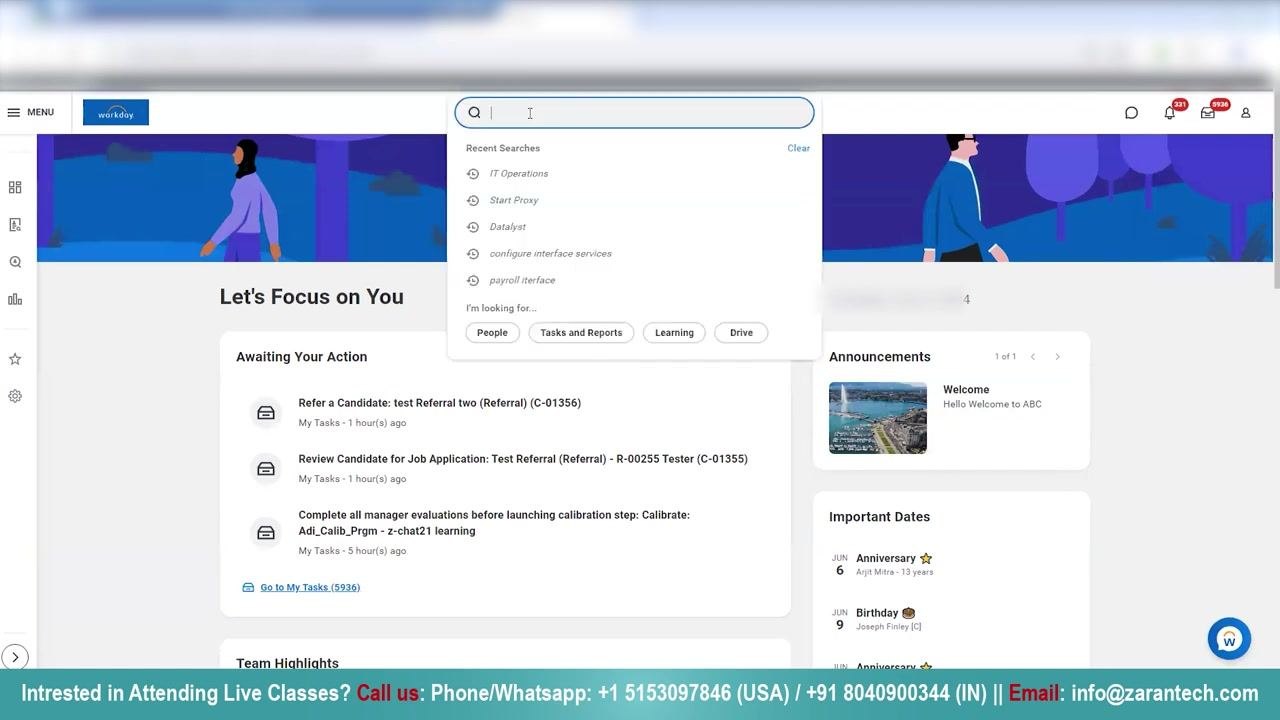
Note the navigation menu on the left and the search bar at the top, which provide quick access to Workday features.
Search for the supervisor organization
Click the search bar at the top of the Workday dashboard. Enter the prefix sup: followed by the organization name (for example, sup:IT Operations).
Review the search results and select the relevant supervisor organization, such as IT Operations.
View organization details
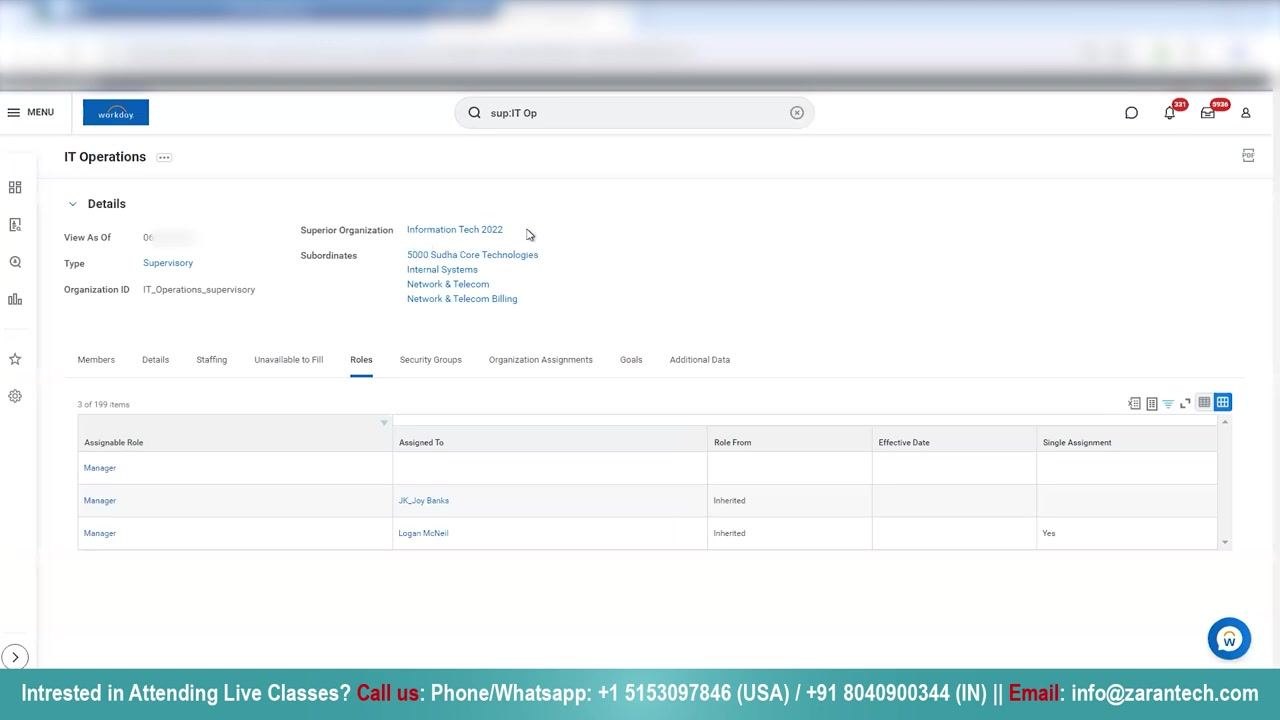
After selecting the supervisor organization, review the organization details page. The page displays tabs for Members, Details, Staffing, Unavailable to Fill, Roles, Security Groups, Organization Assignments, Goals, and Additional Data.
Navigate to the Roles tab to view all roles assigned within the organization. Under Members, review the list of current members along with their positions, contact information, and locations.
Filter and review assigned roles
In the Roles tab, use the filter option to search for specific roles — for example, type "Manager" in the filter box, then click Filter to display only the relevant roles.
Review the resulting list, which shows who each role is assigned to, the source of the role (such as inherited), the effective date, and whether it is a single assignment.
Review role inheritance from a superior organization
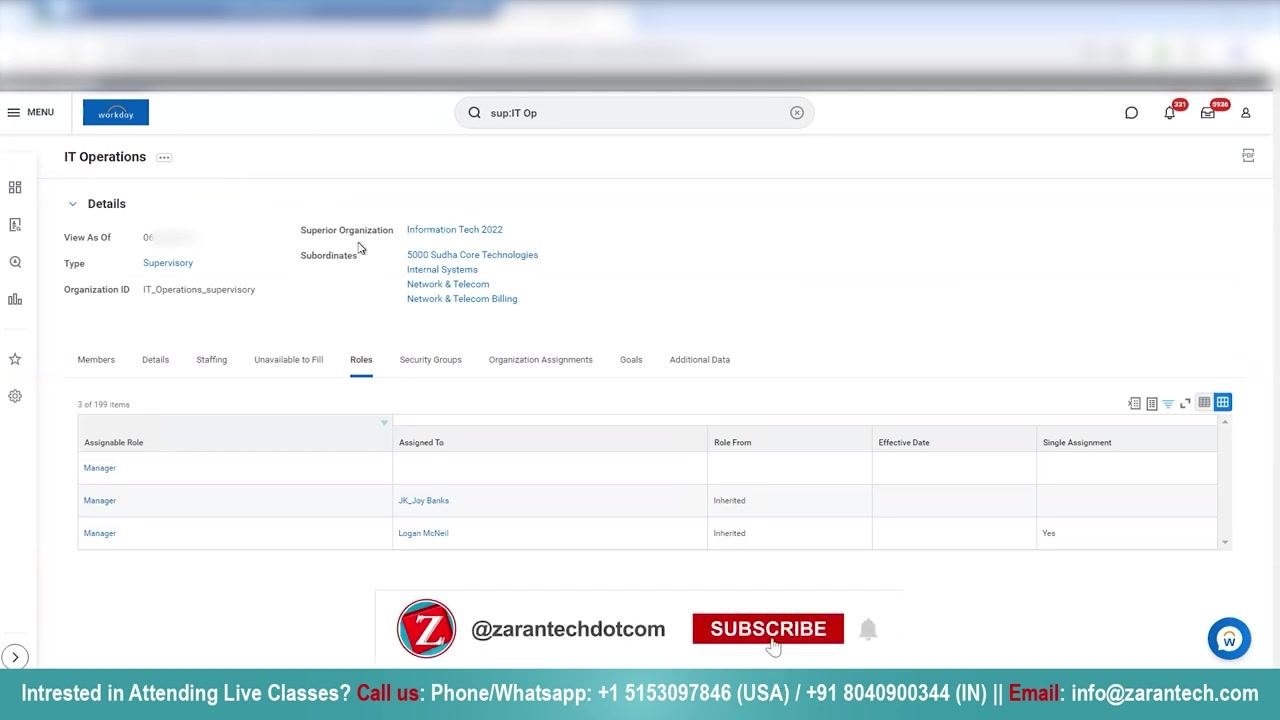
Roles assigned to a superior organization (for example, "Information Tech 2022") are automatically inherited by its child organizations, such as "IT Operations." On the IT Operations organization details page, note the Superior Organization field and the list of subordinate organizations.
In the Roles tab, review the Assignable Role column (such as Manager), the Assigned To column (such as Logan McNeil or JK_Joy Banks), and the Role From column, which shows "Inherited" for roles that cascade from the superior organization. Inherited roles do not require manual assignment at the child organization level.
Confirm the organizational hierarchy
Verify that the current organization (for example, IT Operations) is a child of the listed superior organization. This hierarchical relationship is what enables role inheritance, allowing roles assigned at a higher level to cascade down to subordinate organizations.
Understand downward inheritance to subordinate organizations
Roles assigned at the current organization level (such as IT Operations) are also inherited by its subordinate organizations. This cascading inheritance ensures consistency in role assignments throughout the organizational hierarchy.
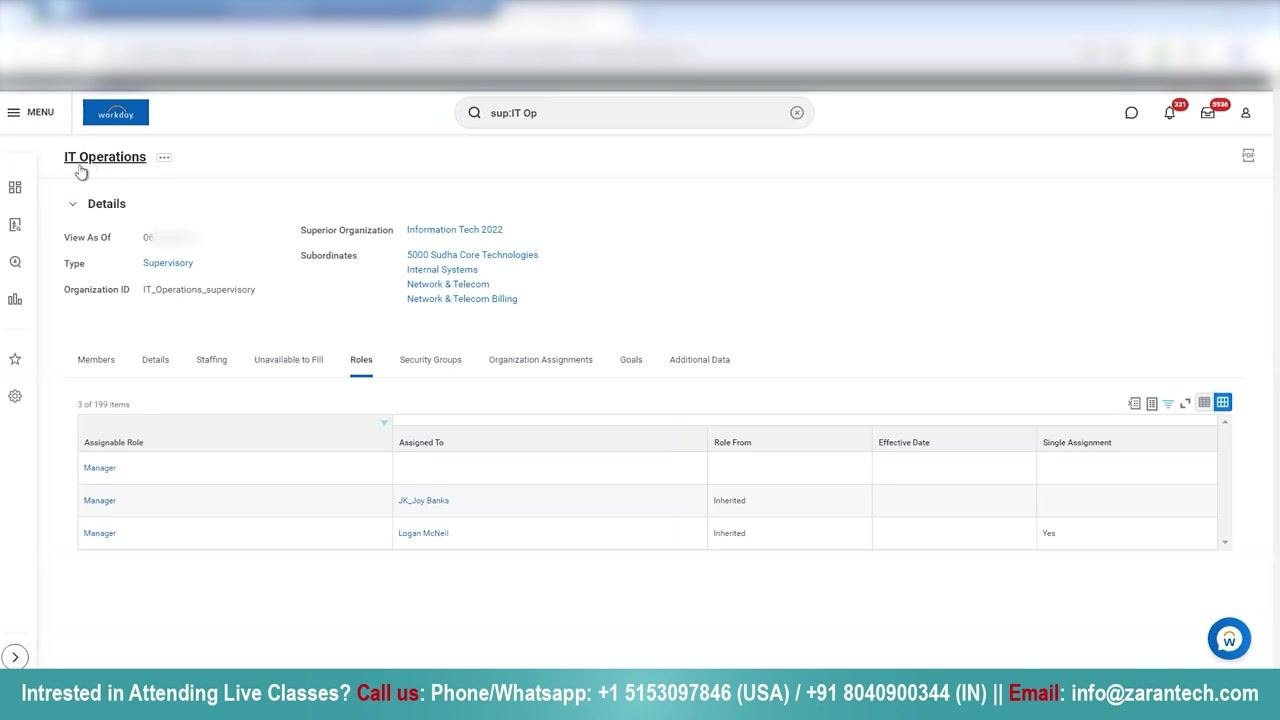
Navigate to the superior organization for further review
Click the Superior Organization link (for example, "Information Tech 2022") to open its details in a new tab. Review the available tabs, such as Members, Details, Staffing, Roles, Security Groups, Organization Assignments, and Additional Data.
Note that the Members tab may show "No items available" if the organization has no direct members.
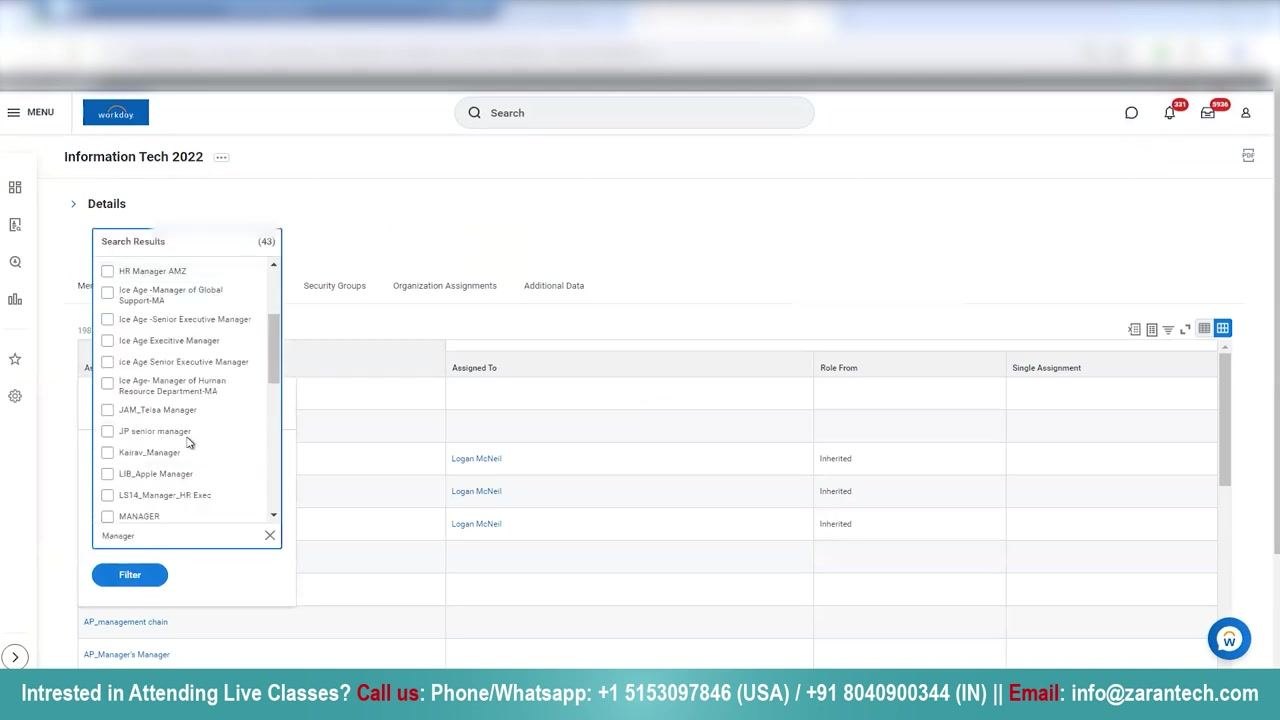
Filter and review Manager role assignments in the superior organization
Switch to the Roles tab in the superior organization. Use the filter box to search for the "Manager" role, select it from the search results, and click Filter to display only relevant assignments.
The filtered list shows the Manager role assigned to Logan McNeil and JK_Joy Banks, both marked as "Inherited."
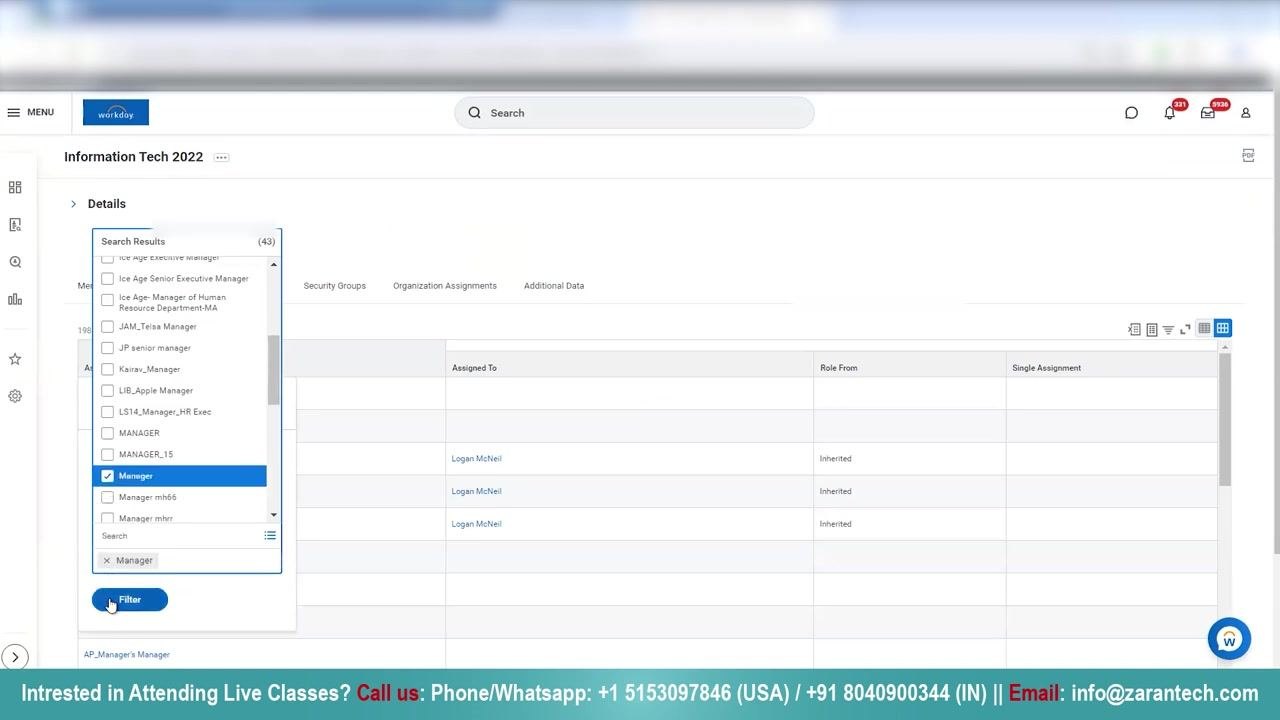
Manually assign roles using related actions
If you need to change or assign roles manually, use the organization's related actions menu. Open the related actions menu for the organization (for example, "Information Tech 2022").
In the actions panel, navigate to Roles and select Assign Roles. This lets you override inherited roles or assign new roles directly to the organization.
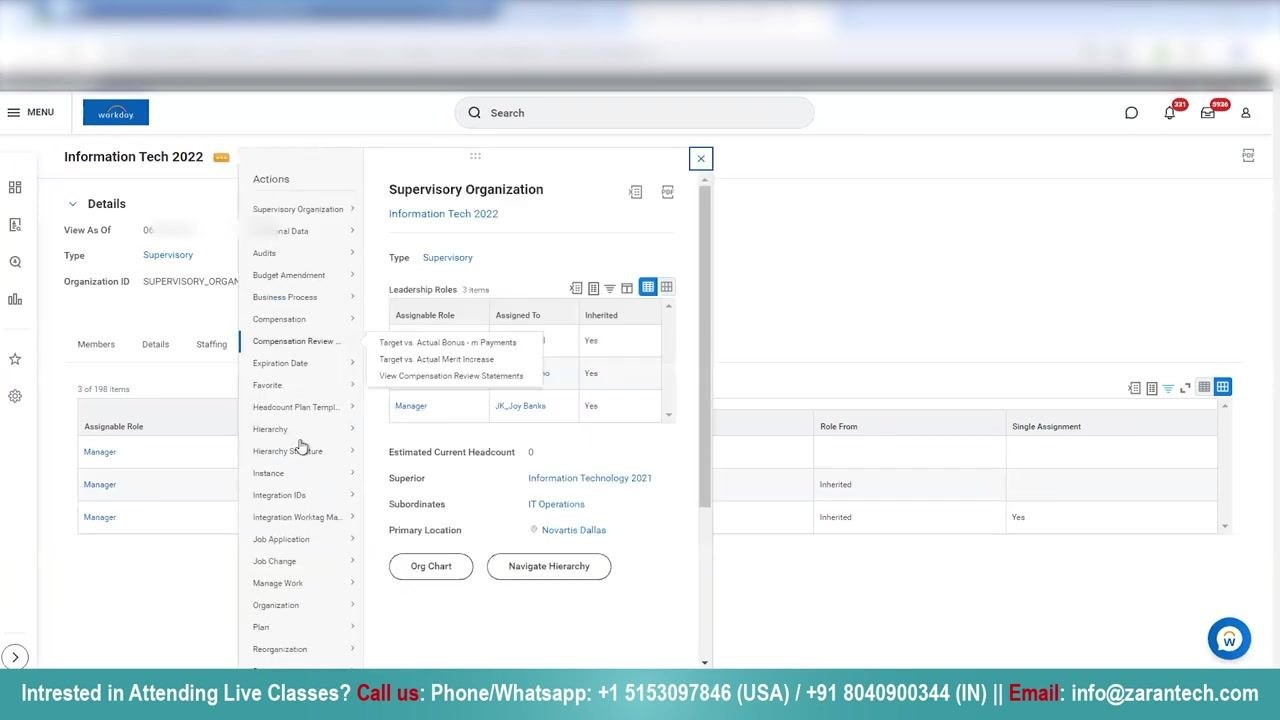
Open the Assign Roles page
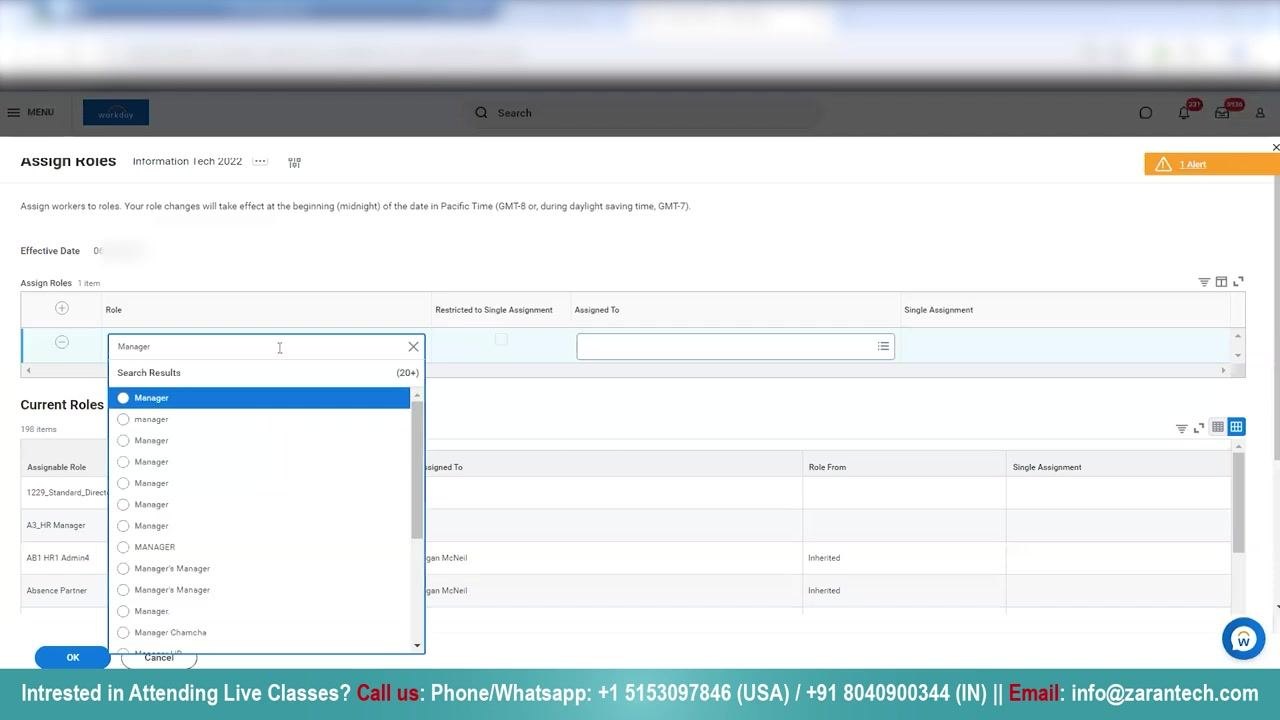
Navigate to the Assign Roles screen for the desired organization (for example, "Information Tech 2022"). Review the instructions at the top of the page: "Assign workers to roles. Your role changes will take effect at the beginning (midnight) of the date in Pacific Time (GMT-8 or, during daylight saving time, GMT-7)."
Note the Effective Date field, which determines when the role assignment becomes active. The Assign Roles section lets you add new role assignments, while the Current Roles section lists all existing role assignments, including columns for Assignable Role, Assigned To, Role From, and Single Assignment.
Select the role to assign
In the Assign Roles section, click the field under Role and begin typing the name of the role you want to assign, such as "Manager." A dropdown list of matching roles appears, including various case variations and related roles.
Select the appropriate "Manager" role from the search results.
Choose the worker to assign the role to
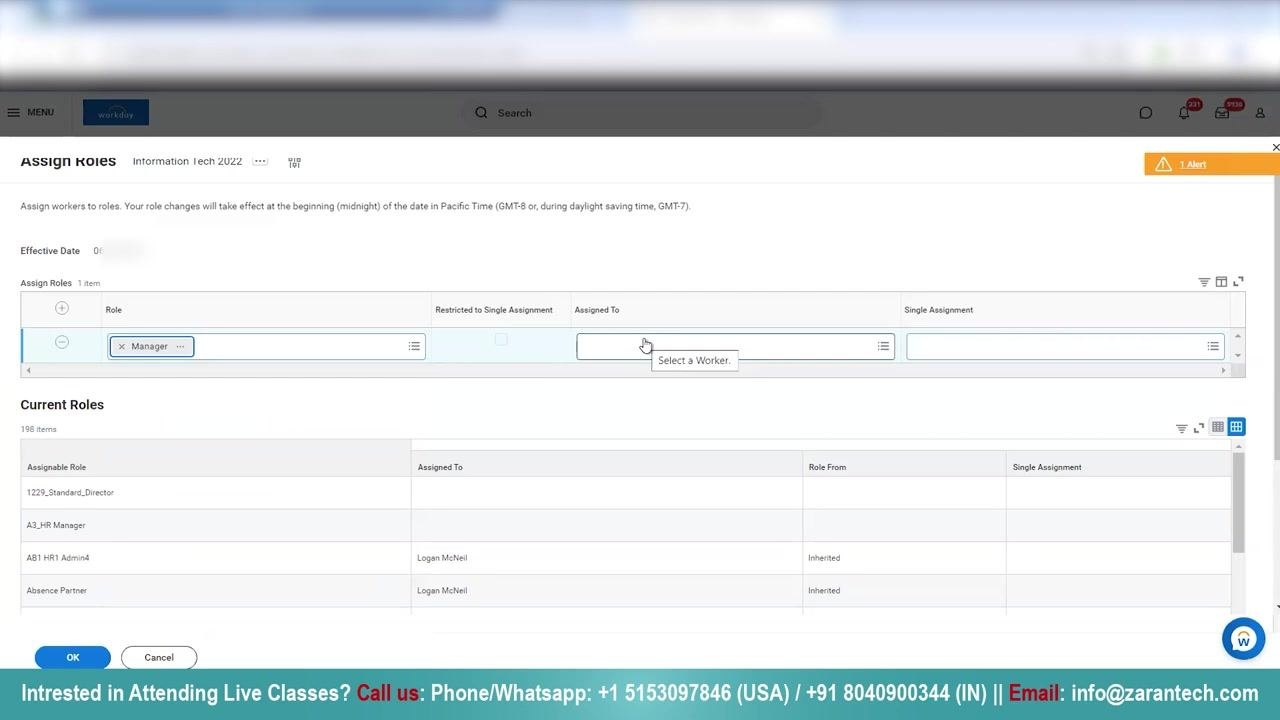
In the Assigned To field, click to open the worker selection dialog. Search for and select the worker you want to assign the chosen role to.
Review and confirm the assignment
Ensure the correct role and worker are selected in the Assign Roles row. Review the Current Roles table below to verify existing assignments and avoid duplicates.
Click OK to save the new role assignment, or Cancel to discard your changes.
Summary
By following these steps, you can assign roles in Workday and understand how role inheritance works based on organizational hierarchy. This ensures that roles such as Manager, Absence Partner, and HR Partner are properly assigned and inherited throughout your organization, while still giving you the ability to manually assign or override roles when needed to keep assignments accurate and consistent at every level.
Generation details: cost, quality tiers
Docsie billed 2,500 credits ($1.75) to analyze this 5-minute video at standard quality. The rewrite, template fill and Word/PDF exports were included. The same video at each quality tier:
| Quality | Frames sampled | Credits | Approx. cost |
|---|---|---|---|
| Draft | every 16-30 s | 1,250 | $0.88 |
| Standard (this guide) | every 8-15 s | 2,500 | $1.75 |
| Detailed | every 4-7 s | 5,000 | $3.50 |
| Ultra | every 1-3 s | 10,000 | $7.00 |
Credits priced at $0.70 per 1,000; plans include a monthly allowance. Enterprise customers on on-premise or bring-your-own-model deployments run this on their own inference and pay no per-video credits.
Generated by Docsie Video-to-Docs on 2026-10-14 from a 4-minute video. Screenshots are frames from the source video and belong to their creator, Workday Learner Community, whose original is embedded above. If you own this video and want the guide removed or credited differently, contact us and we will act within one business day.