
How to Release a Credit Block in SAP S/4HANA
This guide walks you through creating a sales document in SAP S/4HANA and reviewing the resulting order status, including the credit and billing blocks that appear on the order header. Understanding how these blocks are displayed is the first step toward learning how to release a credit block in SAP S/4HANA, since the block must first be identified on the order before it can be addressed. The steps below follow the process from document creation through to locating the order in the SD Documents list and opening it for review.
Video: Solved blocked orders in SAP vkm1 by S4HCLUB - Learning SAP (2024). All credit for the demonstration goes to the creator; watch the original on YouTube. The written guide below was generated from this video by Docsie. Creator? Request a change or removal.
This guide walks you through creating a sales document in SAP S/4HANA and reviewing the resulting order status, including the credit and billing blocks that appear on the order header. Understanding how these blocks are displayed is the first step toward learning how to release a credit block in SAP S/4HANA, since the block must first be identified on the order before it can be addressed. The steps below follow the process from document creation through to locating the order in the SD Documents list and opening it for review.
Prerequisites
Before you begin, make sure you have:
- Access to the SAP GUI with authorization to create and display sales documents.
- The relevant organizational data available: Order Type fp, Sales Organization 1010 (ALDES Distribution), Distribution Channel 70 (Fourn.pools), and Division 10 (National).
- Knowledge of the material number and reference order (if applicable) you intend to use.
Start creating a sales document
Open the SAP GUI and navigate to the Create Sales Documents screen. Confirm that the organizational data fields are populated: Order Type fp, Sales Organization 1010 (ALDES Distribution), Distribution Channel 70 (Fourn.pools), and Division 10 (National).
Position the cursor over the Create with Reference tab if you intend to base the new document on an existing reference order.
Handle a sales organization mismatch error
When you attempt to create the document with a reference order, an error dialog may appear stating: "Sales organizations deviate from each other. 1010 and/or 1000 (reference)." This message indicates that the sales organization on the current document does not match the one on the reference document.
Dismiss the error to continue with document creation.
Review the FP order overview
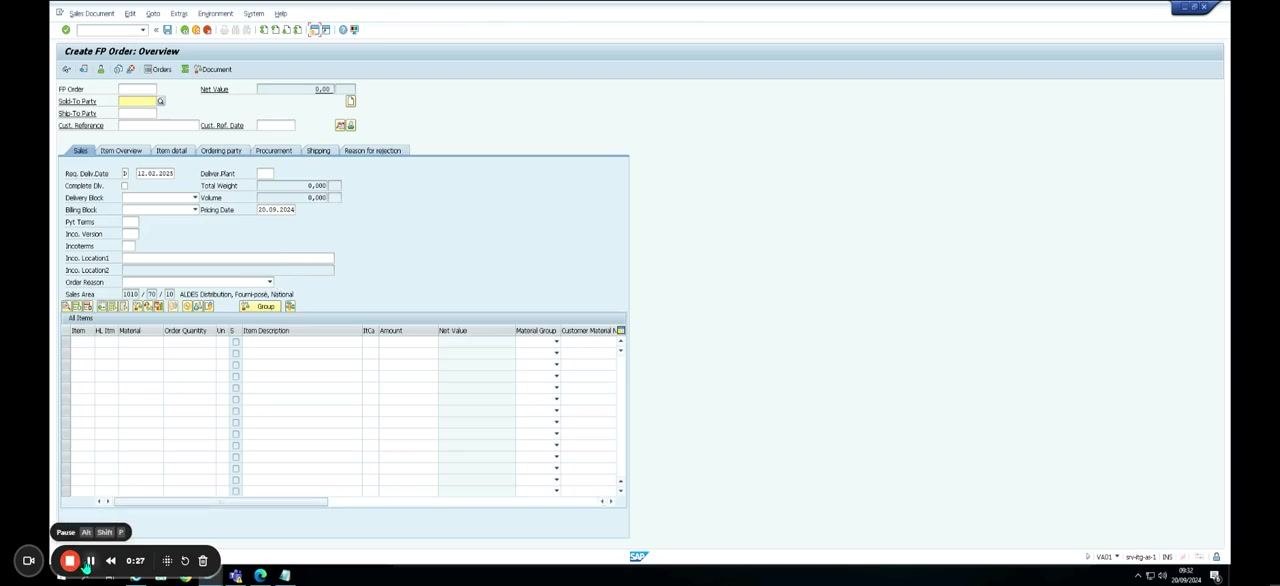
After dismissing the error, the system opens the Create FP Order: Overview screen. Here you can see the FP Order, Net Value, Sold-To Party, Ship-To Party, and Cust. Reference fields, along with tabs for Sales, Item Overview, Item Detail, Ordering Party, Procurement, Shipping, and Reason for Rejection.
The Sales Area shows 1010 / 70 / 10 (ALDES Distribution, Fourn.pools, National), and the item table is empty and ready for entry.
Enter the material information
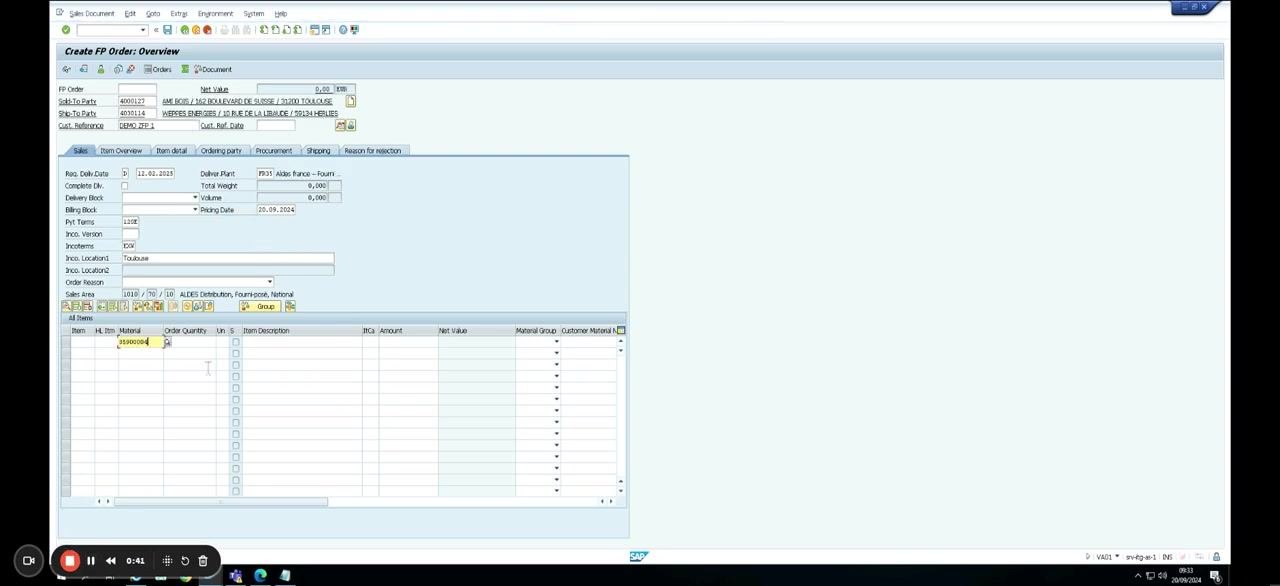
In the item entry table, enter the material number 35900004. Once entered, move the cursor to the Order Quantity field to continue with the input.
Review the item schedule lines
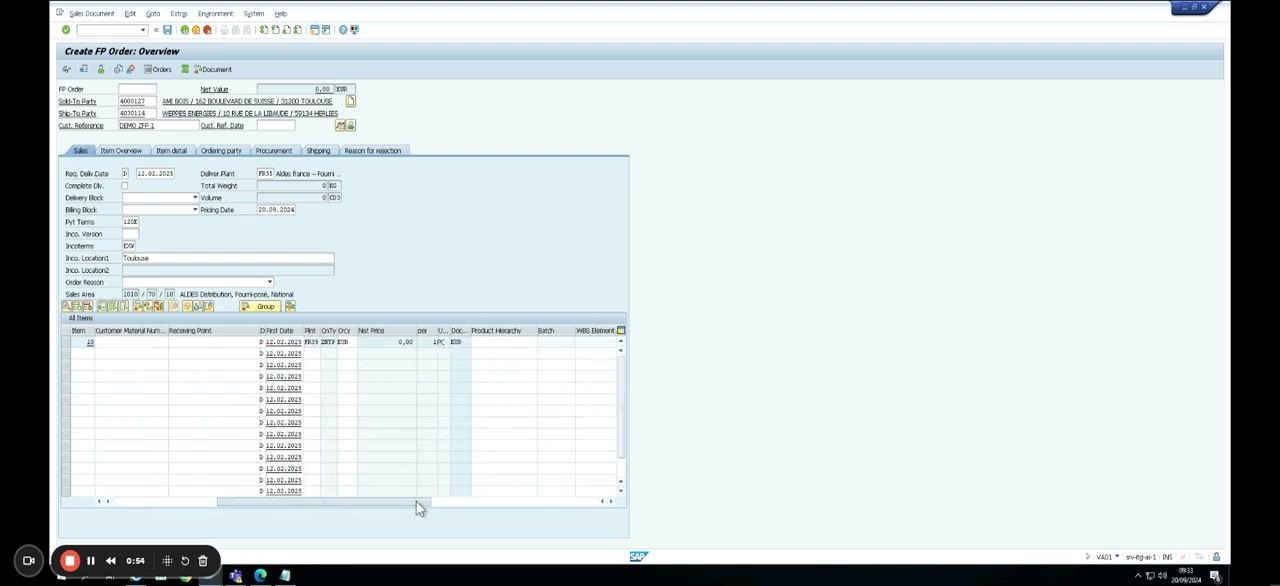
After you enter the material, the item table expands to display schedule lines, including details such as Customer Material Number, Receiving Point, First Date, Plant, Order Quantity, and Net Price. Multiple schedule lines appear for the item, each with its own date and quantity.
View item data and pricing conditions
Navigate to the Create FP Order: Item Data screen and open the Conditions tab. Here you can review key details: Sales Document Item 10, Item Category ZT40 (Milestone Bill-Plan), Material 35900004, Description INSTALLATION T.ONE AIR/AQUA/AIR, and Quantity 1,000 PC.
The pricing elements displayed include Gross price, Discount item, Total costs, Internal Price, and Margin, with a Margin value of 8945.
Return to the order overview
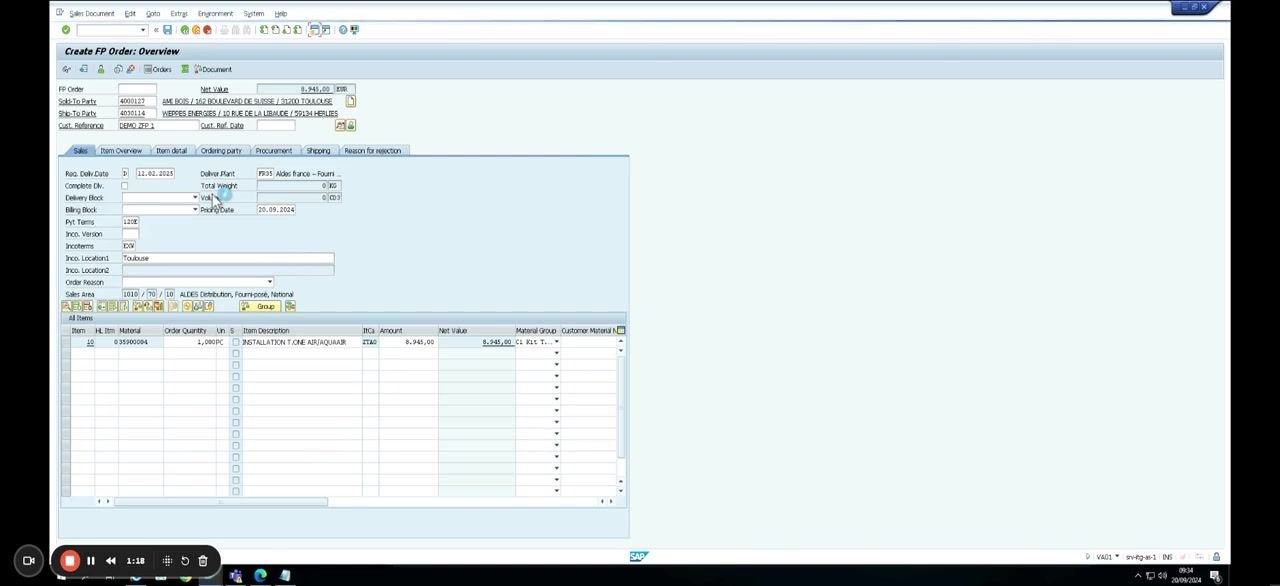
Return to the Create FP Order: Overview screen to confirm your entries. The item table now shows Material 35900004, Order Quantity 1,000 PC, Item Description INSTALLATION T.ONE AIR/AQUA/AIR, and a Net Value of 8,945.00.
All entered data is visible and confirmed at this point.
Display the created FP order
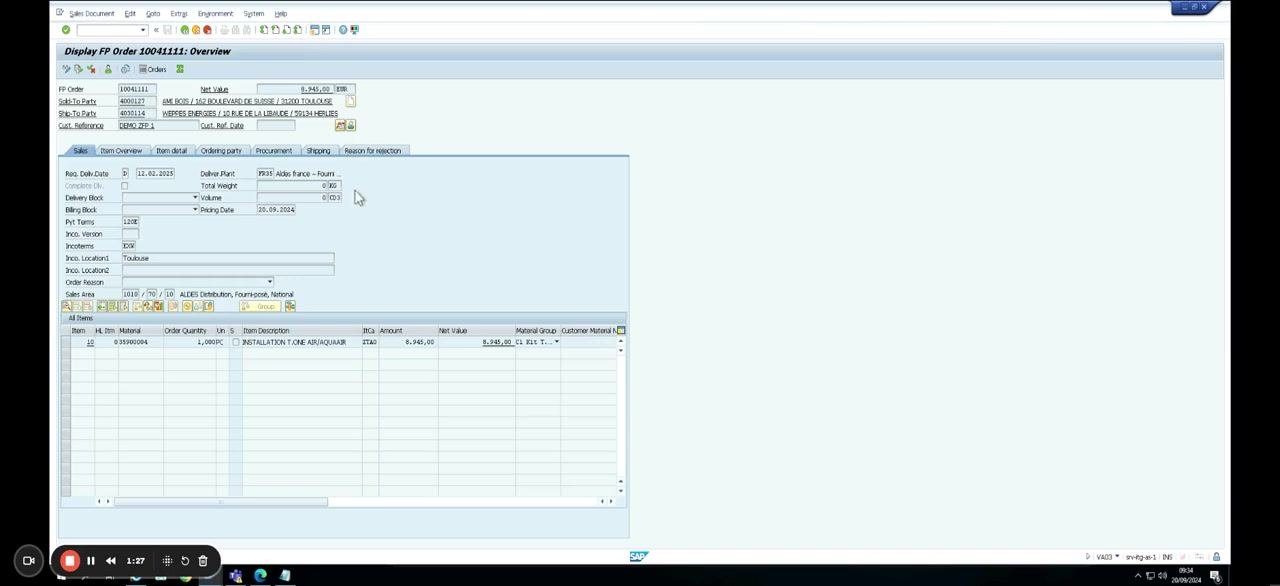
The system transitions to the Display FP Order screen for order number 10041111, with the screen title changing to "Display FP Order 10041111: Overview." All previously entered data now appears in read-only mode.
Both item and header details are available for your review on this screen.
Review the order header data and credit status
Navigate to the Header Data tab of the displayed order to review its status fields. Here you can see the Overall Status as In Process, Rejection Status as Nothing Rejected, Overall Credit Status as Not Approved, and Overall Billing Status as Blocked.
The Completeness section confirms that Overall Header, Delivery, and Billing are all marked as Complete. Reviewing this tab is essential when learning how to release a credit block in SAP S/4HANA, since it confirms whether the order carries an active credit or billing block.
Locate the sales document in the SD Documents list
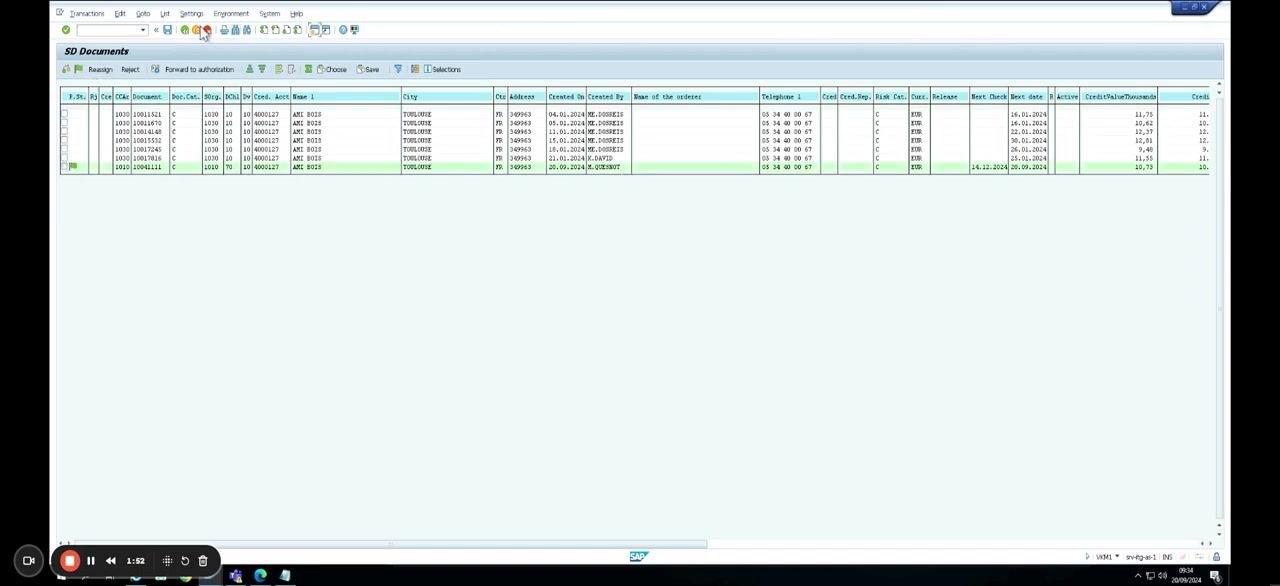
Navigate to the SD Documents overview screen, where a table lists multiple sales documents with columns such as Document, Doc. Cat., Stog., DCh., Cred. Prop., Risk Cat., Curr., Release, Next Check, Next Date, and Credit Value/Thousands.
Locate and select the row for document number 10041111, which is highlighted for further action. This list is where you can identify documents affected by a credit block before releasing them.
Open the sales document for editing
Double-click or select the highlighted sales document (10041111) to open it. The system transitions to the Change FP Order 10041111: Overview screen, showing the FP Order number, Net Value of 8,945.00 EUR, Sold-To Party 60001427 (AME BOIS / 31000 TOULOUSE), and Ship-To Party 60001427 (AME BOIS / 31000 TOULOUSE).
The item table confirms item 10, material 35900004, order quantity 1,000 PC, and item description "INSTALLATION T.ONE AIR/AQUA/AIR" with a net value of 8,945.00 EUR. Additional details include Delivery Plant FR35 Aldes France – Fourn.pools, Pricing Date 20.09.2024, and Incoterms EXW, Location: Toulouse.
What's next
With the sales document open in change mode and its credit status confirmed as Not Approved with an Overall Billing Status of Blocked, you are now positioned to take the necessary action on the order's credit block within this screen. Reviewing the Header Data tab and the SD Documents list, as shown above, are the key checkpoints for confirming a credit block before it is addressed.
Generation details: cost, quality tiers
Docsie billed 1,500 credits ($1.05) to analyze this 3-minute video at standard quality. The rewrite, template fill and Word/PDF exports were included. The same video at each quality tier:
| Quality | Frames sampled | Credits | Approx. cost |
|---|---|---|---|
| Draft | every 16-30 s | 750 | $0.52 |
| Standard (this guide) | every 8-15 s | 1,500 | $1.05 |
| Detailed | every 4-7 s | 3,000 | $2.10 |
| Ultra | every 1-3 s | 6,000 | $4.20 |
Credits priced at $0.70 per 1,000; plans include a monthly allowance. Enterprise customers on on-premise or bring-your-own-model deployments run this on their own inference and pay no per-video credits.
Generated by Docsie Video-to-Docs on 2026-09-08 from a 2-minute video. Screenshots are frames from the source video and belong to their creator, S4HCLUB - Learning SAP , whose original is embedded above. If you own this video and want the guide removed or credited differently, contact us and we will act within one business day.