
How to Assign a Shipping Point to a Plant in SAP
Assigning a shipping point to a plant in SAP SD links the physical location responsible for shipping goods to the plant that manages inventory and production. This guide walks you through the complete process using the SAP Implementation Guide (IMG), from navigating to the assignment screen to confirming the final shipping point selection for a specific plant.
Video: 09 ASSIGN SHIPPING POINT TO PLANT by Vimal Bhandari (2015). All credit for the demonstration goes to the creator; watch the original on YouTube. The written guide below was generated from this video by Docsie. Creator? Request a change or removal.
Assigning a shipping point to a plant in SAP SD links the physical location responsible for shipping goods to the plant that manages inventory and production. This guide walks you through the complete process using the SAP Implementation Guide (IMG), from navigating to the assignment screen to confirming the final shipping point selection for a specific plant.
Prerequisites
- Access to the SAP GUI with authorization to open the Implementation Guide (IMG).
- Knowledge of the plant code or name you want to configure.
- Familiarity with the shipping points available in your SAP system.
Navigate to the assignment section in SAP
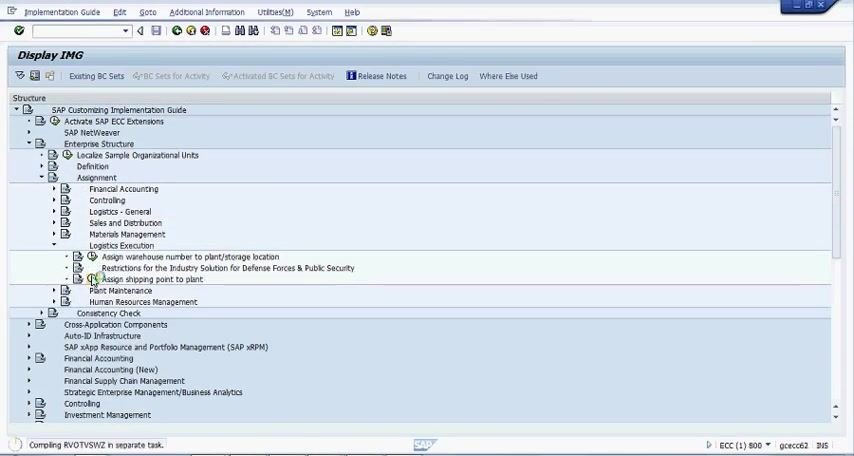
Open the SAP GUI and access the Display IMG (Implementation Guide) screen. Follow this menu path:
- SAP Customizing Implementation Guide
- Enterprise Structure
- Assignment
- Logistics Execution
- Assign shipping point to plant
Expand each node as needed until you reach the Assign shipping point to plant option.
Select the assignment activity
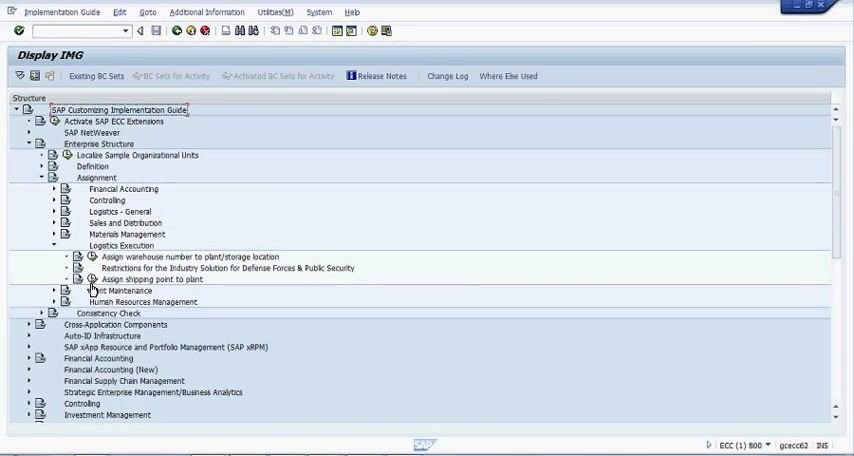
Click on the Assign shipping point to plant node to select it. The node becomes highlighted, confirming your selection.
Confirm the selection by double-clicking it or pressing Enter. The system may briefly show a loading or processing indicator while it prepares the next screen.
View and manage shipping point assignments
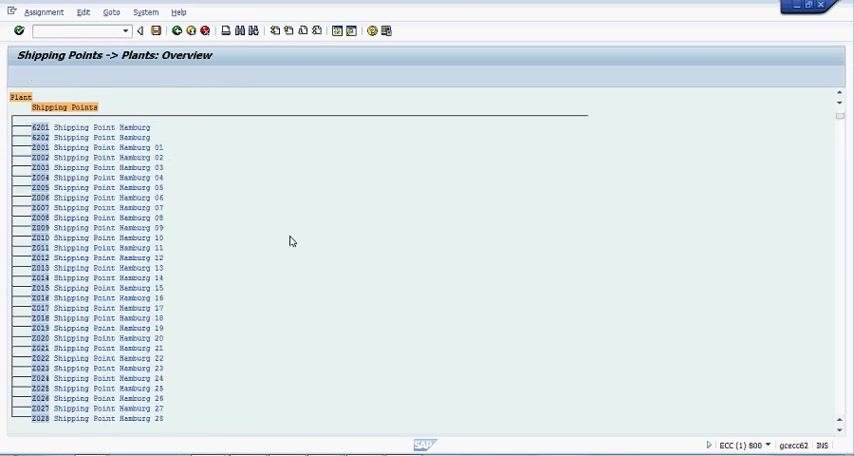
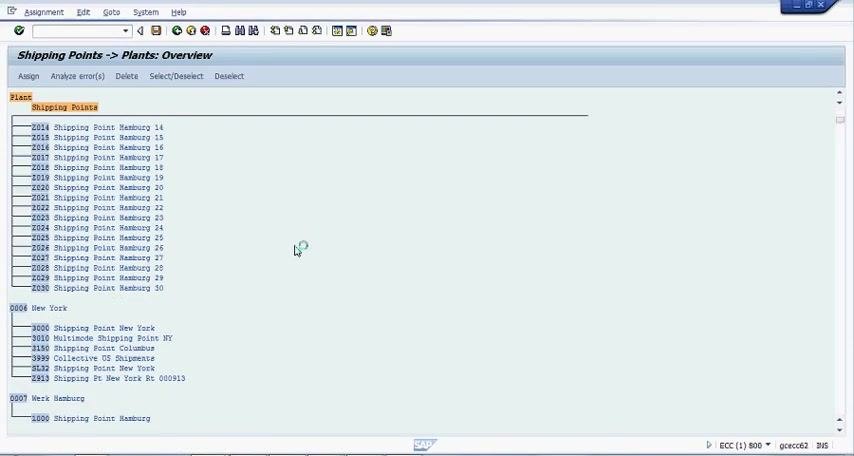
The Shipping Points -> Plants: Overview screen appears, displaying a list of plants alongside their assigned shipping points. For example:
- Plant 0001 (Werk 0001) is assigned shipping point 0001.
- Plant 0006 (Hamburg) has multiple shipping points assigned, such as 6201 and 6202.
At the top of the screen, you have the following options: Assign, Analyze error(s), Delete, and Select/Deselect. The Shipping Points column is highlighted in orange for easy reference.
Search for a specific plant
Use the Find function (Ctrl+F or the Find icon) to locate a specific plant. Enter the plant name or code—for example, "JALANDHAR PLANT"—in the search field.
The system displays the number of hits and highlights the matching entry so you can confirm you have found the correct plant.
Choose the shipping point for the plant
After selecting the desired plant (for example, "JALANDHAR PLANT"), the Shipping Points -> Plants: Choose Shipping Point dialog box opens. This dialog lists all available shipping points, each with a unique code and description, such as:
- 6100 Shipping Point Monterrey D.F.
- 6200 Shipping Point Hamburg
- 7000 Shipping Point Sao Paulo
- K024 Shipping Point Dresden 24
- K030 Shipping Point Hamburg 30
- B310 Shipping point DC R101
- 0001 014 Shipping point 0001
- 1400 Shipping point Porto
Use the vertical scroll bar on the right side of the dialog box to browse through the full list, which includes both international locations and internal codes. In the background, the main SAP window remains on the Shipping Points -> Plants: Overview screen, with the Shipping Points column highlighted in orange and your selected plant visible.
Review the available options carefully to locate the correct shipping point for your assignment.
Assign the shipping point to the selected plant
With the correct plant identified (for example, JALANDHAR PLANT), select the appropriate shipping point from the list in the Shipping Points -> Plants: Choose Shipping Point dialog—such as Shipping Point Berlin, Dresden, or Frankfurt.
Click the green checkmark (✔) to confirm the assignment, or click Cancel (✘) to abort the selection.
Finalize the assignment
After you confirm the shipping point selection, the dialog box closes and the Shipping Points -> Plants: Overview screen updates to reflect the new assignment for the selected plant.
Review the updated list to verify that the correct shipping point is now associated with the plant. If you need to configure additional plants, repeat the search and assignment process for each one.
Summary
You have now completed the process of assigning a shipping point to a plant in SAP SD: navigating the IMG path, selecting the assignment activity, searching for the target plant, choosing the correct shipping point, and confirming the assignment. Always verify the updated overview screen before exiting the configuration to ensure the assignment was applied correctly.
Generation details: cost, quality tiers
Docsie billed 2,000 credits ($1.40) to analyze this 4-minute video at standard quality. The rewrite, template fill and Word/PDF exports were included. The same video at each quality tier:
| Quality | Frames sampled | Credits | Approx. cost |
|---|---|---|---|
| Draft | every 16-30 s | 1,000 | $0.70 |
| Standard (this guide) | every 8-15 s | 2,000 | $1.40 |
| Detailed | every 4-7 s | 4,000 | $2.80 |
| Ultra | every 1-3 s | 8,000 | $5.60 |
Credits priced at $0.70 per 1,000; plans include a monthly allowance. Enterprise customers on on-premise or bring-your-own-model deployments run this on their own inference and pay no per-video credits.
Generated by Docsie Video-to-Docs on 2026-10-19 from a 3-minute video. Screenshots are frames from the source video and belong to their creator, Vimal Bhandari, whose original is embedded above. If you own this video and want the guide removed or credited differently, contact us and we will act within one business day.