
How to Maintain the TVARVC Table in SAP
The TVARVC table lets you store dynamic variables in SAP instead of hard-coding values directly into your ABAP programs. This guide explains how to maintain the TVARVC table in SAP so you can trigger specific logic for different company codes or other criteria without changing any program code.
Video: SAP ABAP: How to maintain TVARVC table in SAP using STVARV Tcode? by arghadip kar (2020). All credit for the demonstration goes to the creator; watch the original on YouTube. The written guide below was generated from this video by Docsie. Creator? Request a change or removal.
The TVARVC table lets you store dynamic variables in SAP instead of hard-coding values directly into your ABAP programs. This guide explains how to maintain the TVARVC table in SAP so you can trigger specific logic for different company codes or other criteria without changing any program code.
Why use dynamic variables
Storing values in the TVARVC table gives your programs flexibility. Instead of writing logic tied to a fixed value, you reference a variable that can be updated independently of the code.
For example, if you built a requirement for Germany and later need the same logic applied to France, you simply update the table entry rather than modifying the underlying program.
Prerequisites
- Access to an SAP system with a valid login.
- Authorization to maintain the TVARVC table.
Access the SAP Easy Access screen
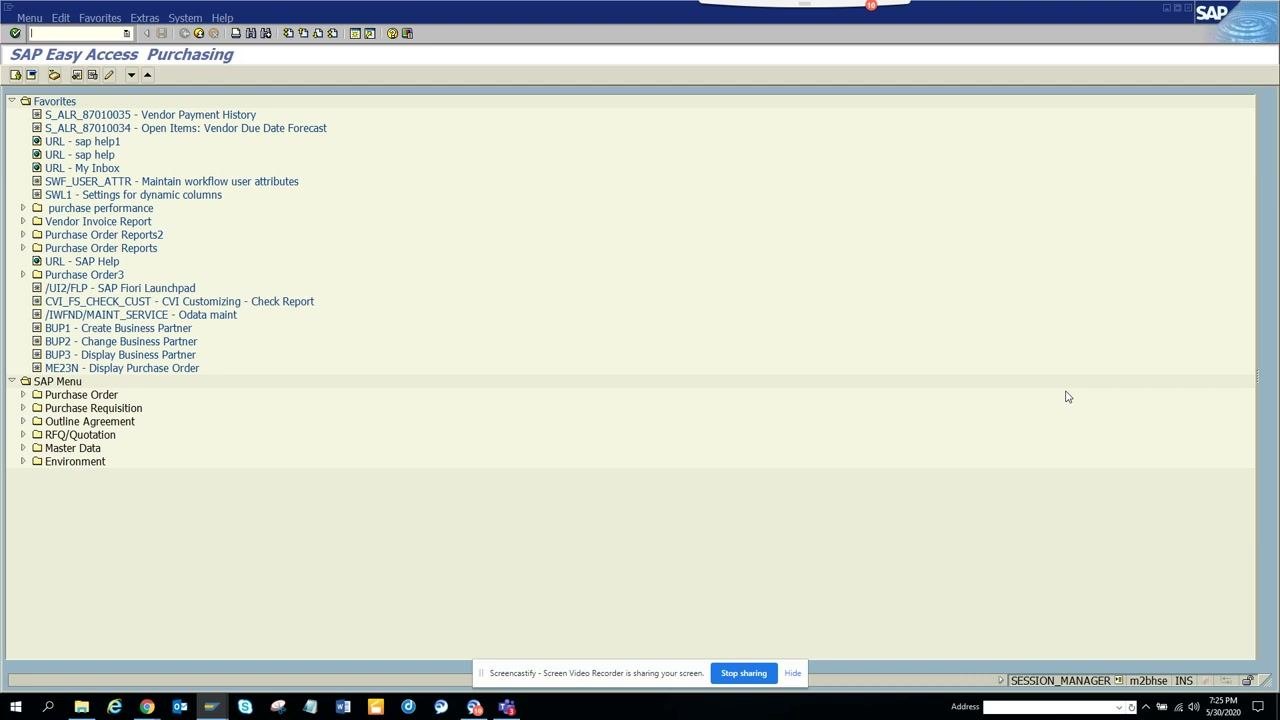
Launch SAP and log in to your system. Confirm you are on the SAP Easy Access screen, which is typically labeled "Purchasing" or with the name of your relevant module.
The left pane displays your Favorites and SAP Menu folders, ready for you to enter a transaction.
Enter the TVARVC table maintenance transaction
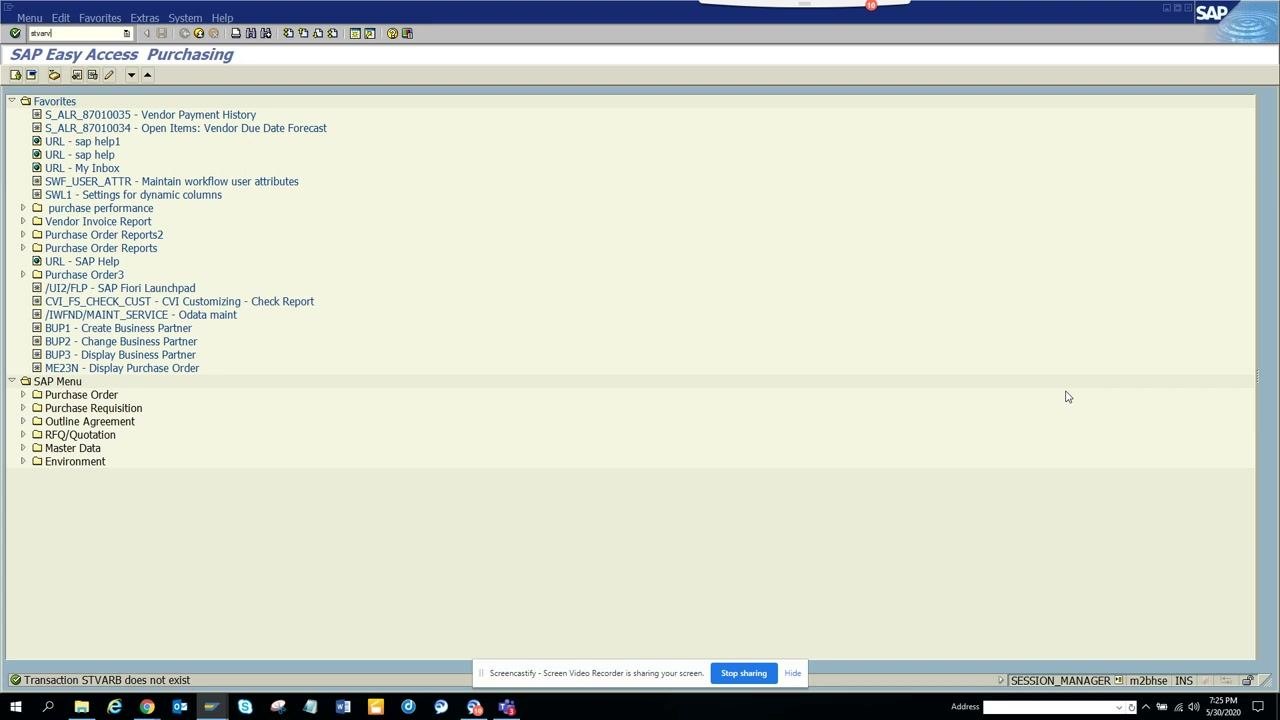
In the command field at the top of the screen, type STVARV and press Enter.
If you enter an incorrect transaction code (for example, STVARVB), SAP displays an error message at the bottom of the screen reading "Transaction STVARVB does not exist." Double-check your entry and try again.
View and edit Table TVARVC: Selection Variables
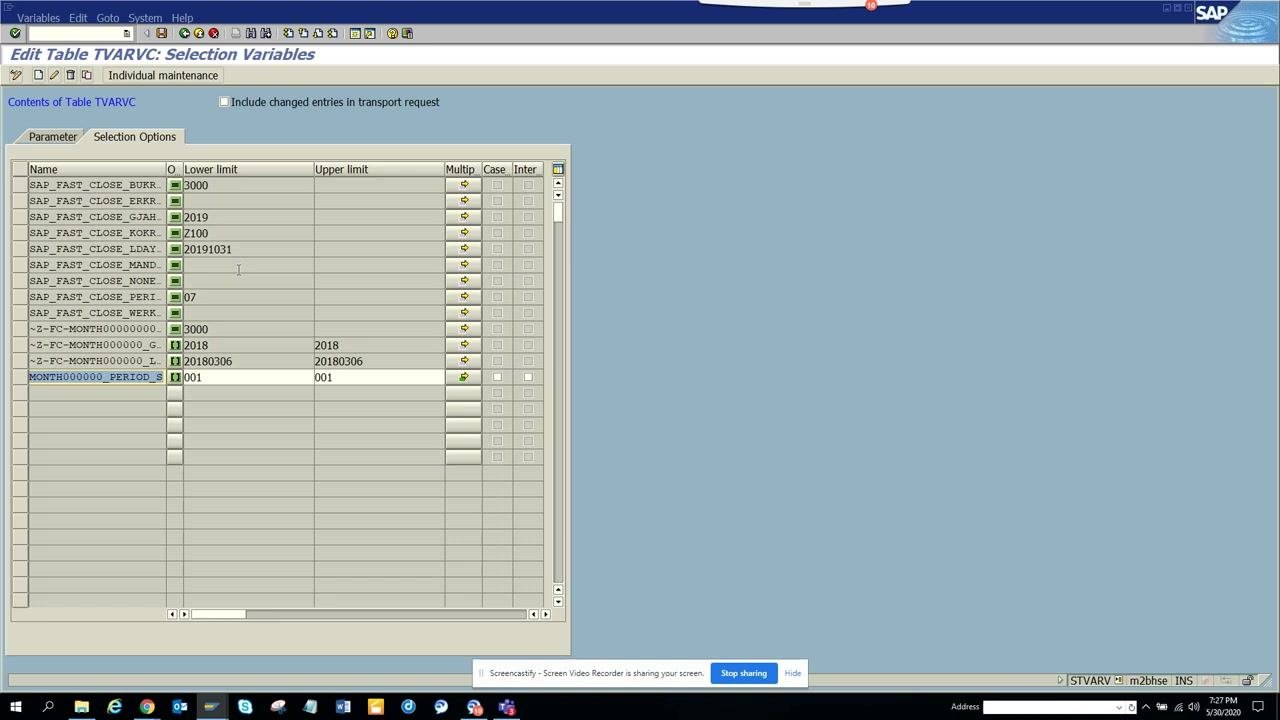
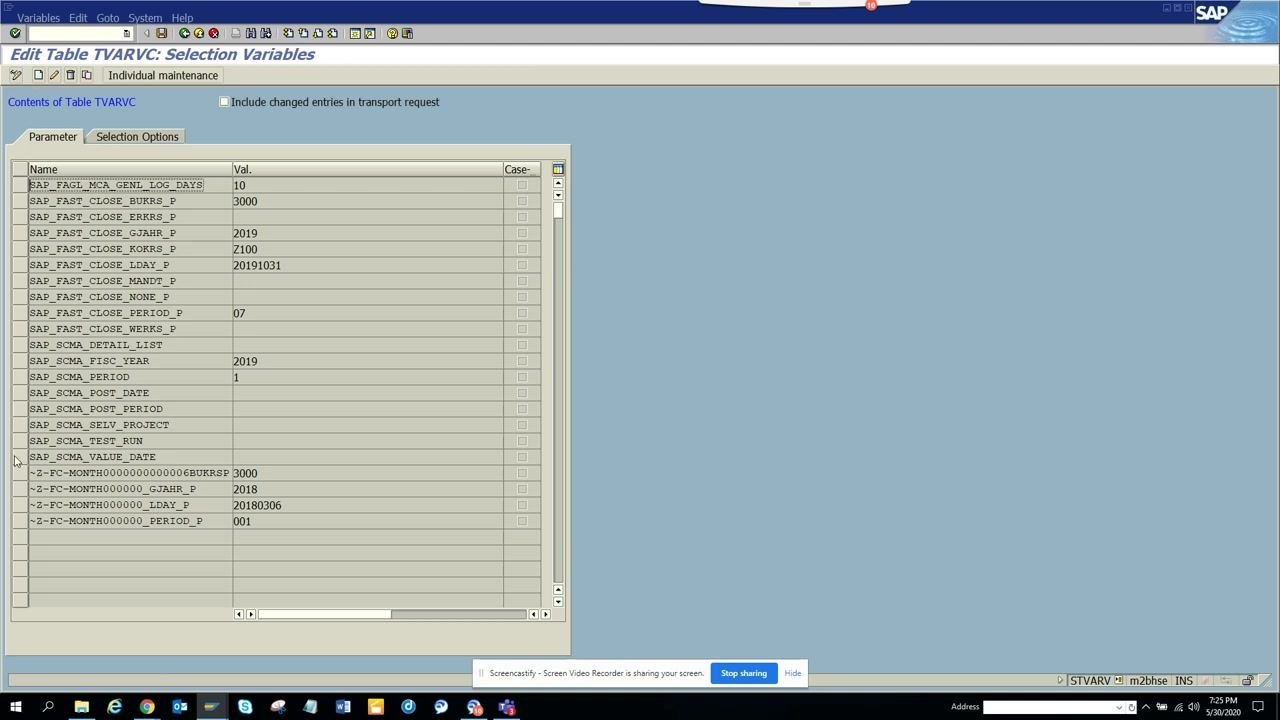
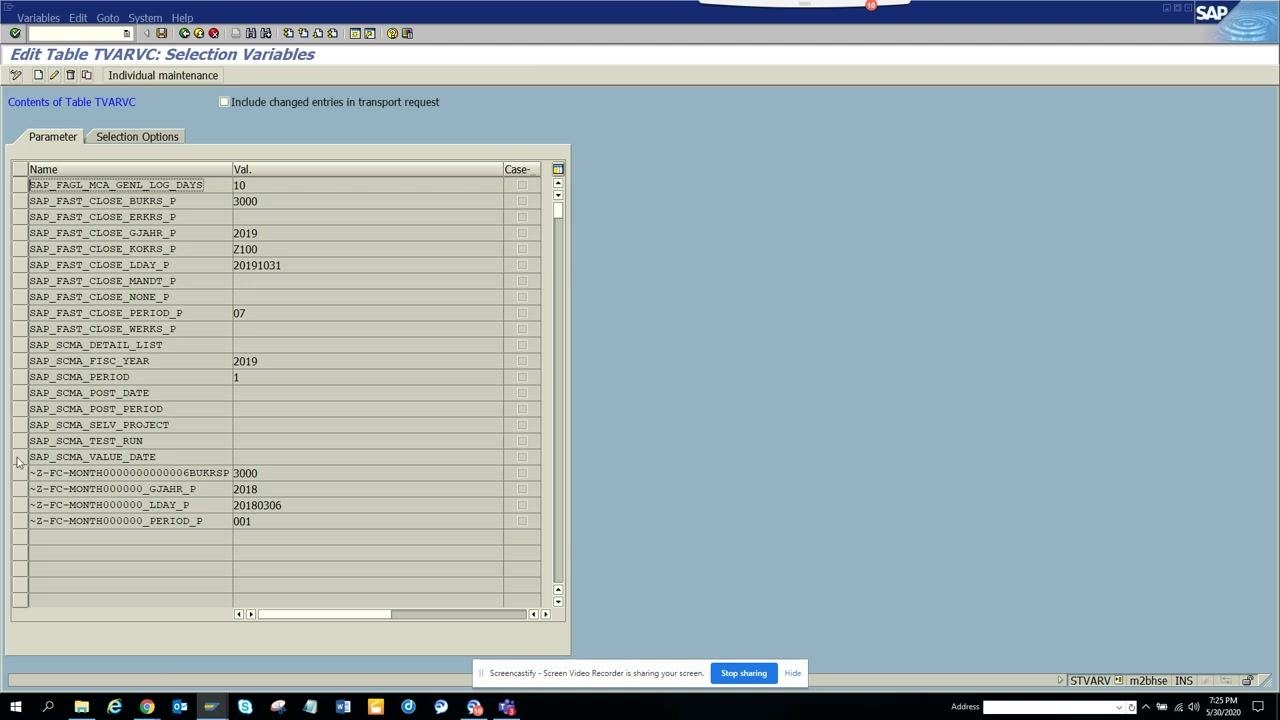
Once the correct transaction loads, the Edit Table TVARVC: Selection Variables screen appears. You will see two tabs: Parameter and Selection Options.
The table lists existing entries in columns for Name, Value (Val.), and Case.
To create a new parameter:
- Click the Create button (or press F5).
- In the Name column, enter your parameter, for example
z_fi_comp. - In the Val. column, enter the corresponding value, for example
0001.
Save the new parameter entry
After entering the new parameter and its value, click the Save icon in the toolbar.
Your new entry — for example, z_fi_comp with value 0001 — now appears in the list of parameters.
Switch to the Selection Options tab
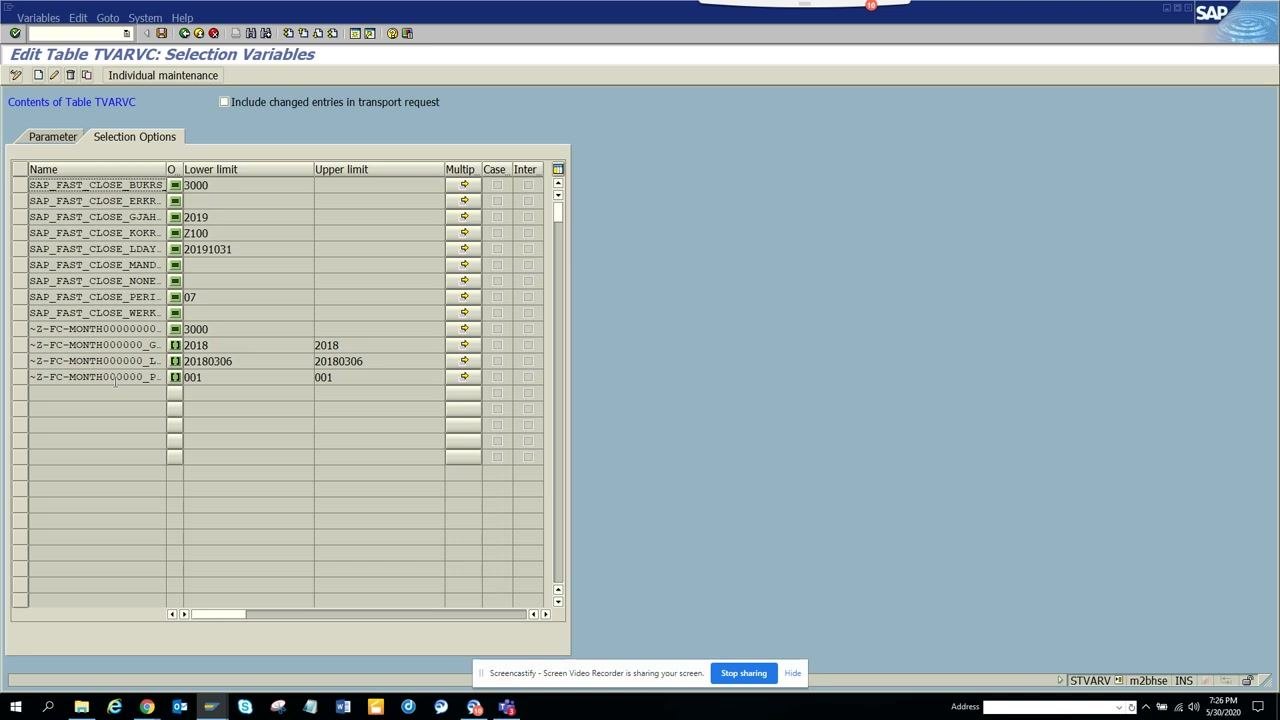
Click the Selection Options tab to view or edit selection option entries. This tab lets you create or modify entries using lower and upper limits.
To create a new selection option:
- Click the Create button.
- Enter the required values in the Lower limit and Upper limit columns.
To edit an existing entry, click on the desired row to select it for modification.
Change or display entries
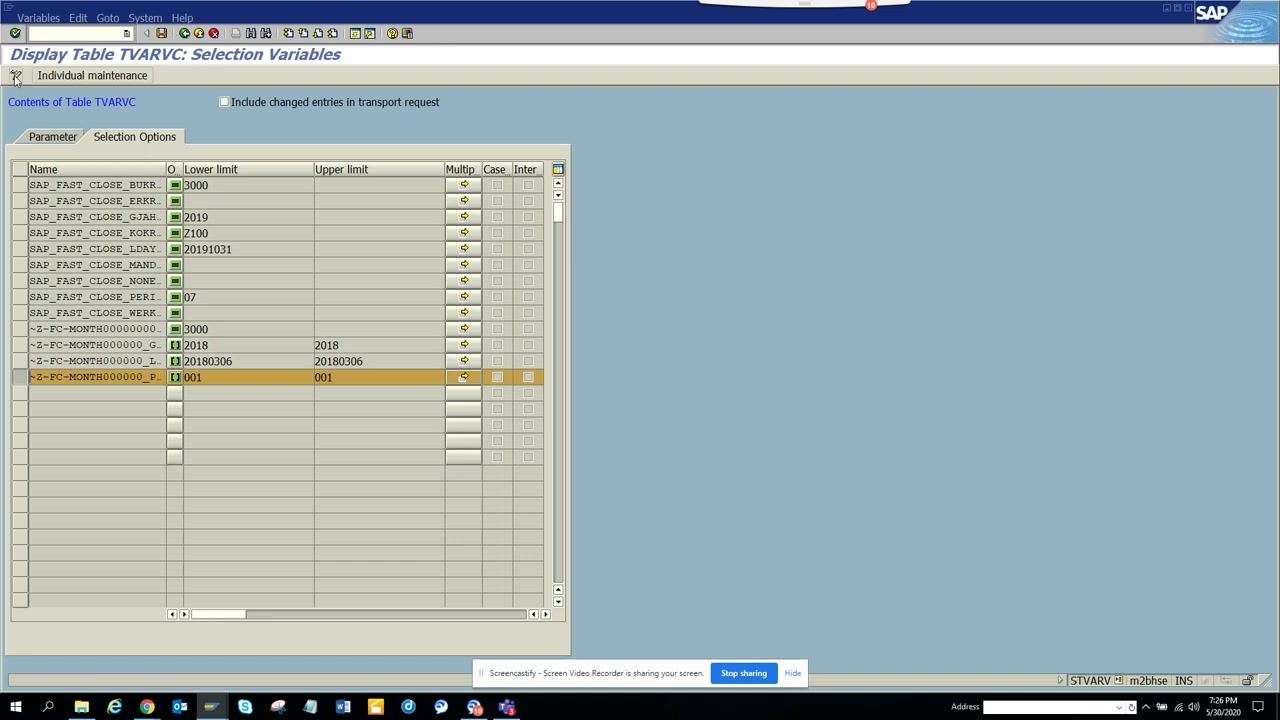
To toggle between display and change modes, click the Display <-> Change button, or press Ctrl+F1.
Select the entry you wish to modify and make the necessary changes. Once finished, save your changes to complete the update.
Summary
You have now learned how to maintain the TVARVC table in SAP by accessing the STVARV transaction, creating and saving new parameters, working with selection options, and toggling between display and change modes. Using dynamic variables this way keeps your ABAP programs flexible and reduces the need for direct code changes when business requirements expand to new company codes or criteria.
Generation details: cost, quality tiers
Docsie billed 1,500 credits ($1.05) to analyze this 3-minute video at standard quality. The rewrite, template fill and Word/PDF exports were included. The same video at each quality tier:
| Quality | Frames sampled | Credits | Approx. cost |
|---|---|---|---|
| Draft | every 16-30 s | 750 | $0.52 |
| Standard (this guide) | every 8-15 s | 1,500 | $1.05 |
| Detailed | every 4-7 s | 3,000 | $2.10 |
| Ultra | every 1-3 s | 6,000 | $4.20 |
Credits priced at $0.70 per 1,000; plans include a monthly allowance. Enterprise customers on on-premise or bring-your-own-model deployments run this on their own inference and pay no per-video credits.
Generated by Docsie Video-to-Docs on 2026-10-14 from a 2-minute video. Screenshots are frames from the source video and belong to their creator, arghadip kar, whose original is embedded above. If you own this video and want the guide removed or credited differently, contact us and we will act within one business day.