
How to Create a T-code for a Report in SAP
Transaction codes act as shortcuts that let users open applications or programs quickly in SAP, without needing to remember or type the full program name. This guide walks you through how to create a T-code for a report in SAP ABAP, link it to your custom report program, and verify that it works correctly.
Video: 31 - ABAP Programming - Transaction Code Creation for Executable Programs by SAP ABAP by Rahul Mehta (2023). All credit for the demonstration goes to the creator; watch the original on YouTube. The written guide below was generated from this video by Docsie. Creator? Request a change or removal.
Transaction codes act as shortcuts that let users open applications or programs quickly in SAP, without needing to remember or type the full program name. This guide walks you through how to create a T-code for a report in SAP ABAP, link it to your custom report program, and verify that it works correctly.
Prerequisites
- A custom ABAP program that starts with the
REPORTkeyword (an executable report with a selection screen). - Access to transaction SE93 in your SAP system.
- Authorization to save objects under a local package (
$TMP) or a transport-enabled package.
Verify your program type
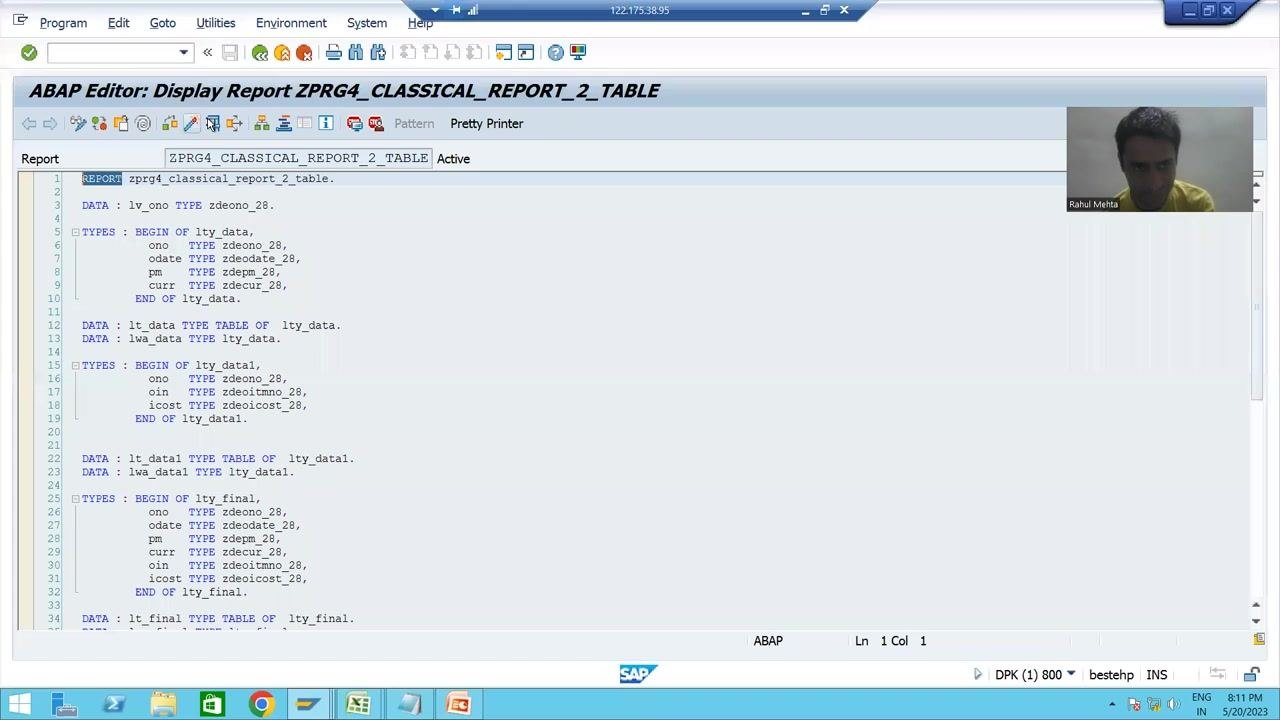
Before creating a transaction code, confirm that your ABAP program is the right type.
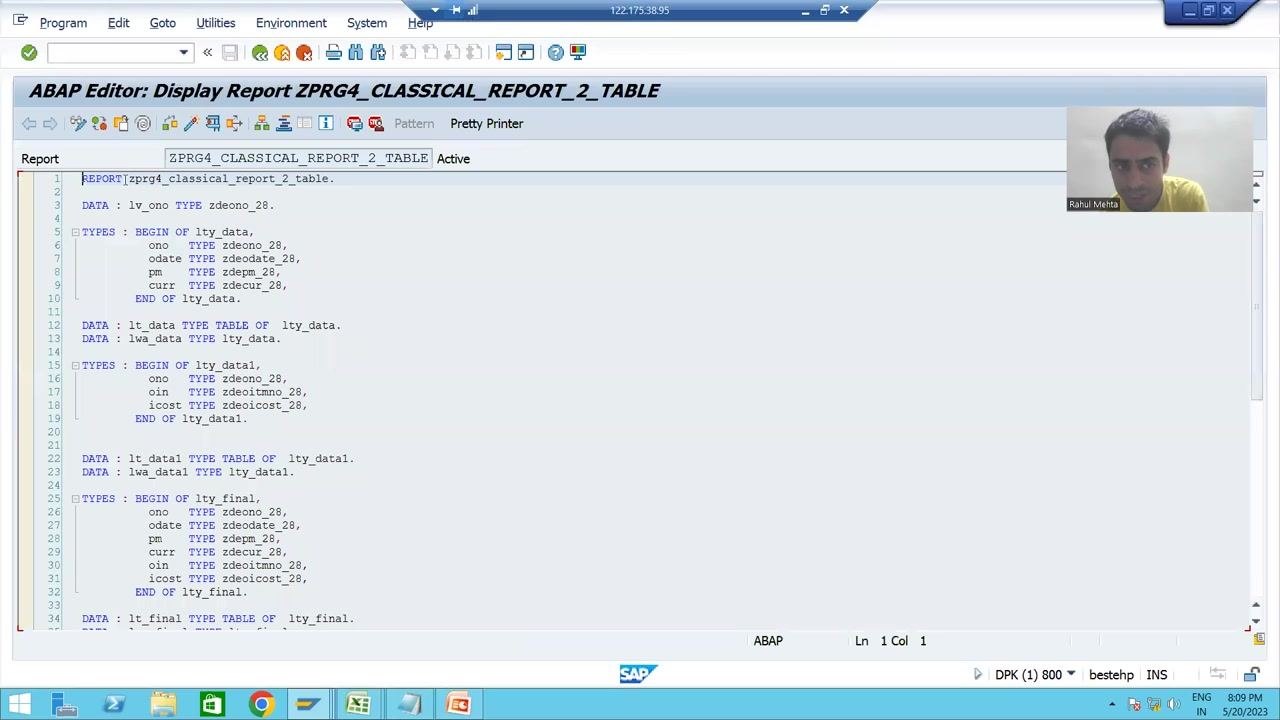
- Open your ABAP program in the editor and check the first line.
- If the first word is
REPORT, your program is an executable report with a selection screen. - For example, the program
ZPRG4_CLASSICAL_REPORT_2_TABLEstarts withREPORT zprg4_classical_report_2_table., confirming it is a report program.
Understand why you need a transaction code
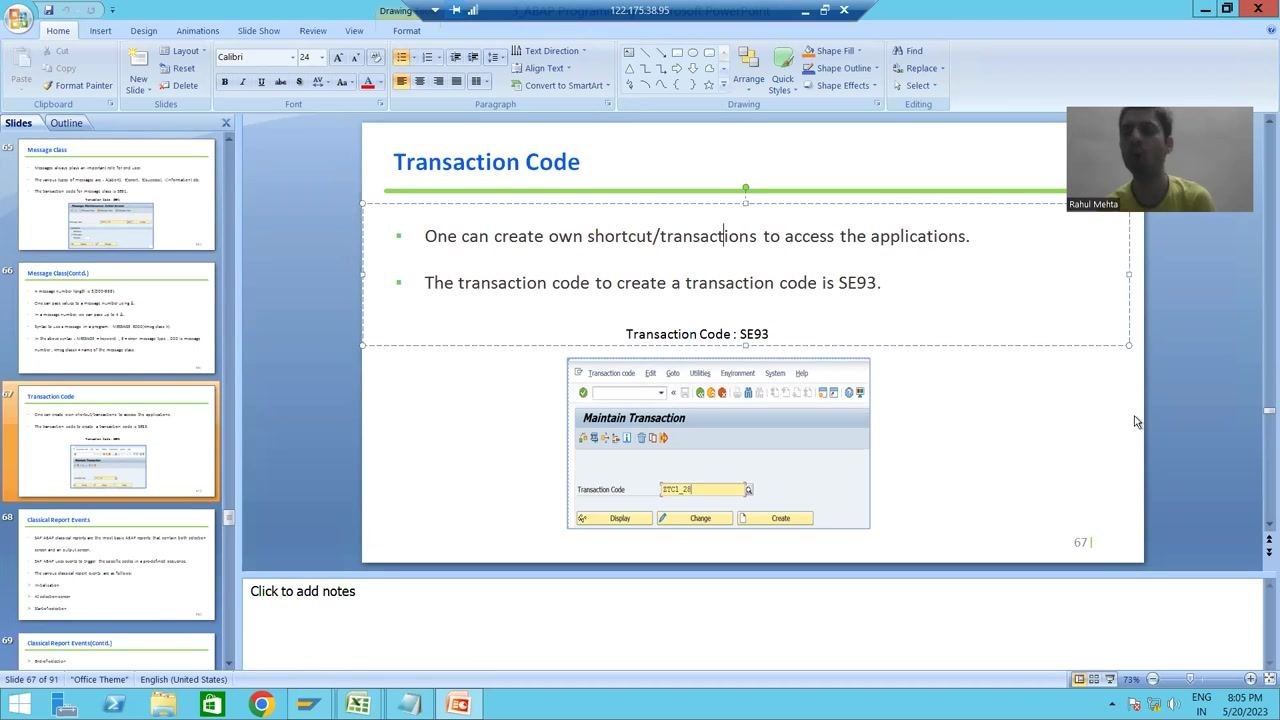
Customers often find it difficult to remember program names, and they do not want to manually enter the program name or click the execute button every time. They expect a direct shortcut—a transaction code—that takes them straight to the program screen. Creating a transaction code for your custom ABAP program solves this by giving end users an easily accessible shortcut.
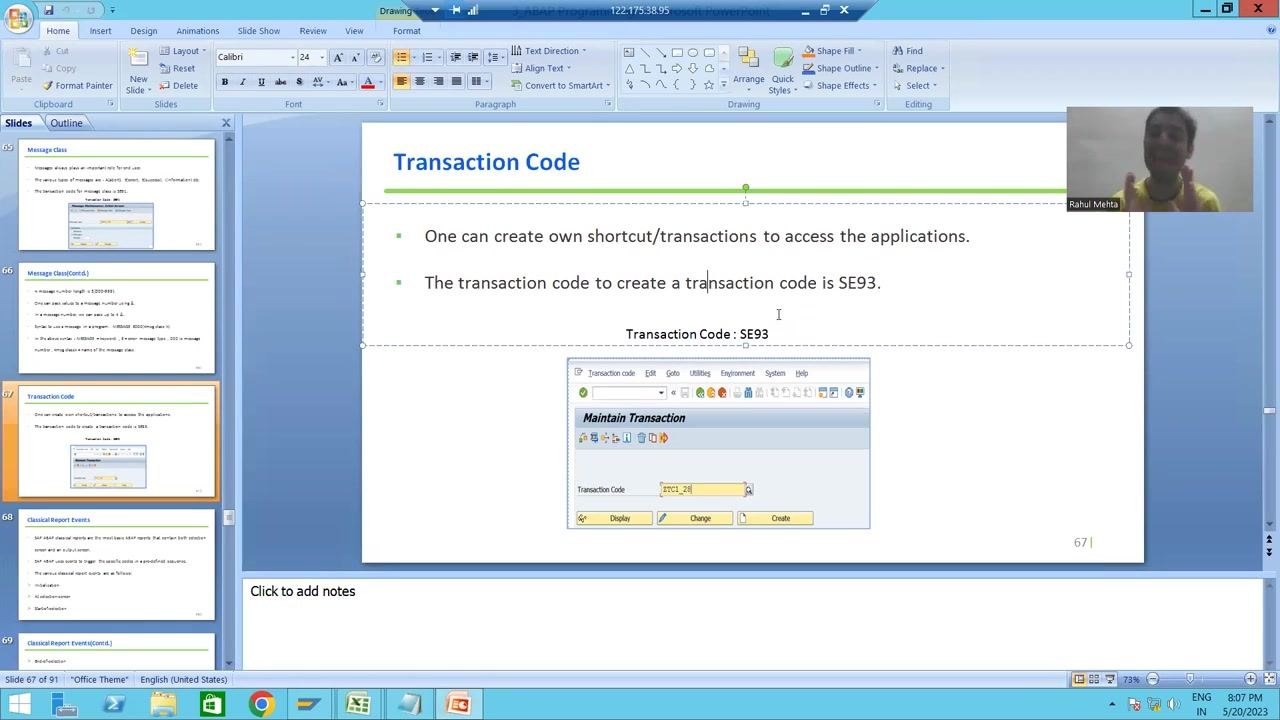
The transaction code used to create a new transaction code is SE93. The Maintain Transaction screen in SE93 is where you define this shortcut.
Navigate to transaction SE93
Open the Maintain Transaction screen where you will define your new shortcut.
- In the SAP GUI command field, enter
/nSE93and press Enter. - This opens the Maintain Transaction screen.
Enter a new transaction code
On the Maintain Transaction screen, define the custom code you want to use.
- Click in the Transaction Code field.
- Enter a new transaction code, for example
ZORD. - Use a short code that starts with
ZorY(or5on some systems) to indicate that it is a custom transaction.
Create the transaction code
Click the Create button to start defining the new transaction code.
Choose the start object
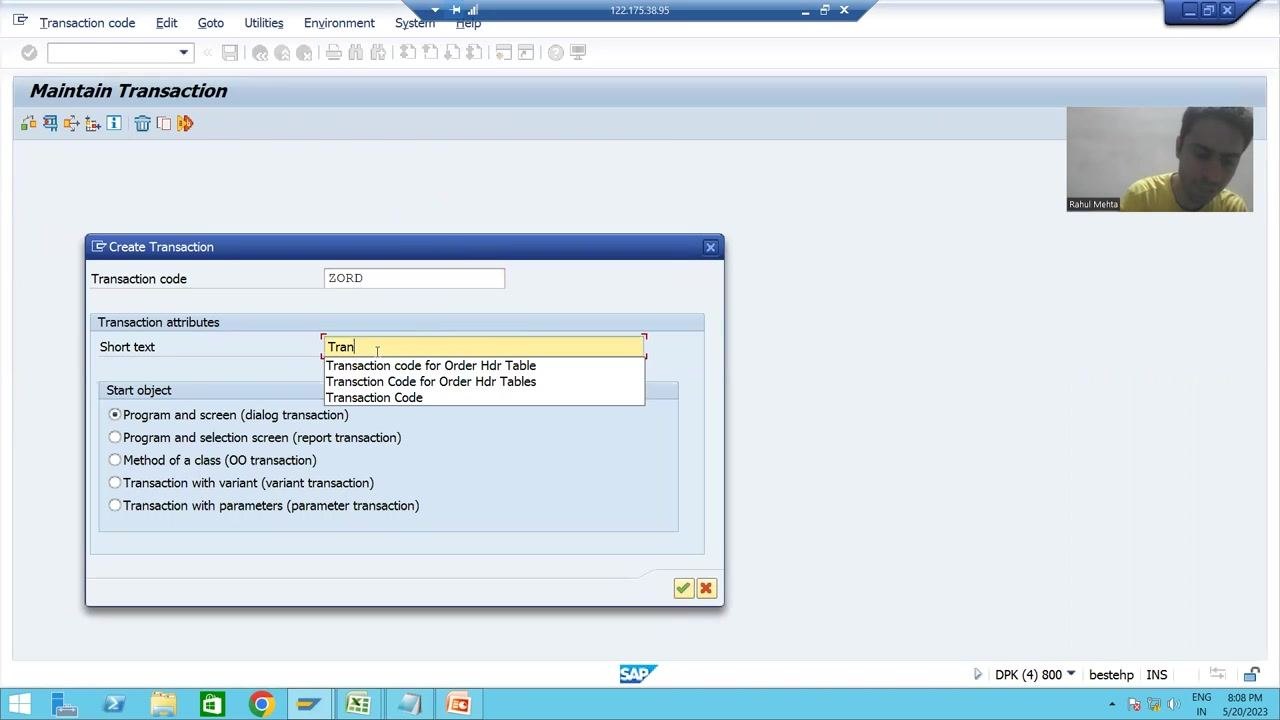
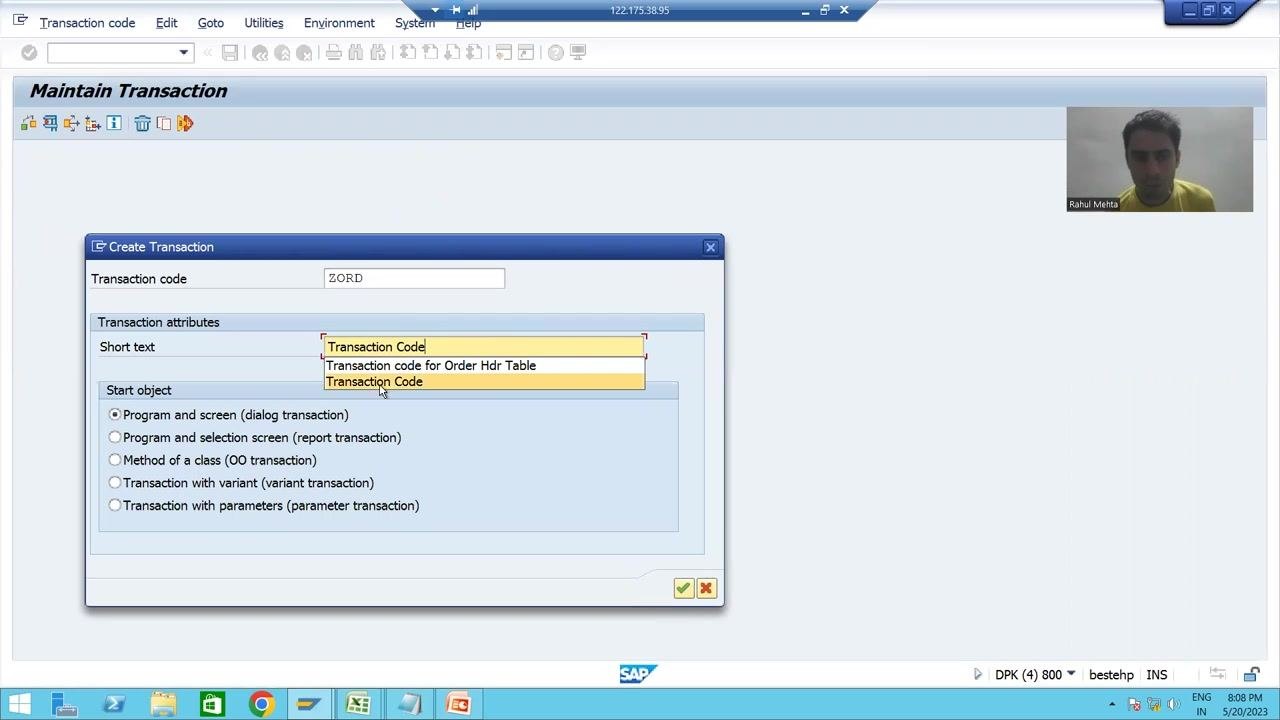
In the Create Transaction dialog, enter the attributes for your new transaction and select the correct start object.
- Confirm the Transaction code field shows your chosen code (for example,
ZORD). - In the Short text field, enter a description such as
Transaction Code. - Under Start object, select the option that matches your program type. For a report program with a selection screen, choose Program and selection screen (report transaction).
The Start object options available are:
- Program and screen (dialog transaction) — used for module pool or dialog programming.
- Program and selection screen (report transaction) — used for executable report programs that start with
REPORTand have a selection or input screen. - Method of a class (OO transaction)
- Transaction with variant (variant transaction)
- Transaction with parameters (parameter transaction) — used for table maintenance views, such as those created via SM30.
For an ABAP report program like the one in this guide, select Program and selection screen (report transaction).
Confirm and proceed
Click the green checkmark button (OK) at the bottom right of the dialog to proceed. The system automatically assigns a selection screen number.
Review the selection screen details
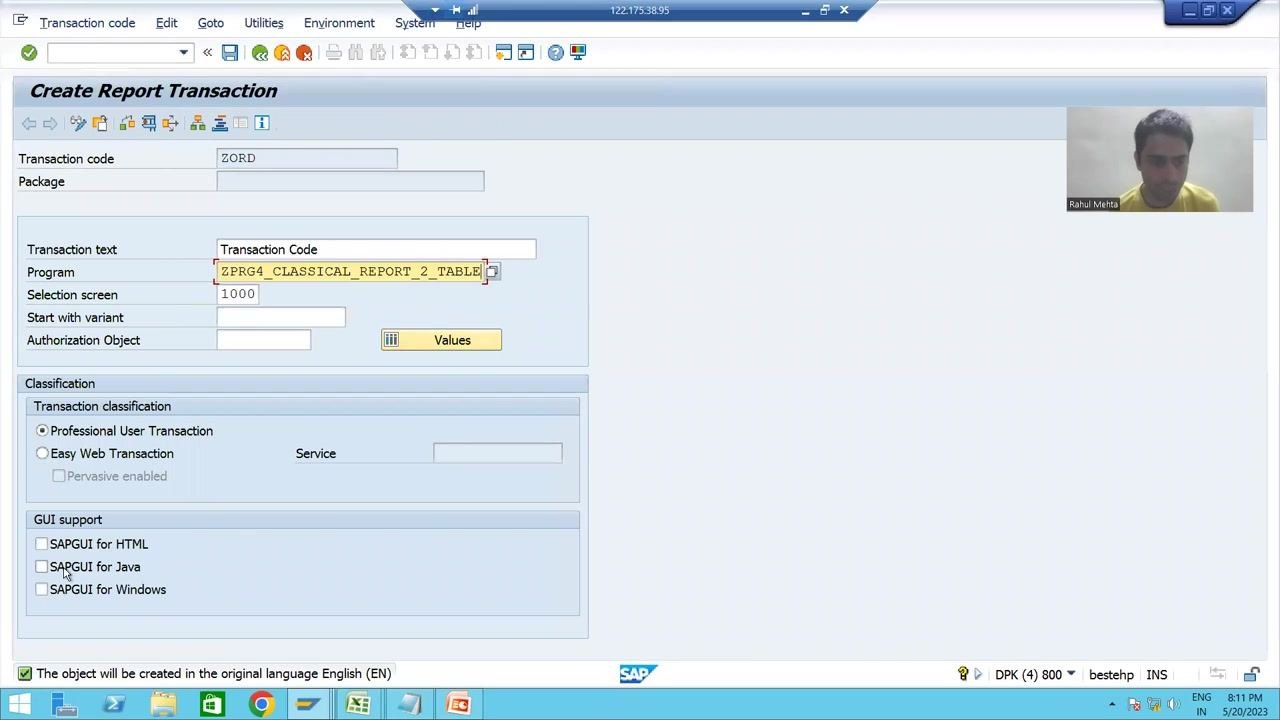
The Create Report Transaction screen displays the details assigned to your transaction code.
- Transaction code:
ZORD - Transaction text:
Transaction Code - Selection screen:
1000(filled in automatically) - Under Classification, ensure Professional User Transaction is selected.
The selection screen number (1000) links the transaction code to the input screen of your report program. It is assigned automatically when you choose Program and selection screen as the start object.
Confirm the program name
When prompted, make sure the correct program name (for example, ZPRG4_CLASSICAL_REPORT_2_TABLE) is passed in the relevant SAP dialogs or fields. This ensures the transaction code executes the intended report.
Select all GUI support options
In the Create Report Transaction screen, locate the GUI support section and select all three options:
- SAPGUI for HTML
- SAPGUI for Java
- SAPGUI for Windows
Selecting all three ensures the transaction code can be executed from any supported SAP GUI interface, giving you maximum compatibility across different customer environments.
Save the transaction code
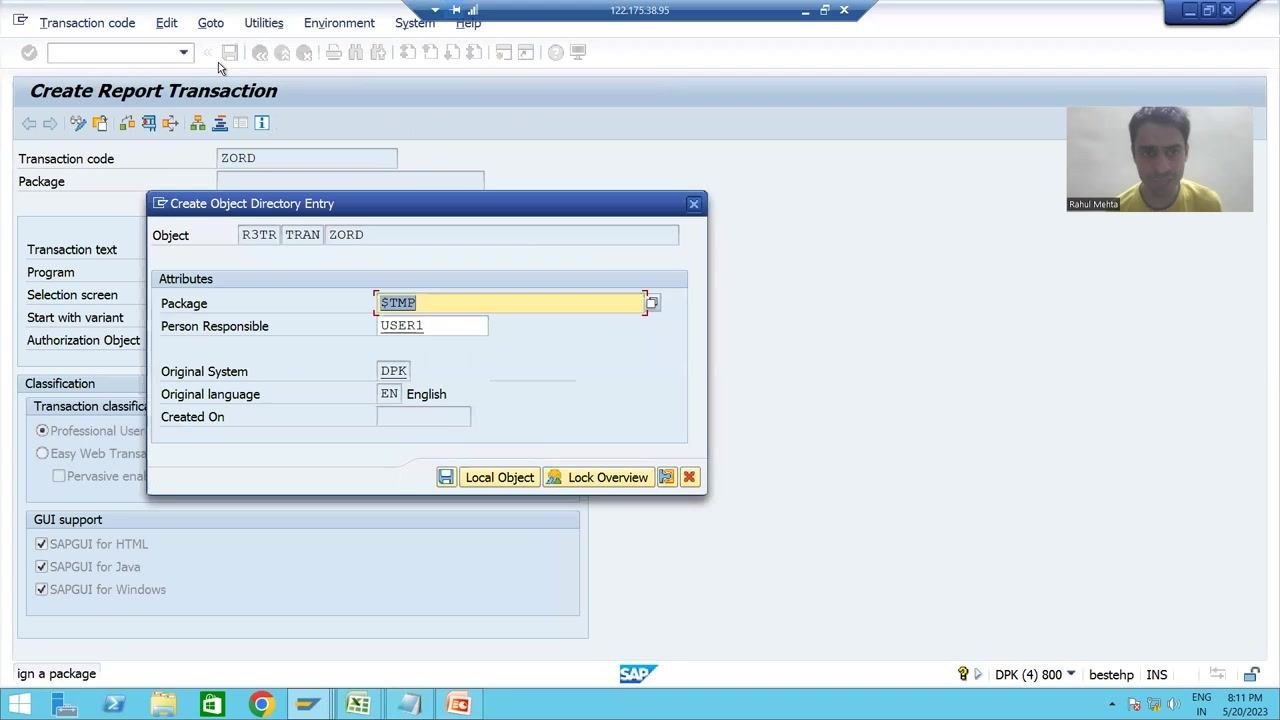
Save your transaction code configuration and assign it to a package.
- Click the save icon (floppy disk) or use the corresponding menu option.
- In the Create Object Directory Entry dialog, enter
$TMPin the Package field to save it as a local object not intended for transport. - Confirm or enter the responsible user in the Person Responsible field (for example,
USER1). - Review the Original System and Original language fields.
- Click Local Object to save the transaction code.
Verify the transaction code was created
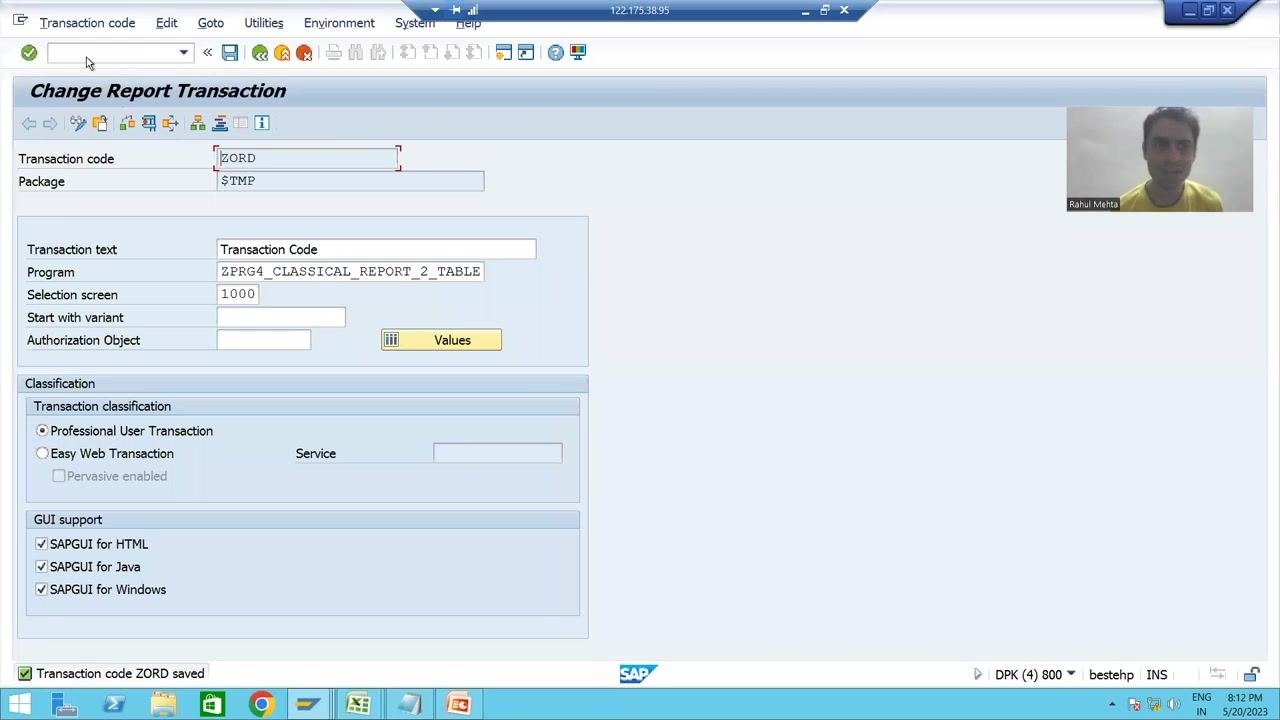
After saving, the Change Report Transaction screen appears. Confirm the following details:
- Transaction code:
ZORD - Package:
$TMP - Program:
ZPRG4_CLASSICAL_REPORT_2_TABLE - Selection screen:
1000 - All three GUI support options are checked.
A confirmation message at the bottom of the screen states: "Transaction code ZORD saved."
Test the transaction code
Verify that your new T-code launches the report as expected.
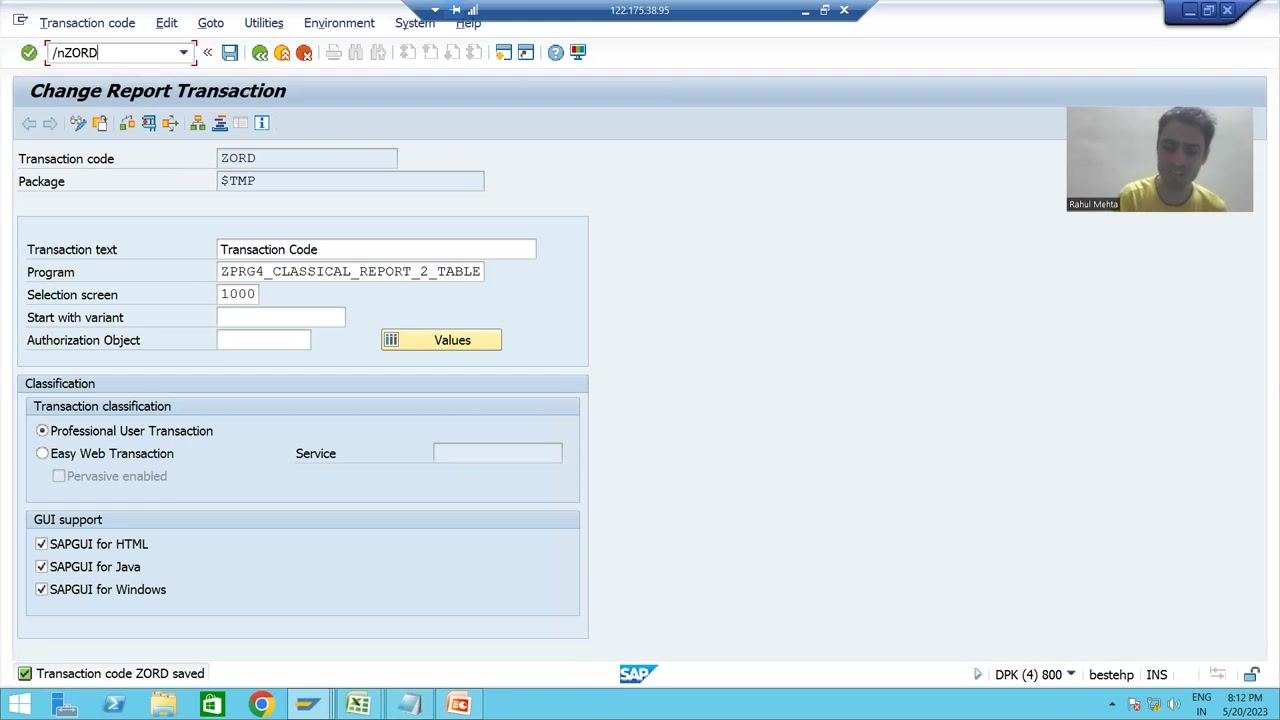
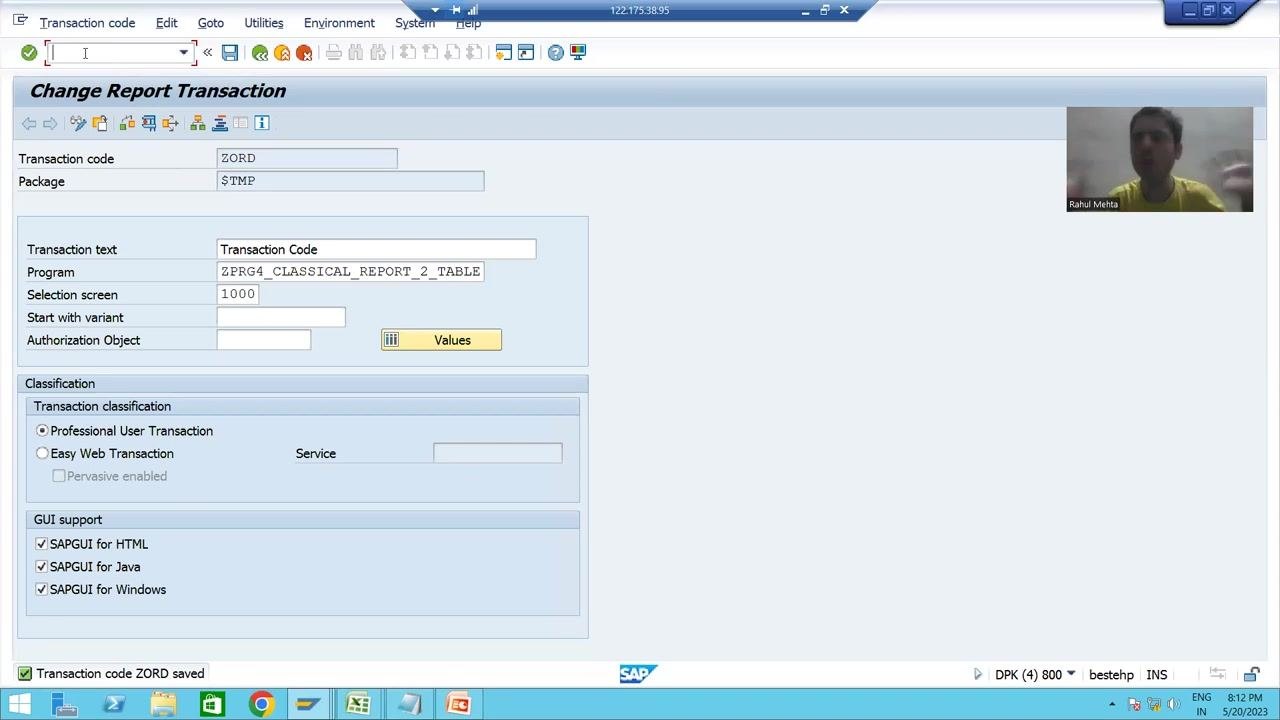
- In the SAP command field, enter
/nZORDand press Enter. - This executes the transaction and launches the associated report program.
Verify program execution
Confirm that the report runs and displays the expected output.
- In this example, the report displays order details from the order header and order item tables.
- The output includes columns for order numbers, item numbers, dates, types, amounts, and currency (INR).
Share the transaction code with the customer
Provide the transaction code (ZORD) to the customer and explain that they should use it to run the program, since it is easier to remember and use than the full program name. The customer does not need to run the program directly—they only need to enter the transaction code.
Summary
- Always use a custom prefix (
Z,Y, or5) for new transaction codes. - Provide a meaningful short text so the transaction is easy to identify.
- Select the correct start object based on your program type—most custom reports use Program and selection screen (report transaction).
- It is the technical team's responsibility to deliver the transaction code together with the program.
By following these steps, you have created a transaction code for your executable report, linked it to the correct selection screen, and verified the configuration in SAP. The selection screen number (1000) is assigned automatically when you choose Program and selection screen, streamlining the process of connecting your report to a transaction code.
Generation details: cost, quality tiers
Docsie billed 4,500 credits ($3.15) to analyze this 9-minute video at standard quality. The rewrite, template fill and Word/PDF exports were included. The same video at each quality tier:
| Quality | Frames sampled | Credits | Approx. cost |
|---|---|---|---|
| Draft | every 16-30 s | 2,250 | $1.57 |
| Standard (this guide) | every 8-15 s | 4,500 | $3.15 |
| Detailed | every 4-7 s | 9,000 | $6.30 |
| Ultra | every 1-3 s | 18,000 | $12.60 |
Credits priced at $0.70 per 1,000; plans include a monthly allowance. Enterprise customers on on-premise or bring-your-own-model deployments run this on their own inference and pay no per-video credits.
Generated by Docsie Video-to-Docs on 2026-10-14 from a 8-minute video. Screenshots are frames from the source video and belong to their creator, SAP ABAP by Rahul Mehta, whose original is embedded above. If you own this video and want the guide removed or credited differently, contact us and we will act within one business day.