
How to Create a Sales Order in SAP VA01
This guide walks you through the complete process of creating a Scrap Sales Order in SAP using transaction code VA01. You will learn how to open the transaction, enter organizational data, add customer and shipping details, enter material and pricing information, review the document for completeness, and save the order. The guide also covers how to check the document flow and identifies the standard transaction codes used in the broader order-to-cash process.
Video: How to create Sales order in SAP with full information : T-CODE VA01 by SAP Information with Rahul sahu (2021). All credit for the demonstration goes to the creator; watch the original on YouTube. The written guide below was generated from this video by Docsie. Creator? Request a change or removal.
This guide walks you through the complete process of creating a Scrap Sales Order in SAP using transaction code VA01. You will learn how to open the transaction, enter organizational data, add customer and shipping details, enter material and pricing information, review the document for completeness, and save the order. The guide also covers how to check the document flow and identifies the standard transaction codes used in the broader order-to-cash process.
Prerequisites
- Access to SAP GUI with a valid user account (e.g., "User Menu for RAHUL.SAHU").
- Authorization to use transaction codes VA01 (Create Sales Order), VA02 (Change Sales Order), and related SD transactions.
- Familiarity with your organization's sales organization, distribution channel, division, customer codes, and material codes.
Opening the sales order transaction
- Open the SAP Easy Access menu.
- Launch the SAP GUI and log in to your user account.
- Confirm you are on the SAP Easy Access - User Menu screen and that your user name is displayed (e.g., "User Menu for RAHUL.SAHU").
- Familiarize yourself with the navigation pane on the left, which contains folders such as "sd", "sales report", "production planning", "mm", and "FI".
- Note the Favorites section for quick access to frequently used transactions.
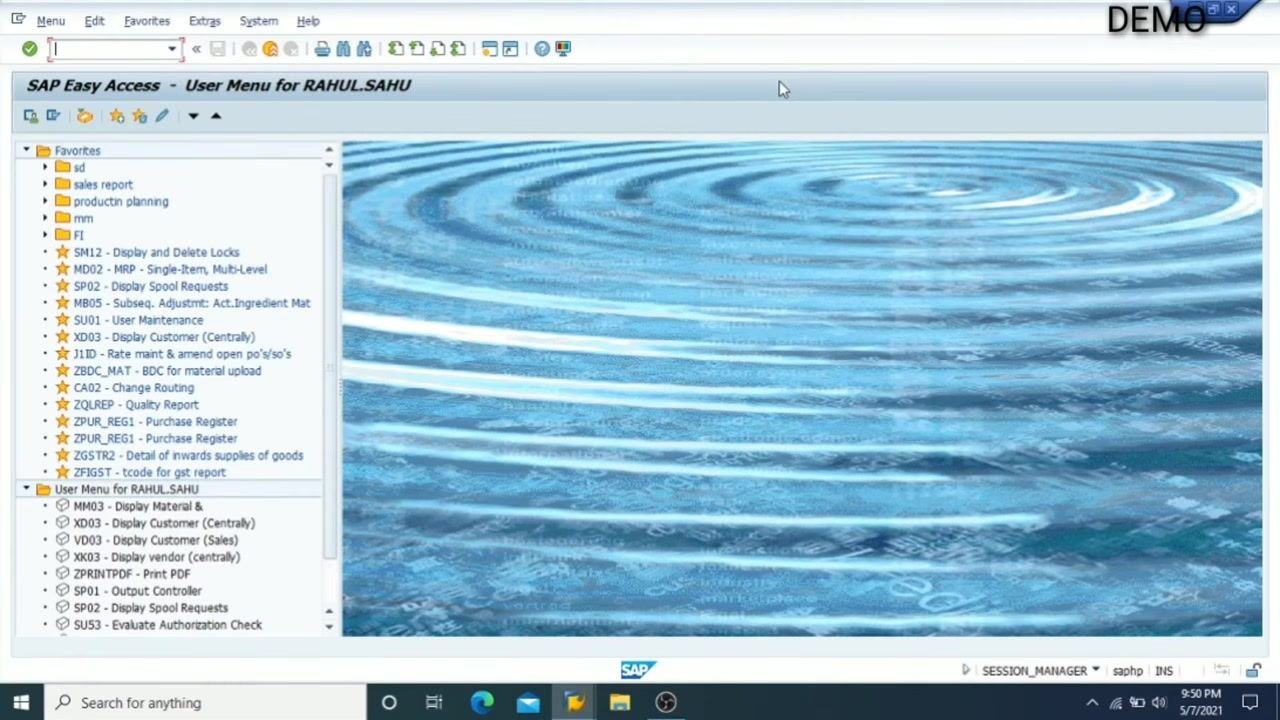
- Navigate to the SD (Sales and Distribution) folder.
- In the navigation pane, locate and expand the sd folder under Favorites.
- This folder contains various SD-related transaction codes, including VA01 for creating sales orders.
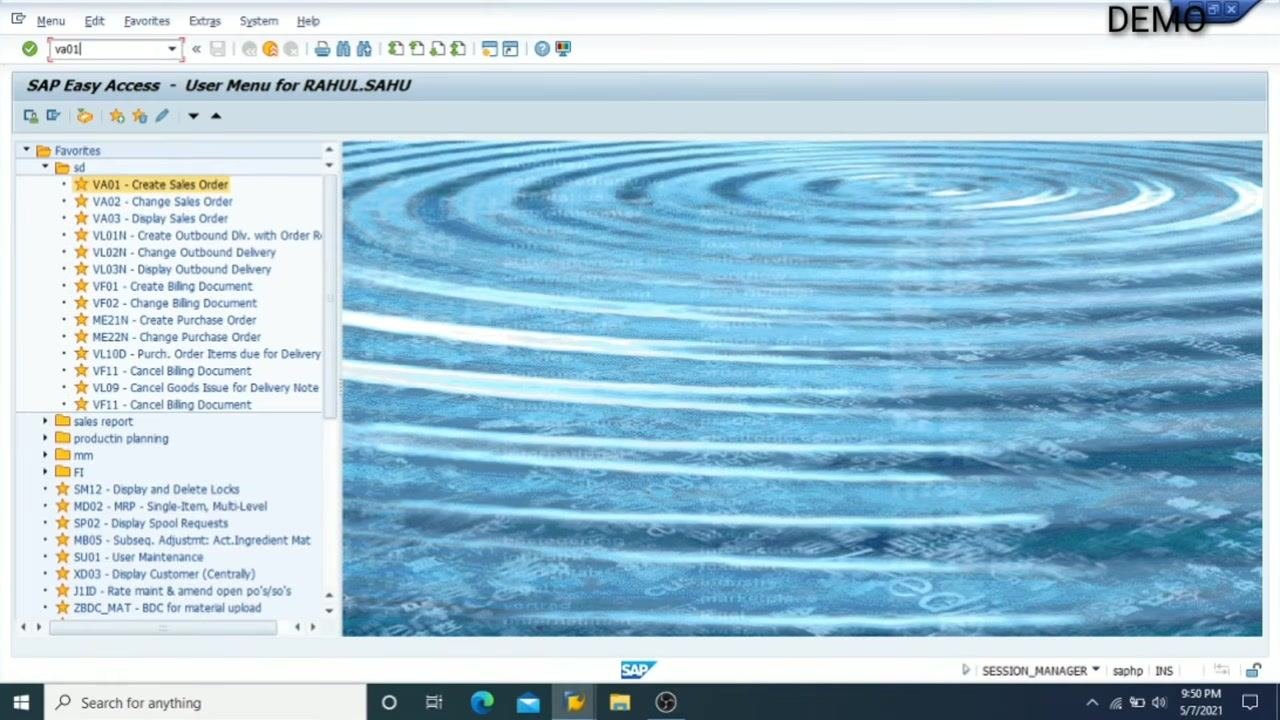
- Start the sales order creation process.
- In the command field at the top, enter the transaction code
VA01. - Press Enter to open the Create Sales Document screen.
- The screen displays fields for Order Type and Organizational Data (Sales Organization, Distribution Channel, Division, Sales Office, Sales Group).
- In the command field at the top, enter the transaction code
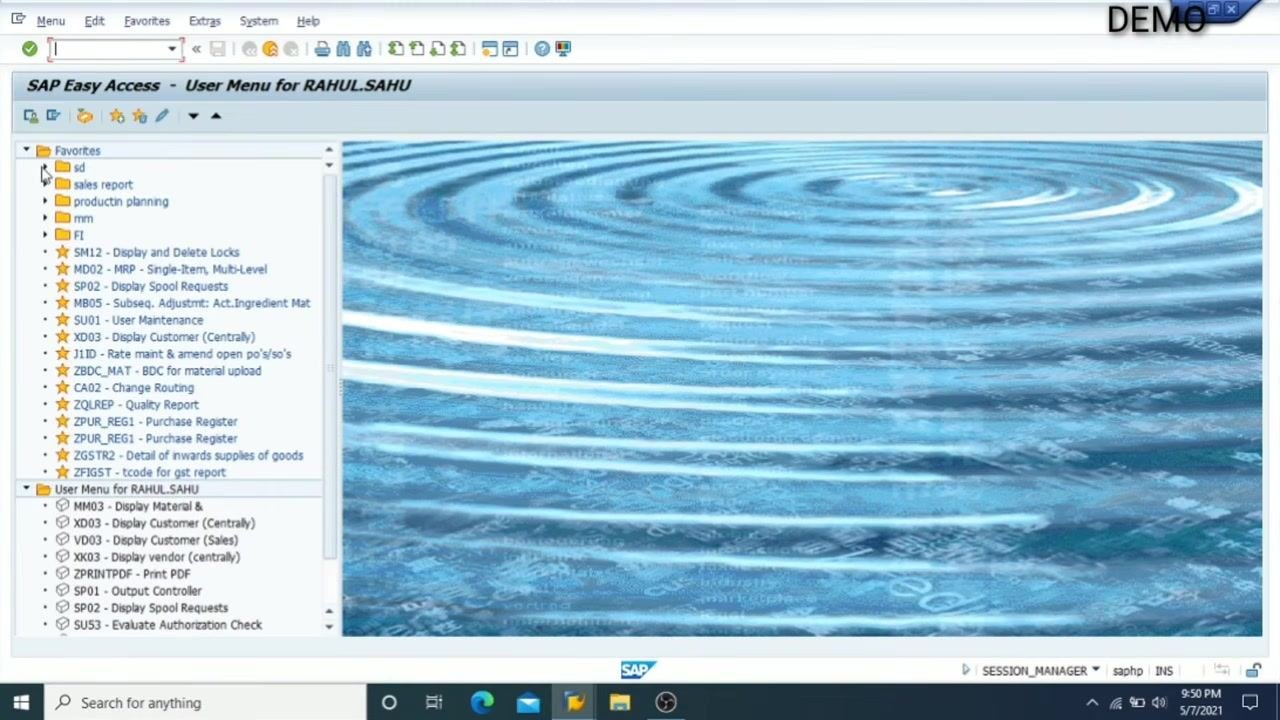
-
Select the order type.
- Click the search icon (or dropdown) next to the Order Type field to open the list of available sales document types.
- Review the list and select the appropriate order type for your transaction. For example, select "ZSCR" if that is your required order type.
- The list may contain standard and custom order types (e.g., DMRP, CR, GOR, ZSCR, etc.).
-
Enter organizational data.
- In the Sales Organization field, enter the code for your company's sales organization (e.g.,
2100). - In the Distribution Channel field, enter the appropriate channel code (e.g.,
70). - In the Division field, enter the division code (e.g.,
90). - If required, fill in the Sales Office and Sales Group fields.
- Use the search icon next to each field if you need to look up valid entries.
- In the Sales Organization field, enter the code for your company's sales organization (e.g.,
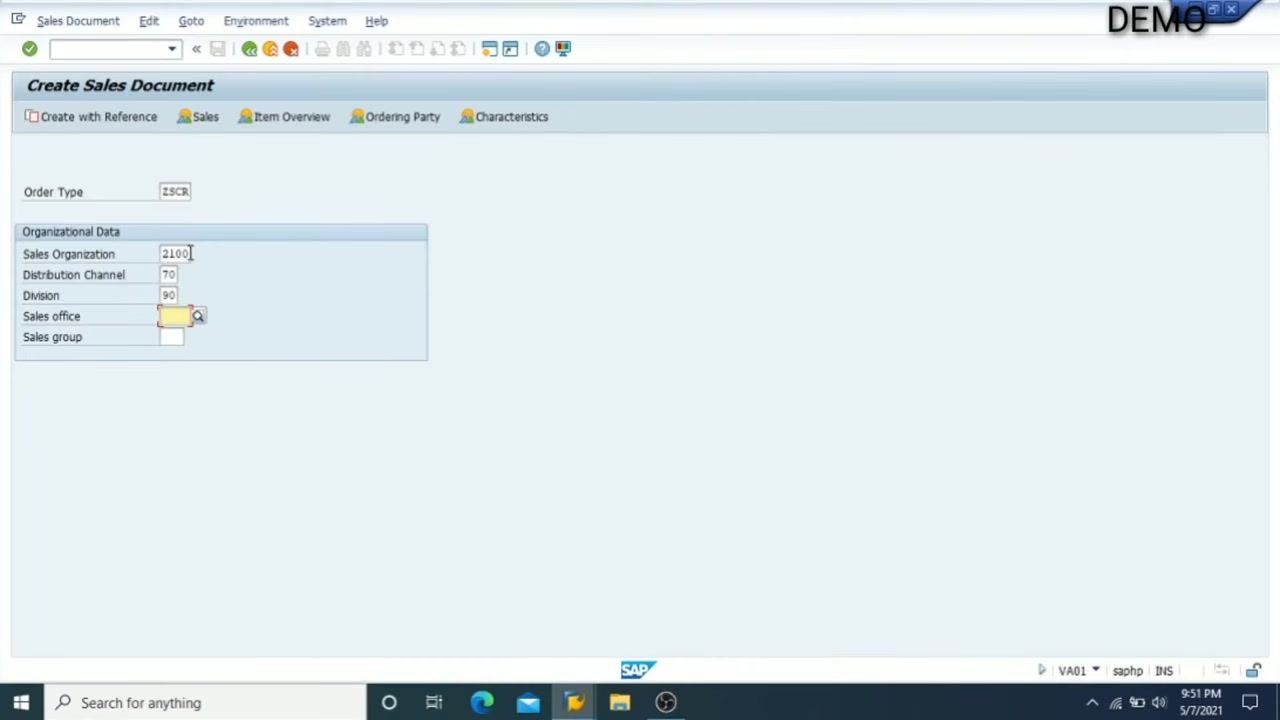
Key values used in this example: - Order Type: ZSCR - Sales Organization: 2100 - Distribution Channel: 70 - Division: 90
Entering customer, reference, payment, and shipping information
- Skip optional fields.
- Note that the Sales Office and Sales Group fields are optional and not mandatory for order creation.
- You may leave these fields blank unless your process specifically requires them.
-
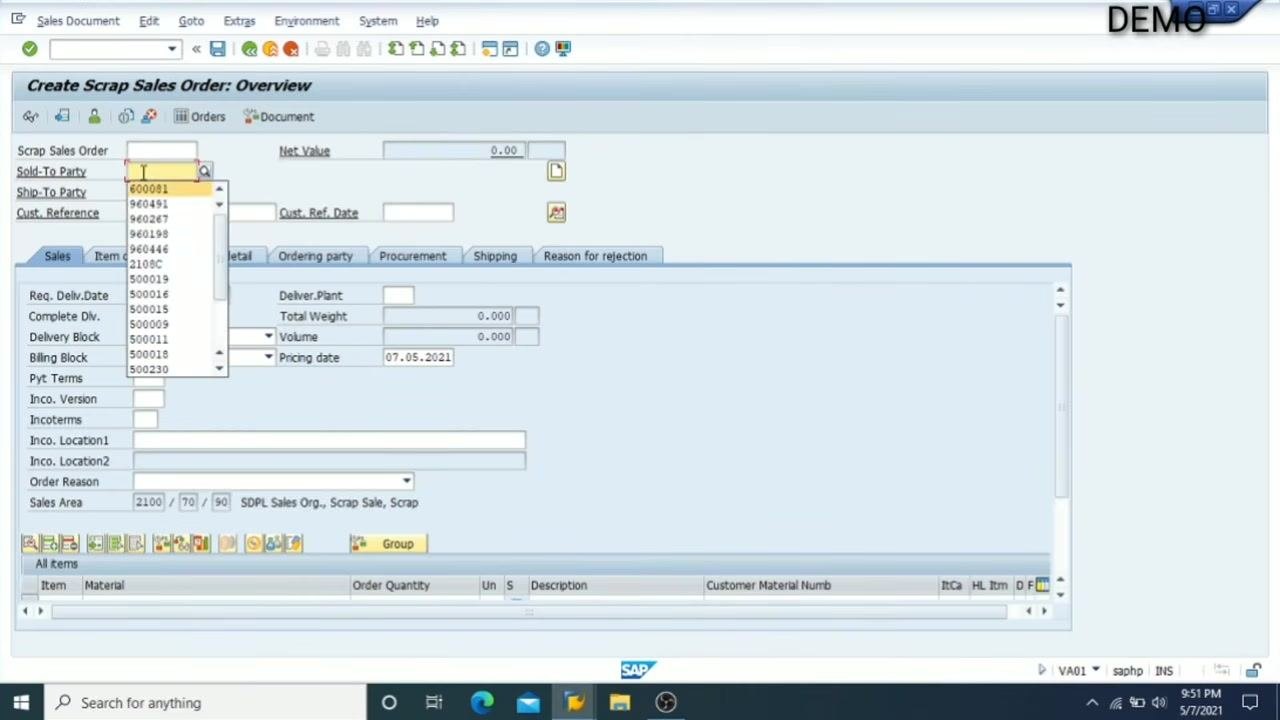
Enter the Sold-To Party (customer).
- In the Sold-To Party field, enter the customer code for the party placing the order.
- Use the dropdown or search icon to select from available customers. For example, select customer code
600081.
-
Enter the customer reference and reference date.
- In the Cust. Reference field, enter the reference for the order (e.g., "by mail" if the order was received via email).
- In the Cust. Ref. Date field, enter the date of the reference. For example, enter
07.05.2021for May 7, 2021.
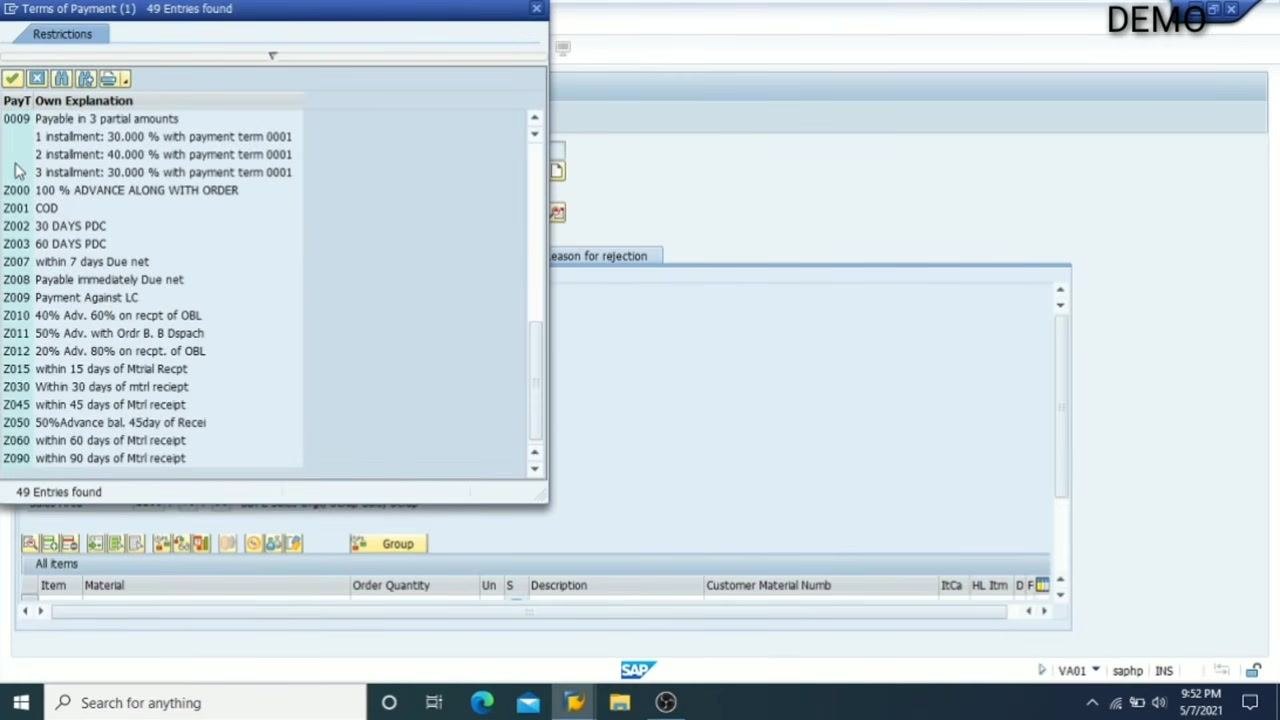
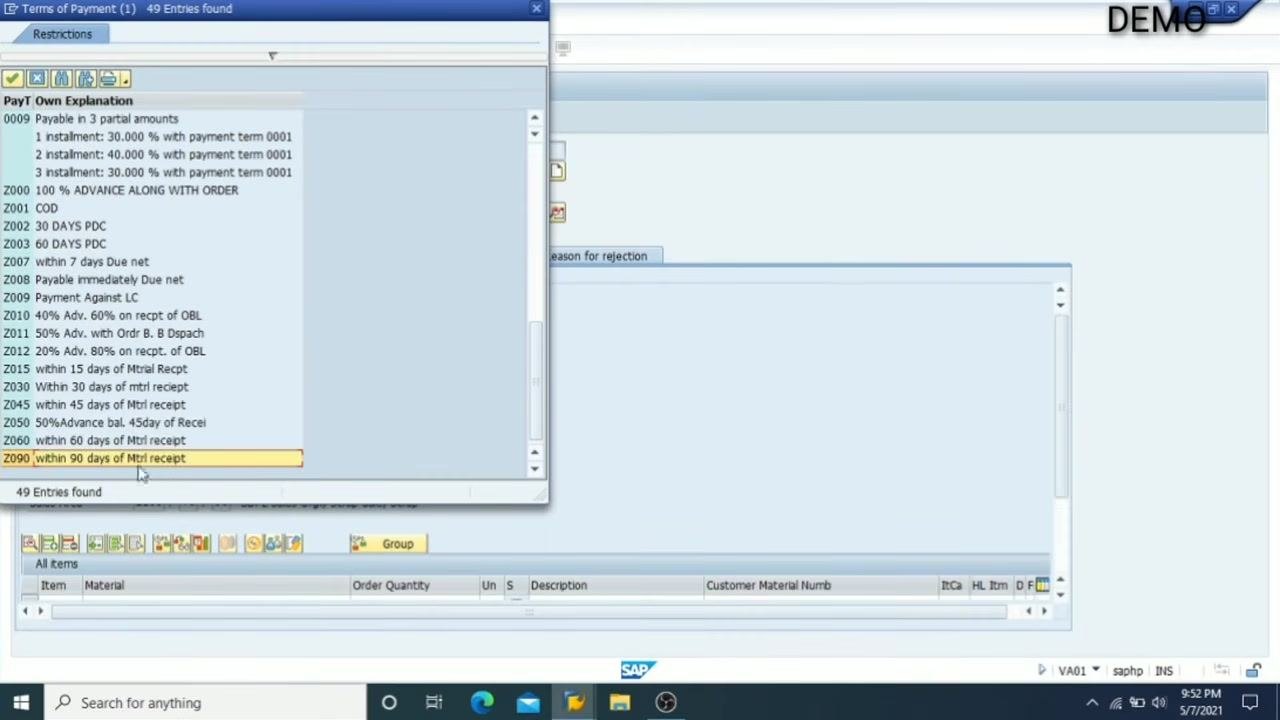
- Specify payment terms.
- In the Pyt Terms field, select the appropriate payment terms for the order.
- Use the search icon to view available payment terms. For example, select
Z090for "within 90 days of Mtrl receipt".
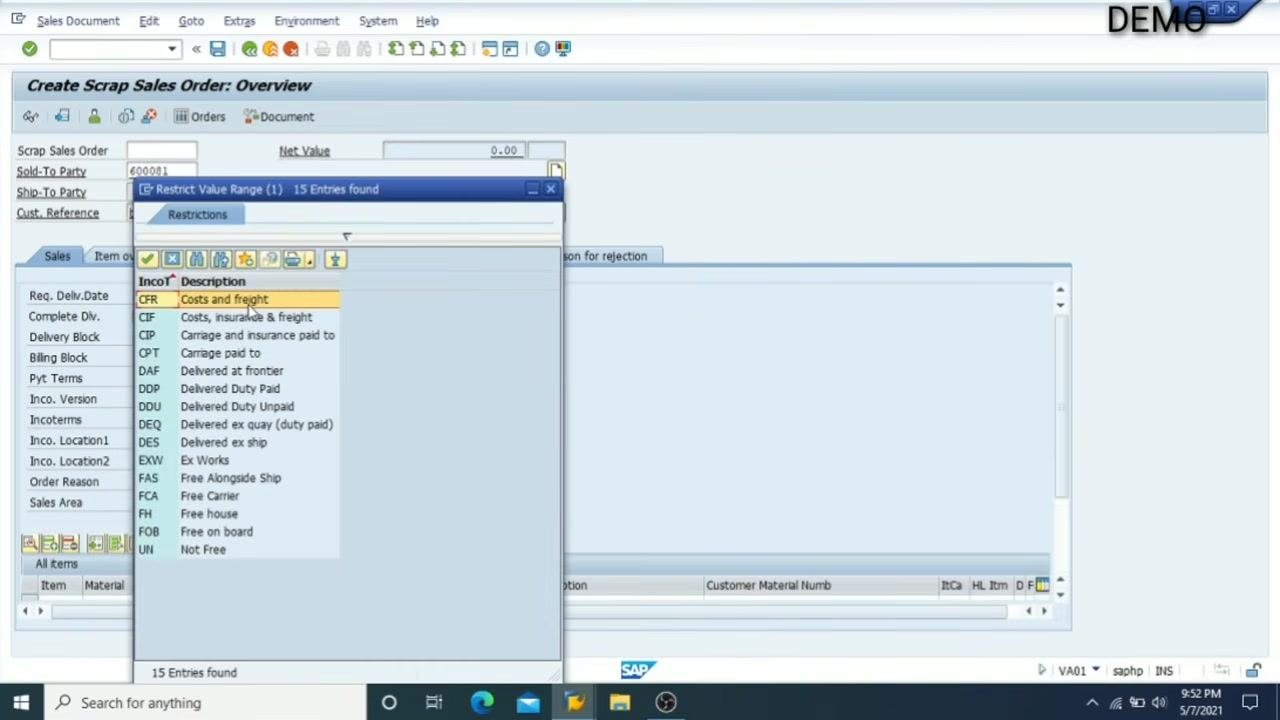
- Select Incoterms.
- In the Incoterms field, specify the delivery and payment terms agreed with the customer.
- Use the search icon to view available Incoterms. For example, select
CFRfor "Costs and freight".
-
Enter the shipping location.
- In the Inco. Location1 field, enter the location where goods will be shipped. For example, enter
Bhopal. - Confirm that all entered values are correct and match your order requirements.
- In the Inco. Location1 field, enter the location where goods will be shipped. For example, enter
-
Review the entered data.
- Ensure the following fields are filled as per the example:
- Sold-To Party: 600081 (e.g., RAJESH JAAT / Bhopal)
- Ship-To Party: 600081 (e.g., RAJESH JAAT / Bhopal)
- Cust. Reference: by mail
- Cust. Ref. Date: 07.05.2021
- Pyt Terms: Z090 (within 90 days of Mtrl receipt)
- Incoterms: CFR (Costs and freight)
- Inco. Location1: Bhopal
Key values used in this example: - Sold-To Party / Ship-To Party: 600081 (RAJESH JAAT / Bhopal) - Cust. Reference: by mail - Cust. Ref. Date: 07.05.2021 - Payment Terms: Z090 (within 90 days of Mtrl receipt) - Incoterms: CFR (Costs and freight) - Shipping Location: Bhopal
Entering material, quantity, plant, and pricing
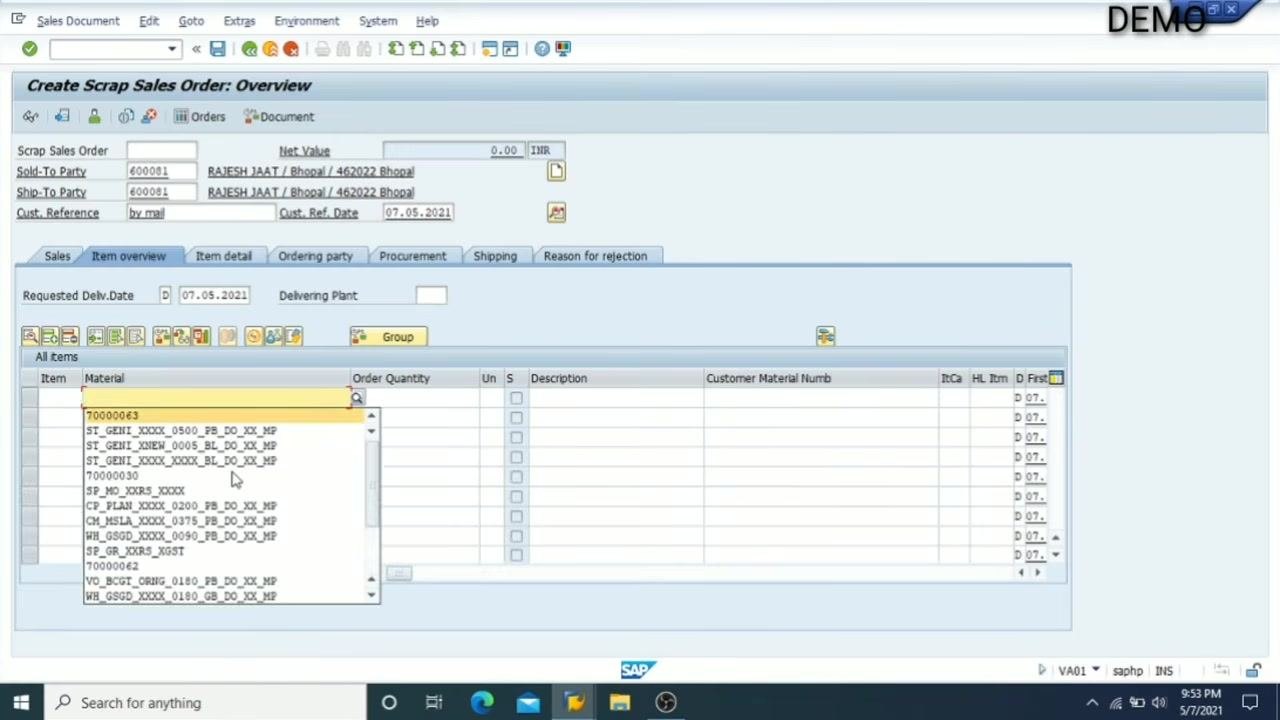
- Switch to the Item overview for easier data entry.
- Click on the Item overview tab to expand the view and make it easier to enter material details.
- This step helps avoid repeatedly using dropdowns for each field.
-
Select the material.
- In the Material column, click the dropdown to view available materials.
- Select the required material code from the list. For example, choose
70000063.
-
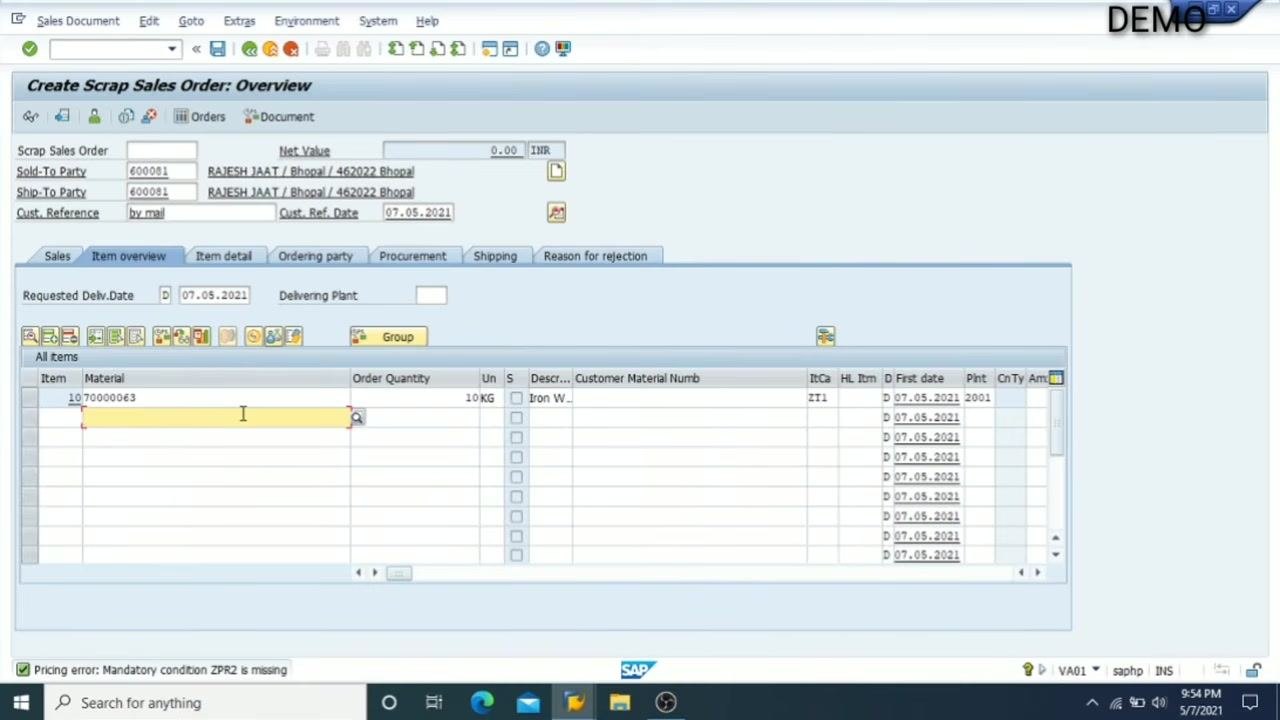
Enter the order quantity.
- In the Order Quantity column, enter the required quantity for the selected material. For example, enter
10 KG.
- In the Order Quantity column, enter the required quantity for the selected material. For example, enter
-
Specify the plant.
- In the Plnt (Plant) column, enter or select the plant code where the material will be processed or shipped from.
- If the plant does not auto-populate, use the dropdown to select the correct plant. For example, select
2001.
-
Review the entered material data.
- Ensure the following fields are filled:
- Material: 70000063
- Order Quantity: 10 KG
- Description: (e.g., Iron W...)
- Plnt: 2001
- First date: 07.05.2021
-
Check for pricing errors.
- After entering material, quantity, and plant, check for any pricing errors at the bottom of the screen.
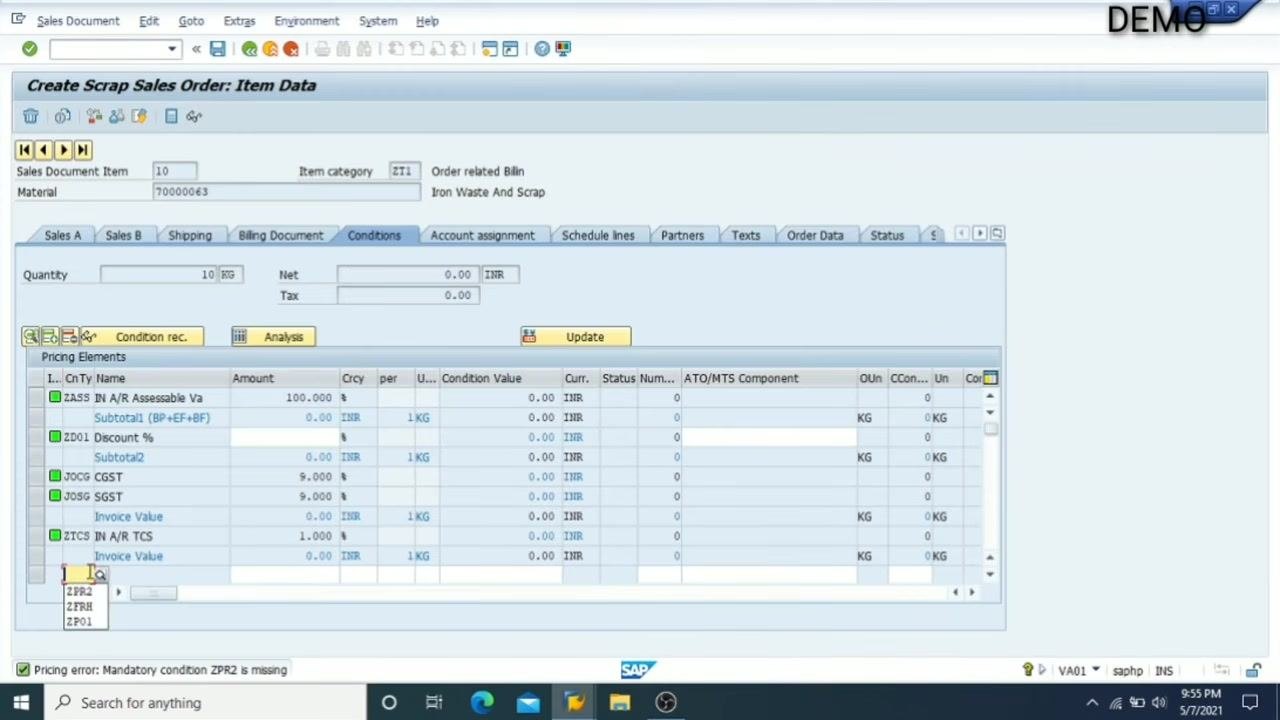
- If you see a message such as "Pricing error: Mandatory condition ZPR2 is missing," proceed to manually enter the price.
-
Enter the price manually in the Conditions tab.
- Double-click on the material line to open the item details.
- Go to the Conditions tab.
- In the ZPR2 (Basic Price: Scrap) row, enter the price per unit. For example, enter
100.00 INRper KG.
- Verify the pricing calculation.
- Confirm that the system calculates the total value based on the entered price and quantity.
- For example, with a price of
100 INRand quantity of10 KG, the condition value should be1,000.00 INR. - Review the breakdown of taxes and totals:
- CGST: 90.00 INR
- SGST: 90.00 INR
- Invoice Value (after tax): 1,180.00 INR
- TCS (1%): 11.00 INR
- Final Invoice Value: 1,191.80 INR
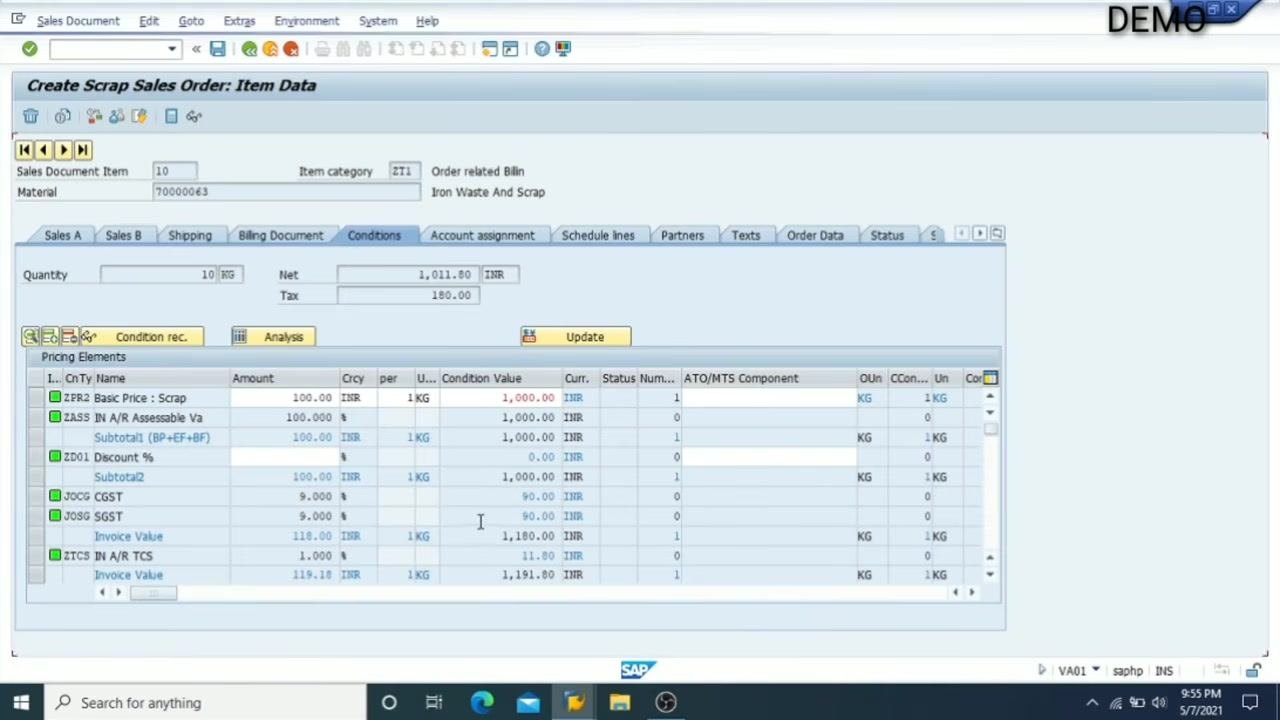
Key data entered in this example: - Material: 70000063 - Order Quantity: 10 KG - Plant: 2001 - Unit Price (ZPR2): 100.00 INR - CGST/SGST: 90.00 INR each - TCS (1%): 11.00 INR - Final Invoice Value: 1,191.80 INR
Reviewing header details and completing the document
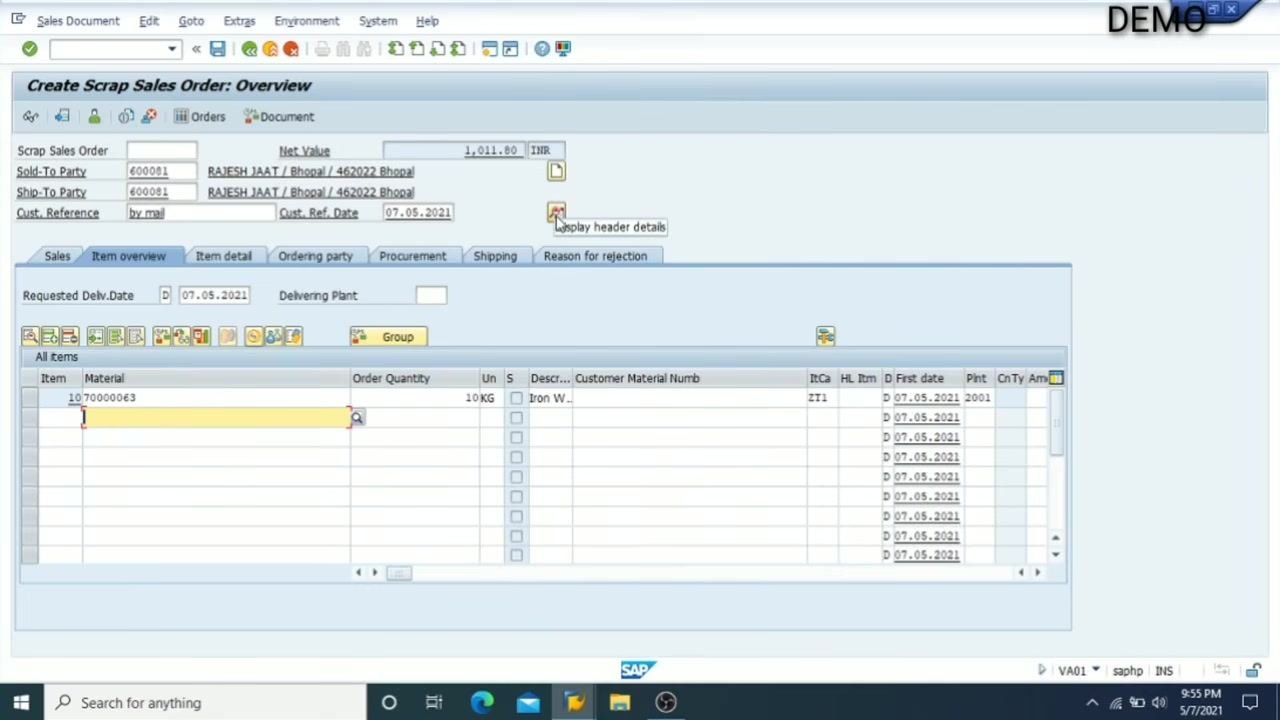
- Open the header details.
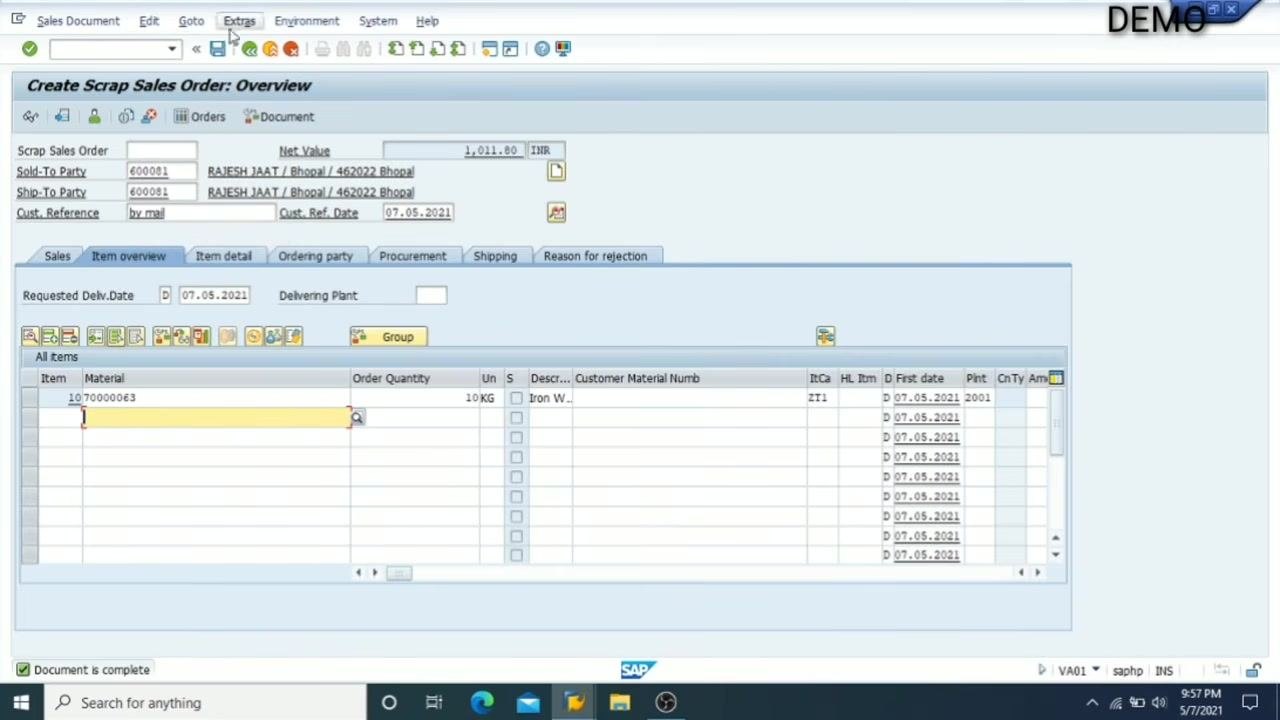
- Click the Display header details icon in the Create Scrap Sales Order: Overview screen.
- The screen shows fields such as Sold-To Party (600081), Ship-To Party (600081), Customer Reference (by mail), and Customer Reference Date (07.05.2021).
- The item overview lists Material 70000063, Order Quantity 10KG, Description "Iron W...", and other item details.
-
Access the header Conditions.
- Click on the Conditions tab or button to view or edit pricing and condition details for the sales order.
- The cursor is shown hovering over the Display header details icon, preparing to access condition information.
-
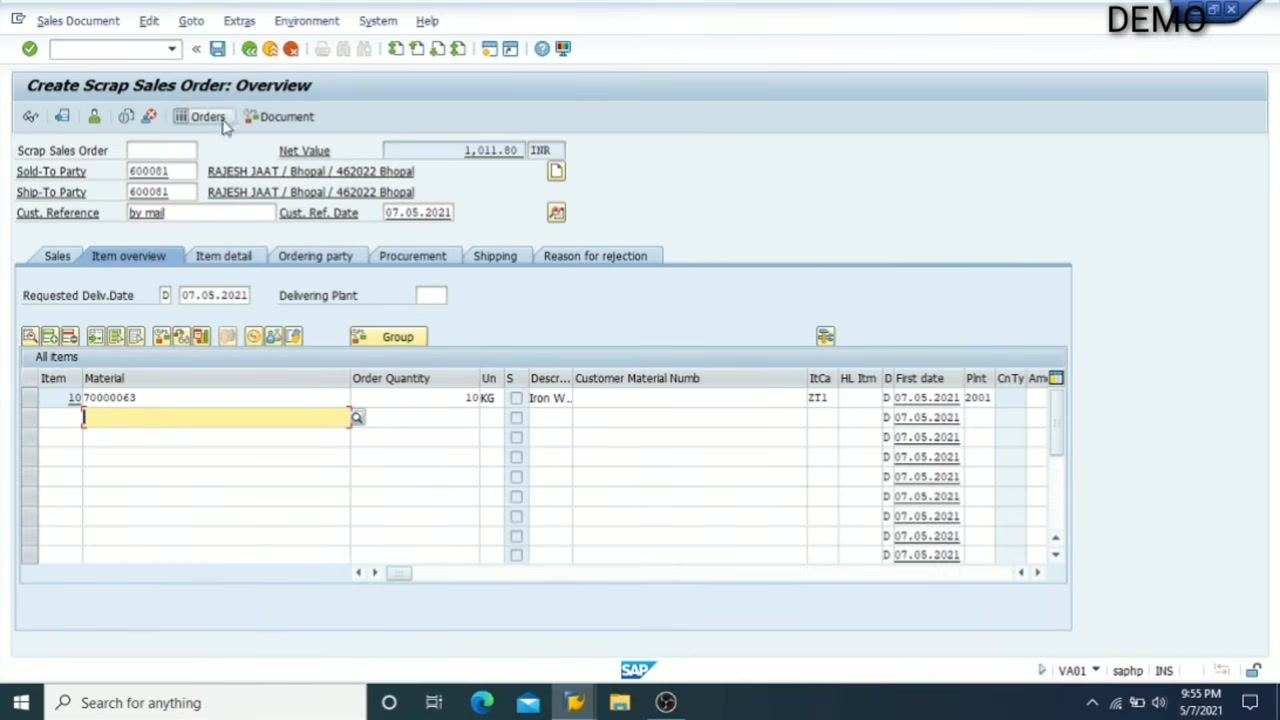
Check for errors.
- Review all entered data for completeness and correctness.
- Ensure all mandatory fields are filled.
- The screen continues to display the item overview and order details.
-
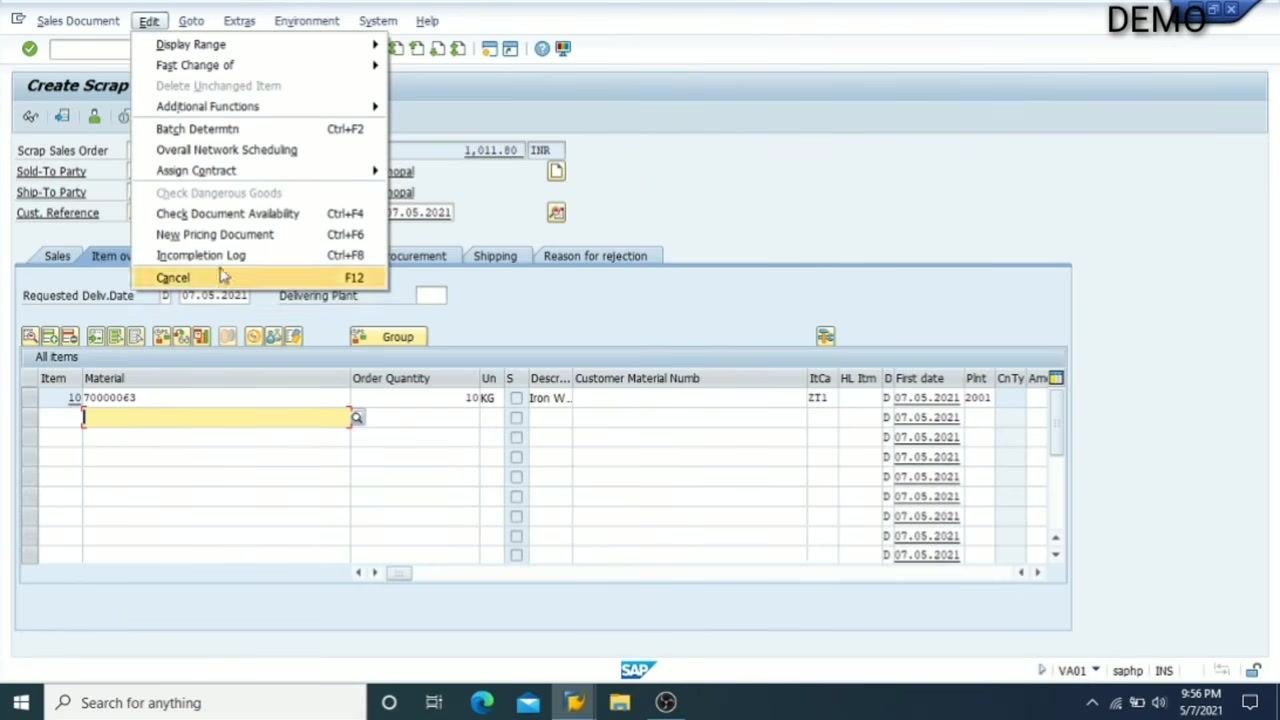
Check the Incompletion Log.
- Click on Edit in the top menu, then select Incompletion Log (or press Ctrl+F8) to check for any missing or incomplete data in the sales order.
- The dropdown menu under Edit shows options like Display Range, Additional Functions, Batch Determination, and Incompletion Log.
- Enter required values for missing data.
- In the Create Scrap Sales Order: Item Data screen, under the Shipping tab, enter Net Weight = 1 and Gross Weight = 1.
- The Ship-to party is 600081 (RAJESH JAAT / Bhopal / 462022 Bhopal).
- Delivery Priority is set to 1 (High).
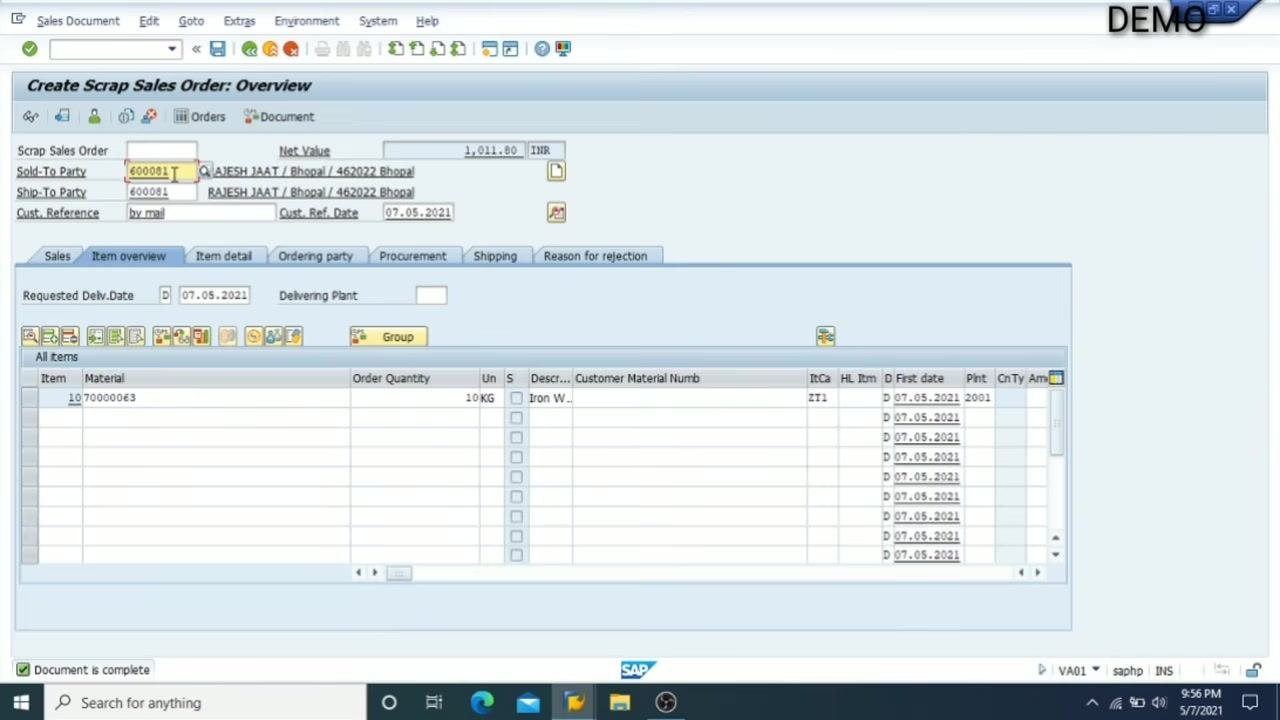
- Enter the AID by customer reference.
- In the Create Scrap Sales Order: Overview screen, ensure the Sold-To Party field is set to 600081 and the customer reference is entered as required.
-
Review the header Conditions tab.
- The Create Scrap Sales Order: Header Data screen displays tabs for Sales, Shipping, Billing Document, Payment Cards, Accounting, Conditions, etc.
- Under Conditions, review the pricing elements such as Basic Price (ZFR2), Assessable Value (ZASS), Discount %, CGST, SGST, TCS, and Invoice Value.
- Net value is 1,011.80 INR, Tax is 180.00 INR, and Invoice Value is 1,191.80 INR.
-
Check the remaining header tabs.
- You can similarly click on the Sales tab to view sales details, Billing Document for billing information, and Payment Cards for payment terms.
-
Return to the Overview screen.
- Go back to the Overview screen to review all entered data and ensure everything is correct.
-
Confirm the document is complete.
- At the bottom left of the screen, a message "Document is complete" is displayed, indicating all required fields have been filled and the order is ready for processing.
Saving and reviewing the sales order
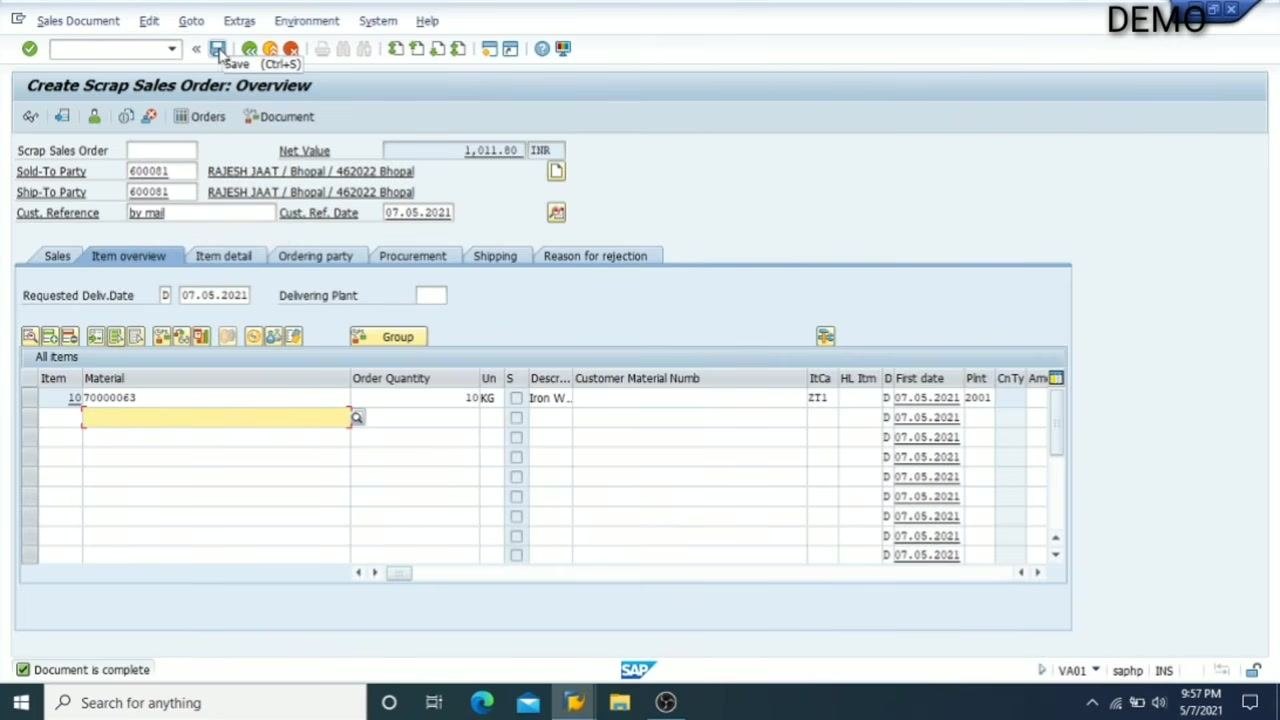
- Save the completed Scrap Sales Order.
- In the Create Scrap Sales Order: Overview screen, ensure all required fields are filled and the message "Document is complete" is visible at the bottom.
- Click the Save icon (floppy disk) in the toolbar at the top of the SAP window to save your invoice.
- The screen displays details such as Sold-To Party (600081), Ship-To Party (600081), Customer Reference (by mail), Customer Reference Date (07.05.2021), Material (70000063), Order Quantity (10KG), and Description ("Iron W...").
- Change an existing sales order if needed.
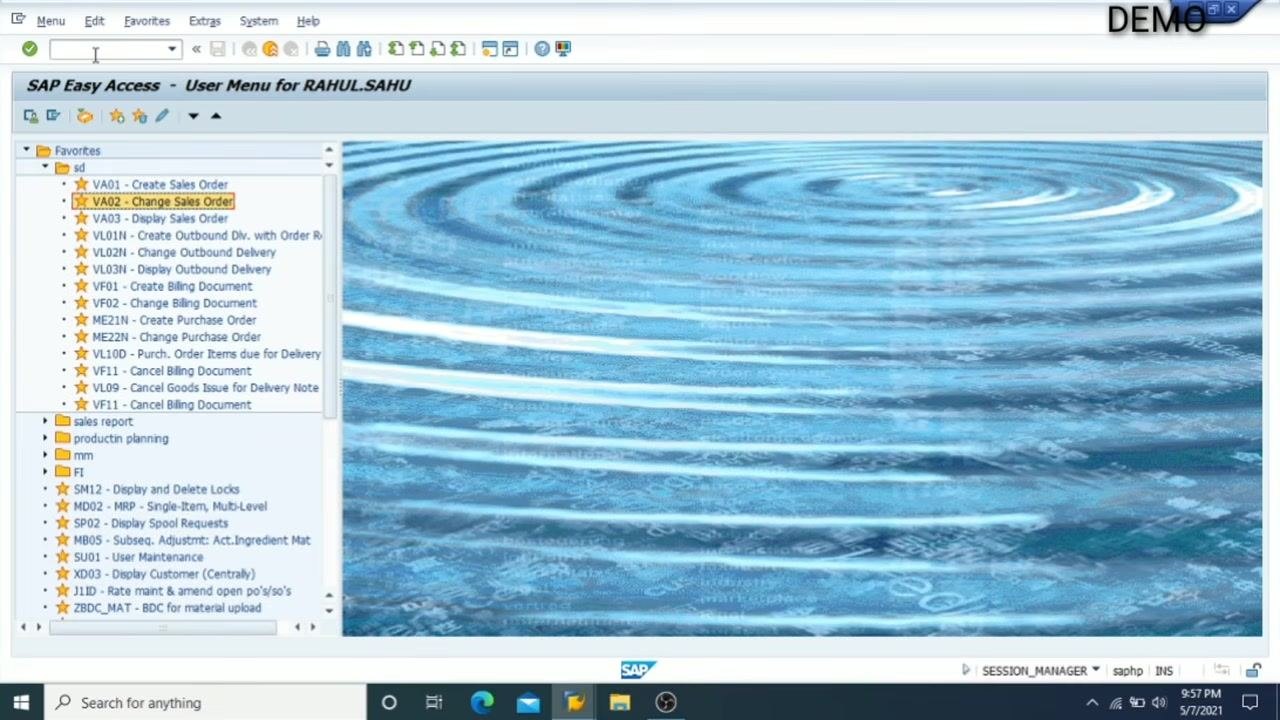
- Return to the SAP Easy Access menu.
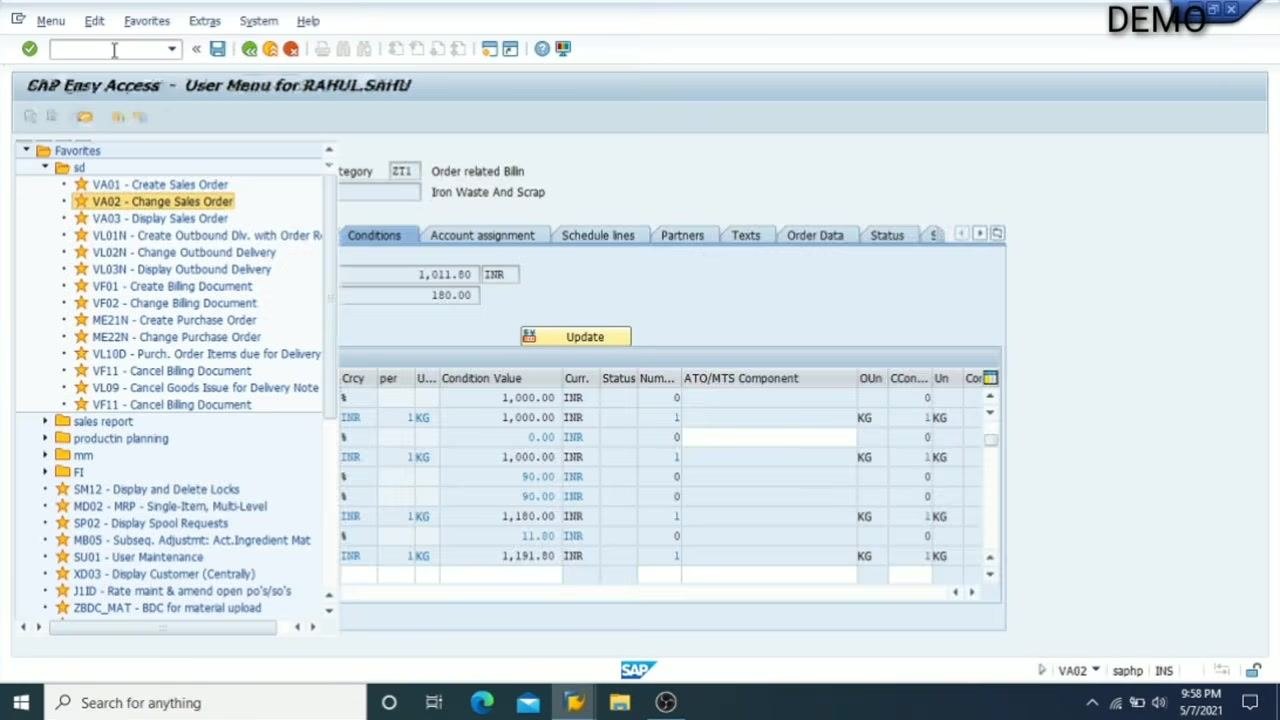
- In the Favorites section, locate and select VA02 - Change Sales Order to modify an existing sales order.
- The user menu is labeled "User Menu for RAHUL.SAHU" and displays a list of frequently used transaction codes such as VA01, VA02, VA03, VL01N, VL02N, VF01, etc.
-
Review for possible mistakes.
- Double-check all fields and values in your sales order for accuracy before proceeding.
-
Check the document flow for your order.
- In the Change Sales Document screen, enter your order number (e.g., 8016003179) in the Order field.
- Click the Display Document Flow icon (Shift+F5) to view the flow of documents related to your sales order.
- The screen also allows you to search by Purchase Order No., Sold-to party, Delivery, Billing Document, WBS Element, or Material.
-
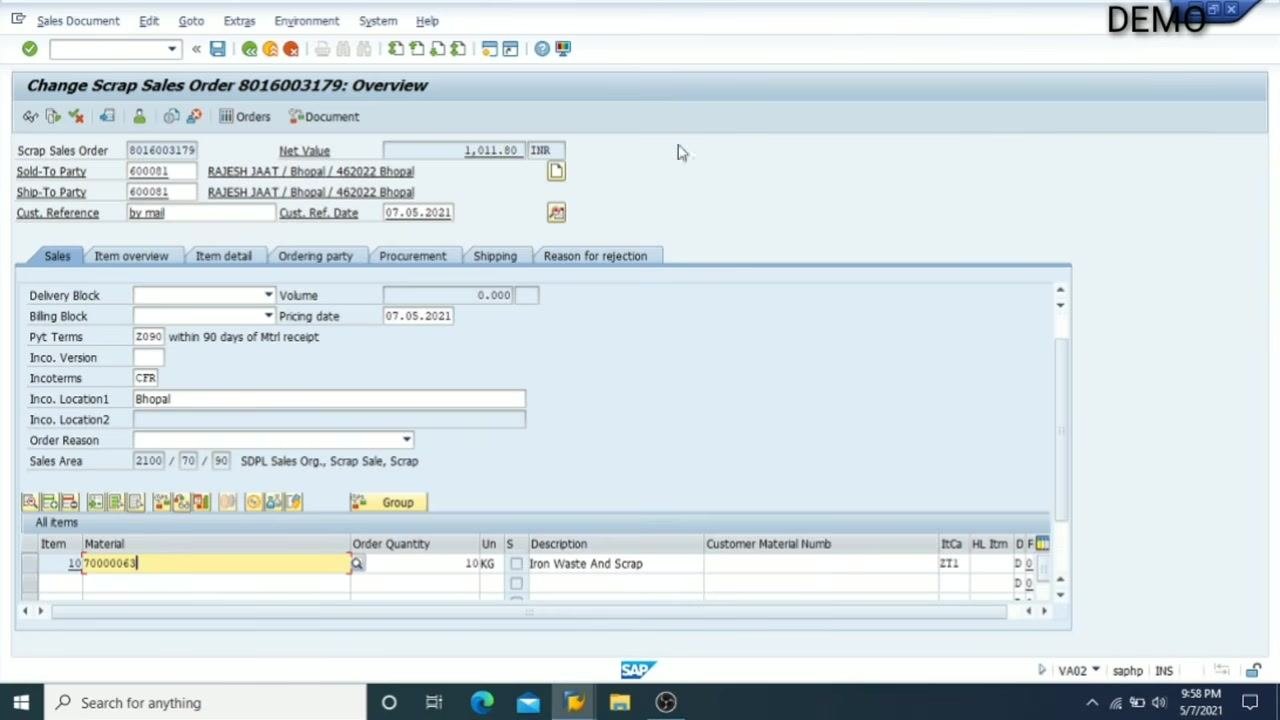
Open the sales order for review.
- After clicking to display the document flow, the sales order details will open.
- The Change Scrap Sales Order: Overview screen displays all header and item details for the order number entered.
- Review fields such as Net Value (1,011.80 INR), Sold-To Party (600081), Ship-To Party (600081), Customer Reference (by mail), Customer Reference Date (07.05.2021), Material (70000063), Order Quantity (10KG), and Description ("Iron Waste And Scrap").
-
View or edit item details.
- In the item overview section, double-click the material number (e.g., 70000063) to access detailed information about the item.
-
Review pricing and condition details.
- In the Conditions tab, verify all pricing elements such as Basic Price, Discounts, Taxes (CGST, SGST), and Invoice Value.
- The screen displays condition values (e.g., 1,000.00 INR, 90.00 INR, 1,180.00 INR, 1,191.80 INR) and their respective units (KG).
- Click Update if any changes are made.
- Keep the key fields in mind.
- Customer, material, quantity, and plant are very important fields in an order.
- Always ensure these fields are correctly filled to avoid errors.
Key transaction codes for order processing
- Understand the standard SAP transaction codes.
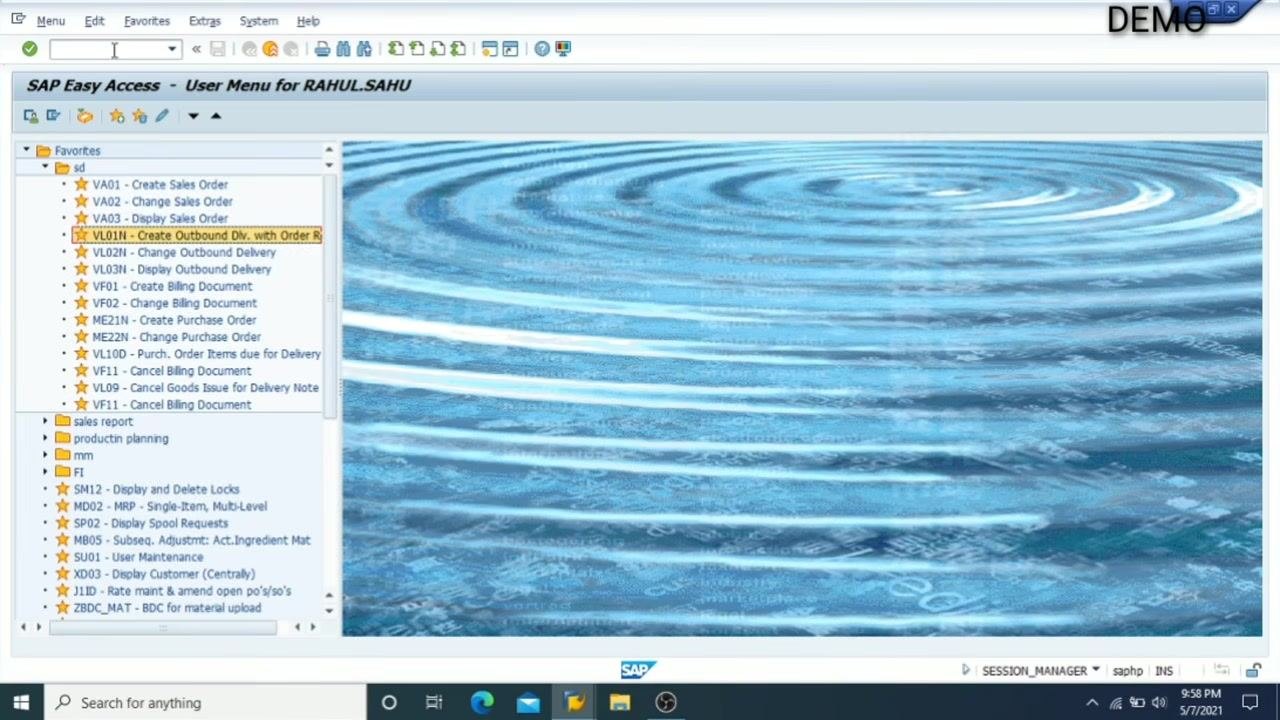
- VL01N: Create Outbound Delivery with Order Reference (used for delivery creation)
- VL02N: Change Outbound Delivery (used for Post Goods Issue, PGI)
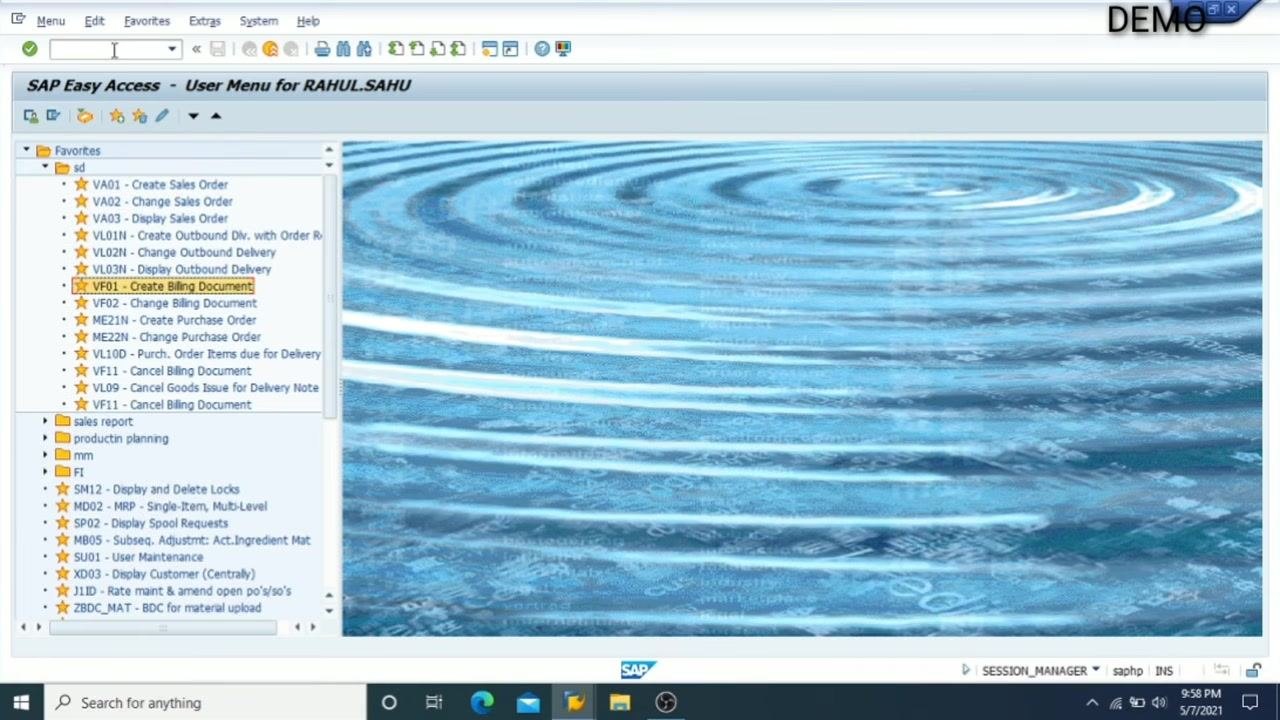
- VF01: Create Billing Document (used for invoice creation)
- These transaction codes are visible in the Favorites list and are essential for the sales order process.
- Note the standard transaction codes for sales order processing.
- These are the standard transaction codes used in SAP for sales order, delivery, PGI, and billing processes.
Returning to the main menu
- Return to the SAP Easy Access main menu.
- After completing all sales order processing steps, ensure you are back at the SAP Easy Access screen.
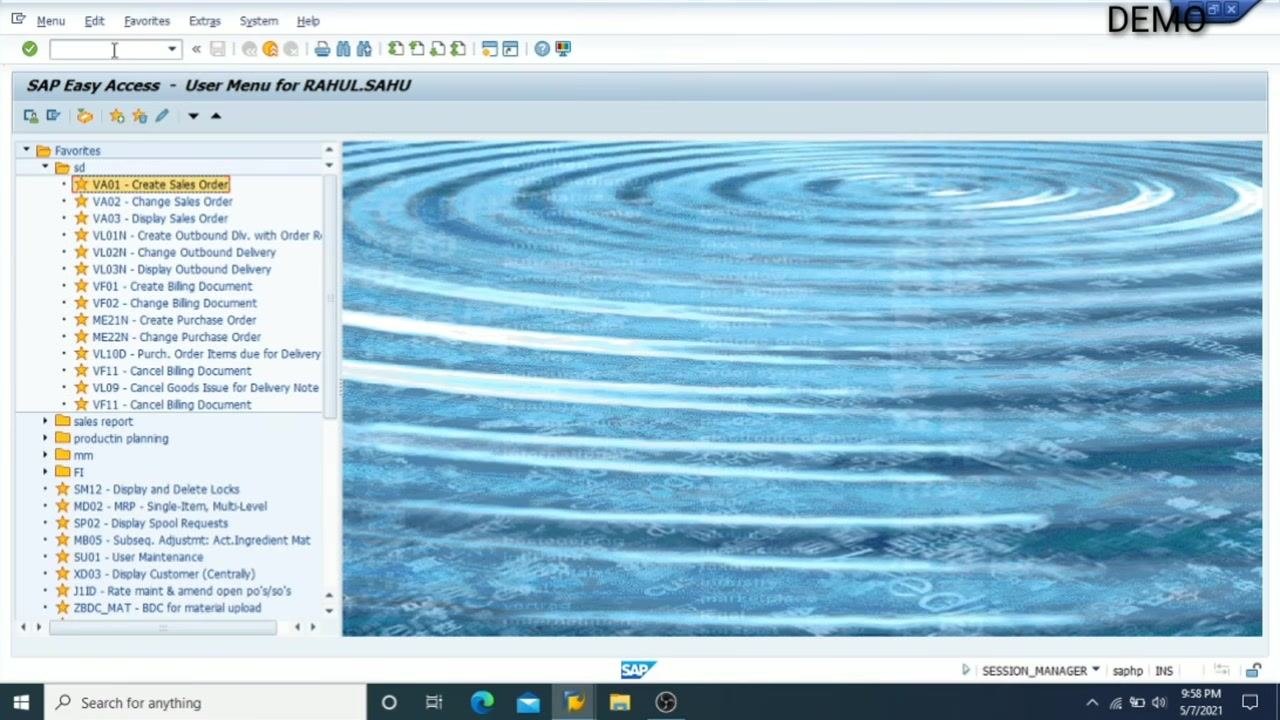
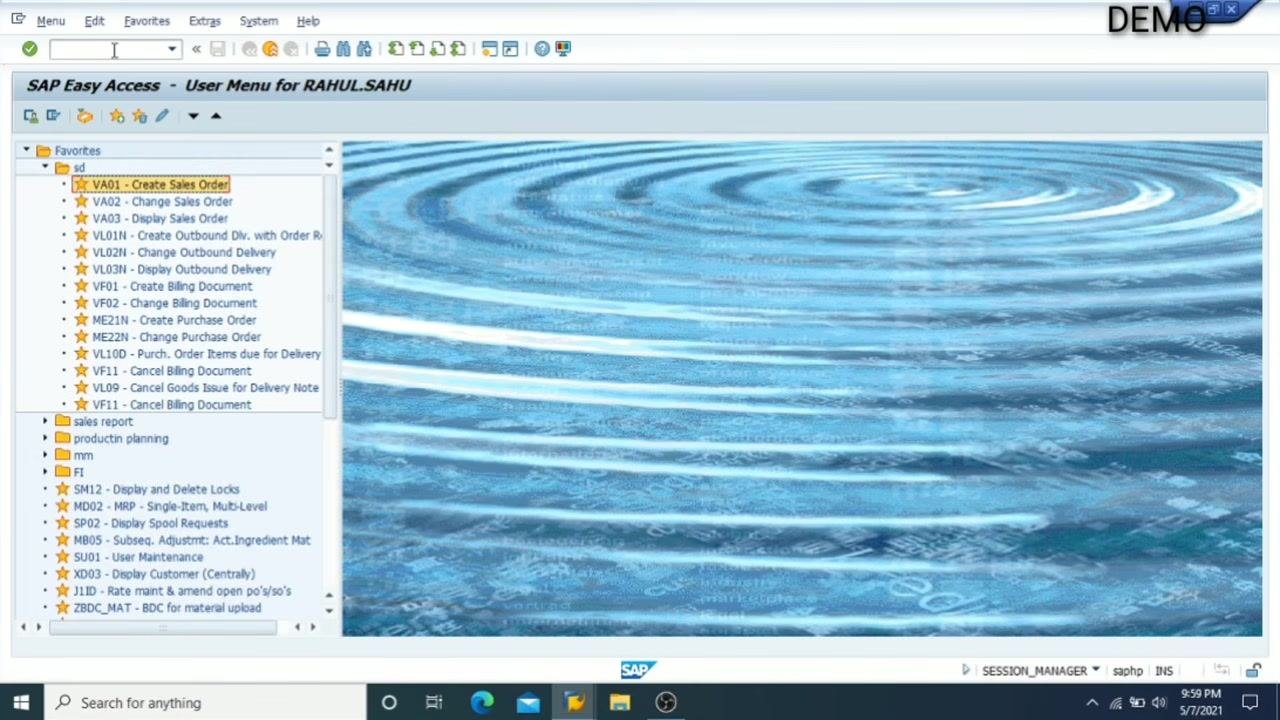
- The screen displays "SAP Easy Access – User Menu for RAHUL.SAHU" at the top.
- The Favorites panel on the left lists frequently used transaction codes, including:
- VA01 – Create Sales Order
- VA02 – Change Sales Order
- VA03 – Display Sales Order
- VL01N – Create Outbound Dlv. with Order Ref.
- VL02N – Change Outbound Delivery
- VL03N – Display Outbound Delivery
- VF01 – Create Billing Document
- VF02 – Change Billing Document
- ME21N – Create Purchase Order
- ME22N – Change Purchase Order
- VL10D – Purch. Order Items due for Delivery
- VL09 – Cancel Goods Issue for Delivery Note
- VF11 – Cancel Billing Document
- Additional folders for "sales report," "production planning," "mm," and "FI" are visible.
- The background features a blue ripple water effect, and the system is marked as "DEMO" in the upper right corner.
- The Windows taskbar at the bottom shows the SAP application icon, browser, file explorer, and other standard Windows elements.
- No actions are being performed; the system is idle and ready for the next user input.
-
Seek further assistance if needed.
- If you have any questions or encounter issues, you are encouraged to seek help or clarification via the comments section of the tutorial or support channel.
-
Support the tutorial if it was helpful.
- If you found the guide or video useful, show your support by liking the content and subscribing to the channel for more tutorials.
- The SAP Easy Access screen remains unchanged, confirming the end of the process.
What's next
By following these steps, you have successfully created, checked, completed, saved, and reviewed a Scrap Sales Order in SAP, and you understand the key transaction codes and fields required for efficient order processing. From here, you can proceed to the next stages of the order-to-cash process using VL01N to create an outbound delivery, VL02N to post goods issue, and VF01 to create the billing document. For any further questions, use the available support channels, and consider supporting the content creator if you found this guide helpful.
Generation details: cost, quality tiers
Docsie billed 4,500 credits ($3.15) to analyze this 9-minute video at standard quality. The rewrite, template fill and Word/PDF exports were included. The same video at each quality tier:
| Quality | Frames sampled | Credits | Approx. cost |
|---|---|---|---|
| Draft | every 16-30 s | 2,250 | $1.57 |
| Standard (this guide) | every 8-15 s | 4,500 | $3.15 |
| Detailed | every 4-7 s | 9,000 | $6.30 |
| Ultra | every 1-3 s | 18,000 | $12.60 |
Credits priced at $0.70 per 1,000; plans include a monthly allowance. Enterprise customers on on-premise or bring-your-own-model deployments run this on their own inference and pay no per-video credits.
Generated by Docsie Video-to-Docs on 2026-09-08 from a 8-minute video. Screenshots are frames from the source video and belong to their creator, SAP Information with Rahul sahu, whose original is embedded above. If you own this video and want the guide removed or credited differently, contact us and we will act within one business day.