
How to Create a Purchasing Group in SAP
This guide explains how to create a purchasing group in SAP MM (Materials Management) using the SAP Reference IMG (Implementation Guide). Purchasing groups are used to organize procurement activities, and creating one involves navigating through customizing settings, entering key details, and saving the configuration with a customizing request.
Video: How to create Purchase group in SAP MM | Step by step tutorial for beginners #OME4 #sapmm by SAP MM MADE EASY (2025). All credit for the demonstration goes to the creator; watch the original on YouTube. The written guide below was generated from this video by Docsie. Creator? Request a change or removal.
This guide explains how to create a purchasing group in SAP MM (Materials Management) using the SAP Reference IMG (Implementation Guide). Purchasing groups are used to organize procurement activities, and creating one involves navigating through customizing settings, entering key details, and saving the configuration with a customizing request.
Prerequisites
- Access to SAP with valid login credentials.
- Authorization to access transaction codes
SPROandOMU4. - A valid customizing request number for saving changes.
Access the SAP Easy Access screen
Launch SAP and log in to reach the SAP Easy Access screen. This is the main navigation menu, displaying folders such as Favorites, SAP Menu, and modules like Logistics, Accounting, and Human Resources.
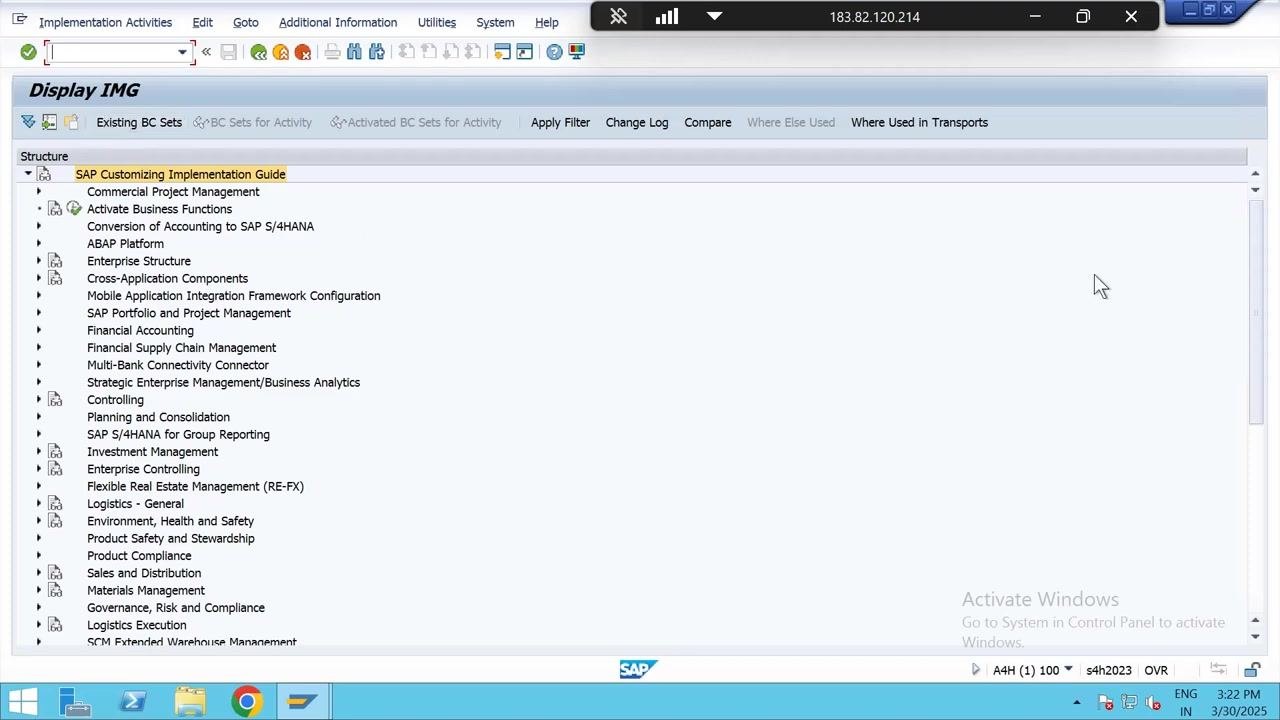
Navigate to the SAP Reference IMG
Enter the transaction code SPRO in the command field and press Enter. Then click on SAP Reference IMG to open the Implementation Guide, where customizing settings for purchasing groups are configured.
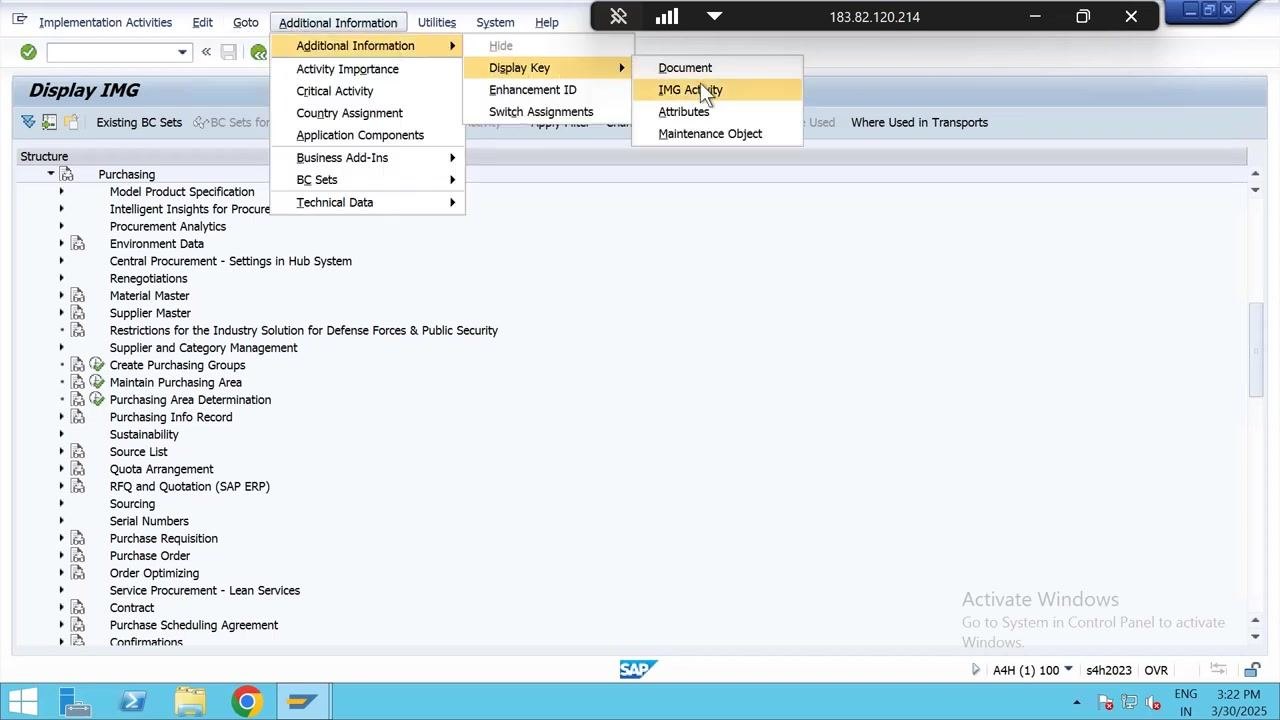
Open the Materials Management purchasing section
In the Display IMG screen, expand the following path:
- SAP Customizing Implementation Guide > Materials Management > Purchasing
Scroll down within the Purchasing section to locate the Create Purchasing Groups option.
Open the purchasing groups entry screen
Double-click on Create Purchasing Groups, or alternatively enter transaction code OMU4, to open the entry screen. Click New Entries to begin adding a new purchasing group.
Enter the new purchasing group details
In the Purchasing Groups table, enter the following details:
- Purchasing Group: Enter
MSR. - Description: Provide a description for the purchasing group.
- Telephone Number: Optionally, enter a telephone number for the purchasing group.
- Fax Number: Optionally, enter a fax number for the purchasing group.
Complete the purchasing group fields
In the New Entries: Overview of Added Entries screen, fill in the required fields:
- Purchasing Group: Enter
MSR. - Description: Enter
Purchase grp Tata. - Tel.No. Pur.Grp: (Optional) Enter a telephone number for the purchasing group, if available.
- Fax Number: (Optional) Enter a fax number, if needed.
- Telephone: (Optional) Enter a general telephone number.
Ensure all relevant fields are completed according to your organization's requirements.
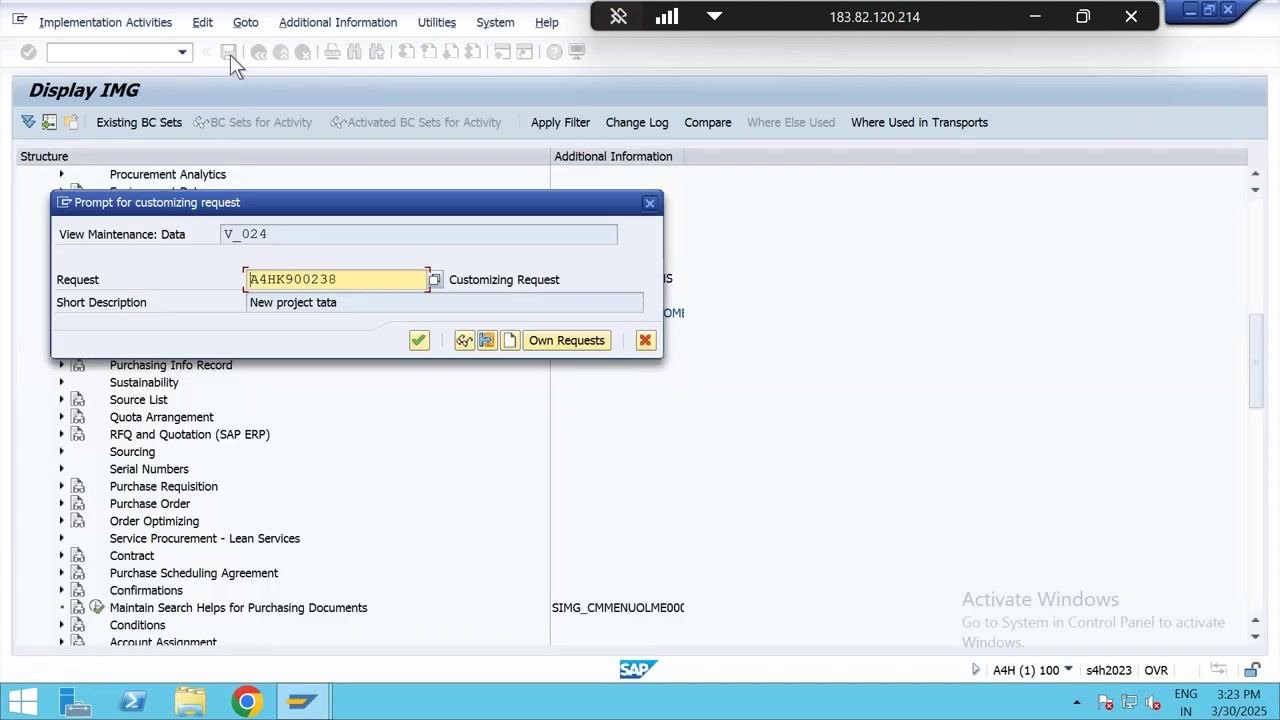
Save the new purchasing group
Click the save icon (diskette symbol) in the SAP toolbar to save your new purchasing group entry. The system will prompt you to assign a customizing request.
Assign a customizing request
In the Prompt for customizing request dialog, complete the following fields:
- Request: Enter or confirm the request number (for example,
A4HK900238). - Short Description: Enter a description such as
New project tata.
Click the green checkmark button to confirm and continue.
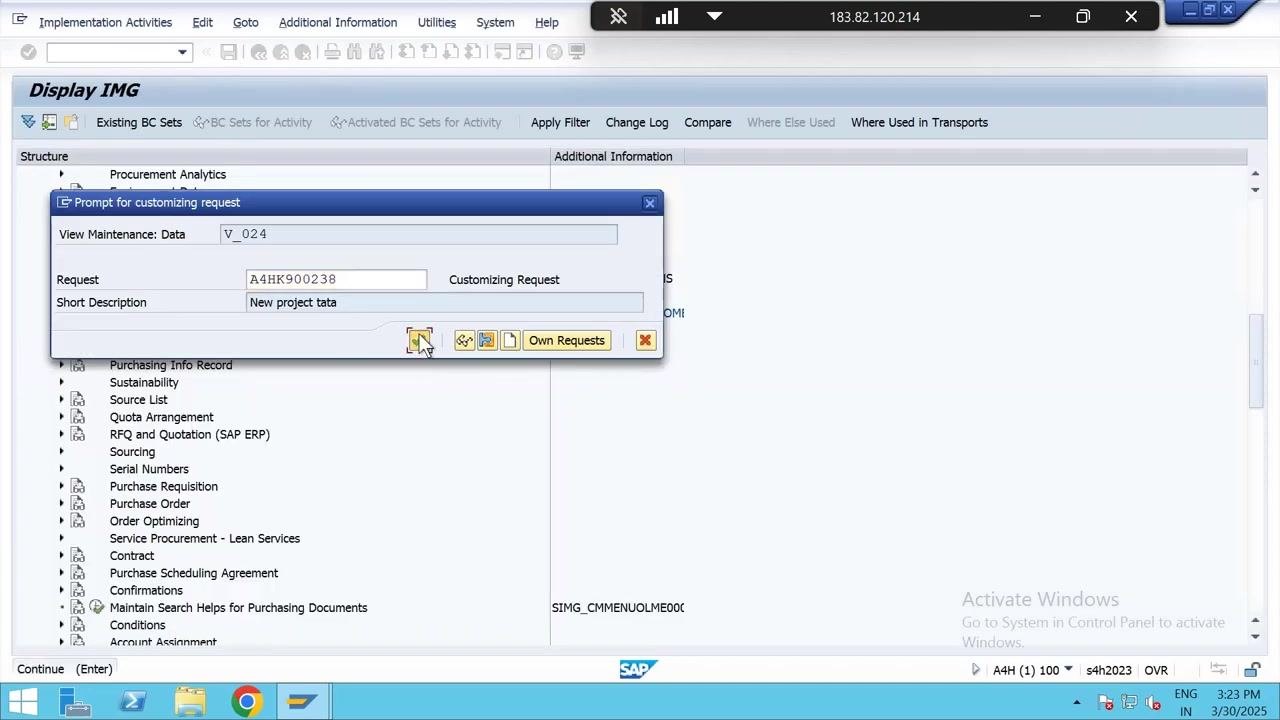
Confirm that the data was saved
After confirming the customizing request, SAP saves the new purchasing group. Look for a status message indicating that the data was saved successfully.
Summary
By completing these steps, you have successfully created and saved a new purchasing group in SAP MM, including all required and optional details, and assigned the changes to a customizing request for transport and audit purposes.
Generation details: cost, quality tiers
Docsie billed 1,500 credits ($1.05) to analyze this 3-minute video at standard quality. The rewrite, template fill and Word/PDF exports were included. The same video at each quality tier:
| Quality | Frames sampled | Credits | Approx. cost |
|---|---|---|---|
| Draft | every 16-30 s | 750 | $0.52 |
| Standard (this guide) | every 8-15 s | 1,500 | $1.05 |
| Detailed | every 4-7 s | 3,000 | $2.10 |
| Ultra | every 1-3 s | 6,000 | $4.20 |
Credits priced at $0.70 per 1,000; plans include a monthly allowance. Enterprise customers on on-premise or bring-your-own-model deployments run this on their own inference and pay no per-video credits.
Generated by Docsie Video-to-Docs on 2026-10-14 from a 2-minute video. Screenshots are frames from the source video and belong to their creator, SAP MM MADE EASY, whose original is embedded above. If you own this video and want the guide removed or credited differently, contact us and we will act within one business day.