
How to Create a Purchase Organization in SAP
This guide walks you through how to create a purchasing organization in SAP, and how to assign it to a company code and to one or more plants. A purchasing organization is the unit in SAP responsible for procuring materials and services, negotiating purchase conditions with vendors, and managing related procurement transactions. By the end of this guide, you will have a fully configured purchasing organization ready to use in your procurement processes.
Video: How to create and assign PURCHASING ORGANIZATIONS in SAP by SAP2Go (2022). All credit for the demonstration goes to the creator; watch the original on YouTube. The written guide below was generated from this video by Docsie. Creator? Request a change or removal.
This guide walks you through how to create a purchasing organization in SAP, and how to assign it to a company code and to one or more plants. A purchasing organization is the unit in SAP responsible for procuring materials and services, negotiating purchase conditions with vendors, and managing related procurement transactions. By the end of this guide, you will have a fully configured purchasing organization ready to use in your procurement processes.
Prerequisites
- Access to the SAP GUI with authorization to maintain purchasing organizations.
- Knowledge of the transaction codes used in this process: 0x08 (maintain purchasing organizations), /nOX01 (assign purchasing organization to company code), and /nOX17 (assign purchasing organization to plant).
Understanding the role of a purchasing organization
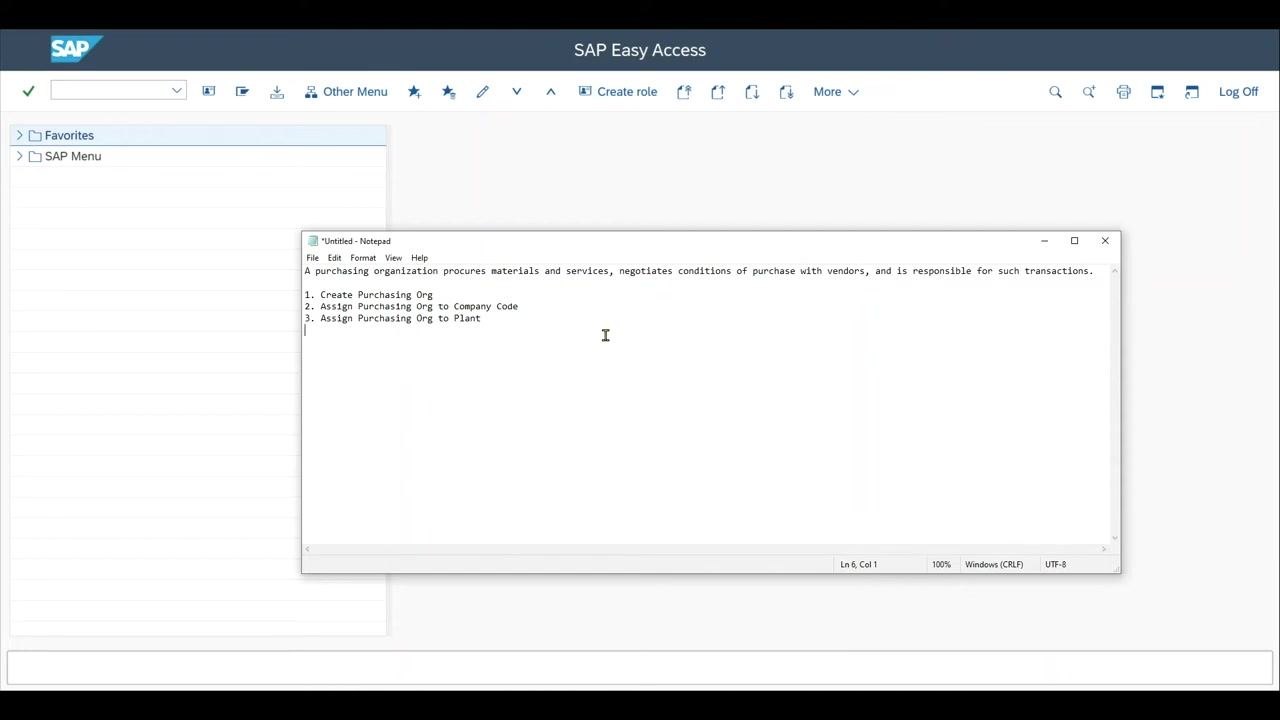
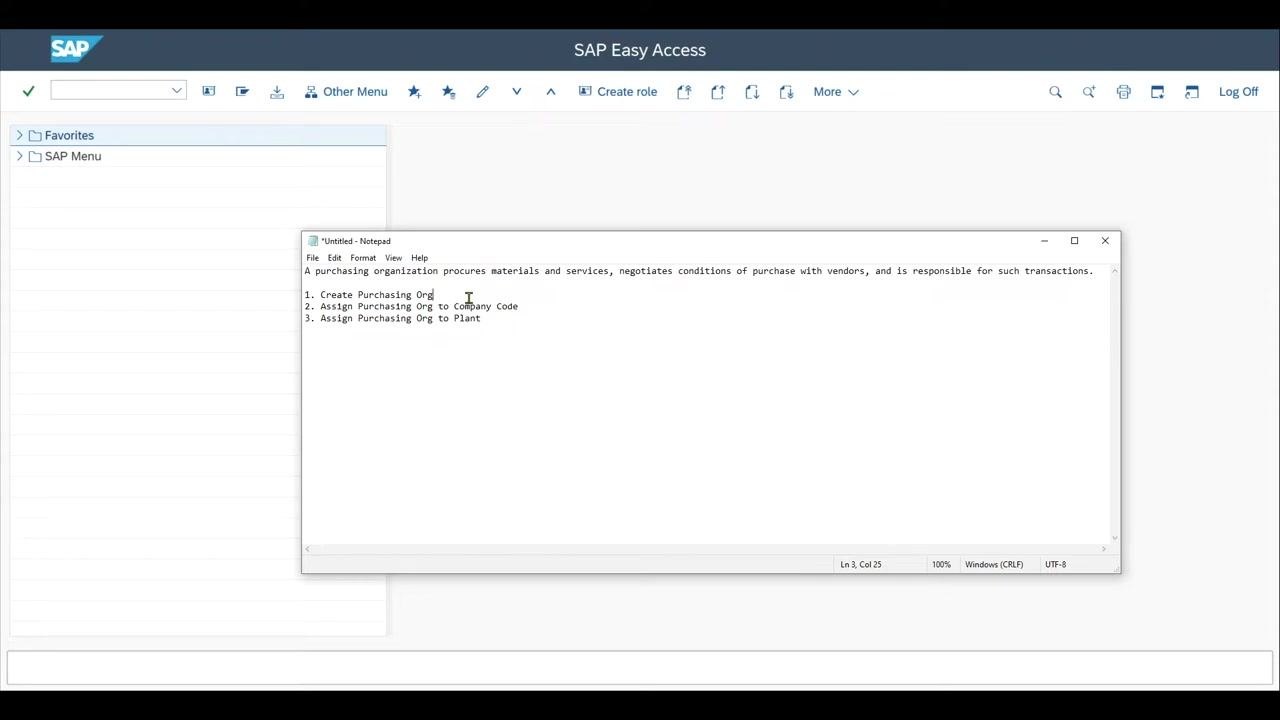
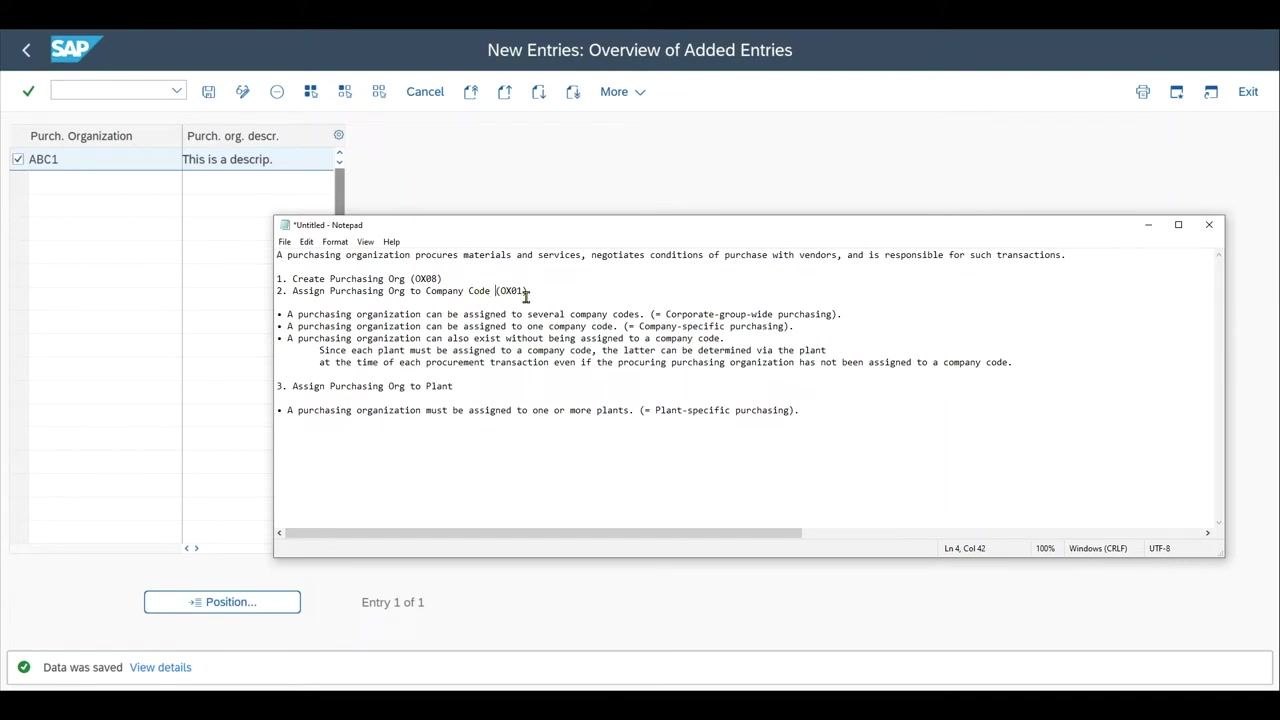
Before you begin, it helps to understand what a purchasing organization does. It is the organizational unit responsible for procuring materials and services, negotiating purchase conditions with vendors, and managing all related procurement transactions.
Navigate to the purchasing organization setup screen
Open the SAP GUI and access the relevant transaction code (0x08) to manage purchasing organizations. The screen displays any existing purchasing organizations, such as entries 0001 and 0002.
Create a new purchasing organization
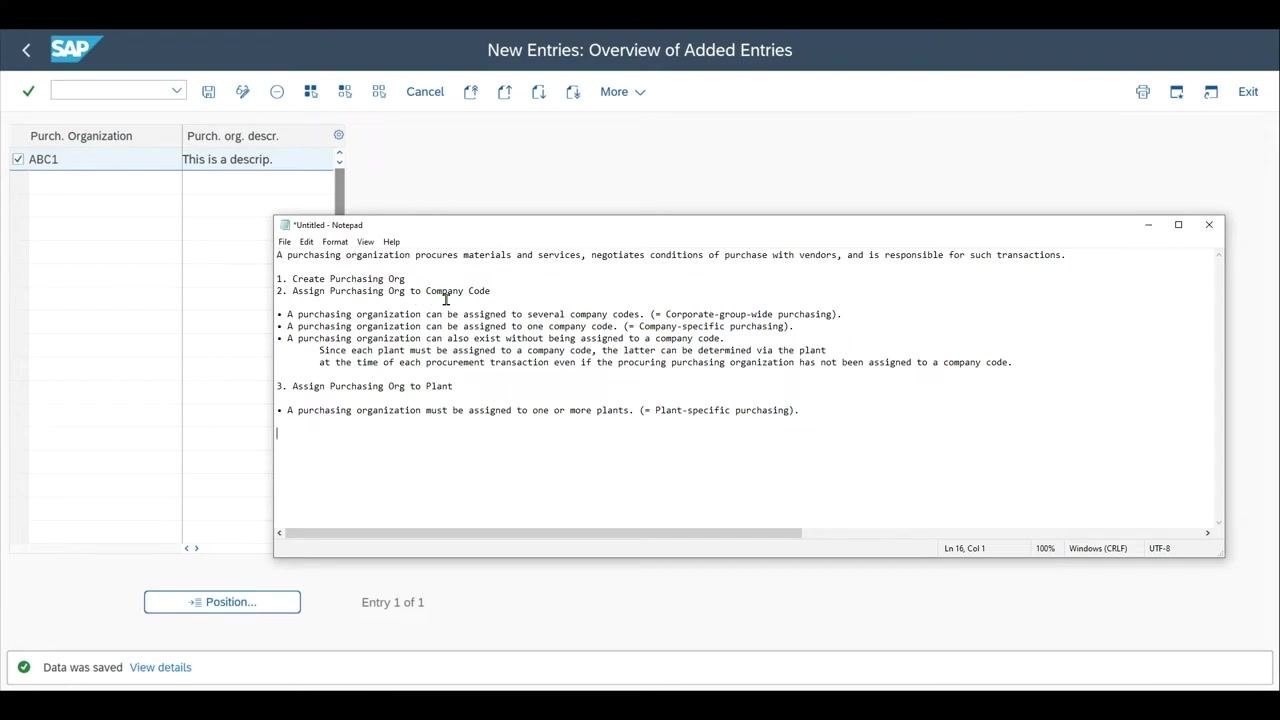
Click New Entries at the top of the screen to add a new purchasing organization. In the new entry row, enter the following:
- Purch. Organization: an alphanumeric ID of up to four characters (for example,
ABC1). - Purch. org. descr.: a description of up to 20 characters (for example,
This is a description).
Save the new purchasing organization
After entering the ID and description, click Save. A confirmation message such as "Data was saved" appears at the bottom of the screen, confirming that the new purchasing organization has been created.
Understanding assignment options
Before assigning your new purchasing organization, review the available assignment options:
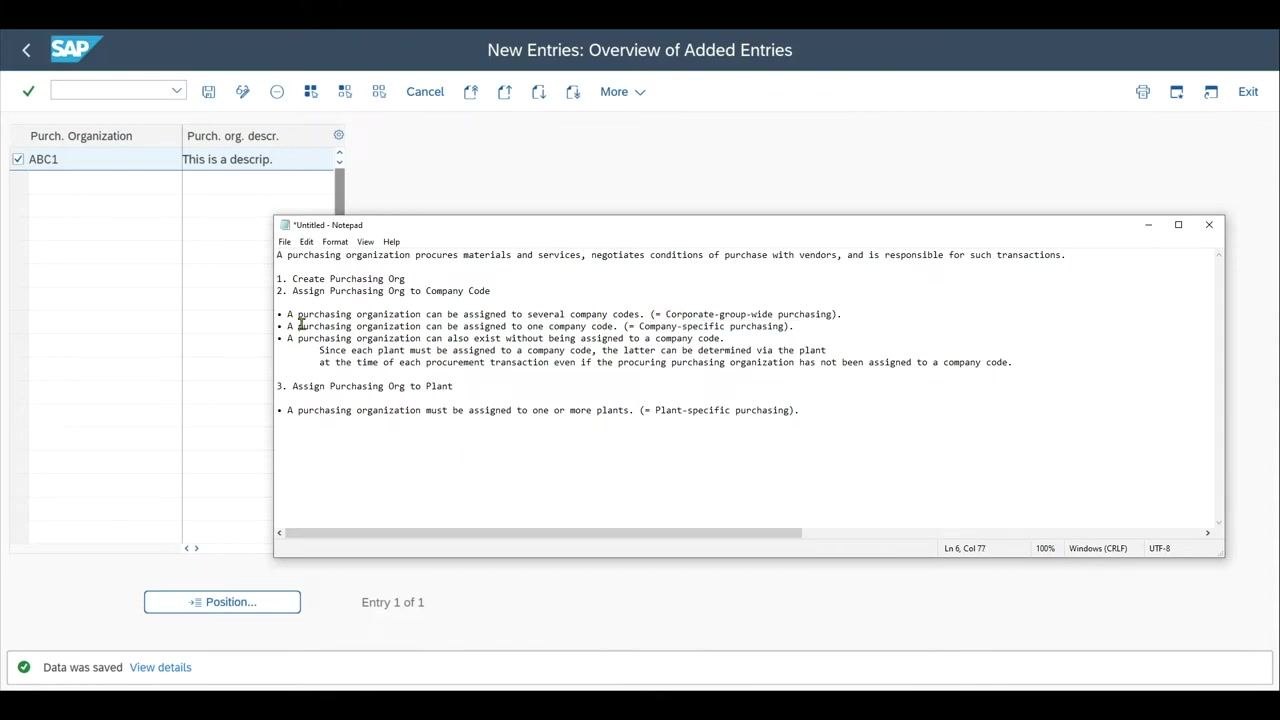
- A purchasing organization can be assigned to several company codes (corporate-group-wide purchasing).
- A purchasing organization can be assigned to only one company code (company-specific purchasing).
- A purchasing organization can exist without being assigned to a company code. In this case, the assignment is determined via the plant, since each plant must be assigned to a company code.
- A purchasing organization must be assigned to one or more plants (plant-specific purchasing).
Assigning the purchasing organization to a company code
The link between a purchasing organization and a company code can be direct or indirect:
- If you assign a company code directly to the purchasing organization, this creates a one-to-one mapping.
- If you leave the company code field blank, the purchasing organization can procure for all plants assigned to it, regardless of the company code to which each plant belongs. In this case, the company code is determined via the plant during procurement.
Step 4: Open the assignment transaction
Enter transaction code /nOX01 in the SAP GUI command field to access the "Assign Purchasing Organization to Company Code" screen.
Step 5: Locate your purchasing organization
Scroll through the list until you find the purchasing organization you created (for example, ABC1 with the description This is a description).
Step 6: Assign a company code
In the CoCd (Company Code) field next to your purchasing organization, enter the company code you want to assign (for example, 5000). If the code is valid, the company name (for example, Ideal Holding AG) populates automatically.
Step 7: Save the assignment
Click Save (the disk icon) at the top of the screen, and confirm that the assignment has been saved successfully.
Notes on the company code assignment:
- If you leave the company code field blank, the purchasing organization can procure for all plants assigned to it, regardless of company code.
- If you assign a company code, the purchasing organization is restricted to that company code for procurement activities.
- Even without a direct assignment, the plant-to-company code relationship ensures that the correct company code is determined during procurement.
You have now assigned your purchasing organization to a company code. Continue to the next section to assign the purchasing organization to a plant.
Assigning the purchasing organization to a plant
Step 8: Review the assignment scenarios
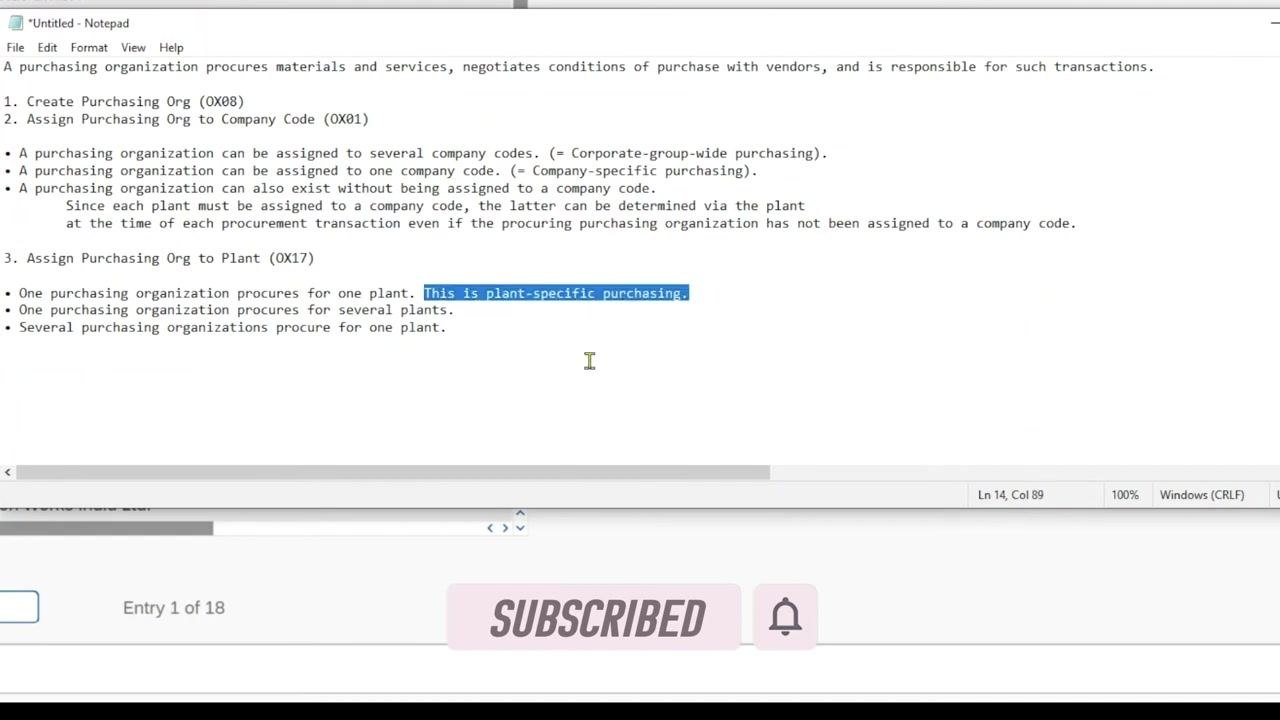
There are three ways to assign a purchasing organization to a plant, allowing you to tailor procurement responsibilities to your organizational needs:
- One purchasing organization assigned to one plant (plant-specific purchasing).
- One purchasing organization assigned to several plants.
- Several purchasing organizations assigned to one plant.
Step 9: Open the assignment transaction
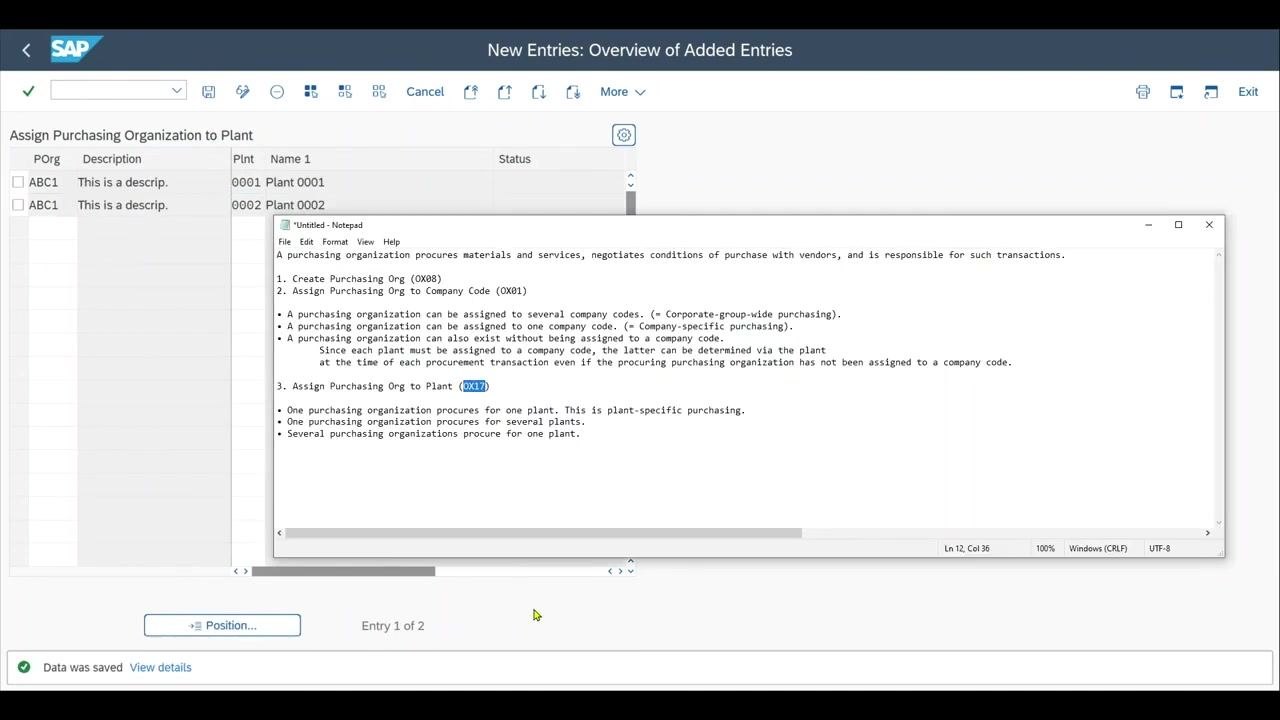
Enter transaction code /nOX17 in the SAP GUI command field to open the "Assign Purchasing Organization to Plant" screen.
Step 10: Create a new assignment
Click New Entries at the top of the screen to add a new assignment.
Step 11: Enter the purchasing organization and plant details
In the POrg (Purchasing Organization) field, enter the code for the purchasing organization you created (for example, ABC1). In the Plnt (Plant) field, enter the plant code you want to assign (for example, 0001 for Plant 0001).
- To assign the same purchasing organization to multiple plants, repeat the process for each plant (for example, add another entry for
ABC1and0002for Plant 0002). - To assign multiple purchasing organizations to the same plant, add additional entries with different purchasing organization codes but the same plant code.
Step 12: Save the assignment
Click Save (the disk icon) at the top of the screen to save your new assignments. Confirm that the data was saved by checking for the "Data was saved" message at the bottom of the screen.
Summary
Assigning a purchasing organization to a plant enables that organization to handle procurement for the specified plant or plants. You can configure these assignments to match your company's procurement structure, whether centralized or decentralized, and this flexibility supports both simple and complex organizational requirements.
You have now completed the process of creating a purchasing organization in SAP and assigning it to a company code and to one or more plants. This concludes the setup for purchasing organization assignments in SAP.
Generation details: cost, quality tiers
Docsie billed 2,500 credits ($1.75) to analyze this 5-minute video at standard quality. The rewrite, template fill and Word/PDF exports were included. The same video at each quality tier:
| Quality | Frames sampled | Credits | Approx. cost |
|---|---|---|---|
| Draft | every 16-30 s | 1,250 | $0.88 |
| Standard (this guide) | every 8-15 s | 2,500 | $1.75 |
| Detailed | every 4-7 s | 5,000 | $3.50 |
| Ultra | every 1-3 s | 10,000 | $7.00 |
Credits priced at $0.70 per 1,000; plans include a monthly allowance. Enterprise customers on on-premise or bring-your-own-model deployments run this on their own inference and pay no per-video credits.
Generated by Docsie Video-to-Docs on 2026-10-14 from a 4-minute video. Screenshots are frames from the source video and belong to their creator, SAP2Go, whose original is embedded above. If you own this video and want the guide removed or credited differently, contact us and we will act within one business day.