
How to Create a New Plant in SAP
Creating a plant is a core configuration task in SAP MM (Materials Management). A plant represents a manufacturing location or a warehouse within your organizational structure. This guide walks you through how to create a new plant in SAP MM by copying an existing plant, and then shows you how to assign that plant to a company code.
Video: How to create a Plant in SAP by MCV Solutions for Learning (2020). All credit for the demonstration goes to the creator; watch the original on YouTube. The written guide below was generated from this video by Docsie. Creator? Request a change or removal.
Creating a plant is a core configuration task in SAP MM (Materials Management). A plant represents a manufacturing location or a warehouse within your organizational structure. This guide walks you through how to create a new plant in SAP MM by copying an existing plant, and then shows you how to assign that plant to a company code.
Overview of the process
Creating and activating a new plant in SAP involves two main stages:
- Creation of the plant in SAP using the Implementation Guide (IMG).
- Assignment of the plant to a company code, performed using transaction code OX18.
Prerequisites
- Access to the SAP Implementation Guide (IMG).
- Authorization to create customizing requests.
- Knowledge of an existing reference plant to copy from (such as plant 1000, Hamburg).
- The company code you intend to assign the new plant to.
Navigate to the plant definition activity
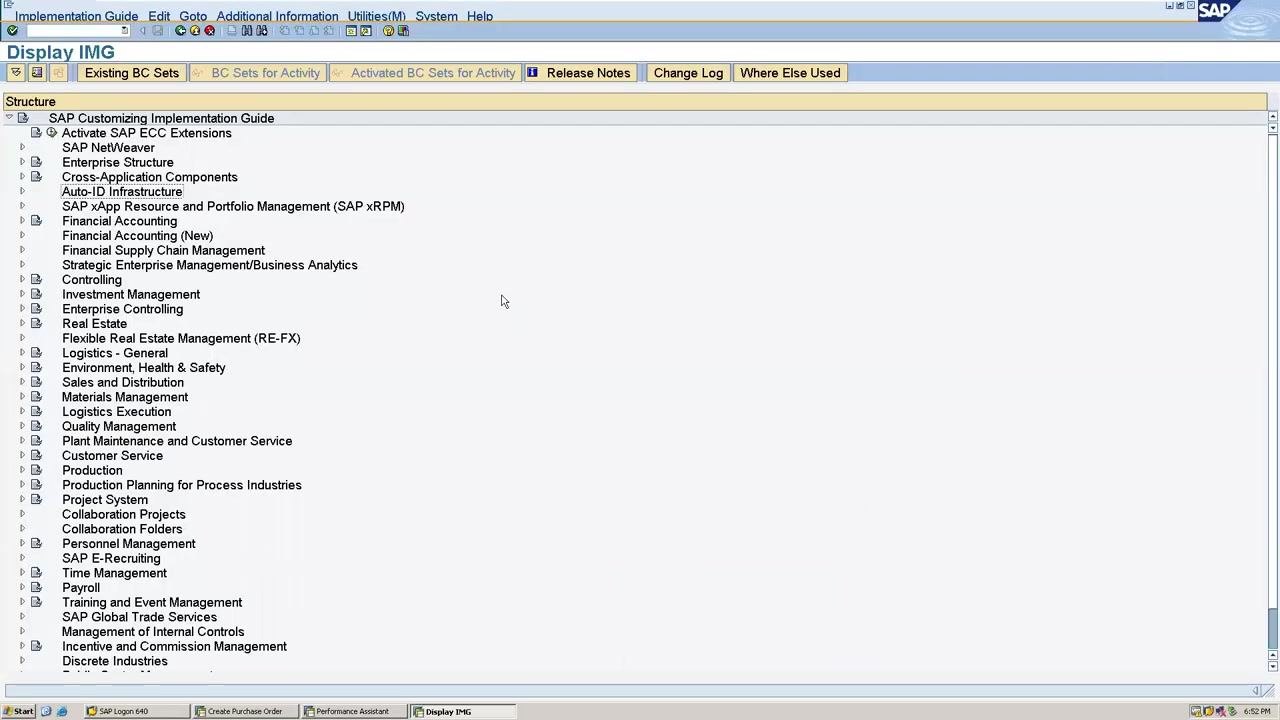
Open SAP and access the Implementation Guide (IMG) screen. From there, follow this navigation path:
- Enterprise Structure
- Definition
- Logistics - General
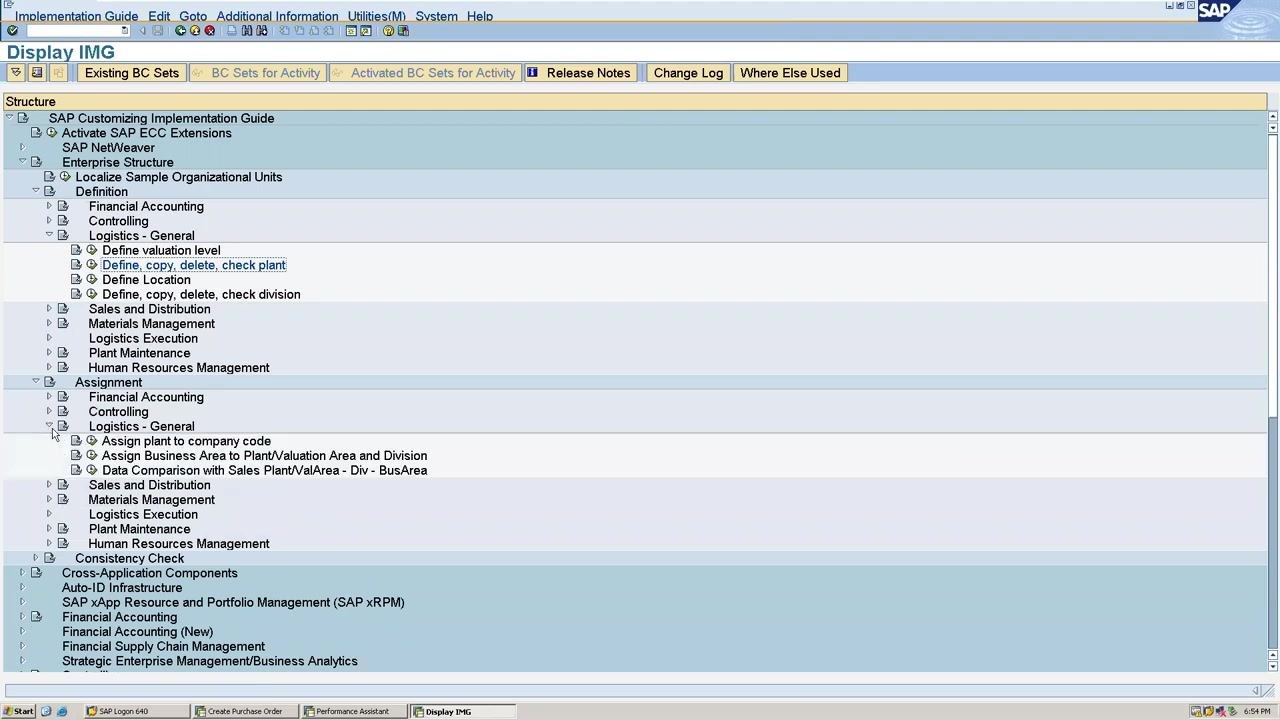
In the Logistics - General section, select Define, copy, delete, check plant. This activity lets you define a new plant, copy an existing one, or delete and check plant settings.
Choose the copy, delete, check plant activity
In the Choose Activity window, select Copy, delete, check plant, then click Choose to proceed.
Select the reference plant and enter the new plant code
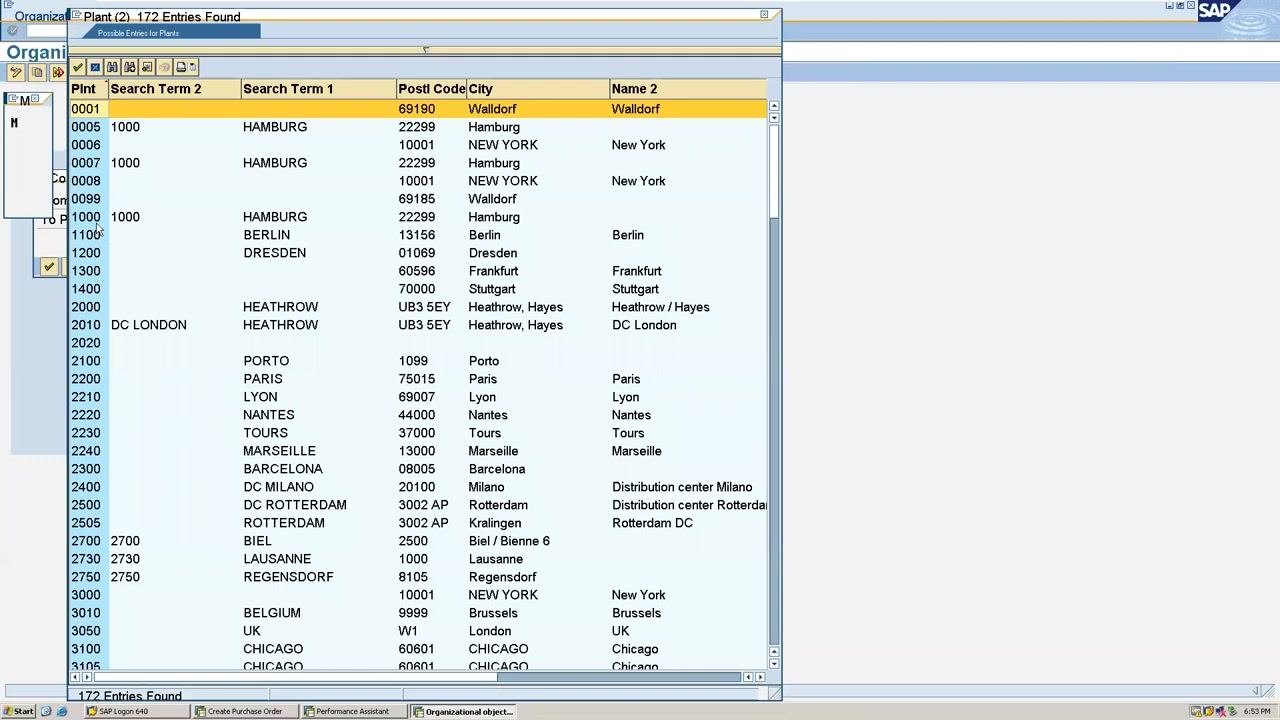
From the list of existing plants, select the plant you want to copy from. In this example, plant 1000 (Hamburg) is used as the reference. Enter the new plant code you want to create — for example, ALL4.
Handle the number range and address transport dialog
A dialog may appear regarding number range intervals and address transport. Read the instructions carefully, and if required, maintain the organizational unit's address data manually. Click the green checkmark (Continue) to proceed.
Enter the customizing request
When prompted, enter the customizing request details. For example:
- Request: DM0K900006
- Short Description: POLO GROUP INDUSTRIES
Click the green checkmark (Continue) to confirm.
Confirm that the plant copy is complete
Wait for the system to finish copying the plant data. You can track progress using the indicator at the bottom of the SAP window (for example, "68% of tables copied (database)..."). Once the process finishes, a confirmation message appears:
"Plant 1000 copied to ALL4 without 4 number range objects."
Click the green checkmark (Continue) to acknowledge the message.
At this point, you have successfully created a new plant in SAP. The next stage is to prepare it for assignment to a company code.
Navigate to the plant-to-company-code assignment
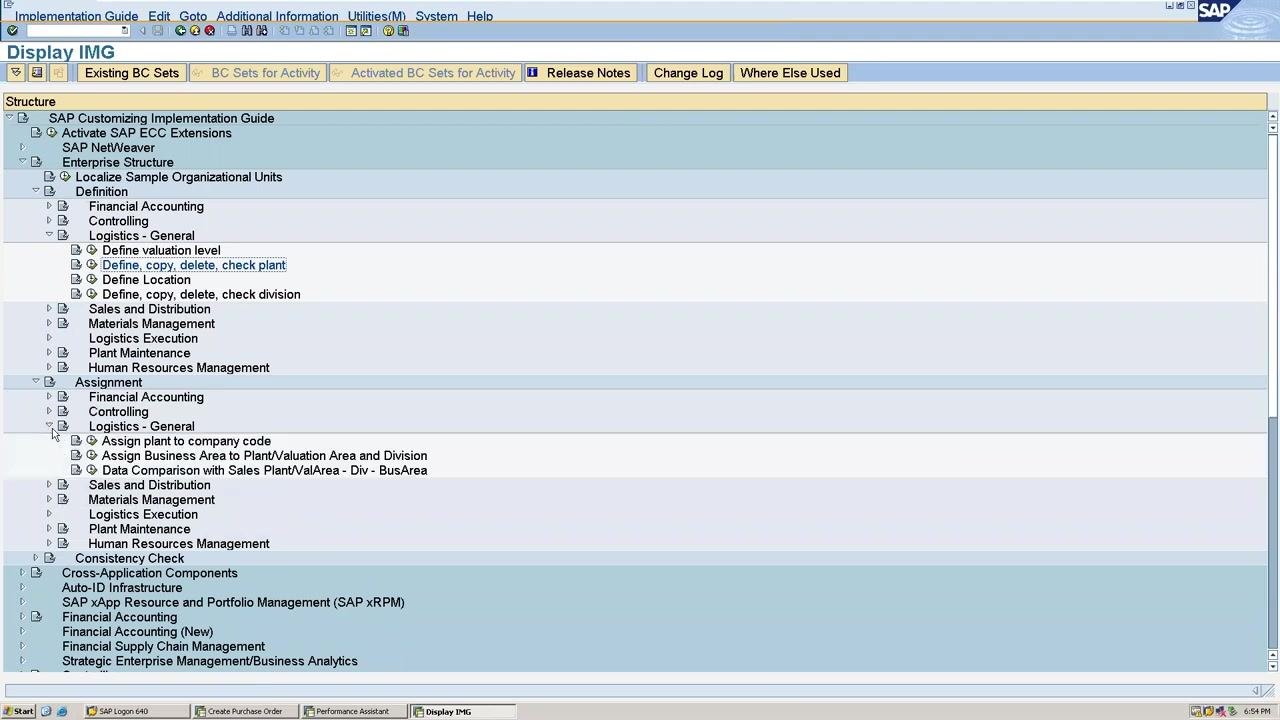
To assign your newly created plant (ALL4) to a company code, use transaction code OX18. In the SAP IMG screen, expand the following path:
- Enterprise Structure
- Assignment
- Logistics - General
Select Assign plant to company code.
Add a new assignment entry
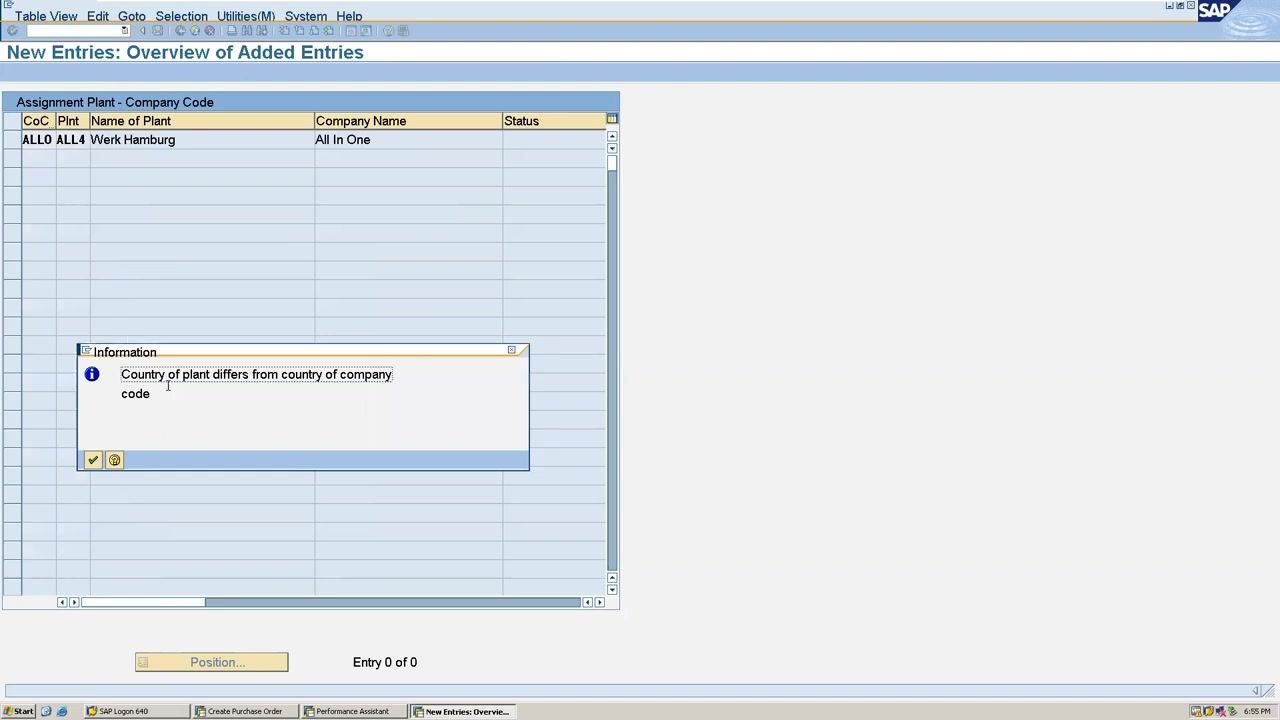
In the New Entries: Overview of Added Entries window, add a new row and enter the following details:
- CoC (Company Code): ALL0
- Plnt (Plant): ALL4
The system may auto-populate the "Name of Plant" and "Company Name" fields (for example, "Werk Hamburg" and "All In One").
Handle the country mismatch warning
If the country of the plant differs from the country of the company code, an information pop-up appears:
"Country of plant differs from country of company code."
Click the green checkmark (Continue) to acknowledge the warning.
Address tax procedure differences, if applicable
If you encounter the country mismatch warning, you may need to adjust the tax procedure. This is resolved using transaction code OBBG, where you change the tax procedure to match the requirements for cross-country assignments. You can save your assignment after acknowledging the warning.
Review the assignment entry
Confirm that your new plant has been successfully assigned to the company code. In the New Entries: Overview of Added Entries window, verify the following details:
- CoC (Company Code): ALL0
- Plnt (Plant): ALL4
- Name of Plant: Werk Hamburg
- Company Name: All In One
Check the status bar at the bottom of the screen for the message "Data was saved." No further action is required on this screen if the data is correct.
Summary
By following these steps, you have learned how to create a new plant in SAP MM by copying an existing plant, and how to assign that plant to a company code. You have also learned how to handle country and tax procedure mismatches, including the use of transaction code OBBG, should they arise during the assignment process.
Generation details: cost, quality tiers
Docsie billed 2,000 credits ($1.40) to analyze this 4-minute video at standard quality. The rewrite, template fill and Word/PDF exports were included. The same video at each quality tier:
| Quality | Frames sampled | Credits | Approx. cost |
|---|---|---|---|
| Draft | every 16-30 s | 1,000 | $0.70 |
| Standard (this guide) | every 8-15 s | 2,000 | $1.40 |
| Detailed | every 4-7 s | 4,000 | $2.80 |
| Ultra | every 1-3 s | 8,000 | $5.60 |
Credits priced at $0.70 per 1,000; plans include a monthly allowance. Enterprise customers on on-premise or bring-your-own-model deployments run this on their own inference and pay no per-video credits.
Generated by Docsie Video-to-Docs on 2026-10-14 from a 3-minute video. Screenshots are frames from the source video and belong to their creator, MCV Solutions for Learning, whose original is embedded above. If you own this video and want the guide removed or credited differently, contact us and we will act within one business day.