
How to Create a Company Code in SAP
This guide explains how to create a company code in SAP MM by copying an existing company code. Copying an existing company code lets you reuse its configuration settings, saving you from entering every setting manually when setting up a new entity in your SAP system.
Video: How to create company code in SAP MM by SAP MM MADE EASY (2022). All credit for the demonstration goes to the creator; watch the original on YouTube. The written guide below was generated from this video by Docsie. Creator? Request a change or removal.
This guide explains how to create a company code in SAP MM by copying an existing company code. Copying an existing company code lets you reuse its configuration settings, saving you from entering every setting manually when setting up a new entity in your SAP system.
Prerequisites
- Access to the SAP GUI with valid login credentials.
- Authorization to access the SAP Customizing Implementation Guide (transaction SPRO).
- The source company code you intend to copy from (for example,
0001).
Access the customizing implementation guide
Start SAP Easy Access
Launch the SAP GUI and log in to your SAP system. On the SAP Easy Access screen, confirm that the workspace and navigation panel are visible before proceeding.
Open the company code editing option
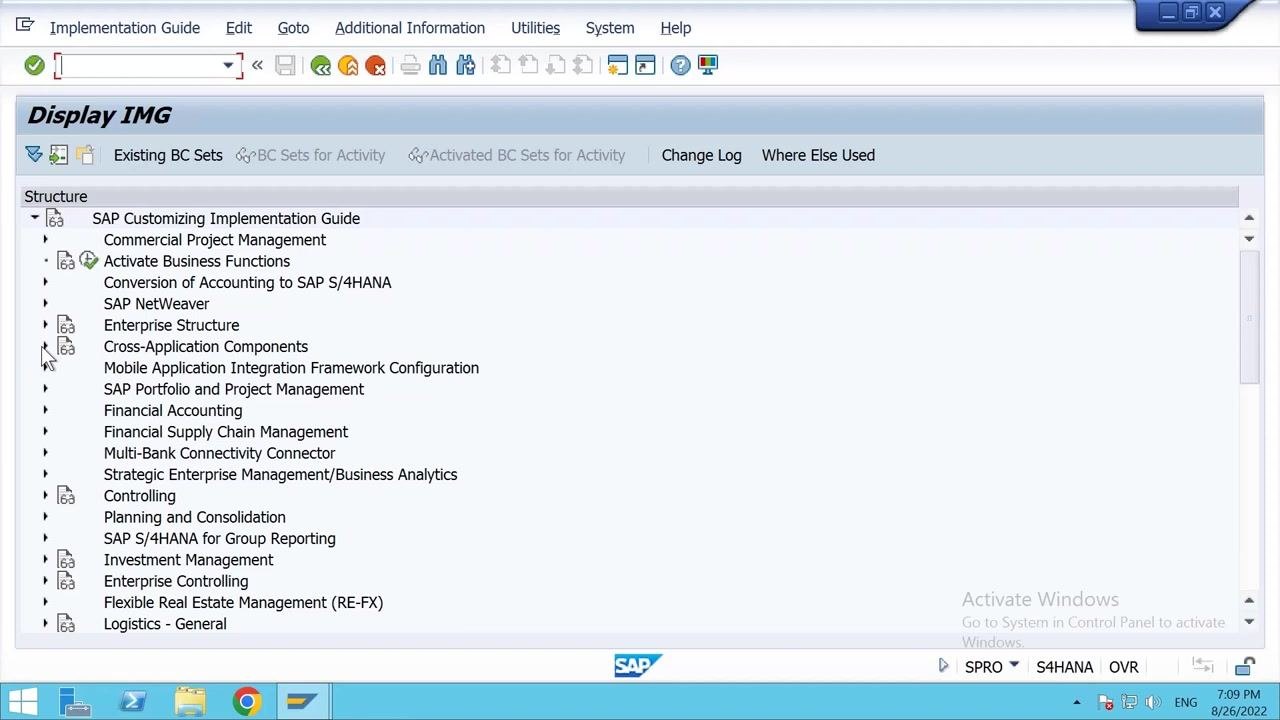
In the Display IMG window, expand the following menu path: SAP Customizing Implementation Guide > Enterprise Structure > Definition > Financial Accounting. Locate and select Edit, Copy, Delete, Check Company Code.
Copy an existing company code
Select the copy company code option
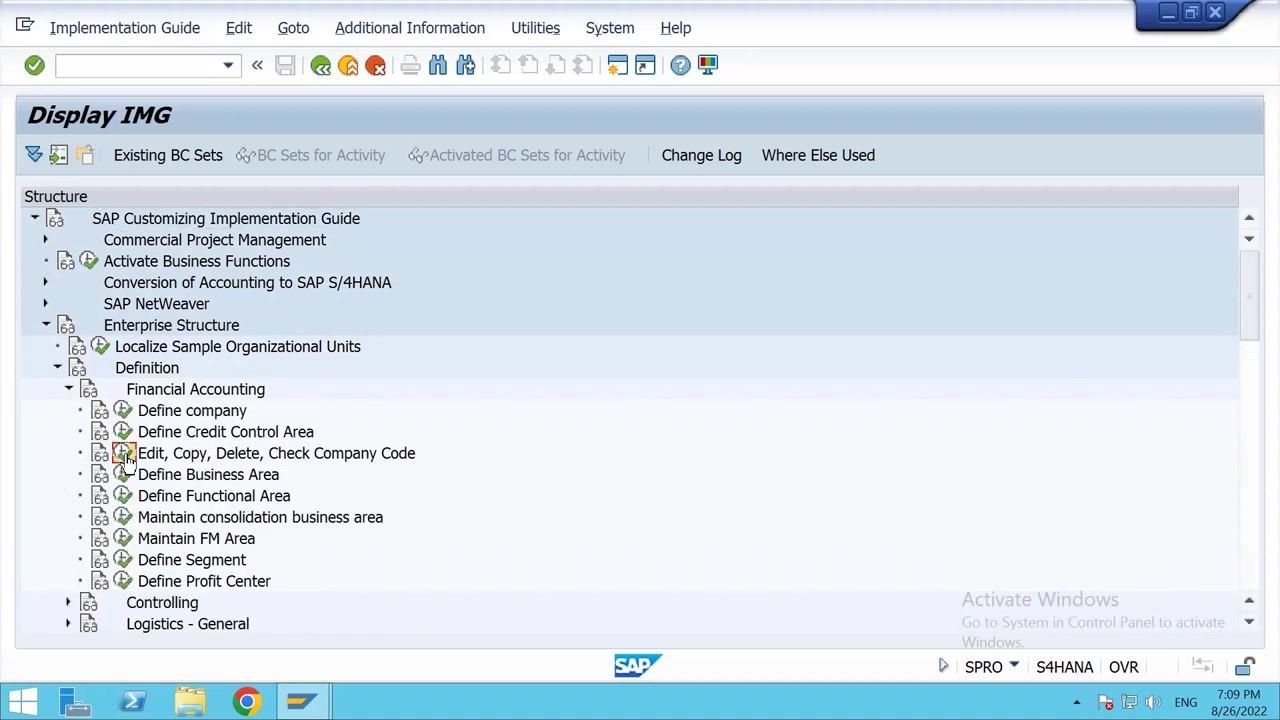
In the Change View "Company Code": Details of Selected Set window, click the option to copy an existing company code. Enter the source company code (for example, 0001) and the new company code (for example, REL1), then proceed.
Enter the new company code details
On the details screen, fill in the following fields:
- Company Code:
REL1 - Company Name:
Reliance 1 - City: Enter the city, for example
Hyderabad - Country:
IN(India) - Currency:
INR(Indian Rupee) - Language:
EN(English)
Enter the address details
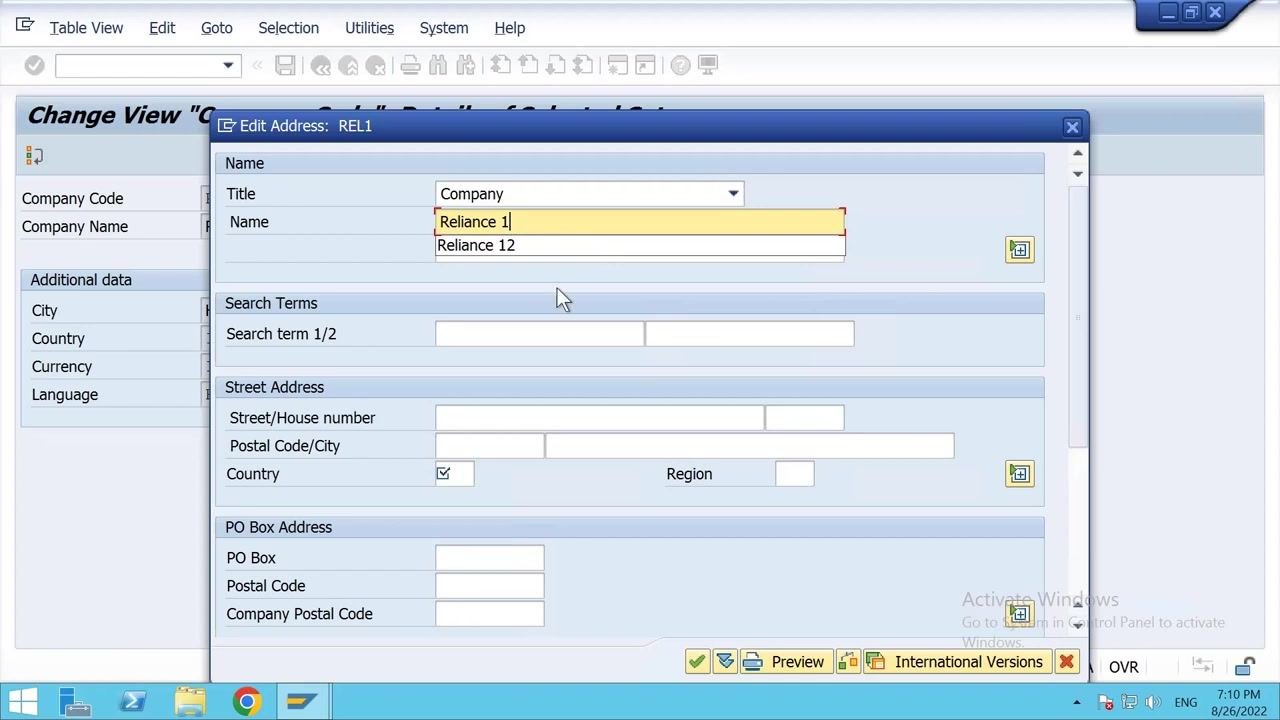
In the Edit Address dialog for the new company code, complete the following fields:
- Title: Select
Company - Name: Enter
Reliance 1 - Search Term: Enter a short term, for example
Relax - Country: Select
INfor India - Region: Enter
Telangana - PO Box Number: Enter as required
Save the new company code
After entering all required details, click the save icon (diskette) to save the new company code. Confirm any prompts that appear to complete the process.
Verify the company code was created
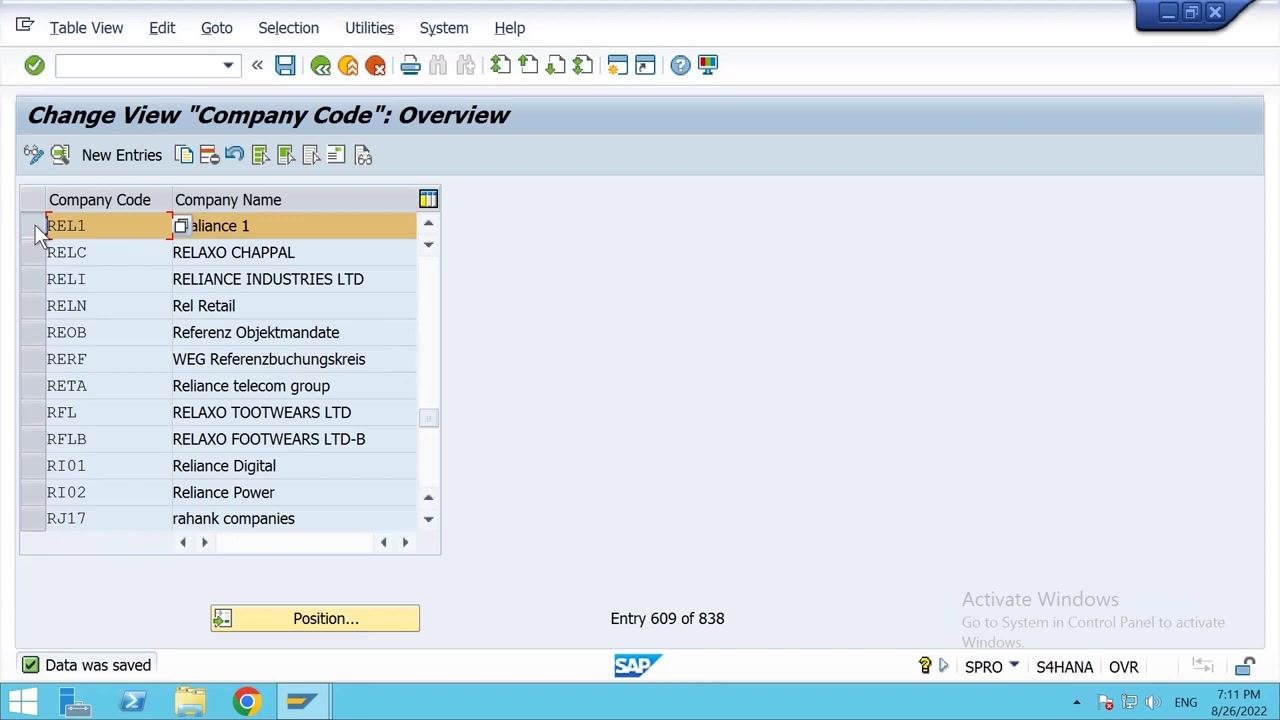
Confirm that the new company code (for example, REL1) appears in the overview list, and that the company name (for example, Reliance 1) is displayed correctly.
Copy tables and complete the configuration
Start the table copy process
Begin the process to copy tables from the existing company code (for example, 0001) to the new company code (REL1). Click Continue when prompted.
Confirm the organizational object copy
When prompted "Do you want the org. complete object?", select Yes to copy the complete organizational object.
Respond to the G/L account data prompt
When asked "Do you want to copy the G/L account company code data?", select No if you do not want to copy the G/L accounts from the source company code.
Respond to the controlling area assignment prompt
When prompted "Do you want to copy the assignment to the controlling area?", select No if you do not want to copy this assignment.
Review the transport information
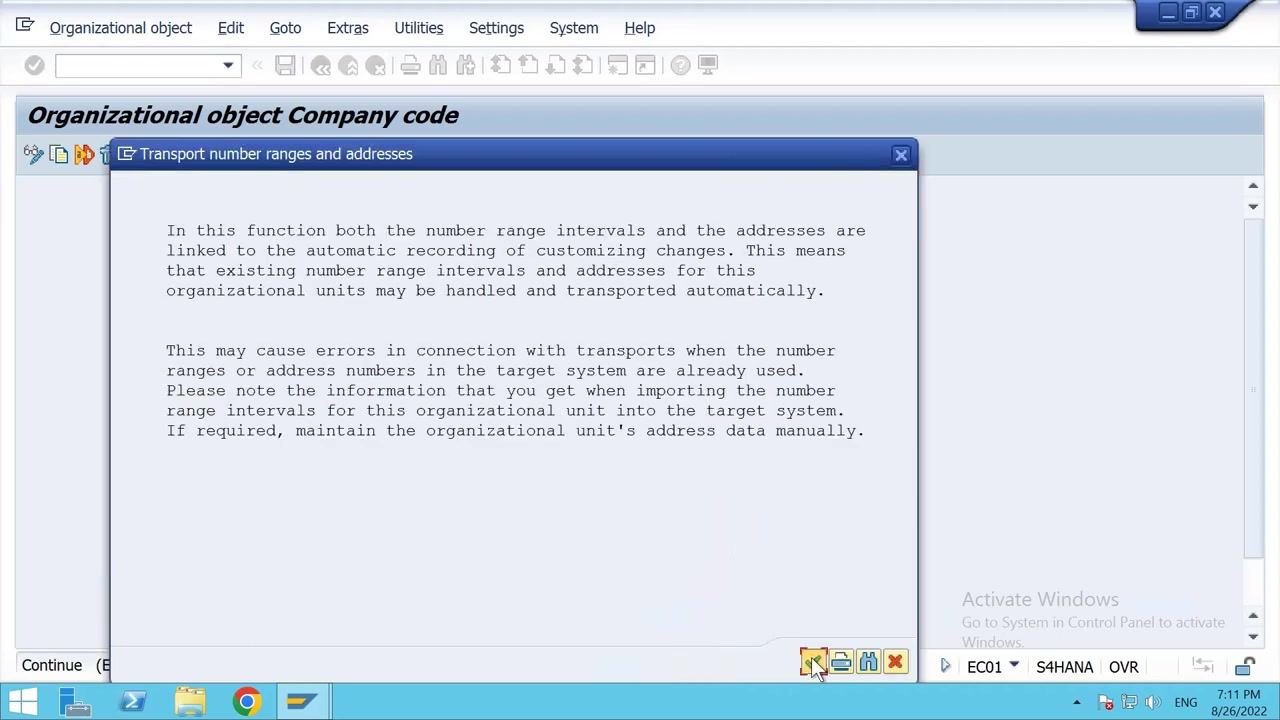
Read the information regarding the transport of number ranges and addresses, then click Continue to proceed.
Decline the number range transport
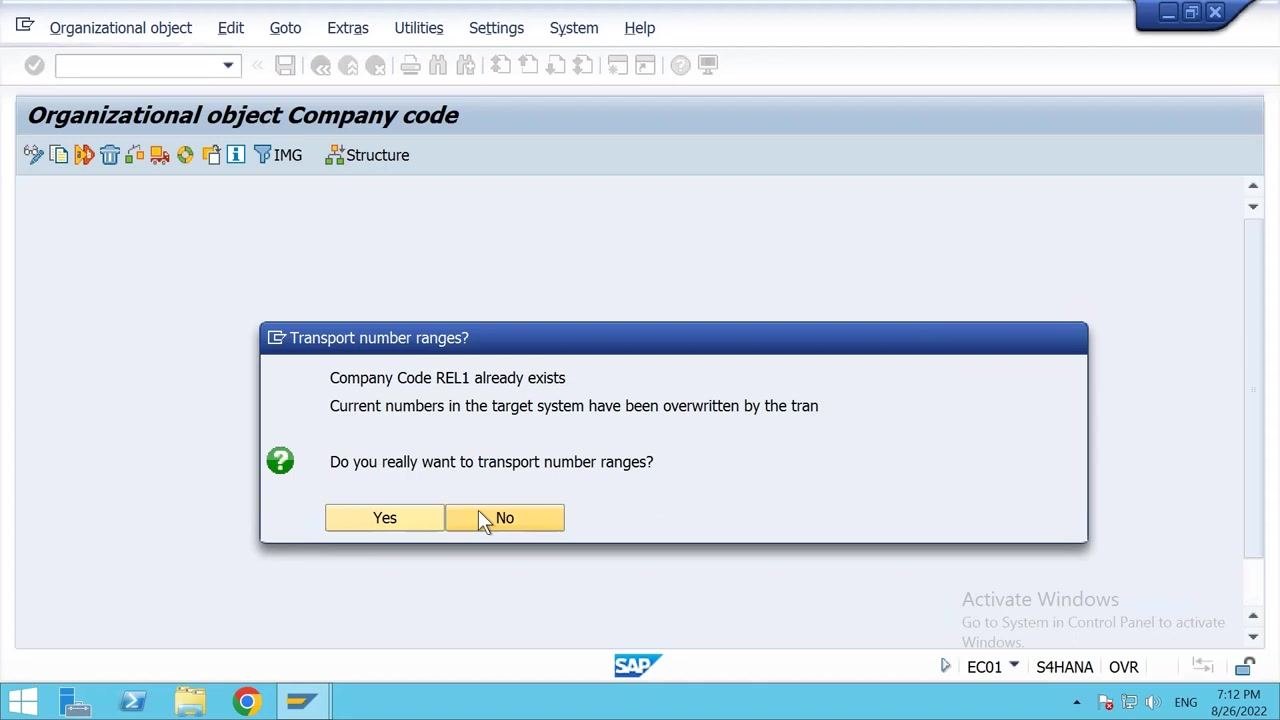
When prompted "Do you really want to transport number ranges?", select No. This ensures that number ranges are not transported, since some tables will be updated in the background.
Confirm the customizing request
When prompted for a customizing request, verify the request number (for example, S4HK903703) and the short description (for example, SAP MM MADE EASY). Click the green checkmark to confirm and continue.
Confirm the final number range prompt
If prompted again with "Do you really want to transport number ranges?" for the new company code (for example, REL1), select No.
Summary
You have now learned how to create a company code in SAP MM by copying an existing one. By following these steps, you copied the source company code's configuration, entered the new company code's details and address, and responded to each table-copy prompt, resulting in a fully configured new company code (REL1) ready for use.
Generation details: cost, quality tiers
Docsie billed 2,000 credits ($1.40) to analyze this 4-minute video at standard quality. The rewrite, template fill and Word/PDF exports were included. The same video at each quality tier:
| Quality | Frames sampled | Credits | Approx. cost |
|---|---|---|---|
| Draft | every 16-30 s | 1,000 | $0.70 |
| Standard (this guide) | every 8-15 s | 2,000 | $1.40 |
| Detailed | every 4-7 s | 4,000 | $2.80 |
| Ultra | every 1-3 s | 8,000 | $5.60 |
Credits priced at $0.70 per 1,000; plans include a monthly allowance. Enterprise customers on on-premise or bring-your-own-model deployments run this on their own inference and pay no per-video credits.
Generated by Docsie Video-to-Docs on 2026-10-14 from a 3-minute video. Screenshots are frames from the source video and belong to their creator, SAP MM MADE EASY, whose original is embedded above. If you own this video and want the guide removed or credited differently, contact us and we will act within one business day.