
How to Merge Duplicate Accounts in Salesforce
When duplicate account records exist in Salesforce, you can merge them using the Merge Accounts tool, which is only available in Salesforce Classic. This guide walks you through identifying duplicate accounts in Lightning Experience, switching to Classic to perform the merge, and verifying the result back in Lightning Experience.
Video: How to Merge Duplicate Accounts in Salesforce by Rotive - Brian Hays (2021). All credit for the demonstration goes to the creator; watch the original on YouTube. The written guide below was generated from this video by Docsie. Creator? Request a change or removal.
When duplicate account records exist in Salesforce, you can merge them using the Merge Accounts tool, which is only available in Salesforce Classic. This guide walks you through identifying duplicate accounts in Lightning Experience, switching to Classic to perform the merge, and verifying the result back in Lightning Experience.
Prerequisites
- Access to Salesforce with permissions to view and merge account records.
- Ability to switch between Salesforce Lightning Experience and Salesforce Classic.
Identify duplicate accounts in Lightning Experience
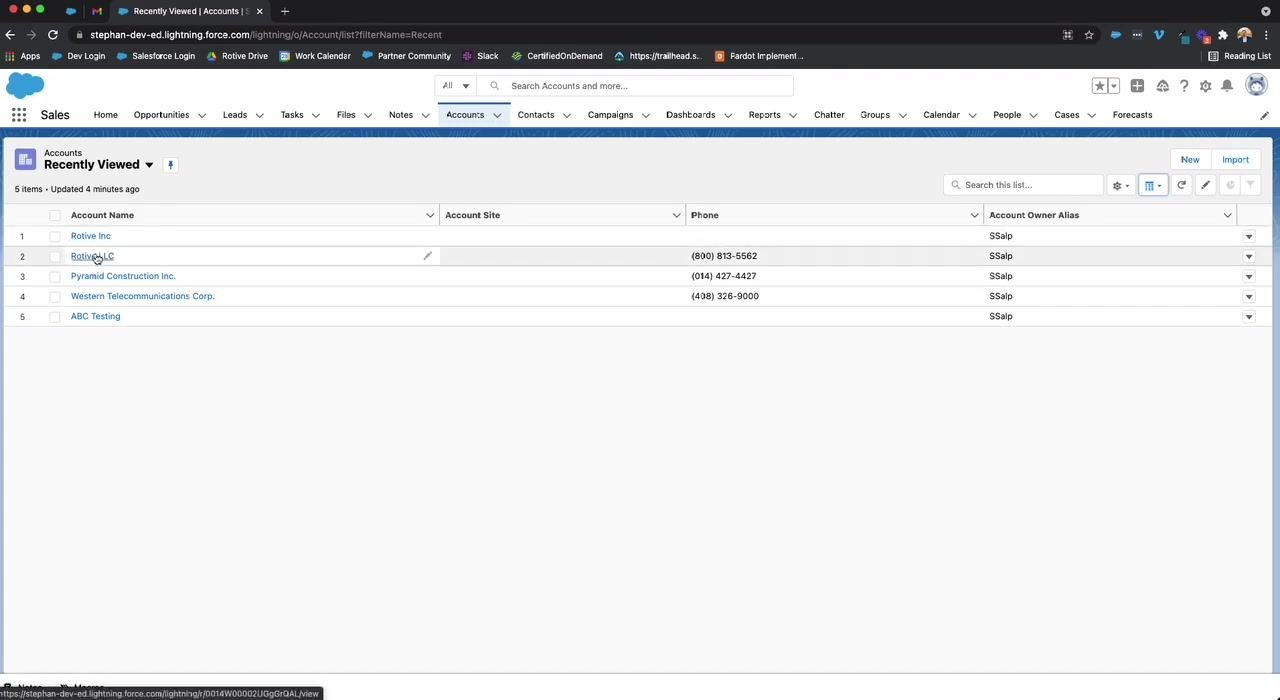
Open Salesforce and navigate to the Accounts tab. Review the list of accounts for duplicates. In this example, there are two accounts: "Rotive Inc" and "Rotive LLC". Confirm that both accounts are visible in the list.
Switch to Salesforce Classic
Click your user avatar/profile icon in the top right corner. In the dropdown menu, under Options, click Switch to Salesforce Classic.
Navigate to the Accounts tab in Classic
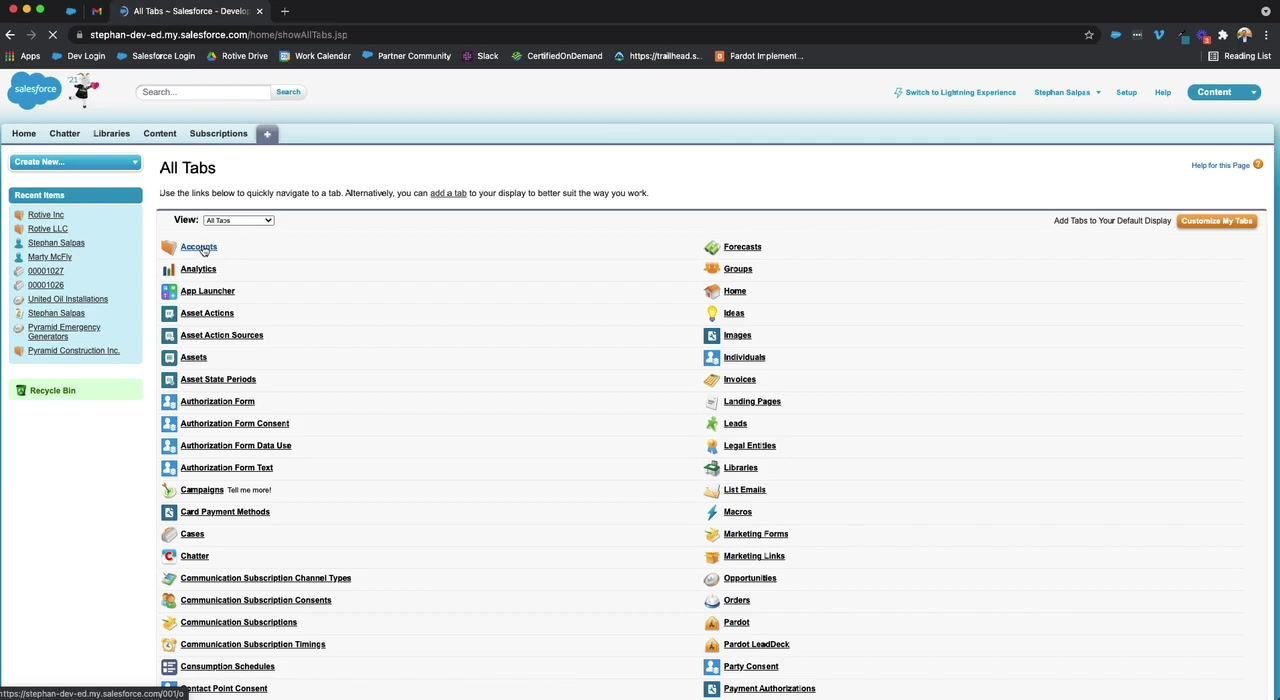
In Salesforce Classic, click the + (All Tabs) icon in the navigation bar. On the All Tabs page, click the Accounts link to open the Accounts object.
Access the Merge Accounts tool
On the Accounts Home page, locate the Tools section on the right side. Click the Merge Accounts link.
Search for duplicate accounts
In the Merge My Accounts wizard, enter a unique keyword from the duplicate accounts (for example, "Rotive") in the search box, then click Find Accounts. Select the checkboxes for the accounts you want to merge — in this case, "Rotive LLC" and "Rotive Inc." — and click Next to proceed.
Select the values to retain
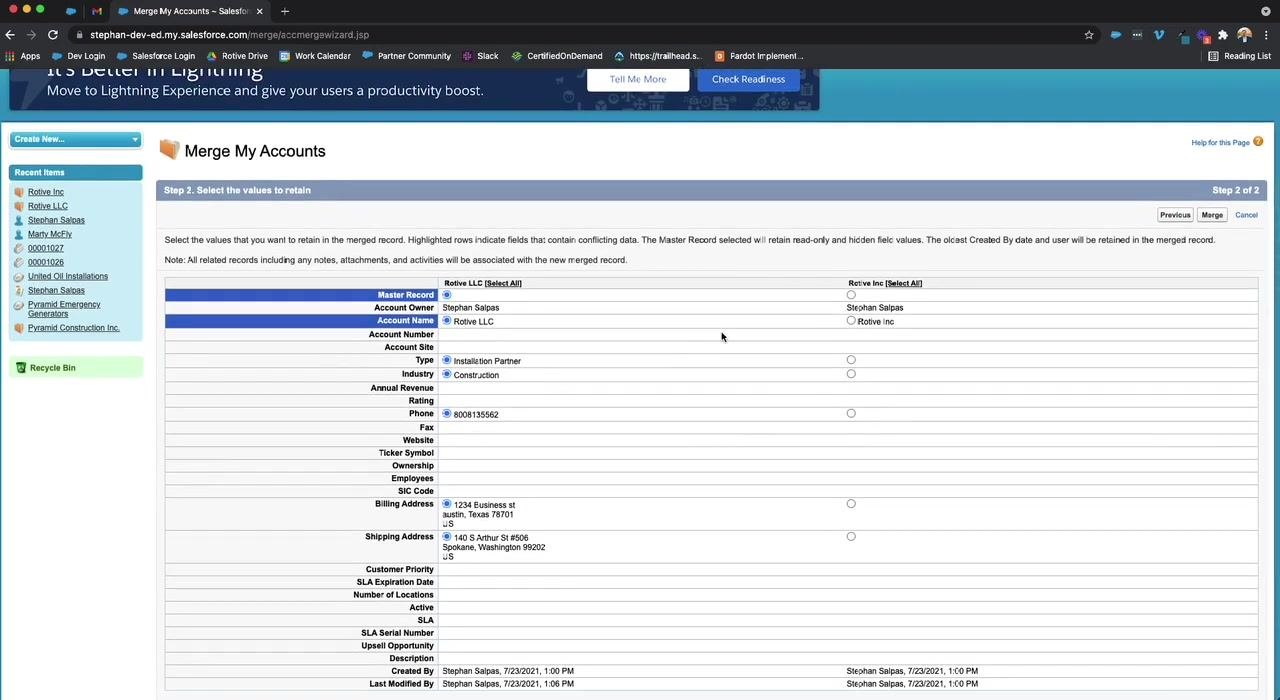
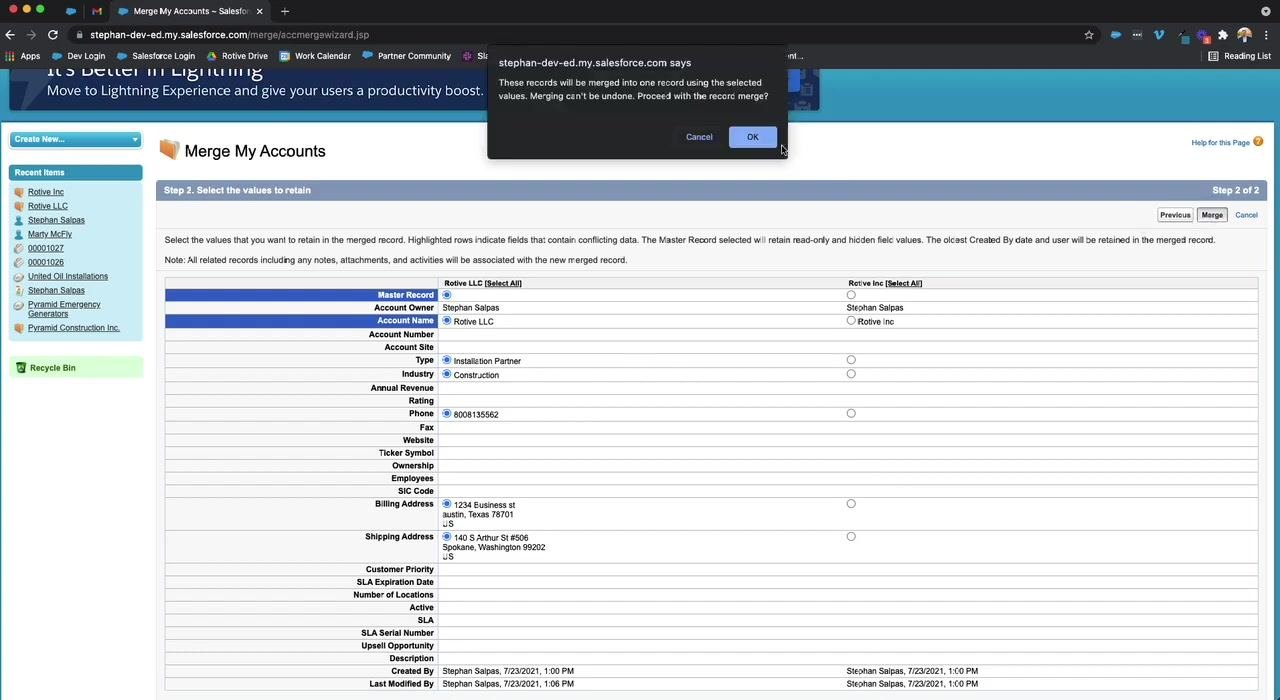
Review the details for both accounts side by side. For each field (such as Account Owner, Account Name, Type, Industry, Phone, and Billing Address), select the value you want to keep in the merged record. In this example, "Rotive LLC" contains more complete information, so its values are selected for most fields.
Merge the accounts
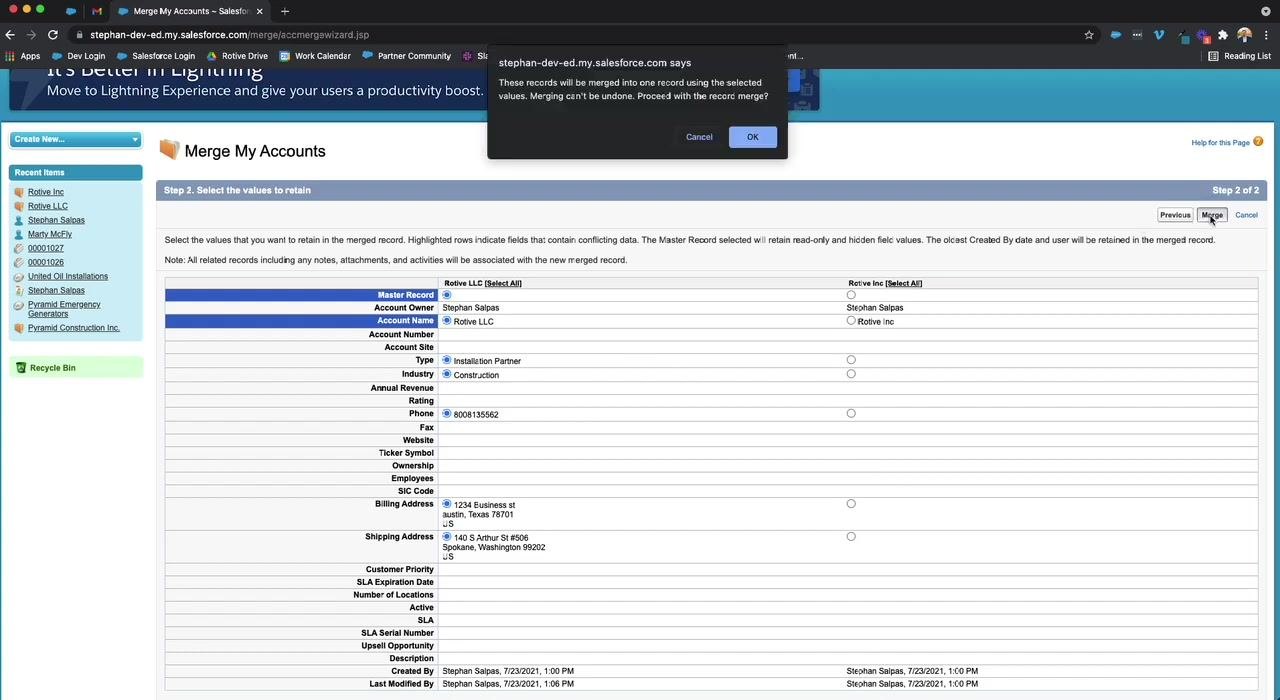
After selecting the desired values, click Merge in the top right corner. A confirmation dialog appears stating: "These records will be merged into one record using the selected values. Merging can't be undone. Proceed with the record merge?" Click OK to confirm and complete the merge.
By following these steps, you can successfully merge duplicate accounts in Salesforce by switching from Lightning Experience to Salesforce Classic and using the built-in Merge Accounts tool.
Verifying the merged account in Salesforce Lightning
After completing the merge, confirm that the account was combined correctly by reviewing it back in Lightning Experience.
Step 1: Return to Salesforce Lightning Experience
After merging the accounts in Salesforce Classic, switch back to Salesforce Lightning Experience. Locate the Accounts tab and search for the merged account name, "Rotive LLC".
Step 2: Confirm only one account exists
Verify that only one account record for "Rotive" is present in the list, and ensure that the merged account is named "Rotive LLC".
Step 3: Open the merged account record
Click Rotive LLC to open the account details page. Confirm that you are viewing the correct account by checking the account name at the top of the page.
Step 4: Review account details
Click the Details tab within the account record and review all key fields to ensure the correct information has been retained from the merge:
- Account Owner: Stephan Salpas
- Account Name: Rotive LLC
- Type: Installation Partner
- Industry: Construction
- Phone: (800) 813-5562
- Billing Address: 1234 Business St, Austin, Texas 78701, US
- Shipping Address: 140 S Arthur St #506, Spokane, Washington 99202, US
Confirm that all other relevant fields, such as Account Site, Website, and any custom fields, display the expected data.
Step 5: Verify data integrity
Double-check that all information you selected during the merge process is present and accurate, and ensure that no duplicate accounts remain for "Rotive".
Step 6: Completion and support
The merge process is now complete. If you have any questions or need further assistance with Salesforce or Pardot, reach out to your Salesforce administrator or support team.
Summary
By following these steps, you can merge duplicate Salesforce accounts using Salesforce Classic's Merge Accounts tool and confirm that your account merge was successful, with all relevant data retained in Salesforce Lightning Experience.
Generation details: cost, quality tiers
Docsie billed 1,500 credits ($1.05) to analyze this 3-minute video at standard quality. The rewrite, template fill and Word/PDF exports were included. The same video at each quality tier:
| Quality | Frames sampled | Credits | Approx. cost |
|---|---|---|---|
| Draft | every 16-30 s | 750 | $0.52 |
| Standard (this guide) | every 8-15 s | 1,500 | $1.05 |
| Detailed | every 4-7 s | 3,000 | $2.10 |
| Ultra | every 1-3 s | 6,000 | $4.20 |
Credits priced at $0.70 per 1,000; plans include a monthly allowance. Enterprise customers on on-premise or bring-your-own-model deployments run this on their own inference and pay no per-video credits.
Generated by Docsie Video-to-Docs on 2026-09-08 from a 2-minute video. Screenshots are frames from the source video and belong to their creator, Rotive - Brian Hays, whose original is embedded above. If you own this video and want the guide removed or credited differently, contact us and we will act within one business day.