
How to Enable Budgetary Control in Oracle Fusion
Budgetary control ensures that spending is monitored and controlled against a predefined budget, while encumbrance accounting tracks commitments and obligations to confirm funds are available before actual expenditures occur. This guide explains how to enable budgetary control in Oracle Fusion, covering the underlying concepts, the control budget process flow, and the detailed configuration steps for ledgers, business units, and business functions.
Video: How to enable Budgetary control in Oracle Fusion R13 | Encumbrance accounting |Controlled Budget by MY TECHNO JOURNAL (2022). All credit for the demonstration goes to the creator; watch the original on YouTube. The written guide below was generated from this video by Docsie. Creator? Request a change or removal.
Budgetary control ensures that spending is monitored and controlled against a predefined budget, while encumbrance accounting tracks commitments and obligations to confirm funds are available before actual expenditures occur. This guide explains how to enable budgetary control in Oracle Fusion, covering the underlying concepts, the control budget process flow, and the detailed configuration steps for ledgers, business units, and business functions.
Prerequisites
Before you enable budgetary control in Oracle Fusion, you should understand how budgetary control and encumbrance accounting relate to one another and fit into the broader process flow.
Understanding budgetary control and encumbrance accounting
Budgetary control and encumbrance accounting serve related but distinct purposes:
- Configuration: Budgetary control relies on Spending Controls; encumbrance accounting relies on the Sub Ledger Accounting Method.
- Structure: Budgetary control uses the Control Budget, Budget Account, and Budget Calendar; encumbrance accounting uses the Ledger, Chart of Accounts, and Accounting Calendar.
- Transactions: Budgetary control performs funds checks and funds reservation for requisitions, purchase orders, invoices, and similar documents. Encumbrance accounting creates journal entries for commitments and obligations.
- Reporting: Budgetary control reports on transaction consumption of budget and funds available. Encumbrance accounting reports on general ledger commitments, obligation journals, and balances.

Accounting methods and their relationship to budgetary control
Oracle Fusion supports several accounting methods:
- Cash basis accounting
- Accrual basis accounting
- Sub-ledger accounting, specifically encumbrance accounting
If you enable encumbrance accounting, you can manage it based on budgetary control. Enabling both budgetary control and encumbrance accounting together allows the system to perform fund checks and fund reservations.
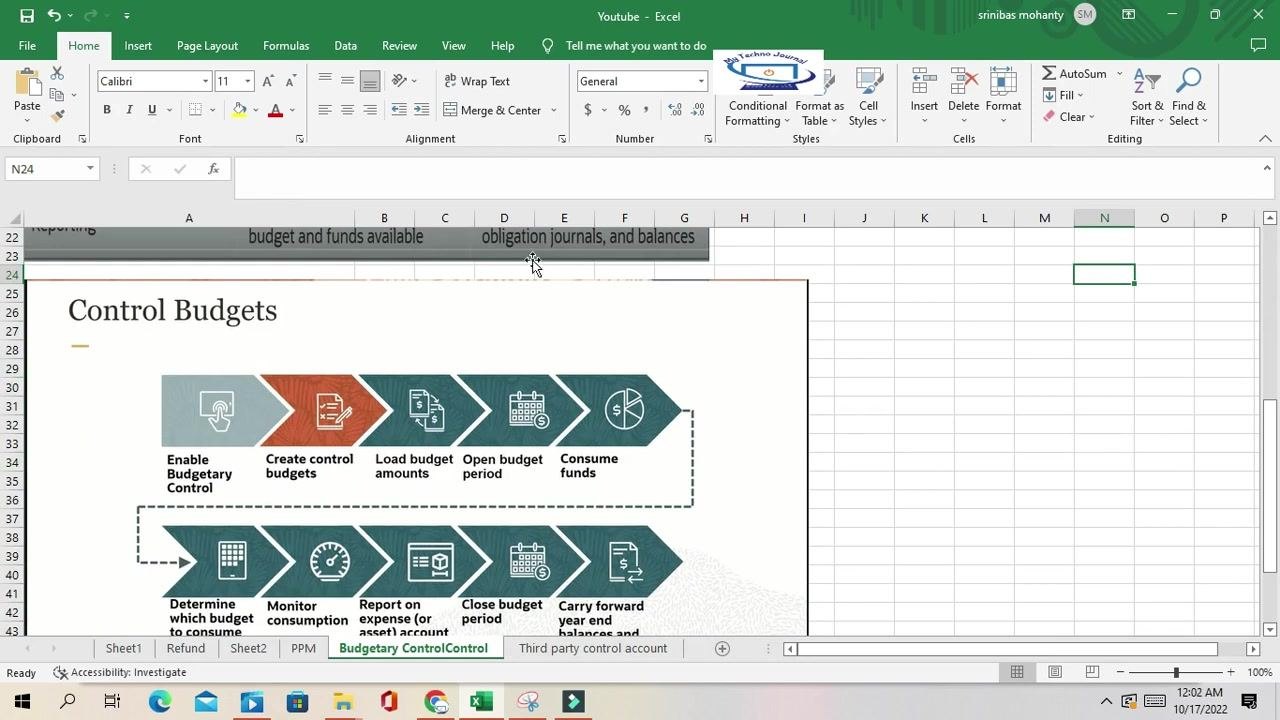
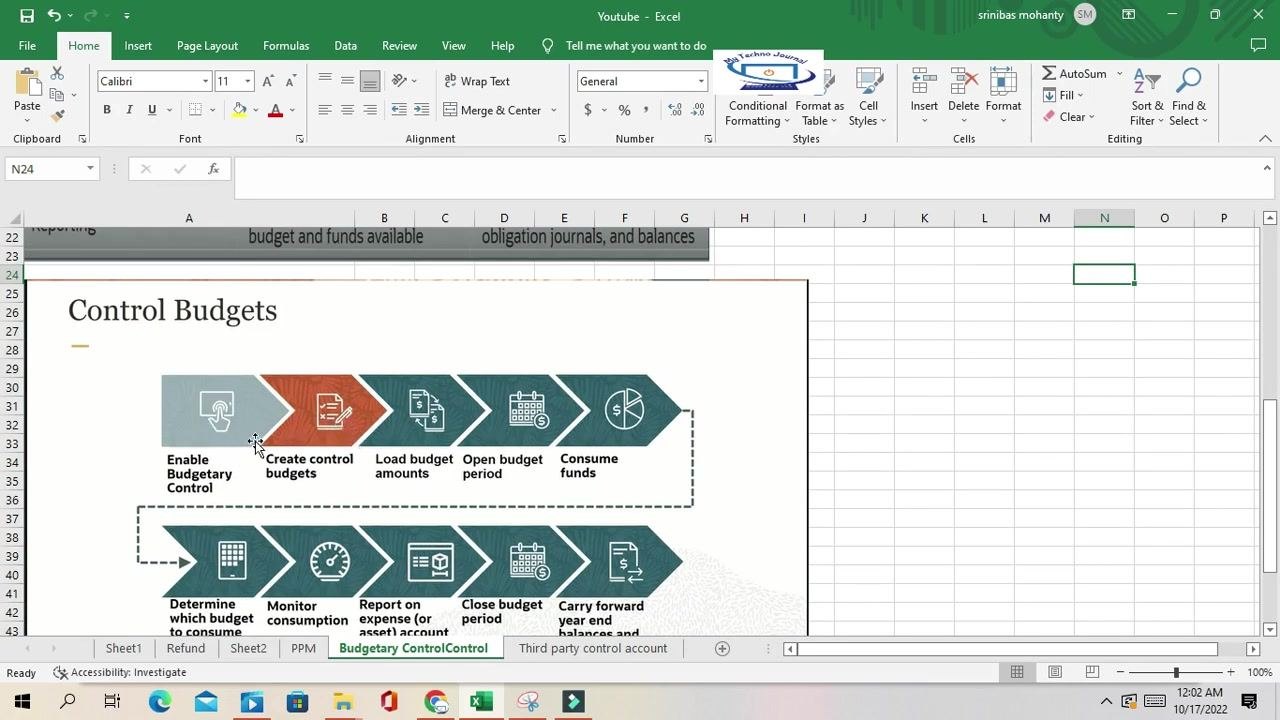
Reviewing the control budget process flow
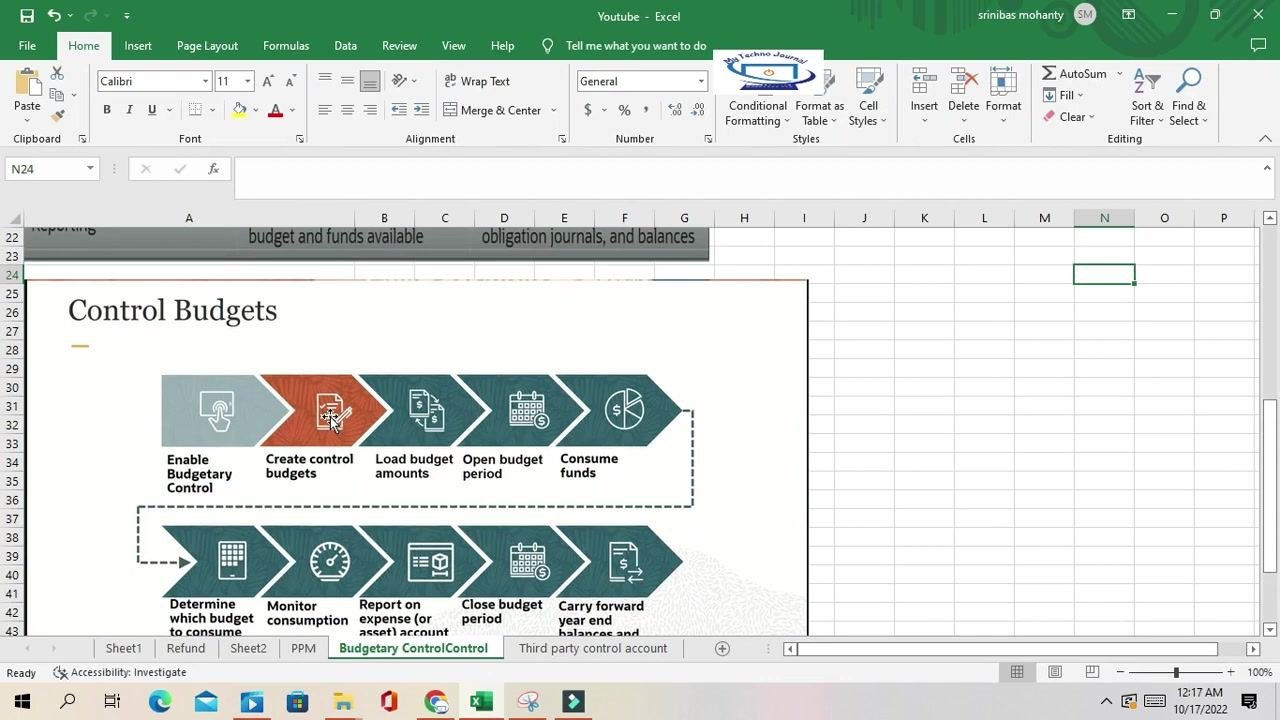
Before configuring settings, it helps to understand the overall sequence:
- Enable budgetary control.
- Create control budgets.
- Load budget amounts.
- Open the budget period.
- Consume funds.
- Determine which budget to consume.
- Monitor consumption.
- Report on the expense (or asset) account.
- Close budgetary control.
- Carry forward year-end balances and encumbrances.
Identifying transactions to enable for budgetary control
Assign and enable budgetary control and encumbrance accounting for specific transaction types, such as requisitions, purchase orders, and invoices. Once enabled, Oracle Fusion performs fund checks and creates encumbrance journal entries for these transaction types.
Access the Financials setup area
- Open your web browser and log in to the Oracle Fusion application.
- From the main menu, locate and select the Setup: Financials section.
- In the Functional Areas panel, scroll down to find Budgetary Control and Encumbrance Accounting.
- Click Budgetary Control and Encumbrance Accounting to expand its options.
Open the Manage Budgetary Control task
Click Manage Budgetary Control under the Task list to open the management page for budgetary control and encumbrance accounting.
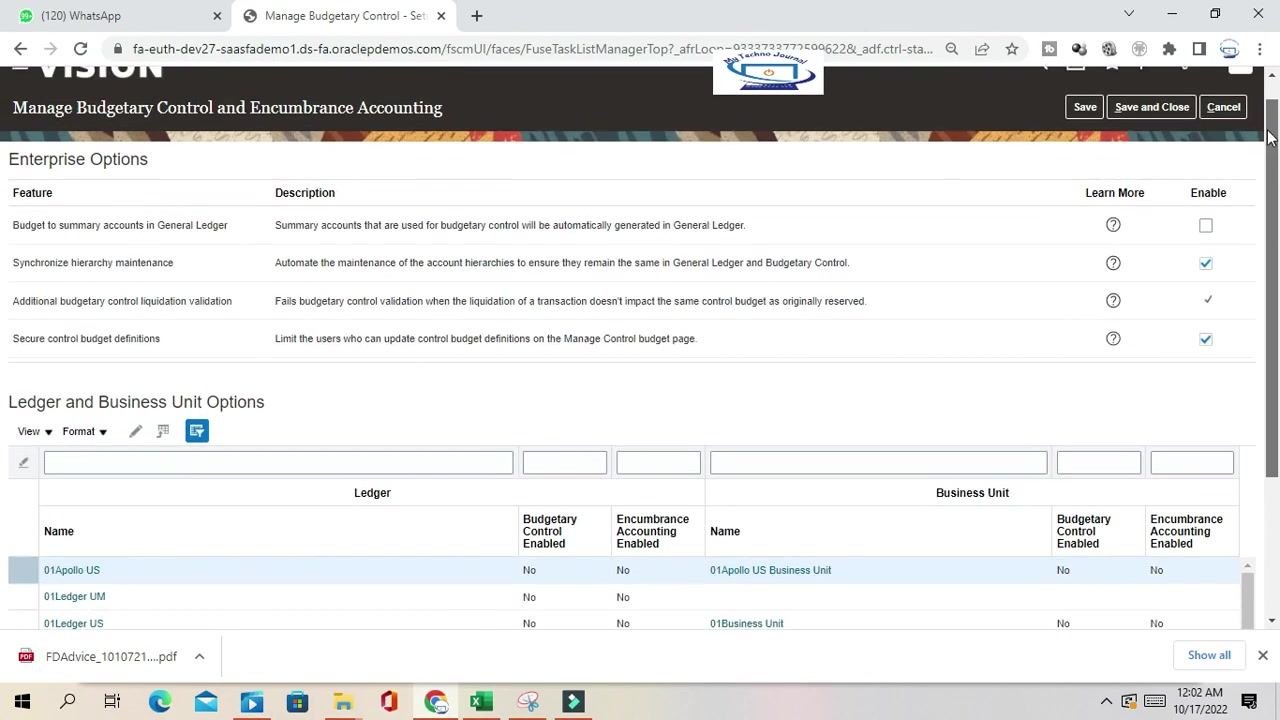
On this page, review the Enterprise Options and Ledger and Business Unit Options sections:
- The Enterprise Options section lists features such as budgeting to summary accounts in General Ledger, synchronizing hierarchy maintenance, additional budgetary control liquidation validation, and securing control budget definitions.
- The Ledger and Business Unit Options section lists available ledgers and business units, with columns for Name, Ledger, Budgetary Control Enabled, Encumbrance Accounting Enabled, and Business Unit.
Locate and select your ledger
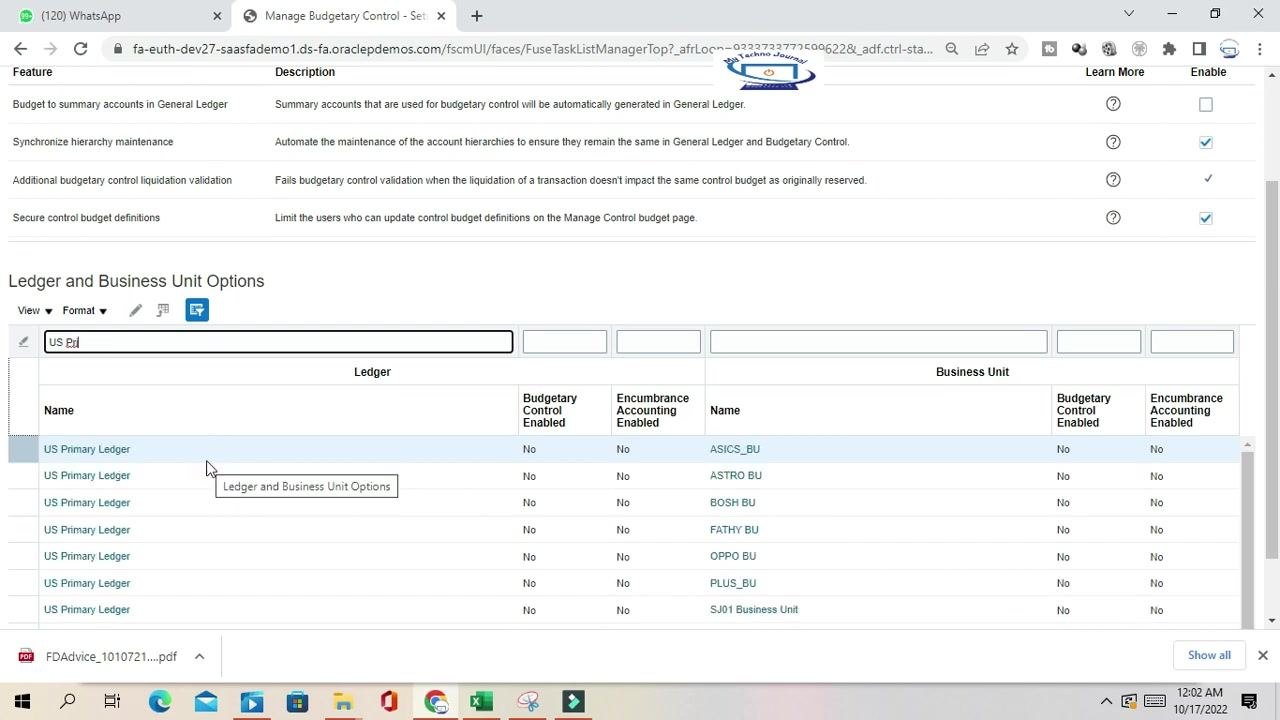
Use the search bar to filter for the ledger you want to configure, for example, typing "US Pri" to find "US Primary Ledger." Review the current status: both Budgetary Control Enabled and Encumbrance Accounting Enabled should show "No" if they have not yet been enabled.
Click the row for US Primary Ledger, or your target ledger, to select it.
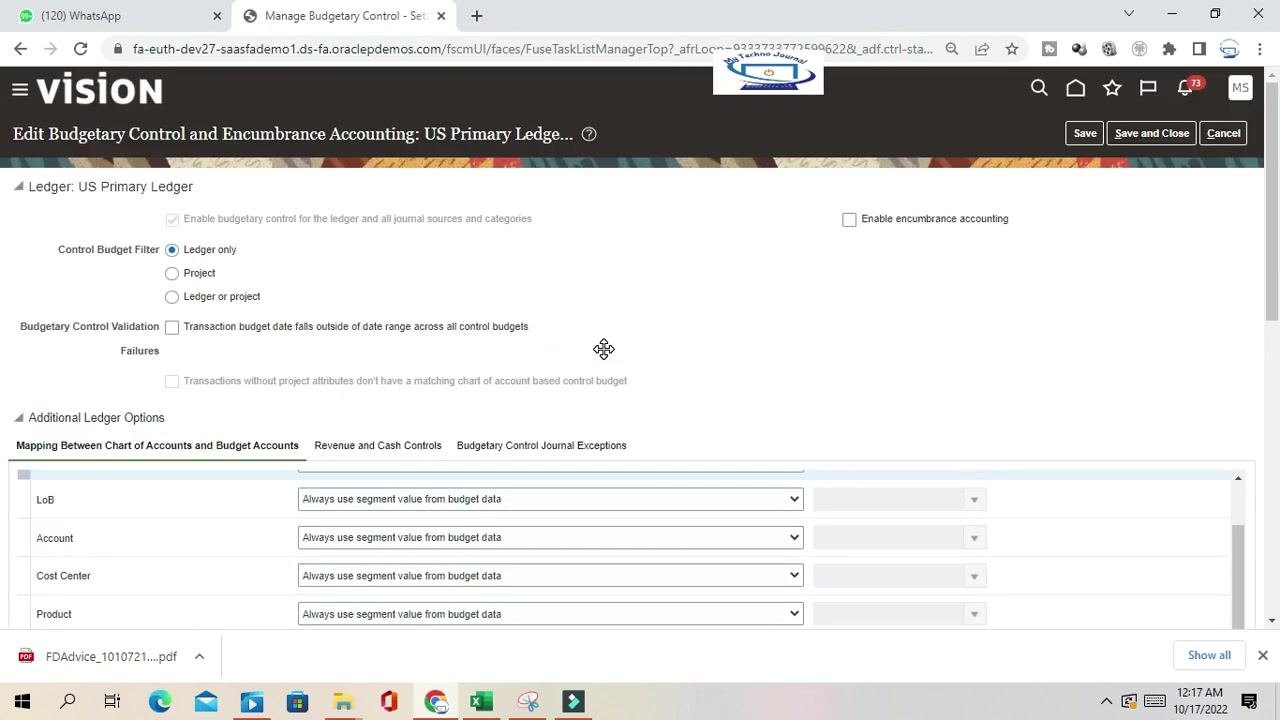
This opens the Edit Budgetary Control and Encumbrance Accounting page for your selected ledger. Confirm you are on the correct screen by checking the header and verifying that options for budgetary control and encumbrance accounting are present.
Enable budgetary control for the ledger
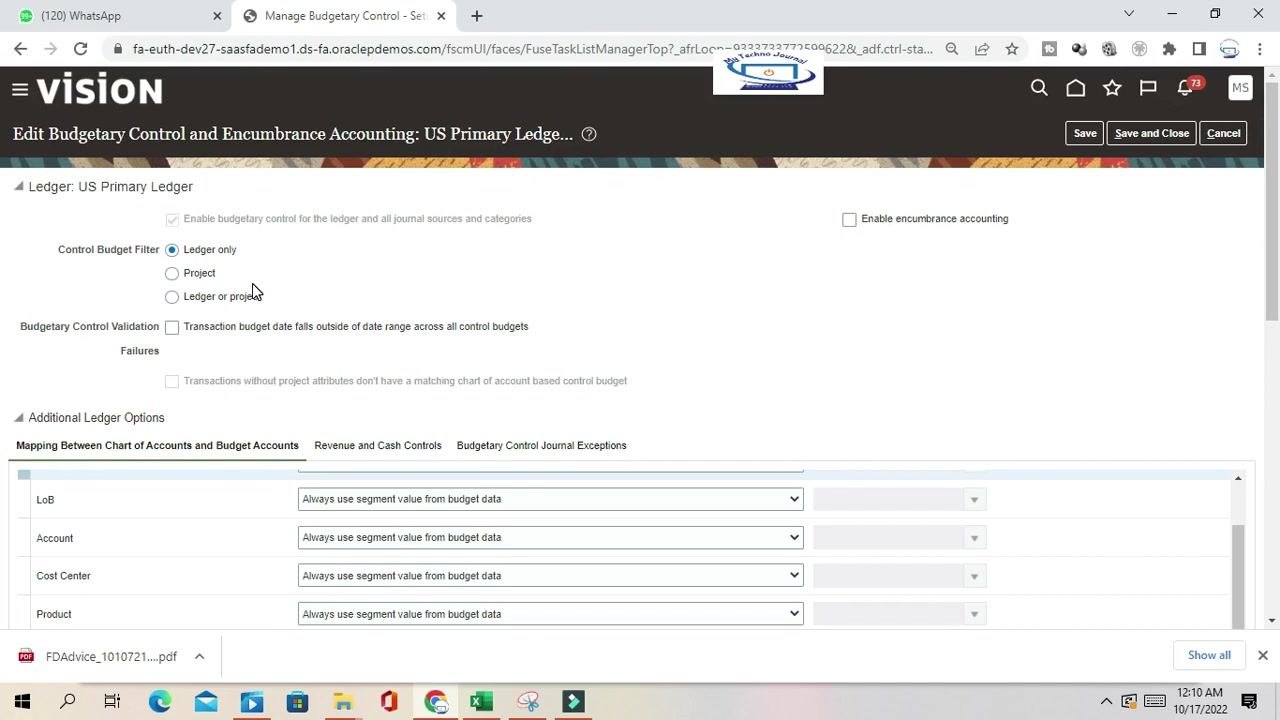
Check the box labeled Enable budgetary control for the ledger and all journal sources and categories.
Set the control budget filter
Choose the appropriate control budget filter:
- Ledger only: Applies budgetary control at the ledger level.
- Project: Applies budgetary control at the project level.
- Ledger or project: Allows control at either level.
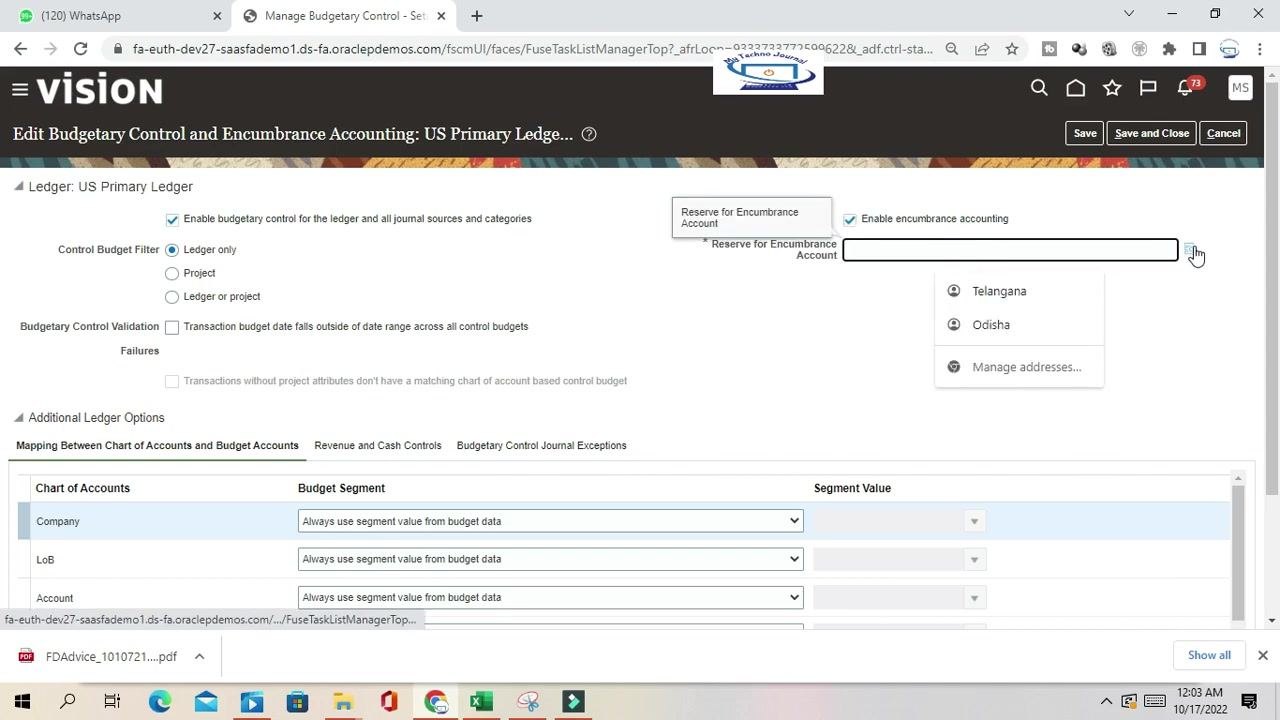
Enable encumbrance accounting (optional)
To enable encumbrance accounting, check the box labeled Enable encumbrance accounting. If enabled, specify the Reserve for Encumbrance Account by clicking the search icon and selecting an account. If no valid combination is available, a "No valid combination" message appears.
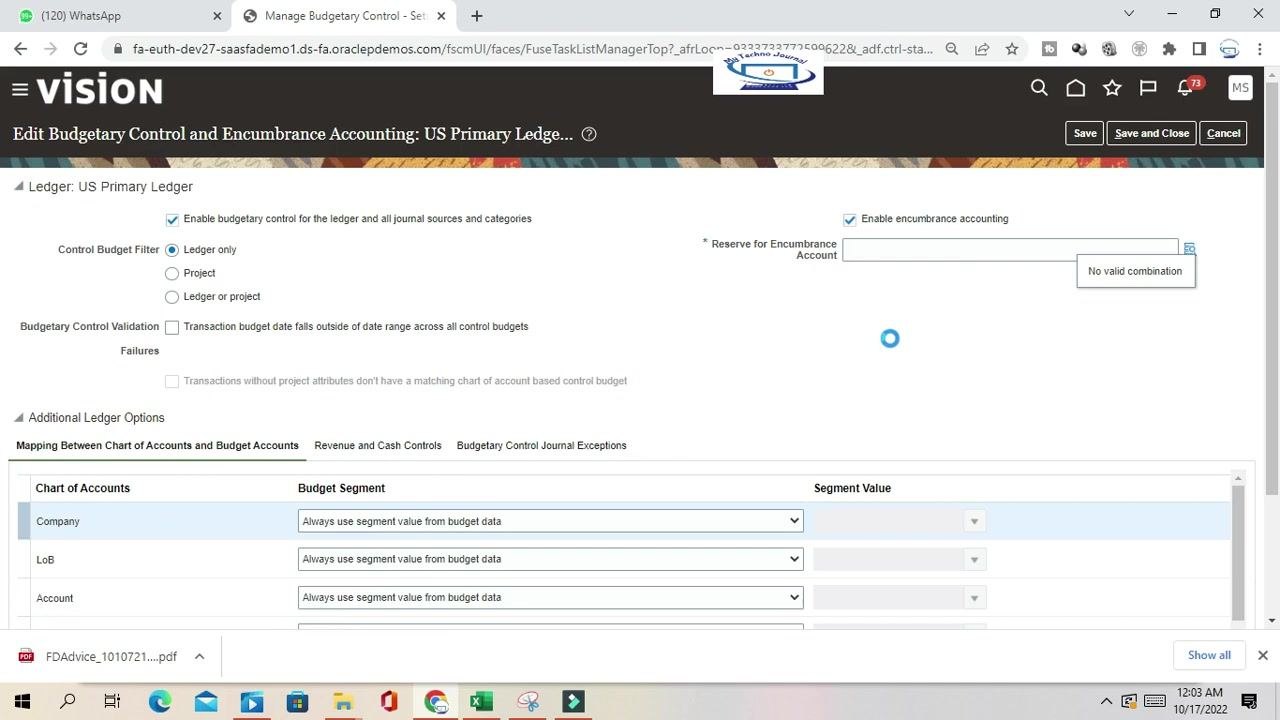
Configure budgetary control validation (optional)
Check Transaction budget date falls outside of date range across all control budgets if you want to validate transaction dates against budget periods. If left unchecked, no date validation is performed.
Map the chart of accounts to budget segments
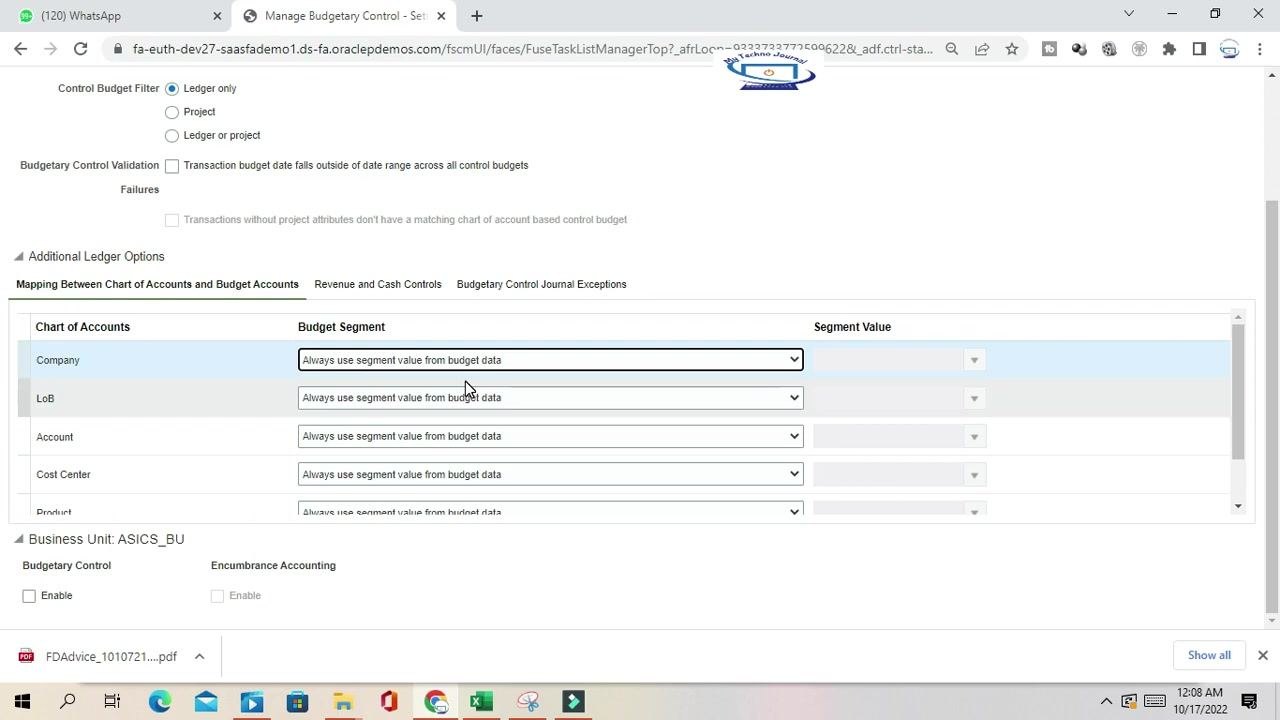
Expand the Additional Ledger Options section if it is not already open, then review the Mapping Between Chart of Accounts and Budget Accounts table. For each row—Company, LoB, Account, Cost Center, Product, Sub Class—set the Budget Segment value. The default is Always use segment value from budget data; alternatively, select a fixed value from the dropdown in the Segment Value column.
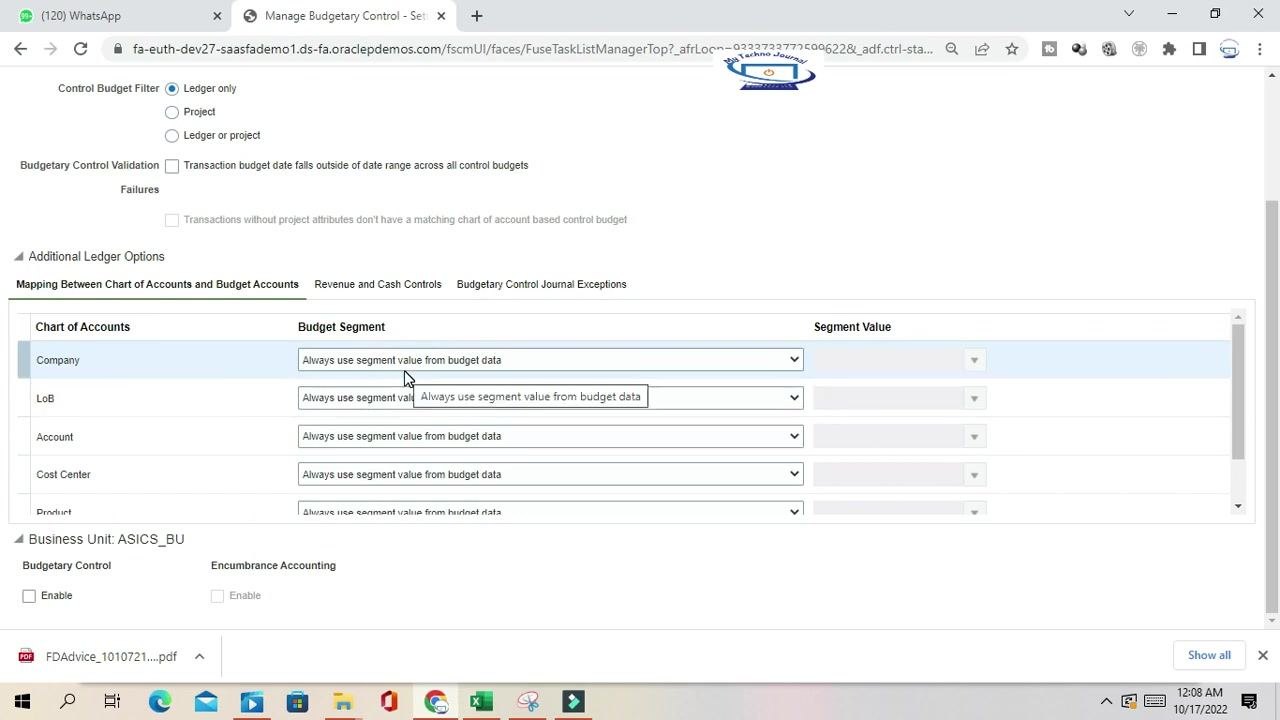
Specifying a fixed segment value
In the mapping table, locate the row for the segment you want to configure, for example, Company. In the Budget Segment column, select Use a specified value when not provided in budget data. Then, in the Segment Value column, click the dropdown arrow and choose the desired value, such as 101 - US 1 LE 1 BU 1, 110 - US1 LE1 2nd PBSV, or 151 - Canada. This setting ensures that the specified value is used whenever the budget data does not supply one.
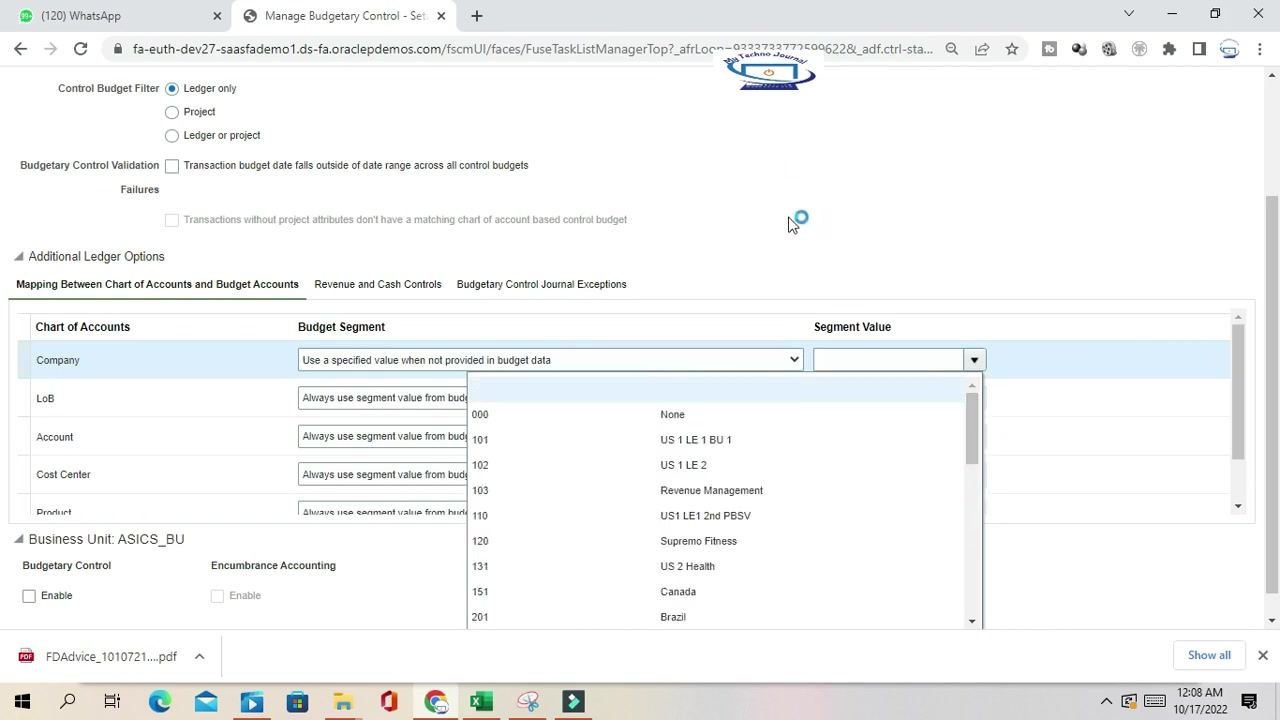
Using dynamic segment mapping
If you prefer all segments to dynamically use values from the budget data, select Always use segment value from budget data for each segment and leave the Segment Value column empty. This is the recommended approach for most flexible and dynamic budgetary control.
Configure budgetary control journal exceptions
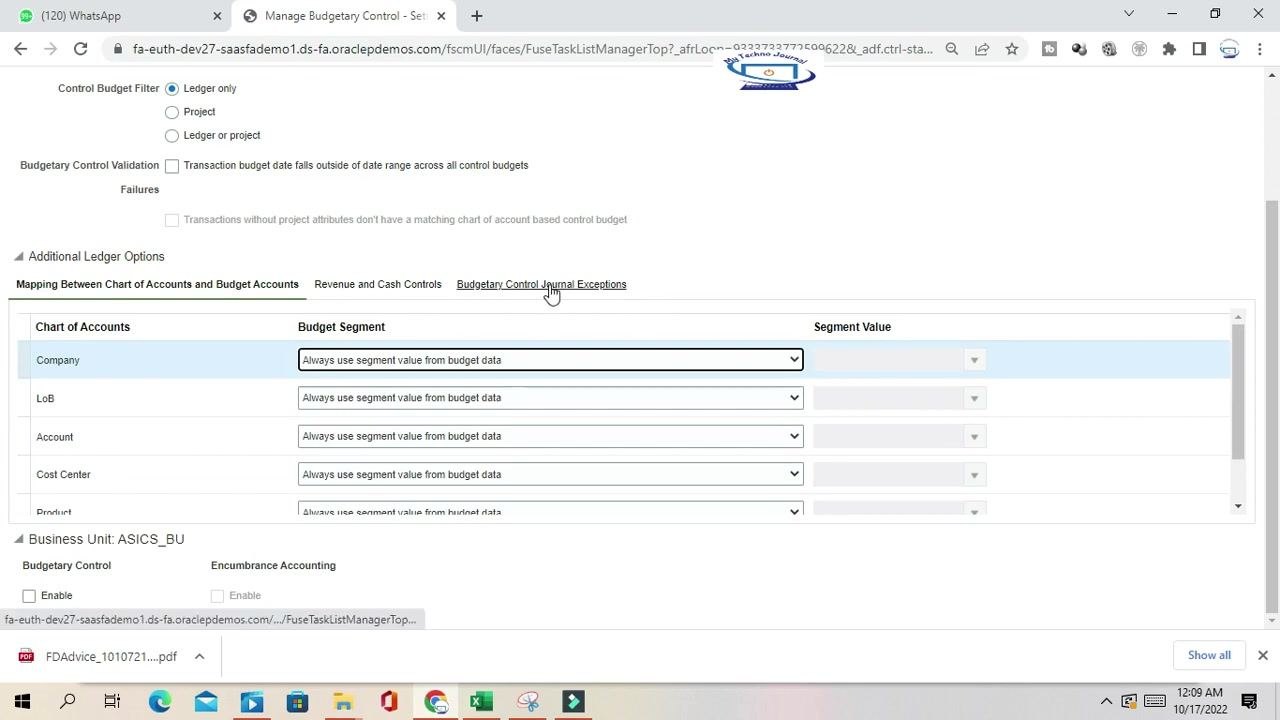
Click the Budgetary Control Journal Exceptions tab. In the Journal Source column, select the sources you want to exclude from budgetary control, such as Receipt Accounting, Cost Accounting, Revaluation, or Open Balances. For each source, select the appropriate Journal Categories to exclude, or leave the setting as "All" to exclude all categories for that source. This lets you define exceptions where budgetary control is not enforced for specific journal sources or categories.
Enable revenue and cash controls
Click the Revenue and Cash Controls tab. Review the Control Budget Name, for example US Primary Ledger_Cash, and its Status, such as "Not ready for use - defining." Check the box for Payables payment consumes the cash budget if you want payments to reduce the available cash budget. Under Accounts in Journals Subject to Cash Controls, add accounts as needed. This section lets you manage cash controls alongside standard budgetary controls.
Enable budgetary control for a business unit
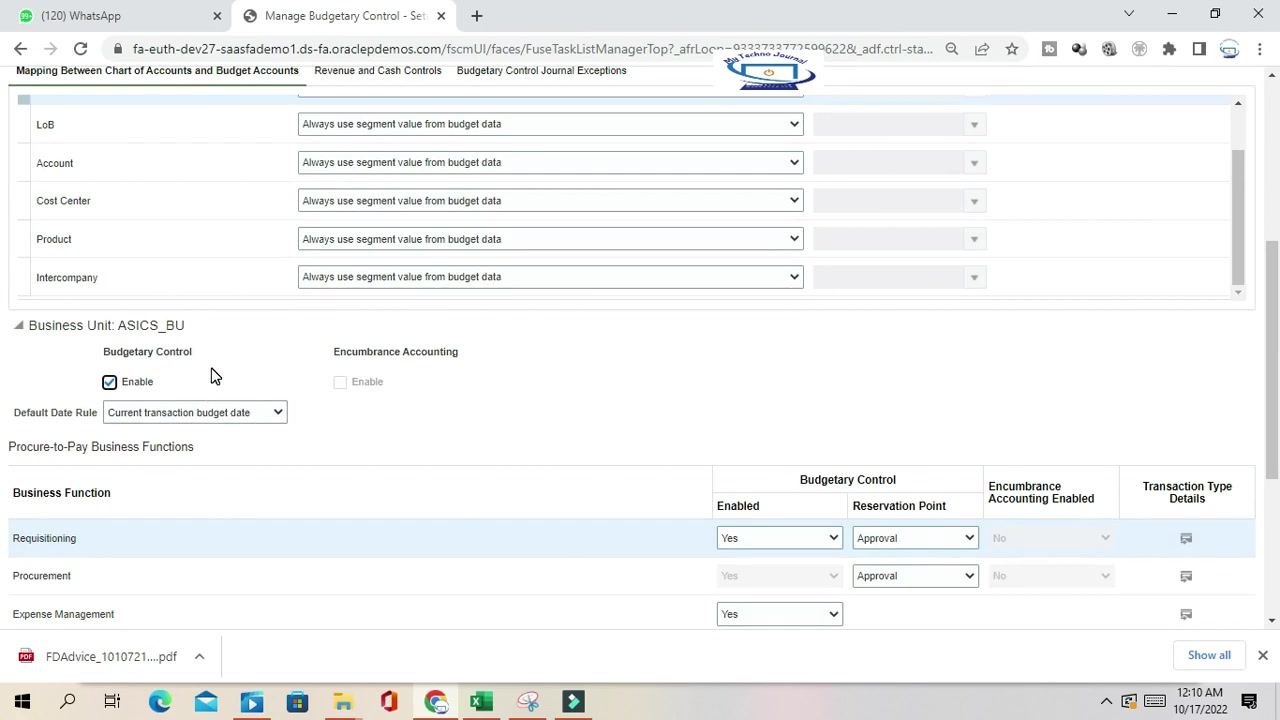
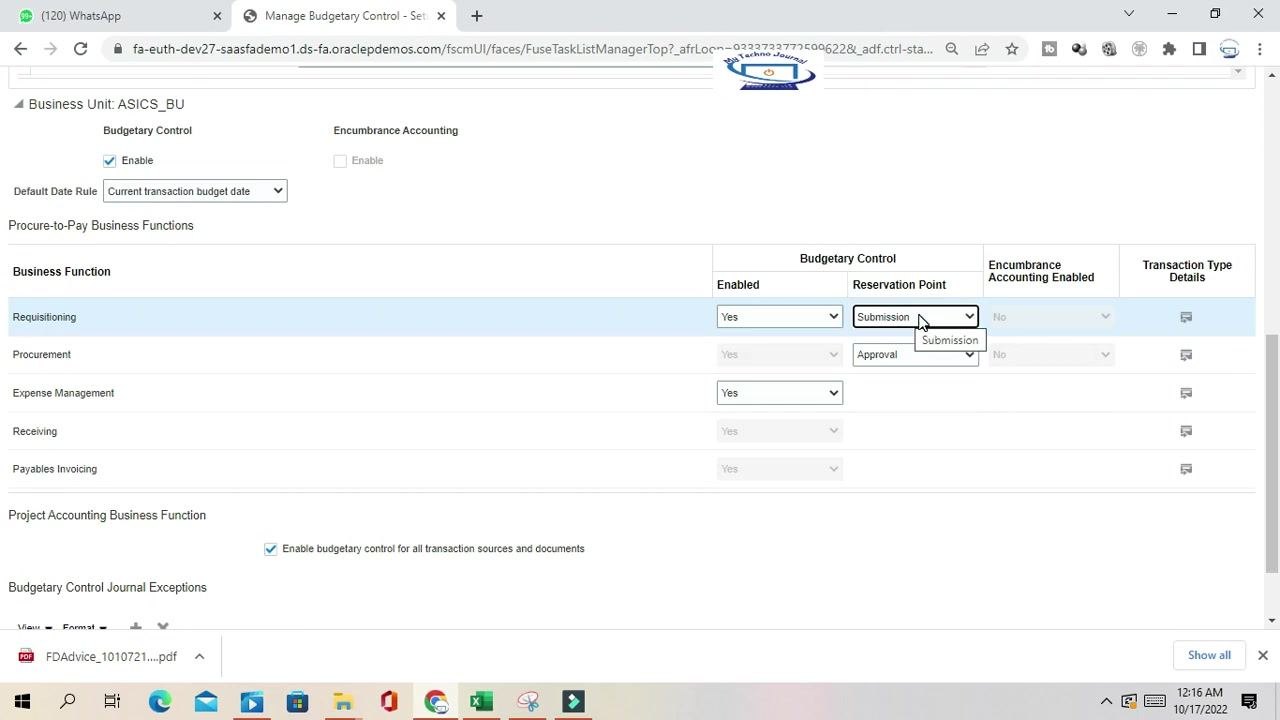
Locate the Business Unit section, for example ASICS_BU. Under Budgetary Control, check the Enable box to activate budgetary control for this business unit. Set the Default Date Rule to Current transaction budget date from the dropdown. The Encumbrance Accounting option is available here as well, though it is not enabled in this example.
Configure budgetary control for Procure-to-Pay business functions
In the Procure-to-Pay Business Functions section, review the list of business functions: Requisitioning, Procurement, Expense Management, Receiving, and Payables Invoicing. For each function, set the following:
- Enabled: Select
Yesto enable budgetary control for the function. - Reservation Point: Choose when funds should be reserved, either
ApprovalorSubmission. - Encumbrance Accounting Enabled: Set as needed for your organization.
Example settings include Requisitioning and Procurement with Enabled = Yes, Reservation Point = Approval, and Encumbrance Accounting Enabled = No, alongside Expense Management, Receiving, and Payables Invoicing each set to Enabled = Yes.
Set reservation points for fund reservation
For each business function, select the Reservation Point:
Approval: Funds are reserved after the transaction is approved.Submission: Funds are reserved immediately after the transaction is submitted.
To change the reservation point, click the dropdown in the Reservation Point column and select the desired option. For example, for Requisitioning, you can choose between Approval and Submission.
If you select Submission, funds are reserved immediately after the requisition is submitted. If you select Approval, funds are reserved only after the requisition is approved. This setting controls when budgetary funds are committed during the process.
Enable budgetary control for project accounting (optional)
In the Project Accounting Business Function section, check the box for Enable budgetary control for all transaction sources and documents if you want comprehensive control across all relevant transactions.
Add budgetary control journal exceptions for business functions
In the Budgetary Control Journal Exceptions section, click the plus (+) icon to add a new exception. Specify the Transaction Source and associated Documents to exclude from budgetary control as needed. This lets you define exceptions for specific transaction sources.
Review and save your configuration
Before saving, confirm that the following settings reflect your business needs:
- Control Budget Filter, such as Ledger only
- Budgetary Control Validation options
- Segment mapping and values
- Journal exceptions
- Revenue and cash controls
Click Save or Save and Close at the top right of the screen to apply your changes.
Summary
You have now learned how to enable budgetary control in Oracle Fusion and configure its related options:
- Fixed segment value: Use when a specific value should be enforced if it is not present in the budget data.
- Dynamic segment mapping: Recommended for most cases; uses values directly from the budget data.
- Journal exceptions: Exclude specific journal sources or categories from budgetary control.
- Revenue and cash controls: Enable and configure as needed for cash management.
By completing these steps, you have fully configured budgetary control, encumbrance accounting, journal exceptions, and cash controls in Oracle Fusion to match your organization's requirements.
Generation details: cost, quality tiers
Docsie billed 5,500 credits ($3.85) to analyze this 11-minute video at standard quality. The rewrite, template fill and Word/PDF exports were included. The same video at each quality tier:
| Quality | Frames sampled | Credits | Approx. cost |
|---|---|---|---|
| Draft | every 16-30 s | 2,750 | $1.92 |
| Standard (this guide) | every 8-15 s | 5,500 | $3.85 |
| Detailed | every 4-7 s | 11,000 | $7.70 |
| Ultra | every 1-3 s | 22,000 | $15.40 |
Credits priced at $0.70 per 1,000; plans include a monthly allowance. Enterprise customers on on-premise or bring-your-own-model deployments run this on their own inference and pay no per-video credits.
Generated by Docsie Video-to-Docs on 2026-10-14 from a 10-minute video. Screenshots are frames from the source video and belong to their creator, MY TECHNO JOURNAL, whose original is embedded above. If you own this video and want the guide removed or credited differently, contact us and we will act within one business day.