
How to Create a Legal Entity in Oracle Fusion
Setting up a legal entity is a foundational task in Oracle Fusion SaaS Cloud, as it defines your company's structure within the application. This guide walks you through how to create a legal entity in Oracle Fusion, from accessing the setup area to saving and confirming the new entity.
Video: How to create Legal Entity in Oracle Fusion SaaS Cloud? (R 13 / Ver 23D) by GudPal Training (2023). All credit for the demonstration goes to the creator; watch the original on YouTube. The written guide below was generated from this video by Docsie. Creator? Request a change or removal.
Setting up a legal entity is a foundational task in Oracle Fusion SaaS Cloud, as it defines your company's structure within the application. This guide walks you through how to create a legal entity in Oracle Fusion, from accessing the setup area to saving and confirming the new entity.
Prerequisites
- Confirm you are using Oracle Fusion Cloud Applications Release 13, Version 23D (11.13.23.10.0). You can verify this by opening the About This Application dialog within the application.
- Have your legal entity details ready, including the company's legal identifier, registration number, and registered address, as provided by your country's company registrar.
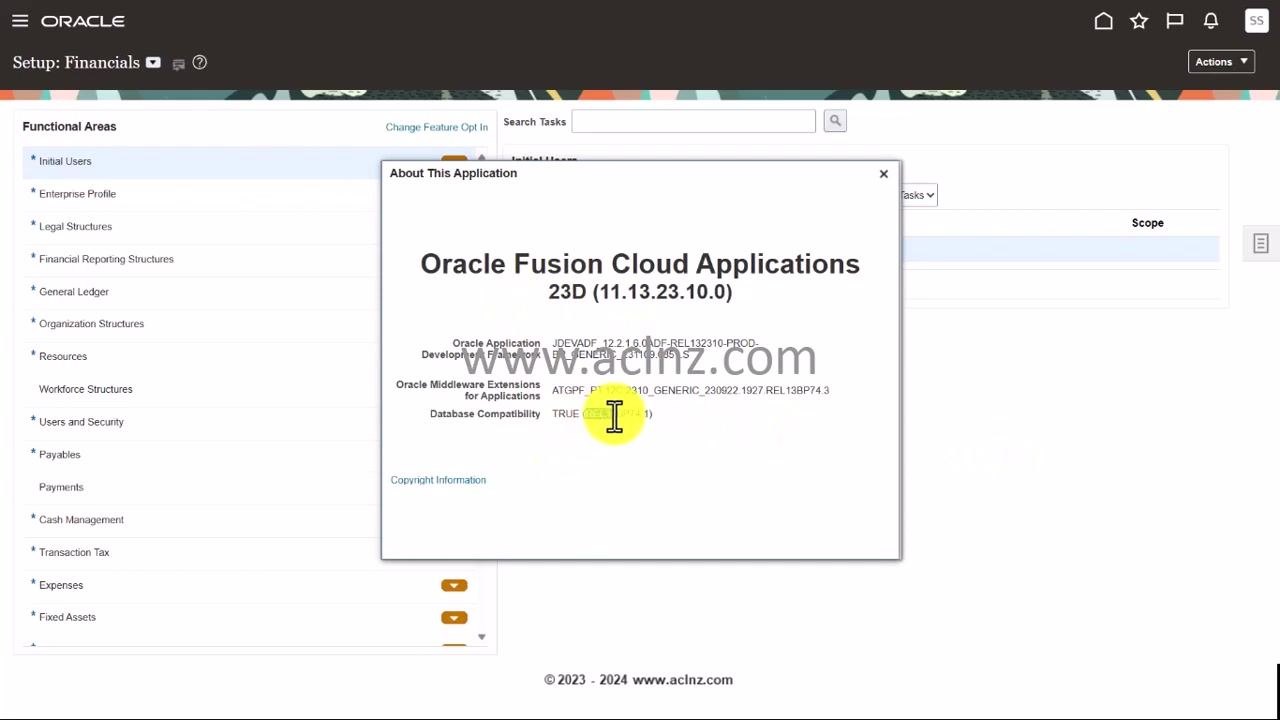
Access the Setup: Financials area
From the main menu, navigate to the Setup: Financials section. The left panel displays various functional areas, such as Initial Users, Enterprise Profile, and Legal Structures.
Search for the Manage Legal Entity task
In the Search Tasks field at the top, type Manage Legal Entity. As you type, a dropdown suggests related tasks, including Manage Locations, Manage Legal Address, and Manage Legal Entity.
Click the Manage Legal Entity hyperlink from the dropdown or search results to proceed.
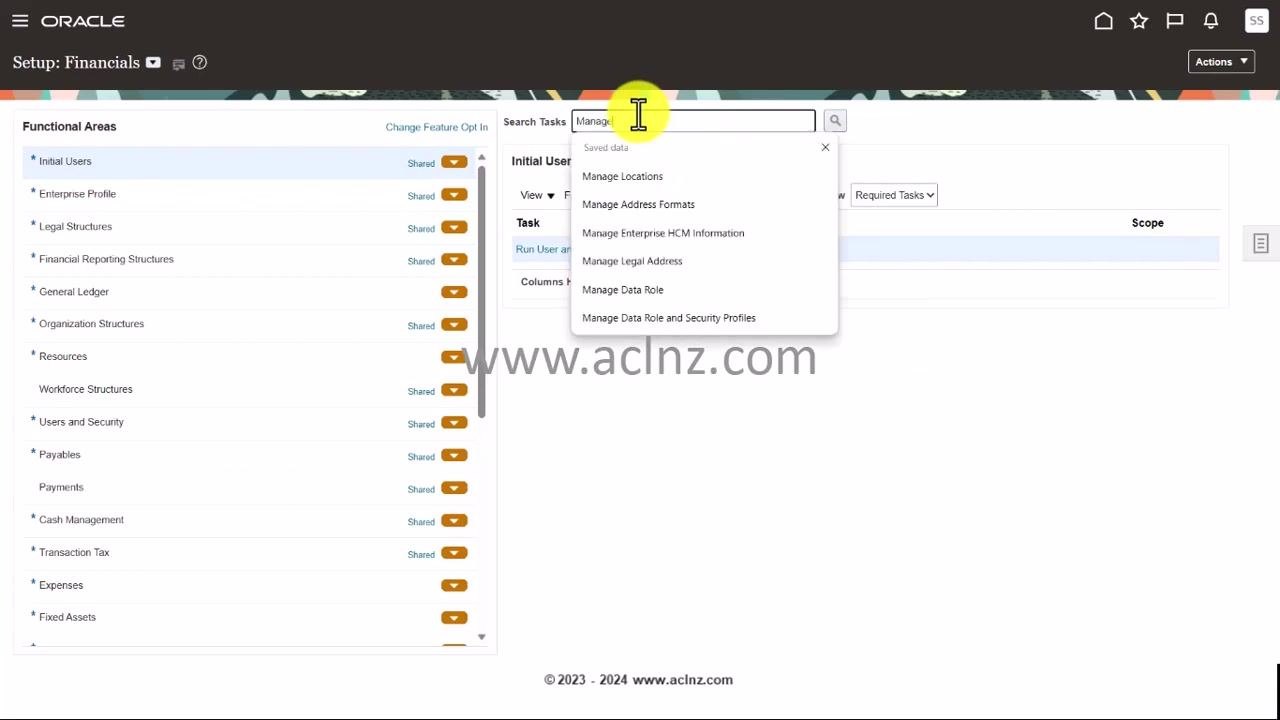
Create a new legal entity
A Select Scope dialog appears. Click the dropdown under Legal Entity and select Create New, then click Apply and Go to Task to continue.
Open the Create Legal Entity form
On the Manage Legal Entities screen, click the plus (+) icon to start creating a new legal entity. This opens the Create Legal Entity form.

Select the country
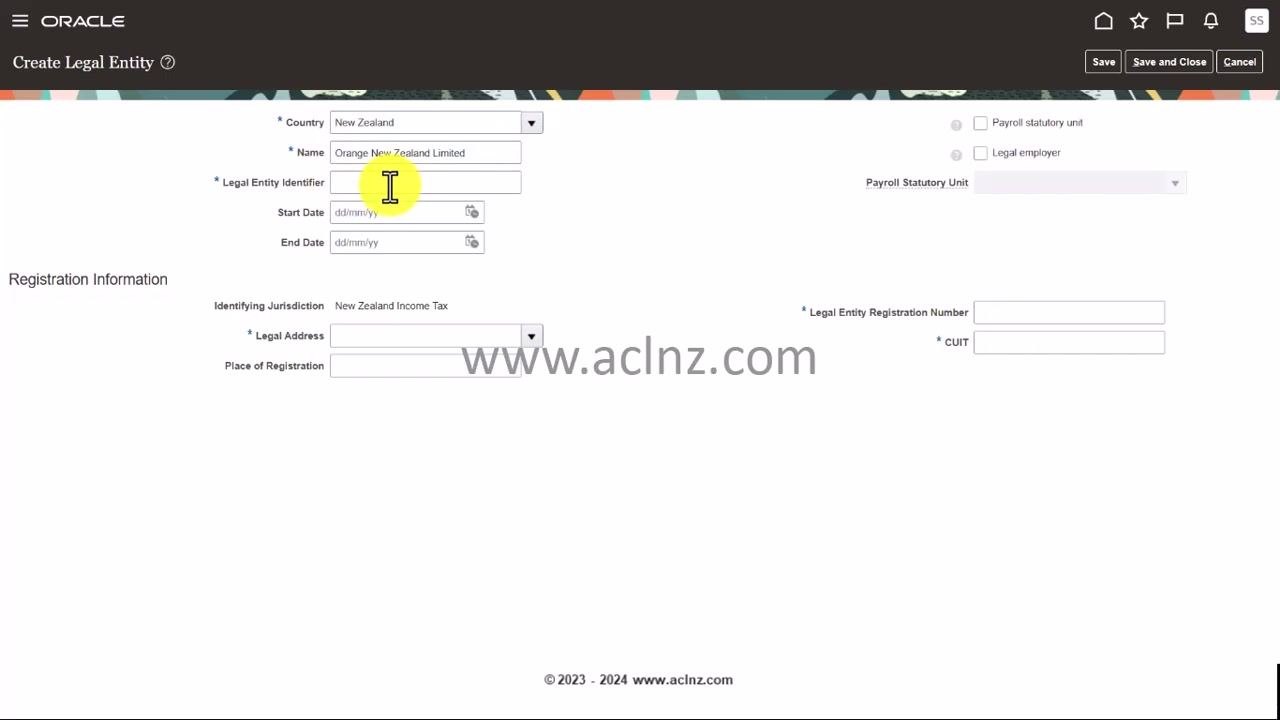
In the Create Legal Entity form, locate the Country dropdown at the top. Click it and either scroll or use the search functionality to locate your country. In this example, select New Zealand.
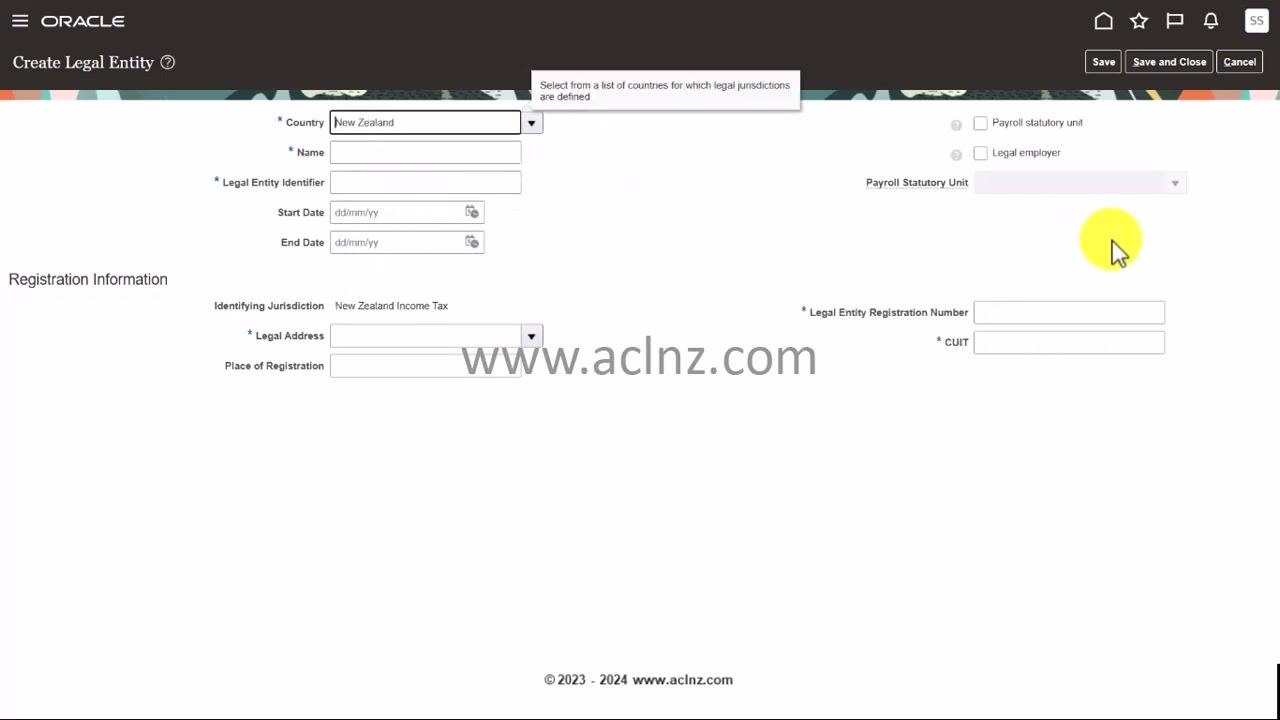
Enter the legal entity name
In the Name field, enter the name of your legal entity. For this example, type Orange New Zealand Limited.
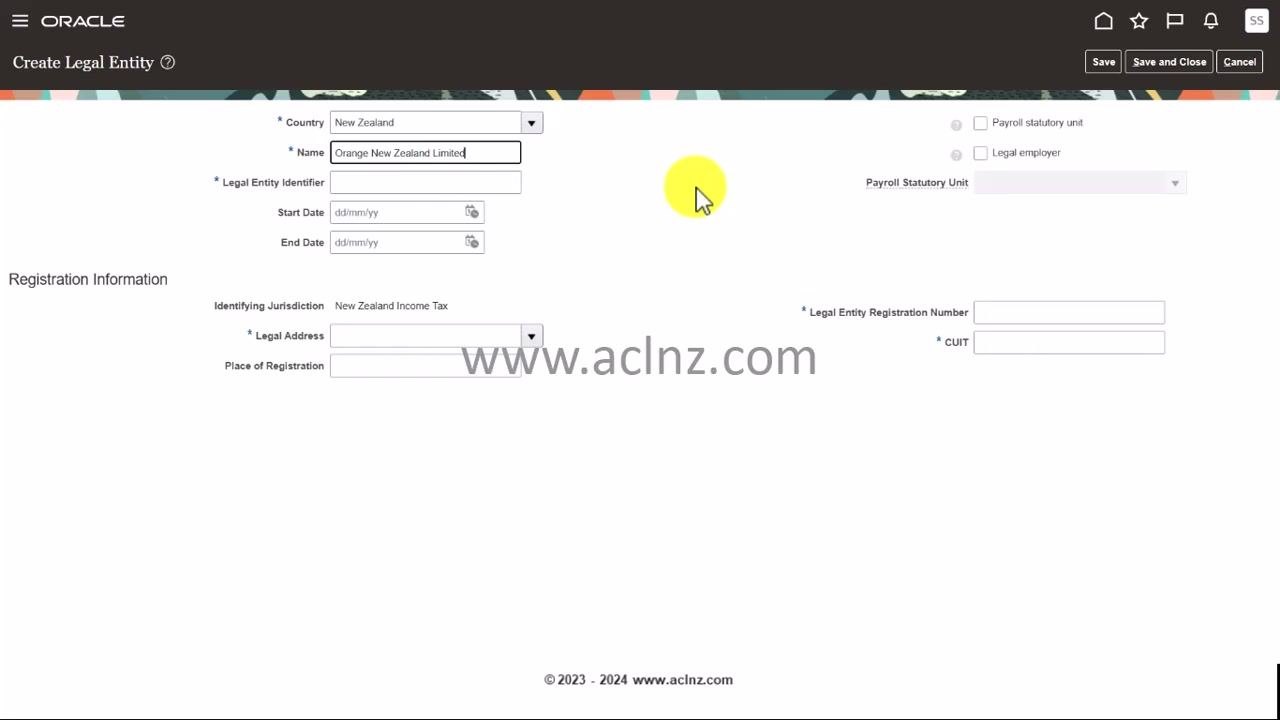
Enter the legal entity identifier
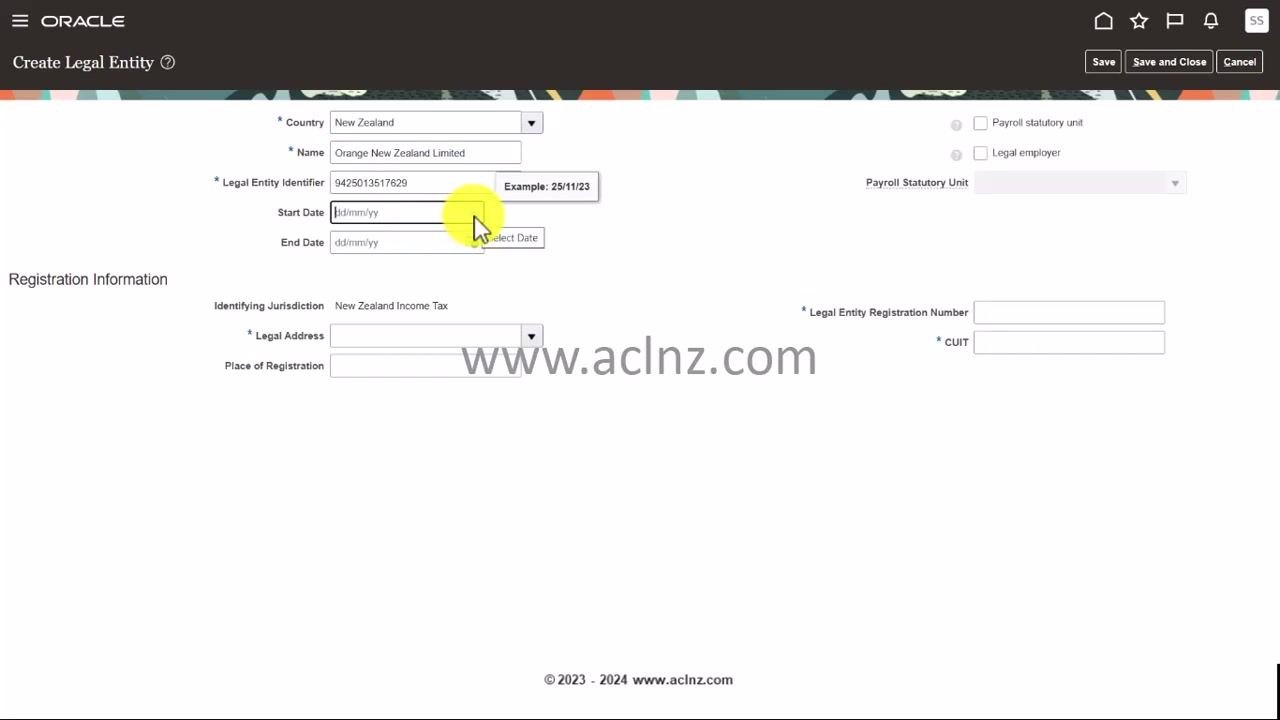
In the Legal Entity Identifier field, enter the unique identifier for your company, as provided by your country's company registrar. This example uses 9425013517629. This identifier uniquely identifies your company in official records.
Enter the start date
In the Start Date field, enter the date the legal entity becomes effective. You can choose any appropriate date, such as 01/01/1970 or 01/01/1949. Click the calendar icon to select the date, or type it directly in dd/mm/yy format.
Enter an end date (optional)
If applicable, enter an End Date for the legal entity. Leave this field blank if the entity is ongoing.
Specify payroll and legal employer status
Decide whether the company will be a payroll statutory unit, meaning it is responsible for payroll processing and statutory reporting. Also decide whether it will be a legal employer, meaning it will employ people and maintain payroll details.
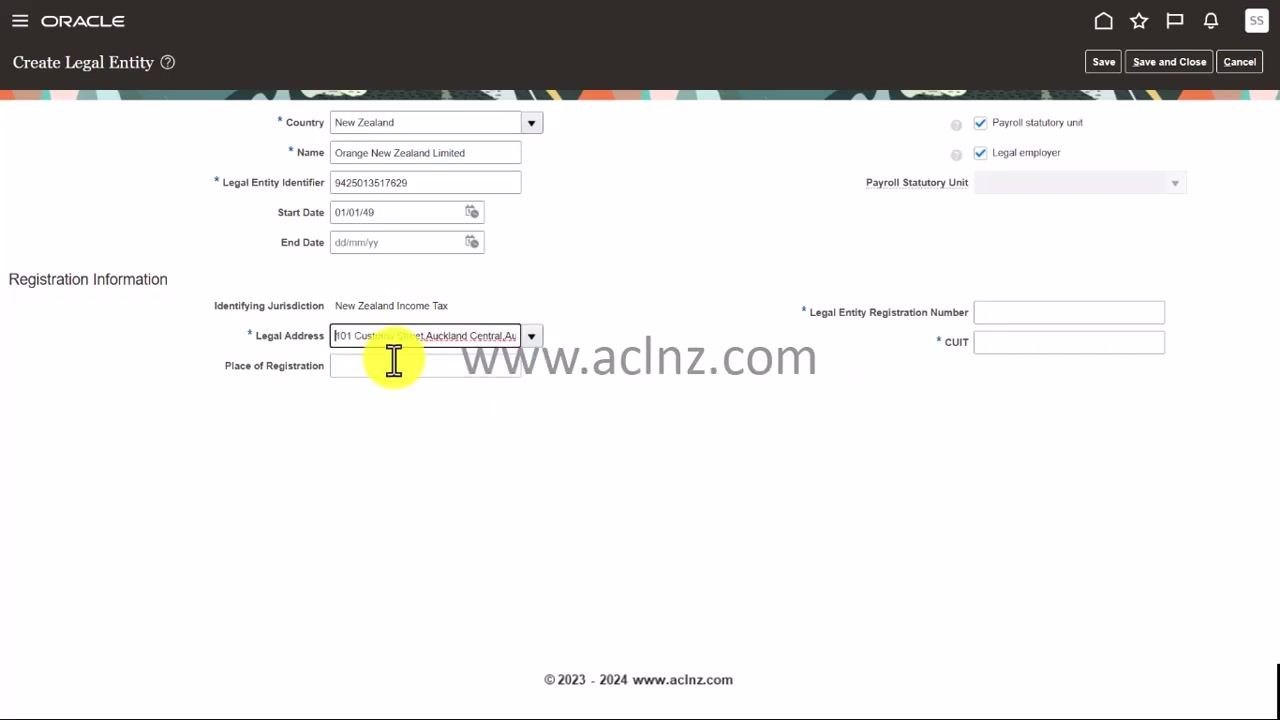
Check the boxes for Payroll statutory unit and Legal employer if both apply to your business scenario.
Select the legal address
In the Legal Address field, select the address you previously created for the legal entity. This example uses 101 Customs Street, Auckland Central, Auckland.
Enter the place of registration
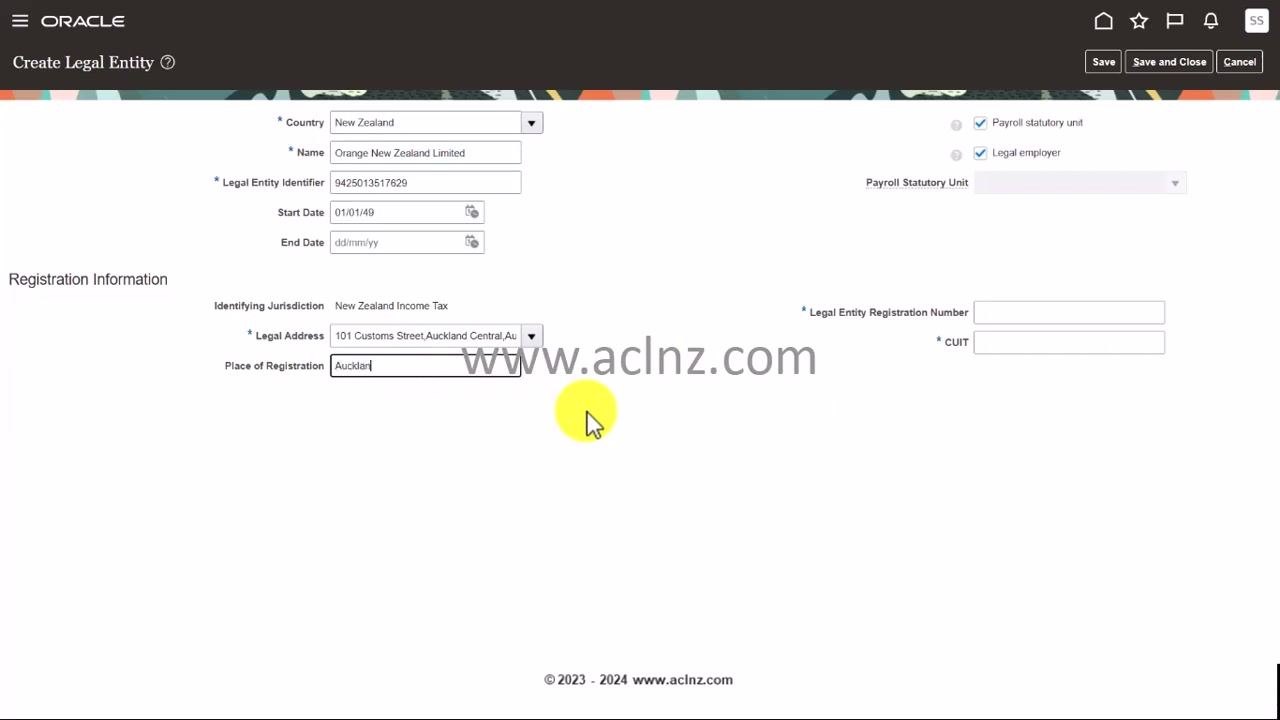
In the Place of Registration field, enter the city or location where the entity is registered. This example uses Auckland.
Enter the legal entity registration number
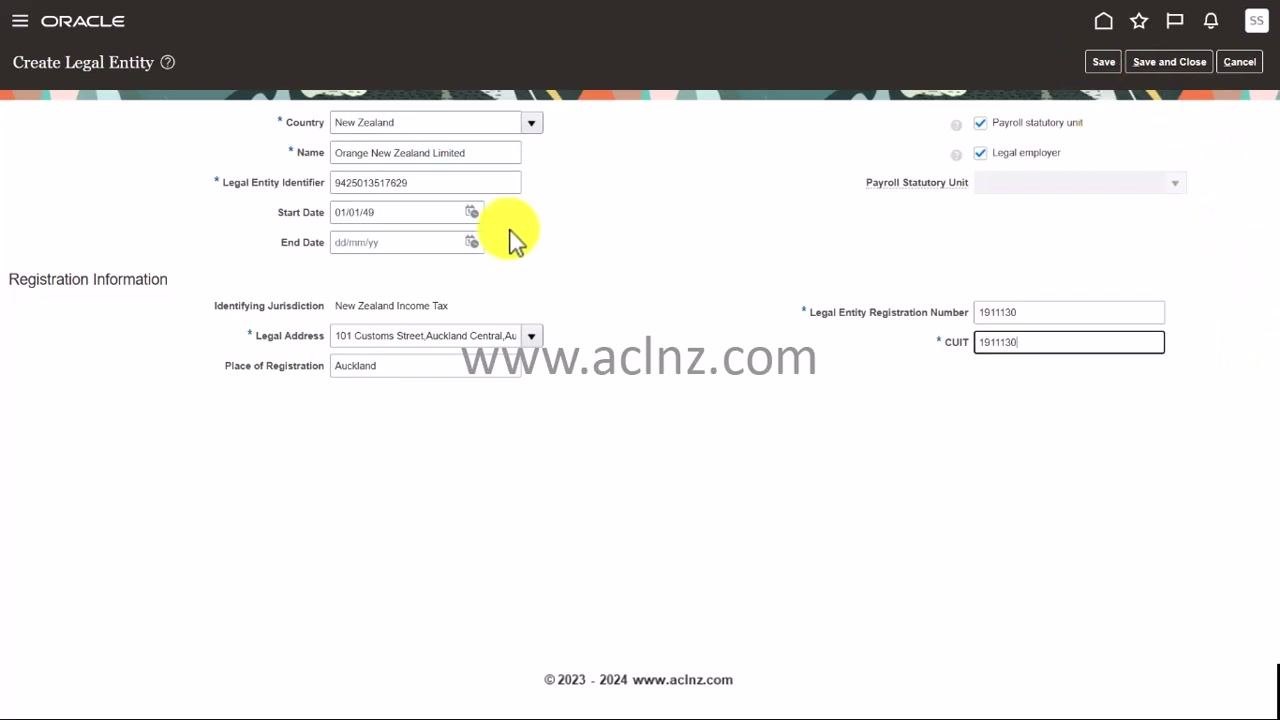
In the Legal Entity Registration Number field, enter the unique registration number provided by the company board or registrar. This example uses 1911130.
Enter the CUIT
In the CUIT field, enter the same registration number if applicable, or the specific CUIT number as required. This example also uses 1911130.
Review the entered information
Before saving, double-check all fields: Country, Name, Legal Entity Identifier, Start Date, Legal Address, Place of Registration, Legal Entity Registration Number, and CUIT. Confirm that Payroll statutory unit and Legal employer are both checked if the entity will employ people and process payroll.
Save the legal entity
Click Save at the top right of the form to save your new legal entity. The system may perform background validations; if there are any issues, such as invalid registration numbers, error messages appear for correction.
Wait for background validation to complete
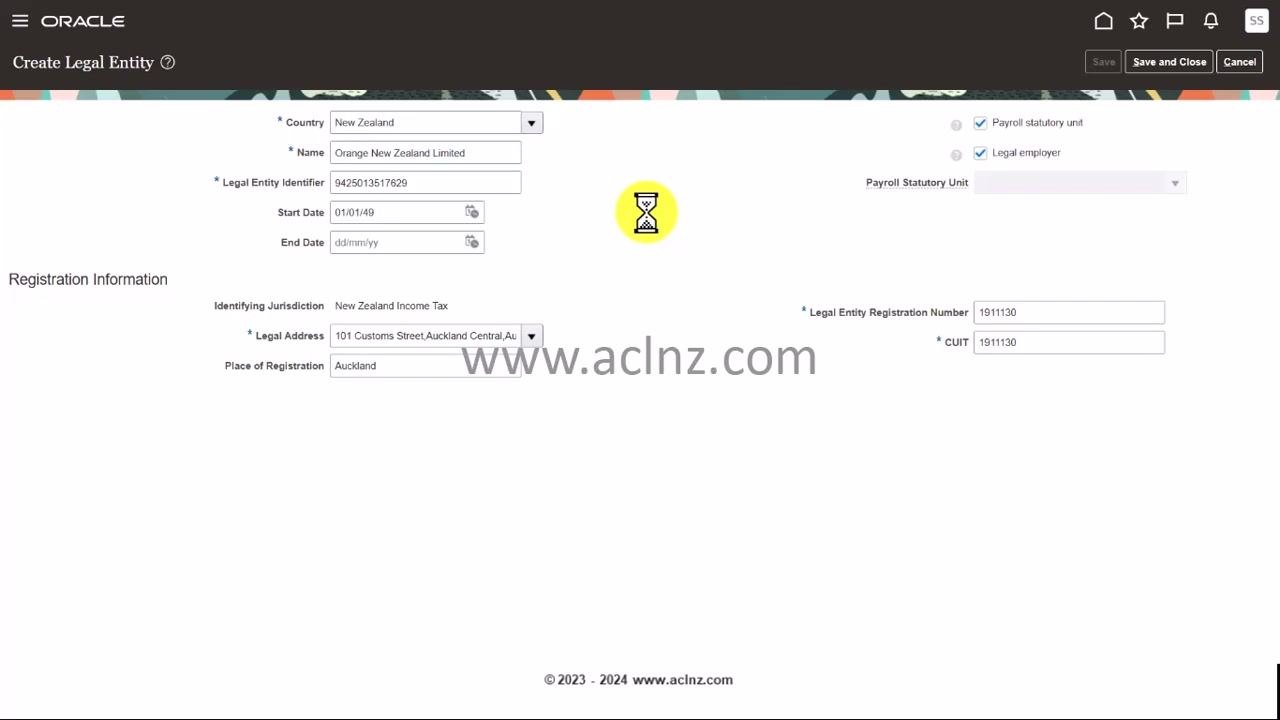
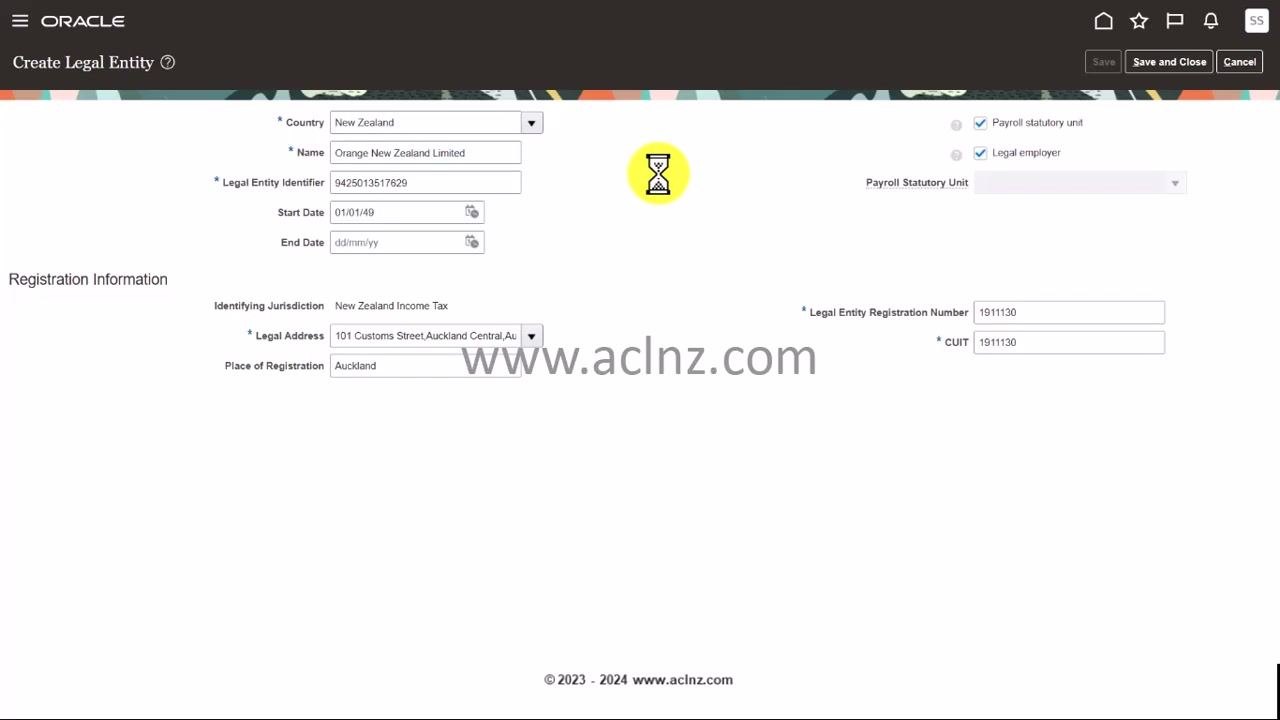
After clicking Save, watch for an indication that the system is processing your request. A yellow hourglass icon appears in the center of the Create Legal Entity form while Oracle Fusion SaaS Cloud performs background validations.
Do not close the window or navigate away while the hourglass icon is visible, as this may interrupt the validation and saving process. The form remains populated with your entered data, including:
- Country: New Zealand
- Name: Orange New Zealand Limited
- Legal Entity Identifier: 9425013517629
- Start Date: 01/01/49
- Legal Address: 101 Customs Street, Auckland Central, Auckland
- Place of Registration: Auckland
- Legal Entity Registration Number: 1911130
- CUIT: 1911130
- Both Payroll statutory unit and Legal employer checkboxes selected
The Save, Save and Close, and Cancel buttons remain visible at the top right but are typically disabled during processing. Wait until the hourglass icon disappears and the system confirms the save or displays any validation errors.
If any errors appear, review the error messages and correct the indicated fields before attempting to save again.
Confirm the save
Once the save process completes, a pop-up labeled Confirmation appears with the message "Your changes were saved." Click OK to acknowledge and close the dialog.
Summary
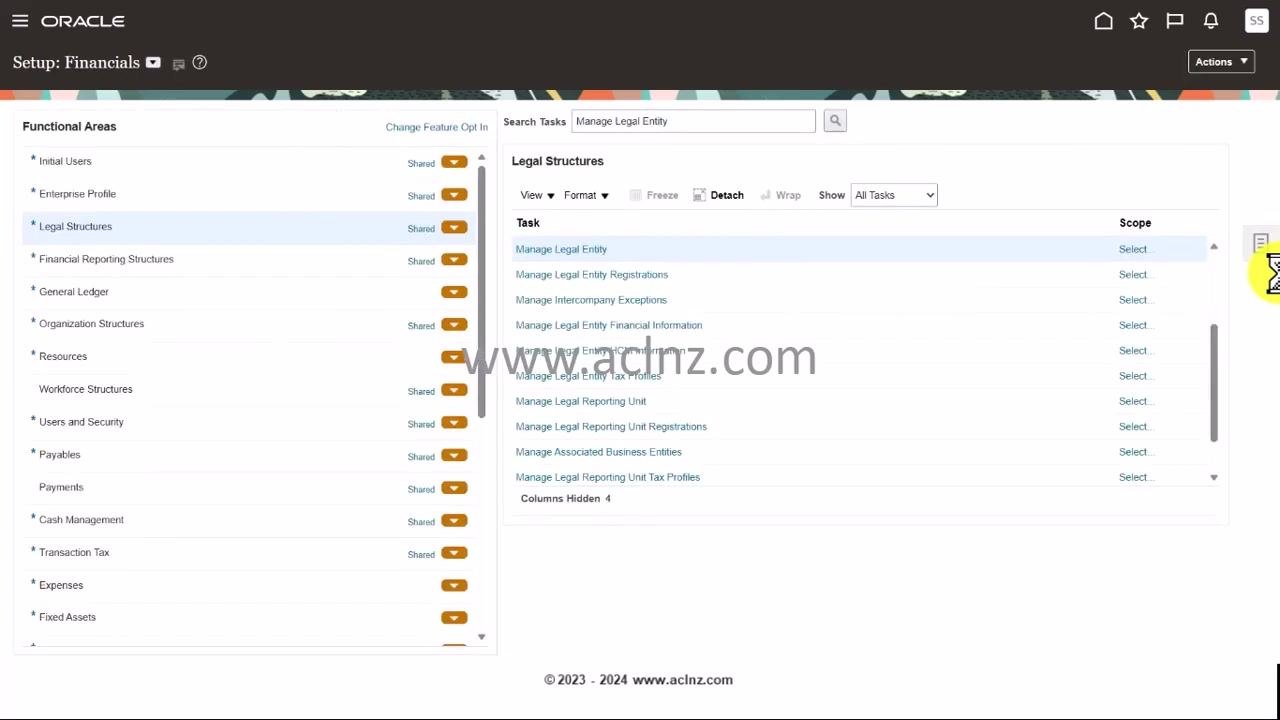
After clicking OK, you return to the Setup: Financials dashboard. The screen displays the Functional Areas menu on the left and the Legal Structures task list on the right, with the Manage Legal Entity task highlighted. This confirms that you have successfully created a legal entity in Oracle Fusion and returned to the main setup area.
Generation details: cost, quality tiers
Docsie billed 3,500 credits ($2.45) to analyze this 7-minute video at standard quality. The rewrite, template fill and Word/PDF exports were included. The same video at each quality tier:
| Quality | Frames sampled | Credits | Approx. cost |
|---|---|---|---|
| Draft | every 16-30 s | 1,750 | $1.22 |
| Standard (this guide) | every 8-15 s | 3,500 | $2.45 |
| Detailed | every 4-7 s | 7,000 | $4.90 |
| Ultra | every 1-3 s | 14,000 | $9.80 |
Credits priced at $0.70 per 1,000; plans include a monthly allowance. Enterprise customers on on-premise or bring-your-own-model deployments run this on their own inference and pay no per-video credits.
Generated by Docsie Video-to-Docs on 2026-10-14 from a 6-minute video. Screenshots are frames from the source video and belong to their creator, GudPal Training, whose original is embedded above. If you own this video and want the guide removed or credited differently, contact us and we will act within one business day.