
How to Merge Contacts in HubSpot
Merging contacts and companies in HubSpot is essential for maintaining clean and accurate CRM data. There are multiple ways to merge records, but this guide focuses on two methods: merging directly from a contact or company record, and using the duplicates management tool. This guide also covers how the merge behavior works and what happens to your data during the process.
Video: HubSpot Quick Guide to Merging Contacts and Companies by HubSpot Hacks (2023). All credit for the demonstration goes to the creator; watch the original on YouTube. The written guide below was generated from this video by Docsie. Creator? Request a change or removal.
Merging contacts and companies in HubSpot is essential for maintaining clean and accurate CRM data. There are multiple ways to merge records, but this guide focuses on two methods: merging directly from a contact or company record, and using the duplicates management tool. This guide also covers how the merge behavior works and what happens to your data during the process.
Prerequisites
- Access to a HubSpot contact or company record you want to merge.
- To merge multiple duplicate pairs at once, you need Operations Hub Professional or Enterprise. Without this, duplicates must be merged one pair at a time.
Method 1: Merging directly from a contact record
Step 1: Identify the primary contact record
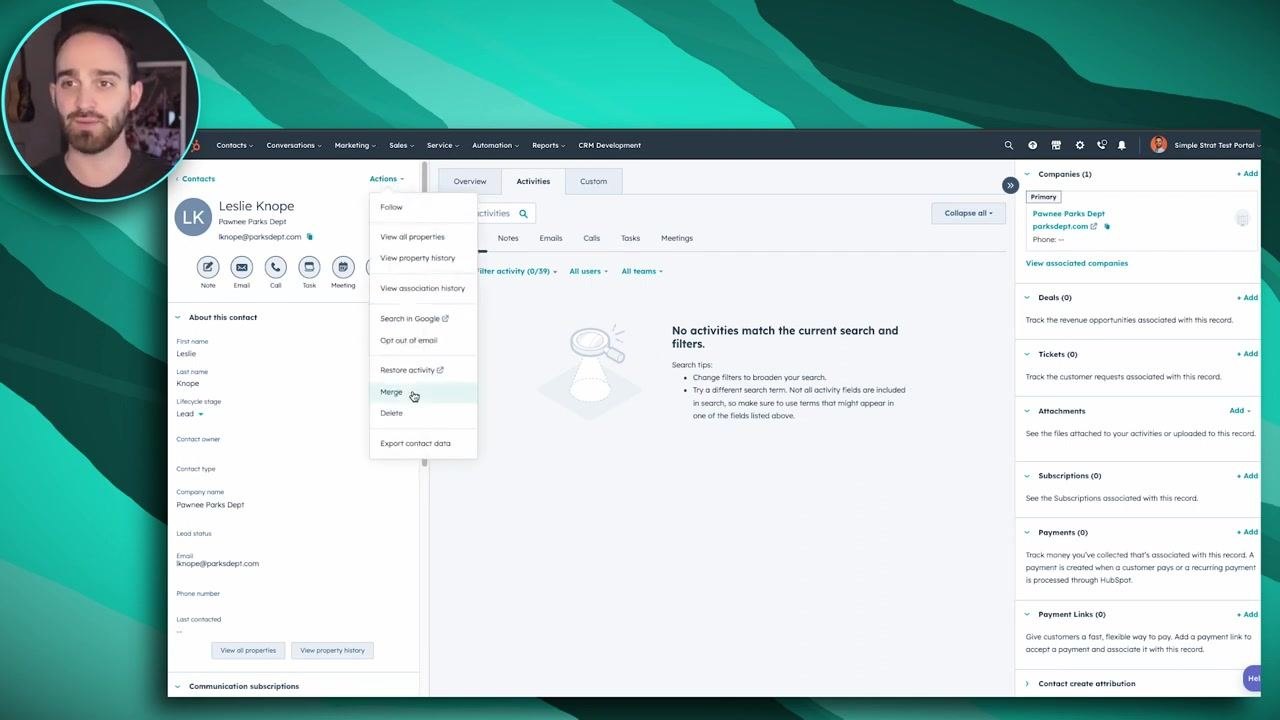
Go to the contact record you want to keep as the primary record after the merge. For example, select the contact "Leslie Knope" at the Parks Department as the primary record.
Step 2: Open the Actions menu and select Merge
On the contact's page, click the Actions button, then select Merge from the dropdown menu. This opens the merge dialog, where you can search for duplicate or related contacts.
Step 3: Search for duplicate contacts
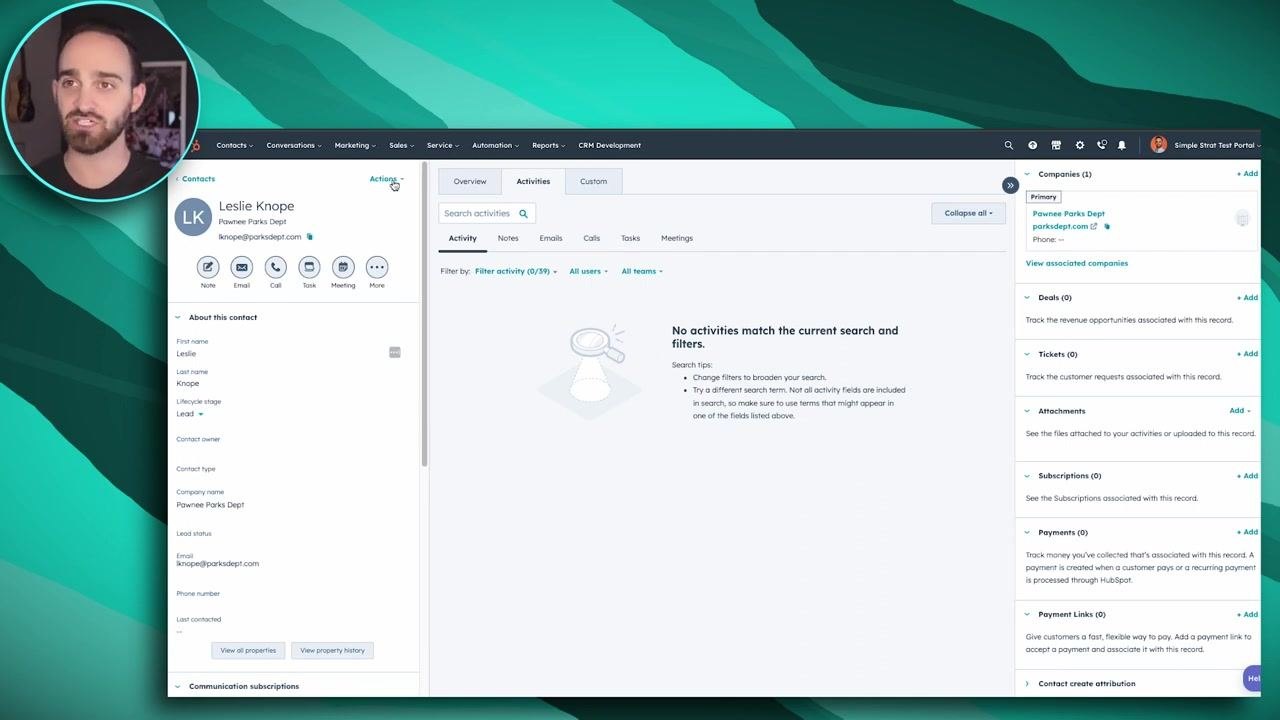
In the merge dialog, start typing the name of the contact you want to merge. HubSpot displays a list of matching contacts. Select the duplicate contact(s) you wish to merge into the primary record. The right side of the dialog shows the primary record (the one you started from).
Step 4: Understand merge behavior
- The primary record (shown on the right) retains its email address and any existing properties.
- If the duplicate record contains information not present on the primary record, that information is added to the primary record during the merge.
- Any conflicting information (such as different phone numbers or names) is overwritten by the primary record's data.
Step 5: Complete the merge
Once you have selected the duplicate contact, click Merge. Confirm the action if prompted. This action cannot be undone.
Step 6: Review the merged record
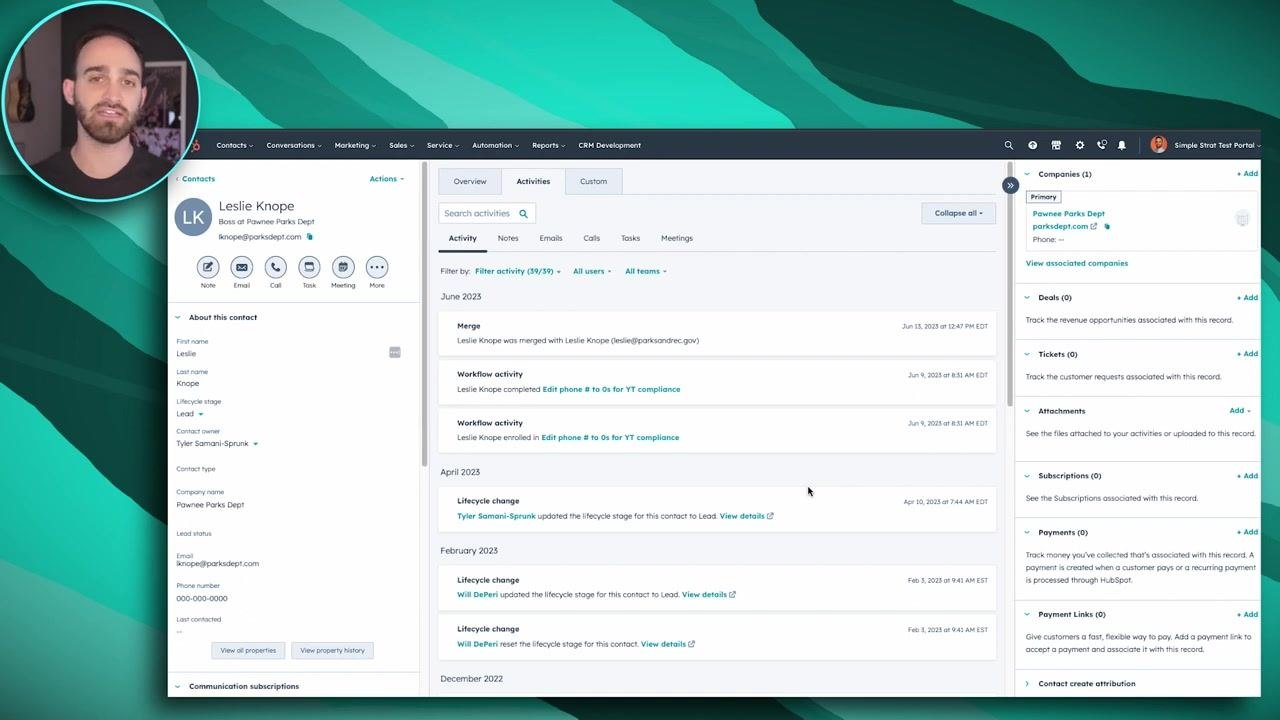
After merging, all activities and unknown properties from the duplicate record are brought into the primary record. The activity timeline shows a record of the merge along with other recent activities.
Important: Once contacts are merged, the process cannot be reversed. The same process applies to merging companies: go to the company record, click Actions, and select Merge.
Method 2: Merging via the duplicates management tool
Step 1: Navigate to the Contacts or Companies tab
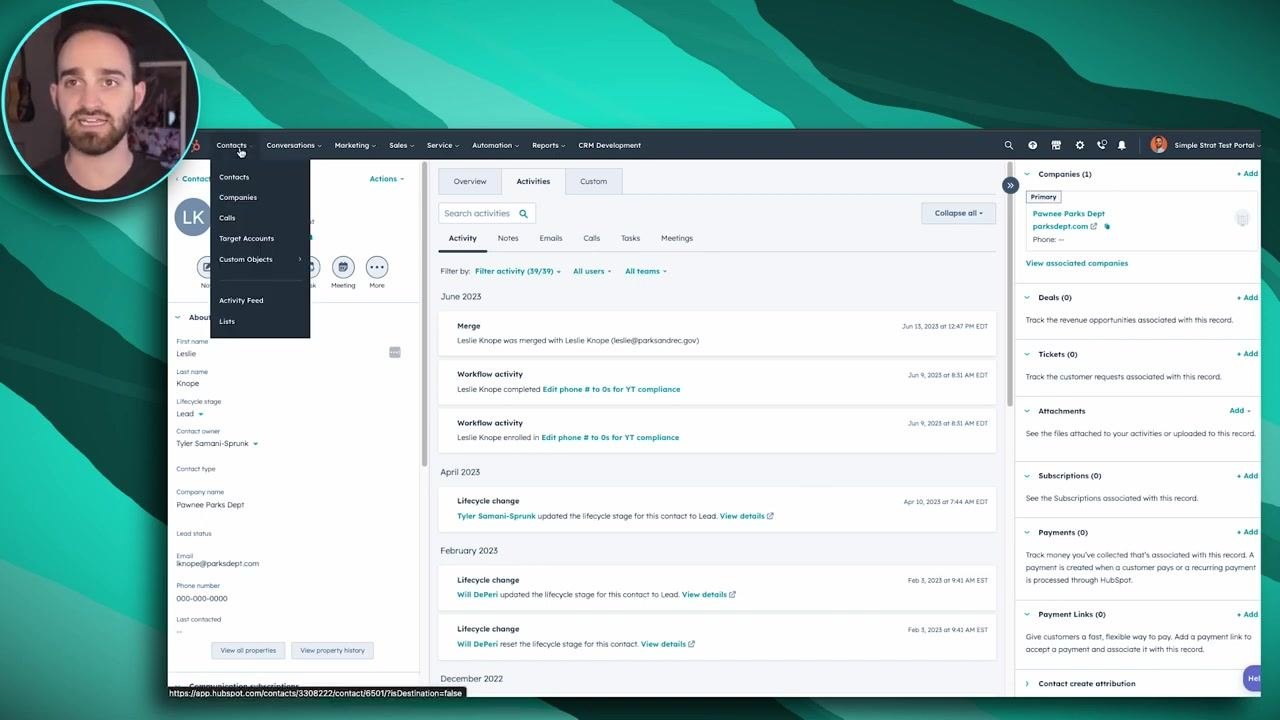
Go to the top navigation bar in HubSpot and click on the Contacts or Companies tab, depending on which type of record you want to manage.
Step 2: Open Manage duplicates
In the Contacts or Companies view, locate the Actions button in the upper right corner of the data table. Click the Actions dropdown and select Manage duplicates.
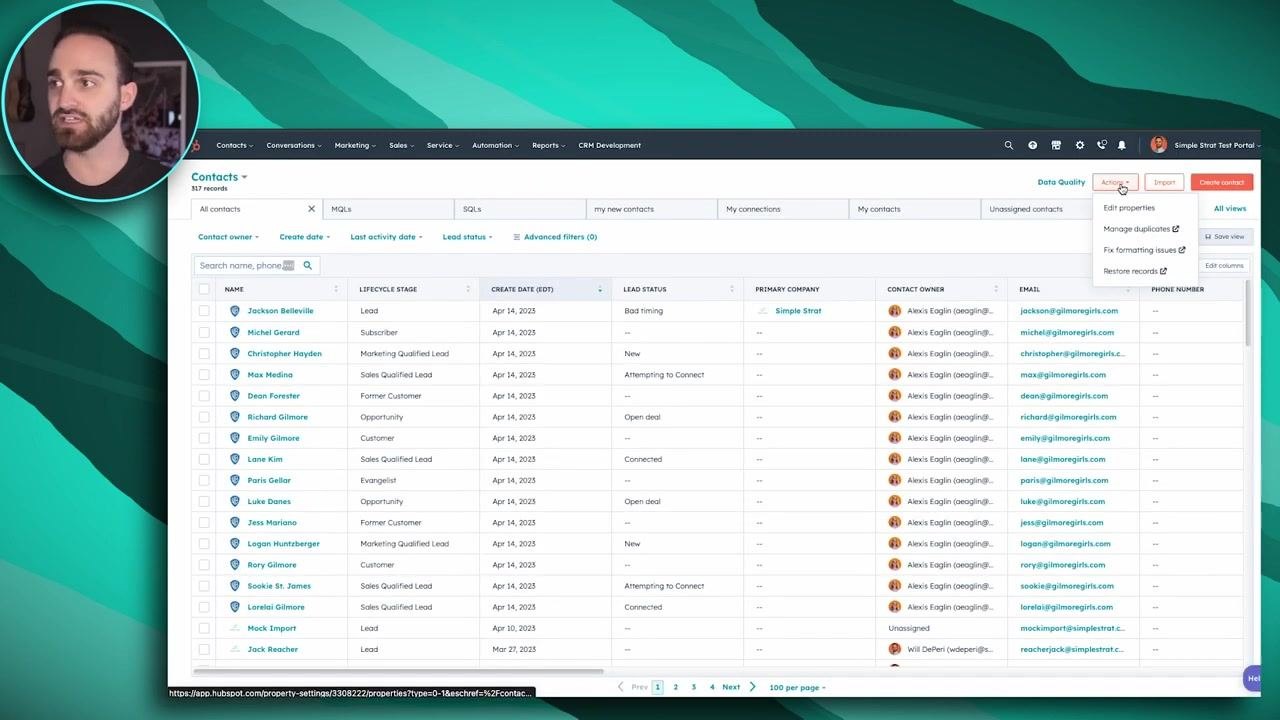
Step 3: Review duplicate records
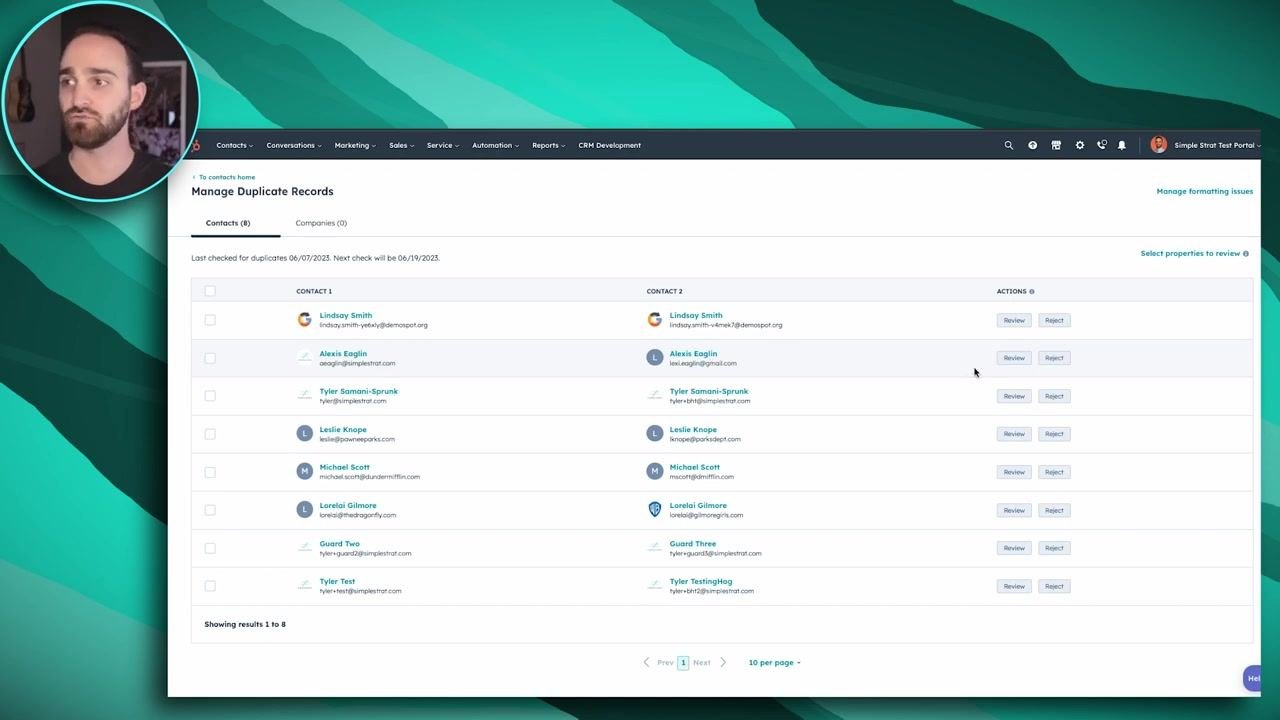
The Manage Duplicate Records screen appears, showing pairs of potential duplicate contacts or companies. Each row displays two records (Contact 1 and Contact 2) with their names and email addresses. The Actions column provides options to Review or Reject each suggested duplicate pair. HubSpot automatically checks for duplicates approximately twice a month and notifies you if any are found.
Step 4: Select and merge multiple records (Operations Hub only)
If you have Operations Hub Professional or Enterprise, you can select multiple duplicate pairs using the checkboxes on the left and merge them at once for efficiency. Without Operations Hub, you can still merge duplicates, but you must do so one pair at a time.
Step 5: Identify the duplicate pair to merge
Find the duplicate pair you want to merge — for example, two records for "Alexis Eglin" with slightly different email addresses. Click the Review button in the Actions column for that pair.
Step 6: Choose the primary record
A dialog appears asking, "Which record would you like to keep?" Review the details for each record, including name, email, and last activity date. Click to highlight and select the record you want to keep as the primary — for example, the record with the preferred email address, oeaglin@simplestrat.com. The primary record retains its email and properties, while any unique information from the secondary record is merged in.
Step 7: Complete the merge
Scroll down in the dialog to review what happens when you merge the contacts, then confirm your selection to proceed. Once merged, this action cannot be undone. All activities and unknown properties from the duplicate record are brought into the primary record.
Step 8: Repeat as needed
Continue reviewing and merging other duplicate pairs as necessary. If you are managing companies, follow the same process from the Companies tab.
Additional notes
- HubSpot notifies you about detected duplicates approximately twice a month.
- Without Operations Hub Professional or Enterprise, you must merge duplicates one pair at a time.
- The merge process for companies is identical to the process for contacts.
- Always double-check which record you select as primary, since this choice cannot be reversed.
Summary
You have now completed the steps for merging contacts and companies in HubSpot using either the direct record merge method or the duplicates management tool. Both methods help keep your CRM data clean and organized, but keep in mind that all merges are permanent and cannot be undone.

What's next
For more tips and tutorials on using HubSpot, consider subscribing to HubSpot's content or watching additional videos as suggested on the outro screen.
Generation details: cost, quality tiers
Docsie billed 2,000 credits ($1.40) to analyze this 4-minute video at standard quality. The rewrite, template fill and Word/PDF exports were included. The same video at each quality tier:
| Quality | Frames sampled | Credits | Approx. cost |
|---|---|---|---|
| Draft | every 16-30 s | 1,000 | $0.70 |
| Standard (this guide) | every 8-15 s | 2,000 | $1.40 |
| Detailed | every 4-7 s | 4,000 | $2.80 |
| Ultra | every 1-3 s | 8,000 | $5.60 |
Credits priced at $0.70 per 1,000; plans include a monthly allowance. Enterprise customers on on-premise or bring-your-own-model deployments run this on their own inference and pay no per-video credits.
Generated by Docsie Video-to-Docs on 2026-09-08 from a 3-minute video. Screenshots are frames from the source video and belong to their creator, HubSpot Hacks, whose original is embedded above. If you own this video and want the guide removed or credited differently, contact us and we will act within one business day.