
How to Connect Gmail in HubSpot
Connecting your Gmail account to HubSpot lets you send and schedule emails, log replies, and manage follow-up tasks directly from your HubSpot dashboard. This guide walks you through how to connect Gmail in HubSpot, from logging in to your account to granting the permissions needed to complete the integration.
Video: How to Connect Gmail to HubSpot [2026 Full Guide] by BM Tech Tutorials (2025). All credit for the demonstration goes to the creator; watch the original on YouTube. The written guide below was generated from this video by Docsie. Creator? Request a change or removal.
Connecting your Gmail account to HubSpot lets you send and schedule emails, log replies, and manage follow-up tasks directly from your HubSpot dashboard. This guide walks you through how to connect Gmail in HubSpot, from logging in to your account to granting the permissions needed to complete the integration.
Prerequisites
- A HubSpot account (or the ability to sign up for one)
- A Gmail account you want to connect
- Access to a web browser
Access HubSpot
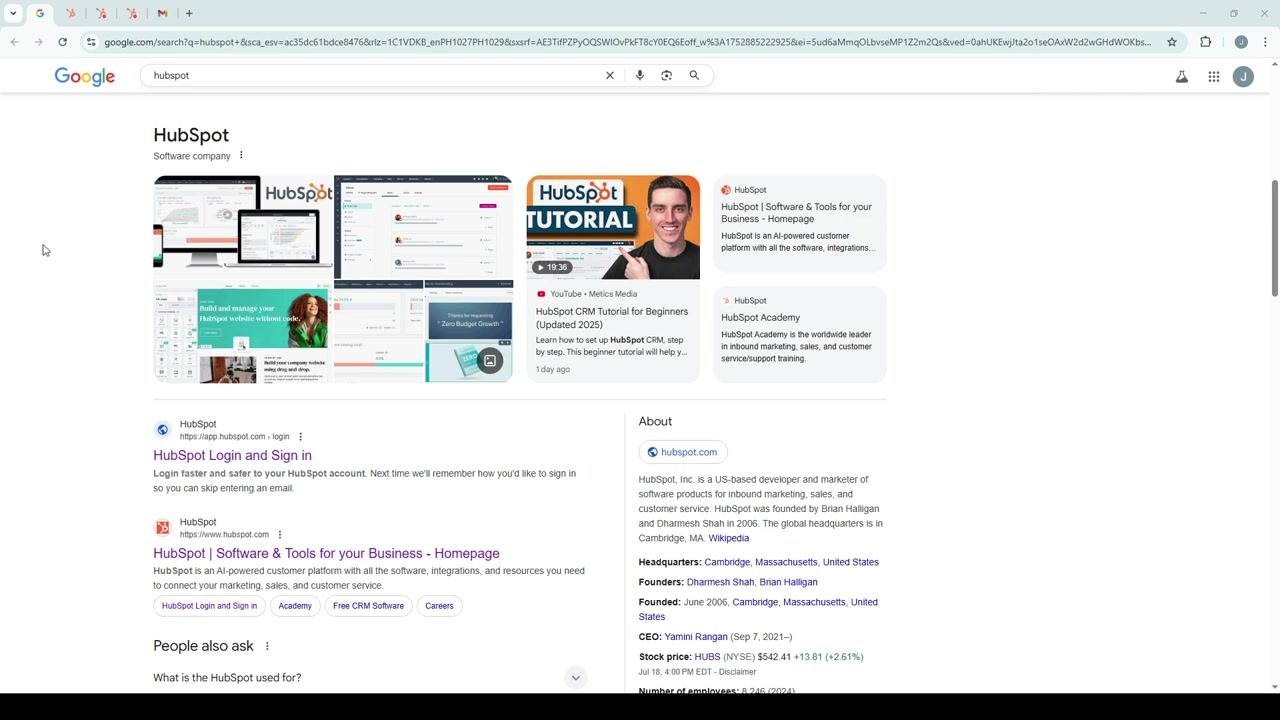
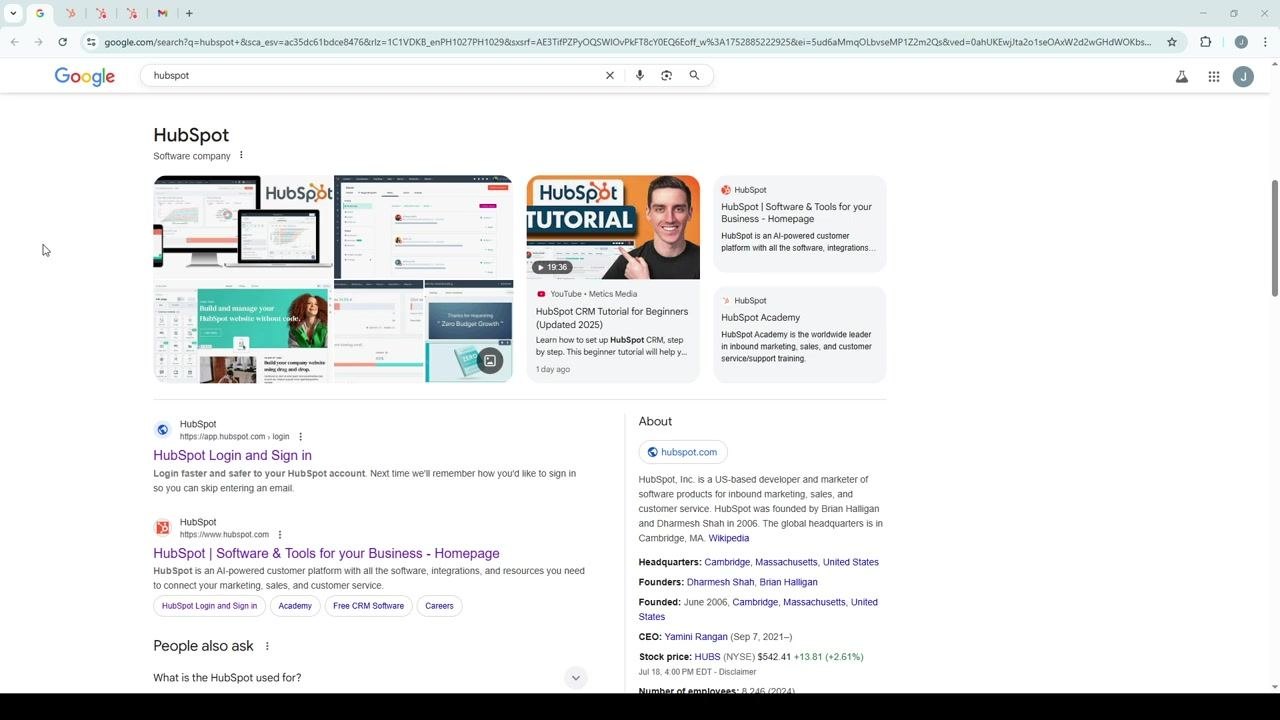
Open your web browser and go to Google. Search for "HubSpot," then locate the official HubSpot website or login page in the search results. Click the HubSpot Login and Sign in link to proceed.
Sign up or log in
If you don't have a HubSpot account yet, click Get started free on the login page to sign up. If you already have an account, enter your email address and password, or use one of the available single sign-on options:
- Sign in with Google
- Sign in with Microsoft
- Sign in with Apple
- Log in with SSO
Click Log in to access your HubSpot dashboard.
Navigate to settings
Once you're logged in, look at the top navigation bar. Locate and click the settings icon (gear symbol) to open the settings page.
Open email settings
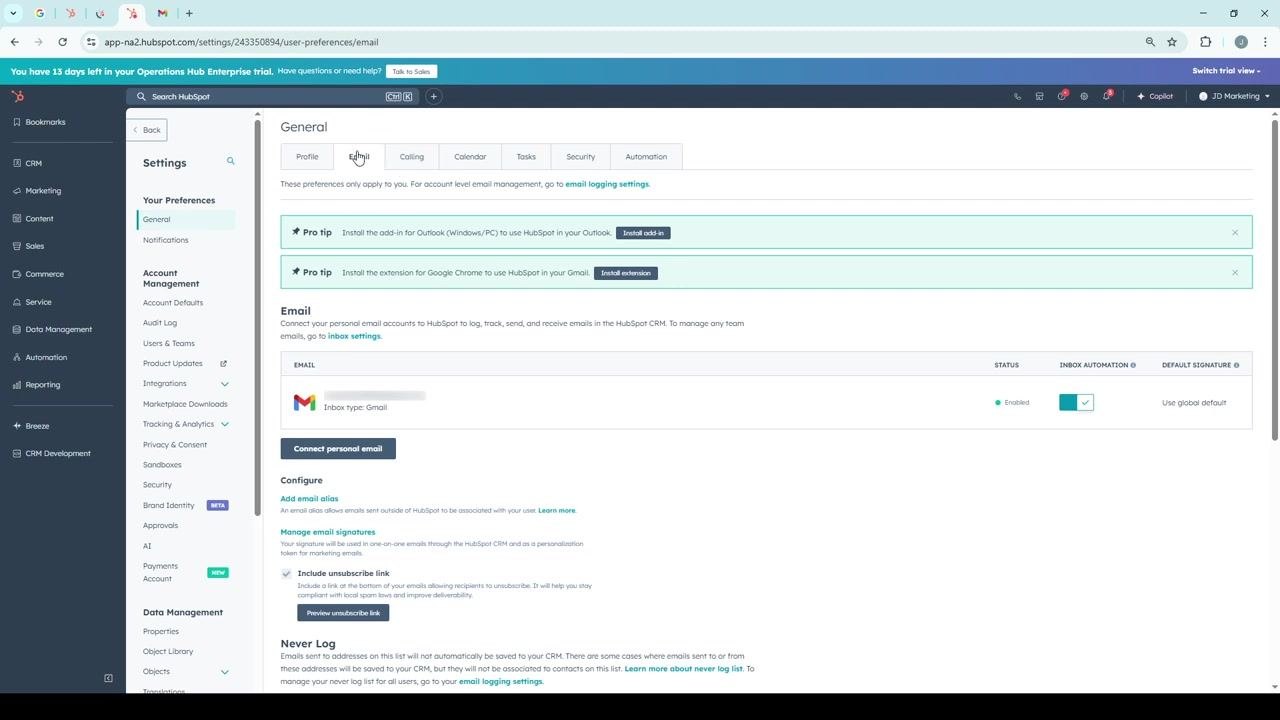
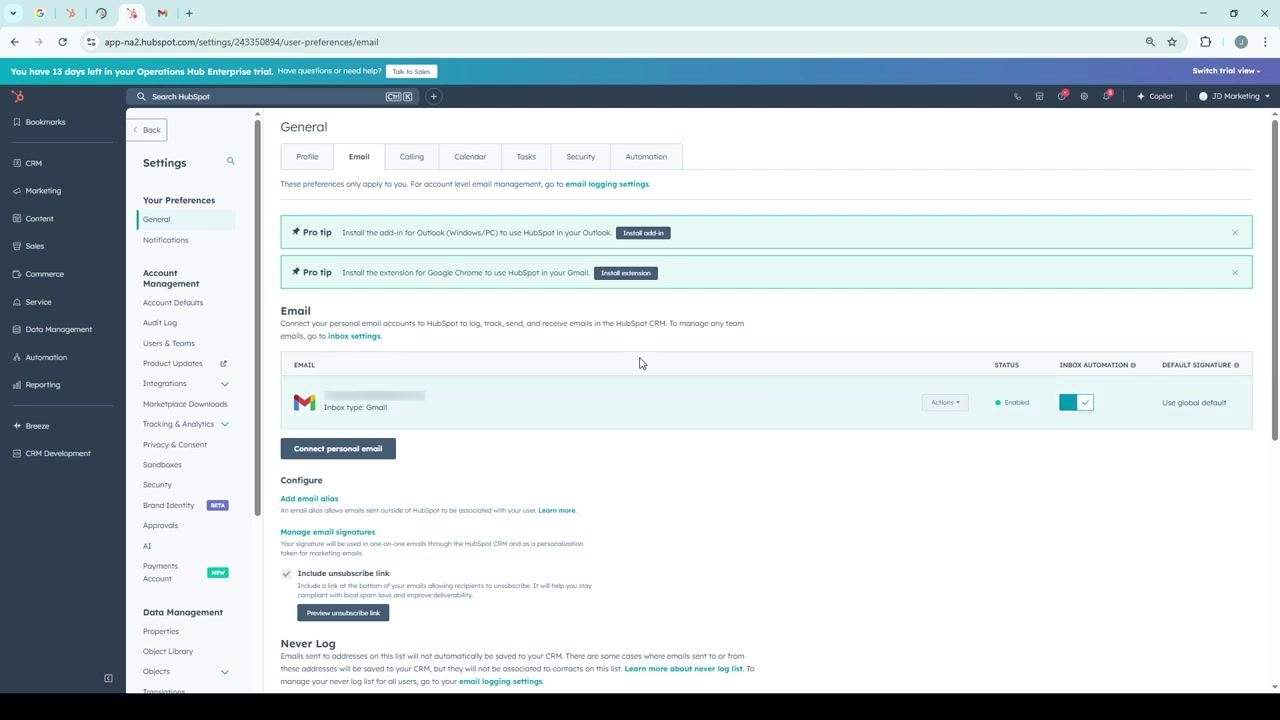
In the left sidebar menu, find the General section under Your Preferences, and click it to expand its options. Within the expanded General section, click Email to open the Email Settings page, where you can manage your email integrations and preferences.
Connect your personal email
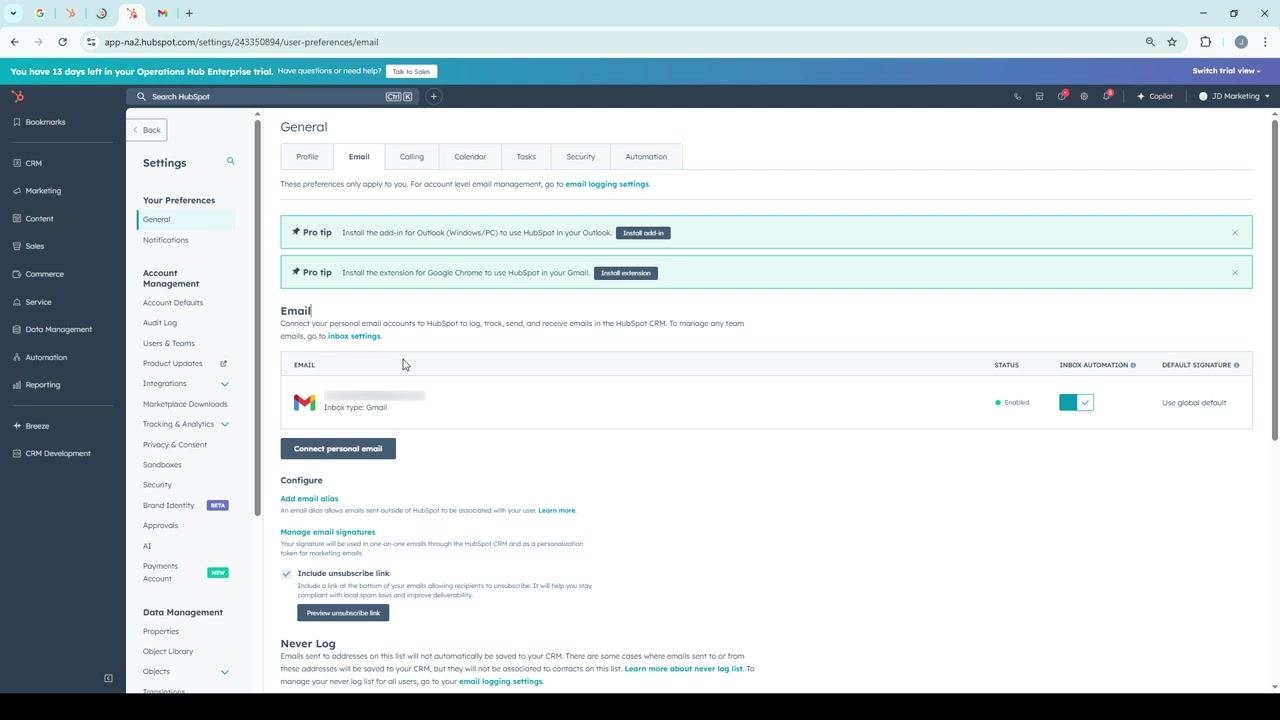
On the Email Settings page, locate the Connect personal email button under the Email section. Click it to start the integration process.
Start the inbox connection
A pop-up window titled Save time in HubSpot and your inbox appears. Review the listed features, which include sending and scheduling emails, logging replies, and suggesting follow-up tasks. Optionally, check Turn on inbox automation if you want HubSpot to automate certain inbox tasks, then click Connect your inbox.
Select Gmail as your provider
When prompted to select your email provider, choose Gmail. This redirects you to a Google login page to establish a secure connection between your HubSpot and Gmail accounts.
Log in to your Gmail account
On the Google login page, enter your Gmail credentials (email and password) if you aren't already logged in. Click Next to proceed.
Grant HubSpot permission to access Gmail
After logging in, review the permissions HubSpot requests. These typically include the ability to read, send, delete, and manage your email, which is necessary for seamless integration and workflow automation. Carefully review each permission to confirm you're comfortable with the access being granted, then click Allow.
Verify the connection
Return to the HubSpot Email Settings page and confirm that your Gmail account is listed as connected. Test the integration by sending a test email or checking for new automation options.
Summary
You've now connected your Gmail account to HubSpot. This integration empowers you to leverage email-driven marketing, streamline your workflow, and maximize the effectiveness of your campaigns.
Tips: - Regularly review your integration settings to ensure continued security and alignment with your business needs. - Explore additional HubSpot tutorials to further expand your digital marketing expertise.
Generation details: cost, quality tiers
Docsie billed 2,000 credits ($1.40) to analyze this 4-minute video at standard quality. The rewrite, template fill and Word/PDF exports were included. The same video at each quality tier:
| Quality | Frames sampled | Credits | Approx. cost |
|---|---|---|---|
| Draft | every 16-30 s | 1,000 | $0.70 |
| Standard (this guide) | every 8-15 s | 2,000 | $1.40 |
| Detailed | every 4-7 s | 4,000 | $2.80 |
| Ultra | every 1-3 s | 8,000 | $5.60 |
Credits priced at $0.70 per 1,000; plans include a monthly allowance. Enterprise customers on on-premise or bring-your-own-model deployments run this on their own inference and pay no per-video credits.
Generated by Docsie Video-to-Docs on 2026-10-11 from a 3-minute video. Screenshots are frames from the source video and belong to their creator, BM Tech Tutorials, whose original is embedded above. If you own this video and want the guide removed or credited differently, contact us and we will act within one business day.