
How to Write a Daily Construction Site Report
Every construction project, client, and company may use its own format, but a well-built daily site report always captures the same core information: manpower, equipment, activity progress, safety, materials received, and photographic evidence of work completed. This guide shows you how to write a daily construction site report using a sample Excel template, walking through each section so your report is complete, accurate, and defensible if it is ever referenced later. The example used throughout is the "Construction of Metro Link-Phase 1-TR1 & TR2" template, but the same fields apply to any project.
Video: How To Prepare Daily Progress Report in Construction Project | Daily Progress Report Format|DPR by Civil Engineer At Site. (2023). All credit for the demonstration goes to the creator; watch the original on YouTube. The written guide below was generated from this video by Docsie. Creator? Request a change or removal.
Every construction project, client, and company may use its own format, but a well-built daily site report always captures the same core information: manpower, equipment, activity progress, safety, materials received, and photographic evidence of work completed. This guide shows you how to write a daily construction site report using a sample Excel template, walking through each section so your report is complete, accurate, and defensible if it is ever referenced later. The example used throughout is the "Construction of Metro Link-Phase 1-TR1 & TR2" template, but the same fields apply to any project.
Prerequisites
Before you start filling in the report, gather the following:
- Access to your project's daily progress report Excel template.
- Daily attendance figures from the site admin or timekeeper (for manpower).
- Equipment quantities from the logistics team.
- HSE data from the safety department, safety engineer, or safety officer.
- Delivery notes and material request (MR) numbers from the store department.
- Updated weather conditions from a mobile weather app or another reliable source.
- Dated photographs of the day's work.
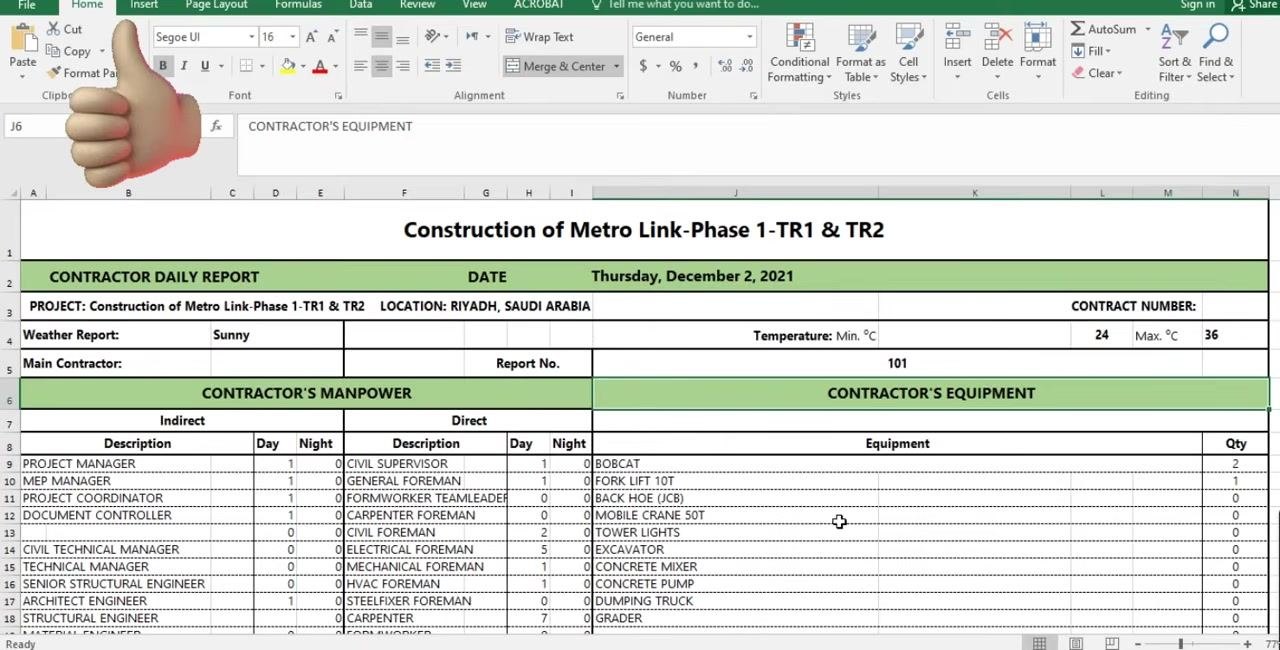
Report header
At the top of the report, enter the identifying details that let anyone recognize the project and the reporting day at a glance:
- Project Name – enter the project name as it appears on your contract (e.g., "Construction of Metro Link-Phase 1-TR1 & TR2").
- Date – enter the current date (e.g., Thursday, December 2, 2021).
- Location – enter the project location (e.g., Riyadh, Saudi Arabia).
- Contract Number – enter it if applicable, or leave blank.
- Main Contractor – enter your company name.
- Report No. – assign a sequential number for tracking (e.g., 101, 102, 103).
- Weather Report – enter the day's condition (e.g., Sunny).
- Temperature – enter the minimum and maximum for the day (e.g., Min. 24°C, Max. 36°C).
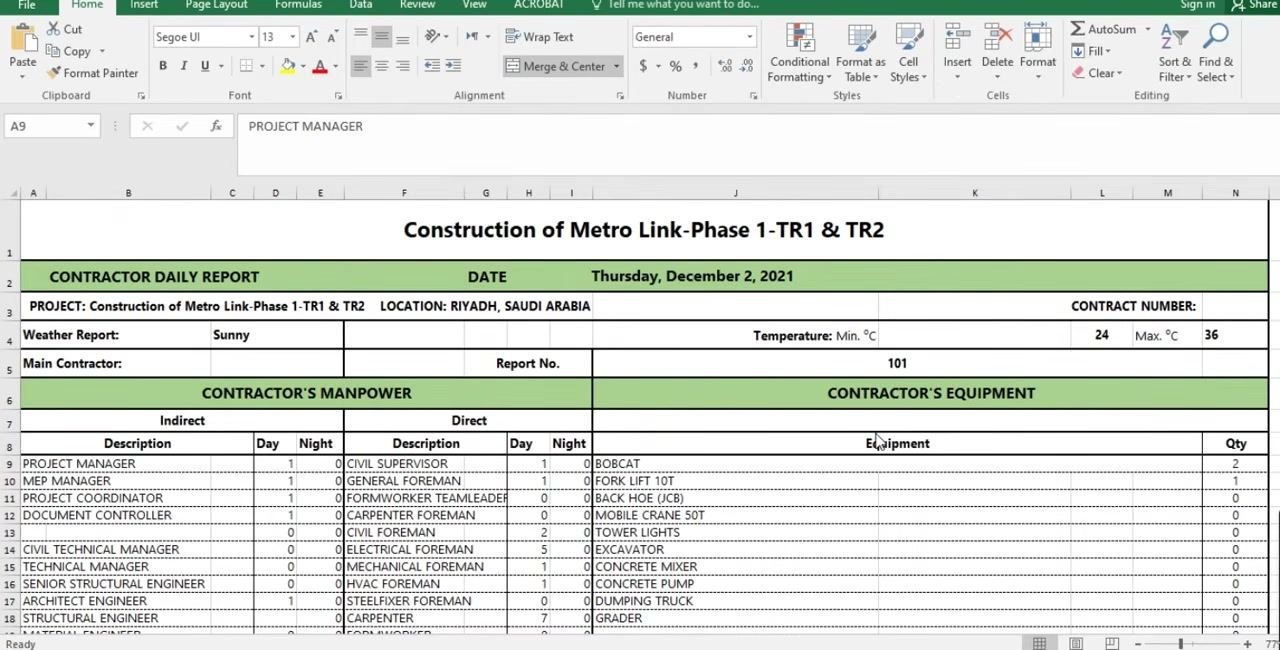
Weather conditions
Update the weather field daily to reflect actual site conditions (e.g., Sunny, Cloudy, Rainy), and record the day's minimum and maximum temperature obtained from a weather app or another reliable source. The template does not include separate fields for precipitation, wind speed, or work-stoppage notes tied to weather; if your project needs to record these (for example, a crane standing down due to high wind), add a line noting the condition and its impact on work directly under the weather summary.
Workforce count
The manpower section is split into Contractor's Manpower and Subcontractor's Manpower, each further divided into indirect and direct categories, with separate columns for day and night shifts.
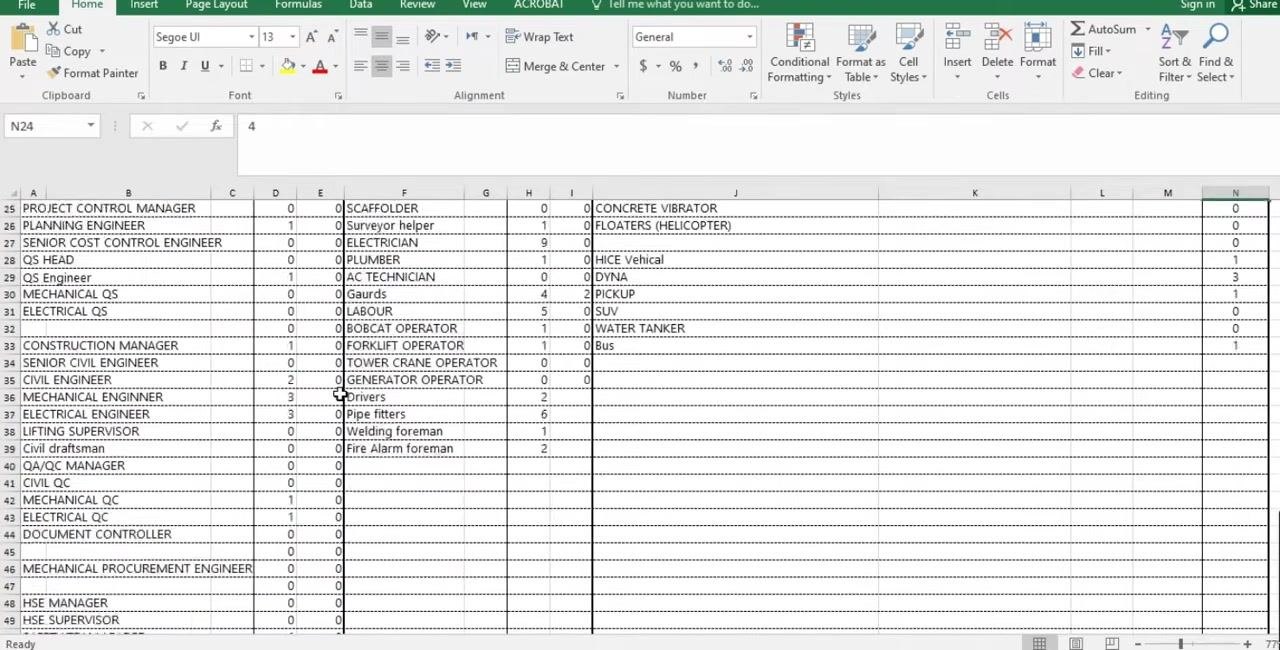
- Indirect manpower covers management and engineering roles: Project Manager, MEP Manager, Project Coordinator, Document Controller, Civil Technical Manager, Technical Manager, Senior Structural Engineer, Architect Engineer, Structural Engineer, Material Engineer, and various draughtsmen. These staff may work on site or in the office.
- Direct manpower covers site-based operational roles: Civil Supervisor, General Foreman, Formworker Team Leader, Carpenter Foreman, Civil Foreman, Electrical Foreman, Mechanical Foreman, HVAC Foreman, Steelfixer Foreman, Carpenter, Formworker, Mason, Steel Fixer, Surveyor, Duct Man, Welder, Scaffolder, Survey Helper, Electrician, Plumber, Technician, and Labour.
Source the day and night headcounts from the site admin or timekeeper, who maintains daily attendance records, and enter them in the matching Day and Night columns for each role.
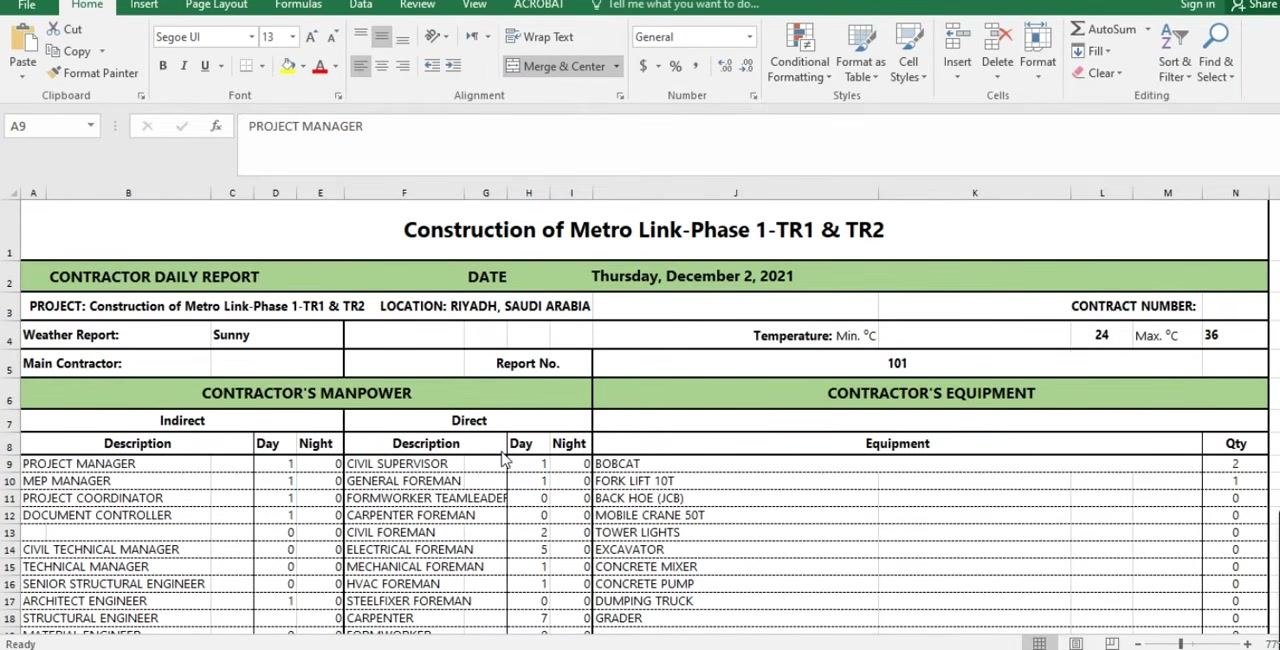
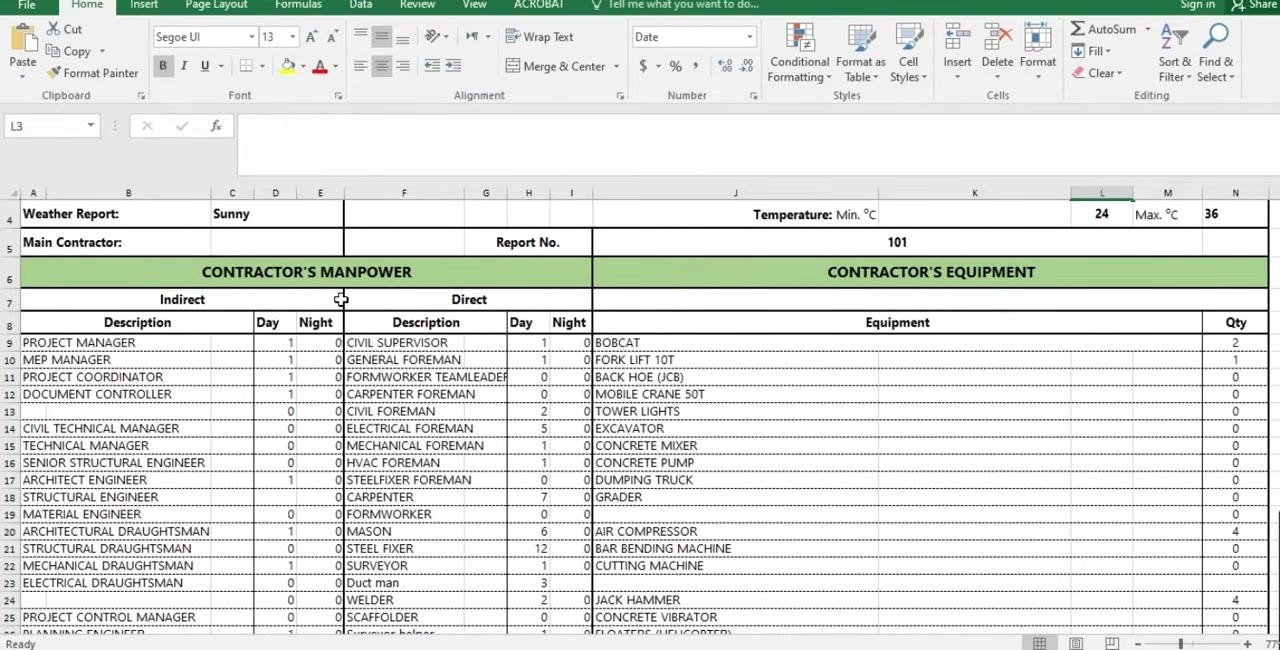
Example entries: "1" for Project Manager (Day), "0" for Project Manager (Night), "6" for Mason (Day), "0" for Mason (Night).
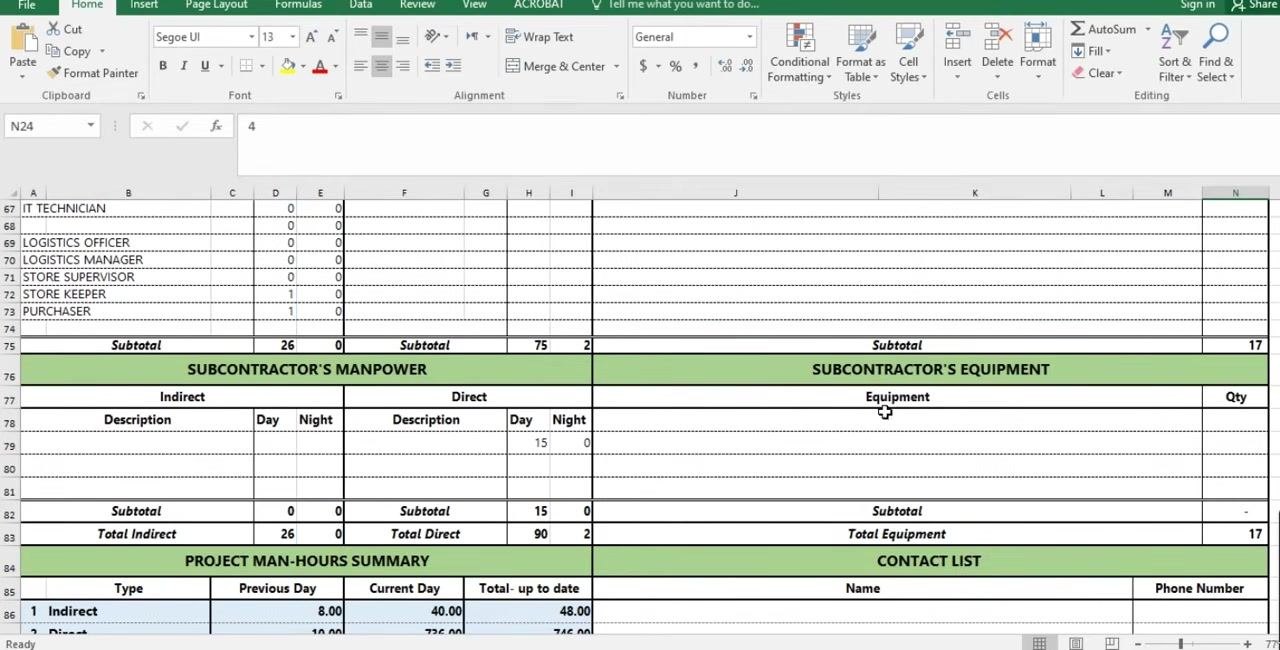
If subcontractors are working on site, enter their indirect and direct manpower for day and night shifts in the Subcontractor's Manpower section using the same method. Leave these fields blank if no subcontractor data is available for that day.
Example: a subcontractor with 15 direct manpower during the day and 0 at night is entered accordingly.
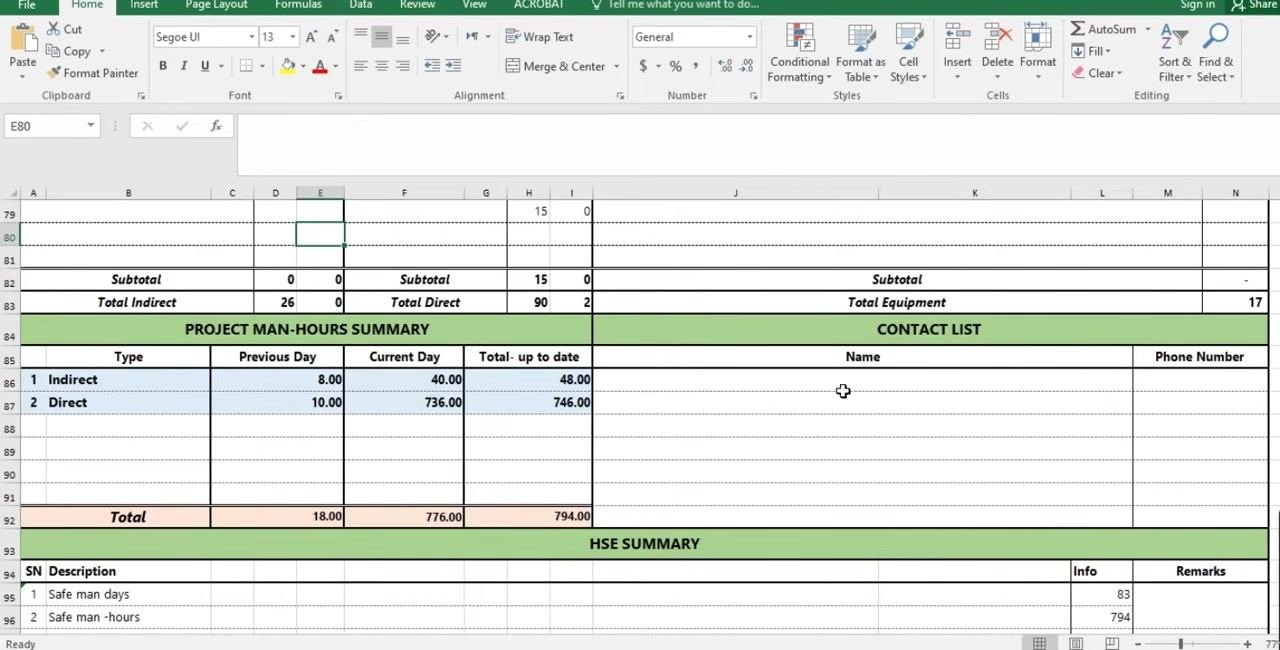
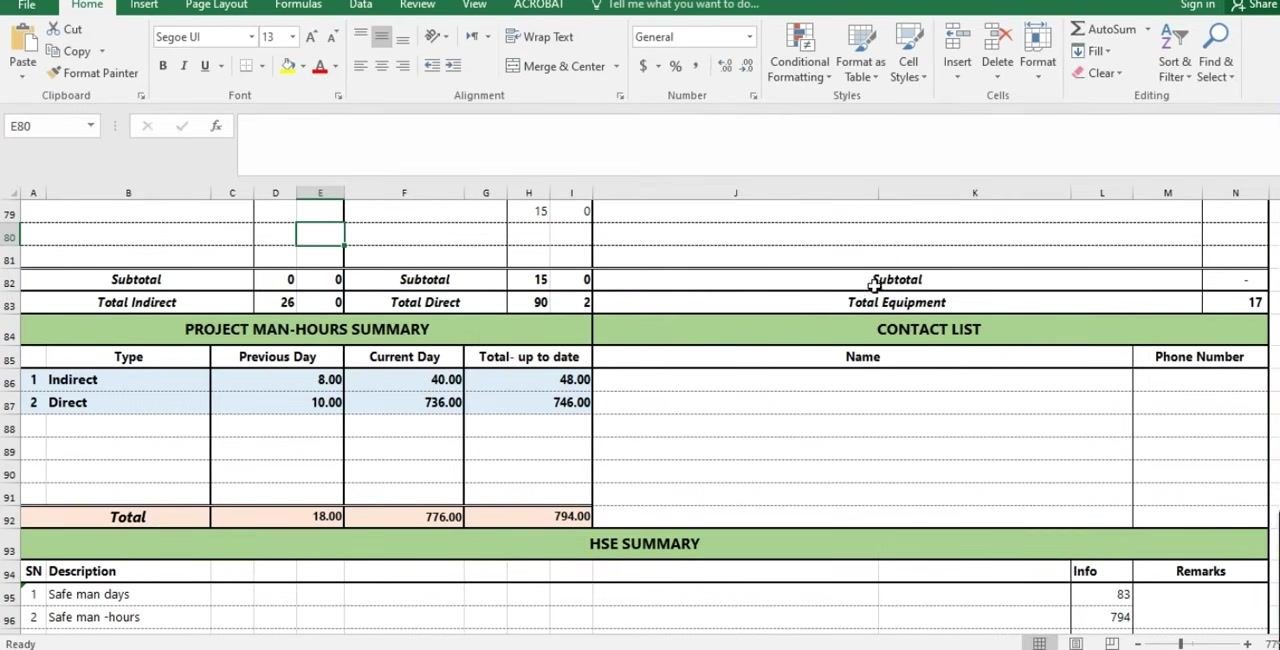
Below the manpower tables, the Project Man-Hours Summary calculates indirect and direct man-hours for the previous day, the current day, and the running total. Do not enter data manually here; it populates automatically from the Excel formulas linked to the manpower figures above. Review it to confirm the totals look correct. The Contact List section next to it holds the names and phone numbers of subcontractor representatives, where available.
A workforce table for a given day would read, for example:
| Trade/Role | Category | Contractor | Day | Night |
|---|---|---|---|---|
| Project Manager | Indirect | Main Contractor | 1 | 0 |
| Mason | Direct | Main Contractor | 6 | 0 |
| Direct manpower (example) | Direct | Subcontractor | 15 | 0 |
The template tracks headcount by day and night shift rather than hours worked per person or area/zone; total man-hours are derived automatically in the Project Man-Hours Summary rather than entered per trade.
Equipment on-site
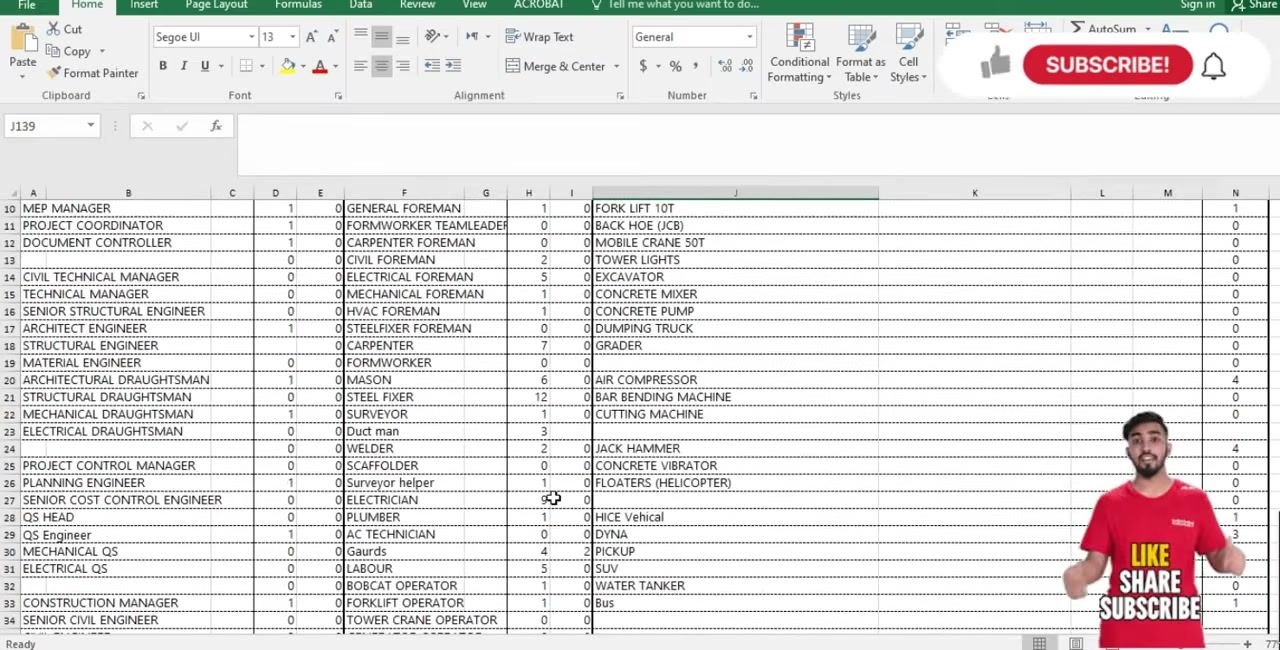
The Contractor's Equipment section lists every piece of equipment used on site alongside the quantity in use. Typical entries include Bobcat, Fork Lift 10T, Back Hoe (JCB), Mobile Crane 50T, Tower Lights, Excavator, Concrete Mixer, Concrete Pump, Dumping Truck, Grader, Air Compressor, Bar Bending Machine, Cutting Machine, Jack Hammer, Concrete Vibrator, Floaters (Helicopter), HICE Vehicle, Dyna, Pickup, and SUV. Source the quantities from the logistics team, who manage site equipment records.
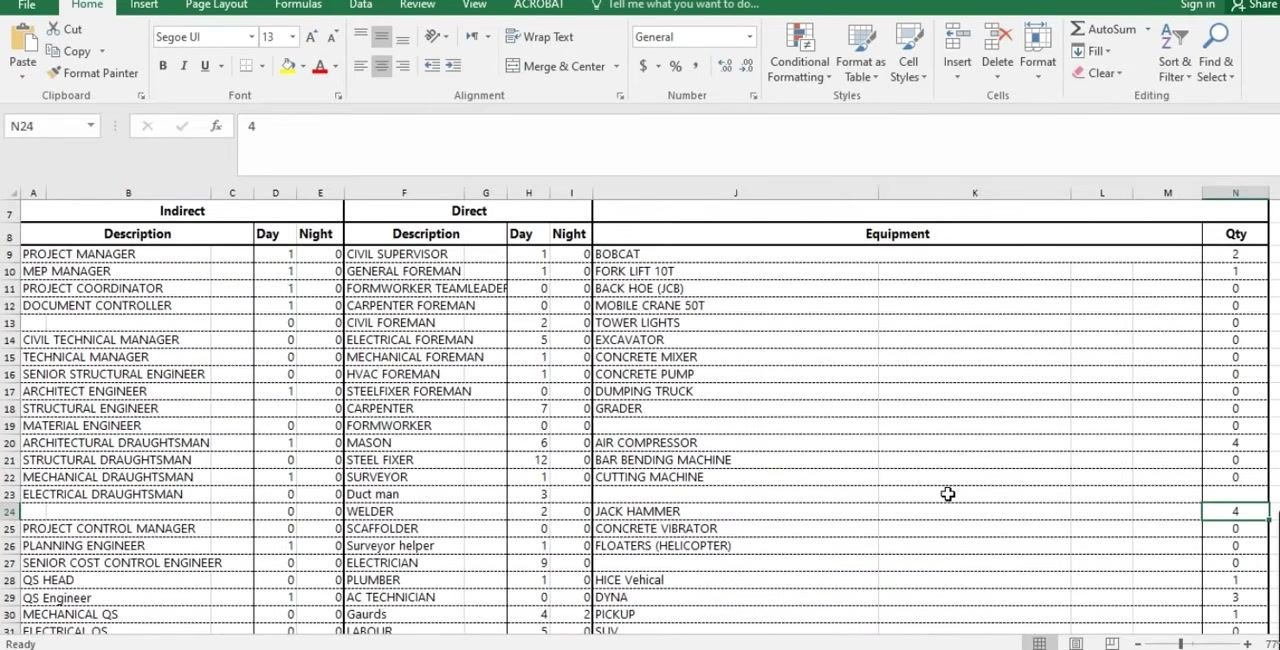
A sample equipment table:
| Equipment | Quantity |
|---|---|
| Bobcat | 2 |
| Fork Lift 10T | 1 |
| Air Compressor | 4 |
If a subcontractor is using its own machinery, list it and its quantity in the Subcontractor's Equipment section following the same method. The template records quantity on site rather than operating status, assigned operator, or hours run for each unit; if your project needs that level of detail, add columns for status (working/idle/maintenance), operator, and hours worked next to the quantity field.
After entering manpower and equipment for the day, return to the Contractor's Manpower and Contractor's Equipment sections to double-check that every role and equipment type reflects actual site conditions before moving on.
Work completed today
The Details of Daily Work Activities section, usually marked with a green header, is where the site engineer documents progress. It is organized into the following columns:
- No. – activity number, left blank or numbered sequentially.
- Building Name / BOQ Items in Progress – the building or Bill of Quantities (BOQ) item being worked on.
- On-going Activities – the specific tasks underway.
- Actual Qnty in BOQ – the total quantity for that activity per the BOQ.
- Today Qnty / % complete – the quantity or percentage completed today.
- Remaining Qnty / % – the quantity or percentage left to complete.
- To date Qnty / % Complete – the cumulative quantity or percentage completed so far.
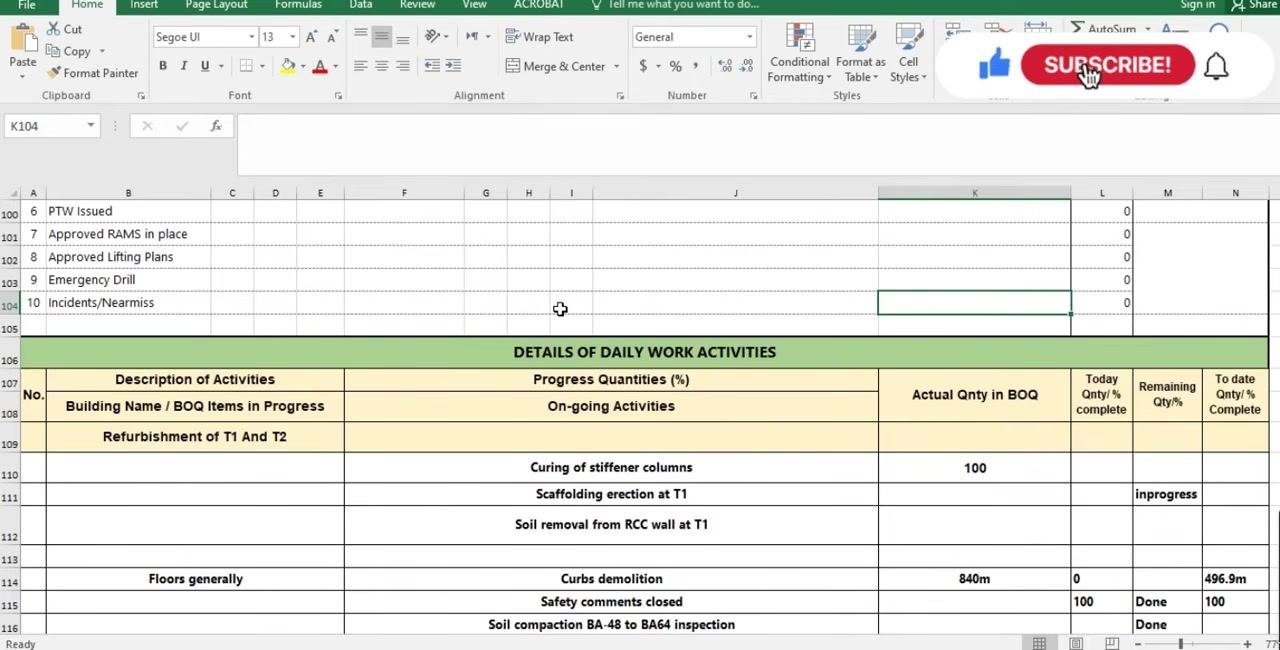
Enter the building name or BOQ item first, for example "Refurbishment of T1 And T2."
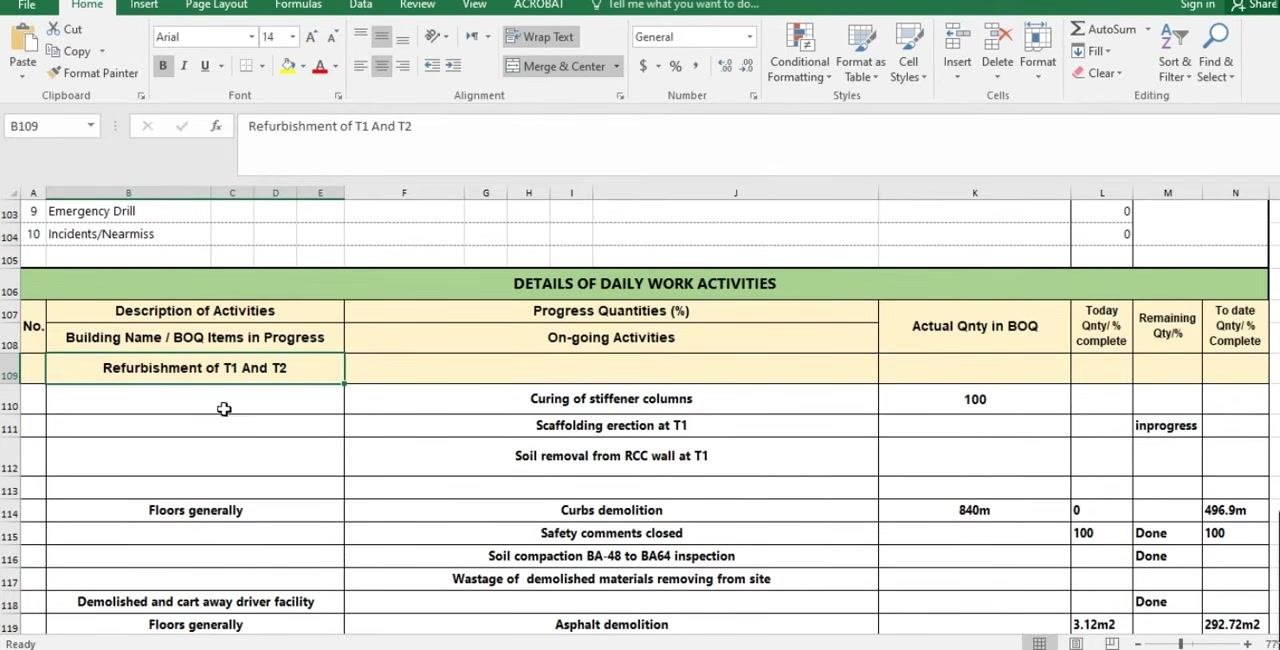
List each specific task underway beneath it, such as:
- Curing of stiffener columns
- Scaffolding erection at T1
- Soil removal from RCC wall at T1
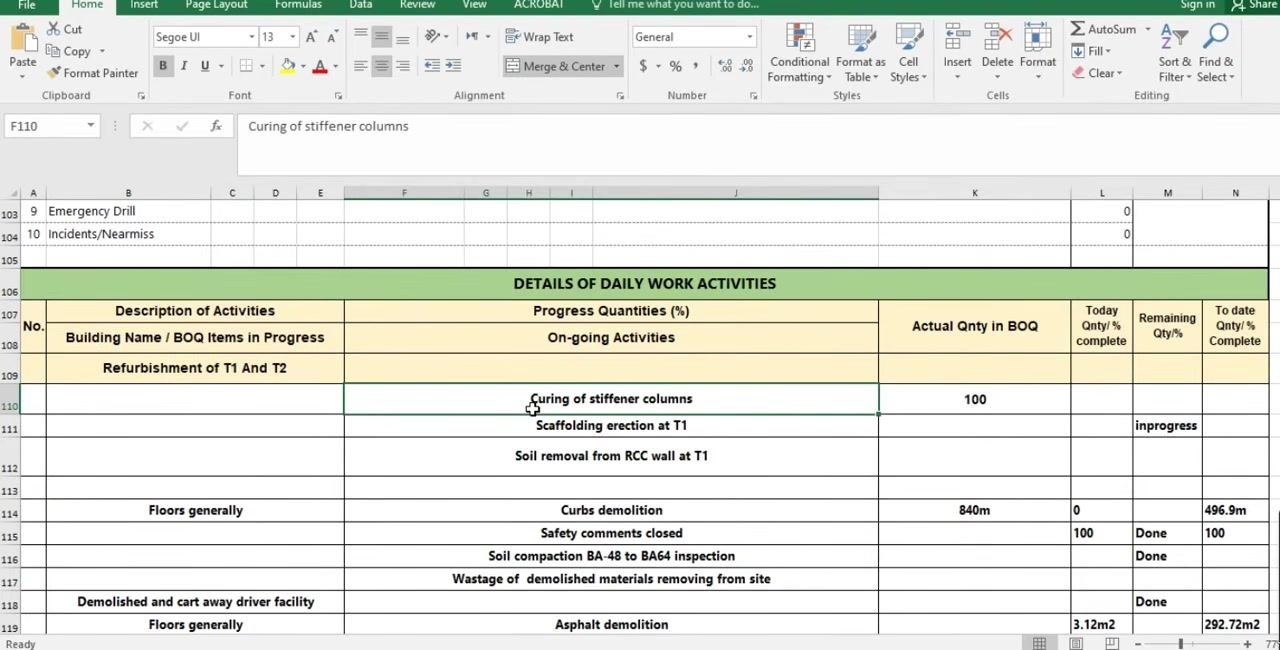
For a measurable activity like curing of stiffener columns, enter the BOQ value, today's completed quantity, the remaining quantity, and the cumulative to-date quantity. For example: Actual Qnty in BOQ = 100, Today Qnty = 10, Remaining Qty = 50, To date Qnty = 50.
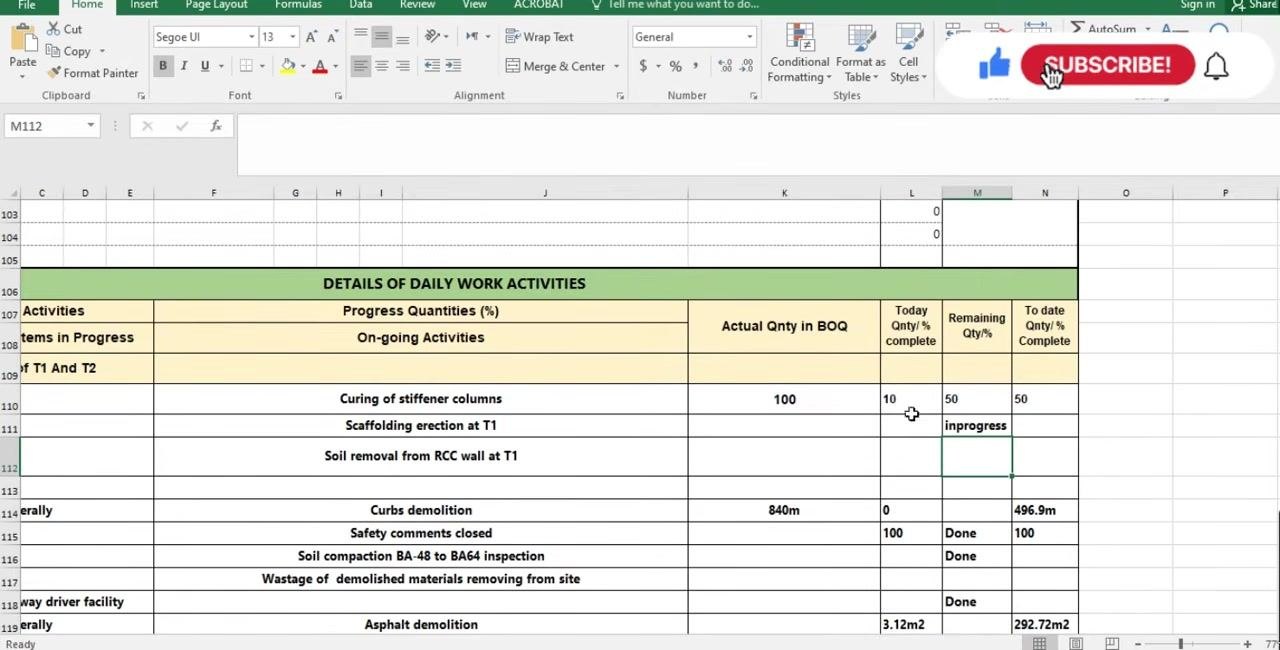
Each day, add today's completed quantity to the previous cumulative total to update the to-date figure, then subtract the cumulative total from the BOQ quantity to calculate what remains. For example, if the total BOQ quantity is 100 and the cumulative completed quantity is 50, the remaining quantity is 50.
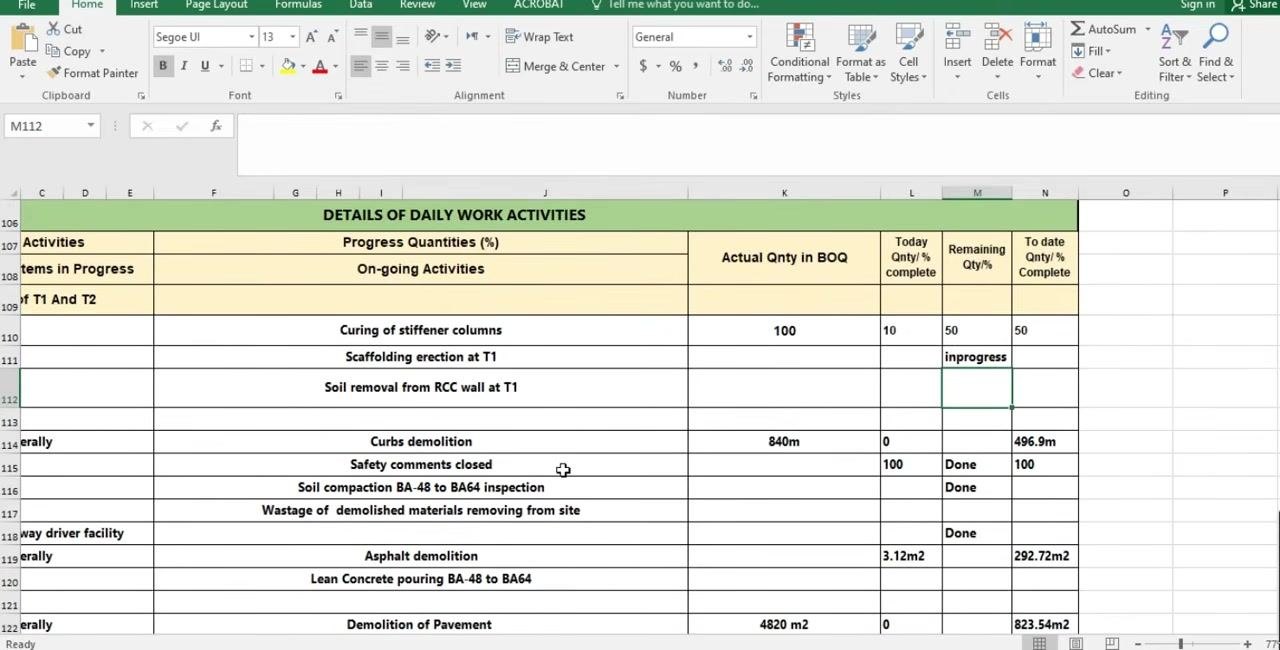
For activities that are not part of the BOQ, such as "Wastage of demolished materials removing from site," leave the Actual Qnty in BOQ, Today Qnty, and Remaining Qnty columns blank, and optionally mark the To date Qnty / % Complete column as "Done" or "In progress."
For ongoing non-BOQ activities, mark "In progress" in the Remaining Qty or To date Qnty column to indicate continuous work that is not measured against a fixed BOQ quantity.
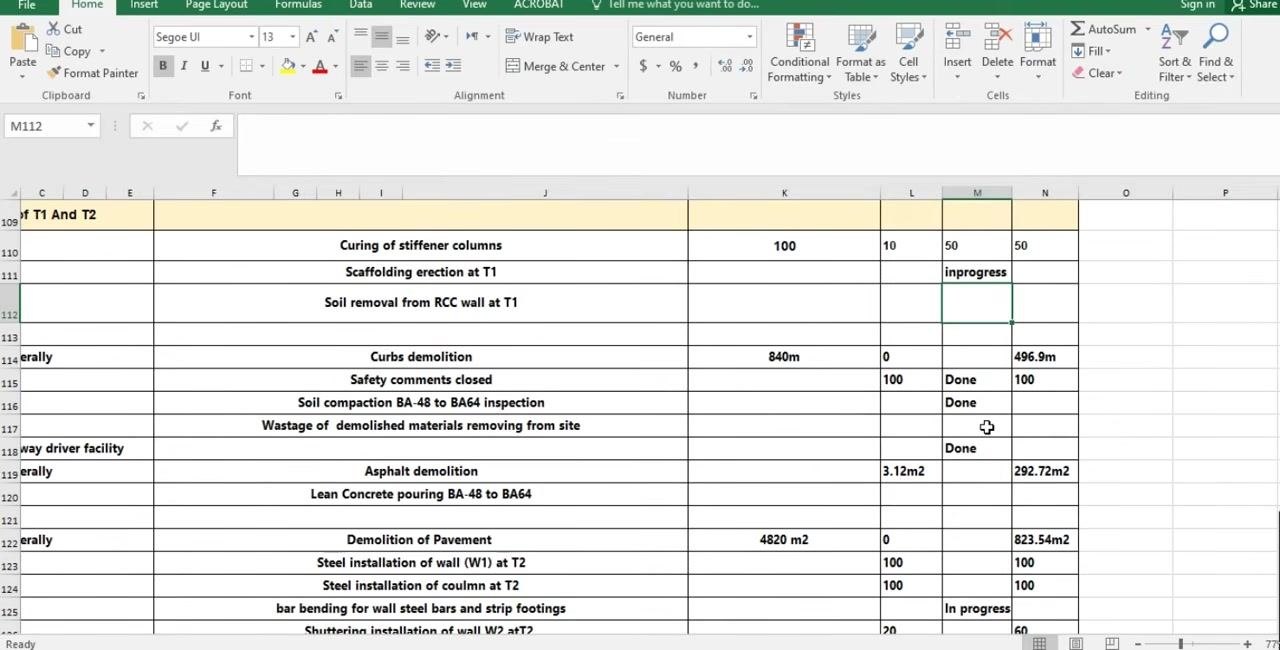
For demolition or spot activities, record the exact number or area completed. If the activity is not in the BOQ, subtract the completed quantity from the total where applicable, and mark completed items as "Done."
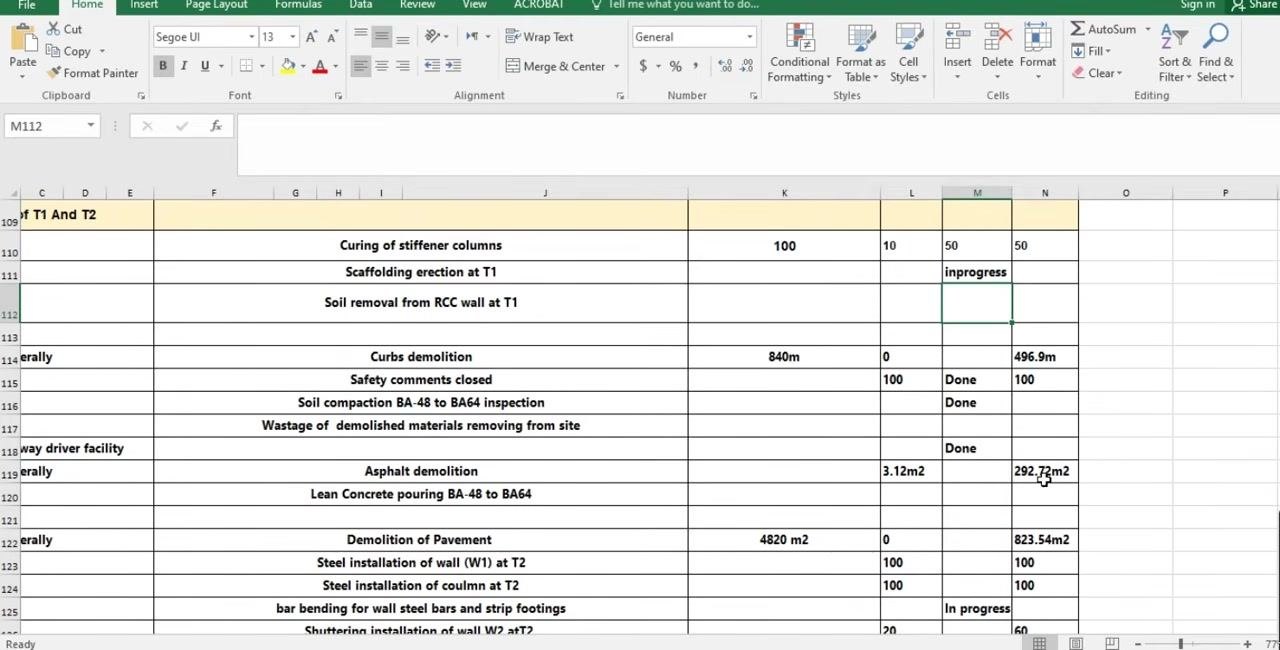
If no work was performed on a given activity that day, leave the Today Qnty / % complete column blank rather than entering a zero or placeholder.
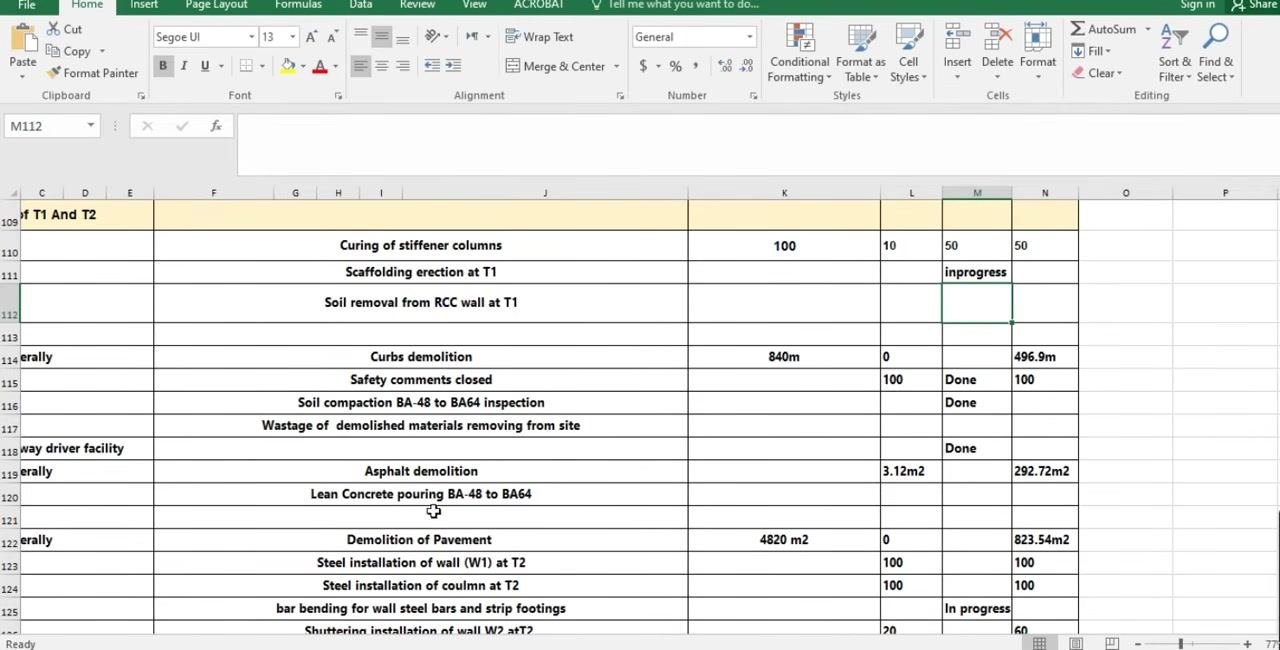
For quantifiable activities like excavation, enter today's completed volume (e.g., 16.4 m³) and update the cumulative total (e.g., 300.66 m³ to date).
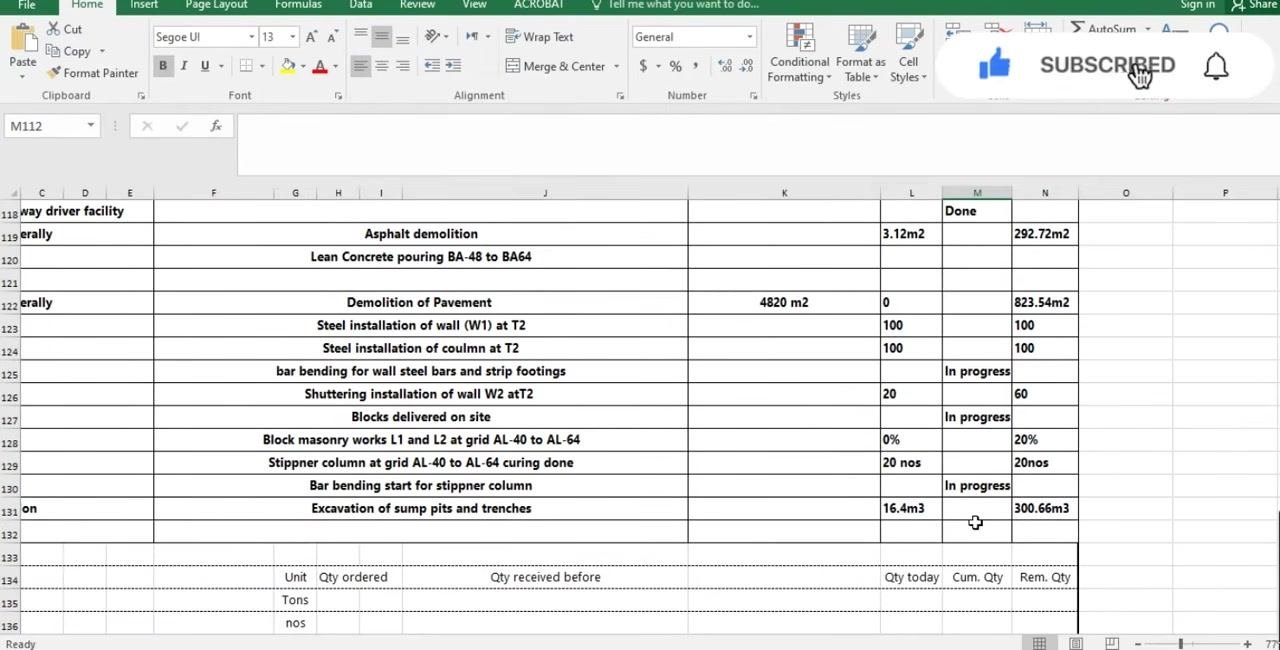
Continue this process for every activity on the sheet, keeping the Actual Qnty in BOQ, Today Qnty, Remaining Qnty, and To date Qnty columns current for each row.
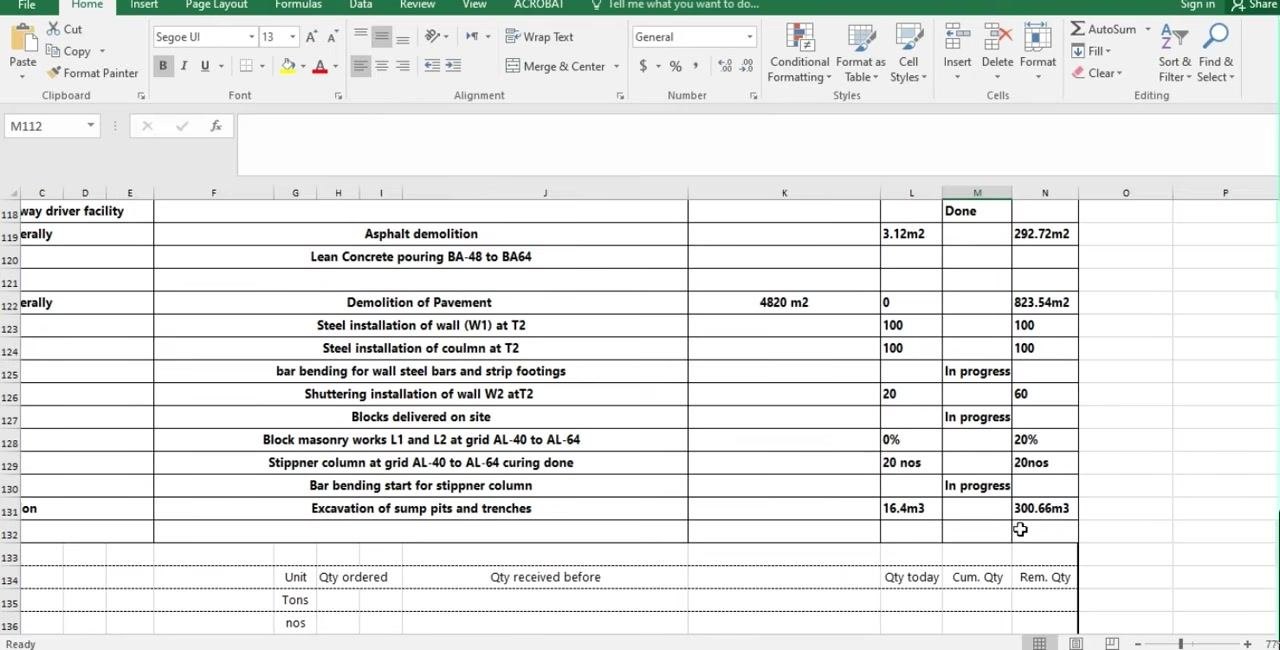
Clearly label each activity block with its building name or BOQ item at the top, for example "Refurbishment of T1 And T2" under Building Name / BOQ Items in Progress.
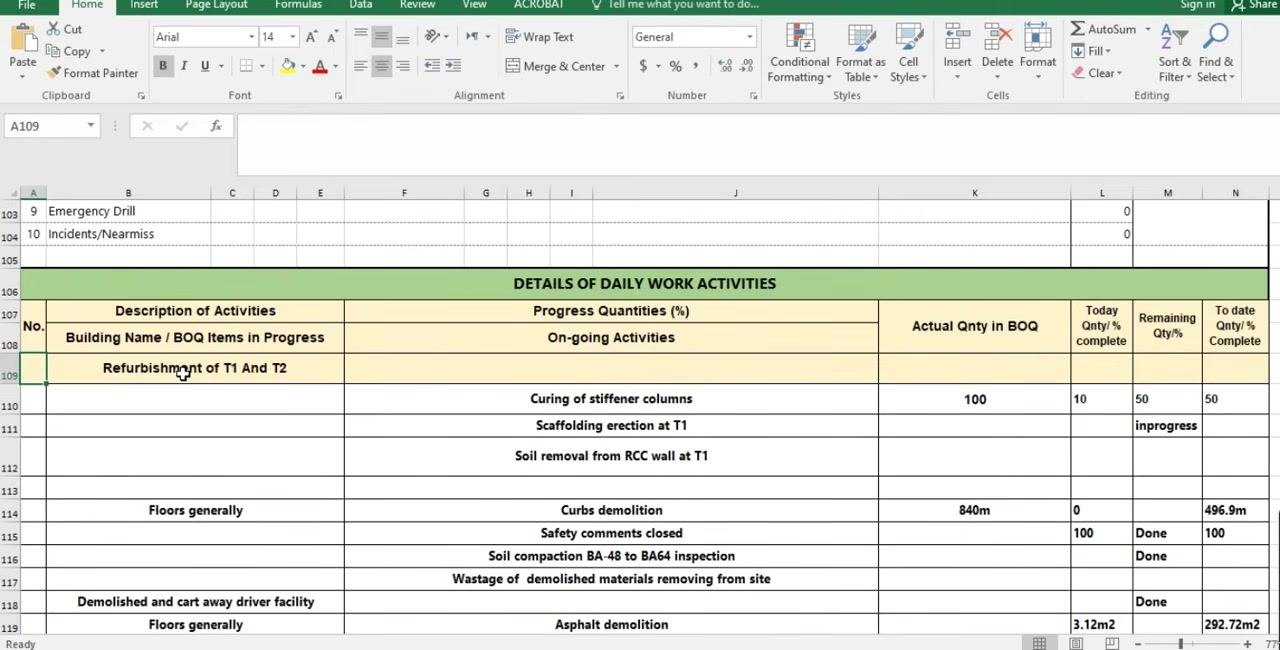
Additional example entries, such as curbs demolition, might read: Actual Qnty in BOQ = 840m, Today Qnty = 0, Remaining Qty = 496.9m, marked "Done" once fully complete, with To date Qnty / % Complete = 100.
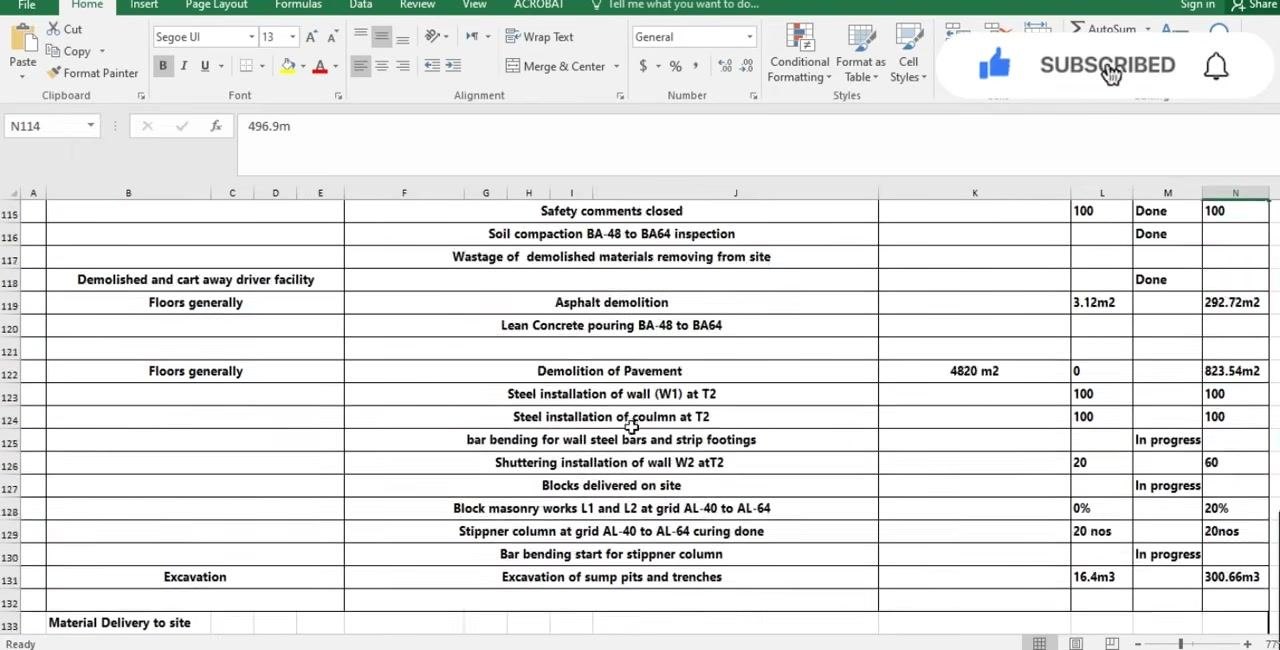
Reference your project's BOQ document for the correct BOQ reference number for each activity, and enter a serial number and building name alongside it for tracking. Update every activity daily rather than carrying over old figures.
Materials received
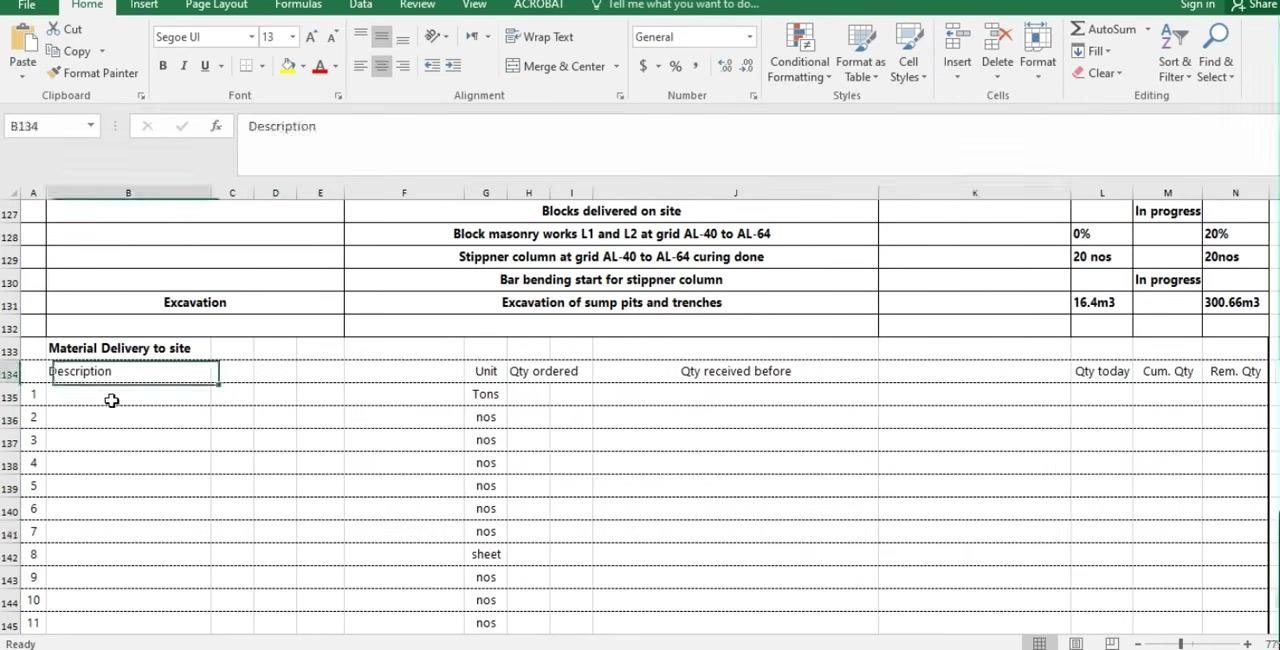
Scroll to the Material Delivery to site section to log incoming materials. For each item, fill in:
- Description – e.g., Cement, Steel bars, Blocks.
- Unit – e.g., Tons, nos, sheet, roll.
- Quantity ordered – the total amount ordered for the project.
- Quantity received before – the cumulative amount received prior to today.
- Quantity received today – the amount delivered on the current day.
- Cumulative quantity – the total received to date.
- Remaining quantity – the amount still to be delivered.
Source delivery notes, the FIO number, and the material request from the store department to keep this section accurate.
Work progress photos
Scroll to the Work Progress Photos section at the bottom of the sheet and insert clear, dated photographs of the day's work. Cover a range of activities and locations, such as workers performing tasks (sweeping, demolition, inspection), groups of workers in safety gear, machinery in operation, and before/after shots of completed areas. Update this section regularly to keep a visual record of daily progress.
Work planned tomorrow
The source material for this guide does not show a dedicated field for next-day planning. In your report, this section should briefly describe the activities scheduled for the following day, along with any permits or material deliveries required to carry them out.
Safety observations
Obtain HSE data from the safety department, safety engineer, or safety officer, and enter it in the HSE Summary section:
- Safe man days
- Safe man-hours
- HSE induction conducted
- Toolbox talks
- Internal training
- PTW (Permit to Work) issued
- Approved RAMS (Risk Assessment Method Statements) in place
- Approved lifting plans
- Emergency drills
- Incidents/near misses
Enter the value for each item in the Info column, with any relevant notes in the Remarks column. Example values: "83" for Safe man days, "794" for Safe man-hours, "2" for HSE induction conducted, "83" for Toolbox talks, and "0" for fields not applicable that day.
Also note whether a toolbox meeting was conducted that day and summarize the key points discussed, since this is one of the common data fields expected in every daily progress report.
Delays & issues log
The source material for this guide does not include a dedicated delays-and-issues table. In your report, this section should record any issue affecting the schedule or cost, its cause, its impact, the corrective action taken, and its status (Open/Resolved).
Visitor log
The source material for this guide does not describe a visitor log; the Contact List section covers subcontractor representative names and phone numbers rather than site visitors. In your report, this section should record every non-regular visitor to site, including their name, company, purpose of visit, and time in/out.
What's next
Once every section is complete, double-check the daily work activities, material deliveries, work progress photos, and manpower and equipment records for accuracy and consistency with data from the site admin, timekeeper, logistics team, safety officer, and store department. Save the updated file with the correct date and project reference, then distribute the report to the relevant stakeholders (project manager, site engineer, client representative) according to your project's communication protocol, and archive it in your project documentation system for future reference.
Generation details: cost, quality tiers, downloads
Docsie billed 5,500 credits ($3.85) to analyze this 11-minute video at standard quality. The rewrite, template fill and Word/PDF exports were included. The same video at each quality tier:
| Quality | Frames sampled | Credits | Approx. cost |
|---|---|---|---|
| Draft | every 16-30 s | 2,750 | $1.92 |
| Standard (this guide) | every 8-15 s | 5,500 | $3.85 |
| Detailed | every 4-7 s | 11,000 | $7.70 |
| Ultra | every 1-3 s | 22,000 | $15.40 |
Credits priced at $0.70 per 1,000; plans include a monthly allowance. Enterprise customers on on-premise or bring-your-own-model deployments run this on their own inference and pay no per-video credits.
Generated by Docsie Video-to-Docs on 2026-09-10 from a 10-minute video. It was generated straight into Docsie's Daily Site Report template, so every section of that template is filled from the video. Screenshots are frames from the source video and belong to their creator, Civil Engineer At Site., whose original is embedded above. If you own this video and want the guide removed or credited differently, contact us and we will act within one business day.