
How to Use Worktags in Workday
This guide explains how to use worktags in Workday while creating a purchase requisition. Worktags identify the funding source and cost center associated with a purchase, and selecting them correctly ensures your transaction is processed and reported accurately. The steps below walk through logging in, starting a requisition, selecting driver worktags, and choosing a spend category for a non-catalog purchase.
Video: Workday Demonstration: Worktags in Action by Elevate Program - UMD (2022). All credit for the demonstration goes to the creator; watch the original on YouTube. The written guide below was generated from this video by Docsie. Creator? Request a change or removal.
This guide explains how to use worktags in Workday while creating a purchase requisition. Worktags identify the funding source and cost center associated with a purchase, and selecting them correctly ensures your transaction is processed and reported accurately. The steps below walk through logging in, starting a requisition, selecting driver worktags, and choosing a spend category for a non-catalog purchase.
Prerequisites
- You must have access to Workday with an active login.
- You need to know the department, grant, gift, or project (if any) associated with your purchase.
- You should know the general item details (description, supplier, quantity, and cost) for the goods you intend to request.
Log in to Workday
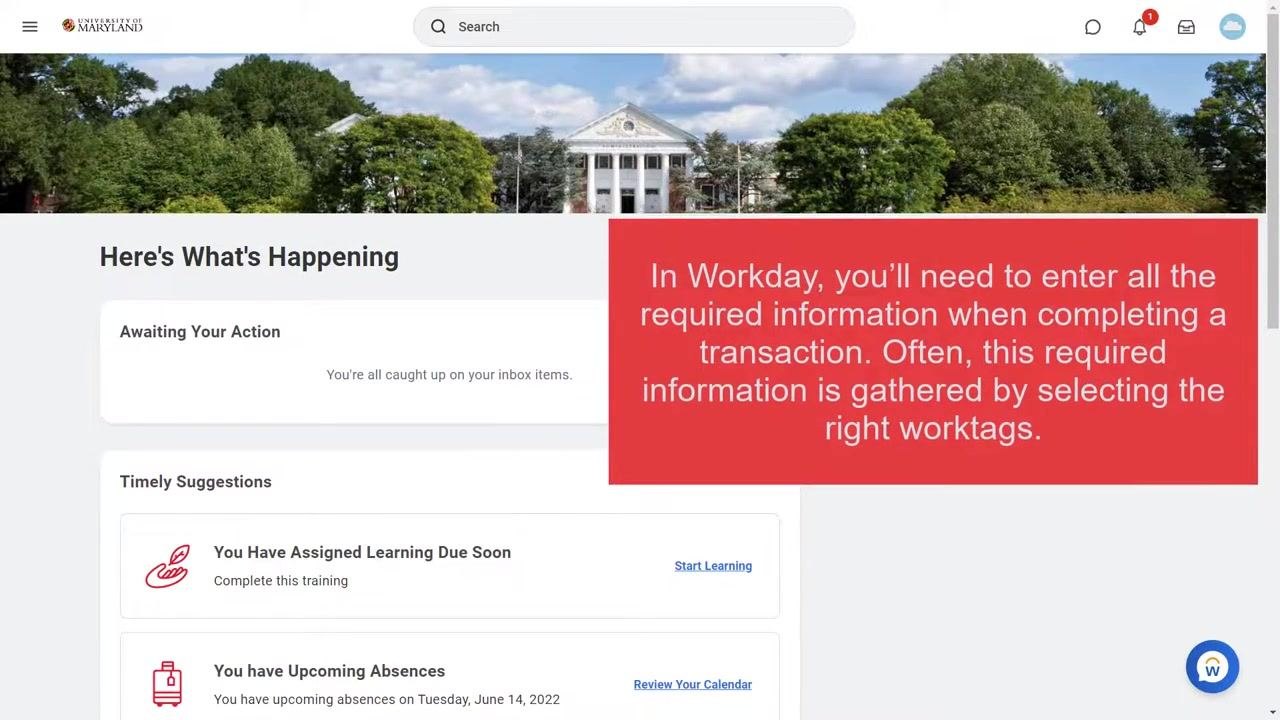
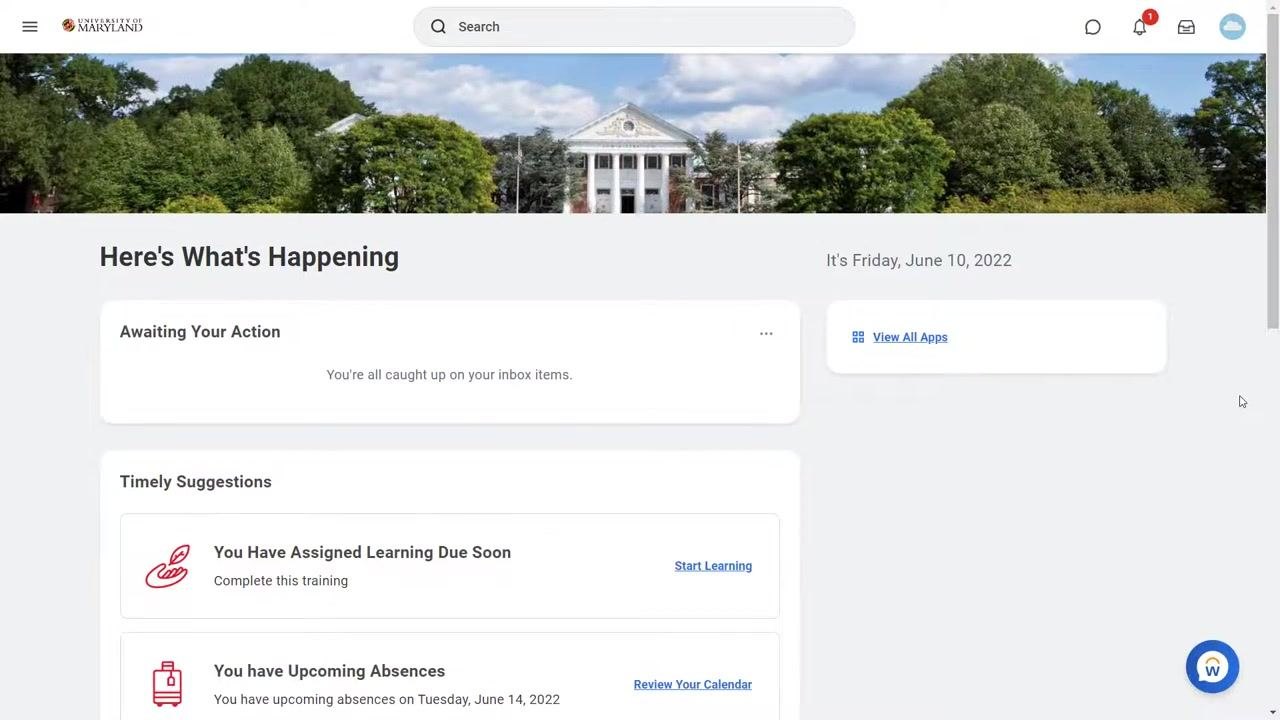
Access the Workday homepage. You will see your institution's branding and a dashboard titled Here's What's Happening, which displays sections such as Awaiting Your Action and Timely Suggestions (for example, assigned learning or upcoming absences). The current date appears in the upper right corner of the screen.
Understand required information and worktags
Before starting a transaction, note that Workday requires you to enter all required information to complete it. Much of this required information is gathered by selecting the right worktags, which are essential for categorizing and processing transactions correctly.
Access the Create Requisition task
In the Workday search bar at the top of the homepage, type Create Requisition and select the Create Requisition task from the search results. In this example, the requester is purchasing office supplies for a department using a non-catalog requisition, rather than going through the Shell Shop.
Review the Create Requisition dialog
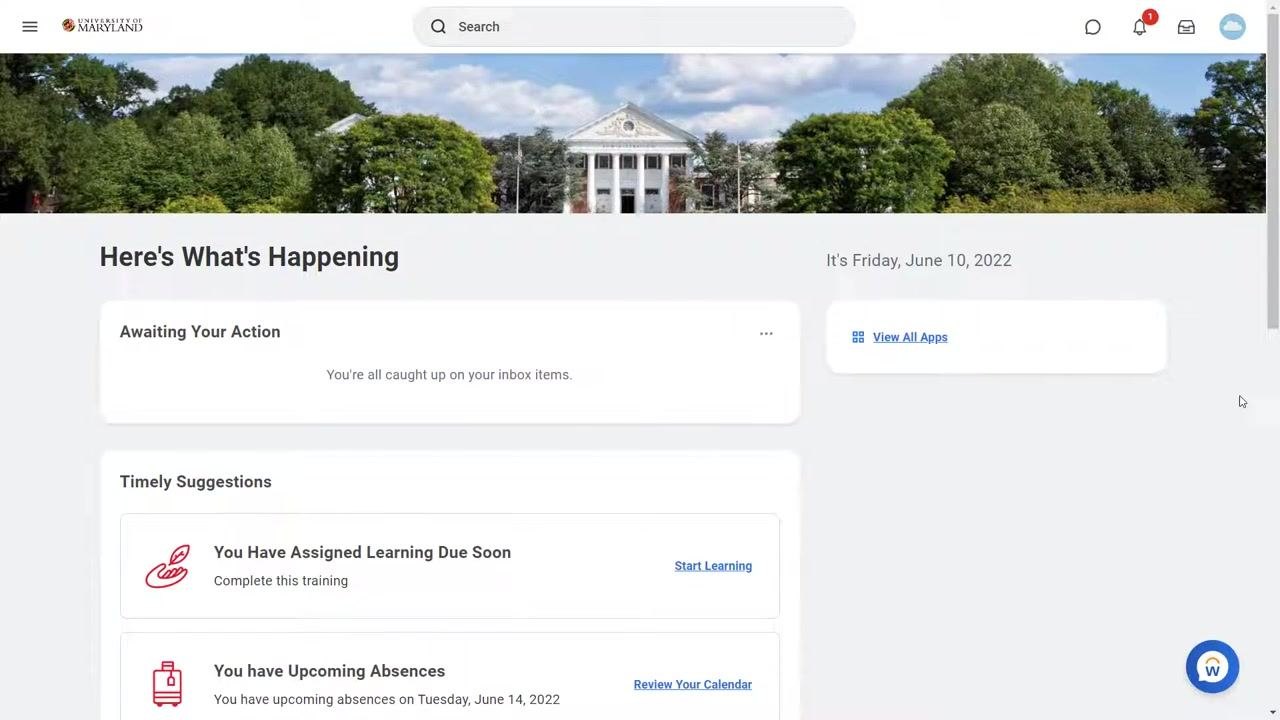
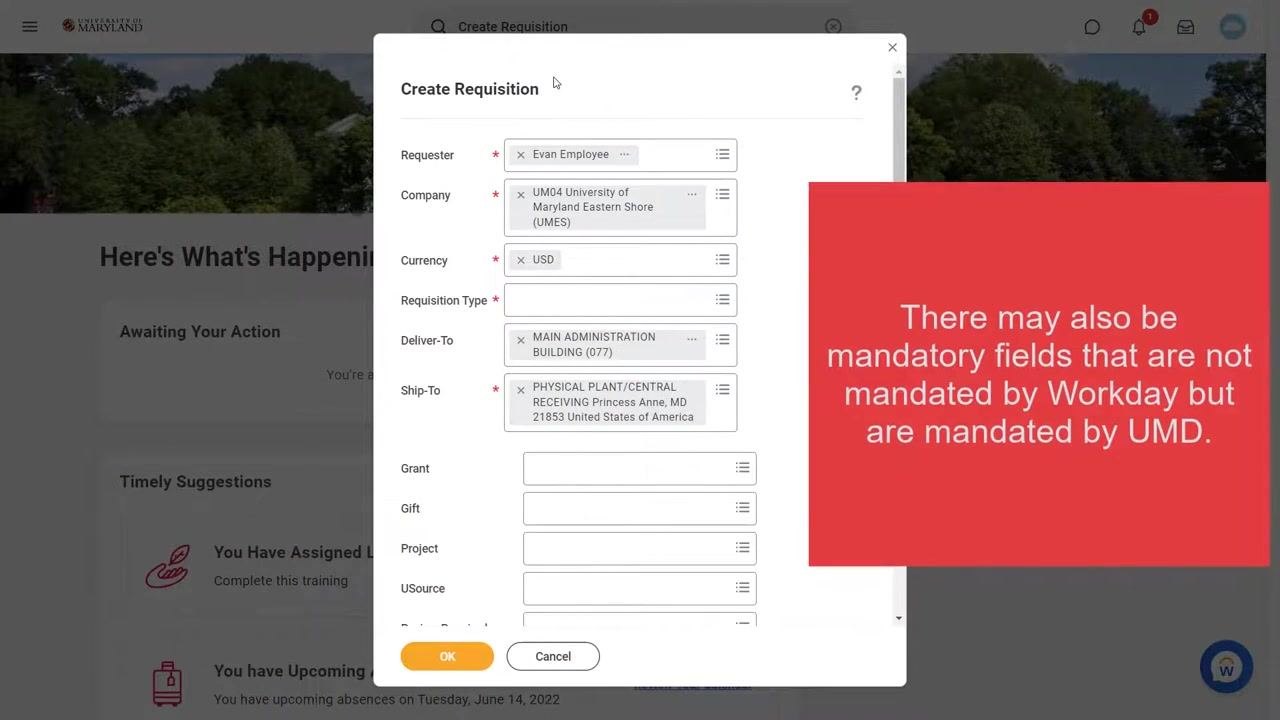
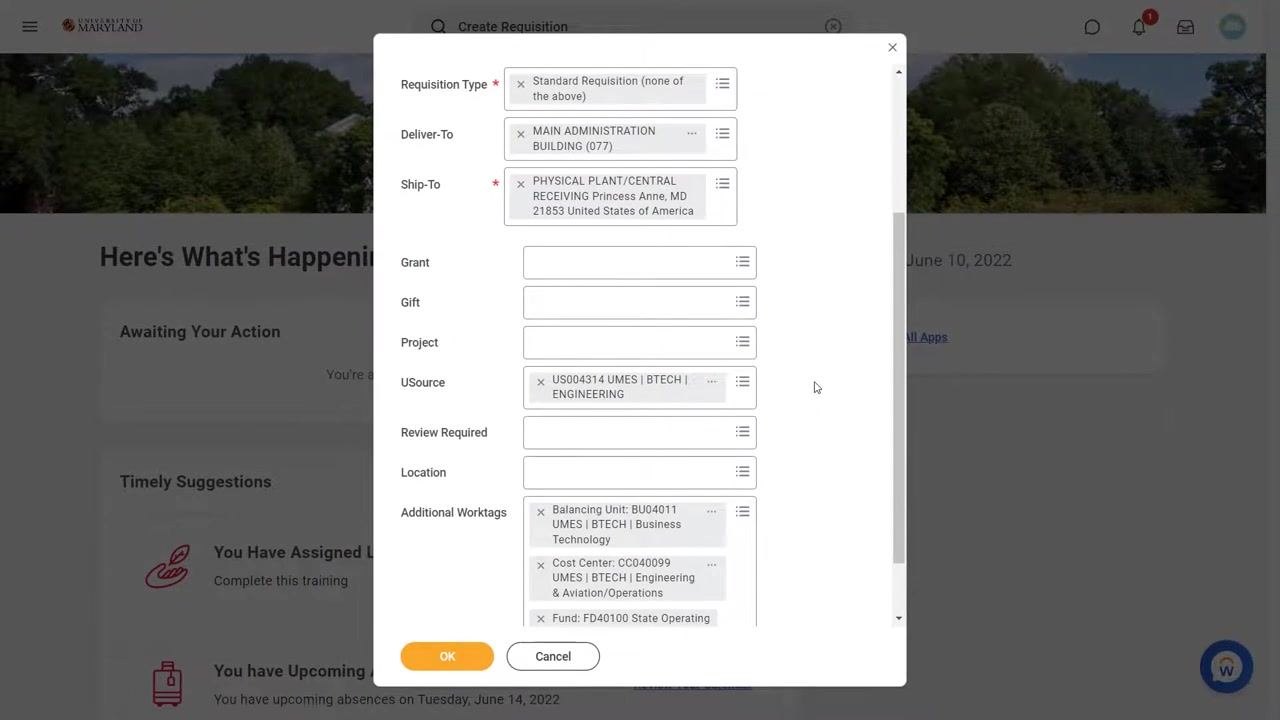
The Create Requisition dialog box appears with several fields pre-filled for convenience, including:
- Requester: your name
- Company: your institution
- Currency: USD
- Deliver-To: your default delivery location
- Ship-To: your default shipping location
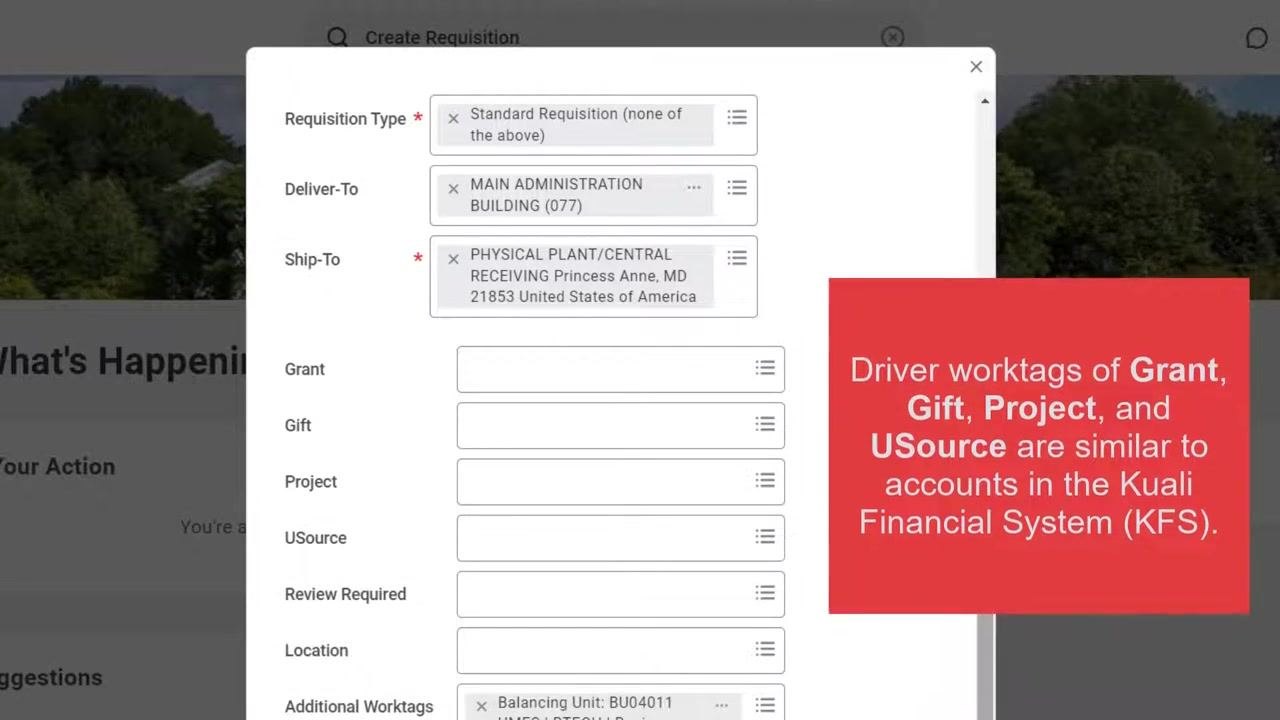
Other fields, such as Requisition Type, Grant, Gift, Project, and USource, are available for entry.
Identify mandatory fields
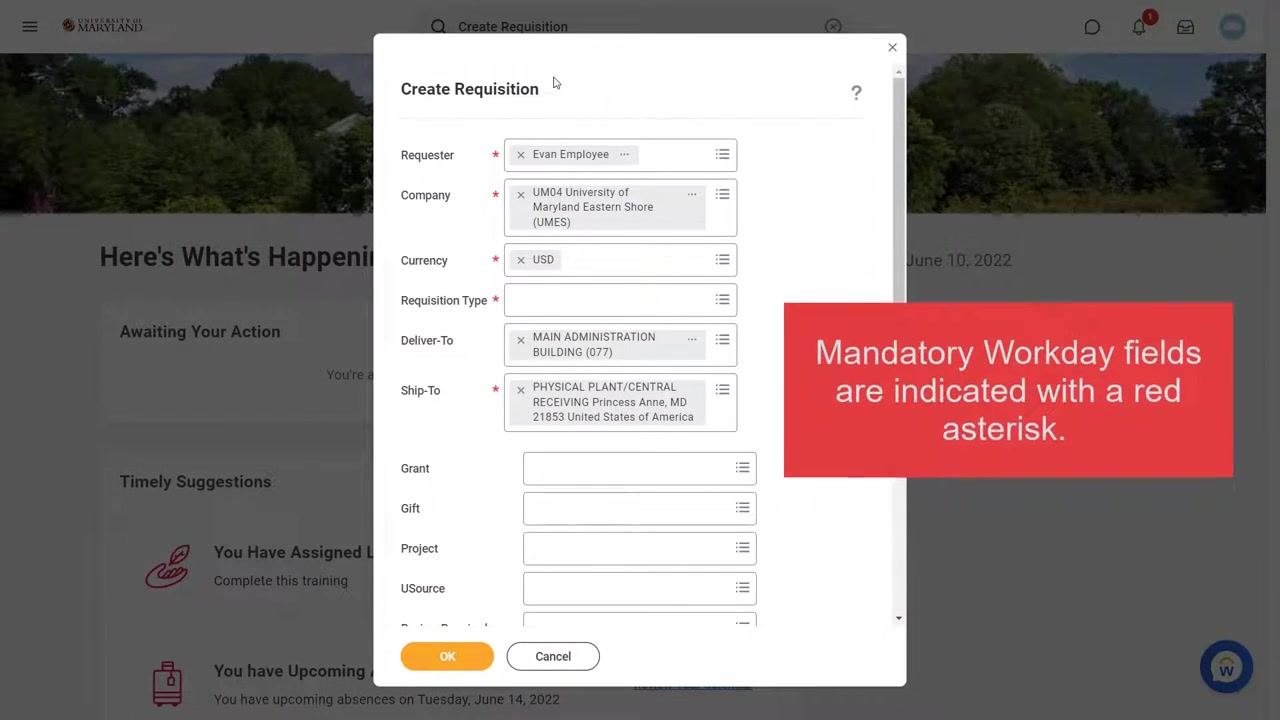
Mandatory fields in Workday are marked with a red asterisk (*) next to the field label. These must be completed before you can proceed.
Some fields may also be mandatory due to your institution's policy, even if Workday does not mark them with a red asterisk. These fields are still required for compliance, so review your institution's guidance to confirm which additional fields must be completed.
Respond to field validation alerts
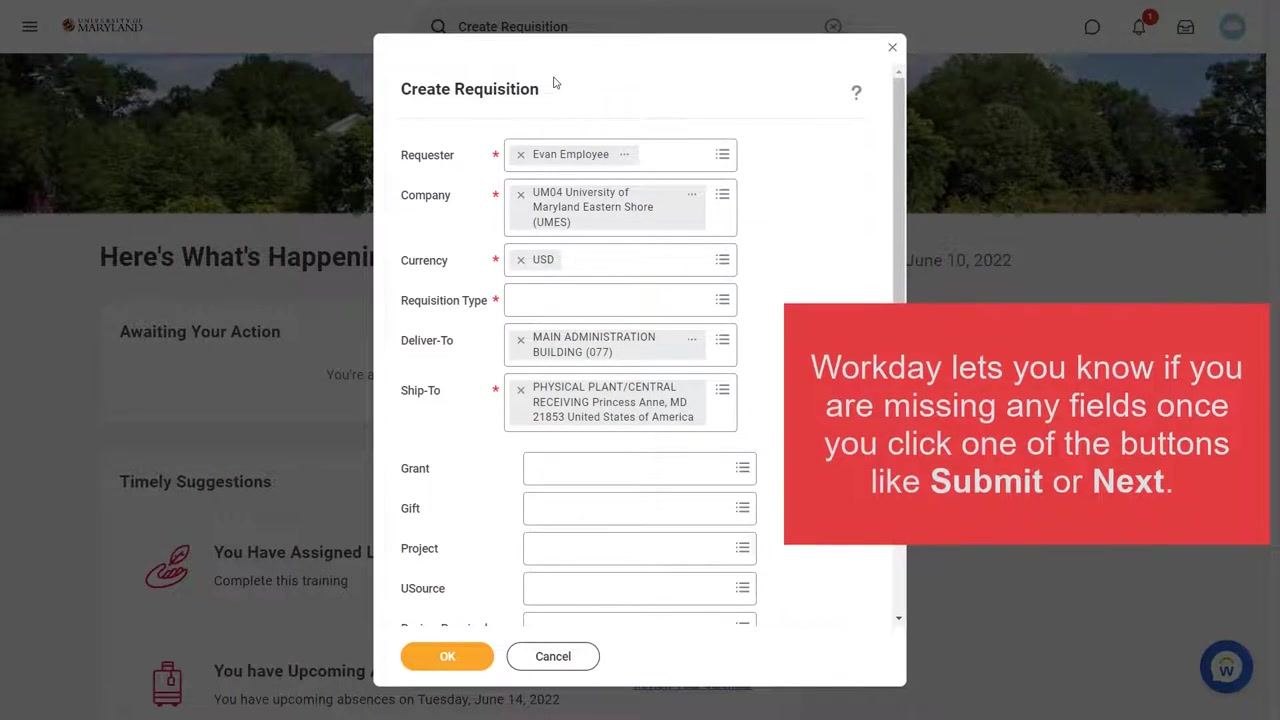
Workday alerts you if required fields are missing after you click action buttons such as Submit or Next. If prompted, review the highlighted fields and complete any missing institution-mandated information before attempting to proceed again.
Complete the Requisition Type field
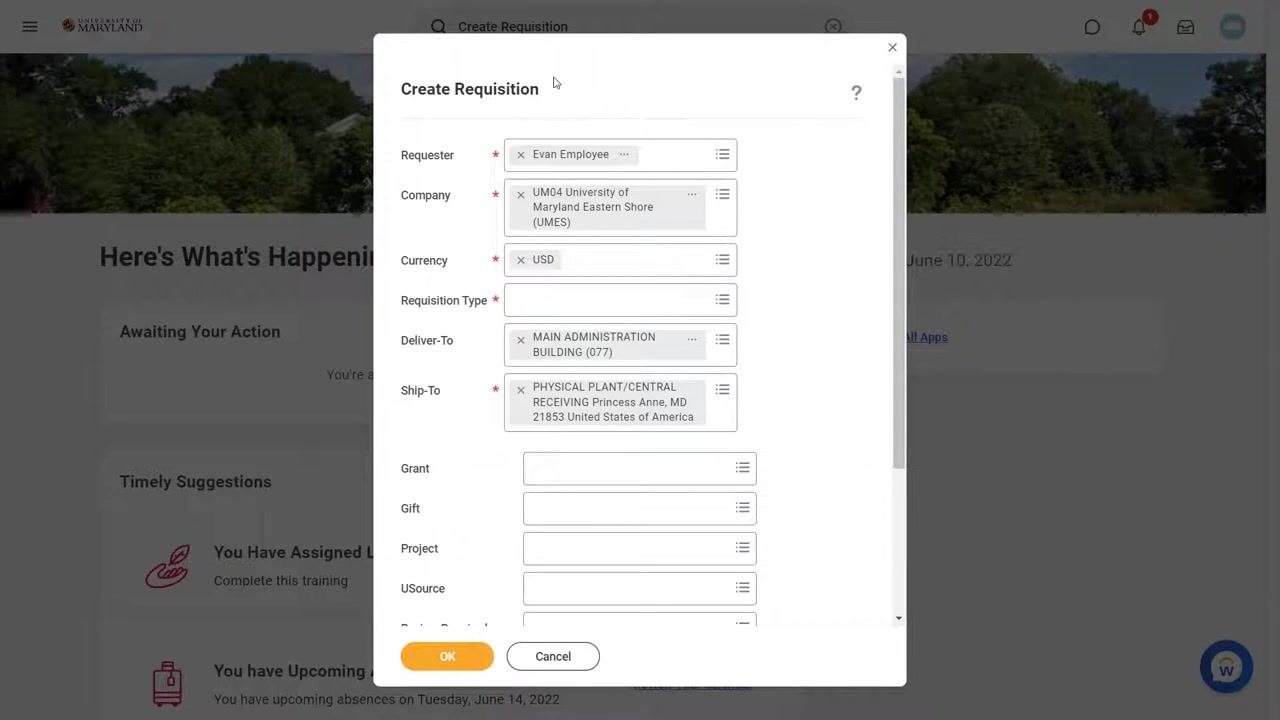
Requisition Type is a mandatory field, marked with a red asterisk. Click into the field to view the drop-down list of available options, and select Standard Requisition (none of the above).
Review the Ship-To field
Confirm that the Ship-To field is already populated with your default shipping address. If necessary, update the address to the correct location for your order; if the default is correct, leave it unchanged and proceed.
Identify driver worktags
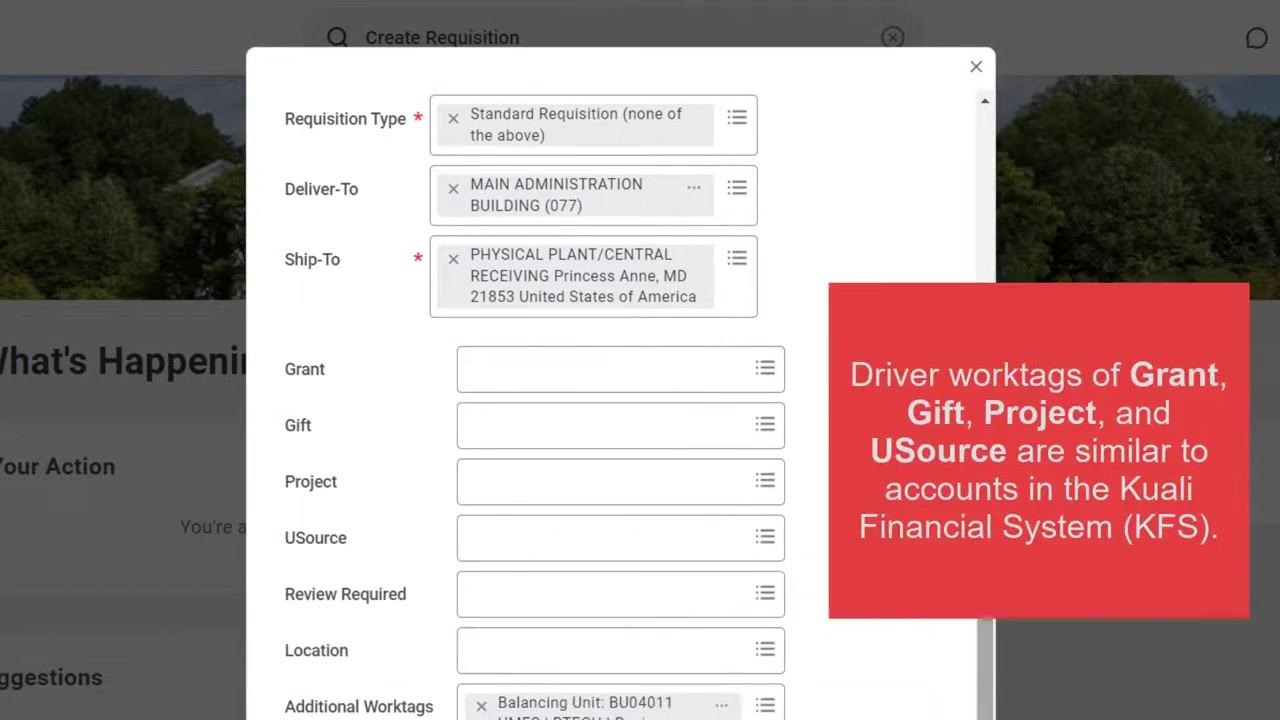
Locate the Grant, Gift, Project, and USource fields. These are driver worktags used to identify the funding source for your purchase, similar to accounts in the Kuali Financial System (KFS).
Determine the appropriate worktag
Decide whether your purchase relates to a Grant, Gift, or Project. If it does, enter the relevant information in the corresponding field. If it does not, use the USource worktag to indicate the funding source instead. In this example, the purchase is for office supplies unrelated to a grant, gift, or project, so the USource worktag is used.
View available worktags for your cost center
Click into the USource field to open the My Worktags menu, and review the list of worktags associated with your cost center. Select the appropriate worktag from the list to populate the USource field. If you make a mistake, click the X next to the selected worktag to remove it and try again.
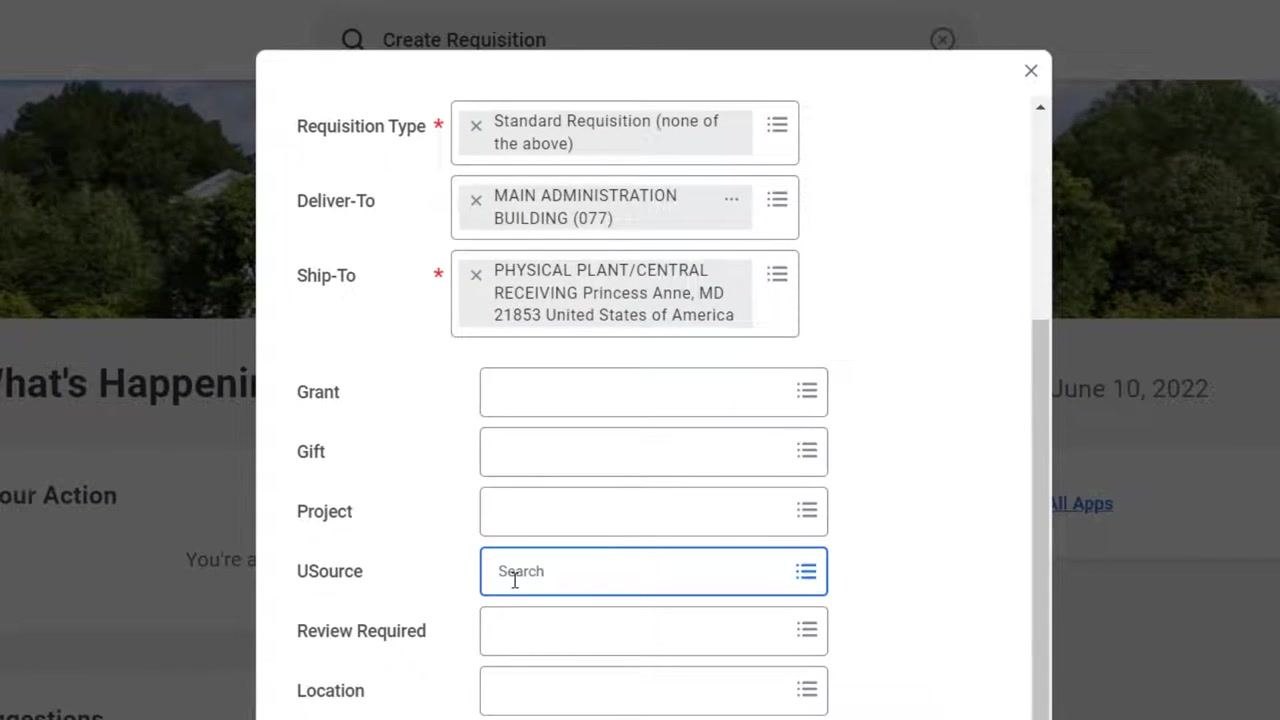
Remove and re-select a worktag if needed
If the selected worktag is incorrect, click the X in the USource field to clear your selection. Begin typing the name or abbreviation of your department or funding source to filter the available worktags.
Search for worktags using keywords
In the USource search box, type relevant keywords to display all worktags containing those terms, then review the results to find the most relevant worktag for your purchase.
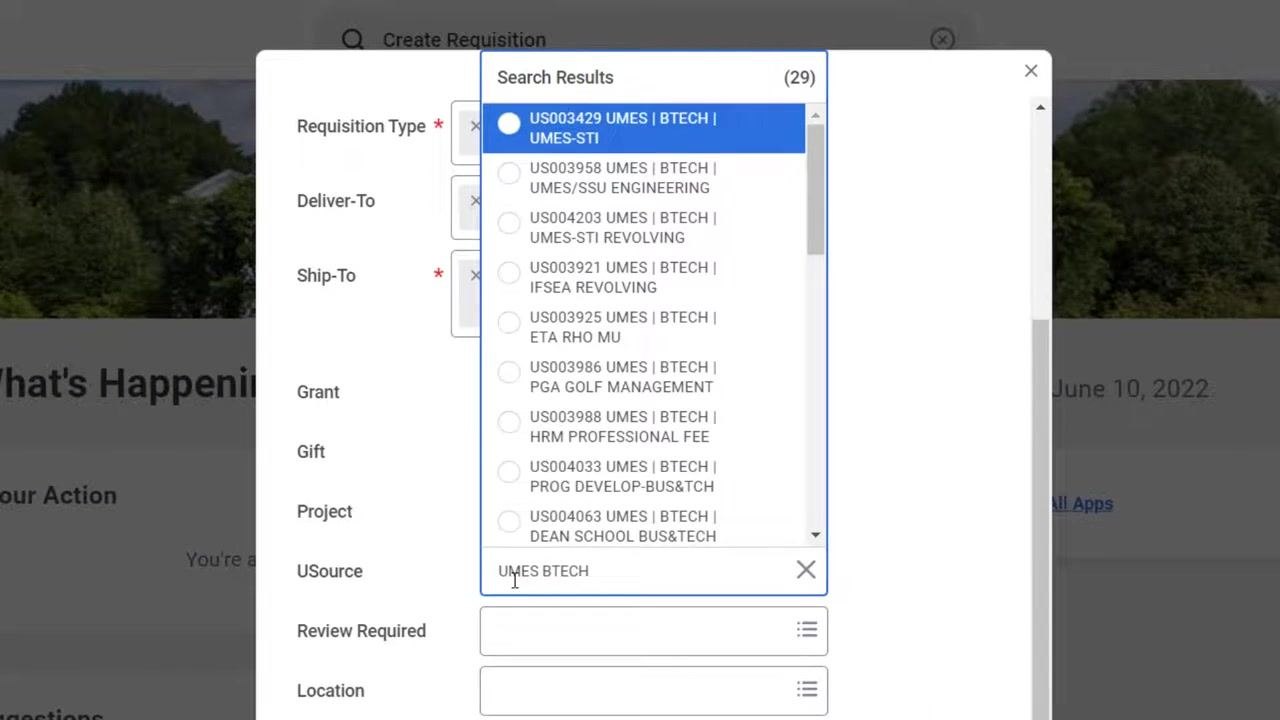
Refine your search for greater precision
If the initial search returns too many results, add more specific keywords to further narrow the list. As you add terms, the number of results decreases, making it easier to find the correct worktag.
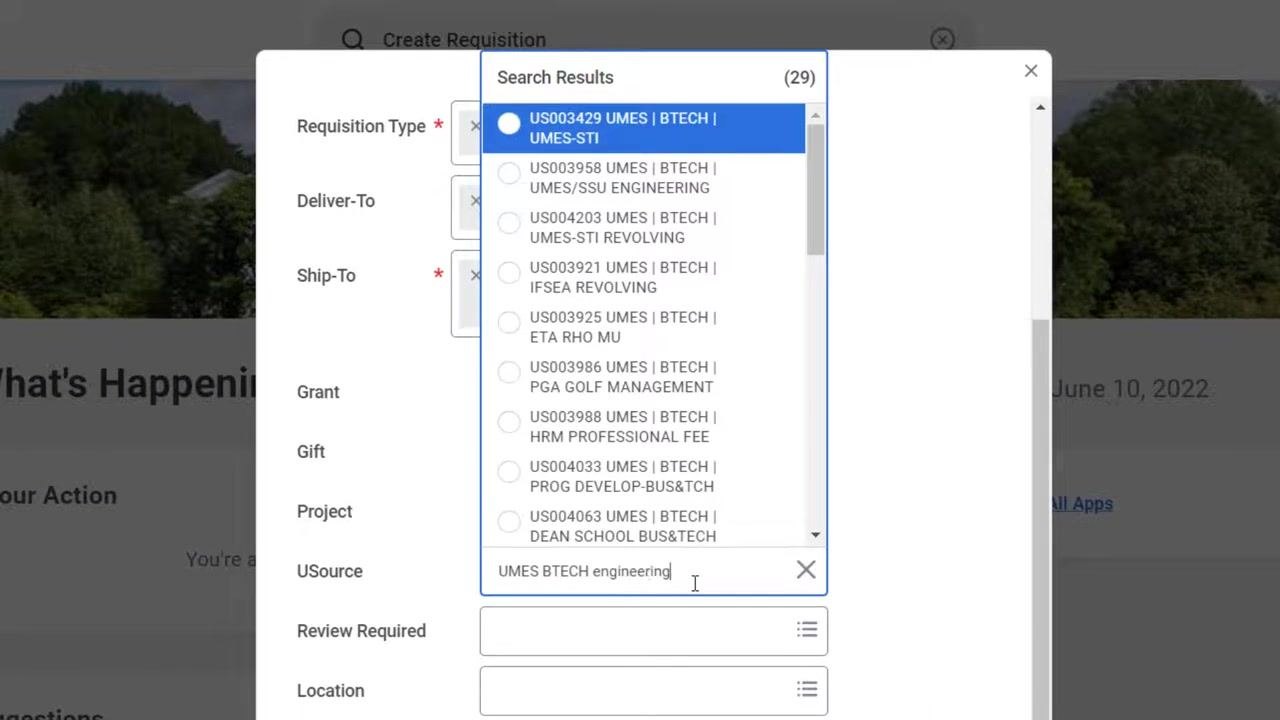
Select the correct worktag
From the refined search results, click to select the worktag that matches your department or funding source. Confirm that the selected worktag now appears in the USource field.
Review automatically populated additional worktags
After selecting the USource driver worktag, review the Additional Worktags section. Related worktags such as Balancing Unit, Cost Center, and Fund are automatically populated based on your USource selection, ensuring accurate financial tracking and reporting.
Review and confirm the Create Requisition form
After selecting your worktags, you arrive at the Create Requisition page, which displays a completed form including:
- Requisition Type: Standard Requisition (none of the above)
- Deliver-To and Ship-To locations
- USource and the automatically populated Additional Worktags (Balancing Unit, Cost Center, Fund)
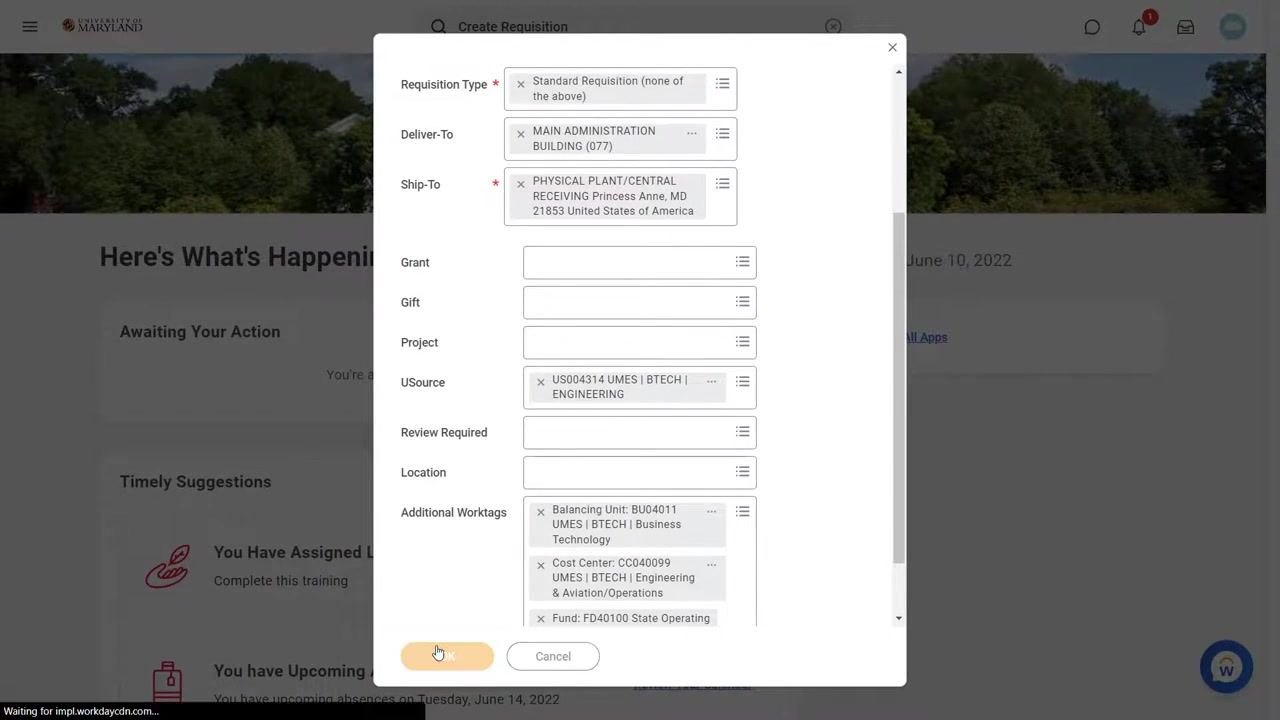
Other fields, such as Grant, Gift, Project, Review Required, and Location, are also present but may not be filled in for every purchase. Click OK at the bottom of the form to proceed.
Choose the type of requisition
On the next screen, under Select an Option, you can choose to:
- Request Non-Catalog Items: add a good or service that is not in the catalog
- Connect to Supplier Website
- Connect to Shell Shop
Click Request Non-Catalog Items to proceed with a non-catalog purchase.
Enter non-catalog item details
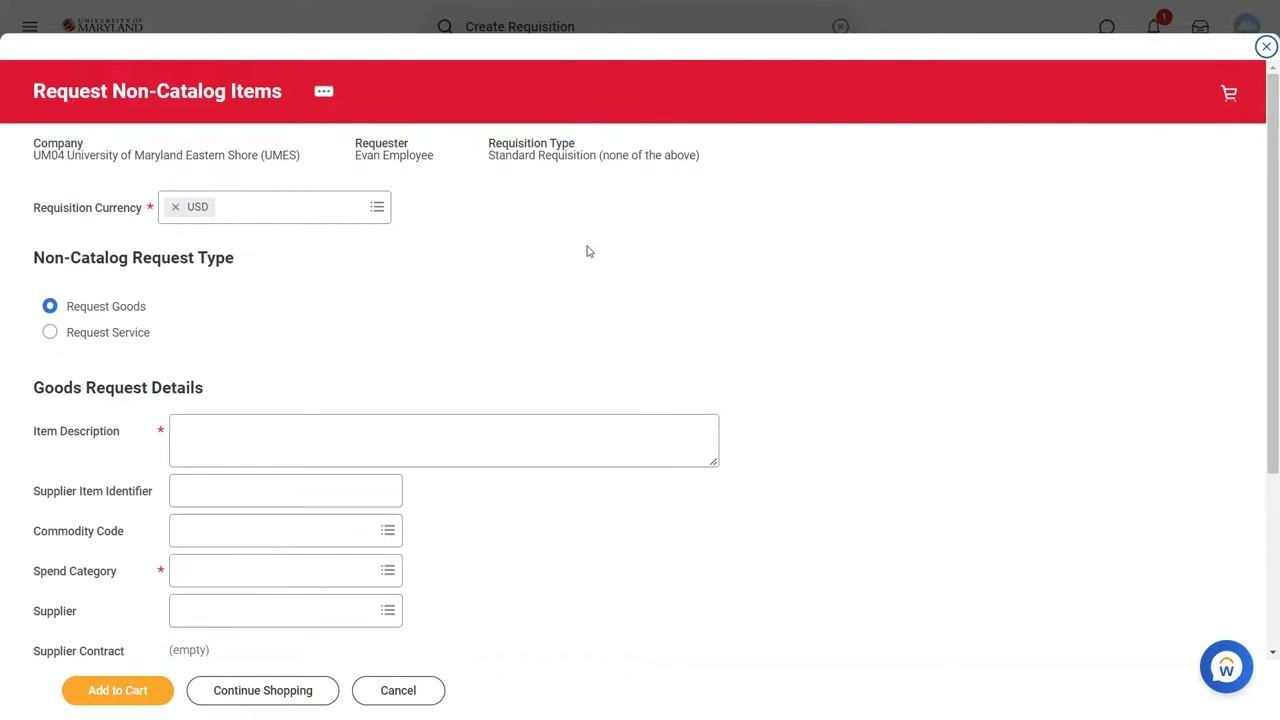
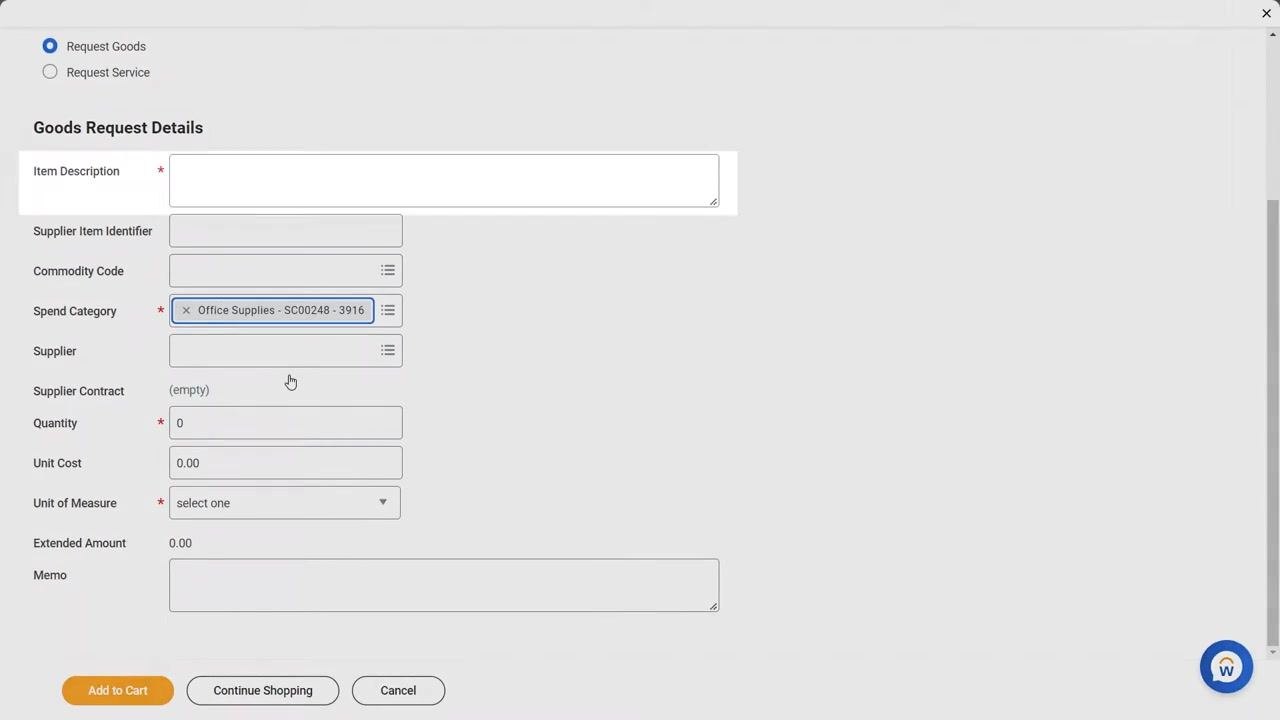
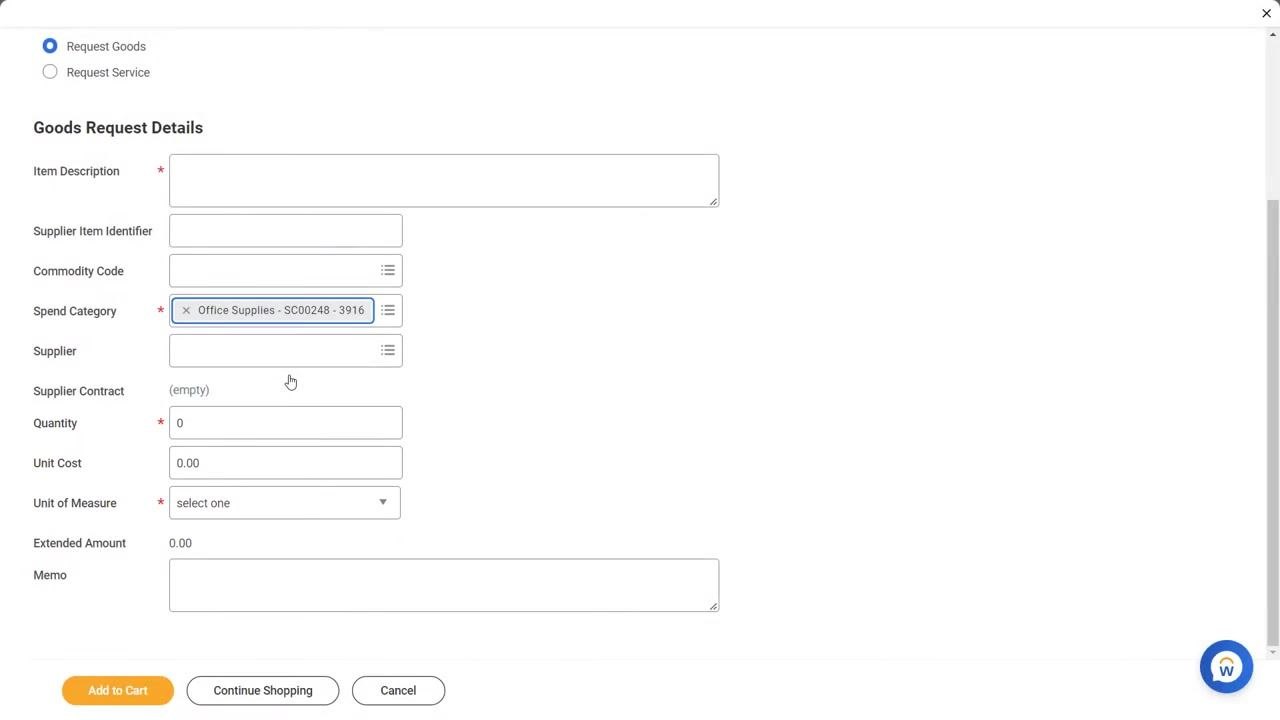
On the Request Non-Catalog Items page, fill in the required fields, including Requisition Currency (USD) and Non-Catalog Request Type (select Request Goods or Request Service as appropriate). Under Goods Request Details, complete Item Description and Spend Category, both of which are required; Supplier Item Identifier, Commodity Code, Supplier, and Supplier Contract are available as needed. At the bottom of the form you can choose Add to Cart, Continue Shopping, or Cancel.
Locate the Spend Category field
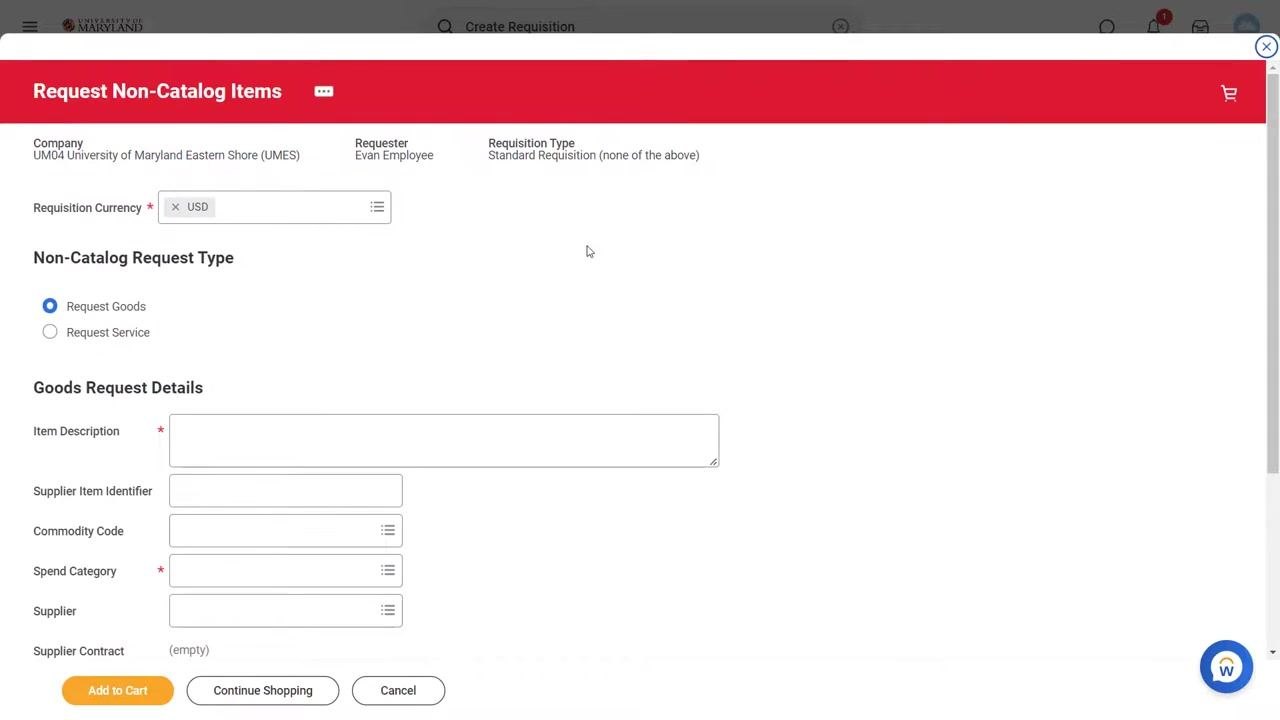
The Spend Category field is required and is similar to an expense object code in the Kuali Financial System (KFS).
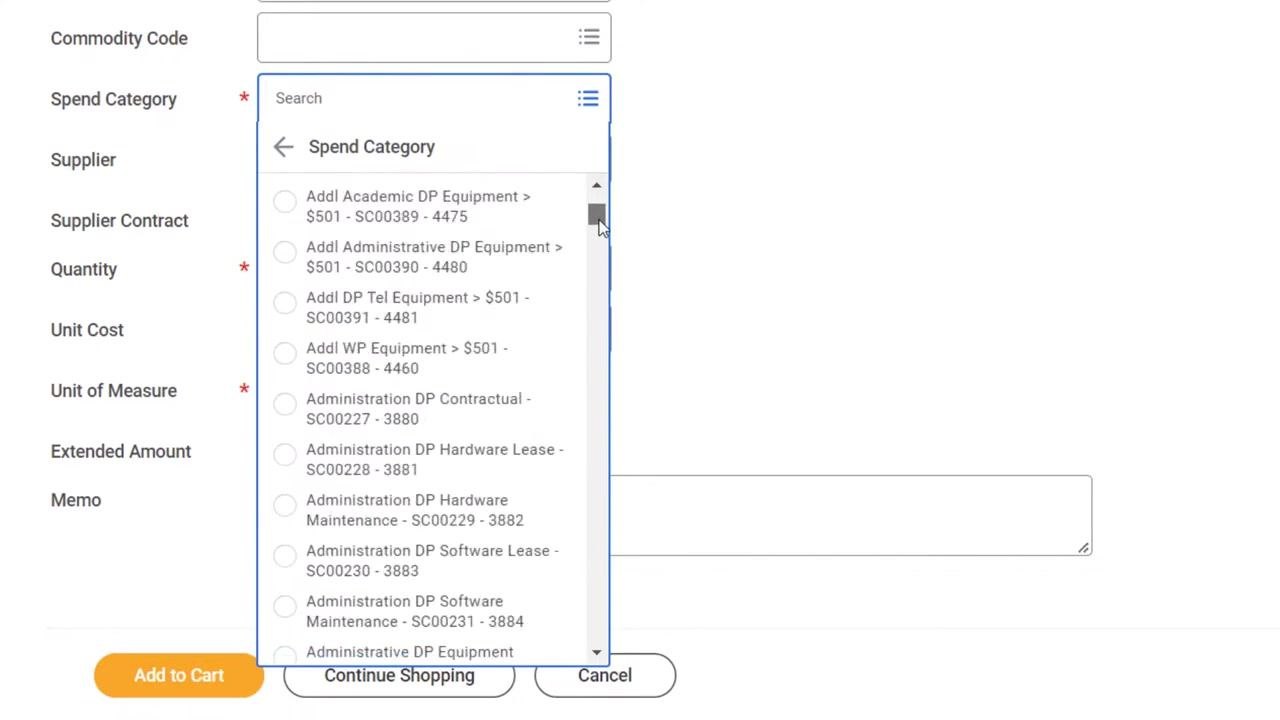
Open the Spend Category selector
Click the selector button next to the Spend Category field. A dropdown list appears with many available spend categories (for example, Addl Academic DP Equipment, Administration DP Contractual, and others). Use the scroll bar to view additional options.
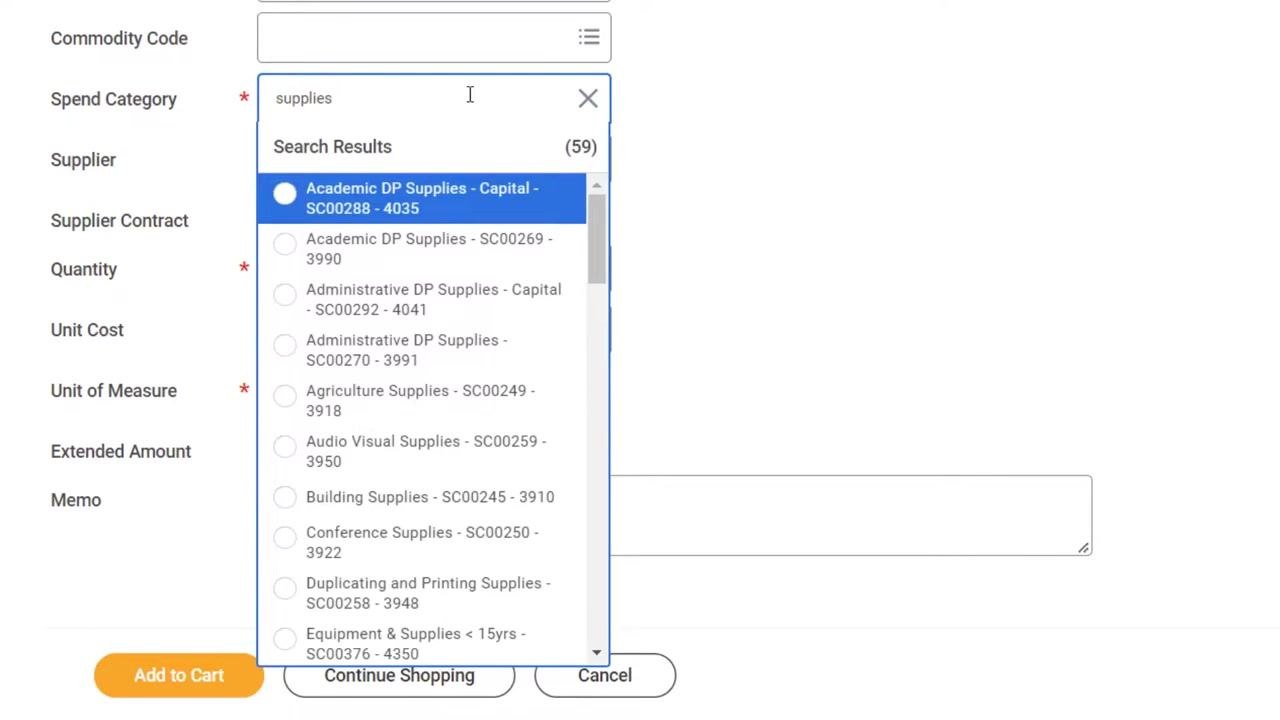
Search to narrow down spend categories
Because there are many options, use the search bar at the top of the dropdown and type a keyword relevant to your purchase, such as "supplies." The list filters to show only relevant spend categories.
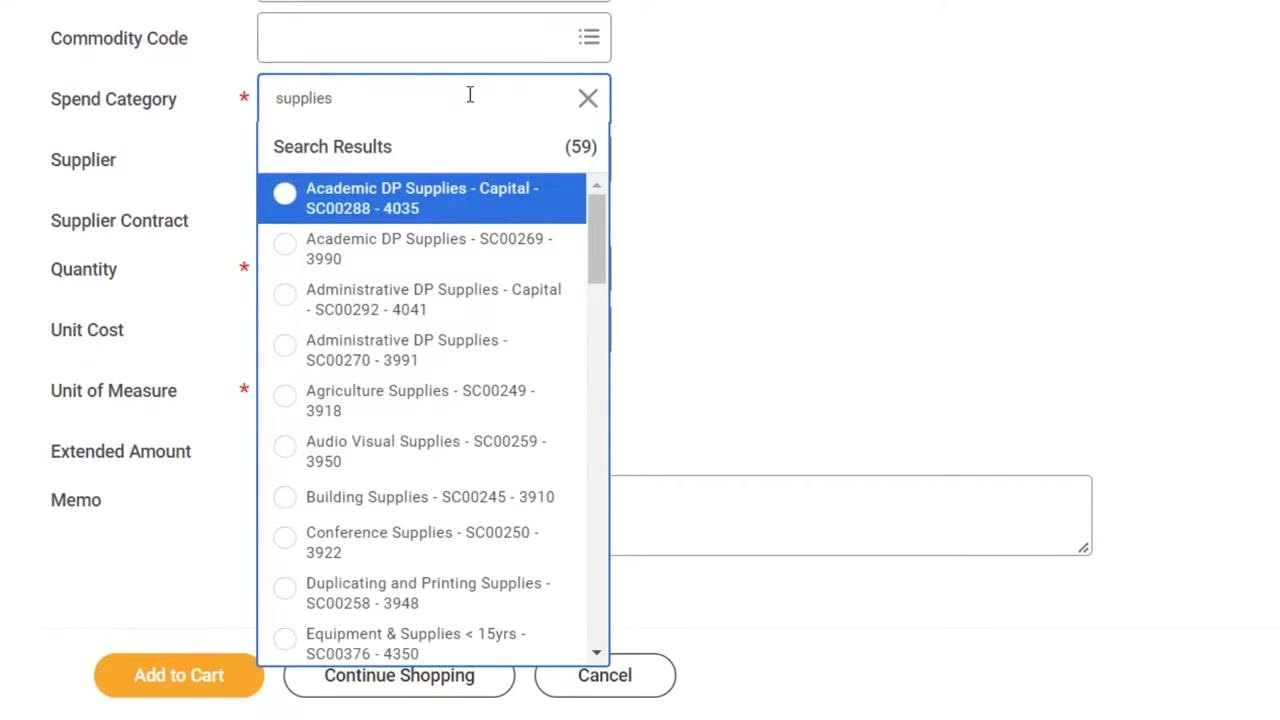
Select the appropriate spend category
From the filtered results, click the radio button next to the spend category that best matches your purchase.
Enter required item details
In the Goods Request Details section, complete the required fields:
- Item Description: a clear and specific description of the item
- Supplier: the supplier you are purchasing from
- Quantity: the number of units you wish to order
- Unit Cost: the cost per unit of the item
- Unit of Measure: the appropriate unit (for example, each, box, or pack)
Optional fields include Supplier Item Identifier, Commodity Code, Supplier Contract, and Memo for additional notes. The Spend Category field should already reflect your selection, and the Extended Amount auto-calculates based on quantity and unit cost.
Add the item to your cart
Once all required fields are completed, click Add to Cart at the bottom left of the form. You can also choose Continue Shopping to add more items, or Cancel to discard the entry.
Submit the requisition
After adding all desired items to your cart, follow the system prompts to review and submit your requisition for approval. Confirm that all information, including your selected worktags and spend category, is accurate before final submission.
Summary
Knowing how to use worktags in Workday is central to completing a purchase requisition correctly. Always enter all required information, select the correct driver worktags (Grant, Gift, Project, or USource) to identify your funding source, and confirm that automatically populated additional worktags match your expectations. Pay attention to both Workday-mandated fields (marked with a red asterisk) and any institution-mandated fields that may not be visually flagged.
What's next
Continue with the requisition process as directed in further training modules, ensuring all required fields, worktags, and the spend category are completed accurately before submission.
Generation details: cost, quality tiers
Docsie billed 4,000 credits ($2.80) to analyze this 8-minute video at standard quality. The rewrite, template fill and Word/PDF exports were included. The same video at each quality tier:
| Quality | Frames sampled | Credits | Approx. cost |
|---|---|---|---|
| Draft | every 16-30 s | 2,000 | $1.40 |
| Standard (this guide) | every 8-15 s | 4,000 | $2.80 |
| Detailed | every 4-7 s | 8,000 | $5.60 |
| Ultra | every 1-3 s | 16,000 | $11.20 |
Credits priced at $0.70 per 1,000; plans include a monthly allowance. Enterprise customers on on-premise or bring-your-own-model deployments run this on their own inference and pay no per-video credits.
Generated by Docsie Video-to-Docs on 2026-10-19 from a 7-minute video. Screenshots are frames from the source video and belong to their creator, Elevate Program - UMD, whose original is embedded above. If you own this video and want the guide removed or credited differently, contact us and we will act within one business day.