
How to Use Proxy As Someone in Workday
Workday's proxy feature lets you act on behalf of another user to complete tasks, review their profile, or manage approvals in their place. This guide walks you through how to use proxy as someone in Workday, from starting a proxy session to safely exiting it when you're done.
Video: How to Start and stop Proxy in Workday! by Wizard of HCM (2023). All credit for the demonstration goes to the creator; watch the original on YouTube. The written guide below was generated from this video by Docsie. Creator? Request a change or removal.
Workday's proxy feature lets you act on behalf of another user to complete tasks, review their profile, or manage approvals in their place. This guide walks you through how to use proxy as someone in Workday, from starting a proxy session to safely exiting it when you're done.
Prerequisites
- An active Workday account with valid login credentials.
- Appropriate permissions to act as a proxy for another user. Always confirm you have the necessary access rights before starting a proxy session.
Start a proxy session
Log in to Workday
Open your web browser and navigate to the Workday login page. Enter your Workday username and password, then click the login button to access your account.
Confirm you have reached the Workday home screen, which displays a welcome message and your dashboard.
Access the proxy task
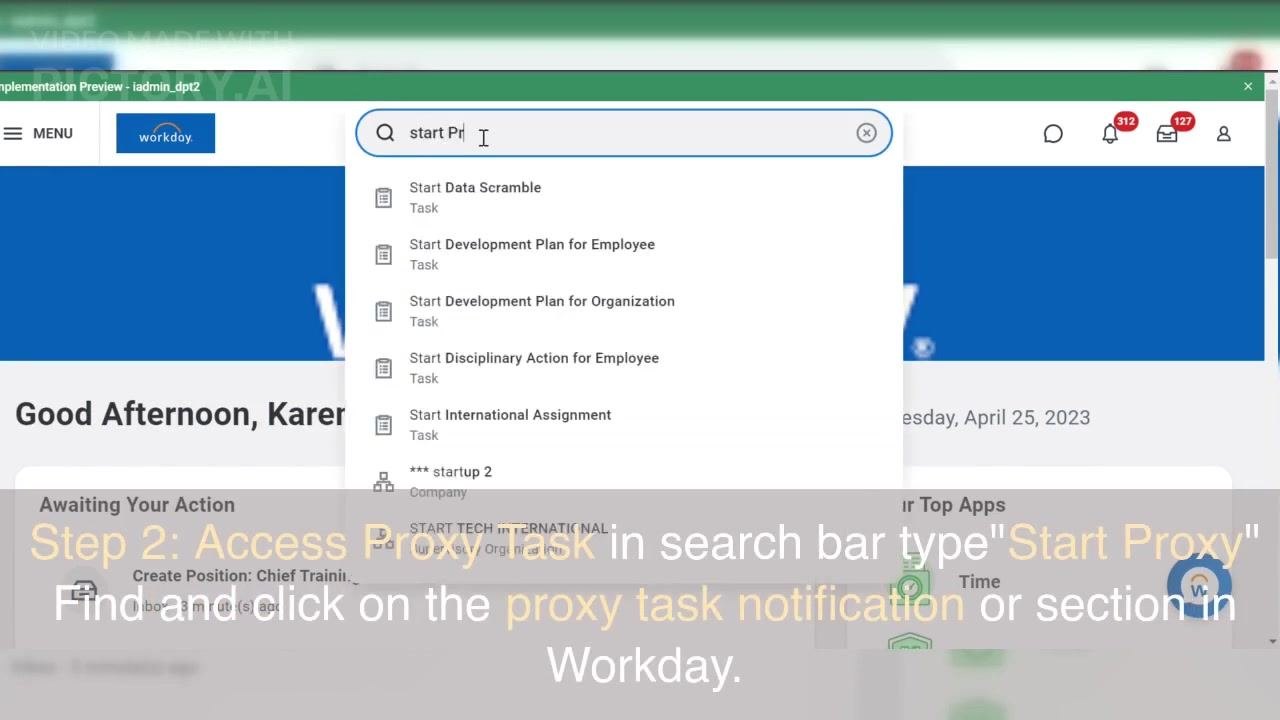
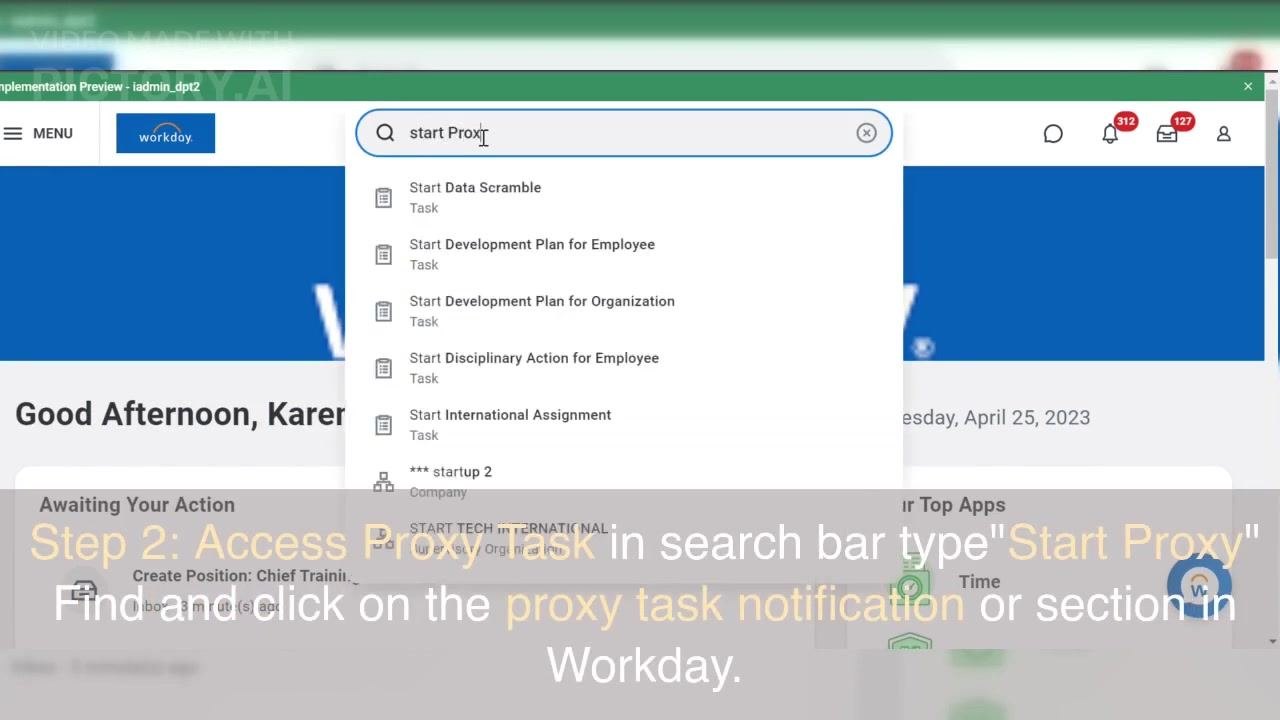
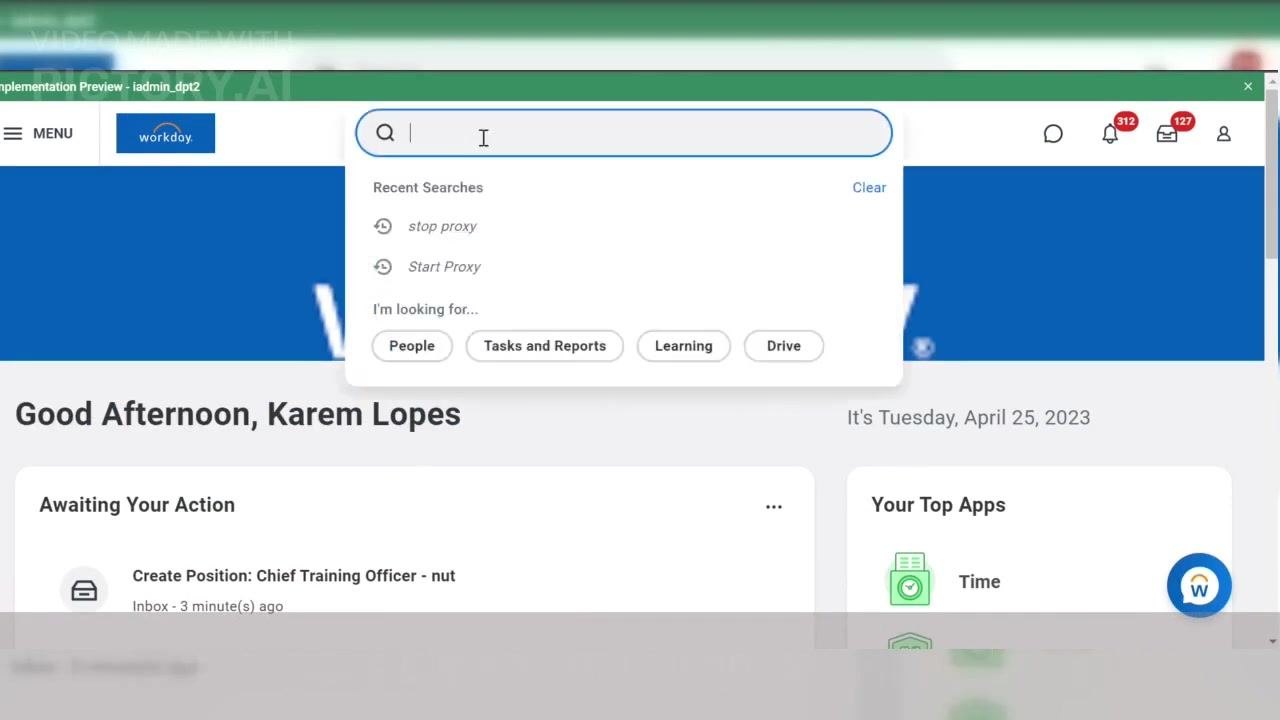
Locate the search bar at the top of the Workday home screen. Click into it and type Start Proxy.
Review the dropdown list that appears and click the Start Proxy task or notification from the search results to proceed.
Choose the user to act as
In the Start Proxy window, confirm you are authenticated as yourself (for example, "Karem Lopes"). In the Act As field, begin typing the name of the user you want to act on behalf of.
If no matches appear, check the spelling or try a different name. Once the correct user appears (for example, "Logan McNeil"), select them from the list.
Complete the task as the selected user
Perform actions in the user's profile
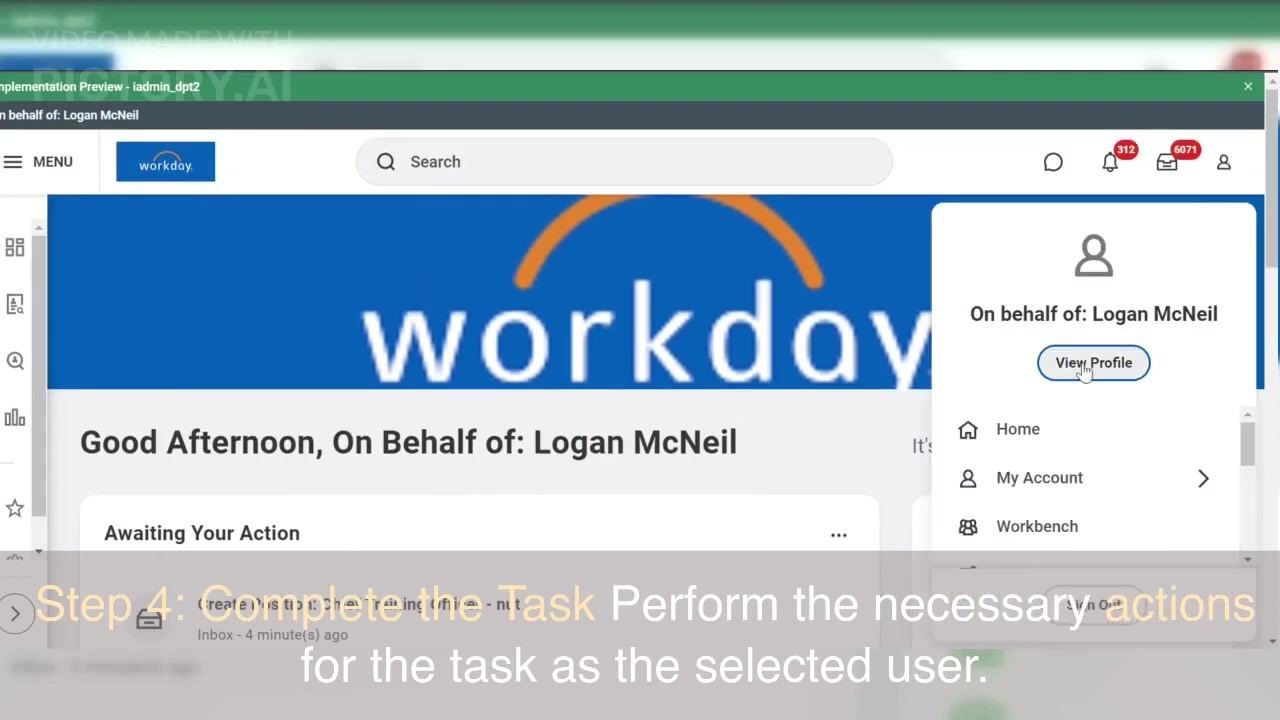
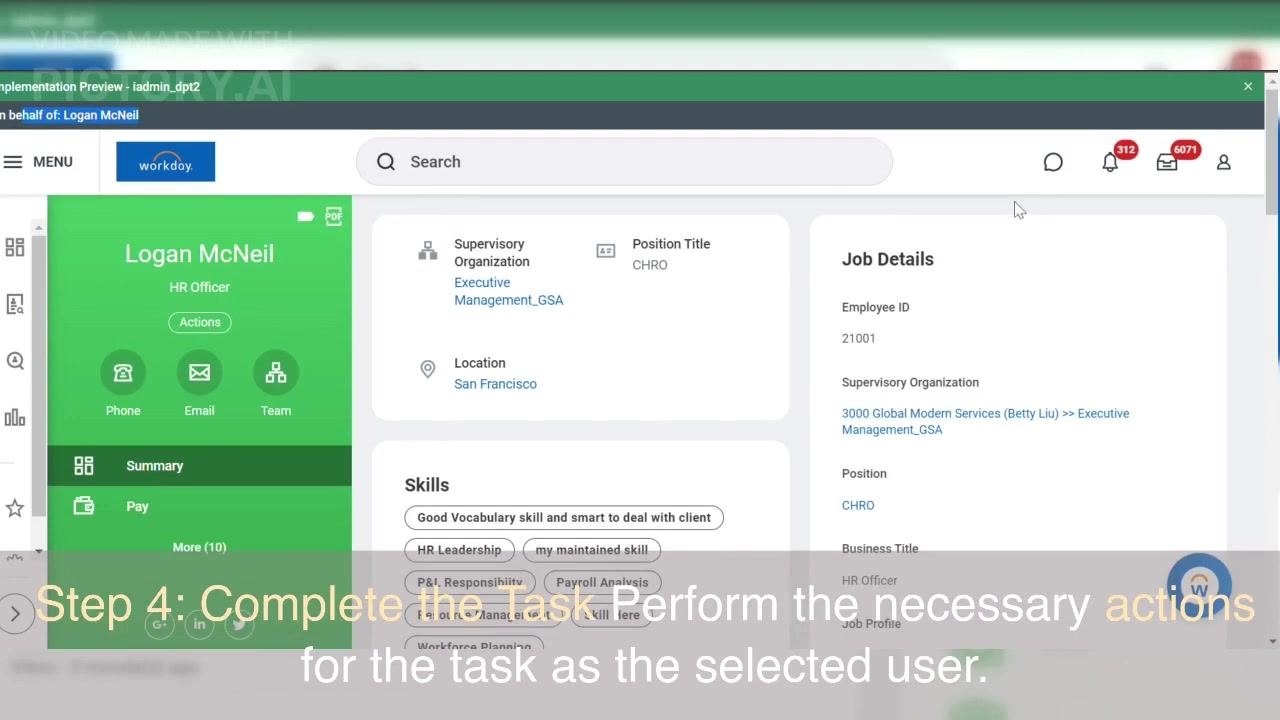
After selecting the user, you are redirected to a Workday session acting on their behalf. The interface indicates you are operating On Behalf of: [Selected User] (for example, Logan McNeil).
From here, perform the necessary actions for the selected user. You can:
- Navigate to required sections, such as Home, My Account, or Workbench.
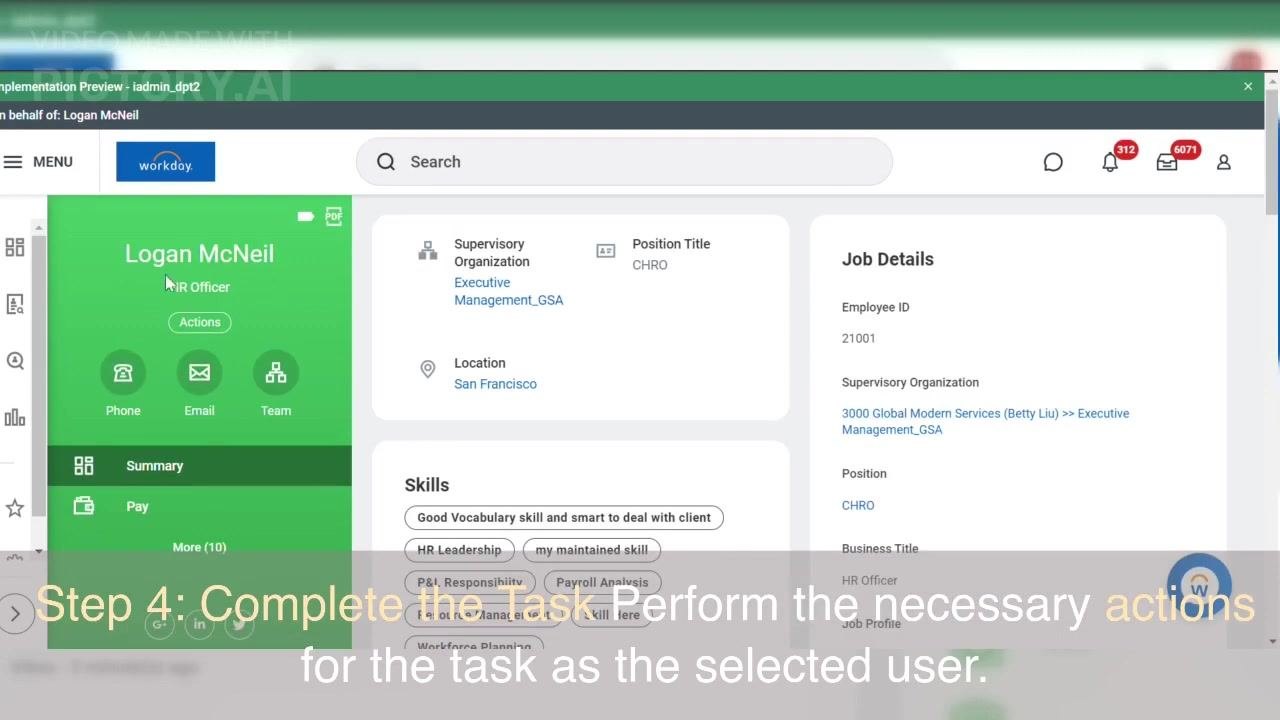
- Click View Profile to access the selected user's details.
- Review or update information, complete tasks, or take other actions as necessary.
Note: Always ensure you have the appropriate permissions to act as a proxy for another user in Workday. Exit proxy mode when your tasks are complete to maintain security and data integrity.
Exit proxy mode
Stop the proxy session
When you have completed all necessary tasks as the proxy user, return to your own account to maintain security. Click into the search bar at the top of the Workday screen and type Stop Proxy.
Select the Stop Proxy option from the dropdown results. In the Stop Proxy confirmation dialog, click OK to end the proxy session and return to your own Workday account.
Verify you've returned to your own account
Confirm you are now viewing your own Workday profile (for example, Karem Lopes, WDT_Office Assistant). Check that the profile and dashboard reflect your own information, not the proxy user's.
Review recent searches (optional)
Click the search bar to view recent searches, such as "stop proxy" and "Start Proxy," for quick access in the future. Use the search bar to navigate to other tasks as needed.
Summary
You now know how to use proxy as someone in Workday: start a proxy session by searching for Start Proxy and selecting a user, complete the required tasks on their behalf, and exit the session with Stop Proxy once finished. Always verify your permissions before starting a proxy session, and confirm you've returned to your own account afterward to keep your data secure.
Generation details: cost, quality tiers
Docsie billed 1,500 credits ($1.05) to analyze this 3-minute video at standard quality. The rewrite, template fill and Word/PDF exports were included. The same video at each quality tier:
| Quality | Frames sampled | Credits | Approx. cost |
|---|---|---|---|
| Draft | every 16-30 s | 750 | $0.52 |
| Standard (this guide) | every 8-15 s | 1,500 | $1.05 |
| Detailed | every 4-7 s | 3,000 | $2.10 |
| Ultra | every 1-3 s | 6,000 | $4.20 |
Credits priced at $0.70 per 1,000; plans include a monthly allowance. Enterprise customers on on-premise or bring-your-own-model deployments run this on their own inference and pay no per-video credits.
Generated by Docsie Video-to-Docs on 2026-10-19 from a 2-minute video. Screenshots are frames from the source video and belong to their creator, Wizard of HCM, whose original is embedded above. If you own this video and want the guide removed or credited differently, contact us and we will act within one business day.