
How to Schedule a Report in Workday
Running the same report manually every week or month is time-consuming and easy to forget. Workday lets you schedule a report in Workday to run automatically at a frequency you choose, so the data you need is ready without any extra effort on your part. This guide walks you through setting up a scheduled report, configuring its options, and locating the output once it has run.
Video: How to Schedule Reports | Workday Analytics and Reporting by Workday (2025). All credit for the demonstration goes to the creator; watch the original on YouTube. The written guide below was generated from this video by Docsie. Creator? Request a change or removal.
Running the same report manually every week or month is time-consuming and easy to forget. Workday lets you schedule a report in Workday to run automatically at a frequency you choose, so the data you need is ready without any extra effort on your part. This guide walks you through setting up a scheduled report, configuring its options, and locating the output once it has run.
Why schedule a report in Workday
Before you set up a schedule, it helps to understand what scheduling offers:
- Efficiency: You eliminate repetitive manual report runs by setting your preferred frequency, such as daily, monthly, or a custom interval.
- Convenience: Workday generates the report in the background, so you can focus on other tasks while it runs.
- Performance: You can schedule large reports to run during off-peak hours, avoiding system slowdowns and having results ready when you return.
- Flexibility: You can choose your preferred export format, such as Excel or PDF, which removes the need for manual exporting.

Open the Schedule a Report task
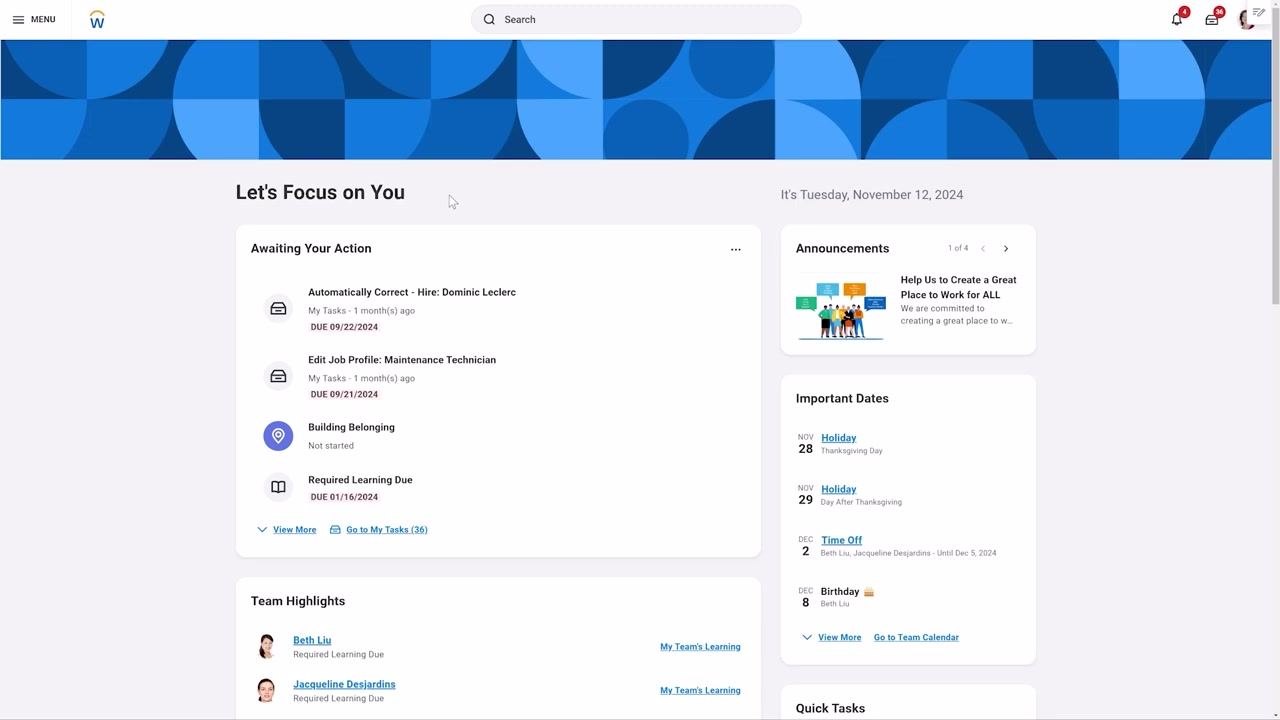
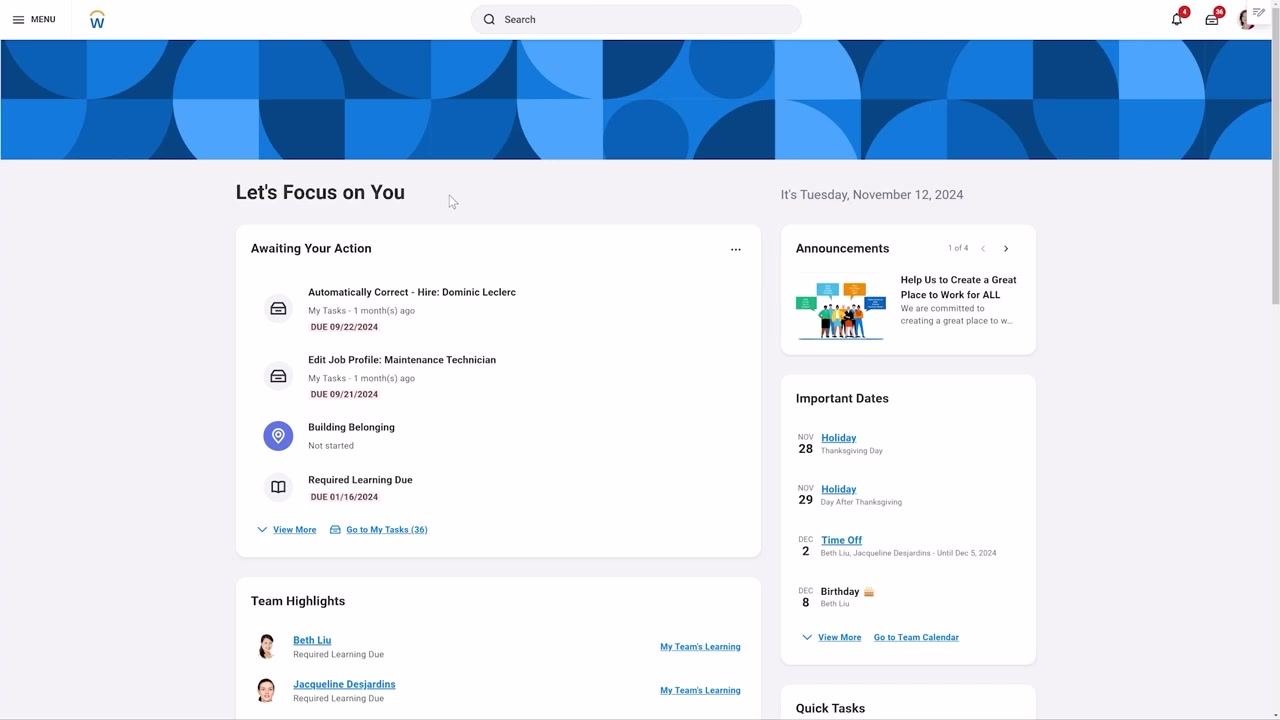
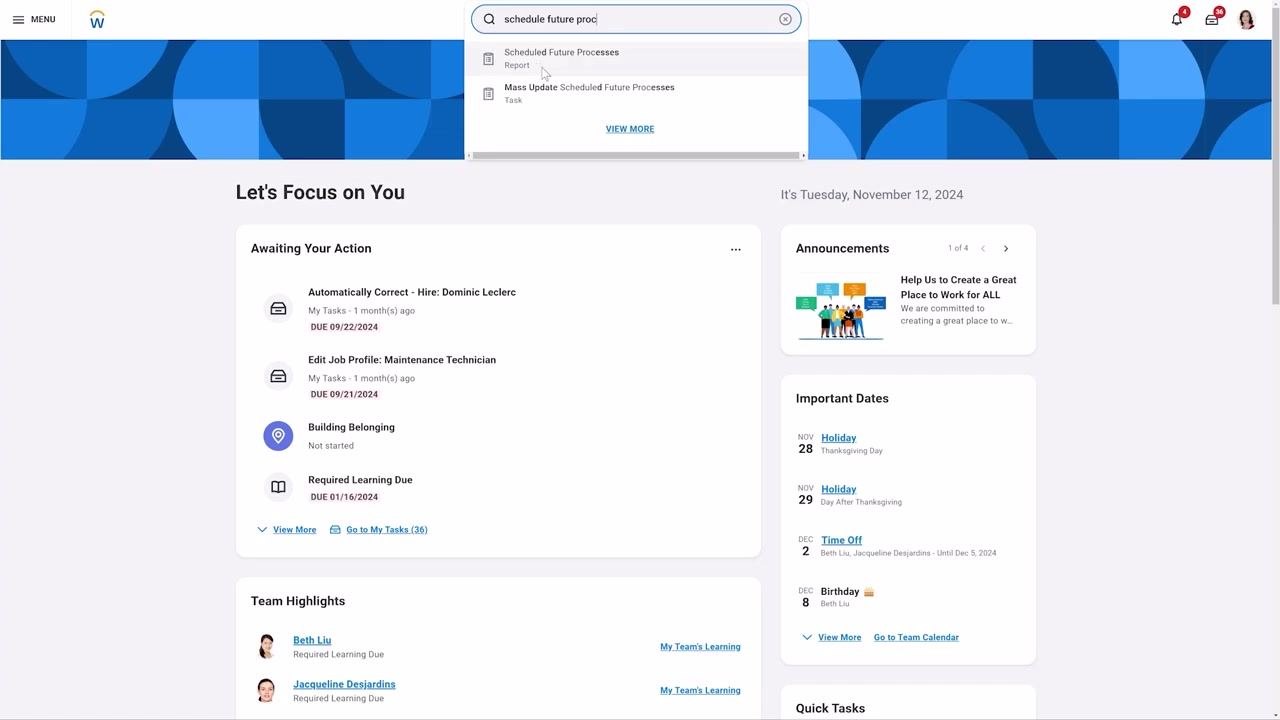
Start from the Workday home page, where you'll see sections such as Awaiting Your Action, Announcements, Important Dates, Team Highlights, and Quick Tasks. The search bar sits at the top center of the screen.
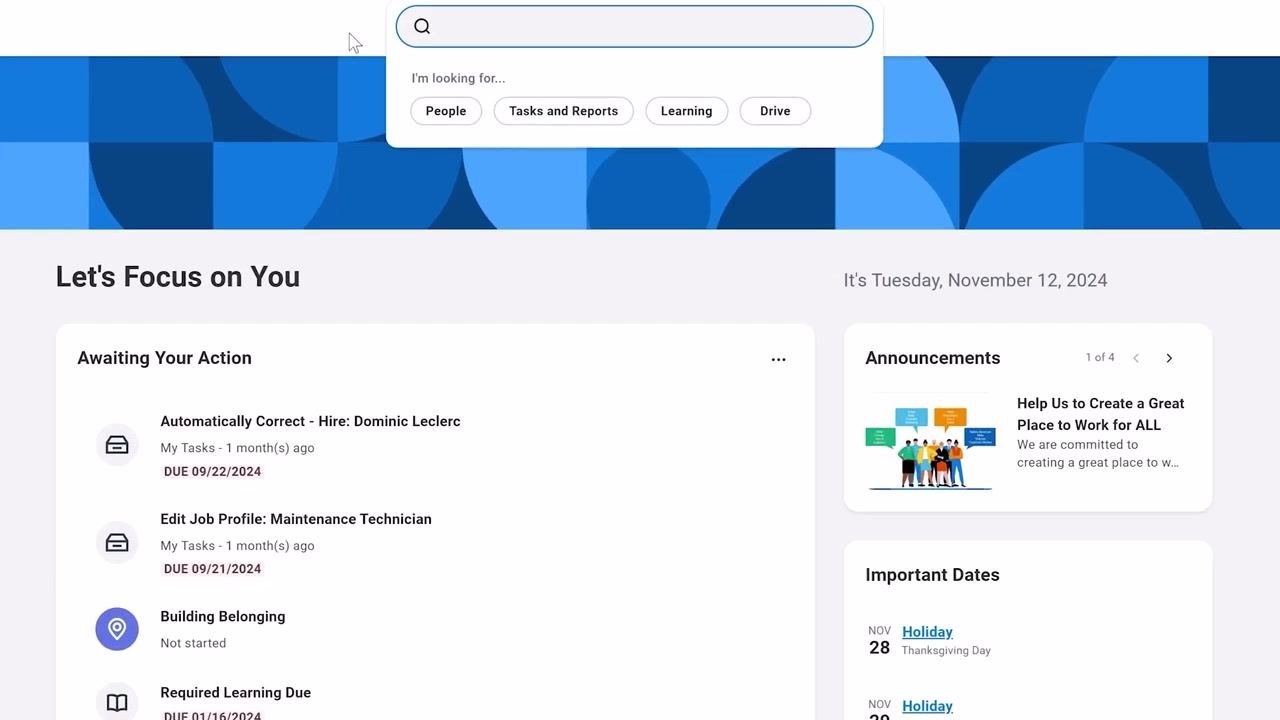
Use the search bar at the top of the home page to find the Schedule a Report task, or open it from the Reports Related Actions menu if it's available to you.
Select the report you want to schedule
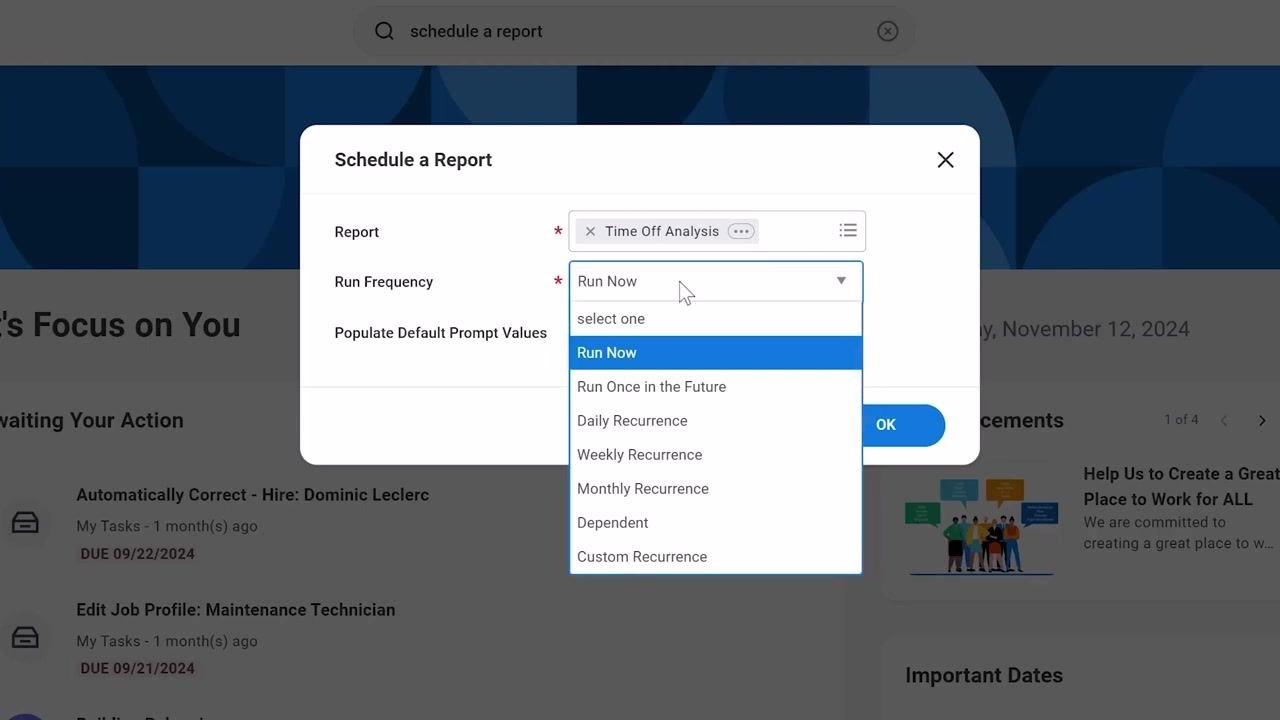
In the Schedule a Report dialog, click the Report field and type the name of the report you want. For this example, type "time off analysis" and select Time Off Analysis from the search results.
Configure the run frequency
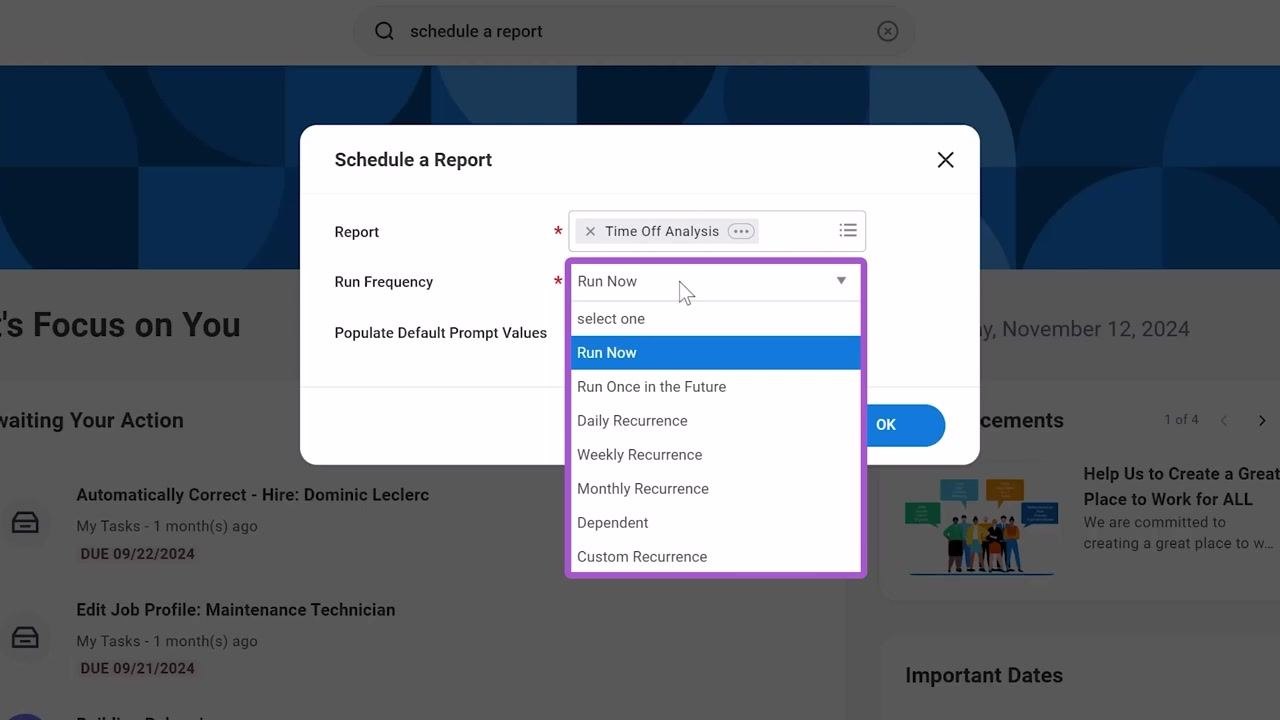
Click the Run Frequency dropdown to see the available options: Run Now, Run Once in the Future, Daily Recurrence, Weekly Recurrence, Monthly Recurrence, Dependent, or Custom Recurrence. For this example, select Monthly Recurrence.
Decide whether to populate default prompt values
If you want the report to use its default prompt values, check Populate Default Prompt Values. For this example, leave the box unchecked and click OK to move to the report configuration tabs.
Configure the report criteria
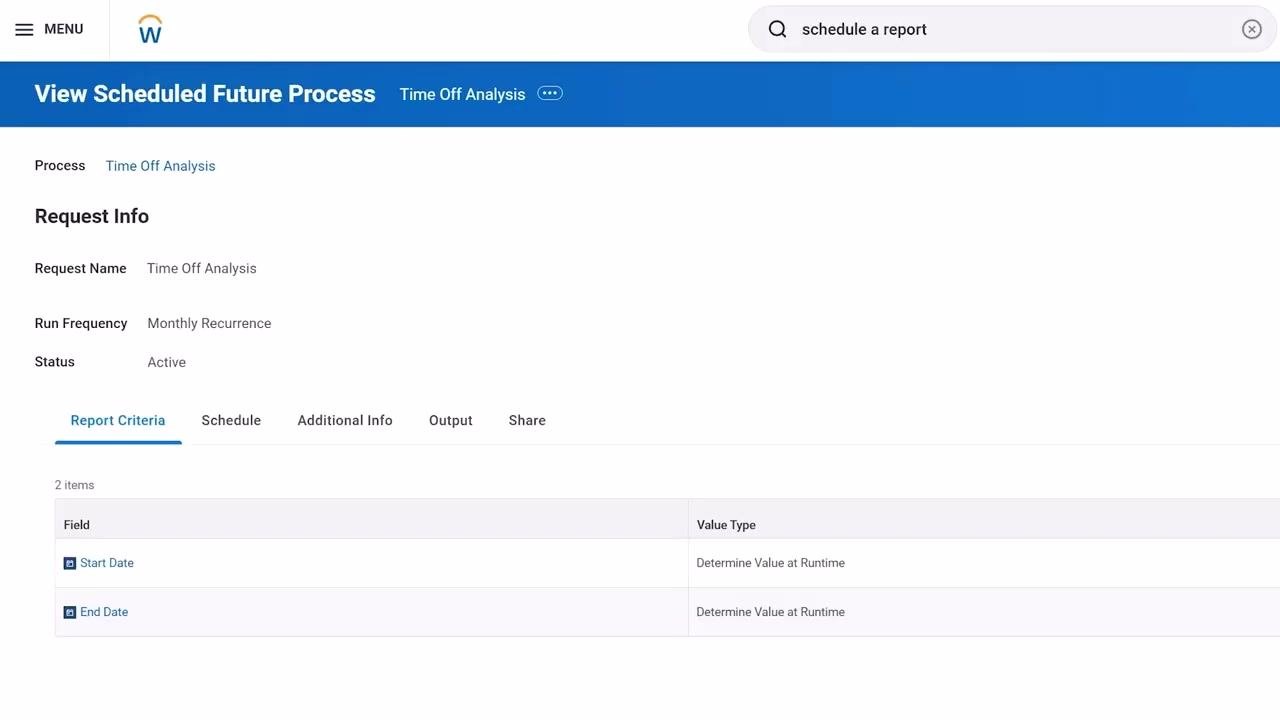
The Report Criteria tab displays any fields required to run the report. If no required criteria exist for your report, this tab won't appear at all. For the Time Off Analysis report, you'll see Start Date and End Date fields.
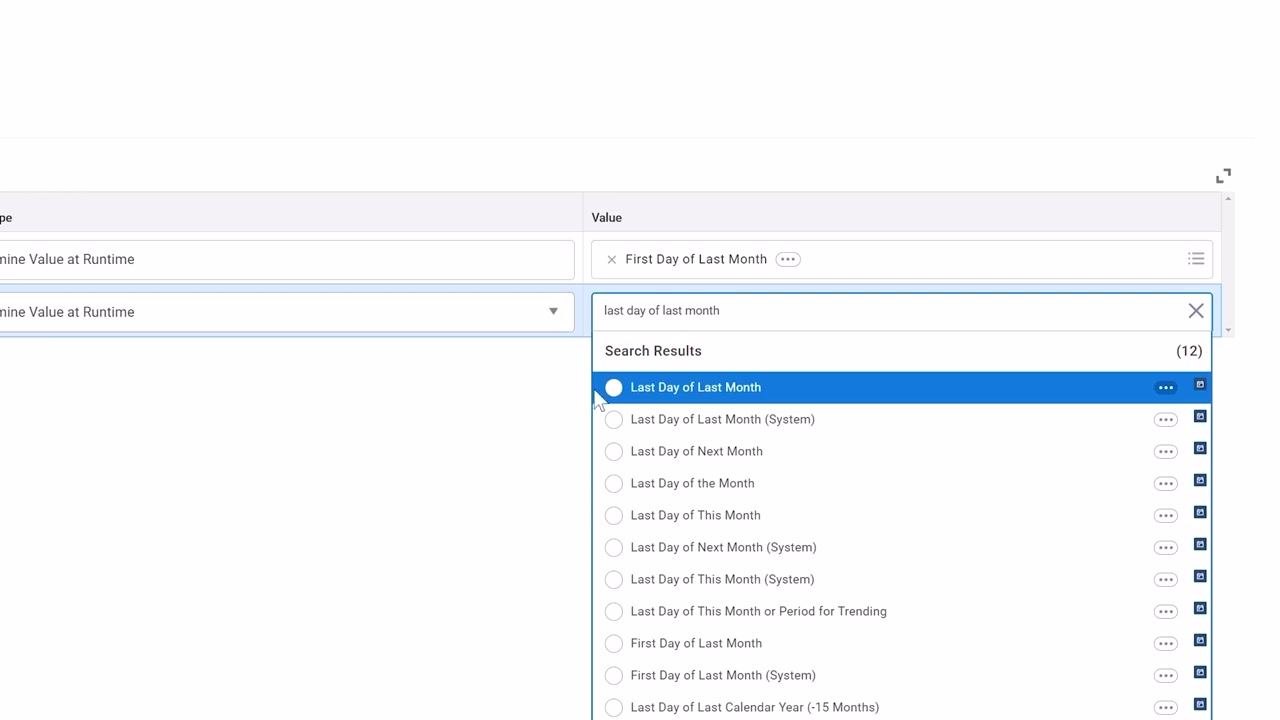
For both fields, click the Value Type dropdown and select Determine Value at Runtime. Set the Value for Start Date to First Day of Last Month, and set the Value for End Date to Last Day of Last Month. These dynamic variables ensure the report always covers the prior month, no matter when it runs.
Set the catch-up behavior
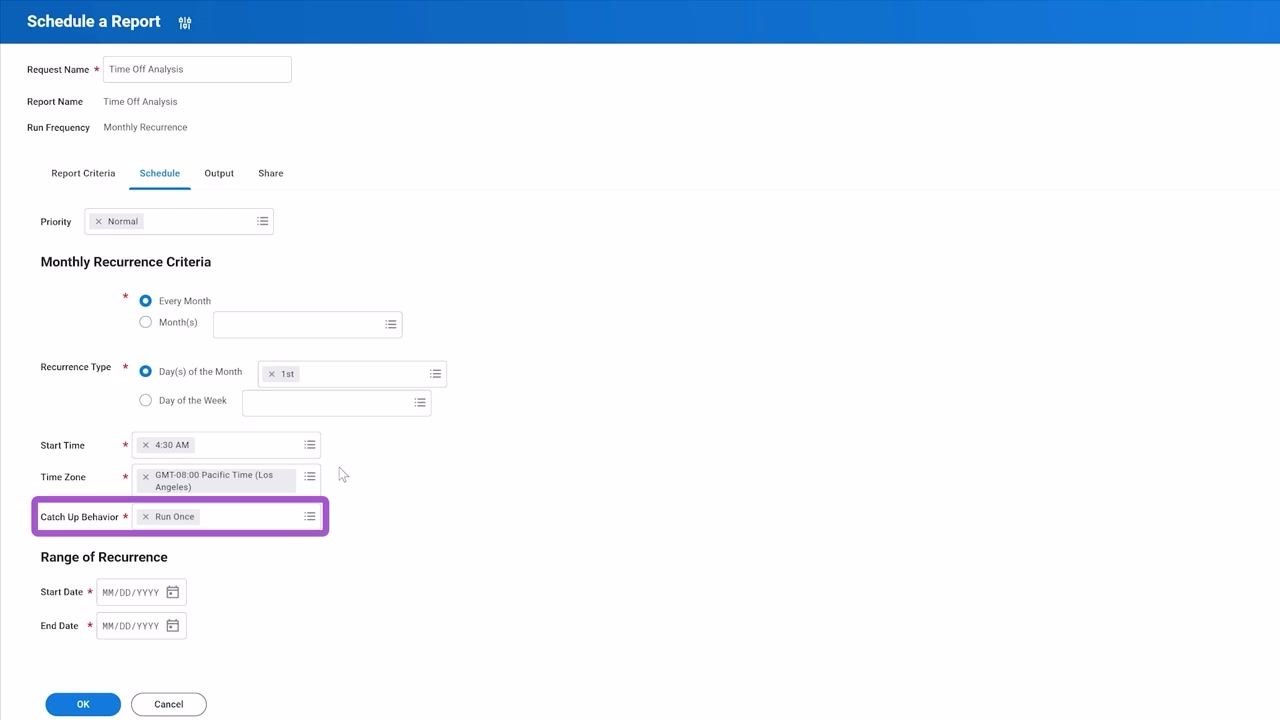
Move to the Schedule tab, where you can refine the monthly recurrence and specify the exact days and times the report should run. Locate the Catch Up Behavior field and select Run Once so that any runs missed due to Workday downtime are skipped rather than queued up.
Define the recurrence range
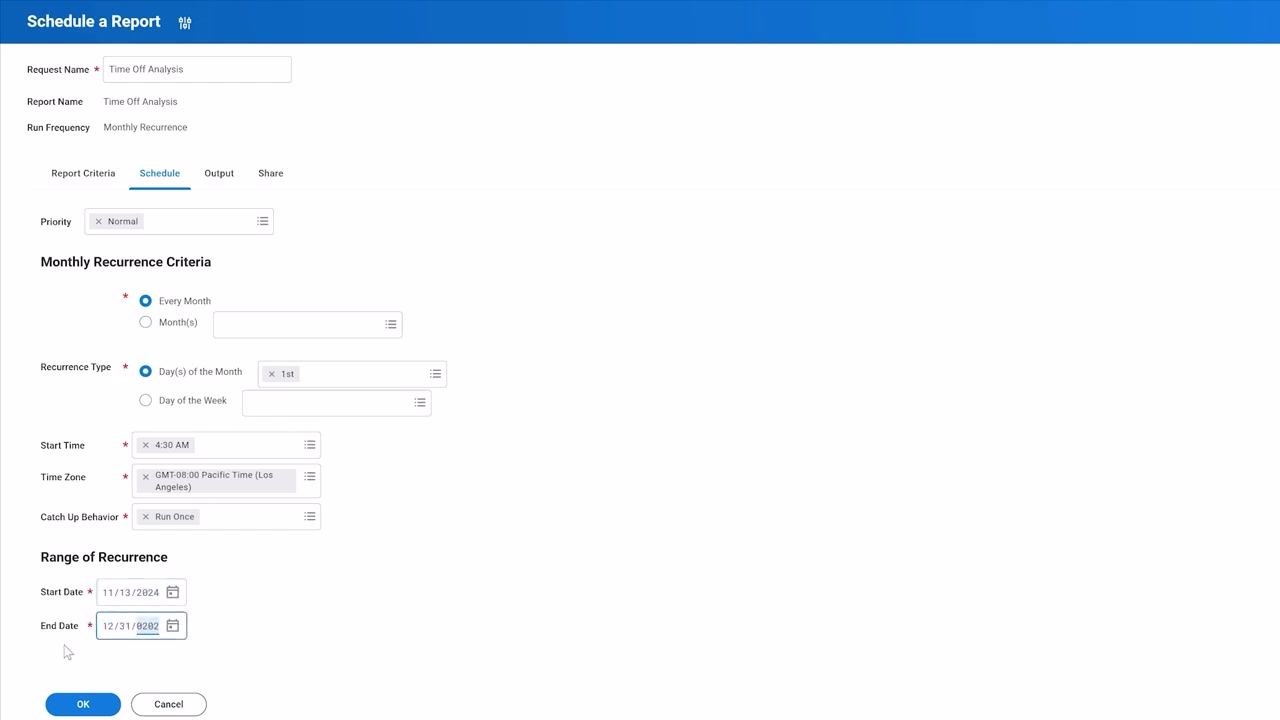
In the Range of Recurrence section, set the period during which the report should run. For this example, set Start Date to 11/13/2024 (next month) and End Date to 12/31/2025 (the end of next year).
Configure output preferences
Go to the Output tab and select your desired export format: Excel (the default), Report (PDF), or Text (CSV). Enter the number of days the report file should be retained in File to be Deleted After (Days) (the default is 5). Optionally, enable Do Not Output an Empty Report if you don't want Workday to generate a file when the results are empty.
Set sharing options
Go to the Share tab to decide whether others can see the report output. By default, Don't share report output is selected. You can optionally select Share report output with other users to let specified users view the report and its data exactly as you see it, regardless of their own security access. For this example, leave the default setting in place.
Finalize the schedule
Click OK to finalize and schedule your report.
Review the scheduled report
After scheduling, you're taken to the View Scheduled Future Process screen for your report. Notice the new Additional Info tab, which shows the schedule details and the next 10 scheduled launches.
Modify or manage a scheduled report
To modify a schedule later, use the Schedule Future Processes report. Type "schedule future processes" into the Workday search bar and select the matching report.
In the Scheduled Future Processes dialog, set Process Type to Report to view your scheduled reports. From the Scheduled Processes related actions menu, you can edit, transfer ownership, suspend, delete, and perform other management actions on the schedule.
Accessing and downloading your scheduled report
Once a scheduled report has run, you have two ways to retrieve the output.
Option 1: Access the report via My Reports
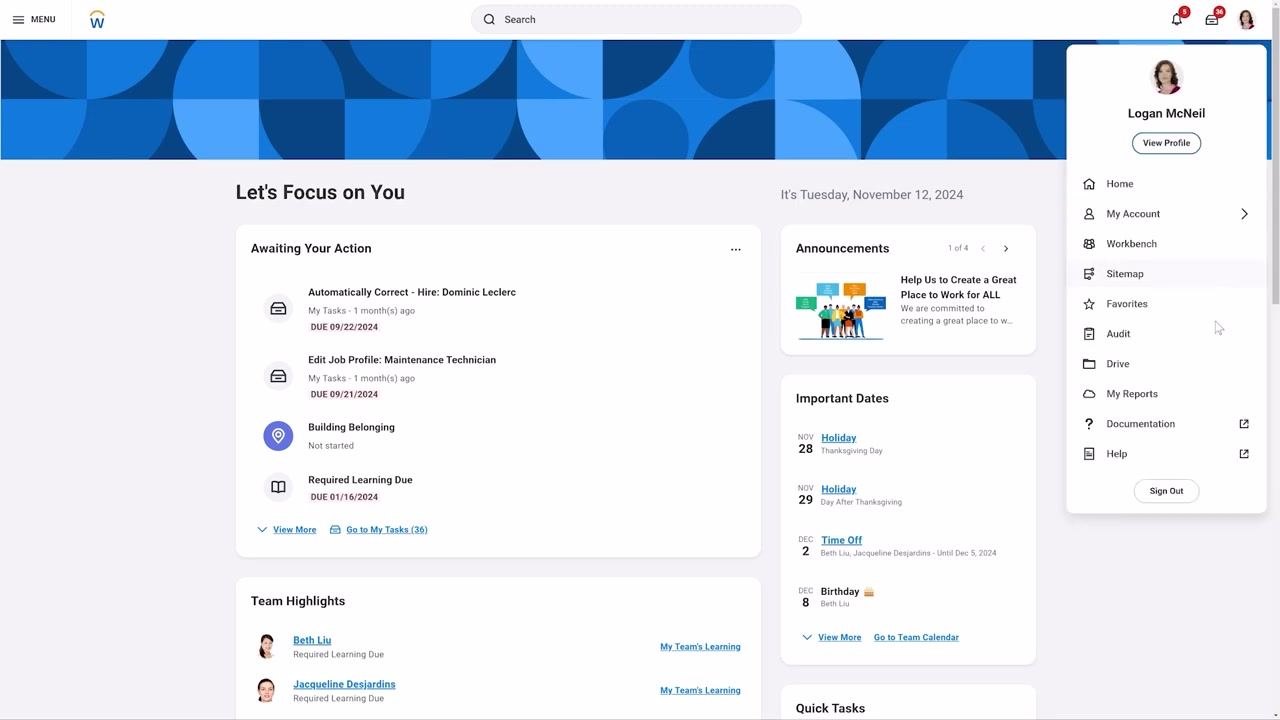
Click your profile icon in the upper right corner of the Workday home page, then select My Reports from the dropdown menu.
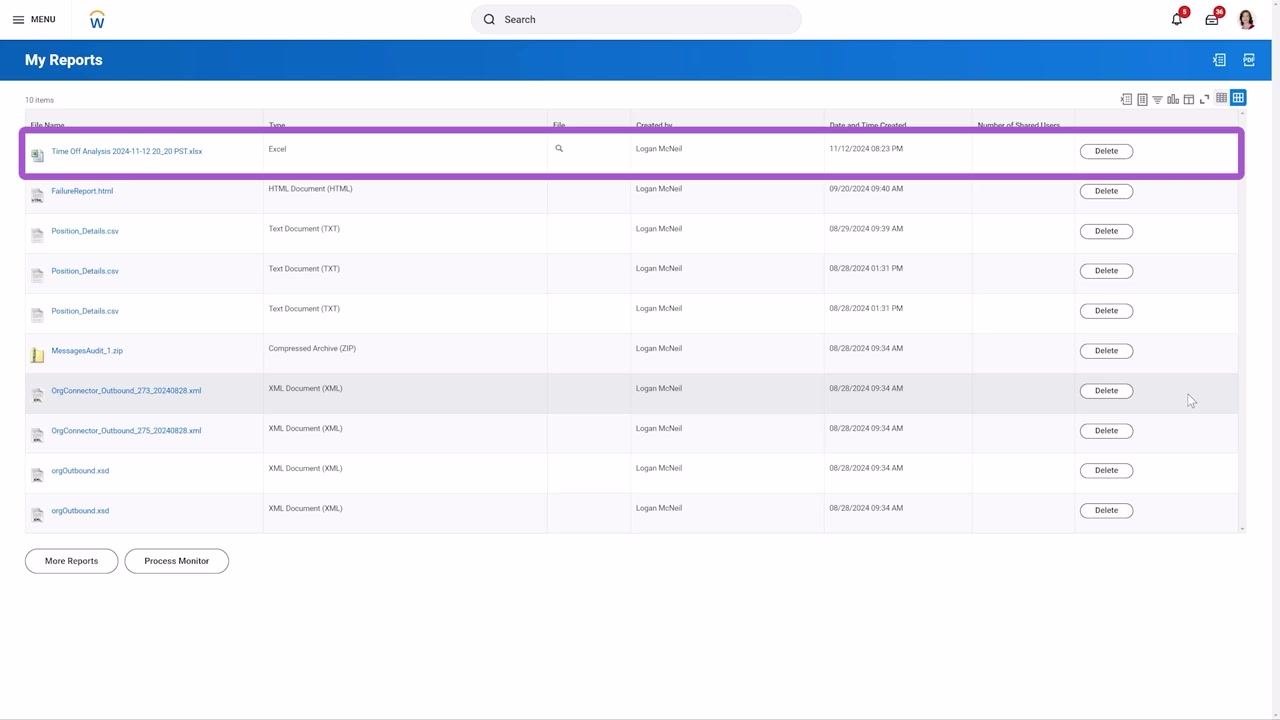
In the My Reports section, find your report listed by file name, type, creator, and creation date. For example, look for a file named "Time Off Analysis 2024-11-12_20_20_PST.xlsx" (Type: Excel, Created by: Logan McNeil, Date and Time Created: 11/12/2024 08:23 PM). Click the file name to download it to your device.
Option 2: Access the report via Process Monitor
You can also retrieve your report through the Process Monitor, which lists all background processes. Navigate to Process Monitor from the Workday menu and locate your report process (for example, "Time Off Analysis") with the status Completed. Click the process name to view more details.
In the process details view, select the Output Files tab. Under Reports and Other Output Files, find your report file (for example, "Time Off Analysis 2024-11-12_20_20_PST.xlsx") and click the file name to download it.
Summary
You now know how to schedule a report in Workday from start to finish: selecting the report, setting its run frequency, configuring criteria with dynamic date values, defining catch-up behavior and recurrence range, choosing output and sharing preferences, and finalizing the schedule. You also know how to review and manage an existing schedule through Schedule Future Processes, and how to retrieve your output through either My Reports or Process Monitor.
What's next
With your report scheduled, check back periodically using Schedule Future Processes to confirm it's still running as expected, or adjust its frequency, output format, or sharing settings as your needs change.
Generation details: cost, quality tiers
Docsie billed 3,500 credits ($2.45) to analyze this 7-minute video at standard quality. The rewrite, template fill and Word/PDF exports were included. The same video at each quality tier:
| Quality | Frames sampled | Credits | Approx. cost |
|---|---|---|---|
| Draft | every 16-30 s | 1,750 | $1.22 |
| Standard (this guide) | every 8-15 s | 3,500 | $2.45 |
| Detailed | every 4-7 s | 7,000 | $4.90 |
| Ultra | every 1-3 s | 14,000 | $9.80 |
Credits priced at $0.70 per 1,000; plans include a monthly allowance. Enterprise customers on on-premise or bring-your-own-model deployments run this on their own inference and pay no per-video credits.
Generated by Docsie Video-to-Docs on 2026-10-19 from a 6-minute video. Screenshots are frames from the source video and belong to their creator, Workday, whose original is embedded above. If you own this video and want the guide removed or credited differently, contact us and we will act within one business day.