
How to Complete a Self-evaluation in Workday
This guide walks you through how to complete a self-evaluation in Workday, from checking your eligibility for the review to submitting your final responses. Follow each step in order to ensure your manager receives a complete and accurate evaluation.
Video: Workday Demonstration: Complete Self-Evaluation by Elevate Program - UMD (2025). All credit for the demonstration goes to the creator; watch the original on YouTube. The written guide below was generated from this video by Docsie. Creator? Request a change or removal.
This guide walks you through how to complete a self-evaluation in Workday, from checking your eligibility for the review to submitting your final responses. Follow each step in order to ensure your manager receives a complete and accurate evaluation.
Prerequisites: Check your eligibility for Workday performance reviews
Before you begin, confirm that your role is included in the Workday review process.
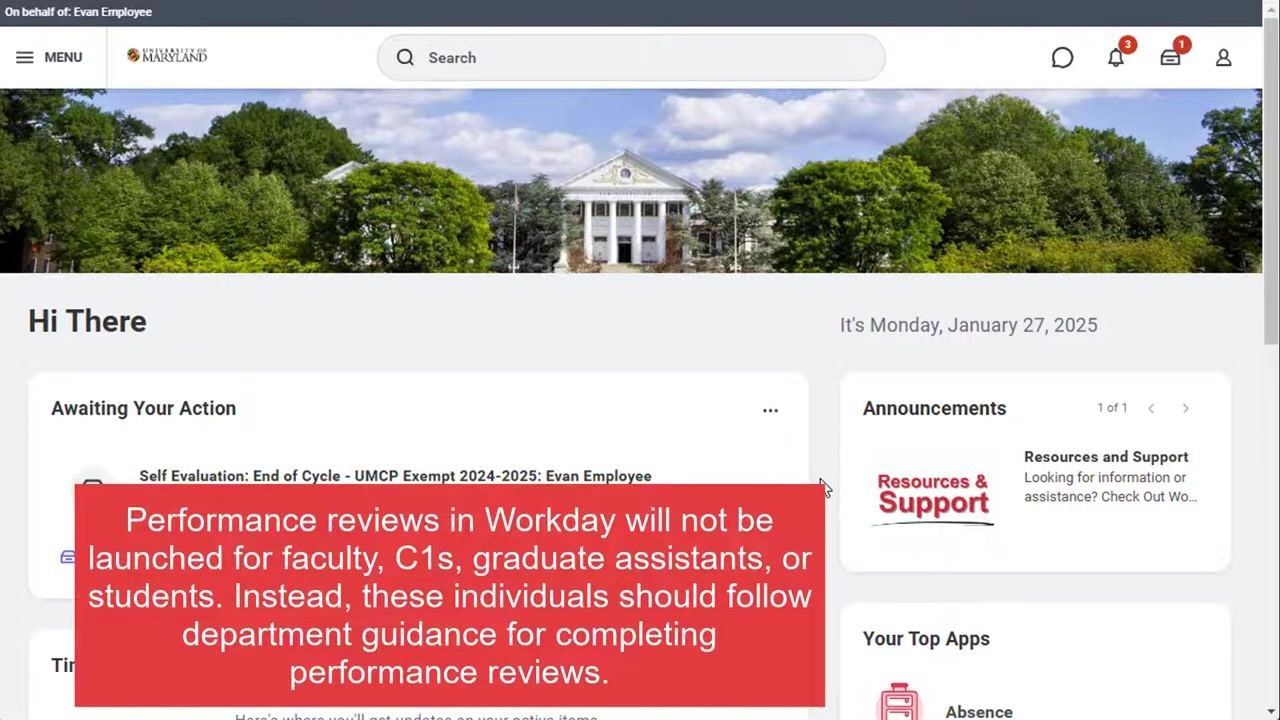
- Annual or end-of-cycle performance reviews in Workday are launched for staff and C2s at College Park, UMES, and UMCES.
- Performance reviews in Workday are not launched for faculty, C1s, graduate assistants, or students.
- If you fall into one of these excluded groups, follow your department's specific guidance for completing performance reviews instead of using Workday.
A few additional details are worth understanding before you start:
-
If you completed a Self-Evaluation for Midway Feedback, those responses automatically carry over to the End of Cycle Review.
-
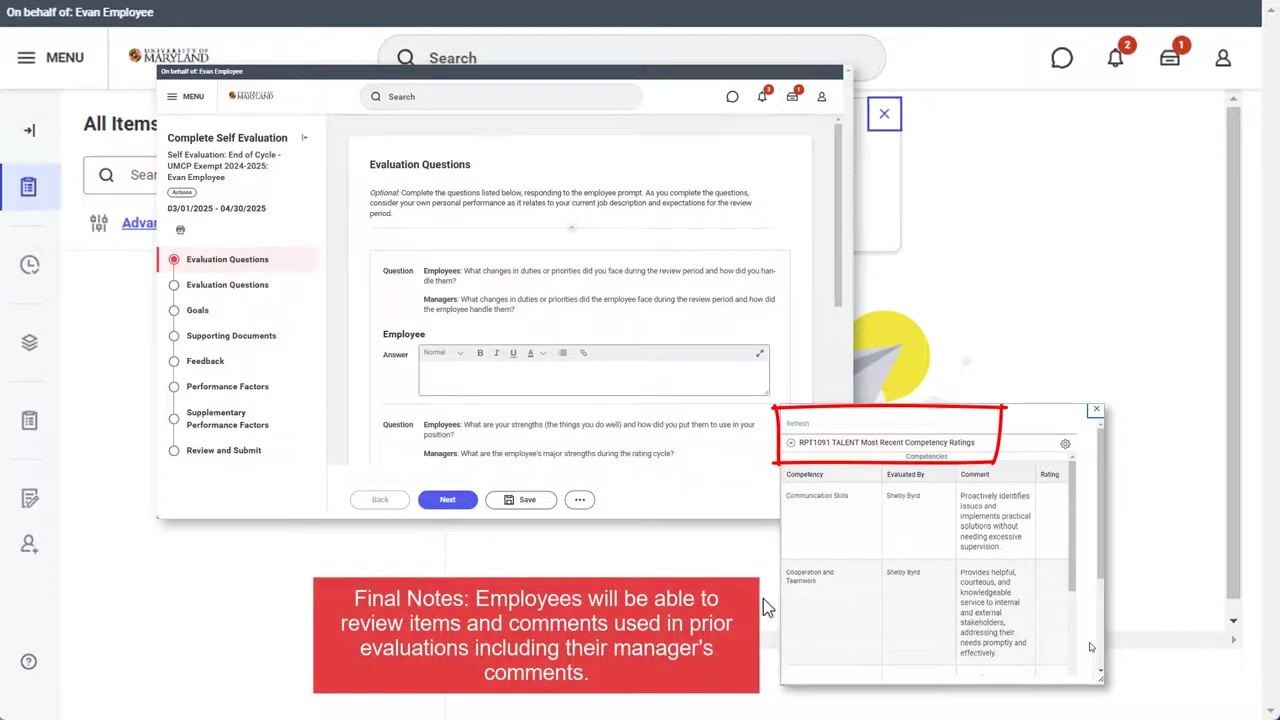
During your self-evaluation, you can review items and comments from prior evaluations, including comments your manager previously entered.
Open your self-evaluation task
Log in to Workday as an employee. On the Workday homepage, locate the Awaiting Your Action section and find the task labeled Self Evaluation: End of Cycle - UMCP Exempt 2024-2025: Evan Employee.
You can open the task in either of two ways:
- Click directly on the self-evaluation task in the Awaiting Your Action section.
- Click Go to My Tasks to open your inbox and select the task from there.
Answer the evaluation questions
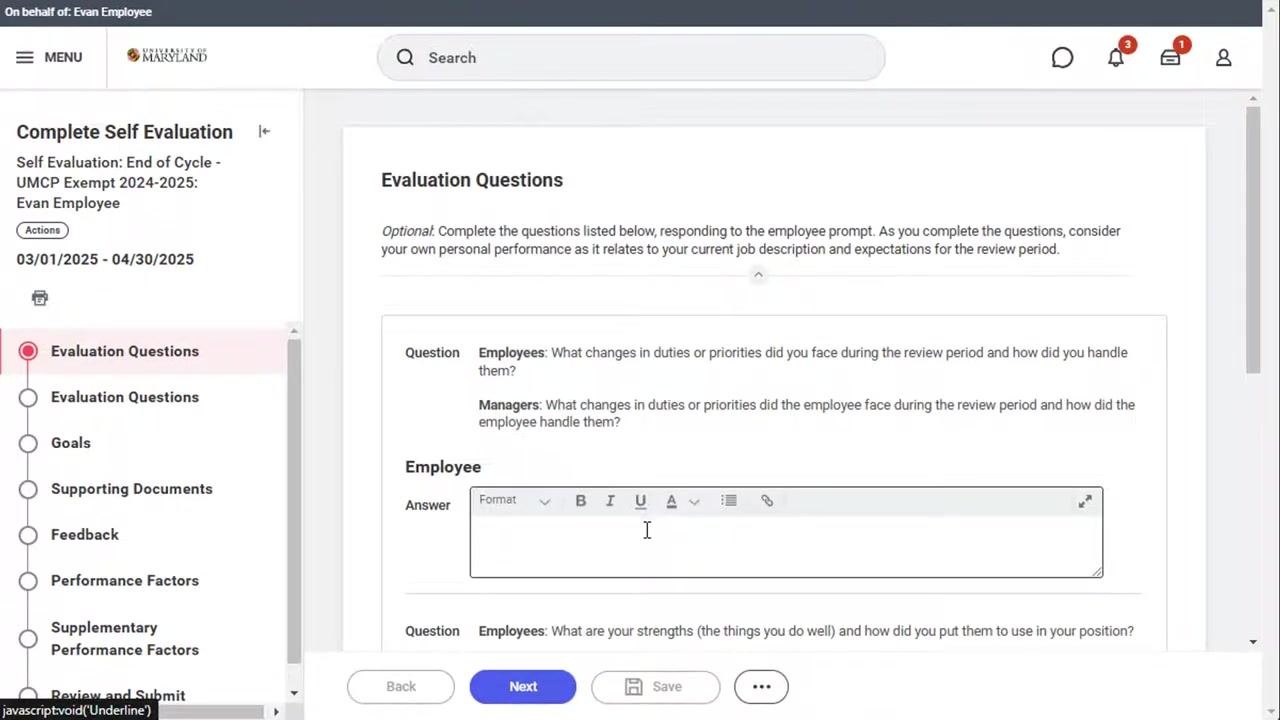
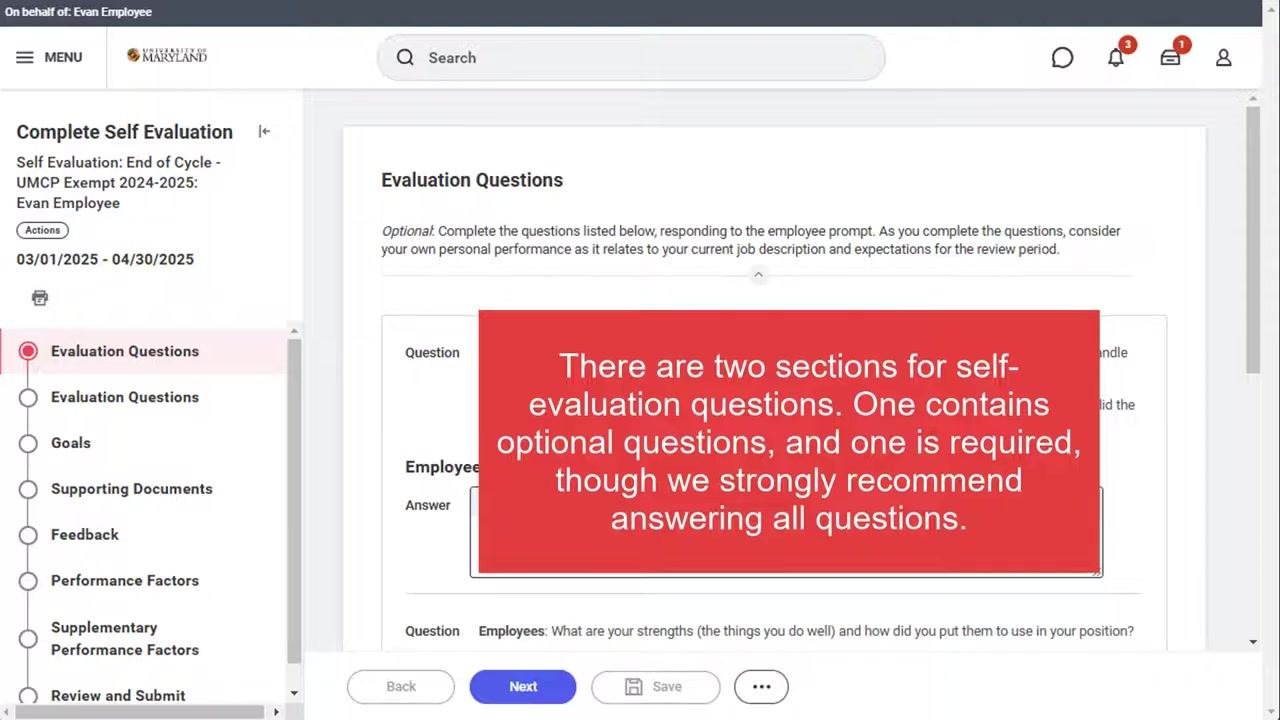
The self-evaluation includes two sections of questions. The first section contains optional questions, and the second section contains one required question. It is strongly recommended that you answer all questions, even the optional ones.
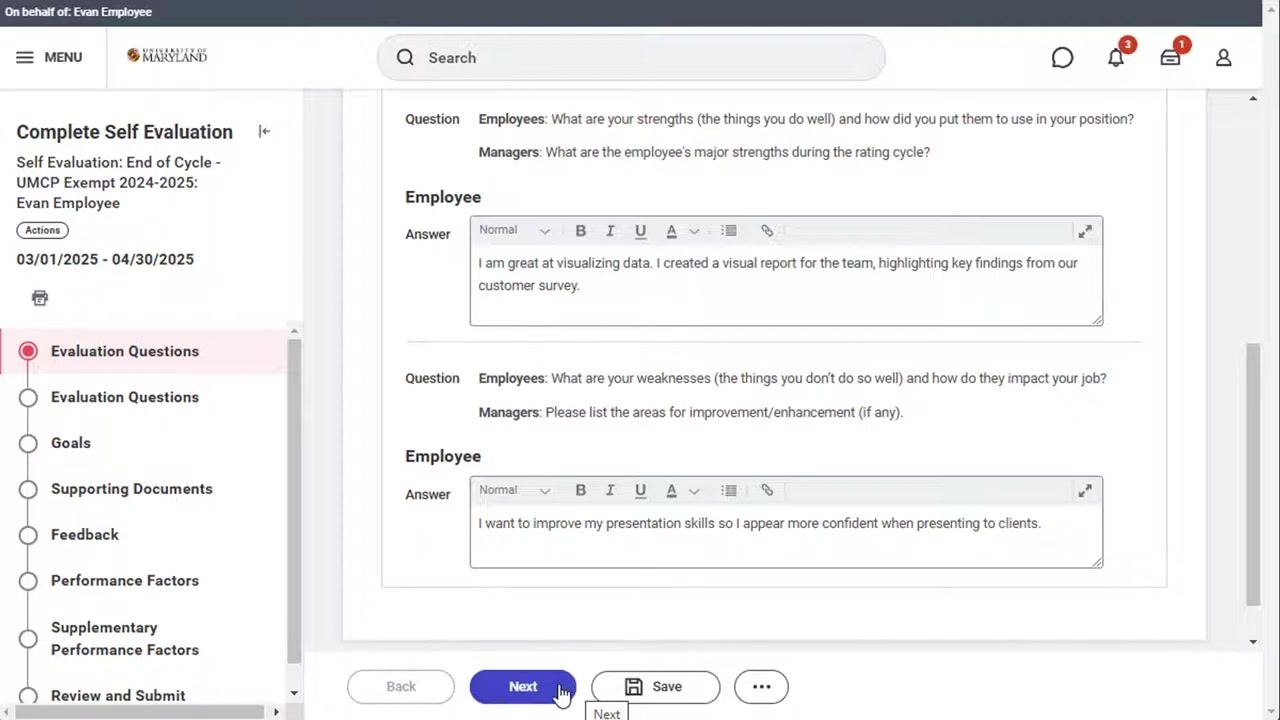
On the first page, respond to the following prompts in the Employee section:
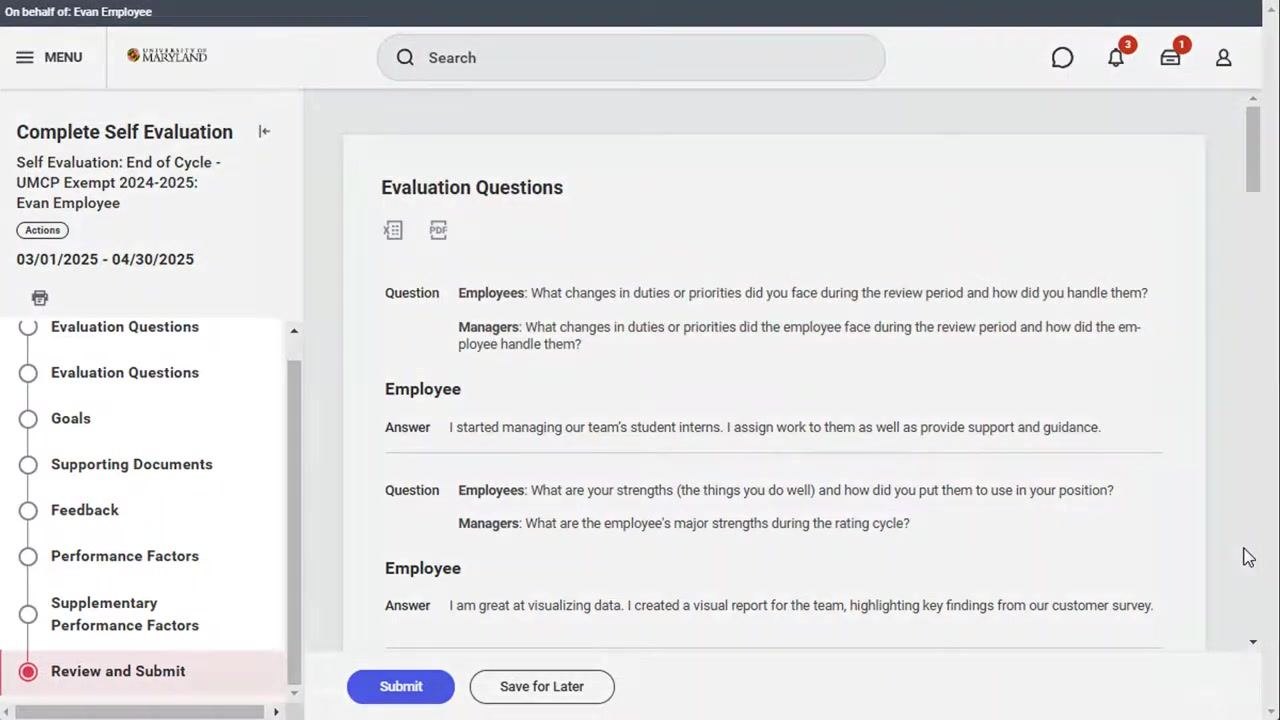
- What changes in duties or priorities did you face during the review period and how did you handle them? For example: "I started managing our team's student interns. I assign work to them as well as provide support and guidance."
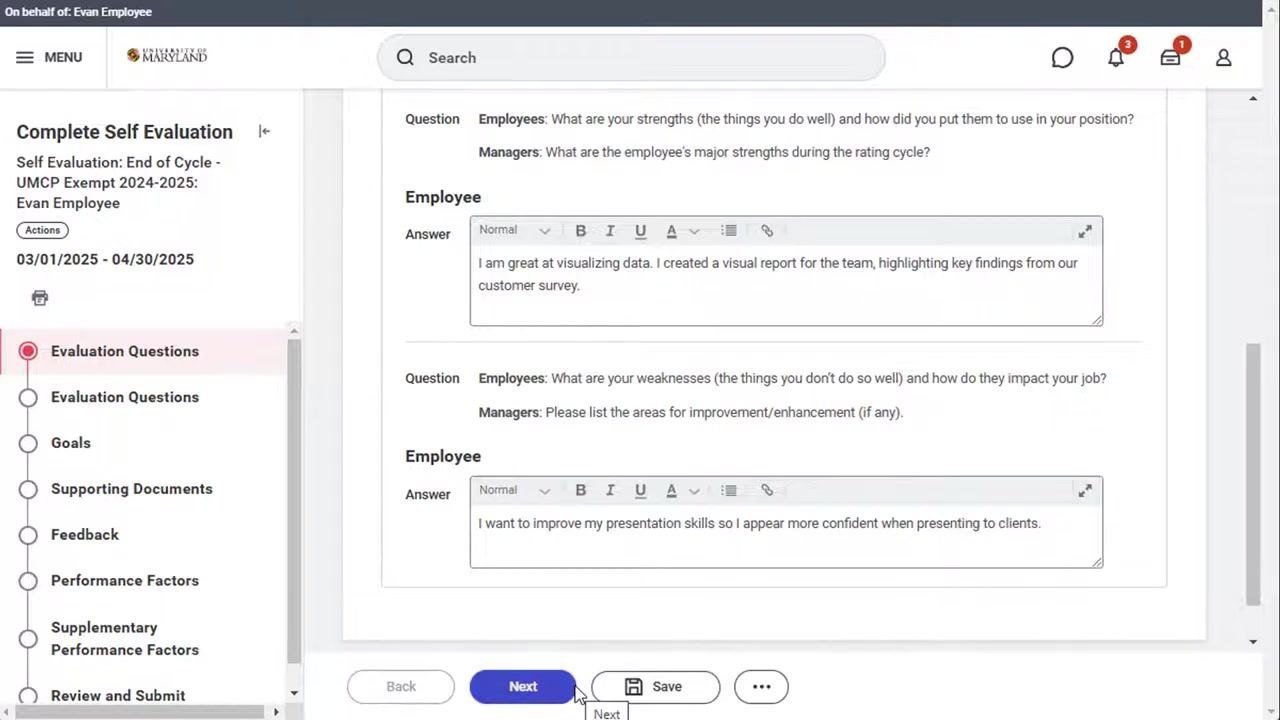
- What are your strengths (the things you do well) and how did you put them to use in your position? For example: "I am great at visualizing data. I created a visual report for the team, highlighting key findings from our customer survey."
- What are your weaknesses (the things you don't do so well) and how do they impact your job? For example: "I want to improve my presentation skills so I appear more confident when presenting to clients."
Use the formatting toolbar (Bold, Italic, Underline, etc.) to structure your responses as needed.
When you finish the first page, click Next to continue or Save to save your progress and return later.
On the second page, answer the required question: Do you understand the requirements of your job currently? If not, what aspects of your job need clarification? For example: "Yes, I have a clear understanding of the requirements of my job." Note that this question must be answered during every review cycle, even if your other answers carry over from a previous review.
Once you have answered all evaluation questions, click Next at the bottom of the page to move on to the Goals section.
Review and add goals
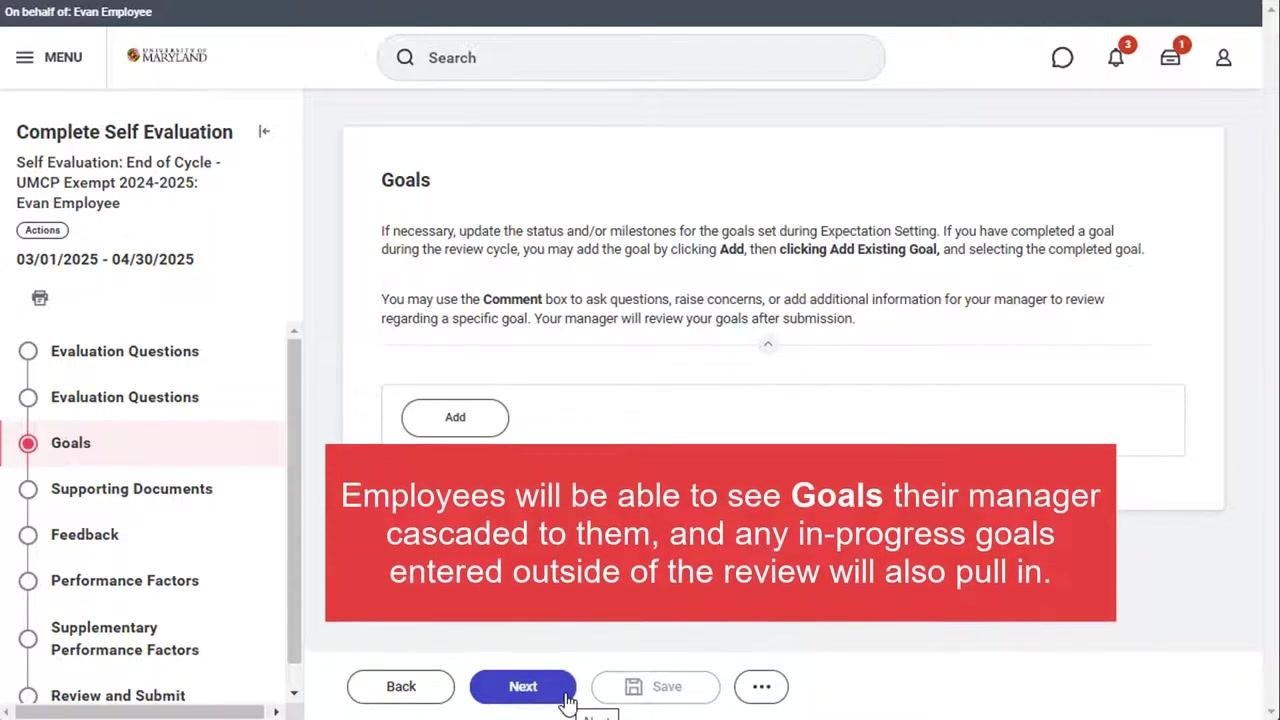
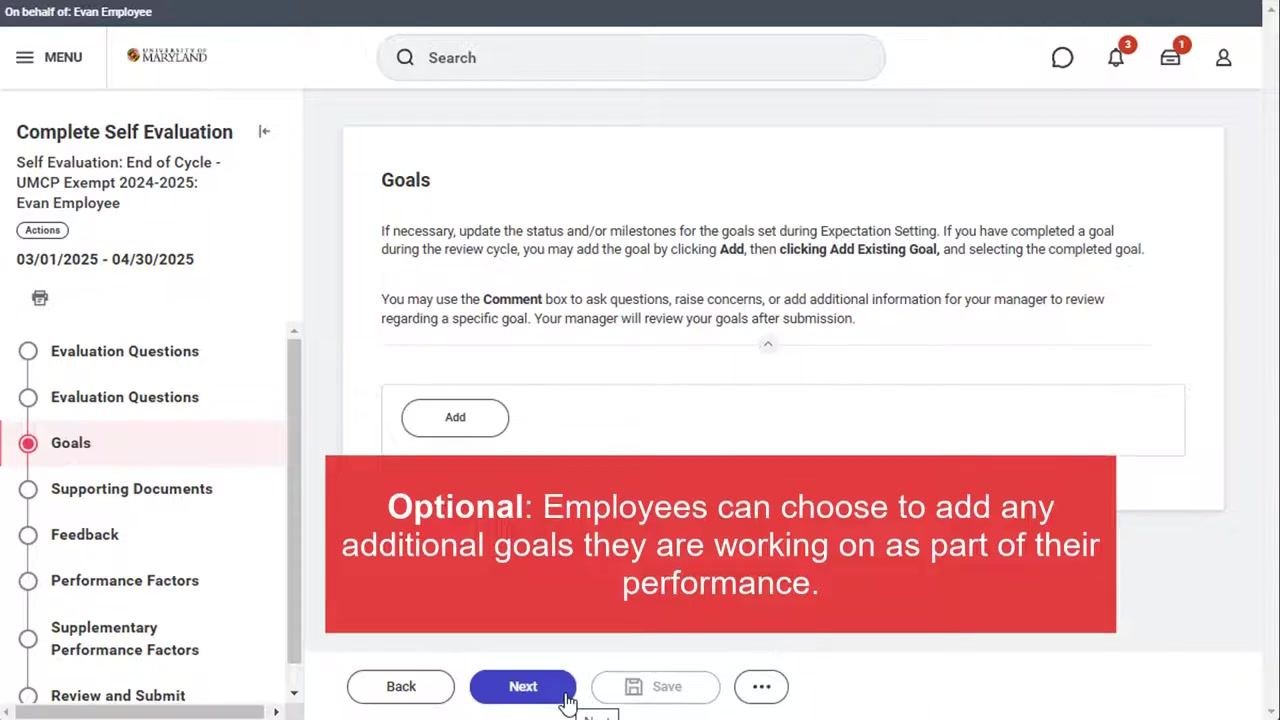
On the Goals page, review any goals your manager has cascaded to you. Any in-progress goals you entered outside of the review process also appear here automatically. If you have additional goals related to your performance, click Add to include them. This step is optional, so you can proceed without adding new goals if none apply.
You can also use the Comment box to ask questions, raise concerns, or provide additional information to your manager about a specific goal.
If you want to add more goals, click Add, then select Add Existing Goal and choose the completed or in-progress goal you want to document. This step is optional and only necessary if you have additional goals to add.
Upload supporting documents
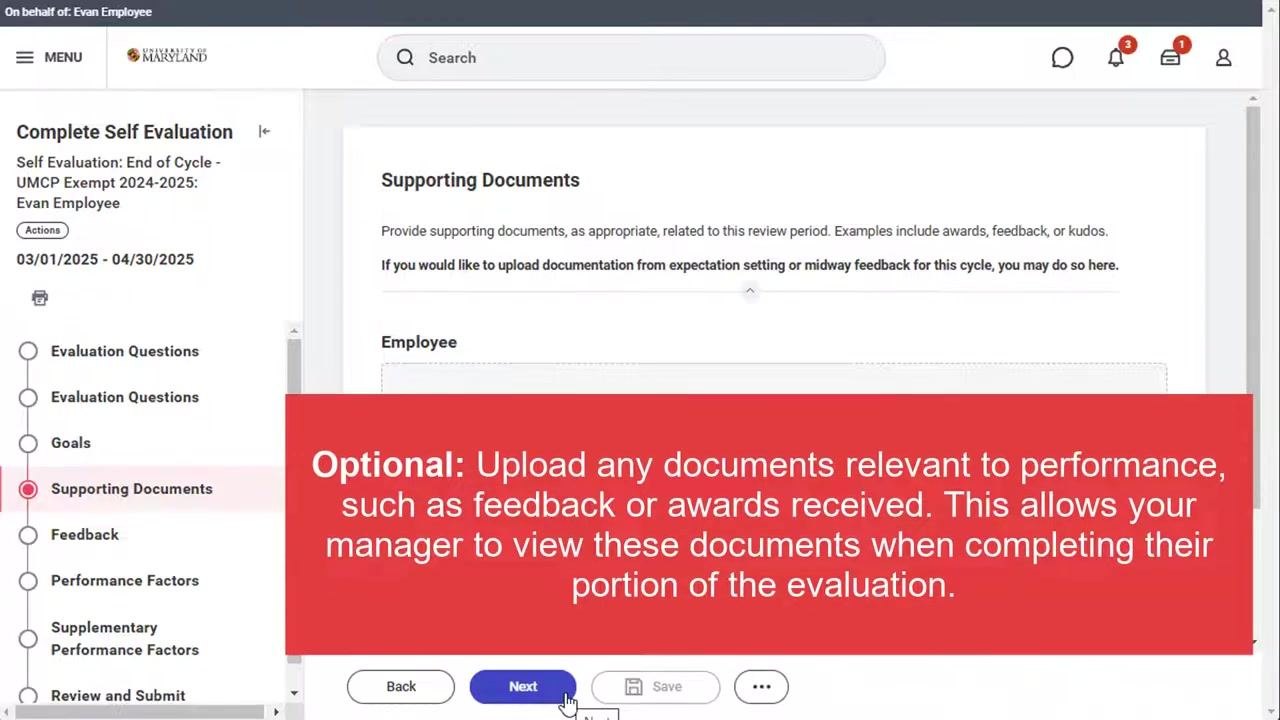
On the Supporting Documents page, you can upload any documents relevant to your performance during the review period, such as awards, kudos, or feedback. This step is optional but recommended if you have received recognition or feedback that supports your evaluation.
Click Upload to select and attach your document(s), and enter any relevant comments in the Comment field if needed. Uploaded documents will be visible to your manager during their portion of the evaluation.
After uploading, confirm your document (for example, "Award_EvanEmpl.pdf") shows as "Successfully Uploaded." You can add a summary comment in the Employee Summary section if desired, then click Next to continue.
Review feedback
On the Feedback page, review any feedback you have received from colleagues or other employees. If you have not received any feedback, simply click Next to continue.
Complete the Performance Factors section
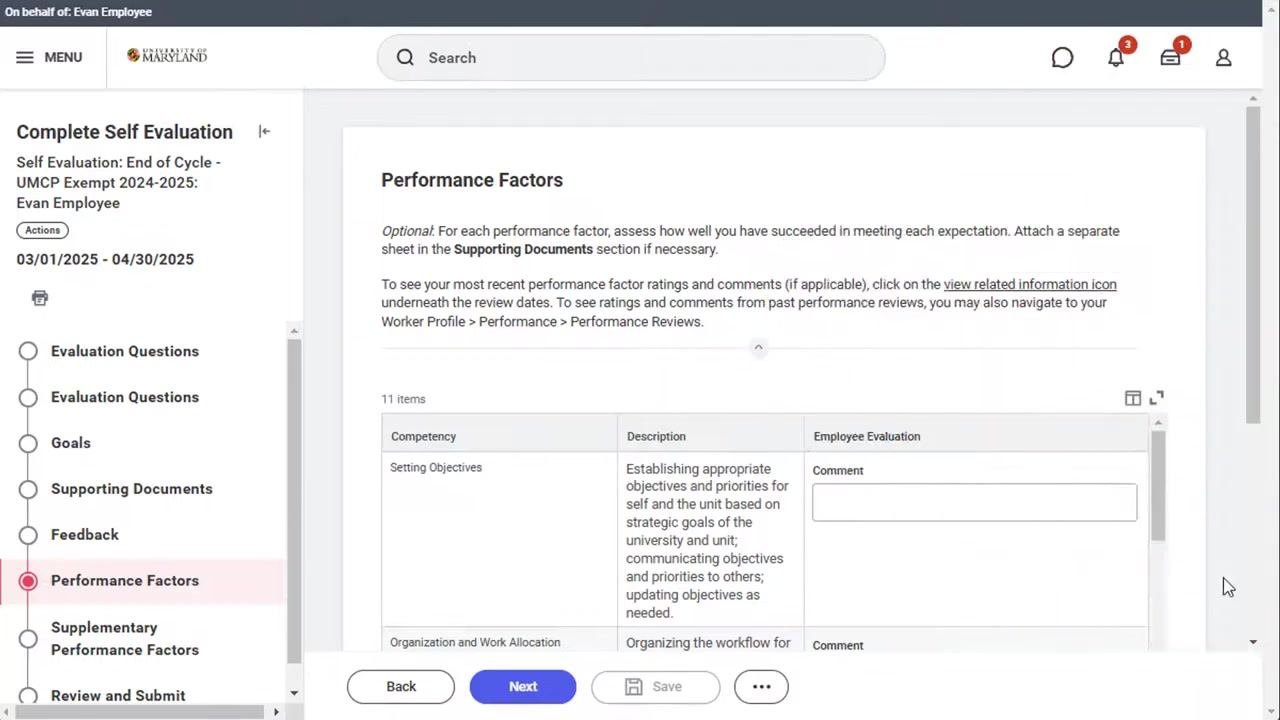
In the Performance Factors section, all fields are optional for the employee. The instructions at the top explain: "For each performance factor, assess how well you have succeeded in meeting each expectation. Attach a separate sheet in the Supporting Documents section if necessary."
To view your most recent performance factor ratings and comments, click the view-related-information icon underneath the review dates, or navigate to Worker Profile > Performance > Performance Reviews. The table includes columns for Competency, Description, and Employee Evaluation, with a Comment field for each competency, such as "Setting Objectives" and "Organization and Work Allocation."
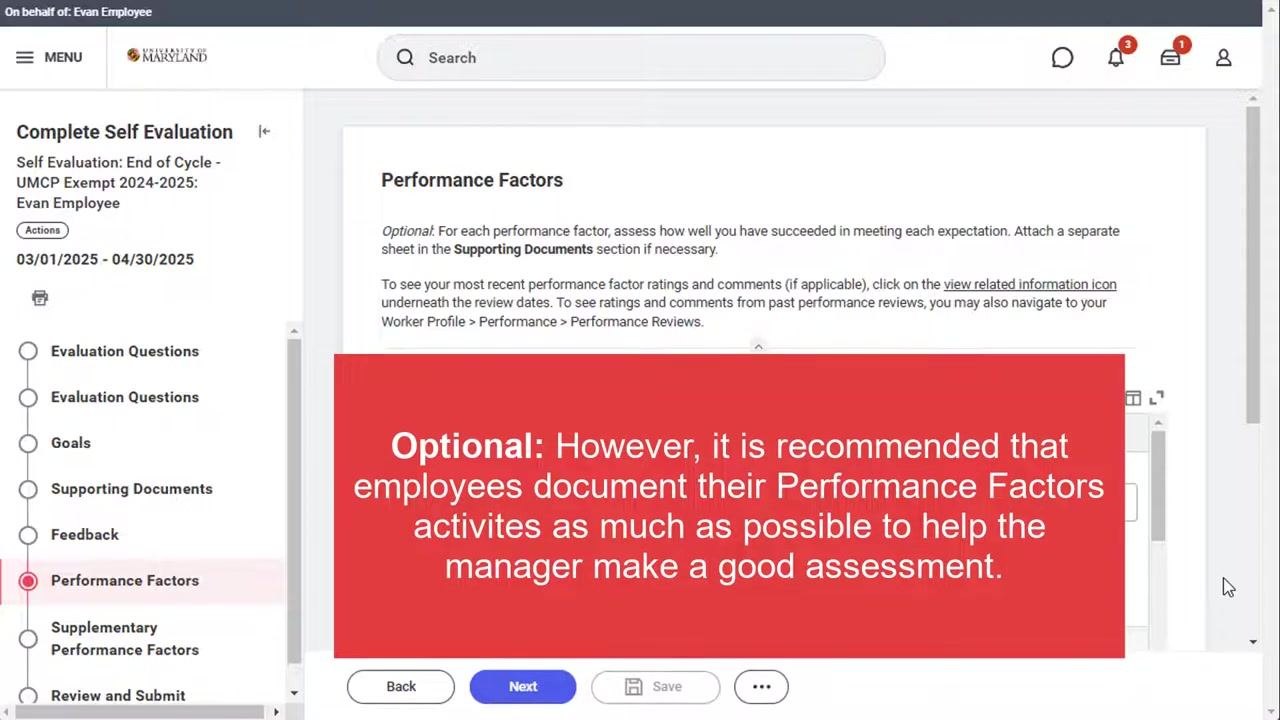
Although this section is optional, it is recommended that you document your Performance Factors activities as much as possible to help your manager make a well-informed assessment.
Scroll through the list of competencies to review or add comments. You can enter a comment for each competency in the Employee Evaluation column. For example, "Customer Service" may have no comment, while "Communication Skills" might include a comment such as: "I recently added a development item to improve my presentation skills."
Add supplementary performance factors
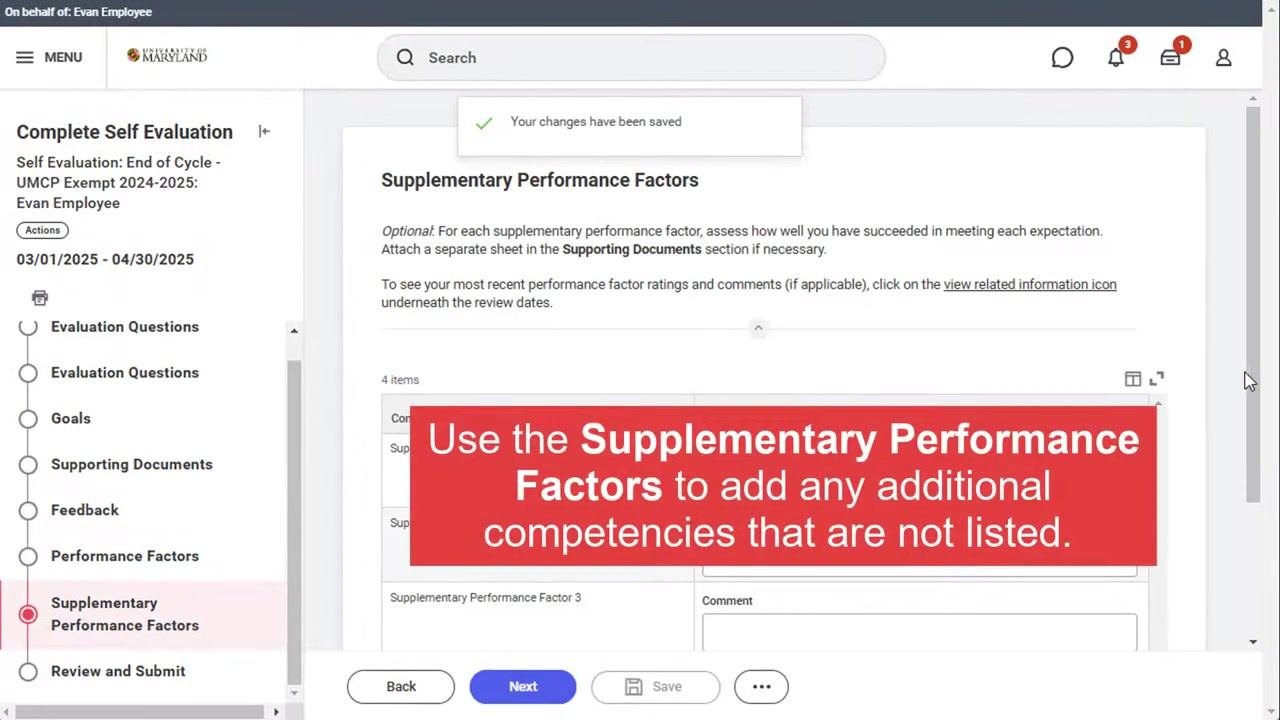
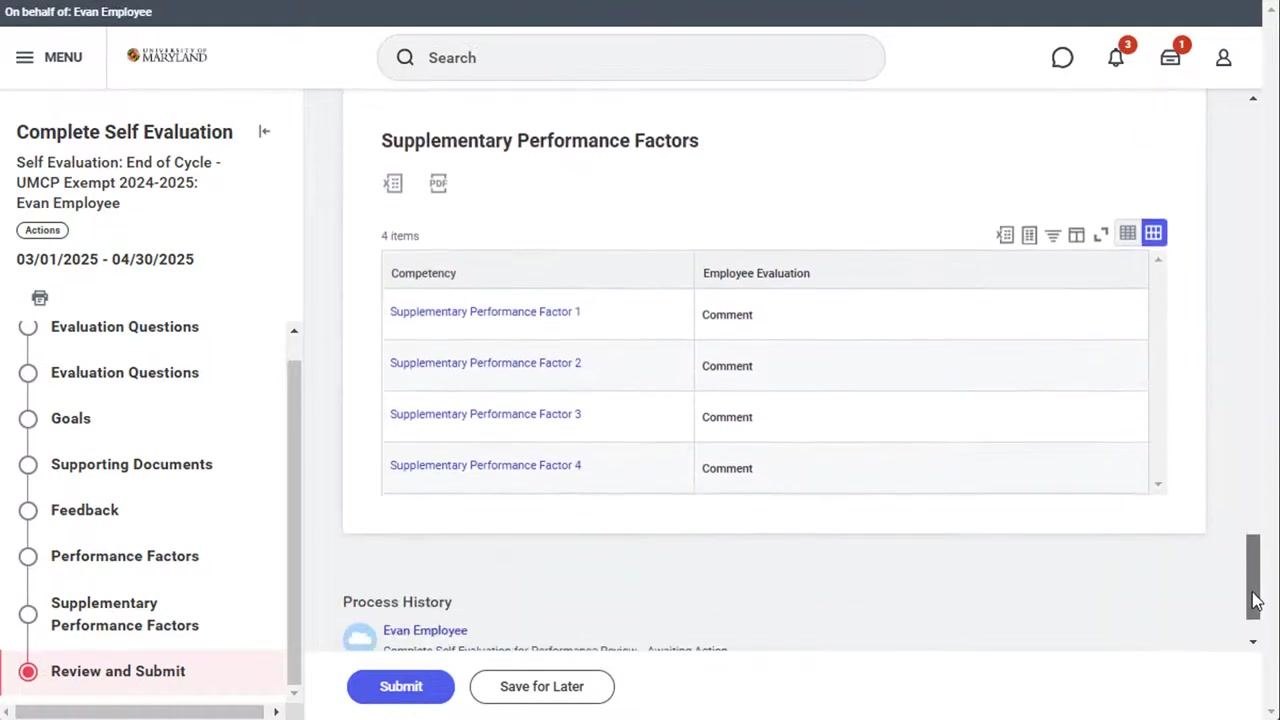
Use the Supplementary Performance Factors section to add any additional competencies not listed in the main Performance Factors section, and enter comments as needed. A confirmation message, "Your changes have been saved," appears at the top once your entries are saved.
Review your responses before submitting
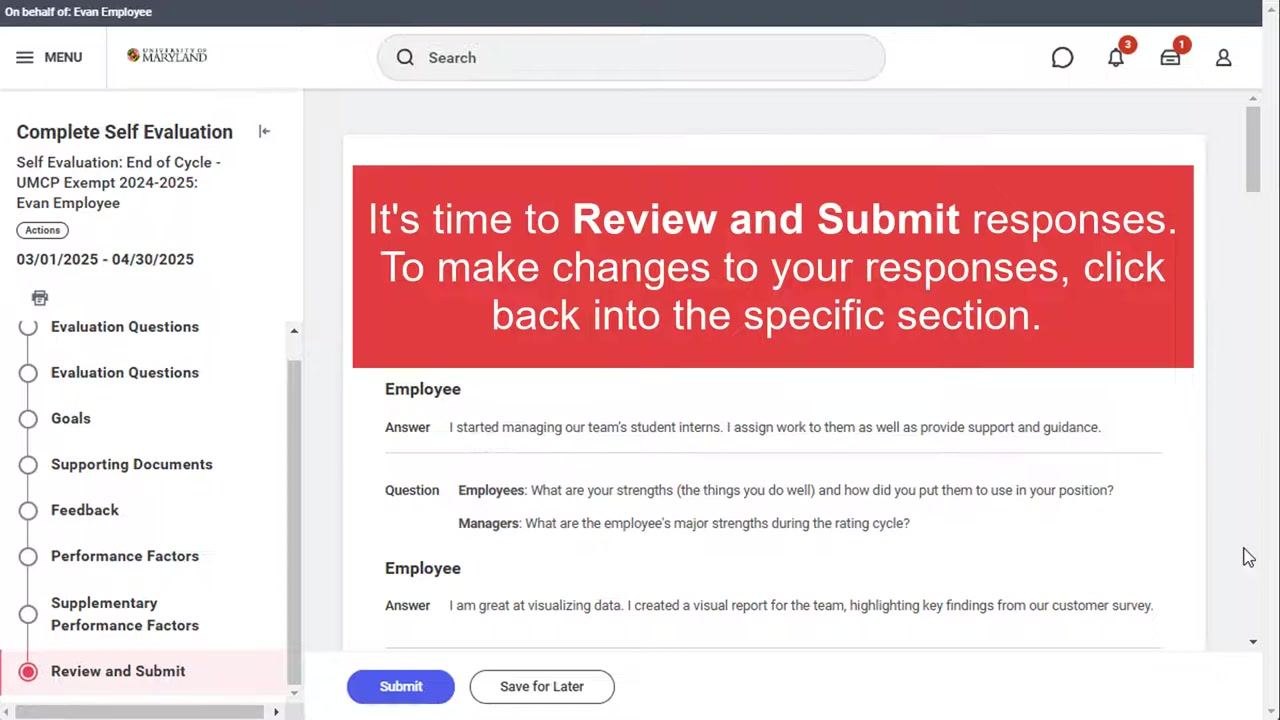
Before submitting, review the summary of your answers displayed on the Review and Submit page. This summary includes your responses to the evaluation questions, such as: "I started managing our team's student interns. I assign work to them as well as provide support and guidance." and "I am great at visualizing data. I created a visual report for the team, highlighting key findings from our customer survey."
To make changes, click back into the specific section you want to edit.
If you are satisfied with your responses, the Submit and Save for Later buttons are available at the bottom of the review screen. If you need further edits, click on the relevant section in the navigation menu on the left.
Submit your self-evaluation
Click Submit to finalize your self-evaluation for the performance review end of cycle. A confirmation message, "Success! Event submitted," appears at the top of the screen, confirming that the task has moved to your manager (for example, Martha Manager) for the End of Cycle review.
What's next
After you submit your self-evaluation, your manager will be able to view your responses to all questions and comments as part of their portion of the End of Cycle review.
Generation details: cost, quality tiers
Docsie billed 4,000 credits ($2.80) to analyze this 8-minute video at standard quality. The rewrite, template fill and Word/PDF exports were included. The same video at each quality tier:
| Quality | Frames sampled | Credits | Approx. cost |
|---|---|---|---|
| Draft | every 16-30 s | 2,000 | $1.40 |
| Standard (this guide) | every 8-15 s | 4,000 | $2.80 |
| Detailed | every 4-7 s | 8,000 | $5.60 |
| Ultra | every 1-3 s | 16,000 | $11.20 |
Credits priced at $0.70 per 1,000; plans include a monthly allowance. Enterprise customers on on-premise or bring-your-own-model deployments run this on their own inference and pay no per-video credits.
Generated by Docsie Video-to-Docs on 2026-10-19 from a 7-minute video. Screenshots are frames from the source video and belong to their creator, Elevate Program - UMD, whose original is embedded above. If you own this video and want the guide removed or credited differently, contact us and we will act within one business day.