
How to Submit a Timesheet in UKG
This guide walks you through how to submit a timesheet in UKG, from your first login to the Employee Self-Service Portal through entering your daily hours and sending your timecard for approval. Follow each step below to ensure your time is recorded accurately and submitted on schedule.
Video: UKG Tutorial: Entering and Submitting Time by Professional Employment Group of Colorado (2022). All credit for the demonstration goes to the creator; watch the original on YouTube. The written guide below was generated from this video by Docsie. Creator? Request a change or removal.
This guide walks you through how to submit a timesheet in UKG, from your first login to the Employee Self-Service Portal through entering your daily hours and sending your timecard for approval. Follow each step below to ensure your time is recorded accurately and submitted on schedule.
Prerequisites
- An active email account where you can receive your UKG welcome email.
- The temporary username and password provided in that email.
- Access to a web browser to log in to the UKG portal.
Locate your welcome email
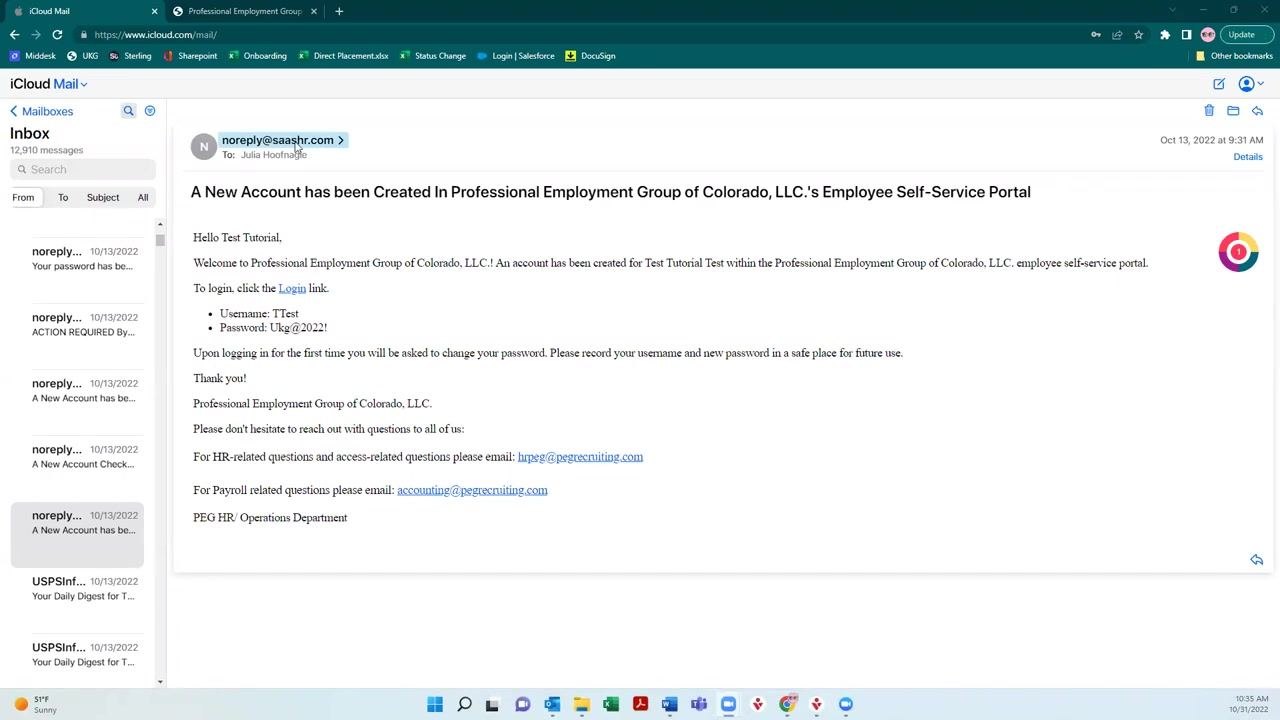
Open your email inbox and search for a message from noreply@saashr.com. The subject line will indicate that a new account has been created for you in the Professional Employment Group of Colorado, LLC.'s Employee Self-Service Portal.
This email contains your login link, username, and a temporary password. For example, you might see a username such as TTest and a temporary password such as Ukg@2022!.
The email also includes contact information for questions:
- HR: hrpeg@pegrecruiting.com
- Payroll: accounting@pegrecruiting.com
Keep this email for future reference, since you may need the contact details or login link again.
Log in to the UKG portal
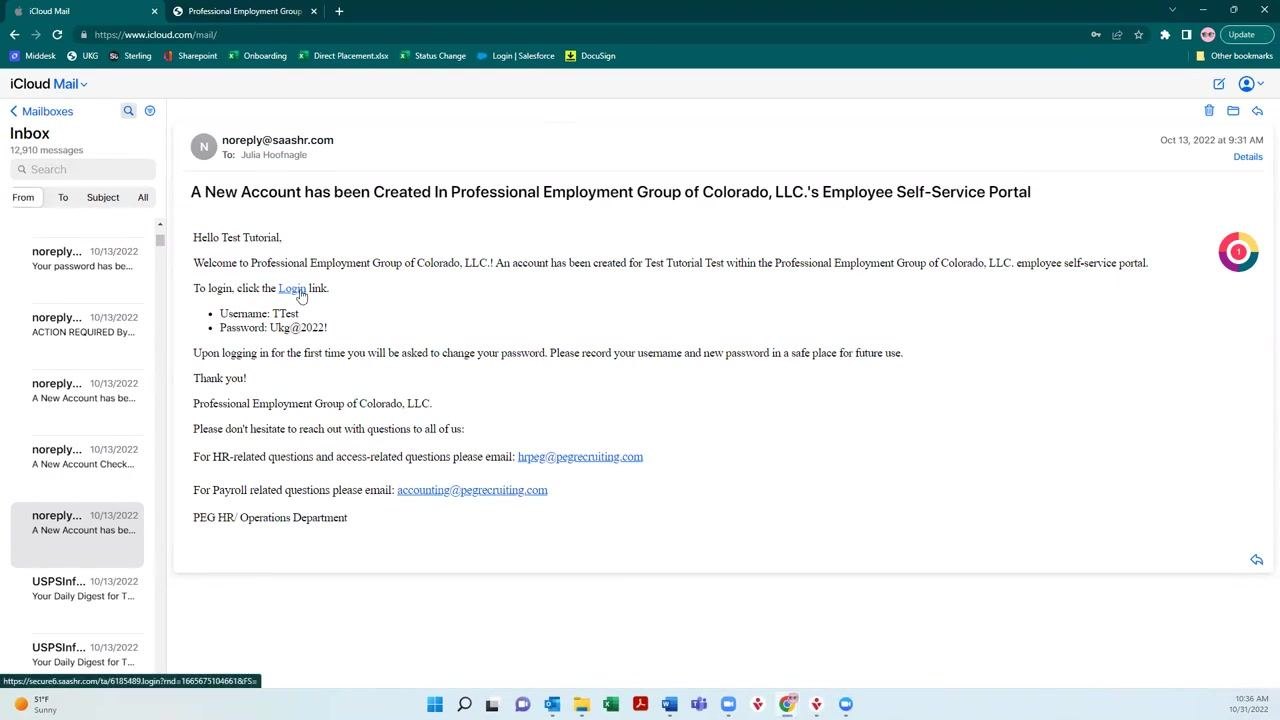
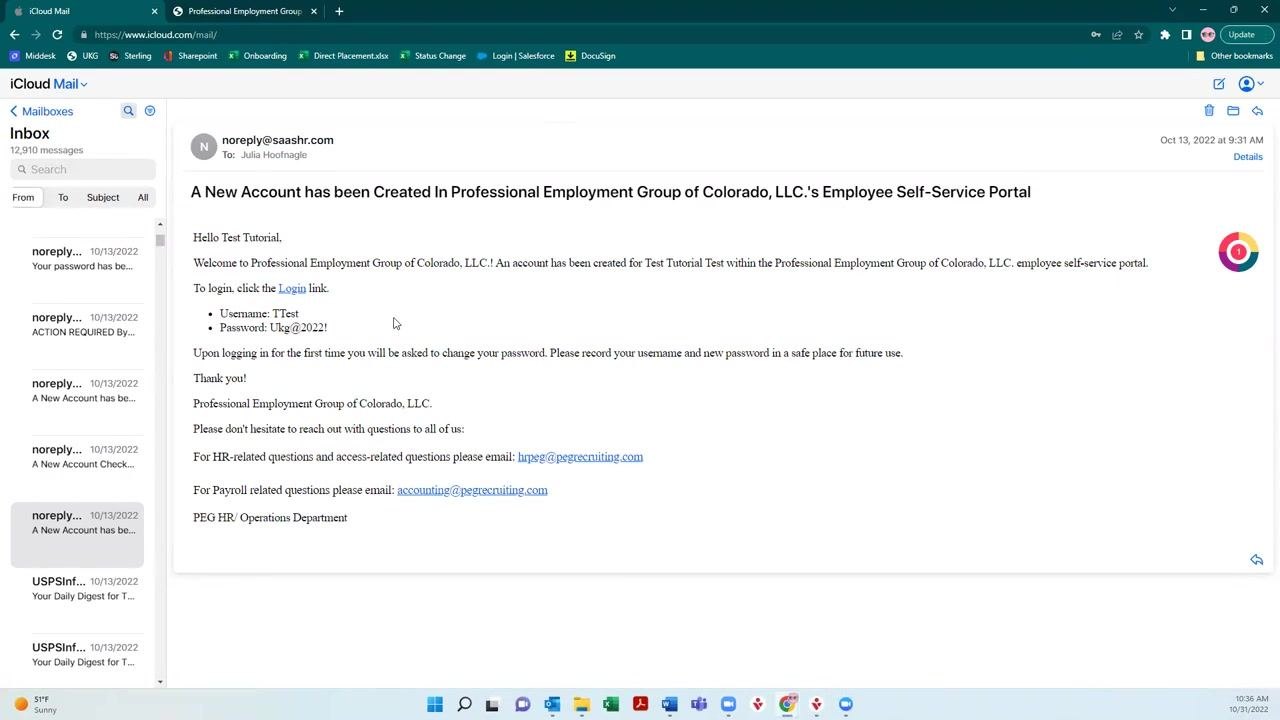
Click the Login link provided in the email. Enter your username (for example, TTest) and your temporary password (for example, Ukg@2022!).
On your first login, you will be prompted to change your password. Choose a password you will remember, since you will use this portal frequently. Record your new password somewhere secure.
Once you have changed your password, your account setup is complete and you are ready to use the portal.
Access your timesheet
After logging in, you will land on your UKG dashboard. It displays your name, employee ID, hire date, and a notification area, along with navigation options such as Home, My Dashboard, and various drop-down menus for different functions.
On the dashboard, locate the Quick Links section and click Current Timesheet under My Time to open your timesheet for the current week.
Understand the timesheet layout
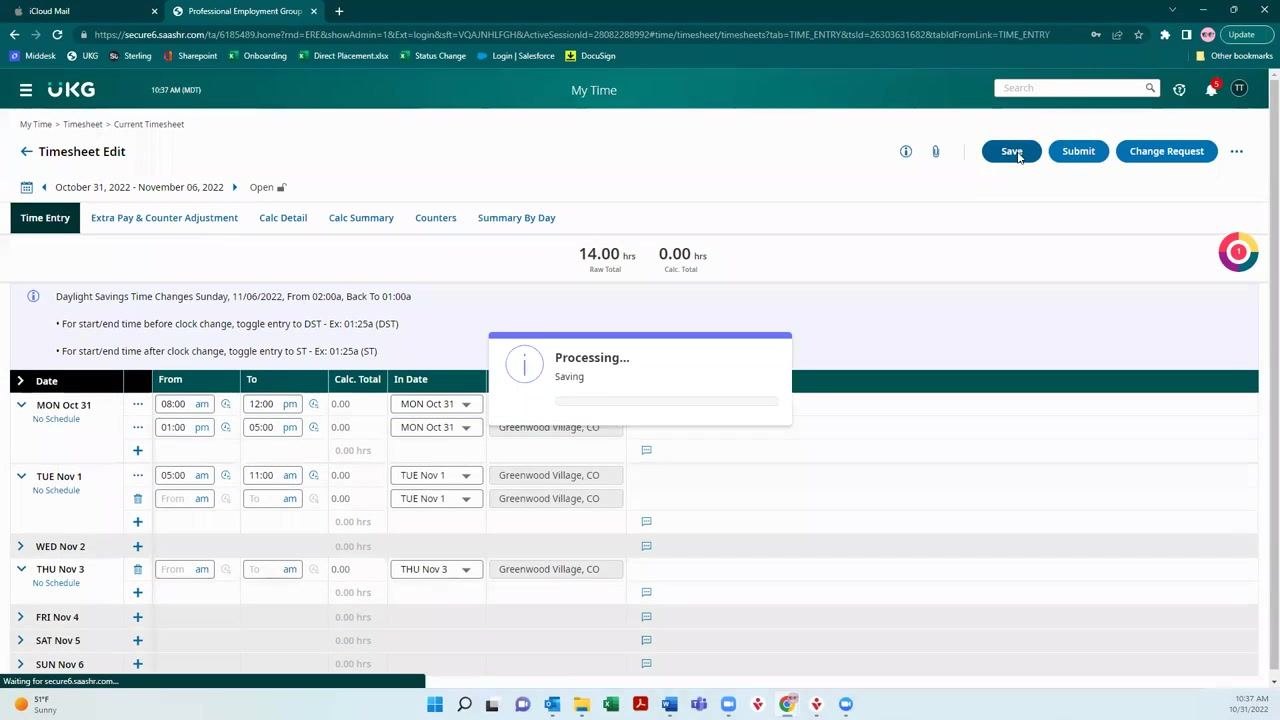
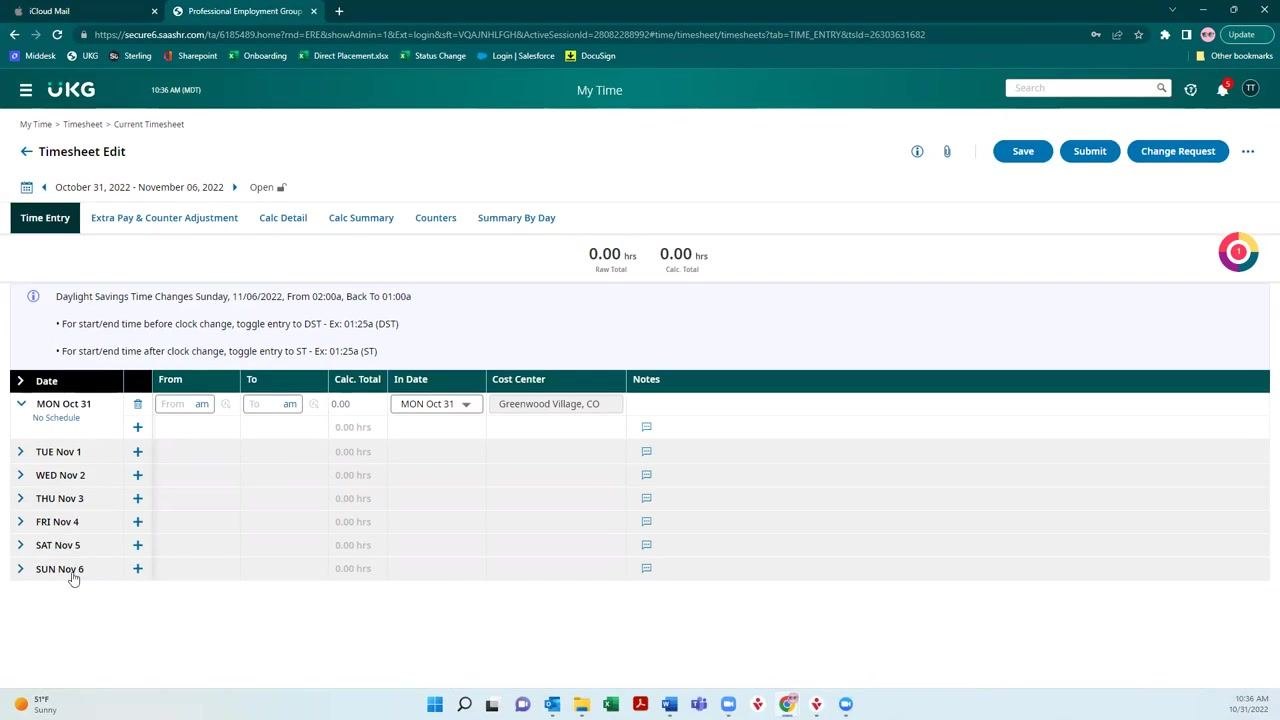
The timesheet displays a week view listing each day from Monday to Sunday. For each day, you can enter your start and end times, cost center, and any notes.
Tabs at the top let you switch between Time Entry, Extra Pay & Counter Adjustment, Calc Detail, Calc Summary, Counters, and Summary By Day.
Enter your work hours daily
Make it a habit to log your hours each day so you do not forget your exact work times by the end of the week.
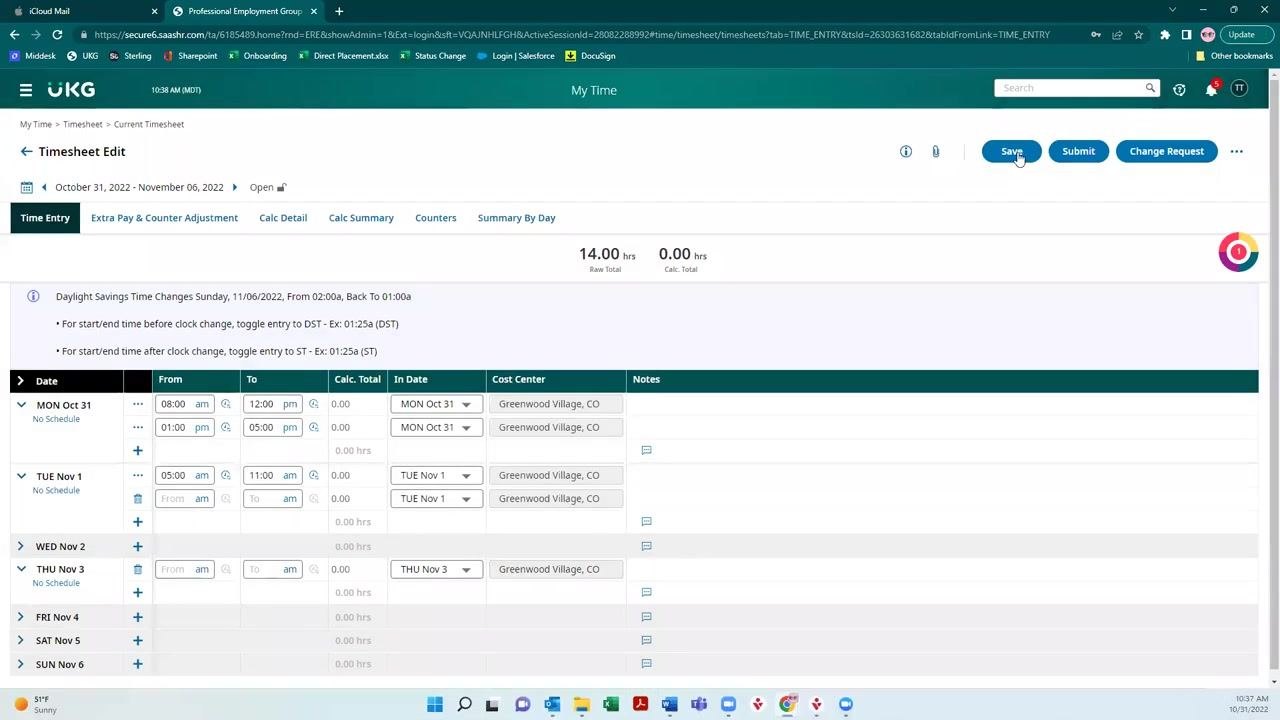
For each day worked, enter your start and end times in the From and To columns. For example, if you worked from 8:00 AM to 12:00 PM, enter those times under the appropriate day, such as Monday. If you only worked a partial day, enter the exact hours worked, such as 4 hours for a half-day.
Make sure to select the correct date and cost center (for example, Greenwood Village, CO), and add any relevant notes if needed.
Add multiple shifts or account for lunch breaks
If you took a lunch break or worked multiple shifts in one day, add a second time entry for that same day. For example, enter 8:00 AM to 12:00 PM for your morning shift, then click the + icon to add another entry for 1:00 PM to 5:00 PM for your afternoon shift.
This ensures your total hours for the day are accurate, such as 8 total hours when accounting for a lunch break.
Edit AM/PM as needed
If you need to change a time from AM to PM, or vice versa, click the dropdown next to the time field and select the correct period.
Save your timesheet frequently
Click Save at the top right of the timesheet screen to save your progress. Saving lets you return later and continue editing without losing your entries.
Submit your timesheet for approval
Your work week runs from Monday to Sunday. Submit your timecard at the end of your last shift for the week:
- If your last shift ends at 5:00 PM on Friday, submit your timecard then.
- If you work Saturday or Sunday, submit your timecard at the end of your last shift on those days.
Use the Save and Submit buttons at the top right of the timesheet screen to save and submit your entries.
Once all hours for the week are entered and reviewed, click Submit at the top right. A Submit for approval dialog will appear. Optionally, enter a comment for your timecard approver, such as "3 extra hours" or "5 hours of overtime." Comments help clarify special circumstances but are not required. Click Submit to send your timesheet for approval.
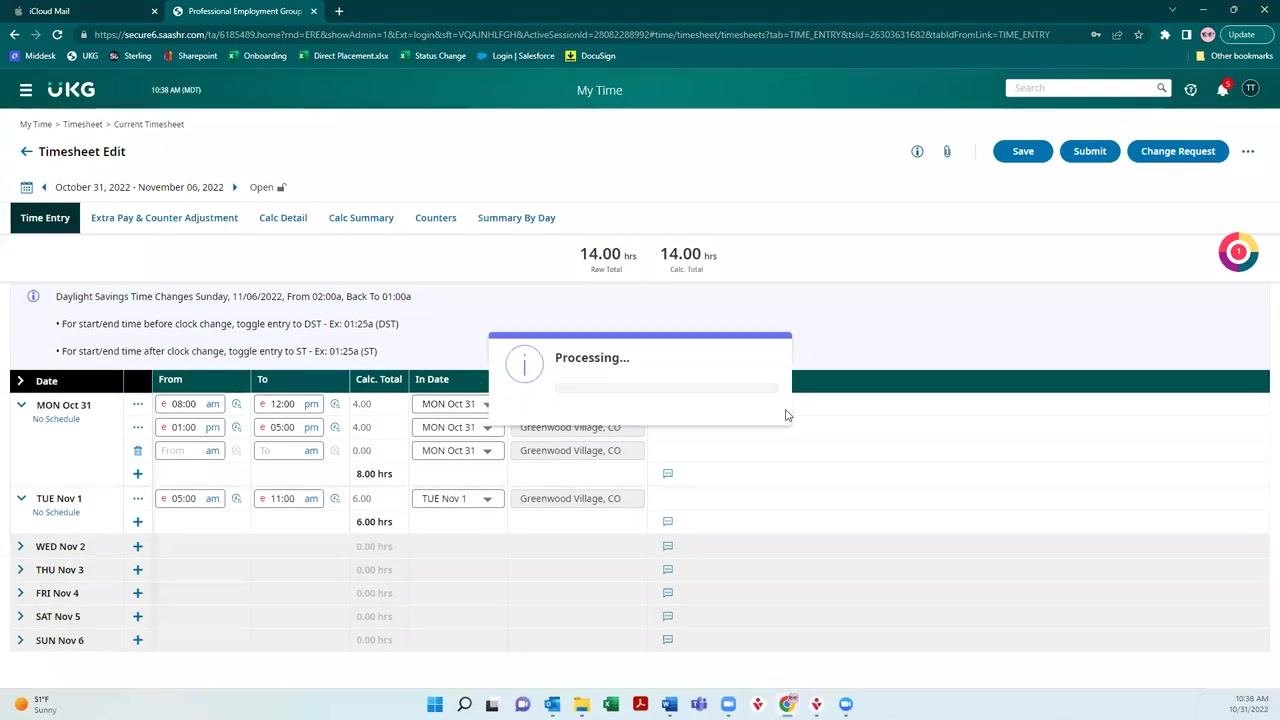
After submitting, a Processing... dialog will appear, confirming your timesheet is being sent for approval. Once processed, your timecard approver will review and approve your hours.
Summary
By following these steps, you can log in to the UKG portal, navigate your dashboard, and enter and submit your time accurately each week. For any issues, refer to the HR and payroll contact information provided in your welcome email.
Generation details: cost, quality tiers
Docsie billed 2,000 credits ($1.40) to analyze this 4-minute video at standard quality. The rewrite, template fill and Word/PDF exports were included. The same video at each quality tier:
| Quality | Frames sampled | Credits | Approx. cost |
|---|---|---|---|
| Draft | every 16-30 s | 1,000 | $0.70 |
| Standard (this guide) | every 8-15 s | 2,000 | $1.40 |
| Detailed | every 4-7 s | 4,000 | $2.80 |
| Ultra | every 1-3 s | 8,000 | $5.60 |
Credits priced at $0.70 per 1,000; plans include a monthly allowance. Enterprise customers on on-premise or bring-your-own-model deployments run this on their own inference and pay no per-video credits.
Generated by Docsie Video-to-Docs on 2026-10-19 from a 3-minute video. Screenshots are frames from the source video and belong to their creator, Professional Employment Group of Colorado, whose original is embedded above. If you own this video and want the guide removed or credited differently, contact us and we will act within one business day.