
How to Pick Up an Open Shift in UKG
This guide walks you through how to pick up an open shift in UKG using the computer version of the scheduling portal. You'll learn how to log in, find available shifts you're eligible to work, submit a request, and understand what happens once your request is approved.
Video: Selecting open shifts to work on UKG by New Hope (2024). All credit for the demonstration goes to the creator; watch the original on YouTube. The written guide below was generated from this video by Docsie. Creator? Request a change or removal.
This guide walks you through how to pick up an open shift in UKG using the computer version of the scheduling portal. You'll learn how to log in, find available shifts you're eligible to work, submit a request, and understand what happens once your request is approved.
Prerequisites
- Access to the UKG scheduling portal with a valid login
- An active employee profile with assigned eligibility (e.g., kitchen-trained or non-kitchen-trained) for certain shift types
Log in and navigate to your schedule
Log in to the scheduling portal
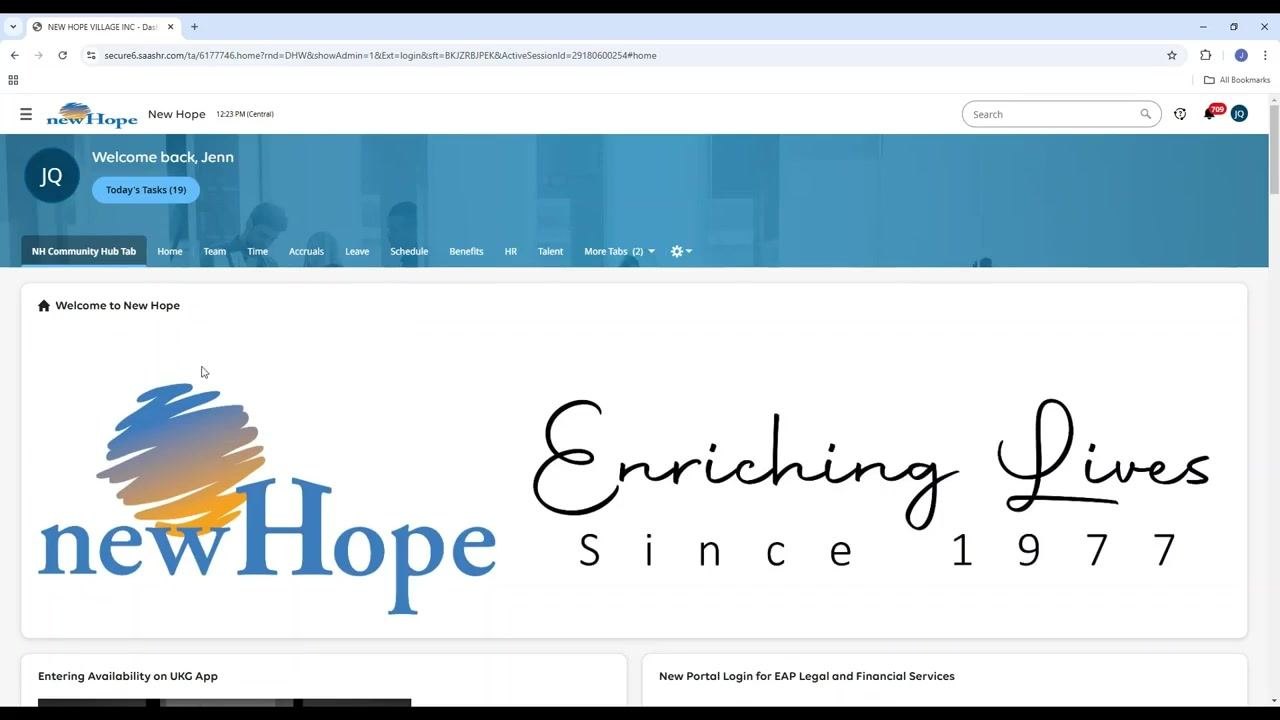
Open your web browser and navigate to the scheduling portal. Once logged in, you'll land on your dashboard, which displays a welcome message and navigation tabs such as Home, Team, Time, Accruals, Leave, Schedule, Benefits, HR, and Talent. Confirm you're on the NH Community Hub Tab and see the Welcome to New Hope section.
Navigate to My Schedule
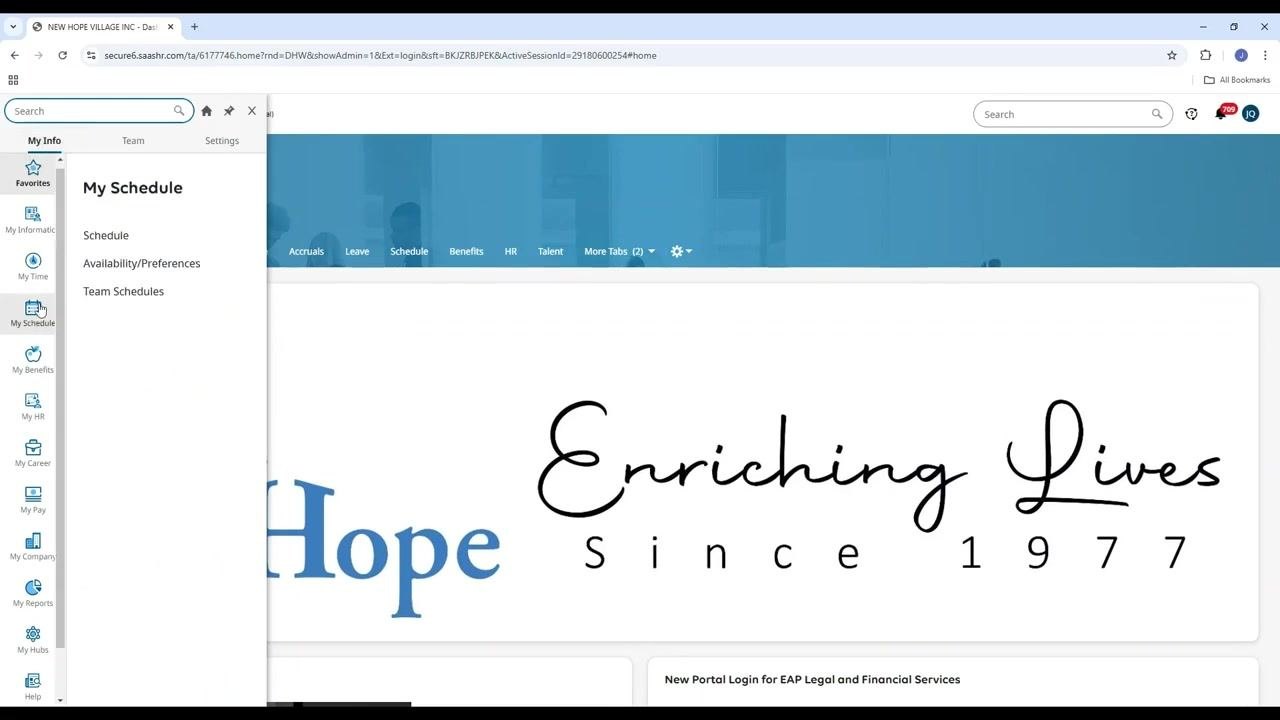
In the sidebar, click My Schedule. A side panel labeled My Schedule appears, showing three options: Schedule, Availability/Preferences, and Team Schedules.
Open your schedule
Click Schedule within the My Schedule panel. The main area updates to show your schedule in a calendar view, with a calendar on the left and a list of your scheduled or unscheduled days on the right.
Request an open shift
Show available open shifts
In the upper right of the schedule view, click Show Open Shifts. Days with open shifts you're eligible to fill are marked with a dotted underline on the calendar.
Select a day with open shifts
Click a day with a dotted underline to view the open shifts available for that date. Your current schedule for that day is displayed, along with a Request open shift button next to eligible days.
Start your open shift request
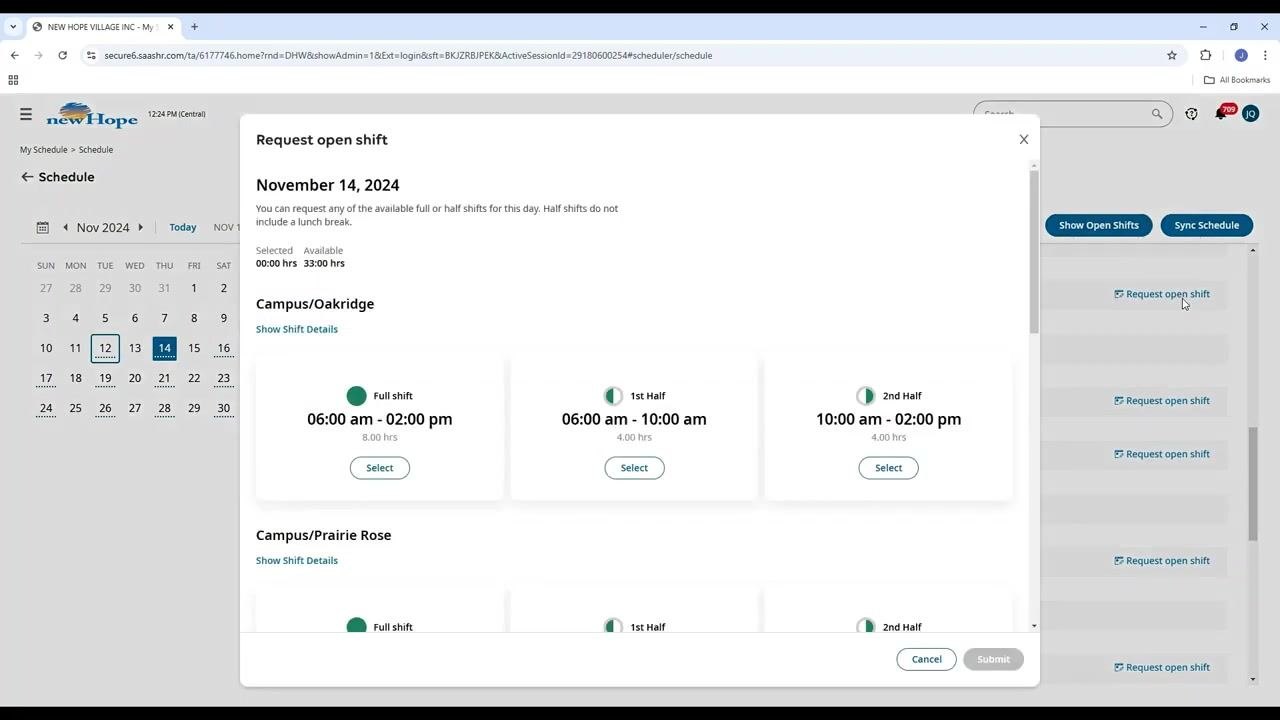
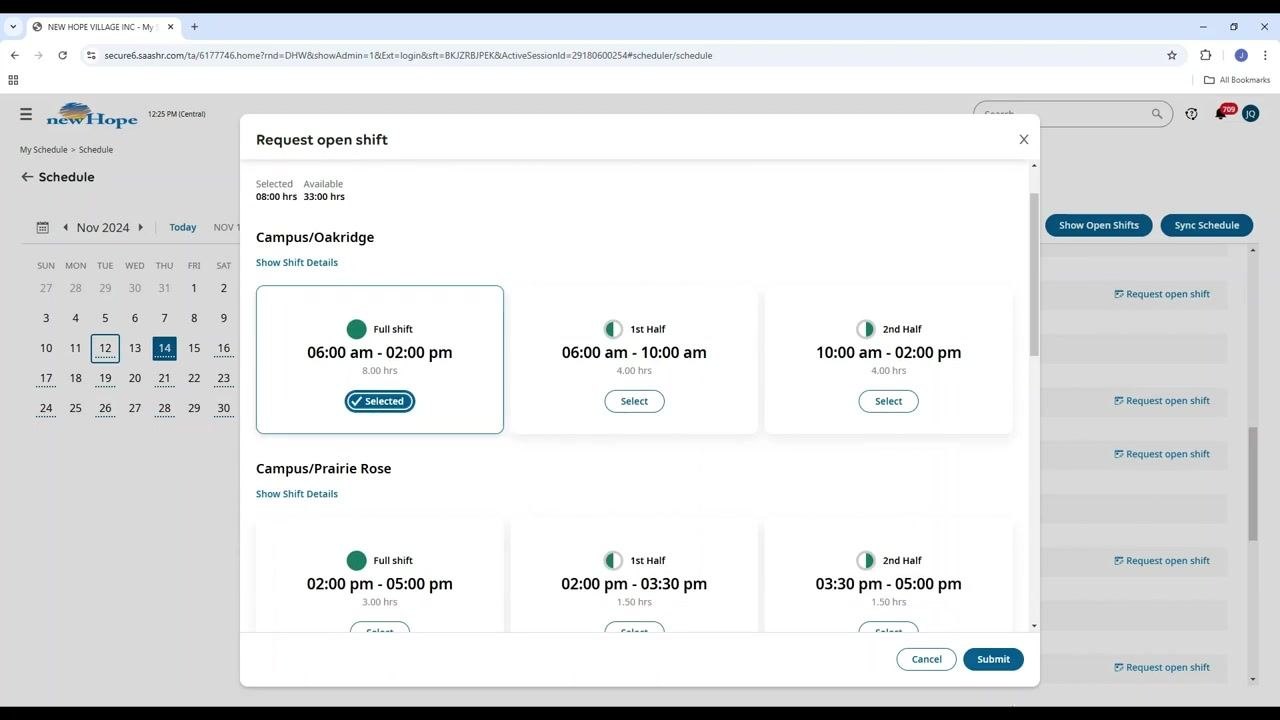
Click Request open shift for the desired day. A pop-up window titled Request open shift appears, listing all available shifts you're eligible to fill for that day. Eligibility is based on your training and qualifications (for example, whether you're kitchen-trained or not).
Review the available shifts
The pop-up may list several shift options, such as:
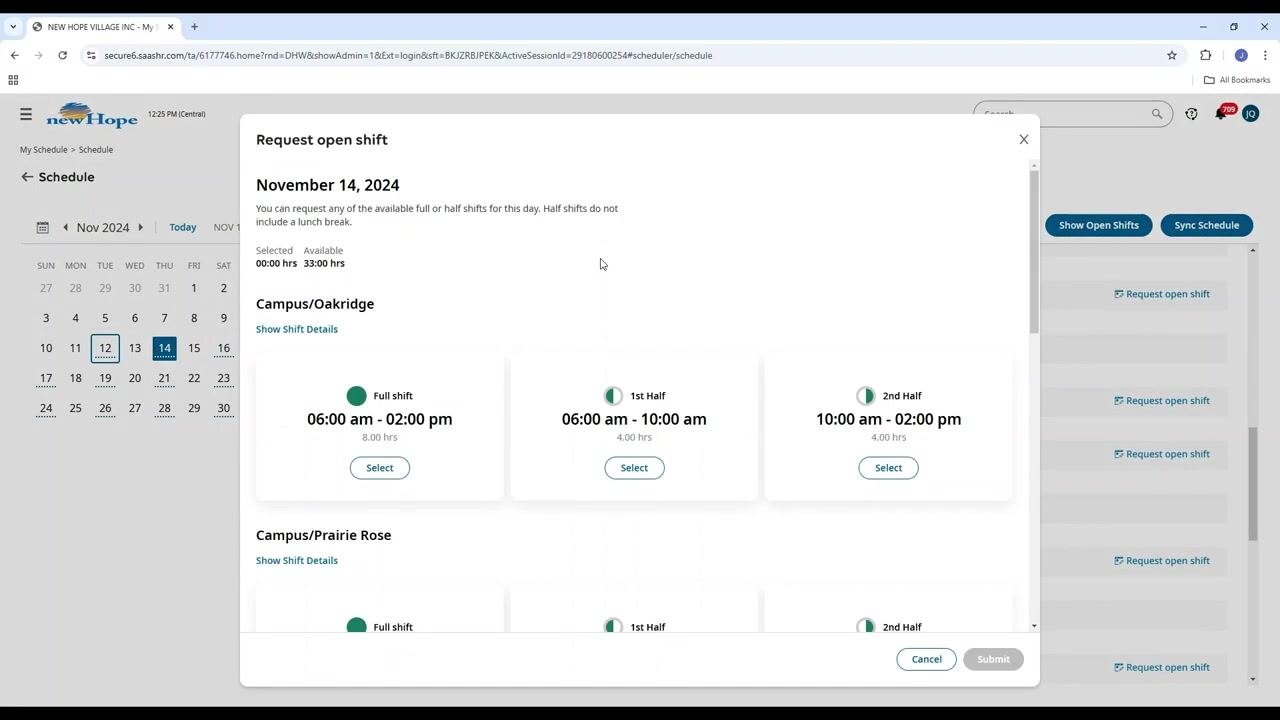
- Full shift (e.g., 06:00 am – 02:00 pm, 8.00 hrs)
- 1st Half (e.g., 06:00 am – 10:00 am, 4.00 hrs)
- 2nd Half (e.g., 10:00 am – 02:00 pm, 4.00 hrs)
If you're kitchen-trained, you'll see both regular and kitchen-trained shifts. If you're not, only non-kitchen-trained shifts will appear.
Select and submit your shift request
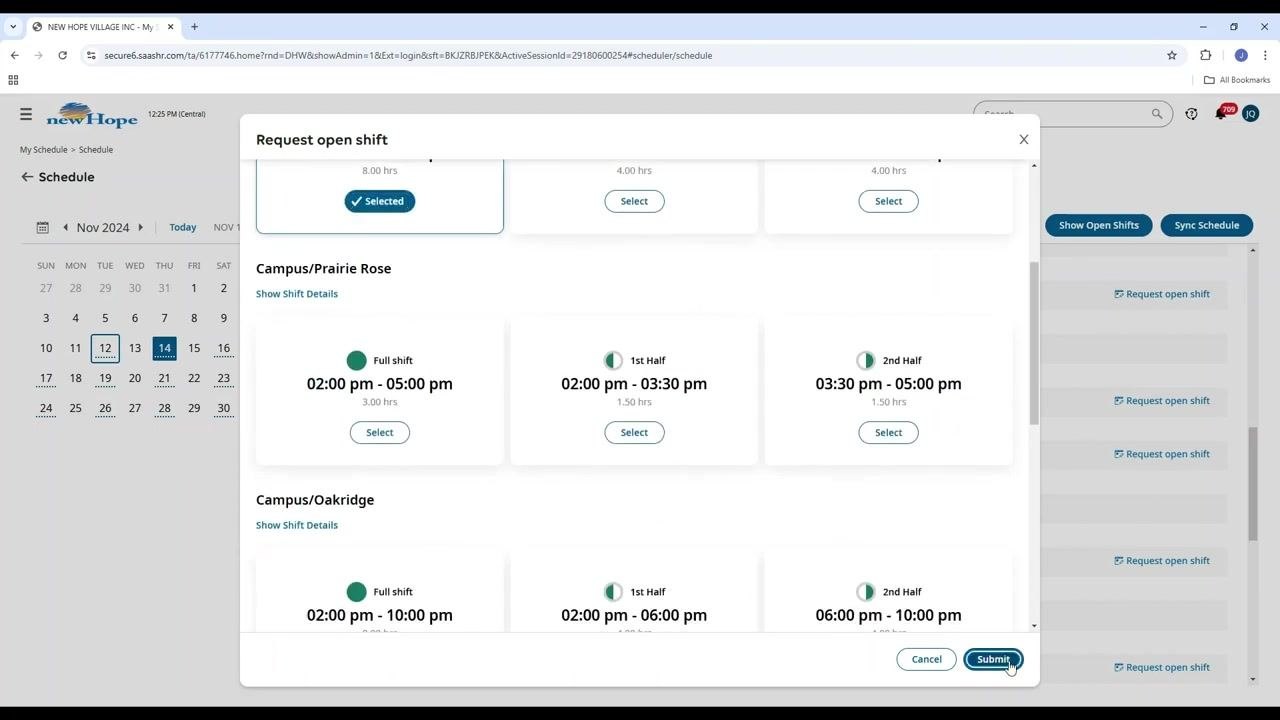
Click Select under the shift you want to request (for example, Full shift: 06:00 am – 02:00 pm, 8.00 hrs). Confirm that the shift is marked as Selected, then click the blue Submit button at the bottom right of the pop-up window. Note that the system may be set to auto-approve shift requests, meaning your request will be processed immediately.
Confirm your request and understand your responsibility
Confirm your submission
After clicking Submit, a confirmation message appears stating "Completed – Open Shift Request submitted successfully." Click OK to close the confirmation message.
Understand your responsibility
Once your request is submitted and approved, the shift is assigned to you, and you become responsible for fulfilling it. If you're unable to work the assigned shift, you must find someone to cover it.
Seek assistance if needed
If you have questions or run into issues, contact your supervisor. Reach out to Andrea Beam or Jen Quigley for help.
Summary
By following these steps, you can successfully request and be assigned to an open shift using the computer version of the UKG scheduling system. Always confirm that you can fulfill any shift you request, and communicate promptly with your supervisor if you need assistance.
Generation details: cost, quality tiers
Docsie billed 1,500 credits ($1.05) to analyze this 3-minute video at standard quality. The rewrite, template fill and Word/PDF exports were included. The same video at each quality tier:
| Quality | Frames sampled | Credits | Approx. cost |
|---|---|---|---|
| Draft | every 16-30 s | 750 | $0.52 |
| Standard (this guide) | every 8-15 s | 1,500 | $1.05 |
| Detailed | every 4-7 s | 3,000 | $2.10 |
| Ultra | every 1-3 s | 6,000 | $4.20 |
Credits priced at $0.70 per 1,000; plans include a monthly allowance. Enterprise customers on on-premise or bring-your-own-model deployments run this on their own inference and pay no per-video credits.
Generated by Docsie Video-to-Docs on 2026-10-19 from a 2-minute video. Screenshots are frames from the source video and belong to their creator, New Hope, whose original is embedded above. If you own this video and want the guide removed or credited differently, contact us and we will act within one business day.